Xen Paravirtualization Setup
This section describes the paravirtualization process, from preparation to running the tools and rebooting into PVM mode.
The paravirtualization tool provides an easy way to convert HVM to PVM and back again. It automates changes to configuration files and XenServer parameter.
This section describes the actual configuration changes on both the Appliance and XenServer in case you need or want to understand the low-level mechanisms involved.
Before you begin
It is recommended that you consult Protegrity Support before using the information in this Technical Reference section to manually change your configurations.
1 - Pre-Conversion Tasks
Before switching from HVM to PVM you should perform a system check, interface check, and system backup.
System Check
The Protegrity software appliance is installed with HVM. This means the appliance operating system does not know that it is running on a hypervisor.
To check the system:
Use the following Linux command to check whether the Linux kernel supports paravirtualization and examine the hypervisor.
If the following message does not appear, then the kernel does not support paravirtualization:
Booting paravirtualized kernel
The rest of the output shows the hypervisor name, for example, Xen. If you are running on a physical hardware, or the hypervisor was not configured to use PVM, then the following output appears:
Interface Check
The conversion tools and tasks assume that the Protegrity Appliance virtual hard disk is using the IDE interface, which is the default interface. Check that the device name used by the Linux Operating System is hda, and not sda or other devices.
System Backup
Switching from HVM to PVM requires changes in many configuration files, so it is very important to back up the system before applying the changes. Use the XenServer snapshot functionality to back up the system.
For more information about the snapshot functionality, refer to the XenServer documentation.
It is also recommended that you back up the appliance data and configuration files using the standard appliance backup mechanisms.
For more information about backing up from CLI Manager, refer here.
Managing local OS user option provides you the ability to create users that need direct OS shell access. These users are allowed to perform non-standard functions, such as schedule remote operations, backup agents, run health monitoring, etc. This option also lets you manage passwords and permissions for the dpsdbuser, which is available by default when ESA is installed.
Managing Local OS Users
This section describes the steps to manage the local OS users.
To manage local OS users:
Navigate to Administration > Accounts and Passwords > Manage Passwords and Local-Accounts > Manage local OS users.
In the dialog displayed, enter the root password and confirm selection.
Add a new user or select an existing user as explained in following steps.
Select Add to create a new local OS user.
In the dialog box displayed, enter a User name and Password for the new user. The & character is not supported in the Username field.
Confirm the password in the required text boxes.
Select OK and press Enter to save the user.
Select an existing user from the list displayed.
- You can select one of the following options from the displayed menu.
| Options | Description | Procedure |
| Check password | Validate entered password. | In the dialog box displayed, enter the password for the local OS user. A Validation succeeded message appears. |
| Update password | Change password for the user. | - In the dialog box displayed, enter the Old password for the local OS user.
This step is optional. - Enter the New Password and confirm it in the required text boxes.
|
| Update shell | Define shell access for the user. | In the dialog box displayed, select one of the following options:- No login access
- Linux Shell -
/bin/sh - Custom
Note: The default shell is set as No login access (/bin/false). |
| Toggle SSH access | Set SSH access for the user. | Select the Toggle SSH access option and press Enter to set SSH access to Yes.Note: The default is set as No when a user is created. |
| Delete user | Delete the local OS user and related home directory. | Select the Delete user option and confirm the selection. |
Select Close to exit the option.
Backup and Restore
If you backed up the OS in HVM/PVM mode, then you will be able to restore only in the mode in which you backed it up. For more information about backing up from the Web UI, refer to section System Backup and Restore.
2 - Paravirtualization Process
There are several tasks you must perform to switch from HVM to PVM.
The following figure shows the overall task flow.

The installed Appliance comes with the Appliance Paravirtualization Support Tool, which is equipped with the following:
- Displays the current paravirtualization status of the appliance.
- Displays Next Boot paravirtualization status of the appliance.
- Converts from HVM to PVM and back again.
- Connects to the XenServer and configures the Xen hypervisor for HVM or PVM.
You can use Appliance Paravirtualization Support Tool to configure the local appliance for PVM.
To start the Appliance Paravirtualization Support Tool:
Access the ESA CLI Manager.
Navigate to Tools > Xen ParaVirtualization screen.
The root permission is required for entering the tool menu.
When you launch the tool, the main screen shows the current system status and provides options for managing virtualization.
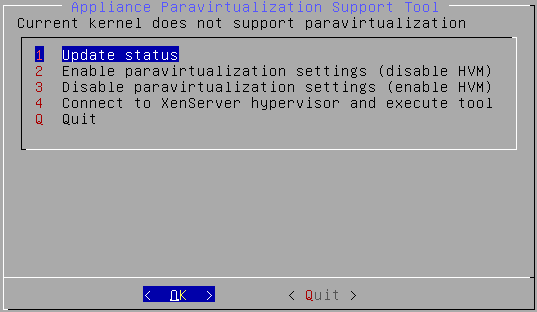
Enabling Paravirtualization
When you convert your appliance to PVM mode, the internal configuration is modified and the Next Boot status changes to support paravirtualization. Both virtual block device and virtual console support is enabled as well.
To enable Paravirtualization:
To enable PVM on the appliance, you need to configure both XenServer and the appliance.
You can configure XenServer in two ways:
- Copy the tool to the XenServer and execute it locally, not using the appliance.
- Execute the commands manually using the
xe command of Xen console.
To configure the local appliance for PVM from the Appliance Paravirtualization Support Tool main screen, select Enable paravirtualization settings.
The status indicators in the Next boot configuration section of the main screen change from Disabled to Enabled.
Configuring Host for PVM
To configure the Host for PVM, you need to have access to the XenServer machine.
Once the local Appliance is configured to use PVM, you connect to the XenServer to run the Xen ParaVirtualization Support Tool. This configures changes on the Xen hypervisor so that it runs in Host PVM mode. You will be asked for a root password upon launching the tool.
The following figure shows the main screen of the Xen Paravirtualization Support Tool.
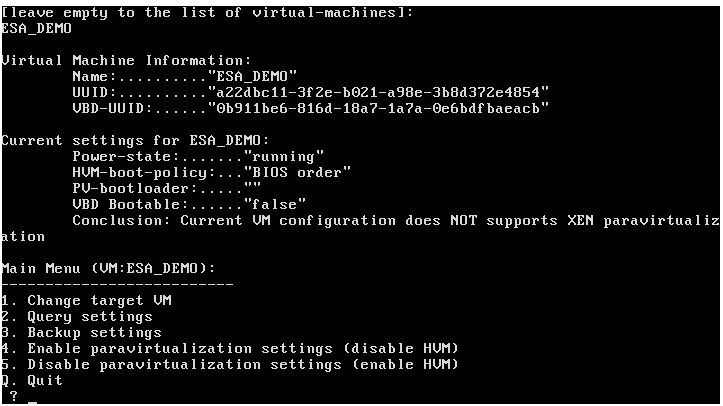
To configure the Host for PVM:
From the Appliance ParaVirtualization Support Tool main screen, select Connect to XenServer hypervisor and execute tool.
Select OK.
The XenServer hypervisor interface appears.
At the prompt, type the IP or host name of the XenServer.
Press ENTER.
At the prompt, type the user name for SCP/SSH connection.
Press ENTER.
At the prompt, type the password to upload the file.
Press ENTER.
The tool is uploaded to the /tmp directory.
At the prompt, type the password to remotely run the tool.
Press ENTER.
An introduction message appears.
At the prompt, type the name of the target virtual machine.
Alternatively, press ENTER to list available virtual machines.
The Xen ParaVirtualization Support Tool Main Screen appears and shows the current virtual machine information and status.
Type 4 to enable paravirtualization settings.
Press ENTER.
The following screen appears.
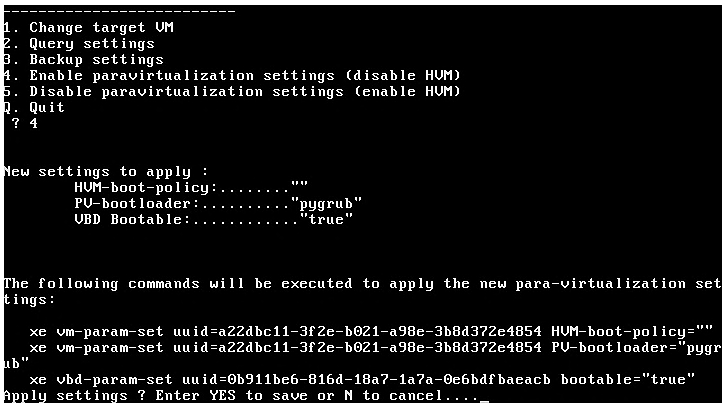
At the prompt, type Y to save the configuration.
Press ENTER.
You can use option 3 to back up the entries that will be modified.
The backup is stored in the /tmp directory on the XenServer machine as a rollback script that can be executed later on to revert the configuration back from PVM to HVM.
Type q to exit the Appliance Paravirtualization Support Tool.
Rebooting the Appliance for PVM
After configuring the appliance and the Host for PVM, the appliance must be restarted. When it restarts, it will come up and run in PVM mode.
Before you begin
Before rebooting the appliance:
Exit both local and remote Paravirtualization tools before rebooting the appliance.
In the PVM, the system might not boot if there are two bootable devices. Be sure to eject any bootable CD/DVD on the guest machine.
If you encounter console issues after reboot, then close the XenCenter and restart a new session.
Booting into System Restore mode
You cannot boot in the System Restore mode when in the Xen Server PVM mode, because it does not show up during appliance launching and appears only if you have previously backed up the OS. However, you can boot in the System Restore mode when in the Xen Server HVM mode.
How to reboot the appliance for PVM
To reboot appliance for PVM:
To reboot the appliance for PVM, navigate to Administration > Reboot and Shutdown > Reboot.
Restart the Appliance Paravirtualization Support Tool and check the main screen to verify the current mode.
Disabling Paravirtualization
To disable Paravirtualization:
To revert the appliance back to HVM, you need to disable paravirtualization on the guest appliance OS and on the XenServer.
To return the appliance to HVM, use the Disable Paravirtualization Settings option, available in the Appliance Paravirtualization Support Tool.
The status indicators in the Next boot configuration section on the main screen change from Enabled to Disabled.
To return the XenServer to HVM, perform one of the following tasks to revert the XenServer configuration to HVM:
| If… | Then… |
|---|
| You backed up the XenServer configuration by creating a rollback script while switching from HVM to PVM, using option 3 on the Xen Paravirtualization Support Tool | Execute the rollback script. |
| You want to use the Xen Paravirtualization Support Tool | Use the Xen Paravirtualization Support Tool to connect to the XenServer, and then type 5 to select Disable paravirtualization Setting (enable HVM). For more information about connecting to the XenServer, refer to section Configure Host for PVM. |
| You want to perform a manual conversion | Manually convert from PVM to HVM. For more information about converting from PVM to HVM, refer to section Manual Configuration of Xen Server. |