This is the multi-page printable view of this section. Click here to print.

Return to the regular view of this page.

Working with Secure Shell (SSH) Keys

Describes the procedure to configure the SSH Keys

The Secure Shell (SSH) is a network protocol that ensures an secure communication over unsecured network. A user connects to the SSH server using the SSH Client. The SSH protocol is comprised of a suite of utilities which provides high-level authentication encryption over unsecured communication channels.

A typical SSH setup consists of a host machine and a remote machine. A key pair is required to connect to the host machine through any remote machine. A key pair consists of a Public key and a Private key. The key pair allows the host machine to securely connect to the remote machine without entering a password for authentication.

For enhancing security, a Private key is secured using a passphrase. This ensures that only the rightful recipient can have access to the decrypted data. You can either generate key pairs or work with existing key pairs.

If you add a Private key without a passphrase, it is encrypted with a random passphrase. This passphrase is scrambled and stored.

If you choose a Private key with a passphrase, then the Private key is stored as it is. This passphrase is scrambled and stored.

For more information about generating the SSH key pairs, refer Adding a New Key.

The SSH protocol allows an authorized user to connect to the host machines from the remote machines. Both inbound communication and outbound communication are supported using the SSH protocol. An authorized user is a combination of an appliance user associated with a valid key pair. An authorized user must be listed as a valid recipient to connect using the SSH protocol.

The SSH protocol allows the authorized users to run tasks securely on the remote machine. When the users connect to the appliance using the SSH protocol, then the communication is known as inbound communication.

For more information about inbound SSH configuration, refer here.

When the users connect to a known host using their private keys, then the communication is known as outbound communication. The authorized users are allowed to initiate the SSH communication from the host.

For more information about outbound SSH configuration, refer here.

On the ESA Web UI, you can configure all the following standard aspects of SSH:

  • Authorized Keys
  • Identities Keys
  • Known Hosts

SSH pane:
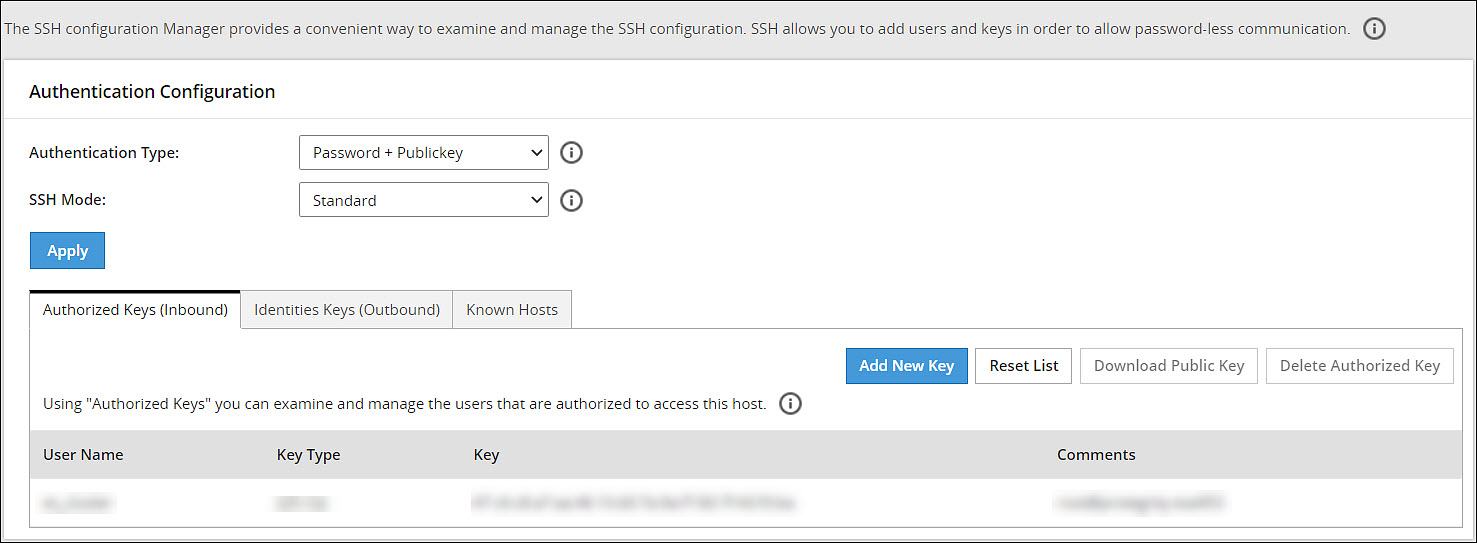
With the SSH configuration Manager you can examine and manage the SSH configuration. The SSH keys can be configured in the Authentication Configuration pane on the ESA Web UI.

The following figure shows the SSH Configuration Manager pane.
SSH Configuration Manager

Authentication Type:
The SSH Server is configured in the following three ways:

  • Password
  • Public Key
  • Password + publickey
Authentication TypeDescription
PasswordIn this authentication type, only the password is required for authentication to the SSH server. The public key is not required on the server for authentication.
Public KeyIn this authentication type, the server requires only the public key for authentication. The password is not required for authentication.
Password + Public keyIn this authentication type, the server can accept both, the keys and the password, for authentication.

SSH Mode:

From the Web UI, navigate to Settings > Network > SSH. Using the SSH mode, restrictions for SSH connections can be set. The restrictions can be hardened or loosened based on the needs. There are four modes SSH mode types are shown below.

ModeSSH ServerSSH Client
ParanoidDisable root accessDisable password authentication, that is, allow to connect only using public keys. Block connections to unknown hosts.
StandardDisable root accessAllow password authentication. Allow connections to new (unknown) hosts, enforce SSH fingerprint of known hosts.
OpenAllow root access Accept connections using passwords and public keys.Allow password authentication. Allow connection to all hosts – do not check hosts fingerprints.

1 - Configuring the authentication type for SSH keys

Describes the procedure to configure the authentication type for SSH Keys

Perform the following steps to configure the SSH Key Authentication Type.

  1. From the ESA Web UI, navigate to Settings > Network.
    The Network Settings pane appears.

  2. Select the SSH tab.
    The SSH Configuration Manager pane appears.

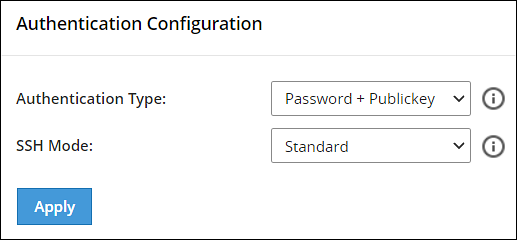
  3. Select the authentication type from the Authentication Type drop down menu.

    Authentication Configuration

  4. Select the SSH mode from the SSH Mode drop down menu.

  5. Click Apply.
    A message Configuration saved successfully appears.

2 - Configuring inbound communications

Describes the procedure to configure the inbound communication for SSH Keys

The users who are allowed to connect to the ESA using SSH are listed in the Authorized Keys (Inbound) tab.

The following screen shows the Authorized Keys.

Authorized Keys (Inbound)

Adding a New Key

An authorized key has to be created for a user or a machine to connect to an ESA on the host machine.

Perform the following steps to add a new key.

  1. From the ESA Web UI, navigate to Settings > Network.
    The Network Settings pane appears

  2. Select the SSH tab.
    The SSH Configuration Manager pane appears.

  3. Select the Authorized Keys (Inbound) tab.

  4. Click Add New Key.
    The Add New Authorized Key dialog box appears.

  5. Select a user.

  6. Select Generate new public key.

  7. The Root password is required to create Authorized Key prompt appears. Enter the root password and click Ok.

  8. If the private key is to be saved, then select Click To Download Private Key.
    The private key is saved to the local machine.

  9. If the public key is to be saved, then select Click To Download Public Key.
    The public key is saved to the local machine.

  10. Click Finish.
    The new authorized key is added.

Uploading a Key

You can assign a public key to a user by uploading the key from the Web UI.

Perform the following steps to upload a key.

  1. From the ESA Web UI, navigate to Settings > Network.
    The Network Settings pane appears.

  2. Select the SSH tab.
    The SSH Configuration Manager pane appears.

  3. Select the Authorized Keys (Inbound) tab.

  4. Click Add New Key.
    The Add New Authorized Key dialog box appears.

  5. Select a user.

  6. Select Upload public key.
    The file browser dialog box appears.

  7. Select a public key file.

  8. Click Open.

  9. The Root password is required to create Authorized Key prompt appears. Enter the root password and click Ok.
    The key is assigned to the user.

Reusing public keys between users

The public key of one user can be assigned as a public key of another user.

Perform the following steps to upload an existing key.

  1. From the ESA Web UI, navigate to Settings > Network.
    The Network Settings pane appears.

  2. Select the SSH tab.
    The SSH Configuration Manager pane appears.

  3. Select the Authorized Keys (Inbound) tab.

  4. Click Add New Key.
    The Add New Authorized Key dialog box appears.

  5. Select a user.

  6. Select Choose from existing keys.

  7. Select the public key.

  8. The Root password is required to create Authorized Key prompt appears. Enter the root password and click Ok.
    The public key is assigned to the user.

Downloading a Public Key

From the Web UI, you can download the public of a user to the local machine.

Perform the following steps to download a key.

  1. From the ESA Web UI, navigate to Settings > Network.
    The Network Settings pane appears.

  2. Select the SSH tab.
    The SSH Configuration Manager pane appears.

  3. Select the Authorized Keys (Inbound) tab.

  4. Select a user.

  5. Select Download Public Key.
    The public key is saved to the local directory.

Deleting an Authorized Key

You can remove a key from the authorized users list. Once the key is removed from the list, the remote machine will no longer be able to connect to the host machine.

Perform the following steps to delete an authorized key:

  1. From the ESA Web UI, navigate to Settings > Network.
    The Network Settings pane appears

  2. Select the SSH tab.
    The SSH Configuration Manager pane appears.

  3. Select the Authorized Keys (Inbound) tab.

  4. Select a user.

  5. Select Delete Authorized Key.
    A message confirming the deletion appears.

  6. Click Yes.

  7. The Root password is required to delete Authorized Key prompt appears. Enter the root password and click Ok.
    The key is deleted from the authorized keys list.

Clearing all Authorized Keys

You can remove all the public keys from the authorized keys list.

Perform the following steps to clear all keys:

  1. From the ESA Web UI, navigate to Settings > Network.
    The Network Settings pane appears.

  2. Select the SSH tab.
    The SSH Configuration Manager pane appears.

  3. Select the Authorized Keys (Inbound) tab.

  4. Click Reset List.
    A message confirming the deletion of all authorized keys appears.

  5. Click Yes.

  6. The Root password is required to delete all Authorized Keys prompt appears. Enter the root password and click Ok.
    All the keys are deleted.

3 - Configuring outbound communications

Describes the procedure to configure the outbound communication for SSH Keys

The users who can connect to the known hosts with their private keys are listed in the Identities Keys (Outbound) tab.

The following screen shows the Identities.

Identities (Outbound)

Adding a New Key

A new public key can be generated for the host machine to connect with another machine.

Perform the following steps to add a new key.

  1. From the ESA Web UI, navigate to Settings > Network.
    The Network Settings pane appears.

  2. Select the SSH tab.
    The SSH Configuration Manager pane appears.

  3. Select the Identities Keys (Outbound) tab.

  4. Click Add New Key.
    The Add New Identity Key dialog box appears.

  5. Select a user.

  6. Select Generate new keys.

  7. The Root password is required to create Identity Key prompt appears. Enter the root password and click Ok.

  8. If the public key is to be saved, then select Click to Download Public Key .
    The public key is saved to the local machine.

  9. Click Finish.
    The new authorized key is added.

Downloading a Public Key

You can download the host’s public key from the Web UI.

Perform the following steps to download a key.

  1. From the ESA Web UI, navigate to Settings > Network.
    The Network Settings pane appears.

  2. Select the SSH tab.
    The SSH Configuration Manager pane appears.

  3. Select the Identities Keys (Outbound) tab.

  4. Select a user.

  5. Select Download Public Key.
    The public key is saved to the local machine.

Uploading Keys

Perform the following steps to upload an existing key.

  1. From the ESA Web UI, navigate to Settings > Network.
    The Network Settings pane appears.

  2. Select the SSH tab.
    The SSH Configuration Manager pane appears.

  3. Select the Identities Keys (Outbound) tab.

  4. Click Add New Key.
    The Add New Identity Key dialog box appears.

  5. Select a user.

  6. Select Upload Keys.
    The list of public keys with the users that they are assigned to appears.

  7. Select Upload Public Key.
    The file browser dialog box appears.

  8. Select a public key file from your local machine.

  9. Click Open.
    The public key is assigned to the user.

  10. Select Upload Private Key.
    The file browser dialog box appears.

  11. Select a private key file from your local machine.

  12. Click Open.

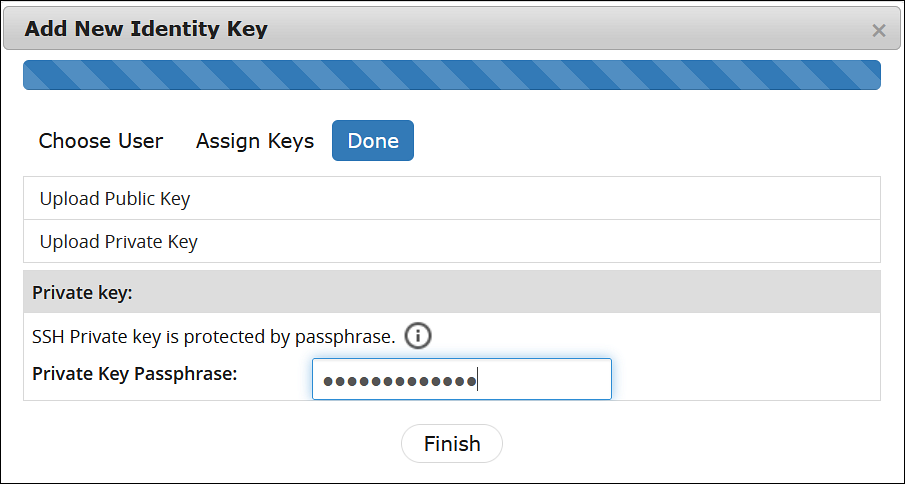
  13. If the private key is protected by a passphrase, then the text field Private Key Passphrase appears.
    Enter the private key passphrase.

SSH Passphrase

  1. Click Finish.
    The new identity key is added.

Reusing public keys between users

The public and private key pair of one user can assigned as a public and private key pair of another user.

Perform the following steps to choose from an existing key.

  1. From the ESA Web UI, navigate to Settings > Network.
    The Network Settings pane appears.

  2. Select the SSH tab.
    The SSH Configuration Manager pane appears.

  3. Select the Identities Keys (Outbound) tab.

  4. Click Add New Key.
    The Add New Identity Key dialog box appears.

  5. Select a user.

  6. Select Choose from existing keys.

  7. Select the public key.

  8. The Root password is required to create Identity Key prompt appears. Enter the root password and click Ok.
    The public key is assigned to the user.

Deleting an Identity

You can delete an identity for a user. Once the identity is removed, the user will no longer be able to connect to another machine.

Perform the following steps to delete an identity:

  1. From the ESA Web UI, navigate to Settings > Network.
    The Network Settings pane appears.

  2. Select the SSH tab.
    The SSH Configuration Manager pane appears.

  3. Select the Identities Keys (Outbound) tab.

  4. Select a user.

  5. Click Delete Identity.
    A message confirming the deletion appears.

  6. Click Yes.

  7. The Root password is required to delete the Identity Key prompt appears. Enter the root password and click Ok.
    The identity is deleted.

Clearing all Identities

You can remove all the public keys from the authorized keys list.

Perform the following steps to clear all identities.

  1. From the ESA Web UI, navigate to Settings > Network.
    The Network Settings pane appears.

  2. Select the SSH tab.
    The SSH Configuration Manager pane appears.

  3. Select the Identities Keys (Outbound) tab.

  4. Click Reset Identity List.
    A message confirming the deletion of all identities appears.

  5. Click Yes.

  6. The Root password is required to delete all Identity Keys prompt appears. Enter the root password and click Ok.
    All the identities are deleted.

4 - Configuring known hosts

Describes the procedure to configure the known hosts for SSH Keys

By default, the SSH is configured to deny all the communications to unknown remote servers. Known hosts list the machines or nodes to which the host machine can connect to. The SSH servers to which the host can communicate with are added under Known Hosts.

Adding a New Host

You can add a host to the list of known hosts that can have a connection established.

Perform the following steps to add a host.

  1. From the ESA Web UI, navigate to Settings > Network.
    The Network Settings pane appears.

  2. Select the SSH tab.
    The SSH Configuration Manager pane appears.

  3. Select the Known Hosts tab.

  4. Click Add Host.
    The Enter the ip/hostname dialog box appears.

  5. Enter the IP address or hostname in the Enter the ip/hostname text box.

  6. Click Ok.
    All host is added to the known hosts list.

Updating the Host Keys

You can refresh the hostnames to check for updates to host’s public keys.

Perform the following steps to updated a host key.

  1. From the ESA Web UI, navigate to Settings > Network.
    The Network Settings pane appears.

  2. Select the SSH tab.
    The SSH Configuration Manager pane appears.

  3. Select the Known Hosts tab.

  4. Select a host name.

  5. Click Refresh Host Key.
    The key for the host name is updated.

Deleting a Host

If a connection to a host is no longer required, then you can delete the host from the known host list.

Perform the following steps to delete a known host.

  1. From the ESA Web UI, navigate to Settings > Network.
    The Network Settings pane appears.

  2. Select the SSH tab.
    The SSH Configuration Manager pane appears.

  3. Select the Known Hosts tab.

  4. Select a host name.

  5. Click Delete Host.
    A message confirming the deletion appears.

  6. Click Yes.
    The host is deleted.

Resetting the Host Keys

You can set the keys of all the hosts to a default value.

Perform the following steps to reset all the host keys:

  1. From the ESA Web UI, navigate to Settings > Network.
    The Network Settings pane appears.

  2. Select the SSH tab.
    The SSH Configuration Manager pane appears.

  3. Select the Known Hosts tab.

  4. Select Reset Host Keys.
    A message confirming the reset appears.

  5. Click Yes.
    The host keys for all the hostnames is set to a default value.