Certificate Management in ESA
Provides information about how the certificates are managed in ESA.
When ESA is installed, it generates default self-signed certificates in X.509 v3 PEM format. These certificates are:
- CA Certificate – This consists of the CA.pem and CA.key file.
- Server Certificate - This consists of the server.pem and server.key file.
- Client Certificate - This consists of the client.pem and client.key file.
The services that use and manage these certificates are:
- Management – It is the service which manages certificate based communication and authentication between ESA and its internal components like LDAP, Appliance queue, protectors, etc.
- Web Services – It is the service which manages certificate based communication and authentication between ESA and external clients (REST).
- Consul – It is the service that manages certificates between the Consul server and the Consul client.
ESA provides a certificate manager where you can manage the default certificates and also upload your own CA-signed certificates. This manager comprises of two components which are as follows:
- Certificate Repository
- Manage Certificates
Note: When creating a CA-signed client certificate which you want use in ESA, it is mandatory that you keep the CN attribute of the client certificate to be “Protegrity Client".
If there are CA cross-sign certificates with the AddTrust legacy, then you must upload the active intermediate certificates from the Manage Certificates page. If the expired certificates are present in the certificate chain, then it might lead to failures.
For more information about upload the updated certificates, refer to the section Changing Certificates.
For more information about the CA cross-sign certificates with the AddTrust legacy, refer to https://support.sectigo.com/articles/Knowledge/Sectigo-AddTrust-External-CA-Root-Expiring-May-30-2020.
If other attributes, such as email address or name, are appended to the CN attribute, then you perform the following steps to set the CN attribute to Protegrity Client.
For example, if the CN attribute is set as Protegrity Client/emailAddress=user@abc.com, then the attributes appended after the / delimiter must be removed.
In the ESA Web UI, click the Terminal Icon in lower right corner to navigate to the ESA CLI Manager.
In the ESA CLI Manager, navigate to Administration > OS Console
Open the pty_get_username_from_certificate.py file using a text editor.
/etc/ksa/pty_get_username_from_certificate.py
Comment the line containing the CN attribute and enter the following regular expression:
REG_EX_GET_VAL_AFTER_CN = "CN=(.*?)\/"
Save the changes.
Navigate to Administration > Services
Restart the Service Dispatcher service.
1 - Certificate Repository
The certificate repository is a store or repository where ESA stores all the certificates. It gives you the capability to upload certificates to the repository. It also allows you to upload Certificate Revocation List (CRL).
A Certificate Revocation List (CRL) is a list containing entries of digital certificates that are no longer trusted as they are revoked by the issuing Certificate Authority (CA). The digital certificates can be revoked for one of the following possible reasons:
- The certificate is expired.
- The certificate is compromised.
- The certificate is lost.
- The certificate is breached.
CRLs are used to avoid the usage of certificates that are revoked and are used at various endpoints including the web browsers. When a browser makes a connection to a site, the identity of the site owner is checked using the server’s digital certificate. Also, the validity of the digital certificate is verified by checking whether the digital certificate is not listed in the Certificate Revocation List. If the certificate entry is present in this list, then the authentication for that revoked certificate fails.
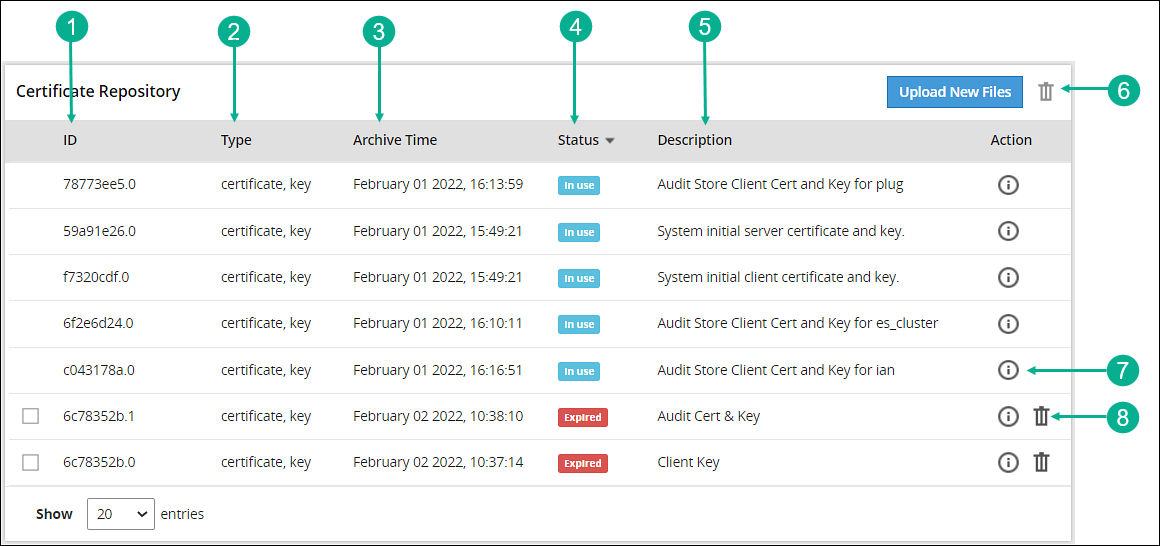
The Certificate Repository screen is accessible from the ESA Web UI, navigate to Settings > Network > Certificate Repository. The following figure and table provides the details about the Certificate Repository screen.
| Callout | Action | Description |
|---|
| 1 | ID | ESA generated ID for the certificate and key file. |
| 2 | Type | Specifies the type of the file i.e. certificate, key, or CRL. |
| 3 | Archive time | It is the timestamp when the certificate was uploaded to the certificate repository. |
| 4 | Status | This column shows the status of the certificate in the Certificate Repository, which can be:- In use - When you hover over this status, it displays the function or the system services (Management or Web Services) using the certificates.
- expired – The certificate is expired.
- expires in – days – The number of days left for the certificate to expire.
|
| 5 | Description | Displays the description given by the user when the certificate is uploaded to Certificate Repository. It is recommended to provide a meaningful description while uploading a certificate. |
| 6 |  Delete Delete | Allows you to delete multiple selected certificates or CRLs from the Certificate Repository.
Note: Only expired certificates or CRLs can be deleted. |
| 7 |  Information Information | Provides additional information or details about a certificate and its private key (if uploaded). |
| 8 | Delete | Allows you to delete the certificate or CRL from the Certificate Repository.
Note: Only expired certificates or CRLs can be deleted. |
2 - Uploading Certificates
Describes how to upload certificates through the Certificate Repository screen.
To upload certificates:
On the ESA Web UI, navigate to Settings > Network > Certificate Repository.
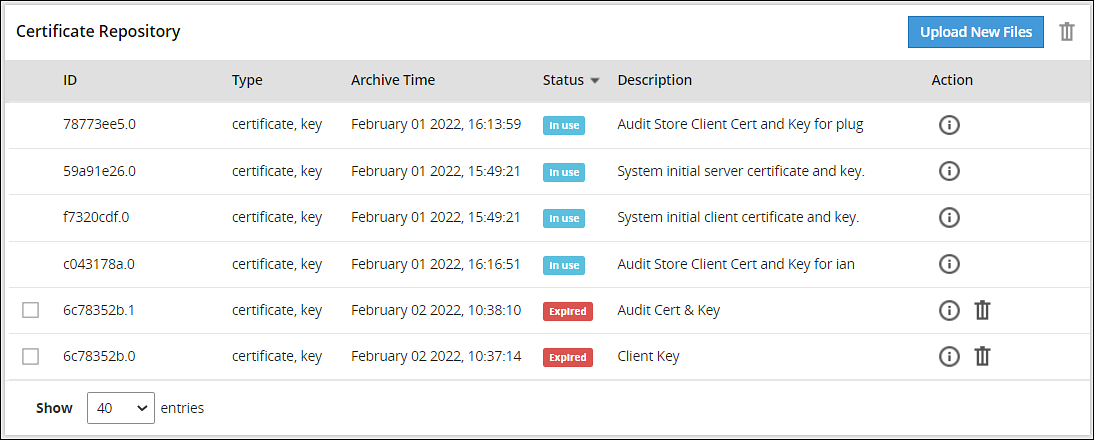
Click Upload New Files.
The Upload new file to repository dialog box appears.
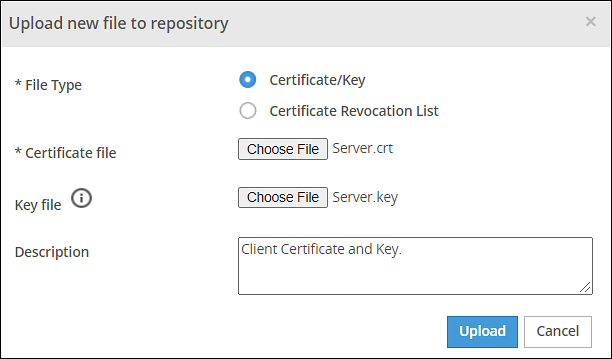
Click Certificate/Key to upload a certificate file and a private key file.
CAUTION: Certificates have a public and private key. The public key is mentioned in the certificate and as a best practice the private key is maintained as a separate file. In ESA, you can upload either the certificate file or both certificate and private key file together. In ESA Certificate Repository, it is mandatory to upload the certificate file.
CAUTION: If the private key file is inside the certificate, then you have the option to upload just the Certificate file. The DSKs are identified using the UID column that displays the Key Id.
> **Note:** It is recommended to use private key with a length of 4096-bit.
Click Choose File to select both certificate and key files.
Enter the required description in the Description text box.
Click Upload.
CAUTION: If the private key is encrypted, a prompt to enter the passphrase will be displayed.
The certificate and the key file is saved in repository and the Certificate Repository screen is updated with the details.
When you upload a private key that is protected with a passphrase, the key and the passphrase are stored in the hard disk. The passphrase is stored in an encrypted form using a secure algorithm. The passphrase and the private key are also stored in the system memory. The services, such as Apache, RabbitMQ, or LDAP, access this system memory to load the certificates.
If you upload a private key that does not have a passphrase, the key is stored in the system memory. The services, such as Apache, RabbitMQ, or LDAP access the system memory to load the certificates.
If you are using a proxy server to connect to the Internet, ensure that you upload the required custom certificates of that server in ESA from the Certificate Repository screen.
3 - Uploading Certificate Revocation List
An example to create a Certificate Revocation List (CRL). Explains the steps to upload the CRL through the Certificate Repository screen.
Creating a CRL - An Example
To create a CRL:
In the CLI Manager, navigate to Administration > OS Console.
Run the following command to revoke a client certificate:
openssl ca -config demoCA/newcerts/openssl.cnf -revoke Client.crt -keyfile CA.key -cert CA.crt
Run the following command to generate a CRL:
openssl ca -config demoCA/newcerts/openssl.cnf -gencrl -keyfile CA.key -cert CA.crt -out Client.crl
Uploading the CRL
To upload CRL:
On the ESA Web UI, navigate to Settings > Network > Certificate Repository .
Click Upload New Files.
The Upload new file to repository dialog box appears.
Click Certificate Revocation List to upload a CRL file.
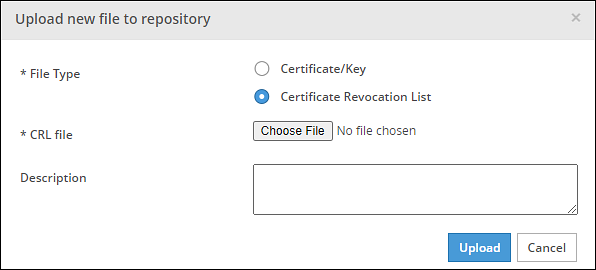
Click Choose File to select a CRL file.
Enter the required description in the Description text box.
Click Upload.
A confirmation message appears and the CRL is uploaded to the ESA.
4 - Manage Certificates
The Manage Certificates module is used to select the certificates that you want to make active and have ESA use them for its communication with various internal components. It allows you to select the certificate revocation list that you want activated.
On the ESA Web UI, navigate to Settings > Network > Manage Certificates.
The following figure and table provides the actions available from the Manage Certificates screen.
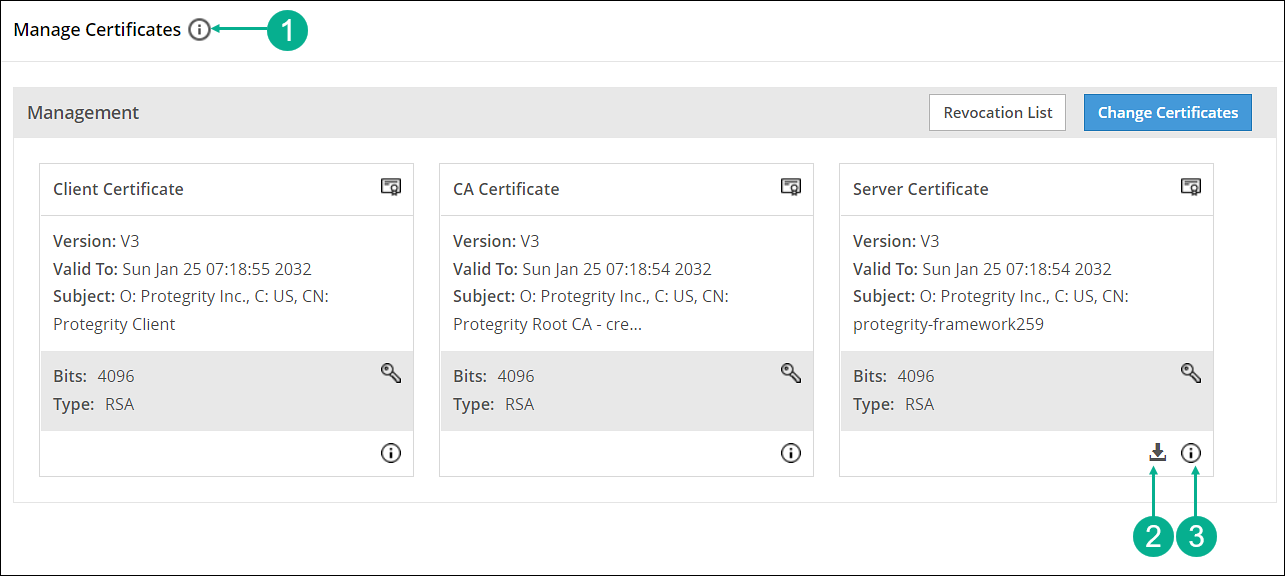
| Callout | Action | Description |
|---|
| 1 | Hover over the Help icon | Gives information about Management and Web Services groups. |
| 2 | Download server’s CA certificate | Download the server’s CA certificate. You can download only the server’s CA certificate and upload it to another certificate trust store to trust the server certificate for communication with ESA. |
| 3 | Hover over the icon | Gives additional information or details about a certificate. |
5 - Changing Certificates
Describes how to change certificates through the Manage Certificates screen.
To change certificates:
On the ESA Web UI, navigate to Settings > Network > Manage Certificates.
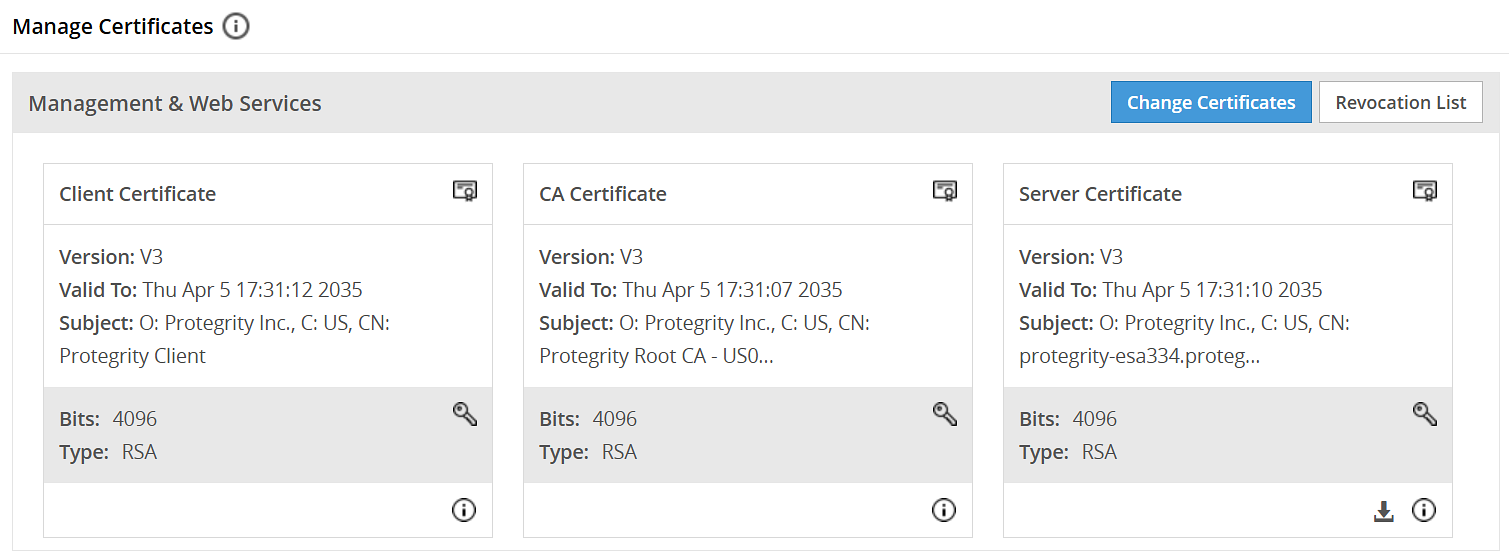
Click Change Certificates.
The Certificate Management wizard appears with CA certificate(s) section.
Select the check box next to the CA Certificate that you want to set as active.
CAUTION: This section shows server, client, and CA certificates together. However, ensure that you select only the required certificates in their respective screens. You can select multiple CA certificates for ESA Management and Web Services section. ESA allows you to have only one server and one client active at any given time.
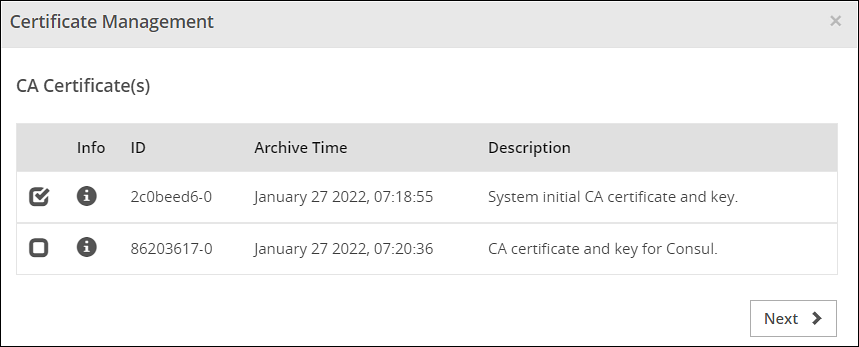
Click Next.
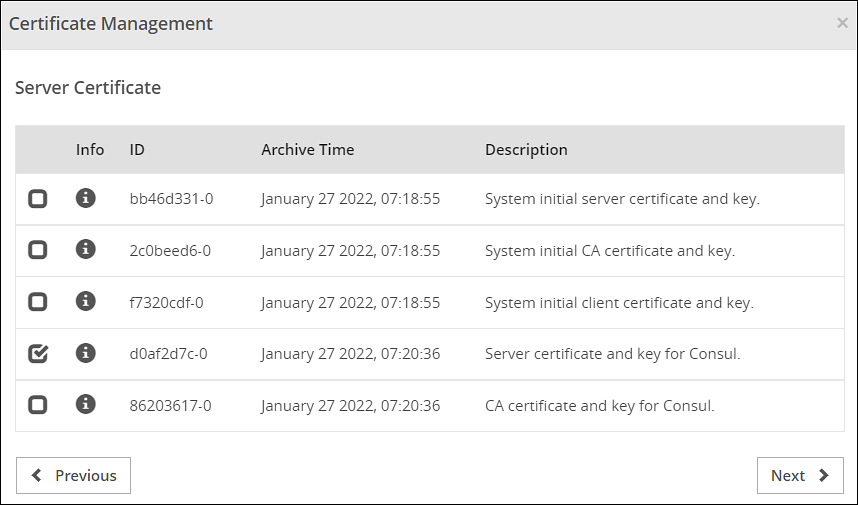
The Server Certificate section appears.
Select the check box next to the Server Certificate that you want to set as active.
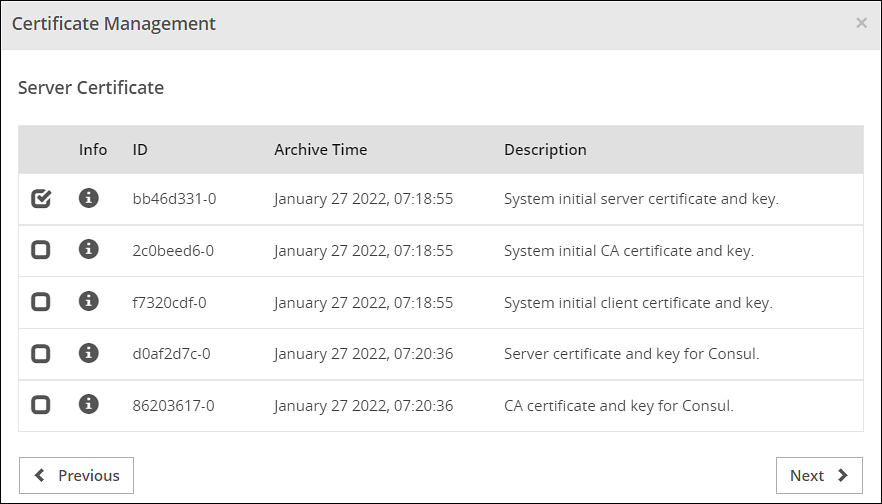
Click Next.
The Client Certificate section appears
Select the check box next to the Client Certificate that you want to set as active.
Click Apply.
The following message appears:
The system Management Certificates will be changed and a re-login maybe required. Do you want to continue?
Click Yes.
A confirmation message appears and the active certificates are displayed on the screen.
CAUTION: When you upload a server certificate to the ESA and activate it, you are logged out of the ESA Web UI. This happens because the browser does not trust the new CA signed server certificate. You must login again for the browser to get the new server certificate and to use it for all further communications.
6 - Changing CRL
Describes how to change the CRL through the Manage Certificates screen.
To change CRL:
On the ESA Web UI, navigate to Settings > Network > Manage Certificates.
Click Revocation List.
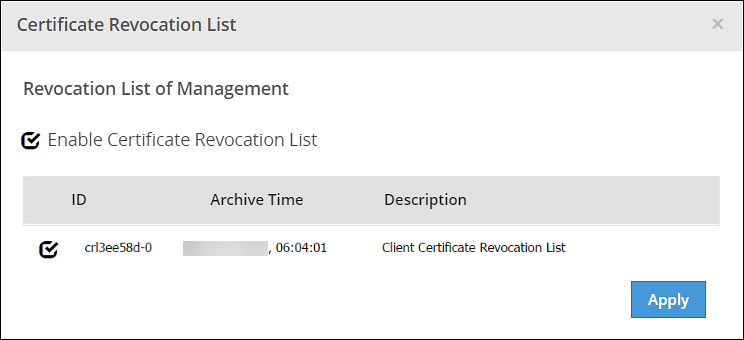
The Certificate Revocation List dialog box appears.
Select the Enable Certificate Revocation List check box.
Select the check box next to the CRL file that you want to set as active.
Click Apply.
A confirmation message appears.