This is the multi-page printable view of this section. Click here to print.
Configuration
- 1: Sending logs to an external security information and event management (SIEM)
- 2: Configuring a Trusted Appliance Cluster \(TAC\) without Consul Integration
- 3: Configuring the IP Address for the Docker Interface
- 4: Configuring ESA features
- 4.1: Rotating Insight certificates
- 4.2: Updating the IP address of the ESA
- 4.3: Updating the host name or domain name of the ESA
- 4.4: Updating Insight custom certificates
- 4.5: Removing an ESA from the Audit Store cluster
- 5: Identifying the protector version
1 - Sending logs to an external security information and event management (SIEM)
This is an optional step.
The following options are available for forwarding logs from the Protector:
- The default setup, that is, ESA.
- Sending logs to the ESA and a SIEM.
In addition to the ESA or the ESA and a SIEM, logs can be sent to the Amazon CloudWatch. For more information about configuring Amazon CloudWatch, refer to Working with CloudWatch Console.
In the default setup, the logs are sent from the protectors directly to the Audit Store on the ESA using the Log Forwarder on the protector.
For more information about the default flow, refer Logging architecture.
To forward logs to the ESA and the external SIEM, the td-agent is configured to listen for protector logs. The protectors are configured to send the logs to the td-agent on the ESA. Finally, the td-agent is configured to forward the logs to the required locations.
Ensure that the logs are sent to the ESA and the external SIEM using the steps provided in this section. The logs sent to the ESA are required by Protegrity support for troubleshooting the system in case of any issues. Also, ensure that the ESA hostname specified in the configuration files are updated when the hostname of the ESA is changed.
An overview architecture diagram for sending logs to Insight and the external SIEM is shown in the following figure.
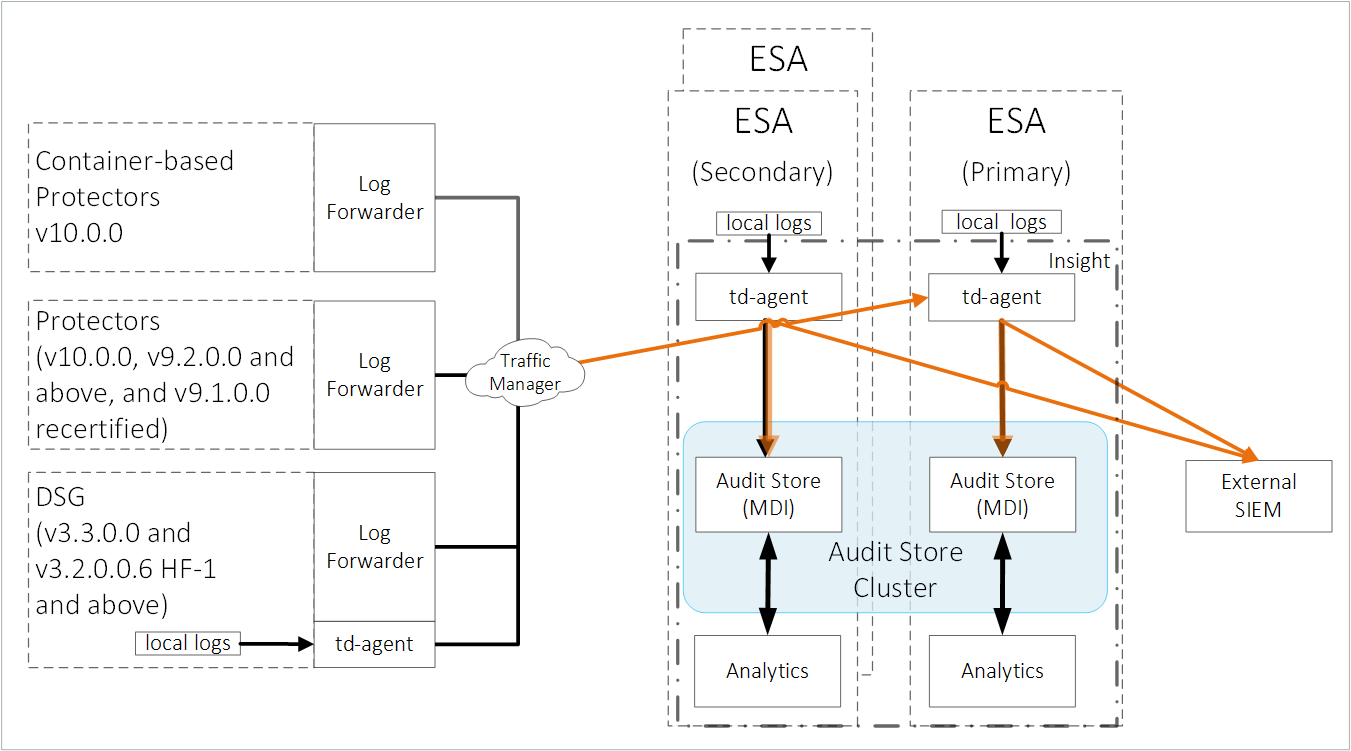
The ESA v10.0.1 only supports protectors having the PEP server version 1.2.2+42 and later.
Forward the logs generated on the protector to Insight and the external SIEM using the following steps. Ensure that all the steps are completed in the order specified.
Set up td-agent to receive protector logs.
Send the protector logs to the td-agent.
Configure td-agent to forward logs to the external endpoint.
1. Setting up td-agent to receive protector logs
Configure the td-agent to listen to logs from the protectors and to forward the logs received to Insight.
To configure td-agent:
Add the port 24284 to the rule list on the ESA. This port is configured for the ESA to receives the protector logs over a secure connection.
For more information about adding rules, refer Adding a New Rule with the Predefined List of Functionality.
Log in to the CLI Manager of the Primary ESA.
Navigate to Networking > Network Firewall.
Enter the password for the root user.
Select Add New Rule and select Choose.
Select Accept and select Next.
Select Manually.
Select TCP and select Next.
Specify 24284 for the port and select Next.
Select Any and select Next.
Select Any and select Next.
Specify a description for the rule and select Confirm.
Select OK.
Open the OS Console on the Primary ESA.
Log in to the CLI Manager of the Primary ESA.
Navigate to Administration > OS Console.
Enter the root password and select OK.
Enable td-agent to receive logs from the protector.
Navigate to the config.d directory using the following command.
cd /opt/protegrity/td-agent/config.dEnable the INPUT_forward_external.conf file using the following command. Ensure that the certificates exist in the directory that is specified in the INPUT_forward_external.conf file. If an IP address or host name is specified for the bind parameter in the file, then ensure that the certificates are updated to match the host name or IP address specified.
mv INPUT_forward_external.conf.disabled INPUT_forward_external.conf
Optional: Update the configuration settings to improve the SSL/TLS server configuration on the system.
Navigate to the config.d directory using the following command.
cd /opt/protegrity/td-agent/config.dOpen the INPUT_forward_external.conf file using a text editor.
Add the list of ciphers to the file. Update and use the ciphers that are required. Enter the entire line of code on a single line and retain the formatting of the file.
<source>
  @type forward
  bind <Hostname of the Primary ESA>
  port 24284
  <transport tls>
    ca_path           /mnt/ramdisk/certificates/mng/CA.pem
    cert_path         /mnt/ramdisk/certificates/mng/server.pem
    private_key_path  /mnt/ramdisk/certificates/mng/server.key
    ciphers "ALL:!aNULL:!eNULL:!SSLv2:!SSLv3:!DHE:!AES256-SHA:!CAMELLIA256-SHA:!AES128-SHA:!CAMELLIA128-SHA:!TLS_RSA_WITH_RC4_128_MD5:!TLS_RSA_WITH_RC4_128_SHA:!TLS_RSA_WITH_3DES_EDE_CBC_SHA:!TLS_DHE_RSA_WITH_3DES_EDE_CBC_SHA:!TLS_RSA_WITH_SEED_CBC_SHA:!TLS_DHE_RSA_WITH_SEED_CBC_SHA:!TLS_ECDHE_RSA_WITH_RC4_128_SHA:!TLS_ECDHE_RSA_WITH_3DES_EDE_CBC_SHA"
  </transport>
</source>
Save and close the file.
Restart the td-agent service.
Log in to the ESA Web UI.
Navigate to System > Services > Misc > td-agent.
Restart the td-agent service.
Repeat the steps on all the ESAs in the Audit Store cluster.
2. Sending the protector logs to the td-agent
Configure the protector to send the logs to the td-agent on the ESA or appliance. The td-agent forwards the logs received to Insight and the external location.
To configure the protector:
Log in and open a CLI on the protector machine.
Back up the existing files.
Navigate to the config.d directory using the following command.
cd /opt/protegrity/logforwarder/data/config.dBack up the existing out.conf file using the following command.
cp out.conf out.conf_backupBack up the existing upstream.cfg file using the following command.
cp upstream.cfg upstream.cfg_backup
Update the out.conf file for specifying the logs that must be forwarded to the ESA.
Navigate to the /opt/protegrity/logforwarder/data/config.d directory.
Open the out.conf file using a text editor.
Update the file contents with the following code.
Update the code blocks for all the options with the following information:
Update the Name parameter from opensearch to forward.
Delete the following Index, Type, and Time_Key parameters:
    Index pty_insight_audit
    Type  _doc
    Time_Key ingest_time_utc
Delete the Supress_Type_Name and Buffer_Size parameters:
    Suppress_Type_Name on
    Buffer_Size false
The updated extract of the code is shown here.
[OUTPUT]
 Name forward
 Match logdata
 Retry_Limit False
 Upstream /opt/protegrity/logforwarder/data/config.d/upstream.cfg
 storage.total_limit_size 256M
 net.max_worker_connections 1
 net.keepalive off
 Workers 1

[OUTPUT]
 Name forward
 Match flulog
 Retry_Limit no_retries
 Upstream /opt/protegrity/logforwarder/data/config.d/upstream.cfg
 storage.total_limit_size 256M
 net.max_worker_connections 1
 net.keepalive off
 Workers 1
Ensure that the file does not have any trailing spaces or line breaks at the end of the file.
Save and close the file.
Update the upstream.cfg file for forwarding the logs to the ESA.
Navigate to the /opt/protegrity/logforwarder/data/config.d directory.
Open the upstream.cfg file using a text editor.
Update the file contents with the following code.
Update the code blocks for all the nodes with the following information:
Update the Port to 24284.
Delete the Pipeline parameter:
Pipeline logs_pipeline
The updated extract of the code is shown here.
[UPSTREAM]
    Name       pty-insight-balancing

[NODE]
    Name       node-1
    Host       <IP address of the ESA>
    Port       24284
    tls        on
    tls.verify off
The code shows information updated for one node. For multiple nodes, update the information for all the nodes.
Ensure that there are no trailing spaces or line breaks at the end of the file.
If the IP address of the ESA is updated, then update the Host value in the upstream.cfg file.
Save and close the file.
Restart logforwarder on the protector using the following commands.
/opt/protegrity/logforwarder/bin/logforwarderctrl stop
/opt/protegrity/logforwarder/bin/logforwarderctrl start
If required, complete the configurations on the remaining protector machines.
Update the td-agent configuration to send logs to the external location.
Log in and open a CLI on the protector machine.
Back up the existing files.
Navigate to the config.d directory using the following command.
cd /opt/protegrity/fluent-bit/data/config.dBack up the existing out.conf file using the following command.
cp out.conf out.conf_backupBack up the existing upstream.cfg file using the following command.
cp upstream.cfg upstream.cfg_backup
Update the out.conf file for specifying the logs that must be forwarded to the ESA.
Navigate to the /opt/protegrity/fluent-bit/data/config.d directory.
Open the out.conf file using a text editor.
Update the file contents with the following code.
Update the code blocks for all the options with the following information:
Update the Name parameter from opensearch to forward.
Delete the following Index, Type, and Time_Key parameters:
    Index pty_insight_audit
    Type  _doc
    Time_Key ingest_time_utc
Delete the Supress_Type_Name parameter:
Suppress_Type_Name on
The updated extract of the code is shown here.
[OUTPUT]
    Name forward
    Match logdata
    Retry_Limit False
    Upstream /opt/protegrity/fluent-bit/data/config.d/upstream.cfg
    storage.total_limit_size 256M

[OUTPUT]
    Name forward
    Match flulog
    Retry_Limit 1
    Upstream /opt/protegrity/fluent-bit/data/config.d/upstream.cfg
    storage.total_limit_size 256M

[OUTPUT]
    Name forward
    Match errorlog
    Retry_Limit 1
    Upstream /opt/protegrity/fluent-bit/data/config.d/upstream.cfg
    storage.total_limit_size 256M
Ensure that the file does not have any trailing spaces or line breaks at the end of the file.
Save and close the file.
Update the upstream.cfg file for forwarding the logs to the ESA.
Navigate to the /opt/protegrity/fluent-bit/data/config.d directory.
Open the upstream.cfg file using a text editor.
Update the file contents with the following code.
Update the code blocks for all the nodes with the following information:
Update the Port to 24284.
Delete the Pipeline parameter:
Pipeline logs_pipeline
The updated extract of the code is shown here.
[UPSTREAM]
    Name       pty-insight-balancing

[NODE]
    Name       node-1
    Host       <IP address of the ESA>
    Port       24284
    tls        on
    tls.verify off
The code shows information updated for one node. For multiple nodes, update the information for all the nodes.
Ensure that there are no trailing spaces or line breaks at the end of the file.
If the IP address of the ESA is updated, then update the Host value in the upstream.cfg file.
Save and close the file.
Restart logforwarder on the protector using the following commands.
/opt/protegrity/fluent-bit/bin/logforwarderctrl stop
/opt/protegrity/fluent-bit/bin/logforwarderctrl start
If required, complete the configurations on the remaining protector machines.
Update the td-agent configuration to send logs to the external location.
3. Configuring td-agent to forward logs to the external endpoint
As per the setup and requirements, the logs forwarded can be formatted using the syslog-related fields and sent over TLS to the SIEM. Alternatively, send the logs without any formatting over a non-TLS connection to the SIEM, such as, syslog.
The ESA has logs generated by the appliances and the protectors connected to the ESA. Forward these logs to the syslog server and use the log data for further analysis as per requirements.
For a complete list of plugins for forwarding logs, refer to https://www.fluentd.org/plugins/all.
Before you begin: Ensure that the external syslog server is available and running.
The following options are available, select any one of the options based on the requirements:
Option 1: Forwarding Logs to a Syslog Server
To forward logs to the external SIEM:
Open the CLI Manager on the Primary ESA.
Log in to the CLI Manager of the Primary ESA where the td-agent was configured in Setting Up td-agent to Receive Protector Logs.
Navigate to Administration > OS Console.
Enter the root password and select OK.
Navigate to the /products/uploads directory using the following command.
cd /products/uploadsObtain the required plugins files using one of the following commands based on the setup.
If the appliance has Internet access, then run the following commands.
wget https://rubygems.org/downloads/syslog_protocol-0.9.2.gemwget https://rubygems.org/downloads/remote_syslog_sender-1.2.2.gemwget https://rubygems.org/downloads/fluent-plugin-remote_syslog-1.0.0.gemIf the appliance does not have Internet access, then complete the following steps.
- Download the following setup files from a system that has Internet and copy them to the appliance in the /products/uploads directory.
- Ensure that the files downloaded have the execute permission.
Prepare the required plugins files using the following commands.
Assign the required ownership permissions to the software using the following command.
chown td-agent *.gemAssign the required permissions to the software installed using the following command.
chmod -R 755 /opt/td-agent/lib/ruby/gems/3.2.0/Assign ownership of the .gem files to the td-agent user using the following command.
chown -R td-agent:plug /opt/td-agent/lib/ruby/gems/3.2.0/
Install the required plugins files using one of the following commands based on the setup.
If the appliance has Internet access, then run the following commands.
sudo -u td-agent /opt/td-agent/bin/fluent-gem install syslog_protocolsudo -u td-agent /opt/td-agent/bin/fluent-gem install remote_syslog_sendersudo -u td-agent /opt/td-agent/bin/fluent-gem install fluent-plugin-remote_syslogIf the appliance does not have Internet access, then run the following commands.
sudo -u td-agent /opt/td-agent/bin/fluent-gem install --local /products/uploads/syslog_protocol-0.9.2.gemsudo -u td-agent /opt/td-agent/bin/fluent-gem install install --local /products/uploads/remote_syslog_sender-1.2.2.gemsudo -u td-agent /opt/td-agent/bin/fluent-gem install --local /products/uploads/fluent-plugin-remote_syslog-1.0.0.gem
Update the configuration files using the following steps.
Navigate to the config.d directory using the following command.
cd /opt/protegrity/td-agent/config.dBack up the existing output file using the following command.
cp OUTPUT.conf OUTPUT.conf_backupOpen the OUTPUT.conf file using a text editor.
Update the following contents in the OUTPUT.conf file.
Update the match tag in the file to <match *.*.* logdata flulog>.
Add the following code in the match tag in the file:
  <store>
    @type relabel
    @label @syslog
  </store>
The final OUTPUT.conf file with the updated content is shown here:
<filter **>
  @type elasticsearch_genid
  # to avoid duplicate logs
  # https://github.com/uken/fluent-plugin-elasticsearch#generate-hash-id
  hash_id_key _id    # storing generated hash id key (default is _hash)
</filter>

<match *.*.* logdata flulog>
  @type copy

  <store>
      @type opensearch
      hosts <Hostname of the ESA>
      port 9200
      index_name pty_insight_audit
      type_name _doc
      pipeline logs_pipeline
      # adds new data - if the data already exists (based on its id), the op is skipped.
      # https://github.com/uken/fluent-plugin-elasticsearch#write_operation
      write_operation create
      # By default, all records inserted into Elasticsearch get a random _id. This option allows to use a field in the record as an identifier.
      # https://github.com/uken/fluent-plugin-elasticsearch#id_key
      id_key _id
      scheme https
      ssl_verify true
      ssl_version TLSv1_2
      ca_file /etc/ksa/certificates/plug/CA.pem
      client_cert /etc/ksa/certificates/plug/client.pem
      client_key /etc/ksa/certificates/plug/client.key
      request_timeout 300s # defaults to 5s https://github.com/uken/fluent-plugin-elasticsearch#request_timeout
      <buffer>
        @type file
        path /opt/protegrity/td-agent/es_buffer
        retry_forever true           # Set 'true' for infinite retry loops.
        flush_mode interval
        flush_interval 60s
        flush_thread_count 8  # parallelize outputs https://docs.fluentd.org/deployment/performance-tuning-single-process#use-flush_thread_count-parameter
        retry_type periodic
        retry_wait 10s
      </buffer>
  </store>

  <store>
      @type relabel
      @label @triggering_agent
  </store>

<store>
    @type relabel
    @label @syslog
  </store>
</match>
Ensure that there are no trailing spaces or line breaks at the end of the file.
Save and close the file.
Create and open the OUTPUT_syslog.conf file using a text editor.
Perform the steps from one of the following solution as per the requirement.
Solution 1: Forward all logs to the external syslog server:
Add the following contents to the OUTPUT_syslog.conf file.
<label @syslog>

    <filter *.*.* logdata flulog>
      @type record_transformer
      enable_ruby true
      <record>
        origin ${record["origin"]["time_utc"] = record["origin"]["time_utc"].is_a?(Integer) ? Time.at(record["origin"]["time_utc"]).utc.strftime("%Y-%m-%dT%H:%M:%S.%LZ") : record["origin"]["time_utc"] ;  record["origin"]}
      </record>
    </filter>

    <match *.*.* logdata flulog>
    @type copy
    <store>
        @type remote_syslog
        host <IP_of_the_syslog_server_host>
        port 514
        <format>
            @type json
        </format>
        protocol udp
        <buffer>
            @type file
            path /opt/protegrity/td-agent/syslog_tags_buffer
            retry_forever true # Set 'true' for infinite retry loops.
            flush_mode interval
            flush_interval 60s
            flush_thread_count 8 # parallelize outputs https://docs.fluentd.org/deployment/performance-tuning-single-process#use-flush_thread_count-parameter
            retry_type periodic
            retry_wait 10s
        </buffer>
        </store>
    </match>
</label>
Ensure that there are no trailing spaces or line breaks at the end of the file.
Solution 2: Forward only the protection logs to the external syslog server:
Add the following contents to the OUTPUT_syslog.conf file.
<label @syslog>

    <filter *.*.* logdata>
      @type record_transformer
      enable_ruby true
      <record>
        origin ${record["origin"]["time_utc"] = record["origin"]["time_utc"].is_a?(Integer) ? Time.at(record["origin"]["time_utc"]).utc.strftime("%Y-%m-%dT%H:%M:%S.%LZ") : record["origin"]["time_utc"] ;  record["origin"]}
      </record>
    </filter>

    <match logdata>
    @type copy
    <store>
        @type remote_syslog
        host <IP_of_the_syslog_server_host>
        port 514
        <format>
            @type json
        </format>
        protocol udp
        <buffer>
            @type file
            path /opt/protegrity/td-agent/syslog_tags_buffer
            retry_forever true # Set 'true' for infinite retry loops.
            flush_mode interval
            flush_interval 60s
            flush_thread_count 8 # parallelize outputs https://docs.fluentd.org/deployment/performance-tuning-single-process#use-flush_thread_count-parameter
            retry_type periodic
            retry_wait 10s
        </buffer>
        </store>
    </match>
</label>
Ensure that there are no trailing spaces or line breaks at the end of the file. Ensure that the <IP_of_the_syslog_server_host> is specified in the file.
To use a TCP connection, update the protocol to tcp. In addition, specify the port that is opened for TCP communication.
For more information about the formatting the output, navigate to https://docs.fluentd.org/configuration/format-section.
Save and close the file.
Update the permissions for the file using the following commands.
chown td-agent:td-agent OUTPUT_syslog.conf
chmod 700 OUTPUT_syslog.conf
Navigate to the config.d directory using the following command.
cd /opt/protegrity/td-agent/config.dBack up the existing output file using the following command.
cp OUTPUT.conf OUTPUT.conf_backupOpen the OUTPUT.conf file using a text editor.
Update the following contents in the OUTPUT.conf file.
Update the match tag in the file to <match *.*.* logdata flulog errorlog>.
Add the following code in the match tag in the file:
  <store>
    @type relabel
    @label @syslog
  </store>
The final OUTPUT.conf file with the updated content is shown here:
<filter **>
  @type elasticsearch_genid
  # to avoid duplicate logs
  # https://github.com/uken/fluent-plugin-elasticsearch#generate-hash-id
  hash_id_key _id    # storing generated hash id key (default is _hash)
</filter>

<match *.*.* logdata flulog errorlog>
  @type copy

  <store>
      @type opensearch
      hosts <Hostname of the ESA>
      port 9200
      index_name pty_insight_audit
      type_name _doc
      pipeline logs_pipeline
      # adds new data - if the data already exists (based on its id), the op is skipped.
      # https://github.com/uken/fluent-plugin-elasticsearch#write_operation
      write_operation create
      # By default, all records inserted into Elasticsearch get a random _id. This option allows to use a field in the record as an identifier.
      # https://github.com/uken/fluent-plugin-elasticsearch#id_key
      id_key _id
      scheme https
      ssl_verify true
      ssl_version TLSv1_2
      ca_file /etc/ksa/certificates/plug/CA.pem
      client_cert /etc/ksa/certificates/plug/client.pem
      client_key /etc/ksa/certificates/plug/client.key
      request_timeout 300s # defaults to 5s https://github.com/uken/fluent-plugin-elasticsearch#request_timeout
      <buffer>
        @type file
        path /opt/protegrity/td-agent/es_buffer
        retry_forever true           # Set 'true' for infinite retry loops.
        flush_mode interval
        flush_interval 60s
        flush_thread_count 8  # parallelize outputs https://docs.fluentd.org/deployment/performance-tuning-single-process#use-flush_thread_count-parameter
        retry_type periodic
        retry_wait 10s
      </buffer>
  </store>

  <store>
      @type relabel
      @label @triggering_agent
  </store>

<store>
    @type relabel
    @label @syslog
  </store>
</match>
Ensure that there are no trailing spaces or line breaks at the end of the file.
Save and close the file.
Create and open the OUTPUT_syslog.conf file using a text editor.
Perform the steps from one of the following solution as per the requirement.
Solution 1: Forward all logs to the external syslog server:
Add the following contents to the OUTPUT_syslog.conf file.
<label @syslog>

    <filter *.*.* logdata flulog errorlog>
      @type record_transformer
      enable_ruby true
      <record>
        origin ${record["origin"]["time_utc"] = record["origin"]["time_utc"].is_a?(Integer) ? Time.at(record["origin"]["time_utc"]).utc.strftime("%Y-%m-%dT%H:%M:%S.%LZ") : record["origin"]["time_utc"] ;  record["origin"]}
      </record>
    </filter>

    <match *.*.* logdata flulog errorlog>
    @type copy
    <store>
        @type remote_syslog
        host <IP_of_the_syslog_server_host>
        port 514
        <format>
            @type json
        </format>
        protocol udp
        <buffer>
            @type file
            path /opt/protegrity/td-agent/syslog_tags_buffer
            retry_forever true # Set 'true' for infinite retry loops.
            flush_mode interval
            flush_interval 60s
            flush_thread_count 8 # parallelize outputs https://docs.fluentd.org/deployment/performance-tuning-single-process#use-flush_thread_count-parameter
            retry_type periodic
            retry_wait 10s
        </buffer>
        </store>
    </match>
</label>
Ensure that there are no trailing spaces or line breaks at the end of the file.
Solution 2: Forward only the protection logs to the external syslog server:
Add the following contents to the OUTPUT_syslog.conf file.
<label @syslog>

    <filter *.*.* logdata>
      @type record_transformer
      enable_ruby true
      <record>
        origin ${record["origin"]["time_utc"] = record["origin"]["time_utc"].is_a?(Integer) ? Time.at(record["origin"]["time_utc"]).utc.strftime("%Y-%m-%dT%H:%M:%S.%LZ") : record["origin"]["time_utc"] ;  record["origin"]}
      </record>
    </filter>

    <match logdata>
    @type copy
    <store>
        @type remote_syslog
        host <IP_of_the_syslog_server_host>
        port 514
        <format>
            @type json
        </format>
        protocol udp
        <buffer>
            @type file
            path /opt/protegrity/td-agent/syslog_tags_buffer
            retry_forever true # Set 'true' for infinite retry loops.
            flush_mode interval
            flush_interval 60s
            flush_thread_count 8 # parallelize outputs https://docs.fluentd.org/deployment/performance-tuning-single-process#use-flush_thread_count-parameter
            retry_type periodic
            retry_wait 10s
        </buffer>
        </store>
    </match>
</label>
Ensure that there are no trailing spaces or line breaks at the end of the file. Ensure that the <IP_of_the_syslog_server_host> is specified in the file.
To use a TCP connection, update the protocol to tcp. In addition, specify the port that is opened for TCP communication.
For more information about the formatting the output, navigate to https://docs.fluentd.org/configuration/format-section.
Save and close the file.
Update the permissions for the file using the following commands.
chown td-agent:td-agent OUTPUT_syslog.conf
chmod 700 OUTPUT_syslog.conf
Restart the td-agent service.
Log in to the ESA Web UI.
Navigate to System > Services > Misc > td-agent,
Restart the td-agent service.
Repeat the steps on all the ESAs in the Audit Store cluster.
Check the status and restart the rsyslog server on the remote SIEM system using the following commands.
systemctl status rsyslog
systemctl restart rsyslog
The logs are now sent to Insight on the ESA and the external SIEM.
Option 2: Forwarding Logs to a Syslog Server Over TLS
To forward logs to the external SIEM:
Open the CLI Manager on the Primary ESA.
Log in to the CLI Manager of the Primary ESA where the td-agent was configured in Setting Up td-agent to Receive Protector Logs.
Navigate to Administration > OS Console.
Enter the root password and select OK.
Navigate to the /products/uploads directory using the following command.
cd /products/uploadsObtain the required plugin file using one of the following commands based on the setup.
If the appliance has Internet access, then run the following command.
wget https://rubygems.org/downloads/fluent-plugin-syslog-tls-2.0.0.gemIf the appliance does not have Internet access, then complete the following steps.
- Download the fluent-plugin-syslog-tls-2.0.0.gem set up file from a system that has Internet and copy it to the appliance in the /products/uploads directory.
- Ensure that the file downloaded has the execute permission.
Prepare the required plugin file using the following commands.
Assign the required ownership permissions to the installer using the following command.
chown td-agent *.gemAssign the required permissions to the software installation directory using the following command.
chmod -R 755 /opt/td-agent/lib/ruby/gems/3.2.0/Assign ownership of the software installation directory to the required users using the following command.
chown -R td-agent:plug /opt/td-agent/lib/ruby/gems/3.2.0/
Install the required plugin file using one of the following commands based on the setup.
If the appliance has Internet access, then run the following command.
sudo -u td-agent /opt/td-agent/bin/fluent-gem install fluent-plugin-syslog-tlsIf the appliance does not have Internet access, then run the following command.
sudo -u td-agent /opt/td-agent/bin/fluent-gem install --local /products/uploads/fluent-plugin-syslog-tls-2.0.0.gem
Copy the required certificates on the ESA or the appliance.
Log in to the ESA or the appliance and open the CLI Manager.
Create a directory for the certificates using the following command.
mkdir -p /opt/protegrity/td-agent/new_certsUpdate the ownership of the directory using the following command.
chown -R td-agent:plug /opt/protegrity/td-agent/new_certsLog in to the remote SIEM system.
Using a command prompt, navigate to the directory where the certificates are located. For example,
cd /etc/pki/tls/certs.Connect to the ESA or appliance using a file transfer manager. For example,
sftp root@ESA_IP.Copy the CA and client certificates to the /opt/Protegrity/td-agent/new_certs directory using the following command.
put CA.pem /opt/protegrity/td-agent/new_certs
put client.* /opt/protegrity/td-agent/new_certs
Update the permissions of the certificates using the following command.
chmod -r 744 /opt/protegrity/td-agent/new_certs/CA.pem
chmod -r 744 /opt/protegrity/td-agent/new_certs/client.pem
chmod -r 744 /opt/protegrity/td-agent/new_certs/client.key
Update the configuration files using the following steps.
Navigate to the config.d directory using the following command.
cd /opt/protegrity/td-agent/config.dBack up the existing output file using the following command.
cp OUTPUT.conf OUTPUT.conf_backupOpen the OUTPUT.conf file using a text editor.
Update the following contents in the OUTPUT.conf file.
Update the match tag in the file to <match *.*.* logdata flulog>.
Add the following code in the match tag in the file:
  <store>
    @type relabel
    @label @syslogtls
  </store>
The final OUTPUT.conf file with the updated content is shown here:
<filter **>
  @type elasticsearch_genid
  # to avoid duplicate logs
  # https://github.com/uken/fluent-plugin-elasticsearch#generate-hash-id
  hash_id_key _id    # storing generated hash id key (default is _hash)
</filter>

<match *.*.* logdata flulog>
  @type copy

  <store>
      @type opensearch
      hosts <Hostname of the ESA>
      port 9200
      index_name pty_insight_audit
      type_name _doc
      pipeline logs_pipeline
      # adds new data - if the data already exists (based on its id), the op is skipped.
      # https://github.com/uken/fluent-plugin-elasticsearch#write_operation
      write_operation create
      # By default, all records inserted into Elasticsearch get a random _id. This option allows to use a field in the record as an identifier.
      # https://github.com/uken/fluent-plugin-elasticsearch#id_key
      id_key _id
      scheme https
      ssl_verify true
      ssl_version TLSv1_2
      ca_file /etc/ksa/certificates/plug/CA.pem
      client_cert /etc/ksa/certificates/plug/client.pem
      client_key /etc/ksa/certificates/plug/client.key
      request_timeout 300s # defaults to 5s https://github.com/uken/fluent-plugin-elasticsearch#request_timeout
      <buffer>
        @type file
        path /opt/protegrity/td-agent/es_buffer
        retry_forever true           # Set 'true' for infinite retry loops.
        flush_mode interval
        flush_interval 60s
        flush_thread_count 8  # parallelize outputs https://docs.fluentd.org/deployment/performance-tuning-single-process#use-flush_thread_count-parameter
        retry_type periodic
        retry_wait 10s
      </buffer>
  </store>

  <store>
      @type relabel
      @label @triggering_agent
  </store>

<store>
    @type relabel
    @label @syslogtls
  </store>
</match>
Ensure that there are no trailing spaces or line breaks at the end of the file.
Save and close the file.
Create and open the OUTPUT_syslogTLS.conf file using a text editor.
Perform the steps from one of the following solution as per the requirement.
Solution 1: Forward all logs to the external syslog server:
Add the following contents to the OUTPUT_syslogTLS.conf file.
<label @syslogtls>

  <filter *.*.* logdata flulog>
      @type record_transformer
      enable_ruby true
      <record>
        origin ${record["origin"]["time_utc"] = record["origin"]["time_utc"].is_a?(Integer) ? Time.at(record["origin"]["time_utc"]).utc.strftime("%Y-%m-%dT%H:%M:%S.%LZ") : record["origin"]["time_utc"] ;  record["origin"]}
      </record>
  </filter>

  <filter *.*.* logdata flulog>
    @type record_transformer
    enable_ruby true
    <record>
    severity "${
          case record['level']
          when 'Error'
            'err'
          when 'ERROR'
            'err'
          else
            'info'
           end
         }"

    #local0 -Protection
    #local1 -Application
    #local2 -System
    #local3 -Kernel
    #local4 -Policy
    #local5 -User Defined
    #local6 -User Defined
    #local7 -Others
    #local5 and local6 can be defined as per the requirement

    facility "${
          case record['logtype']
          when 'Protection'
            'local0'
          when 'Application'
            'local1'
          when 'System'
             'local2'
          when 'Kernel'
             'local3'
          when 'Policy'
             'local4'
          else
             'local7'
          end
               }"

    #noHostName - can be changed by customer
    hostname ${record["origin"] ? (record["origin"]["hostname"] ? record["origin"]["hostname"] : "noHostName") : "noHostName" }
    </record>
  </filter>

  <match *.*.* logdata flulog>
    @type copy
    <store>
      @type syslog_tls
      host <IP_of_the_rsyslog_server_host>
      port 601
      client_cert /opt/protegrity/td-agent/new_certs/client.pem
      client_key /opt/protegrity/td-agent/new_certs/client.key
      ca_cert /opt/protegrity/td-agent/new_certs/CA.pem
      verify_cert_name true
      severity_key severity
      facility_key facility
      hostname_key hostname
      <format>
      @type json
      </format>
    </store>
  </match>
</label>
Ensure that there are no trailing spaces or line breaks at the end of the file.
Solution 2: Forward only the protection logs to the external syslog server:
Add the following contents to the OUTPUT_syslogTLS.conf file.
<label @syslogtls>

  <filter *.*.* logdata>
      @type record_transformer
      enable_ruby true
      <record>
        origin ${record["origin"]["time_utc"] = record["origin"]["time_utc"].is_a?(Integer) ? Time.at(record["origin"]["time_utc"]).utc.strftime("%Y-%m-%dT%H:%M:%S.%LZ") : record["origin"]["time_utc"] ;  record["origin"]}
      </record>
  </filter>

  <filter logdata>
    @type record_transformer
    enable_ruby true
    <record>
    severity "${
          case record['level']
          when 'Error'
            'err'
          when 'ERROR'
            'err'
          else
            'info'
           end
         }"

    #local0 -Protection
    #local1 -Application
    #local2 -System
    #local3 -Kernel
    #local4 -Policy
    #local5 -User Defined
    #local6 -User Defined
    #local7 -Others
    #local5 and local6 can be defined as per the requirement

    facility "${
          case record['logtype']
          when 'Protection'
            'local0'
          when 'Application'
            'local1'
          when 'System'
             'local2'
          when 'Kernel'
             'local3'
          when 'Policy'
             'local4'
          else
             'local7'
          end
               }"

    #noHostName - can be changed by customer
    hostname ${record["origin"] ? (record["origin"]["hostname"] ? record["origin"]["hostname"] : "noHostName") : "noHostName" }
    </record>
  </filter>

  <match logdata>
    @type copy
    <store>
      @type syslog_tls
      host <IP_of_the_rsyslog_server_host>
      port 601
      client_cert /opt/protegrity/td-agent/new_certs/client.pem
      client_key /opt/protegrity/td-agent/new_certs/client.key
      ca_cert /opt/protegrity/td-agent/new_certs/CA.pem
      verify_cert_name true
      severity_key severity
      facility_key facility
      hostname_key hostname
      <format>
      @type json
      </format>
    </store>
  </match>
</label>
Ensure that the <IP_of_the_rsyslog_server_host> is specified in the file.
For more information about the formatting the output, navigate to https://docs.fluentd.org/configuration/format-section.
The logs are formatted using the rfc 3164 format that is commonly used.
For more information about the rfc format, navigate to https://datatracker.ietf.org/doc/html/rfc3164.
Ensure that there are no trailing spaces or line breaks at the end of the file.
Save and close the file.
Update the permissions for the file using the following commands.
chown td-agent:td-agent OUTPUT_syslogTLS.conf
chmod 700 OUTPUT_syslogTLS.conf
Navigate to the config.d directory using the following command.
cd /opt/protegrity/td-agent/config.dBack up the existing output file using the following command.
cp OUTPUT.conf OUTPUT.conf_backupOpen the OUTPUT.conf file using a text editor.
Update the following contents in the OUTPUT.conf file.
Update the match tag in the file to <match *.*.* logdata flulog errorlog>.
Add the following code in the match tag in the file:
  <store>
    @type relabel
    @label @syslogtls
  </store>
The final OUTPUT.conf file with the updated content is shown here:
<filter **>
  @type elasticsearch_genid
  # to avoid duplicate logs
  # https://github.com/uken/fluent-plugin-elasticsearch#generate-hash-id
  hash_id_key _id    # storing generated hash id key (default is _hash)
</filter>

<match *.*.* logdata flulog errorlog>
  @type copy

  <store>
      @type opensearch
      hosts <Hostname of the ESA>
      port 9200
      index_name pty_insight_audit
      type_name _doc
      pipeline logs_pipeline
      # adds new data - if the data already exists (based on its id), the op is skipped.
      # https://github.com/uken/fluent-plugin-elasticsearch#write_operation
      write_operation create
      # By default, all records inserted into Elasticsearch get a random _id. This option allows to use a field in the record as an identifier.
      # https://github.com/uken/fluent-plugin-elasticsearch#id_key
      id_key _id
      scheme https
      ssl_verify true
      ssl_version TLSv1_2
      ca_file /etc/ksa/certificates/plug/CA.pem
      client_cert /etc/ksa/certificates/plug/client.pem
      client_key /etc/ksa/certificates/plug/client.key
      request_timeout 300s # defaults to 5s https://github.com/uken/fluent-plugin-elasticsearch#request_timeout
      <buffer>
        @type file
        path /opt/protegrity/td-agent/es_buffer
        retry_forever true           # Set 'true' for infinite retry loops.
        flush_mode interval
        flush_interval 60s
        flush_thread_count 8  # parallelize outputs https://docs.fluentd.org/deployment/performance-tuning-single-process#use-flush_thread_count-parameter
        retry_type periodic
        retry_wait 10s
      </buffer>
  </store>

  <store>
      @type relabel
      @label @triggering_agent
  </store>

<store>
    @type relabel
    @label @syslogtls
  </store>
</match>
Ensure that there are no trailing spaces or line breaks at the end of the file.
Save and close the file.
Create and open the OUTPUT_syslogTLS.conf file using a text editor.
Perform the steps from one of the following solution as per the requirement.
Solution 1: Forward all logs to the external syslog server:
Add the following contents to the OUTPUT_syslogTLS.conf file.
<label @syslogtls>

  <filter *.*.* logdata flulog errorlog>
      @type record_transformer
      enable_ruby true
      <record>
        origin ${record["origin"]["time_utc"] = record["origin"]["time_utc"].is_a?(Integer) ? Time.at(record["origin"]["time_utc"]).utc.strftime("%Y-%m-%dT%H:%M:%S.%LZ") : record["origin"]["time_utc"] ;  record["origin"]}
      </record>
  </filter>

  <filter *.*.* logdata flulog errorlog>
    @type record_transformer
    enable_ruby true
    <record>
    severity "${
          case record['level']
          when 'Error'
            'err'
          when 'ERROR'
            'err'
          else
            'info'
           end
         }"

    #local0 -Protection
    #local1 -Application
    #local2 -System
    #local3 -Kernel
    #local4 -Policy
    #local5 -User Defined
    #local6 -User Defined
    #local7 -Others
    #local5 and local6 can be defined as per the requirement

    facility "${
          case record['logtype']
          when 'Protection'
            'local0'
          when 'Application'
            'local1'
          when 'System'
             'local2'
          when 'Kernel'
             'local3'
          when 'Policy'
             'local4'
          else
             'local7'
          end
               }"

    #noHostName - can be changed by customer
    hostname ${record["origin"] ? (record["origin"]["hostname"] ? record["origin"]["hostname"] : "noHostName") : "noHostName" }
    </record>
  </filter>

  <match *.*.* logdata flulog errorlog>
    @type copy
    <store>
      @type syslog_tls
      host <IP_of_the_rsyslog_server_host>
      port 601
      client_cert /opt/protegrity/td-agent/new_certs/client.pem
      client_key /opt/protegrity/td-agent/new_certs/client.key
      ca_cert /opt/protegrity/td-agent/new_certs/CA.pem
      verify_cert_name true
      severity_key severity
      facility_key facility
      hostname_key hostname
      <format>
      @type json
      </format>
    </store>
  </match>
</label>
Ensure that there are no trailing spaces or line breaks at the end of the file.
Solution 2: Forward only the protection logs to the external syslog server:
Add the following contents to the OUTPUT_syslogTLS.conf file.
<label @syslogtls>

  <filter *.*.* logdata>
      @type record_transformer
      enable_ruby true
      <record>
        origin ${record["origin"]["time_utc"] = record["origin"]["time_utc"].is_a?(Integer) ? Time.at(record["origin"]["time_utc"]).utc.strftime("%Y-%m-%dT%H:%M:%S.%LZ") : record["origin"]["time_utc"] ;  record["origin"]}
      </record>
  </filter>

  <filter logdata>
    @type record_transformer
    enable_ruby true
    <record>
    severity "${
          case record['level']
          when 'Error'
            'err'
          when 'ERROR'
            'err'
          else
            'info'
           end
         }"

    #local0 -Protection
    #local1 -Application
    #local2 -System
    #local3 -Kernel
    #local4 -Policy
    #local5 -User Defined
    #local6 -User Defined
    #local7 -Others
    #local5 and local6 can be defined as per the requirement

    facility "${
          case record['logtype']
          when 'Protection'
            'local0'
          when 'Application'
            'local1'
          when 'System'
             'local2'
          when 'Kernel'
             'local3'
          when 'Policy'
             'local4'
          else
             'local7'
          end
               }"

    #noHostName - can be changed by customer
    hostname ${record["origin"] ? (record["origin"]["hostname"] ? record["origin"]["hostname"] : "noHostName") : "noHostName" }
    </record>
  </filter>

  <match logdata>
    @type copy
    <store>
      @type syslog_tls
      host <IP_of_the_rsyslog_server_host>
      port 601
      client_cert /opt/protegrity/td-agent/new_certs/client.pem
      client_key /opt/protegrity/td-agent/new_certs/client.key
      ca_cert /opt/protegrity/td-agent/new_certs/CA.pem
      verify_cert_name true
      severity_key severity
      facility_key facility
      hostname_key hostname
      <format>
      @type json
      </format>
    </store>
  </match>
</label>
Ensure that the <IP_of_the_rsyslog_server_host> is specified in the file.
For more information about the formatting the output, navigate to https://docs.fluentd.org/configuration/format-section.
The logs are formatted using the rfc 3164 format that is commonly used.
For more information about the rfc format, navigate to https://datatracker.ietf.org/doc/html/rfc3164.
Ensure that there are no trailing spaces or line breaks at the end of the file.
Save and close the file.
Update the permissions for the file using the following commands.
chown td-agent:td-agent OUTPUT_syslogTLS.conf
chmod 700 OUTPUT_syslogTLS.conf
Restart the td-agent service.
Log in to the ESA Web UI.
Navigate to System > Services > Misc > td-agent,
Restart the td-agent service.
Repeat the steps on all the ESAs in the Audit Store cluster.
Check the status and restart the rsyslog server on the remote SIEM system using the following commands.
```
systemctl status rsyslog
systemctl restart rsyslog
```
The logs are now sent to Insight on the ESA and the external SIEM over TLS.
2 - Configuring a Trusted Appliance Cluster \(TAC\) without Consul Integration
For more information about creating a TAC, refer to the section Trusted Appliances Cluster (TAC).
Note: If the node contains scheduled tasks associated with it, then you cannot uninstall the cluster services on it. Ensure that you delete all the scheduled tasks before uninstalling the cluster services.
Note: If you are uninstalling the Consul Integration services, then the Consul related ports and certificates are not required.
To uninstall cluster services, perform the following steps.
Remove the appliance from the TAC.
In the CLI Manager, navigate to Administration > Add/Remove Services.
Press ENTER.
Select Remove already installed applications.
Select Cluster-Consul-Integration v0.2 and select OK.
The integration service is uninstalled.
Select Consul v1.0 and select OK.
The Consul product is uninstalled from your appliance.
After the Consul Integration is successfully uninstalled, then the Cluster labels, such as, Consul-Client and Consul-Server are not available.
To manage the communication between various nodes in a TAC, you can use the communication blocking mechanism.
For more information about the communication blocking mechanism, refer to the section Connection Settings.
3 - Configuring the IP Address for the Docker Interface
From ESA v9.0.0.0, the default IP addresses assigned to the docker interfaces are between 172.17.0.0/16 and 172.18.0.0/16. If your have a VPN or your organization’s network configured with the IP addresses are between 172.17.0.0/16 and 172.18.0.0/16, then this might cause conflict with your organization’s private or internal network resulting in loss of network connectivity.
Note: Ensure that the IP addresses assigned to the docker interface must not conflict with the organization’s private or internal network.
In such a case you can reconfigure the IP addresses for the docker interface by performing the following steps.
To configure the IP address of the docker interfaces:
Leave the docker swarm using the following command.
docker swarm leave --forceRemove docker_gwbridge network using the following command.
docker network rm docker_gwbridgeIn the /etc/docker/daemon.json file, enter the non-conflicting IP address range.
Note:
You must separate the entries in the daemon.json file using a comma (,). Before adding new entries, ensure that the existing entries are separated by a comma (,). Also, ensure that the entries are enlisted in the correct as shown in the following example .
"bip": "10.200.0.1/24",
"default-address-pools":
[
  {"base":"10.201.0.0/16","size":24}
]
Warning:
If the the entries in the file are not mentioned in the format specified in step 3, then the restart operation for docker service fails.
Restart the docker service using the following command.
/etc/init.d/docker restartThe docker service is restarted successfully.
Check the status of the docker service using the following command.
/etc/init.d/docker statusInitialize docker swarm using the following command.
docker swarm init --advertise-addr=ethMNG --listen-addr=ethMNG --data-path-addr=ethMNGThe IP address of the docker interfaces are changed successfully.
4 - Configuring ESA features
4.1 - Rotating Insight certificates
These steps are only applicable for the system-generated Protegrity certificate and keys. It is recommended to upload and rotate custom certificates on the ESA. For rotating custom certificates, refer here. If the ESA keys are rotated, then the Audit Store certificates must be rotated.
Log in to the ESA Web UI.
Navigate to System > Services > Misc.
Stop the td-agent service. Skip this step if Analytics is not initialized.
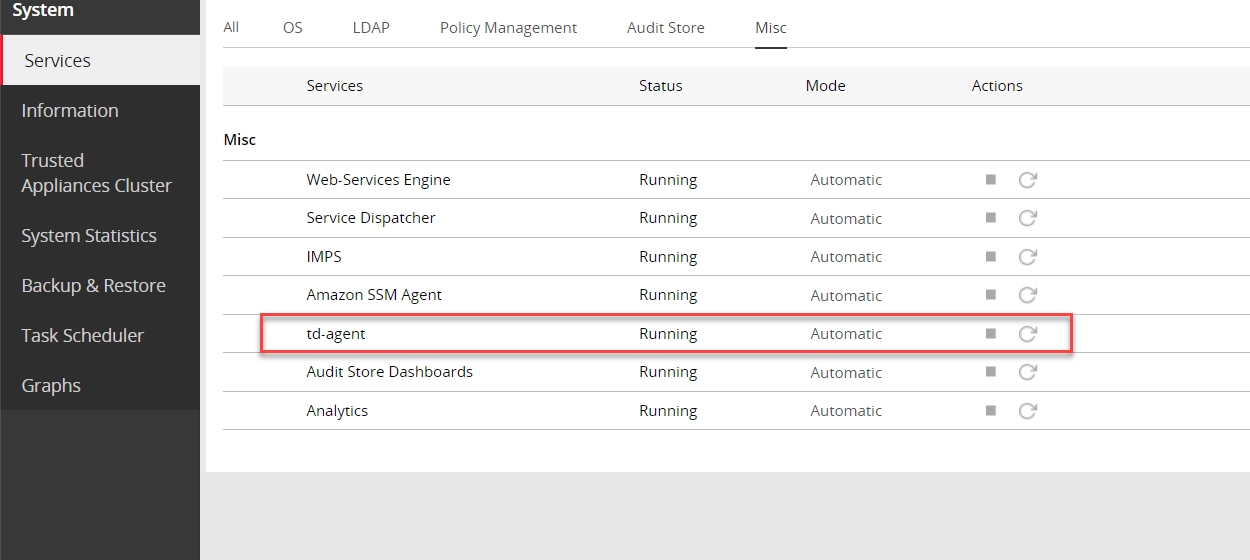
On the ESA Web UI, navigate to System > Services > Misc.
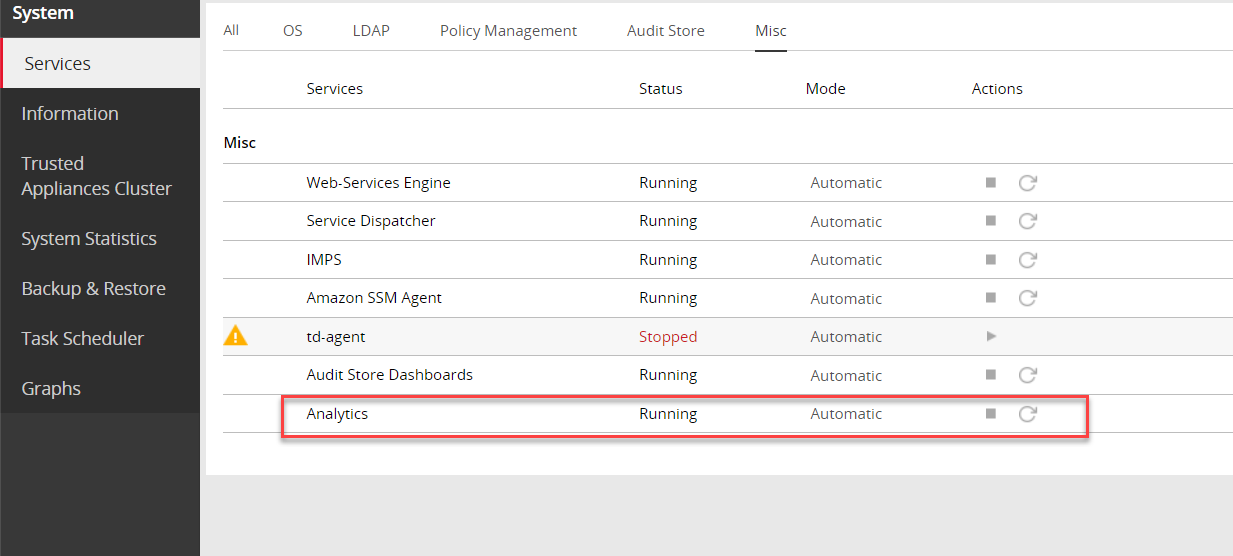
Stop the Analytics service.
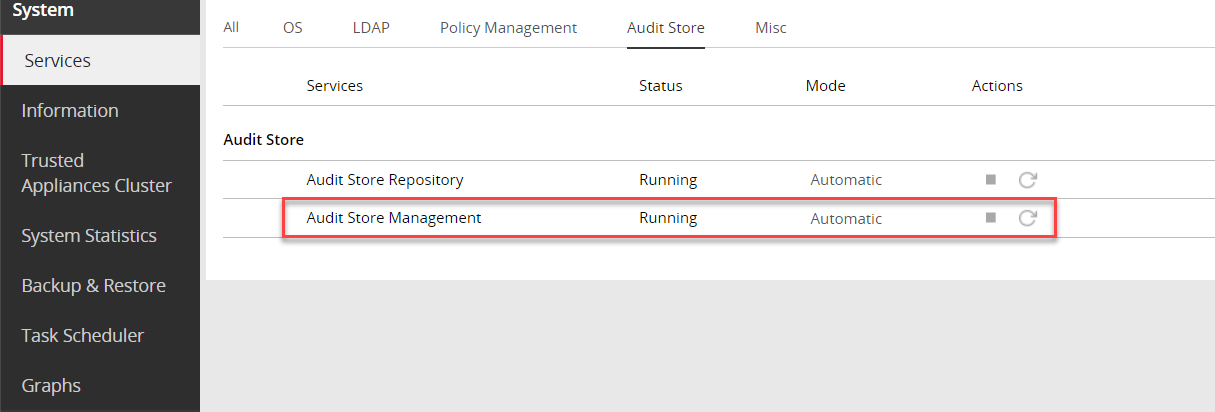
Navigate to System > Services > Audit Store.
Stop the Audit Store Management service.
Navigate to System > Services > Audit Store.
Stop the Audit Store Repository service.
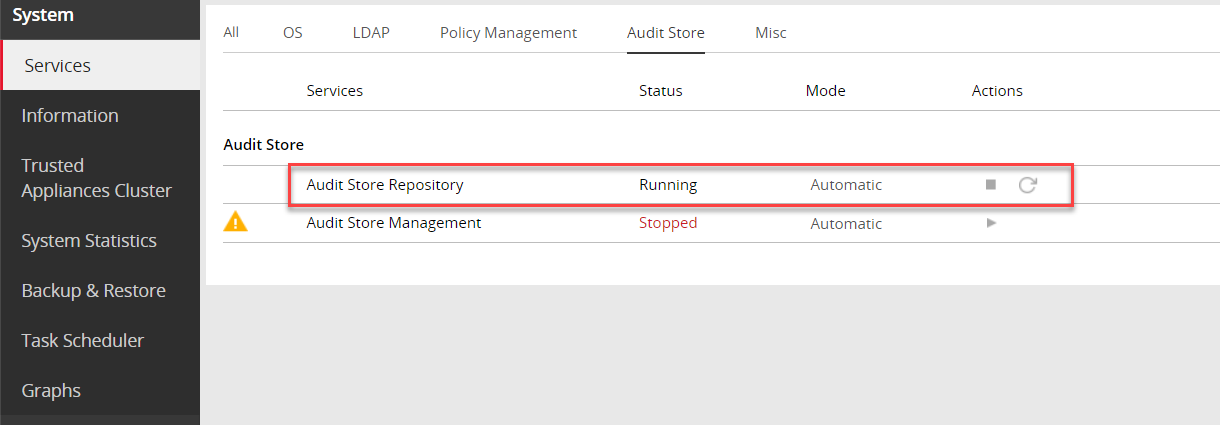
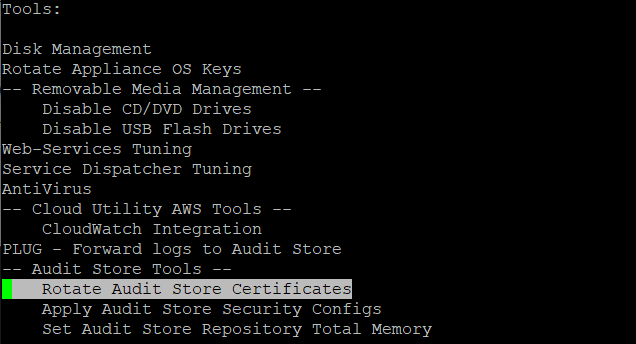
Run the Rotate Audit Store Certificates tool on the system.
In the ESA Web UI, click the Terminal Icon in lower-right corner to navigate to the ESA CLI Manager.
From the ESA CLI Manager, navigate to Tools > Rotate Audit Store Certificates.
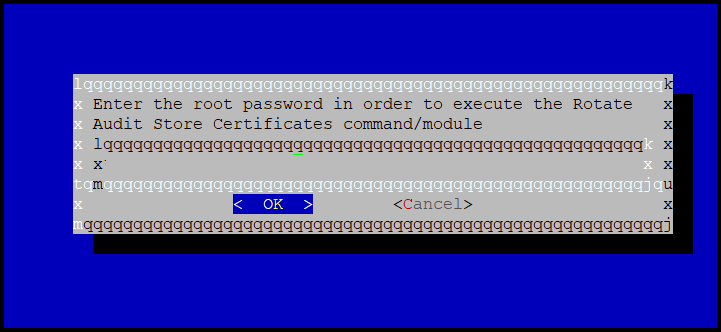
Enter the root password and select OK.
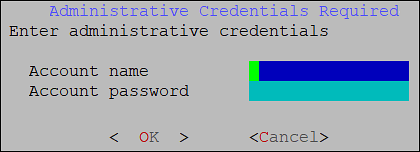
Enter the admin username and password and select OK.
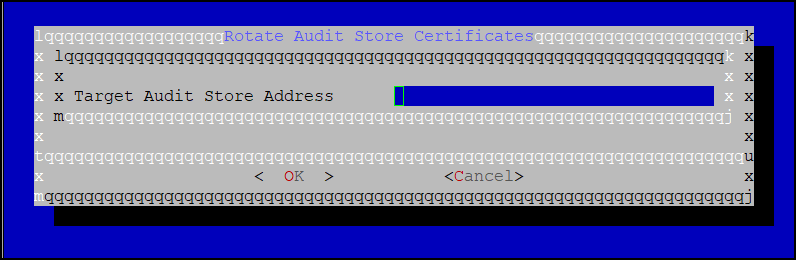
Enter the IP of the local system in the Target Audit Store Address field and select OK to rotate the certificates.
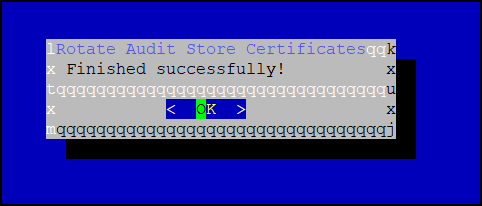
After the rotation is complete select OK.
The CLI screen appears.
From the ESA Web UI, navigate to System > Services > Audit Store.
Start the Audit Store Repository service.
Navigate to System > Services > Audit Store.
Start the Audit Store Management service.
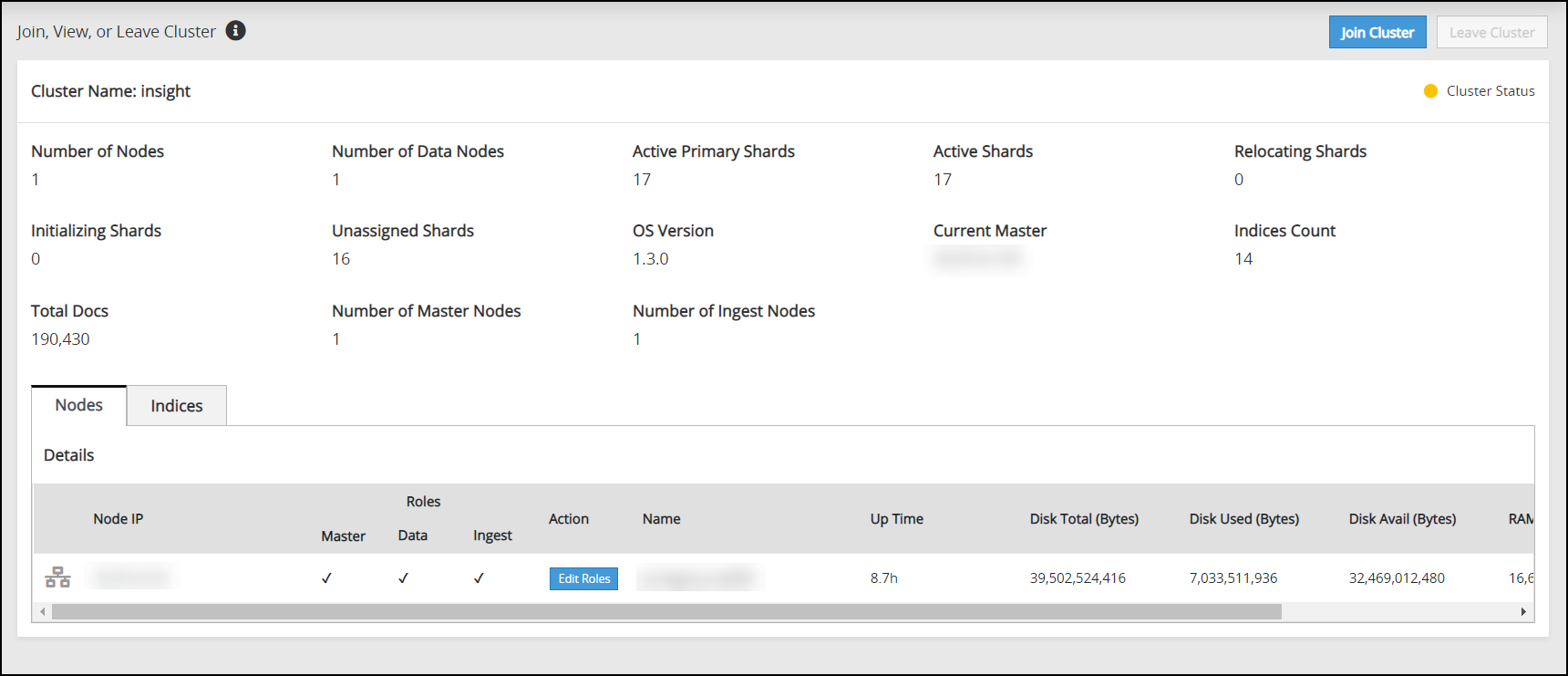
Navigate to Audit Store > Cluster Management and confirm that the cluster is functional and the cluster status is green or yellow. The cluster with green status is shown in the following figure.
Navigate to System > Services > Misc.
Start the Analytics service.
Navigate to System > Services > Misc.
Start the td-agent service. Skip this step if Analytics is not initialized.
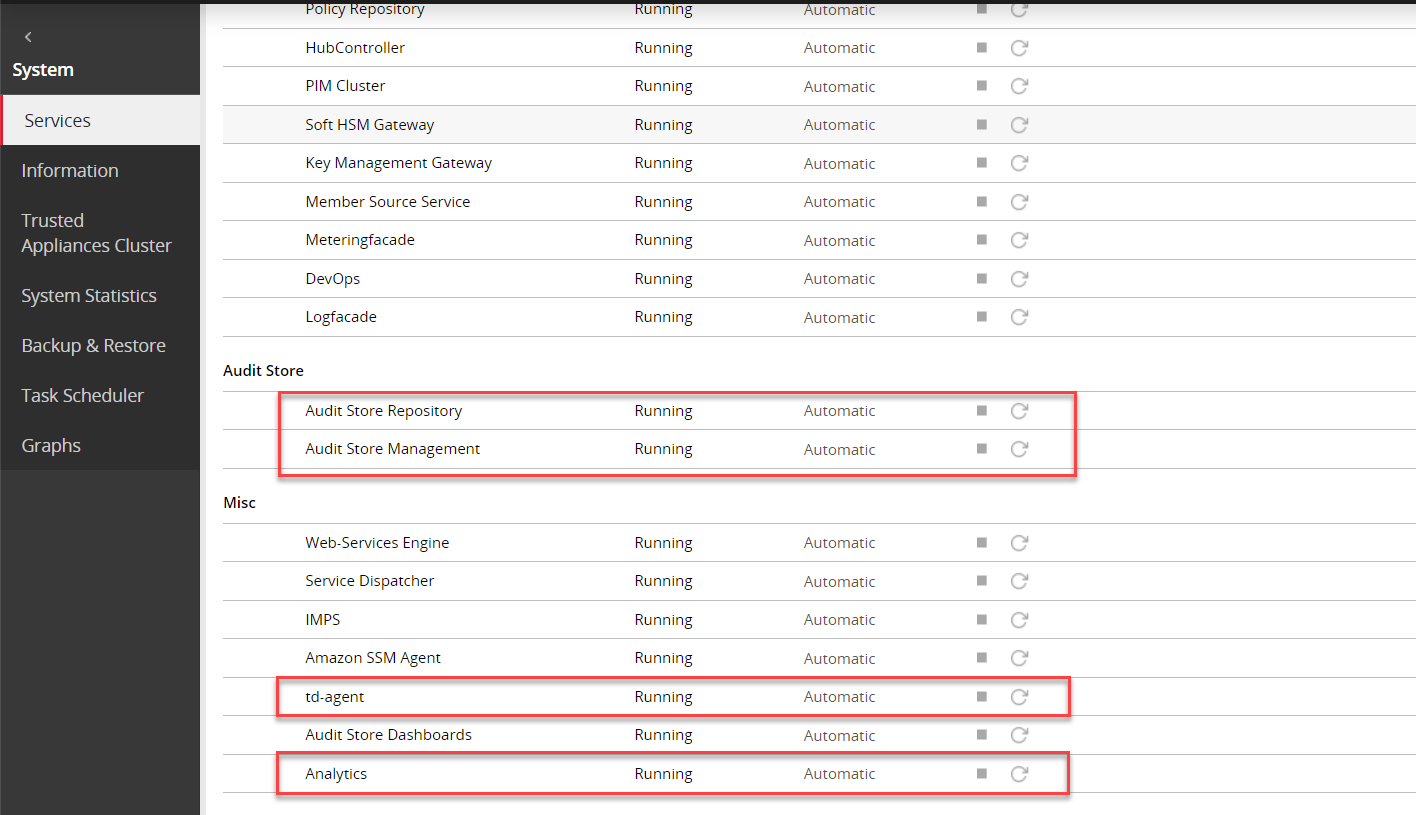
The following figure shows all services started.
On a multi-node Audit Store cluster, the certificate rotation must be performed on every node in the cluster. First, rotate the certificates on a Lead node, which is the Primary ESA, and then use the IP address of this Lead node while rotating the certificates on the remaining nodes in the cluster. The services mentioned in this section must be stopped on all the nodes, preferably at the same time with minimum delay during certificate rotation. After certificate rotation, the services that were stopped must be started again on the nodes in the reverse order.
Log in to the ESA Web UI.
Stop the required services.
Navigate to System > Services > Misc.
Stop the td-agent service. This step must be performed on all the other nodes followed by the Lead node. Skip this step if Analytics is not initialized.
On the ESA Web UI, navigate to System > Services > Misc.
Stop the Analytics service. This step must be performed on all the other nodes followed by the Lead node.
Navigate to System > Services > Audit Store.
Stop the Audit Store Management service. This step must be performed on all the other nodes followed by the Lead node.
Navigate to System > Services > Audit Store.
Stop the Audit Store Repository service.
Attention: This is a very important step and must be performed on all the other nodes followed by the Lead node without any delay. A delay in stopping the service on the nodes will result in that node receiving logs. This will lead to inconsistency in the logs across nodes and logs might be lost.
Run the Rotate Audit Store Certificates tool on the Lead node.
In the ESA Web UI, click the Terminal Icon in lower-right corner to navigate to the ESA CLI Manager.
From the ESA CLI Manager of the Lead node, that is the primary ESA, navigate to Tools > Rotate Audit Store Certificates.
Enter the root password and select OK.
Enter the admin username and password and select OK.
Enter the Ip of the local machine in the Target Audit Store Address field and select OK.
After the rotation is completed without errors, the following screen appears. Select OK to go to the CLI menu screen.
The CLI screen appears.
Run the Rotate Audit Store Certificates tool on all the remaining nodes in the Audit Store cluster one node at a time.
In the ESA Web UI, click the Terminal Icon in lower-right corner to navigate to the ESA CLI Manager.
From the ESA CLI Manager of a node in the cluster, navigate to Tools > Rotate Audit Store Certificates.
Enter the root password and select OK.
Enter the admin username and password and select OK.
Enter the IP address of the Lead node in Target Audit Store Address and select OK.
Enter the admin username and password for the Lead node and select OK.
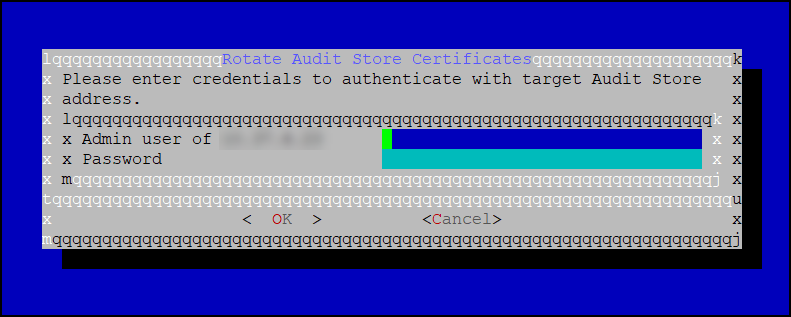
After the rotation is completed without errors, the following screen appears. Select OK to go to the CLI menu screen.
The CLI screen appears.
Start the required services.
From the ESA Web UI, navigate to System > Services > Audit Store.
Start the Audit Store Repository service.
Attention: This step must be performed on the Lead node followed by all the other nodes without any delay. A delay in starting the services on the nodes will result in that node receiving logs. This will lead to inconsistency in the logs across nodes and logs might be lost.
Navigate to System > Services > Audit Store.
Start the Audit Store Management service. This step must be performed on the Lead node followed by all the other nodes.
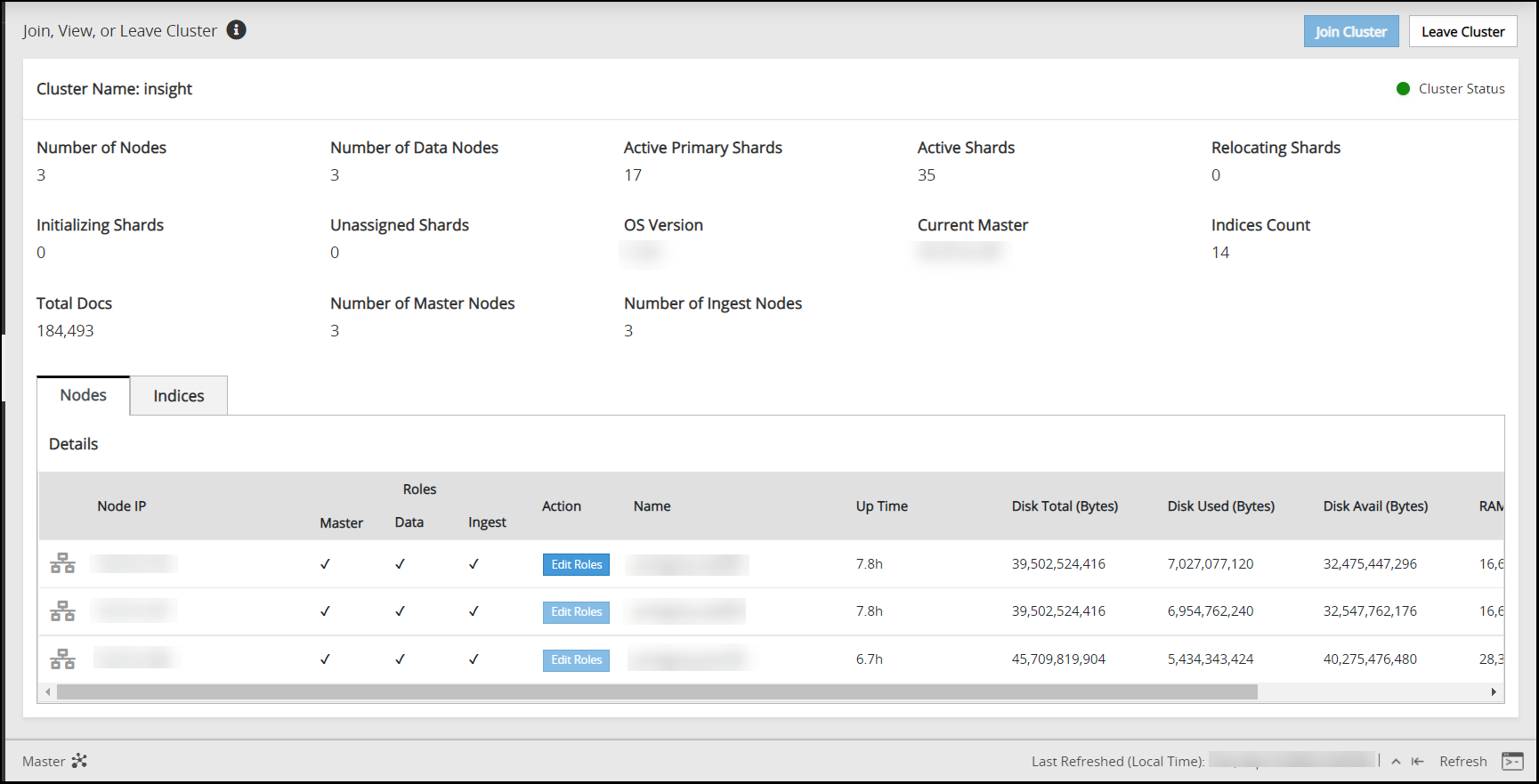
Navigate to Audit Store > Cluster Management and confirm that the Audit Store cluster is functional and the Audit Store cluster status is green or yellow as shown in the following figure.
Navigate to System > Services > Misc.
Start the Analytics service. This step must be performed on the Lead node followed by all the other nodes.
Navigate to System > Services > Misc.
Start the td-agent service. This step must be performed on the Lead node followed by all the other nodes. Skip this step if Analytics is not initialized.
The following figure shows all services that are started.
Verify that the Audit Store cluster is stable.
On the ESA Web UI, navigate to Audit Store > Cluster Management.
Verify that the nodes are still a part of the Audit Store cluster.
4.2 - Updating the IP address of the ESA
Perform the steps on one system at a time if multiple ESAs must be updated.
Updating the IP address on the Primary ESA
Update the ESA configuration of the Primary ESA. This is the designated ESA that is used to log in for performing all configurations. It is also the ESA that is used to create and deploy policies.
Perform the following steps to refresh the configurations:
Recreate the Docker containers using the following steps.
Open the OS Console on the Primary ESA.
- Log in to the CLI Manager on the Primary ESA.
- Navigate to Administration > OS Console.
- Enter the root password.
Stop the containers using the following commands.
/etc/init.d/asrepository stop
/etc/init.d/asdashboards stop
Remove the containers using the following commands.
/etc/init.d/asrepository remove
/etc/init.d/asdashboards remove
Update the IP address in the config.yml configuration file.
In the OS Console, navigate to the /opt/protegrity/auditstore/config/security directory.
cd /opt/protegrity/auditstore/config/securityOpen the config.yml file using a text editor.
Locate the internalProxies: attribute and update the IP address value for the ESA.
Save and close the file.
Start the containers using the following commands.
/etc/init.d/asrepository start
/etc/init.d/asdashboards start
Update the IP address in the asd_api_config.json configuration file.
In the OS Console, navigate to the /opt/protegrity/insight/analytics/config directory.
cd /opt/protegrity/insight/analytics/configOpen the asd_api_config.json file using a text editor.
Locate the x_forwarded_for attribute and update the IP address value for the ESA.
Save and close the file.
Rotate the Audit Store certificates on the Primary ESA.
For the steps to rotate Audit Store certificates, refer here.
Use the IP address of the local node, which is the Primary ESA and the Lead node, while rotating the certificates.
Apply security configurations. This step should be performed only once from any node, after all updates have been applied to all nodes in the cluster.
Open the ESA CLI.
Navigate to Tools.
Run Apply Audit Store Security Configs.
Monitor the cluster status.
Log in to the Web UI of the Primary ESA.
Navigate to Audit Store > Cluster Management.
Wait till the following updates are visible on the Overview page.
- The IP address of the Primary ESA is updated.
- All the nodes are visible in the cluster.
- The health of the cluster is green.
Alternatively, monitor the log files for any errors by logging into the ESA Web UI, navigating to Logs > Appliance, and selecting the following files from the Enterprise-Security-Administrator - Event Logs list:
- insight_analytics
- asmanagement
- asrepository
Updating the IP Address on the Secondary ESA
Ensure that the IP address of the ESA has been updated. Perform the steps on one system at a time if multiple ESAs must be updated.
Perform the following steps to refresh the configurations:
Recreate the Docker containers using the following steps.
Open the OS Console on the Secondary ESA.
- Log in to the CLI Manager on the Secondary ESA.
- Navigate to Administration > OS Console.
- Enter the root password.
Stop the containers using the following commands.
/etc/init.d/asrepository stop
/etc/init.d/asdashboards stop
Remove the containers using the following commands.
/etc/init.d/asrepository remove
/etc/init.d/asdashboards remove
Update the IP address in the config.yml configuration file.
In the OS Console, navigate to the /opt/protegrity/auditstore/config/security directory.
cd /opt/protegrity/auditstore/config/securityOpen the config.yml file using a text editor.
Locate the internalProxies: attribute and update the IP address value for the ESA.
Save and close the file.
Start the containers using the following commands.
/etc/init.d/asrepository start
/etc/init.d/asdashboards start
Update the IP address in the asd_api_config.json configuration file.
In the OS Console, navigate to the /opt/protegrity/insight/analytics/config directory.
cd /opt/protegrity/insight/analytics/configOpen the asd_api_config.json file using a text editor.
Locate the x_forwarded_for attribute and update the IP address value for the ESA.
Save and close the file.
Rotate the Audit Store certificates on the Secondary ESA. Perform the steps on the Secondary ESA. However, use the IP address of the Primary ESA, which is the Lead node, for rotating the certificates.
For the steps to rotate Audit Store certificates, refer here.
Apply security configurations. This step should be performed only once from any node, after all updates have been applied to all nodes in the cluster.
Open the ESA CLI.
Navigate to Tools.
Run Apply Audit Store Security Configs.
Monitor the cluster status.
Log in to the Web UI of the Primary ESA.
Navigate to Audit Store > Cluster Management.
Wait till the following updates are visible on the Overview page.
- The IP address of the Secondary ESA is updated.
- All the nodes are visible in the cluster.
- The health of the cluster is green.
Alternatively, monitor the log files for any errors by logging into the ESA Web UI, navigating to Logs > Appliance, and selecting the following files from the Enterprise-Security-Administrator - Event Logs list:
- insight_analytics
- asmanagement
- asrepository
4.3 - Updating the host name or domain name of the ESA
Updating the host name or domain name on the Primary ESA
Update the configurations of the Primary ESA. This is the designated ESA that is used to log in for performing all configurations. It is also the ESA that is used to create and deploy policies.
Ensure that the host name or domain name of the ESA has been updated.Ensure that the hostname does not contain the dot(.) special character.
Perform the steps on one system at a time if multiple ESAs must be updated.
Perform the following steps to refresh the configurations:
Update the host name or domain name in the configuration files.
Open the OS Console on the Primary ESA.
- Log in to the CLI Manager on the Primary ESA.
- Navigate to Administration > OS Console.
- Enter the root password.
Update the repository.json file for the Audit Store configuration.
Navigate to the /opt/protegrity/auditstore/management/config directory.
cd /opt/protegrity/auditstore/management/configOpen the repository.json file using a text editor.
Locate and update the hosts attribute with the new host name and domain name as shown in the following example.
"hosts": [
    "protegrity-esa123.protegrity.com"
  ]
Save and close the file.
Update the repository.json file for the Analytics configuration.
Navigate to the /opt/protegrity/insight/analytics/config directory.
cd /opt/protegrity/insight/analytics/configOpen the repository.json file using a text editor.
Locate and update the hosts attribute with the new host name and domain name as shown in the following example.
"hosts": [
    "protegrity-esa123.protegrity.com"
  ]
Save and close the file.
Update the opensearch.yml file for the Audit Store configuration.
Navigate to the /opt/protegrity/auditstore/config directory.
cd /opt/protegrity/auditstore/configOpen the opensearch.yml file using a text editor.
Locate and update the node.name, network.host, and the http.host attributes with the new host name and domain name as shown in the following example. Update the node.name only with the host name. If required, uncomment the line by deleting the number sign (#) character at the start of the line.
...
<existing code>
...
node.name: protegrity-esa123
...
<existing code>
...
network.host:
- protegrity-esa123.protegrity.com
...
<existing code>
...
http.host:
- protegrity-esa123.protegrity.com
Save and close the file.
Update the opensearch_dashboards.yml file for the Audit Store Dashboards configuration.
Navigate to the /opt/protegrity/auditstore_dashboards/config directory.
cd /opt/protegrity/auditstore_dashboards/configOpen the opensearch_dashboards.yml file using a text editor.
Locate and update the opensearch.hosts attribute with the new host name and domain name as shown in the following example.
opensearch.hosts: [ "https://protegrity-esa123.protegrity.com:9200" ]Save and close the file.
Update the OUTPUT.conf file for the td-agent configuration.
Navigate to the /opt/protegrity/td-agent/config.d directory.
cd /opt/protegrity/td-agent/config.dOpen the OUTPUT.conf file using a text editor.
Locate and update the hosts attribute with the new host name and domain name as shown in the following example.
hosts protegrity-esa123.protegrity.comSave and close the file.
Update the INPUT_forward_external.conf file for the external SIEM configuration. This step is required only if an external SIEM is used.
Navigate to the /opt/protegrity/td-agent/config.d directory.
cd /opt/protegrity/td-agent/config.dOpen the INPUT_forward_external.conf file using a text editor.
Locate and update the bind attribute with the new host name and domain name as shown in the following example.
bind protegrity-esa123.protegrity.comSave and close the file.
Recreate the Docker containers using the following steps.
Open the OS Console on the Primary ESA, if it is not opened.
- Log in to the CLI Manager on the Primary ESA.
- Navigate to Administration > OS Console.
- Enter the root password.
Stop the containers using the following commands.
/etc/init.d/asrepository stop
/etc/init.d/asdashboards stop
Remove the containers using the following commands.
/etc/init.d/asrepository remove
/etc/init.d/asdashboards remove
Start the containers using the following commands.
/etc/init.d/asrepository start
/etc/init.d/asdashboards start
Rotate the Audit Store certificates on the Primary ESA. Use the IP address of the local node, which is the Primary ESA and the Lead node, while rotating the certificates.
For the steps to rotate Audit Store certificates, refer here.
Update the unicast_hosts.txt file for the Audit Store configuration.
Open the OS Console on the Primary ESA.
Navigate to the /opt/protegrity/auditstore/config directory using the following command.
cd /opt/protegrity/auditstore/configOpen the unicast_hosts.txt file using a text editor.
Locate and update the host name and domain name.
protegrity-esa123
protegrity-esa123.protegrity.com
Save and close the file.
Monitor the cluster status.
Log in to the Web UI of the Primary ESA.
Navigate to Audit Store > Cluster Management.
Wait till the following updates are visible on the Overview page.
- The IP address of the Primary ESA is updated.
- All the nodes are visible in the cluster.
- The health of the cluster is green.
It is possible to monitor the log files for any errors by logging into the ESA Web UI, navigating to Logs > Appliance, and selecting the following files from the Enterprise-Security-Administrator - Event Logs list:
- insight_analytics
- asmanagement
- asrepository
Updating the host name or domain name on the Secondary ESA
Update the configurations of the Secondary ESA after the host name or domain name of the ESA has been updated.
Perform the steps on one system at a time if multiple ESAs must be updated.
Perform the following steps to refresh the configurations:
Update the host name or domain name in the configuration files.
Open the OS Console on the Secondary ESA.
- Log in to the CLI Manager on the Secondary ESA.
- Navigate to Administration > OS Console.
- Enter the root password.
Update the repository.json file for the Audit Store configuration.
Navigate to the /opt/protegrity/auditstore/management/config directory.
cd /opt/protegrity/auditstore/management/configOpen the repository.json file using a text editor.
Locate and update the hosts attribute with the new host name and domain name as shown in the following example.
"hosts": [
    "protegrity-esa456.protegrity.com"
  ]
Save and close the file.
Update the repository.json file for the Analytics configuration.
Navigate to the /opt/protegrity/insight/analytics/config directory.
cd /opt/protegrity/insight/analytics/configOpen the repository.json file using a text editor.
Locate and update the hosts attribute with the new host name and domain name as shown in the following example.
"hosts": [
    "protegrity-esa456.protegrity.com"
  ]
Save and close the file.
Update the opensearch.yml file for the Audit Store configuration.
Navigate to the /opt/protegrity/auditstore/config directory.
cd /opt/protegrity/auditstore/configOpen the opensearch.yml file using a text editor.
Locate and update the node.name, network.host, and the http.host attributes with the new host name and domain name as shown in the following example. Update the node.name only with the host name. If required, uncomment the line by deleting the number sign (#) character at the start of the line.
...
<existing code>
...
node.name: protegrity-esa456
...
<existing code>
...
network.host:
- protegrity-esa456.protegrity.com
...
<existing code>
...
http.host:
- protegrity-esa456.protegrity.com
Save and close the file.
Update the opensearch_dashboards.yml file for the Audit Store Dashboards configuration.
Navigate to the /opt/protegrity/auditstore_dashboards/config directory.
cd /opt/protegrity/auditstore_dashboards/configOpen the opensearch_dashboards.yml file using a text editor.
Locate and update the opensearch.hosts attribute with the new host name and domain name as shown in the following example.
opensearch.hosts: [ "https://protegrity-esa456.protegrity.com:9200" ]Save and close the file.
Update the OUTPUT.conf file for the td-agent configuration.
Navigate to the /opt/protegrity/td-agent/config.d directory.
cd /opt/protegrity/td-agent/config.dOpen the OUTPUT.conf file using a text editor.
Locate and update the hosts attribute with the new host name and domain name as shown in the following example.
hosts protegrity-esa456.protegrity.comSave and close the file.
Update the INPUT_forward_external.conf file for the external SIEM configuration. This step is required only if an external SIEM is used.
Navigate to the /opt/protegrity/td-agent/config.d directory.
cd /opt/protegrity/td-agent/config.dOpen the INPUT_forward_external.conf file using a text editor.
Locate and update the bind attribute with the new host name and domain name as shown in the following example.
bind protegrity-esa456.protegrity.comSave and close the file.
Recreate the Docker containers using the following steps.
Open the OS Console on the Secondary ESA, if it is not opened.
- Log in to the CLI Manager on the Secondary ESA.
- Navigate to Administration > OS Console.
- Enter the root password.
Stop the containers using the following commands.
/etc/init.d/asrepository stop
/etc/init.d/asdashboards stop
Remove the containers using the following commands.
/etc/init.d/asrepository remove
/etc/init.d/asdashboards remove
Start the containers using the following commands.
/etc/init.d/asrepository start
/etc/init.d/asdashboards start
Rotate the Audit Store certificates on the Secondary ESA. Perform the steps on the Secondary ESA using the IP address of the Primary ESA, which is the Lead node, for rotating the certificates.
For the steps to rotate Audit Store certificates, refer here.
Update the unicast_hosts.txt file for the Audit Store configuration.
Open the OS Console on the Primary ESA.
Navigate to the /opt/protegrity/auditstore/config directory using the following command.
cd /opt/protegrity/auditstore/configOpen the unicast_hosts.txt file using a text editor.
Locate and update the host name and domain name.
protegrity-esa456
protegrity-esa456.protegrity.com
Save and close the file.
Monitor the cluster status.
Log in to the Web UI of the Primary ESA.
Navigate to Audit Store > Cluster Management.
Wait till the following updates are visible on the Overview page.
- The IP address of the Secondary ESA is updated.
- All the nodes are visible in the cluster.
- The health of the cluster is green.
Monitor the log files for any errors by logging into the ESA Web UI, navigating to Logs > Appliance, and selecting the following files from the Enterprise-Security-Administrator - Event Logs list:
- insight_analytics
- asmanagement
- asrepository
4.4 - Updating Insight custom certificates
These steps are only applicable for custom certificate and keys. For rotating Protegrity certificates, refer here.
For more information about Insight certificates, refer here.
Rotate custom certificates on the Audit Store cluster that has a single node in the cluster using the steps provided in Using custom certificates in Insight.
On a multi-node Audit Store cluster, the certificate rotation must be performed on every node in the cluster. First, rotate the certificates on a Lead node, which is the Primary ESA, and then use the IP address of this Lead node while rotating the certificates on the remaining nodes in the cluster. The services mentioned in this section must be stopped on all the nodes, preferably at the same time with minimum delay during certificate rotation. After updating the certificates, the services that were stopped must be started again on the nodes in the reverse order.
Log in to the ESA Web UI.
Navigate to System > Services > Misc.
Stop the td-agent service. This step must be performed on all the other nodes followed by the Lead node.
On the ESA Web UI, navigate to System > Services > Misc.
Stop the Analytics service. This step must be performed on all the other nodes followed by the Lead node. The other nodes might not have Analytics installed. In this case, skip this step on those nodes.
Navigate to System > Services > Audit Store.
Stop the Audit Store Management service. This step must be performed on all the other nodes followed by the Lead node.
Navigate to System > Services > Audit Store.
Stop the Audit Store Repository service.
Attention: This is a very important step and must be performed on all the other nodes followed by the Lead node without any delay. A delay in stopping the service on the nodes will result in that node receiving logs. This will lead to inconsistency in the logs across nodes and logs might be lost.
Apply the custom certificates on the Lead ESA node.
For more information about certificates, refer to Using custom certificates in Insight.
Complete any one of the following steps on the remaining nodes in the Audit Store cluster.
Apply the custom certificates on the remaining nodes in the Audit Store cluster.
For more information about certificates, refer to Using custom certificates in Insight.
Run the Rotate Audit Store Certificates tool on all the remaining nodes in the Audit Store cluster one node at a time.
In the ESA Web UI of a node in the Audit Store cluster, click the Terminal Icon in lower-right corner to navigate to the ESA CLI Manager.
Navigate to Tools > Rotate Audit Store Certificates.
Enter the root password and select OK.
Enter the admin username and password and select OK.
Enter the IP address of the Lead node in Target Audit Store Address and select OK.
Enter the admin username and password for the Lead node and select OK.
After the rotation is completed without errors, the following screen appears. Select OK to go to the CLI menu screen.
The CLI screen appears.
In the ESA Web UI, navigate to System > Services > Audit Store.
Start the Audit Store Repository service.
Attention: This step must be performed on the Lead node followed by all the other nodes without any delay. A delay in starting the services on the nodes will result in that node receiving logs. This will lead to inconsistency in the logs across nodes and logs might be lost.
Navigate to System > Services > Audit Store.
Start the Audit Store Management service. This step must be performed on the Lead node followed by all the other nodes.
Navigate to Audit Store > Cluster Management and confirm that the Audit Store cluster is functional and the Audit Store cluster status is green or yellow as shown in the following figure.
Navigate to System > Services > Misc.
Start the Analytics service. This step must be performed on the Lead node followed by all the other nodes. The other nodes might not have Analytics installed. In this case, skip this step on those nodes.
Navigate to System > Services > Misc.
Start the td-agent service. This step must be performed on the Lead node followed by all the other nodes.
The following figure shows all services that are started.
On the ESA Web UI, navigate to Audit Store > Cluster Management.
Verify that the nodes are still a part of the Audit Store cluster.
4.5 - Removing an ESA from the Audit Store cluster
Before you begin:
Verify if the scheduler task jobs are enabled on the ESA using the following steps:
- Log in to the ESA Web UI.
- Navigate to System > Task Scheduler.
- Verify whether the following tasks are enabled on the ESA.
- Update Policy Status Dashboard
- Update Protector Status Dashboard
Perform the following steps to remove the ESA node:
From the ESA Web UI, click Audit Store > Cluster Management to open the Audit Store clustering page.
The Overview screen appears.
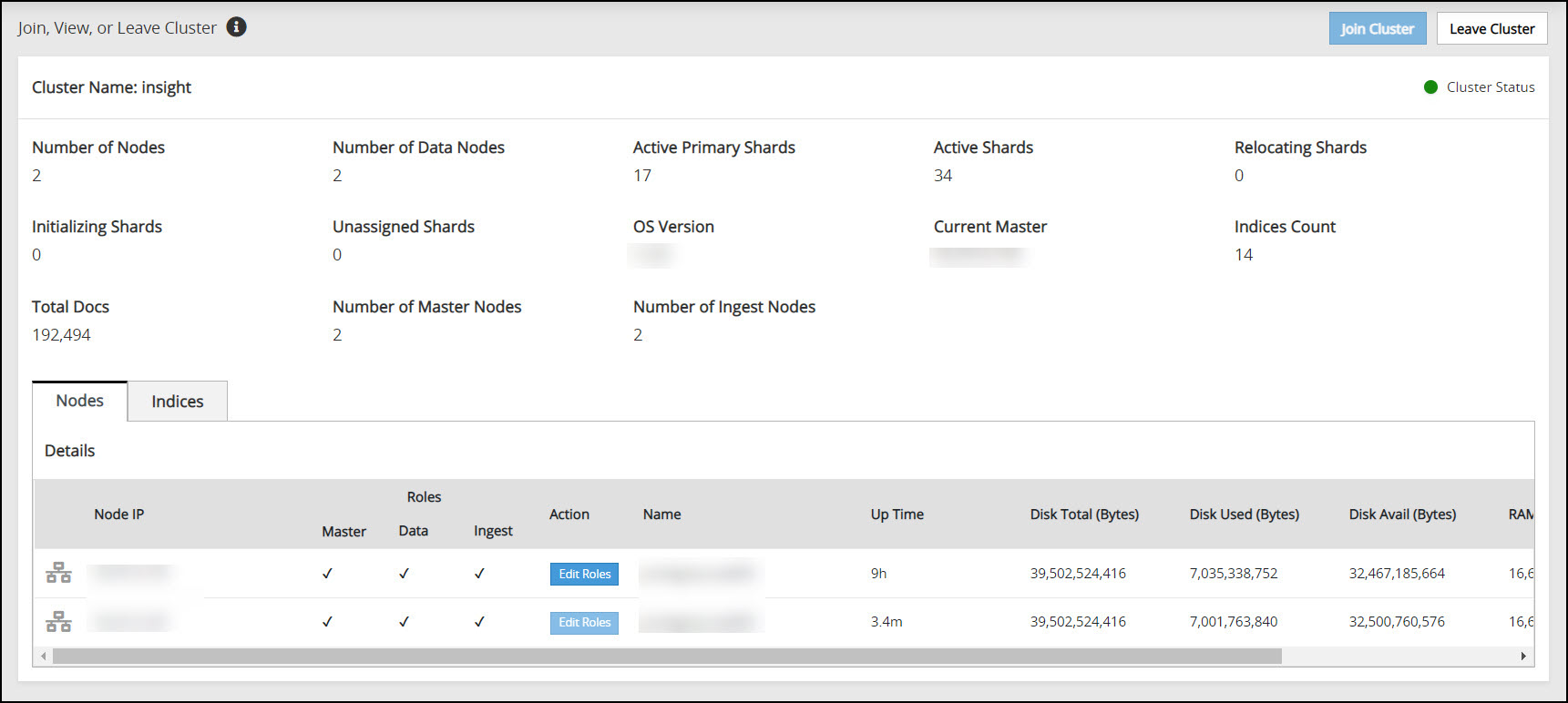
Click Leave Cluster.
A confirmation dialog box appears. The Audit Store cluster information is updated when a node leaves the Audit Store cluster. Hence, nodes must be removed from the Audit Store cluster one at a time. Removing multiple nodes from the Audit Store cluster at the same time using the ESA Web UI would lead to errors.
Click YES.
The ESA is removed from the Audit Store cluster. The Leave Cluster button is disabled and the Join Cluster button is enabled. The process takes time to complete. Stay on the same page and do not navigate to any other page while the process is in progress.
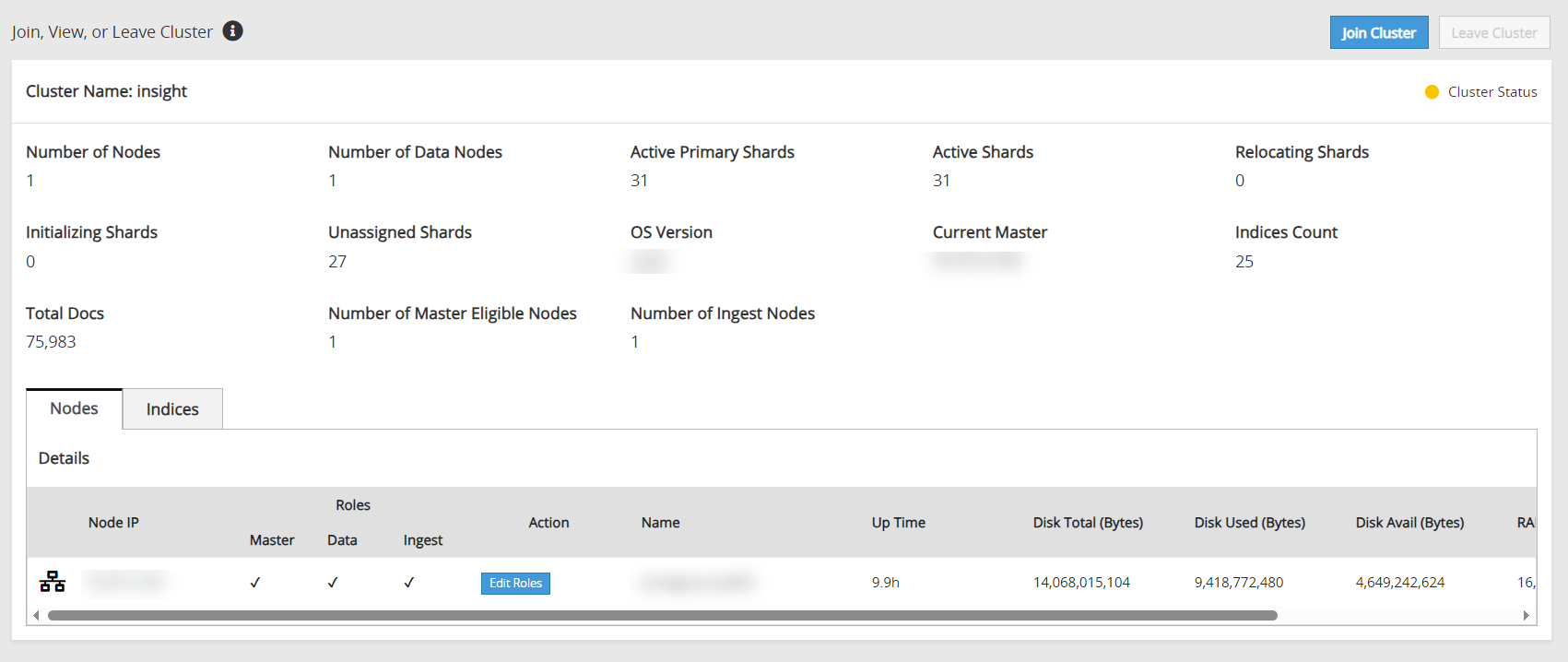
If the scheduler task jobs were enabled on the ESA that was removed, then enable the scheduler task jobs on another ESA in the Audit Store cluster. These tasks must be enabled on any one ESA in the Audit Store cluster. Enabling on multiple nodes might result in a loss of data.
- Log in to the ESA Web UI of any one node in the Audit Store cluster.
- Navigate to System > Task Scheduler.
- Enable the following tasks by selecting the task, clicking Edit, selecting the Enable check box, and clicking Save.
- Update Policy Status Dashboard
- Update Protector Status Dashboard
- Click Apply.
- Specify the root password and click OK.
After leaving the Audit Store cluster, the configuration of the node and data is reset. The node will be uninitialized. Before using the node again, Protegrity Analytics needs to be initialized on the node or the node needs to be added to another Audit Store cluster.
5 - Identifying the protector version
Perform the following steps to identify the PEP server version of the protector:
Log in to the ESA.
Navigate to Policy Management > Nodes.
View the Version field for all the protectors.