Policy Management
Overview of the policy management functionality provided by Protegrity Data Security Platform.
Data Security Policy is at the core of Protegrity’s platform. A policy is a set of rules that governs how sensitive data is protected, and who in the organization can see the data in the clear. Sensitive data can include Personally Identifiable Information (PII), financial information, health-related information, and so on. A Data Security Policy is enforced within different systems and environments in the enterprise, providing the same level of security regardless of the location of the sensitive data.
This section focuses on the policy management, specifically on how policies are created, maintained, and distributed within the enterprise. All features covered in this section are accessible through the ESA Web UI. You can also create, manage, and view policies using the Policy Management API.
For more information about the Policy Management API, refer to the section Protegrity REST APIs.
1 - Protegrity Data Security Methodology
Protegrity’s Data Security Methodology may be used as a framework for designing and delivering governance rules over protection and access to sensitive data. The aim of this section is to guide Security Officers through the process of running data security programs and initiatives.
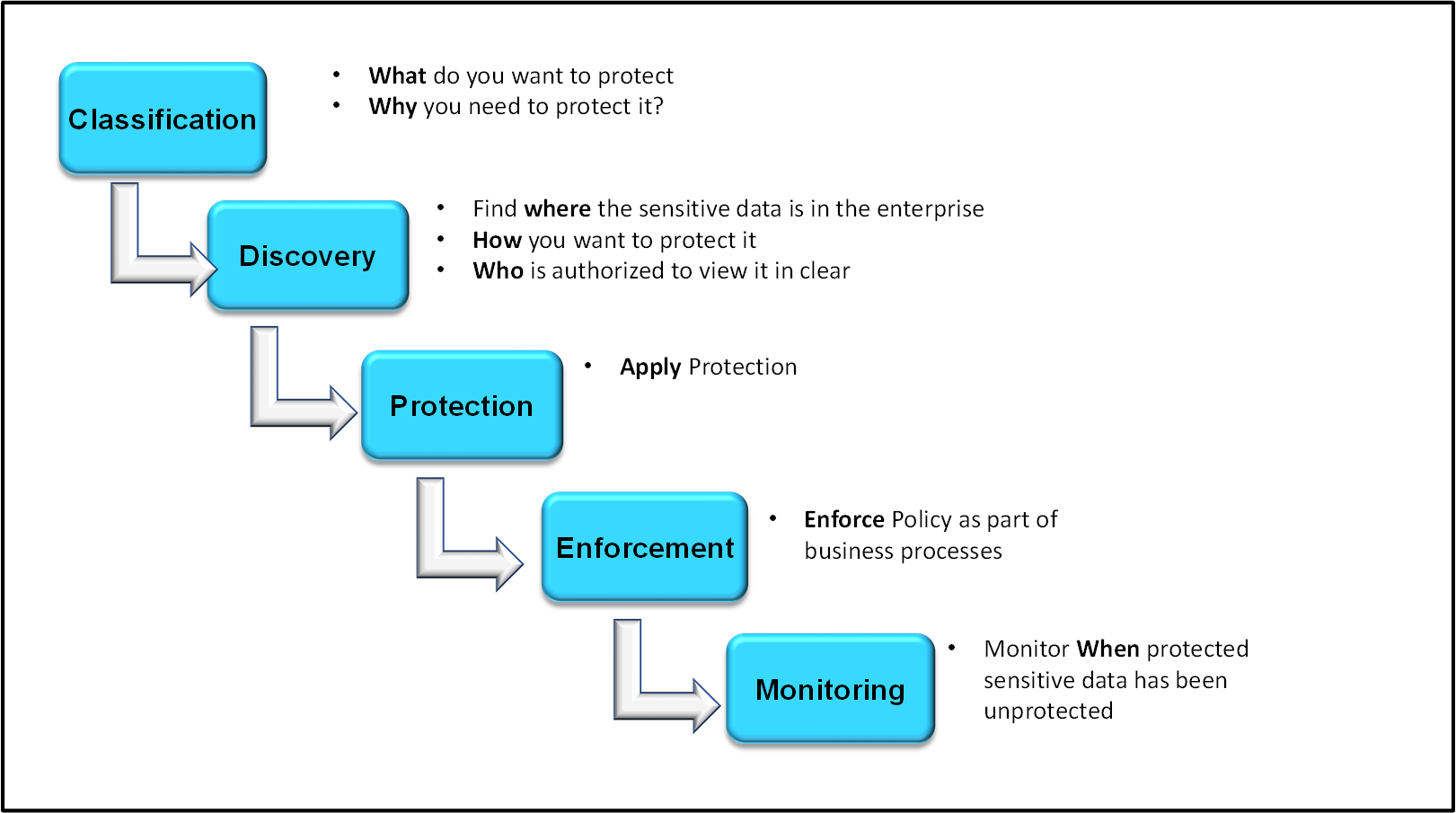
Protegrity’s Data Security Methodology consists of the following stages:
- Classification
- Discovery
- Protection
- Enforcement
- Monitoring
The following diagram summarizes each stage:
Classification
In the Classification stage, determine which data is considered sensitive for the enterprise, and why it needs to be protected. At this stage, it is important to understand the regulatory landscape in which the company is operating and the risk measurement framework associated with the privacy risk. An enterprise may need to meet certain regulatory compliance requirements or laws, such as:
- Payment Card Industry Data Security Standard (PCI DSS)
- Health Information Portability and Accessibility Act (HIPAA)
Discovery
The Discovery stage aims to answer three questions:
- Where is the data?
- How do you want to protect it?
- Who is authorized to view it in the clear?
First, identify the systems storing and processing sensitive data. Obtain this information through manual investigation by utilizing information captured through a data catalog, or by a combination of both. After the overall system architecture is known, devise an integration path using Protegrity components to provide the deepest coverage for the environment. Then, capture business rules to understand the data transformations required, and define requirements for user-level access.
The systems storing and processing sensitive data are specified as Data Stores in the Policy.
Then, decide how the sensitive data that has been identified will be protected. Identify which cryptographic algorithm or protection method matches the sensitivity and type of data in scope. Some data types may require strict protection rules, such as tokenizing credit card numbers. Conversely, some data types such as email addresses may be protected by masking or access monitoring.
The rules protecting every data type are defined as Data Elements in the Policy.
Finally, define roles to identify the users requiring access to sensitive data, and the extent of this access. As a general rule, most users in the organization will not have the authorization to see the data in the clear. Only specific groups of users will require some visibility over sensitive data to perform their job functions. During the Discovery phase, these roles are defined and mapped to the corporate directory services such as LDAP.
Protection
The Protection stage implements the Protegrity Data Security Platform in the enterprise, based on the earlier defined architectural and system requirements.
Enforcement
The Data Security Policy enforcement stage is a critical stage of the process. This is when data security becomes an integral part of the organizational work flow, ensuring its end-to-end protection and access are seamless across systems.
Monitoring
All operations on data generate audit logs that are sent near-real time to the specified collection points. The Security Administrator or Officer must monitor the logs to ensure that the rules are enforced as designed and look for any anomalies. Auditing provides an overview of how the data is being used by the organization. All system and policy-related changes are also captured and made available.
2 - Policy Components
Describes the components of a policy.
A Policy contains multiple components that work together to enforce data security at the protection endpoints. The following components can exist in the Policy:
Some of these components have dependencies between each other. Masks and Alphabets are referenced from Data Elements. For example, if you want to create a Gen2 Unicode tokenization Data Element that covers all French characters, then you first need to create an Alphabet. Trusted Applications are attached to Data Stores, as they enable deploying the policy to named applications. Member Sources are referenced within Roles, which in turn pull them into the Policy. Hence, only the parent components such as Data Elements, Roles, and Data Stores are referenced at the Policy level.
The following section provides a walkthrough of a typical process of creating a Policy, from creating Data Elements to Roles. You can follow a different sequence, if preferred, understanding the dependencies between the components.
2.1 - Data Elements
An overview of the data elements used to protect the data.
Data Elements are the most critical elements of data protection. Data Elements determine how cryptographic algorithms are applied to data.
Typically, there is one Data Element per data type. For example, name, address, or credit card number. This allows for granular enforcement of control over sensitive data.
Protegrity supports two types of Data Elements:
- Structured: Used for fine-grained field- and column-level protection. For example, a name attribute in a JSON file, or a column in a database table storing customer names.
- Unstructured: Used for course-grained file protection. It is only applicable to the Protegrity File Protector.
To create, view and manage Data Elements, navigate to Policy Management from the main menu, and choose Data Elements & Masks. The Data Elements tab opens by default.
Creating Data Elements
Before creating a Data Element, understand the type and format of data that you are protecting, and what is your desirable output. For example, if length and format preservation are required, tokenization or Format Preserving Encryption (FPE) are the recommended methods.
For guidance regarding the protection methods, refer to the section Protection Method Reference.
To add a new Data Element:
On the ESA Web UI, navigate to Policy Management > Data Elements & Masks.
The Data Elements tab appears by default.
Click Add New Data Element.
The New Data Element screen appears.
Specify the following common properties for each Data Element:
| Property | Description |
|---|
| Type | Type of the Data Element to be created.
For example, structured or unstructured. |
| Name | Unique name identifying the data element.
The maximum length of the data element is 55 characters. |
| Description | Text describing the Data Element. |
| Method | Types of data protection to apply:- Tokenization
- Encryption
- Format Preserving Encryption (FPE)
- Hashing
- Masking
- Monitoring
Depending on the chosen protection method, additional configuration options appear. For example, Encryption has an option to use Initialization Vectors, while Tokenization shows different tokenization options depending on the data type.
For more information about the available protection methods and their properties, refer to the section Protection Methods Reference. |
Click Save.
Note: You can use the Policy Management REST API to create Data Elements.
Managing Data Elements
After a Data Element is created, it cannot be modified. You can only provide a new description for the Data Element.
Deleting Data Elements
A Data Element can be deleted. It must first be removed from all policies where it has been attached before it can be removed.
To remove a Data Element:
On the ESA Web UI, navigate to Policy Management > Data Elements & Masks.
The Data Elements tab appears by default.
Select the Data Element from the list, and click the Delete action.
A confirmation dialog box appears.
Click OK.
A message Data Element has been deleted successfully appears.
Warning: The Delete action cannot be reversed. By deleting a Data Element, you are effectively removing the cryptographic material associated with that Data Element. You will lose the ability to re-identify the data protected with that Data Element. You can only restore Data Elements by restoring the Policy from a backup file.
2.1.1 - Example - Creating a Token Data Element
This example shows how to create numeric tokenization data element that is used to tokenize numerical data.
Note: You create token data elements for all protectors, except for the FileProtector.
To create a structured data element:
On the ESA Web UI, navigate to Policy Management > Data Elements & Masks > Data Elements.
Click Add New Data Element.
The New Data Element screen appears.
Select Structured from Type.
Type a unique name for the data element in the Name textbox.
Note: Ensure that the length of the data element name does not exceed 55 characters.
Type the description for the data element in the Description textbox.
Select the protection method from the Method drop-down. In this example, select Tokenization.
Select the tokenization data type from the Data Type drop down. In this example, select Numeric (0-9).
For more information about the different data types, refer to the section Protection Methods Reference.
Select the tokenizer from the Tokenizer drop-down.
For more information about the different token elements, refer to the section Protection Methods Reference.
If the Tokenizer should leave characters in clear, then set the number of characters from left and from right in the From Left and From Right text boxes.
For more information on the maximum and minimum input values for these fields, refer to the section Minimum and Maximum Input Length in the section Protection Methods Reference.
If the token length needs to be equal to the provided input, then select the Preserve length check box.
If you select the Preserve length option, then you can also choose the behavior for short data tokenization in the Allow Short Data drop-down.
- Click Save.
A message Data Element has been saved successfully appears.
2.1.2 - Example - Creating a FPE Data Element
This example shows how to create an FPE data element that is used to encrypt Plaintext Alphabet data.
To create a structured FPE data element:
On the ESA Web UI, navigate to Policy Management > Data Elements & Masks > Data Elements.
Click Add New Data Element.
The New Data Element screen appears.
Select Structured from Type.
Enter a unique name for the data element in the Name textbox.
Note: Ensure that the length of the data element name does not exceed 55 characters.
Type the description for the data element in the Description textbox.
Select FPE NIST 800-38G from the Method drop-down.
Select a data type from the Plaintext Alphabet drop-down.
Configure the minimum input length from the Minimum Input Length text box.
Select the tweak input mode from the Tweak Input Mode drop-down.
For more information about the tweak input mode, refer to the section Tweak Input in the Protection Methods Reference Guide.
Select the short data configuration from the Allow Short Data drop-down.
Note: FPE does not support data less than 2 bytes, but you can set the minimum message length value accordingly.
For more information about length preservation and short tokens, refer to section Length Preserving.
Note: If you create a short data token in a policy and then deploy the policy, the Forensics displays a policy deployment warning indicating that the data element has unsupported settings.
Enter the required input characters to be retained in the clear in the From Left and From Right text box.
For more information about this setting, refer to the section Left and Right Settings.
Configure any special numeric data handling request, such as Credit Card Number (CCN), in the Special numeric alphabet handling drop-down.
For more information about handling special numeric data, refer to the section Handling Special Numeric Data.
Click Save.
A message Data Element has been created successfully appears.
2.1.3 - Example - Creating a Data Element for Unstructured Data
This example shows how to create an AES-256 data element that is used to encrypt a file.
Note: Unstructured data elements are exclusively applicable to Protegrity File Protector.
To create an unstructured data element:
On the ESA Web UI, navigate to Policy Management > Data Elements & Masks > Data Elements.
Click Add New Data Element.
The New Data Element screen appears.
Select Unstructured from Type.
Type a unique name for the data element in the Name textbox.
Note: Ensure that the length of the data element name does not exceed 55 characters.
Type the required description for the data element in the Description textbox.
Select AES-256 from the Method drop-down list.
If you want to enable multiple instances of keys with the data element, then check the Use Key ID (KID) checkbox.
Click Save.
A message Data Element has been saved successfully appears.
2.2 - Alphabets
Managing custom alphabets.
Alphabets are groupings of Unicode character sets. Their main purpose is to support additional languages or character input domains that exist in the user’s environment, such as Spanish, Polish, or Korean. The ESA includes some pre-defined alphabets. Users can create their own custom alphabets.
The alphabets are supported with the Tokenization Data Elements of the Unicode Gen2 type.
For more information about the code points and considerations around creating alphabets, refer to the section Considerations while creating custom Unicode alphabets.
Creating Alphabets
To create an alphabet:
On the ESA Web UI, navigate to Policy Management > Data Elements & Masks > Alphabets.
Click Add New Alphabet.
The New Alphabet screen appears.
Enter a unique name for the alphabet in the Name text box.
Under the Alphabet tab, click Add to add existing alphabets or custom code points to the new alphabet.
The Add Alphabet entry screen appears.
If you plan to use multiple alphabet entries to create a token alphabet, then click Add again to add other alphabet entries.
Ensure that code points in the alphabet are supported by the protectors using this alphabet.
Select an existing alphabet, a custom code point, or a range of custom code points.
The following options are available for creating an alphabet.
Important: For the SLT_1_3 tokenizer, you must include a minimum of 10 code points and a maximum of 160 code points.
Important: For the SLT_X_1 tokenizer, you must include a minimum of 161 code points and a maximum of 100k code points.
| Alphabet Option | Description |
|---|
| Existing Alphabets | Select one of the existing alphabets. The list includes internal and custom alphabets. |
| Custom code point in hex (0020-3FFFF) | Add custom code points that will be used to generate the token value. |
| Custom code point range in hex (0020-3FFFF) | Add a range of code points that will be used to generate the token value.
Note: When creating an alphabet using the code point range option, note that the code points are not validated.
For more information about consideration related to defining code point ranges, refer to the section Considerations while creating custom Unicode alphabets. |
Click Add to add the alphabet entry to the alphabet.
Click Save to save the alphabet.
Important: Only the alphabet characters that are supported by the Operating System fonts are rendered properly on the Web UI.
A message Alphabet has been created successfully appears.
Managing Alphabets
After an Alphabet is created, it cannot be modified.
Deleting Alphabets
To remove an Alphabet:
On the ESA Web UI, navigate to Policy Management > Data Elements & Masks > Alphabets.
The Alphabets tab appears.
Select the Alphabet from the list, and click the Delete action.
A confirmation dialog box appears.
Click OK.
A message Alphabet has been deleted successfully appears.
2.3 - Masks
Managing custom masks.
Masks are patterns of symbols or characters that can be applied to obfuscate the content of a field. Masks can obfuscate data completely or partially. For example, a partial mask might display the last four digits of a credit card number on a grocery store receipt, while masking the first twelve digits.
You can combine Masks with Data Elements. In this scenario, Masks are applied during presentation to the end-user, after the data has been unprotected. You can also apply Masks on their own, through a Masking Data Element.
You can create, view, and manage Masks by navigating to Policy Management from the main menu, and choosing Data Elements & Masks.
For more information about the properties and behavior of Masks, refer to the section Masking.
Creating Masks
To add a new Data Element:
On the ESA Web UI, navigate to Policy Management > Data Elements & Masks > Masks.
The Masks tab appears by default.
Click Add New Mask.
The New Mask screen appears.
Specify the following common properties for the Mask:
| Property | Description |
|---|
| Name | Unique name to identify the mask. |
| Description | Text describing the mask. |
| Mask Template | A pre-defined mask template to use.
For detailed characteristics of each Mask Template, refer to the section Masking. |
| Mask Options | Detailed characteristics of how a mask is applied on data. |
| From Left / From Right | The number of characters from left and right for additional configuration. |
| Mask mode | Mask or clear the characters specified in the From Left / From Right property. |
| Mask character | The character used for masking. |
| Sample Output | Mask simulation based on mask options. |
Click Save.
Managing Masks
Masks can be fully modified after they have been created.
To modify a Mask:
On the ESA Web UI, navigate to Policy Management > Data Elements & Masks > Masks.
The Masks tab appears.
Click the name of the Mask that you want to modify from the list.
A screen appears displaying the Mask details.
Edit the required details.
Click Save.
A message Mask has been updated successfully appears.
Deleting Masks
To remove a Mask:
On the ESA Web UI, navigate to Policy Management > Data Elements & Masks > Masks.
The Masks tab appears.
Select the name of the Mask from the list, and click the Delete action.
A confirmation dialog box appears.
Click OK.
A message Mask has been deleted successfully appears.
2.3.1 - Example - Creating a Mask from a Template
The following procedure describes the steps to create a mask with the CCN-6*4 template with mask mode as clear.
To create a mask:
On the ESA Web UI, navigate to Policy Management > Data Elements & Masks > Masks.
Click Add New Mask.
The New Mask screen appears.
Enter a unique name for the mask in the Name text box.
Enter the description for the mask in the Description textbox.
Select CCN 6X4 from the Mask Template drop-down.
Select Clear from Mask Mode.
Select the masking character from the Character drop-down.
Click Save.
A message Mask has been saved successfully appears.
2.4 - Trusted Applications
An overview of Trusted Applications.
Note: Trusted Applications are applicable only for Application Protector. Skip this section if you are not using the Application Protector.
A Trusted Application is an entity that defines which system users and applications are authorized to run the Application Protector. Using a Trusted Application adds another layer of security for operating the system.
A single Trusted Application instance covers a single application and its corresponding system user. Multiple users and applications are not supported under a single Trusted Application and must be created separately.
Creating Trusted Applications
To create a Trusted Application:
On the ESA Web UI, navigate to Policy Management > Policies & Trusted Applications > Trusted Applications.
Click Add New Trusted Application.
The New Trusted Application screen appears.
Type a unique name to the trusted application in the Name textbox.
Type the required description to the trusted application in the Description textbox.
Type the name of the application in the Application Name textbox.
The maximum length of an Application Name is up to 63 characters.
Important: In case of AP Java and AP Go applications, ensure that you specify the complete module or package name.
In the application name, you can type the asterisk (*) wild card character to represent multiple characters or the question mark (?) wild card character to represent a single character. You can also use multiple wild card characters in the application name.
For example, if you specify Test_App* as the application name, then you can use applications with names, such as, Test_App1 or Test_App123 to perform security operations.
Caution: Use wild card characters with discretion, as they can potentially lead to security threats.
Type the name of the application user in the Application User textbox.
In the application user name, you can type the asterisk (*) wild card character to represent multiple characters or the question mark (?) character to represent a single character. You can also use multiple wild card characters in the application user name.
For example, if you specify User* as the application user name, then you can have users with names, such as, User1 or User123 to perform security operations.
Caution: Use wild card characters with discretion, as they can potentially lead to security threats.
Click Save.
A message Trusted Application has been created successfully appears.
Managing Trusted Applications
Trusted Applications can be fully modified after they have been created.
Deleting Trusted Applications
To remove a Trusted Application:
On the ESA Web UI, navigate to Policy Management > Policies & Trusted Applications > Trusted Applications.
The Trusted Applications tab appears.
Select the name of the Trusted Application from the list, and click the Delete action.
A confirmation dialog box appears.
Click OK.
A message Trusted Application has been deleted successfully appears.
2.4.1 - Linking Data Store to a Trusted Application
You link a data store with the trusted application to specify the location where to deploy the trusted application. Using the following steps, you can link a trusted application to a data store.
To link a trusted application to a data store:
On the ESA Web UI, navigate to Policy Management > Policies & Trusted Applications > Trusted Applications.
The list of all the trusted applications appear.
Select the required trusted application.
The screen to edit the trusted application appears.
Under the Data Stores tab, click Add.
The screen to add the data stores appears.
Select the required data stores.
Click Add.
A message Select Data Stores have been added to Trusted Application successfully appears.
2.5 - Data Stores
A data store identifies one or more protectors.
A Data Store is a central concept in the Policy Management. It is another built-in safety mechanism for operating the system securely. Data Stores group the Protector locations and the relevant Policies. Only the allowed servers are able to pull the Policy and enforce it.
If more flexibility is required, you can create a default Data Store that deploys the Policy to any Protector that requests it from ESA. This is a valid strategy for Cloud Protectors, such as serverless functions and containers, that frequently update their IP ranges.
You can create, view, and manage Data Stores by navigating to Policy Management from the main menu, and choosing Data Stores.
Note: The maximum length of the data store name is 55 characters.
You cannot create multiple data stores with the same names. You can create only one default data store for a single instance of ESA.
Creating Data Stores
To create a data store:
On the ESA Web UI, navigate to Policy Management > Data Stores.
The list of all the data stores appear.
Click Add New Data Store.
The New Data Store screen appears.
Enter a unique name identifying the data store in the Name textbox.
Enter the description describing the data store in the Description textbox.
Determine if the new Data Store should be a default Data Store by setting the value to Yes or No.
If a default data store already exists and you are updating another data store as the default data store, then the following message appears.
A default Data Store already exists, Please confirm to make this the new default Data Store.
Click Ok.
Click Save.
A message Data Store has been created successfully appears.
You can use the Policy Management REST API to create Data Stores.
Managing Data Stores
Data Stores can be fully modified after they have been created.
Deleting Data Stores
To remove a Data Store:
On the ESA Web UI, navigate to Policy Management > Data Stores.
The Data Stores tab appears.
Select the name of the Data Store from the list, and click the Delete action.
A confirmation dialog box appears.
Click OK.
A message Data Store has been deleted successfully appears.
2.5.1 - Configuring Allowed Servers
Steps to configure allowed servers.
A non-default Data Store will only allow specified servers to pull the dynamically deployed policy or package from it. The policies are applicable for protectors earlier than 10.0.x, while packages are applicable for 10.0.x protectors and later. The list of servers is controlled in the Allowed Servers section.
You may specify a single IP address or a range of IP addresses as Allowed Servers.
Note: Make sure to use IP addresses that are reachable from ESA.
To add Allowed Servers to a Data Store:
On the ESA Web UI, navigate to Policy Management > Data Stores.
The list of all the data stores appear.
From the Allowed Servers tab for the data store, click Add.
The Add Allowed Servers screen appears.
If you want to add a single server, then select Single Server and specify the server IP address.
If you want to add a range of servers, then Multiple Servers. Enter the range in the From and To text boxes.
Click Add.
The servers are added to the list of Allowed Servers.
2.5.2 - Adding Trusted Applications to the Data Store
You can add Trusted Applications to your Data Stores to limit allowed Policy requests to only authorized Applications.
For more information about Trusted Applications, refer to the section Trusted Applications.
To add Trusted Application to a Data Store:
On the ESA Web UI, navigate to Policy Management > Data Stores.
The list of all the data stores appear.
Select the data store.
The screen to edit the data store appears.
Click the Trusted Applications tab.
Click Add.
The list of trusted applications created appear.
Select the trusted applications.
Click Add.
A message Selected Trusted Applications have been added to the Data Store successfully appears.
2.5.3 - Adding Policies to the Data Store
You add a policy to a data store before deploying it to remote protection points.
To add policy to a data store:
On the ESA Web UI, navigate to Policy Management > Data Stores .
The list of all the data stores appear.
Select the data store.
The screen to edit the data store appears.
Click the Policies tab.
Click Add.
The list of policies created appear.
Select the policies.
Click Add.
A message Selected Polices have been added to the Data Store successfully appears.
For more information on creating policies, refer to section Creating Policies.
2.6 - Member Sources
Overview of the Member Sources.
Member Sources specify the source location of users and groups that will be attached to the Policy Roles.
The following Member Sources are supported:
- User directory, such as:
- LDAP
- Posix LDAP
- Active Directory
- Azure AD
- Database
- Teradata
- Oracle
- SQL Server
- DB2
- PostgreSQL
- File
A Member Source configuration specifies the connection to the chosen directory for retrieving information on user and groups.
Creating Member Sources
The steps to create a member source depend on the source type, as shown in the following table.
Managing Member Sources
Member Sources can be fully modified after they have been created.
Deleting Member Sources
To remove a Member Source:
On the ESA Web UI, navigate to Policy Management > Roles & Member Sources > Member Sources.
The Member Sources tab appears.
Select the name of the member source from the list, and click the Delete action.
A confirmation dialog box appears.
Click OK.
A message Member Source has been deleted successfully appears.
Testing Connection
Before configuring the Member Source, it is advised to test that a connection to the specified directory can be established.
To test the connection, click Test adjacent to the Member Source entry from the list or from the respective Member Source screen. The Test Member Source Connection dialog box displays the status along with the following information:
- connection
- authentication
- groups
- users
Note: The password length of a member source on some platforms may have a limitation.
2.6.1 - Configuring Member Sources
Describes how to configure Member Sources.
Configure the Member Sources based on the source type, as shown in the following table.
2.6.1.1 - Configuring Active Directory Member Source
You use the Active Directory type external source to retrieve information on users and user groups from an Active Directory. The Active Directory organizes corporate information on users, machines, and networks in a structural database.
To create an Active Directory member source:
On the ESA Web UI, navigate to Policy Management > Roles & Member Source > Member Sources.
Click Add New Member Source.
The New Member Source screen appears.
Enter a unique name of the file member source in the Name textbox.
Type the description in the Description textbox.
Select Active Directory from the Source Type drop-down list.
The Active Directory Member Source screen appears.
Enter the information in the directory fields.
The following table describes the directory fields for Active Directory member sources.
| Field Name | Description |
|---|
| Host | The Fully Qualified Domain Name (FQDN), or IP of the directory server. |
| Port | The network port on the directory server where the service is listening. |
| TLS Options | - The Use TLS option can be enabled to create secure communication to the directory server.
- The Use LDAPS option can be enabled to create secure communication to the directory server. LDAPS uses TLS/SSL as a transmission protocol.
Note: Selection of the LDAPS option is dependent on selecting the TLS option. If the TLS option is not selected, then the LDAPS option is not available for selection. |
| Recursive Search | The recursive search can be enabled to search the user groups in the active directory recursively. For example, consider a user group U1 with members User1, User2, and Group1, and Group1 with members User3 and User4. If you list the group members in user group U1 with recursive search enabled, then the search result displays User1, User2, User3, and User4. |
| Base DN | The base distinguished name where users can be found in the directory. |
| Username | The username of the Active Directory server. |
| Password/Secret | The password of the user binding to the directory server. |
Click Save.
A message Member Source has been created successfully appears.
2.6.1.2 - Configuring File Member Source
You use the File type to obtain users or user groups from a text file. These text files reference individual members and groups of members.
In Policy Management, the exampleusers.txt and examplegroups.txt are sample member source files that contain a list of users or groups respectively. These files are available on the ESA Web UI. You can edit them to add multiple user name or user groups. You can also create a File Member source by adding a custom file.
The examplegroups.txt has the following format.
[Examplegroups]
<groupusername1>
<groupusername2>
<groupusername3>
Note: Ensure that the file has read permission set for Others.
Important: The exampleusers.txt or examplegroups.txt files do not support the Unicode characters, which are characters with the \U prefix.
Viewing the List of Users and Groups in the Sample Files
This sections describes the steps to view the list of users and groups in the sample files.
To view list of users and groups in the sample files:
On the ESA Web UI, navigate to Settings > Systems > Files.
Click View, corresponding to exampleusers.txt or examplegroups.txt under Policy Management-Member Source Service User Files and Policy Management-Member Source Service Group Files respectively.
The list of users in the exampleuser.txt file or examplegroups.txt file appear.
Creating File Member Source
This section describes the procedure on how to create a file member source.
To create file member source:
On the ESA Web UI, navigate to Policy Management > Roles & Member Source > Member Sources.
Click Add New Member Source.
The New Member Source screen appears.
Enter a unique name of the file member source in the Name textbox.
Type the description in the Description textbox.
Select File from the Source Type drop-down list.
Select Upload file from the User File drop-down list.
Click the Browse.. icon to open the file browser.
Select the user file.
Click Upload File icon.
A message User File has been uploaded successfully appears.
Select Upload file from the Group File drop-down list.
Click the Browse.. icon to open the file browser.
Select the group file.
Click Upload File icon.
A message Group File has been uploaded successfully appears.
Click Save.
A message Member Source has been created successfully appears.
2.6.1.3 - Configuring LDAP Member Source
You use the Lightweight Directory Access Protocol (LDAP) type user source to retrieve information on users and user groups from a LDAP Server. The LDAP Server facilitates users and directory services over an IP network and provides Web Services for Application Protector.
To create an LDAP member source:
On the ESA Web UI, navigate to Policy Management > Roles & Member Source > Member Sources.
Click Add New Member Source.
The New Member Source screen appears.
Enter a unique name of the file member source in the Name textbox.
Type the description in the Description textbox.
Select LDAP from the Source Type drop-down list.
The LDAP Member Source screen appears.
Enter the information in the LDAP member source fields.
The following table describes the directory fields for LDAP member sources.
| Field Name | Description |
|---|
| Host | The Fully Qualified Domain Name (FQDN), or IP of the directory server. |
| Port | The network port on the directory server where the service is listening. |
| Use TLS | The TLS is enabled to create a secure communication to the directory server. LDAPS, which is deprecated, is no longer the supported protocol. TLS is the only supported protocol. |
| User Base DN | The base distinguished name where users can be found in the directory. The user Base DN is used as the user search criterion in the directory. |
| Group Base DN | The base distinguished name where groups can be found in the directory. The group base dn is used as a group search criterion in the directory. |
| User Attribute | The Relative Distinguished Name (RDN) attribute of the user distinguished name. |
| Group Attribute | The RDN attribute of the group distinguished name. |
| User Object Class | The object class of entries where user objects are stored. Results from a directory search of users are filtered using user object class. |
| Group Object Class | The object class of entries where group objects are stored. Results from a directory search of groups are filtered using group object class. |
| User Login Attribute | The attribute intended for authentication or login. |
| Group Members Attribute | The attribute that enumerates members of the group. |
| Group Member is DN | The members may be listed using their fully qualified name, for example, their distinguished name or as in the case with the Posix user attribute (cn) value. |
| Timeout | The timeout value when waiting for a response from the directory server. |
| Bind DN | The DN of a user that has read access, rights to query the directory. |
| Password/Secret | The password of the user binding to the directory server |
Parsing users from a DN instead of querying the LDAP server: By default, a user is not resolved by querying the external LDAP server. Instead, the user is resolved by parsing the User Login Attribute from the Distinguished Name that has been initially retrieved by the Member Source Service.
This option is applicable only if the Group Member is DN option is enabled while configuring the Member Source. In this case, the members must be listed using their fully qualified name, such as their Distinguished Name. If the ESA is unable to parse the DN or the DN is not available in the specified format, the user is resolved by querying the external LDAP server.
Click Save.
A message Member Source has been created successfully appears.
2.6.1.4 - Configuring POSIX Member Source
You use Posix LDAP to retrieve information on users and user groups from an internal LDAP Server that uses the Posix schema.
You can retrieve users and user groups from any external LDAP and Posix LDAP. The internal LDAP available on ESA, uses the Posix schema. Thus, when using ESA, it is recommended to use Posix LDAP to configure the connection with the internal ESA LDAP.
To create a Posix LDAP member source:
On the ESA Web UI, navigate to Policy Management > Roles & Member Source > Member Sources.
Click Add New Member Source.
The New Member Source screen appears.
Enter a unique name of the file member source in the Name textbox.
Type the description in the Description textbox.
Select Posix LDAP from the Source Type drop-down list.
The Posix LDAP Member Source screen appears.
Enter the information in the directory fields.
The following table describes the directory fields for Posix LDAP member source.
| Field Name | Description |
|---|
| Host | The Fully Qualified Domain Name (FQDN), or IP of the directory server. |
| Port | The network port on the directory server where the service is listening. |
| Use TLS | The TLS can be enabled to create a secure communication to the directory server. |
| Base DN | The base distinguished name where users can be found in the directory. |
| Username | The username of the Posix LDAP server. |
| Password/Secret | The password of the user binding to the directory server. |
Click Save.
A message Member Source has been created successfully appears.
2.6.1.5 - Configuring Azure AD Member Source
You use the Azure AD type external source to retrieve information for users and user groups from an Azure AD. The Azure AD organizes corporate information on users, machines, and networks in a structural database.
To create an Azure AD member source:
On the ESA Web UI, navigate to Policy Management > Roles & Member Sources > Member Sources.
Click Add New Member Source.
The New Member Source screen appears.
Enter a unique name of the Azure AD member source in the Name textbox.
Type the description in the Description textbox.
Select Azure AD from the Source Type drop-down list.
The Azure AD Member Source screen appears.
Enter the information in the directory fields.
The following table describes the directory fields for the Azure Active Directory member sources.
| Field Name | Description |
|---|
| Recursive Search | The recursive search can be enabled to search the user groups in the Azure AD recursively. |
| Tenant ID | The unique identifier of the Azure AD instance |
| Client ID | The unique identifier of an application created in Azure AD |
| User Attribute | The Relative Distinguished Name (RDN) attribute of the user distinguished name. The following user attributes are available:
- displayName - The name displayed in the address book for the user.
- userPrincipalName - The user principal name (UPN) of the user.
- givenName - The given name (first name) of the user.
- employeeId - The employee identifier assigned to the user by the organization.
- id - The unique identifier for the user.
- mail - The SMTP address for the user.
- onPremisesDistinguishedName - Contains the on-premises Active Directory distinguished name (DN).
- onPremisesDomainName - Contains the on-premises domainFQDN, also called dnsDomainName, synchronized from the on-premises directory.
- onPremisesSamAccountName - Contains the on-premises samAccountName synchronized from the on-premises directory.
- onPremisesSecurityIdentifier - Contains the on-premises security identifier (SID) for the user that was synchronized from the on-premises setup to the cloud.
-onPremisesUserPrincipalName - Contains the on-premises userPrincipalName synchronized from the on-premises directory.
- securityIdentifier - Security identifier (SID) of the user, used in Windows scenarios. |
| Group Attribute | The RDN attribute of the group distinguished name. The following group attributes are available:
- displayName - The display name for the group.
- id - The unique identifier for the group.
- mail - The SMTP address for the group.
- onPremisesSamAccountName - Contains the on-premises SAM account name synchronized from the on-premises directory.
- onPremisesSecurityIdentifier - Contains the on-premises security identifier (SID) for the group that was synchronized from the on-premises setup to the cloud.
- securityIdentifier - Security identifier of the group, used in Windows scenarios. |
| Group Members Attribute | The attribute that enumerates members of the group.
Note: Ensure to select the same Group Members Attribute as the User Attribute.
The following group members attributes are available:
- displayName - The name displayed in the address book for the user.
- userPrincipalName - The user principal name (UPN) of the user.
- givenName - The given name, or first name, of the user.
- employeeId - The employee identifier assigned to the user by the organization.
- id - The unique identifier for the user.
- mail - The SMTP address for the user.
- onPremisesDistinguishedName - Contains the on-premises Active Directory distinguished name (DN).
- onPremisesDomainName - Contains the on-premises domainFQDN, also called dnsDomainName, synchronized from the on-premises directory.
- onPremisesSamAccountName - Contains the on-premises samAccountName synchronized from the on-premises directory.
- onPremisesSecurityIdentifier - Contains the on-premises security identifier (SID) for the user that was synchronized from the on-premises setup to the cloud.
- onPremisesUserPrincipalName - Contains the on-premises userPrincipalName synchronized from the on-premises directory.
- securityIdentifier - Security identifier (SID) of the user, used in Windows scenarios.
|
| Password/Secret | The client secret is the password/secret of the Azure AD application. |
Click Save.
A message Member Source has been created successfully appears.
2.6.1.6 - Configuring Database Member Source
This section explains the process to configure a Database Member Source.
You use the Database type to obtain users from database, such as, SQL Server, Teradata, DB2, PostgreSQL, or Oracle. An ODBC connection to the database must be setup to retrieve user information.
The following table describes the connection variable settings for the databases supported in Policy Management.
| Database Type | Database |
|---|
| SQLSERVER | System DSN Name (ODBC). For example, SQLSERVER_DSN. |
| TERADATA | System DSN Name (ODBC). For example, TD_DSN. |
| ORACLE | Transport Network Substrate Name (TNSNAME). |
| DB2 | System DSN Name (ODBC). For example, DB2DSN. |
| POSTGRESQL | System DSN Name. For example, POSTGRES. |
Creating Database Member Source
This section describes the procedure on how to create a database member source.
To create a Database Member Source:
On the ESA Web UI, navigate to Policy Management > Roles & Member Source > Member Sources.
Click Add New Member Source.
The New Member Source screen appears.
Enter a unique name for the file member source in the Name text box.
Type the description in the Description text box.
Select Database from the Source Type drop-down list.
Select one of the following database from the Source drop-down list.
- Teradata
- Oracle
- SQL Server
- DB2
- PostgreSQL
To enable the usage of a custom data source name, switch the Use Custom DSN toggle.
- Enter the custom data source name in the DSN text box.
- Ensure that the specified DSN is present in the odbc.ini configuration file located in the /opt/protegrity/mbs/conf/ directory.
If you are selecting the Oracle database as the source database, then enter the service name in the Service Name text box.
Note: This step is applicable for the Oracle database only.
If you are not using Custom DSN, then the following steps are applicable.
Enter the database name in the Database text box.
Enter the host name in the Host text box.
Enter the port to connect to the database in the Port text box.
Enter the username in the Username text box.
Enter the password in the Password text box.
Click Save.
The message Member Source has been created successfully appears.
2.7 - Roles
An overview of roles in Policy Management.
A Role is a grouping of users that interacts with data in Protegrity Data Security Platform. A Role can consist of users, groups, or a combination of both. It can be configured for Manual, Automatic, or Semi-Automatic retrieval of its members. Each Role is associated with specific data access privileges in the policy.
You can create, view, and manage Roles by navigating to Policy Management from the main menu, and choosing Roles & Member Sources.
Creating Roles
To create a role:
On the ESA Web UI, navigate to Policy Management > Roles & Member Source > Roles.
Click Add New Role.
The New Role screen appears.
Enter a unique name for the role in the Name textbox.
Note: Ensure that the length of the role name does not exceed 55 characters.
Enter the required description for the role in the Description textbox.
In the Mode drop-down, select a refresh mode.
For more information about about mode types for a role, refer to section Role Refresh Modes.
If you want to apply this role to all members in all the member sources, click Applicable to all members. If enabled, the role is applied to all members in users or groups that do not belong to any other role.
Note: It is recommended to enable Applicable to all members option only for unauthorized user roles. Using it for authorized roles may result in unintentionally open access level to sensitive data.
Click Save.
Managing Roles
Roles can be fully modified after they have been created.
Deleting Roles
To remove a Role:
On the ESA Web UI, navigate to Policy Management > Roles & Member Sources.
The Roles tab appears by default.
Select the name of the role from the list, and click the Delete action.
A confirmation dialog box appears.
Click OK.
A message Role has been deleted successfully appears.
2.7.1 - Role Refresh Modes
Role refresh modes define how Roles are synchronized and updated in the security policy.
The Member Sources that you have configured will change over time, as users and groups are added and removed. You can control how those changes are deployed to the Policy by choosing your preferred Refresh Mode.
The following three refresh modes are supported for the Roles:
Manual Mode
In Manual Mode, you manually synchronize the Role members and manually deploy the Policy. For more information on synchronizing members, please refer to the section Managing Members in a Role.
After the synchronization is done, you must set the Policies linked to the Role as Ready to Deploy, followed by deploying the Policy manually.
The Manual Mode accepts both groups and users.
Semi-Automatic Mode
In Semi-Automatic Mode, you manually synchronize the Role members, whilst the Policy deployment is automatic. For more information on synchronizing members, please refer to the section Managing Members in a Role.
The updated Policy is deployed automatically after the synchronization.
The Semi-Automatic Mode accepts groups only.
Automatic Mode
In Automatic Mode, both the Role member synchronization and the Policy deployment are automatic. The updated Policy is deployed automatically after the synchronization.
The Automatic Mode accepts groups only.
Automatic Synchronization and Deployment
Synchronization is performed by the Member Source component. Every hour it pulls the latest changes made in the external Member Sources such as LDAP, AD, file, or database. HubController communicates with the Member Source to update the policy with any changes detected in Roles.
Role Conflicts
The HubController checks for conflicts in the user name capitalization. If there are users of the same name, but different capitalization, that are configured within different roles, an error will be generated in the Hub Controller logs.
This error appears in the Notifications section of the ESA dashboard to inform you that such conflicting users have been found. The error specifies the correlation ID of the HubController audit log that has been generated. To identify the conflicting users, navigate to the Discover page in the Audit Store Dashboards and search for the specified correlation ID.
2.7.2 - Adding Members to a Role
This section describes the steps required to add Members to a Role.
To add Members to a Role:
On the ESA Web UI, navigate to Policy Management > Roles & Member Source > Roles.
Click on the role name link to which you want to add members.
The selected role screen appears.
In the Members tab, click Add.
The Add Members screen appears.
In the Choose Member Source drop-down, select the Member Source.
In the Display Member Type drop-down, select the member type.
Automatic or Semi-Automatic mode causes the removal of members of type Users from the role. The Display Member Type drop-down is disabled in this case with default Group member type.
Enter the filter parameter in the Filter Members text box.
It accepts characters such as * to display all results or word search to search with a word.
For more information about filtering members from AD and LDAP member sources, refer to the sections Filtering Members from AD and LDAP Member Sources and Filtering Members from Azure AD Member Source.
Select the number of display results in the Display Number of Results spin box.
Click Next.
The step 2 of Add Members dialog box appears.
Select the check box next to each member you want to add.
Click Add.
The selected members are added to the role.
**Note:** The **ID** column displays the unique identifier for the Azure AD, Posix LDAP and Active Directory member sources.
- Click Save to save the role.
2.7.2.1 - Filtering Members in a Role
This section describes the steps required to filter Members in a Role.
By using filtering, you can add specific members to a Role. The filtering mechanism uses search filters based on user-provided criteria for filtering the Member Sources.
2.7.2.1.1 - Filtering Members from AD and LDAP Member Sources
When adding members to a role, you can filter members from the member sources, such as, AD, LDAP, or POSIX LDAP. The filtering mechanism uses search filters based on the criteria for filtering the members from AD or LDAP. The search filters help you to query the member sources to fetch the exact results that you are looking for.
You can filter members from Active Directory, LDAP, and POSIX LDAP using the following search convention.
| Search Criteria | Description |
|---|
| * | Retrieves all users and groups |
| Character or word search | Retrieves the results that contain the specified character or word |
| (cn=*protegrity*) | Retrieves all common names that contain the term protegrity in it |
| (sn=abc*) | Retrieves all surnames that starts with abc |
| (objectClass=*) | Retrieves all the results |
| (&(objectClass=user)(!(cn=protegrity))) | Retrieves all the users without the common name as protegrity |
| (&(cn=protegrity)(objectClass=user)(email=*)) | Retrieves all the users with an email attribute and with common name as protegrity |
| (!(email=*)) | Retrieves all the users without an email attribute |
| (&(objectClass=user)(| (cn=protegrity*)(cn=admin*))) | Retrieves all the users with common name that starts with protegrity or admin |
If the input in the search filter includes special characters, then you must use the escape sequence in place of the special character to make it a valid input in the search filters.
The following table lists the escape sequence for each of the special characters.
| ASCII Character | Escape Sequence |
|---|
| ( | \28 |
| ) | \29 |
| * | \2A |
| \ | \5C |
The following table lists some examples of search filters with the usage of escape sequences to include special characters in the search input.
| Input with Special Character | Input with Escape Sequence | Description |
|---|
| (cn=protegrity*)) | (cn=protegrity\2A\29) | The search filter retrieves the values that contain protegrity*)
In this case, the parenthesis requires an escape sequence because it is unmatched. |
| (cn= abc (xyz) abc) | | The search filter retrieves the values that contain abc (xyz) abc
In this case, the escape sequence is not required as the parenthesis are matched. |
2.7.2.1.2 - Filtering Members from Azure AD Member Source
When adding members to a role, you can filter members from the Azure AD member source. The filtering mechanism uses search filters based on the criteria for filtering the members from the Azure AD. The search filters help you to query the member source to fetch the exact results that are required.
You can filter members from Azure Active Directory using the following search convention.
| Search Criteria | Description |
|---|
| startsWith(displayname,‘xyz’) | Retrieves all groups and users that start with xyz
Note: For more information and examples about the filter criteria for the Azure AD member source, search for the text Advanced query capabilities on Azure AD on Microsoft’s Technical Documentation site at:
https://learn.microsoft.com/en-us/docs/ |
2.7.3 - Managing Members in a Role
This section provides more information on synchronizing, listing, and removing members in Roles.
Note: The ID column in the Members tab displays the unique identifier for the Azure AD, Posix LDAP and Active Directory member sources.
The following actions are available within the Members section of a Role.
| Task Name | Steps |
|---|
| Synchronize Members | 1. Select the role you want to update by clicking on it in the ESA Web UI, under Policy Management > Roles & Member Sources > Roles.
The selected role screen appears.
2. In the Members tab, click the Synchronize Members icon in the Action column.
A status message appears. |
| List Group Members | 1. Select the role you want to update by clicking on it in the ESA Web UI, under Policy Management > Roles & Member Sources > Roles.
The selected role screen appears.
2. In the Members tab, click the List Group Members icon in the Action column.
The dialog box appears with the list of all members in the group. |
| Remove Members | 1. Select the role you want to update by clicking on it in the ESA Web UI, under Policy Management > Roles & Member Sources > Roles.
The selected role screen appears.
2. In the Members tab, click the Remove icon in the Action column.
A confirmation dialog box appears.
3. Click Ok. |
2.7.4 - Searching Members
This section provides information on how to search for a user.
The Search Member tab from the Roles & Member Sources screen enables you to search for members within configured Roles. It provides additional information about the users, such as their added time, member source, and associated roles.
To search a member:
On the ESA Web UI, navigate to Policy Management > Roles & Member Source > Search Member.
Enter the search criteria in the Member Name textbox.
For more on valid search criteria, refer to Search Criteria.
- Click the Search icon.
The search results appear.
- Search Criteria
- Consider the following scenario:
- You have created a file member source named MemberSource1 which includes:
- Group File named examplegroups with users examplegroupuser1 and examplegroupuser2.
- User File named exampleusers with users exampleuser1 and exampleuser2.
- You have created a role named Role1.
- You have added all users from MemberSource1 to Role1.
For the given example, the following table lists the search results with different search criteria.
Table: Search Criteria
| Search Criteria | Description | Output |
|---|
| Wild card | Search with *. | It displays all the members. |
| Character search | Search with 1. | It displays examplegroupuser1 and exampleuser1. |
| Word search | Search with group. | It displays examplegroupuser1 and examplegroupuser2. |
You can perform additional actions on the search results such as:
- Clicking on the Role or Source column values redirects you to the Roles or Member Sources page respectively.
- Members can be sorted based on Name, Added Time, Role or Source columns.
- Search results also can be filtered with another search option, which is provided in the search results.
3 - Policy Management
Overview of the Policy Management in the ESA.
Policies group together Data Elements, Masks, and Roles to create security configurations that reflect your organization’s data security strategy. Policies are deployed to the locations specified under Data Stores. This is applicable to the policies that are dynamically deployed and not to the immutable policies that are deployed using the DevOps approach. The mapping between Roles and Data Elements is unique to each Policy and needs to be configured.
Note: The Deploy Status is only applicable for 9.x.x.x Protectors and earlier. For 10.0.x protectors and later, you can access the information about the deploy statuses from the Protegrity Dashboard.
Protegrity supports two types of Policies:
- Structured: using structured Data Elements for fine-grained protection.
- Unstructured: using unstructured data elements for course-grained file protection. Used exclusively with Protegrity File Protector.
Policy Changes
Policies must be deployed to take effect in the system.
Any updates made to any of the policy components result in a policy change. These updates may be related to administrative changes in the policy definition, such as an addition of a data element. These updates may also be an effect of a change coming from the organization’s Directory Service that is automatically pulled into the ESA.
User-originated changes made through the ESA UI require a manual policy deployment from the Web UI. User-originated changes made via the ESA Policy Management API are automatically deployed. Finally, any changes coming from the LDAP Member Sources that are configured in automatic refresh mode in the Role definition are also immediately deployed.
For more information about the available Policy Deployment mechanisms, refer to the Deploying Policies section.
3.1 - Creating Policies
Creating a Structured Policy
This section describes the steps to create a structured policy.
To create a structured policy:
On the ESA Web UI, navigate to Policy Management > Policies & Trusted Applications > Policies.
The list of all the policies appears.
Click Add New Policy.
The New Policy screen appears.
Select Structured from Type.
Type a unique name for the policy in the Name textbox. The maximum length of the policy name is 55 characters.
Type the description for the policy in the Description textbox.
Under the Permissions tab, select the required permissions.
For more information about adding permissions, refer to the section
Configuring Policy Permissions.
Under the Data Elements tab, add the required data elements.
For more information about adding data elements, refer to the section Data Elements.
Under the Roles tab, add the required roles.
For more information about adding roles, refer to the section Roles.
Under the Data Stores tab, add the required Data Stores.
For more information about adding data stores, refer to the section Data Stores.
Click Save.
A message Policy has been created successfully appears.
Creating an Unstructured Policy
This section describes the steps to create an unstructured policy.
To create an unstructured policy:
On the ESA Web UI, navigate to Policy Management > Policies & Trusted Applications > Policies.
The list of all the policies appear.
Click Add New Policy.
The New Policy screen appears.
Select Unstructured from Type.
Type a unique name for the policy in the Name textbox.
The maximum length of the policy name is 55 characters.
Type the description for the policy in the Description textbox.
Under the Permissions tab, select the required permissions.
For more information about adding permissions, refer to the section Configuring Policy Permissions.
Under the Data Elements tab, add the required data elements.
For more information about adding data elements, refer to the section Data Elements.
Under the Roles tab, add the required roles.
For more information about adding roles, refer to the section Roles.
Under the Data Stores tab, add the required Data Stores.
For more information about adding data stores, refer to the section Data Stores.
Click Save.
A message Policy has been created successfully appears.
3.2 - Adding Data Elements to Policy
This section discusses about how to add data elements to policy.
Adding Data Elements for Structured Policies
This section describes the steps to add data elements for structured policies.
To add data elements for structured policies:
On the ESA Web UI, navigate to Policy Management > Policies & Trusted Applications > Policies.
The list of all the policies appear.
Select the policy.
The screen to edit the policy appears.
Click the Data Elements tab.
Click Add.
The list of all the available data elements appears.
Select the data elements.
Click Add.
A message Selected Data Elements have been added to the policy successfully appears.
Adding Data Elements for Unstructured Policies
This section describes the steps to add data elements for unstructured policies.
To add data elements for unstructured policies:
On the ESA Web UI, navigate to Policy Management > Policies & Trusted Applications > Policies.
The list of all the policies appear.
Select the policy.
The screen to edit the policy appears.
Click the Data Elements tab.
Click Add.
The list of data elements created for unstructured data appears.
Select the data elements.
Click Add.
A message Selected Data Elements have been added to the policy successfully appears.
3.3 - Adding Roles to Policy
This section discusses how to add roles to a policy and then how to customize the permissions for individual roles.
Adding Roles to Policies
You add roles to a policy to enforce user access to data. The roles can be set up to enable granular access control on sensitive enterprise data. You can add one or more roles to a policy.
To add roles to policies:
On the ESA Web UI, navigate to Policy Management > Policies & Trusted Applications > Policies.
The list of all the policies appear.
Select the policy.
The screen to edit the policy appears.
Click the Roles tab.
Click Add.
The list of roles created appears.
Select the roles.
Click Add.
A message Selected Roles have been added to the policy successfully appears.
3.4 - Configuring Policy Permissions
Overview of configuring policy permissions.
Policy Permissions define how your end users will interact with sensitive data. Permissions specify if the members of a Role have the ability to protect or unprotect a given Data Element. Permissions govern the format of data to return for authorized and unauthorized unprotect operations.
Permissions can be set using the ESA Web UI or the Policy Management API.
Available Permissions vary depending on whether the Policy is Structured or Unstructured.
For Structured Policies, the following Permissions are configurable for each Data Element:
- Unprotect: Allows Role members to unprotect data.
- Protect: Allows Role members to protect data.
- Reprotect: Allows Role members to reprotect data.
Note: From 10.0.x, if you have selected the HMAC-SHA256 data elements, then only the Protect option is enabled. The other options, such as, Reprotect and Unprotect are grayed out.
For Unstructured Policies, the following Permissions are configurable for each Data Element:
- Unprotect Content: Allows Role members to unprotect data.
- Protect Content: Allows Role members to protect data.
- Reprotect Content: Allows Role members to reprotect data.
- Create Object: Allows Role members to create a file or directory.
- Admin Permissions: Allows Role members to add or remove protection.
Access and No-Access Operations
You can control the data output during unprotect operations:
- For authorized unprotect operations, you can decide to return the data in the clear or with an applied Mask.
- For unauthorized unprotect operations, you can decide to return the data in its protected form if it is available, as null, or generate an error.
The following table specifies the behavior during Unprotect operations.
| No-Access Operation | Operation Description |
|---|
| Null | A null value is returned when the user tries to access the data. |
| Protected Value | The tokenized or encrypted value is returned when the user tries to access the data. |
| Exception | An exception is returned when the user tries to access the data. |
Note: Masks can only be applied during unprotect operations.
For more information about how no-access operations work for users in multiple roles, refer to the section No-Access Operations for Users in Multiple Roles.
You can also set permissions or rules using the Policy Management API.
Setting Default Permissions for a Policy
By default, every new Policy is created with most restrictive permissions, disallowing all operations for Policy members. Changes to Permissions will have to be made on a granular level, by modifying Data Element Permissions or Role Permissions.
To set default permissions for a policy:
On the ESA Web UI, navigate to Policy Management > Policies & Trusted Applications > Policies.
The list of all the policies appear.
Select the required policy.
The screen to edit the policy appears.
Click the Permissions tab.
- Select the required permissions.
- Click Save.
The permissions are set for the policy. The default Permissions are inherited by every new Role added to the Policy. Roles added before the Permission change are not modified.
Modifying Data Element Permissions
You can modify Permissions of Roles for each individual Data Element. The new Permissions override the default Permission configuration.
To customize permissions for each data element:
On the ESA Web UI, navigate to Policy Management > Policies & Trusted Applications > Policies.
The list of all the policies appear.
Select the required policy.
The screen to edit the policy appears.
Click the Data Elements tab.
Click Edit Permissions.
The Permissions screen appears.
Select the required permissions.
You can choose the Permissions of each Policy Role on the Data Element you are modifying.
Note: If you are using masks with any data element, then ensure that masks are created before editing permissions.
Click Save.
A message Permissions have been updated successfully appears.
Note: The customized permissions, if any, override the default permissions for any policy.
Modifying Role Permissions
You can modify Permissions over Data Elements for each individual Role. The new Permissions will override the default Permission configuration.
To customize permissions for each role:
On the ESA Web UI, navigate to Policy Management> Policies & Trusted Applications> Policies.
The list of all the policies appear.
Select the policy.
The screen to edit the policy appears.
Click the Roles tab.
Click Edit Permissions.
The Permissions screen appears.
Select the permissions.
You can choose the Permissions of each Policy Data Element for the Role you are modifying.
Click Save.
A message Permissions have been updated successfully appears.
3.4.1 - Permission Conflicts
Conflict scenarios and resolutions.
Policy users can be assigned to multiple roles with different Data Element permission settings. This section guides you through conflict resolution applied by the software. As a general rule, the least restrictive permissions are applied. If the conflict is unsolvable, access may be revoked. If multiple policies exist in one data store, then the effective merged policies and merged role permissions are applied when the Data Store is deployed.
Masking Conflicts
In case of Masking conflicts, the general rule of applying least restrictive permission is typically applied, with some exceptions.
Study the following table to understand all possible conflict permutations and their outputs. In this table, User U1 with a policy P is associated with roles R1, R2, and R3. The user is also connected with the data element DE1 containing Left and Right masks, and output formats.
| R1 | U1 | DE1 | MASK | Left: 1, Right: 2 | Left: 1, Right: 2 |
|
| R1 | U1 | DE1 | MASK | Left: 1, Right: 2 | Left: 1, Right: 2 |
| R2 | U1 | DE1 | MASK | Left: 1, Right: 2 |
|
| R1 | U1 | DE1 | MASK | Left: 1, Right: 2 | There is conflict in the mask
settings (Left, Right) and thus, the Unprotect access is revoked
with NULL as the output. |
| R2 | U1 | DE1 | MASK | Left: 0, Right: 5 |
|
| R1 | U1 | DE1 | MASK | Left: 1, Right: 2 with mask character
‘*’ | There is conflict in the mask
character settings and thus, the Unprotect access is revoked with
NULL as the output. |
| R2 | U1 | DE1 | MASK | Left: 1, Right: 2 with mask character
‘/’ |
|
| R1 | U1 | DE1 | MASK | Left: 1, Right: 2 | There is conflict in the mask
settings (Left, Right) and thus, the Unprotect access is revoked
with NULL as the output. |
| R2 | U1 | DE1 | MASK | Left: 1, Right: 2 |
| R3 | U1 | DE1 | MASK | Left: 0, Right: 5 |
|
| R1 | U1 | DE1 | MASK | Left: 1, Right: 1 with masked mode | There is conflict in the mask
settings and thus, the Unprotect access is revoked with NULL as
the output. For example: If the value 12345 is masked with
Left: 1, Right: 1 settings in masked mode,
then it results in *234*. If the value 12345 is masked with
Left: 1, Right: 1 settings in clear mode,
then it results in 1***5. As the resultant values are
conflicting, the Unprotect access is revoked with NULL as the
output. |
| R2 | U1 | DE1 | MASK | Left: 1, Right: 1 with clear mode |
|
| R1 | U1 | DE1 | MASK | Left: 1, Right: 2 | There is conflict in the output
formats. The resultant output is most permissive, which is
CLEAR. |
| R2 | U1 | DE1 | CLEAR | |
|
| R1 | U1 | DE1 | MASK | Left: 1, Right: 2 | There is conflict in the output
formats due to conflicting MASK settings. However, with the CLEAR
setting applicable in the order of access as per the role R3, the
resultant output is most permissive. In this case, it is
CLEAR. |
| R2 | U1 | DE2 | MASK | Left: 0, Right: 5 |
| R3 | U1 | DE3 | CLEAR | |
Unprotect Permission Conflicts
Unprotect Permissions may be set to authorized or unauthorized. In the case of authorized access, the data can be returned as masked or in the clear. In the case of unauthorized access, the output may be set to null, exception, or protected string, if available for the specific Data Element.
In case of Authorized and Unauthorized Unprotect Permissions conflicts, the general rule of applying least restrictive permission is always applied. Study the following table to understand all possible conflict permutations and their outputs.
| 1 | R1 | U1 | DE1 | | MASK | Left: 1, Right: 2 | There is conflict in the output
formats. If one of the roles has access, then the output format is
used. The resultant output is most permissive, which is
MASK. |
| R2 | U1 | DE1 | NULL | | |
| 2 | R1 | U1 | DE1 | | MASK | Left: 1, Right: 2 |
| R2 | U1 | DE1 | Protected | | |
| 3 | R1 | U1 | DE1 | | MASK | Left: 1, Right: 2 |
| R2 | U1 | DE1 | Exception | | |
| 4 | R1 | U1 | DE1 | | CLEAR | | If one of the roles has access,
then the output format is used. The resultant output is most
permissive, which is CLEAR. |
| R2 | U1 | DE1 | NULL | | |
| 5 | R1 | U1 | DE1 | | CLEAR | |
| R2 | U1 | DE1 | Protected | | |
| 6 | R1 | U1 | DE1 | | CLEAR | |
| R2 | U1 | DE1 | Exception | | |
No-Access Operations for Users in Multiple Roles
In case of Unauthorized Unprotect Permissions conflicts, the general rule of applying least restrictive permission is always applied. Study the following below to understand all possible conflict permutations and their outputs.
| No-Access Operation 1 | No-Access Operation 2 | Resultant Permission on the Protector |
|---|
| Protected | NULL | Protected |
| Protected | EXCEPTION | Protected |
| Protected | Mask | Mask |
| Protected | Clear | Clear |
| NULL | EXCEPTION | EXCEPTION |
| NULL | Mask | Mask |
| NULL | Clear | Clear |
| EXCEPTION | Mask | Mask |
| EXCEPTION | Clear | Clear |
3.4.1.1 - Inheriting Permissions
Special case of inheriting permissions across roles.
A special case exists when a user is present in multiple roles, this creates a conflict. This section provides information about how the software resolves this conflict. As a general rule, the software applies the most restrictive permissions.
Typically, when a policy user is assigned a role that does not have a specific data element associated with the role, then the user cannot use the data element for performing security operations. If the user tries to use the data element, then an error is generated.
However, consider a policy where you have created a default role that is applicable to all users. You associate a specific data element with this default role. In this case, the policy user, who is included in another role that is not associated with the specific data element, inherits the permissions for this data element from the default role. This scenario is applicable only if the users are a part of the same policy or a part of multiple policies that are applied to the same data store.
Scenario:
Policy 1 contains the role R1, which is assigned to the user U1. The role R1 is associated with a data element DE1, which has the permissions Unprotect, Protect, and Reprotect. The user U1 can unprotect, protect, and reprotect the data using the data element DE1.
Policy 2 contains the role R2, which is assigned to the user U2. The role R2 is associated with a data element DE2. which has the permissions Unprotect, Protect, and Reprotect. The user U2 can unprotect, protect, and reprotect the data using the data element DE2.
Policy P3 contains the role R3, which is applicable to all the users. The role R3 role is associated with two data elements DE1 and DE2. Both the data elements have the Unprotect permissions associated with it.
Note: The ALL USERS denotes a default role which is applicable to all the users. To enable the default role, click the Applicable to all the members toggle button on the ESA web UI. For more information about Applicable to all the members, refer to the section Roles.
Use Case 1
The Use Case 1 table demonstrates that roles R1 and R2 have an indirect relationship with data elements DE1 and DE2. The roles are part of different policies that are deployed to the same data store. As a result, the roles R1 and R2 have inherited the permission of the default role for data elements DE1 and DE2.
Table 1. Use Case 1
| P1 | R1 | U1 | DE1 | URP | U1 | DE1 | URP |
| DE2 | U |
| P2 | R2 | U2 | DE2 | URP | U2 | DE1 | U |
| DE2 | URP |
| P3 | R3 | ALL USERS | DE1 | U | ALL USERS | DE1 | U |
| DE2 | U | DE2 | U |
The Unprotect permission is highlighted in bold in the Protector side permissions after deploying the policy column. This Unprotect permission indicates that it has been inherited from the role R3, which is applicable to the data elements DE1 and DE2 for all the users.
Use Case 2
The Use Case 2 table demonstrates that if roles R1 and R2 have a direct relationship with data elements DE1 and DE2, then they will not inherit the permissions of the default role.
Table 2. Use Case 2
| P1 | R1 | U1 | DE1 | URP | U1 | DE1 | URP |
| DE2 | - | DE2 | - |
| R3 | ALL USERS | DE1 | U | U2 | DE1 | - |
| DE2 | U | DE2 | URP |
| P2 | R2 | U2 | DE1 | - | ALL USERS | DE1 | UR |
| DE2 | URP |
| P3 | R4 | ALL USERS | DE1 | R | DE2 | UR |
| DE2 | R |
Use Case 3
The Use Case 3 table demonstrates that if roles R1 and R2 have a direct relationship with data elements DE1 and DE2, then they will not inherit the permissions of the default role.
Table 3. Use Case 3
| P1 | R1 | U1 | DE1 | URP | U1 | DE1 | URP |
| DE2 | - | DE2 | - |
| R2 | U2 | DE1 | - | U2 | DE1 | - |
| DE2 | URP | DE2 | URP |
| R3 | ALL USERS | DE1 | U | ALL USERS | DE1 | UR |
| DE2 | U |
| R4 | ALL USERS | DE1 | R | DE2 | UR |
| DE2 | R |
Use Case 4
The Use Case 4 table demonstrates that as role R2 has an indirect relationship with data element DE1, it has inherited the permissions of the default role. The role R1 has a direct relationship with data element DE1, and it have not inherited the permissions of the default role.
Table 4. Use Case 4
| P1 | R1 | U1 | DE1 | - | U1 | DE1 | - |
| DE2 | - |
| R3 | ALL USERS | DE1 | U | U2 | DE1 | U |
| DE2 | URP |
| P2 | R2 | U2 | DE2 | URP | ALL USERS | DE1 | U |
| DE2 | - |
The Unprotect permission is highlighted in bold in the Protector side permissions after deploying the policy column. This Unprotect permission indicates that it has been inherited from the role R3, which is applicable to the data element DE1 for all the users.
Use Case 5
The Use Case 5 table demonstrates that Role R1 has inherited the permissions of the default role for the data element DE2.
Table 5. Use Case 5
| P1 | R1 | U1 | DE1 | URP | U1 | DE1 | URP |
| DE2 | UP |
| P2 | R3 | ALL USERS | DE2 | U | ALL USERS | DE1 | - |
| P3 | R4 | ALL USERS | DE2 | P | DE2 | UP |
The resultant permissions are highlighted in bold in the Protector side permissions after deploying the policy column. These permissions indicate that they have been inherited from the roles R3 and R4, which are applicable to the data element DE2 for all the users.
Use Case 6
The Use Case 6 table demonstrates that role R1 will inherit the permissions of the default role for the data element DE2.
Table 6. Use Case 6
| P1 | R1 | U1 | DE1 | U | U1 | DE1 | UP |
| DE2 | URP |
| P2 | R5 | U1 | DE1 | P | ALL USERS | DE1 | - |
| P3 | R3 | ALL USERS | DE2 | URP | DE2 | URP |
The resultant permissions are highlighted in bold in the Protector side permissions after deploying the policy column. These permissions indicate the permissions that have been inherited from the role R3, which is applicable to the data element DE2 for all the users.
Use Case 7
In Use Case 7 table, role R1 is related to data element DE1 in policy P1 and and role R3 is related to data element DE1 in policy P3. In this case, roles R1 and R3 will not inherit the permissions of the default role.
Table 7. Use Case 7
| P1 | R1 | U1 | DE1 | U | U1 | DE1 | U |
| DE2 | - |
| P2 | R1 | U1 | DE2 | - | ALL USERS | DE1 | URP |
| P3 | R3 | ALL USERS | DE1 | URP | DE2 | - |
3.5 - Deploying Policies
Making the Policy available to the Protectors.
Policies must be deployed to take effect in the system.
There are two stages of deployment: Ready to Deploy and Deployed. The Ready to Deploy stage signals that the Policy configuration is finalized and the Policy can be deployed. The Deployed stage means that this version of the Policy is actively being made available to the Protectors. If you modify a Policy, then you need to repeat the deployment process.
Note that this behavior only applies to modifying Policies via ESA Web UI. If you are modifying a Policy using the Policy Management API, the deployment happens automatically after every change.
For more information about the Policy Management API, please refer to the section Using the Policy Management REST APIs.
Marking the Policy as Ready to Deploy
To mark the Policy as Ready to Deployment:
On the ESA Web UI, navigate to Policy Management > Policies & Trusted Applications > Policies.
The list of all the policies appear.
Select the required policy.
The screen to edit the policy appears.
Click Ready to Deploy.
A message confirming the action appears. The Ready to Deploy is inactive and the Deploy is active. The ESA must be up and running to deploy the package to the protectors.
Deploying a Policy
This section describes how to deploy the policy after it has been marked as Ready to Deploy.
To deploy the policy:
On the ESA Web UI, navigate to Policy Management > Policies & Trusted Applications > Policies.
The list of all the policies appear.
Select the required policy.
The screen to edit the policy appears.
Click Deploy.
A message Policy has been deployed successfully appears.
Note: An error message appears if the deployment of the Policy is not linked to any Data Store.
If you deploy a policy to a data store, which contains additional policies that have already been deployed, then the policy user inherits the permissions from the multiple policies.
For more information about inherting permissions, refer to Inheriting Permissions.
Deploying Data Stores
You can choose to deploy a Policy to a specific Data Store only. That will allow the nodes associated with the Data Store to get the latest Policy. By deploying a Data Store, you deploy the Trusted Applications associated with it.
To deploy a Data Store:
On the ESA Web UI, navigate to Policy Management > Data Stores.
The list of all the data stores appear.
Select the data store.
The screen to edit the data store appears.
Click Deploy.
A message **Data Store has been deployed successfully** appears.
When the Protector pulls the package that contains a policy added to the data store, it connects to ESA to retrieve the necessary policy information. The policy information includes members for each role in the policy, token elements, and so on.
Deploying Trusted Applications
During deployment, the Application Protector validates the Trusted Application. If the validation fails, then the Protector generates an audit entry with the detailed information.
Marking a Trusted Application as Ready to Deploy
To mark a Trusted Application as Ready to Deploy:
On the ESA Web UI, navigate to Policy Management > Policies & Trusted Applications > Trusted Applications.
The list of all the trusted applications appear.
Select the required trusted application.
The screen to edit the trusted application appears.
Click Ready to Deploy.
A message Trusted Application has been marked ready to deploy appears.
The Deploy action is active.
Deploy the Trusted Application
To deploy the trusted application after it has been marked as Ready to Deploy:
On the ESA Web UI, navigate to Policy Management > Policies & Trusted Applications > Trusted Applications.
The list of all the trusted applications appear.
Select the required application that is in the ready to deploy state.
The screen to edit the trusted application appears.
Click Deploy.
A message Trusted application has been successfully deployed appears.
Note: An error message appears if the deployment of the Trusted Application is not linked to any Data Store.
You can also deploy the trusted application by deploying the data store. In this case, all the policies and trusted applications that are linked to the data store are prepared to be distributed to the protection points.
For more information about deploying a data store, refer to Deploying Data Stores to Protectors.
4 - Policy Management Dashboard
The Policy Management Dashboard displays an overview of the policy components and keys.
The Policy Management dashboard consists of the following three areas:
Note: The Statuses area is a legacy feature that is not applicable for 10.0.x protectors and later. For 10.0.x protectors and later, you can access the information about the protector statuses from the Protegrity Dashboard.
Summary
The Summary area displays an overview of the number of policy components created using the Policy Management Web UI. The following policy components appear under the Summary area:
- Roles
- Data Elements
- Member Sources
You can navigate to the respective policy components by clicking the corresponding number.
Keys
The Keys tab displays an overview on the number of keys managed and created using the Key Management Web UI. The following key components appear under the Keys area:
- Keys Managed: Total number of keys present in the Policy Management system. This includes the Master Keys, Repository Keys, Signing Keys, Data Store Keys, and Data Element Keys. This number also includes all the rotated keys.
- Data Element Keys Managed: Total number of Data Element Keys currently present in the Policy Management system. Each key is connected to an existing Data Element. This number also includes the rotated Data Element Keys. It is important to note that a maximum number of 8191 keys can be present in the system.
- Data Element Keys Created: Total number of Data Element keys that have been ever created in the Policy Management system. This number also includes the keys that you have created earlier but have subsequently removed after deleting a data element. It is important to note that you can create a maximum number of 8191 keys.
5 - Package Deployment
A general overview of how packages are distributed and published to Protectors.
Starting with version 10.0.x artifacts such as the Data Security Policy or the DSG CoP rulesets, are distributed to Protectors through Packages. Packages in the ESA are resilient. Protectors store the resilient Packages using dynamic memory allocation, allowing for high scalability and performance.
A Data Security Policy is deployed in the ESA either using the ESA Web UI or the Policy Management API. A deployed policy indicates that it is ready to be distributed to the Protectors. If multiple policies exist in one data store, then the policies are merged on deployment. A deployed policy can be distributed to the Protectors using one of the following methods:
- Dynamic distribution - Protectors send requests to the ESA to receive the latest Policies and other artifacts, and related metadata.
- DevOps-based distribution - The Resilient Package API is used to export an encrypted resilient package to a secure location. The encrypted resilient package can then be used by Immutable Resilient Protectors.
For more information about deploying Policies in the ESA, refer to Deploying Policies.
For more information about the DSG CoP Ruleset, refer to Ruleset reference.
The following image illustrates the dynamic distribution of resilient packages. It shows how the Data Security Policy that is defined in the ESA reaches the protectors as part of a package. A Data Security Policy is created and deployed in the ESA either using the ESA Web UI or the Policy Management API. When the protector sends a request to the ESA, the ESA creates a package containing the policy. The protector then pulls the package and the related metadata. If a change is made to any of the policies that are part of the package, the protector pulls the updated package from the ESA. There can be multiple scenarios when any change in policy is made.
Important: The deployment scenario explained in this section applies to 10.0.x protectors and later.
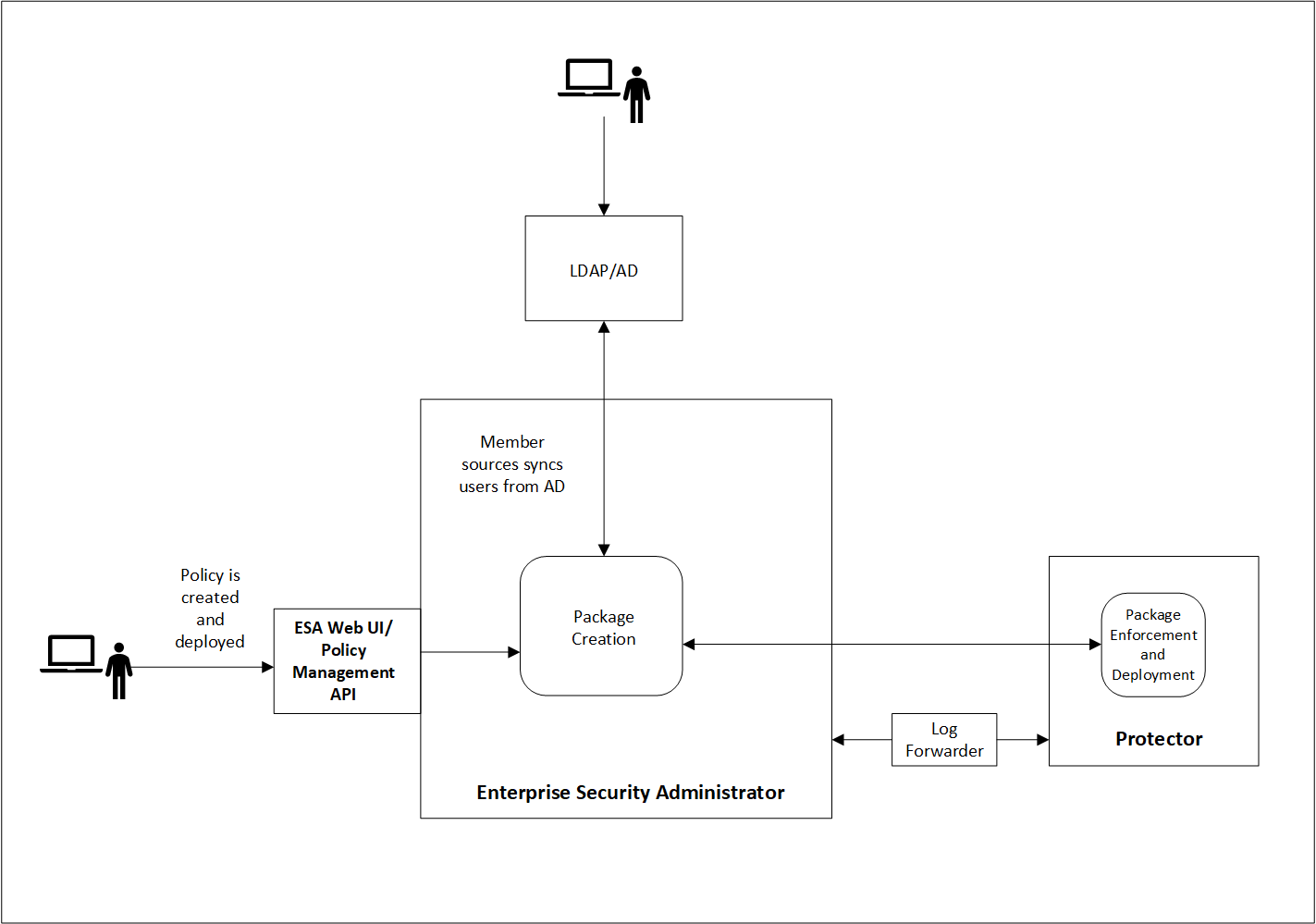
Resilient Package Deployment
A number of components participate in the Package distribution process from the ESA to Protectors. The ESA and Protector-based components communicate with each other using Time To Live (TTL) as the main metric to verify that their stored Packages are up to date.
The following table provides descriptions of each component:
| Abbreviation | Name | Description | TTL | Host |
|---|
| RPP | Resilient Package Proxy | A forward proxy that caches the Resilient Packages. | 60s | ESA |
| RPA | Resilient Package Agent | A component that connects to the ESA or the RPP to determine if a new Package exists for the data store. If a new Package exists, it is pulled by the RPA. | 60s | Protector |
| RPS API | Resilient Package REST API | An API used to pull packages from the ESA that can be used within DevOps pipelines. | N/A | ESA |
Resilient Package Deployment Architecture
The following diagram shows three sample use cases for downloading the resilient package from the ESA or an upstream server to the protectors.
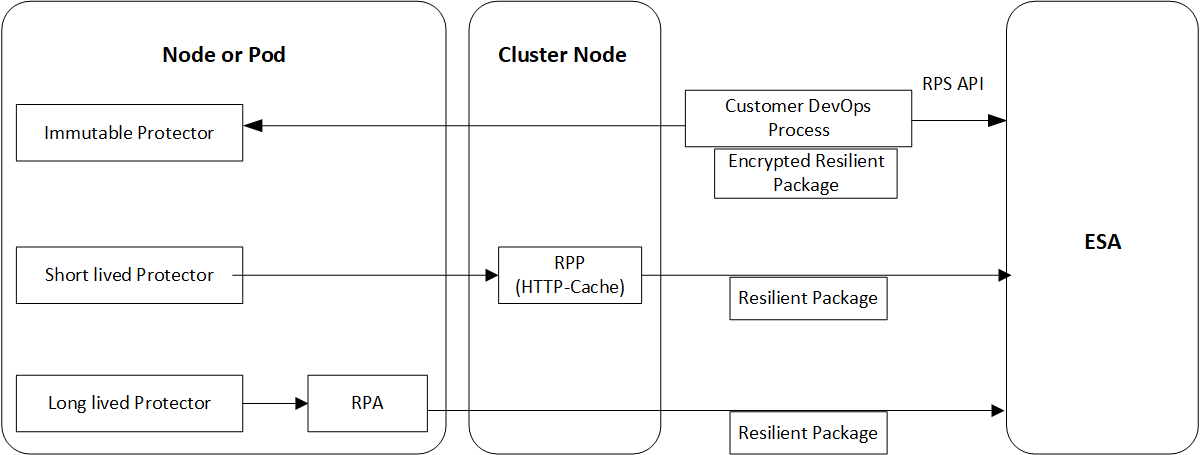
Package Deployment Approaches for Standard Protectors
The various package deployment approaches are explained with a model architecture diagram for Standard Protectors. For more information about package deployment approaches for Standard protectors, refer to Standard Protectors.
Use Case 1: Static Approach
In the first use case, the users create a DevOps process that uses the RPS API to export the resilient package from the ESA to the Immutable protector.
For more information and example of using the DevOps process in Application Protectors, refer to DevOps Approach for Application Protector.
Use Case 2: Dynamic Approach using RPP
In the second use case, a Resilient Package Proxy (RPP) is used to download the resilient package from the ESA. An RPP is an HTTP Cache that retrieves the resilient package from the ESA and stores it in its cache. The short lived protector or node then connects to the RPP instead of the ESA to download the resilient package. If the policy is updated in the ESA, then the RPP connects to the ESA to download the updated package.
For more information and example of using the RPP in Protegrity REST Container, refer to Architecture and Components using Dynamic-based Deployment.
Use Case 3: Dynamic Approach using RPA
In the third use case, the Resilient Package Agent (RPA) is installed on the Protector node or pod. The RPA connects to the ESA and downloads the resilient package.
For more information and example of using the RP Agent in CDP-PVC-Base, refer to Understanding the architecture.
For more information and example of using the RP Agent in Application Protector, refer to Understanding the architecture.
Important: The preferred use case depends on the type of protector that you are using. Refer to the corresponding Protector documentation for more details.