Accessing Appliances using Single Sign-On (SSO)
What is SSO?
Single Sign-on (SSO) is a feature that enables users to authenticate multiple applications by logging to a system only once. It provides federated access, where a ticket or token is trusted across multiple applications in a system. Users log in using their credentials. They are authenticated through authentication servers such as Active Directory (AD) or LDAP that validate the credentials. After successful authentication, a ticket is generated for accessing different services.
Consider an enterprise user having access to multiple applications that offer a variety of services. The applications might require user authentication, where one provides usernames and passwords to access them. Each time the user accesses any of the applications, the ask to provide the credentials increases. It is required that a user remember multiple user credentials for the applications. Thus, to avoid the confusion for the users, the Single Sign-On (SSO) mechanism can be used to facilitate access to multiple applications by logging in to the system only once.
1 - What is Kerberos
One of the protocols that SSO uses for authentication is Kerberos. Kerberos is an authentication protocol that uses secret key cryptography for secure communication over untrusted networks. Kerberos is a protocol used in a client-server architecture, where the client and server verify each other’s identities. The messages sent between the client and server are encrypted, thus preventing attackers from snooping.
For more information about Kerberos, refer to https://web.mit.edu/kerberos/
Key Entities in Kerberos
There are few key entities that are involved in a Kerberos communication.
- Key Distribution Center (KDC): Third-party system or service that distributes tickets.
- Authentication Server (AS): Server that validates the user logging into a system.
- Ticket Granting Server (TGS): Server that grants clients a ticket to access the services.
- Encrypted Keys: Symmetric keys that are shared between the entities such as, authentication server, TGS, and the main server.
- Simple and Protected GSS-API Negotiation (SPNEGO): The Kerberos SPNEGO mechanism is used in a client-server architecture for negotiating an authentication protocol in an HTTP communication. This mechanism is utilized when the client and the server want to authenticate each other, but are not sure about the authentication protocols that are supported by each of them.
- Service Principal Name (SPN): SPN represents a service on a network. Every service must be defined in the Kerberos database.
- Keytab File: It is an entity that contains an Active Directory account and the keys for decrypting Kerberos tickets. Using the keytab file, you can authenticate remote systems without entering a password.
For implementing Kerberos SSO, ensure that the following prerequisites are considered:
- The appliances, such as, the ESA, or DSG are up and running.
- The AD is configured and running.
- The IP addresses of the appliances are resolved to a Fully Qualified Domain Name (FQDN).
1.1 - Implementing Kerberos SSO for Protegrity Appliances
In Protegrity appliances, such as, the ESA or DSG you can utilize the Kerberos SSO mechanism to login to the appliance. The user logs into the system with his domain credentials for accessing the appliances. The appliance validates the user and on successful validation, allows the user access to the appliance. For utilizing the SSO mechanism, you must configure certain settings on different entities, such as, AD, Web browser, and the ESA appliance. The following sections describe a step-by-step approach for setting up SSO.
Protegrity supported directory services
For Protegrity appliances, only Microsoft AD is supported.
1.1.1 - Prerequisites
For implementing Kerberos SSO, ensure that the following prerequisites are considered:
- The appliances, such as, the ESA or DSG are up and running.
- The AD is configured and running.
- The IP addresses of the appliances are resolved to a Fully Qualified Domain Name (FQDN).
1.1.2 - Setting up Kerberos SSO
This section describes the different tasks that an administrative user must perform for enabling the Kerberos SSO feature on the Protegrity appliances, ESA or DSG.
| Order | Platform | Step | Reference |
|---|
| 1 | Appliance Web UI | On the appliance Web UI, import the domain users from the AD to the internal LDAP of the appliance. Assign SSO Login permissions to the required user role. | Importing Users and assigning role |
| 2 | Active Directory | On the AD, map the Kerberos SPN to a user account. | Configuring SPN |
| 3 | Active Directory | On the AD, generate a keytab file. | Generating keytab file |
| 4 | Appliance Web UI | On the appliance Web UI, upload the generated keytab file. | Uploading keytab file |
| 5 | Web Browser | On the user’s machine, configure the Web browsers to handle SPNEGO negotiation. | Configuring browsers |
Importing Users and Assigning Role
In the initial steps for setting up Kerberos SSO, a user with administrative privileges must import users from an AD to the appliance, ESA or DSG. After importing, assign the required permissions to the users for logging with SSO.
To import users and assign roles:
On the appliance Web UI, navigate to Settings > Users > Proxy Authentication.
Enter the required parameters for connecting to the AD.
For more information about setting AD parameters, refer here.
Navigate to the Roles tab.
Create a role or modify an existing role.
Select the SSO Login permission check box for the role and click Save.
If you are configuring SSO on the DSG, then ensure the user is also granted the required cloud gateway permissions.
Navigate to the User Management tab.
Click Import Users to import the required users to the internal LDAP.
For more information about importing users, refer here.
Assign the role with the SSO Login permissions to the required users.
Creating Service Principal Name (SPN)
A Service Principal Name (SPN) is an entity that represents a service mapped to an instance on a network. For a Kerberos-based authentication, the SPN must be configured in Active Directory (AD). For Protegrity appliances, ESA or DSG, only Microsoft AD is supported. The SPN is registered with the AD. In this configuration, a service associates itself with the AD for the purpose of authentication requests.
For Protegrity, the instance is represented by appliances, such as, the ESA or DSG. It uses the SPNEGO authentication for authenticating users for SSO. The SPNEGO uses the HTTP service for authenticating users. The SPN is configured for the appliances in the following format.
service/instance@domain
Ensure an SPN is created for every appliance involved in the Kerberos SSO implementation.
Example SPN creation
Consider an appliance with host name esa1.protegrity.com on the domain protegrity.com. The SPN must be set in the AD as HTTP/esa1.protegrity.com@protegrity.com.
The SPN of the appliance can be configured in the AD using the setspn command. Thus, to create the SPN for esa1.protegrity.com, run the following command.
setspn -A HTTP/esa1.protegrity.com@protegrity.com
Creating the Keytab File
The keytab is an encrypted file that contains the Kerberos principals and keys. It allows an entity to use a Kerberos service without being prompted for a password on every access. The keytab file decrypts every Kerberos service request and authenticates it based on the password.
For Protegrity appliances, such as, ESA or DSG, an SSO authentication request of a user from an appliance to the AD passes through the keytab file. In this file, you map the appliance user’s credentials to the SPN of the appliance. The keytab file is created using the ktpass command. The following is the syntax for this command:
ktpass -out <Location where to generate the keytab file> -princ HTTP/<SPN of the appliance> -mapUser <username> -mapOp set -pass <Password> -crypto All -pType KRB5_NT_PRINCIPAL
The following sample snippet describes the ktpass for mapping a user in the keytab file. Consider an ESA appliance with host name esa1.protegrity.com on the domain protegrity.com. The SPN for the appliance is set as HTTP/esa1.protegrity.com@protegrity.com. Thus, to create a keytab file and map a user Tom, run the following command.
ktpass -out C:\esa1.keytab -princ HTTP/esa1.protegrity.com@protegrity.com -mapUser Tom@protegrity.com -mapOp set -pass Test@1234 -crypto All -pType KRB5_NT_PRINCIPAL
Uploading Keytab File
After creating the keytab file from the AD, you must upload it on the appliance, such as, ESA or DSG. You must upload the keytab file before enabling Kerberos SSO
To upload the keytab file:
On the Appliance Web UI, navigate to Settings > Users > Single Sign-On.
The Single Sign On screen appears.
From the Keytab File field, upload the keytab file generated.
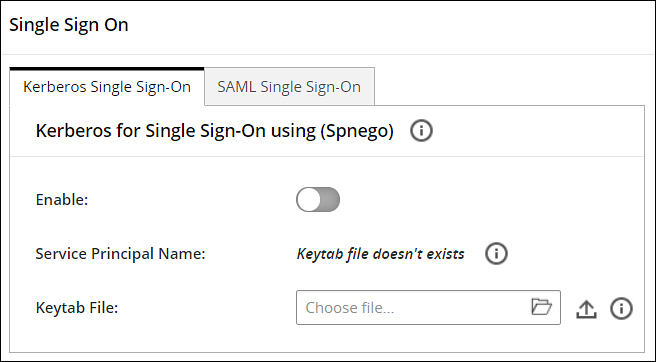
Click the Upload Keytab icon.
A confirmation message appears.
Select Ok.
Click the Delete icon to delete the keytab file. You can delete the keytab file only when the Kerberos for single sign-on (Spnego) option is disabled.
Under the Kerberos for single sign-on (Spnego) tab, click the Enable toggle switch to enable Kerberos SSO.
A confirmation message appears.
Select Ok.
A message Kerberos SSO was enabled successfully appears.
Configuring SPNEGO Authentication on the Web Browser
Before implementing Kerberos SSO for Protegrity appliances, such as, ESA or DSG, you must ensure that the Web browsers are configured to perform SPNEGO authentication. The tasks in this section describe the configurations that must be performed on the Web Browsers. The recommended Web browsers and their versions are as follows:
- Google Chrome version 129.0.6668.58/59 (64-bit)
- Mozilla Firefox version 130.0.1 (64-bit) or higher
- Microsoft Edge version 128.0.2739.90 (64-bit)
The following sections describe the configurations on the Web browsers.
Configuring SPNEGO Authentication on Firefox
The following steps describe the configurations on Mozilla Firefox.
To configure on the Firefox Web browser:
Open Firefox on the system.
Enter about:config in the URL.
Type negotiate in the Search bar.
Double click on network.negotiate-auth.trusted-uris parameter.
Enter the FQDN of the appliance and exit the browser.
Configuring SPNEGO Authentication on Chrome
With Google Chrome, you must set the white list servers that Chrome will negotiate with. If you are using a Windows machine to log in to the appliances, such as, ESA or DSG, then the configurations entered in other browsers are shared with Chrome. You need not add a separate configuration.
1.1.3 - Logging to the Appliance
After configuring the required SSO settings, you can login to the appliance, ESA or DSG, using Kerberos SSO.
To login to the appliance using SSO:
Open the Web browser and enter the FQDN of the ESA or DSG in the URL.
Click Sign in with Kerberos SSO.
The Dashboard of the ESA/DSG appliance appears.
1.1.4 - Scenarios for Implementing Kerberos SSO
This section describes the different scenarios for implementing Kerberos SSO.
Implementing Kerberos SSO on an Appliance Connected to an AD
This section describes the process of implementing Kerberos SSO when an appliance, ESA or DSG, utilizes authentication services of the local LDAP.
You can also login to the appliance without SSO by providing valid user credentials.
Consider an appliance, ESA or DSG, for which you are configuring SSO. Ensure that you perform the following steps to implement it.
- Import users from an external directory and assign SSO permissions.
- Configure SPN for the appliance.
- Create and upload the keytab file on the appliance.
- Configure the browser to support SSO.
Logging in with Kerberos SSO
After configuring the required settings, user enters the appliance domain name on the Web browser and clicks Sign in with SSO to access appliance. On successful authentication, the Dashboard of the appliance appears.
Example process
The following figure illustrates the SSO process for appliances that utilize the local LDAP.
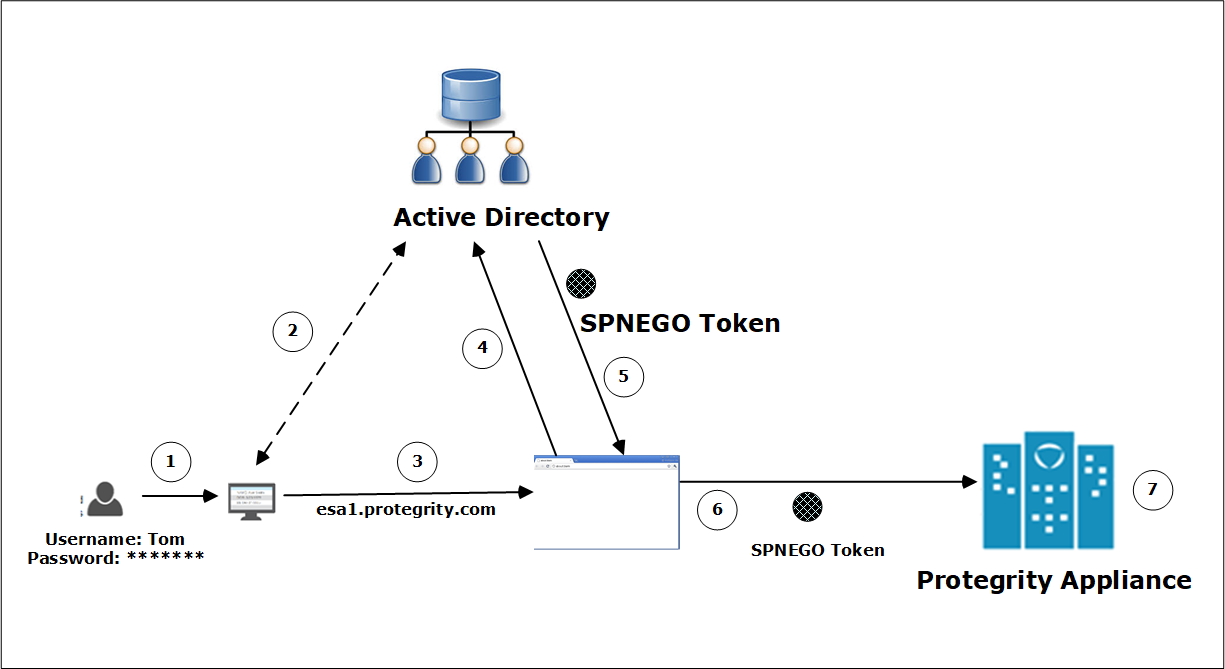
The user logs in to the domain with their credentials.
For example, a user, Tom, logs in to the domain abc.com as tom@abc.com and password *********.
Tom is authenticated on the AD. On successful authentication, he is logged in to the system.
For accessing the appliance, the user enters the FQDN of the appliance on the Web browser.
For example, esa1.protegrity.com.
If Tom wants to access the appliance using SSO, then he clicks Sign in with SSO on the Web browser.
A message is sent to the AD requesting a token for Tom to access the appliance.
The AD generates a SPNEGO token and provides it to Tom.
This SPNEGO token is then provided to the appliance to authenticate Tom.
The appliance performs the following checks.
- It receives the token and decrypts it. If the decryption is successful, then the token is valid.
- Retrieves the username from the token.
- Validates Tom with the internal LDAP.
- Retrieves the role for Tom and verifies that the role has the SSO Login permissions.
After successfully validating the token and the role permissions, Tom can access the appliance.
Implementing Kerberos SSO on other Appliances Communicating with ESA
This section describes the process of implementing Kerberos SSO when an appliance utilizes authentication services of another appliance. Typically, the DSG depends on ESA for user management and LDAP connectivity. This section explains the steps that must be performed to implement SSO on the DSG.
Implementing Kerberos SSO on DSG
This section explains the process of SSO authentication between the ESA and the DSG. It also includes information about the order of set up to enable SSO authentication on the DSG.
The DSG depends on the ESA for user and access management. The DSG can leverage the users and user permissions that are defined in the ESA only if the DSG is set to communicate with the ESA.
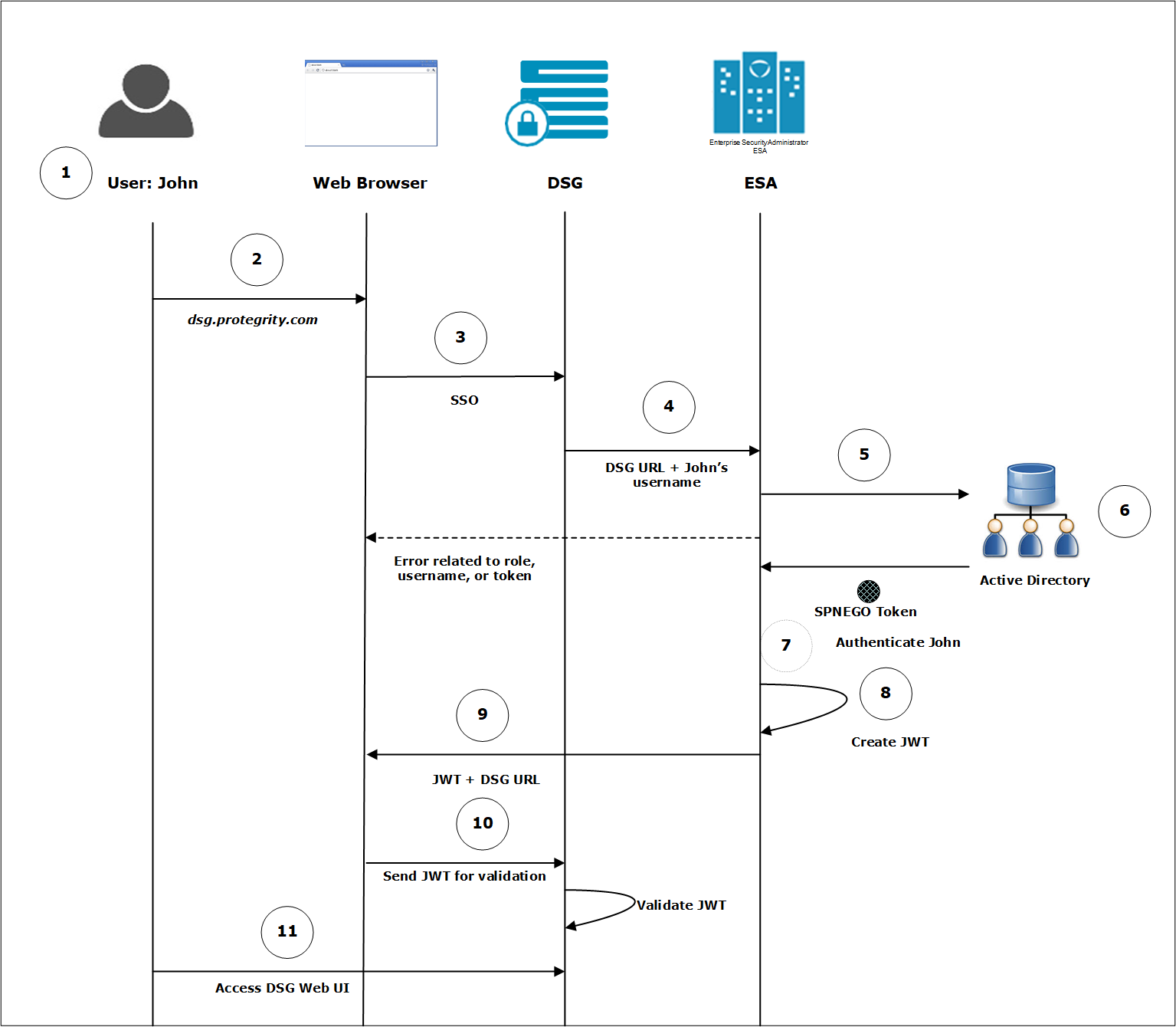
The following figure illustrates the SSO process for appliances that utilize the LDAP of another appliance.
Example process
The user logs in to the system with their credentials.
For example, John logs in to the domain abc.com as john@abc.com and password *********. The user is authenticated on the AD. On successful authentication the user is logged in to the system.
For accessing the DSG Web UI John enters the FQDN of the DSG on the Web browser.
For example, dsg.protegrity.com.
If John wants to access the DSG Web UI using SSO, he clicks Sign in with SSO on the Web browser.
The username of John and the URL of the DSG is forwarded to the ESA.
The ESA sends the request to the AD for generating a SPNEGO token.
The AD generates a SPNEGO token to authenticate John and sends it to the ESA.
The ESA performs the following steps to validate John.
Receives the token and decrypts it. If the decryption is successful, then the token is valid.
Retrieves the username from the token.
Validates John with the internal LDAP.
Retrieves the role for John and verifies that the role has SSO Login .
If ESA encounters any error related to the role, username, or token, an error is displayed on the Web UI. For more information about the errors, refer Troubleshooting.
On successful authentication, the ESA generates a service JWT.
The ESA sends this service JWT and the URL of to the Web browser.
The Web browser presents this JWT to the DSG for validation.
The DSG validates the JWT based on the secret key shared with ESA. On successful validation, John can login to the DSG Web UI.
Before You Begin:
Ensure that you complete the following steps to implement SSO on the DSG.
Ensure that the Set ESA Communication process is performed on the DSG for establishing communication with the ESA.
For more information about setting ESA communication, refer Setting up ESA Communication.
Import users from an external directory on the ESA and assign SSO and cloud gateway permissions.
Configure SPN for the ESA.
Create and upload the keytab file on the ESA.
Enable Single Sign-on on the ESA.
Export the JWT settings to all the DSG nodes in the cluster.
Next Steps:
After ensuring that the prerequisites for SSO in the DSG implementation are completed, you must complete the configuration on the DSG Web UI.
For more information about completing the configuration, refer LDAP and SSO Configurations.
Exporting the JWT Settings to the DSG Nodes in the Cluster
As part of SSO implementation for the DSG, the JWT settings must be exported to all the DSG nodes that will be configured to use SSO authentication.
Ensure that the ESA, where SSO is enabled, and the DSG nodes are in a cluster.
To export the JWT settings:
Log in to the ESA Web UI.
Navigate to System > Backup & Restore.
On the Export, select the Cluster Export option, and click Start Wizard.
On the Data to import tab, select only Appliance JWT Configuration. Ensure that Appliance JWT Configuration is the only check box selected, and then click Next.
On the Source Cluster Nodes tab, select Create and Run a task now, and click Next.
On the Target Cluster Nodes tab, select all the DSG nodes where you want to export the JWT settings, and click Execute.
Implementing Kerberos SSO with a Load Balancer Setup
This section describes the process of implementing SSO with a Load Balancer that is setup between the appliances.
Steps to configure SSO in a load balancer setup
Consider two appliances, L1 and L2, that are configured behind a load balancer. Ensure that you perform the following steps to implement it.
- Import users from an external directory on the L1 and L2 and assign SSO login permissions.
- Ensure that the FQDN is resolved to the IP address of the load balancer.
- Configure SPN for the load balancer.
- Create and upload the keytab file on L1 and L2.
- Configure the browser to support SSO.
Logging in with SSO
After configuring the required settings, the user enters the FQDN of load balancer on the Web browser and clicks Sign in with Kerberos SSO to access it. On successful authentication, the Dashboard of the appliance appears.
1.1.5 - Viewing Logs
You can view the logs that are generated for when the Kerberos SSO mechanism is utilized. The logs are are generated for the following events:
- Uploading keytab file on the appliance
- Deleting the keytab file on the appliance
- User logging to the appliance through SSO
- Enabling or disabling SSO
Navigate to Logs > Appliance Logs to view the logs.
You can also navigate on the Discover screen to view the logs.
1.1.6 - Feature Limitations
This section covers some known limitations of the Kerberos SSO feature.
Trusted Appliances Cluster
The keytab file is specific for an SPN. A keytab file assigned for one appliance is not applicable for another appliance. Thus, if your appliance is in a TAC, it is recommended not to replicate the keytab file between different appliances.
1.1.7 - Troubleshooting
This section describes the issues and their solutions while utilizing the Kerberos SSO mechanism.
Table: Kerberos SSO Troubleshooting
| Issue | Reason | Solution |
The following message appears while logging in with
SSO.Login Failure: SPNEGO authentication is not supported on this client. | The browser is not configure to handle SPNEGO
authentication | Configure the browser to perform SPNEGO
authentication. |
The following message appears while logging in with
SSO.Login Failure: Unauthorized to SSO Login. | - Username is not present in the internal LDAP.
- Username does not have roles assigned to it.
- Role that is assigned to the user does not have SSO Login permissions.
| Ensure that the following points are considered: - The user is imported to the internal LDAP.
- Role assigned to the user has SSO
Login permission enabled.
|
The following error appears while logging in with
SSO.Login Failure: Please contact System Administrator | The JWT secret key is not the same between the
appliances. | If an appliance is using an LDAP of another appliance for user authentication, then ensure that the JWT secret is shared between them. |
The following error appears while logging in with
SSO.Login Failure: SSO authentication disabled | This error might occur when you are using LDAP of another appliance for authentication. If SSO in the appliance that contains the LDAP information is disabled, this error message appears. | On the ESA Web UI, navigate to System > Settings > Users > Advanced and check Enable SSO check box. |
| When you are using an LDAP of another appliance for
authentication and logging in using SSO, a Service not available message appears on the Web browser. | - Active Directory is not reachable.
- Appliance on which the LDAP services are utilized is not reachable.
| Ensure the following:- Active Directory is up and running.
- Appliance on which the LDAP services are utilized is up and running.
|
2 - What is SAML
About SAML
Security Assertion Markup Language (SAML) is an open standard for communication between an identity provider (IdP) and an application. It is a way to authenticate users in an IdP to access the application.
SAML SSO leverages SAML for seamless user authentication. It uses XML format to transfer authentication data between the IdP and the application. Once users log in to the IdP, they can access multiple applications without providing their user credentials every time. For SAML SSO to be functioning, the IdP and the application must support the SAML standard.
Key Entities in SAML
There are few key entities that are involved in a Kerberos communication:
- Identity Provider (IdP): A service that manages user identities.
- Service Provider (SP): An entity connecting to the IdP for authenticating users.
- Metadata: An file containing information for connecting an SP to an IdP.
Implementing SAML SSO for Protegrity Appliances
In Protegrity appliances, such as, ESA or DSG, you can utilize the SAML SSO mechanism to login to the appliance. To use this feature, you log in to an IdP, such as, AWS, Azure, or GCP. After you are logged in to the IdP, you can access appliances such as, the ESA or the DSG. The appliance validates the user and on successful validation, allows the user access to the appliance. The following sections describe a step-by-step approach for setting up SAML SSO.
2.1 - Setting up SAML SSO
Prerequisites
For implementing SAML SSO, ensure that the following prerequisites are met:
- The SPs, such as, the ESA or the DSG are up and running.
- The users are available in IdPs, such as, AWS, Azure, or GCP.
- The IdP contains a SAML application for your appliance, such as, ESA or DSG.
- The users that will leverage the SAML SSO feature are added from the User Management screen.
- The IP addresses of the appliances are resolved to a Fully Qualified Domain Name (FQDN).
Setting up SAML SSO
This section describes the different tasks that an administrative user must perform for enabling the SAML SSO feature on the Protegrity appliances.
As part of this process changes may be required to be performed on a user’s roles and settings for LDAP. For more information, refer to section Adding Users to Internal LDAP and Managing Roles.
Table 1. Setting up SSO
| Order | Platform | Step | Reference |
| 1 | Appliance Web UI | Add the users that require SAML SSO. Assign SSO
Login permissions to the required user role. Ensure that the password of the users are changed after the first login to the appliance. | |
| 2 | Appliance Web UI | Provide the FQDN and entity ID. This is retrieved from the
IdP in which a SAML enterprise application is created for your
appliance. | Configuring Service Provider (SP) Settings |
| 3 | Appliance Web UI | Provide the metadata information that is generated on the IdP. | Configuring IdP Settings |
Configuring Service Provider (SP) Settings
Before enabling SAML SSO on the appliance, such as, ESA or DSG, you must provide the following values that are required to connect the appliance with the IdP.
Fully Qualified Domain Name (FQDN)
The Web UI must have a FQDN so it can be accessed from the web browser of the appliance, such as, ESA or ESA. While configuring SSO on the IdP, you are required to provide a URL that maps your application on the IdP. Ensure that the URL specified in the IdP matches the FQDN specified on the appliance Web UI. Also, ensure that the IP address of your appliance is resolved to a reachable domain name.
Entity ID
The entity ID is a unique value that identifies your SAML application on the IdP. This value is assigned/generated on the IdP after registering your SAML enterprise application on it.
The nomenclature of the entity ID might vary between IdPs.
To enter the SP settings:
On the Web UI, navigate to Settings > Users > Single Sign-On > SAML SSO.
Under the SP Settings section, enter the FQDN that is resolved to the IP address of the appliance in the FQDN text box.
Enter the unique value that is assigned to the SAML enterprise application on the IdP in the Entity ID text box.
If you want to allow access to User Management screen, enable the Access User Management screen option.
- User Management screens require users to provide local user password while performing any operation on it.
- Enabling this option will require users to remember and provide the password created for the user on the appliance.
Click Save.
The SP settings are configured.
Configuring IdP Settings
After configuring the the SP settings, you provide the metadata that acts as an important parameter in SAML SSO. The metadata is the chain that links the appliance to the IdP. It is an XML structure that contains information, such as, keys, certificates, and entity ID URL. This information is required for communication between the appliance and IdP. The metadata can be provided in either of the following ways:
- Metadata URL: Provide the URL of the metadata that is retrieved from the IdP.
- Metadata File: Provide the metadata file that is downloaded from the IdP and stored on your system. If you edit the metadata file, then ensure that the information in the metadata is correct before uploading it on the appliance.
To enter the metadata settings:
On the Web UI, navigate to Settings > Users > Single Sign-On > SAML SSO.
Click Enable to enable SAML SSO.
If the metadata URL is available, under the IdP Settings section, then select Metadata URL from the Metadata Settings drop-down list. Enter the URL of the metadata.
If the metadata file is downloaded, under the IdP Settings section, then select Metadata File from the Metadata Settings drop-down list. Upload the metadata file.
If you want to allow access to the User Management screen, enable the Access User Management screen option.
- User Management screens require users to provide local user password while performing any operation on it.
- Enabling this option will require users to remember and provide the password created for the user on the appliance.
Click Save.
The metadata settings are configured.
- If you upload a new metadata file over the existing file, the changes are overridden by the new file.
- If you edit the metadata file, then ensure that the information in the metadata is correct before uploading it on the appliance.
2.1.1 - Workflow of SAML SSO on an Appliance
After entering all the required data, you are ready to log in with SAML SSO. Before explaining the procedure to log in, the general flow of information is illustrated in the following figure.
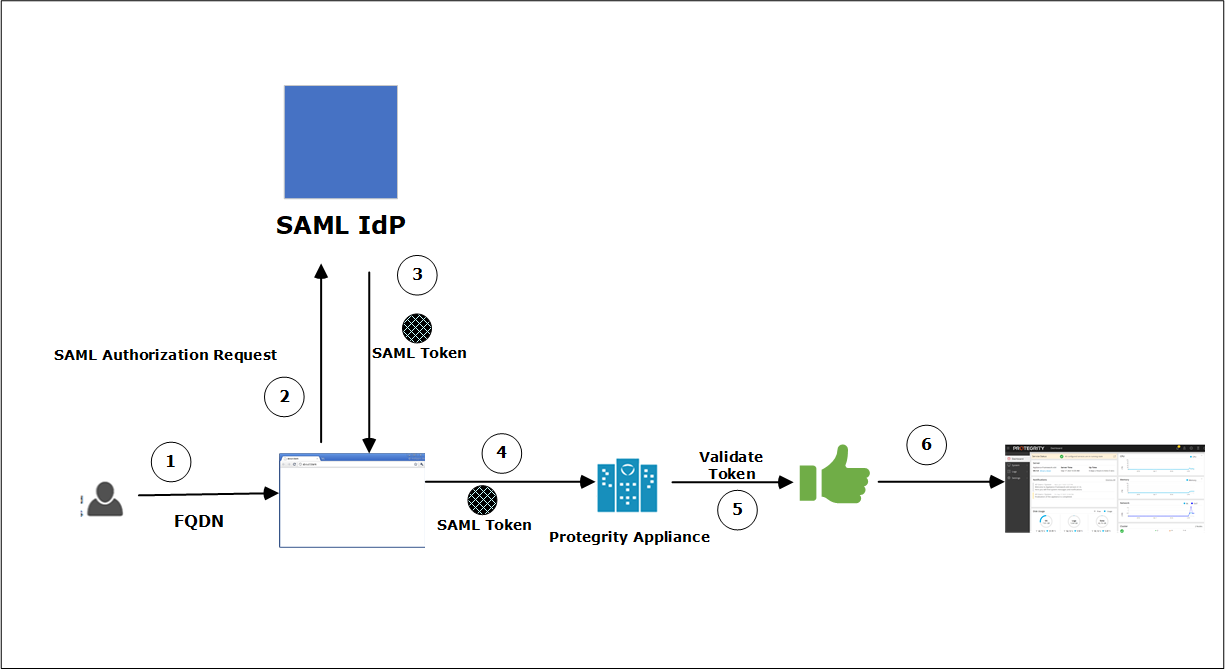
Follow the below process to login to the appliance. Additionally, you can login to the appliance without SSO by providing valid user credentials.
Process
Follow these steps to login with SSO:
The user provides the FQDN of the appliance on the Web browser.
For example, the user enters esa.protegrity.com and clicks SAML Single Sign-On.
- Ensure that the user session on the IdP is active.
- If the session is idle or inactive, then a screen to enter the IdP credentials will appear.
The browser generates an authorization request and sends it to the IdP for verification.
If the user is authorized, then the IdP generates a SAML token and returns it to the Web browser.
This SAML token is then provided to the appliance to authenticate the user.
The appliance receives the token. If the token is valid, then the permissions of the user are checked.
Once these are validated, the Web UI of the appliance appears.
2.1.2 - Logging on to the Appliance
After configuring the required SSO settings, you can login to the appliance using SSO. Ensure that the user session on the IdP is active. If the session is idle or inactive, then a screen to enter the IdP credentials will appear.
To login to the appliance using SSO:
Open the Web browser and enter the FQDN of the ESA or the DSG in the URL.
The following screen appears.
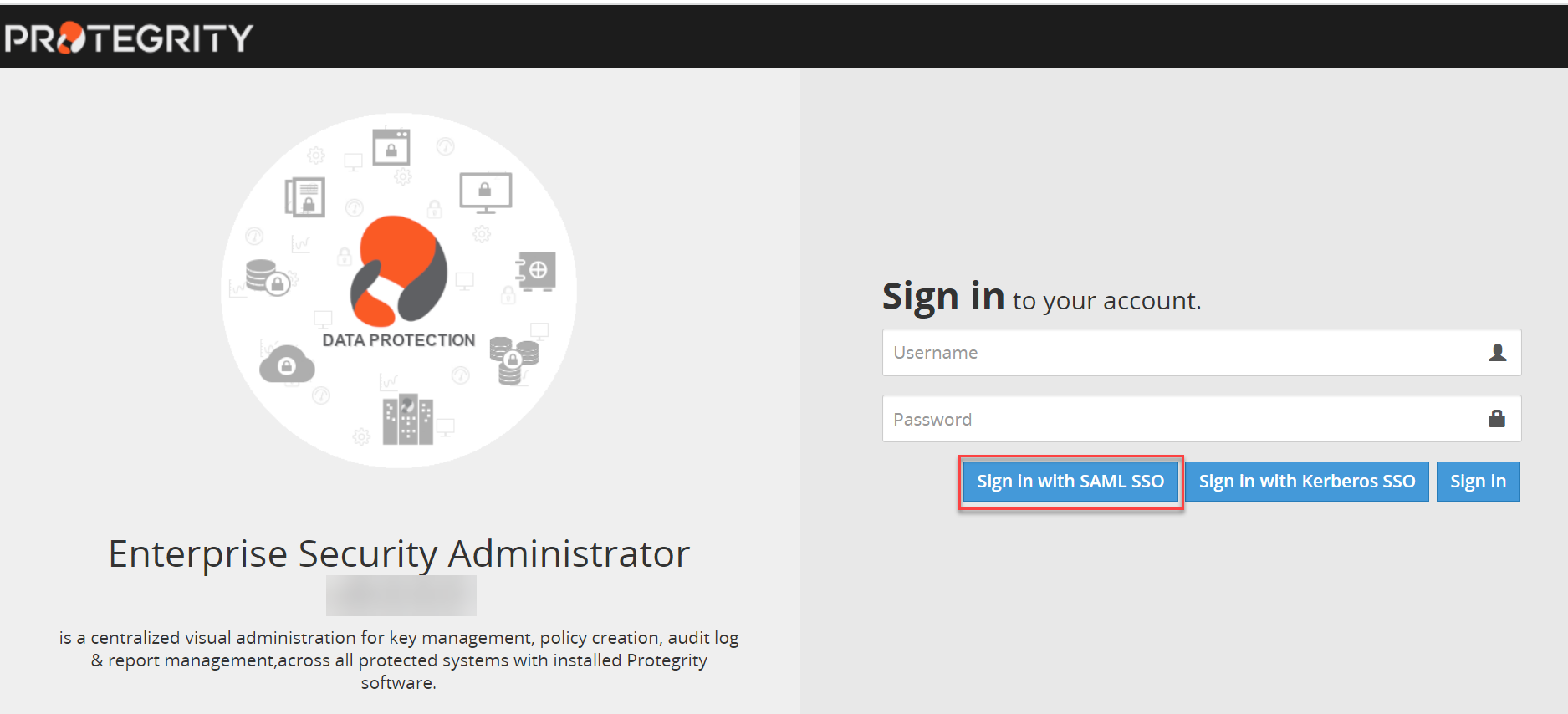
Click Sign in with SAML SSO.
The Dashboard of the ESA/DSG appliance appears.
2.1.3 - Implementing SAML SSO on Azure IdP - An Example
This section provides a step-by-step sample scenario for implementing SAML SSO on the ESA with the Azure IdP.
Prerequisites
An ESA is up and running.
Ensure that the IP address of ESA is resolved to a reachable FQDN.
For example, resolve the IP address of ESA to esa.protegrity.com.
On the Azure IdP, perform the following steps to retrieve the entity ID and metadata.
Log in to the Azure Portal. Navigate to Azure Active Directory. Select the tenant for your organization. Add the enterprise application in the Azure IdP. Note the value of Application Id for your enterprise application.
For more information about creating an enterprise application, refer to https://docs.microsoft.com/.
Select Single sign-on > SAML. Edit the Basic SAML configuration and enter the Reply URL (Assertion Consumer Service URL). The format for this text box is https://<FQDN of the appliance>/Management/Login/SSO/SAML/ACS.
For example, the value in the Reply URL (Assertion Consumer Service URL) is, https://esa.protegrity.com/Management/Login/SSO/SAML/ACS
Under the SAML Signing Certificate section, copy the Metadata URL or download the Metadata XML file.
Users leveraging the SAML SSO feature are available in the Azure IdP tenant.
Steps
Log in to ESA as an administrative user. Add all the users for which you want to enable SAML SSO. Assign the roles to the users with the SSO Login permission.
For example, add the user Sam from the User Management screen on the ESA Web UI. Assign a Security Administrator role with SSO Login permission to Sam.
Ensure that the user Sam is present in the Azure AD.
Navigate to Settings > Users > Single Sign-On > SAML Single Sign-On. In the Service Provider (SP) settings section, enter esa.protegrity.com and the Appliance ID in the FQDN and Entity ID text boxes respectively. Click Save.
In the Identity Provider (IdP) Settings section, enter the Metadata URL in the Metadata Settings text box. If the Metadata XML file is downloaded on your system, then upload it. Click Save.
Select the Enable option to enable SAML SSO.
If you want to allow access to User Management screen, enable the Access User Management screen option.
Log out from ESA.
Open a new Web browser session. Log in to the Azure portal as Sam with the IdP credentials.
Open another session on the Web browser and enter the FQDN of ESA. For example, esa.protegrity.com.
Ensure that the user session on the IdP is active. If the session is idle or inactive, then a screen to enter the IdP credentials will appear.
Click Sign in with SAML SSO. You are automatically directed to the ESA Dashboard without providing the user credentials.
2.1.4 - Implementing SSO with a Load Balancer Setup
This section describes the process of implementing SSO with a Load Balancer that is setup between the appliances.
Steps to configure SSO in a Load Balancer setup
Consider two ESA, ESA1 and ESA2, that are configured behind a load balancer. Ensure that you perform the following steps to implement it.
- Add the users to the internal LDAP and assign SSO login permissions.
- Ensure that the FQDN is resolved to the IP address of the load balancer.
Logging in with SSO
After configuring the required settings, the user enters the FQDN of load balancer on the Web browser and clicks Sign in with SAML SSO to access it. On successful authentication, the appliance Dashboard appears.
2.1.5 - Viewing Logs
You can view the logs that are generated for when the SAML SSO mechanism is utilized. The logs are generated for the following events:
- Uploading the metadata
- User logging to the ESA or DSG through SAML SSO
- Enabling or disabling SAML SSO
- Configuring the Service Provider and IdP settings
Navigate to Logs > Appliance Logs to view the logs.
You can also navigate on the Discover screen to view the logs.
2.1.6 - Feature Limitations
There are some known limitations of the SAML SSO feature.
- The Configuration export to Cluster Tasks and Export data configuration to remote appliance of the SAML SSO settings are not supported. The SAML SSO settings include the hostname, so importing the SAML settings on another machine will replace the hostname.
- After logging in to the appliance, such as, ESA or DSG, through SAML SSO, if you have the Directory Manager permissions, you can access the User Management screen. A prompt to enter the user password appears after a user management operation is performed on it. In this case, you must enter the password that you have set on the appliance. The password that is set on the IdP is not applicable here.
2.1.7 - Troubleshooting
This section describes the issues and their solutions while utilizing the SAML SSO mechanism.
| Issue | Reason | Solution |
The following message appears while logging in with SSO.Login Failure: Unauthorized to SSO Login. | - Username is not present in the internal LDAP.
- Username does not have roles assigned to it.
- Role that is assigned to the user does not have SSO Login permission.
. | Ensure that the following points are considered: - The user is imported to the internal LDAP.
- Role assigned to the user has SSO
Login permission enabled.
For more information about configuring user role, refer here. |