This is the multi-page printable view of this section. Click here to print.
Working with Insight
1 - Understanding the Audit Store node status
Viewing cluster status
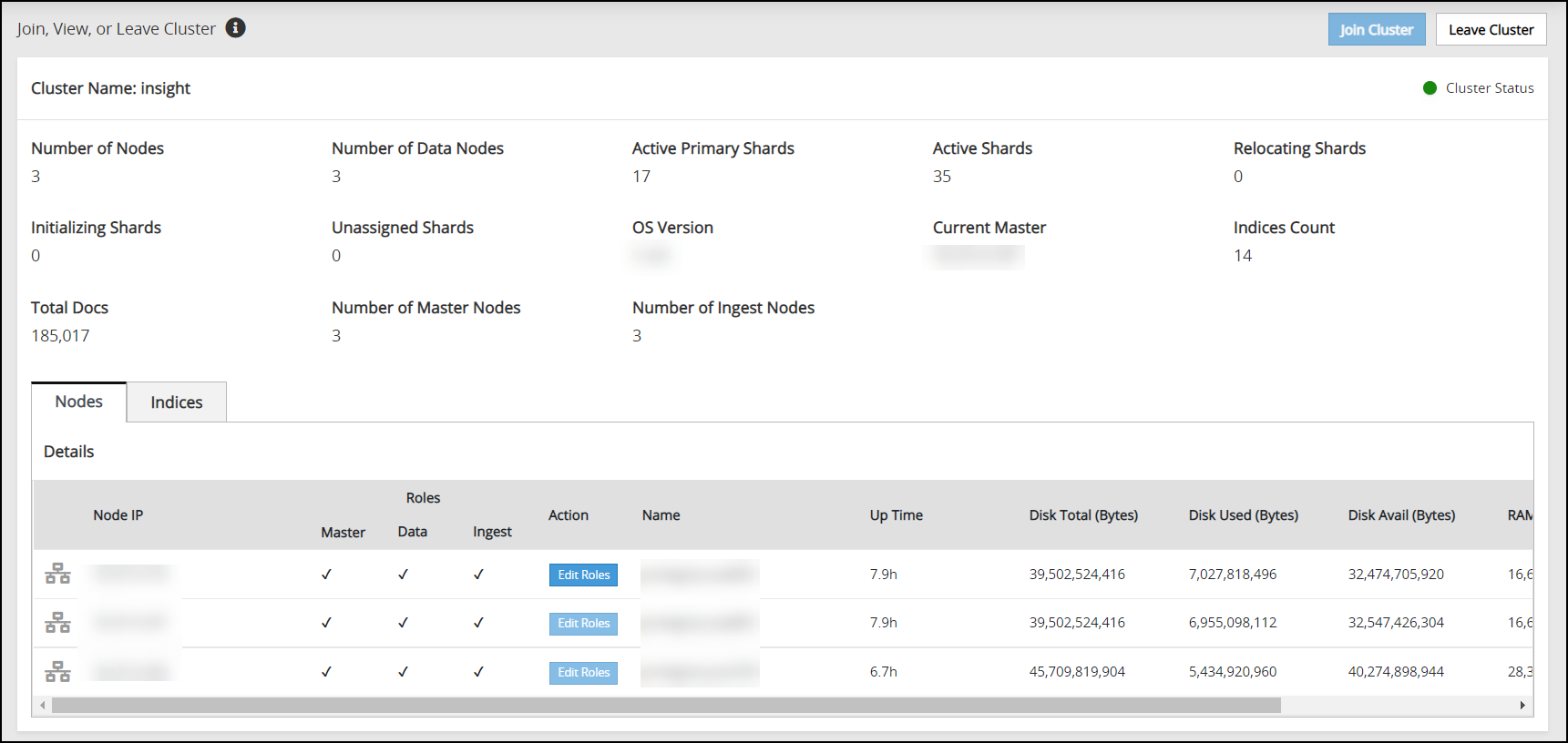
The Overview screen shows information about the Audit Store cluster. Use this information to understand the health of the Audit Store cluster. Access the Overview screen by navigating to Audit Store > Cluster Management > Overview. The Overview screen is shown in the following figure.
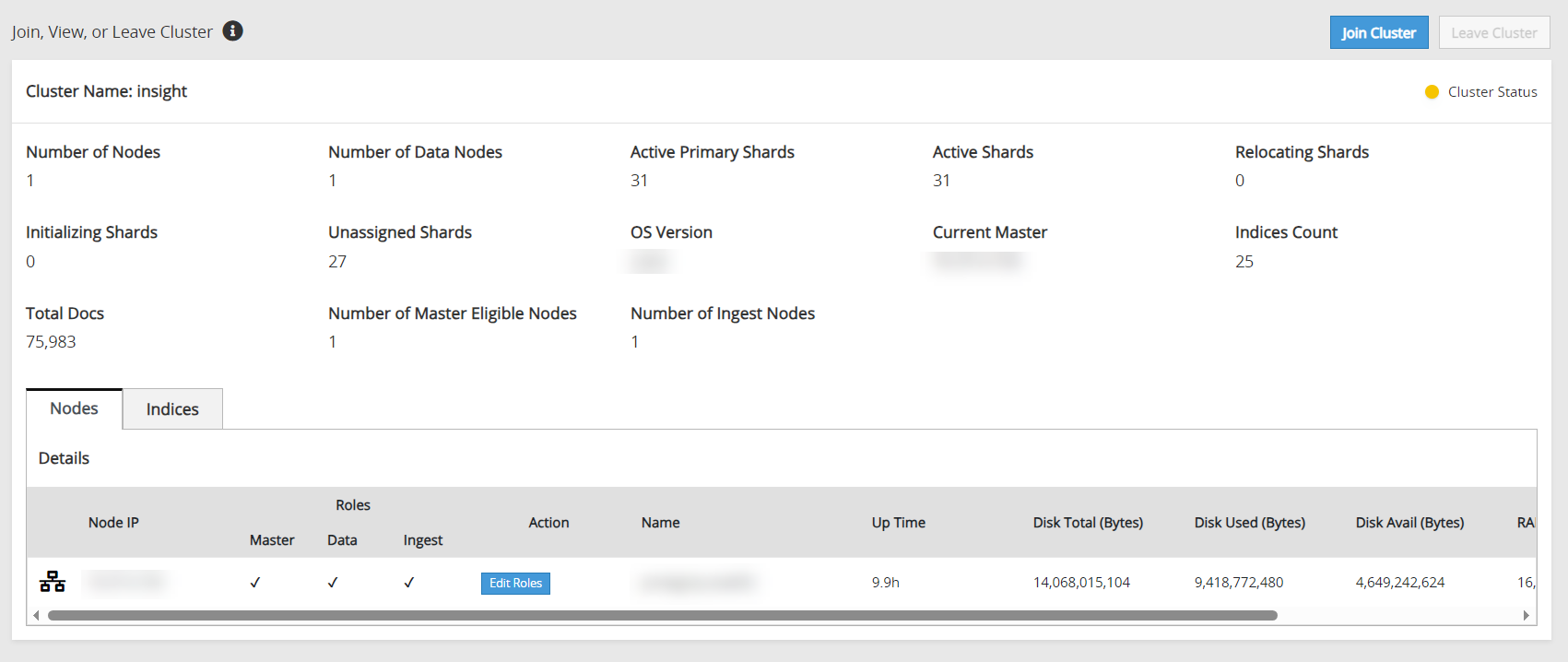
The following information is shown on the Overview screen:
- Join Custer: Click to add a node to the Audit Store cluster. The node can be added to only one Audit Store cluster. On a multi-node cluster, this button is disabled after the node is added to the Audit Store cluster.
- Leave Cluster: Click to remove a node from the Audit Store cluster. This button is disabled after the node is removed from an Audit Store cluster.
- Cluster Name: The name displays the Audit Store cluster name.
- Cluster Status: The cluster status displays the index status of the worst shard in the Audit Store cluster. Accordingly, the following status information appears:
- Red status indicates that the specific shard is not allocated in the Audit Store cluster.
- Yellow status indicates that the primary shard is allocated but replicas are not allocated.
- Green status indicates that all shards are allocated.
- Number of Nodes: The count of active nodes in the Audit Store cluster.
- Number of Data Nodes: The count of nodes that have a data role.
- Active Primary Shards: The count of active primary shards in the Audit Store cluster.
- Active Shards: The total of active primary and replica shards.
- Relocating Shards: The count of shards that are being relocated.
- Initializing Shards: The count of shards that are under initialization.
- Unassigned Shards: The count of shards that are not allocated. The Audit Store will process and dynamically allocate these shards.
- OS Version: The version number of the OpenSearch used for the Audit Store.
- Current Master: The IP address of the current Audit Store node that is elected as master.
- Indices Count: The count of indices in the Audit Store cluster.
- Total Docs: The document count of all indices in the Audit Store cluster, excluding security index docs.
- Number of Master Nodes: The count of nodes that have the master-eligible role.
- Number of Ingest Nodes: The count of nodes that have the ingest role.
For more information about clusters, shards, docs, and other terms, refer to the OpenSearch documentation.
Viewing the node status
The Nodes tab on the Overview screen shows the status of the nodes in the Audit Store cluster. This tab displays important information about the node. The Nodes tab is shown in the following figure.
The following information is shown on the Nodes tab:
- Node IP: The IP address of the node.
- Role: The roles assigned to the node. By default, nodes are assigned all the roles. The following roles are available:
- Master: This is the master-eligible role. The nodes having this role can be elected as the cluster master to control the Audit Store cluster.
- Data: The nodes having the data role hold data and perform data-related operations.
- Ingest: The nodes having the ingest role process the logs received before the logs are stored in the Audit Store.
- Action: The button to edit the roles for the current node. For more information about roles, refer to Working with Audit Store roles.
- Name: The name for the node.
- Up Time: The uptime for the node.
- Disk Total (Bytes): The total disk space in bytes.
- Disk Used (Bytes): The disk space used in bytes.
- Disk Avail (Bytes): The available disk space in bytes.
- RAM Max (Bytes): The total RAM available in bytes.
- RAM Current (Bytes): The current RAM used in bytes.
Viewing the index status
The Indices tab on the Overview screen shows the status of the indexes on the Audit Store cluster. This tab displays important information about the indexes. The Indices tab is shown in following figure.
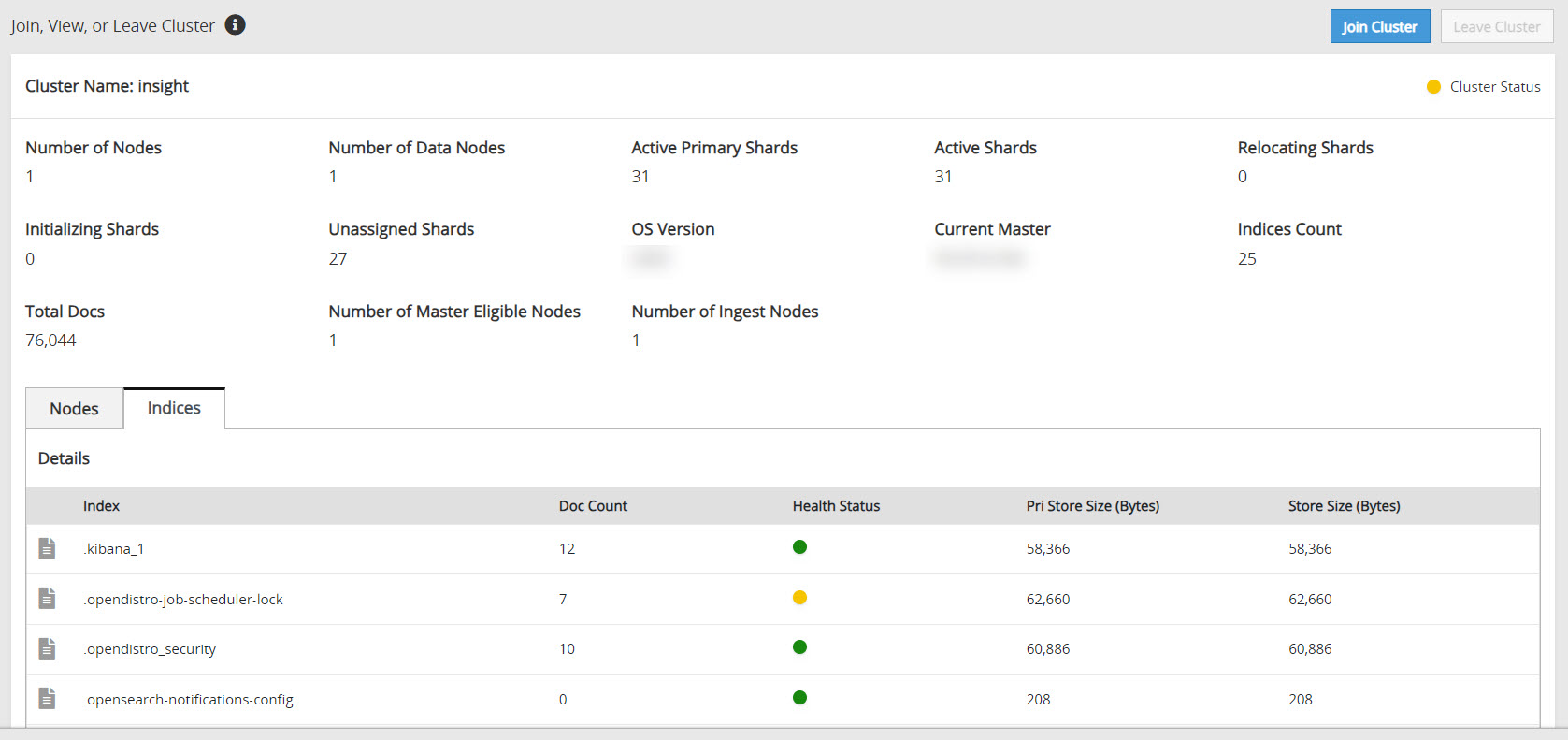
The following information is shown on the Indices tab:
- Index: The index name.
- Doc Count: The number of documents in the index.
- Health Status: The index health per index. The index level health status is controlled by the worst shard status. Accordingly, the following status information appears:
- Red status indicates that the specific shard is not allocated in the Audit Store cluster.
- Yellow status indicates that the primary shard is allocated but replicas are not allocated.
- Green status indicates that all shards are allocated.
- Pri Store Size (Bytes): The primary store size in bytes for all shards, including shard replicas of the index.
- Store Size (Bytes): The total store size in bytes for all shards, including shard replicas of the index.
2 - Working with Audit Store nodes
Registering a node
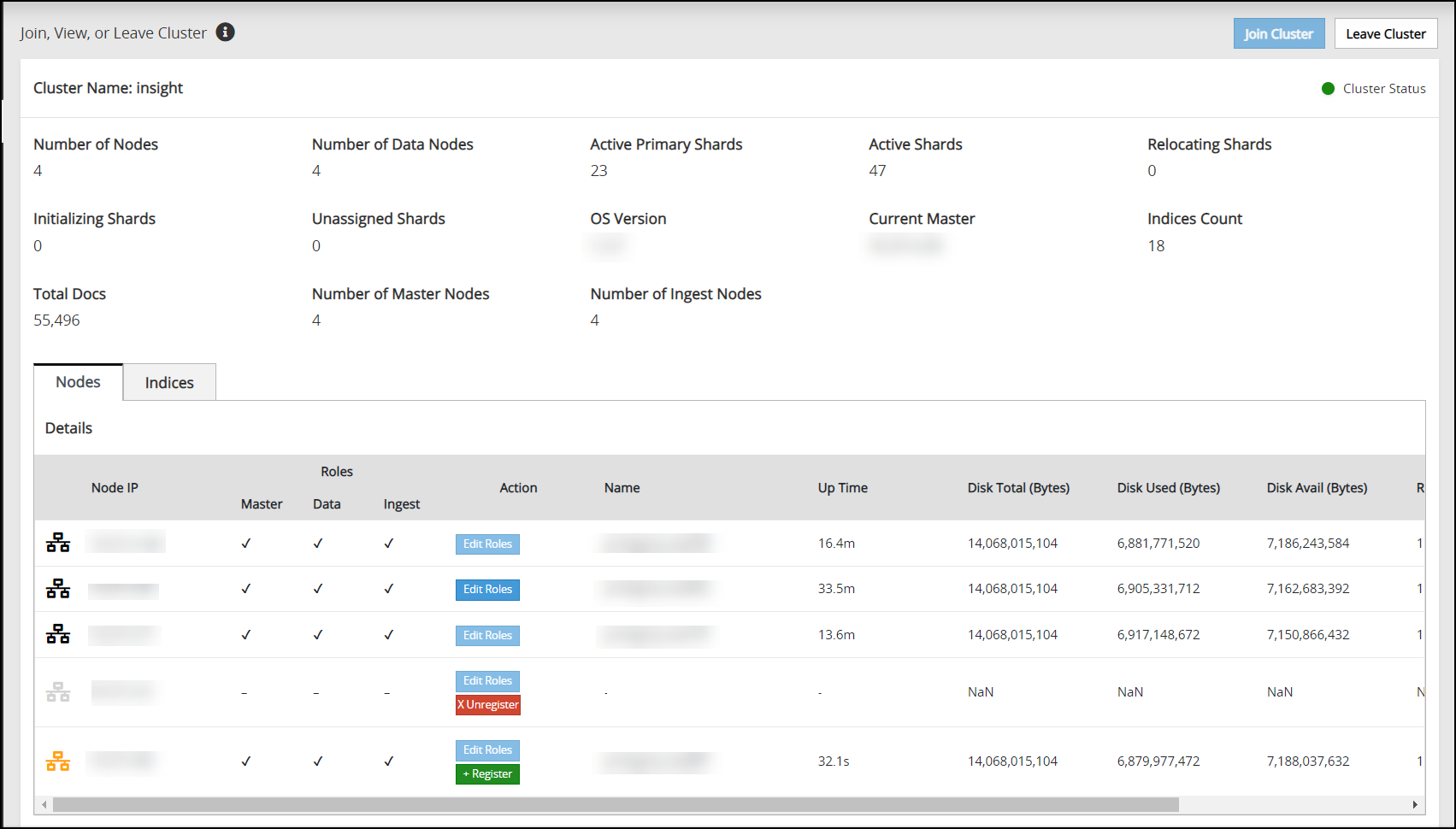
When a node that was a part of the Audit Store cluster was down or unregistered is started again, then it would already have the Audit Store configurations. Similarly, due to issues during an upgrade, a node might not complete the Audit Store cluster registration process. In this case, the node appears with an orange icon ( ). Register the node using the Register button to add the node to the Audit Store cluster.
Perform the following steps to register a node:
Navigate to Audit Store > Cluster Management > Overview > Nodes.
Click Register (
 ).
).The node will be a part of the cluster and a black node icon (
 ) will appear.
Unregistering a node
When a node goes down, such as due to a crash or for maintenance, then the node is greyed out ( ). Additionally, if a node gets corrupted, then it is not possible to log in to the node to remove it from the Audit Store cluster. In these case, disconnect the node from the cluster using the Unregister button. A disconnected node can be added back to the cluster later, if required.
Perform the following steps to remove the disconnected node:
Navigate to Audit Store > Cluster Management > Overview > Nodes.
Click Unregister (
 ).
).The node will still be a part of the cluster, however, it will not be visible in the list.
3 - Working with Audit Store roles
A node can have one role or multiple roles. A cluster needs at least one node with each role. Hence, roles of the node in a single-node cluster cannot be removed. Similarly, if the node is the last node in the cluster with a particular role, then the role cannot be removed. By default, all the nodes must have the master-eligible, data, and ingest roles:
- Master-eligible: This is the master-eligible node. It is eligible to be elected as the master node that controls the Audit Store cluster. A minimum of 3 nodes with the master-eligible role are required in the cluster to make the Audit Store cluster stable and resilient. For mor iformation about the architecture, refer to the Logging architecture.
- Data: This node holds data and can perform data-related operations. A minimum of 2 nodes with the data role are required in the Audit Store cluster to provide redundancy of data. Redundancy reduces data loss when a node goes down.
- Ingest: This node processes logs received before the log is indexed for further storage and processing. A minimum of 2 nodes with the ingest role are required in the Audit Store cluster.
The Audit Store uses the following formula to determine the minimum number of nodes with the Master-eligible role that should be running in the cluster:
Minimum number of running nodes with the Master-eligible role in a cluster:
(Total number of nodes with the Master-eligible role in a cluster / 2) + 1
For example, if the cluster has 5 nodes that have the Master-eligible role, then the minimum number of nodes with the Master-eligible role that needs to be running for the cluster to remain functional is 3. If there are fewer than 3 nodes available, the cluster might not be able to promote any nodes to Master if multiple Master nodes fail.
An Audit Store cluster must have a minimum of 3 nodes with the Master-eligible role due to following scenarios:
- 1 master-eligible node: If the only node is present with the Master-eligible role, then it is elected the Master, by default, because it is the only node with the required Master-eligible role. In this case, if the node becomes unavailable due to some failure, then the cluster becomes unstable as there is no additional node with the Master-eligible role.
- 2 master-eligible nodes: A cluster where only 2 nodes have the Master-eligible role will both have the Master-eligible role at the minimum to be up and running for the cluster to remain functional. If any one of those nodes becomes unavailable due to some failure, then the minimum condition for the nodes with the Master-eligible role is not met.
- 3 master-eligible nodes and above: In this case, if any one node goes down, then the cluster can still remain functional because this cluster requires two nodes with the Master-eligible role to be running at the minimum, as per the minimum Master-eligible role formula.
For more information about node and roles, refer to https://opensearch.org/docs/2.18/tuning-your-cluster/.
Based on the requirements, modify the roles of a node using the following steps.
Log in to the Web UI of the system to change the role.
Click Audit Store > Cluster Management > Overview to open the Audit Store clustering page.
Click Edit Roles.
Select the check box to add a role. Alternatively, clear the check box to remove a role.
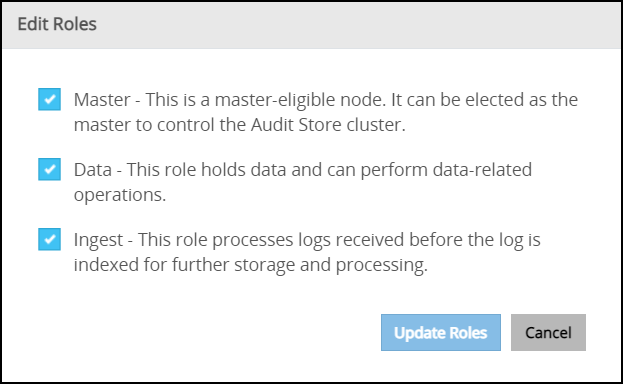
Click Update Roles.
Click Dismiss in the message box that appears after the role update.
4 - Working with Discover
For more information about Discover, refer to https://opensearch.org/docs/2.18/dashboards/.
Viewing logs
The logs aggregated and collected are sent to Insight. Insight stores the logs in the Audit Store. The logs from the Audit Store are displayed on the Audit Store Dashboards. Here, the different fields and the data logged is visible. In addition to viewing the data, these logs serve as input for Analytics to analyze the health of the system and to monitor the system for providing security.
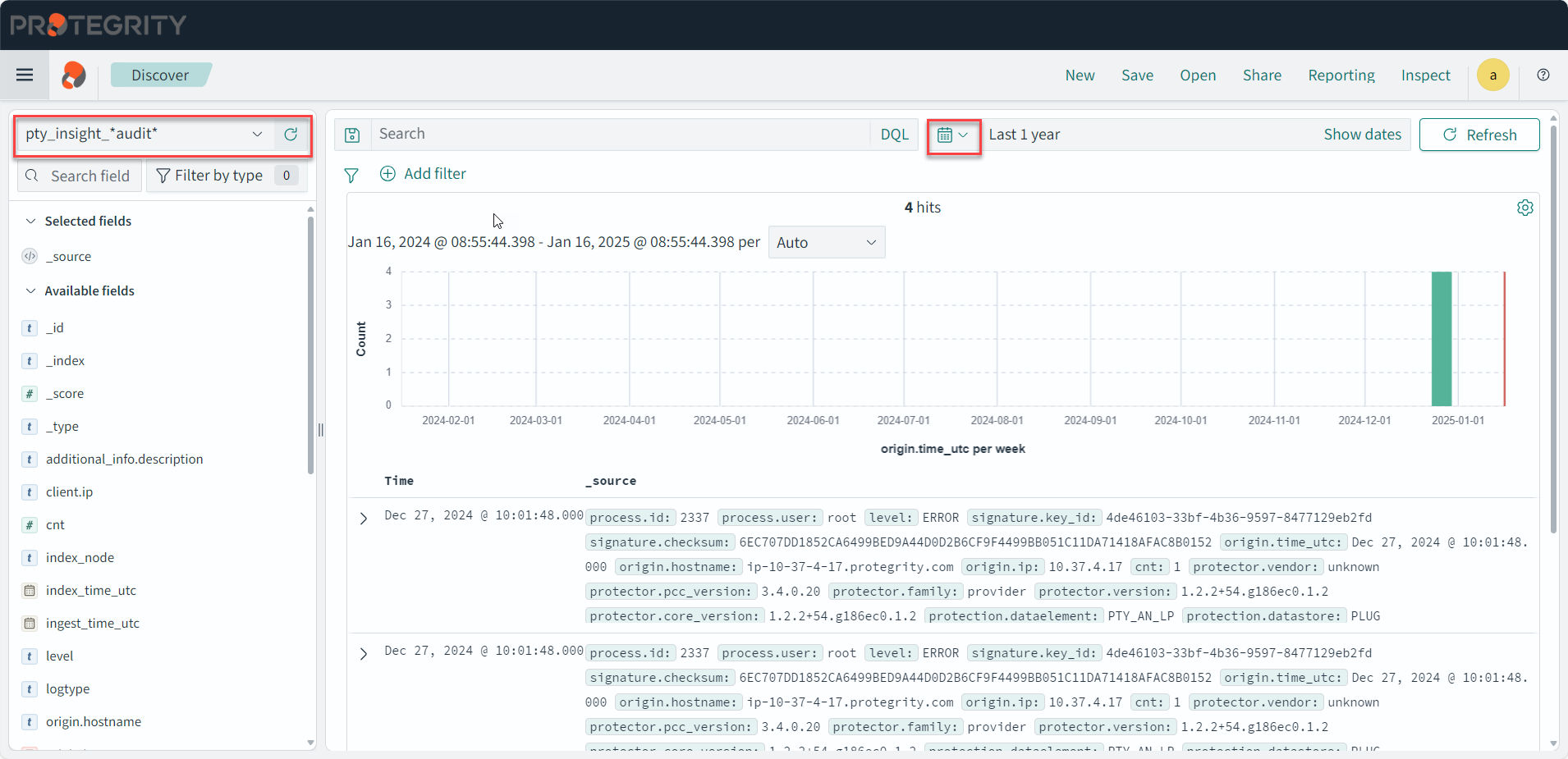
View the logs by logging into the ESA and navigating to Audit Store > Dashboard > Open in new tab, from the menu, select Discover, and select a time period such as Last 30 days.
Use the default index pty_insight_*audit* to view the log data. This default index pattern uses wildcard charaters for referencing all indexes. Alternatively, select an index pattern or alias for the entries to view the data from a different index. For more information about the indexes available, refer to Understanding the Insight indexes.
You can create and delete indexes. Before deleting an index, it is highly recommended to back it up first. After an index is deleted, the data associated with it is permanently removed, and without a backup, there is no way to recover it. For more information about indexes, refer to https://opensearch.org/docs/2.18/im-plugin/ and https://opensearch.org/docs/2.18/dashboards/. For more information about managing indexes in ESA, refer to Index lifecycle management (ILM).
Saved queries
Run a query and customize the log details displayed. Save the query and the settings for running a query, such as, the columns, row count, tail, and indexes for the query. The saved queries created are user-specific.
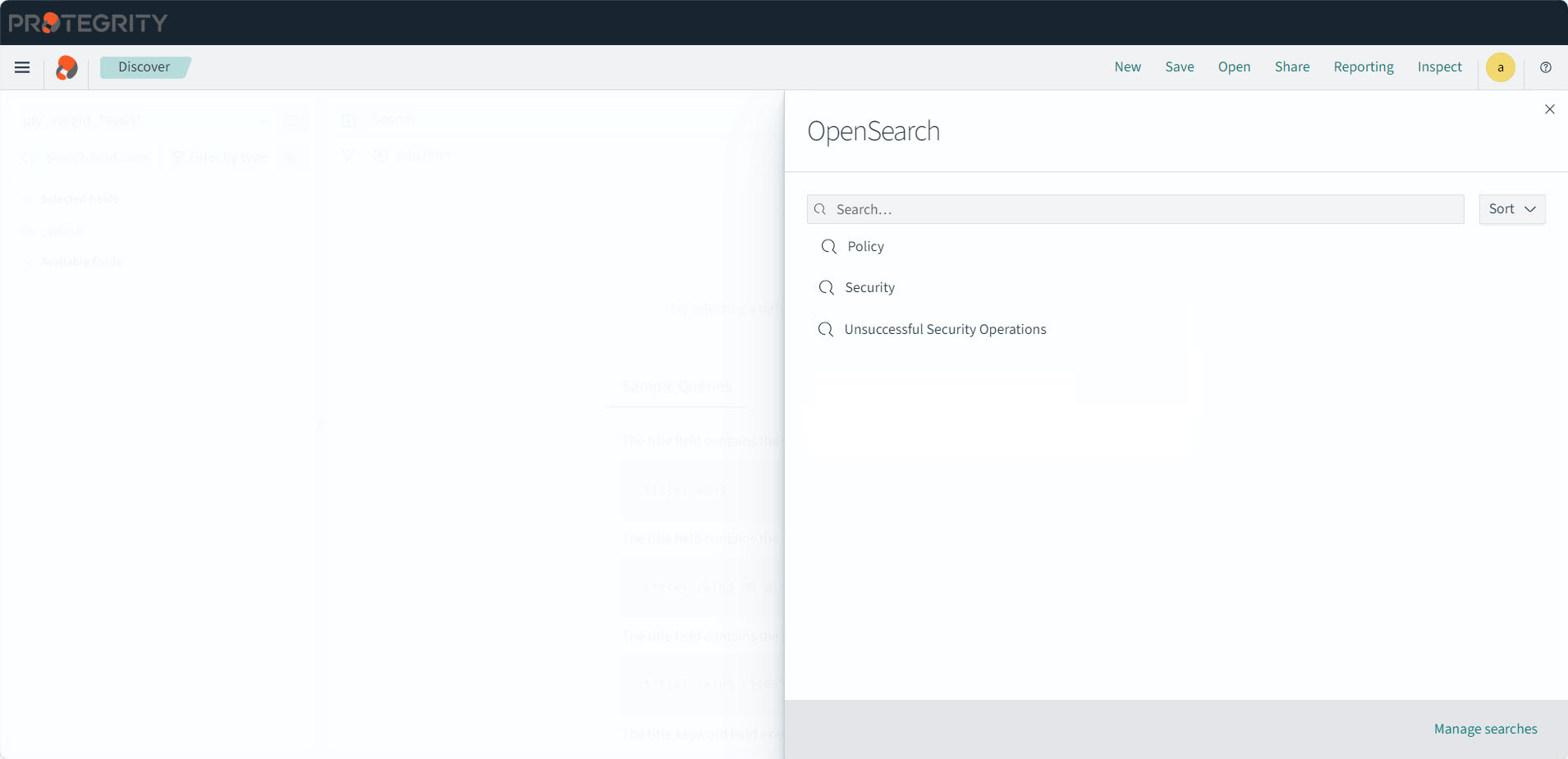
From Discover, click Open to use the following saved queries to view information:
- Policy: This query is available to view policy logs. A policy log is a created during the the policy creation, policy deployment, policy enforcement, and during the collection, storage, forwarding, and analysis of logs.
- Security: This query is available to view security operation logs. A security log is created during various security operations performed by protectors, such as, performing protect, unprotect, and reprotect operations.
- Unsuccessful Security Operations: This query is available to view unsuccessful security operation-related logs. Unsuccessful Security Operations logs are created when security operations fail due to errors, warnings, or exceptions.
In ESA, navigate to Audit Store > Dashboard > Open in new tab, select Discover from the menu, and optionally select a time period such as Last 30 days..
The viewer role user or a user with the viewer role can only view and run saved queries. Admin rights are required to create or modify query filters.
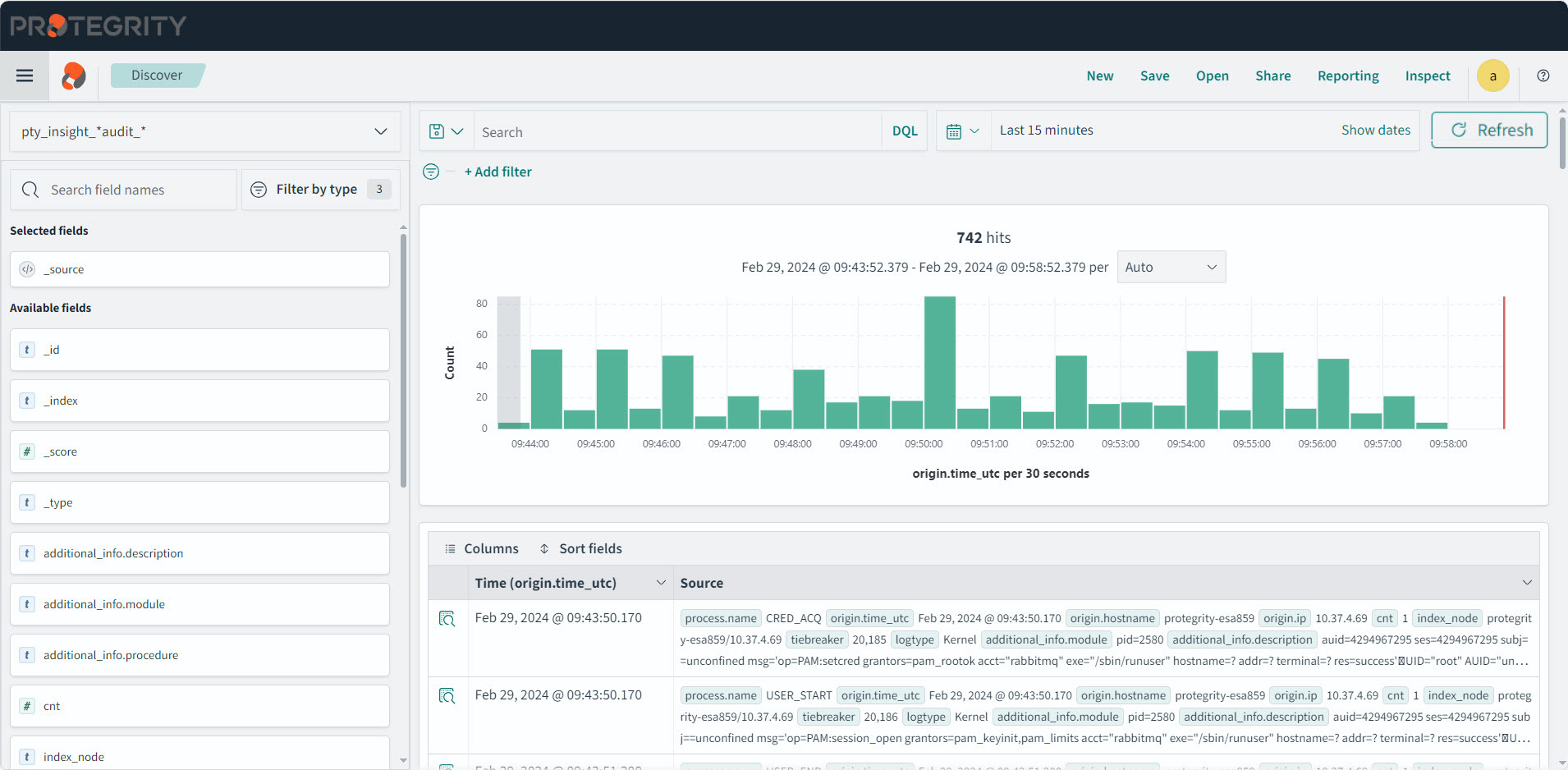
Select the index for running the query.
Enter the query in the Search field.
Optionally, select the required fields.
Click the See saved queries (
 ) icon to save the query.
The Saved Queries list appears.
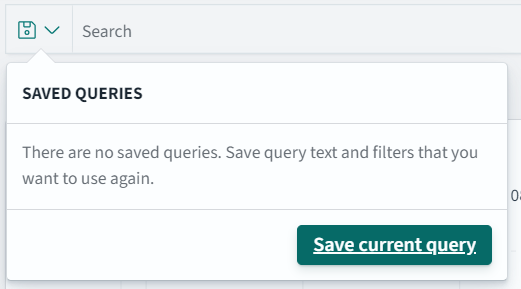
Click Save current query.
The Save query dialog box appears.
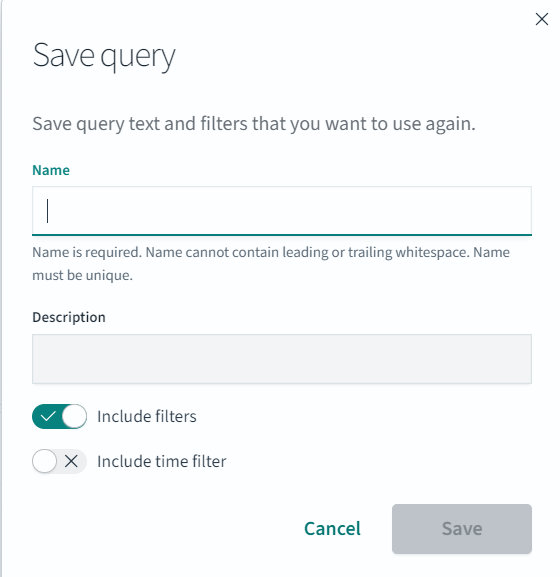
Specify a name for the query.
Click Save to save the query information, including the configurations specified, such as, the columns, row count, tail, indexes, and query.
The query is saved.
Click the See saved queries (
 ) icon to view the saved queries.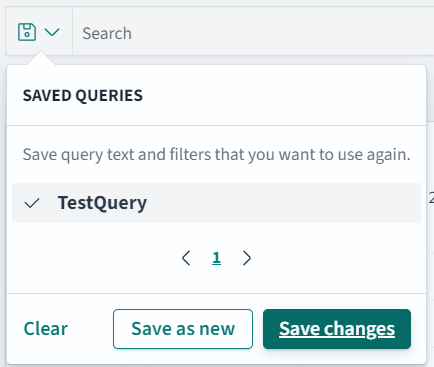
5 - Overview of the dashboards
Viewing the graphs provides an easier and faster method for reading the log information. This helps understand the working of the system and also take decisions faster, such as, understanding the processing load on the ESAs and accordingly expanding the cluster by adding nodes, if required.
For more information about the dashboards, navigate to https://opensearch.org/docs/2.18/dashboards/.
Accessing the Insight Dashboards
The Insight Dashboards appears on a separate tab from the ESA Web UI. However, it uses the same session as the ESA Web UI. Signing out from the ESA Web UI also signs out from the Insight Dashboards. Complete the steps provided here to view the Insight Dashboards.
Log in to the ESA Web UI.
Click Audit Store > Dashboard. If pop-ups are blocked in the browser, click Open in a new tab to view the Audit Store Dashboards, also known as Insight Dashboards.
The Audit Store Dashboards is displayed in a new tab of the browser.
Overview of the Insight Dashboards Interface
An overview of the various parts of the Insight Dashboards, also known as the Audit Store Dashboards, is provided here.
For more information about the dashboard elements, refer to https://opensearch.org/docs/2.18/dashboards/dashboard/index/.
The Audit Store Dashboard appears as shown in the following figure.
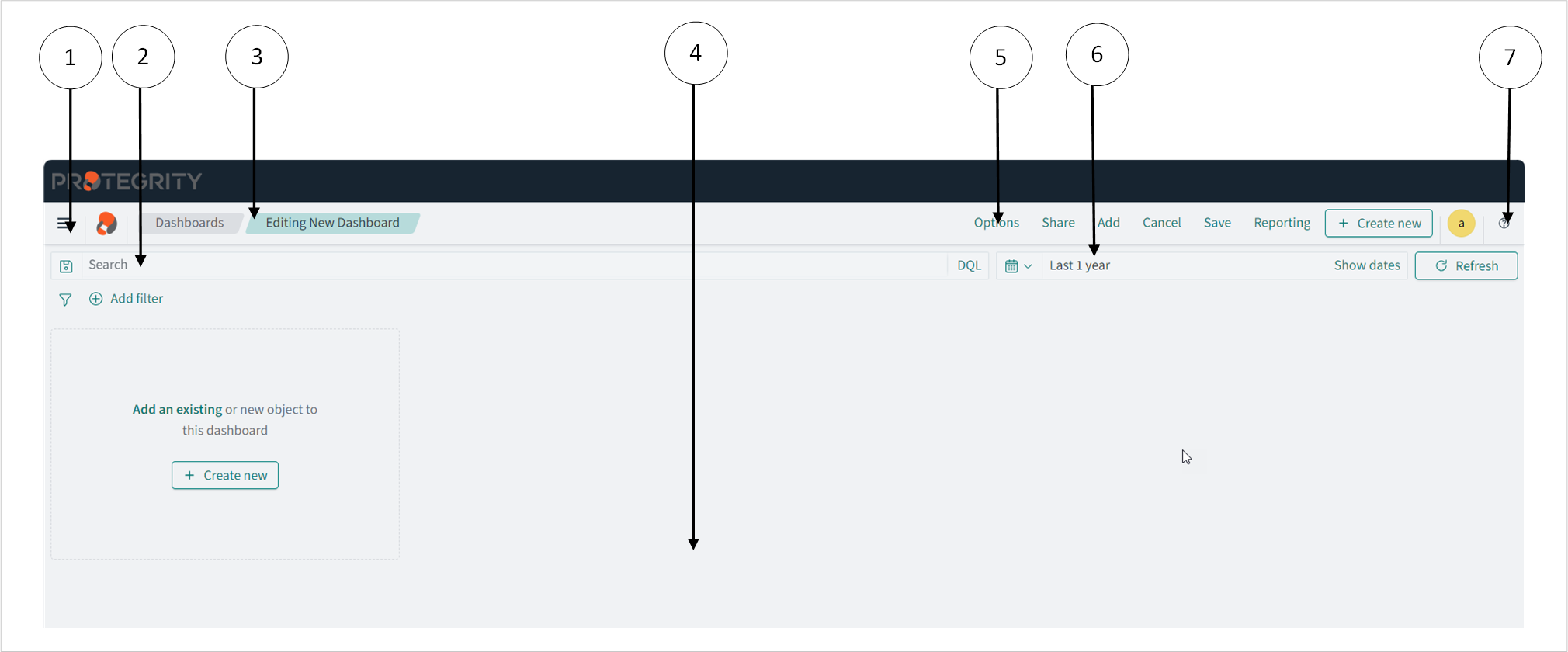
The following components are displayed on the screen.
| Callout | Element | Description |
|---|---|---|
| 1 | Navigation panel | The menu displays the different Insight applications, such as, dashboards, reports, and alerts. |
| 2 | Search bar | The search bar helps find elements and run queries. Use filters to narrow the search results. For more information about building queries, refer to https://opensearch.org/docs/2.18/dashboards/dql/. |
| 3 | Bread crumb | The menu is used to quickly navigate across screens. |
| 4 | Panel | The stage is the area to create and view visualizations and log information. |
| 5 | Toolbar | The toolbar lists the commands and shortcuts for performing tasks. |
| 6 | Time filter | The time filter specifies the time window for viewing logs. Update the filter if logs are not visible. Use the Quick Select menu to select predefined time periods. |
| 7 | Refresh button | The Refresh button refreshes the information on the page. Use this button to refresh the query results after updating the query parameters, such as, applying time filters. |
| 8 | Help | The help menu provides access to the online documentation that is provided by OpenSearch and to view the OpenSearch community forums. The Open an issue in GitHub link allows you to submit issue requests to OpenSearch. |
Accessing the help
The Insight Dashboard helps visualize log data and information. Use the help documentation provided by Insight to configure and create visualizations.
To access the help:
Open the Audit Store Dashboards.
Click the Help icon from the upper-right corner of the screen.
Click Documentation.
Alternatively, navigate to https://opensearch.org/docs/2.18/dashboards/.
6 - Viewing the dashboards
The configuration of dashboards created in the earlier versions of Insight Dashboards are retained after the ESA is upgraded. Protegrity provides default dashboards with version 10.1.0. If the title of an existing dashboard matches the new dashboard provided by Protegrity, then a duplicate entry is visible. Use the date and time stamp to identify and rename the earlier dashboards. The Protector status interval is used for presenting the data on some dashboards. The information presented on the dashboard might not have the correct values if the interval is updated.
The dashboards are build using visualization. Use the information from Viewing visualizations and Viewing visualization templates to customize and build dashboards.
Do not clone, delete, or modify the configuration or details of the dashboards that are provided by Protegrity. To create a customized dashboard, first clone and customize the required visualizations, then create a dashboard, and place the customized visualizations on the dashboard.
To view a dashboard:
Log in to the ESA.
Navigate to Audit Store > Dashboard.
From the navigation panel, click Dashboards.
Click the dashboard.
Viewing the Security Operation Dashboard
The security operation dashboard displays the counts of individual and total number of security operations for successful and unsuccessful operations. The Security Operation Dashboard has a table and pie charts that summarizes the security operations performed by a specific data store, protector family, and protector vendor. This dashboard shows different visualizations for the Successful Security Operations, Security Operations, Reprotect Counts, Successful Security Operation Counts, Security Operation Counts, Security Operation Table, and Unsuccessful Security Operations.
This dashboard cannot be deleted. The dashboard is shown in the following figure.
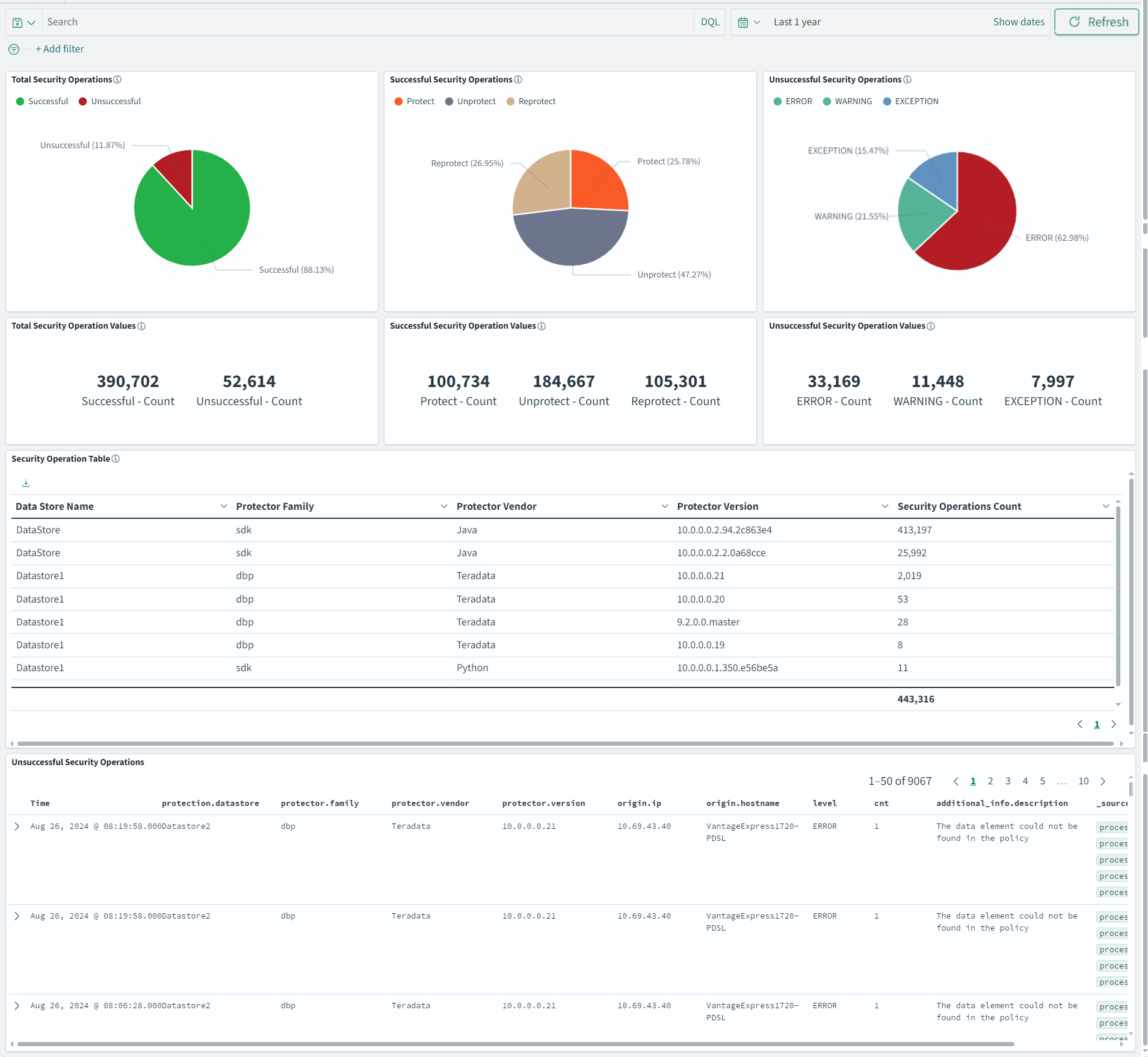
The dashboard has the following panels:
- Total Security Operations: Displays pie charts for for the successful and unsuccessful security operations:
- Successful: Total number of security operations that succeeded.
- Unsuccessful: Total number of security operations that was unsuccessful.
- Successful Security Operations: Displays pie chart for the following security operation:
- Protect: Total number of protect operations.
- Unprotect: Total number of unprotect operations.
- Reprotect: Total number of reprotect operations.
- Unsuccessful Security Operations: Displays pie chart for the following security operation:
- Error: Total number of operations that were unsuccessful due to an error.
- Warning: Total number of operations that were unsuccessful due to a warning.
- Exception: Total number of operations that were unsuccessful due to an exception.
- Total Security Operation Values: Displays the following information
- Successful - Count: Total number of security operations that succeeded.
- Unsuccessful - Count: Total number of security operations that were unsuccessful.
- Successful Security Operation Values: Displays the following information:
- Protect - Count: Total number of protect operations.
- Unprotect - Count: Total number of unprotect operations.
- Reprotect - Count: Total number of reprotect operations.
- Unsuccessful Security Operation Values: Displays the following information:
- ERROR - Count: Total number of error logs.
- WARNING - Count: Total number of warning logs.
- EXCEPTION - Count: Total number of exception logs.
- Security Operation Table: Displays the number of security operations done for a data store, protector family, protector vendor, and protector version.
- Unsuccessful Security Operations: Displays a list of unsuccessful security operations with details, such as, time, data store, protector family, protector vendor, protector version, IP, hostname, level, count, description, and source.
Viewing the Protector Inventory Dashboard
The protector inventory dashboard displays protector details connected to the ESA through bar graphs and tables. This dashboard has the Protector Family, Protector Version, Protector Count, and Protector List visualizations. It is useful for understanding information about the installed Protectors.
Only protectors that perform security operations show up on the dashboard. Updating the IP address or the host name of the Protector shows the old and new entry for the protector.
This dashboard cannot be deleted. The dashboard is shown in the following figure.
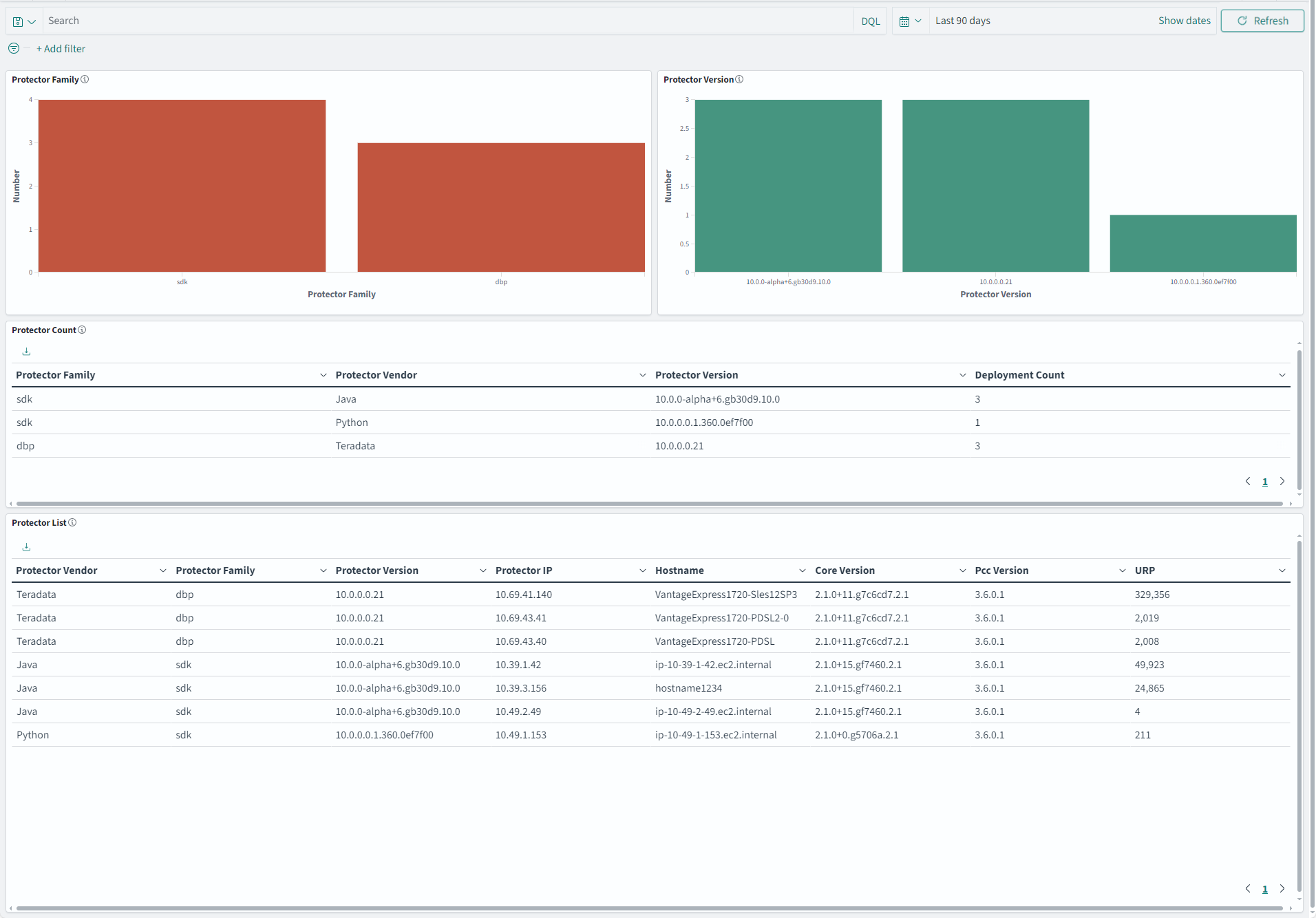
The dashboard has the following panels:
- Protector Family: Displays bar charts with information for the protector family based on the installation count of the protector.
- Protector Version: Displays bar charts with information of the protector version based on the installation count of the protector.
- Protector Count: Displays the count of the deployed protectors for the corresponding Protector Family, Protector Vendor, and Protector Version.
- Protector List: Displays the list of protectors installed with information, such as, Protector Vendor, Protector Family, Protector Version, Protector IP, Hostname, Core Version, PCC Version, and URP count. The URP shows the security operations performed, that is, the unprotect, reprotect, and protect operations.
Viewing the Protector Status Dashboard
The protector status dashboard displays the protector connectivity status through a pie chart and a table visualization. This information is available only for v10.0.0 and later protectors. Logs from earlier protector versions are not available for the dashboards due to differences between the log formats. It is useful for understanding information about the installed v10.0.0 protectors. This dashboard uses status logs sent by the protector, so the protector which performed at least one security operation shows up on this dashboard. A protector is shown in one of the following states on the dashboard:
- OK: The latest logs are sent from the protector to the ESA within the last 15 minutes.
- Warning: The latest logs sent from the protector to the ESA are within the last 15 and 60 minutes.
- Error: The latest logs sent from the protector to the ESA are more than 60 minutes.
Updating the IP address or the host name of the protector shows the old and new entry for the protector.
This dashboard shows the v10.0.0 protectors that are connected to the ESA. The status of earlier protectors is available by logging into the ESA and navigating to Policy Management > Nodes.
This dashboard cannot be deleted. The dashboard is shown in the following figure.
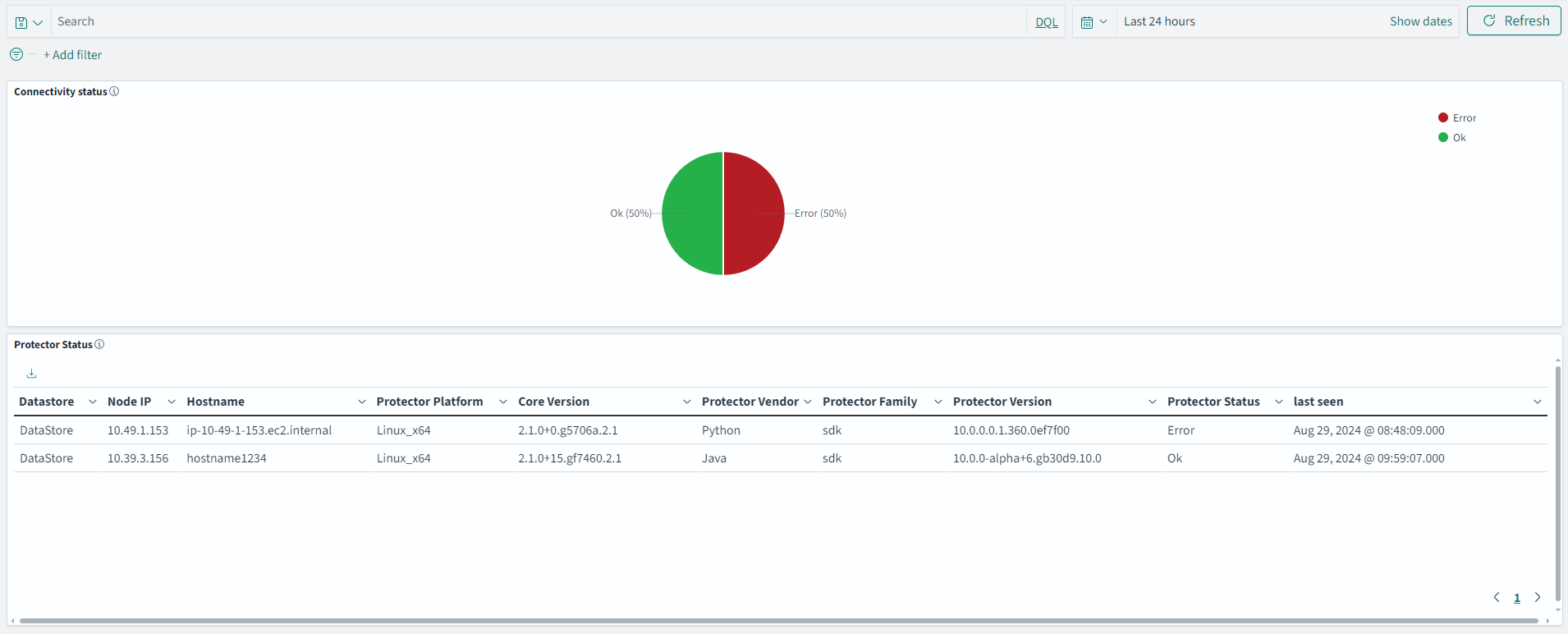
The dashboard has the following panels:
- Connectivity status pie chart: Displays a pie chart of the different states with the number of protectors that are in each state.
- Protector Status: Displays the list of protectors connectivity status with information, such as, Datastore, Node IP, Hostname, Protector Platform, Core Version, Protector Vendor, Protector Family, Protector Version, Status, and Last Seen.
Viewing the Policy Status Dashboard
The policy status dashboard displays the Policy and Trusted Application connectivity status with respective to a DataStore. It is useful to understand deployment of the DataStore on all protector nodes. This dashboard displays the Policy deploy Status, Trusted Application deploy status, Policy Deploy details, and Trusted Application details visualizations. This information is available only for v10.0.0 and later protectors. Logs from earlier protector versions are not available for the dashboards due to compatibility issues between the log formats.
The policy status logs are sent to Insight. These logs are stored in the policy status index that is pty_insight_analytics_policy. The policy status index is analyzed using the correlation ID to identify the unique policies received by the ESA. The time duration and the correlation ID are then analyzed for determining the policy status.
The dashboard uses status logs sent by the protectors about the deployed policy, so the Policy or Trusted Application used for at least one security operation shows up on this dashboard. A Policy and Trusted Application can be shown in one of the following states on the dashboard:
- OK: The latest correlation value of the logs sent for the Policy or Trusted Application to the ESA are within the last 15 minutes.
- Warning: The latest correlation value of the logs sent for the Policy or Trusted Application to the ESA are more than 15 minutes.
This dashboard cannot be deleted. The dashboard is shown in the following figure.
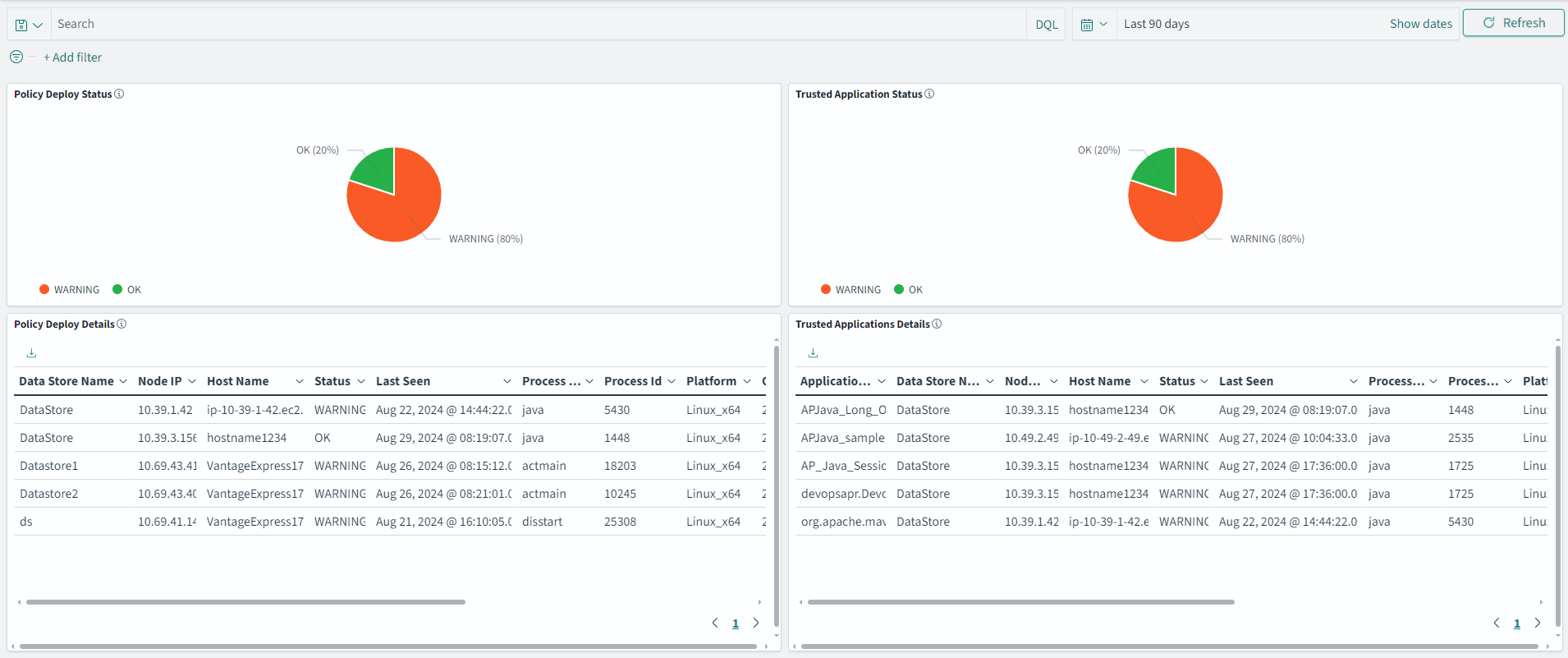
The dashboard has the following panels:
- Policy Deploy Status: Displays a pie chart of the different states with the number of policies that are in each state.
- Trusted Application Status: Displays a pie chart of the different states with the number of trusted applications that are in each state.
- Policy Deploy Details: Displays the list of policies and details, such as, Datastore Name, Node IP, Hostname, Last Seen, Policy Status, Process Name, Process Id, Platform, Core Version, PCC Version, Vendor, Family, Version, Deployment Time, and Policy Count.
- Trusted Application Details: Displays the list of policies for Trusted Applications and details, such as, Datastore Name, Node IP, Hostname, Last Seen, Policy Status, Process Name, Process Id, Platform, Core Version, PCC Version, Vendor, Family, Version, Authorize Time, and Policy Count.
Data Element Usage Dashboard
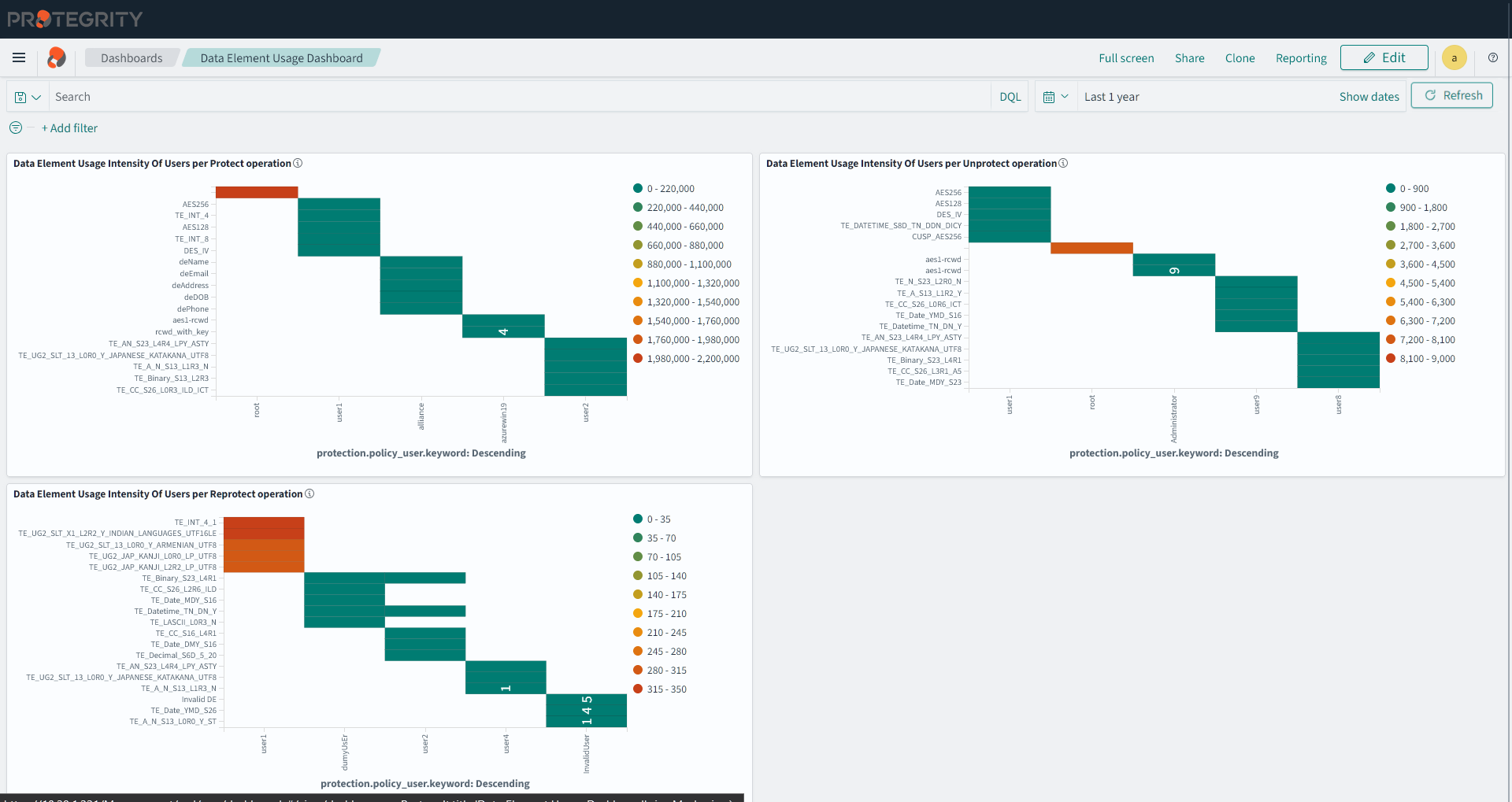
The dashboard shows the security operation performed by users according to data elements. It displays the top 10 data elements used for the top five users.
The following visualizations are displayed on the dashboard:
- Data Element Usage Intensity Of Users per Protect operation
- Data Element Usage Intensity Of Users per Unprotect operation
- Data Element Usage Intensity Of Users per Reprotect operation
The dashboard is displayed in the following figure.
Sensitive Activity Dashboard
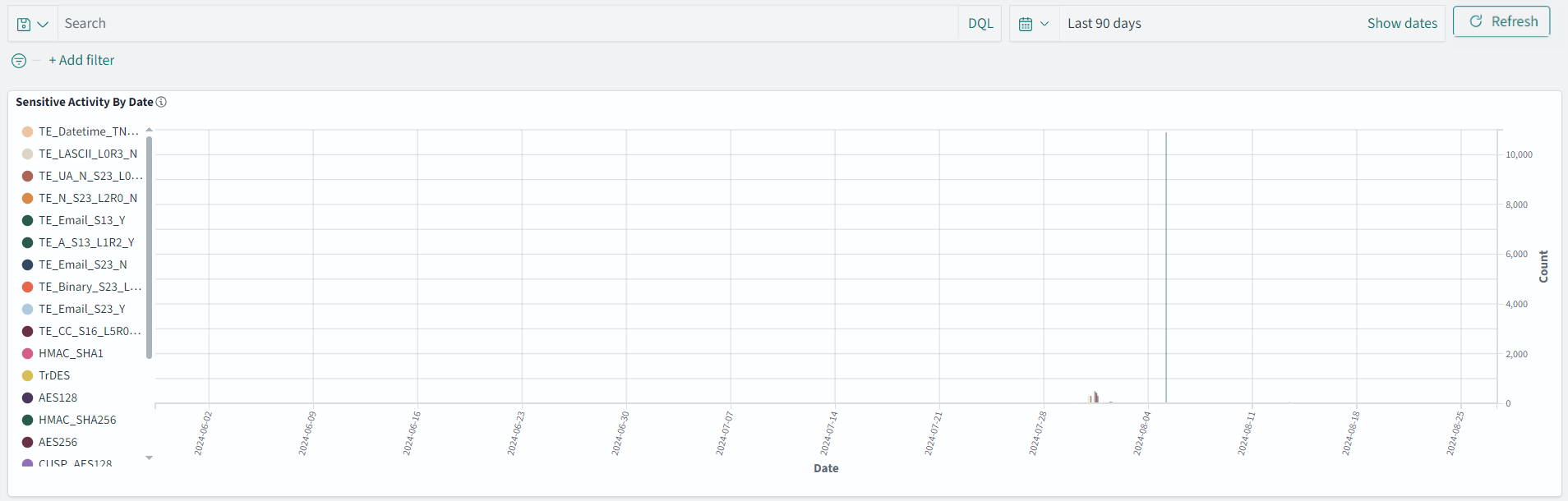
The dashboard shows the daily count of security events by data elements for specific time period.
The following visualization is displayed on the dashboard:
- Sensitive Activity By Date
The dashboard is displayed in the following figure.
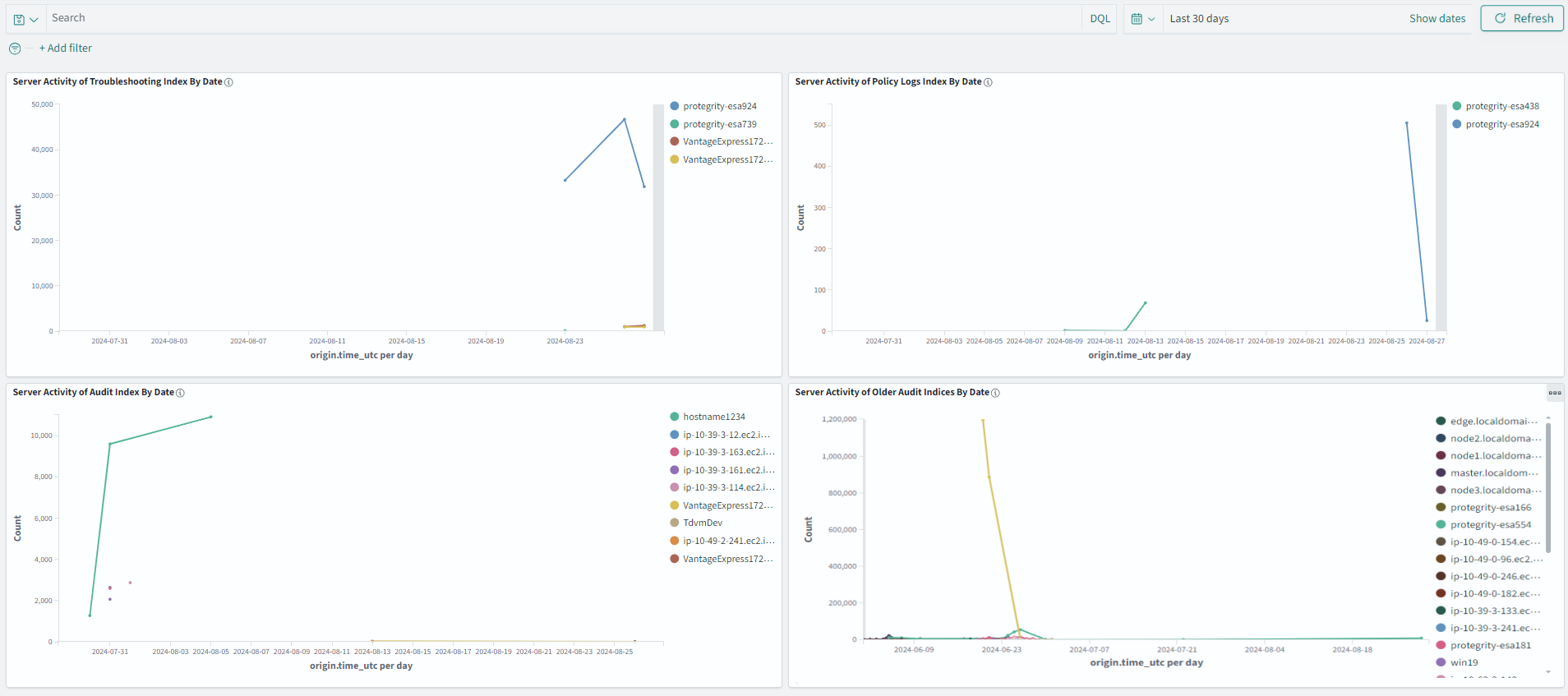
Server Activity Dashboard
The dashboard shows the daily count of all events by servers for specific time period. The older Audit index entries are not displayed on a new installation.
The following visualizations are displayed on the dashboard:
- Server Activity of Troubleshooting Index By Date
- Server Activity of Policy Index By Date
- Server Activity of Audit Index By Date
- Server Activity of Older Audit Index By Date
The dashboard is displayed in the following figure.
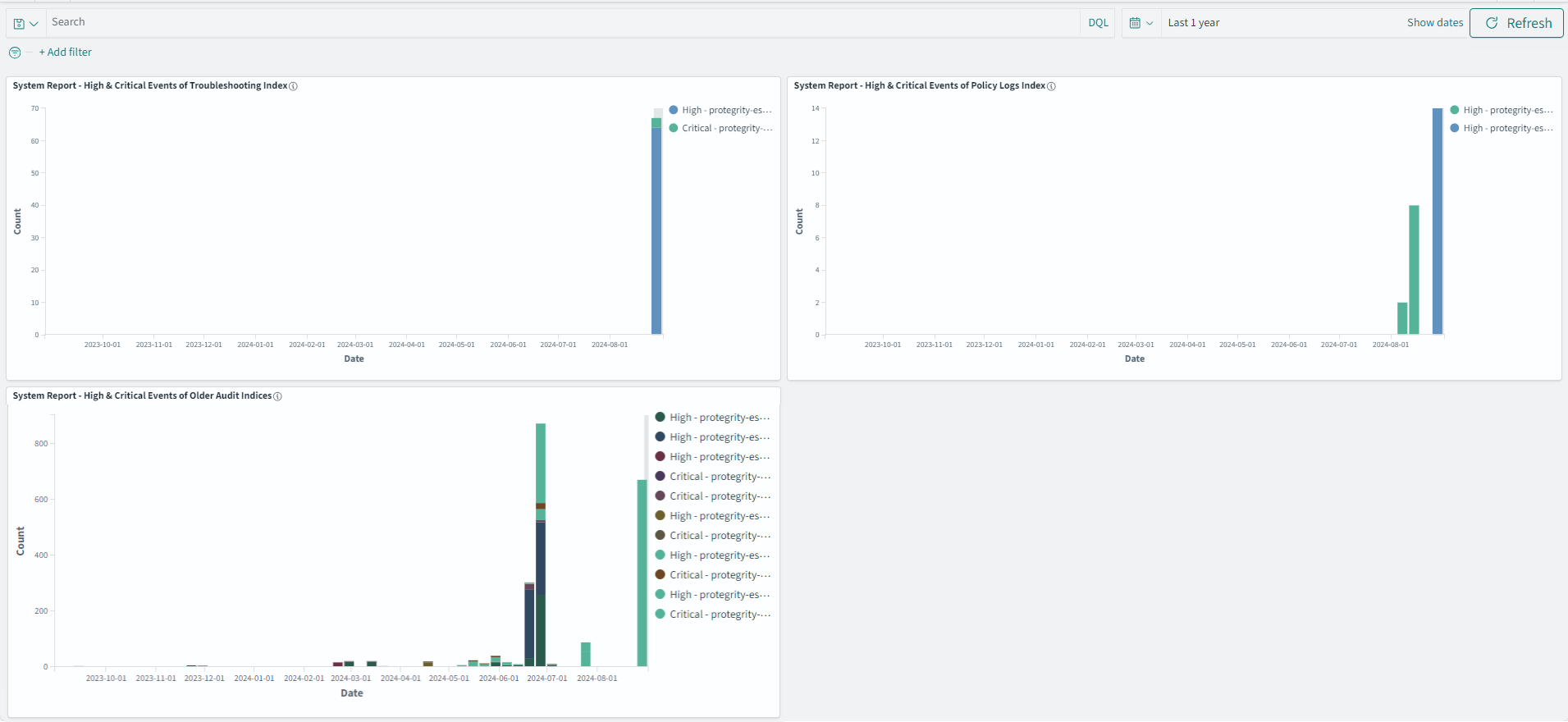
High & Critical Events Dashboard
The dashboard shows the daily count of system events of high and critical severity for selected time period. The older Audit index entries are not displayed on a new installation.
The following visualizations are displayed on the dashboard:
- System Report - High & Critical Events of Troubleshooting Index
- System Report - High & Critical Events of Policy Index
- System Report - High & Critical Events of Older Audit Index
The dashboard is displayed in the following figure.
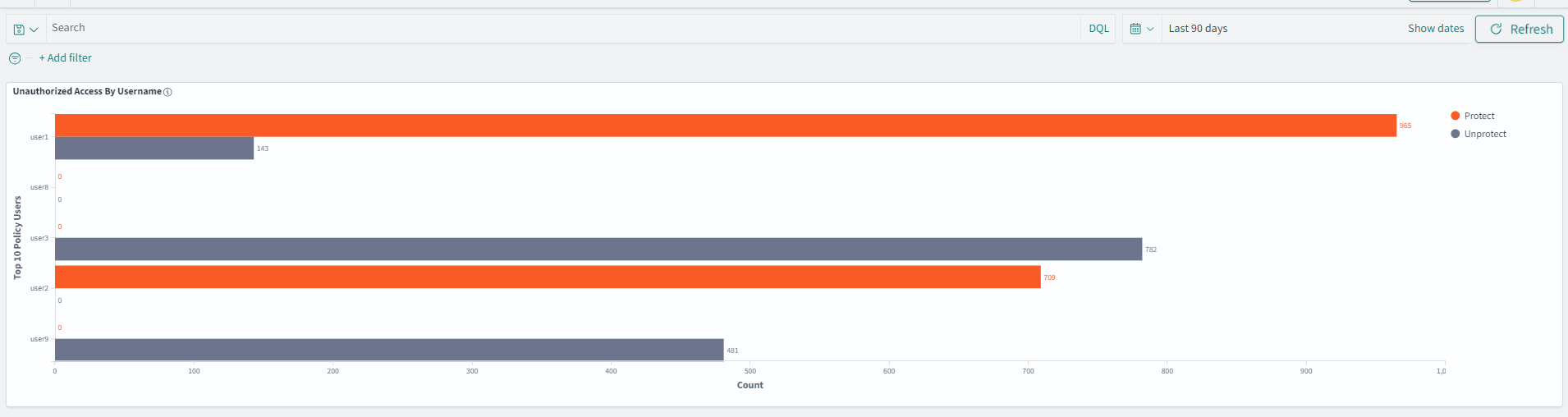
Unauthorized Access Dashboard
The dashboard shows the cumulative counts of unauthorized access and activity by users into Protegrity appliances and protectors.
The following visualization is displayed on the dashboard:
- Unauthorized Access By Username
The dashboard is displayed in the following figure.
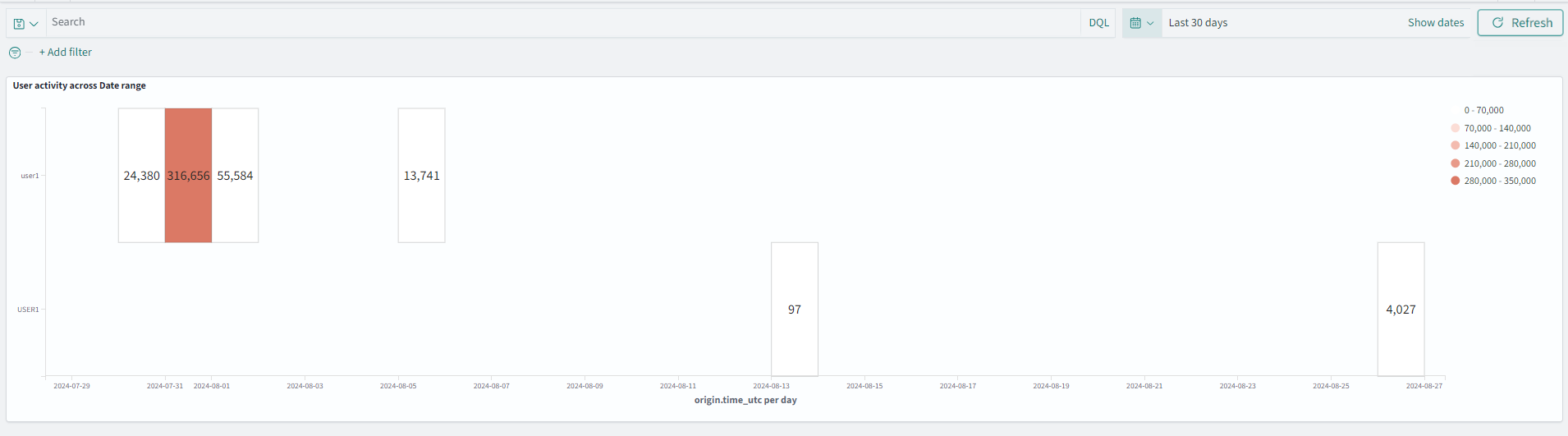
User Activity Dashboard
The dashboard shows the cumulative transactions performed by users over a date range.
The following visualization is displayed on the dashboard:
- User activity across Date range
The dashboard is displayed in the following figure.
7 - Viewing visualizations
The configuration of visualizations created in the earlier versions of the Audit Store Dashboards are retained after the ESA is upgraded. Protegrity provides default visualizations with version 10.1.0. If the title of an existing visualization matches the new visualization provided by Protegrity, then a duplicate entry is visible. Use the date and time stamp to identify and rename the existing visualizations.
Do not delete or modify the configuration or details of the visualizations provided by Protegrity. To customize the visualization, create a copy of the visualization and perform the customization on the copy of the visualization.
To view visualizations:
Log in to the ESA.
Navigate to Audit Store > Dashboard.
The Audit Store Dashboards appear in a new window. Click Open in a new tab if the dashboard is not displayed.
From the navigation panel, click Visualize.
Create and view visualizations from here.
Click a visualization to view it.
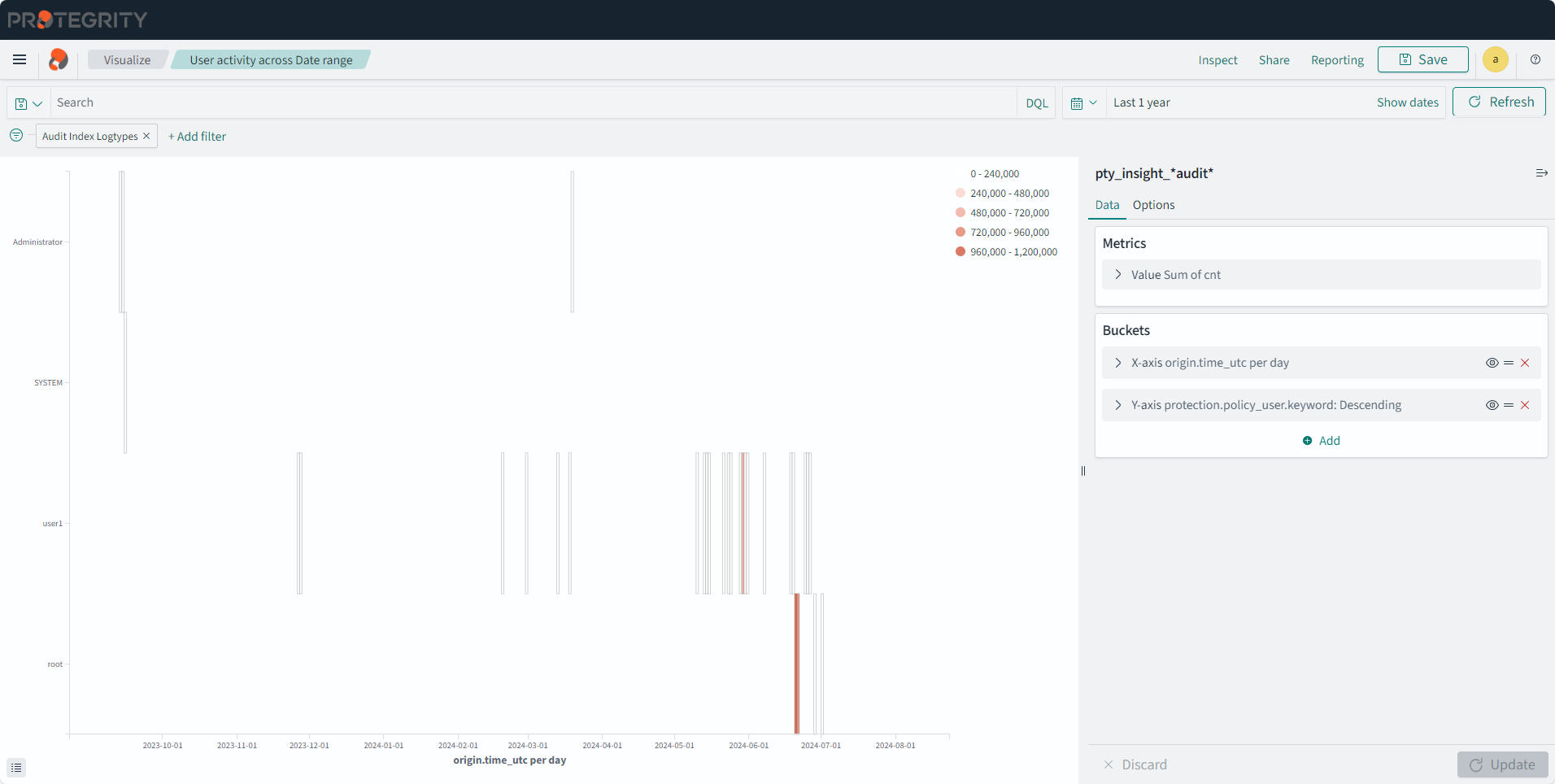
User Activity Across Date Range
Description: The user activity during the date range specified.
- Type: Heat Map
- Filter: Audit Index Logtypes
- Configuration:
- Index: pty_insight_*audit*
- Metrics:
- Value: Sum
- Field: cnt
- Buckets:
- X-axis
- Aggregation: Date Histogram
- Field: origin.time_utc
- Minimum interval: Day
- Y-axis
- Sub aggregation: Terms
- Field: protection.policy_user.keyword
- Order by: Metric:Sum of cnt
- Order: Descending
- Size: 1
- Custom label: Policy Users
- X-axis
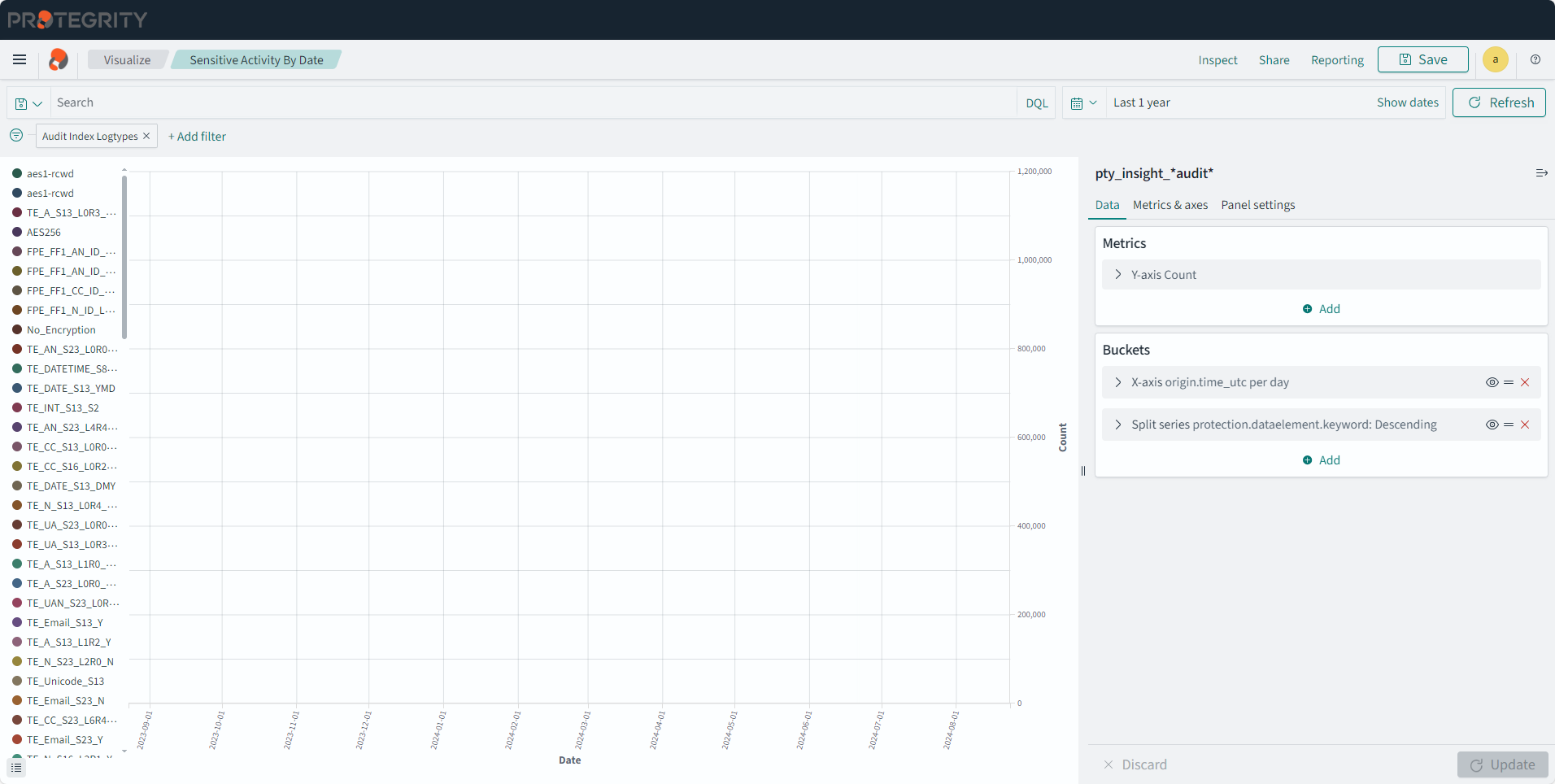
Sensitive Activity by Date
Description: The data element usage on a daily basis.
- Type: Line
- Filter: Audit Index Logtypes
- Configuration:
- Index: pty_insight_*audit*
- Metrics: Y-axis: Count
- Buckets:
- X-axis
- Aggregation: Date Histogram
- Field: origin.time_utc
- Minimum interval: Day
- Custom label: Date
- Split series
- Sub aggregation: Terms
- Field: protection.dataelement.keyword
- Order by: Metric:Count
- Order: Descending
- Size: 10
- Custom label: Operation Count
- X-axis
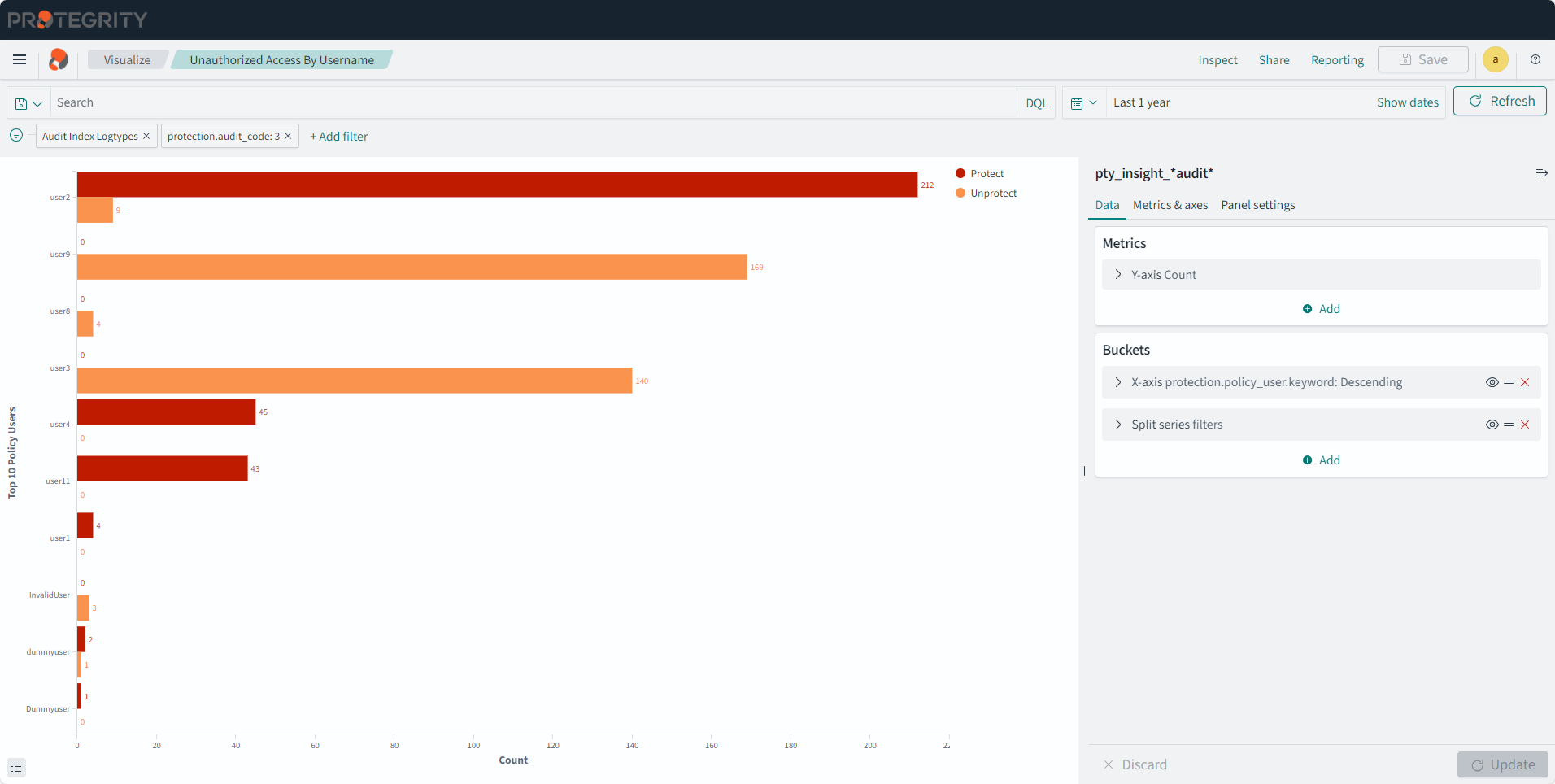
Unauthorized Access By Username
Description: Top 10 Unauthorized Protect and Unprotect operation counts per user.
- Type: Vertical Bar
- Filter 1: Audit Index Logtypes
- Filter 2: protection.audit_code: 3
- Configuration:
- Index: pty_insight_*audit*
- Metrics: Y-axis: Count
- Buckets:
- X-axis
- Aggregation: Terms
- Field: protection.policy_user.keyword
- Order by: Metric:Count
- Order: Descending
- Size: 10
- Custom label: Top 10 Policy Users
- Split series
- Sub aggregation: Filters
- Filter 1-Protect: level=‘Error’
- Filter 2-Unprotect: level=‘WARNING’
- X-axis
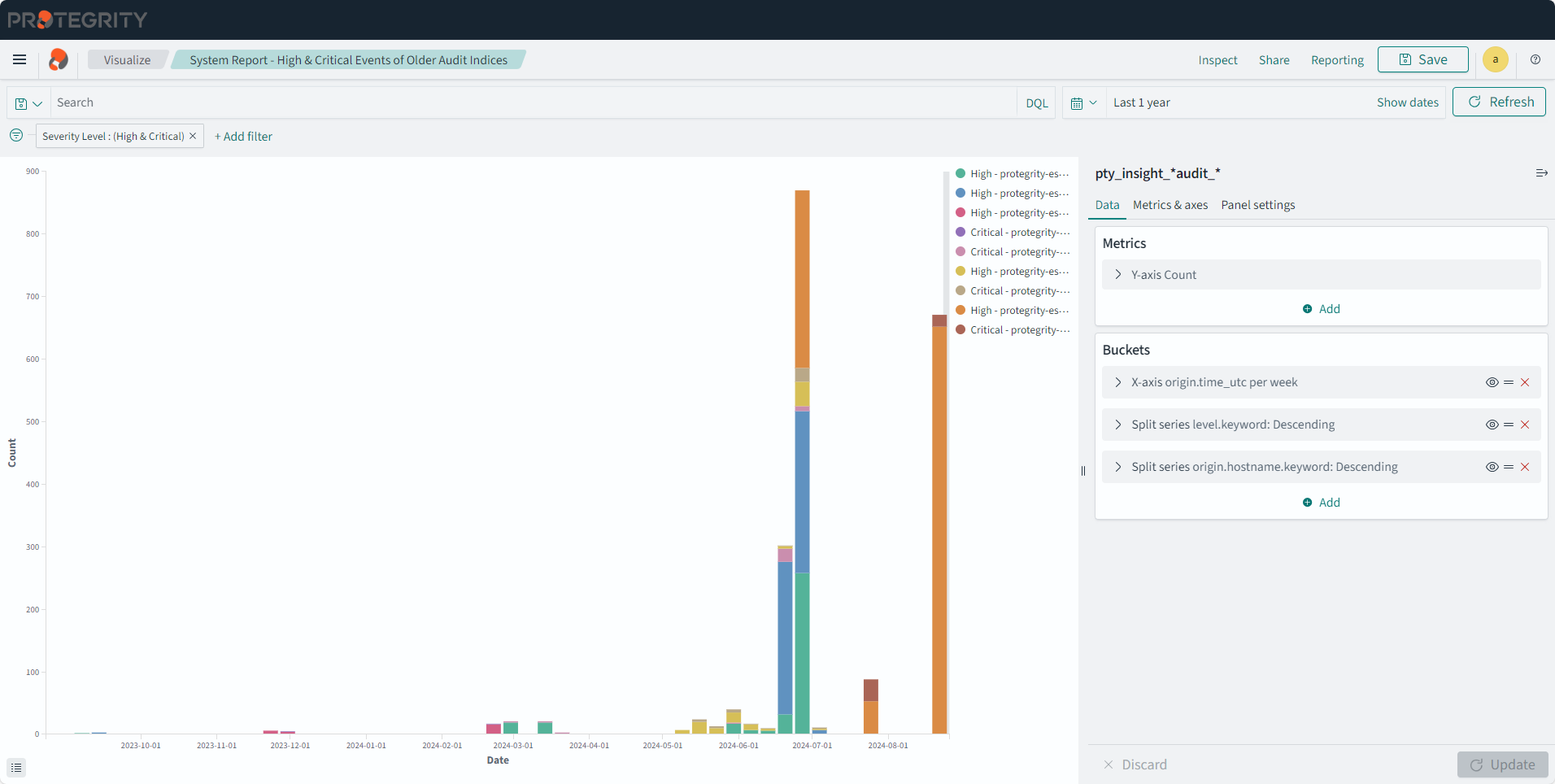
System Report - High & Critical Events of Audit Indices
Description: The chart reporting high and critical events from the Audit index.
- Type: Vertical Bar
- Filter: Severity Level : (High & Critical)
- Configuration:
- Index: pty_insight_analytics*audits_*
- Metrics: Y-axis: Count
- Buckets:
- X-axis
- Aggregation: Date Histogram
- Field: origin.time_utc
- Minimum Interval: Auto
- Custom label: Date
- Split series
- Sub aggregation: Terms
- Field: level.keyword
- Order by: Metric:Count
- Order: Descending
- Size: 20
- Split series
- Sub aggregation: Terms
- Field: origin.hostname.keyword
- Order by: Metric:Count
- Order: Descending
- Size: 50
- Custom label: Server
- X-axis
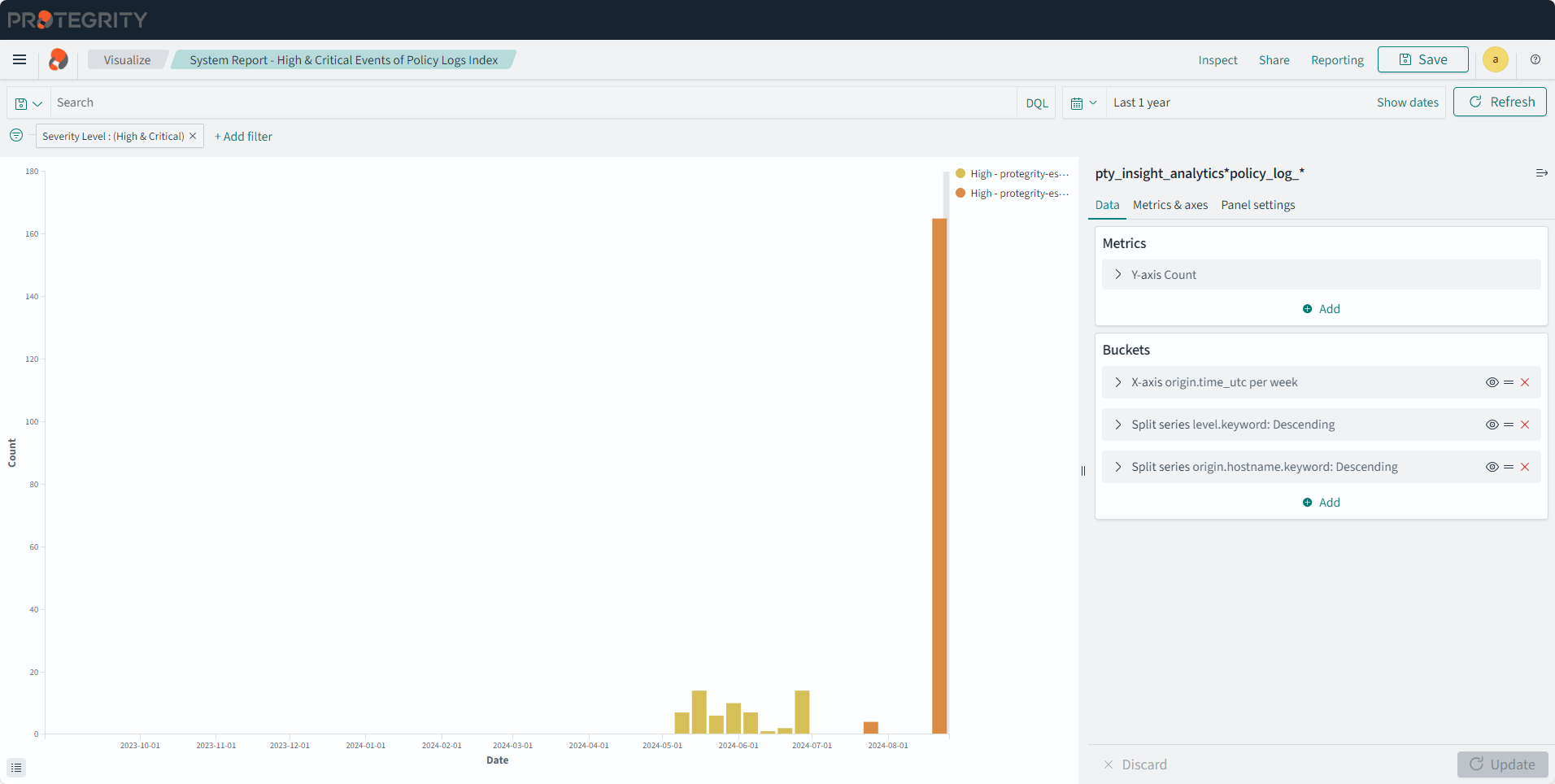
System Report - High & Critical Events of Policy Logs Index
Description: The chart reporting high and critical events from the Policy index.
- Type: Vertical Bar
- Filter: Severity Level : (High & Critical)
- Configuration:
- Index: pty_insight_analytics*policy_log_*
- Metrics: Y-axis: Count
- Buckets:
- X-axis
- Aggregation: Date Histogram
- Field: origin.time_utc
- Minimum Interval: Auto
- Custom label: Date
- Split series
- Sub aggregation: Terms
- Field: level.keyword
- Order by: Metric:Count
- Order: Descending
- Size: 20
- Split series
- Sub aggregation: Terms
- Field: origin.hostname.keyword
- Order by: Metric:Count
- Order: Descending
- Size: 50
- Custom label: Server
- X-axis
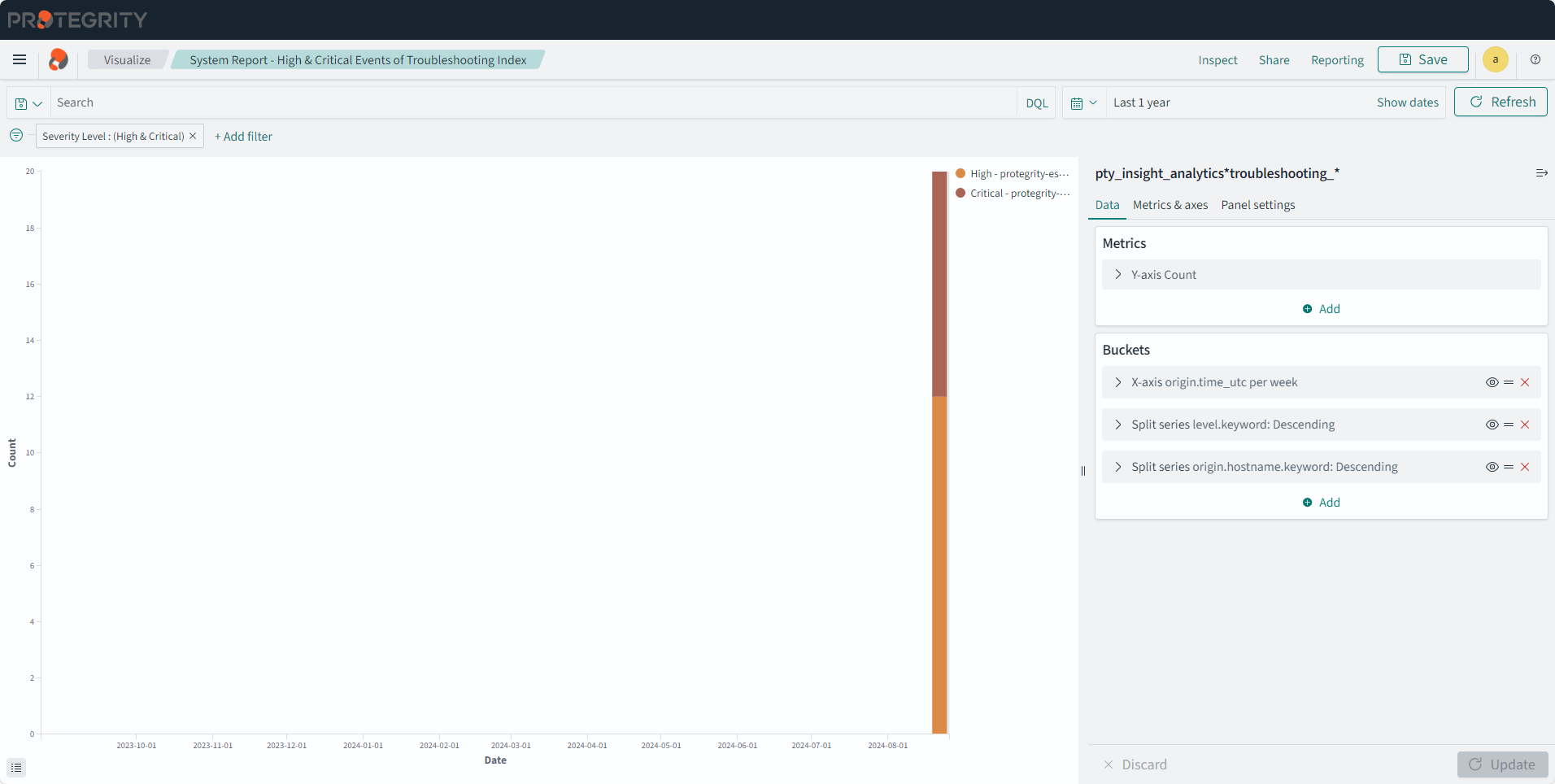
System Report - High & Critical Events of Troubleshooting Logs Index
Description: The chart reporting high and critical events from the Troubleshooting index.
- Type: Vertical Bar
- Filter: Severity Level : (High & Critical)
- Configuration:
- Index: pty_insight_analytics*troubleshooting_*
- Metrics: Y-axis: Count
- Buckets:
- X-axis
- Aggregation: Date Histogram
- Field: origin.time_utc
- Minimum Interval: Auto
- Custom label: Date
- Split series
- Sub aggregation: Terms
- Field: level.keyword
- Order by: Metric:Count
- Order: Descending
- Size: 20
- Split series
- Sub aggregation: Terms
- Field: origin.hostname.keyword
- Order by: Metric:Count
- Order: Descending
- Size: 50
- Custom label: Server
- X-axis
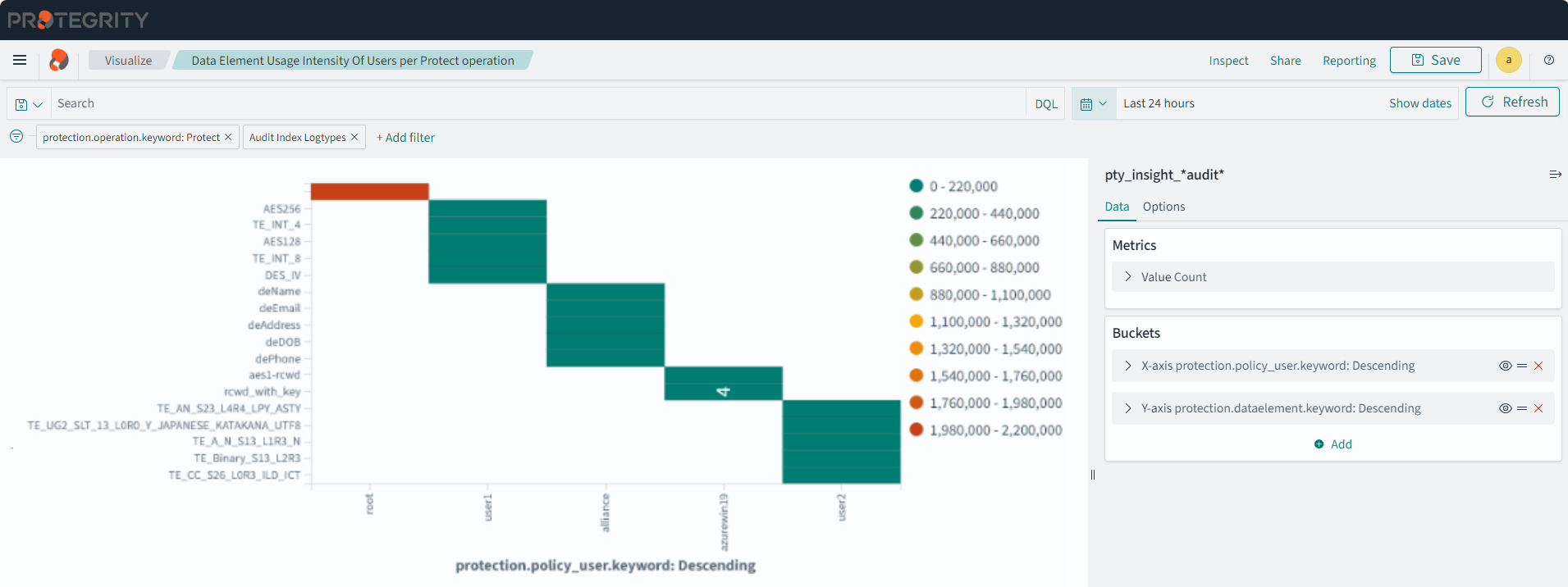
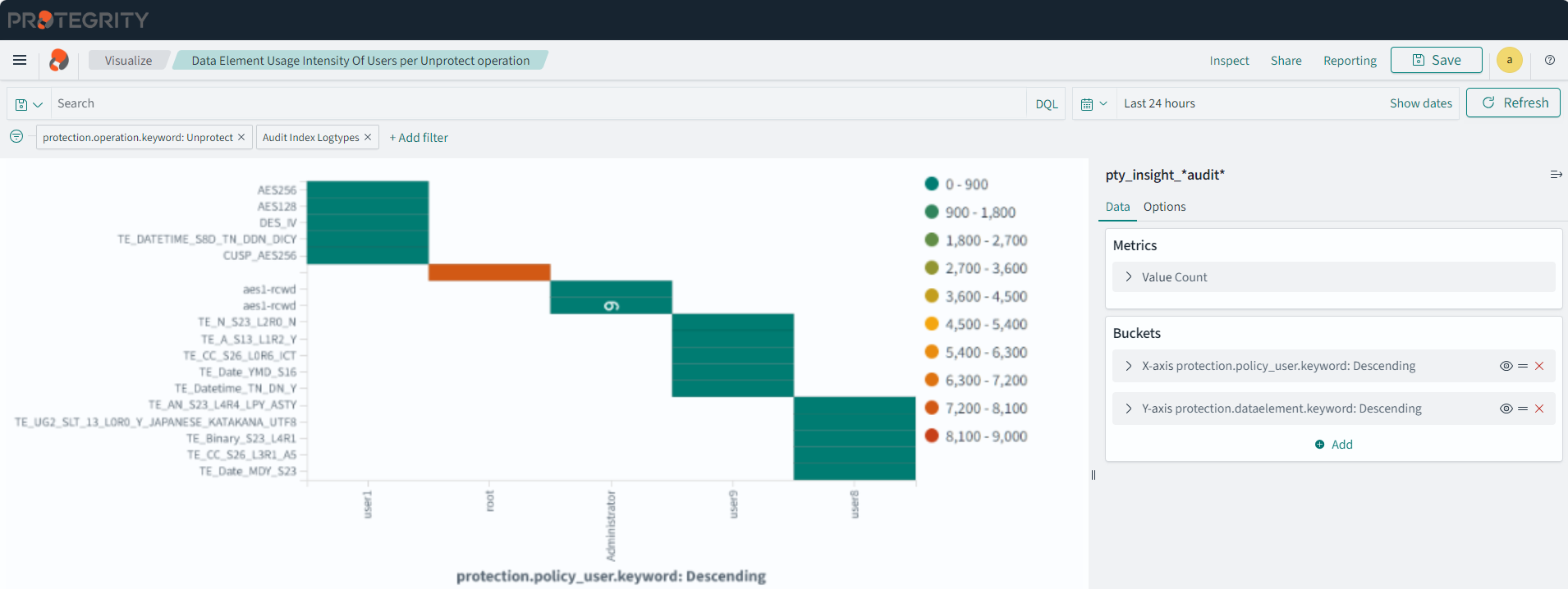
Data Element Usage Intensity Of Users per Protect operation
Description: The chart shows the data element usage intensity of users per protect operation. It displays the top 10 data elements used by the top five users.
- Type: Heat Map
- Filter 1: protection.operation.keyword: Protect
- Filter 2: Audit Index Logtypes
- Configuration:
- Index: pty_insight_*audit*
- Metrics: Y-axis: Count
- Buckets:
- X-axis
- Aggregation: Terms
- Field: protection.policy_user.keyword
- Order by: Metric: Count
- Order: Descending
- Size: 5
- Y-axis
- Sub aggregation: Terms
- Field: protection.dataelement.keyword
- Order by: Metric:Count
- Order: Descending
- Size: 10
- X-axis
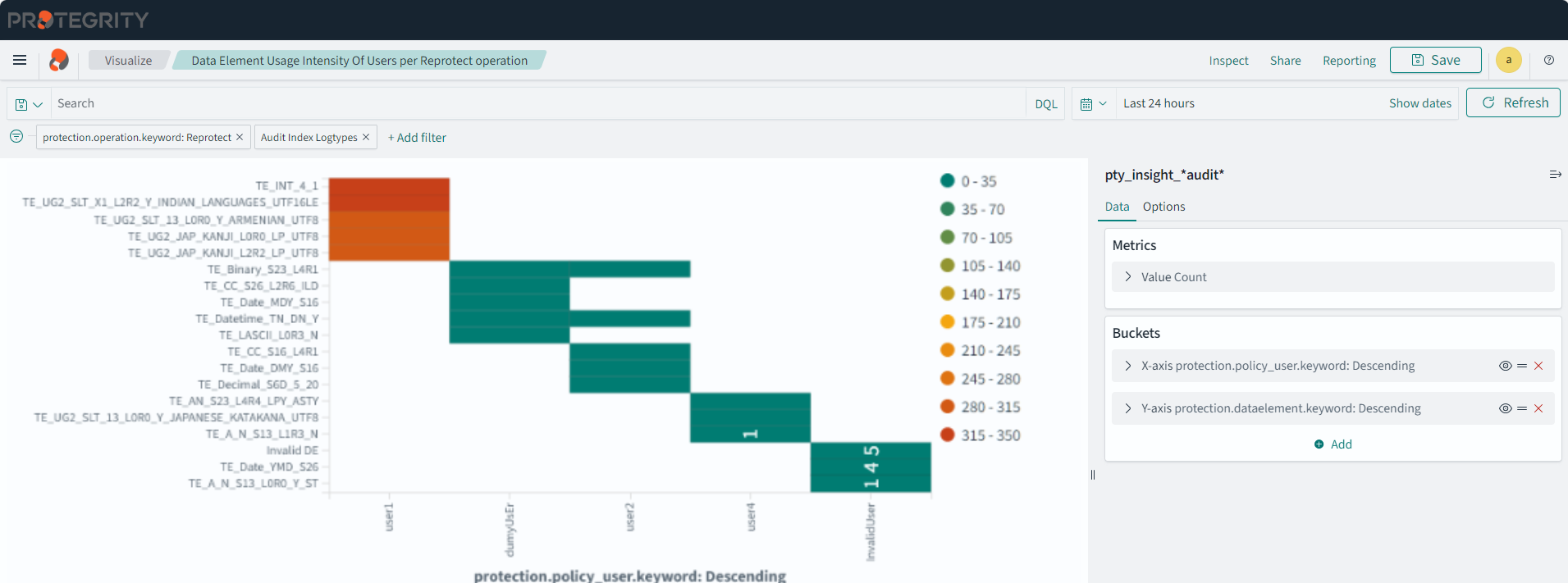
Data Element Usage Intensity Of Users per Reprotect operation
Description: The chart shows the data element usage intensity of users per reprotect operation. It displays the top 10 data elements used by the top five users.
- Type: Heat Map
- Filter 1: protection.operation.keyword: Reprotect
- Filter 2: Audit Index Logtypes
- Configuration:
- Index: pty_insight_*audit*
- Metrics: Y-axis: Count
- Buckets:
- X-axis
- Aggregation: Terms
- Field: protection.policy_user.keyword
- Order by: Metric: Count
- Order: Descending
- Size: 5
- Y-axis
- Sub aggregation: Terms
- Field: protection.dataelement.keyword
- Order by: Metric:Count
- Order: Descending
- Size: 10
- X-axis
Data Element Usage Intensity Of Users per Unprotect operation
Description: The chart shows the data element usage intensity of users per unprotect operation. It displays the top 10 data elements used by the top five users.
- Type: Heat Map
- Filter 1: protection.operation.keyword: Unprotect
- Filter 2: Audit Index Logtypes
- Configuration:
- Index: pty_insight_*audit*
- Metrics: Y-axis: Count
- Buckets:
- X-axis
- Aggregation: Terms
- Field: protection.policy_user.keyword
- Order by: Metric: Count
- Order: Descending
- Size: 5
- Y-axis
- Sub aggregation: Terms
- Field: protection.dataelement.keyword
- Order by: Metric:Count
- Order: Descending
- Size: 10
- X-axis
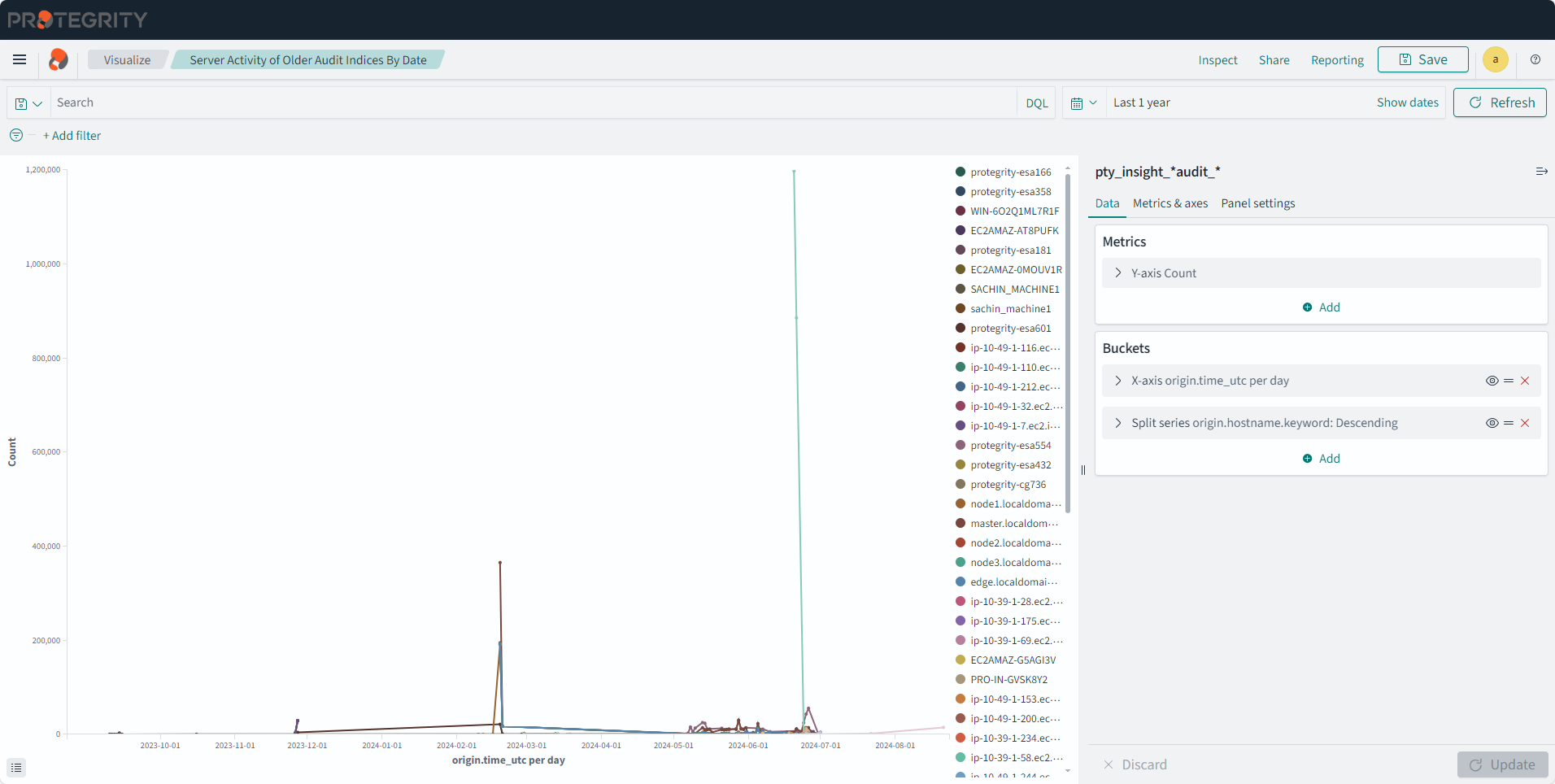
Server Activity of Older Audit Indices By Date
Description: The chart shows the daily count of all events by servers for specific time period from the old audit index.
- Type: Line
- Configuration:
- Index: pty_insight_*audit_*
- Metrics: Y-axis: Count
- Buckets:
- X-axis
- Aggregation: Date Histogram
- Field: origin.time_utc
- Minimum interval: Day
- Split series
- Sub aggregation: Terms
- Field: origin.hostname.keyword
- Order by: Metric:Count
- Order: Descending
- Size: 50
- X-axis
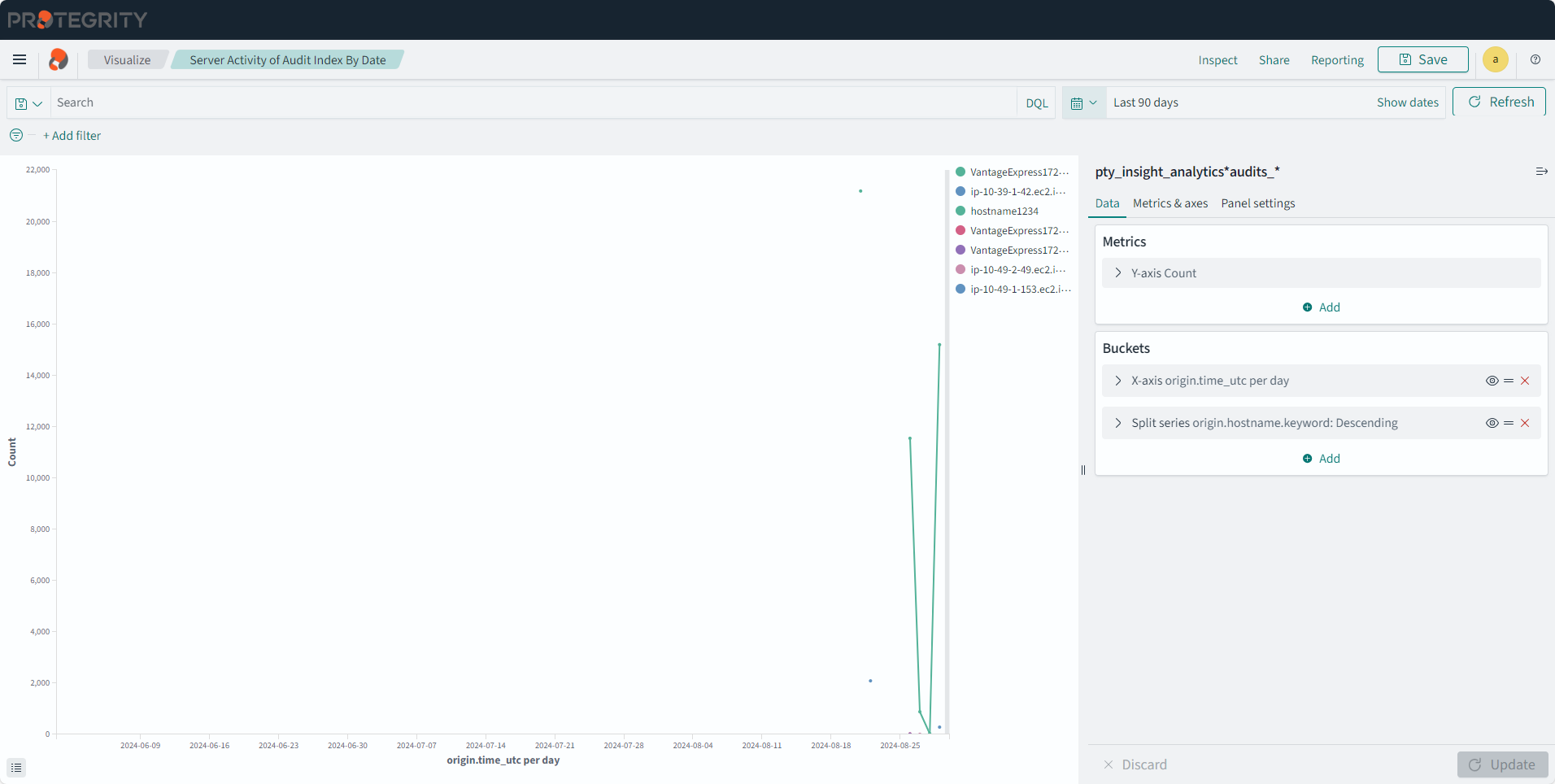
Server Activity of Audit Index By Date
Description: The chart shows the daily count of all events by servers for specific time period from the audit index.
- Type: Line
- Configuration:
- Index: pty_insight_analytics*audits_*
- Metrics: Y-axis: Count
- Buckets:
- X-axis
- Aggregation: Date Histogram
- Field: origin.time_utc
- Minimum interval: Day
- Split series
- Sub aggregation: Terms
- Field: origin.hostname.keyword
- Order by: Metric:Count
- Order: Descending
- Size: 50
- X-axis
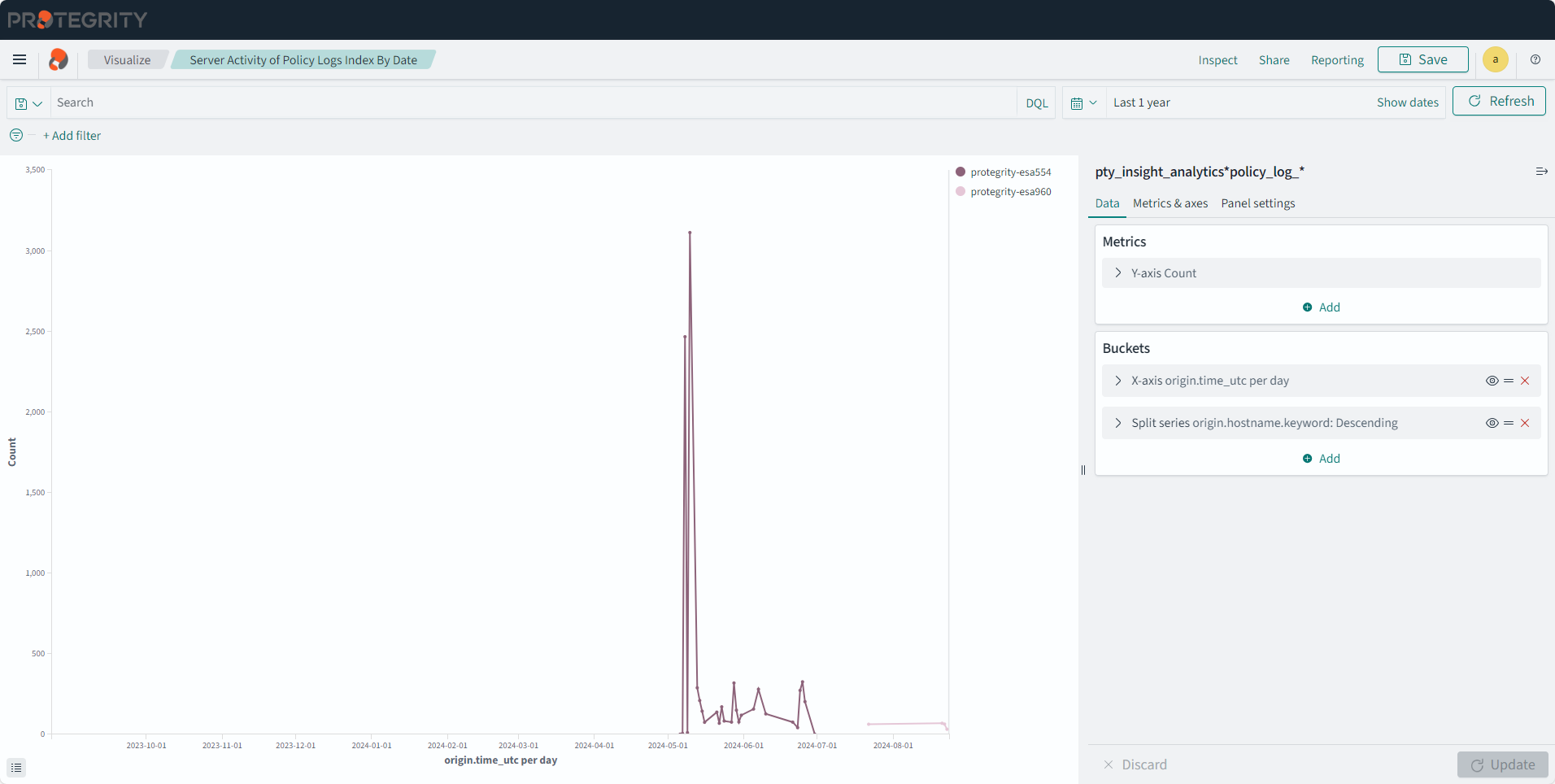
Server Activity of Policy Index By Date
Description: The chart shows the daily count of all events by servers for specific time period from the policy index.
- Type: Line
- Configuration:
- Index: pty_insight_analytics*policy_log_*
- Metrics: Y-axis: Count
- Buckets:
- X-axis
- Aggregation: Date Histogram
- Field: origin.time_utc
- Minimum interval: Day
- Split series
- Sub aggregation: Terms
- Field: origin.hostname.keyword
- Order by: Metric:Count
- Order: Descending
- Size: 50
- X-axis
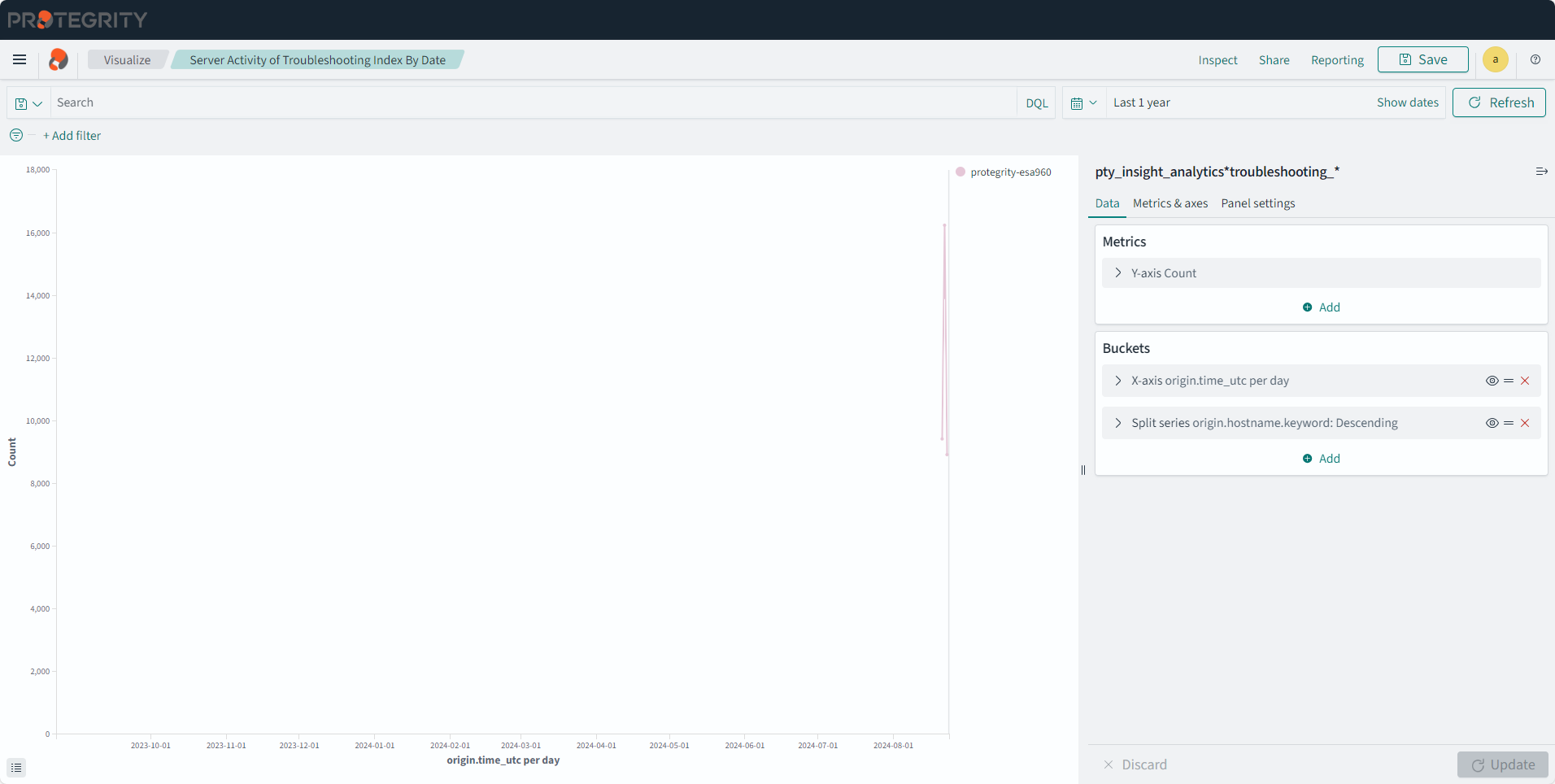
Server Activity of Troubleshooting Index By Date
Description: The chart shows the daily count of all events by servers for specific time period from the troubleshooting index.
- Type: Line
- Configuration:
- Index: pty_insight_analytics*troubleshooting_*
- Metrics: Y-axis: Count
- Buckets:
- X-axis
- Aggregation: Date Histogram
- Field: origin.time_utc
- Minimum interval: Day
- Split series
- Sub aggregation: Terms
- Field: origin.hostname.keyword
- Order by: Metric:Count
- Order: Descending
- Size: 50
- X-axis
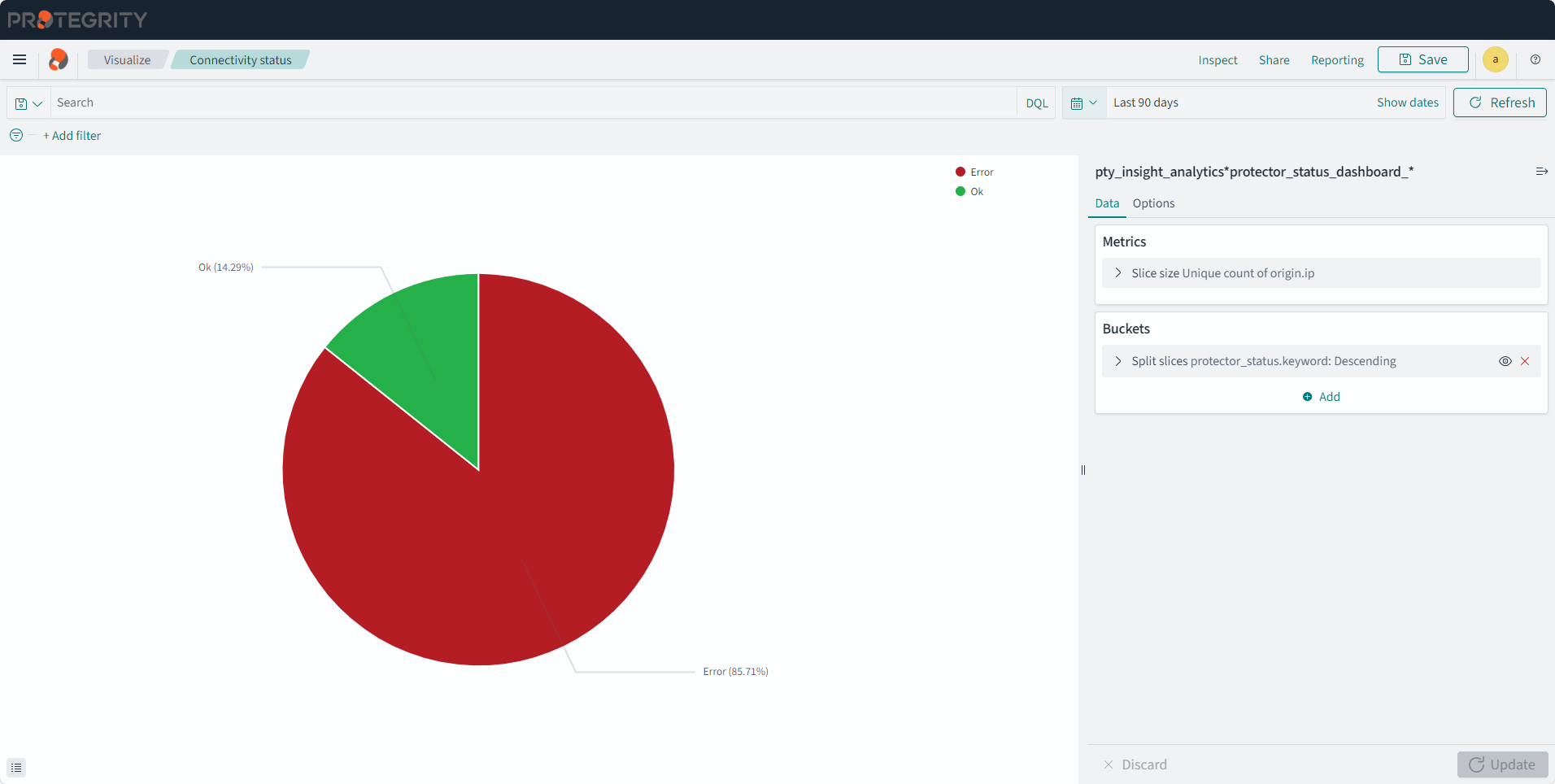
Connectivity status
Description: This pie chart display connectivity status for the protectors.
- Type: Pie
- Configuration:
- Index: pty_insight_analytics*protector_status_dashboard_*
- Metrics:
- Slice size
- Aggregation: Unique Count
- Field: origin.ip
- Custom label: Number
- Slice size
- Buckets:
- Split slices
- Aggregation: Terms
- Field: protector_status.keyword
- Order by: Metric:Number
- Order: Descending
- Size: 10000
- Split slices
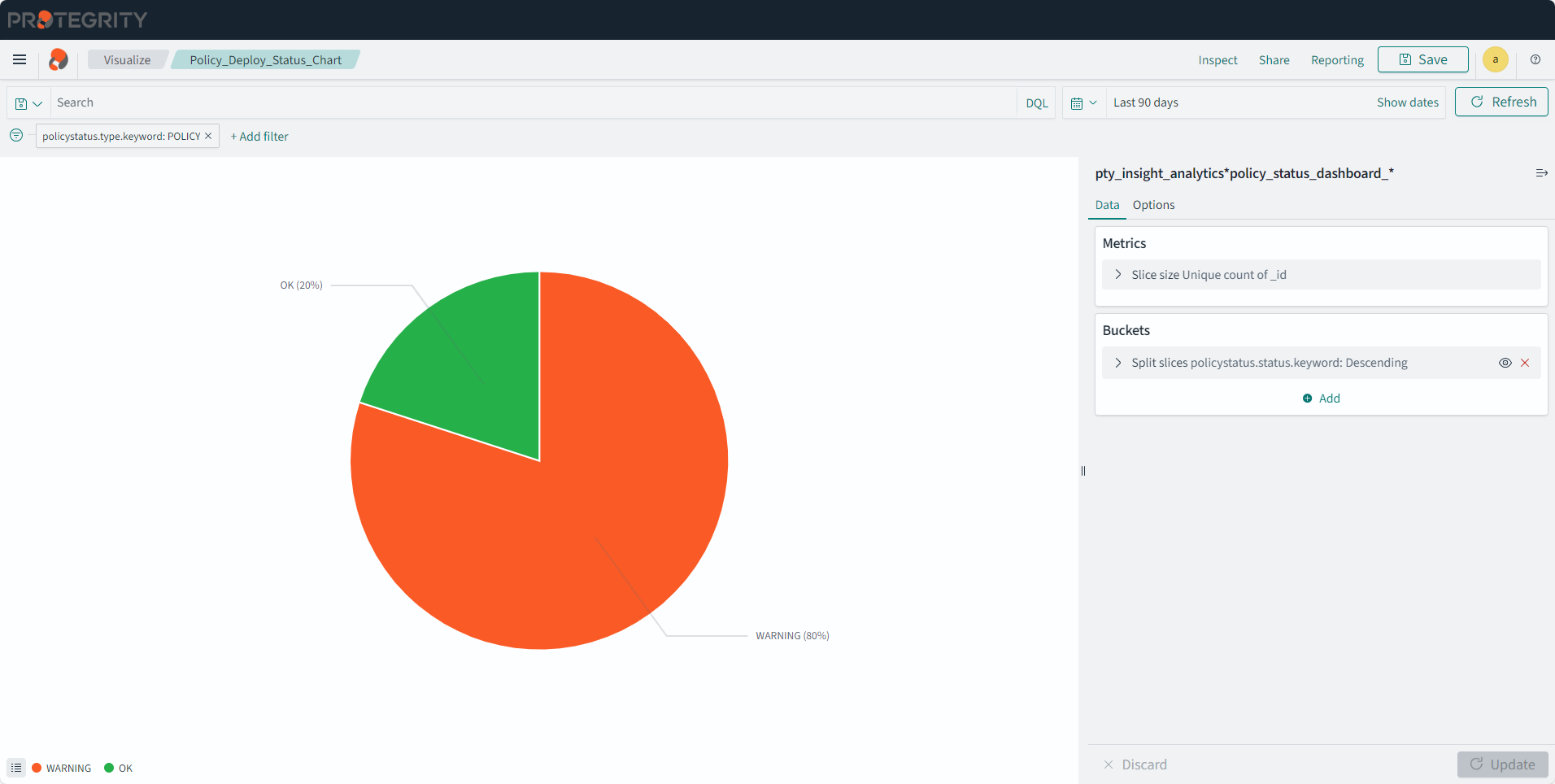
Policy_Deploy_Status_Chart
Description: This pie chart displays the deployment status of the policy.
- Type: Pie
- Filter: policystatus.type.keyword: POLICY
- Configuration:
- Index: pty_insight_analytics*policy_status_dashboard_*
- Metrics:
- Slice size
- Aggregation: Unique Count
- Field: _id
- Slice size
- Buckets:
- Split slices
- Aggregation: Terms
- Field: policystatus.status.keyword
- Order by: Metric:Unique Count of _id
- Order: Descending
- Size: 50
- Custom label: Policy Status
- Split slices
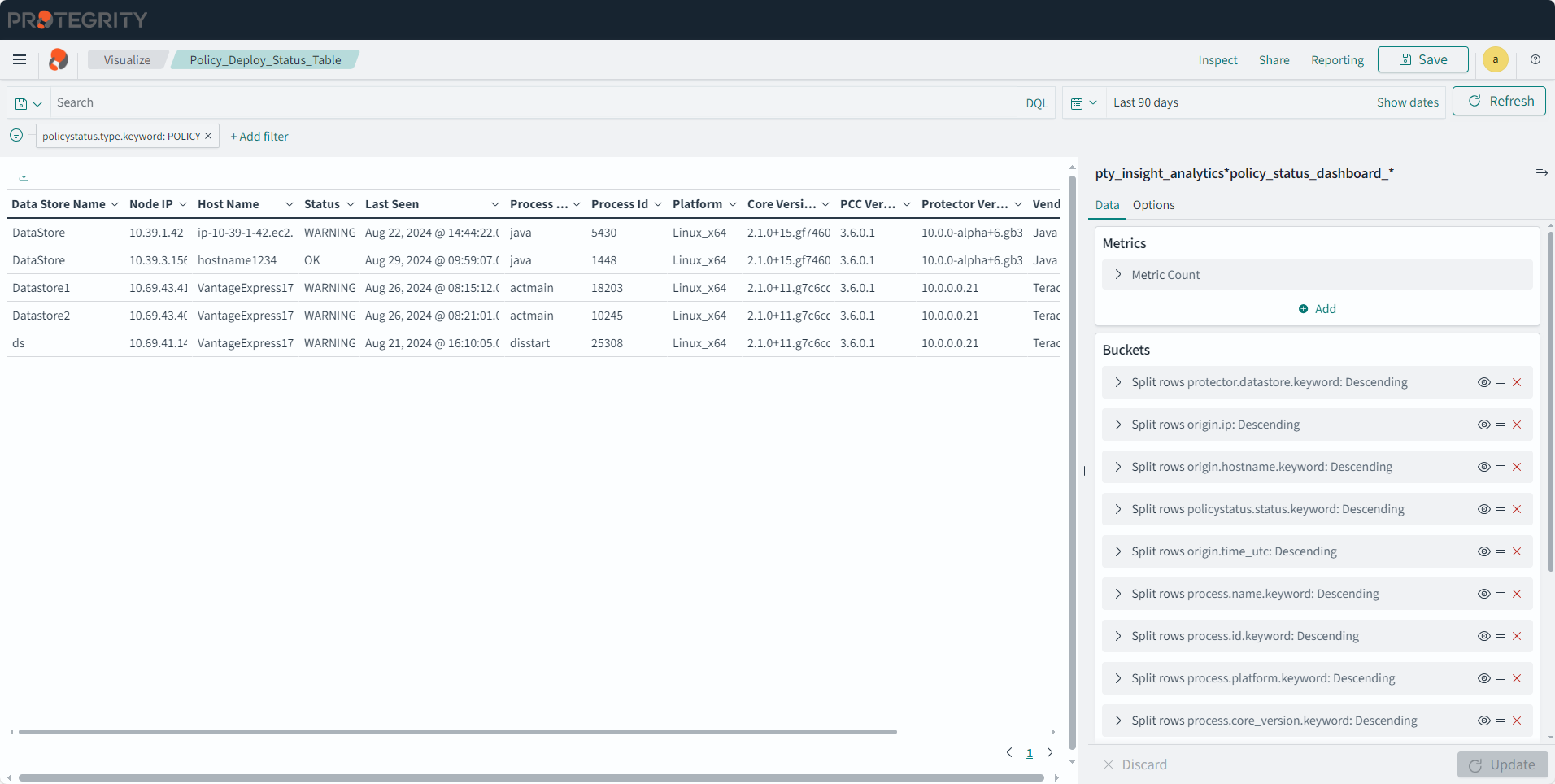
Policy_Deploy_Status_Table
Description: This table displays the policy deployment status and uniquely identified information for the data store, protector, process, platform, node, and so on.
- Type: Data Table
- Filter: policystatus.type.keyword: POLICY
- Configuration:
- Index: pty_insight_analytics*policy_status_dashboard_*
- Metrics:
- Aggregation: Count
- Custom label: Metrics Count
- Buckets:
- Split rows
- Aggregation: Terms
- Field: protector.datastore.keyword
- Order by: Metric: Metrics Count
- Order: Descending
- Size: 50
- Custom label: Data Store Name
- Split rows
- Aggregation: Terms
- Field: origin.ip
- Order by: Metric: Metrics Count
- Order: Descending
- Size: 50
- Custom label: Node IP
- Split rows
- Aggregation: Terms
- Field: origin.hostname.keyword
- Order by: Metric: Metrics Count
- Order: Descending
- Size: 50
- Custom label: Host Name
- Split rows
- Aggregation: Terms
- Field: policystatus.status.keyword
- Order by: Metric: Metrics Count
- Order: Descending
- Size: 50
- Custom label: Status
- Split rows
- Aggregation: Terms
- Field: origin.time_utc
- Order by: Metric: Metrics Count
- Order: Descending
- Size: 50
- Custom label: Last Seen
- Split rows
- Aggregation: Terms
- Field: process.name.keyword
- Order by: Metric: Metrics Count
- Order: Descending
- Size: 50
- Custom label: Process Name
- Split rows
- Aggregation: Terms
- Field: process.id.keyword
- Order by: Metric: Metrics Count
- Order: Descending
- Size: 50
- Custom label: Process Id
- Split rows
- Aggregation: Terms
- Field: process.platform.keyword
- Order by: Metric: Metrics Count
- Order: Descending
- Size: 50
- Custom label: Platform
- Split rows
- Aggregation: Terms
- Field: process.core_version.keyword
- Order by: Metric: Metrics Count
- Order: Descending
- Size: 50
- Custom label: Core Version
- Split rows
- Aggregation: Terms
- Field: process.pcc_version.keyword
- Order by: Metric: Metrics Count
- Order: Descending
- Size: 50
- Custom label: PCC Version
- Split rows
- Aggregation: Terms
- Field: protector.version.keyword
- Order by: Metric: Metrics Count
- Order: Descending
- Size: 50
- Custom label: Protector Version
- Split rows
- Aggregation: Terms
- Field: protector.vendor.keyword
- Order by: Metric: Metrics Count
- Order: Descending
- Size: 50
- Custom label: Vendor
- Split rows
- Aggregation: Terms
- Field: protector.family.keyword
- Order by: Metric: Metrics Count
- Order: Descending
- Size: 50
- Custom label: Family
- Split rows
- Aggregation: Terms
- Field: policystatus.deployment_or_auth_time
- Order by: Metric: Metrics Count
- Order: Descending
- Size: 50
- Custom label: Deployment Time
- Split rows
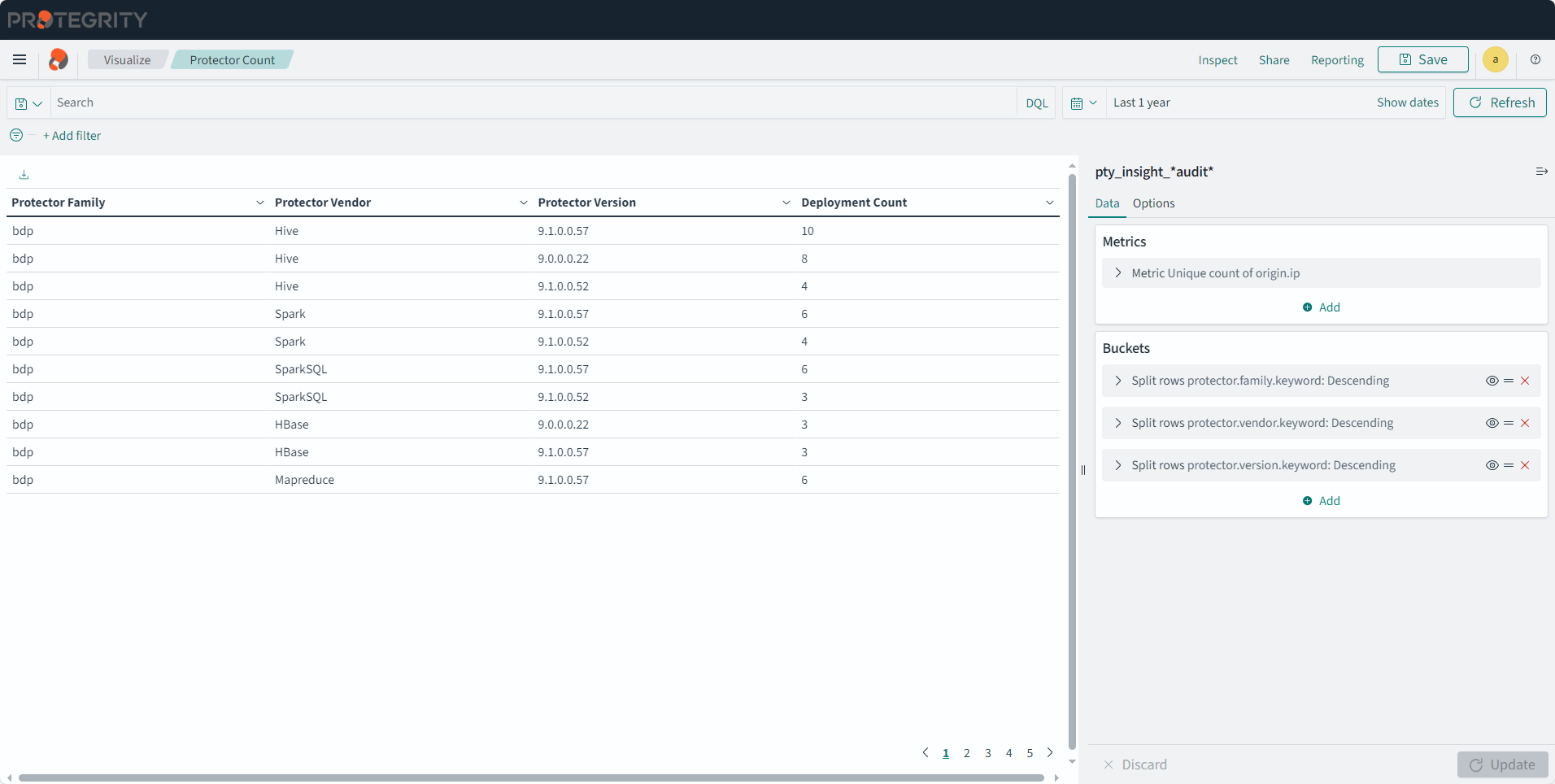
Protector Count
Description: This table displays the number of protector for each family, vendor, and version.
- Type: Data Table
- Configuration:
- Index: pty_insight_*audit*
- Metrics:
- Aggregation: Unique Count
- Field: origin.ip
- Custom label: Deployment Count
- Buckets:
- Split rows
- Aggregation: Terms
- Field: protector.family.keyword
- Order by: Metric: Deployment Count
- Order: Descending
- Size: 10000
- Custom label: Protector Family
- Split rows
- Aggregation: Terms
- Field: protector.vendor.keyword
- Order by: Metric: Metrics Count
- Order: Descending
- Size: 10000
- Custom label: Protector Vendor
- Split rows
- Aggregation: Terms
- Field: protector.version.keyword
- Order by: Metric: Deployment Count
- Order: Descending
- Size: 10000
- Custom label: Protector Version
- Split rows
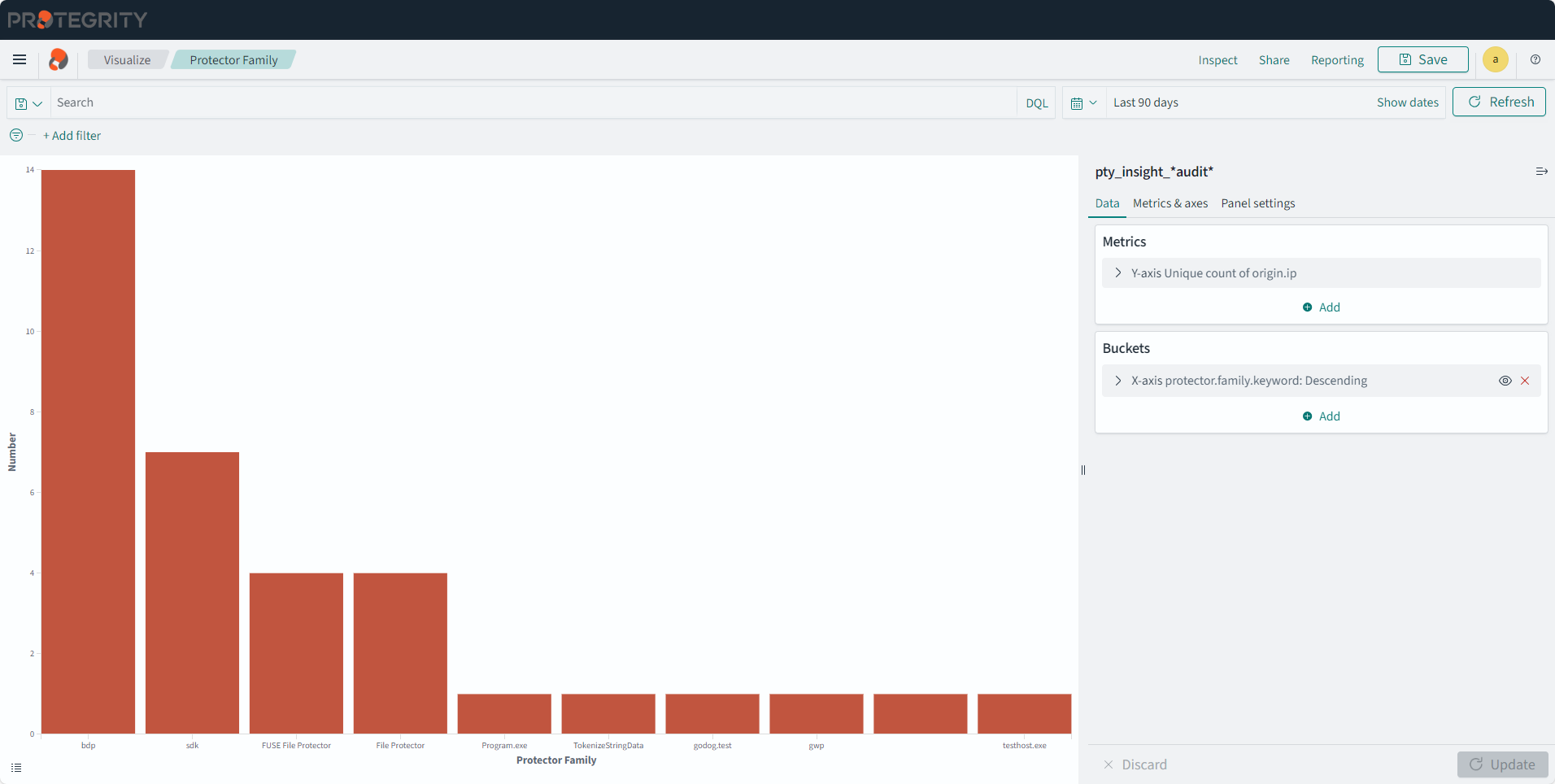
Protector Family
Description: This chart displays the counts of protectors installed for each protector family.
- Type: Vertical Bar
- Configuration:
- Index: pty_insight_*audit*
- Metrics: Y-axis
- Aggregation: Unique Count
- Field: origin.ip
- Custom label: Number
- Buckets:
- X-axis
- Aggregation: Terms
- Field: protector.family.keyword
- Order by: Metric:Number
- Order: Descending
- Size: 10000
- Custom label:Protector Family
- X-axis
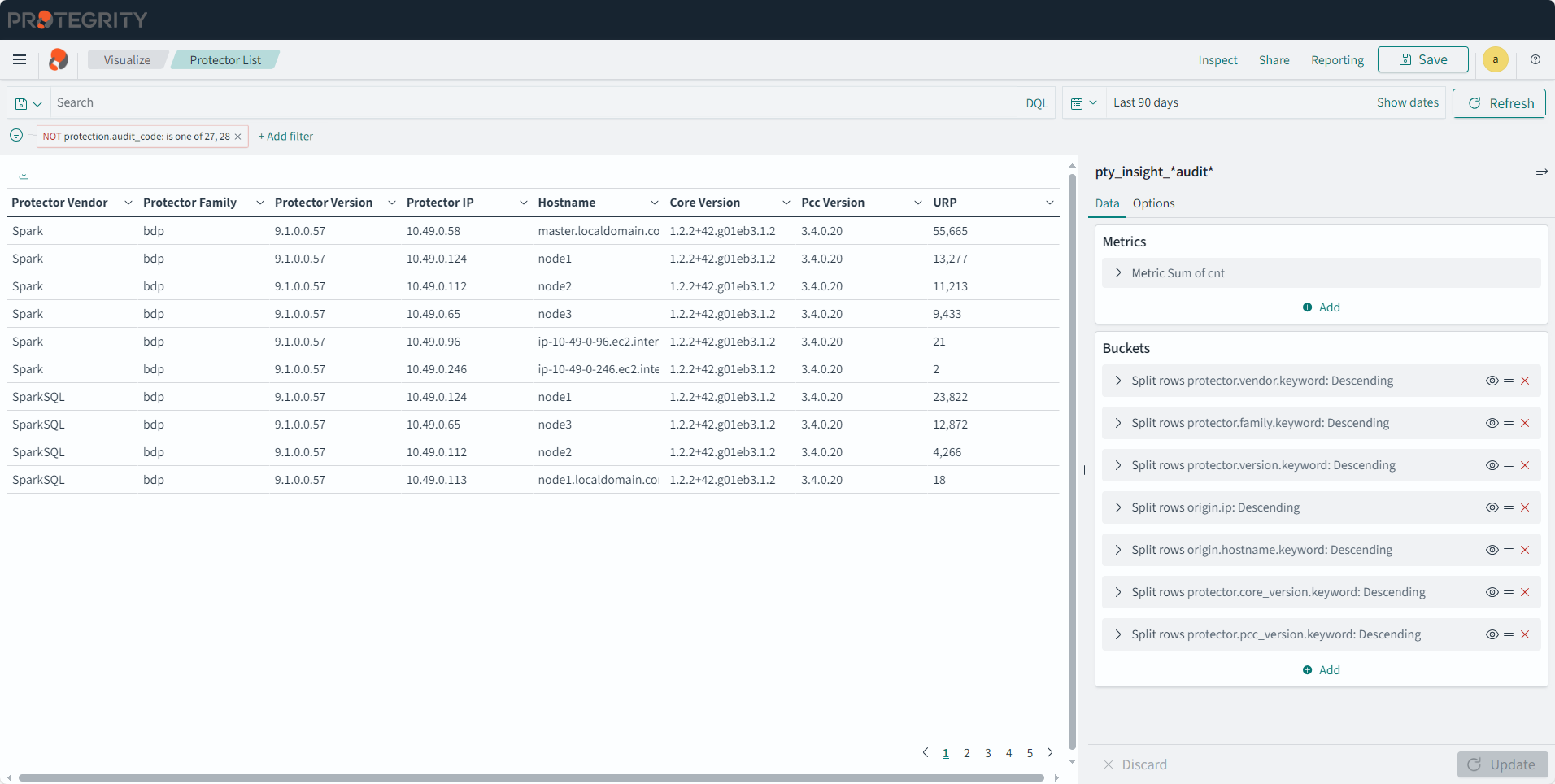
Protector List
Description: This table displays details of the protector.
- Type: Data Table
- Filter: NOT protection.audit_code: is one of 27, 28
- Configuration:
- Index: pty_insight_*audit*
- Metrics:
- Aggregation: Sum
- Field: cnt
- Custom label: URP
- Buckets:
- Split rows
- Aggregation: Terms
- Field: protector.vendor.keyword
- Order by: Metric:URP
- Order: Descending
- Size: 10000
- Custom label: Protector Vendor
- Split rows
- Aggregation: Terms
- Field: protector.family.keyword
- Order by: Metric:URP
- Order: Descending
- Size: 10000
- Custom label: Protector Family
- Split rows
- Aggregation: Terms
- Field: protector.version.keyword
- Order by: Metric:URP
- Order: Descending
- Size: 10000
- Custom label: Protector Version
- Split rows
- Aggregation: Terms
- Field: origin.ip
- Order by: Metric:URP
- Order: Descending
- Size: 10000
- Custom label: Protector IP
- Split rows
- Aggregation: Terms
- Field: origin.hostname.keyword
- Order by: Metric:URP
- Order: Descending
- Size: 10000
- Custom label: Hostname
- Split rows
- Aggregation: Terms
- Field: protector.core_version.keyword
- Order by: Metric:URP
- Order: Descending
- Size: 10000
- Custom label: Core Version
- Split rows
- Aggregation: Terms
- Field: protector.pcc_version.keyword
- Order by: Metric:URP
- Order: Descending
- Size: 10000
- Custom label: Pcc Version
- Split rows
Protector Status
Description: This table display protector status information.
- Type: Data Table
- Configuration:
- Index: pty_insight_analytics*protector_status_dashboard_*
- Metrics:
- Aggregation: Top Hit
- Field: origin.time_utc
- Aggregate with: Concatenate
- Size: 100
- Sort on: origin.time_utc
- Order: Descending
- Custom label: last seen
- Buckets:
- Split rows
- Aggregation: Terms
- Field: protector.datastore.keyword
- Order by: Alphabetically
- Order: Descending
- Size: 10000
- Custom label: Datastore
- Split rows
- Aggregation: Terms
- Field: origin.hostname.keyword
- Order by: Alphabetically
- Order: Descending
- Size: 10000
- Custom label: Hostname
- Split rows
- Aggregation: Terms
- Field: process.platform.keyword
- Order by: Alphabetically
- Order: Descending
- Size: 10000
- Custom label: Protector Platform
- Split rows
- Aggregation: Terms
- Field: process.core_version.keyword
- Order by: Alphabetically
- Order: Descending
- Size: 10000
- Custom label: Core Version
- Split rows
- Aggregation: Terms
- Field: protector.vendor.keyword
- Order by: Alphabetically
- Order: Descending
- Size: 10000
- Custom label: Protector Vendor
- Split rows
- Aggregation: Terms
- Field: protector.family.keyword
- Order by: Alphabetically
- Order: Descending
- Size: 10000
- Custom label: Protector Family
- Split rows
- Aggregation: Terms
- Field: protector.version.keyword
- Order by: Alphabetically
- Order: Descending
- Size: 10000
- Custom label: Protector Version
- Split rows
- Aggregation: Terms
- Field: protector_status.keyword
- Order by: Alphabetically
- Order: Descending
- Size: 10000
- Custom label: Protector Status
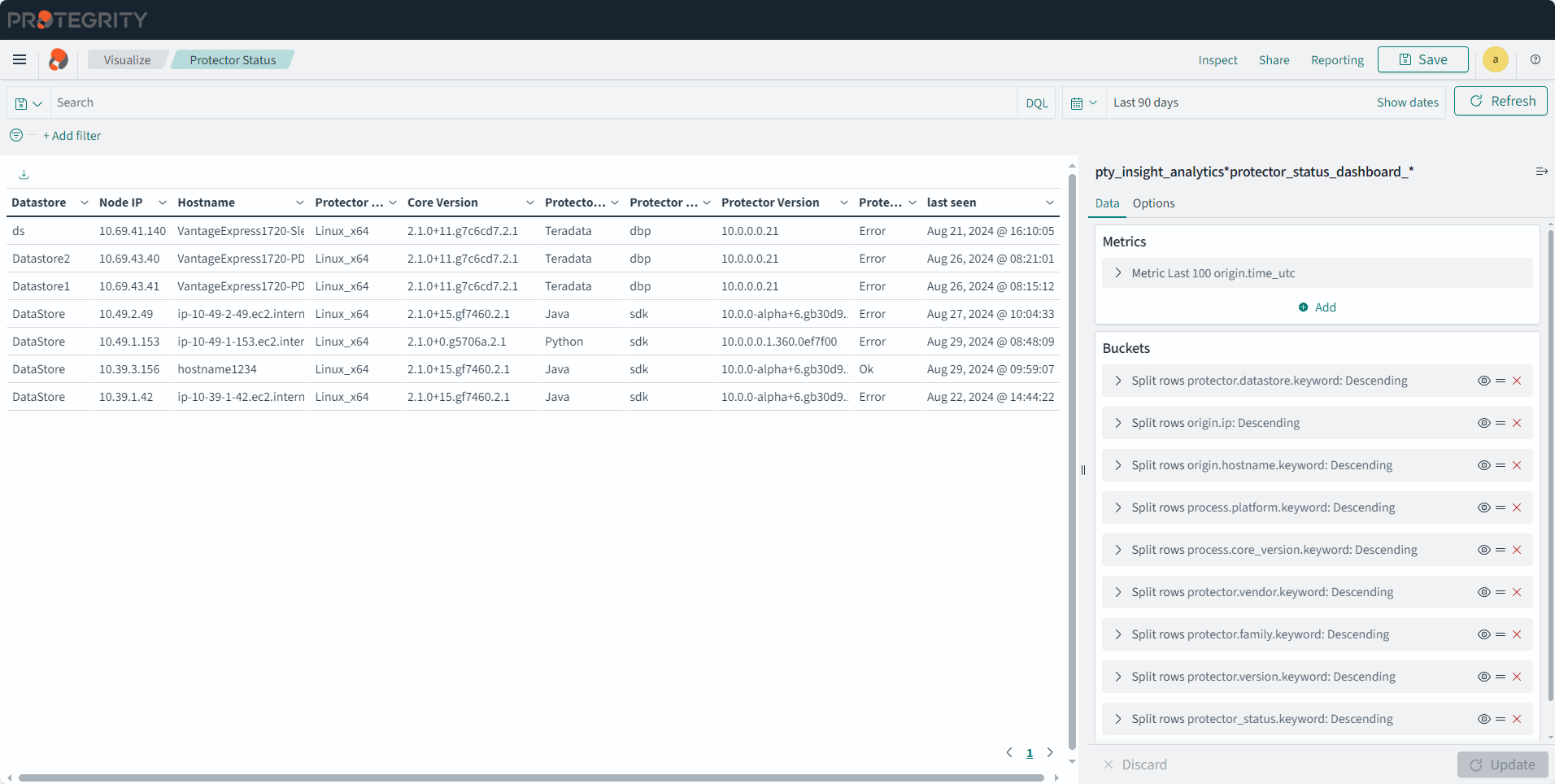
- Split rows
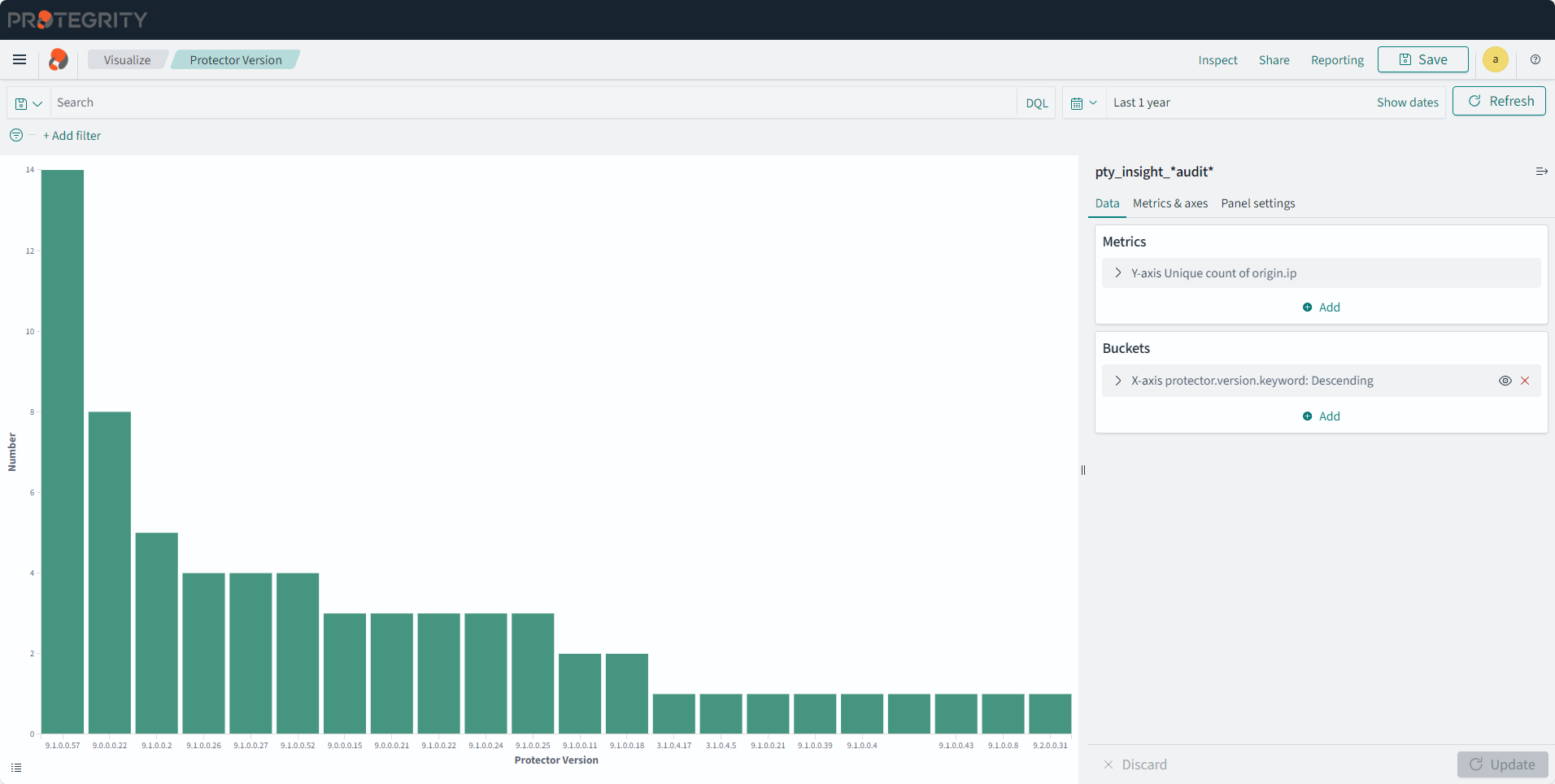
Protector Version
Description: This chart displays the protector count for each protector version.
- Type: Vertical Bar
- Configuration:
- Index: pty_insight_*audit*
- Metrics: Y-axis
- Aggregation: Unique Count
- Field: origin.ip
- Custom label: Number
- Buckets:
- X-axis
- Aggregation: Terms
- Field: protector.version.keyword
- Order by: Metric:Number
- Order: Descending
- Size: 10000
- Custom label: Protector Version
- Y-axis
- Sub aggregation: Terms
- Field: protection.dataelement.keyword
- Order by: Metric:Count
- Order: Descending
- Size: 50
- X-axis
- Filter: protection.operation.keyword: Unprotect
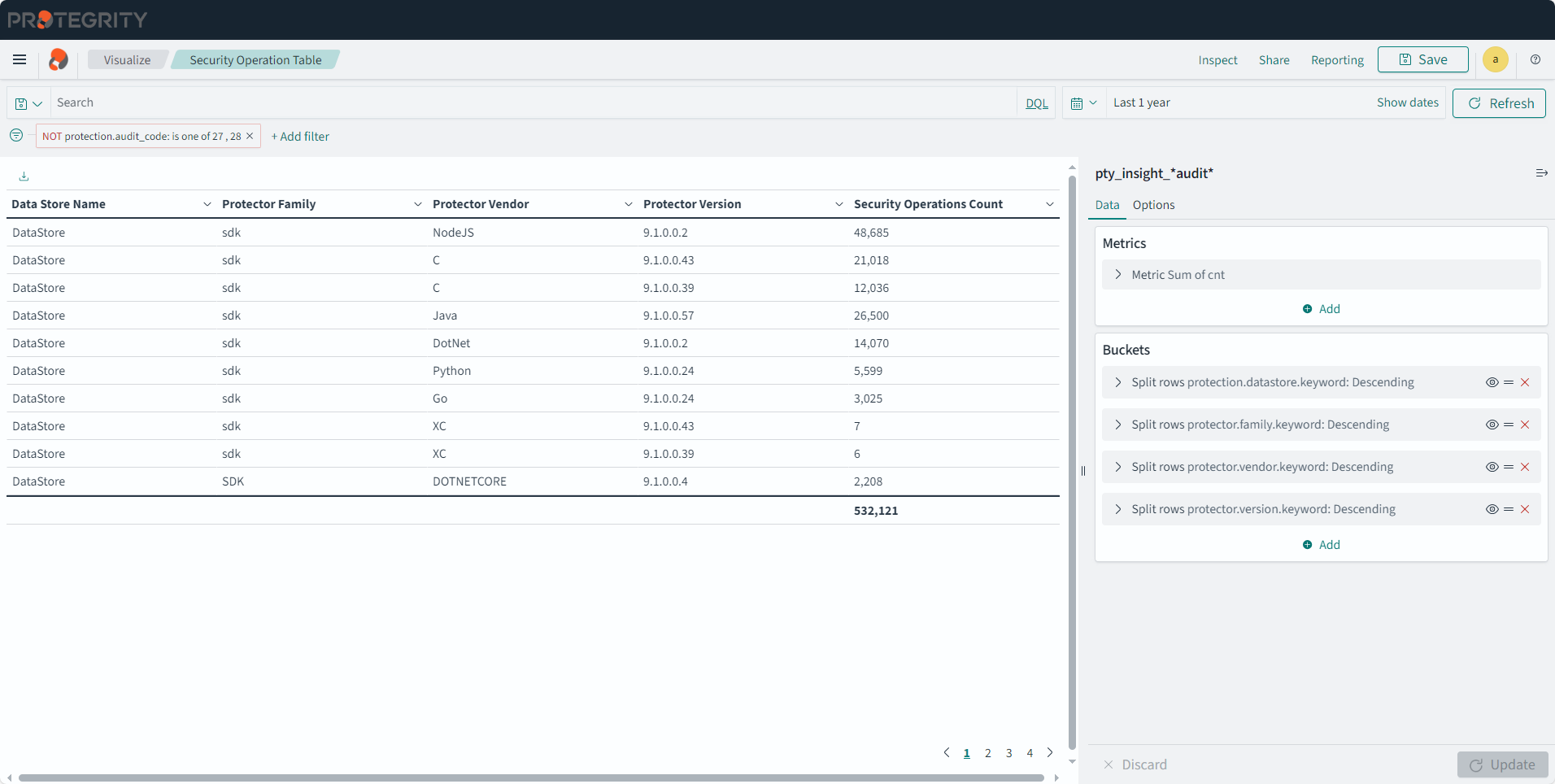
Security Operation Table
Description: The table displays the number of security operations grouped by data stores, protector vendors, and protector families.
- Type: Data Table
- FIlter: NOT protection.audit_code: is one of 27 , 28
- Configuration:
- Index: pty_insight_*audit_*
- Metrics:
- Aggregation: Sum
- Field: cnt
- Custom label: Security Operations Count
- Buckets:
- Split rows
- Aggregation: Terms
- Field: protection.datastore.keyword
- Order by: Metric:Security Operation Count
- Order: Descending
- Size: 10000
- Custom label: Data Store Name
- Split rows
- Aggregation: Terms
- Field: protector.family.keyword
- Order by: Metric:Security Operation Count
- Order: Descending
- Size: 10000
- Custom label: Protector Family
- Split rows
- Aggregation: Terms
- Field: protector.vendor.keyword
- Order by: Metric:Security Operation Count
- Order: Descending
- Size: 10000
- Custom label: Protector Vendor
- Split rows
- Aggregation: Terms
- Field: protector.version.keyword
- Order by: Metric:Security Operation Count
- Order: Descending
- Size: 10000
- Custom label: Protector Version
- Split rows
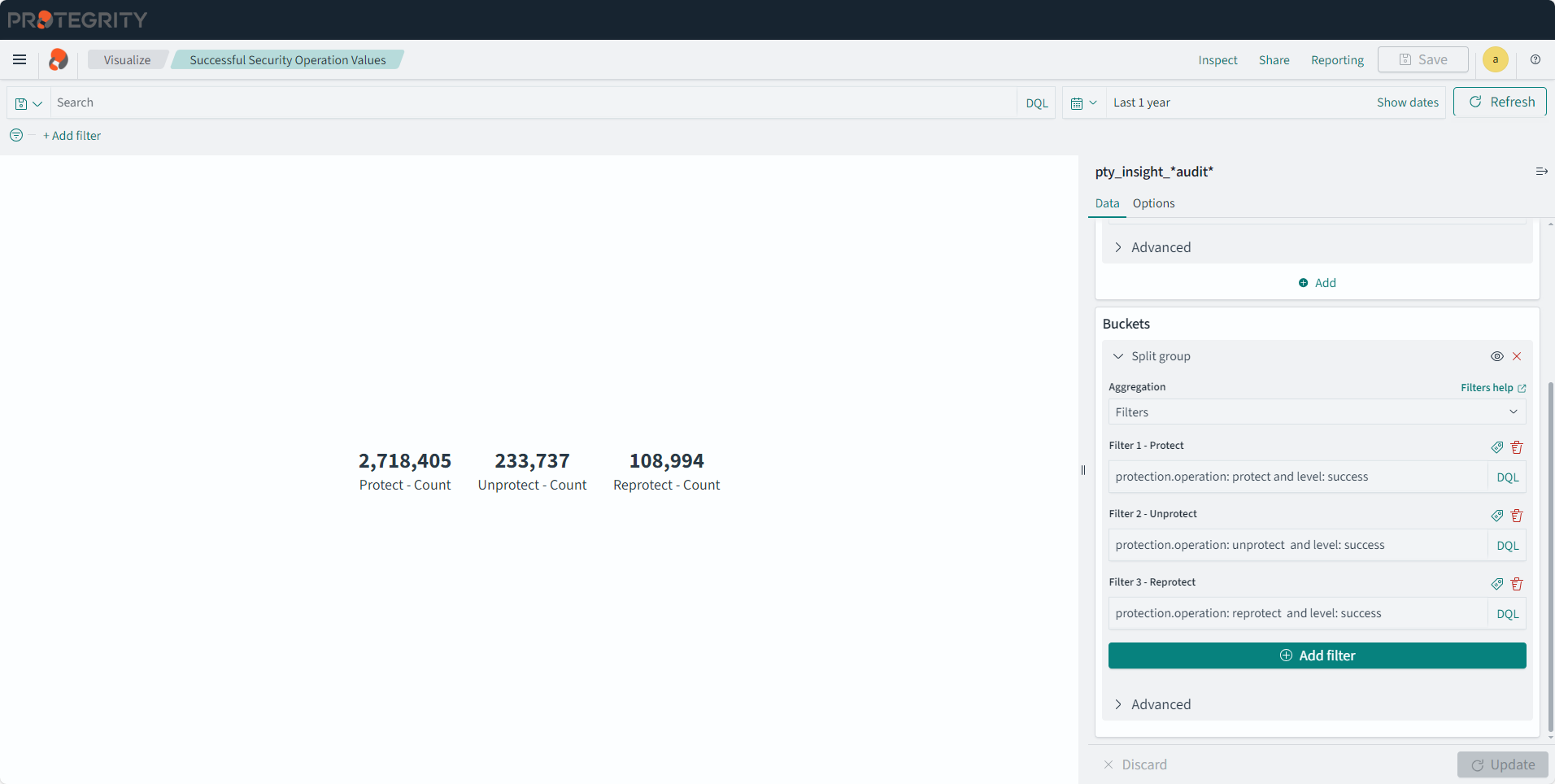
Successful Security Operation Values
Description: The visualization displays only successful protect, unprotect, and reprotect operation counts.
- Type: Metric
- Configuration:
- Index: pty_insight_*audit*
- Metrics:
- Aggregation: Sum
- Field: cnt
- Custom label: Count
- Buckets:
- Split group
- Aggregation: Filters
- Filter 1-Protect: protection.operation: protect and level: success
- Filter 2-Unprotect: protection.operation: unprotect and level: success
- Filter 3-Reprotect: protection.operation: reprotect and level: success
- Split group
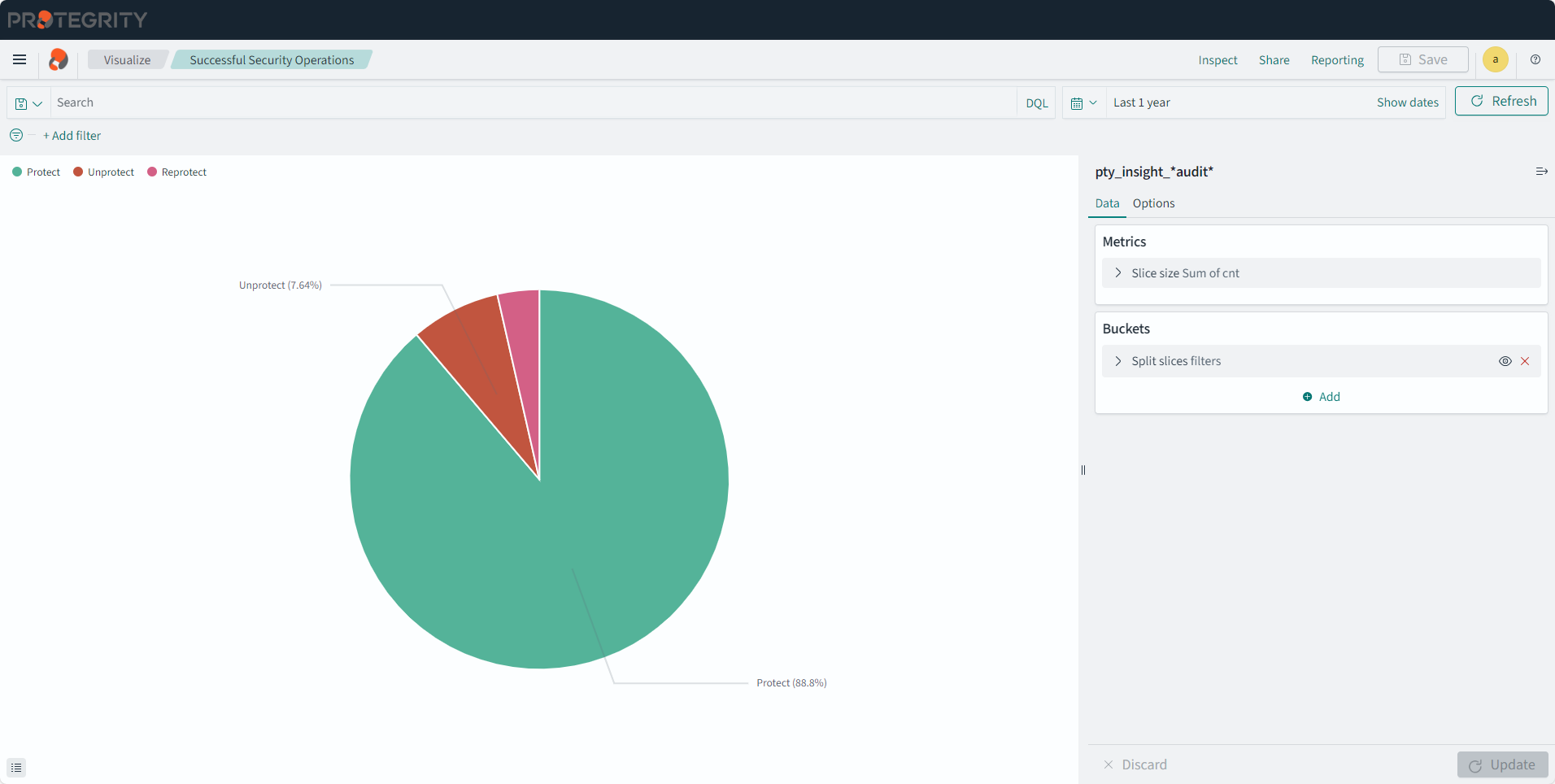
Successful Security Operations
Description: The pie chart displays only successful protect, unprotect, and reprotect operations.
- Type: Pie
- Configuration:
- Index: pty_insight_*audit*
- Metrics:
- Aggregation: Sum
- Field: cnt
- Custom label: URP
- Buckets:
- Split slices
- Aggregation: Filters
- Filter 1-Protect: protection.operation: protect and level: Success
- Filter 2-Unprotect: protection.operation: unprotect and level: Success
- Filter 3-Reprotect: protection.operation: reprotect and level: Success
- Split slices
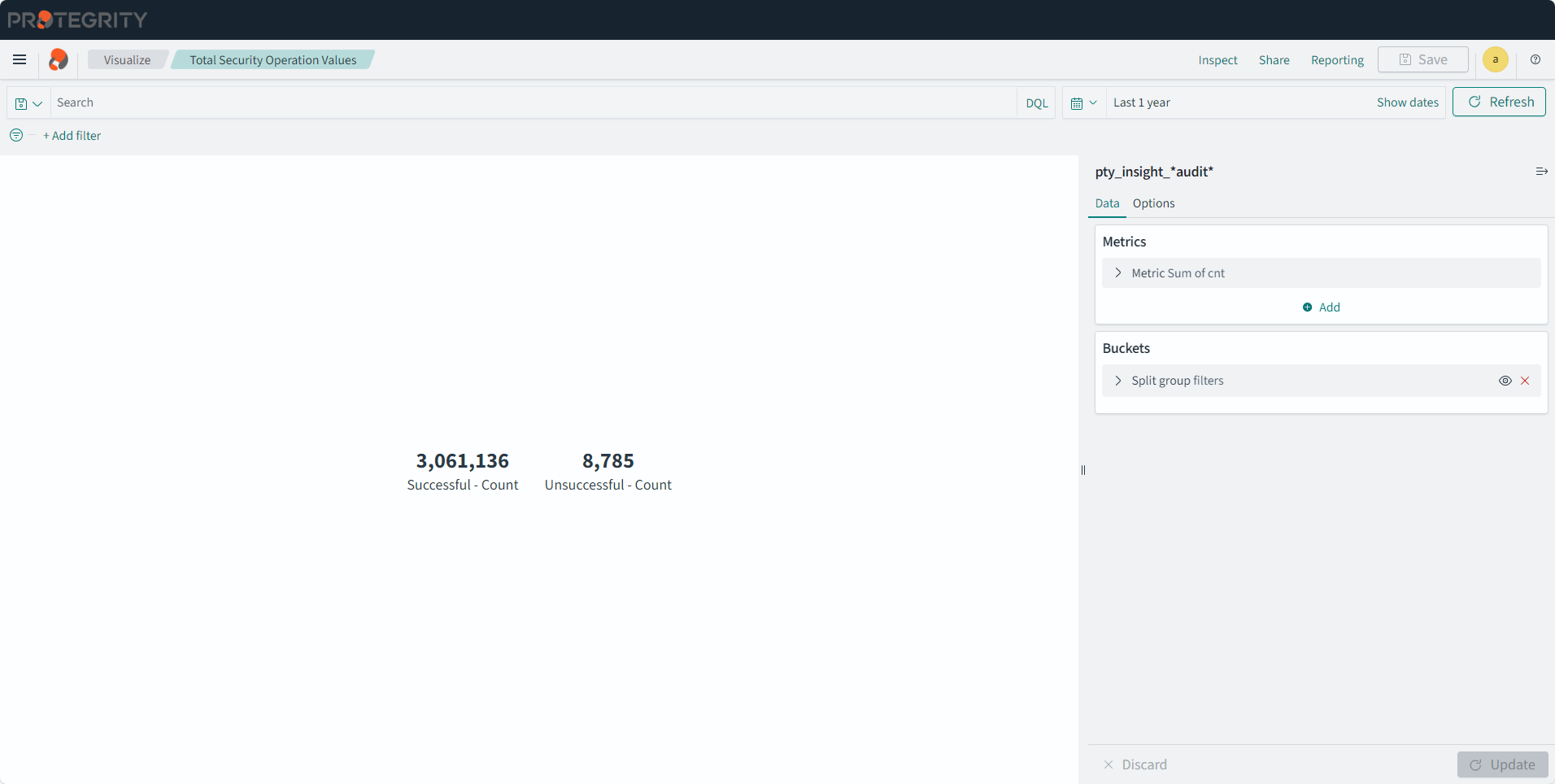
Total Security Operation Values
Description: The visualization displays successful and unsuccessful security operation counts.
- Type: Metric
- Configuration:
- Index: pty_insight_*audit*
- Metrics:
- Aggregation: Sum
- Field: cnt
- Custom label: Count
- Buckets:
- Split group
- Aggregation: Filters
- Filter 1-Successful: logtype:protection and level: Success and not protection.audit_code: 27
- Filter 2-Unsuccessful: logtype:protection and not level: Success and not protection.audit_code: 28
- Split group
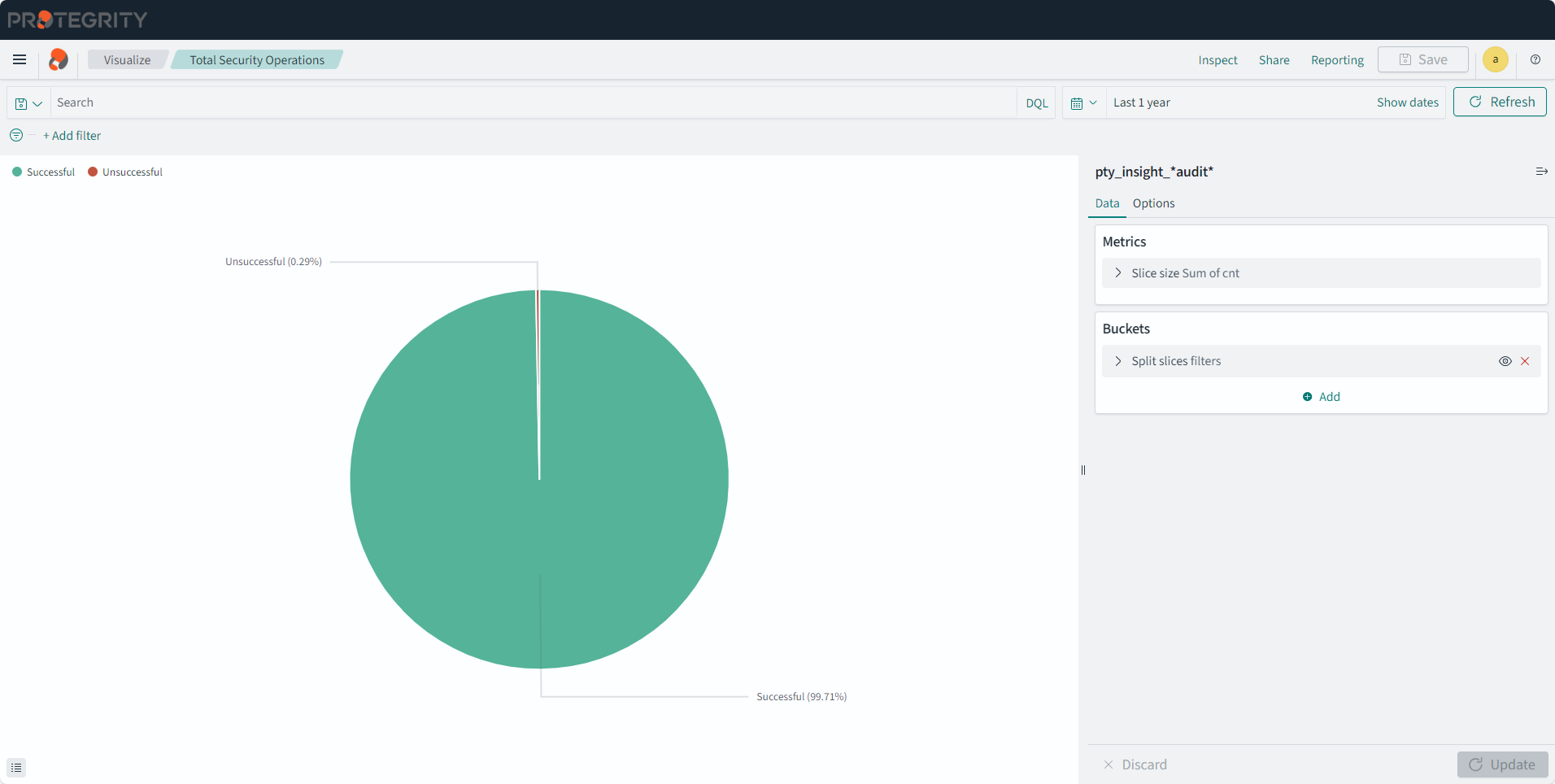
Total Security Operations
Description: The pie chart displays successful and unsuccessful security operations.
- Type: Pie
- Configuration:
- Index: pty_insight_*audit*
- Metrics:
- Aggregation: Sum
- Field: cnt
- Custom label: URP
- Buckets:
- Split slices
- Aggregation: Filters
- Filter 1-Successful: logtype:protection and level: Success and not protection.audit_code: 27
- Filter 2-Unsuccessful: logtype:protection and not level: Success and not protection.audit_code: 28
- Split slices
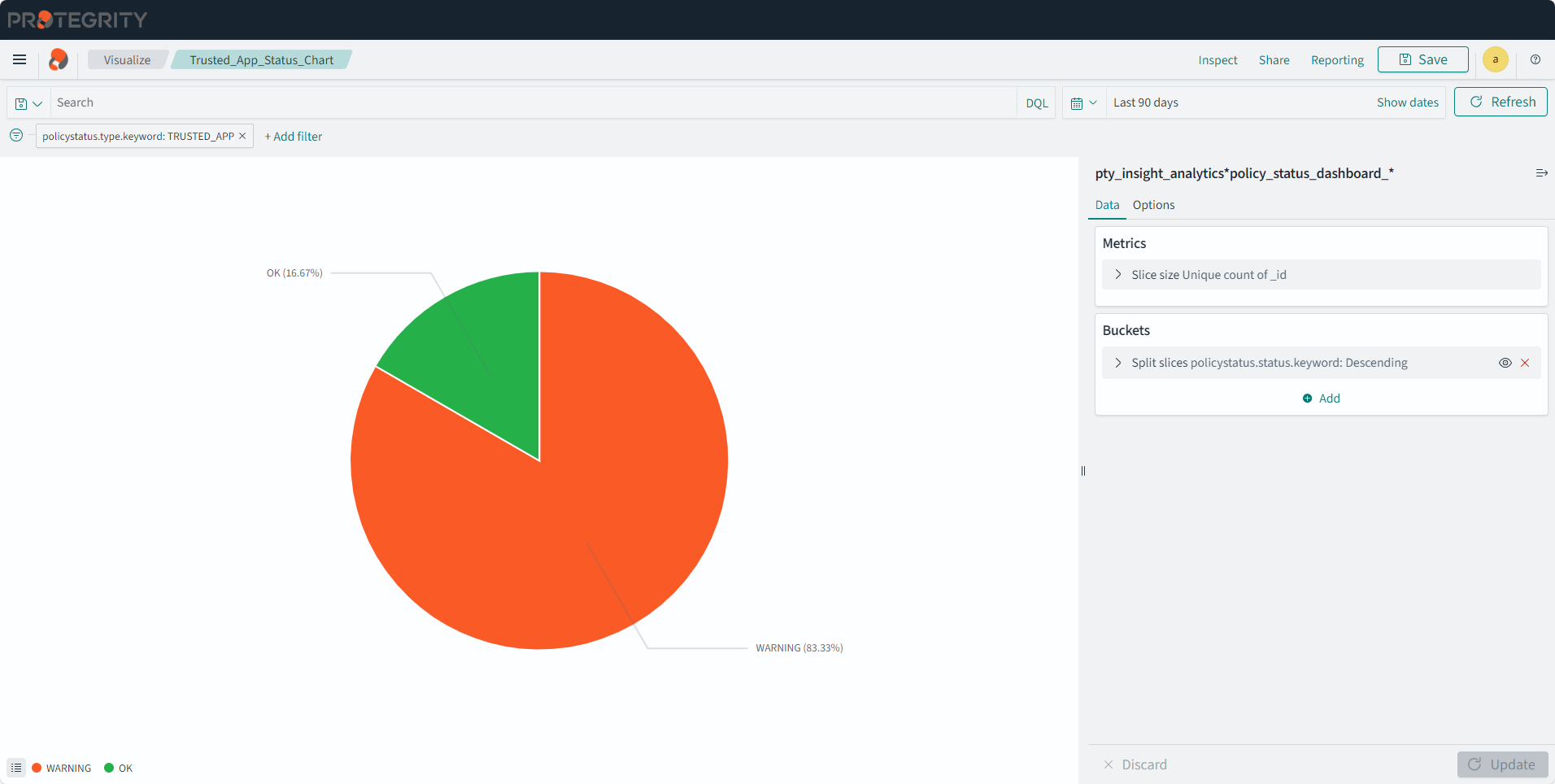
Trusted_App_Status_Chart
Description: The pie chart displays the trusted application deployment status.
- Type: Pie
- Filter: policystatus.type.keyword: TRUSTED_APP
- Configuration:
- Index: pty_insight_analytics*policy_status_dashboard_*
- Metrics:
- Slice size:
- Aggregation: Unique Count
- Field: _id
- Custom label: Trusted App
- Slice size:
- Buckets:
- Split slices
- Aggregation: Terms
- Field: policystatus.status.keyword
- Order by: Metric: Trusted App
- Order: Descending
- Size: 100
- Custom label: Trusted App Status
- Split slices
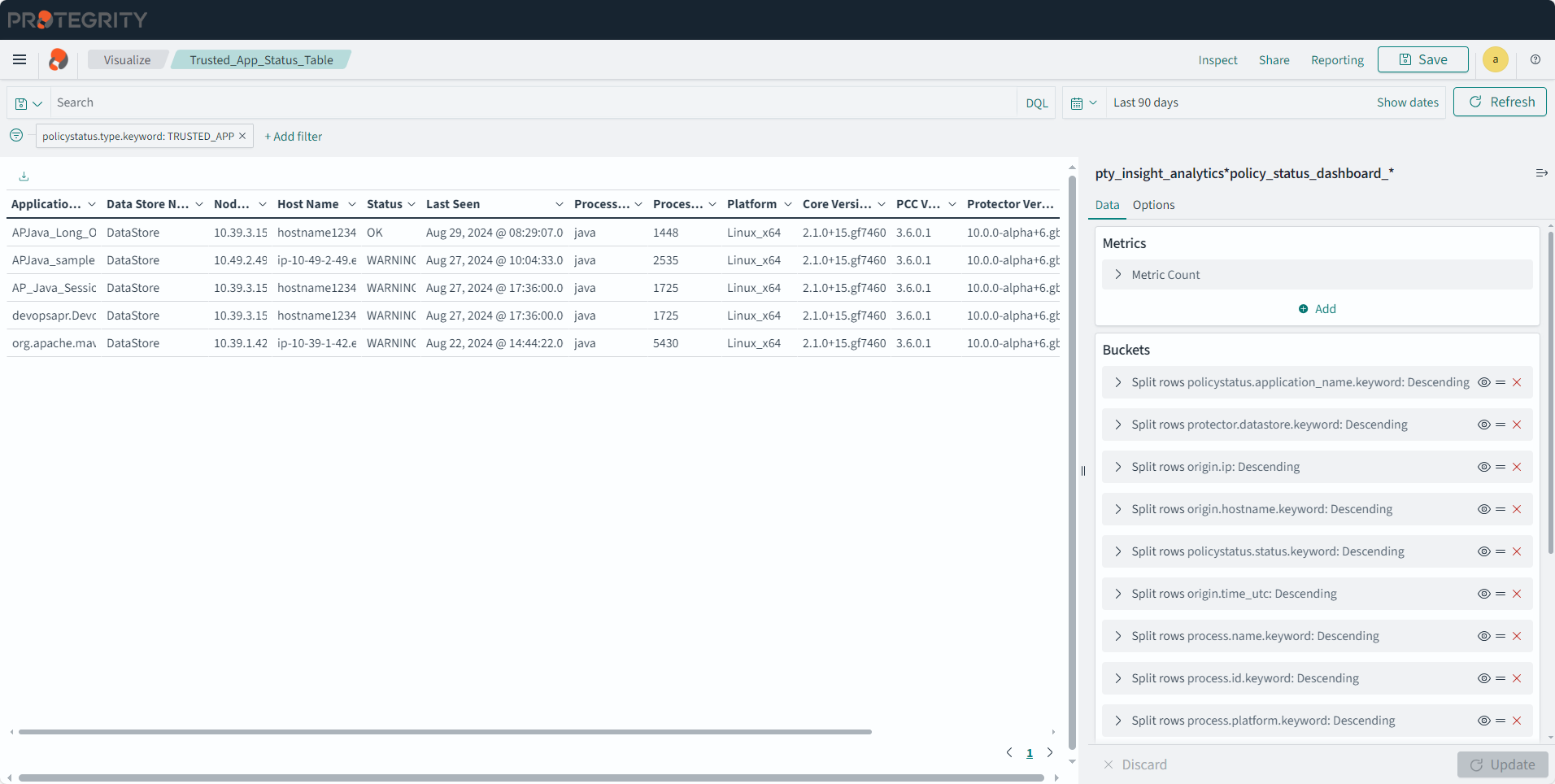
Trusted_App_Status_Table
Description: The trusted application deployment status that is displayed on the dashboard. This table uniquely identifies the data store, protector, process, platform, node, and so on.
- Type: Data Table
- Filter: policystatus.type.keyword: TRUSTED_APP
- Configuration:
- Index: pty_insight_analytics*policy_status_dashboard_*
- Metrics:
- Aggregation: Count
- Custom label: Metrics Count
- Buckets:
- Split rows
- Aggregation: Terms
- Field: policystatus.application_name.keyword
- Order by: Metric: Metric:Count
- Order: Descending
- Size: 5
- Custom label: Application name
- Split rows
- Aggregation: Terms
- Field: protector.datastore.keyword
- Order by: Metric: Metric:Count
- Order: Descending
- Size: 50
- Custom label: Data Store Name
- Split rows
- Aggregation: Terms
- Field: origin.ip
- Order by: Metric: Metric:Count
- Order: Descending
- Size: 50
- Custom label: Node IP
- Split rows
- Aggregation: Terms
- Field: origin.hostname.keyword
- Order by: Metric: Metric:Count
- Order: Descending
- Size: 50
- Custom label: Host Name
- Split rows
- Aggregation: Terms
- Field: policystatus.status.keyword
- Order by: Metric: Metric:Count
- Order: Descending
- Size: 50
- Custom label: Status
- Split rows
- Aggregation: Terms
- Field: origin.time_utc
- Order by: Metric: Metric:Count
- Order: Descending
- Size: 50
- Custom label: Last Seen
- Split rows
- Aggregation: Terms
- Field: process.name.keyword
- Order by: Metric: Metric:Count
- Order: Descending
- Size: 50
- Custom label: Process Name
- Split rows
- Aggregation: Terms
- Field: process.id.keyword
- Order by: Metric: Metric:Count
- Order: Descending
- Size: 50
- Custom label: Process Id
- Split rows
- Aggregation: Terms
- Field: process.platform.keyword
- Order by: Metric: Metric:Count
- Order: Descending
- Size: 50
- Custom label: Platform
- Split rows
- Aggregation: Terms
- Field: process.core_version.keyword
- Order by: Metric: Metric:Count
- Order: Descending
- Size: 50
- Custom label: Core Version
- Split rows
- Aggregation: Terms
- Field: process.pcc_version.keyword
- Order by: Metric: Metric:Count
- Order: Descending
- Size: 50
- Custom label: PCC Version
- Split rows
- Aggregation: Terms
- Field: protector.version.keyword
- Order by: Metric: Metric:Count
- Order: Descending
- Size: 50
- Custom label: Protector Version
- Split rows
- Aggregation: Terms
- Field: protector.vendor.keyword
- Order by: Metric: Metric:Count
- Order: Descending
- Size: 50
- Custom label: Vendor
- Split rows
- Aggregation: Terms
- Field: protector.family.keyword
- Order by: Metric: Metric:Count
- Order: Descending
- Size: 50
- Custom label: Family
- Split rows
- Aggregation: Terms
- Field: policystatus.deployment_or_auth_time
- Order by: Metric: Metric:Count
- Order: Descending
- Size: 50
- Custom label: Authorize Time
- Split rows
- Split rows
- Aggregation: Terms
- Field: protector.datastore.keyword
- Order by: Metric: Metric:Count
- Order: Descending
- Size: 50
- Custom label: Data Store Name
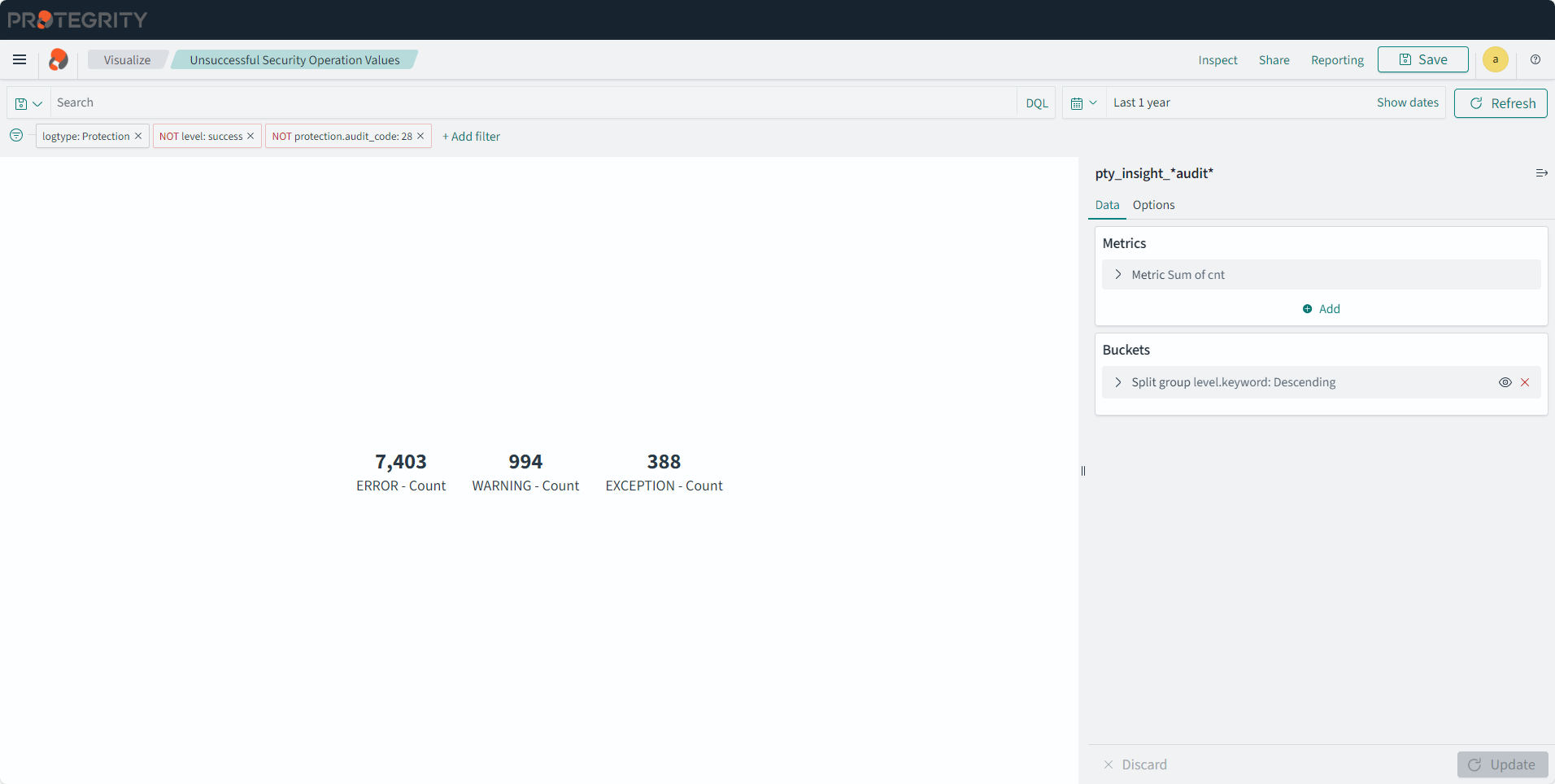
Unsuccessful Security Operation Values
Description: The metric displays unsuccessful security operation counts.
- Type: Metric
- Filter 1: logtype: Protection
- Filter 2: NOT level: success
- Filter 3: NOT protection.audit_code: 28
- Configuration:
- Index: pty_insight_*audit*
- Metrics:
- Aggregation: Sum
- Field: cnt
- Custom label: Count
- Buckets: - Split group - Aggregation: Terms - Field: level.keyword - Order by: Metric:Count - Order: Descending - Size: 10000
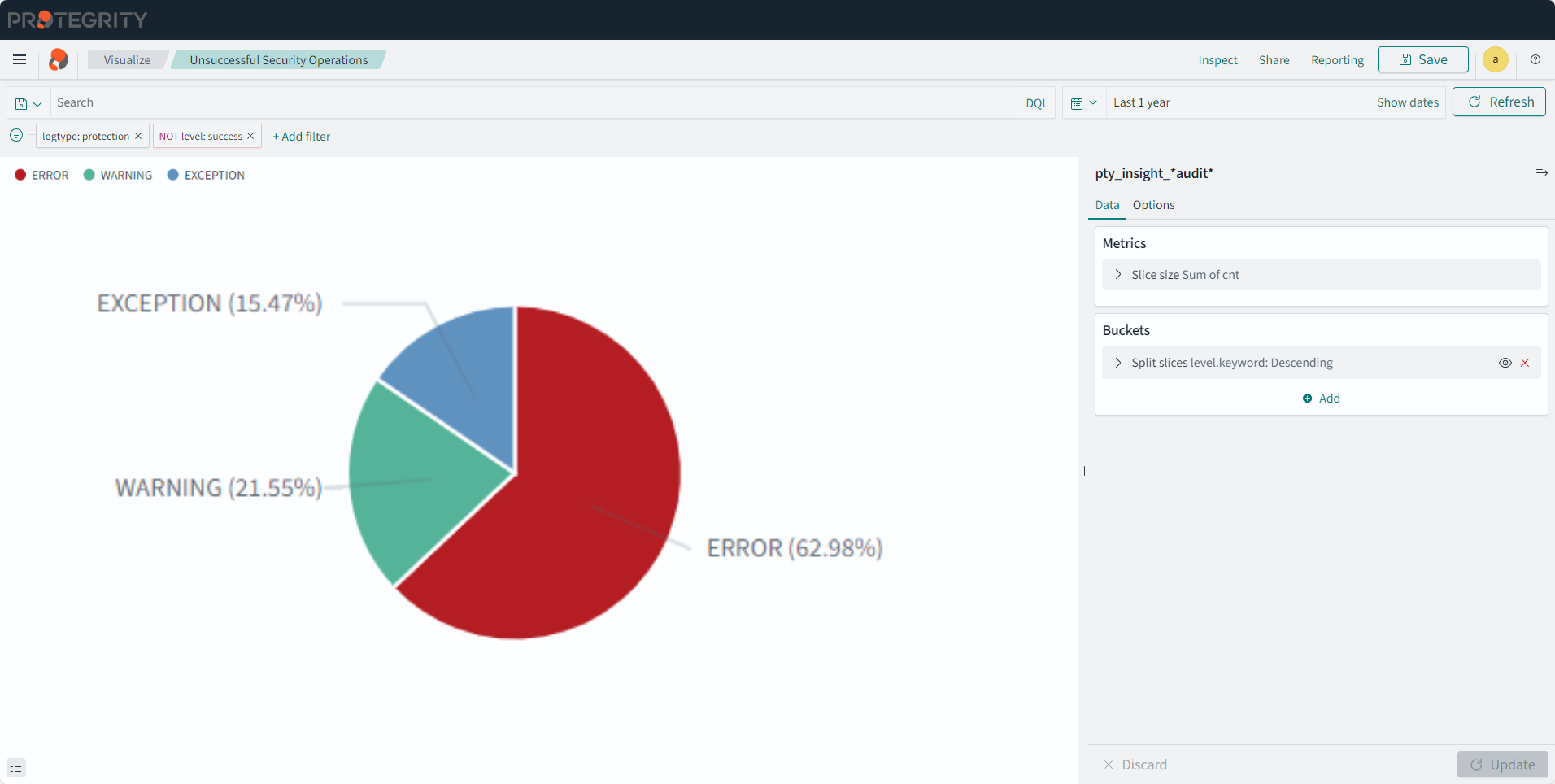
Unsuccessful Security Operations
Description: The pie chart displays unsuccessful security operations.
- Type: Pie
- Filter 1: logtype: protection
- Filter 2: NOT level: success
- Configuration:
- Index: pty_insight_*audit*
- Metrics:
- Slice size:
- Aggregation: Sum
- Field: cnt
- Custom label: Counts
- Slice size:
- Buckets:
- Split slices
- Aggregation: Terms
- Field: level.keyword
- Order by: Metric: Counts
- Order: Descending
- Size: 10000
- Split slices
8 - Viewing visualization templates
The configuration of visualizations created in the earlier versions of the Audit Store Dashboards are retained after the ESA is upgraded. Protegrity provides default visualizations with version 10.1.0. If the title of an existing visualization matches the new visualization provided by Protegrity, then a duplicate entry is visible. Use the date and time stamp to identify and rename the existing visualizations.
Do not delete or modify the configuration or details of the new visualizations provided by Protegrity. To customize the visualization, create a copy of the visualization and perform the customization on the copy of the visualization.
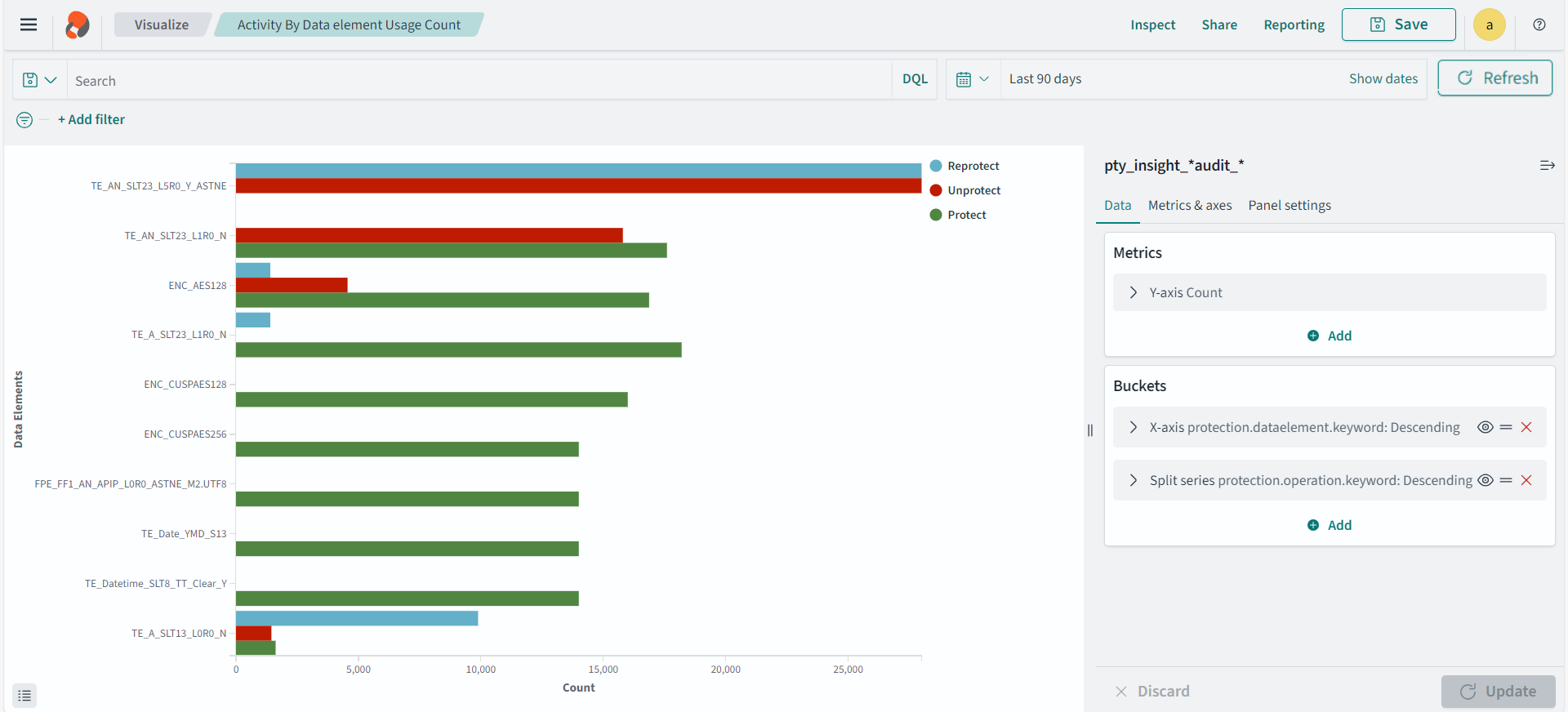
Activity by data element usage count
Description: This graph displays the security operation count for each data element.
- Type: Vertical Bar
- Configuration:
- Index: pty_insight_*audit_*
- Metrics: Y-axis: Count
- Buckets:
- X-axis
- Aggregation: Terms
- Field: protection.dataelement.keyword
- Order by: Metric:Count
- Order: Descending
- Size: 10
- Custom label: Data Elements
- Split series
- Sub aggregation: Terms
- Field: protection.operation.keyword
- Order by: Metric:Count
- Order: Descending
- Size: 10
- X-axis
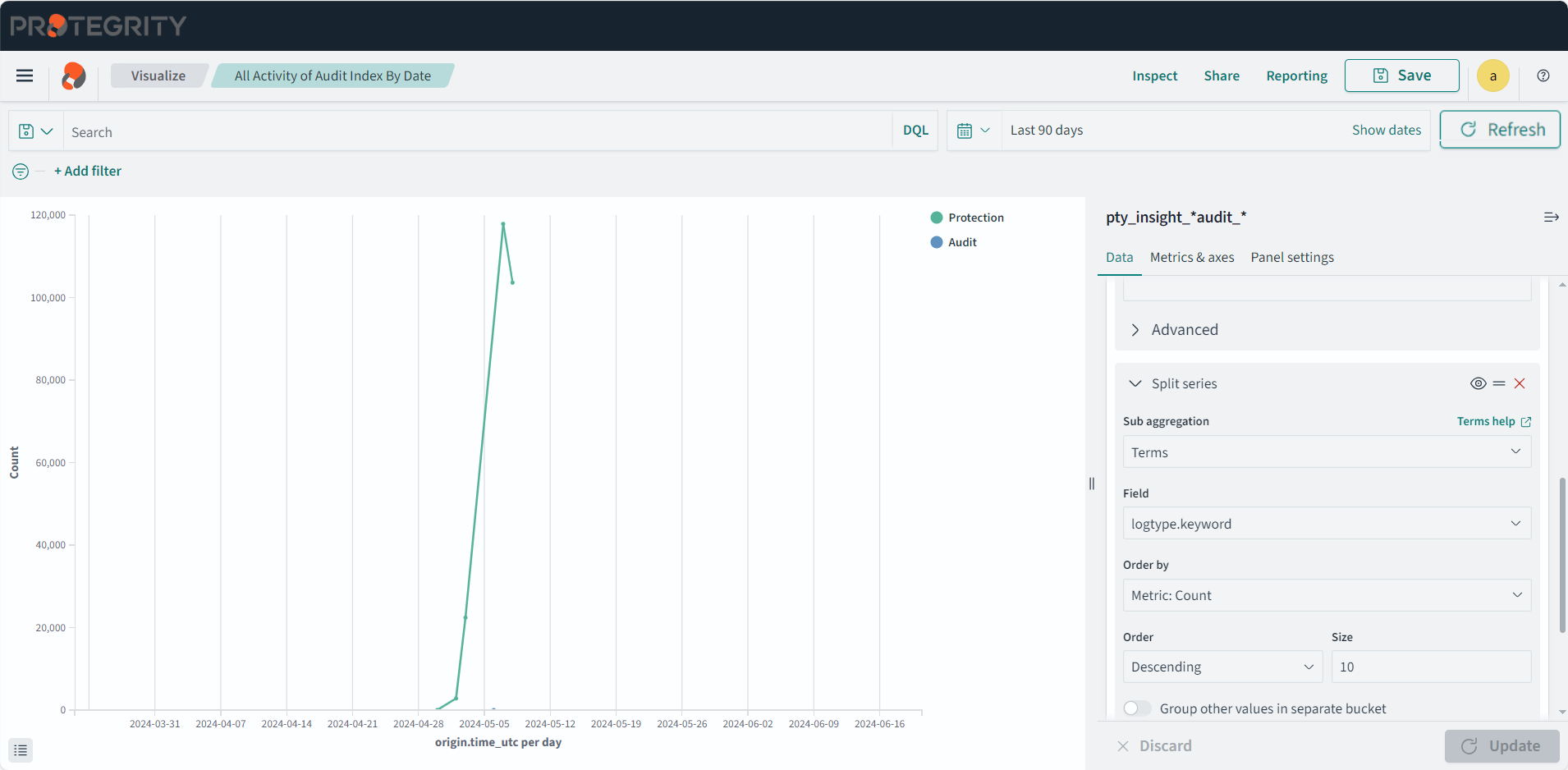
All activity by date
Description: This chart displays all logs trends as per the date.
- Type: Line
- Configuration:
- Index: pty_insight_*audit_*
- Metrics: Y-axis: Count
- Buckets:
- X-axis
- Aggregation: Date Histogram
- Field: origin.time_utc
- Minimum interval: Auto
- X-axis
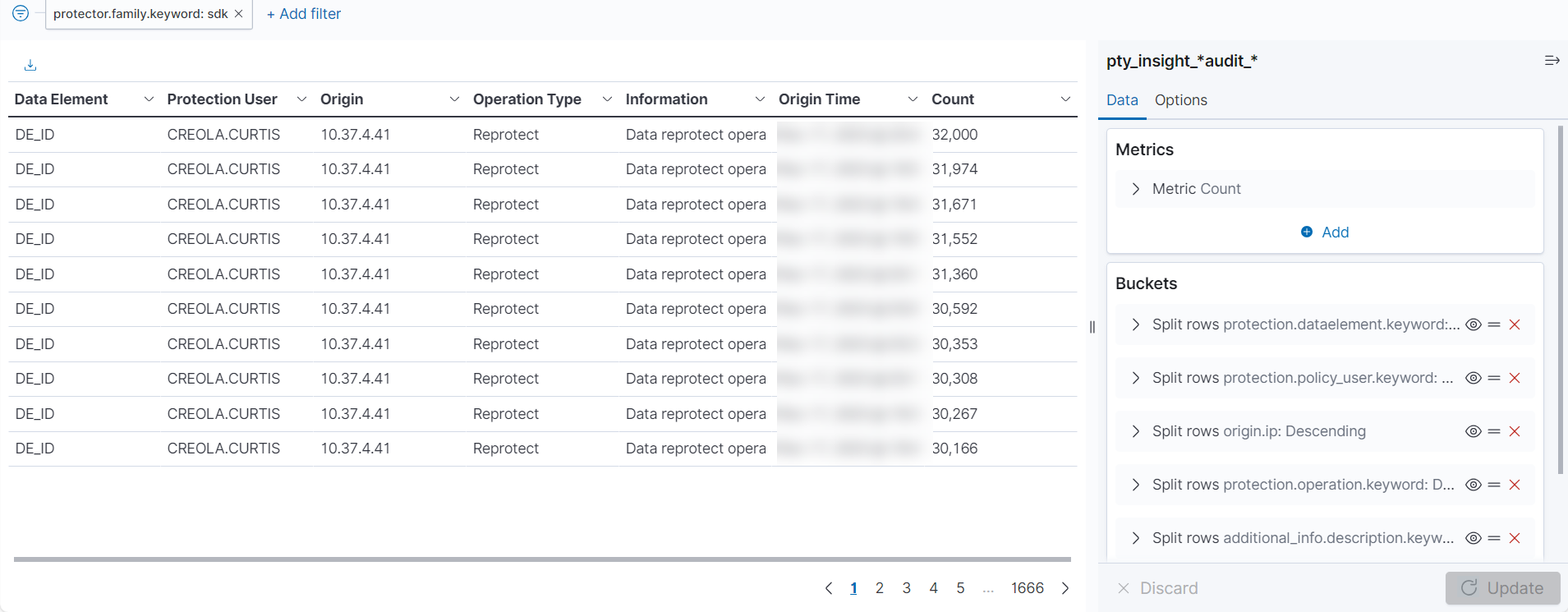
Application protector audit report
Description: This report uses AP python for generating the audit logs.
- Type: Data Table
- Configuration:
- Index: pty_insight_*audit_*
- Metrics: Y-axis: Count
- Buckets:
- Split rows
- Aggregation: Terms
- Field: protection.dataelement.keyword
- Order by: Metric:Count
- Order: Descending
- Size: 50
- Split rows
- Sub aggregation: Terms
- Field: protection.policy_user.keyword
- Order by: Metric:Count
- Order: Descending
- Size: 50
- Split rows
- Sub aggregation: Terms
- Field: origin.ip
- Order by: Metric:Count
- Order: Descending
- Size: 50
- Split rows
- Sub aggregation: Terms
- Field: protection.operation.keyword
- Order by: Metric:Count
- Order: Descending
- Size: 50
- Split rows
- Sub aggregation: Terms
- Field: additional_info.description.keyword
- Order by: Metric:Count
- Order: Descending
- Size: 50
- Split rows
- Sub aggregation: Terms
- Field: origin.time_utc
- Order by: Metric:Count
- Order: Descending
- Size: 50
- Split rows
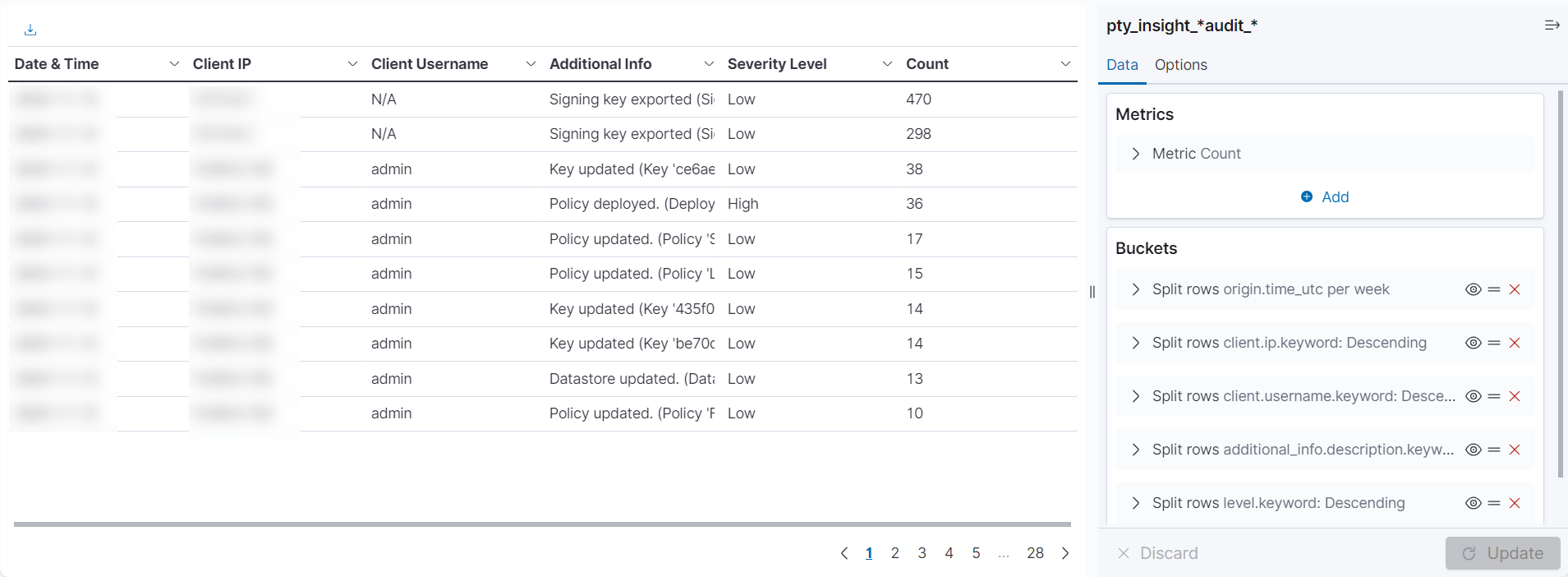
Policy report
Description: The policy report for the last 30 days.
Type: Data Table
Configuration:
- Index: pty_insight_*audit_*
- Metrics: Metric: Count
- Buckets:
- Split rows
- Aggregation: Date Histogram
- Field: origin.time_utc
- Minimum interval: Auto
- Custom label: Date & Time
- Split rows
- Sub aggregation: Terms
- Field: client.ip.keyword
- Order by: Metric:Count
- Order: Descending
- Size: 50
- Custom label: Client IP
- Split rows
- Sub aggregation: Terms
- Field: client.username.keyword
- Order by: Metric:Count
- Order: Descending
- Size: 50
- Custom label: Client Username
- Split rows
- Sub aggregation: Terms
- Field: additional_info.description.keyword
- Order by: Metric:Count
- Order: Descending
- Size: 50
- Custom label: Additional Info
- Split rows
- Sub aggregation: Terms
- Field: level.keyword
- Order by: Metric:Count
- Order: Descending
- Size: 50
- Custom label: Severity Level
- Split rows
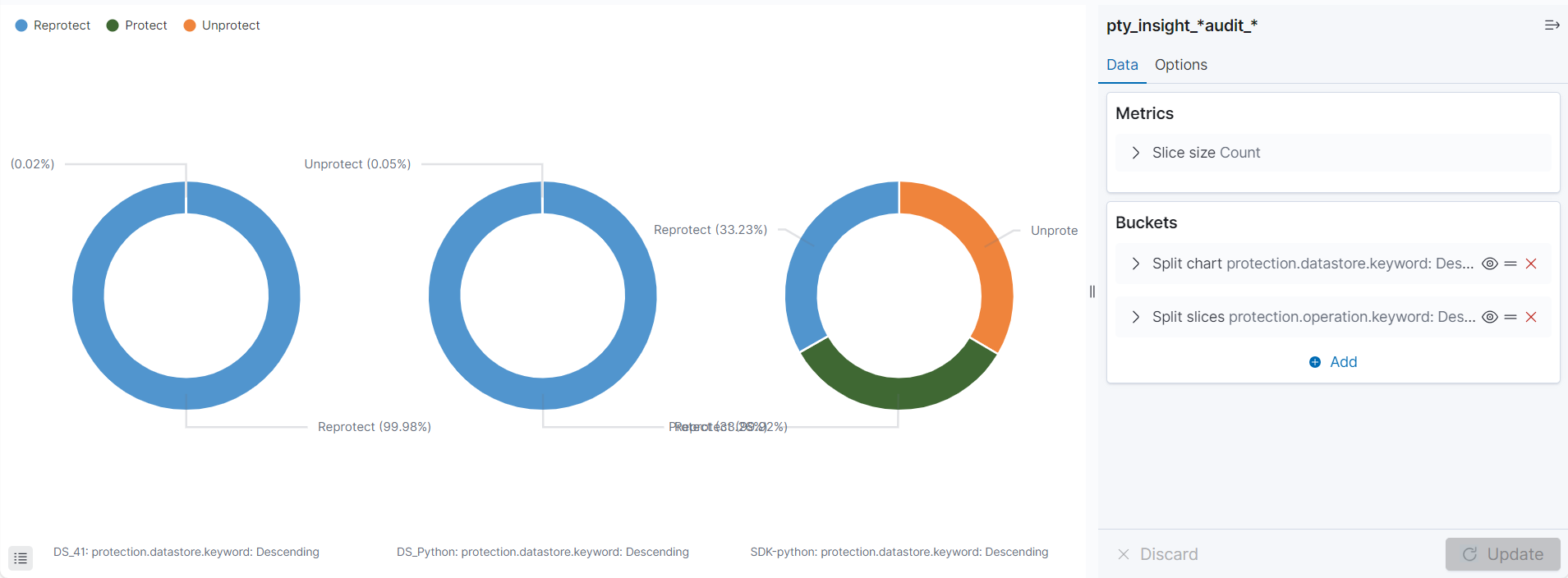
Protection activity across datastore
Description: The protection activity across datastore and types of protectors used.
- Type: Pie
- Configuration:
- Index: pty_insight_*audit_*
- Metrics: Slice size: Count
- Buckets:
- Split chart
- Aggregation: Terms
- Field: protection.datastore.keyword
- Order by: Metric:Count
- Order: Descending
- Size: 5
- Split slices
- Sub aggregation: Terms
- Field: protection.operation.keyword
- Order by: Metric:Count
- Order: Descending
- Size: 5
- Split chart
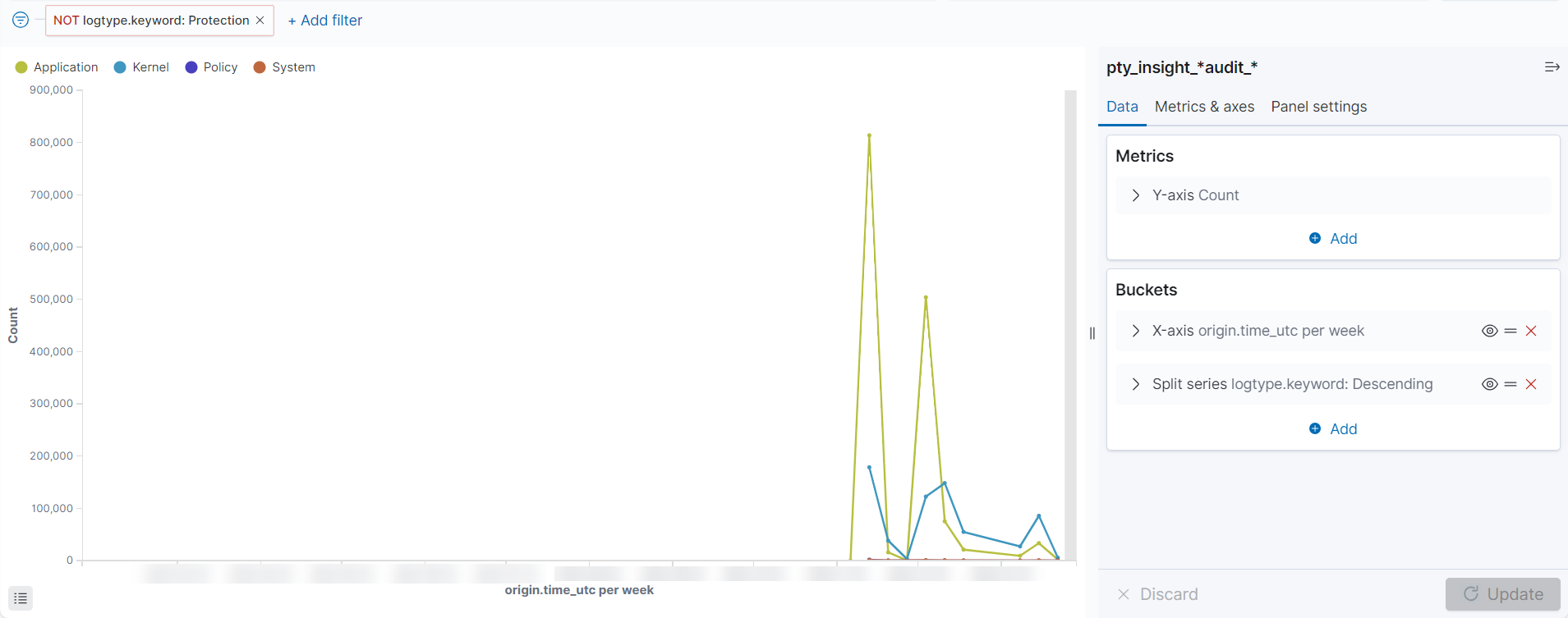
System daily activity
Description: This shows the system activity for the day.
- Type: Line
- Configuration:
- Index: pty_insight_*audit_*
- Metrics: Y-axis: Count
- Buckets:
- X-axis
- Aggregation: Date Histogram
- Field: origin.time_utc
- Minimum interval: Auto
- Split series
- Sub aggregation: Terms
- Field: logtype.keyword
- Order by: Metric:Count
- Order: Descending
- Size: 10
- X-axis
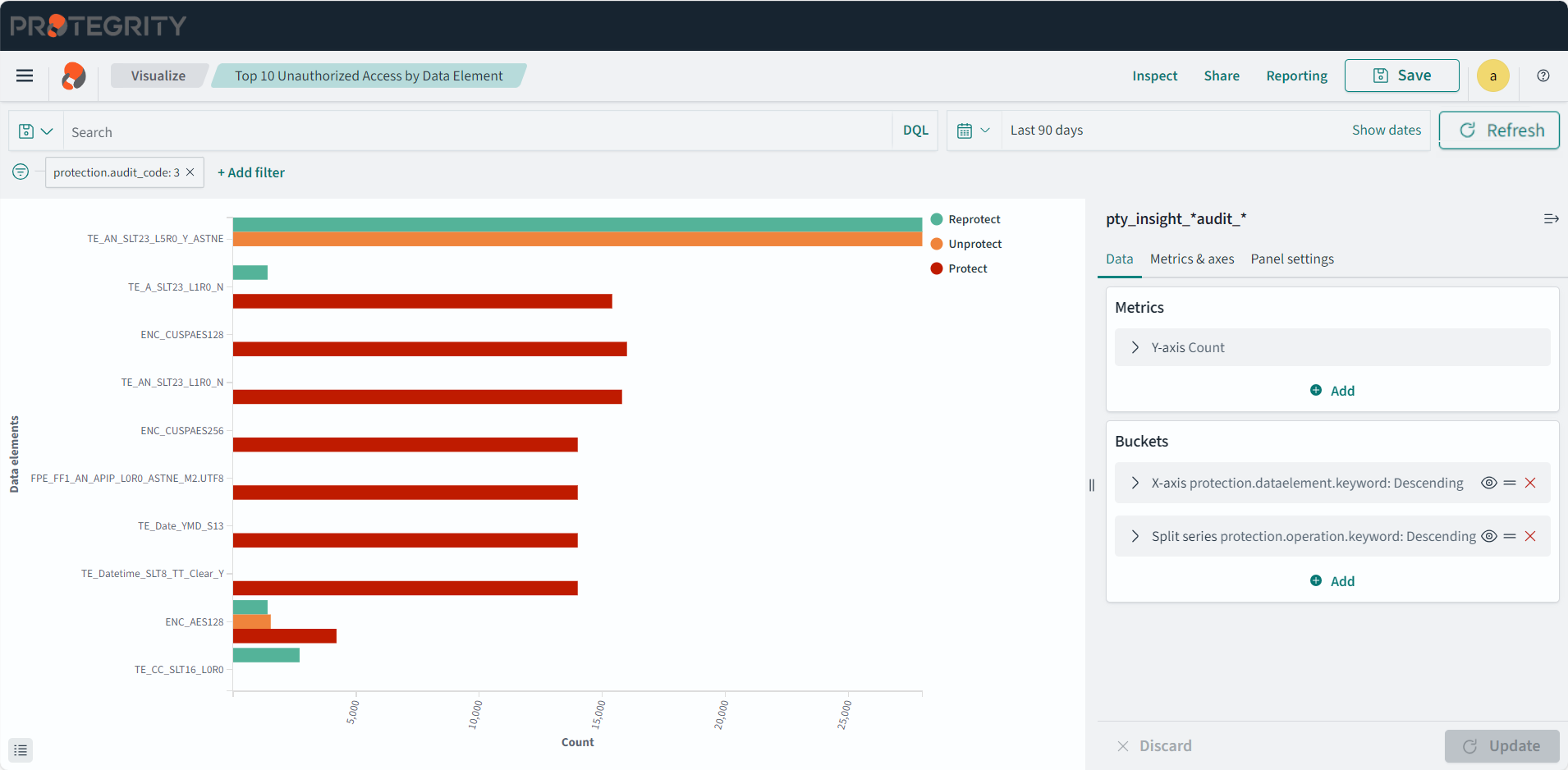
Top 10 unauthorized access by data element
Description: The top 10 unauthorized access by data element for Protect and Unprotect operations for the last 30 days.
- Type: Horizontal Bar
- Configuration:
- Index: pty_insight_*audit_*
- Metrics: Y-axis: Count
- Buckets:
- X-axis
- Aggregation: Terms
- Field: protection.dataelement.keyword
- Order by: Metric:Count
- Order: Descending
- Size: 10
- Custom label: Data elements
- Split series
- Sub aggregation: Filters
- Filter 1 - Protect: level=‘Error’
- Filter 2 - Unprotect: level=‘WARNING’
- X-axis
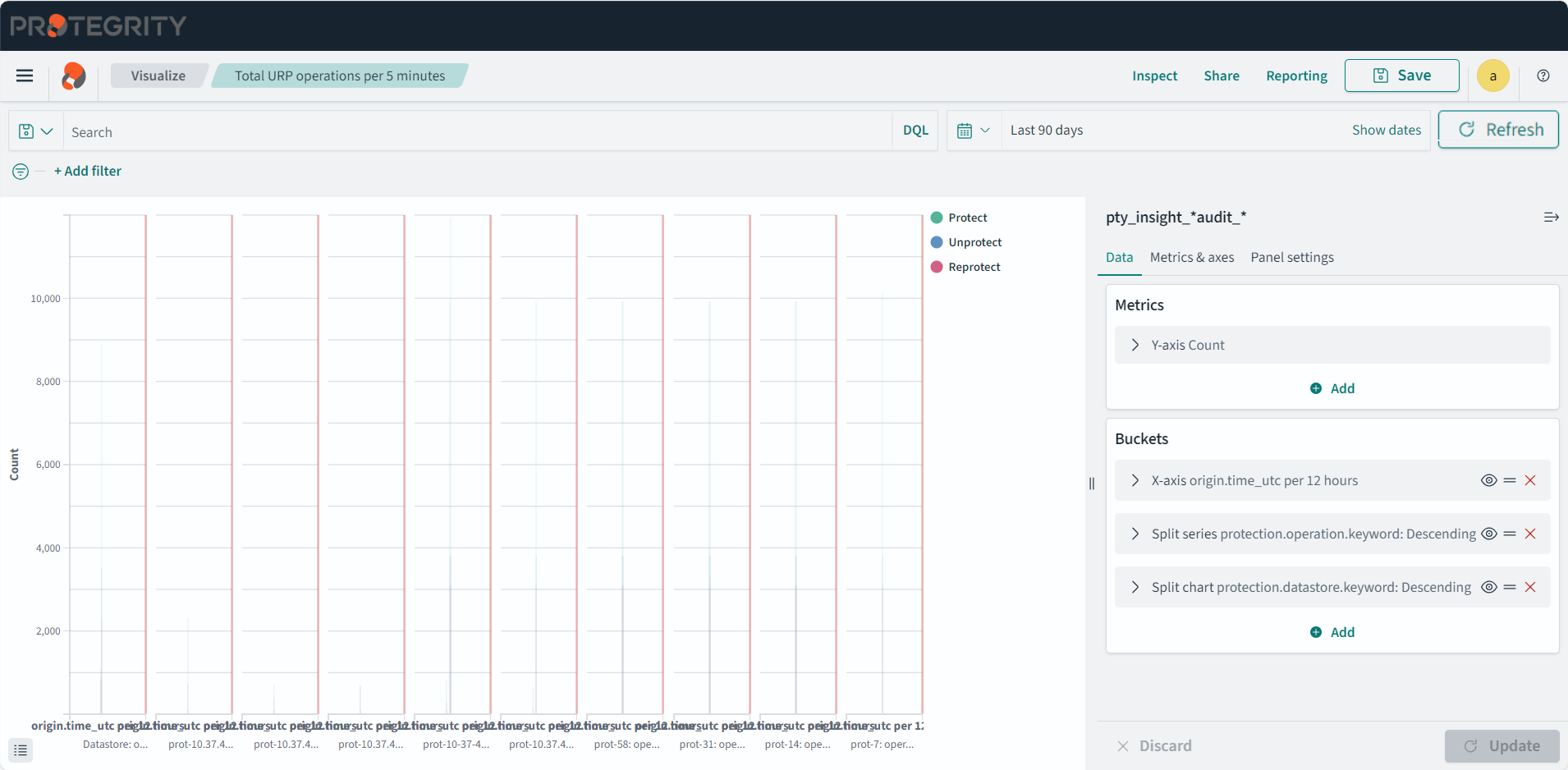
Total security operations per five minutes
Description: The total security operations generated grouped using five minute intervals.
- Type: Line
- Configuration:
- Index: pty_insight_*audit_*
- Metrics: Y-axis: Count
- Buckets:
- X-axis
- Aggregation: Date Histogram
- Field: origin.time_utc
- Minimum interval: Day
- Split series
- Sub aggregation: Terms
- Field: protection.operation.keyword
- Order by: Metric:Count
- Order: Descending
- Size: 5
- Split chart
- Sub aggregation: Terms
- Field: protection.datastore.keyword
- Order by: Alphabetical
- Order: Descending
- Size: 5
- Custom label: operations
- X-axis
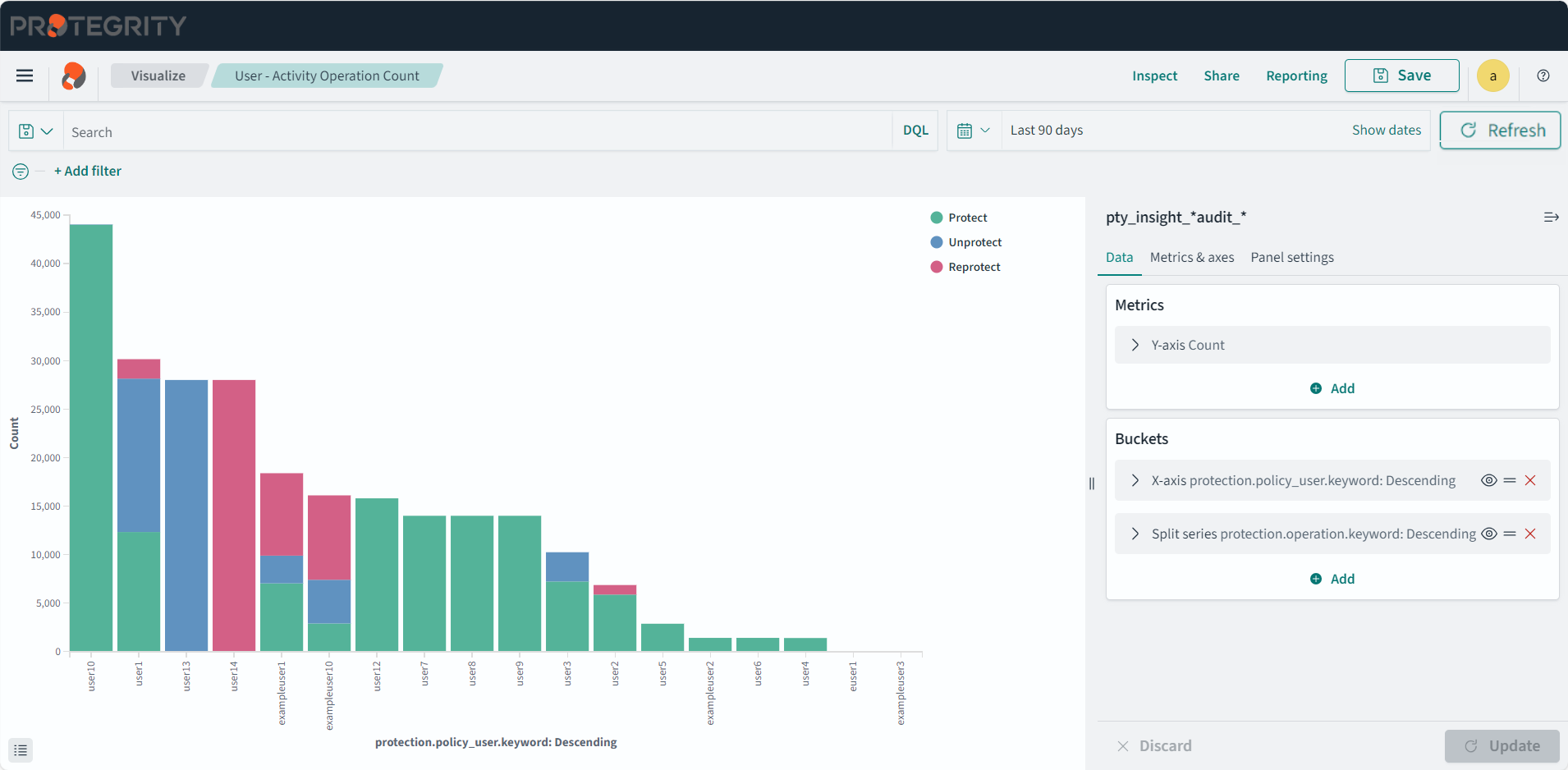
User activity operation count
Description: The count of total operations performed per user.
- Type: Vertical Bar
- Configuration:
- Index: pty_insight_*audit_*
- Metrics: Y-axis: Count
- Buckets:
- X-axis
- Aggregation: Terms
- Field: protection.policy_user.keyword
- Order by: Metric:Count
- Order: Descending
- Size: 50
- Split series
- Sub aggregation: Terms
- Field: protection.operation.keyword
- Order by: Metric:Count
- Order: Descending
- Size: 5
- X-axis