Working with Preferences
Set up console preferences.
You can set up your console preferences using the Preferences menu.
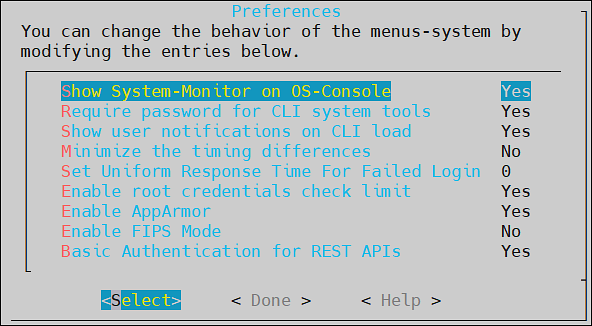
You can choose to configure the following preferences:
- Show system monitor on OS Console
- Require password for CLI system tools
- Show user Notifications on CLI load
- Minimize the timing differences
- Set uniform response time for failed login
- Enable root credentials check limit
- Enable AppArmor
- Enable FIPS Mode
- Basic Authentication for REST APIs
1 - Viewing System Monitor on OS Console
You can choose to show a performance monitor before switching to OS Console. If you choose to show the monitor, then the dialog delays for one second before the initialization of the OS Console. The value must be set to Yes or No.
2 - Setting Password Requirements for CLI System Tools
Many CLI tools and utilities require different credentials, such as root and admin user credentials. You can choose to require or not to require a password for CLI system tools. The value must be set to Yes or No.
Specifying No here will allow you to execute these tools without having to enter the system passwords. This can be useful when the system administrator is the security manager as well. This setting is not recommended since it is makes the Appliance less secure.
3 - Viewing user notifications on CLI load
You can choose to display notifications in the CLI home screen every time a user logs in to the ESA. These notifications are specific to the user. The value must be set to Yes or No.
4 - Minimizing the Timing Differences
You sign in to the appliance to access different features provided. When you sign in with incorrect credentials, the request is denied and the server sends an appropriate response indicating the reason for failure to log in. The time taken to send the response varies based on the different authentication failures, such as invalid password, invalid username, expired username, and so on. This time interval is vulnerable to security attacks for obtaining valid users from the system. Thus, to mitigate such attacks, you can minimize the time interval to reduce the response time between an incorrect sign-in and server response. To enable this setting, toggle the value of the Minimize the timing differences option from the CLI Manager to Yes.
The default value of the Minimize the timing differences option is No.
When you login with a locked user account, a notification indicating that the user account is locked appears. This notification will not appear when the value of Minimize the timing differences option is Yes. Instead you will get a notification indicating that the username or password is incorrect.
5 - Setting a Uniform Response Time
If you login to the ESA Web UI with invalid credentials, then the time taken to respond to various authentication scenario failures, varies. The various scenarios can be invalid username, invalid password, expired username, and so on. This variable time interval may introduce a timing attack on the system.
To reduce the risk of a timing attack, you need to reduce the variable time interval and specify a response time to handle invalid credentials. Thus, the response time for the authentication scenarios remains the same.
The response time for the authentication scenarios are based on different factors such as, hardware configurations, network configurations, and system performance. Thus, the standard response time would differ between organizations. It is therefore recommended to set the response time based on the settings in your organization.
For example, if the response time for a valid login scenario is 5 seconds, then you can set the uniform response time as 5.
Enter the time interval in seconds and select OK to enable the feature. Alternatively, enter 0 in the text box to disable the feature.
6 - Limiting Incorrect root Login
If you log in to a system with an incorrect password, the permission to access the system is denied. Multiple attempts to log in with an incorrect password open a route to brute force attacks on the system. Brute force is an exhaustive hacking method, where a hacker guesses a user password over successive incorrect attempts. Using this method, a hacker gains access to a system for malicious purposes.
In our appliances, the root user has access to various operations in the system such as accessing OS console, uploading files, patch installation, changing network settings, and so on. A brute force attack on this user might render the system vulnerable to other security attacks. Therefore, to secure the root login, you can limit the number of incorrect password attempts to the appliance. On the Preferences screen, enable the Enable root credentials limit check option to limit an LDAP user from entering incorrect passwords for the root login. The default value of the Enable root credentials limit check option is Yes.
If you enable the Enable root credentials limit check, the LDAP user can login as root only with a fixed number of successive incorrect attempts. After the limit on the number of incorrect attempts is reached, the LDAP user is blocked from logging in as root, thus preventing a brute force attack. After the locking period is completed, the LDAP user can login as root with the correct password.
When you enter an incorrect password for the root login, the events are recorded in the logs.
By default, the root login is blocked for a period of five minutes after three incorrect attempts. You can configure the number of incorrect attempts and the lock period for the root login.
For more information about configuring the lock period and successive incorrect attempts, contact Protegrity Support.
7 - Enabling Mandatory Access Control
For implementing Mandatory Access Control, the AppArmor module is introduced on Protegrity appliances. You can define profiles for protecting files that are present in the appliance.
8 - FIPS Mode
The steps to enable or disable the FIPS mode.
The Federal Information Processing Standards (FIPS) defines guidelines for data processing. These guidelines outline the usage of the encryption algorithms and other data security measures before accessing the data. Only a user with administrative privileges can access this functionality.
For more information about the FIPS, refer to https://www.nist.gov/standardsgov/compliance-faqs-federal-information-processing-standards-fips.
Enabling the FIPS Mode
To enable the FIPS mode:
Login to the ESA CLI Manager and navigate to Preferences.
Enter the root password and click OK.
The Preferences screen appears.
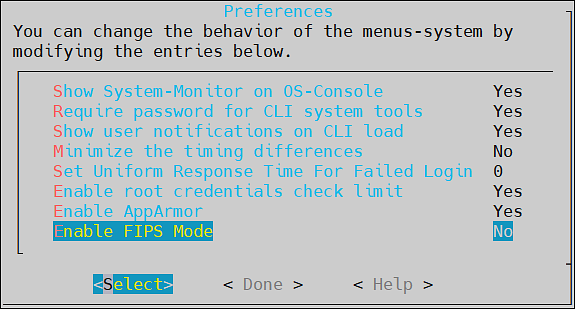
Select the Enable FIPS Mode.
Press Select.
The Enable FIPS Mode dialog box appears.
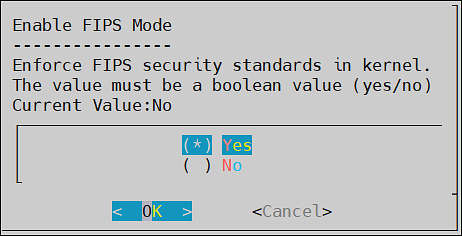
Select Yes and click OK.
The following screen appears.
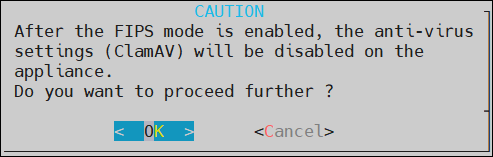
For more information on the anti-virus settings, refer here.
Click OK.
The following screen appears. Click OK.
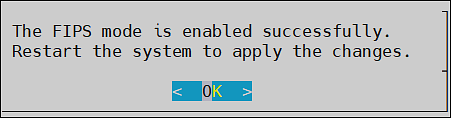
After the FIPS mode is enabled, restart the ESA to apply the changes.
Disabling the FIPS Mode
To disable the FIPS mode:
Login to the ESA CLI Manager and navigate to Preferences.
Enter the root password and click OK.
The Preferences screen appears.
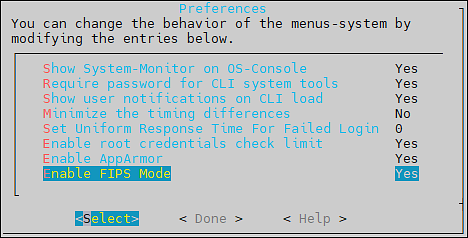
Select the Enable FIPS Mode.
Press Select.
The Enable FIPS Mode dialog box appears.
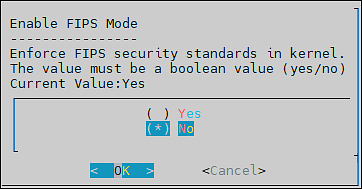
Select No and click OK.
The following screen appears. Click OK.
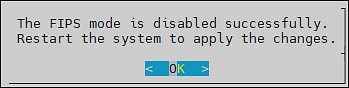
After the FIPS mode is disabled, restart the ESA to apply the changes.
9 - Basic Authentication for REST APIs
The steps to enable or disable the basic authentication.
The Basic Authentication mechanism provides only the user credentials to access protected resources on the server. The user credentials are provided in an authorization header to the server. If the credentials are accurate, then the server provides the required response to access the APIs.
For more information about the Basic Authentication, refer here.
Disabling the Basic Authentication
To disable the Basic Authentication:
Login to the ESA CLI Manager and navigate to Preferences.
Enter the root password and click OK.
The Preferences screen appears.
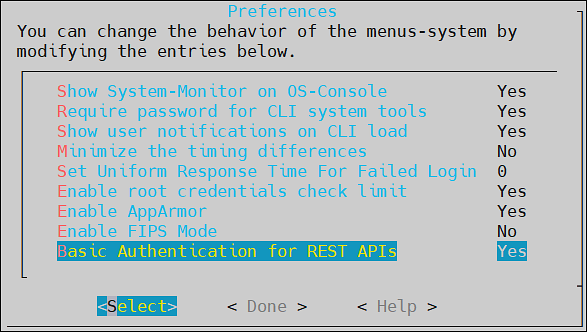
Select the Basic Authentication for Rest APIs.
Press Select.
The Basic Authentication for REST APIs dialog box appears.
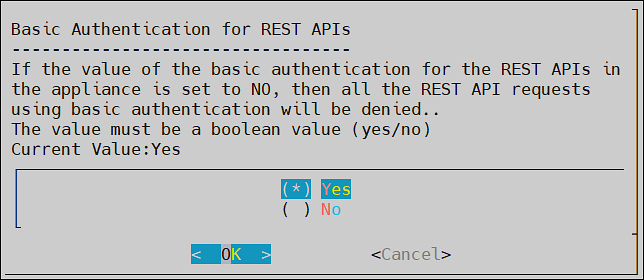
Select No and click OK.
The message Basic Authentication for REST APIs disabled successfully appears.
Click OK.
Important:
If the Basic Authentication is disabled, then the following APIs are affected:
- GetCertificate REST API: Fetch certificate to protector.
- DevOps API: Policy Management REST API.
- RPS REST API: Resilient Package Immutable REST API.The getcertificate stops working for the 9.1.x protectors when the Basic Authentication is disabled.However, the DevOps and RPS REST APIs can also use the Certificate and JWT Authentication support.
Enabling the Basic Authentication
To enable the Basic Authentication:
Login to the ESA CLI Manager and navigate to Preferences.
Enter the root password and click OK.
The Preferences screen appears.
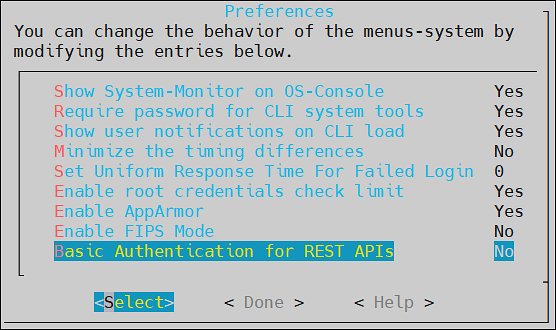
Select the Basic Authentication for REST APIs.
Press Select.
The Basic Authentication for REST APIs dialog box appears.
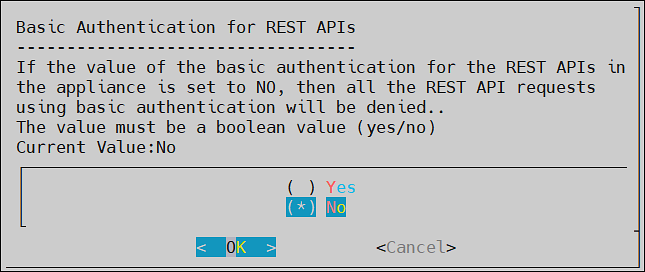
Select Yes and click OK.
The message Basic Authentication for REST APIs enabled successfully appears.
Click OK.