Accelerated Networking
Accelerated networking is a feature provided by Microsoft Azure which enables the user to improve the performance of the network. This is achieved by enabling Single-root input/output virtualization (SR-IOV) to a virtual machine.
In a virtual environment, SR-IOV specifies the isolation of PCIe resources to improve manageability and performance. The SR-IOV interface helps to virtualize, access, and share the PCIe resources, such as, the connection ports for graphic cards, hard drives, and so on. This successfully reduces the latency, network jitters and CPU utilization.
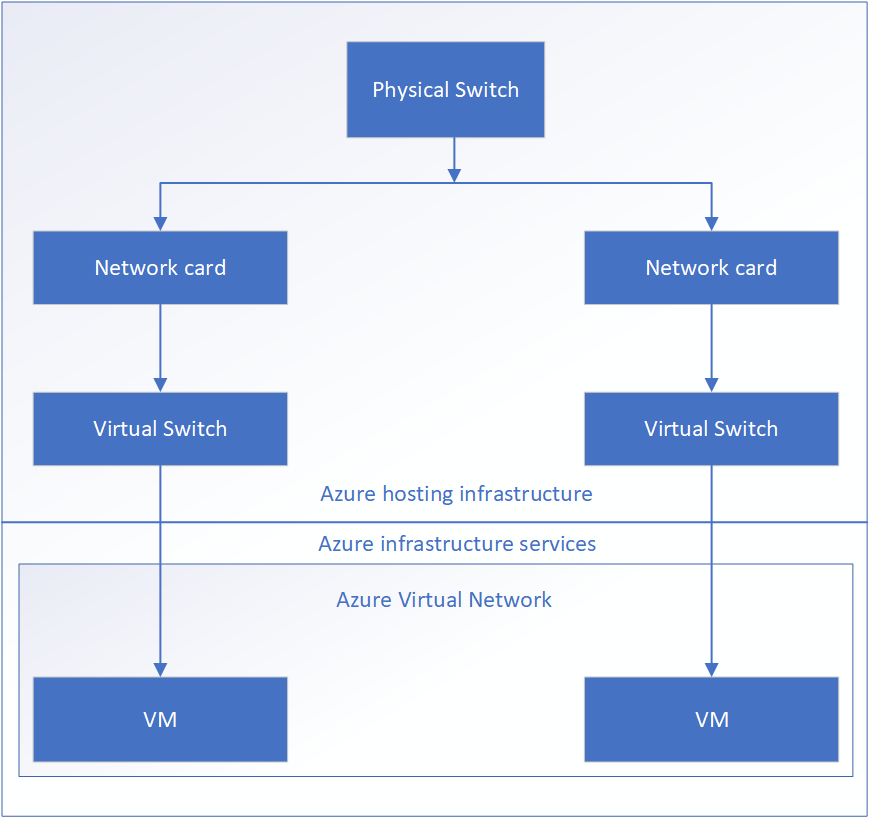
As shown in figure below, the virtual switch is an integral part of a network for connecting the hardware and the virtual machine. The virtual switch helps in enforcing the policies on the virtual machine. These policies include access control lists, isolation, network security controls, and so on, and are implemented on the virtual switch. The network traffic routes through the virtual switch and the policies are implemented on the virtual machine. This results in higher latency, network jitters, and higher CPU utilization.
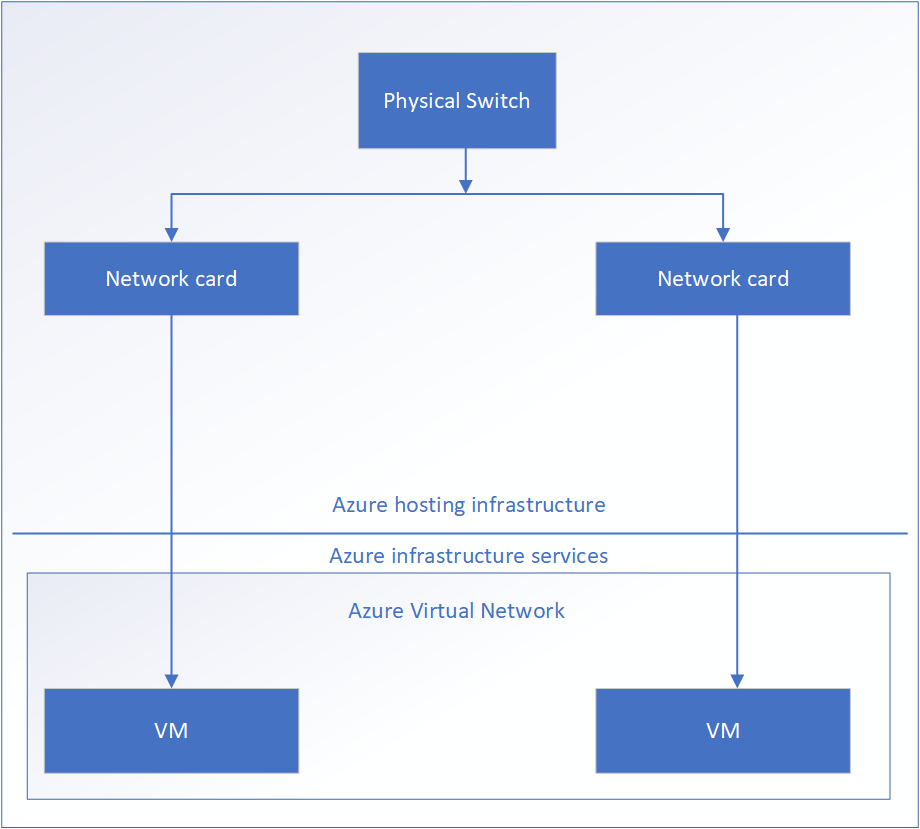
However, in an accelerated network, the policies are applied on the hardware. The network traffic only routes through the network cards directly forwarding it to the virtual machine. The policies are applied on the hardware instead of the virtual switch. This helps the network traffic to bypass the virtual switch and the host while maintaining the policies applied at the host. Reducing the layers of communication between the hardware and the virtual machine helps to improve the network performance.
Following are the benefits of accelerated networking:
- Reduced Latency: Bypassing the virtual switch from the data path increases the number of packets which are processed in the virtual machine.
- Reduced Jitter: Bypassing the virtual switch and host from the network reduces the processing time for the policies. The policies are directly implemented on the virtual machine thereby reducing the network jitters caused by the virtual switch.
- CPU Utilization: Applying the policies to the hardware and implementing them directly on the virtual machine reduces the workload on the CPU to process these policies.
Prerequisites
The following prerequisites are essential to enable or disable the Azure Accelerated Networking feature.
A machine with the Azure CLI should be configured. This must be a separate Windows or Linux machine.
For more information about installing the Azure CLI, refer to the following link.
https://docs.microsoft.com/en-us/cli/azure/install-azure-cli?view=azure-cli-latest
The Protegrity ESA appliance must be in the stop (deallocated) state.
The virtual machine must use the supported instance size.
For more information about the supported series of virtual machines for the accelerated networking feature, refer to the Supported Instance Sizes for Accelerated Networking.
Supported Instance Sizes for Accelerated Networking
There are several series of instance sizes used on the virtual machines that support the accelerated networking feature.
These include the following:
- D/DSv2
- D/DSv3
- E/ESv3
- F/FS
- FSv2
- Ms/Mms
The most generic and compute-optimized instance sizes for the accelerated networking feature is with 2 or more vCPUs. However, on the systems with supported hyperthreading features, the accelerated networking feature must have instance sizes with 4 or more vCPUs.
For more information about the supported instance sizes, refer to the following link.
Creating a Virtual Machine with Accelerated Networking Enabled
If you want to enable accelerated networking while creating the instance, then it is achieved only from the Azure CLI. The Azure portal does not provide the option to create an instance with accelerated networking enabled.
For more information about creating a virtual machine with accelerated networking, refer to the following link.
To create a virtual machine with the accelerated networking feature enabled:
From the machine on which the Azure CLI is installed, login to Azure using the following command.
az loginCreate a virtual machine using the following command.
az vm create --image <name of the Image> --resource-group <name of the resource group> --name <name of the new instance> --size <configuration of the instance> --admin-username <administrator username> --ssh-key-values <SSH key path> --public-ip-address "" --nsg <Azure virtual network> --accelerated-networking trueFor example, the table below lists values to create a virtual machine with the following parameters.
Parameter Value Name of the image ProtegrityESAAzure name-of-resource-group MyResourcegroup size Standard_DS3_v2 admin-username admin nsg TierpointAccessDev ssh-key-value ./testkey.pub The virtual machine is created with the accelerated networking feature enabled.
Enabling Accelerated Networking
Perform the following steps to enable the Azure Accelerated Networking feature on the Protegrity ESA appliance.
To enable accelerated networking:
From the machine on which the Azure CLI is installed, login to Azure using the following command.
az loginStop the Protegrity ESA appliance using the following command.
az vm deallocate --resource-group <ResourceGroupName> --name <InstanceName>Parameter Description ResourceGroupName Name of the resource group where the instance is located. InstanceName Name of the instance that you want to stop. Enable accelerated networking on your virtual machine’s network card using the following command.
az network nic update --name <nic-name> --resource-group <ResourceGroupName> --accelerated-networking trueParameter Description nic-name Name of the network interface card attached to the instance where you want to enable accelerated networking. ResourceGroupName Name of the resource group where the instance is located. Start the ESA.
Disabling Accelerated Networking
Perform the following steps to disable the Azure Accelerated Networking features on the Protegrity ESA appliance.
To disable accelerated networking:
From the machine on which the Azure CLI is installed, login to Azure using the following command.
az loginStop the ESA using the following command.
az vm deallocate --resource-group <ResourceGroupName> --name <InstanceName>Parameter Description ResourceGroupName Name of the resource group where the instance is located. InstanceName Name of the instance that you want to stop. Disable accelerated networking on your virtual machine’s network card using the following command.
az network nic update --name <nic-name> --resource-group <ResourceGroupName> --accelerated-networking falseParameter Description nic-name Name of the network interface card attached to the instance where you want to enable accelerated networking. ResourceGroupName Name of the resource group where the instance is located. Start the ESA.
Troubleshooting and FAQs for Azure Accelerated Networking
This section lists the Troubleshooting and FAQs for the Azure Accelerated Networking feature.
What is the recommended number of virtual machines required in the Azure virtual network?
It is recommended to have at least two or more virtual machines in the Azure virtual network.
Can I stop or deallocate my machine from the Web UI?
Yes. You can stop or deallocate your machine from the Web UI. Navigate to the Azure instance details page and click Stop from the top ribbon.
Can I uninstall the Cloud Utility Azure if the accelerated networking feature is enabled?
It is recommended to disable the accelerated networking feature before uninstalling the Cloud Utility Azure.
How do I verify that the accelerated networking is enabled on my machine?
Perform the following steps:
Login to the CLI manager.
Navigate to Administration > OS Console.
Enter the root credentials.
Verify that the Azure Accelerated Networking feature is enabled by using the following commands.
# lspci | grep “Virtual Function”Confirm the Mellanox VF device is exposed to the VM with the lspci command.
The following is a sample output:
001:00:02.0 Ethernet controller: Mellanox Technologies MT27500/MT27520 Family [ConnectX-3/ConnectX-3 Pro Virtual Function]
# ethtool -S ethMNG | grep vfCheck for activity on the virtual function (VF) with the ethtool -S eth0 | grep vf_ command. If you receive an output similar to the following sample output, accelerated networking is enabled and working. The value of the packets and bytes should not be zero`
vf_rx_packets: 992956

vf_rx_bytes: 2749784180

vf_tx_packets: 2656684

vf_tx_bytes: 1099443970

vf_tx_dropped: 0
How do I verify from the Azure Web portal that the accelerated networking is enabled on my machine?
Perform the following steps:
- From the Azure Web portal, navigate to the virtual machine’s details page.
- From the left pane, navigate to Networking.
- If there are multiple NICs, then select the required NIC.
- Verify that the accelerated networking feature is enabled from the Accelerated Networking field.
Can I use the Cloud Shell on the Azure portal for enabling or disabling the accelerated networking feature?
Yes, you can use the Cloud Shell for enabling or disabling the accelerated networking. For more information about the pricing of the cloud shell, refer to the following link.
https://azure.microsoft.com/en-in/pricing/details/cloud-shell
How can I enable the accelerated networking feature using the Cloud Shell?
Perform the following steps to enable the accelerated networking feature using the Cloud Shell:
From the Microsoft Azure portal, launch the Cloud Shell.
Stop the ESA using the following command.
az vm deallocate --resource-group <ResourceGroupName> --name <InstanceName>Enable accelerated networking on your virtual machine’s network card using the following command.
az network nic update --name <nic-name> --resource-group <ResourceGroupName> --accelerated-networking trueStart the ESA.
How can I disable the accelerated networking feature using the Cloud Shell?
Perform the following steps to disable the accelerated networking feature using the Cloud Shell:
From the Microsoft Azure portal, launch the Cloud Shell.
Stop the ESA using the following command.
az vm deallocate --resource-group <ResourceGroupName> --name <InstanceName>Enable accelerated networking on your virtual machine’s network card using the following command.
az network nic update --name <nic-name> --resource-group <ResourceGroupName> --accelerated-networking falseStart the ESA.
Are there any specific regions where the accelerated networking feature is supported?
The accelerated networking feature is supported in all public Azure regions and Azure government clouds. For more information about the supported regions, refer to the following link:
https://docs.microsoft.com/en-us/azure/virtual-network/create-vm-accelerated-networking-cli#regions
Is it necessary to stop (deallocate) the machine to enable or disable the accelerated networking feature?
Yes. It is necessary to stop (deallocate) the machine to enable or disable the accelerated networking feature.This is because if the machine is not in the stop (deallocate) state, then it may cause the value of the vf packets to freeze. This results in an unexpected behaviour of the machine.
Is there any additional cost for using the accelerated networking feature?
No. There is no additional cost required for using the accelerated networking feature. For more information about the costing, contact Protegrity Support.
Feedback
Was this page helpful?