Mandatory Access Control
Mandatory Access Control (MAC) is a security approach that allows or denies an individual access to resources in a system. With MAC, you can set polices that can be enforced on the resources. The policies are defined by the administrator and cannot be overridden by other users.
Among many implementations of MAC, Application Armor (AppArmor) is a CIS recommended Linux security module that protects the operating system and its applications from threats. It implements MAC for constraining the ability of a process or user on operating system resources.
AppArmor allows you to define policies for protecting the executable files and directories present in the system. It applies these policies to the profiles. Profiles are groups, where restriction on specific actions for the files or directories are defined. The following are the two modes of applying policies on profiles:
Enforce: The profiles are monitored to either permit or deny a specific action.
Complain: The profiles are monitored, but actions are not restricted. Instead, actions are logged in the audit events.
For more information about AppArmor, refer to http://wiki.apparmor.net
AppArmor in Protegrity appliances
AppArmor increases security by restricting actions on the executable files in the system. It is added as another layer of security to protect custom scripts and prevent information leaks in case of any security breach. On Protegrity appliances, such as, ESA and DSG, AppArmor is enabled to protect the different OS features, such as, antivirus, firewall, scheduled tasks, trusted appliances cluster, proxy authentication, and so on. Separate profiles are created for appliance-specific features. For more information about the list of profiles, refer to Viewing profiles. In an unprecedented case of a security breach on the appliances, any attempt to modify the protected profiles are foiled by AppArmor. The logs for the denials are generated and appear under system logs where they can be analyzed.
After AppArmor is enabled, all profiles that are defined in it are protected. Although it is enabled, if a new executable script is introduced in the appliance, AppArmor does not automatically protect this script. For every new script or file to be protected, a separate AppArmor profile must be created and permissions must be assigned to it.
The following sections describe the various tasks that you can perform on the Protegrity appliances using AppArmor.
1 - Working with profiles
Creating a Profile
In addition to the existing profiles in the appliances, AppArmor allows creating profiles for other executable files present in the system. Using the aa-genprof command, you can create a profile to protect a file. When this command is run, AppArmor loads that file in complain mode and provides an option to analyze all the activities that might arise. It learns about all the activities that are present in the file and suggests the permissions that can be applied on them. After the permissions are assigned to the file, the profile is created and set in the enforce mode.
As an example, consider an executable file apparmor_example.sh in your system for which you want to create a profile. The script is copied in the /etc/opt/ directory and contains the following actions:
- Creating a file sample1.txt in the /etc/opt/ directory
- Changing permissions for the sample1.txt file
- Removing sample1.txt file
Ensure that apparmor_example.sh file has a 755 permission set to it.
Generating a profile for a file
The following steps describe how to generate a profile for the apparmor_example.sh file.
Perform the following steps to create a profile.
Login to the CLI Manager.
Navigate to Administration > OS Console.
Navigate to the /etc/opt directory.
Run the following command to view the commands in the apparmor_example.sh file.
cat apparmor_example.sh
The following commands appear.
#!/bin/bash

touch /etc/opt/sample1.txt

chmod 400 /etc/opt/sample1.txt

rm /etc/opt/sample1.txt
Replicate the SSH session. Navigate to the OS Console and run the following command
aa-genprof /etc/opt/apparmor_example.sh
The following screen appears.
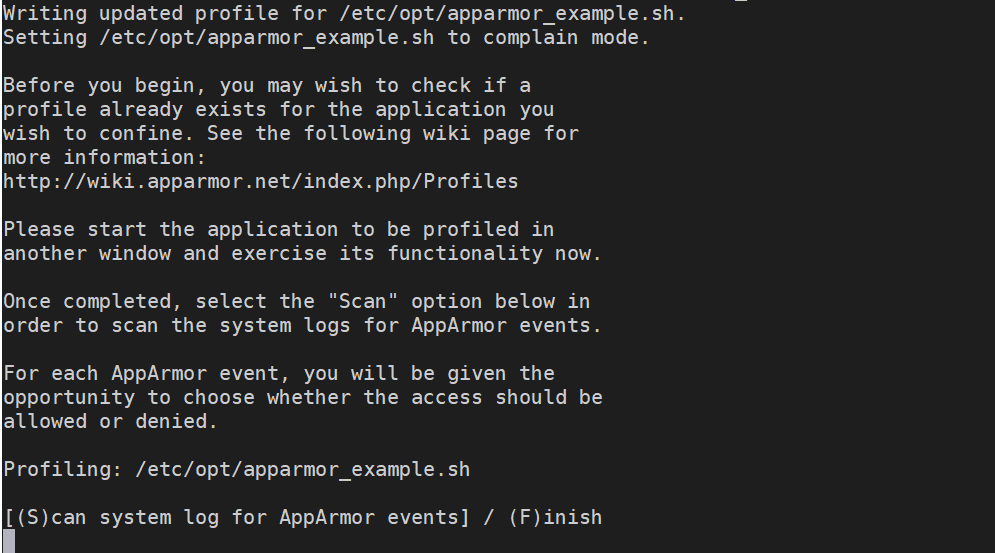
Switch to the first SSH session and run the following script.
./apparmor_example.sh
The commands are run successfully.
Switch to the second SSH session. Type S to scan and create a profile for the apparmor_example.sh file.
AppArmor reads the first command. It provides different permissions based on what the command does, and assigns a severity to it.
Profile:  /etc/opt/apparmor_example.sh
Execute:  /bin/touch
Severity: unknown

(I)nherit / (C)hild / (N)amed / (X) ix On / (D)eny / Abo(r)t / (F)inish
Type I to assign the inherit permissions.
After selecting the option for the first command, AppArmor reads each action and provides a list of permissions for each action. Type the required character that needs to be assigned for the permissions.
Type F to finish the scanning and S to save the change to the profile.
The following message appears.
Setting /etc/opt/apparmor_example.sh to enforce mode.

Reloaded AppArmor profiles in enforce mode.

Please consider contributing your new profile!
See the following wiki page for more information:
http://wiki.apparmor.net/index.php/Profiles

Finished generating profile for /etc/opt/apparmor_example.sh.
Restart the AppArmor service using the following command.
/etc/init.d/apparmor restart
Navigate to the /etc/apparmor.d directory to view the profile.
The profile appears as follows.
etc.opt.apparmor_example.sh
Setting a Profile on Complain Mode
For easing the restrictions applied to the a profile, you can apply the complain mode on it. AppArmor allows actions to be performed, but logs all the activities that occur for that profile. AppArmor provides the aa-complain command to perform this task. The following task describes the steps to set the apparmor_example.sh file in the complain mode.
Perform the following steps to set a profile in complain mode.
Login to the CLI Manager.
Navigate to Administration > OS Console.
Run the enforce command as follows:
aa-complain /etc/apparmor.d/etc.opt.apparmor_example.sh
Run the ./apparmor_example.sh script.
Navigate to the /var/log/syslog directory to view the logs.
Even though an event has a certain restriction, the logs display that AppArmor allowed it to occur and has logged it for the apparmor_example.sh script.

Setting a Profile on Enforce Mode
When the appliance is installed in your system, the enforce mode is applied on the profiles by default. If you want to add a profile in enforce mode, AppArmor provides the aa-enforce command to perform this task.The following task describes the steps to set the apparmor_example.sh file in enforce mode.
Perform the following steps to set a profile in enforce mode.
Login to the CLI Manager.
Navigate to Administration > OS Console.
Run the enforce command as follows:
aa-enforce /etc/apparmor.d/etc.opt.apparmor_example.sh
Run the ./apparmor_example.sh script.
Based on the permissions that are assigned while creating the profile for the script, the following message is displayed on the screen.

The Deny permission is assigned to all the commands in this script.
Modifying an Existing Profile
In an appliance, Protegrity provides a default set of profiles for appliance-specific features. These include profiles for Two-factor authentication, Antivirus, TAC, Networking, and so on. The profiles contain appropriate permissions that require the feature to run smoothly without compromising its security. However, access-denial logs for some permissions may appear when these features are run. This calls for modifying the profile of a feature by appending the permissions to it.
Consider the usr.sbin.apache2 profile that is related to the networking services. When this feature is executed, based on the permissions that are defined, AppArmor allows the required operations to run. If it encounters a new action on this profile, it generates a Denied error and halts the task from proceeding.
For example, the following log appears for the usr.sbin.apache2 profile after the host name of the system is changed from the Networking screen on the CLI Manager.
type=AVC msg=audit(1593004864.290:2492): apparmor="DENIED" operation="exec" profile="/usr/sbin/apache2" name="/sbin/ethtool" pid=32518 comm="sh" requested_mask="x" denied_mask="x" fsuid=0 ouid=0FSUID="root" OUID="root"
As described in the log, AppArmor denied an execute permission for this profile. Every time you change the host name from the CLI manager, AppArmor will not permit that operation to be performed. This can be mitigated by modifying the profile from the /etc/apparmor.d/custom directory. Thus, the additional permission must be added to the usr.sbin.apache2 profile that is present in the /etc/apparmor.d/custom directory. This ensures that the new permissions to the profile are considered and existing permissions are not overwritten when the feature is executed. If you get a permission error log on the Appliance Logs screen, then perform the following steps to update the usr.sbin.apache2 profile with a new permission.
Updating profile permissions
Perform the steps in the instructions below to update profile permissions.
Those steps are also applicable for permission denial logs that appear for other default profiles provided by Protegrity. Based on the permissions that are denied, update the respective profiles with the new operations.
To update profile permissions:
On the CLI Manager, navigate to Administration > OS Console.
Navigate to the /etc/apparmor.d/custom directory.
Open the required profile on the editor.
For example, open the usr.sbin.apache2 profile in the editor.
Add the following permission.
<Value in the name parameter of the denial log> rix,
For example, the command for usr.sbin.apache2 denial log is as follows.
Save the changes and exit the editor.
Run the following command to update the changes to the AppArmor profile.
apparmor_parser -r /etc/apparmor.d/<Profile>
For example,
apparmor_parser -r /etc/apparmor.d/usr.sbin.apache2
Now, change the host name of the system from the CLI Manager. The denial logs are not observed.
Viewing Status of Profiles
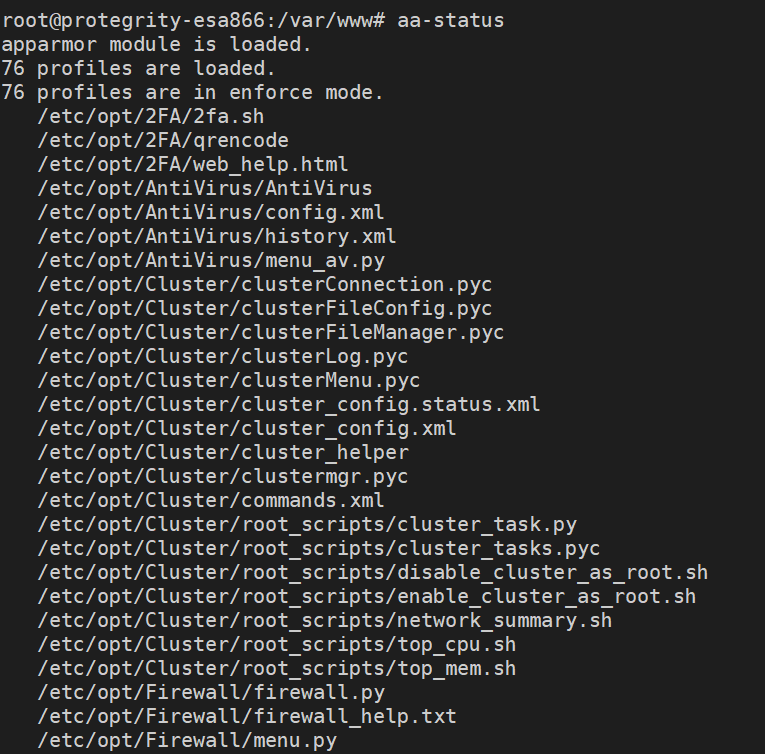
Using the aa-status command, AppArmor loads and displays all the profiles that are configured in the system. It displays all the profiles that are in enforce and complain modes.
Perform the following steps to view the status for the profiles.
Login to the CLI Manager.
Navigate to Administration > OS Console.
Run the status command as follows:
The screen with the list of all profiles appears.
2 - Analyzing events
AppArmor provides an interactive tool to analyze the events occurring in the system. The aa-logprof is one such utility that scans the logs for the events in your system. The aa-logprof command scans the logs and provides a set actions for modifying a profile.
Consider the apparmor_example.sh script that is in the enforce mode. After a certain period of time, you modify the script and insert a command to list all the files in the directory. When you run the apparmor_example.sh script, a Permission denied error appears on the screen. As a new command is added to this script and permissions are not assigned to the updated entry, AppArmor does not allow the script to run. The permissions must be assigned before the script is executed. To evaluate the permissions that can be applied to the new entries, you can view the logs for details. On the ESA CLI Manager, the logs are available in the audit.log file in the /var/log/ directory. The following figure displays the logs that appear for the apparmor_example.sh script.

In the figure, the logs describe the profile for apparmor_example.sh. The logs contain the following information:
- AppArmor has denied an open operation for the profile that contains a new command.
- The script does not have access to a /dev/tty directory with the requested_mask=“r” permission as it is not defined for the new command.
Thus, the logs provide an insight on the different operations that occur when the script is executed. After analyzing the logs and evaluating the permissions, you can run the aa-logprof command to update the permissions for the script.
The changes that are applied on the profiles are audited and logs are generated for it. For more information about the audit logs, refer to System Auditing.
Important: It is not recommended to use the aa-logprof command for profiles defined by Protegrity. If you want to modify an existing profile, refer to Modifying an existing Profile.
Updating profile permissions
Perform the following steps to update profile permissions.
Login to the CLI Manager.
Navigate to Administration > OS Console.
Run the aa-logprof command.
Reading log entries from /var/log/syslog.
Updating AppArmor profiles in /etc/apparmor.d.
Complain-mode changes:

Profile:  /etc/opt/apparmor_examples.sh
Path:     /bin/rm
Old Mode: r
New Mode: mr
Severity: unknown

 [1 - /bin/rm mr,]
(A)llow / [(D)eny] / (I)gnore / (G)lob / Glob with (E)xtension / (N)ew / Audi(t) / Abo(r)t / (F)inish
Type the required permissions. Type F to finish scanning.
After the permissions are granted, the following screen appears.
= Changed Local Profiles =
The following local profiles were changed. Would you like to save them?

 [1 - /etc/opt/apparmor_examples.sh]
(S)ave Changes / Save Selec(t)ed Profile / [(V)iew Changes] / View Changes b/w (C)lean profiles / Abo(r)t
Type S to save the changes.
Writing updated profile for /etc/opt/apparmor_examples.sh.
Navigate to the /etc/apparmor.d directory to view the profile.
3 - AppArmor permissions
The following table describes the different permissions that AppArmor lists when creating a profile or analyzing events.
| Permission | Description |
|---|
| (I)nherit | Inherit the permissions from the parent profile. |
| (A)llow | Allow access to a path. |
| (I)gnore | Ignore the prompt. |
| (D)eny | Deny access to a path. |
| (N)ew | Create a new profile. |
| (G)lob | Select a specific path or create a general rule using wild cards that match a broader set of paths. |
| Glob with (E)xtension | Modify the original directory path while retaining the filename extension. |
| (C)hild | Creates a rule in a profile, requires a sub-profile to be created in the parent profile, and rules must be separately generated for this child. |
| Abo(r)t | Exit AppArmor without saving the changes. |
| (F)inish | Finish scanning for the profile. |
| (S)ave | Save the changes for the profile. |
4 - Troubleshooting for AppArmor
The following table describes solutions to issues that you might encounter while using AppArmor .
| Issue | Reason | Solution |
After you run the File Export or File Import operation in the ESA, the following message appears in the logs:type=AVC msg=audit(1594813145.658:7306): apparmor="DENIED" operation="exec" profile="/usr/sbin/apache2" name="/usr/lib/sftp-server" pid=58379 comm="bash" requested_mask="x"* denied_mask="x" *fsuid=0 ouid=0FSUID="root" OUID="root" | | Perform the following steps:- On the CLI Manager, navigate to Administration → OS Console
- Navigate to the
/etc/apparmor.d/custom directory. - Edit the
usr.sbin.apache2
profile. - Insert the following line.
/usr/lib/sftp-server rix, - Restart the AppArmor service using the following command.
/etc/init.d/apparmor restart
|
If a scheduler task containing a customized script is run,
then the scheduled task is not executed and a denial message
appears in the log. For example, if a task scheduler contains the
/demo.sh script in the command line, the
following message appears in the logs.type=AVC msg=audit(1598429205.615:35253): apparmor="DENIED" operation="exec" profile="/usr/sbin/apache2" name="/demo.sh" pid=32684 comm=".taskV5FLVl.tmp" requested_mask="x" denied_mask="x" fsuid=0 ouid=0FSUID="root" OUID="root" | AppArmor restricts running any custom scripts from the
scheduled task | Perform the following steps.- On the CLI Manager, navigate to Administration → OS Console
- Navigate to the
/etc/apparmor.d/custom directory. - Edit the
usr.sbin.apache2
profile. - Insert the following line.
/demo.sh rix, - Restart the AppArmor service using the following
command.
/etc/init.d/apparmor restart
|
If you run the Put Files operation
between two machines in a TAC, the following messages appear as
logs in the source and target appliances.Source appliance type=AVC msg=audit(1598288495.530:5168): apparmor="DENIED" operation="mknod" profile="/etc/opt/Cluster/cluster_helper" name="/dummyfilefortest.sh" pid=62621 comm="mv" requested_mask="c" denied_mask="c" fsuid=0 ouid=0FSUID="root" OUID="root" Target appliance type=AVC msg=audit(1598288495.950:2116): apparmor="DENIED" operation="chown" profile="/etc/opt/Cluster/cluster_helper" name="/dummyfilefortest.sh" pid=17413 comm="chown" requested_mask="w" denied_mask="w" fsuid=0 ouid=0FSUID="root" OUID="root" | | Perform the following steps.- On the CLI Manager, navigate to Administration → OS Console
- Navigate to the
/etc/apparmor.d/custom directory. - Edit the
etc.opt.Cluster.cluster_helper
profile. - Insert the following line on the source
appliance
/<filename> cix, - Insert the following line on the target
appliance
/<filename> wix, - Restart the AppArmor service on the source and target
appliances using the following command.
/etc/init.d/apparmor restart
|