Configuring the Azure AD Settings
Describes the instructions to configure the Azure AD settings
You can configure the Azure AD settings from the Web UI. Using the Web UI, you can enable the Azure AD settings to manage user access to cloud applications, import users or groups, and assign specific roles to them.
For more information about configuring Azure AD Settings from the CLI Manager, refer here.
Before configuring Azure AD Settings on the ESA, you must have the following information that is required to connect the ESA with the Azure AD:
- Tenant ID
- Client ID
- Client Secret or Thumbprint
For more information about the Tenant ID, Client ID, Authentication Type, and Client Secret/Thumbprint, search for the text Register an app with Azure Active Directory on Microsoft’s Technical Documentation site at https://learn.microsoft.com/en-us/docs/
The following are the list of the API permissions that must be granted.
- Group.Read.All
- GroupMember.Read.All
- User.Read
- User.Read.All
To assign API permissions in Microsoft Azure, contact your Microsoft Azure administrator.
For more information about configuring the application permissions in the Azure AD, please refer https://learn.microsoft.com/en-us/graph/auth-v2-service?tabs=http.
Ensure that the Allow public client flows setting is Enabled. To enable the Allow public client flows setting, navigate to Authentication > Advanced settings, click the toggle button, and select Yes.
Perform the following steps to configure Azure AD settings:
- On the Web UI, navigate to Settings > Users > Azure AD.The following figure shows an example of Azure AD configuration.
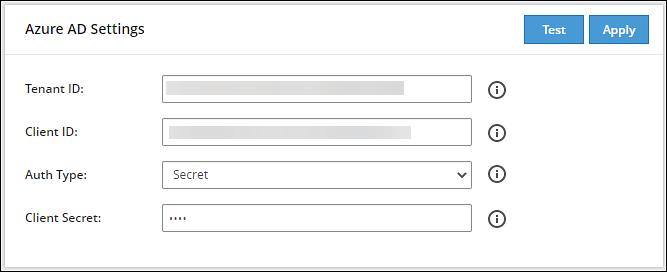
Enter the data in the fields as shown in the following table:
| Setting | Description |
|---|
| Tenant ID | Unique identifier of the Azure AD instance. |
| Client ID | Unique identifier of an application created in Azure AD. |
| Auth Type | Select one of the Auth Type:- SECRET indicates a password-based authentication. In this authentication type, the secrets are symmetric keys, which the client and the server must know.
- CERT indicates a certificate-based authentication. In this authentication type, the certificates are the private keys, which the client uses. The server validates this certificate using the public key.
|
| Client Secret/Thumbprint | The client secret/thumbprint is the password of the Azure AD application.- If the Auth Type selected is SECRET, then enter Client Secret.
- If the Auth type selected is CERT, then enter Client Thumbprint.
|
For more information about the Tenant ID, Client ID, Authentication Type, and Client Secret/Thumbprint, search for the text Register an app with Azure Active Directory on Microsoft’s Technical Documentation site at https://learn.microsoft.com/en-us/docs/.
Click Test to test the provided configuration.The Azure AD settings are authenticated successfully. To save the changes, click ‘Apply/Save’. message appears.
Click Apply to apply and save the configuration settings.The Azure AD settings are saved successfully message appears.
1 - Importing Azure AD Users
Describes the instructions to import the Azure AD users
Before importing Azure users, ensure that the following prerequisites are considered:
- Ensure that the user is not present in the nested group. If the user is present in the nested group, then the nested group will not be synced on the ESA.
- Check the user status before importing them to the ESA. If a user with the Disabled status is imported, then that user will not be able to login to the ESA.
- Ensure that an external user is not added to the group. If an external user is added to the group, then that user will not be synced on the ESA.
- Ensure that the special character # (hash) is not used while creating the username. If you are importing users from the Azure AD, then the usernames containing the special character # (hash) will not be able to login to the ESA. The usernames containing the following special characters are supported in the ESA.
- ’ (single quote)
- . (period)
- ^ (caret)
- ! (exclamation)
- ~ (tilde)
- - (minus)
- _ (underscore)
- Ensure that the Azure AD settings are enabled before importing the users.
You can import users from the Azure AD to the ESA, on the User Management screen.
For more information about configuring the Azure AD settings, refer here.
Perform the following steps to import Azure AD users.
On the Web UI, navigate to Settings > Users > User Management.
Click Import Azure Users.
The Enter your password prompt appears. Enter the password and click Ok.The Import Users screen appears.
Search a user by entering the name in the Username/Filter box.
If required, toggle the Overwrite Existing Users option to ON to overwrite users that are already imported to the ESA.
Click Next.The users matching the search criteria appear on the screen.
Select the required users and click Next.The screen to select the roles appears.
Select the required roles for the selected users and click Next.The screen displaying the imported users appears.
Click Close.The users, with their roles, are imported to the ESA.
2 - Working with External Azure Groups
Describes the instructions to work with the external Azure groups
The Azure AD is an identity management system that contains information about the enterprise users. You can map the users in the Azure AD to the various roles defined in the ESA. The External Azure Groups feature enables you to associate users or groups to the roles.
You can import users from the Azure AD to assign roles for performing various security and administrative operations on the ESA. Using External Azure Groups, you connect to Azure AD, import the required users or groups, and assign the appliance-specific roles to them.
Ensure that Azure AD is enabled to use external Azure group.
The following screen displays the External Azure Groups screen.
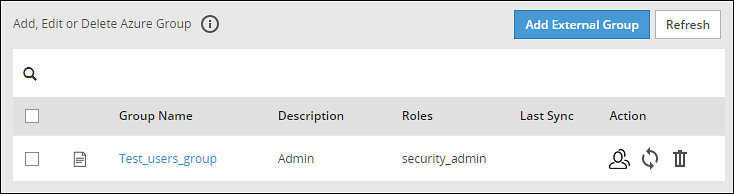
Only users with the Directory Manager permissions can configure the External Groups screen.
The following table describes the actions that you can perform on the External Groups screen.
| Icon | Description |
|---|
 | List the users present for the Azure External Group. |
 | Synchronize with the Azure External Group to update the users. |
 | Delete the Azure External Group. |
Adding an Azure External Group
You can add an Azure External Group to assign roles for a group of users.
Perform the following steps to add an External Group.
From the ESA Web UI, navigate to Settings > Users > Azure External Groups.
Click Add External Group.
Enter the group name in the Groupname/Filter field.
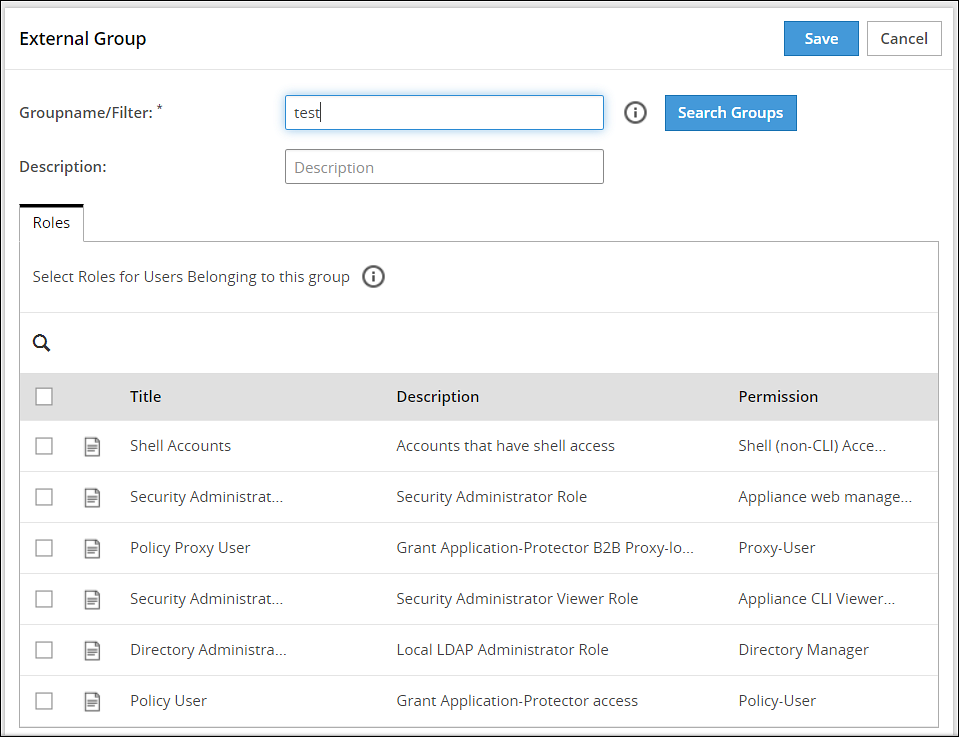
Click Search Groups to view the list of groups.
Select one group from the list, and click Submit.
Enter a description in the Description field.
Select the required roles from the Roles tab.
Click Save.The External Group has been created successfully message appears.
Editing an Azure External Group
You can edit an Azure external group to modify Description and Roles. If any updates are made to the roles of the users in the Azure External Groups, then the modifications are applicable immediately to the users existing on the ESA.
Perform the following steps to edit an External Group:
On the ESA Web UI, navigate to Settings > Users > Azure External Groups.
Select the required external group.
Edit the required fields.
Click Save.
The Enter your password prompt appears. Enter the password and click Ok.The changes to the external group are updated.
Synchronizing the Azure External Groups
When the Azure AD is enabled, the Azure External Groups is started. You can manually synchronize the Azure External Groups using the Synchronize () icon.
After clicking the Synchronize () icon, the Enter your password prompt appears. Enter the password and click Ok.
Note: If the number of unsuccessful password attempts exceed the defined value in the password policy, then the user account gets locked.
For more information about Password Policy, refer here.
The messages appearing on the Web UI, when synchronization is performed between Azure External Groups and the ESA, are described in the following table.
| Message | Description |
|---|
| Success | - Users are added to the ESA and roles are assigned.
- Roles of existing users in the ESA are updated.
- Users are deleted from the ESA if they are associated with any external Azure Groups.
|
| Failed | Updates to the user failed.Note: The reason for the failure in updating the user appears on the Web UI. |
Deleting Azure External Groups
When you delete an Azure External Group, the following scenarios are considered while removing a user from the Azure External Group:
- If the users are not part of other external groups, then the users are removed from the ESA.
- If the users are a part of multiple external groups, the only the association with the deleted Azure External Group and roles is removed.
Perform the following steps to remove an Azure External Group.
From the ESA Web UI, navigate to Settings > Users > Azure External Groups.
Select the required external group and click the Delete () icon.
The Enter your password prompt appears. Enter the password and click Ok.The Azure External Group is deleted.