The ESA appliance can be installed on any of the following platforms.
- On-premise (ISO)
- Cloud platforms
- Amazon Web Services (AWS)
- Microsoft Azure
- Google Cloud Platform (GCP)
- VMWare (OVA)
This is the multi-page printable view of this section. Click here to print.
The ESA appliance can be installed on any of the following platforms.
To install the ESA:
Insert the ESA installation media in the system disk drive.
Boot the system from the disk drive.
The following screen appears.
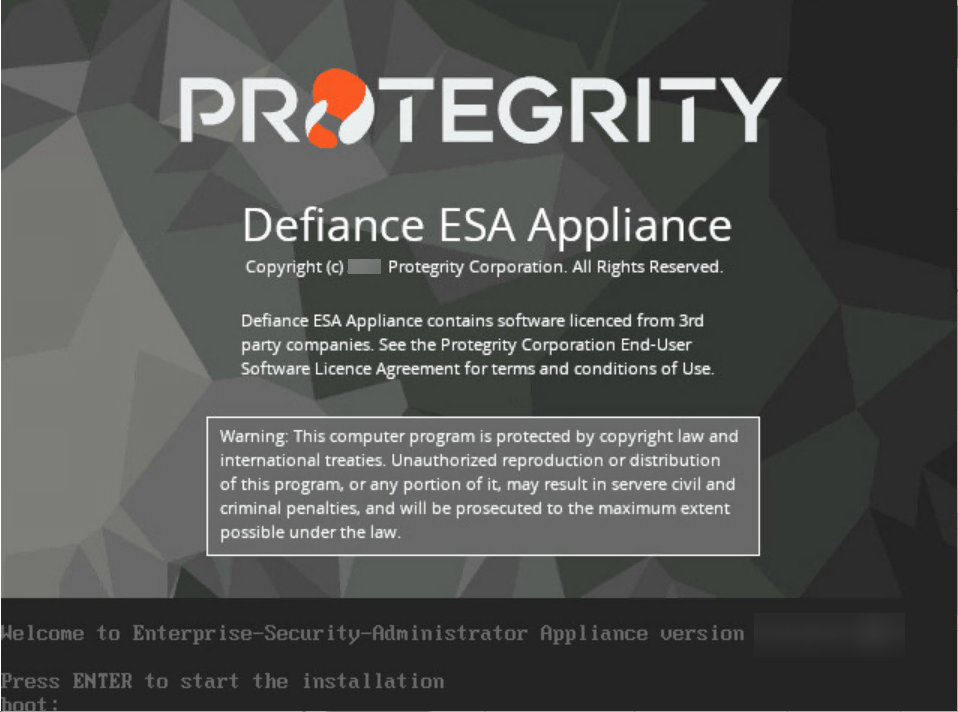
Press ENTER to start the installation.
The following screen appears.
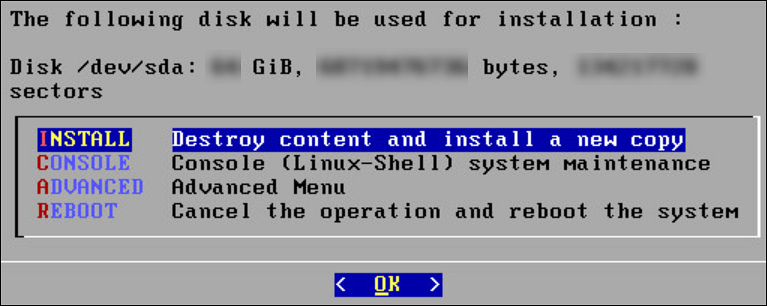
The system will detect the number of hard drives that are present. If there are multiple hard drives, then it will allow you to choose the hard drive where you want to install the OS partition and the /opt partition.
If there are multiple hard drives, then the following screen appears.
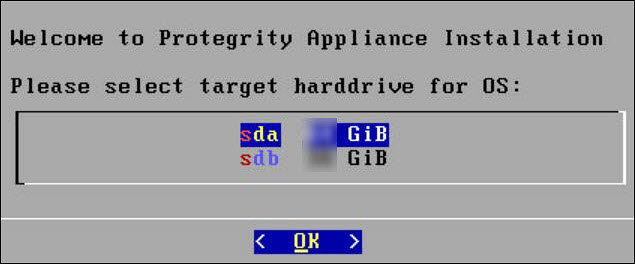
For storing the operating system-related data, select the hard drive where you want to install the OS partition and select OK.
The following screen appears.
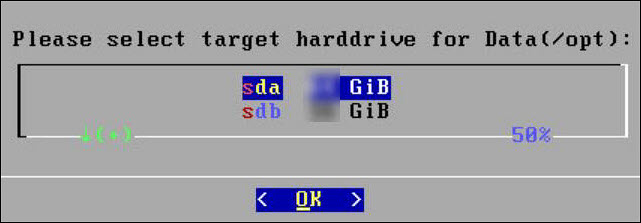
For storing the logs, configuration data, and so on select the hard drive where you want to install the /opt partition and select OK.
The Network Interface Card (NIC) is a device through which appliances, such as, the ESA or the DSG, connect to each other on a network. You can configure multiple network interface cards (NICs) on the appliance.
The ethMNG interface is generally used for managing the appliance and ethSRV interface is used for binding the appliances for using other services.
For example, the appliance can use the ethMNG interface for the ESA Web UI and the ethSRV interface for enabling communication with different applications in an enterprise.
The following task describes how to select management interfaces.
To select multiple NICs:
If there are multiple NICs, then the following screen appears.
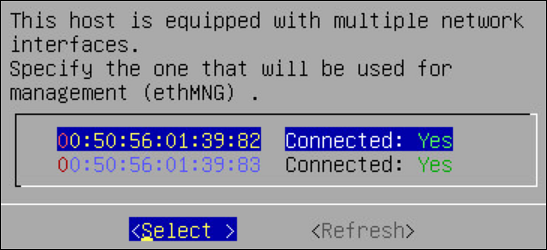
Select the required NIC for management interface.
Choose Select and press ENTER.
After selecting the NIC for management, you configure the network for the ESA. During the network configuration, the system tries to connect to a DHCP server to obtain the hostname, default gateway, and IP addresses for the ESA. If the DHCP is not available, then you can configure the network information manually.
To configure the network settings:
If the DHCP server is configured, then the following screen containing the network information appears.
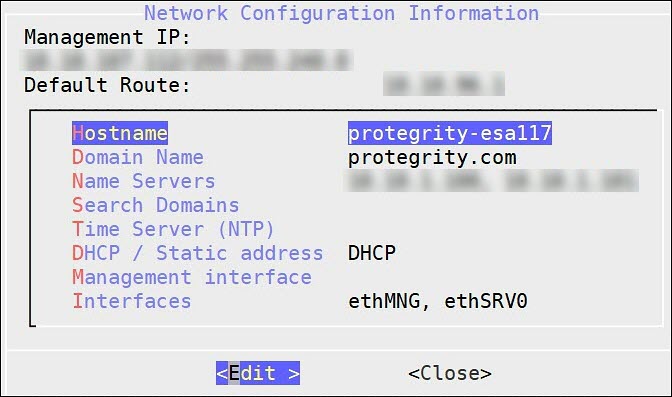
If the DHCP server is not available, then the following screen appears.
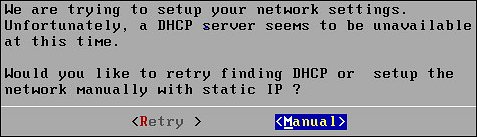
The Network Configuration Information screen appears.
Select Manual and press ENTER.
The following screen appears.
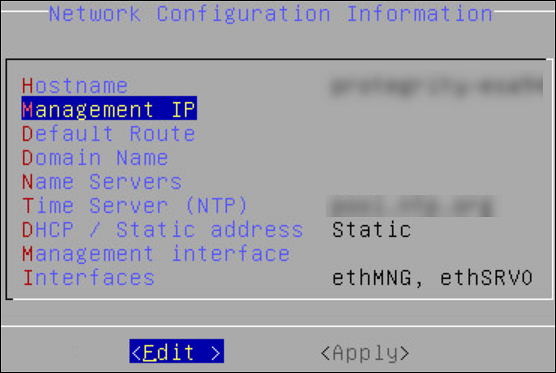
Select DHCP / Static address to configure the DHCP / Static address for the ESA and choose Edit.
Select Static address and choose Update.
If you want to change the hostname of the ESA, then perform the following steps.
Select Management IP to configure the management IP address for the ESA and choose Edit.
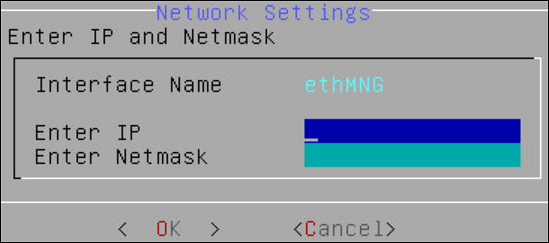
Select Default Route to configure the default route for the ESA and press Edit.
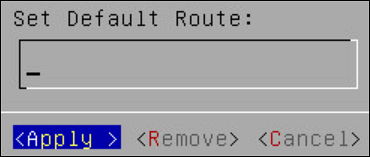
Select Domain Name and press Edit.
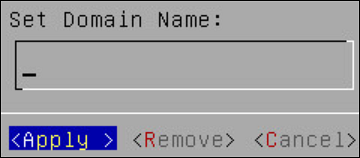
Select Name Servers and press Edit.
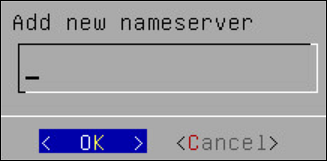
If you want to configure the NTP, then perform the following steps.
Select Apply.
The network settings are configured.
After you configure the network settings, the Time Zone screen appears. This section explains how to set the time zone.
To set the Time Zone:
On the Time Zone screen, select the time zone.
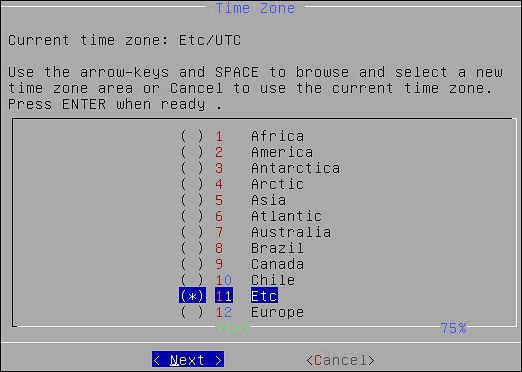
Press Next.
The time zone is configured.
After configuring the time zone, the Nearest Location screen appears.
To Set the Nearest Location:
On the Nearest Location screen, enter the nearest location in GMT or UTC.
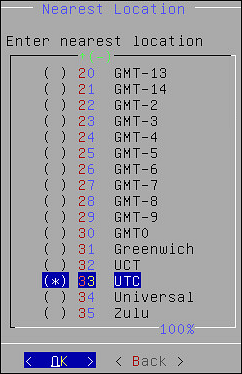
Press OK.
The following screen appears.
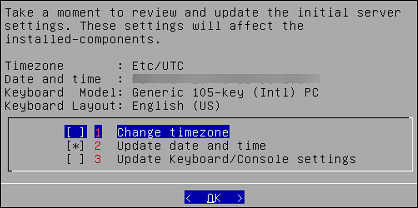
This screen also allows you to update the default settings of date and time, keyboard manufacturer, keyboard model, and keyboard layout.
To Update the Date and Time:
Press SPACE and select Update date and time.
Press ENTER.
The following screen appears.
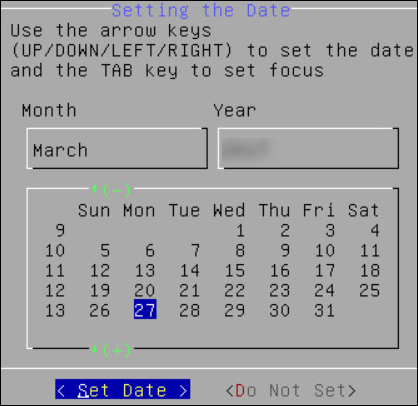
Select the date.
Select Set Date and press ENTER.
The next screen appears.
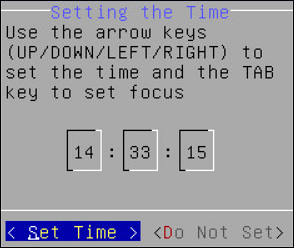
Set the time.
Click Set Time and press ENTER.
The date and time settings are configured.
To Update the Keyboard Settings:
Select Update Keyboard or Console settings.
Press ENTER.
Select the vendor and press the SPACEBAR.
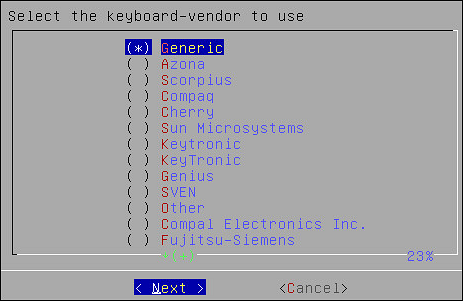
Select Next.
If you select Generic, then a window with the list of generic keyboard models appears.
Select the model you use and press Next.
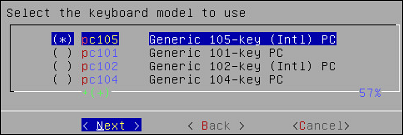
On the next window, select the keyboard language. The default is English (US).
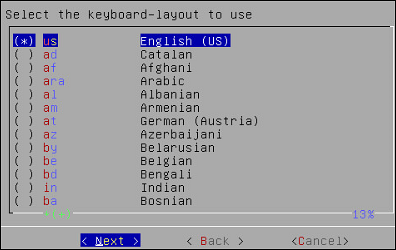
Select Next.
On the next window, select the console font. The default is Lat15-Fixed16.
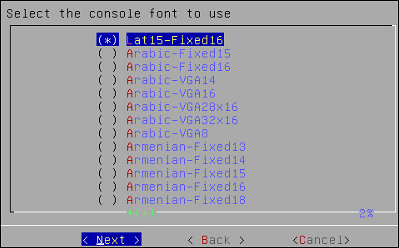
Press Next.
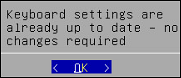
A confirmation message appears.
Press OK to confirm.
On the ESA, GRUB version 2 (GRUB2) is used for loading the kernel. If you want to protect the boot configurations, then you can secure it by enforcing a username and password combination for the GRUB menu.
During installation for the ESA on-premise, a screen to configure GRUB credentials appears. If you want to protect the boot configurations, then you can secure it by enforcing a username and password combination for the GRUB menu. While installing the ESA v9.2.0.0, you can secure the GRUB menu by creating a username and setting password as described in the following task.
To configure GRUB settings:
From the GRUB Credentials page, press the SPACEBAR to select Enable.
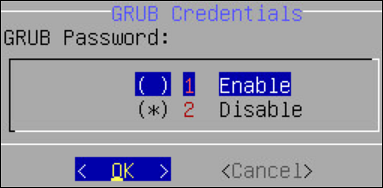
By default the Disable is selected. If you continue to choose Disable, then the security for the GRUB menu is disabled. It is recommended to enable GRUB to secure the ESA.
You can enable this feature from the CLI Manager after the installation is completed. On the CLI Manager, navigate to Administration > GRUB Credential Settings to enable the GRUB settings.
For more information about GRUB, refer to the section Securing the GRand Unified Bootloader (GRUB).
Select OK.
The following screen appears.
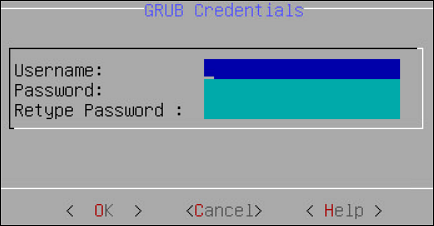
Enter a username in the Username text box.
Note:
The requirements for the Username are as follows:
Enter a password in the Password and Re-type Password text boxes.
Note:
The requirements for the Password are as follows:
Select OK and press ENTER.
A message Credentials for the GRUB menu has been set successfully appears.
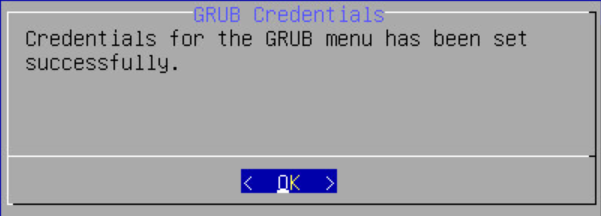
Select OK.
Only authorized users can access the ESA. The Protegrity Data Security Platform defines a list of roles for each user who can access the ESA. These are system users and LDAP administrative users who have specific roles and permissions. When you install the ESA, the default users configured are as follows:
After completing the server settings, the Users Passwords screen appears that allows you set the passwords for the users.
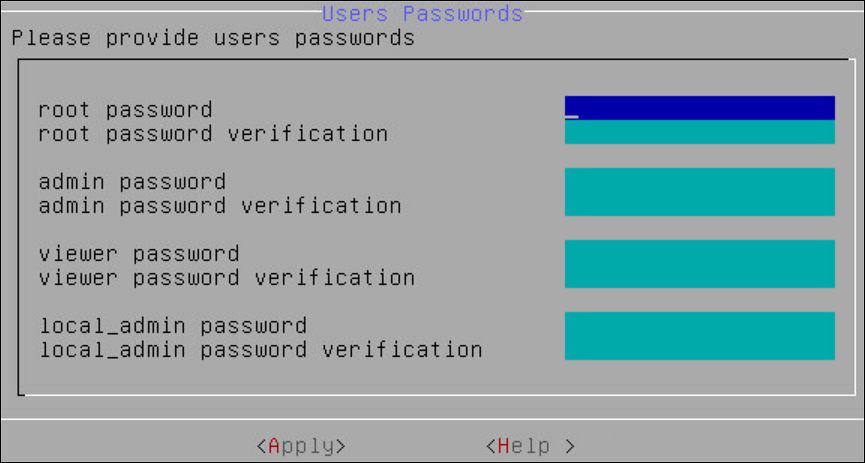
To set the LDAP Users Passwords:
Add the passwords of the users.
Note: Ensure that the passwords for the users comply with the password polices.
For more information about the password policies, refer to the section Password Policy Configuration in the Protegrity Enterprise Security Administrator Guide 9.2.0.0.
Select Apply.
The user passwords are set.
After the ESA components are installed, the Temporary License screen appears. This system takes time. It is recommended to wait for few minutes before proceeding.
Note: After the ESA is installed, you must apply for a valid license within 30 days.
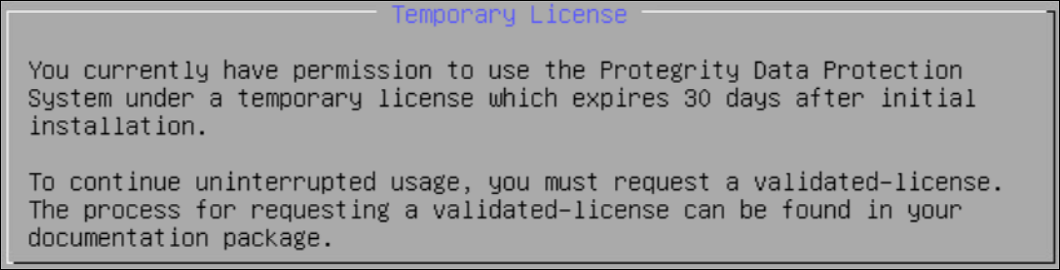
For more information about licenses, refer Licensing.
In the final steps of installing the ESA, you are prompted to select the components to install.
To select products to install:
Press space and select the necessary products to install the following products.
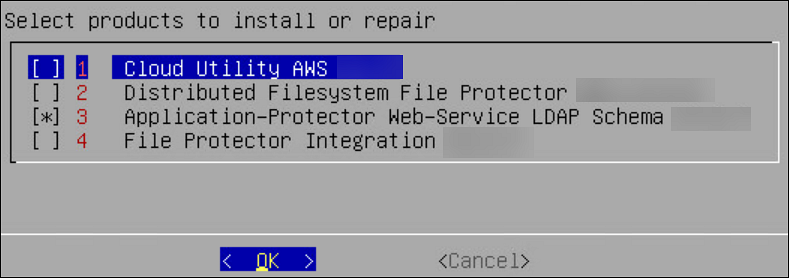
Click OK.
The selected products are installed.
After installation is completed, the following screen appears.
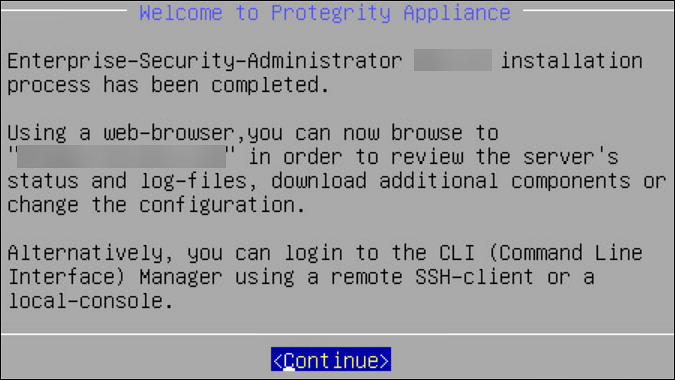
Select Continue to view the CLI Login screen.
This section describes installing the ESA on Cloud platforms, such as, Amazon Web Services (AWS), Azure, or Google Cloud Platform (GCP). For installing the ESA on cloud platforms, you must mount the image containing the ESA on a cloud instance or a virtual machine. After mounting the image, you must run the finalization procedure to install the ESA components.
The following steps must be completed to run an ESA on AWS:
The following steps must be completed to run an ESA on Azure:
The following steps must be completed to run an ESA on GCP:
This section describes the process to install the ESA using an OVA template.
For more information about the compatible VMware version, refer to the Release Notes of the relevant release.
Perform the steps to create an Open Virtual Appliance (OVA) template:
Log in to the VMware Client console.
Navigate to Inventories > VMs and Templates.
From the left navigation pane, select the required project.
Right-click the project name and select Deploy OVF Template….The Deploy OVF Template screen appears.
From Select an OVF template, select the preferred method to upload the .ova file.The .ova file can be accessed using the URL or by uploading a local file.
Click Next.
From Select a name and folder, enter the name of the virtual machine in the Virtual machine name field and select the location for virtual machine. Click Next.
From Select a destination compute resource, select the required compute resource. Click Next.
From Review details, verify the publisher, download size, and size on disk. Click Next.
From Select storage, select the required disk formats, VM Storage Policy, Show datastores from Storage DRS clusters, and datastore to store the deployed OVF or OVA template.
Click Next.
From Select network, select the required network. Click Next.
From Ready to complete, verify the details and click Finish.
This may take sometime to successfully complete the creation of virtual machine. Ensure to proceed only once the virtual machine is created successfully.
After the instance is successfully created, from the left navigation pane, select the virtual machine name.
Right-click the virtual machine name and select Convert to Template.A Confirm Convert dialog box appears.
Click Yes.
The OVA template is successfully created.
Perform the steps to create a virtual machine using the OVA template:
Navigate to Inventories > VMs and Templates.
From the left navigation pane, select the required project.
Select the required OVA template.
Right-click the template name, and select New VM from This Template.
From Select a name and folder, enter the name of the virtual machine in the Virtual machine name field and select the location for virtual machine. Click Next.
From Select a destination compute resource, select the required compute resource. Click Next.
From Select storage, select the required storage.Select the required disk formats, VM Storage Policy, Show datastores from Storage DRS clusters, and datastore to store the deployed OVF or OVA template.
Click Next.
From Select clone options, select the required clone options.
If the Customize the operating option is selected, then the Customize guest OS screen appears.Configure the required OS for the virtual machine. Click Next.
If the Customize this virtual machine’s hardware option is selected, then the Customize hardware screen appears.Configure the required hardware for the virtual machine. Click Next.
From Ready to complete, verify the details and click Finish.
The virtual machine is created successfully.
Ensure that the virtual machine is powered on before starting the installation process.
To install the ESA:
Select the virtual machine.
Click LAUNCH WEB CONSOLE.
After selecting the NIC for management, configure the network for the ESA. During the network configuration, the system tries to connect to a DHCP server to obtain the hostname, default gateway, and IP addresses for the ESA. If the DHCP is not available, then you can configure the network information manually.
To configure the network settings:
If the DHCP server is configured, then the screen containing the network information appears.
If the DHCP server is not available, then the Network Configuration Information screen appears.
Select Manual and press ENTER.
Select DHCP / Static address to configure the DHCP / Static address for the ESA and choose Edit.
Select Static address and choose Update.
If you want to change the hostname of the ESA, then perform the following steps.
Select Management IP to configure the management IP address for the ESA and select Edit.
Select Default Route to configure the default route for the ESA and select Edit.
Select Domain Name and select Edit.
Select Name Servers and select Edit.
To configure the NTP, then perform the following steps.
Select Apply.
The network settings are configured.
After you configure the network settings, the Time Zone screen appears.
To set the Time Zone:
On the Time Zone screen, select the time zone.
Select Next.
The time zone is configured.
After configuring the time zone, the Nearest Location screen appears.
To Set the Nearest Location:
On the Nearest Location screen, select the nearest location.
Select OK.The Initial Server Settings screen appears.This screen also allows you to update the default settings of date and time, keyboard manufacturer, keyboard model, and keyboard layout.
Edit the required settings. Select OK.
To Update the Date and Time:
Press SPACE and select Update date and time.
Press ENTER.
Select the date.
Select Set Date and press ENTER.
Set the time.
Click Set Time and press ENTER.
The date and time settings are configured.
On the ESA, GRUB version 2 (GRUB2) is used for loading the kernel. If you want to protect the boot configurations, then you can secure it by enforcing a username and password combination for the GRUB menu.
During installation for the ESA on-premise, a screen to configure GRUB credentials appears. If you want to protect the boot configurations, then you can secure it by enforcing a username and password combination for the GRUB menu. While installing the ESA, the GRUB menu can be secured by creating a username and setting password as described in the following task.
To configure GRUB settings:
From the GRUB Credentials page, press the SPACEBAR to select Enable.
By default the Disable is selected. If you continue to choose Disable, then the security for the GRUB menu is disabled. It is recommended to enable GRUB to secure the ESA.
You can enable this feature from the CLI Manager after the installation is completed. On the CLI Manager, navigate to Administration > GRUB Credential Settings to enable the GRUB settings.
For more information about GRUB, refer to the section Securing the GRand Unified Bootloader (GRUB).
Select OK.
Enter a username in the Username text box.
The requirements for the Username are as follows:
- It should contain a minimum of three and maximum of 16 characters.
- It should not contain numbers and special characters
Enter a password in the Password and Re-type Password text boxes.
The requirements for the Password are as follows:
- It must contain at least eight characters.
- It must contain a combination of alphabets, numbers, and printable characters.
Select OK and press ENTER.
A message Credentials for the GRUB menu has been set successfully appears.
Select OK.
Only authorized users can access the ESA. The Protegrity Data Security Platform defines a list of roles for each user who can access the ESA. These are system users and LDAP administrative users who have specific roles and permissions. When you install the ESA, the default users configured are as follows:
After completing the server settings, the Users Passwords screen appears that allows you set the passwords for the users.
To set the LDAP user passwords:
Add the passwords of the users.
Ensure that the passwords for the users comply with the password polices.
For more information about the password policies, refer Password Policy Configuration
Select Apply.
The user passwords are set.
After the ESA components are installed, the Temporary License screen appears. This screen takes time. It is recommended to wait for few minutes before proceeding.
After the ESA is installed, you must apply for a valid license within 30 days.
For more information about licenses, refer Licensing.
In the final steps of installing the ESA, select the components to install.
To select products to install:
Press space to select and install the required products.
Click OK.
The selected products are installed.After installation is completed, the Welcome to Protegrity Appliance screen appears.
Select Continue to view the CLI Login screen.