 - Click to reset password for a user.
 - Click to remove a user.
 - Click to convert the external LDAP user to a local LDAP user.
Adding users to internal LDAP
Describes the procedure to add users to internal LDAP
You require users in every system to run the business application. The foremost step in any system involves setting up users that operate on different faces of the application.
In ESA, setting up a user involves operations such, as assigning roles, setting up password policies, setting up Active Directories (ADs) and so on. This section describes the various activities that constitute the user management for ESA. In ESA, you can add the following users:
In any given environment, users are entities that consume services provided by a system. Only authorized users can access the system. In Protegrity appliances, users are created to manage ESA for various purposes. These users are system users and LDAP administrative users.
On ESA, navigate to Settings > Users > User Management to view the list of the users that are available in the appliance.
In ESA, users can be categorized as follows:
Internal Appliance Users
These are the users created by default when the ESA is installed. These users are used to perform various operations on the Web UI, such as managing cluster, managing LDAP, and so on. On ESA Web UI, navigate to Settings > Users > User Management to view the list of the users that are available in the appliance.
The following is the list of users that are created when ESA is installed.
| User Name | Description | Role |
|---|---|---|
| admin | Administrator account with access to the Web UI and CLI Manager options. | Security Administrator |
| viewer | User with view only access to the Web UI and CLI Manager options. | Security Administrator Viewer |
| PolicyUser | Perform security operations on the protector node. | Policy User |
| ProxyUser | Perform security operations on behalf of other policy users. | ProxyUser |
OS users
These are the users that contain access to all the CLI operations in the appliance. Local OS users can be created from the CLI Manager. On CLI Manager, navigate to Administration > Accounts and Passwords > Manage Passwords and Local Accounts to view and manage the OS users in the appliance.
The following is the list of OS users in the appliance.
| OS Users | Description |
|---|---|
| alliance | Handles DSG processes |
| root | Super user with access to all commands and files |
| local_admin | Local administrator that can be used when an LDAP user is not accessible |
| www-data | Daemon that runs the Apache, Service dispatcher, and Web services as a user |
| ptycluster | Handles TAC related services and communication between TAC through SSH. |
| service_admin and service_viewer | Internal service accounts used for components that do not support LDAP |
| clamav | Handles ClamAV antivirus |
| rabbitmq | Handles the RabbitMQ messaging queues |
| epmd | Daemon that tracks the listening address of a node |
| openldap | Handles the openLDAP utility |
| dpsdbuser | Internal repository user for managing policies |
Policy Users
These users are imported from a file or an external source for managing policy operations on ESA. Policy users are used by protectors that communicate with ESA for performing security operations.
External Appliance users
These are external users that are added to the appliance for performing various operations on the Web UI. The LDAP users are imported by using the External Groups or Importing Users.You can also add new users to the appliances from the User Management screen.
Ensure that the Proxy Authentication Settings are configured before importing the users.
After you configure the LDAP server, you can either add users to internal LDAP or import users from the external LDAP. The users are then assigned to roles based on the permissions you want to grant them.
The default users packaged with ESA that are common across appliances are provided in the following table. You can edit each of these roles to provide additional privileges.
| User Name | Description | Role |
|---|---|---|
| admin | Administrator account with full access to the Web UI and CLI Manager options. | Security Administrator |
| viewer | User with view only access to the Web UI and CLI Manager options. | Security Administrator Viewer |
| PolicyUser | Users who can perform security operations on the DSG Test Utility. | Policy User |
| ProxyUser | Users who can perform security operations on behalf of other policy users on the Protection Server.Note: The Protection Server is deprecated. This user should not be used. | ProxyUser |
The following table describes the three types of proxy users in ESA:
| Callout | Description |
|---|---|
| Local | Users that are authenticated using the local LDAP or created during installation. |
| Manual | Users that are manually created or imported manually from an external directory service. |
| Automatic | Users imported from an external directory service and are a part of different External Groups. For more information about External Groups, refer here. |
The user management screen allows you to add, import, and modify permissions for the users. The following screen displays the ESA User Management Web UI.
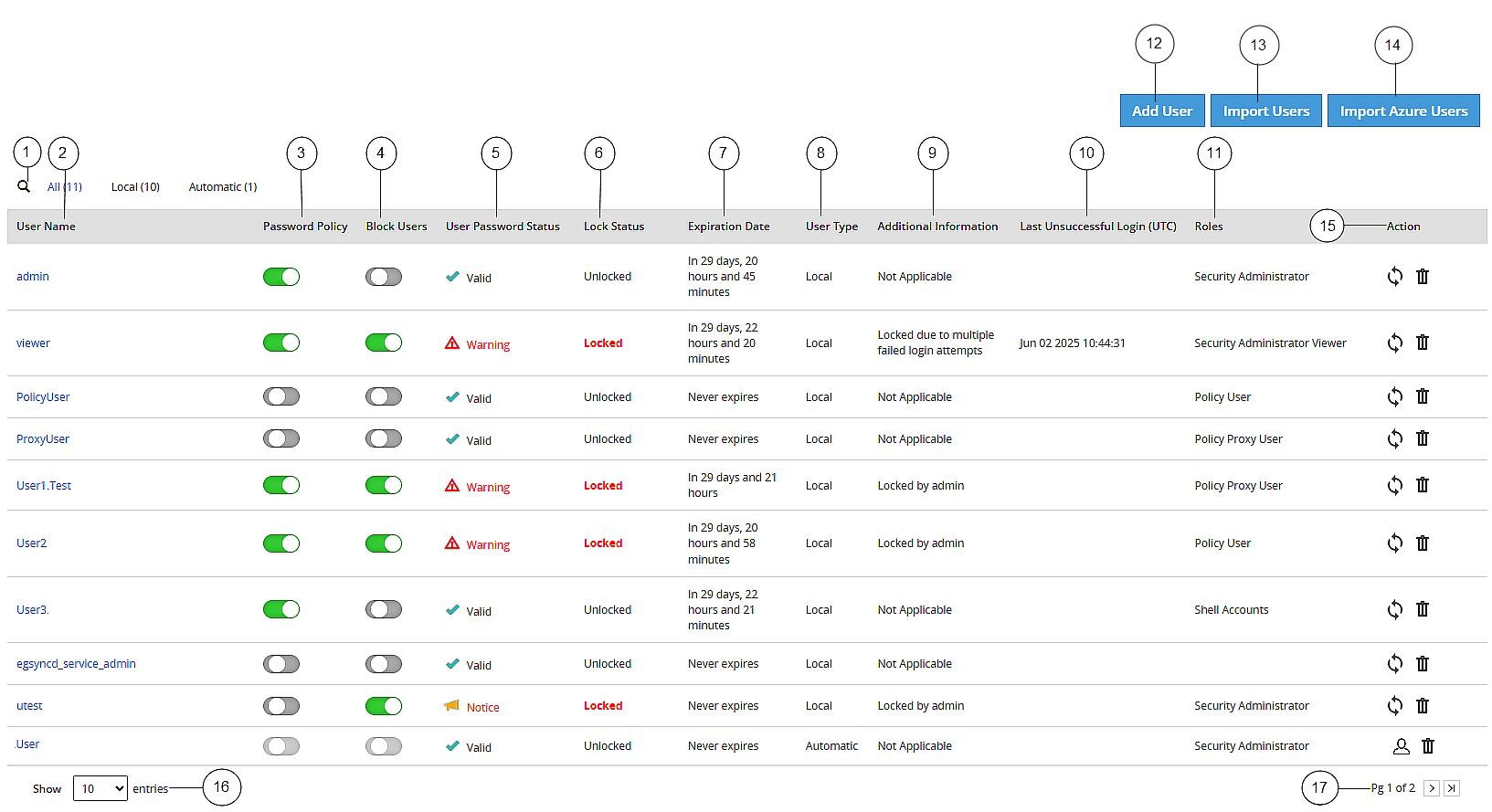
| Callout | Column | Description |
| 1 | Search User Name | Enter the name of the user you want to filter from the list of users. |
| 2 | User Name | Name of the user. This user can either be added to the internal LDAP server or imported from an external LDAP server. |
| 3 | Password Policy | Enable password policy for selected user. This option is
available only for local users. For more information about
defining password policy for users, refer Password Policy. |
| 4 | Block Users | Enable this option to block access to the appliance for the user. This option is available only for local users.
|
| 5 | User Password Status | Indicates status of the user. The available states are
as follows.
|
| 6 | Lock Status | User status based on the defined password policy. The
available states are as follows:
|
| 7 | Expiration Date | Indicates expiry status for a user. The available statuses
are as follows:
|
| 8 | User Type | Indicates if user is a local or manual (imported). |
| 9 | Additional Information | Provides information based on the defined password policy and block users. The available states are as follows:
|
| 10 | Last Unsuccessful Login (UTC) | Indicates the time of the last unsuccessful login attempted
by the user. The time displayed is in UTC. Note: If a user
successfully logs in through the Web UI or the CLI manager, then
the time stamp for any previous unsuccessful attempts is
reset. |
| 11 | Roles | Linked roles to that user. |
| 12 | Add User | Add a new internal LDAP user. |
| 13 | Import Users | Import users from the external LDAP server. Note: This option is available only when Proxy Authentication is enabled. |
| 14 | Import Azure Users | Import users from the Azure Active Directory. Note: This option is available only when Azure Active Directory is enabled. |
| 15 | Action | The following Actions are available.
|
| 16 | View Entries | Select number of users to be displayed in a single view. You can select to view up to 50 users. |
| 17 | Page Navigation | Navigate through pages to view more users. |
Describes the procedure to add users to internal LDAP
Describes the procedure to import users to internal LDAP
Describes the procedure to import users to internal LDAP
Describes the procedure to edit users
Was this page helpful?