This is the multi-page printable view of this section. Click here to print.
Certificate Management
- 1: Certificates in the ESA
- 2: Certificate Requirements
- 3: Certificate Management in ESA
- 3.1: Certificate Repository
- 3.2: Uploading Certificates
- 3.3: Uploading Certificate Revocation List
- 3.4: Manage Certificates
- 3.5: Changing Certificates
- 3.6: Changing CRL
- 4: Certificates in DSG
- 5: Replicating Certificates in a Trusted Appliance Cluster
- 6: Insight Certificates
- 7: Validating Certificates
1 - Certificates in the ESA
Digital certificates are used to encrypt online communication and authentication between two entities. For two entities exchanging sensitive information, the one that initiates the request for exchange can be called the client. The one that receives the request and constitutes the other entity can be called the server.
The authentication of both the client and the server involves the use of digital certificates issued by the trusted Certificate Authorities (CAs). The client authenticates itself to a server using its client certificate. Similarly, the server also authenticates itself to the client using the server certificate. Thus, certificate-based communication and authentication involves a client certificate, server certificate, and a certifying authority that authenticates the client and server certificates.
Protegrity client and server certificates are self-signed by Protegrity. However, you can replace them by certificates signed by a trusted and commercial CA. These certificates are used for communication between various components in ESA.
The certificate support in Protegrity involves the following:
The ability to replace the self-signed Protegrity certificates with CA based certificates.
For more information about replacing the self-signed Protegrity certificates with CA based certificates, refer to the section Changing Certificates.
The retrieval of username from client certificates for authentication of user information during policy enforcement.
The ability to download the server’s CA certificate and upload it to a certificate trust store to trust the server certificate for communication with ESA.
Points to remember when uploading the certificates:
ESA supports the upload of certificates with strength equal to 4096 bits.
Certificates with strength equal to 2048 bits and above are allowed with a warning.
Certificates with strength less than 2048 bits are blocked.
Custom certificates for Insight must be generated using a 4096 bit key.
When uploading, make sure the certificate version is v3. Uploading certificates with version lower than v3 is not supported.
When uploading, make sure that the certificate uses the RSA Keys. Certificates with other keys are not supported.
The various components within the Protegrity Data Security Platform that communicate with and authenticate each other through digital certificates are:
- ESA and ESA Web UI (browser)
- ESA and Protectors
- Protegrity Appliances and external REST clients
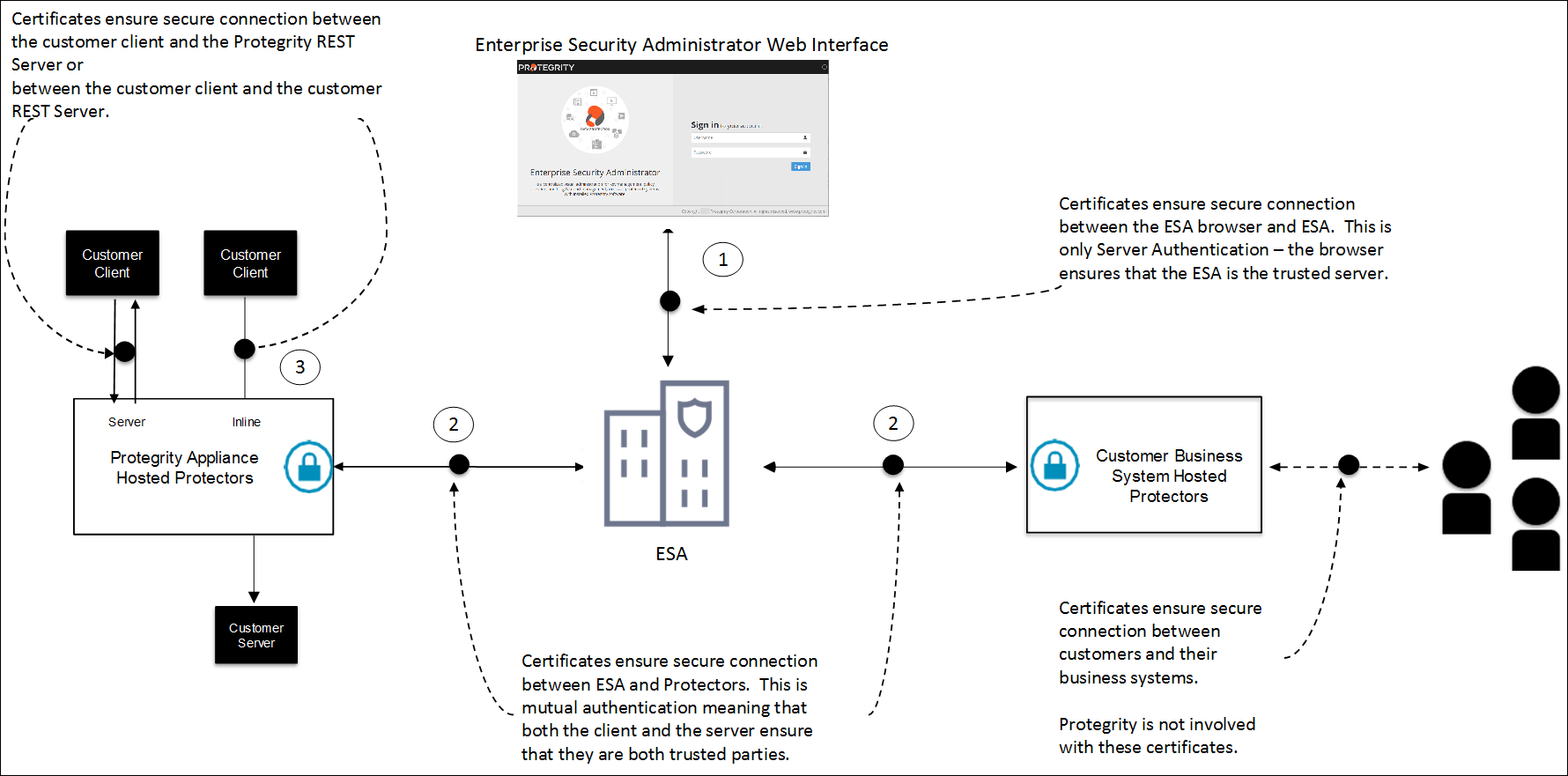
As illustrated in the figure, the use of certificates within the Protegrity systems involves the following:
Communication between ESA Web UI (browser) and ESA
In case of a communication between the browser and ESA, ESA provides its server certificate to the browser. In this case, it is only server authentication that takes place in which the browser ensures that ESA is the trusted server.
Communication between ESA and protectors
In case of a communication between ESA and protectors, certificates are used to mutually authenticate both the entities. The server and the client i.e. ESA and the protector respectively ensure that both are trusted entities. The protectors could be hosted on customer business systems or it could be a Protegrity Appliance.
Communication between Protegrity Appliances and external REST clients
Certificates ensure the secure communication between the customer client and Protegrity REST server or between the customer client and the customer REST server.
2 - Certificate Requirements
The following table outlines the certificate requirements for various components within the ESA infrastructure:
| S.No. | Certificate | CN | SAN | Cert Type | Comments |
| 1 | CA | As per industry standards | NA | CA | NA |
| 2 | ESA Management – Server | FQDN of ESA where it is applied | Hostname and FQDN of ESA where it is applied | Server | Each ESA would have its own unique server certificate. |
| 3 | ESA Management – Client | Protegrity Client | NA | Client | Each ESA would have its own unique client certificate. |
| 4 | Consul Server | server.<datacenter name>.<domain> | 127.0.0.1 Hostname and FQDN of ESA where it is applied | Server | Each ESA would have its own unique server certificate. The
domain and datacenter name must be equal to the value mentioned in
the config.json file.For example, server.ptydatacenter.protegrity.Skip this certificate, consul is uninstalled, and traditional TAC is
being used. |
| 5 | Audit Store – Server | insights_cluster | Hostname and FQDN of all the ESAs in the Audit Store Cluster | Server | All the ESAs in the Audit Store Cluster should share the same certificate. |
| 6 | Audit Store – Client | es_security_admin | NA | Client | All the ESAs in the Audit Store Cluster should share the same certificate. |
| 7 | Audit Store REST – Server | Use same certificate created in entry 5 | Use same certificate created in entry 5 | Server | All the ESAs in the Audit Store Cluster should share the same certificate. |
| 8 | Audit Store REST – Client | es_admin | NA | Client | All the ESAs in the Audit Store Cluster should share the same certificate. |
| 9 | Audit Store PLUG – Client | plug | NA | Client | All the ESAs in the Audit Store Cluster should share the same certificate. |
| 10 | Audit Store Analytics – Client | insight_analytics | NA | Client | All the ESAs in the Audit Store Cluster should share the same certificate. |
| 11 | DSG Management-Server | FQDN of DSG where it is applied | Hostname and FQDN of DSG where it is applied | Server | Each DSG would have its own unique server certificate. |
| 12 | DSG Admin Tunnel – Server Certificate | FQDN of DSG where it is applied | Hostname and FQDN of DSG where it is applied | Server | Each DSG would have its own unique server certificate. |
| 13 | DSG Tunnel – Client Certificate | ProtegrityClient | NA | Client | CN value is configurable in
gateway.json |
3 - Certificate Management in ESA
When ESA is installed, it generates default self-signed certificates in X.509 v3 PEM format. These certificates are:
- CA Certificate – This consists of the CA.pem and CA.key file.
- Server Certificate - This consists of the server.pem and server.key file.
- Client Certificate - This consists of the client.pem and client.key file.
The services that use and manage these certificates are:
- Management – It is the service which manages certificate based communication and authentication between ESA and its internal components like LDAP, Appliance queue, protectors, etc.
- Web Services – It is the service which manages certificate based communication and authentication between ESA and external clients (REST).
- Consul – It is the service that manages certificates between the Consul server and the Consul client.
ESA provides a certificate manager where you can manage the default certificates and also upload your own CA-signed certificates. This manager comprises of two components which are as follows:
- Certificate Repository
- Manage Certificates
Note:
- When creating a CA-signed client certificate which you want use in ESA, it is mandatory that you keep the CN attribute of the client certificate to be “Protegrity Client".
- If the client certificate includes an Extended Key Usage (EKU) extension, it must contain both
serverAuthandclientAuth. This is because RPProxy (RPP) functions as both a TLS server and client, requiring certificates that support both roles.
If there are CA cross-sign certificates with the AddTrust legacy, then you must upload the active intermediate certificates from the Manage Certificates page. If the expired certificates are present in the certificate chain, then it might lead to failures.
For more information about upload the updated certificates, refer to the section Changing Certificates.
For more information about the CA cross-sign certificates with the AddTrust legacy, refer to https://support.sectigo.com/articles/Knowledge/Sectigo-AddTrust-External-CA-Root-Expiring-May-30-2020.
If other attributes, such as email address or name, are appended to the CN attribute, then you perform the following steps to set the CN attribute to Protegrity Client.
For example, if the CN attribute is set as Protegrity Client/emailAddress=user@abc.com, then the attributes appended after the / delimiter must be removed.
In the ESA Web UI, click the Terminal Icon in lower right corner to navigate to the ESA CLI Manager.
In the ESA CLI Manager, navigate to Administration > OS Console
Open the pty_get_username_from_certificate.py file using a text editor.
/etc/ksa/pty_get_username_from_certificate.pyComment the line containing the CN attribute and enter the following regular expression:
REG_EX_GET_VAL_AFTER_CN = "CN=(.*?)\/"Save the changes.
Navigate to Administration > Services
Restart the Service Dispatcher service.
3.1 - Certificate Repository
A Certificate Revocation List (CRL) is a list containing entries of digital certificates that are no longer trusted as they are revoked by the issuing Certificate Authority (CA). The digital certificates can be revoked for one of the following possible reasons:
- The certificate is expired.
- The certificate is compromised.
- The certificate is lost.
- The certificate is breached.
CRLs are used to avoid the usage of certificates that are revoked and are used at various endpoints including the web browsers. When a browser makes a connection to a site, the identity of the site owner is checked using the server’s digital certificate. Also, the validity of the digital certificate is verified by checking whether the digital certificate is not listed in the Certificate Revocation List. If the certificate entry is present in this list, then the authentication for that revoked certificate fails.
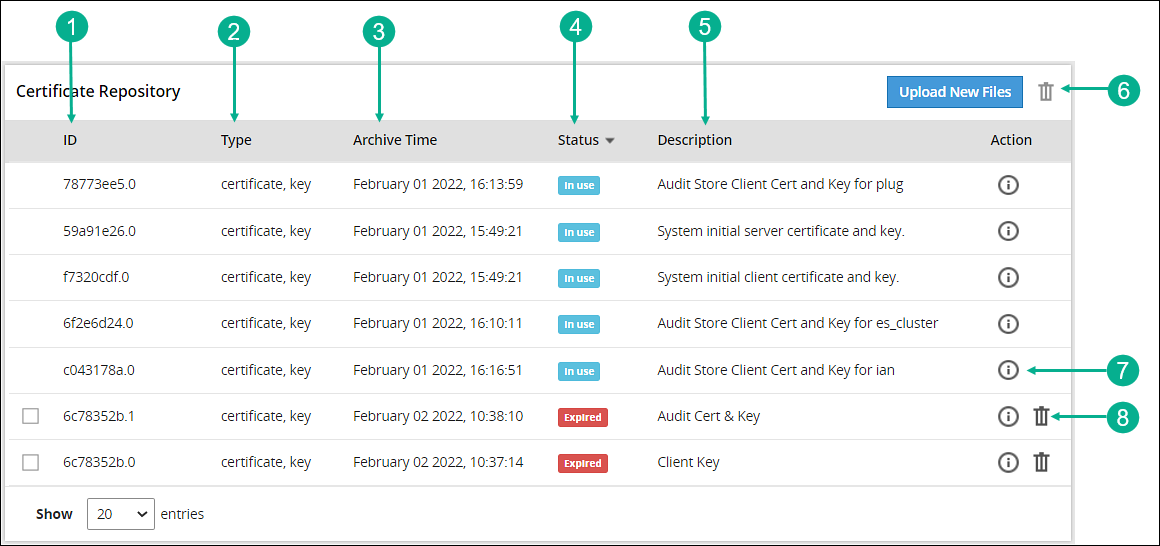
The Certificate Repository screen is accessible from the ESA Web UI, navigate to Settings > Network > Certificate Repository. The following figure and table provides the details about the Certificate Repository screen.
| Callout | Action | Description |
|---|---|---|
| 1 | ID | ESA generated ID for the certificate and key file. |
| 2 | Type | Specifies the type of the file i.e. certificate, key, or CRL. |
| 3 | Archive time | It is the timestamp when the certificate was uploaded to the certificate repository. |
| 4 | Status | This column shows the status of the certificate in the Certificate Repository, which can be:
|
| 5 | Description | Displays the description given by the user when the certificate is uploaded to Certificate Repository. It is recommended to provide a meaningful description while uploading a certificate. |
| 6 |  Delete Delete | Allows you to delete multiple selected certificates or CRLs from the Certificate Repository. Note: Only expired certificates or CRLs can be deleted. |
| 7 |  Information Information | Provides additional information or details about a certificate and its private key (if uploaded). |
| 8 | Delete | Allows you to delete the certificate or CRL from the Certificate Repository. Note: Only expired certificates or CRLs can be deleted. |
Important: Rotate certificates as soon as the Certificate expires in N days message appears in the Certificate Repository. Starting with ESA v10.2.0, expired certificates are removed on reboot, which makes services such as the Web UI and LDAP inaccessible using the Web UI and CLI.
3.2 - Uploading Certificates
To upload certificates:
On the ESA Web UI, navigate to Settings > Network > Certificate Repository.
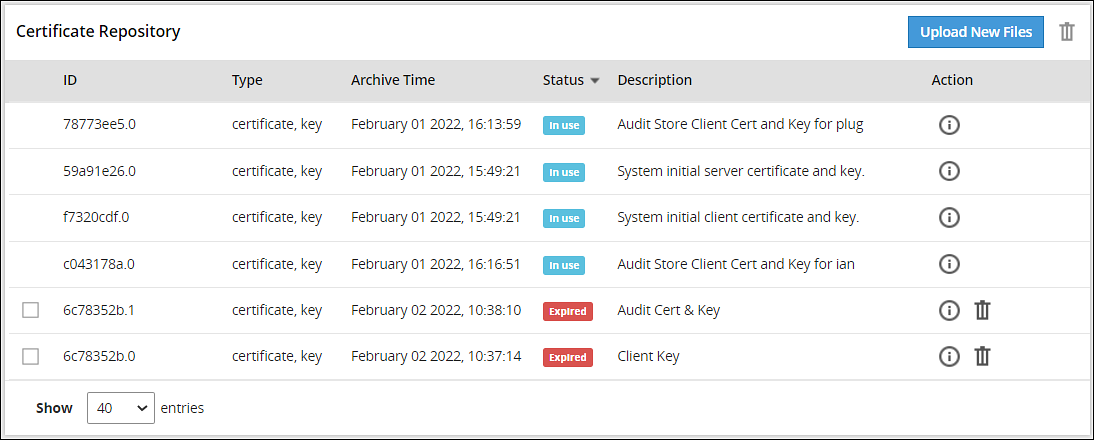
Click Upload New Files.
The Upload new file to repository dialog box appears.
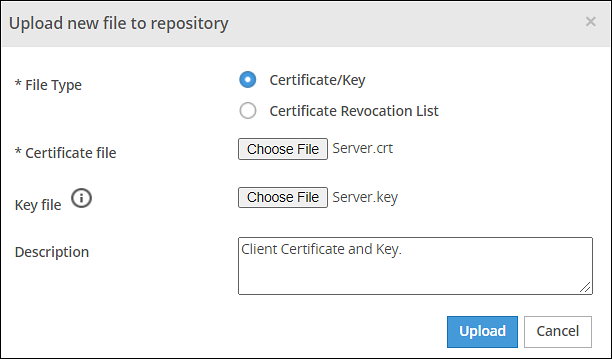
Click Certificate/Key to upload a certificate file and a private key file.
CAUTION: Certificates have a public and private key. The public key is mentioned in the certificate and as a best practice the private key is maintained as a separate file. In ESA, you can upload either the certificate file or both certificate and private key file together. In ESA Certificate Repository, it is mandatory to upload the certificate file.
CAUTION: If the private key file is inside the certificate, then you have the option to upload just the Certificate file. The DSKs are identified using the UID column that displays the Key Id.
> **Note:** It is recommended to use private key with a length of 4096-bit.
Click Choose File to select both certificate and key files.
Enter the required description in the Description text box.
Click Upload.
CAUTION: If the private key is encrypted, a prompt to enter the passphrase will be displayed.
The certificate and the key file is saved in repository and the Certificate Repository screen is updated with the details.
When you upload a private key that is protected with a passphrase, the key and the passphrase are stored in the hard disk. The passphrase is stored in an encrypted form using a secure algorithm. The passphrase and the private key are also stored in the system memory. The services, such as Apache, RabbitMQ, or LDAP, access this system memory to load the certificates.
If you upload a private key that does not have a passphrase, the key is stored in the system memory. The services, such as Apache, RabbitMQ, or LDAP access the system memory to load the certificates.
If you are using a proxy server to connect to the Internet, ensure that you upload the required custom certificates of that server in ESA from the Certificate Repository screen.
3.3 - Uploading Certificate Revocation List
Creating a CRL - An Example
To create a CRL:
In the CLI Manager, navigate to Administration > OS Console.
Run the following command to revoke a client certificate:
openssl ca -config demoCA/newcerts/openssl.cnf -revoke Client.crt -keyfile CA.key -cert CA.crtRun the following command to generate a CRL:
openssl ca -config demoCA/newcerts/openssl.cnf -gencrl -keyfile CA.key -cert CA.crt -out Client.crl
Uploading the CRL
To upload CRL:
On the ESA Web UI, navigate to Settings > Network > Certificate Repository .
Click Upload New Files.
The Upload new file to repository dialog box appears.
Click Certificate Revocation List to upload a CRL file.
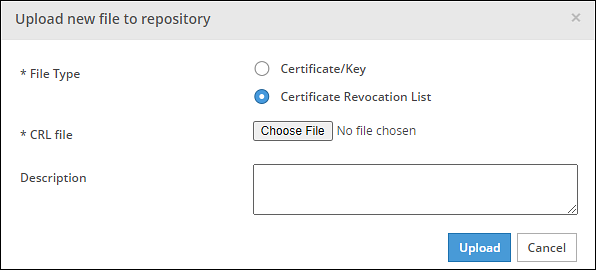
Click Choose File to select a CRL file.
Enter the required description in the Description text box.
Click Upload.
A confirmation message appears and the CRL is uploaded to the ESA.
3.4 - Manage Certificates
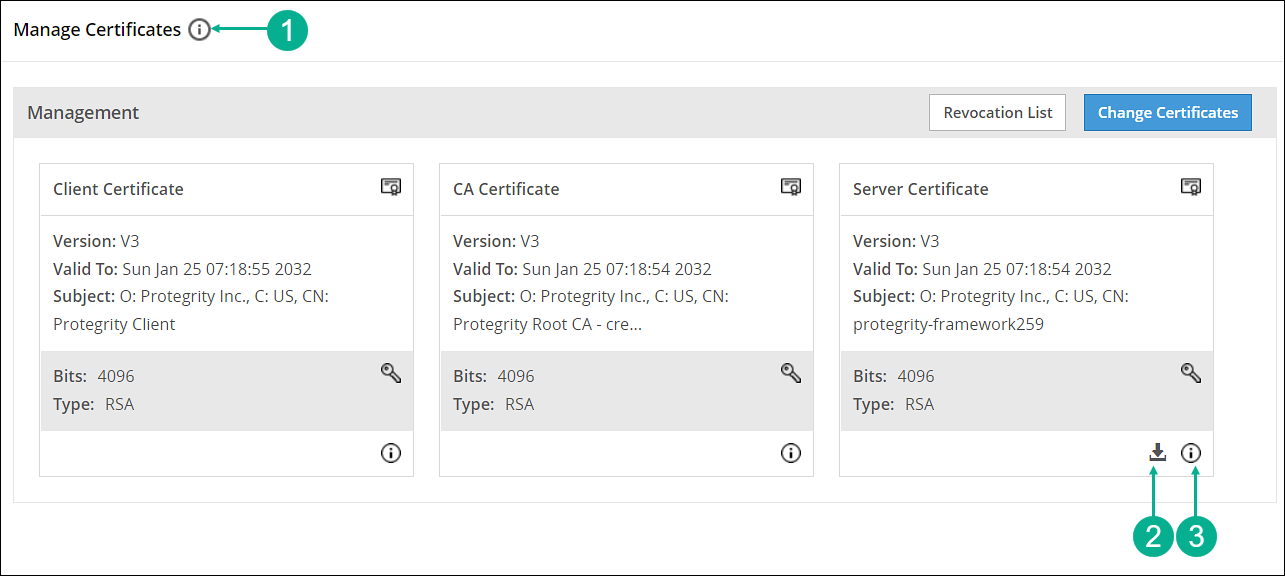
On the ESA Web UI, navigate to Settings > Network > Manage Certificates.
The following figure and table provides the actions available from the Manage Certificates screen.
| Callout | Action | Description |
|---|---|---|
| 1 | Hover over the Help icon | Gives information about Management and Web Services groups. |
| 2 | Download server’s CA certificate | Download the server’s CA certificate. You can download only the server’s CA certificate and upload it to another certificate trust store to trust the server certificate for communication with ESA. |
| 3 | Hover over the icon | Gives additional information or details about a certificate. |
3.5 - Changing Certificates
Important: Rotate certificates as soon as the Certificate expires in N days message appears in the Certificate Repository. Starting with ESA v10.2.0, expired certificates are removed on reboot, which makes services such as the Web UI and LDAP inaccessible using the Web UI and CLI.
To change certificates:
On the ESA Web UI, navigate to Settings > Network > Manage Certificates.
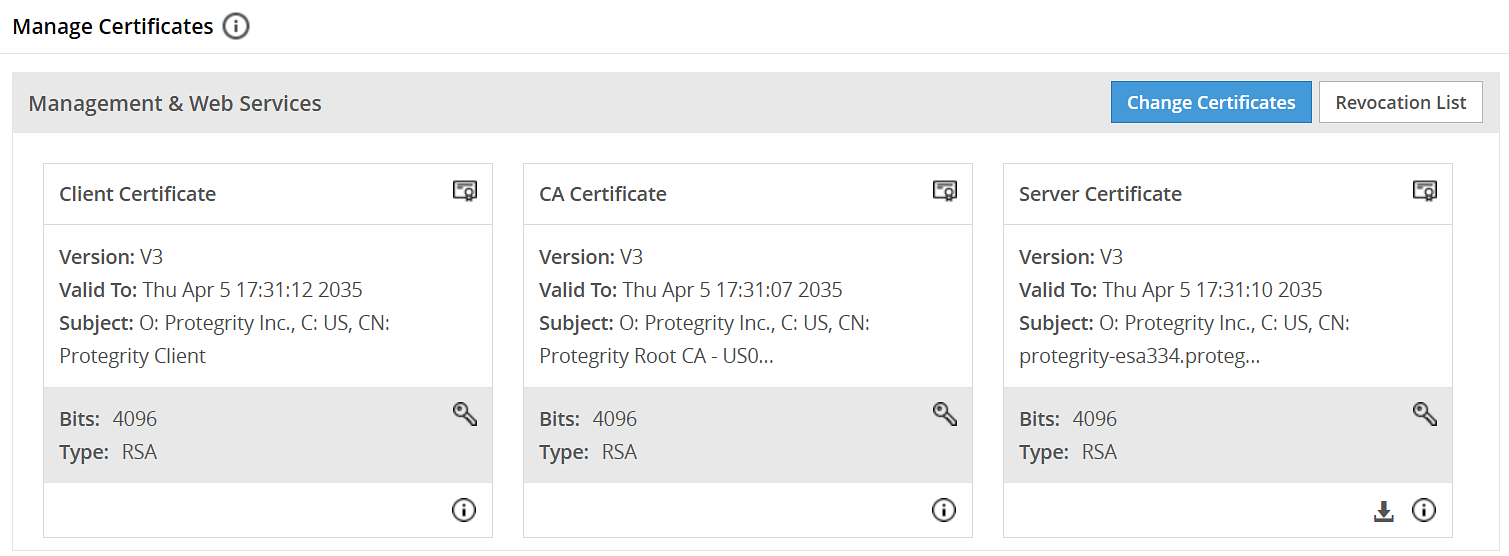
Click Change Certificates.
The Certificate Management wizard appears with CA certificate(s) section.
Select the check box next to the CA Certificate that you want to set as active.
CAUTION: This section shows server, client, and CA certificates together. However, ensure that you select only the required certificates in their respective screens. You can select multiple CA certificates for ESA Management and Web Services section. ESA allows you to have only one server and one client active at any given time.
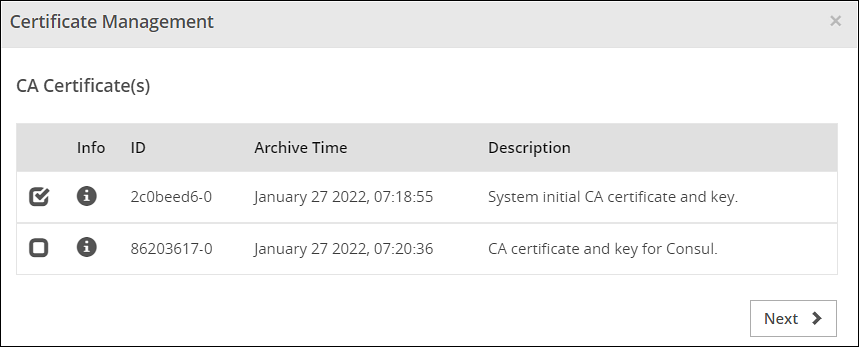
Click Next.
The Server Certificate section appears.
Select the check box next to the Server Certificate that you want to set as active.
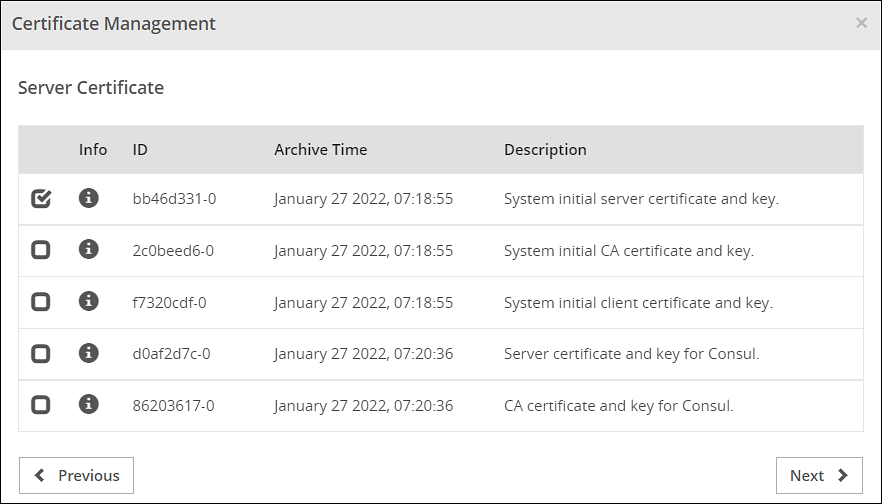
Click Next.
The Client Certificate section appears
Select the check box next to the Client Certificate that you want to set as active.
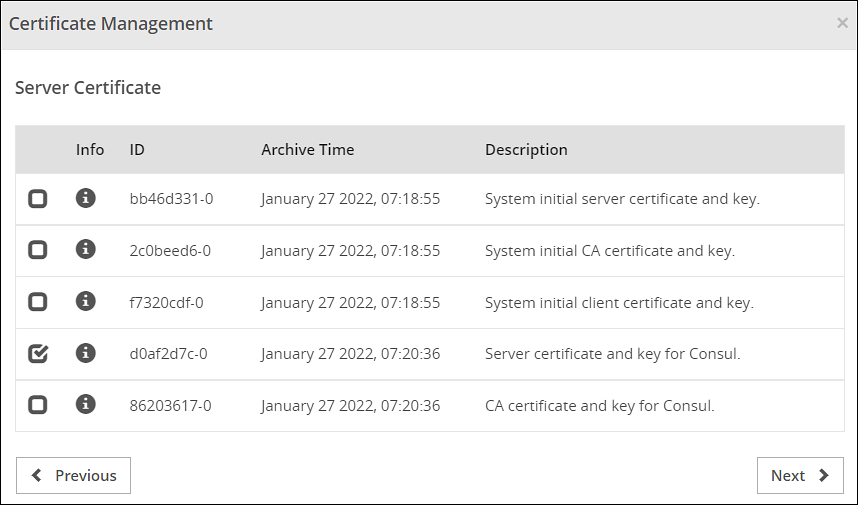
Click Apply.
The following message appears:
The system Management Certificates will be changed and a re-login maybe required. Do you want to continue?Click Yes.
A confirmation message appears and the active certificates are displayed on the screen.
CAUTION: When you upload a server certificate to the ESA and activate it, you are logged out of the ESA Web UI. This happens because the browser does not trust the new CA signed server certificate. You must login again for the browser to get the new server certificate and to use it for all further communications.
3.6 - Changing CRL
To change CRL:
On the ESA Web UI, navigate to Settings > Network > Manage Certificates.
Click Revocation List.
The Certificate Revocation List dialog box appears.
Select the Enable Certificate Revocation List check box.
Select the check box next to the CRL file that you want to set as active.
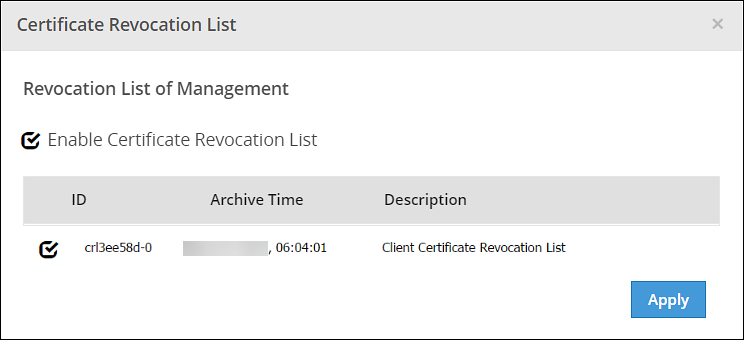
Click Apply.
A confirmation message appears.
4 - Certificates in DSG
During the install process of DSG, a series of self-signed SSL Certificates are generated. You may use it in a non-production environment. It is recommended to use your own certificate for production use.
When you install a DSG node, the following types of certificates and keys are generated:
- CA certificate –This consists of CA.pem, CA.crt, and CA.key file.
- Server Certificate - This consists ofservice.pem, service.crt, and service.key file.
- Admin Certificate – This consists of admin.pem, admin.crt and admin.key.
- Admin Client Certificate - This consists of admin_client.crt and admin_client.key.
The certificates in DSG are classified as Inbound Certificates and Outbound Certificates. You must use Inbound certificates for secure communication between client and DSG. In setups, such as Software as a Service (SaaS), where DSG communicates with a SaaS that is not part of the on-premise setup or governed by an enterprise networking perimeter, Outbound certificates are employed.
The following image illustrates the flow of certificates in DSG.
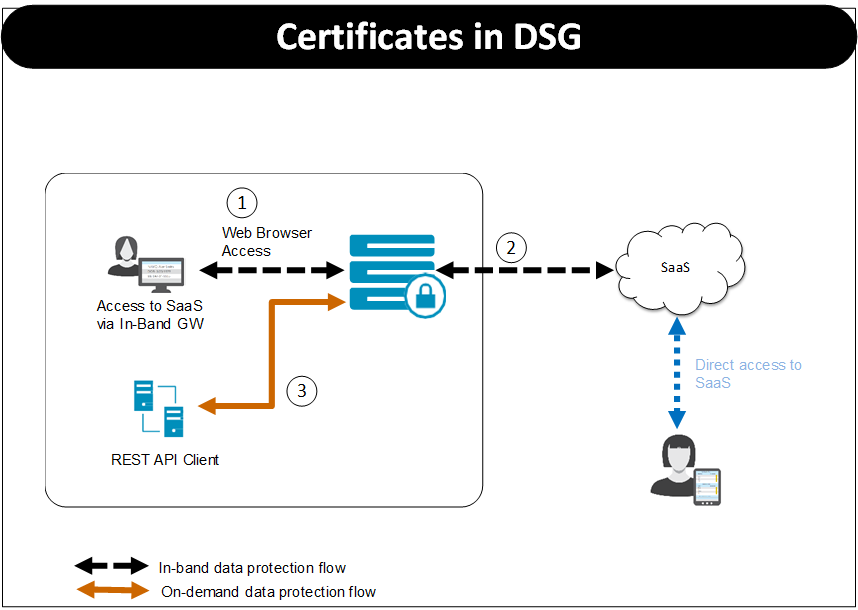
Based on the protocol used the certificates that client must present to DSG and DSG must present to destination differ. For the Figure, consider HTTPS protocol is used.
- Step 1:
- When a client tries to access the SaaS through the DSG, DSG uses the certificate configured as part of tunnel configuration to communicate with the client. The client must trust the certificate to initiate the communication between client and DSG.
- Step 2:
- The step 2 involves DSG forwarding the request to the destination. In the TLS-based outbound communication in DSG, it is expected that the destination uses a certificate that is signed by a trusted certification authority. For example, in case of SaaS, it might use self-signed certificates. In this case, DSG must trust the server’s certificate to initiate TLS-based outbound communication.
- Step 3:
- When the REST API client tries to communicate with the DSG, DSG uses the certificate configured as part of tunnel configuration to communicate with the client. The client browser must accept and trust the certificate to initiate the communication.
Inbound Certificates
The inbound certificate differs based on the protocol that is used to communicate with the DSG. This section covers certificates involved when using HTTPS using default certificates, TLS mutual authentication, and SFTP protocols.
HTTPS using default certificates
Consider a setup where a client is accessing the destination with DSG in between using the HTTPS protocol. In this case, DSG uses the certificate configured as part of tunnel configuration to communicate with the client.
In non-production environment, you can continue to use the default certificates that are generated when DSG is installed. In case of production deployment, it is recommended that you use your own certificates that are signed by a trusted certification authority.
In case you are using own certificates and keys, ensure that you replace the default CA certificates /keys and other certificates/keys with the signed certificates/keys.
TLS Mutual Authentication
DSG can be configured with trusted root CAs and/or the individual client machine certificates for the machines that will be allowed to connect to DSG. The client presents a client certificate to DSG, DSG verifies it against the CA certificate, and once validated, lets the client machine communicate with destination where DSG is in between.
Ensure that you replace the default CA certificates and keys and other certificates and keys with the signed certificates and keys.
Along with these certificates, every time a request is made to the DSG node, the client machine will present client certificate that was generated using the CA certificate. DSG validates the client certificate so that the client machine can communicate with DSG. The clients that fail to present a valid client certificate will not be able to connect to the destination.
Apart from presenting the certificate, at Tunnel level, ensure that the TLS Mutual Authentication is set to CERT_OPTIONAL or CERT_MANDATORY. Also, in the Extract rule at Ruleset level, ensure that the Require Client Certificate check box is selected if you want to perform this check at service level.
For more information about enabling TLS mutual authentication, refer to Enabling Mutual Authentication.
SFTP
DSG can be configured to work as an intermediary between an SFTP client and server when accessing files using SFTP protocol. With SFTP, credentials are never transmitted in clear and information flows over an SSH tunnel.
If you are using SFTP, ensure that the SFTP server key is uploaded using the Certificates screen on the DSG node. At tunnel level, for an SFTP tunnel, you must specify this server key.
At the rule level, you can add a layer of security using the authentication method option. Using DSG, an SFTP client can communicate with the destination using either Password or SSH keys. Ensure that the SSH keys are trusted.
If you select Password as the authentication method, client must provide the password when prompted. While, if you are using Publickey as the authentication method, the SFTP client must trust DSG publickey and DSG must trust SFTP client publickey.
For more information about SFTP rule level settings and enabling password-less authentication, refer to SFTP Gateway.
Outbound Certificates
The DSG can be used as an intermediary between client and destination. For example, in case of SaaS as destination, it is important that the self-signed certificates that a destination uses are trusted by DSG.
It might happen that the SaaS certificates are in DER format. DSG accepts certificates in PEM or CRT format, and hence you must convert the DER format to an acceptable PEM format.
For more information about trusting the self-signed certificates and converting the DER format to PEM format, refer to Creating a Service under Ruleset.
5 - Replicating Certificates in a Trusted Appliance Cluster
The following figure illustrates the replication of certificates between two ESAs in a TAC.
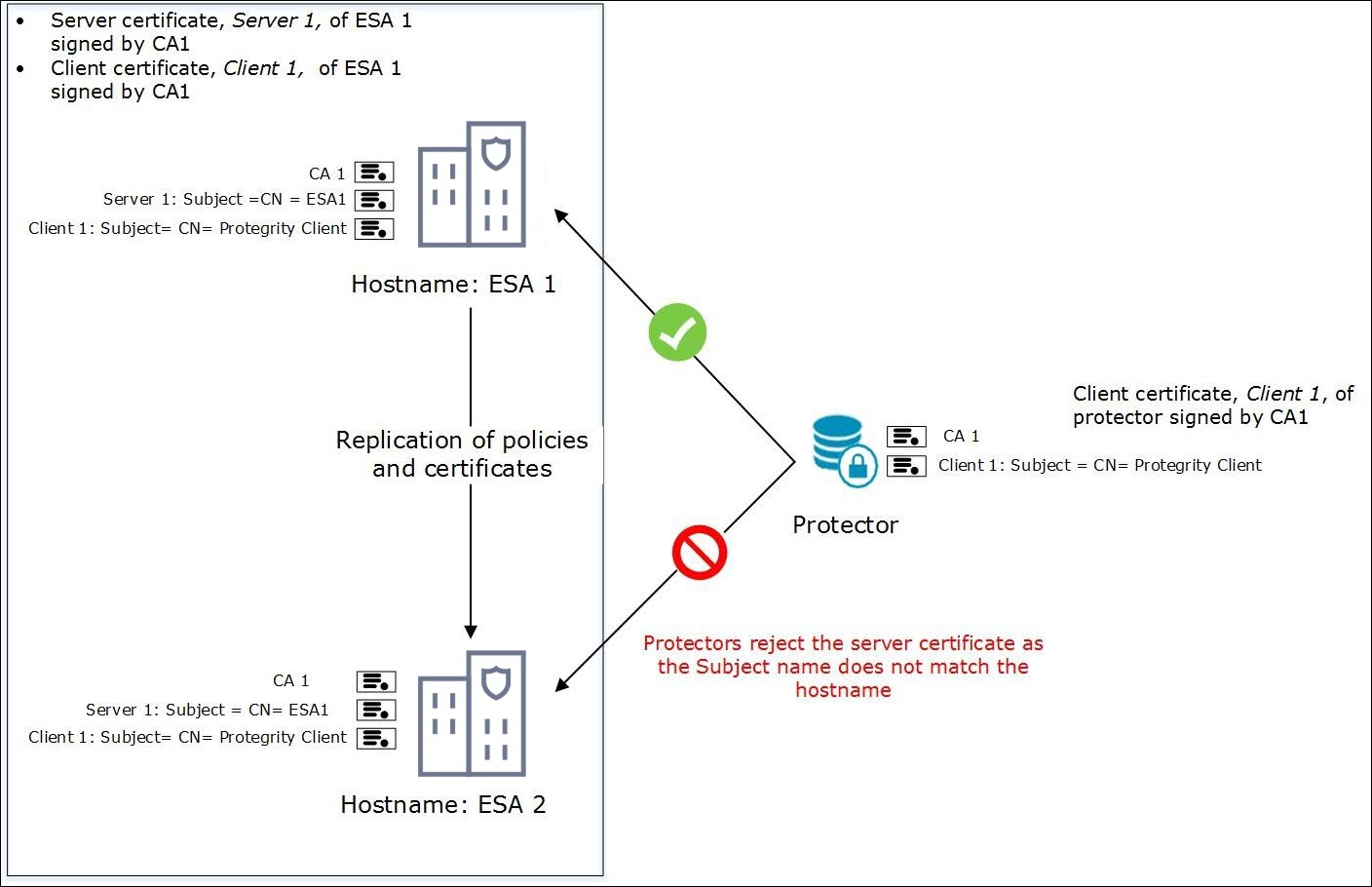
The figure depicts two ESAs in a TAC. The ESA1 contains the server and the client certificates. The certificates in ESA1 are signed by CA1. The Protectors communicate with ESA1 to retrieve the client certificate.
Note: The Subject attribute for the server certificates is CN=<hostname> and that of the client certificate is CN= Protegrity Client.
In a TAC, when replication between ESA1 and ESA2 happens, the CA, server, and client certificates from ESA1 are copied to ESA2. However, when the certificates are replicated from ESA1 to ESA2, the Subject attribute is not updated to the hostname of ESA2. Due to this mismatch, the protectors are not able to communicate with ESA2.
- Solution:
- To ensure the communication of protectors with the ESA, perform one the following methods:
- Use a Subject Alternative Name (SAN) certificate to add additional hostnames. You can configure multiple ESA domains using a SAN certificate.
- Use wildcard for domain names in certificates to add multiple domains.
6 - Insight Certificates
The default certificates provided are signed using the system-generated Protegrity-CA certificate. However, after installation custom certificates can be used. Ensure that all the certificates are signed by the same CA as shown in the following diagram.
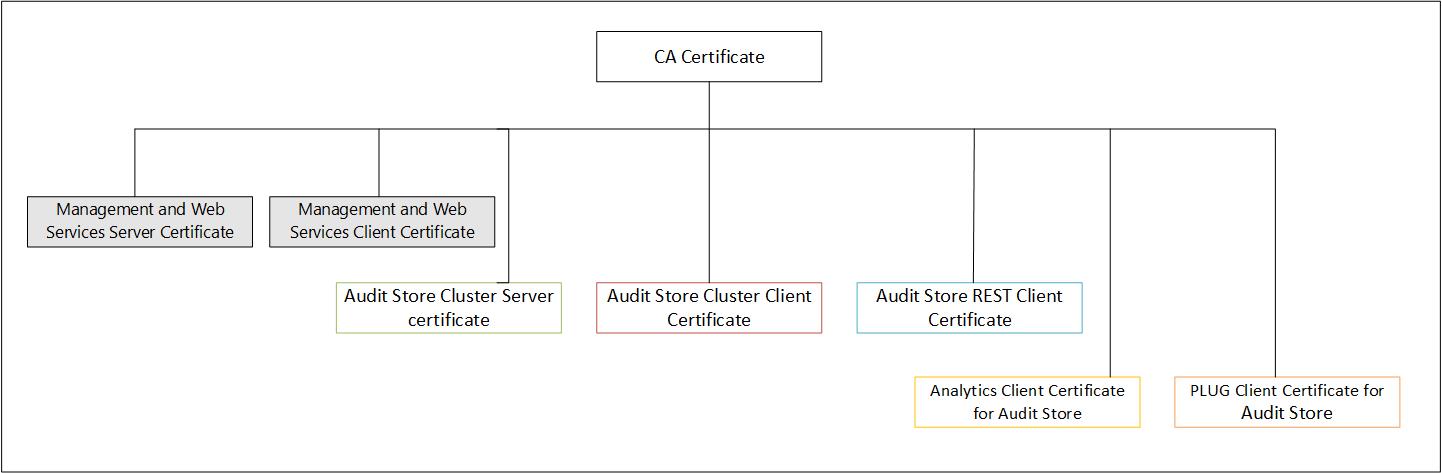
Update the certificates in the following order:
- Audit Store Cluster certificate
- Audit Store REST certificate
- PLUG client certificate for Audit Store
- Analytics client certificate for Audit Store
The various certificates used for communication between the nodes with their descriptions are provided here. The passphrase for the certificates are stored in the /etc/ksa/certs directory.
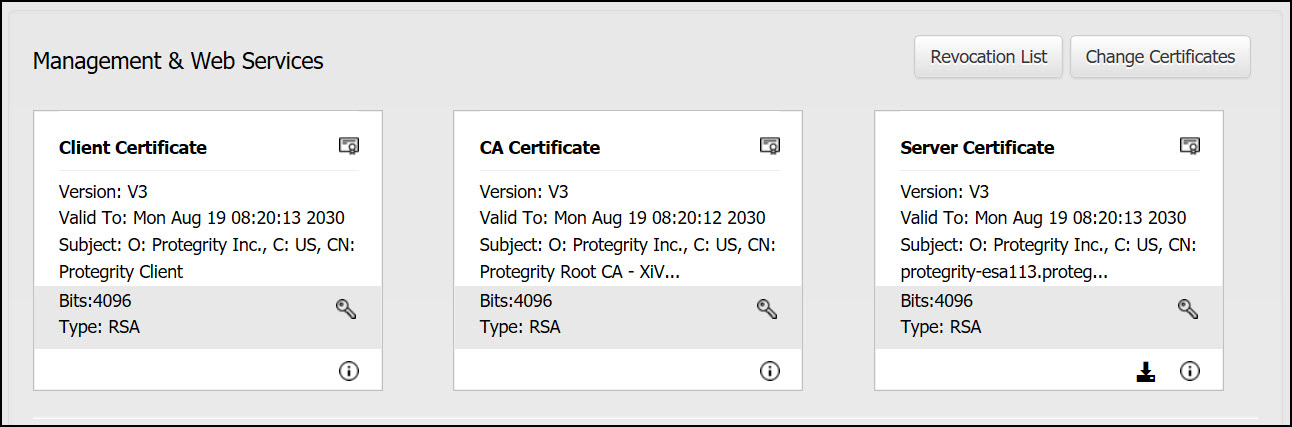
Management & Web Services: These services manages certificate-based communication and authentication between the ESA and its internal components and between ESA and external clients (REST).
For more information about Management and Web Services certificates, refer to Certificates in the ESA.
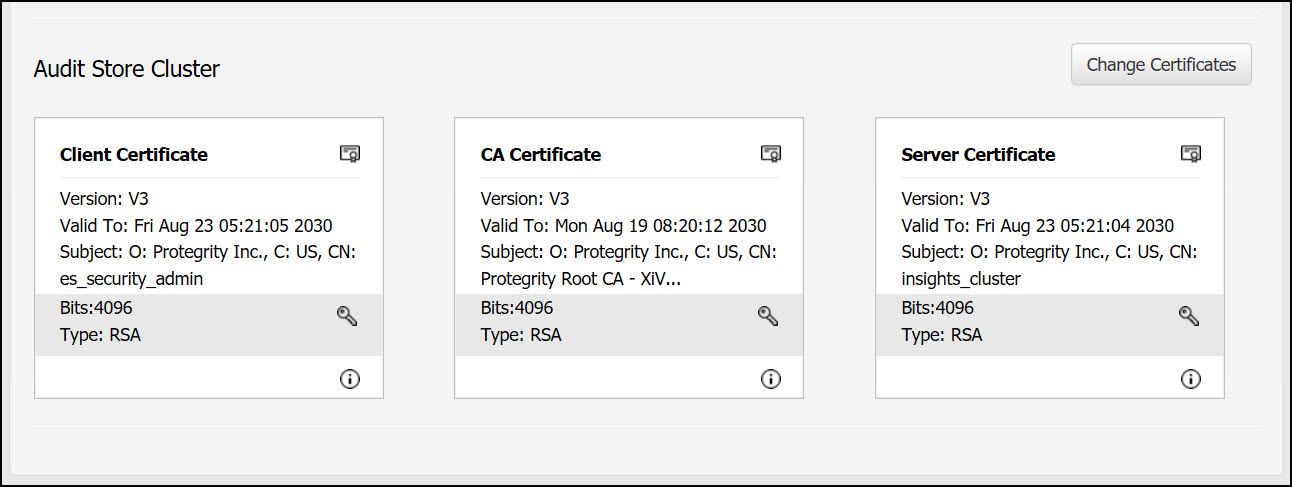
Audit Store Cluster: This is used for the Insight inter-node communication that takes place over the port 9300. These certificates are stored in the /esa/ksa/certificates/as_cluster directory on the ESA.
Server certificate: The server certificate is used for for inter-node communication. The nodes identify each other using this certificate. The Audit Store Cluster and Audit Store REST server certificate must be the same.
Client certificate: The client certificate is used for applying and maintaining security configurations for the Audit Store cluster.
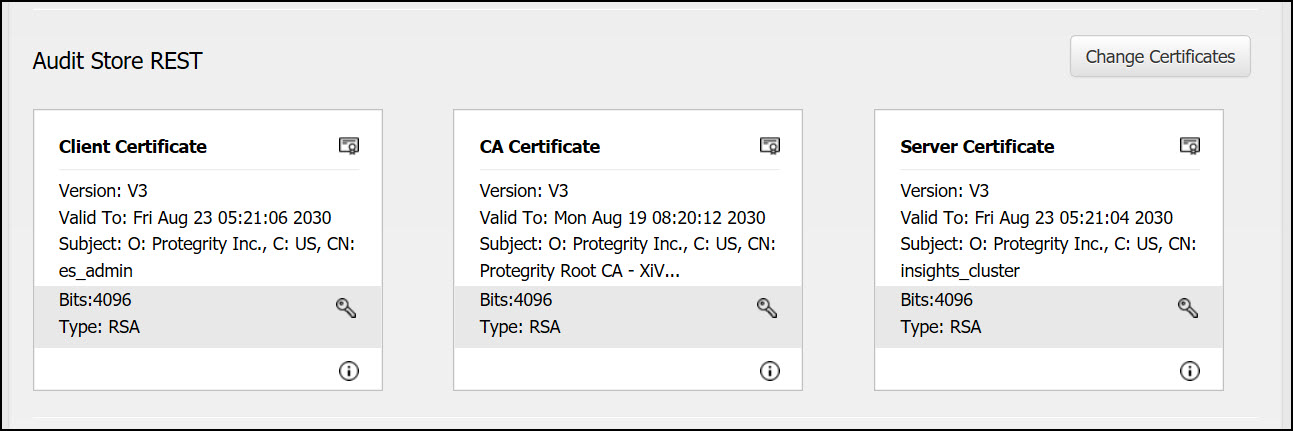
Audit Store REST: This is used for the Audit Store REST API communication over the port 9201. These certificates are stored in the /esa/ksa/certificates/as_rest directory on the ESA.
Server certificate: The server certificate is used for mutual authentication with the client. The Audit Store Cluster and Audit Store REST server certificate must be the same.
Client certificate:The client certificate is used by the Audit Store nodes to authenticate and communicate with the Audit Store.
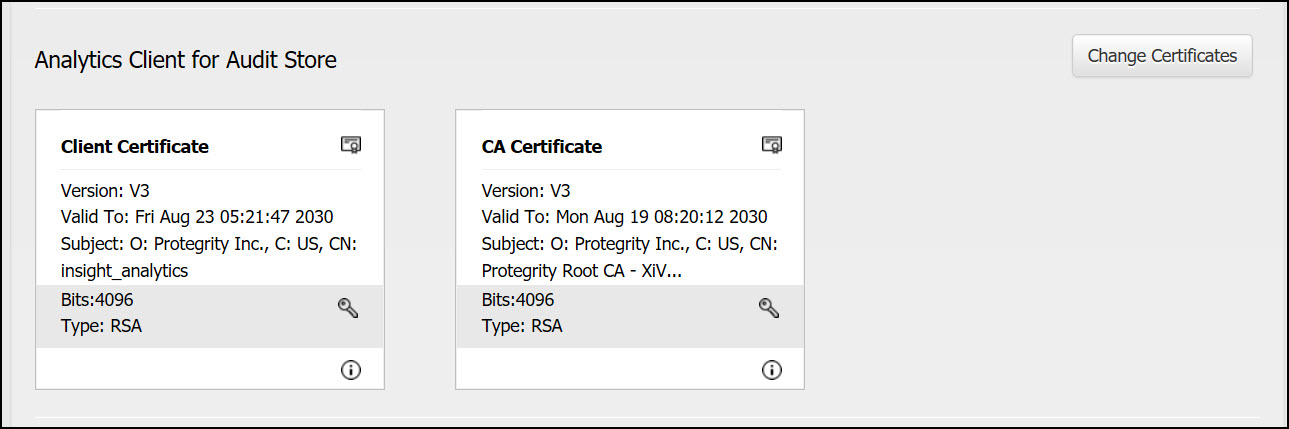
Analytics Client for Audit Store: This is used for communication between Analytics and the Audit Store. These certificates are stored in the /esa/ksa/certificates/ian directory on the ESA.
Client certificate: The client certificate is used by Analytics to authenticate and communicate with the Audit Store.
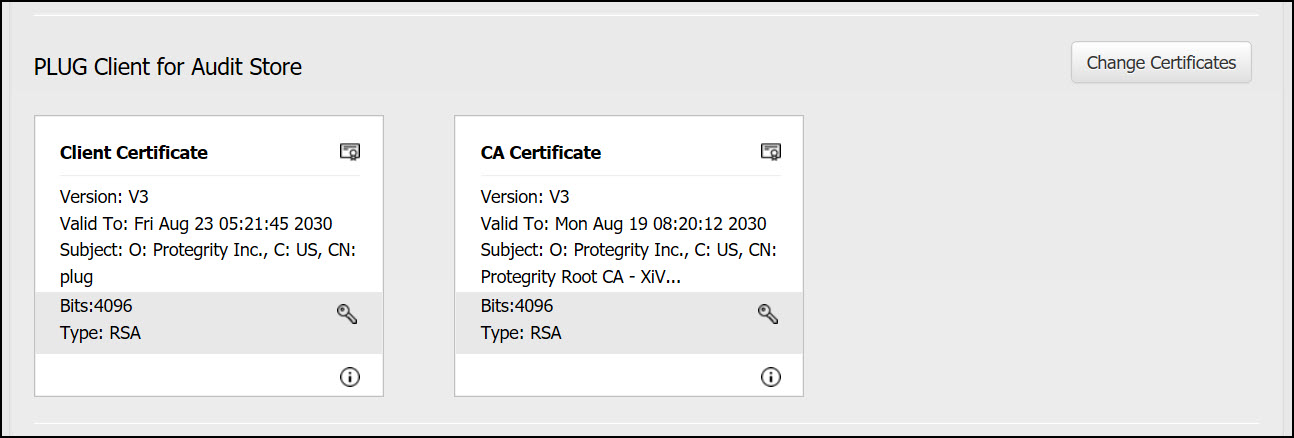
PLUG Client for Audit Store: This is used for communication between Insight and the Audit Store. These certificates are stored in the /esa/ksa/certificates/plug directory on the ESA.
Client certificate: The client certificate is used by the Log Forwarder to authenticate and communicate with the Audit Store.
Using custom certificates in Insight
The certificates used for Insight are system-generated Protegrity certificates. If required, upload and use custom CA, Server, and Client certificates for Insight.
For custom certificates, ensure that the following prerequisites are met:
Ensure that all certificates share a common CA.
Ensure that the following requirements are met when creating the certificates:
The CN attribute of the Audit Store Server certificate is set to insights_cluster.
The CN attribute of the Audit Store Cluster Client certificate is set to es_security_admin.
The CN attribute of the Audit Store REST Client certificate is set to es_admin.
The CN attribute of the PLUG client certificate for the Audit Store is set to plug.
The CN attribute of the Analytics client certificate for the Audit Store is set to insight_analytics.
The Audit Store Server certificates’ must contain the following in the Subject Alternative Name (SAN) field:
- Required: FQDN of all the Audit Store nodes in the cluster
- Optional: IP addresses of all the Audit Store nodes in the cluster
- Optional: Hostname of all the Audit Store nodes in the cluster
For a DNS server, include the hostname and FQDN details from the DNS sever in the certificate.
Ensure that the certificates are generated using a 4096 bit key.
For example, an SSL certificate with the SAN extension of servers ESA_Server_1, ESA_Server_2, and ESA_Server_3 in a cluster will have the following entries:
- ESA_Server_1
- ESA_Server_2
- ESA_Server_3
- ESA_Server_1.protegrity.com
- ESA_Server_2.protegrity.com
- ESA_Server_3.protegrity.com
- IP address of ESA_Server_1
- IP address of ESA_Server_2
- IP address of ESA_Server_3
When upgrading from an earlier version to ESA 8.1.0.0 and later with custom certificates, run the following step after the upgrade is complete and custom certificates are applied for Insight, that is, td-agent, Audit Store, and Analytics, if installed.
From the ESA Web UI, navigate to System > Services > Audit Store.
Ensure that the Audit Store Repository service is not running. If the service is running, then stop the service using the stop (
 ) icon in the Actions column.
Configure the custom certificates and upload it to the Certificate Repository.
Set the custom certificates for the logging components as Active.
From the ESA Web UI, navigate to System > Services > Audit Store.
Start the Audit Store Repository service using the start (
 ) icon in the Actions column.
In the ESA Web UI, click the Terminal Icon in lower-right corner to navigate to the ESA CLI Manager.
Navigate to Tools.
Run Apply Audit Store Security Configs.
Continue the installation to create an Audit Store cluster or join an existing Audit Store cluster.
For more information about creating the Audit Store cluster, refer here.
7 - Validating Certificates
Verifying the validity of a certificate
You can verify a client or a server certificate using the following commands:
```

openssl verify -CAfile /etc/ksa/certificates/CA.pem /etc/ksa/certificates/client.pem
openssl verify -CAfile /etc/ksa/certificates/CA.pem /etc/ksa/certificates/ws/server.pem

```

If the client or server certificate is signed by the provided CA certificate, then the certificate is valid. The message **OK** appears.
Verifying the purpose of a certificate
You can verify if the certificate is a client, a server, or a CA certificate using the following command:
```
openssl x509 -in <Certificate name> -noout -purpose
```

For example, run the following command to verify the purpose of the client certificate:

```
openssl x509 -in /etc/ksa/certificates/client.pem -noout -purpose
```
Extracting the CN of a certificate
To extract the username of a certificate, you must pass the DN value to the pty_get_username_from_certificate function. The following steps explain how to extract the CN of a certificate.
In the CLI Manager, navigate to Administration > OS Console..
Run the following command to extract the value that is in the Subject attribute of the certificate.
openssl x509 -noout -subject -nameopt compat -in /etc/ksa/certificates/client.pemRun the following command to extract the username from the Subject attribute of the client certificate.
/etc/ksa/pty_get_username_from_certificate.py "<Value in the Subject attribute of the client certificate>"For example,
/etc/ksa/pty_get_username_from_certificate.py "/O=Acme Inc./C=US/CN=Protegrity Client"
The CN attribute in a certificate can contain the Fully Qualified Domain Name (FQDN) of the client or server. If the length of the FQDN is greater than 64 characters, the hostname is considered as CN to generate a certificate.
Working with intermediate CA certificates
A root certificate is a public key certificate that identifies the root CA. The chain of certificates that exist between the root certificate and the certificate issued to you are known as intermediate CA certificates. You can use an intermediate CA certificate to sign the client and server certificates.
If you have multiple intermediate CA certificates, then you must link all the intermediate certificates and the root CA certificates into a single chain before you upload to the Certificate repository.
The following figure illustrates an example of two intermediate certificates and a root certificate.
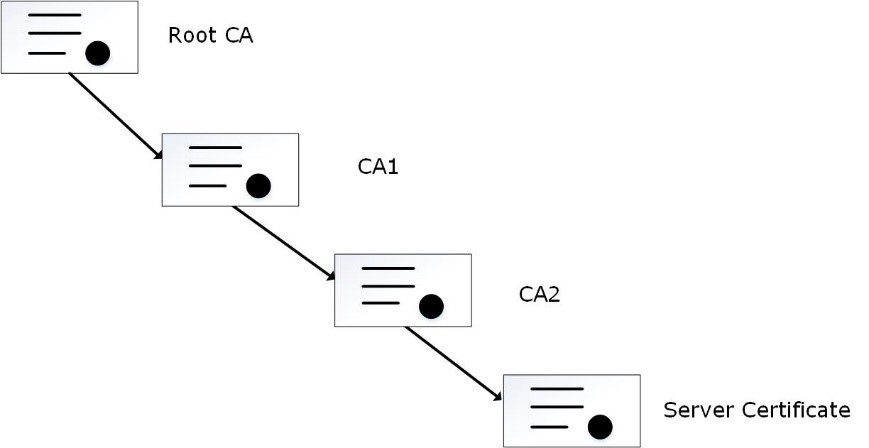
In the figure, the server certificate is signed by an intermediate certificate CA2. The intermediate certificate CA2 is signed by CA1, which is signed by the root CA.
You can merge the CA certificates using the following command in the OS Console:
cat ./CA2.pem ./CA1.pem ./rootCA.pem > ./newCA.pem
You must then upload the newCA.pem certificate to the Certificate Repository.
Ensure that you link the CA certificates in the appropriate hierarchy.
Increasing the Log Level to view errors for certificates:
If you want to view the errors and warnings generated for certificates, then you can increase the LogLevel attribute.
In the CLI Manager, navigate to Administration > OS Console.
View the apache.mng.conf file using a text editor.
/etc/ksa/service_dispatcher/servers/apache.mng.confUpdate the value of the LogLevel parameter from warn to debug and exit the editor.
View the apache.ws.conf file using a text editor.
/etc/ksa/service_dispatcher/servers/apache.ws.confUpdate the value of the LogLevel parameter from warn to debug.
Navigate to Administration > Services. The Service Management screen appears.
Restart the Service Dispatcher service.
Navigate to the /var/log/apache2-service_dispatcher directory.
Open the error.log file to view the required logs.
After debugging the errors, ensure that you revert the value of the LogLevel parameter to warn and restart the Service Dispatcher service.