A Key Management solution that an enterprise selects must ensure that data encryption does not disrupt organizational functions. Key Management solutions must provide secure administration of keys through their life cycle. This includes generation, use, distribution, storage, recovery, rotation, termination, auditing, and archival.
This is the multi-page printable view of this section. Click here to print.
Key Management
Overview of Key Management to explain its importance and impact on Protegrity products.
- 1: Protegrity Key Management
- 2: Key Management Web UI
- 3: Working with Keys
- 4: Key Points for Key Management
- 5: Keys-Related Terminology
- 6: Key Store Management
- 6.1: Support Matrix
- 6.2: Configuring the ESA with HSMs supporting PKCS#11 Interface
- 6.3: Configuring the ESA with the Thales Luna HSM
- 6.4: Configuring the ESA with Thales Data Protection on Demand (DPoD) HSM
- 6.5: Configuring the ESA with AWS Key Management System (KMS)
- 6.6: Configuring the ESA with Google Cloud KMS
- 6.7: Configuring the ESA with Azure Key Vault Managed HSM
- 6.8: Switching Key Stores
- 6.9: Troubleshooting
- 6.10: TAC Replication of Key Store-specific Files and Certificates
1 - Protegrity Key Management
The Protegrity Data Security platform uses many keys to protect your sensitive data. The Protegrity Key Management solution manages the keys.
The following keys are a part of the Protegrity Key Management solution:
- Key Encryption Key (KEK): The cryptographic key used to protect other keys. It is also known as the Master Key (MK). It protects the Data Store Keys, Repository Keys, Signing Keys, and Data Element Keys.
- Data Encryption Key (DEK): The cryptographic keys used to protect sensitive data. The Data Encryption Keys (DEKs) are categorized as follows:
- Repository Key: It protects the policy information in the ESA.
- Signing Key: The protector utilizes the signing key to sign the audit logs for each data protection operation.
- Data Store Key: These keys are no longer used and are only present due to backward compatibility.
- Data Element Key: The cryptographic key that is used to protect sensitive data linked to an encryption data element.
Key Encryption Key (KEK) in Protegrity
- The Protegrity Key Encryption Key (KEK) is known as the Master Key (MK).
- It uses AES with a 256-bit key.
- The MK is non-exportable and is generated and stored within the active Key Store.
- The MK is responsible for protecting all the DEKs.
- The MK, RK, and signing key are generated when the ESA Policy and Key Management is initialized.
Data Encryption Keys (DEKs) in Protegrity
- The Repository Key (RK), Signing Key, Data Store Keys (DSKs), and Data Element Keys are collectively referred to as the (DEKs).
- The RK, Signing Key, and DSK are AES 256-bit keys.
- The Data Element Keys can be both 128-bit and 256-bit keys depending on the protection method used.
- The DEKs are generated by the active Key Store.
Key Usage Overview
In the Protegrity Data Security Platform, endpoint protection is implemented through policies. The keys form a part of the underlying infrastructure of a policy and are not explicitly visible.
The following figure provides an overview of the key management workflow.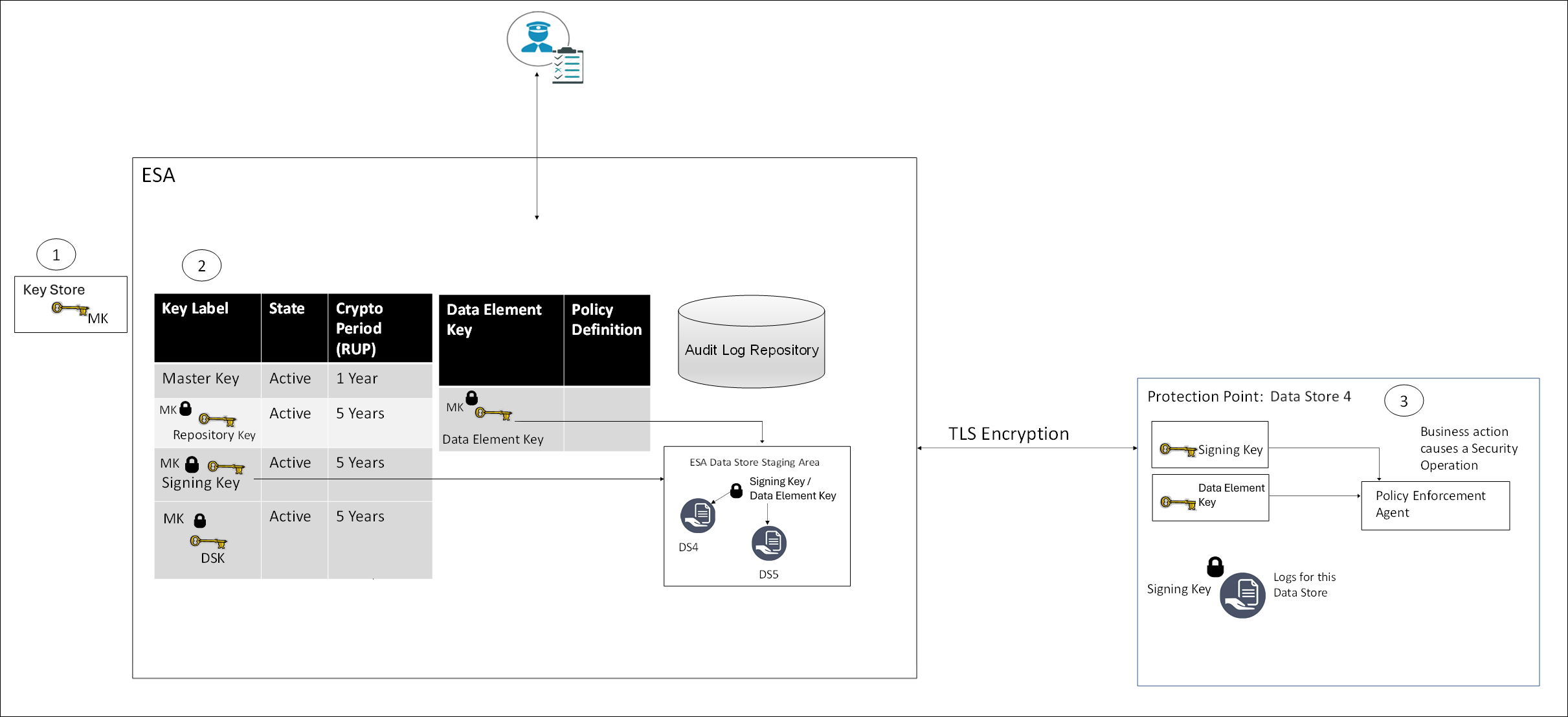
- All MKs are stored in the Key Store.
- In the ESA, all DEKs are stored and protected by the MK.
- In the Protector, the Signing key and Data Element Keys are stored in the memory.
Certificates
Certificates in Protegrity are generated when the ESA is installed. These certificates are used for internal communication between various components in the ESA. Their related keys are used for communication between the ESA and protectors.
For more information about certificates, refer to the section Certificates in ESA in the Certificate Management.
Key Store
A Key Store is a device used to generate keys, store keys, and perform cryptographic operations. The MK is stored in the Key Store and it is used to protect and un-protect DEKs.
When an enterprise implements a data protection solution in their infrastructure, they must carefully consider the type of Key Store to use as part of the implementation strategy. The Key Store can be connected to the Soft HSM, HSM, or KMS.
When the ESA is installed, the internal Protegrity Soft HSM generates the Master Key (MK). When switching Key Store, a new MK is generated in the new Key Store. The existing DEKs are re-protected using this new MK and the old MK is deactivated.
Protegrity Soft HSM: The Protegrity Soft HSM is an internal Soft HSM bundled with the ESA. The Protegrity Soft HSM provides all the functionalities that are provided by an HSM. Using the Protegrity Soft HSM ensures that keys remain within the secure perimeter of the data security solution (ESA).
HSM: The Protegrity Data Security Platform provides you the flexibility, if needed, to switch to an HSM.
Ensure that the HSM supports the PKCS #11 interface.
For more information about switching from the Key Store, refer to the HSM Integration.
Cloud KMS: Cloud-hosted Key Management Service (KMS) enables you to host encryption keys in a cloud-hosted KMS. You can perform cryptographic operations using this service as well. Protegrity supports Amazon Web Service (AWS) KMS, Google Cloud Platform (GCP) KMS, and Azure key management service. The KMS support varies by vendors, where some vendors support creating HSM-level keys.
For more information about switching Protegrity Soft HSM to Cloud KMS, refer to the section Key Store Management.
2 - Key Management Web UI
The Key Management Web UI lets you initialize and manage the master keys, respository keys, data store keys, signing keys, and data element keys.
Master Keys Web UI
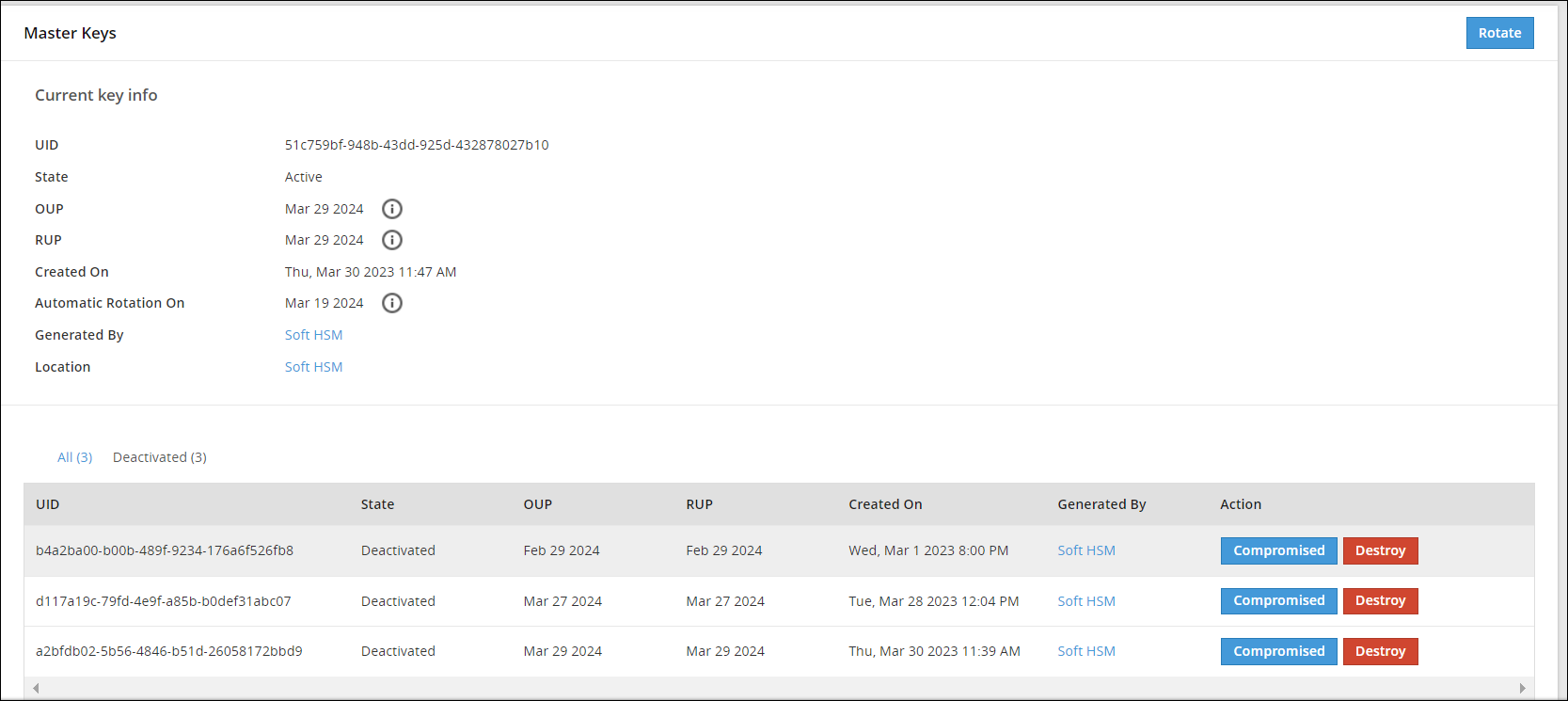
Information related to Master Keys, such as, state, timestamps for key creation and modification, and so on is available on the Master Keys Web UI.
The following image shows the Master Keys UI.
Repository Keys Web UI
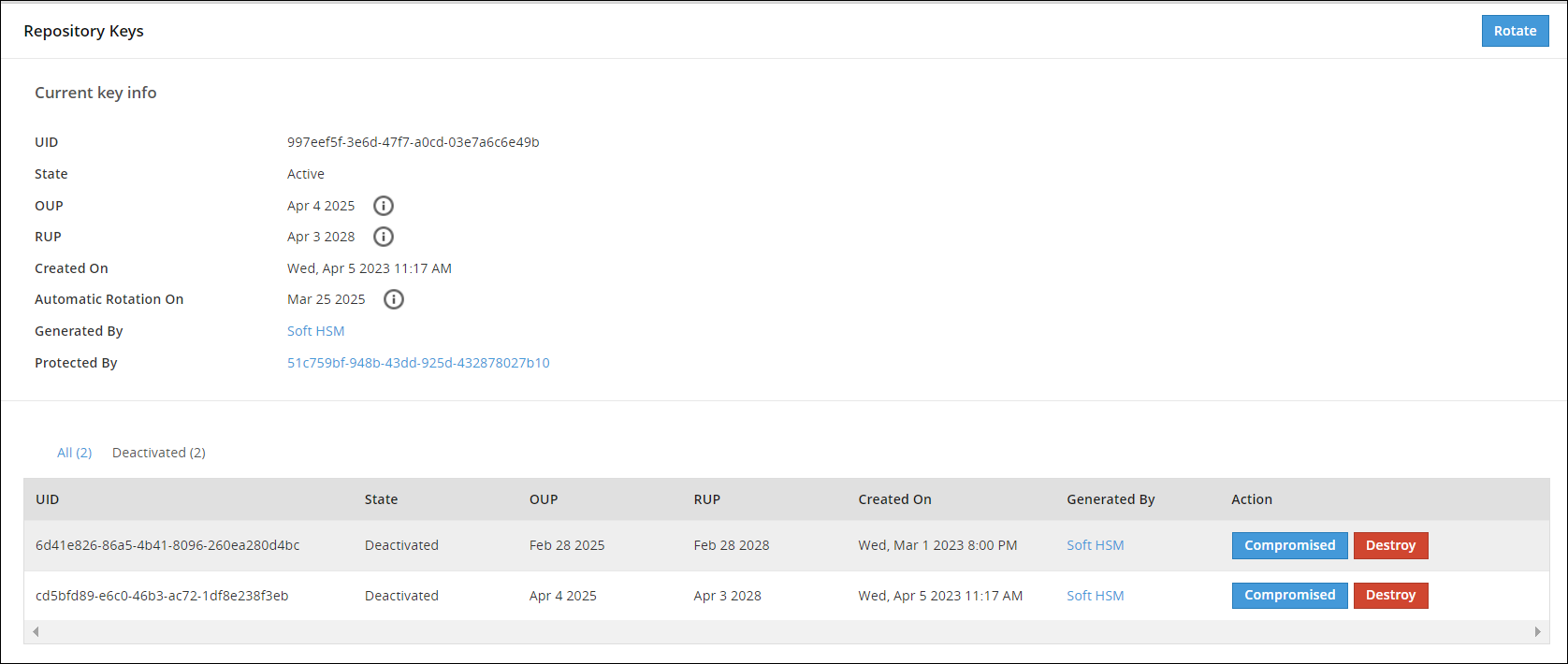
Information related to Repository keys, such as, state, timestamps for key creation and modification, and so on is available on the Repository Keys Web UI.
The following image shows the Repository Keys UI.
Data Store Keys Web UI
Information related to DSKs, such as, state, timestamps for key creation and modification, and so on is available on the Data Store Keys Web UI.
The following image shows the Data Store Keys UI.

The options available as part of the UI are explained in the following table.
| No. | Option | Description |
|---|---|---|
| 1 | Select multiple Data Store | Select the check box to rotate multiple Data Stores at the same time. |
| 2 | Data Store Name | Click to view information related to Active DSK and older keys. |
| 3 | UID | Unique identifier of the key. |
| 4 | State | Current State of the DSK linked to the Data Store. |
| 5 | OUP | The period of time in the cryptoperiod of a symmetric key during which cryptographic protection may be applied to data. |
| 6 | RUP | The period of time during the cryptoperiod of a symmetric key during which the protected information is processed. |
| 7 | Generated By | Indicates which Key Store has the generated key. |
| 8 | Action | Rotate - Click to rotate the DSK for a Data Store Key. |
| 9 | Rotate | Click to rotate the DSK for multiple selected Data Store Keys. |
If you click the Data Store name, for example DS1, you can view detailed information about the active key and older keys.
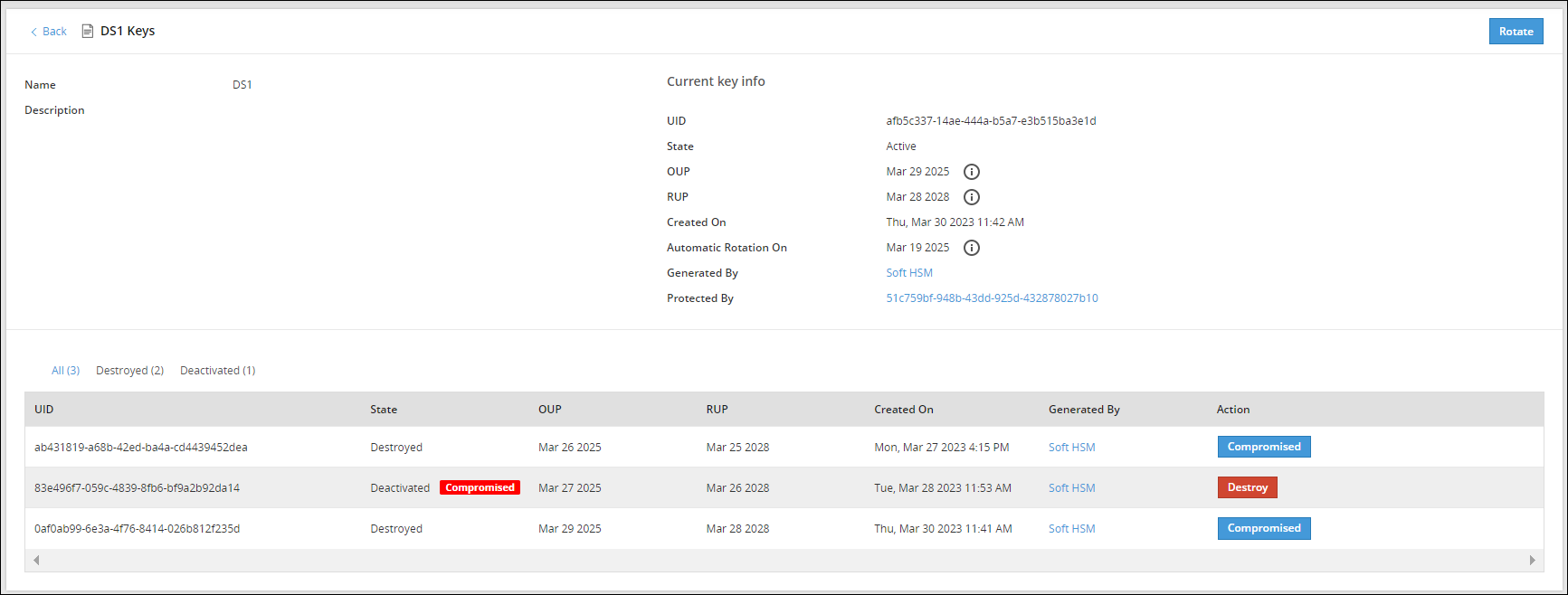
The Action column provides an option to change the state of a key to Destroyed or mark the key as Compromised. For more information about the options available for DSK states, refer to Changing Key States.
Signing Key Web UI
The Signing Key is used to add a signature to log records generated for each data protection operation. These signed log records are then sent from the Protector to the ESA. The Signing Key is used to identify if log records have been tampered with and that they are received from the required protection endpoint or Protector.
A single Signing Key is linked and deployed with all the data stores. At a time, only one Signing Key can be in the Active state.
The following image shows the Signing Keys UI.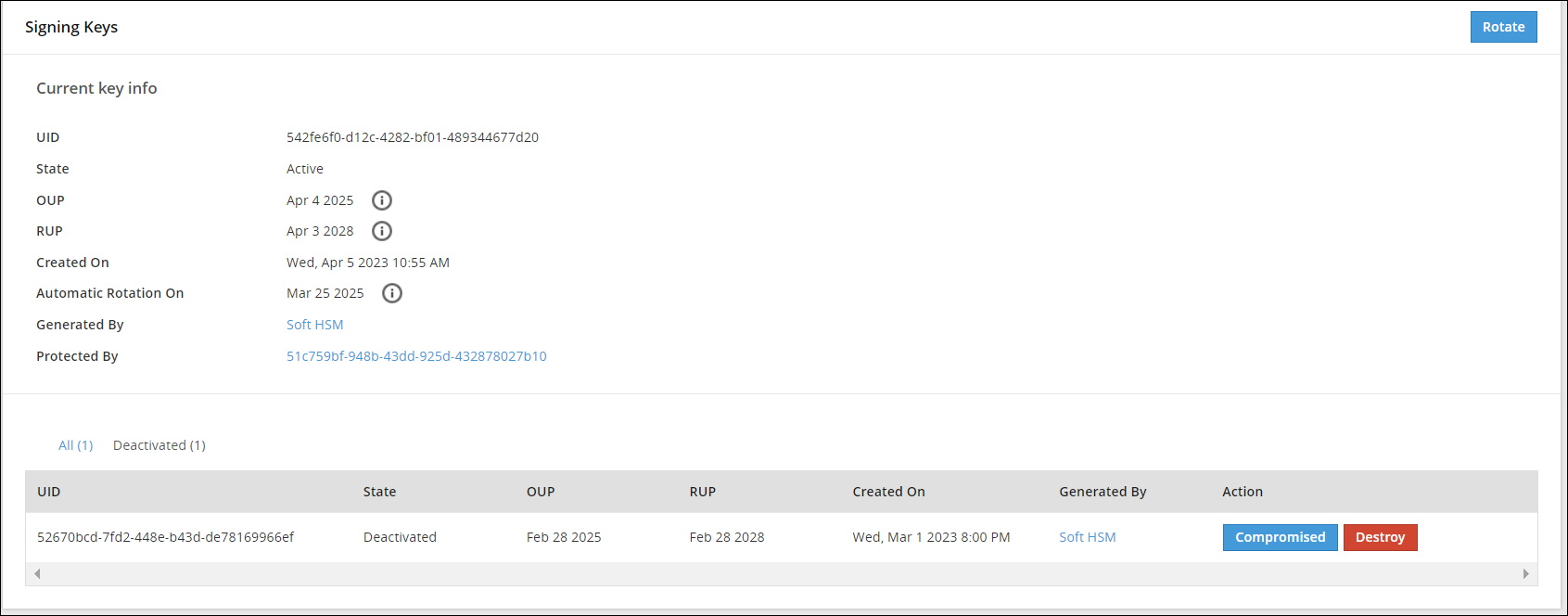
Data Element Keys Web UI
Information related to Data Element Keys, such as, state, OUP, RUP, and so on is available on the Data Element Keys Web UI.
The following image shows the Data Element Keys UI.
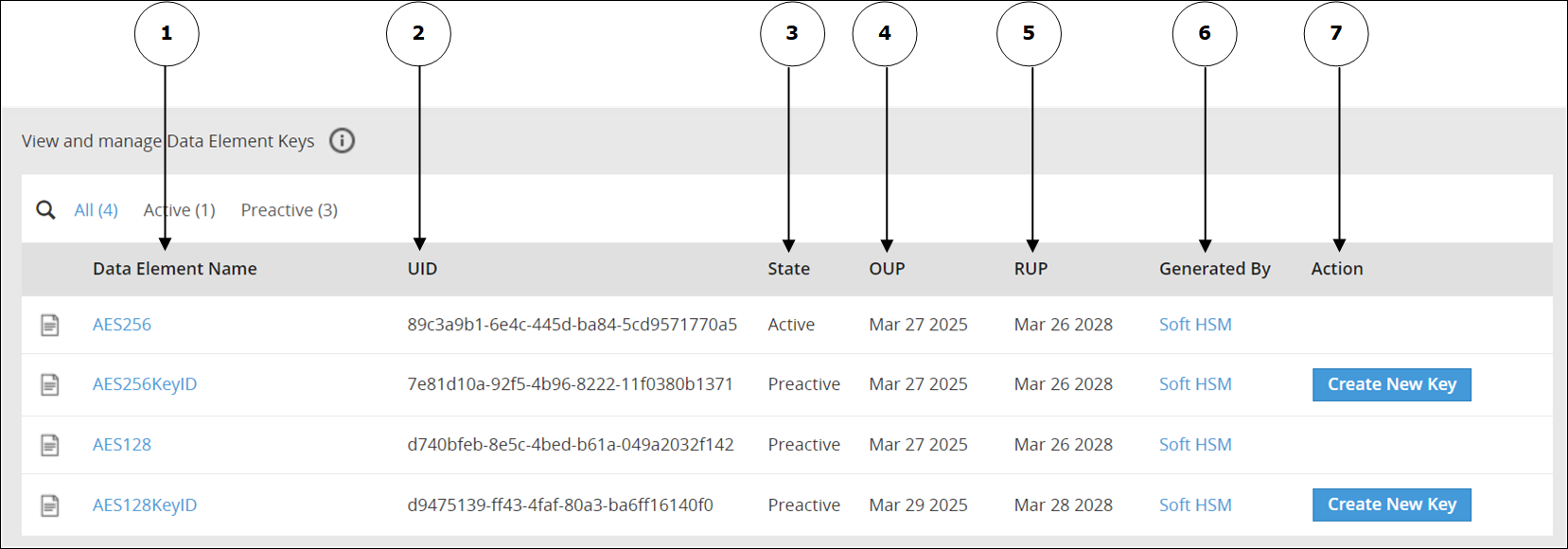
The options available as part of the UI are explained in the following table.
| No | Option | Description |
|---|---|---|
| 1 | Data Element Name | Click to view information related to the Active Data Element Key and older keys. |
| 2 | UID | Unique identifier of the key. |
| 3 | State | Current State of the Data Element Key linked to the Data Element. |
| 4 | OUP | The period of time in the cryptoperiod of a symmetric key during which cryptographic protection may be applied to data. |
| 5 | RUP | The period of time during the cryptoperiod of a symmetric key during which the protected information is processed. |
| 6 | Generated By | Indicates the source of key generation: - Soft HSM - The key has been generated by Protegrity Soft HSM. - Key Store - The Key Store used to generate the key. - Software - This option appears if you have generated the Data Element Key in an earlier version of the ESA before upgrading the ESA to v10.2.0. |
| 7 | Action | Create New Key: Click to create a new key. This option is available only if you have created a Data Element Key with a key ID. |
If you click the Data Element name, for example AeS256KeyID, then you can view detailed information about an active key and older keys.
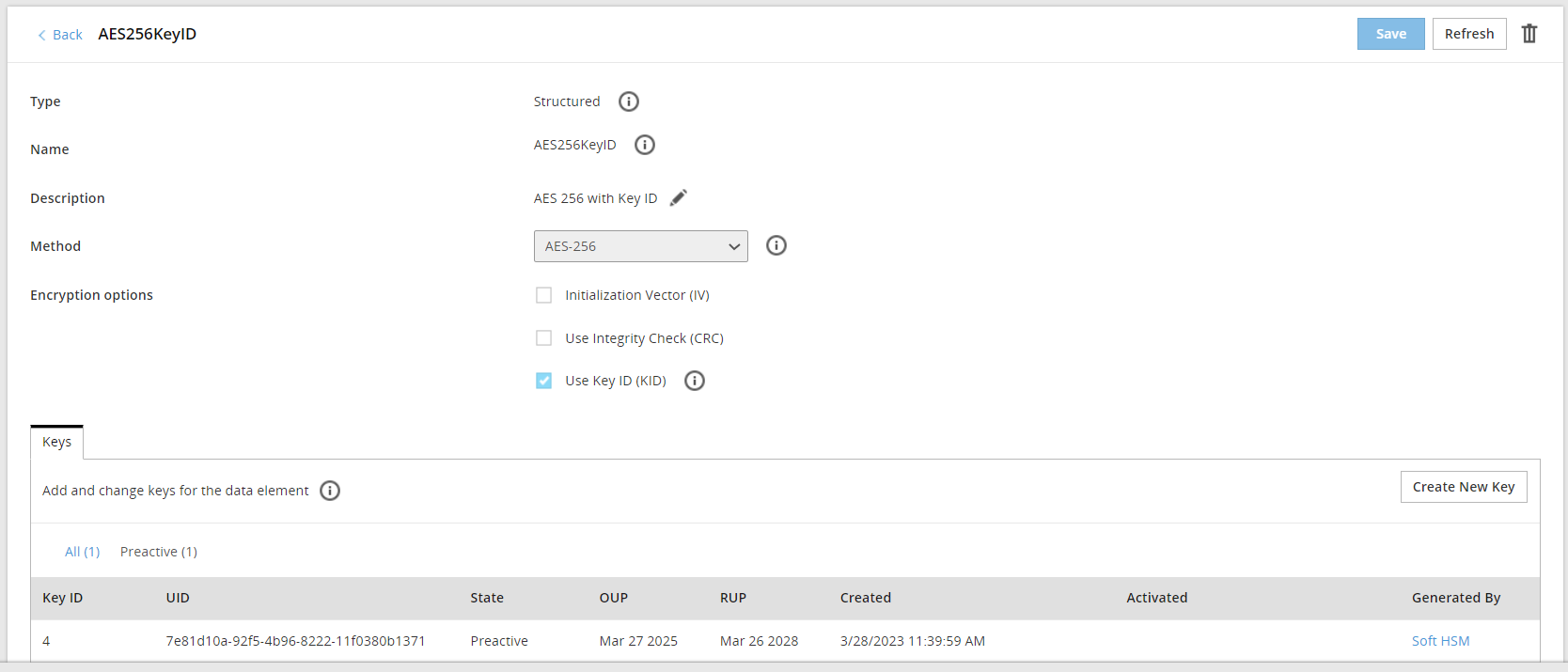
If key ID is enabled for a data element, then you click Create New Key to create a new key for the data element.
Important: Starting from the ESA v10.2.0, the Data Element Keys are generated by the active Key Store. When MK is rotated, all DEKs needs to be re-protected. As a result, if you are using too many keys, then your system might slow down in the following scenarios:
You are frequently rotating the keys.
You are using too many encryption data elements where the Key ID is enabled. This allows you to create multiple keys for the same encryption data element.
You are using too many data stores.
Your connection to the HSM is slow.
You can find out the total number of keys currently in use from the Keys area in the Policy Management Dashboard.
3 - Working with Keys
In the Protegrity Key Management, you can view information about keys, key stores, and manage the life cycle of different keys including key rotation.
Key rotation involves putting the new encryption key into active use. Key rotation can take place when the key is about to expire or when it needs to be deactivated due to malicious threats.
Master Key (MK), Repository Key (RK), Data Store Key (DSK), and Signing Key
The key rotation for KEKs and DEKs in the Protegrity Data Security Platform can be described as follows:
- The Master Key (MK), Repository Key (RK), Data Store Key (DSK), and Signing Key can be rotated using the ESA Web UI.
- The supported states for the MK, RK, DSK, and Signing Key are Active, Deactivated, Compromised, and Destroyed.
- When the ESA is installed, the MK, RK, and Signing Key are in the Active state.
- When the MK, RK, DSK, and Signing Key is rotated, the old key state changes from Active to Deactivated, while the new key becomes Active.
- The MK, RK, DSK, and Signing Key is set for automatic rotation ten days prior to the Originator Usage Period (OUP) expiration date by default.
- On the ESA Web UI, navigate to Key Management > Key Name to view the key details.
- The rotation for the MK, RK, DSK, and Signing Key from the ESA Web UI requires the user to be assigned with the KeyManager role.
Viewing the Key Information
You can view the MK,RK, DSK, and Signing Key information, such as, state, OUP, RUP,and other details using the Web UI. To view the key information:
- On the ESA Web UI, click Key Management > Required Key tab.
For example; if you select MK, the MK screen appears.
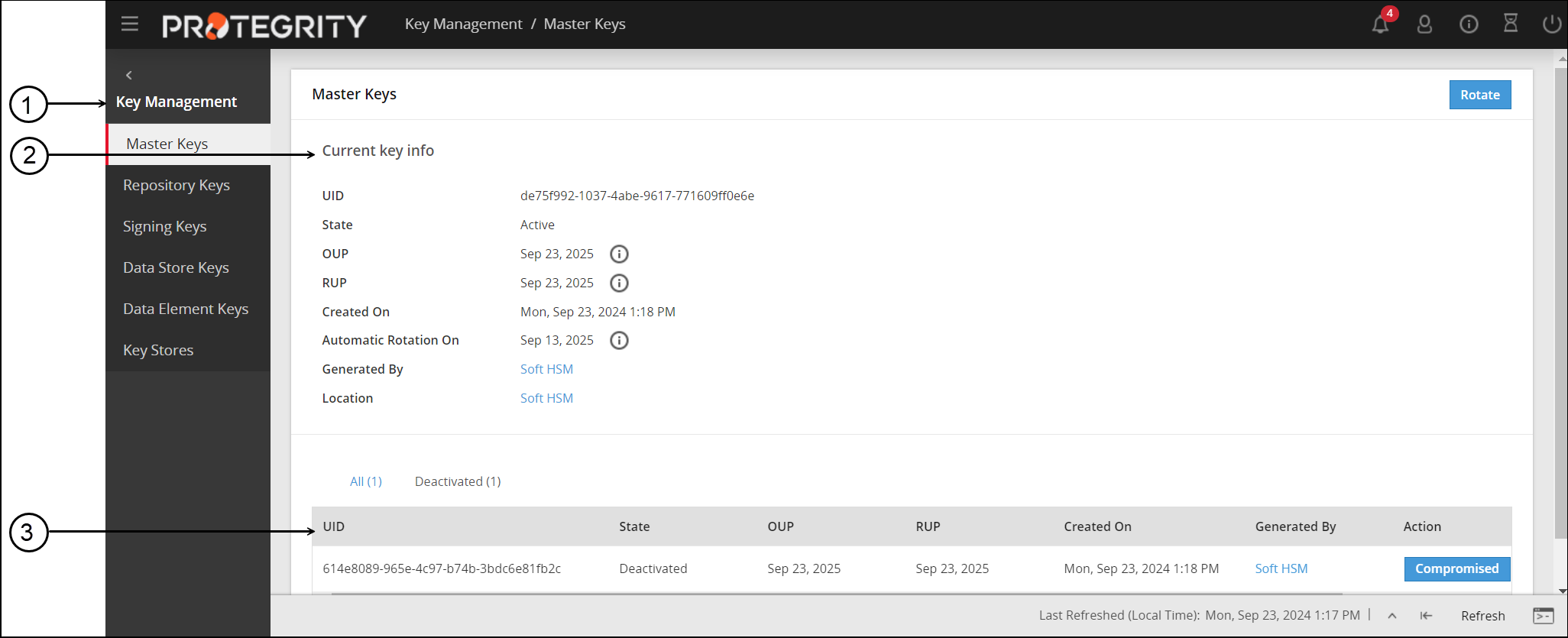
- In the Current key info section, view the current key information.
- The table displays the information related to the older Master Key.
You can rotate the MK, RK, DSK, and Signing Key by clicking the Rotate button.
Disable automatic ESA Master Key Rotation
Warning: Protegrity recommends not to disable automatic ESA Master Key rotation. Only security administrator can disable or enable automatic ESA Master Key rotation.
An automatic ESA Master Key rotation feature can be disabled or enabled through the ESA web UI.
To disable the automatic ESA Master Key rotation:
- On the ESA Web UI, click Key Management > Master Keys.
The Master Keys screen appears. - Click the Disable Automatic key rotation button.
A confirmation message appears. - Click OK.
The Automatic rotation for master keys has been disabled successfully message appears.
Note:
- When automatic ESA Master Key rotation is enabled or disabled, audit logs are generated. These logs provide information about the type of key and its ID.
- To enable the automatic ESA Master Key rotation, click the Enable Automatic key rotation button.
Changing the Key States
The following table provides information about the possible key states for MK, RK, DSK, and Signing Key that you can change based on their current state.
Current Key State | Can change state to | State Change | |
State | Reason | ||
Active | Deactivated |
| Auto |
Deactivated | Compromised | Key is compromised. | Manual |
Destroyed | Organization requirement | Manual | |
In the Deactivated key state, you can -
- Click Compromised to mark the key as Compromised and display a Compromised label next to the state.
- Click Destroy to mark the key as Destroyed and display a Destroyed label next to the state.
Data Element Keys
Data elements can have key IDs associated with them. Key IDs are a way to correlate a data element with its encrypted data. When a data element is created, and if the protection method is key based, a unique Data Element Key is generated. This key is seen in the Key Management Web UI.
Information related to Data Element Keys, such as, state, OUP, RUP, and so on is available on the Data Element Keys Web UI.
To view information about the Data Element Key:
- On the ESA Web UI, click Key Management > Data Element Keys.
The View and manage Data Element Keys screen displays the list of data element keys. - Click a data element name, for example DE1. The Data Elements tab appears, which displays the current information about the Data Element Key.
- The table displays the information related to the older Data Element Keys.
Data Element Key States
This section describes the key states for the Data Element Keys.
The following table provides information about the possible key states for the Data Element Keys that you can change based on their current state.
Current Key State | Can change state to | State Change | |
State | Reason | ||
| Preactive | Active | Deploying a policy | Auto |
Active | Deactivated | Adding a new key to the data element.If you click the Data Element name, for example AES256KeyID, then you click Create New Key button to create a new key for the data element. | Auto |
When you create a new key, its state is set to Preactive state.
Key Cryptoperiod and States
Cryptoperiods can be defined as the time span for which the key remains available for use across an enterprise. Setting cryptoperiods ensures that the probability of key compromise by external threats is limited. Shorter cryptoperiods ensure that the strength of security is greater.
In the ESA, the Master Key, Repository Key, Signing Key, Data Store Key, and the Data Element Keys are governed by cryptoperiods. For these keys in the ESA, the validity is dictated by the Originator Usage Period (OUP) and the Recipient Usage Period (RUP). The OUP is the period until when the key can be used for protection, while the RUP is the period when the key can be used to unprotect only.
For keys in Protegrity, the following table provides the OUP and RUP information.
| Key Name | OUP | RUP |
|---|---|---|
| Master Key | 1 Year | 1 Year |
| Repository Key | <=2 Years | <=5 Years |
| Data Store Key | <=2 Years | <=5 Years |
| Signing Key | <=2 Years | <=5 Years |
| Data Element Key | <=2 Years | <=5 Years |
For more information about key states, refer to Changing Key States.
4 - Key Points for Key Management
Key Points be followed to leverage the best out of the Protegrity Key Management functionality.
- The user must have the KeyManager role to rotate the Repository Key (RK), Master Key (MK), Signing Key, and Data Store Key (DSK).
- Key Rotation must be performed only after reviewing the existing policies or regulatory compliances followed by your organization.
- It is essential that a Corporate Incident Response Plan is drafted to:
- Understand the security risks of key rotation.
- Handle situations where keys might be compromised.
- Consult with security professionals, such as Protegrity, to understand how to enable key rotation. Minimize the impact on business processes affected by the keys during this process.
5 - Keys-Related Terminology
A definition of terminologies related to the keys.
The following table provides an introduction to terminology related to keys that can help you understand Protegrity Key Management.
| Term | Definition |
|---|---|
| Master Key (MK) | It is generated and stored in the Key Store. When the Key Management is initialized, the Key Store is switched or active key is rotated. MK protects all DEKs in the Policy repository. |
| Repository Key (RK) | It is generated in the configured Key Store when the Key Management is initialized or active key is rotated. It is protected by MK. It protects the Policy Repository in ESA. |
| Data Store Keys (DSK) | It is generated in the configured Key Store when a Data Store is created. It is protected by MK. It is only used to protect staging located on the ESA. |
| Signing Key | It is generated in the configured Key Store when the ESA is installed and key management is initialized. It is protected by MK.It is used to sign the audits generated by protectors. It is used by the Protector to add a signature to the log records generated for each data protection operation, which are then sent from the Protector to the ESA.The Signing Key helps to identify that the log records have not been tampered with and are received from the required protection endpoint or Protector. |
| Key Encryption Keys (KEK) | It protects other keys. In Protegrity Data Security Platform, the MK is the KEK. |
| Data Encryption Keys (DEK) | It is used to protect data. In the Protegrity Data Security Platform, the RK, Signing Key, DSK, and Data Element Keys are the DEKs. |
| Data Element Keys | It is generated when a data element is created. This key protects the sensitive data. |
| Protegrity Soft HSM | It is internally housed in the ESA. It is used to generate keys and stores the Master key. |
| Key Store - HSM or KMS | The Key Store can be a Hardware Security Module (HSM), or other supported Key Management Service (KMS) that can store keys and perform cryptographic operations. |
| NIST 800-57 | NIST Special Publication 800-57 defines best practices and recommendations for the Key Management. |
| FIPS 140-2 | Federal information process standard (FIPS) used to accredit cryptographic modules. |
| PKCS#11 Interface | Standard API for Key Management. |
| Key States | The state of a key during the key life cycle. |
| Cryptoperiods | The time span during which a specific key is authorized for use or in which the keys for a given system or application may remain in effect. |
| Originator Usage Period (OUP) | The period of time in the cryptoperiod of a symmetric key during which cryptographic protection may be applied to data |
| Recipient Usage Period (RUP) | The period of time during the cryptoperiod of a symmetric key during which the protected information is processed. |
| Endpoint | It is the protection endpoint. In most cases, it is the Protector. |
| Policy Repository | Internal storage in ESA, which stores policy information including the Master key properties and all DEK properties. |
6 - Key Store Management
Steps to create, manage, and delete Key Stores.
Creating Key Stores
The steps to create a Key Store depend on the type, as shown in the following table.
Only users with a Security Administrator privileges can create Key Stores.
| Key Store Type | Steps to Create Key Store |
|---|---|
| PKCS #11 | |
| AWS KMS | Configuring the ESA with AWS KMS |
| Google Cloud KMS | Configuring the ESA with Google Cloud KMS |
| Azure Key Vault Managed HSM | Configuring the ESA with Azure Key Vault Managed HSM |
Managing Key Stores
A user with Security Administrator privileges can fully modify Key Stores after they have been created. However, a user with Security Viewer privileges cannot modify Key Stores.
Deleting Key Stores
Only a user with Security Administrator privileges can delete Key Stores. However, an active Key Store cannot be deleted. Also, the default Protegrity Soft HSM cannot be deleted.
To remove a Key Store:
On the ESA Web UI, navigate to Key Management > Key Stores.
The Key Stores tab appears.
Select the name of a key store from the list, and click the Delete action.
A confirmation dialog box appears.
Click OK.
A message Key Store has been deleted successfully appears.
6.1 - Support Matrix
Support Matrix for the Hardware Security Module (HSM) and cloud platforms.
Support Matrix for HSM
The following table for the support matrix describes the hardware requirements, software requirements, and the compatibility information of the Enterprise Security Administrator (ESA) and the Hardware Security Module (HSM).
| System or Appliance | Supported Version |
|---|---|
| Enterprise System Administrator (ESA) | 10.2.0 and later |
| Thales Luna Appliance | 7.4.0 |
| Firmware | 7.3.3 |
| Thales Luna Universal Client | Thales Universal Client 10.9.1 / PKCS#11 2.20 |
| Thales Data Protection on Demand (DPoD) Universal Client | 10.7 |
The versions listed represent the minimum tested configurations confirming PKCS#11 compatibility. For forward compatibility with newer Universal Client or firmware versions, refer to the compatibility matrix from Thales.
Support Matrix for Cloud Platforms
The following table provides compatibility information of the cloud platforms, such as Amazon Web Services (AWS), Azure, and Google Cloud Platform (GCP) with the Protegrity ESA appliance.
| Cloud Platform | Supported Version |
|---|---|
| AWS | ESA 10.2.0 and later |
| Azure | ESA 10.2.0 and later |
| GCP | ESA 10.2.0 and later |
6.2 - Configuring the ESA with HSMs supporting PKCS#11 Interface
Steps to connect to PKCS #11 HSMs.
Verifying the Prerequisites
Ensure that the following prerequisites are met:
Ensure that you have downloaded HSM Client on your local machine.
Ensure that the HSM partition is initialized.
Ensure that you have downloaded the required libraries, configuration files, and certificates required for connecting to the HSM. The certificates can include the server certificate of the HSM, the client certificate for the ESA appliance, and the CA certificate.
For more information required about the files required for connecting to the HSM, refer the documentation for the corresponding HSM.
Configuring Connection with HSM
To configure a connection with an HSM:
On the ESA Web UI, navigate to Key Management > Key Stores.
The Key Stores screen appears.
Click New Key Store.
The Create New Key Store screen appears.
In the Key Store Information section, enter the following details.
- Name: Type a unique name for HSM. The name that you type will update the Key Store installation path field.
- Type: Select PKCS #11.
In the PKCS#11 details section, enter the following details:
- User pin: Specify the user pin for the given slot ID of the HSM.
- Slot: Enter the slot ID for the HSM.
Perform the following steps to add the environment variables.
To configure the PKCS #11 connection, you need to override the default location of the HSM configuration file. You can do this by setting the environment variable for the HSM-specific library.In the Key Store files and environment variables > Key Store environment variables section, click Add environment variable.
The Add Key Store environment variable dialog box appears.Enter the following details:
- Environment variable name: Specify the environment variable name for the HSM.
For example, specify the ChrystokiConfigurationPath for Thales Luna HSM. - Environment variable value: Specify the value for the environment variable.
For example, specify /opt/protegrity/keystore/<Keystore_name>, which is the value of the Key Store installation path field, for the Thales Luna HSM.
If you want to mask the value of the variable in the UI, then click the Sensitive toggle to the on position. This ensures that the variable value is hidden while typing and is replaced with asterisks of a fixed-length in the list of environment variables.
- Click Save.
In the Key Store files and environment variables > Key Store files section, click Add File.
The Add Key Store File dialog box appears.Select the specific file type from the drop-down menu. The following table provides more detail on each selectable type. Note that only one type of file can be selected at a time.
| File Type | File |
|---|---|
| Library | Select the HSM library file from your local machine. For example, for Thales Luna HSM, select the libCryptoki2_64.so file. |
| Configuration | Select the HSM configuration file from your local machine. For example, for Thales Luna HSM, select the Chrystoki.conf file. |
| Other | Select the HSM client certificate, client key, and server certificate from your local machine. |
Click Add File to add the file to the Key Store files section.
Repeat steps 7 to 8 till you have added all the files required to connect to the Key Store.
Perform the following steps to edit the configuration file.
a. Click the Edit icon next to the configuration file.
The Edit Key Store File screen appears.b. Update the path of the required configuration parameters to match the path displayed in the Key Store installation path field.
c. Click Save.
The Edit Key Store File screen closes.Click Save.
The Key Store saved successfully message appears.Click Test to test the Key Store connection.
The Test Key Store Connection dialog box appears.Click OK to close the Test Key Store Connection dialog box.
Click Set As Active to activate the Key Store.
6.3 - Configuring the ESA with the Thales Luna HSM
Steps to connect to the Thales Luna HSM.
Verifying the Prerequisites
Ensure that the following prerequisites are met:
Ensure that the HSM partition is initialized.
Ensure that you have downloaded the required libraries, configuration files, and certificates required for connecting to the HSM. The certificates can include the server certificate of the Thales Luna HSM, the client certificate for the ESA appliance, and the CA certificate.
For more information required about the files required for connecting to the Thales Luna HSM, refer to the Thales Luna documentation.Ensure that the following roles on the Thales Luna HSM are granted read and write permissions:
- Partition Officer (PO) / Security Officer (SO)
- Crypto Officer (CO)
- Crypto User (CU)
It is recommended to configure the Thales Luna HSM client library to authenticate using the Crypto User (CU). The following setting in the Miscellaneous section of the Chrystoki.conf configuration file configures the role to use for the challenge request status.
ProtectedAuthenticationPathFlagStatus = 2Note: The Crypto User (CU) must be initialized on the Thales Luna HSM by using methods, such as, setting a PIN for the Crypto User (CU).
For more information about initializing the Crypto User (CU), refer to the documentation of the HSM vendor.
Configuring Connection with Thales Luna HSM
To configure a connection with Thales Luna HSM:
On the ESA Web UI, navigate to Key Management > Key Stores.
The Key Stores screen appears.
Click New Key Store.
The Create New Key Store screen appears.
In the Key Store Information section, enter the following details.
- Name: Type a unique name for HSM. For example, type Thales_Luna_HSM. The name that you type will update the Key Store installation path field.
- Type: Select PKCS #11.
In the PKCS#11 details section, enter the following details:
- User pin: Specify the user pin for the given slot ID of the Thales Luna HSM.
- Slot: Enter the slot ID for the Thales Luna HSM.
In the Key Store files and environment variables > Key Store environment variables section, click Add environment variable.
The Add Key Store environment variable dialog box appears.Enter the following details, and then click Save:
- Environment variable name: Specify ChrystokiConfigurationPath as the environment variable name for the Thales Luna HSM.
- Environment variable value: Specify the value for the environment variable.
For example, specify /opt/protegrity/keystore/<Keystore_name>, which is the value of the Key Store installation path field, for the Thales Luna HSM.
If you want to mask the value of the variable in the UI, then click the Sensitive toggle to the on position. This ensures that the variable value is hidden while typing and is replaced with asterisks of a fixed-length in the list of environment variables.
In the Key Store files and environment variables > Key Store files section, click Add File.
The Add Key Store File dialog box appears.Enter the following details.
File Type File Library Select the libCryptoki2_64.so HSM library file from your local machine. Configuration Select the Chrystoki.conf HSM configuration file from your local machine. Other Select the Thales Luna HSM client certificate, client key, and server certificate from your local machine.
Note: You can select only one file at a time.
Click Add File to add the file to the Key Store files section.
Repeat steps 7 to 9 till you have added all the files required to connect to the Key Store.
Perform the following steps to edit the configuration file.
a. Click the Edit icon next to the configuration file.
The Edit Key Store File screen appears.b. Update the path of the required configuration parameters to match the path displayed in the Key Store installation path field.
c. Click Save.
The Edit Key Store File screen closes.Click Save.
The Key Store saved successfully message appears.Click Test to test the Key Store connection.
The Test Key Store Connection dialog box appears.Click OK to close the Test Key Store Connection dialog box.
Click Set As Active to activate the Key Store.
> Note: If you are using the Thales Luna HSM on an external network, then the policy management services might have a longer start-up time due to network latency.
6.4 - Configuring the ESA with Thales Data Protection on Demand (DPoD) HSM
Steps to connect to Thales DPoD HSM.
Verifying the Prerequisites
Ensure that the following prerequisites are met:
Ensure that the HSM partition is initialized.
Ensure that you have downloaded the required libraries, configuration files, and certificates required for connecting to the HSM. The certificates can include the server certificate of the Thales DPoD HSM, the client certificate for the ESA appliance, and the CA certificate.
For more information required about the files required for connecting to the Thales DPoD HSM, refer to the Thales DPoD documentation.Ensure that the following roles on the Thales DPoD HSM are granted read and write permissions:
- Partition Officer (PO) / Security Officer (SO)
- Crypto Officer (CO)
- Crypto User (CU)
Configuring Connection with Thales DPoD HSM
To configure connection with Thales DPoD HSM:
On the ESA Web UI, navigate to Key Management > Key Stores.
The Key Stores screen appears.
Click New Key Store.
The Create New Key Store screen appears.
In the Key Store Information section, enter the following details.
- Name: Type a unique name for HSM. For example, type Thales_DPoD_HSM. The name that you type will update the Key Store installation path field.
- Type: Select PKCS #11.
In the PKCS#11 details section, enter the following details:
- User pin: Specify the user pin for the given slot ID of the Thales DPoD HSM.
- Slot: Enter the slot ID for the Thales DPoD HSM.
In the Key Store files and environment variables > Key Store environment variables section, click Add environment variable.
The Add Key Store environment variable dialog box appears.Enter the following details, and then click Save:
- Environment variable name: Specify ChrystokiConfigurationPath as the environment variable name for the Thales DPoD HSM.
- Environment variable value: Specify the value for the environment variable.
For example, specify /opt/protegrity/keystore/<Keystore_name>, which is the value of the Key Store installation path field, for the Thales DPoD HSM.
If you want to mask the value of the variable in the UI, then click the Sensitive toggle to the on position. This ensures that the variable value is hidden while typing and is replaced with asterisks of a fixed-length in the list of environment variables.
In the Key Store files and environment variables > Key Store files section, click Add File.
The Add Key Store File dialog box appears.Enter the following details.
File Type File Library Select the libCryptoki2_64.so HSM library file from your local machine. Configuration Select the Chrystoki.conf HSM configuration file from your local machine.
Note: You can select only one file at a time.
Click Add File to add the file to the Key Store files section.
Repeat steps 7 to 9 till you have added all the files required to connect to the Key Store.
Perform the following steps to edit the configuration file.
a. Click the Edit icon next to the configuration file.
The Edit Key Store File screen appears.b. Update the path of the required configuration parameters to match the path displayed in the Key Store installation path field.
c. Click Save.
The Edit Key Store File screen closes.Click Save.
The Key Store saved successfully message appears.Click Test to test the Key Store connection.
The Test Key Store Connection dialog box appears.Click OK to close the Test Key Store Connection dialog box.
Click Set As Active to activate the Key Store.
Note: If you are using the Thales DPOD HSM on an external network, then the policy management services might have a longer start-up time due to network latency.
6.5 - Configuring the ESA with AWS Key Management System (KMS)
Steps to connect to AWS KMS.
Verifying the Prerequisites
Ensure that the following prerequisites are met before configuring the ESA with the AWS Key Store.
Authorization
The Amazon Web Services Key Management Service (AWS KMS) allows you to enable the creation of the data encryption key (DEK). Additionally, you can also encrypt and decrypt the data, and generate random bytes of data using the Key Management Gateway (KMGW) in the ESA.
To use the AWS KMS as a key store, the following permissions are required by the AWS user or role:
Table: Permissions for accessing AWS KMS user or role
| Actions | Permissions | Description |
|---|---|---|
| Decrypt | kms:Decrypt | Enable decryption using a key. |
| Encrypt | kms:Encrypt | Enable encryption using a key. |
| TagResource | kms:TagResource | Enable the possibility to tag a resource. |
| GenerateRandom | kms:GenerateRandom | Grant permission to generate random bytes. |
| DescribeKey | kms:DescribeKey | Grant permission to view information about a key. |
| CreateKey | kms:CreateKey | Grant permission to create a new key. |
| List MasterKeys | tag:GetResources | List all the masterkeys. |
Authentication
Authentication methods depend on if using AWS or On Premise.
On AWS
If the ESA EC2 instance is running on the AWS and an IAM role is setup, then the IAM role gets linked to the ESA EC2 instance. Further, the SDK automatically gets the credentials to perform authenticated calls to the AWS.
On Premise
If the ESA is running on any other environment, then ensure to set up the environment by generating the long-term credentials on the AWS. The following environment variables are used to set the long-term credentials:
Table: List of Environments Variables to set the long-term credentials
| Environment Variables | Values | Description |
|---|---|---|
| AWS_REGION* | us-east-1 | The AWS region to use. |
| AWS_ACCESS_KEY_ID* | AKI… | AWS Access key ID, which is the long-term credential. |
| AWS_SECRET_ACCESS_KEY* | wJalrXUt…CYEXAMPLEKEY | AWS Secret access key, which is the long-term credentials |
Note: Ensure that the environments marked with * are set when they are not running on the EC2 instance.
Configuring Connection with AWS KMS with the AWS Customer Managed Keys
The Key Store with the AWS customer managed keys is configured by using one of the following methods:
- Setting the environment variables.
- Using the roles that are set in the AWS KMS environment.
Configuring the AWS Key Store using the Environment Variables
To configure connection with AWS KMS using the environment variables:
On the ESA Web UI, navigate to Key Management > Key Stores.
The Key Stores screen appears.
Click New Key Store.
The Create New Key Store screen appears.
In the Key Store Information section, enter the following details.
- Name: Type a unique name for AWS KMS. For example, type AWS_KMS. The name that you type will update the Key Store installation path field.
- Type: Select AWS KMS.
In the Key Store files and environment variables > Key Store environment variables section, click Add environment variable.
The Add Key Store environment variable dialog box appears.Enter the following details, and then click Save:
- Environment variable name: Specify the environment variable name for the AWS KMS. For example, specify the following entries:
- AWS_ACCESS_KEY_ID
- AWS_SECRET_ACCESS_KEY
- AWS_REGION
- Environment variable value: Specify the value for the corresponding environment variable.
If you want to mask the value of the variable in the UI, then click the Sensitive toggle to the on position. This ensures that the variable value is hidden while typing and is replaced with asterisks of a fixed-length in the list of environment variables.
- Environment variable name: Specify the environment variable name for the AWS KMS. For example, specify the following entries:
Click Save.
The Key Store saved successfully message appears.Click Test to test the Key Store connection.
The Test Key Store Connection dialog box appears.Click OK to close the Test Key Store Connection dialog box.
Click Set As Active to activate the Key Store.
The AWS Key Store is set as active.
Note: You should verify that the master key is generated by the AWS Key Store.
Configuring the AWS Key Store using the Authorized IAM Role
Before you begin: Ensure that an ESA instance is created in the AWS.
To configure the AWS Key Store by using the authorized IAM role:
In the AWS screen, navigate to AWS > EC2.
Select the required instance.
Navigate to Actions > Security > Modify IAM.
Select the role with the AWS KMS permissions.
The IAM role is modified for the instance.
On the ESA Web UI, navigate to Key Management > Key Stores.
The Key Stores screen appears.
Click New Key Store.
The Create New Key Store screen appears.
In the Key Store Information section, enter the following details.
- Name: Type a unique name for AWS KMS. For example, type AWS_KMS.
- Type: Select AWS KMS.
Click Save.
The Key Store saved successfully message appears.Click Test to test the Key Store connection.
The Test Key Store Connection dialog box appears.Click OK to close the Test Key Store Connection dialog box.
Click Set As Active to activate the Key Store.
The AWS Key Store is set as active.
Note: You should verify that the master key is generated by the AWS Key Store.
Keys in AWS KMS
The AWS KMS keys are tagged with the following two tags:
- Owner: Protegrity
- Service: KMGW
These tags are used to search or filter keys which are created by the KMGW.
6.6 - Configuring the ESA with Google Cloud KMS
Steps to connect to Google Cloud KMS.
Verifying the Prerequisites
Ensure that the following prerequisites are met before configuring the ESA with the Google Cloud KMS.
Authorization
The resources are organized into a hierarchy in the GCP Key Store. This hierarchy helps to manage and grant access to the resources at various levels of granularity. The scope of the role depends on the level of the resource hierarchy, where the role is granted to access the Google Cloud resources.
The user or service account attached to the ESA requires the following permissions:
Table: Permissions for accessing Google Cloud KMS
| Permissions | Description |
|---|---|
| cloudkms.cryptoKeyVersions.useToEncrypt | Enable encryption using a key. |
| cloudkms.cryptoKeyVersions.useToDecrypt | Enable decryption using a key. |
| cloudkms.locations.generateRandomBytes | Enable access to generate random bytes. |
| cloudkms.cryptoKeys.create | Enable creation of keys in the Key ring. |
| cloudkms.locations.get | Enable requesting information about the configured location. |
| cloudkms.cryptoKeyVersions.destroy | Enable destruction of keys in the Key ring. |
| cloudkms.cryptoKeys.get | Enable access for fetching info about a specific key. |
| cloudkms.cryptoKeys.list | Enable access for fetching all keys in a Key ring. |
| resourcemanager.projects.get | Enables the role access to handle a project. |
Creating a Key Ring
The Enterprise Security Administrator (ESA) appliances needs a Key ring to store Key Encryption Keys (KEK).
Navigate to the Key Management screen in the Google Cloud console.
Click Create key ring.
In the Key ring name field, enter the required name for the key ring.
From the Key ring location drop-down list, select a location.
Note: The Key ring must be created in a location where Hardware Security Module (HSM) support is enabled. For more information on supported locations refer to https://cloud.google.com/kms/docs/locations.
Click Create. Key rings are created for the selected region.
Configuring Connection with Google Cloud KMS
To configure a connection with Google Cloud KMS:
On the ESA Web UI, navigate to Key Management > Key Stores.
The Key Stores screen appears.
Click New Key Store.
The Create New Key Store screen appears.
In the Key Store Information section, enter the following details.
- Name: Type a unique name for Google Cloud KMS. For example, Google_Cloud_KMS. The name that you type will update the Key Store installation path field.
- Type: Select Google Cloud KMS.
In the Google Cloud KMS details section, enter the following details:
- Project
- Key Ring
- Location
In the Key Store files and environment variables > Key Store environment variables section, click Add environment variable.
The Add Key Store environment variable dialog box appears.Enter the following details, and then click Save:
- Environment variable name: Specify the environment variable name for the Google Cloud KMS. For example, specify GOOGLE_APPLICATION_CREDENTIALS.
- Environment variable value: Specify the value for the corresponding environment variable. For example, specify /opt/protegrity/keystore/Google_Cloud_KMS/credentials.json.
If you want to mask the value of the variable in the UI, then click the Sensitive toggle to the on position. This ensures that the variable value is hidden while typing and is replaced with asterisks of a fixed-length in the list of environment variables.
In the Key Store files and environment variables > Key Store files section, click Add File.
The Add Key Store File dialog box appears.Enter the following details.
File Type File Other Select the Application Credentials JSON file for the Google Cloud KMS from your local machine. Click Add File to add the file to the Key Store files section.
Click Save.
The Key Store saved successfully message appears.Click Test to test the Key Store connection.
The Test Key Store Connection dialog box appears.Click OK to close the Test Key Store Connection dialog box.
Click Set As Active to activate the Key Store.
The Google Cloud KMS is set as active.
Note: You should verify that the master key is generated by the Google Cloud KMS.
Viewing Keys under the Key Ring
After activating the Google Cloud KMS, a new Master Key is created under the configured key ring.
To view keys under the Key Ring:
Navigate to the GCP Console > Key management > Key_ring_name > Keys.
Verify that the master key UID and key under the Key ring location is the same.
Note: The keys in the Key ring must not be rotated on GCP, as the ESA will not register it. Also, when a key is rotated on the ESA, a new key will be created in the Key ring and it will not create a new version of the key in GCP.
6.7 - Configuring the ESA with Azure Key Vault Managed HSM
Steps to connect to Azure Key Vault Managed HSM.
Verifying the Prerequisites
Ensure that the following prerequisites are met before configuring the ESA with the Azure Key Vault Managed HSM.
Configuring the Managed HSM
Protegrity supports the Managed HSM Key Vault type due to the presence of Get Random Bytes functionality, which is not available in the standard Key Vault.
Ensure that the Azure Managed HSM is already set up and activated on your system.
For more information about setting up an Azure Managed HSM, refer to Quickstart: Provision and activate a Managed HSM using Azure CLI.
Authentication Components for Azure
You can choose one of the following authentication methods.
Service Principal
When you register a new application in Microsoft Entra ID, a Service Principal is automatically created. This Service Principal acts as the application identity within the Microsoft Entra tenant and controls access to resources based on the roles assigned to it.
Ensure that the Service Principal is created with access to the Key Vault. For more information about Service Principal using the CLI, refer to Create an Azure service principal with Azure CLI.
For more information about Service Principal using the Web UI, refer to Register a Microsoft Entra app and create a service principal.
When you create the Service Principal, the AZURE_CLIENT_SECRET and AZURE_CLIENT_ID values are generated.
The Service Principal is added to the Local RBAC of the Azure Managed HSM. The Service Principal is assigned the Managed HSM Crypto User role.
If you have the Azure CLI installed, then you can perform this operation with the help of the following command.
az keyvault role assignment create --hsm-name [NAME of key vault] --role "Managed HSM Crypto User" --assignee [ID of service principal] --scope /
System Managed Identity
Some Azure resources, such as virtual machines, allow you to enable a System Managed Identity directly on the resource. The System Managed Identity exists only as long as the underlying resource remains active. The name of the System Managed Identity is the same as the Azure resource it’s created for.
For more information about enabling the system managed identity, refer to Managed identities for Azure resources documentation.
The System Managed Identity is added to the Local RBAC of the Azure Managed HSM. The System Managed Identity is assigned the Managed HSM Crypto User role.
If you have the Azure CLI installed, then you can perform this operation with help of the following command.
az keyvault role assignment create --hsm-name [NAME of key vault] --role "Managed HSM Crypto User" --assignee [ID of system managed identity] --scope /
Configuring Connection with Azure Key Vault Managed HSM
To configure connection with Azure Key Vault Managed HSM:
On the ESA Web UI, navigate to Key Management > Key Stores.
The Key Stores screen appears.
Click New Key Store.
The Create New Key Store screen appears.
In the Key Store Information section, enter the following details.
- Name: Type a unique name for Azure KMS. For example, Azure_KMS. The name that you type will update the Key Store installation path field.
- Type: Select Azure Key Vault Managed HSM.
In the Azure Key Vault Managed HSM details section, specify the URI of the Azure Vault in the Azure Vault URI field.
For example, specifyhttps://<Vault_Name>.managedhsm.azure.netas the URI.In the Key Store files and environment variables > Key Store environment variables section, click Add environment variable.
The Add Key Store environment variable dialog box appears.Enter the following details, and then click Save:
- Environment variable name: Specify the environment variable name for the Azure KMS. For example, specify the following entries:
- AZURE_TENANT_ID
- AZURE_SUBSCRIPTION_ID
- AZURE_CLIENT_ID
- AZURE_CLIENT_SECRET
- Environment variable value: Specify the value for the corresponding environment variable.
If you want to mask the value of the variable in the UI, then click the Sensitive toggle to the on position. This ensures that the variable value is hidden while typing and is replaced with asterisks of a fixed-length in the list of environment variables.
- Environment variable name: Specify the environment variable name for the Azure KMS. For example, specify the following entries:
Click Save.
The Key Store saved successfully message appears.Click Test to test the Key Store connection.
The Test Key Store Connection dialog box appears.Click OK to close the Test Key Store Connection dialog box.
Click Set As Active to activate the Key Store.
The Azure Key Store is activated successfully.
Verify that the master key is generated successfully by the Azure Key Store by navigating to Key Management > Master Keys.
6.8 - Switching Key Stores
Steps to switch Key Stores.
Verify individual vendor’s requirement
When using a Key Store (HSM) provided by a specific vendor, consult the vendor to ensure that the infrastructure in place can handle any issues with the Key Store. Issues can include data loss or breakdowns. With the required measures in place, minimal impact to the business critical data and the involved processes can be ensured. Ensure that you follow the best practices specified by the vendor for business continuity.
Before you begin
If you are switching between Key Stores, then ensure that you take a backup of the policy management-related data.
For more information about backup and restore of Policy Management, refer to the section Working with Backup and restore.
If you encounter failures when working with the new Key Store, then you can switch to the previous Key Store by following the guidelines specified by the corresponding vendor.
Note: It is recommended that before switching to a Key Store, you test it.
To switch Key Stores:
On the ESA Web UI, navigate to Key Management > Key Stores.
The Key Stores screen appears.
In the Action column, click Set As Active next to the Key Store that you want to activate.
The corresponding Key Store is activated. For an active Key Store, the Set As Active button is grayed out.To verify that the Key Store has been activated, navigate to Key Management > Master Keys.
In the Current key info section, the Generated By field displays the name of the Key Store that has generated the Master Key.
6.9 - Troubleshooting
Steps to troubleshoot HSM integration issues.
The following section provides information about errors that are related to HSM integration with the ESA and the steps to resolve the errors.
Known Error or Problem: When you try to switch to an HSM, the switch fails.
This may happen because:
The HSM does not support or allow the type of key that is used.
Recovery:
Verify that the HSM supports creating secret keys with the following attributes:
- CKA_PRIVATE: TRUE
- CKA_SENSITIVE: TRUE
- CKA_EXTRACTABLE: FALSE
- CKA_ENCRYPT: TRUE
- CKA_DECRYPT: TRUE
- CKA_MODIFIABLE: FALSE
- CKA_WRAP: TRUE
- CKA_UNWRAP: TRUE
- CKA_DERIVE: FALSE
- CKA_SIGN: FALSE
- CKA_VERIFY: FALSE
Known Error or Problem: In a TAC, the source ESA is configured with the Key Store and the target ESA is configured with the Protegrity Soft HSM. Export the policy management settings from the source ESA to the target ESA with the Backup Policy-Management for Trusted Appliances Cluster without Key Store option selected. The HubController service on the target ESA stops with the following error:
[SEVERE ] Failed to start HubController [Caused by: Failed to start Key verticle: Failed to decrypt key: "..."Recovery:
The following steps must be performed on the target ESA to address this issue.
- On the target ESA, configure the Key Store with the same name as that of the Key Store on the source ESA.
- Enter the same user pin that you have specified for the Key Store in the source ESA.
- Test the Key Store connection.
Known Error or Problem: When you log in to the ESA instance in either AWS or GCP, the following error appears.
WARNING: Failed to find a usable hardware address from the network interfaces; using random bytes: 1b:1f:ff:64:9b:b6:ea:ceThis may happen because:
The licenses generated are not locked to the MAC address of the ESA machine.
Recovery:
You must contact Protegrity support to generate a license file that is linked to the MAC address of the ESA machine.
Known Error or Problem: The changed HSM PIN does not match the Key Store PIN on the primary ESA. In this case, restarting the HubController on the primary ESA may lead to one of the following issues:
- A broken connection with the secondary ESA.
- The secondary ESA being restored without the Key Store.
This may happen because:
If you change the PIN of the HSM but not on the primary ESA and then restart the HubController on the primary ESA.
Recovery:
Update the Key Store PIN on the primary ESA to match the one on the HSM, if you can access the Key Store. If the Key Store or Policy Management is inaccessible, then contact Protegrity Support.
Important: Do not restart or stop the HubController while updating the Key Store PIN on the primary ESA to match the one on the HSM.
For more information about this recovery method, contact Protegrity Support.Known Error or Problem: Key Store connection fails. This error can be identified when one of the following scenario occurs:
- Key rotation, data store creation, or encryption key creation fails.
- Key store test connection displays an error.
This may happen because:
- Credentials are changed or expired.
- Certificates are changed or expired.
- The ESA time is not synchronized with the NTP server. For more information about synchronizing the ESA time with the NTP server, refer to the section Setting Date and Time.
Recovery:
Do not restart the HubController on the ESA. Instead, perform the following steps:
- Test the Key Store connection. Review the error message for guidance.
- Check the HubController and the Key Management Gateway (KMGW) logs in the troubleshooting index in the Audit Store dashboard. For more information about the Audit Store dashboard, refer to the section Viewing the dashboards.
- Fix the issues based on the information available in the logs. Update any changed fields with accurate information.
- Retest the Key Store connection after making the changes.
- If the issues persist, contact Protegrity Support.
Known Error or Problem: When you configure an HSM on the primary ESA and do not import the Key Store configuration to the secondary ESA, the HubController service cannot be started on the secondary ESA.
This may happen because:
You set up the secondary node via the Trusted Appliance Cluster (TAC), or performed a backup and restore of the primary ESA on the ESA Web UI by selecting Backup and Restore > Backup Policy-Management for Trusted Appliances Cluster without Key Store. You then ran the task from the Task Scheduler on the primary ESA to restore the backed up files on the secondary ESA.
For more information about TAC Replication of HSM, refer to TAC Replication of Key Store-specific Files and Certificates.Recovery:
The following steps must be performed on the target ESA to address this issue.
- On the target ESA, configure the Key Store with the same name as that of the Key Store on the primary ESA.
- Enter the same user pin that you have specified for the Key Store in the primary ESA.
- Test the Key Store connection.
6.10 - TAC Replication of Key Store-specific Files and Certificates
Steps to perform TAC replication of Key Store-specific files and certificates.
A Trusted Appliances cluster (TAC) is a tool, where appliances such as the ESA replicate and maintain information. A trusted channel is created to transfer data between the appliances in a cluster. This section describes the steps that must be followed for replication of the Key Store-specific files and certificates in a TAC. In addition, it also explains the measures you must take while performing a replication without the Key Store files and certificates.
For more information about TAC, refer to the section Trusted Appliances Cluster (TAC).
A Key Store can be configured to accept either of the following:
- Same certificate from all the clients. In this scenario, select the Backup Policy-Management for Trusted Appliances Cluster option from the System > Backup & Restore > Export screen.
- Client-specific certificates. In this case, the TAC replication must not include Key Store files and certificates. In addition, all the nodes in the cluster must be configured to connect to the same Key Store host and Key Store slot. In this scenario, select the Backup Policy-Management for Trusted Appliances Cluster without Key Store option from the System > Backup & Restore > Export screen.
Replicating the Key Store-specific Files and Certificates in a TAC
This section explains the steps that must be followed to ensure replication of the Key Store files and certificates in a Trusted Appliances Cluster (TAC).
On the source ESA, switch from Protegrity Soft HSM to Key Store.
For more information about switching from Protegrity Soft HSM to Key Store, refer to section Switching Key Stores.Create a TAC between the source and the target ESA.
For more information about creating a TAC, refer to the section Trusted Appliances Cluster (TAC).On the source ESA, navigate to the ESA Web UI > System > Backup & Restore.
Select Cluster Export.
Select Backup Policy-Management for Trusted Appliances Cluster.
This option exports the policy management configurations and data from the source ESA to a specific target ESA node in a Trusted Appliances Cluster. The data includes the Key Store specific files and certificates.
Excluding the Key Store-specific Files and Certificates in a TAC Replication
This section explains the measures you must take while performing a TAC replication without the Key Store files and certificates.
Caution: This section must be followed only when you have a Key Store configured with client-specific certificates on the target ESA nodes, but the Key Store is not in Active state.
If you are using the Backup Policy-Management Trusted Appliances Cluster option by navigating to the ESA Web UI > System > Backup & Restore, then the TAC replication process replaces the Key Store specific files and certificates on the target ESA with the files and certificates from the source ESA. If you want to retain client-specific Key Store files and certificates on the target ESA during TAC replication, then ensure that you select the Backup Policy-Management for Trusted Appliances Cluster without Key Store option.
The following steps must be performed to ensure that the initial TAC replication setup is completed successfully with the client-specific Key Store files and certificates for the source ESA and the target ESA.
On the source ESA, switch from Protegrity Soft HSM to Key Store.
For more information about switching from Protegrity Soft HSM to Key Store, refer to section Switching Key Stores.On the target ESA, configure the Key Store with the same name as that of the Key Store on the source ESA.
Important: Do not activate the Key Store on the target ESA.
Create a TAC between the source and the target ESA.
For more information about creating a TAC, refer to the section Trusted Appliances Cluster (TAC).On the source ESA, navigate to the ESA Web UI > System > Backup & Restore.
Select Cluster Export.
Select Backup Policy-Management for Trusted Appliances Cluster without Key Store.
This option exports the policy management configurations and data excluding the Key Store files and certificates to a specific cluster node in a Trusted Appliances Cluster.