Protegrity Data Security Platform Licensing
Overview of the licensing information and its impact on Protegrity products.
The Licensing content answers the following questions:
- What is the difference between a temporary and validated license?
- How can you request a validated license?
- What happens if the license expires?
- How are you notified when your license is due to expire?
- What are the features included in a validated license?
It is strongly recommended that you read all the Licensing sections. Ensure that you understand how the licensing affects the ESA installation, ESA upgrade, trusted appliances cluster licensing, and protectors’ licensing.
To prevent unauthorized use of the Protegrity Data Security Platform and prevent illegal copying and distribution, Protegrity supports licensing. The licenses provided by Protegrity are unique and non-transferable. They permit product usage for the term specified in your agreement with Protegrity.
The benefit to you, as our customer, is that the Protegrity license provides additional security to the product. The license also supports a legal agreement stipulating the rights and liabilities of both parties.
License Agreement
The License Agreement is a contract between the licensor and purchaser, establishing the purchaser’s right to use the software.
The Protegrity License Agreement stipulates the license expiration date and the functionality which is available before and after the license expiration date.
For specific details about your particular licensing terms, refer to your License Agreement provided by Protegrity.
License Types
When your Enterprise Security Administrator (ESA) is installed and Policy Management is initialized, a temporary license is applied to it by default.
The temporary license which is created during initialization allows you to use ESA and Policy management for 30 days starting from the day you initialized Policy Management. When the temporary license expires, you are able to log on to ESA, but you have restricted permissions for using it.
To continue using the ESA with full administrative permissions, you must obtain a validated license provided by Protegrity. The validated license has an expiration date which is determined by the License Agreement between your company and Protegrity.
Temporary and Validated License Characteristics
This section explains types of licenses and characteristics of each license.
The following table describes the characteristics of each type of license. The license characteristics explain the key points of each license and show how they differ from each other.
Table - Characteristics of Different License Types
| Obtaining a license | Installed by default during ESA installation. | Requested using ESA Web UI. |
| Updating a license | Not applicable | Requested using ESA Web UI. |
| Warning alerts before expiration of the license
date | 30 days prior to expiration date.
The alerts appear as start-up messages when you log into ESA. The
alerts can also be configured using email, and are available in
the ESA logs and logs received from the Protection Points.
In addition, if the expiry of your license is less than or equal to 90 days, the License Information dialog box appears when you log in to the ESA. |
| Cluster licensing | Can only be used on a particular node where it was created
during installation. | Stipulated by the License Agreement. For details, refer to
Cluster Licensing. |
1 - Obtaining a Validated License
You can obtain the validated license using the ESA Web UI. Obtaining the validated license is a two-step process consisting of requesting the ESA license and ESA license activation.
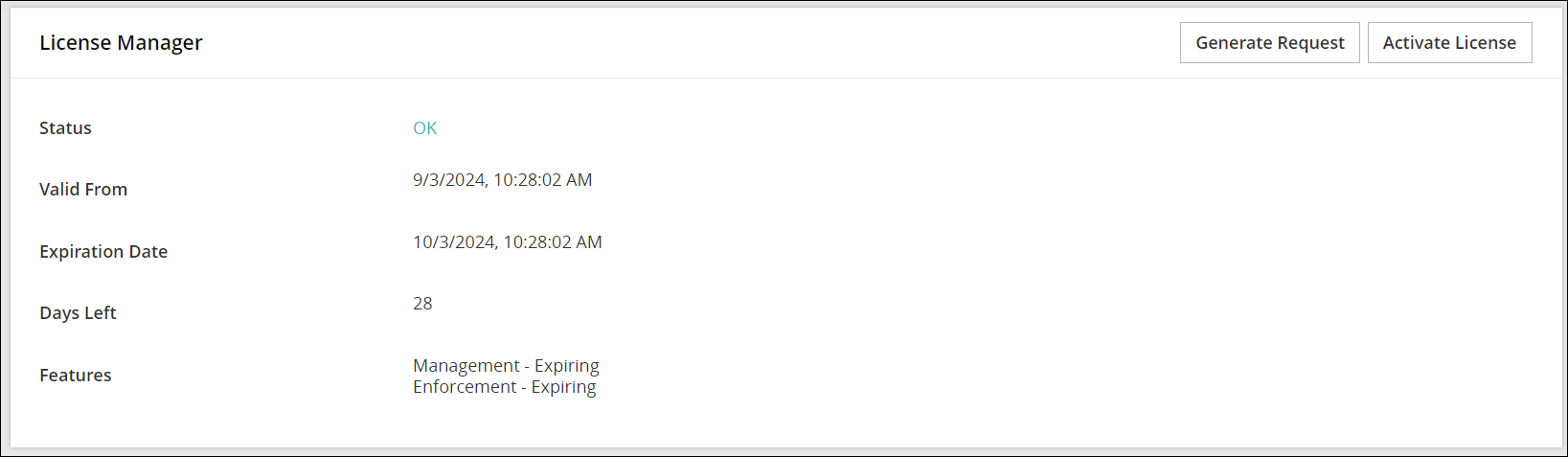
You can validate the license from the Licenses pane, available in the ESA Web UI. You can refer to the following screenshot. Only a user with ESA Administrative permissions can request and activate the license.
Requesting a License
You can request a validated ESA license while your temporary license is valid, or invalid, or has already expired.
To request an ESA license:
As an ESA administrator, proceed to Settings > Licenses.
In the Licenses pane, click the Generate button.
Save the automatically generated licenserequest.xml file to the local disk.
Send the license request file to licensing@protegrity.com.
Activating a License
After submitting your license request, you receive an email with a license file called license.xml. This file includes the original data retrieved from the license request, expiration date, and additional information, if required.
Note: If there is a License Agreement between your company and Protegrity, you will receive the validated license by the end of the following business day.
To activate an ESA license:
Save the license.xml file to your local disk when you receive it from Protegrity.
As an ESA administrator, proceed to Settings > Licenses.
Click Activate License.
In the Licenses pane, click Browse.
Select the license.xml file.
You are notified about success or failure of the activation process.
Note: You do not need to restart ESA and any data protectors to activate the validated license. However, if you have policies deployed to protection points with a temporary license, then you must re-deploy the policies with the validated license.
The license file is stored in an encrypted format on the ESA file system after it is activated.
CAUTION: Modifying either the temporary or validated license file leads to license deactivation.
Updating a License
You need to update your current license before it expires. You may also update the license in case your needs have changed.
The process of updating the license is the same as when you apply for a new license. You need to submit a new license request and send an email to licensing@protegrity.com with the information about what you would like to change in your current license.
For details, refer to Requesting a License.
2 - Non-Licensed Product
Protegrity products can become non-licensed through license expiration or corruption.
A license expires when the end of the term for that license has passed. A corrupted license is not valid. For details about expired licenses, refer to Expired License. For more about corrupted licenses, refer to Corrupted (Invalid) License.
Warning: From 10.2.0 onwards, the protectors will display the following behaviour with regards to the ESA licensing -
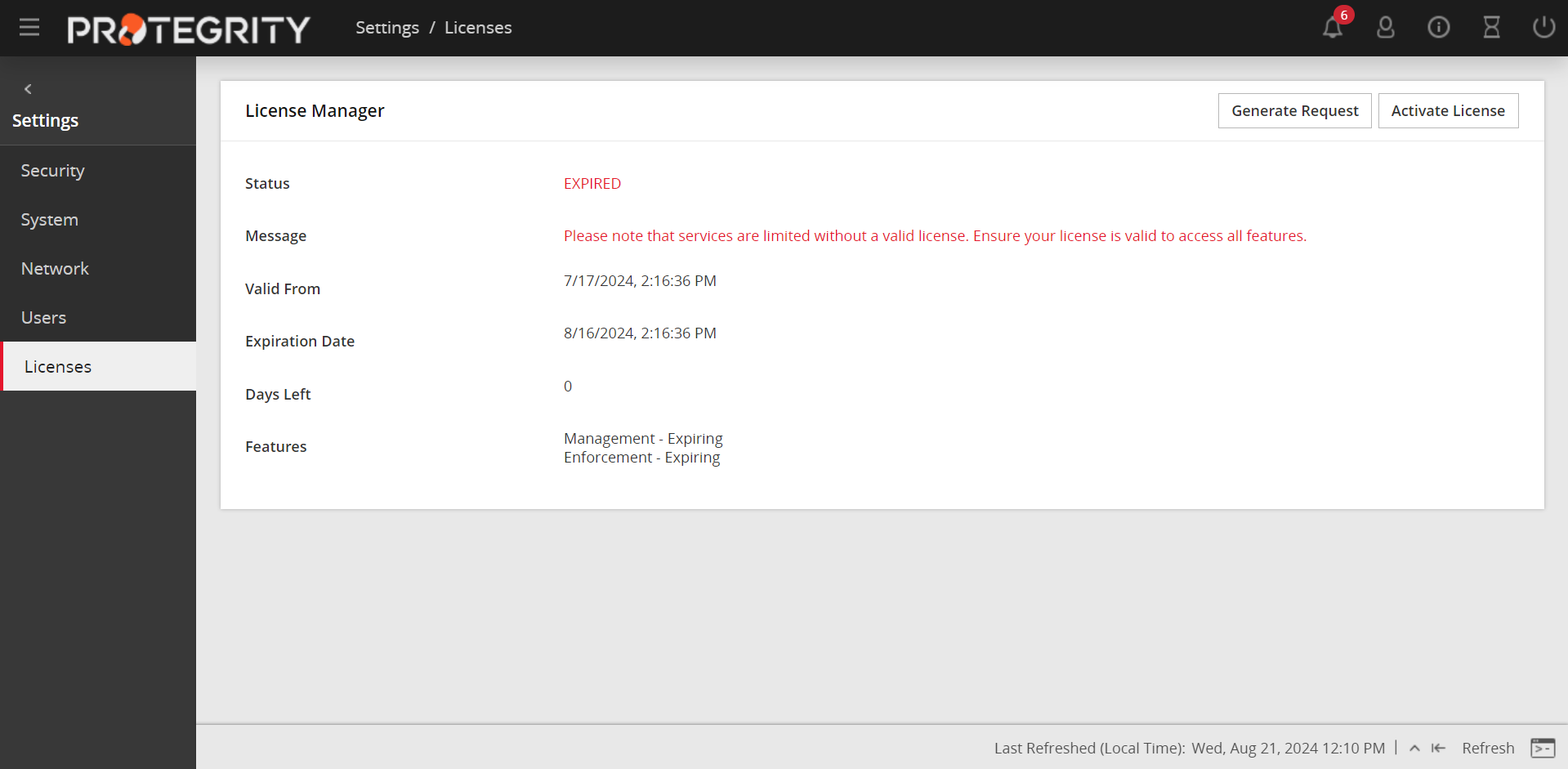
An expired or invalid license will block policy, key, and deployment services on the ESA and via the DevOps APIs. An existing protector will continue to perform security operations. However, if you add a new protector or restart an existing protector, then the protector will not receive any policy until a valid license is applied. In addition, you will not be able to perform any other task from the Policy Management UI unless you obtain a valid license. On performing any action on the Policy Management UI, you will automatically be navigated to the License Manager screen as shown in the following screenshot.
For more information about obtaining a valid license, refer to Obtaining a Validated License.
License Expiration Notification
If the expiry of your license is less than or equal to 90 days, then the License Information dialog box appears when you log in to the ESA.
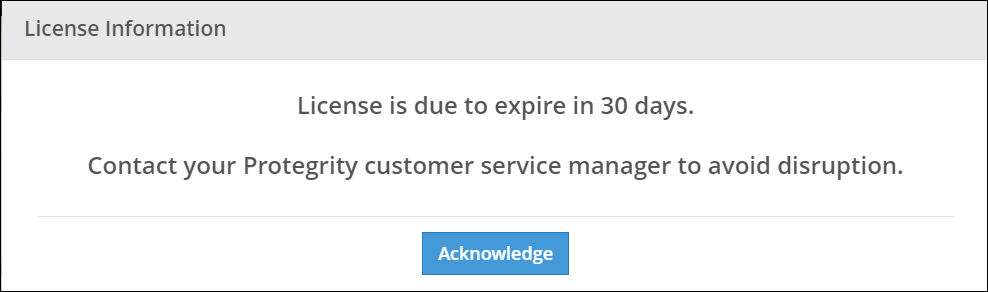
This dialog box specifies the number of days by when your license is going to expire. Click Acknowledge to continue accessing the ESA Web UI.
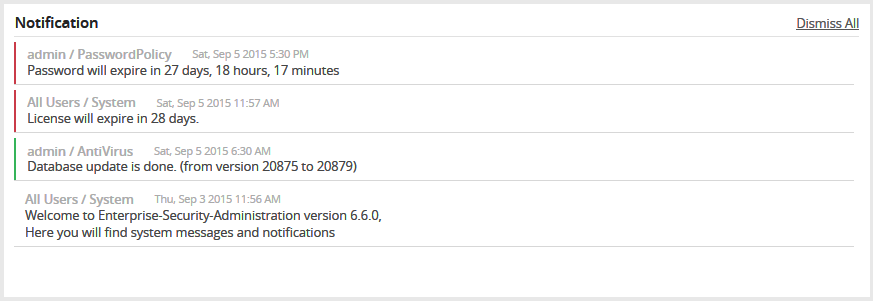
On the ESA Web UI, a message in the Notification pane reminds you that your license is due to expire. This reminder message appears every day from one month prior to the expiration date.
Expired License
A license expires depending on the expiration time and date settings in the license file. In the Notification pane of the ESA Web UI, Expired license status is displayed.
Corrupted (Invalid) License
If a license has been corrupted, in the Licenses pane of the ESA Web UI, then the Invalid license status is displayed.
If a license has been corrupted, in the Licenses pane of the ESA Web UI, then the Invalid license status is displayed.
A license may be corrupted in the following cases:
- License file has been changed manually.
- License file has been deleted.
- System date and time has been modified prior to when the license was applied to the product.
CAUTION: You MUST NOT change the system date and time to an earlier date and time than the license has been generated. This can lead to the license deactivation. The daylight saving time change is done automatically.
CAUTION: You MUST NOT edit or delete the license file saved on ESA since it can lead to license deactivation.
License Alerts
The Hub Controller generates warning logs at start-up, and once per day, when a license is about to expire, has expired, or is invalid. The ESA Web UI and Policy Management generate alert notifications about license status.
Once the system detects that the current system date is less than or equal to 30 days from the expiration date, an audit event is generated. For a temporary license, the system generates alerts once the ESA is installed.
Once the license is expired or becomes invalid, the Data Security Platform produces logs and notifications. These logs and notifications informs you about the change in the state of the license. You can refer to the Alerts and Notifications when License at Risk table for more details.
The Expiration Date field shows notifications about the current license status. In that field it will show the number of days left before the license expires.
You can also set up separate email notification alerts when licenses are about to expire using the ESA Web UI. For more information about setting up separate email notification alerts, refer to the Enterprise Security Administrator Guide.
The following table lists the system notifications and alerts about the status of the license at risk.
Table - Alerts and Notifications when License at Risk
- License is about to expire
- License is expired
- License is invalid
| License Information dialog box in the ESA Web UI home page. | For 10.0.0 protectors, warning is not generated. For protectors earlier than 10.0.0, a WARNING is generated in
the PEP Server application log once per hour and upon PEP Server restart. | The license alerts and audits are sent to the ESA Audit Store. |
| License alert in the Notifications tab of the ESA Web UI. |
| WARNING generated by the Hub Controller in application log
once per day and upon Hub Controller restart. |
3 - Cluster Licensing
Protegrity provides functionality for creating a cluster and, beginning with Release 6.6.x, an ESA appliance cluster primarily for use in disaster recovery (DR) scenarios. This allows you to create a trusted network of appliances with replication between ESA hosts. The procedure you follow for requesting licenses will depend upon the type of license agreement you have with Protegrity.
There are two types of restrictions that can be applied to your Protegrity license. A Configuration Lock is not machine specific and therefore can be used on other nodes in a cluster. A Node Lock is specific to the machine address of the node, and therefore cannot be used on other nodes. Node Lock is the stronger of the two restrictions and it will always take precedence when applied.
The descriptions of these restrictions follow:
| License Agreement | Configuration Lock | Node Lock |
|---|
| Perpetual License | Always applied | Not applied. |
| Term License | Always applied | Applied as stipulated by your License Agreement with Protegrity. |
The procedure you follow for requesting license files for your cluster are explained in the following sections.
CAUTION: These procedures must be followed ONLY when your Protegrity license agreement stipulates that the Node Lock is applied. If your license agreement only has the Configuration Lock applied, then you can use the same license file for all nodes.
Licensing Trusted Appliance Cluster
From Release 6.6.x onwards, we offer customers the functionality to create an appliance cluster, primarily for use in disaster recovery (DR) scenarios. This allows you to create a trusted network of appliances with replication between appliances hosts. Depending upon the type of license agreement you have with Protegrity, you may be required to request a new validated license file when adding nodes to your appliance cluster. You must refer to your Protegrity License Agreement for specific terms.
To obtain a license for an ESA cluster:
Create an ESA cluster as explained in the Protegrity Appliances Overview Guide.
Generate a license request file by using the Web Interface on each individual node.
Save the license request file on your local disk with a different name than the default name. For example, licenserequest2.xml.
Send an email to licensing@protegrity.com including all license request files obtained in step 2. In the email, state that you need a license for an ESA trusted appliances cluster.
When you receive the single Protegrity license, activate it on one of the ESA nodes as explained in section 3.2 Activating a License.
Export the policy to all other ESA nodes in the cluster.
Note: Ensure that you create a new license request for each node in the cluster. This request is created while you add a new node to an existing cluster, including the new node. Once it is done, you can send it to Protegrity.