This is the multi-page printable view of this section. Click here to print.
Troubleshooting
- 1: Policy and Key Audit logs
- 2: Known issues for the Audit Store
- 3: ESA Error Handling
- 3.1: ESA Upgrade Readiness Patch Error Messages and Resolutions
- 3.2: Common ESA Logs
- 3.3: Common ESA Errors
- 3.4: Understanding the Insight indexes
- 3.5: Understanding the index field values
- 3.6: Index entries
- 3.7: Log return codes
- 3.8: Policy Management Errors
- 3.9: Protectors security log codes
- 3.10: Additional log information
- 4: Known Issues for the td-agent
- 5: Known Issues for Protegrity Analytics
- 6: Known Issues for the Log Forwarder
- 7: Deprecations
1 - Policy and Key Audit logs
The policy audit logs generated for policy-related operations are sent to ESA. You can view them in Discover. Log in to the ESA, navigating to Audit Store > Dashboard > Open in new tab. Select Discover from the menu and select a time period such as Last 30 days.
Note:
- The policy and key audit log codes are similar to the previous version.
- The log descriptions in v10.2.0 are revised for policy and key audits. These changes may impact automated systems, alerts, and parsing logic in production environments. We recommend to review and update any dependent tools or queries.
event_status Field
In the ESA v10.2.0, a new field event_status has been introduced for all policy and key related audits. This field captures the outcome of each policy operation:
Success: Indicates the action was completed successfully.
Failure: Indicates the action was unsuccessful due to an error.
Other: Indicates the
event_statuscannot be classified as neither a success nor a failure. The other value is usually used for logs providing information about an operation performed.
Example: Master Key Rotation – Success and Failure
Success Scenario
Imagine you are performing a routine rotation of the Master Key to maintain cryptographic hygiene. The following logs would indicate a successful operation:
| Log Code | Log Description | Event Status | What It Means |
|---|---|---|---|
| 179 | Rotate master key. (Master key rotated successfully) | success | The Master Key was rotated without issues. |
| 78 | Create key. (Key xxxxxxxx-xxxx-xxxx-xxxx-xxxxxxxxxxxx created) | success | A new key was generated as part of the rotation process. |
These logs confirm that the key lifecycle was handled properly. For instance, a new key was created, the old one was deactivated, and the system remains secure and compliant.
Failure Scenario
Now, suppose the Master Key rotation fails due to a service outage, for example the kmgw service has stopped. You might see logs like:
| Log Code | Log Description | Event Status | What It Means |
|---|---|---|---|
| 179 | Rotate master key. (Master key rotation failed) | failure | The rotation process could not complete due to a system issue. |
| 78 | Create key. | failure | The system failed to generate a new key, possibly because the key management gateway kmgw was down. |
These logs indicate that the rotation process was interrupted. No new key was created and the old key remains active. This could pose a security risk if not resolved promptly.
Other Scenario
| Log Code | Log Description | Event Status | What It Means |
|---|---|---|---|
| 178 | Master key expire warning. (Master key with UID: xxxxxxxx-xxxx-xxxx-xxxx-xxxxxxxxxxxx will expire on yyyy-mm-dd) | other | Master key expire warning. |
Table: Policy and Key Audit logs
| Audit Code | Log Description |
|---|---|
| 50 | Create policy. |
| 51 | Update policy. |
| 52 | Delete policy. |
| 56 | Role added to policy. |
| 57 | Unprotect access revoked for users having mask conflict. |
| 58 | Data element added to policy. |
| 59 | Data element removed from policy. |
| 71 | Deploy policy. |
| 74 | Policy removed from datastore. |
| 75 | Policy added to datastore. |
| 76 | Policy changed state. |
| 78 | Create key. |
| 80 | Policy deploy failed. |
| 81 | Policy deploy started. |
| 82 | Policy deploy ended. |
| 83 | Token publish failed. |
| 84 | Token published successful. |
| 85 | Data Element key(s) exported. |
| 86 | Policy deploy warning. |
| 87 | Alphabet publish failed. |
| 88 | Alphabet published successful. |
| 100 | Password changed. |
| 101 | Create datastore. |
| 102 | Update datastore. |
| 103 | Delete datastore. |
| 107 | Create mask. |
| 108 | Delete mask. |
| 109 | Securitycoordinate deleted. |
| 110 | Securitycoordinate created. |
| 111 | Create role. |
| 112 | Delete role. |
| 113 | Create membersource. |
| 114 | Update membersource. |
| 115 | Delete membersource. |
| 116 | All roles resolved. |
| 117 | Role resolved. |
| 118 | Role groupmember resolved. |
| 119 | Create trusted application. |
| 120 | Delete trusted application. |
| 121 | Update trusted application. |
| 124 | Trusted application added to datastore. |
| 125 | Trusted application removed from datastore. |
| 126 | Update mask. |
| 127 | Update role. |
| 128 | Policy permissions updated. |
| 129 | Node registered. |
| 130 | Node updated. |
| 131 | Node unregistered. |
| 141 | Create alphabet. |
| 142 | Delete Alphabet. |
| 149 | Update data element. |
| 150 | Create data element. |
| 151 | Delete data element. |
| 152 | Too many keys created. |
| 153 | License expire warning. |
| 154 | License has expired. |
| 155 | License is invalid. |
| 156 | Policy is compromised. |
| 157 | Failed to import some users. |
| 158 | Policy successfully imported. |
| 159 | Failed to import policy. |
| 170 | Key exported. |
| 171 | Key updated. |
| 172 | Key deleted. |
| 173 | Datastore key has expired. |
| 174 | Datastore key expire warning. |
| 176 | Rotate datastore key. |
| 177 | Master key has expired. |
| 178 | Master key expire warning. |
| 179 | Rotate master key. |
| 180 | Configure New HSM. |
| 181 | Repository key has expired. |
| 182 | Repository key expire warning. |
| 183 | Rotate repository key. |
| 184 | Metering created. |
| 185 | Metering updated. |
| 186 | Metering deleted. |
| 187 | Integrity created. |
| 188 | Integrity updated. |
| 189 | Integrity deleted. |
| 195 | Signing key has expired. |
| 196 | Signing key expire warning. |
| 197 | Rotate signing key. |
| 198 | Signing key exported. |
| 199 | Case sensitive data element created. |
| 210 | Data Element key has expired. |
| 211 | Data Element key expire warning. |
| 212 | Conflicting policy users found. |
| 213 | Change key state. |
| 214 | Automatic key rotation disabled. |
| 215 | Automatic key rotation enabled. |
| 220 | Data Element deprecated. |
| 221 | Add export key. |
| 222 | Update export key. |
| 223 | Delete export key. |
| 224 | Role permissions updated for Data Element. |
| 225 | Permissions for Data Element updated. |
| 226 | Role removed from policy. |
| 227 | Create range in datastore. |
| 228 | Update range in datastore. |
| 229 | Delete range from datastore. |
| 230 | Add member to role. |
| 231 | Update member in role. |
| 232 | Remove member from role. |
To view the policy audit logs:
- Log in to the ESA.
- Navigate to Audit Store > Dashboard.
- From the menu, select Discover.
- Select index pty_insight_analytics*policy_log_* from Index patterns and a time period such as Today.
The list of policy audit logs appear.
For more information about the Insight Indexes, refer to Understanding the Insight indexes.
2 - Known issues for the Audit Store
Known Issue: The Audit Store node security remains uninitialized and the message Audit Store Security is not initialized. appears on the Audit Store Cluster Management page.
Resolution:
Run the following steps to resolve the issue.
- From the ESA Web UI, navigate to System > Services > Audit Store.
- Ensure that the Audit Store Repository service is running.
- Open the ESA CLI.
- Navigate to Tools.
- Run Apply Audit Store Security Configs.
Known Issue: Logs sent to the Audit Store do not get saved and errors might be displayed.
Issue:
The Audit Store cannot receive and store logs when the disk space available on the ESA is low. In this case, errors or warnings similar to high disk watermark [90%] exceeded are displayed in the logs.
Resolution:
Perform one of the following steps to resolve the issue:
- Delete old indices that are not required using ILM in Analytics.
- Increase the disk space on all nodes.
- Add new nodes to the cluster.
Known Issue: The Audit Store Repository fails to start after updating the IP address, hostname, or domain name.
Issue:
After updating the IP address, hostname, or domain name, the Audit Store Repository service fails to start.
Resolution:
After updating the IP address, complete the steps provided in Updating the IP address of the ESA.
After updating the hostname, complete the steps provided in Updating the hostname of the ESA.
After updating the domain name, complete the steps provided in Updating the domain name of the ESA.
Known Issue: The Upgrade cannot continue as the cluster health status is red. Check out the Troubleshooting Guide for info on how to proceed. error message appears.
Issue: A cluster status in red color means that at least one primary shard and its replicas are not allocated to a node, that is, there are indices with the index health status in red color in the Audit Store cluster.
Workaround
Complete the following steps on a node where the Audit Store is available to resolve the cluster health with the red status.
From the Web UI of the ESA, navigate to System > Services > Audit Store.
Ensure that the Audit Store Repository service is running.
Log in to the CLI Manager of the Appliance.
Navigate to Administration > OS Console.
Identify the indices with the health status as red using the following command.
wget -q --ca-cert=<Path_to_CA_certificate>/CA.pem --certificate=<Path_to_client_certificate>/client.pem --private-key=<Path_to_client_key>/client.key -O - https://<ESA_HOSTNAME_IP>:9201/_cat/indices | grep redEnsure that you update the variables before running the command. An example of the command is provided here.
wget -q --ca-cert=/etc/ksa/certificates/as_cluster/CA.pem --certificate=/etc/ksa/certificates/as_cluster/client.pem --private-key=/etc/ksa/certificates/as_cluster/client.key -O - https://protegrity-esa123.protegrity.com:9201/_cat/indices | grep redA list of indices containing the health status as red appears as shown in the following example.
red open pty_insight_audit_vx.x-xxxx.xx.xx-000014 dxmEWom8RheqOhnaFeM3sw 1 1In the example, pty_insight_audit_vx.x-xxxx.xx.xx-000014 is the index having a red index health status where the index’s primary shard and replicas are not available or allocated to any node in the cluster.
Identify the reason for unassigned shards using the following command.
wget -q --ca-cert=<Path_to_CA_certificate>/CA.pem --certificate=<Path_to_client_certificate>/client.pem --private-key=<Path_to_client_key>/client.key -O - https://<ESA_HOSTNAME_IP>:9201/_cat/shards?h=index,shard,prirep,state,unassigned.reason | grep UNASSIGNEDEnsure that you update the variables before running the command. An example of the command is provided here.
wget -q --ca-cert=/etc/ksa/certificates/as_cluster/CA.pem --certificate=/etc/ksa/certificates/as_cluster/client.pem --private-key=/etc/ksa/certificates/as_cluster/client.key -O - https://protegrity-esa123.protegrity.com:9201/_cat/shards?h=index,shard,prirep,state,unassigned.reason | grep UNASSIGNEDThe reasons for the shards being unassigned appear. This example shows one of the reasons for the unassigned shard.
    `pty_insight_audit_vx.x-xxxx.xx.xx-000014             0 p UNASSIGNED NODE_LEFT`

    `pty_insight_audit_vx.x-xxxx.xx.xx-000014             0 r UNASSIGNED NODE_LEFT`
In the example, the 0th p and r shards of the pty_insight_audit_vx.x-xxxx.xx.xx-000014 index are unassigned due to the NODE_LEFT reason, that is, because the node left the Audit Store cluster. The p indicates a primary shard and the r indicates a replica shard.
Retrieve the details for the shard being unassigned using the following command.
wget -q --ca-cert=<Path_to_CA_certificate>/CA.pem --certificate=<Path_to_client_certificate>/client.pem --private-key=<Path_to_client_key>/client.key --header='Content-Type:application/json' --method=GET --body-data='{ "index": "<Index_name>", "shard": <Shard_ID>, "primary":<true or false> }' -O - https://<ESA_HOSTNAME_IP>:9201/_cluster/allocation/explain?prettyEnsure that you update the variables before running the command. An example of the command with the index name as pty_insight_audit_vx.x-xxxx.xx.xx-000014, shard ID as 0, and primary shard as true is provided here.
wget -q --ca-cert=/etc/ksa/certificates/as_cluster/CA.pem --certificate=/etc/ksa/certificates/as_cluster/client.pem --private-key=/etc/ksa/certificates/as_cluster/client.key --header='Content-Type:application/json' --method=GET --body-data='{ "index": "pty_insight_audit_vx.x-xxxx.xx.xx-000014", "shard": 0, "primary": true }' -O - https://protegrity-esa123.protegrity.com:9201/_cluster/allocation/explain?prettyThe details of the unassigned shard appears. This example shows one of the reasons for the unassigned shard.
{
        "index": "pty_insight_audit_vx.x-xxxx.xx.xx-000014",
        "shard": 0,
        "primary": true,
        "current_state": "unassigned",
        "unassigned_info": {
            "reason": "NODE_LEFT",
            "at": "2022-03-28T05:05:25.631Z",
            "details": "node_left [gJ38FzlDSEmTAPcP0yw57w]",
            "last_allocation_status": "no_valid_shard_copy"
        },
        "can_allocate": "no_valid_shard_copy",
        **"allocate\_explanation": "cannot allocate because all found copies of the shard are either stale or corrupt",**
        "node_allocation_decisions": [
            {
                "node_id": "3KXS1w9HTOeMH1KbDShGIQ",
                "node_name": "ESA1",
                "transport_address": "xx.xx.xx.xx:9300",
                "node_attributes": {
                    "shard_indexing_pressure_enabled": "true"
                },
                "node_decision": "no",
                "store": {
                    "in_sync": false,
                    "allocation_id": "HraOWSZlT3KNXxOHDhZL5Q"
                }
            }
        ]
    }
In this example, the shard is not allocated because all found copies of the shard are either stale or corrupt. There are no valid shard copies that can be allocated for this index. This is a data loss scenario, where the data is unavailable because the node or nodes that had the data have disconnected from the cluster. In such a scenario, if the disconnected nodes are brought back in the cluster, then the cluster can reconstruct itself and become healthy again. If bringing the nodes back is not possible, then deleting indices with the red index health status is the only way to fix a red cluster health status.
Complete one of the following two steps to stabilize the cluster.
Troubleshoot the cluster:
- Verify that the Audit Store services are running. Restart any Audit Store service that is in the stopped state.
- Ensure that the disconnected nodes are running.
- Try to add any disconnected nodes back to the cluster.
- Restart the system or restore the system from a backup.
Delete the index:
Delete the indices with the index health status as red using the following command. Execute the command from any one node of Audit Store node which is running.
wget -q --ca-cert=<Path_to_CA_certificate>/CA.pem --certificate=<Path_to_client_certificate>/client.pem --private-key=<Path_to_client_key>/client.key --header='Content-Type:application/json' --method=DELETE -O - https://<ESA_HOSTNAME_IP>:9201/<Index_name>Ensure that you update the variables before running the command. An example of the command to delete the pty_insight_audit_vx.x-xxxx.xx.xx-000014 index is provided here.
wget -q --ca-cert=/etc/ksa/certificates/as_cluster/CA.pem --certificate=/etc/ksa/certificates/as_cluster/client.pem --private-key=/etc/ksa/certificates/as_cluster/client.key --header='Content-Type:application/json' --method=DELETE -O - https://protegrity-esa123.protegrity.com:9201/pty_insight_audit_vx.x-xxxx.xx.xx-000014CAUTION:
This command deletes the index and must be used carefully.
Known Issue: The Authentication failure for the user during JWT token generation while downloading ssh key from node error appears while performing any Audit Store cluster-related operation.
Issue: The Can create JWT token permission is required for a role to perform Audit Store cluster-related operations. The error appears if the permission is not assigned to the user.
Workaround
Use a user with the appropriate permissions for performing Audit Store cluster-related operations. Alternatively, verify and add the Can create JWT token permission. To verify and add the Can Create JWT Token permission, from the ESA Web UI, navigate to Settings > Users > Roles.
Known Issue: The pty_insight_analytics_miscellaneous_* index on the Discover page loads with errors.
Issue:
The index fails to load correctly because the index_time_utc field must be defined in the index pattern.
Resolution:
Complete the following steps to update the index pattern.
- Log in to the ESA Web UI.
- Navigate to Audit Store > Dashboard.
- From menu on the Audit Store Dashboards page, navigate to Management > Dashboard Management > Index patterns.
- Click pty_insight_analytics_miscellaneous_* and click the Remove index pattern icon.
- Click Delete to confirm.
- Click Create index pattern.
- Specify
pty_insight_analytics_miscellaneous_*for the index pattern name. - Click Next step.
- Select index_time_utc for the Time field.
- Click Create index pattern.
- Navigate to the Discover page to view the required logs.
3 - ESA Error Handling
ESA appliance collects all logs that come from different Protegrity Servers. The following section explains the logs that you may find and the errors that you may encounter on the ESA.
3.1 - ESA Upgrade Readiness Patch Error Messages and Resolutions
This article provides detailed information on error messages and their resolutions related to the ESA Upgrade Readiness Patch for version 10.2.0. It covers various issues such as insufficient disk space, version compatibility, unicast hosts file errors, analytics initialization, and service status checks. Each error message is accompanied by high-level steps for resolving the issue, ensuring a smooth upgrade process to ESA version 10.2.0.
Use the information provided in this section for the detailed steps to resolve the issues shown by the readiness patch.
Issue: Insufficient Disk Space
ERROR: The required disk space is insufficient for the following partitions:

/ - available: <available_space>%, required: 40%

/opt - available: {opt_available_gb}GB, required: 10GB

/var/log/ - available: <available_space>%, required: 20%
Resolution
The space used in the OS(/) partition should not be more than 60%. If the space used is more than 60%, then you must clean up the OS(/) partition before proceeding with the patch installation process. For more information about cleaning up the OS(/) partition, refer here.
For increasing the /opt partition, perform the steps using Increasing the Appliance Disk Size.
For increasing the size of /var/log directory, perform the steps using Extending the Logs Volume.
Issue: Expected ESA version
ERROR: Expecting appliance version 10.1.x/10.0.x/9.2.0.x/9.1.0.x. Current ESA version {appliance_version}
Resolution
This patch must be applied on any of the following versions:
- 9.1.0.x
- 9.2.0.x
- 10.0.x
- 10.1.x
Issue: Missing IP address in Unicast hosts file
ERROR: Unicast hosts file does not contain the IP addresses of the nodes and is empty. Run the Audit Store Management Unicast Hosts scheduled task.
Applicable Version: 9.1.0.x
Resolution
To run the Audit Store Management Unicast Hosts scheduled task:
Log in to the ESA WebUI.
Navigate to System > Task Scheduler.
Select the Audit Store Management Update Unicast Hosts task.
Click Run now!.
In some ESA versions, the task is named as Audit Store Management - Cluster Config - Sync.
Issue: Unicast hosts file verification failed
ERROR: Unicast IP verification failed. IPs in cluster: {node_ips} IPs in unicast hosts file: {ips}. Verify the entries in the {UNICAST_HOSTS_FILE} file.
ERROR: Unicast hostname verification failed. Retrieved hostname: {hostname}. Verify the entries in the {UNICAST_HOSTS_FILE} file.
ERROR: Unicast hosts file is empty. Please add the IP and hostname entries for all the nodes in the Audit Store cluster in the Unicast hosts file /opt/protegrity/auditstore/config/unicast_hosts.txt
ERROR: Unicast hosts file not found. {UNICAST_HOSTS_FILE}. Create the file with the relevant node IPs.
Applicable Version: 9.2.0.x, 10.x
Resolution
Update the unicast hosts file:
- Obtain the IP and hostname entries of all the ESA nodes in the Audit Store cluster.
- Log in to the CLI Manager on the ESA.
- Navigate to Administration > OS Console.
- Enter the root password.
- Navigate to
/opt/protegrity/auditstore/config. - Open the
unicast_hosts.txtfile using a text editor. - Add and verify the node entries in the file.
- Save and close the file.
Issue: Analytics is not initialized
ERROR: Analytics is not initialized. Please initialize analytics.
Resolution:
Initialize Analytics.
- Log in to the ESA Web UI.
- Verify that the Audit Store services are running by navigating to System > Services > Audit Store.
- Navigate to Analytics. For ESA v10.x, navigate to Audit Store > Initialize Analytics.
- Click Initialize Analytics.
Issue: Insight services not running
ERROR: Analytics service is not running. Please start the service.
ERROR: Audit Store Dashboards service is not running. Please start the service.
ERROR: Audit Store Management service is not running. Please start the service.
ERROR: Audit Store Repository service is not running. Please start the service.
ERROR: Audit Store connection failed, cluster verification cannot proceed.
ERROR: Audit Store connection failed, unicast file verification cannot proceed.
ERROR: Audit Store connection failed. Audit Store Repository service is not running. Please start it to proceed.
ERROR: Audit Store connection failed. Audit Store Repository took too long to respond (00:00:30). <exception-Connection Error>
ERROR: td-agent service is not running. Please start the service.
Resolution:
Enable the Run the following steps to resolve the issue.
- From the ESA Web UI, navigate to System > Services > Audit Store.
- Ensure that the Audit Store Repository service is running.
- Open the ESA CLI.
- Navigate to Tools.
- Run Apply Audit Store Security Configs.
Issue: Audit Store connection failed due to certificates
ERROR: Audit Store connection failed. Certificated expired. Please upload valid certificate.
Resolution:
Upload valid certificates using the steps provided in Uploading Certificates and Insight Certificates.
Issue: The master or repository keys are expired
Validate that master/repository keys are not expired with respect to OUP

"ERROR: Call to check key state failed. Please verify that all services are running" (when hubcontroller is down)

"ERROR: Master or repository key is expired, please rotate the key(s)"
Resolution:
If the security keys, such as, master key or repository key have expired or are due to expire within 30 days, then the upgrade fails. Hence, the keys must be rotated before performing the upgrade. Additionally, ensure that the keys are active and in running state.
For more information about rotating keys, refer to Working with Keys.
If you are using an HSM, ensure that the HSM is accessible and running.
For more information about HSM, refer to the corresponding HSM vendor document.
If the prerequisites are not met, the ESA upgrade process fails. In such a case, it is required to restore the ESA to its previous stable version.
Issue: The active Key Store health check failed
Validate that Key Store is healthy

"ERROR: Call to check HSM health failed. Please verify that all services are running" (when kmgw/ soft hsm service is down)

"ERROR: The health check for active HSM GW instance is failing, please make sure HSM is accessible"
Resolution:
Test the Key Store connection to validate where the Key Store can be accessed using the steps from Key Store Management.
Issue: The license is invalid or expired
Validate that license is valid (expired/invalid)

"ERROR: License is not valid"

"ERROR: Failed to check license. Please verify that Policy Management services are running" (when hubcontroller is down)
Resolution:
Before upgrading the ESA, ensure that the license is not expired or invalid.
An expired or invalid license blocks policy services on the ESA and Devops API’s. A new or existing protector will not receive any policies until a valid license is applied.
For more information about the license, refer Protegrity Data Security Platform Licensing.
Warning: List of unsupported protectors connected with the ESA
Check for unsupported protectors
Installation pre-checks have detected protector versions that under specific circumstances pose a potential risk

"ERROR: Failed to list unsupported protectors" (When hubcontroller is down)
Resolution:
The ESA v10.2.0 only supports protectors having the PEP server version 1.2.2+42 and later.
During the upgrade, the process checks if any unsupported protector is registered in the system.
If the Installation pre-check script detects any protector that is not supported by the ESA v10.2.0, then the Warning dialog box appears.
You can either terminate the Upgrade process or you can continue with unsupported protectors.
It is recommended to upgrade the protectors to a supported version before proceeding with the Upgrade process.
Perform the following steps to identify the PEP server version of the protector:
- Log in to the ESA.
- Navigate to Policy Management > Nodes.
- View the Version field for all the protectors.
If the protector version is unsupported, perform one of the following actions:
- Uninstall the unsupported protector and delete the node from the list of registered nodes.
- Upgrade the unsupported protector to a supported version. For most of the protectors, this process involves uninstalling and installing the protectors. However, some protectors, such as Data Security Gateway (DSG) and Big Data Protector (BDP), might support the upgrade process. The new installed protector updates the registered node entry.
Issue: DTP/DTP2 data elements are present
Validate that no DTP/DTP2 data elements are present

"ERROR: Found unsupported DTP data elements"

"ERROR: Failed to establish a new connection to the HubController service"
Resolution:
If the DTP/DTP2 is present in the algorithm property of a data element while upgrading from the ESA v9.1.0.x or later versions to ESA v10.2.0, then the upgrade script fails. The following error message appears:
ERROR: Found unsupported DTP data elements
Perform the following actions:
- Reprotect data with a new data element that is supported.
- Remove the data elements that contain DTP/DTP2 algorithm.
This prevents the data loss that occurs during the upgrade. The DTP/DTP2 data elements are now unsupported.
For more information about the data elements to be used, contact Protegrity Support.
Issue: FPE data elements are present
Validate that no FPE data elements with left/right > 0 are present

"ERROR: FPE Data Element(s) with characters in clear ('From Left' / 'From Right') are no longer supported on the target version. Please consult the documentation or Protegrity staff for guidance. Data Element(s) affected: "

"ERROR: Failed to list FPE Data Elements"
Resolution:
If the format-preserving encryption (FPE) data elements with Left and Right settings are present while upgrading from the ESA v9.1.0.x or later versions to ESA v10.2.0, then the upgrade script fails. The following error message appears:
ERROR: FPE Data Element(s) with characters in clear ('From Left' / 'From Right') are no longer supported on the target version.
   Please consult the documentation or Protegrity staff for guidance.
   Data Element(s) affected: <List of affected data elements>
Perform the following actions:
- Reprotect data with a new FPE data element that does not have Left and Right settings or a new data element that is supported.
- Remove the data elements that contain Left and Right settings.
This prevents the data loss that occurs during the upgrade. The FPE data elements with Left and Right settings are now unsupported.
For more information about the data elements to be used, contact Protegrity Support.
3.2 - Common ESA Logs
| Log type | Details | Logs Description |
|---|---|---|
Appliance logs ESA Web Interface, | Here you can view appliance system logs. These logs are saved for two weeks, and then they are automatically deleted. | The ESA appliance logs the appliance-specific system
events:
|
| Data Management Server (DMS) logs ESA Web Interface, | Here you can view DMS system related logs:
| System logs related to monitoring and maintenance of the Logging Repository (DMS). |
3.3 - Common ESA Errors
Table: ESA Common Errors
Error /Problem | This may happen because… | Recovery Actions |
While ESA is running, some services stop abruptly. | This issue occurs when the ESA OS partition is completely full. When the disk space gets full, there is an impact on the services that are running. These services encounter a shortage of resources, and hence, stop abruptly. | Perform the following steps to resolve this issue.
|
After upgrading the ESA to v10.2.0, the Label of ESA node in the TAC is not Consul Server or Consul Client | This issue occurs when the ESA is upgraded to v10.2.0, and the Label of ESA node in the TAC is not Consul Server or Consul Client. This may impact the functionality of the TAC. | Perform the following steps to resolve this issue.
|
From v10.2.0, all the packages, including the Protegrity developed packages, are signed by Protegrity. This ensures the integrity of the software being installed.The following errors may occur while uploading the patch using Web UI or CLI Manager. The patch is signed by Protegrity signing key and the verification key is expired | This issue occurs if the verification key is expired, the following error message appears:Error: Patch signature(s) expired. Would you like to continue installation? |
|
The patch is not signed by Protegrity signing key | This issue occurs if the patch is not signed by Protegrity signing key.Error: Signatures not found. Aborting | Click Exit to terminate the installation process.It is recommended to use a Protegrity signed patch.For more information about the Protegrity signed patch, contact Protegrity Support. |
Insufficient disk space in the /var/log directory | This issue occurs if the disk space in the /var/log directory is insufficient.Error: Unable to install the patch. The required disk space is insufficient for the following partition: /var/log | Ensure that at least 20% disk space in the /var/log directory is available to install the patch successfully. |
Insufficient disk space in the /opt/ directory | This issue occurs if the disk space in the /opt/ directory is insufficient.Error: Unable to install the patch. The required disk space is insufficient for the following partition: /opt/ | Ensure that the available disk space in the /opt/tmp directory is at least twice the patch size. |
Insufficient disk space in the /OS directory | This issue occurs if the disk space in the /OS directory is insufficient. | Ensure that at least 40% disk space in the _/OS_ directory is available to install the patch successfully.The space used in the OS(/) partition should not be more than 60%. If the space used is more than 60%, then you must clean up the OS(/) partition before proceeding with the patch installation process.For more information about cleaning up the OS(/) partition, refer to the documentation available at the following link.https://my.protegrity.com/knowledge/ka0Ul0000000a9xIAA/ |
Unable to export the information while executing the cluster task using the IP address of the node. | This might occur if the task is executed using the IP address of the cluster task instead of the Hostname. | To resolve this issue, ensure that the IP address of the cluster node is replaced with the Hostname in the task.
For more information about executing the cluster task, refer [Scheduling Configuration Export to Cluster Tasks](/docs/aog/web_user_interface_management/aog_system_webui/aog_schedule_tasks/aog_schedule_cluster_tasks). |
If you try to perform operations, such as, joining a cluster, exporting data/ configuration to a remote appliance, and so on , the operation fails with the following error:Errorcode: 403 | This issue occurs if the Basic Authentication is disabled, and you try to perform any of the following operations.
| Ensure that the Can Create JWT Token permission is assigned to the role. If the Can Create JWT Token permission is not assigned to the role of the required user, then the operation fails. To verify the Can Create JWT Token permission, from the ESA Web UI navigate to Settings > Users > Roles. |
In the ESA CLI, when you copy files to
home directories (/ Permission denied:home/service_admin,
/home/local_admin, or /home/service_viewer) using the
Put Files for the option under Trusted
Appliance Cluster, a following traceback error
appears. | The user does not have the permission
to copy the file to the target directory. | Perform the following steps to copy the
files to the home directory:
The files are deployed to the target
node. |
When you run a cluster export task, the
following message appears for all the target nodes: Host Denied | Perform the following steps:
On the Web UI, refresh the trusted
appliance cluster screen. | |
When exporting or importing custom
files, the export import process fails. | The file that is exported does not
exist. | You can perform one of following
options:
Run the export process. |
While uploading a file from the Web UI
the following error appears: Proxy
Error Reason: Error reading
from remote server | The file is not uploaded to the
server. | Perform one of the following methods..
|
A failure occurs while extending the OS
or logs partition. |
| |
While extending the OS partition, the
following message appears: Couldn't find device with uuid <ID> Cannot change VG <volume group> while PVs are missing | Run the following command and press
ENTER: #vgreduce -removemisssing
<volumegroup> | |
When a role is deleted, the users
associated with the role are not updated. The deleted role appears
on user list in the User Management screen. For example, role name appears in the
following format: <Role
name><Random number> | Delete the user from the
User Management screen. If required, add a
user with the same name and credentials. | |
When you are importing a file from System → Backup & Restore → Import, the following error appears: Bad
Gateway The proxy server received an invalid response from an
upstream server | The size of the file is more than the value in the Max File Upload Size. | Perform the following steps to increase the file upload
size:
|
| The Linux Host ID does not change in an ESA or a DSG instance created on the AWS cloud platform. | The Linux Host ID and the Protegrity Host ID are generated after an ESA or DSG instance is created on the AWS cloud platform. As per the expected behaviour of the appliance, only the Protegrity Host ID is modified after running the appliance rotation tool on the ESA or the DSG instance. | Perform the following steps to modify the Linux Host ID:
|
The SSH session is terminated during the creation of a
bond on the ethMNG interface. | Restart the session after the NIC bond on the ethMNG NIC
is created. | |
The slave NICs do not have an IP assigned, but the
following message appears during creating a bond: NIC
Bonding is not available | The NICs might be on the DHCP mode. | Convert the NICs to Static mode. |
The Web UI is not accessible after the NICs are
bonded. | Reset the Network Bonding from the CLI Manager and bond
the NICs again. For more information about resetting the NIC
bonding, refer to the Appliance Overview Guide. | |
During binding NICs, the following message
appears. Unknown Error | This might occur if the network is slow. | Restart the appliance queues using the following
command: /etc/init.d/appliance-queues server restart |
When you enable Two-Factor Authentication and export
data from one ESA to another, the export process
fails. | You must create two separate scheduler tasks to export
data. First you must export the LDAP settings. Then, you must
export the OS settings. | |
When you remove an appliance from the cluster is
removed, a warning that the appliance is the last leader of the
server of the cluster appears. | The appliance that is the last server of the cluster
cannot be removed as all the clients are connected to it for
receiving cluster-related information. Removing the last server
from the cluster might de-stabilize the cluster. | NA |
You cannot add an appliance to the cluster. | Certificates are not valid. | Ensure that you assign a valid server and CA
certificates on the appliance. For more information about
validating certificates, refer the Certificate Management
Guide. |
When you join an appliance to the cluster, the process
is not completed, and a following error appears in the
logs: Error: [WARNING] No Consul node is available as
join target! | The Consul service is not available. | Perform the following steps to remove the Consul labels
for the appliance:
|
When you simultaneously remove multiple appliances from
a cluster, the following error appears in the
logs: Failed To Update KV Store. | Remove the appliances separately from the cluster and
refresh the Trusted Appliances Cluster screen. | |
When you remove a node from the cluster the following
error appears on the screen: RunNow error: [object
Object] errorThrown: error | Perform the following steps to remove the Consul labels
for the appliance:
| |
When you create a cluster, the following error appears
on the screen: Failed to join. Error: “Cannot get/parse
target cluster config file. Please make sure the target node’s
cluster is enabled. | The SSH configuration on the target machine is
incorrect. | Ensure that the Authentication Type on the SSH
configuration manager screen is set to Password +
PublicKey. Perform the following steps:
|
The following error is observed in the logs: /dev/shm/heardbeat/servers File Doesn't exists | When a Set ESA Communication is established, the
heartbeat service checks for the ESA's that are available. If the
heartbeat is not established, the file is not generated, and the
error appears. | There is no functional impact on the appliance. This
error can be ignored. |
In the System File page, when you modify, upload, or
reset a file, the ownership of the file changes from local user
such as, service_admin user to the
root user.The ownership of the files
in the following file groups change:
| Perform the following commands to change the ownership
of the file
| |
In the System File page, when you modify, upload, or
reset a file, the ownership of the file changes from local user
such as, www-data user to the
root user.The ownership of the files
in the following file group changes:
| Perform the following commands to change the ownership
of the file:
| |
On the ESA Web UI, run the the export-import procedure
to a file or a cluster by selecting the Log-Repository
Server option. The following error appears on the
Forensics screen: Internal Error:
Invalid input provided | Perform the following steps:
| |
When you upload a patch on the Web UI, the following
message appears on the Web UI. The file cannot be
uploaded as it may be infected |
| |
| The update of the antivirus database fails. | Complete the following steps:
| |
| The Proxy Authentication service is not visible on the Services screen. | Complete the following steps:
| |
| When you export a report, the following error
appears. Error Message There was an error on the server.
Try again or contact site administrators. or Internal server error occurred. Please contact your
system administrator. Details: Handler
processing failed; nested exception is
java.lang.NoClassDefFoundError: Could not initialize class
org.apache.batik.bridge.CursorManager | Complete the following steps:
| |
| The following error appears on the logs or the error is
observed when you add a new user. LDAP Failure: {'info':
'operation restricted', 'desc': Server is unwilling to
perform'} | The OS backup procedure was interrupted or not completed. | Restart the OS backup operation by running the following
command from the OS Console:/etc/opt/scripts/after-backup.sh |
| When you add an appliance to the cluster and remove them
immediately from the cluster, the following error appears on the
screen. /etc/init.d/appliance-queues-server: Exception
while calling -.-().Serialize(args=['<ESA IP Address>',
'<username>', '<password>', [u'<ESA IP
Address>', u'<hostname>']],kwargs={}) :#012Traceback
(most recent call last):#012 File
"/usr/local/lib/python/dist-packages/ksa/backend/server.py", line
232, in call_function#012 File
"/usr/local/lib/python/dist-packages/ksa/backend/server.py", line
120, in call_serialized_function#012 File "<string>", line
1, in <module>#012 File
"/opt/cluster/cluster_operations.py", line 144, in _join#012
password=target_password, comm_methods=communication_methods)#012
File "/etc/opt/Cluster/clustermgr.py", line 1066, in
JoinCluster#012 File "/etc/opt/Cluster/clustermgr.py", line 1400,
in _JoinCluster#012ClusterException: Failed to add the requested
cluster-node: Node id gZ68G4kWoOdMoWxj already
exists | The status of the nodes are not updated after you immediately add a remove an appliance from the cluster. | When you add or remove a node from a cluster, the updates are propagated across all appliances in the cluster. The wait time for this process is approximately one minute. You must wait for a minute before performing any action on the cluster. |
After performing a delete operation from the
Files screen, you are unable to reset the
following files:
| When you delete a file from the Files screen, the files are
backed up in the
/etc/configuration-files-backup directory.
You can restore them by copying the files from the backup
directory to the original directory. In the OS Console of the CLI
Manager, run the copy or
move command to restore the file from the
backup directory to the original directory. The original directory
of the files are as follows:
| |
| When the Appliance OS keys rotation process is run, the
following error appears. Failed to set admin password.
Error : LDAP Error: {'desc': Invalid credentials'} and
Failed to set viewer password. Error : LDAP Error: {'desc':
Invalid credentials'} | The appliance keys are rotated after the Set ESA communication process is performed. | Perform the following steps:
|
| On the Web UI, when you navigate Settings → Network → Web Settings and click Update under the
SSL Cipher Settings tab, the following
error appears. Fail to update Cipher Settings, please
check events | The DES-CBC3-SHA cipher suite is not supported | Perform one of the following steps:
|
| During the reinitialization of the finalization an
instance, the following message is displayed. Finalization is already in
progress. However, the finalization of the instance
is not completed. | During the finalization an instance, if the session was
interrupted, then the instance will become unstable. If you
reinitialize the finalization on the same instance, the system
will not be able to process the finalization process. | NA |
| While restoring a VM using the 'Creating a new virtual
machine' procedure, the following error is observed: UserErrorInvalidManagedDiskOperation | While restoring a virtual machine using recovery services vaults, the Instance size of VM inherits the Instance Size that is specified while creating the instance from which backup is taken. If this instance size that is used to create the instance is insufficient, the error is displayed. |
|
After a TAC is created, an status Unknown
is displayed. | The Authentication type on the SSH screen is set to Password. | Set the Authentication Type to Password + PublicKey or Public key |
On the ESA Web UI, navigate to System → Files. When you edit
exampleusers.txt the or
examplegroups.txt files, the following error
appears.Failed to retrieve product file from the
server | The files might contain a \U
character |
|
On the Web UI, reset password for the
ldap_bind_user account. When you refresh the
User Management screen, the following message appears:No
Users available Also, an LDAP user cannot log in to
the appliance from the CLI Manager or Web UI. | Perform the following steps:
| |
In a Primary ESA of a TAC, when you navigate to External
Groups screen, the following message appears.Failed to fetch data from External Groups. Try refreshing the page | The following JSON files in
/opt/externallookup/data whose size are 0
KB:
| Delete the mentioned files. This issue mainly occurs if the
size the /opt partition is full. Ensure that
you maintain the required space in the /opt
partition by keeping only the relevant files in it. |
When you run the Full OS Backup operation from the Web UI,
the following message appears.Unauthorised User | Perform the following steps:
| |
When removing a remote node from the cluster, uninstalling
the cluster services, or performing a leave cluster operation on
the Web UI, the following message appears.Error! Failed to leave cluster: LeaveCluster <IP address>: The node cannot leave the cluster as it has existing associated tasks. | Delete all the tasks associated with the node before removing the node from the cluster. | |
On the Azure and the GCP instances, when you reset the
password from the CLI manager for a user, you get the following
error message:Login failure - 'failed to authenticate user: Insufficient privileges' | Azure and GCP instances do not support reset password in the CLI manager. You must reset passwords only from the Web UI. | |
When the listening address of the SNMPD port is changed,
the following error appears on the Web UI:SNMP Service started failed | The assigned port is already configured for SNMPTRAPD. | It is recommended to not use the listening address which is already assigned and configured for other ports. |
When the listening address of the SNMPD port is set as an
invalid value (example: abcd), the following error appears on the
Web UI:SNMP Service started failed | It is recommended to not set invalid listening address for the ports. | |
When the cluster node label is updated in the CLI Manager
under Tools → TAC → Node Management → Update Cluster Information, the Appliance logs on the Web UI show the
following
traceback:/etc/init.d/appliance-cluster-status:
Cluster-AutoUpdate:Exception while updating cluster-status:
(<type 'exceptions.ValueError'>, ValueError('list.remove: x
not in list',), <traceback object at
0x7f26293a5d40> | To remove the traceback from the Appliance logs, remove
the custom labels added for the cluster nodes. To update the
cluster node label, perform the following steps:
The label for the cluster node is updated. | |
| When you try to revoke Two-Factor Authentication shared secret for per user shared secret setting, the operation fails | This may happen if the username
contains special characters. | To revoke the shared secrets, perform the following
steps.
|
The logrotate task fails
intermittently with the following error.
Cloud gateway logrorate failed with error: error renaming temp state file /var/lib/logrotate/status.tmpHowever,
the logs are rotated successfully. | The logrotate task maintains a
temporary file which is common for all logrotate operations.When the logrotate script is executed, it
updates the temporary file, renames the temporary file, and
rotates the logs successfully. Simultaneously, if another
logrotate operation is triggered, then it is
unable to find the temporary file as it was updated and renamed
during the previous logrotate operation. This
results in the logrotate task
failure. | To resolve the logrotate task fail
error, perform the following steps.
|
| When you access Help from the CLI Manager, you are not able to exit from the CLI Help menu. | To exit from the CLI Manager Help menu, you can:
| |
When you log in to the ESA instance in either AWS or GCP,
the following error appears.WARNING: Failed to find a usable hardware address from the network interfaces; using random bytes: 1b:1f:ff:64:9b:b6:ea:ce | The licenses generated are not locked to the MAC address of the ESA machine. | You must contact Protegrity support to generate a license file that is linked to the MAC address of the ESA machine. |
When you execute the Antivirus daily update, a high
severity log event is generated, and the following error message
appears.Anti-Virus database update has failed. | The Anti-virus program connects to the
clamav web and check for updates. If there
are no update available for download, then the task is executed
and a high severity log event is generated. | Run the task manually. Perform the
following steps:
|
| On ESA or appliance based product, after you reboot the
system, the service dispatcher stops. It does not starts even
after performing the operation manually. The status of
/etc/init.d/service_dispatcher shows
running on OS Console.
However, if you navigate to Administration → Services from the CLI Manager, then
the status appears as stopped. | This might occur when the
"/usr/local/pty-apache/var/run/apache2/httpd.pid"
file is present. | Perform the following steps:
|
When you rotate the appliance OS keys, no error log event
is generated, however, the following error message appears on the
screen.Failed to apply all the changes. Please accept all the changes from the Web UI | Perform the following steps:
| |
After creating the backup of the system, if you modify
the the authorized keys, then the ESA overwrites the updated keys
while performing the import operation. However, after
creating the backup of the system, if you add new users and their
authorized keys, then the ESA will include them in the system
after you perform the import operation. By default, the ESA will
append the new users and their corresponding keys. | Delete the new users and their corresponding keys from
the system, if they are not required. For more information
about deleting keys, refer to Deleting an Authorized
Key in the Protegrity Appliance Overview Guide
9.1.0.0. | |
| On the Azure and GCP cloud platforms, if a new machine is created using a snapshot of the disk, then the machine is not reachable. | When you create a machine using a snapshot of the disk, then the routing tables are not updated. | To resolve this issue, restart the network settings for the
new machine. To restart the network settings, perform the
following steps:
|
Unable to export the information while executing the
cluster task using the IP address of the
node. | This might occur if the task is executed using the
IP
address
of the cluster task instead of the
Hostname. | To resolve this issue, ensure that the IP
address of the cluster node is replaced with the
Hostname in the task.For more information
about executing the cluster task, refer to Scheduling
Configuration Export to Cluster Tasks in the
Protegrity Appliance Overview Guide 9.2.0.0. |
After upgrading the ESA, the
webservices stays in the
stop state and the WEB UI is
inaccessible. | This might happen due to duplicate entries of localhost and
ESA IP in the /etc/hosts file. | If the ESA IP, ESA domain name and FQDN are already present
in the /etc/hosts file, then do not add these
details in the /etc/ksa/hosts.append
file.Avoid editing the /etc/hosts file.
Changes should be done only in the
/etc/ksa/hosts.append file.Add the
details to the /etc/ksa/hosts.append file and
then restart the networking services. The changes will be
reflected in the /etc/hosts file. |
When upgrading the ESA, the upgrade fails with the
following error: Call to check key state failed. Please verify that all services are running. | This might happen due to the GPG Public Key used to sign
Debian packages embedded in Protegrity appliances expired on April
9, 2024. The appliances installed before this date will continue
to function, however issues will occur when upgrading or applying
any maintenance patches to these appliances. | To avoid this issue, it is recommended to apply the
PAP_PAP-ALL-64_x86-64_Generic.V-6.pty patch
to extend the expiry date of the GPG Public Key used to sign
Debian packages embedded in Protegrity appliances. This patch must
be applied before applying maintenance releases or upgrading the
ESA.For more information, refer the following GPG
Public Key Expiration announcement on
My.Protegrity.com portal. |
3.4 - Understanding the Insight indexes
All the Appliances and Protectors send logs to Insight. The logs from the Audit Store are displayed on the Discover screen of the Audit Store Dashboards. Here, you can view the different fields logged. In addition to viewing the data, these logs serve as input for Insight to analyze the health of the system and to monitor the system for providing security. These logs are stored in the Audit index with the name, such as, pty_insight_analytics_audit_9.2-*. To refer to old and new audit indexes, the alias pty_insight_*audit_* is used.
The /var/log/asdashboards.log file is empty. The init.d logs for the Audit Store Dashboards are available in /var/log/syslog. The container-related logs are available in /var/log/docker/auditstore_dashboards.log.
You can view the Discover screen by logging into the ESA and navigating to Audit Store > Dashboard > Open in new tab, select Discover from the menu, and select a time period such as Last 30 days. The Discover screen appears.
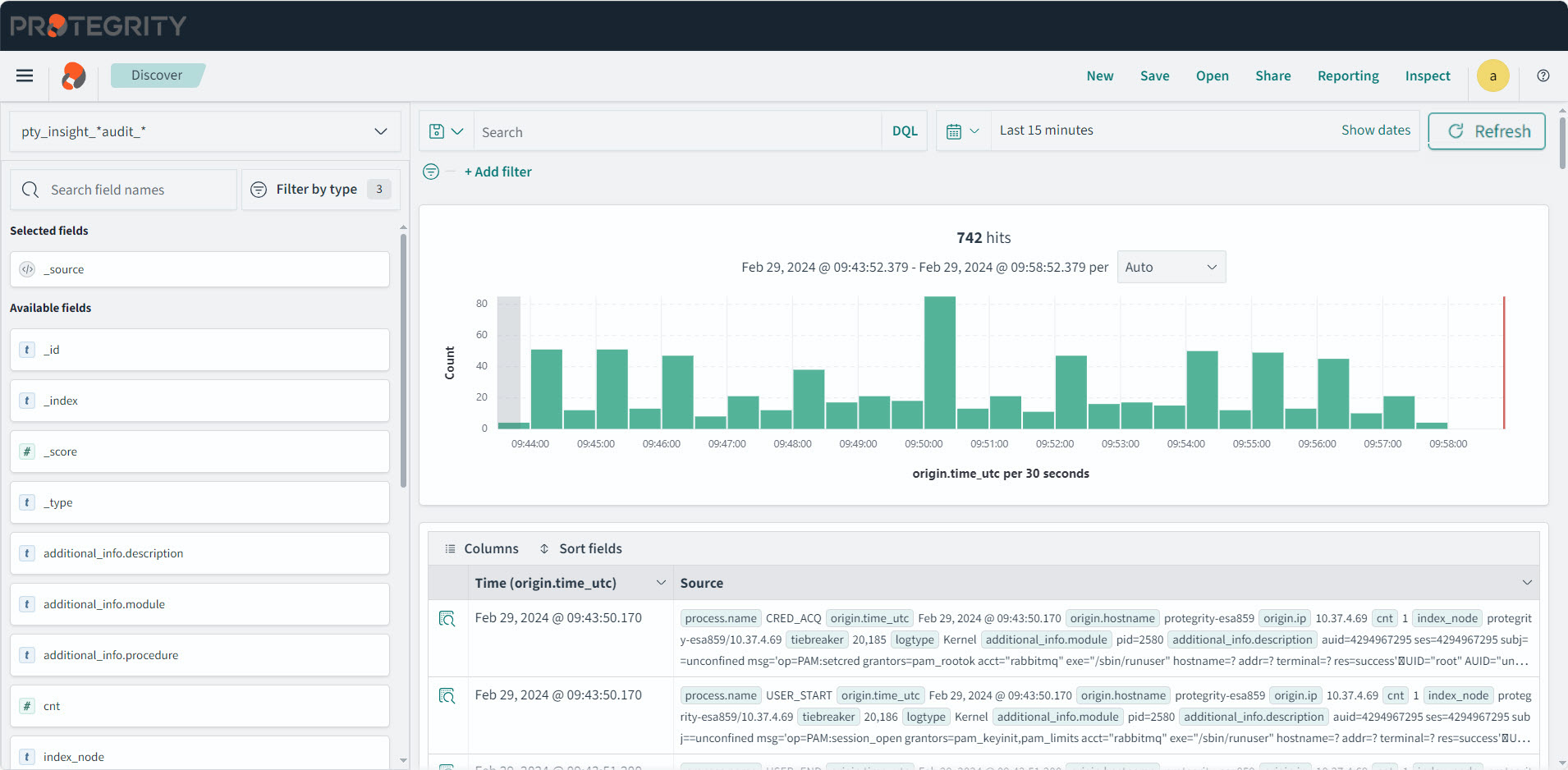
The following table lists the various indexes and information about the data contained in the index. You can view the index list by logging into the ESA, and navigating to Audit Store > Cluster Management > Overview > Indices. Indexes can be created or deleted. However, deleting an index will lead to a permanent loss of data in the index. If the index was not backed up earlier, then the logs from the index deleted cannot be recreated or retrieved.
| Index Name | Origin | Description |
|---|---|---|
| .kibana_1 | Audit Store | This is a system index created by the Audit Store. This hold information about the dashboards. |
| .opendistro_security | Audit Store | This is a system index created by the Audit Store. This hold information about the security, roles, mapping, and so on. |
| .opendistro-job-scheduler-lock | Audit Store | This is a system index created by the Audit Store. |
| .opensearch-notifications-config | Audit Store | This is a system index created by the Audit Store. |
| .opensearch-observability | Audit Store | This is a system index created by the Audit Store. |
| .plugins-ml-config | Audit Store | This is a system index created by the Audit Store. |
| .ql-datasources | Audit Store | This is a system index created by the Audit Store. |
| pty_auditstore_cluster_config | ESA | This index logs logs information about the Audit Store cluster. |
| pty_insight_analytics_audit | ESA | This index logs the audit data for all the URP operations and the DSG appliance logs. It also captures all logs with the log type protection, metering, audit, and security. |
| pty_insight_analytics_autosuggestion | ESA | This index holds the autocomplete information for querying logs in Insight. The index was used in earlier versions of ESA. |
| pty_insight_analytics_crons | ESA | This index logs information about the cron scheduler jobs. |
| pty_insight_analytics_crons_logs | ESA | This index logs for the cron scheduler when the jobs are executed. |
| pty_insight_analytics_dsg_error_metrics | DSG | This index logs the DSG error information. |
| pty_insight_analytics_dsg_transaction_metrics | DSG | This index logs the DSG transaction information. |
| pty_insight_analytics_dsg_usage_metrics | DSG | This index logs the DSG usage information. |
| pty_insight_analytics_encryption_store | ESA | This index encrypts and stores the password specified for the jobs. |
| pty_insight_analytics_forensics_custom_queries | ESA | This index stores the custom queries created for forensics. The index was used in earlier versions of ESA. |
| pty_insight_analytics_ilm_export_jobs | ESA | This index logs information about the running ILM export jobs. |
| pty_insight_analytics_ilm_status | ESA | This index logs the information about the running ILM import and delete jobs. |
| pty_insight_analytics_kvs | ESA | This is an internal index for storing the key-value type information. |
| pty_insight_analytics_miscellaneous | ESA | This index logs entries that are not categorized in the other index files. |
| pty_insight_analytics_policy | ESA | This index logs information about the ESA policy. It is a system index created by the ESA. |
| pty_insight_analytics_policy_log | ESA | This index logs for the ESA policy when the jobs are executed. |
| pty_insight_analytics_policy_status_dashboard | ESA | The index holds information about the policy of the protectors for the dashboard. |
| pty_insight_analytics_protector_status_dashboard | ESA | This index holds information about the 10.0.0 protectors for the dashboard. |
| pty_insight_analytics_protectors_status | Protectors | This index holds the status logs of version 10.0.0 protectors. |
| pty_insight_analytics_report | ESA | This index holds information for the reports created. The index was used in earlier version of ESA. |
| pty_insight_analytics_signature_verification_jobs | ESA | This index logs information about the signature verification jobs. |
| pty_insight_analytics_signature_verification_running_jobs | ESA | This index logs information about the signature verification jobs that are currently running. |
| pty_insight_analytics_troubleshooting | ESA | This index logs the log type application, kernel, system, and verification. |
3.5 - Understanding the index field values
Common Logging Information
These logging fields are common with the different log types generated by Protegrity products.
Note: These common fields are used across all log types.
| Field | Data Type | Description | Source | Example |
|---|---|---|---|---|
| cnt | Integer | The aggregated count for a specific log. | Protector | 5 |
| logtype | String | The type of log. For example, Protection, Policy, Application, Audit, Kernel, System, or Verification.For more examples about the log types, refer here. | Protector | Protection |
| level | String | The level of severity. For example, SUCCESS, WARNING, ERROR, or INFO. These are the results of the logging operation.For more information about the log levels, refer here. | Protector | SUCCESS |
| starttime | Date | This is an unused field. | Protector | |
| endtime | Date | This is an unused field. | Protector | |
| index_time_utc | Date | The time the log was inserted into the Audit Store. | Audit Store | Sep 8, 2024 @ 12:55:24.733 |
| ingest_time_utc | Date | The time the Log Forwarder processed the logs. | Log Forwarder | Sep 8, 2024 @ 12:56:22.027 |
| uri | String | The URI for the log. This is an unused field. | ||
| correlationid | String | A unique ID that is generated when the policy is deployed. | Hubcontroller | clo5nyx470bi59p22fdrsr7k3 |
| filetype | String | This is the file type, such as, regular file, directory, or device, when operations are performed on the file. This displays the value ISREG for files and ISDIR for directories. This is only used in File Protector. | File Protector | ISDIR |
| index_node | String | The index node that ingested the log. | Audit Store | protegrity-esa746/192.168.2.20 |
| operation | String | This is an unused field. | ||
| path | String | This field is provided for Protector-related data. | File Protector | /hmount/source_dir/postmark_dir/postmark/1 |
| system_nano_time | Long | This displays the time in nano seconds for the Signature Verification job. | Signature Verification | 255073580723571 |
| tiebreaker | Long | This is an internal field that is used with the index time to make a record unique across nodes for sorting. | Protector, Signature Verification | 2590230 |
| _id | String | This is the entry id for the record stored in the Audit Store. | Log Forwarder, td-agent | NDgyNzAwMDItZDI5Yi00NjU1LWJhN2UtNzJhNWRkOWYwOGY3 |
| _index | String | This is the index name of the Audit Store where the log is stored. | Log Forwarder, td-agent | pty_insight_analytics_audits_10.0-2024.08.30-000001 |
Additional_Info
These descriptions are used for all types of logs.
| Field | Data Type | Description | Source | Example |
|---|---|---|---|---|
| description | String | Description about the log generated. | All modules | Data protect operation was successful, Executing attempt_rollover for |
| module | String | The module that generated the log. | All modules | .signature.job_runner |
| procedure | String | The method in the module that generated the log. | All modules | create_job |
| title | String | The title for the audit log. | DSG | DSG’s Rule Name INFO : DSG Patch Installation - User has chosen to reboot system later., Cloud Gateway service restart, and so on.# |
Process
This section describes the properties of the process that created the log. For example, the protector or the rputils.
| Field | Data Type | Description | Source | Example |
|---|---|---|---|---|
| thread_id | String | The thread_id of the process that generated the log. | PEP Server | 3382487360 |
| id | String | The id of the process that generated the log. | PEP Server | 41710 |
| user | String | The user that runs the program that generated the log. | All modules | service_admin |
| version | String | The version of the program or Protector that generated the log. | All modules | 1.2.2+49.g126b2.1.2 |
| platform | String | The platform that the program that generated the log is running on. | PEP Server | Linux_x64 |
| module | String | The module that generated the log. | ESA, Protector | rpstatus |
| name | String | The name of the process that generated the log. | All modules | Protegrity PEP Server |
| pcc_version | String | The core pcc version. | PEP Server | 3.4.0.20 |
Origin
This section describes the origin of the log, that is, from where the log came from and when it was generated.
| Field | Data Type | Description | Source | Example |
|---|---|---|---|---|
| time_utc | Date | The time in the Coordinated Universal Time (UTC) format when the log was generated. | All modules | Sep 8, 2024 @ 12:56:29.000 |
| hostname | String | The hostname of the machine where the log was generated. | All modules | ip-192-16-1-20.protegrity.com |
| ip | IP | The IP of the machine where the log was generated. | All modules | 192.168.1.20 |
Protector
This section describes the Protector that generated the log. For example, the vendor and the version of the Protector.
Note: For more information about the Protector vendor, family, and version, refer here.
| Field | Data Type | Description | Source | Example |
|---|---|---|---|---|
| vendor | String | The vendor of the Protector that generated the log. This is specified by the Protector. | Protector | DSG |
| family | String | The Protector family of the Protector that generated the logs. This is specified by the Protector. For more information about the family, refer here. | Protector | gwp |
| version | String | The version of the Protector that generated the logs. This is specified by the Protector. | Protector | 1.2.2+49.g126b2.1.2 |
| core_version | String | This is the Core component version of the product. | Protector | 1.2.2+49.g126b2.1.2 |
| pcc_version | String | This is the PCC version. | Protector | 3.4.0.20 |
Protection
This section describes the protection that was done, what was done, the result of the operation, where it was done, and so on.
| Field | Data Type | Description | Source | Example |
|---|---|---|---|---|
| policy | String | The name of the policy. This is only used in File Protector. | Protector | aes1-rcwd |
| role | String | This field is not used and will be deprecated. | Protector | |
| datastore | String | The name of the datastore used for the security operation. | Protector | Testdatastore |
| audit_code | Integer | The return code for the operation. For more information about the return codes, refer to Log return codes. | Protector | 6 |
| session_id | String | The identifier for the session. | Protector | |
| request_id | String | The ID of the request that generated the log. | Protector | |
| old_dataelement | String | The old dataelement value before the reprotect to a new dataelement. | Protector | AES128 |
| mask_setting | String | The mask setting used to protect data. | Protector | Mask Left:4 Mask Right:4 Mark Character: |
| dataelement | String | The dataelement used when protecting or unprotecting data. This is passed by the Protector performing the operation. | Protector | PTY_DE_CCN |
| operation | String | The operation, for example Protect, Unprotect, or Reprotect. This is passed in by the Protector performing the operation. | Protector | Protect |
| policy_user | String | The policy user for which the operation is being performed. This is passed in by the Protector performing the operation. | Protector | exampleuser1 |
| devicepath | String | The path to the device. This is only used in File Protector. | Protector | /hmount/fuse_mount |
| filetype | String | The type of file that was protected or unprotected. This displays the value ISREG for files and ISDIR for directories. This is only used in File Protector. | Protector | ISREG |
| path | String | The path to the file protected or unprotected by the File Protector. This is only used in File Protector. | Protector | /testdata/src/ez/audit_log(13).csv |
Client
This section describes from where the log came from.
| Field | Data Type | Description | Source | Example |
|---|---|---|---|---|
| ip | String | The IP of the client that generated the log. | DSG | 192.168.2.10 |
| username | String | The username that ran the Protector or Server on the client that created the log. | Hubcontroller | johndoe |
Policy
This section describes the information about the policy.
| Field | Data Type | Description | Source | Example |
|---|---|---|---|---|
| audit_code | Integer | This is the policy audit code for the policy log. | PEP Server | 198 |
| policy_name | String | This is the policy name for the policy log. | PEP Server | AutomationPolicy |
| severity | String | This is the severity level for the policy log entry. | PEP Server | Low |
| username | String | This is the user who modified the policy. | PEP Server | johndoe |
Metering
This section describes the metering log information.
Note: These fields are applicable for Protectors up to v7.2.1. If you upgraded your ESA from v7.2.1 to v9.1.0.0 and migrated the metering audits, then these fields contain data.
Metering is not supported for Protectors v8.0.0.0 and above and these are fields will be blank.
| Field | Data Type | Description | Source | Example |
|---|---|---|---|---|
| meteringmode | String | This is the mode for metering logs, such as, delta or total. | PEP Server | total |
| origin | String | This is the IP from where metering data originated. | PEP Server | 192.168.0.10 |
| protection_count | Double | This is the number of protect operations metered. | PEP Server | 10 |
| reprotection_count | Double | This is the number of reprotect operations metered. | PEP Server | 5 |
| timestamp | Date | This is the UTC timestamp when the metering log entry was generated. | PEP Server | Sep 8, 2020 @ 12:56:29.000 |
| uid | String | This is the unique ID of the metering source that generated the log. | PEP Server | Q2XJPGHZZIYKBPDX5K0KEISIV9AX9V |
| unprotection_count | Double | This is the number of unprotect operations metered. | PEP Server | 10 |
Signature
This section handles the signing of the log. The key that was used to sign the log and the actual checksum that was generated.
| Field | Data Type | Description | Source | Example |
|---|---|---|---|---|
| key_id | String | The key ID of the signingkey that signed the log record. | Protector | cc93c930-2ba5-47e1-9341-56a8d67d55d4 |
| checksum | String | The checksum that was the result of signing the log. | Protector | 438FE13078719ACD4B8853AE215488ACF701ECDA2882A043791CDF99576DC0A0 |
| counter | Double | This is the chain of custody value. It helps maintain the integrity of the log data. | Protector | 50321 |
Verification
This section describes the log information generated for a failed signature verification job.
| Field | Data Type | Description | Source | Example |
|---|---|---|---|---|
| doc_id | String | This is the document ID for the audit log where the signature verification failed. | Signature Verification | N2U2N2JkM2QtMDhmYy00OGJmLTkyOGYtNmRhYzhhMGExMTFh |
| index_name | String | This is the index name where the log signature verification failed. | Signature Verification | pty_insight_analytics_audits_10.0-2024.08.30-000001 |
| job_id | String | This is the job ID of the signature verification job. | Signature Verification | 1T2RaosBEEC_iPz-zPjl |
| job_name | String | This is the job name of the signature verification job. | Signature Verification | System Job |
| reason | String | This is the audit log specifying the reason of the signature verification failure. | Signature Verification | INVALID_CHECKSUM | INVALID_KEY_ID | NO_KEY_AND_DOC_UPDATED |
3.6 - Index entries
Audit index
The log types of protection, metering, audit, and security are stored in the audit index. These log are generated during security operations. The logs generated by protectors are stored in the audit index with the name as shown in the following table for the respective version.
| ESA version | Index pattern | Description | Example |
|---|---|---|---|
| ESA v10.2.0 | pty_insight_analytics_*audits* | Use in the Audit Store Dashboards for viewing v10.2.0 logs on the dashboard. | pty_insight_analytics_audits_10.0-2024.08.30-000001 |
| v9.2.0.0 and earlier | pty_insight_*audit_* | Use in the Audit Store Dashboards for viewing older release logs on the dashboard. | pty_insight_analytics_audit_9.2-2024.08.07-000001, pty_insight_audit_v9.1-2028.02.10-000019, pty_insight_audit_v2.0-2022.02.19-000006, pty_insight_audit_v1.1-2021.02.17-000001, pty_insight_audit_v1-2020.12.21-000001 |
| v8.0.0.0 and above | pty_insight_*audit* | Use in the Audit Store Dashboards for viewing all logs. | pty_insight_analytics_audits_10.0-2024.08.30-000001, pty_insight_analytics_audit_9.2-2024.08.07-000001, pty_insight_audit_v9.1-2028.02.10-000019, pty_insight_audit_v2.0-2022.02.19-000006, pty_insight_audit_v1.1-2021.02.17-000001, pty_insight_audit_v1-2020.12.21-000001 |
The following parameters are configured for the index rollover in v10.2.0:
- Index age: 30 days
- Document count: 200,000,000
- Index size: 5 GB
Protection logs
These logs are generated by protectors during protecting, unprotecting, and reprotecting data operations. These logs are generated by protectors, such as, DSG.
Use the following query in Discover to view these logs.
logtype:protection
A sample log is shown here:
 {
    "process": {
      "thread_id": "1227749696",
      "module": "coreprovider",
      "name": "java",
      "pcc_version": "3.6.0.1",
      "id": "4190",
      "user": "user4",
      "version": "10.0.0-alpha+13.gef09.10.0",
      "core_version": "2.1.0+17.gca723.2.1",
      "platform": "Linux_x64"
    },
    "level": "SUCCESS",
    "signature": {
      "key_id": "11a8b7d9-1621-4711-ace7-7d71e8adaf7c",
      "checksum": "43B6A4684810383C9EC1C01FF2C5CED570863A7DE609AE5A78C729A2EF7AB93A"
    },
    "origin": {
      "time_utc": "2024-09-02T13:55:17.000Z",
      "hostname": "hostname1234",
      "ip": "10.39.3.156"
    },
    "cnt": 1,
    "protector": {
      "vendor": "Java",
      "pcc_version": "3.6.0.1",
      "family": "sdk",
      "version": "10.0.0-alpha+13.gef09.10.0",
      "core_version": "2.1.0+17.gca723.2.1"
    },
    "protection": {
      "dataelement": "TE_A_S13_L1R2_Y",
      "datastore": "DataStore",
      "audit_code": 6,
      "operation": "Protect",
      "policy_user": "user1"
    },
    "index_node": "protegrity-esa399/10.39.1.23",
    "tiebreaker": 210,
    "logtype": "Protection",
    "additional_info": {
      "description": "Data protect operation was successful"
    },
    "index_time_utc": "2024-09-02T13:55:24.766355224Z",
    "ingest_time_utc": "2024-09-02T13:55:17.678Z",
    "client": {},
    "correlationid": "cm0f1jlq700gbzb19cq65miqt"
  },
  "fields": {
    "origin.time_utc": [
      "2024-09-02T13:55:17.000Z"
    ],
    "index_time_utc": [
      "2024-09-02T13:55:24.766Z"
    ],
    "ingest_time_utc": [
      "2024-09-02T13:55:17.678Z"
    ]
  },
  "sort": [
    1725285317000
  ]
The above example contains the following information:
- additional_info
- origin
- protector
- protection
- process
- client
- protector
- signature
For more information about the various fields, refer here.
Metering logs
These logs are generated by protectors of prior to 8.0.0.0. These logs are not generated by latest protectors.
Use the following query in Discover to view these logs.
logtype:metering
For more information about the various fields, refer here.
Audit logs
These logs are generated when the rule set of the DSG protector gets updated.
Use the following query in Discover to view these logs.
logtype:audit
A sample log is shown here:
 {
   "additional_info.description": "User admin modified default_80 tunnel successfully ",
   "additional_info.title": "Gateway : Tunnels : Tunnel 'default_80' Modified",
   "client.ip": "192.168.2.20",
   "cnt": 1,
   "index_node": "protegrity-esa746/192.168.1.10",
   "index_time_utc": "2024-01-24T13:30:17.171646Z",
   "ingest_time_utc": "2024-01-24T13:29:35.000000000Z",
   "level": "Normal",
   "logtype": "Audit",
   "origin.hostname": "protegrity-cg406",
   "origin.ip": "192.168.2.20",
   "origin.time_utc": "2024-01-24T13:29:35.000Z",
   "process.name": "CGP",
   "process.user": "admin",
   "tiebreaker": 2260067,
   "_id": "ZTdhNzFmMTUtMWZlOC00MmY4LWJmYTItMjcwZjMwMmY4OGZh",
   "_index": "pty_insight_audit_v9.1-2024.01.23-000006"
 }
This example includes data from each of the following groups defined in the index:
- additional_info
- client
- origin
- process
For more information about the various fields, refer here.
Security logs
These logs are generated by security events of the system.
Use the following query in Discover to view these logs.
logtype:security
For more information about the various fields, refer here.
Troubleshooting index
The log types of application, kernel, system, and verification logs are stored in the troubleshooting index. These logs helps you understand the working of the system. The logs stored in this index are essential when the system is down or has issues. This is the pty_insight_analytics_troubleshooting index. The index pattern for viewing these logs in Discover is pty_insight_*troubleshooting_*.
The following parameters are configured for the index rollover:
- Index age: 30 days
- Document count: 200,000,000
- Index size: 5 GB
Application Logs
These logs are generated by Protegrity servers and Protegrity applications.
Use the following query in Discover to view these logs.
logtype:application
A sample log is shown here:
{
    "process": {
      "name": "hubcontroller"
    },
    "level": "INFO",
    "origin": {
      "time_utc": "2024-09-03T10:02:34.597000000Z",
      "hostname": "protegrity-esa503",
      "ip": "10.37.4.12"
    },
    "cnt": 1,
    "index_node": "protegrity-esa503/10.37.4.12",
    "tiebreaker": 16916,
    "logtype": "Application",
    "additional_info": {
      "description": "GET /dps/v1/deployment/datastores | 304 | 127.0.0.1 | Protegrity Client | 8ms | "
    },
    "index_time_utc": "2024-09-03T10:02:37.314521452Z",
    "ingest_time_utc": "2024-09-03T10:02:36.262628342Z",
    "correlationid": "cm0m9gjq500ig1h03zwdv6kok"
  },
  "fields": {
    "origin.time_utc": [
      "2024-09-03T10:02:34.597Z"
    ],
    "index_time_utc": [
      "2024-09-03T10:02:37.314Z"
    ],
    "ingest_time_utc": [
      "2024-09-03T10:02:36.262Z"
    ]
  },
  "highlight": {
    "logtype": [
      "@opensearch-dashboards-highlighted-field@Application@/opensearch-dashboards-highlighted-field@"
    ]
  },
  "sort": [
    1725357754597
  ]
The above example contains the following information:
- additional_info
- origin
- process
For more information about the various fields, refer here.
Kernel logs
These logs are generated by the kernel and help you analyze the working of the internal system. Some of the modules that generate these logs are CRED_DISP, KERNEL, USER_CMD, and so on.
Use the following query in Discover to view these logs.
logtype:Kernel
For more information and description about the components that can generate kernel logs, refer here.
For a list of components and modules and the type of logs they generate, refer here.
A sample log is shown here:
{
    "process": {
      "name": "CRED_DISP"
    },
    "origin": {
      "time_utc": "2024-09-03T10:02:55.059999942Z",
      "hostname": "protegrity-esa503",
      "ip": "10.37.4.12"
    },
    "cnt": "1",
    "index_node": "protegrity-esa503/10.37.4.12",
    "tiebreaker": 16964,
    "logtype": "Kernel",
    "additional_info": {
      "module": "pid=38236",
      "description": "auid=4294967295 ses=4294967295 subj=unconfined msg='op=PAM:setcred grantors=pam_rootok acct=\"rabbitmq\" exe=\"/usr/sbin/runuser\" hostname=? addr=? terminal=? res=success'\u001dUID=\"root\" AUID=\"unset\"",
      "procedure": "uid=0"
    },
    "index_time_utc": "2024-09-03T10:02:59.315734771Z",
    "ingest_time_utc": "2024-09-03T10:02:55.062254541Z"
  },
  "fields": {
    "origin.time_utc": [
      "2024-09-03T10:02:55.059Z"
    ],
    "index_time_utc": [
      "2024-09-03T10:02:59.315Z"
    ],
    "ingest_time_utc": [
      "2024-09-03T10:02:55.062Z"
    ]
  },
  "highlight": {
    "logtype": [
      "@opensearch-dashboards-highlighted-field@Kernel@/opensearch-dashboards-highlighted-field@"
    ]
  },
  "sort": [
    1725357775059
  ]
This example includes data from each of the following groups defined in the index:
- additional_info
- origin
- process
For more information about the various fields, refer here.
System logs
These logs are generated by the operating system and help you analyze and troubleshoot the system when errors are found.
Use the following query in Discover to view these logs.
logtype:System
For a list of components and modules and the type of logs they generate, refer here.
A sample log is shown here:
 {
    "process": {
      "name": "ESAPAP",
      "version": "10.0.0+2412",
      "user": "admin"
    },
    "level": "Low",
    "origin": {
      "time_utc": "2024-09-03T10:00:34.000Z",
      "hostname": "protegrity-esa503",
      "ip": "10.37.4.12"
    },
    "cnt": "1",
    "index_node": "protegrity-esa503/10.37.4.12",
    "tiebreaker": 16860,
    "logtype": "System",
    "additional_info": {
      "description": "License is due to expire in 30 days. The validity of license has been acknowledged by the user. (web-user 'admin' , IP: '10.87.2.32')",
      "title": "Appliance Info : License is due to expire in 30 days. The validity of license has been acknowledged by the user. (web-user 'admin' , IP: '10.87.2.32')"
    },
    "index_time_utc": "2024-09-03T10:01:10.113708469Z",
    "client": {
      "ip": "10.37.4.12"
    },
    "ingest_time_utc": "2024-09-03T10:00:34.000000000Z"
  },
  "fields": {
    "origin.time_utc": [
      "2024-09-03T10:00:34.000Z"
    ],
    "index_time_utc": [
      "2024-09-03T10:01:10.113Z"
    ],
    "ingest_time_utc": [
      "2024-09-03T10:00:34.000Z"
    ]
  },
  "highlight": {
    "logtype": [
      "@opensearch-dashboards-highlighted-field@System@/opensearch-dashboards-highlighted-field@"
    ]
  },
  "sort": [
    1725357634000
  ]
This example includes data from each of the following groups defined in the index:
- additional_info
- origin
- process
For more information about the various fields, refer here.
Verification logs
These log are generated by Insight on the ESA when a signature verification fails.
Use the following query in Discover to view these logs.
logtype:Verification
For a list of components and modules and the type of logs they generate, refer here.
A sample log is shown here:
{
    "process": {
      "name": "insight.pyc",
      "id": 45277
    },
    "level": "Info",
    "origin": {
      "time_utc": "2024-09-03T10:14:03.120342Z",
      "hostname": "protegrity-esa503",
      "ip": "10.37.4.12"
    },
    "cnt": 1,
    "index_node": "protegrity-esa503/10.37.4.12",
    "tiebreaker": 17774,
    "logtype": "Verification",
    "additional_info": {
      "module": ".signature.job_executor",
      "description": "",
      "procedure": "__log_failure"
    },
    "index_time_utc": "2024-09-03T10:14:03.128435514Z",
    "ingest_time_utc": "2024-09-03T10:14:03.120376Z",
    "verification": {
      "reason": "SV_VERIFY_RESPONSES.INVALID_CHECKSUM",
      "job_name": "System Job",
      "job_id": "9Vq1opEBYpV14mHXU9hW",
      "index_name": "pty_insight_analytics_audits_10.0-2024.08.30-000001",
      "doc_id": "JI5bt5EBMqY4Eog-YY7C"
    }
  },
  "fields": {
    "origin.time_utc": [
      "2024-09-03T10:14:03.120Z"
    ],
    "index_time_utc": [
      "2024-09-03T10:14:03.128Z"
    ],
    "ingest_time_utc": [
      "2024-09-03T10:14:03.120Z"
    ]
  },
  "highlight": {
    "logtype": [
      "@opensearch-dashboards-highlighted-field@Verification@/opensearch-dashboards-highlighted-field@"
    ]
  },
  "sort": [
    1725358443120
  ]
This example includes data from each of the following groups defined in the index:
- additional_info
- process
- origin
- verification
For more information about the various fields, refer here.
Policy log index
The log type of policy is stored in the policy log index. They include logs for the policy-related operations, such as, when the policy is updated. The index pattern for viewing these logs in Discover is pty_insight_*policy_log_*.
The following parameters are configured for the policy log index:
- Index age: 30 days
- Document count: 200,000,000
- Index size: 5 GB
Use the following query in Discover to view these logs.
logtype:policyLog
For a list of components and modules and the type of logs they generate, refer here.
A sample log is shown here:
{
    "process": {
      "name": "hubcontroller",
      "user": "service_admin",
      "version": "1.8.0+6.g5e62d8.1.8"
    },
    "level": "Low",
    "origin": {
      "time_utc": "2024-09-03T08:29:14.000000000Z",
      "hostname": "protegrity-esa503",
      "ip": "10.37.4.12"
    },
    "cnt": 1,
    "index_node": "protegrity-esa503/10.37.4.12",
    "tiebreaker": 10703,
    "logtype": "Policy",
    "additional_info": {
      "description": "Data element created. (Data Element 'TE_LASCII_L2R1_Y' created)"
    },
    "index_time_utc": "2024-09-03T08:30:31.358367506Z",
    "client": {
      "ip": "10.87.2.32",
      "username": "admin"
    },
    "ingest_time_utc": "2024-09-03T08:29:30.017906235Z",
    "correlationid": "cm0m64iap009r1h0399ey6rl8",
    "policy": {
      "severity": "Low",
      "audit_code": 150
    }
  },
  "fields": {
    "origin.time_utc": [
      "2024-09-03T08:29:14.000Z"
    ],
    "index_time_utc": [
      "2024-09-03T08:30:31.358Z"
    ],
    "ingest_time_utc": [
      "2024-09-03T08:29:30.017Z"
    ]
  },
  "highlight": {
    "additional_info.description": [
      "(Data Element '@opensearch-dashboards-highlighted-field@DE@/opensearch-dashboards-highlighted-field@' created)"
    ]
  },
  "sort": [
    1725352154000
  ]
The example contains the following information:
- additional_info
- origin
- policy
- process
For more information about the various fields, refer here.
Policy Status Dashboard index
The policy status dashboard index contains information for the Policy Status Dashboard. It holds the policy and trusted application deployment status information. The index pattern for viewing these logs in Discover is pty_insight_analytics*policy_status_dashboard_*.
{
    "logtype": "Status",
    "process": {
      "thread_id": "2458884416",
      "module": "rpstatus",
      "name": "java",
      "pcc_version": "3.6.0.1",
      "id": "2852",
      "user": "root",
      "version": "10.0.0-alpha+13.gef09.10.0",
      "core_version": "2.1.0+17.gca723.2.1",
      "platform": "Linux_x64"
    },
    "origin": {
      "time_utc": "2024-09-03T10:24:19.000Z",
      "hostname": "ip-10-49-2-49.ec2.internal",
      "ip": "10.49.2.49"
    },
    "cnt": 1,
    "protector": {
      "vendor": "Java",
      "datastore": "DataStore",
      "family": "sdk",
      "version": "10.0.0-alpha+13.gef09.10.0"
    },
    "ingest_time_utc": "2024-09-03T10:24:19.510Z",
    "status": {
      "core_correlationid": "cm0f1jlq700gbzb19cq65miqt",
      "package_correlationid": "cm0m1tv5k0019te89e48tgdug"
    },
    "policystatus": {
      "type": "TRUSTED_APP",
      "application_name": "APJava_sample",
      "deployment_or_auth_time": "2024-09-03T10:24:19.000Z",
      "status": "WARNING"
    }
  },
  "fields": {
    "policystatus.deployment_or_auth_time": [
      "2024-09-03T10:24:19.000Z"
    ],
    "origin.time_utc": [
      "2024-09-03T10:24:19.000Z"
    ],
    "ingest_time_utc": [
      "2024-09-03T10:24:19.510Z"
    ]
  },
  "sort": [
    1725359059000
  ]
The example contains the following information:
- additional_info
- origin
- protector
- policystatus
- policy
- process
Protectors status index
The protector status logs generated by protectors of v10.0.0 are stored in this index. The index pattern for viewing these logs in Discover is pty_insight_analytics_protectors_status_*.
The following parameters are configured for the index rollover:
- Index age: 30 days
- Document count: 200,000,000
- Index size: 5 GB
Use the following query in Discover to view these logs.
logtype:status
A sample log is shown here:
{
   "logtype":"Status",
   "process":{
      "thread_id":"2559813952",
      "module":"rpstatus",
      "name":"java",
      "pcc_version":"3.6.0.1",
      "id":"1991",
      "user":"root",
      "version":"10.0.0.2.91.5ec4b8b",
      "core_version":"2.1.0-alpha+24.g7fc71.2.1",
      "platform":"Linux_x64"
   },
   "origin":{
      "time_utc":"2024-07-30T07:22:41.000Z",
      "hostname":"ip-10-39-3-218.ec2.internal",
      "ip":"10.39.3.218"
   },
   "cnt":1,
   "protector":{
      "vendor":"Java",
      "datastore":"ESA-10.39.2.7",
      "family":"sdk",
      "version":"10.0.0.2.91.5ec4b8b"
   },
   "ingest_time_utc":"2024-07-30T07:22:41.745Z",
   "status":{
      "core_correlationid":"clz79lc2o004jmb29neneto8k",
      "package_correlationid":"clz82ijw00037k790oxlnjalu"
   }
}
The example contains the following information:
- additional_info
- origin
- policy
- protector
Protector Status Dashboard index
The protector status dashboard index contains information for the Protector Status Dashboard. It holds the protector status information. The index pattern for viewing these logs in Discover is pty_insight_analytics*protector_status_dashboard_.
A sample log is shown here:
{
    "logtype": "Status",
    "process": {
      "thread_id": "2458884416",
      "module": "rpstatus",
      "name": "java",
      "pcc_version": "3.6.0.1",
      "id": "2852",
      "user": "root",
      "version": "10.0.0-alpha+13.gef09.10.0",
      "core_version": "2.1.0+17.gca723.2.1",
      "platform": "Linux_x64"
    },
    "origin": {
      "time_utc": "2024-09-03T10:24:19.000Z",
      "hostname": "ip-10-49-2-49.ec2.internal",
      "ip": "10.49.2.49"
    },
    "cnt": 1,
    "protector": {
      "vendor": "Java",
      "datastore": "DataStore",
      "family": "sdk",
      "version": "10.0.0-alpha+13.gef09.10.0"
    },
    "ingest_time_utc": "2024-09-03T10:24:19.510Z",
    "status": {
      "core_correlationid": "cm0f1jlq700gbzb19cq65miqt",
      "package_correlationid": "cm0m1tv5k0019te89e48tgdug"
    },
    "protector_status": "Warning"
  },
  "fields": {
    "origin.time_utc": [
      "2024-09-03T10:24:19.000Z"
    ],
    "ingest_time_utc": [
      "2024-09-03T10:24:19.510Z"
    ]
  },
  "sort": [
    1725359059000
  ]
The example contains the following information:
- additional_info
- origin
- protector
- process
DSG transaction metrics
The table in this section lists the details for the various parameters generated by DSG transactions. The DSG transaction logs are stored in the pty_insight_analytics_dsg_transaction_metrics_9.2 index file. The index pattern for viewing these logs in Discover is pty_insight_analytics_dsg_transaction_metrics_*. The following parameters are configured for the index rollover:
- Index age: 1 day
- Document count: 10,000,000
- Index size: 1 GB
This index stores the following fields.
* -The origin_time_utc and logtype parameters will only be displayed on the Audit Store Dashboards.
For more information about the transaction metric logs, refer to the section Transaction Metrics Logging in the Protegrity Data Security Gateway User Guide 3.2.0.0.
Scheduled tasks are available for deleting this index. You can configure and enable the scheduled task to free up the space used by old index files that you do not require.
For more information about scheduled tasks, refer here.
DSG usage metrics
This section describes the codes associated with the following DSG usage metrics:
- Tunnels usage data (Version 0)
- Service usage data (Version 0)
- Profile usage data (Version 0)
- Rules usage data (Version 0)
The table in this sub sections lists the details for the various parameters generated while using the DSG. The DSG usage metrics logs are stored in the pty_insight_analytics_dsg_usage_metrics_9.2 index file. The index pattern for viewing these logs in Discover is pty_insight_analytics_dsg_usage_metrics_*. The following parameters are configured for the index rollover:
- Index age: 1 day
- Document count: 3,500,000
- Index size: 1 GB
For more information about the usage metrics, refer to the Protegrity Data Security Gateway User Guide 3.2.0.0.
Scheduled tasks are available for deleting this index. You can configure and enable the scheduled task to free up the space used by old index files that you do not require.
For more information about scheduled tasks, refer here.
Tunnels usage data
The table in this section describes the usage metric for Tunnels.
| Position | Name | Data Type | Description |
|---|---|---|---|
| 0 | metrics type | integer | 0 for Tunnels |
| 1 | metrics version | integer | 0 |
| 2 | tunnel-type | string | the tunnel type CIFS, HTTP, NFS, S3, SFTP, SMTP |
| 3 | timestamp | string | time usage is reported |
| 4 | tunnel-id | string | address of tunnel instance will be unique id generated when tunnel is created. |
| 5 | uptime | float | time in seconds since the tunnel loaded |
| 6 | bytes-processed | integer | frontend and backend bytes the tunnel processed since the last time usage was reported |
| 7 | frontend-bytes-processed | integer | frontend bytes the tunnel has processed since the last time usage was reported |
| 8 | backend-bytes-processed | integer | backend bytes the tunnel has processed since the last time usage was reported |
| 9 | total-bytes-processed | integer | total number of frontend and backend bytes the tunnel has processed during the time the tunnel has been loaded |
| 10 | frontend-bytes-processed | integer | total number of frontend bytes the tunnel has processed during the time the tunnel has been loaded |
| 11 | backend-bytes-processed | integer | total number of backend bytes the tunnel has processed during the time the tunnel has been loaded |
| 12 | message-count | integer | number of requests the tunnel received since the last time usage was reported |
| 13 | total-message-count | integer | total number of requests the tunnel received during the time the tunnel has been loaded |
| 14 | ingest_time_utc | string | Time in UTC at which this log is ingested |
| 15 | logtype | string | Value to identify type of metric –> dsg_metrics_usage_tunnel |
A sample is provided here:
{"metrics_type":"Tunnel","version":0,"tunnel_type":"HTTP","cnt":1,"logtype":"Application","origin":{"time_utc":"2023-04-13T12:28:18Z"},"previous_timestamp":"2023-04-13T12:28:08Z","tunnel_id":"140361619513360","checksum":"4139677074","uptime":620.8048927783966,"bytes_processed":401,"frontend_bytes_processed":401,"backend_bytes_processed":0,"previous_bytes_processed":401,"previous_frontend_bytes_processed":401,"previous_backend_bytes_processed":0,"total_bytes_processed":1203,"total_frontend_bytes_processed":1203,"total_backend_bytes_processed":0,"message_count":1,"previouse_message_count":1,"total_message_count":3}
Services usage data
The table in this section describes the usage metric for Services.
| Position | Name | Data Type | Description |
|---|---|---|---|
| 0 | metrics type | integer | 1 for Services |
| 1 | metrics version | integer | 0 |
| 2 | service-type | string | the service type HTTP-GW, MOUNTED-OOB, REST-API, S3-OOB, SMTP-GW, SFTP-GW, WS-GW |
| 3 | timestamp | string | time usage is reported |
| 4 | service-id | string | UUID of service name |
| 5 | tunnel-id | string | UUID of tunnel name |
| 6 | calls | integer | number of times service processed frontend and backend requests since the time usage was last reported |
| 7 | frontend-calls | integer | number of times service processed frontend requests since the time usage was last reported |
| 8 | backend-calls | integer | number of times service processed backend requests since the time usage was last reported |
| 9 | total-calls | integer | total number number of times service processed frontend and backend requests since the service has been loaded |
| 10 | total-frontend-calls | integer | total number number of times service processed frontend and backend requests since the service has been loaded |
| 11 | total-backend-calls | integer | total number number of times service processed frontend and backend requests since the service has been loaded |
| 12 | bytes-processed | integer | frontend and backend bytes the service processed since the last time usage was reported |
| 13 | frontend-bytes-processed | integer | frontend bytes the tunnel processed since the last time usage was reported |
| 14 | backend-bytes-processed | integer | backend bytes the tunnel processed since the last time usage was reported |
| 15 | total-bytes-processed | integer | total number of frontend and backend bytes the service has processed during the time the service has been loaded |
| 16 | total-frontend-bytes-processed | integer | total number of frontend bytes the tunnel has processed during the time the tunnel has been loaded |
| 17 | total-backend-bytes-processed | integer | total number of backend bytes the tunnel has processed during the time the tunnel has been loaded |
| 18 | ingest_time_utc | string | Time in UTC at which this log is ingested |
| 19 | logtype | string | Value to identify type of metric –> dsg_metrics_usage_service |
A sample is provided here:
{"metrics_type":"Service","version":0,"service_type":"REST-API","cnt":1,"logtype":"Application","origin":{"time_utc":"2023-04-13T12:28:18Z"}, "previous_timestamp":"2023-04-13T12:28:08Z", "service_id":"140361548704016","checksum":"3100121694","tunnel_checksum":"4139677074","calls":401,"frontend_calls":401,"backend_calls":0,"previous_calls":401,"previous_frontend_calls":401,"previous_backend_calls":0,"total_calls":1203,"total_frontend_calls":1203,"total_backend_calls":0,"bytes_processed":2,"frontend_bytes_processed":1,"backend_bytes_processed":1,"previous_bytes_processed":2,"previous_frontend_bytes_processed":1,"previous_backend_bytes_processed":1,"total_bytes_processed":6,"total_frontend_bytes_processed":3,"total_backend_bytes_processed":3}
Profile usage data
The table in this section describes the usage metric for Profile.
| Position | Name | Data Type | Description |
|---|---|---|---|
| 0 | metrics type | integer | 2 for Profile |
| 1 | metrics version | integer | 0 |
| 2 | timestamp | string | time usage is reported |
| 3 | prev-timestamp | string | the previous time usage was reported |
| 4 | profile-id | string | address of profile instance will be unique id generated when profile is created |
| 5 | parent-id | string | checksum of profile or service calling this profile |
| 6 | calls | integer | number of times the profile processed a request since the time usage was last reported |
| 7 | total-calls | integer | total number of times the profile processed a request since profile has been loaded |
| 8 | profile-ref-count | integer | the number of times this profile has been called via a profile reference since the time usage was last reported |
| 9 | prev-profile-ref-count | integer | the number of times this profile has been called via a profile reference the last time usage was last reported |
| 10 | total-profile-ref-count | integer | total number of times this profile has been called via a profile reference since the profile has been loade |
| 11 | bytes-processed | integer | bytes the profile processed since the last time usage was reported |
| 12 | total-bytes-processed | integer | total bytes the profile processed since the profile has been loaded |
| 13 | elapsed-time-sample-count | integer | the number of times the profile was sampled since the last time usage was reported |
| 14 | elapsed-time-mean | integer | the average amount of time in nano-seconds it took to process a request based on elapsed-time-sample-count |
| 15 | total-elapsed-time-sample-count | integer | the number of times the profile was sampled since the profile has been loaded |
| 16 | total-elapsed-time-sample-mean | integer | the average amount of time in nano-seconds it took to process a request based on total-elapsed-time-sample-count |
| 17 | ingest_time_utc | string | Time in UTC at which this log is ingested |
| 18 | logtype | string | Value to identify type of metric –> dsg_metrics_usage_profile |
A sample is provided here:
{"metrics_type":"Profile","version":0,"cnt":1,"logtype":"Application","origin":{"time_utc":"2023-04-13T12:28:18Z"},"previous_timestamp":"2023-04-13T12:28:08Z","profile_id":"140361548999248","checksum":"3504922421","parent_checksum":"3100121694","calls":2,"previous_calls":2,"total_calls":6,"profile_reference_count":0,"previous_profile_reference_count":0,"total_profile_reference_count":0,"bytes_processed":802,"previous_bytes_processed":802,"total_bytes_processed":2406,"elapsed_time_sample_count":2,"elapsed_time_average":221078.5,"total_elapsed_time_sample_count":6,"total_elapsed_time_sample_average":245797.0}
Rules usage data
The table in this section describes the usage metric for Rules.
| Position | Name | Data Type | Description |
|---|---|---|---|
| 0 | metrics type | integer | 3 for Rules |
| 1 | metrics version | integer | 0 |
| 2 | rule-type | string | rule is one of Dynamice Injection, Error, Exit, Extract, Log, Profile Reference, Set Context Variable, Set User Identity, Transform |
| 3 | codec | string | only applies to Extract |
| 4 | timestamp | string | time usage is reported |
| 5 | flag | boolean | Broken rule or is domain name rewrite |
| 6 | rule-id | string | address of rule instance will be unique id generated when rule is created. |
| 7 | parent-id | string | checksum of rule or profile calling this rule |
| 8 | calls | integer | number of times the rule processed a request since the time usage was last reported |
| 9 | total-calls | integer | total number of times the rule processed a request since rule has been loaded |
| 10 | profile-ref-count | integer | the number of times this rule has been called via a profile reference since the time usage was last reported |
| 11 | prev-profile-ref-count | integer | the number of times this rule has been called via a profile reference the last time usage was last reported |
| 12 | total-profle-ref-count | integer | total number of times this rule has been called via a profile reference since the rule has been loaded |
| 13 | bytes-processed | integer | bytes the rule processed since the last time usage was reported |
| 14 | total-bytes-processed | integer | total bytes the rule processed since the rule has been loaded |
| 15 | elapsed-time-sample-count | integer | the number of times the rule was sampled since the last time usage was reported |
| 16 | elapsed-time-sample-mean | integer | the average amount of time in nano-seconds it took to process a data based on elapsed-time-sample-count |
| 17 | total-elapsed-time-sample-count | integer | the number of times the rule was sampled since the rule has been loaded |
| 18 | total-elapsed-time-sample-mean | integer | the average amount of time in nano-seconds it took to process a data based on total-elapsed-time-sample-count |
| 19 | ingest_time_utc | string | Time in UTC at which this log is ingested |
| 20 | logtype | string | Value to identify type of metric –> dsg_metrics_usage_rule |
A sample is provided here:
{"metric_type":"Rule","version":0,"rule_type":"Extract","codec":"Set User Identity","cnt":1,"logtype":"Application","origin":{"time_utc":"2023-04-13T12:28:18Z"},"previous_timestamp":"2023-04-13T12:28:08Z","broken":false,"domain_name_rewrite":false,"rule_id":"140361553016464","rule_checksum":"932129179","parent_checksum":"3504922421","calls":1,"previous_calls":1,"total_calls":3,"profile_reference_count":0,"previous_profile_reference_count":0,"total_profile_reference_count":0,"bytes_processed":1,"previous_bytes_processed":1,"total_bytes_processed":3,"elapsed_time_sample_count":1,"elapsed_time_sample_average":406842.0,"total_elapsed_time_sample_count":3,"total_elapsed_time_sample_average":451163.6666666667}
DSG error metrics
The table in this section lists the details for the various parameters generated for the DSG Error Metrics. The DSG Error Metrics logs are stored in the pty_insight_analytics_dsg_error_metrics_9.2 index file. The index pattern for viewing these logs in Discover is pty_insight_analytics_dsg_error_metrics_*. The following parameters are configured for the index rollover:
- Index age: 1 day
- Document count: 3,500,000
- Index size: 1 GB
This index stores the following fields.
* -The origin_time_utc and logtype parameters will only be displayed on the Audit Store Dashboards.
For more information about the error metric logs, refer to the Protegrity Data Security Gateway User Guide 3.2.0.0.
Scheduled tasks are available for deleting this index. You can configure and enable the scheduled task to free up the space used by old index files that you do not require.
For more information about scheduled tasks, refer here.
Miscellaneous index
The logs that are not added to the other indexes are captured and stored in the miscellaneous index. The index pattern for viewing these logs in Discover is pty_insight_analytics_miscellaneous_*.
This index should not contain any logs. If any logs are visible in this index, then kindly contact Protegrity support.
The following parameters are configured for the index rollover:
- Index age: 7 days
- Document count: 3,500,000
- Index size: 200 mb
Use the following query in Discover to view these logs.
logtype:miscellaneous;
Scheduled tasks are available for deleting this index. You can configure and enable the scheduled task to free up the space used by old index files that you do not require.
For more information about scheduled tasks, refer here.
3.7 - Log return codes
| Return Code | Description |
|---|---|
| 0 | Error code for no logging |
| 1 | The username could not be found in the policy |
| 2 | The data element could not be found in the policy |
| 3 | The user does not have the appropriate permissions to perform the requested operation |
| 4 | Tweak is null |
| 5 | Integrity check failed |
| 6 | Data protect operation was successful |
| 7 | Data protect operation failed |
| 8 | Data unprotect operation was successful |
| 9 | Data unprotect operation failed |
| 10 | The user has appropriate permissions to perform the requested operation but no data has been protected/unprotected |
| 11 | Data unprotect operation was successful with use of an inactive keyid |
| 12 | Input is null or not within allowed limits |
| 13 | Internal error occurring in a function call after the provider has been opened |
| 14 | Failed to load data encryption key |
| 15 | Tweak input is too long |
| 16 | The user does not have the appropriate permissions to perform the unprotect operation |
| 17 | Failed to initialize the PEP: this is a fatal error |
| 19 | Unsupported tweak action for the specified fpe data element |
| 20 | Failed to allocate memory |
| 21 | Input or output buffer is too small |
| 22 | Data is too short to be protected/unprotected |
| 23 | Data is too long to be protected/unprotected |
| 24 | The user does not have the appropriate permissions to perform the protect operation |
| 25 | Username too long |
| 26 | Unsupported algorithm or unsupported action for the specific data element |
| 27 | Application has been authorized |
| 28 | Application has not been authorized |
| 29 | The user does not have the appropriate permissions to perform the reprotect operation |
| 30 | Not used |
| 31 | Policy not available |
| 32 | Delete operation was successful |
| 33 | Delete operation failed |
| 34 | Create operation was successful |
| 35 | Create operation failed |
| 36 | Manage protection operation was successful |
| 37 | Manage protection operation failed |
| 38 | Not used |
| 39 | Not used |
| 40 | No valid license or current date is beyond the license expiration date |
| 41 | The use of the protection method is restricted by license |
| 42 | Invalid license or time is before license start |
| 43 | Not used |
| 44 | The content of the input data is not valid |
| 45 | Not used |
| 46 | Used for z/OS query default data element when policy name is not found |
| 47 | Access key security groups not found |
| 48 | Not used |
| 49 | Unsupported input encoding for the specific data element |
| 50 | Data reprotect operation was successful |
| 51 | Failed to send logs, connection refused |
| 52 | Return code used by bulkhandling in pepproviderauditor |
3.8 - Policy Management Errors
Nodes Connectivity Status of the nodes is displayed as Error under Policy Management > Data Stores in ESA Web UI
Issue : In a multi-site ESA configuration, if the protectors are at or below v9.1.0.0, then the Node Connectivity Status on the Primary site ESAs might display Error status. This behavior is observed for all the protector nodes after performing failover and fail back operations between Primary and the Disaster Recovery sites.
Description : This may occur because the PEP server attempts to send status using a Node ID which is not present in the ESA’s repository. This repository is responsible for maintaining the status of all the registered pep server nodes.
Additionally, the following warning log in PEP server logs appears(WARNING) Failed to send node status: The requested URL was not found on the serverTo access PEP server logs, navigate to Discover, by logging into the ESA and navigating to Audit Store > Dashboard > Open in new tab, select Discover from the menu and select a time period.
Workaround : Perform the following steps to reset the node’s status to Green ("OK").
- Log in to ESA Web UI of the Primary ESA.
- Navigate to Policy Management > Data Stores
- Select nodes showing status as Red
("Error")and click on delete button to remove entry.
If there are many PEP server nodes registered, ensure to delete the nodes in a batch of 200. After deleting the registered nodes successfully, the PEP server nodes are re-registered with ESA and status updates to Green
("OK").
The following section provides information about the resultant errors when trying to fetch the members from a member source.
Error/Problem | This may happen because… | Recovery |
|---|---|---|
When working with the member source on the ESA Web UI, a connection timeout error is observed while fetching the members or syncing a group in a role. If you get a connection timeout error, then check the hubcontroller.log and the mbs.log files to check for error messages.
| The timeout period exceeds the default values specified for the following parameters:
| Perform the following steps to fix the timeout error.
|
When working with the member source using the DevOps API, a connection timeout error is observed in the DevOps API while fetching members or syncing a group in a role. If you get a connection timeout error, then check the devops.log file to check for the error message. DevOps log - | The timeout period exceeds the default values specified for the following parameters:
| Perform the following steps to fix the timeout error:
|
3.9 - Protectors security log codes
The security logging level can be configured when a data security policy is created in the Policy management in ESA. If logging level is set to audit successful and audit failed, then both successful and failed Unprotect/Protect/Reprotect/Delete operations will be logged.
You can define the server where these security audit logs will be sent to. You can do that by modifying the Log Server configuration section in pepserver.cfg file.
If you configure to send protector security logs to ESA, you will be able view them in Discover, by logging into the ESA and navigating to Audit Store > Dashboard > Open in new tab, select Discover from the menu, and select a time period such as Last 30 days. The following table displays the logs sent by protectors.
| Log Code | Severity | Description | Error Message | DB / AP Operations | MSSQL | Teradata | Oracle | DB2 | XC API Definitions | Recovery Actions |
|---|---|---|---|---|---|---|---|---|---|---|
| 0 | S | Internal ID when audit record should not be generated. | - | - | - | - | - | - | XC_LOG_NONE | No action is required. |
| 1 | W | The username could not be found in the policy in shared memory. | No such user | URPD | 1 | 01H01 or U0001 | 20101 | 38821 | XC_LOG_USER_NOT_FOUND | Verify that the user that calls a PTY function is in the policy. Ensure that your policy is synchronized across all Teradata nodes. Make sure that the ESA connectivity information is correct in the pepserver.cfg file. |
| 2 | W | The data element could not be found in the policy in shared memory. | No such data element | URPD | 2 | U0002 | 20102 | 38822 | XC_LOG_DATA_ELEMENT_NOT_FOUND | Verify that you are calling a PTY function with data element that exists in the policy. |
| 3 | W | The data element was found, but the user does not have the appropriate permissions to perform the requested operation. | Permission denied | URPD | 3 | 01H03 or U0003 | 20103 | 38823 | XC_LOG_PERMISSION_DENIED | Verify that you are calling a PTY function with a user having access permissions to perform this operation according to the policy. |
| 4 | E | Tweak is null. | Tweak null | URPD | 4 | 01H04 or U0004 | 20104 | 38824 | XC_LOG_TWEAK_NULL | Ensure that the tweak is not a null value. |
| 5 | W | The data integrity check failed when decrypting using a Data Element with CRC enabled. | Integrity check failed | U— | 5 | U0005 | 20105 | 38825 | XC_LOG_INTEGRITY_CHECK_FAILED | Check that you use the correct data element to decrypt. Check that your data was not corrupted, restore data from the backup. |
| 6 | S | The data element was found, and the user has the appropriate permissions for the operation. Data protection was successful. | -RP- | 6 | U0006 | 20106 | 38826 | XC_LOG_PROTECT_SUCCESS | No action is required. | |
| 7 | W | The data element was found, and the user has the appropriate permissions for the operation. Data protection was NOT successful. | -RP- | 7 | U0007 | 20107 | 38827 | XC_LOG_PROTECT_FAILED | Failed to create Key ID crypto context. Verify that your data is not corrupted and you use valid combination of input data and data element to encrypt. | |
| 8 | S | The data element was found, and the user has the appropriate permissions for the operation. Data unprotect operation was successful. If mask was applied to the DE, then the appropriate record is added to the audit log description. | U— | 8 | U0008 | 20108 | 38828 | XC_LOG_UNPROTECT_SUCCESS | No action is required. | |
| 9 | W | The data element was found, and the user has the appropriate permissions for the operation. Data unprotect operation was NOT successful. | U— | 9 | U0009 | 20109 | 38829 | XC_LOG_UNPROTECT_FAILED | Failure to decrypt data with Key ID by data element without Key ID. Verify that your data is not corrupted and you use valid combination of input data and data element to decrypt. | |
| 10 | S | Policy check OK. The data element was found, and the user has the appropriate permissions for the operation. NO protection operation is done. | —D | 10 | U0010 | 20110 | 38830 | XC_LOG_OK_ACCESS | No action is required. Successful DELETE operation was performed. | |
| 11 | W | The data element was found, and the user has the appropriate permissions for the operation. Data unprotect operation was successful with use of an inactive key ID. | U— | 11 | U0011 | 20111 | 38831 | XC_LOG_INACTIVE_KEYID_USED | No action is required. Successful UNPROTECT operation was performed. | |
| 12 | E | Input parameters are either NULL or not within allowed limits. | URPD | 12 | U0012 | 20112 | 38832 | XC_LOG_INVALID_PARAM | Verify the input parameters are correct. | |
| 13 | E | Internal error occurring in a function call after the PEP Provider has been opened. For instance: - failed to get mutex/semaphore, - unexpected null parameter in internal (private) functions, - uninitialized provider, etc. | URPD | 13 | U0013 | 20113 | 38833 | XC_LOG_INTERNAL_ERROR | Restart PEP Server and re-deploy the policy. | |
| 14 | W | A key for a data element could not be loaded from shared memory into the crypto engine. | Failed to load data encryption key - Cache is full, or Failed to load data encryption key - No such key, or Failed to load data encryption key - Internal error. | URP- | 14 | U0014 | 20114 | 38834 | XC_LOG_LOAD_KEY_FAILED | If return message is ‘Cache is full’, then logoff and logon again, clear the session and cache. For all other return messages restart PEP Server and re-deploy the policy. |
| 15 | Tweak input is too long. | |||||||||
| 16 | The user does not have the appropriate permissions to perform the unprotect operation. | |||||||||
| 17 | E | A fatal error was encountered when initializing the PEP. | URPD | 17 | U0017 | 20117 | 38837 | XC_LOG_INIT_FAILED | Re-install the protector, re-deploy policy. | |
| 19 | Unsupported tweak action for the specified fpe data element. | |||||||||
| 20 | E | Failed to allocate memory. | URPD | 20 | U0020 | 20120 | 38840 | XC_LOG_OUT_OF_MEMORY | Check what uses the memory on the server. | |
| 21 | W | Supplied input or output buffer is too small. | Buffer too small | URPD | 21 | U0021 | 20121 | 38841 | XC_LOG_BUFFER_TOO_SMALL | Token specific error about supplied buffers. Data expands too much, using non-length preserving Token element. Check return message for specific error, and verify you use correct combination of data type (encoding), and token element. Verify supported data types according to Protegrity Protection Methods Reference 7.2.1. |
| 22 | W | Data is too short to be protected or unprotected. E.g. Too few characters were provided when tokenizing with a length-preserving token element. | Input too short | URPD | 22 | U0022 | 20122 | 38842 | XC_LOG_INPUT_TOO_SHORT | Provide the longer input data. |
| 23 | W | Data is too long to be protected or unprotected. E.g. Too many characters were provided. | Input too long | URPD | 23 | U0023 | 20123 | 38843 | XC_LOG_INPUT_TOO_LONG | Provide the shorter input data. |
| 24 | The user does not have the appropriate permissions to perform the protect operation. | |||||||||
| 25 | W | Unauthorized Username too long. | Username too long. | UPRD | - | U0025 | - | - | Run query by user with Username up to 255 characters long. | |
| 26 | E | Unsupported algorithm or unsupported action for the specific data element or unsupported policy version. For example, unprotect using HMAC data element. | URPD | 26 | U0026 | 20126 | 38846 | XC_LOG_UNSUPPORTED | Check the data elements used for the crypto operation. Note that HMAC data elements cannot be used for decrypt and re-encrypt operations. | |
| 27 | Application has been authorized. | |||||||||
| 28 | Application has not been authorized. | |||||||||
| 29 | The JSON type is not serializable. | |||||||||
| 30 | W | Failed to save audit record in shared memory. | Failed to save audit record | URPD | 30 | U0030 | 20130 | 38850 | XC_LOG_AUDITING_FAILED | Check if PEP Server is started. |
| 31 | E | The policy shared memory is empty. | Policy not available | URPD | 31 | U0031 | 20131 | 38851 | XC_LOG_EMPTY_POLICY | No policy is deployed on PEP Server. |
| 32 | Delete operation was successful. | |||||||||
| 33 | Delete operation failed. | |||||||||
| 34 | Create operation was successful. | |||||||||
| 35 | Create operation failed. | |||||||||
| 36 | Manage protection operation was successful. | |||||||||
| 37 | Manage protection operation failed. | |||||||||
| 39 | E | The policy in shared memory is locked. This is the result of a disk full alert. | Policy locked | URPD | 39 | U0039 | 20139 | 38859 | XC_LOG_POLICY_LOCKED | Fix the disk space and restart the PEP Server. |
| 40 | E | No valid license or current date is beyond the license expiration date. | License expired | -RP- | 40 | U0040 | 20140 | 38860 | XC_LOG_LICENSE_EXPIRED | ESA System Administrator should request and obtain a new license. Re-deploy policy with renewed license. |
| 41 | E | The use of the protection method is restricted by the license. | Protection method restricted by license. | URPD | 41 | U0041 | 20141 | 38861 | XC_LOG_METHOD_RESTRICTED | Perform the protection operation with the protection method that is not restricted by the license. Request license with desired protection method enabled. |
| 42 | E | Invalid license or time is before license start time. | License is invalid. | URPD | 42 | U0042 | 20142 | 38862 | XC_LOG_LICENSE_INVALID | ESA System Administrator should request and obtain a new license. Re-deploy policy with renewed license. |
| 44 | W | Content of the input data to protect is not valid (e.g. for Tokenization). E.g. Input is alphabetic when it is supposed to be numeric. | Invalid format | -RP- | 44 | U0044 | 20144 | 38864 | XC_LOG_INVALID_FORMAT | Verify the input data is of the supported alphabet for specified type of token element. |
| 46 | E | Used for z/OS Query Default Data element when policy name is not found. | No policy. Cannot Continue. | 46 | n/a | n/a | n/a | XC_LOG_INVALID_POLICY | Specify the valid policy. Policy name is case sensitive. | |
| 47 | Access Key security groups not found. | |||||||||
| 48 | Rule Set not found. | |||||||||
| 49 | Unsupported input encoding for the specific data element. | |||||||||
| 50 | S | The data element was found, and the user has the appropriate permissions for the operation. The data Reprotect operation is successful. | -R- | n/a | n/a | n/a | n/a | No action is required. Successful REPROTECT operation was performed. | ||
| 51 | Failed to send logs, connection refused! |
3.10 - Additional log information
These are values for understanding the values that are displayed in the log records.
Log levels
Most events on the system generate logs. The level of the log helps you understand whether the log is just an information message or denotes some issue with the system. The log message and the log level allows you to understand more about the working of the system and also helps you identify and troubleshoot any system issues.
Protection logs: These logs are generated for Unprotect, Reprotect, and Protect (URP) operations.
- SUCCESS: This log is generated for a successful URP operation.
- WARNING: This log is generated if a user does not have access and the operation is unprotect.
- EXCEPTION: This log is generated if a user does not have access, the operation is unprotect, and the return exception property is set.
- ERROR: This log is generated for all other issues.
Application logs: These logs are generated by the application. The log level denotes the severity level of the log, however, levels 1 and 6 are used for the log configuration.
- 1: OFF. This level is used to turn logging off.
- 2: SEVERE. This level indicates a serious failure that prevents normal program execution.
- 3: WARNING. This level indicates a potential problem or an issue with the system.
- 4: INFO. This level is used to display information messages about the application.
- 5: CONFIG. This level is used to display static configuration information that is useful during debugging.
- 6: ALL. This level is used to log all messages.
Policy logs: These logs are used for the policy logs.
- LOWEST
- LOW
- NORMAL
- HIGH
- CRITICAL
- N/A
Protector information
The information displayed in the Protector-related fields of the audit log are listed in the table.
| protector.family | protector.vendor | protector.version |
|---|---|---|
| DATA SECURITY GATEWAY | ||
| gwp | DSG | 3.3.0.0.x |
| APPLICATION PROTECTORS | ||
| sdk | C | 9.1.0.0.x |
| sdk | Java | 10.0.0+x, 9.1.0.0.x |
| sdk | Python | 9.1.0.0.x |
| sdk | Go | 9.1.0.0.x |
| sdk | NodeJS | 9.1.0.0.x |
| sdk | DotNet | 9.1.0.0.x |
| TRUSTED APPLICATION LOGS IN APPLICATION PROTECTORS | ||
| <process.name> | C | 9.1.0.0.x |
| <process.name> | Java | 9.1.0.0.x |
| <process.name> | Python | 9.1.0.0.x |
| <process.name> | Go | 9.1.0.0.x |
| <process.name> | NodeJS | 9.1.0.0.x |
| <process.name> | DotNet | 9.1.0.0.x |
| DATABASE PROTECTOR | ||
| dbp | SqlServer | 9.1.0.0.x |
| dbp | Oracle | 9.1.0.0.x |
| dbp | Db2 | 9.1.0.0.x |
| dwp | Teradata | 10.0.0+x, 9.1.0.0.x |
| dwp | Exadata | 9.1.0.0.x |
| BIG DATA PROTECTOR | ||
| bdp | Impala | 9.2.0.0.x, 9.1.0.0.x |
| bdp | Mapreduce | 9.2.0.0.x, 9.1.0.0.x |
| bdp | Pig | 9.2.0.0.x, 9.1.0.0.x |
| bdp | HBase | 9.2.0.0.x, 9.1.0.0.x |
| bdp | Hive | 9.2.0.0.x, 9.1.0.0.x |
| bdp | Spark | 9.2.0.0.x, 9.1.0.0.x |
| bdp | SparkSQL | 9.2.0.0.x, 9.1.0.0.x |
Protectors having CORE version 1.2.2+42.g01eb3.1.2 and higher are compatible with ESA v10.2.0. For more version-related information, refer to the Product Compatibility on My.Protegrity. The protector family might display the process.name for some protectors. This will be fixed in a later release.
Modules and components and the log type
Some of the components and modules and the logtype that they generate are provided in the following table.
| Module / Component | Protection | Policy | Application | Audit | Kernel | System | Verification |
|---|---|---|---|---|---|---|---|
| as_image_management.pyc | ✓ | ||||||
| as_memory_management.pyc | ✓ | ||||||
| asmanagement.pyc | ✓ | ||||||
| buffer_watch.pyc | ✓ | ||||||
| devops | ✓ | ||||||
| DSGPAP | ✓ | ||||||
| ESAPAP | ✓ | ||||||
| fluentbit | ✓ | ||||||
| hubcontroller | ✓ | ||||||
| imps | ✓ | ||||||
| insight.pyc | ✓ | ||||||
| insight_cron_executor.pyc | ✓ | ||||||
| insight_cron_job_method_executor.pyc | ✓ | ||||||
| kmgw_external | ✓ | ||||||
| kmgw_internal | ✓ | ||||||
| logfacade | ✓ | ||||||
| membersource | ✓ | ||||||
| meteringfacade | ✓ | ||||||
| PIM_Cluster | ✓ | ||||||
| Protegrity PEP Server | ✓ | ||||||
| TRIGGERING_AGENT_policy_deploy.pyc | ✓ |
For more information and description about the components that can generate kernel logs, refer here.
Kernel logs
This section lists the various kernel logs that are generated.
Note: This list is compiled using information from https://pmhahn.github.io/audit/.
User and group account management:
- ADD_USER: A user-space user account is added.
- USER_MGMT: The user-space management data.
- USER_CHAUTHTOK: A user account attribute is modified.
- DEL_USER: A user-space user is deleted.
- ADD_GROUP: A user-space group is added.
- GRP_MGMT: The user-space group management data.
- GRP_CHAUTHTOK: A group account attribute is modified.
- DEL_GROUP: A user-space group is deleted.
User login live cycle events:
- CRYPTO_KEY_USER: The cryptographic key identifier used for cryptographic purposes.
- CRYPTO_SESSION: The parameters set during a TLS session establishment.
- USER_AUTH: A user-space authentication attempt is detected.
- LOGIN: The user log in to access the system.
- USER_CMD: A user-space shell command is executed.
- GRP_AUTH: The group password is used to authenticate against a user-space group.
- CHUSER_ID: A user-space user ID is changed.
- CHGRP_ID: A user-space group ID is changed.
- Pluggable Authentication Modules (PAM) Authentication:
- USER_LOGIN: A user logs in.
- USER_LOGOUT: A user logs out.
- PAM account:
- USER_ERR: A user account state error is detected.
- USER_ACCT: A user-space user account is modified.
- ACCT_LOCK: A user-space user account is locked by the administrator.
- ACCT_UNLOCK: A user-space user account is unlocked by the administrator.
- PAM session:
- USER_START: A user-space session is started.
- USER_END: A user-space session is terminated.
- Credentials:
- CRED_ACQ: A user acquires user-space credentials.
- CRED_REFR: A user refreshes their user-space credentials.
- CRED_DISP: A user disposes of user-space credentials.
Linux Security Model events:
- DAC_CHECK: The record discretionary access control (DAC) check results.
- MAC_CHECK: The user space Mandatory Access Control (MAC) decision is made.
- USER_AVC: A user-space AVC message is generated.
- USER_MAC_CONFIG_CHANGE:
- SELinux Mandatory Access Control:
- AVC_PATH: dentry and vfsmount pair when an SELinux permission check.
- AVC: SELinux permission check.
- FS_RELABEL: file system relabel operation is detected.
- LABEL_LEVEL_CHANGE: object’s level label is modified.
- LABEL_OVERRIDE: administrator overrides an object’s level label.
- MAC_CONFIG_CHANGE: SELinux Boolean value is changed.
- MAC_STATUS: SELinux mode (enforcing, permissive, off) is changed.
- MAC_POLICY_LOAD: SELinux policy file is loaded.
- ROLE_ASSIGN: administrator assigns a user to an SELinux role.
- ROLE_MODIFY: administrator modifies an SELinux role.
- ROLE_REMOVE: administrator removes a user from an SELinux role.
- SELINUX_ERR: internal SELinux error is detected.
- USER_LABELED_EXPORT: object is exported with an SELinux label.
- USER_MAC_POLICY_LOAD: user-space daemon loads an SELinux policy.
- USER_ROLE_CHANGE: user’s SELinux role is changed.
- USER_SELINUX_ERR: user-space SELinux error is detected.
- USER_UNLABELED_EXPORT: object is exported without SELinux label.
- AppArmor Mandatory Access Control:
- APPARMOR_ALLOWED
- APPARMOR_AUDIT
- APPARMOR_DENIED
- APPARMOR_ERROR
- APPARMOR_HINT
- APPARMOR_STATUS APPARMOR
Audit framework events:
- KERNEL: Record the initialization of the Audit system.
- CONFIG_CHANGE: The Audit system configuration is modified.
- DAEMON_ABORT: An Audit daemon is stopped due to an error.
- DAEMON_ACCEPT: The auditd daemon accepts a remote connection.
- DAEMON_CLOSE: The auditd daemon closes a remote connection.
- DAEMON_CONFIG: An Audit daemon configuration change is detected.
- DAEMON_END: The Audit daemon is successfully stopped.
- DAEMON_ERR: An auditd daemon internal error is detected.
- DAEMON_RESUME: The auditd daemon resumes logging.
- DAEMON_ROTATE: The auditd daemon rotates the Audit log files.
- DAEMON_START: The auditd daemon is started.
- FEATURE_CHANGE: An Audit feature changed value.
Networking related:
- IPSec:
- MAC_IPSEC_ADDSA
- MAC_IPSEC_ADDSPD
- MAC_IPSEC_DELSA
- MAC_IPSEC_DELSPD
- MAC_IPSEC_EVENT: The IPSec event, when one is detected, or when the IPSec configuration changes.
- NetLabel:
- MAC_CALIPSO_ADD: The NetLabel CALIPSO DoI entry is added.
- MAC_CALIPSO_DEL: The NetLabel CALIPSO DoI entry is deleted.
- MAC_MAP_ADD: A new Linux Security Module (LSM) domain mapping is added.
- MAC_MAP_DEL: An existing LSM domain mapping is added.
- MAC_UNLBL_ALLOW: An unlabeled traffic is allowed.
- MAC_UNLBL_STCADD: A static label is added.
- MAC_UNLBL_STCDEL: A static label is deleted.
- Message Queue:
- MQ_GETSETATTR: The mq_getattr and mq_setattr message queue attributes.
- MQ_NOTIFY: The arguments of the mq_notify system call.
- MQ_OPEN: The arguments of the mq_open system call.
- MQ_SENDRECV: The arguments of the mq_send and mq_receive system calls.
- Netfilter firewall:
- NETFILTER_CFG: The Netfilter chain modifications are detected.
- NETFILTER_PKT: The packets traversing Netfilter chains.
- Commercial Internet Protocol Security Option:
- MAC_CIPSOV4_ADD: A user adds a new Domain of Interpretation (DoI).
- MAC_CIPSOV4_DEL: A user deletes an existing DoI.
Linux Cryptography:
- CRYPTO_FAILURE_USER: A decrypt, encrypt, or randomize cryptographic operation fails.
- CRYPTO_IKE_SA: The Internet Key Exchange Security Association is established.
- CRYPTO_IPSEC_SA: The Internet Protocol Security Association is established.
- CRYPTO_LOGIN: A cryptographic officer login attempt is detected.
- CRYPTO_LOGOUT: A cryptographic officer logout attempt is detected.
- CRYPTO_PARAM_CHANGE_USER: A change in a cryptographic parameter is detected.
- CRYPTO_REPLAY_USER: A replay attack is detected.
- CRYPTO_TEST_USER: The cryptographic test results as required by the FIPS-140 standard.
Process:
- BPRM_FCAPS: A user executes a program with a file system capability.
- CAPSET: Any changes in process-based capabilities.
- CWD: The current working directory.
- EXECVE; The arguments of the execve system call.
- OBJ_PID: The information about a process to which a signal is sent.
- PATH: The file name path information.
- PROCTITLE: The full command-line of the command that was used to invoke the analyzed process.
- SECCOMP: A Secure Computing event is detected.
- SYSCALL: A system call to the kernel.
Special system calls:
- FD_PAIR: The use of the pipe and socketpair system calls.
- IPC_SET_PERM: The information about new values set by an IPC_SET control operation on an Inter-Process Communication (IPC) object.
- IPC: The information about a IPC object referenced by a system call.
- MMAP: The file descriptor and flags of the mmap system call.
- SOCKADDR: Record a socket address.
- SOCKETCALL: Record arguments of the sys_socketcall system call (used to multiplex many socket-related system calls).
Systemd:
- SERVICE_START: A service is started.
- SERVICE_STOP: A service is stopped.
- SYSTEM_BOOT: The system is booted up.
- SYSTEM_RUNLEVEL: The system’s run level is changed.
- SYSTEM_SHUTDOWN: The system is shut down.
Virtual Machines and Container:
- VIRT_CONTROL: The virtual machine is started, paused, or stopped.
- VIRT_MACHINE_ID: The binding of a label to a virtual machine.
- VIRT_RESOURCE: The resource assignment of a virtual machine.
Device management:
- DEV_ALLOC: A device is allocated.
- DEV_DEALLOC: A device is deallocated.
Trusted Computing Integrity Measurement Architecture:
- INTEGRITY_DATA: The data integrity verification event run by the kernel.
- INTEGRITY_EVM_XATTR: The EVM-covered extended attribute is modified.
- INTEGRITY_HASH: The hash type integrity verification event run by the kernel.
- INTEGRITY_METADATA: The metadata integrity verification event run by the kernel.
- INTEGRITY_PCR: The Platform Configuration Register (PCR) invalidation messages.
- INTEGRITY_RULE: A policy rule.
- INTEGRITY_STATUS: The status of integrity verification.
Intrusion Prevention System:
- Anomaly detected:
- ANOM_ABEND
- ANOM_ACCESS_FS
- ANOM_ADD_ACCT
- ANOM_AMTU_FAIL
- ANOM_CRYPTO_FAIL
- ANOM_DEL_ACCT
- ANOM_EXEC
- ANOM_LINK
- ANOM_LOGIN_ACCT
- ANOM_LOGIN_FAILURES
- ANOM_LOGIN_LOCATION
- ANOM_LOGIN_SESSIONS
- ANOM_LOGIN_TIME
- ANOM_MAX_DAC
- ANOM_MAX_MAC
- ANOM_MK_EXEC
- ANOM_MOD_ACCT
- ANOM_PROMISCUOUS
- ANOM_RBAC_FAIL
- ANOM_RBAC_INTEGRITY_FAIL
- ANOM_ROOT_TRANS
- Responses:
- RESP_ACCT_LOCK_TIMED
- RESP_ACCT_LOCK
- RESP_ACCT_REMOTE
- RESP_ACCT_UNLOCK_TIMED
- RESP_ALERT
- RESP_ANOMALY
- RESP_EXEC
- RESP_HALT
- RESP_KILL_PROC
- RESP_SEBOOL
- RESP_SINGLE
- RESP_TERM_ACCESS
- RESP_TERM_LOCK
Miscellaneous:
- ALL: Matches all types.
- KERNEL_OTHER: The record information from third-party kernel modules.
- EOE: An end of a multi-record event.
- TEST: The success value of a test message.
- TRUSTED_APP: The record of this type can be used by third-party application that require auditing.
- TTY: The TTY input that was sent to an administrative process.
- USER_TTY: An explanatory message about TTY input to an administrative process that is sent from the user-space.
- USER: The user details.
- USYS_CONFIG: A user-space system configuration change is detected.
- TIME_ADJNTPVAL: The system clock is modified.
- TIME_INJOFFSET: A Timekeeping offset is injected to the system clock.
4 - Known Issues for the td-agent
Known Issue: The Buffer overflow error appears in the /var/log/td-agent/td-agent.log file.
Description: When the total size of the files in td-agent buffer /opt/protegrity/td-agent/es_buffer directory reaches the default maximum limit of 64 GB, then the Buffer overflow error appears.
Resolution:
Add the total_limit_size parameter to increase the buffer limit in the OUTPUT.conf file using the following steps.
Log in to the ESA Web UI.
Navigate to System > Services.
Under Misc, stop the td-agent service.
Log in to the CLI Manager of the ESA node.
Navigate to Administration > OS Console.
Navigate to the
/opt/protegrity/td-agent/config.ddirectory.Open the
OUTPUT.conffile.Add the total_limit_size parameter in the buffer section of the
OUTPUT.conffile.In this example, the total_limit_size is doubled to 128 GB.


Save the file.
Log in to the ESA Web UI.
Navigate to System > Services.
Under Misc, start the td-agent service.
Known Issue: The Too many open files error appears in the /var/log/td-agent/td-agent.log file.
Description: When the total number of files in the td-agent buffer /opt/protegrity/td-agent/es_buffer directory reaches the maximum limit, then the Too many open files error appears.
Resolution:
Change the limit for the maximum number of open files for the td-agent service in the /etc/init.d/td-agent file using the following steps.
Log in to the ESA Web UI.
Navigate to System > Services.
Under Misc, stop the td-agent service.
Log in to the CLI Manager of the ESA node.
Navigate to Administration > OS Console.
Navigate to the
/etc/init.ddirectory.Open the
td-agentfile.Change the ulimit.
In this example, the ulimit is increased to 120000.
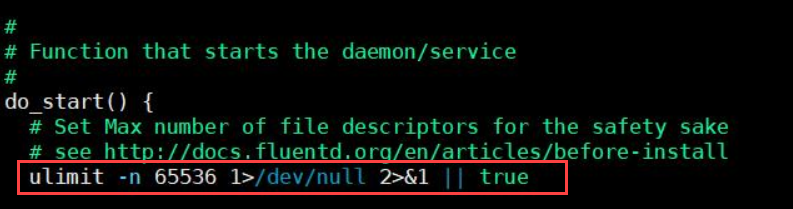
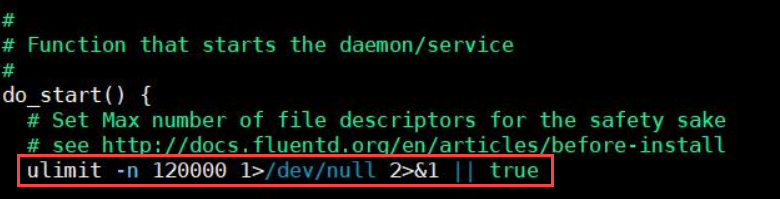
Save the file.
Log in to the ESA Web UI.
Navigate to System > Services.
Under Misc, start the td-agent service.
5 - Known Issues for Protegrity Analytics
Known Issue: Client side validation is missing on the Join an existing Audit Store Cluster page.
Issue:
Log in to the ESA Web UI and navigate to the Audit Store > Cluster Management > Overview page >Join Cluster. When you specify an invalid IP, enter a username or password more than the 36-character limit that is accepted on the Appliance, and click Join Cluster, then no errors are displayed and the request is processed.
Observation:
The Join an existing Audit Store Cluster page request is processed without any client-side validation, hence, an invalid IP address or a username or password more than 36 characters does not display any error.
Known Issue: High memory usage on the ESA.
Issue:
When using the Audit Store, the memory usage is high on the ESA.
Workaround:
Reduce the memory usage by updating the memory allocated to the Audit Store on the ESA to 4 GB using the Set Audit Store Repository Total Memory CLI option.
For more information about the Set Audit Store Repository Total Memory CLI option, refer to Setting the total memory for the Audit Store Repository.
Known Issue: In Analytics, on the Index Lifecycle Management page, after exporting, importing, or deleting an index one of the following scenarios occurs:
- The index operation performed does not appear in the other operation lists. For example, an exported index does not appear in the import index list.
- Performing the same operation on the same index again displays an error message.
- If the index appears in another operation list, performing the operation displays an error message. For example, an exported index appears in the delete index list and deleting the index displays an error.
Issue: After performing an operation, the index list for the export, import, and delete operations does not refresh automatically.
Workaround: Refresh the Index Lifecycle Management page after performing an export, import, or delete operation.
Known Issue: The
Specifying types in document update requests is deprecated, use the endpoint /{index}/_update/{id} instead.error message might appear during an upgrade.Issue: While upgrading, the error trace is logged while disabling the rollover index.
Resolution: Ignore this message. It is a deprecation message and does not affect the upgrade or the functionality of the product.
Known Issue: The
Info: During upgrade, ignore errors related to unicast hosts file being empty.message might appear during an upgrade.Issue: While upgrading, the following errors might appear:
- ERROR: Unicast hosts file does not contain the IP addresses of the nodes and is empty. Run the Audit Store Management Unicast Hosts scheduled task.
- ERROR: Unicast hosts file is empty. Please add the IP and hostname entries for all the nodes in the Audit Store cluster in the Unicast hosts file /opt/protegrity/config/unicast_hosts.txt
Resolution: Ignore this message. It does not affect the functionality of the product. The upgrade fixes the entries in the unicast hosts file and the upgrade completes successfully.
Known Issue: The
Info: While upgrading nodes in an Audit Store cluster, if the checks passed on one of the nodes, then ignore errors for the Audit Store cluster verification on the other nodes.message might appear during an upgrade.Issue: While upgrading, the following errors might appear:
- ERROR: Audit Store version of the node across the cluster are inconsistent: {version}. Ensure the nodes are on the same ESA version.
- ERROR: Expecting appliance version {Version number}.
- ERROR: Expecting appliance version 10.1.X/10.0.X/9.2.0.X/9.1.0.X got {appliance_version}.
- ERROR: Cluster health check failed. Current status: {cluster_status}.Resolve the cluster health to stabilize the cluster.
- ERROR: Initializing shards check failed. Current value: {initializing_shards}. Wait till the shards are initialized and the value reaches zero.
- ERROR: Relocating shards check failed. Current value: {relocating_shards}. Wait till the shards are automatically rebalanced and the value reaches zero.
- ERROR: Unassigned shards check failed. Current value : {unassigned_shards}. Wait till the shards are processed and the value reaches zero.
Resolution: If the checks passed on one of the nodes while upgrading nodes in an Audit Store cluster, then ignore the message if it appears on the other nodes. It does not affect the functionality of the product. The upgrade of the muilti-cluster nodes will complete successfully.
6 - Known Issues for the Log Forwarder
Known Issue: The Protector is unable to reconnect to a Log Forwarder after it is restarted.
Description: This issue occurs whenever you have a Proxy server between a Protector and a Log Forwarder. When the Log Forwarder is stopped, the connection between the Protector and the Proxy server is still open, even though the connection between the Proxy server and the Log Forwarder is closed. As a result, the Protector continues sending audit files to the Proxy server. This results in loss of the audit files. Whenever the Log Forwarder is restarted, the Protector is unable to reconnect to the Log Forwarder.
This issue is applicable to all the Protectors where the Log Forwarder is not running on the local host machine. For example, this issue is applicable to AIX or z/OS protectors because the Log Forwarder is not running on the same machine where the Protectors have been installed. This issue also occurs if you have a Load Balancer or a Firewall between the Protector and the Log Forwarder, instead of a Proxy server.
Resolution: Remove the Proxy server or ensure that you configure the Proxy server in a way that the connection between the Protector and the Proxy server is stopped as soon as the Log Forwarder is stopped. This ensures that whenever the Log Forwarder is restarted, the Protector reconnects with the Log Forwarder and continues to send the audits to the Log Forwarder without any data loss.
For more information about configuring the Proxy server, contact your IT administrator.
7 - Deprecations
Deprecated Functions
Extract KeyID from Data getCurrentKeyId getDefaultDataElement Byte API
Database Protector
- native database access control
Deprecated Products
- Protection Server
- File Protector Gateway
- File Protector: Linux Kernel Implementation
- File Protector: Windows Bases Volume Encryption
- File Protector for AIX
- XC Client, XC Server, XC Lite
- Solaris operating system on all the Protectors
- HAWQ Big Data Component
- Linux Based Volume Encryption
Deprecated Capabilities
- HDFS FP
- ESA OS Based High Availability
- Samba
- Protegrity Storage Unit (PSU)
- Change in Insight behavior (from v9.0.0.0)
- Jasper Reporting
- Metering
- MapReduce
- HMAC API in BDP
- Gate in Upgrade
Deprecated Data Elements
Deprecated data elements can still be used. However, users will be unable to create these data elements using the GUI. Users can use the DevOps APIs to create these data elements. In this case, the system triggers a warning and create a log entry. This is to indicate that the data element is deprecated. In addition, the system triggers a notification if the policy contains any of the deprecated datatypes. The system triggers this notification while the hubcontroller service starts.
- Printable Characters Tokenization
- Unicode Gen 1 Tokenization
- Date Tokenization
- DTP 2 Encryption
- 3DES Encryption
- CUSP 3DES Encryption
- SHA1 Hashing
- Date tokens (DATE-YYYY-MM-DD, DATE-DD/MM/YYYY, DATE-MM/DD/YYYY )
- UNICODE tokens
- PRINTABLE tokens
- UNICODE-Base 64 tokens
- SHA1
- 3DES
Removed Data Elements
The support for the Format Preserving Encryption (FPE) data element was started in the ESA v7.2.x.
If the FPE left/right data element is created in any version of the ESA, from 7.2.x to 9.2.x, then there is a risk of data loss.
The data encoding can have an effect on the resulting token when the Left and Right properties are in use. This means that FPE tokens with this property cannot always be moved “as-is” to other systems where the encoding of the data changes.
In ESA v10.0.1,
- The upgrade is blocked if the FPE left/right data element is created.
- A new solution is created to support the FPE left/right data element. This solution works only when the protectors of version 10.0.0 or newer are used.