This is the multi-page printable view of this section. Click here to print.
Upgrading ESA to v10.2.x
- 1: System and License Requirements
- 2: ESA Upgrade Paths
- 3: Prerequisites
- 4: Upgrading the ESA
- 4.1: Upgrading the ESA to v10.2.2
- 4.1.1: Upgrading ESA from v10.2.0
- 4.1.2: Upgrading ESA from v10.2.1
- 4.1.3: Verifying the ESA Patch Installation
- 4.1.4: Verifying the health of Trusted Appliance Cluster
- 4.1.5: (Optional) Running the Analysis Script
- 4.2: Upgrading the ESA to v10.2.1
- 4.2.1: Upgrading ESA from v10.2.0
- 4.2.2: Verifying the ESA Patch Installation
- 4.2.3: Verifying the health of Trusted Appliance Cluster
- 4.2.4: (Optional) Running the Analysis Script
- 4.3: Upgrading the ESA to v10.2.0
- 5: Restoring to the Previous Version of ESA
1 - System and License Requirements
Hardware Requirements
The following table lists the minimum hardware configurations.
| Hardware Components | Configuration |
|---|---|
| CPU | Multicore Processor, with minimum 8 CPUs |
| RAM | 32 GB |
| Hard Disk | 320 GB |
| CPU Architecture | x86 |
The following partition spaces must be available.
| Partition | Minimum Space Required |
|---|---|
| OS(/) | 40% |
| /opt | Twice the patch size |
| /var/log | 20% |
Software Requirements
- The ESAs must be available on one of the following versions.
- At least three ESAs must be in a Trusted Appliance Cluster (TAC).
- At least three ESAs must be in the Audit Store Cluster.
- The ESAs must be available on the following version.
- At least three ESAs must be in a Trusted Appliance Cluster (TAC).
- At least three ESAs must be in the Audit Store Cluster.
- The ESAs must be available on one of the following versions.
- At least three ESAs must be in a Trusted Appliance Cluster (TAC).
- At least three ESAs must be in the Audit Store Cluster.
- An ESA must be available on v9.2.0.1.
- At least three ESAs must be in a Trusted Appliance Cluster (TAC).
- At least three ESAs must be in the Audit Store Cluster.
The following table lists the supported components and their compatibility settings.
| Component | Compatibility |
|---|---|
| Application Protocols | HTTP 1.1, SSL/TLS |
| Web Browsers | Minimum supported Web Browser versions are as follows: - Google Chrome version 139.0.7258.155 (64-bit) - Mozilla Firefox version 142.0.1 (64-bit) or higher - Microsoft Edge version 139.0.3405.125 (64-bit) |
Installation Requirements
The ESA_PAP-ALL-64_x86-64_10.2.2+MR.2667.pty patch file is available.
The ESA_PAP-ALL-64_x86-64_10.2.1+HF.2649.pty patch file is available.
The ESA_PAP-ALL-64_x86-64_10.2.0.UP.2632.pty patch file is available.
The ESA_PAP-ALL-64_x86-64_10.0.1.2443.pty patch file is available.
Ensure to download the latest patch for the respective version from the My.Protegrity portal.
For more information about the latest build number and the patch details, refer to the Release Notes of the respective patch.
Licensing Requirements
Ensure that a valid license is available before upgrading. If the license status is invalid, then contact Protegrity Support.
2 - ESA Upgrade Paths
2.1 - Upgrade Paths to ESA 10.2.2

*indicates all the available hotfix and security patches on the platform version.
If you have not applied the v10.2.1 HF patch on ESA v10.2.0, you can directly apply the 10.2.2 patch on ESA v10.2.0.
For example, to upgrade from the ESA v9.1.0.x to the ESA v10.2.2, install the patches as follows:
- ESA v9.1.0.x
- ESA v10.2.0
- ESA v10.2.2
For more information about upgrading the ESA to v10.2.2, refer Upgrading to v10.2.2.
Before installing any patch, refer to the Release Notes from the My.Protegrity portal.
The following table provides the recommended upgrade paths to the ESA v10.2.2.
| Current Version | Path to Upgrade the ESA to v10.2.2 |
|---|---|
| 10.2.1 | 1. Install the ESA v10.2.2 patch. |
| 10.2.0 | 1. Apply the ESA v10.2.1 HF patch (optional). 2. Install the ESA v10.2.2 patch. |
| 10.1.0 | 1. Install the ESA_PAP-ALL-64_x86-64_10.1.1+HF.2473.pty patch.2. Install the v10.2.0 patch. 3. Apply the ESA v10.2.1 HF patch (optional). 4. Install the ESA v10.2.2 patch. |
| 10.0.1 | 1. Install the ESA_PAP-ALL-64_x86-64_10.0.2+HF.2451.pty patch.2. Install the v10.2.0 patch. 3. Apply the ESA v10.2.1 HF patch (optional). 4. Install the ESA v10.2.2 patch. |
| 9.2.0.1 | 1. Install the v10.2.0 patch. 2. Apply the ESA v10.2.1 HF patch (optional). 3. Install the ESA v10.2.2 patch. |
| 9.2.0.0 | 1. Install the v10.2.0 patch. 2. Apply the ESA v10.2.1 HF patch (optional). 3. Install the ESA v10.2.2 patch. |
| 9.1.0.x | 1. Install the v10.2.0 patch. 2. Apply the ESA v10.2.1 HF patch (optional). 3. Install the ESA v10.2.2 patch. |
| 9.0.0.0 | 1. Install the v9.1.0.x patch. 2. Install the v10.2.0 patch. 3. Apply the ESA v10.2.1 HF patch (optional). 4. Install the ESA v10.2.2 patch. |
To check the current version of the ESA:
- From the ESA Web UI, navigate to System > Information.
The current patch installed on the ESA is displayed. - Navigate to the About page to view the current version of the ESA.
For more information about:
- Upgrading to previous ESA versions, refer the Upgrade Guide for the respective versions on My.Protegrity portal.
2.2 - Upgrade Paths to ESA 10.2.1
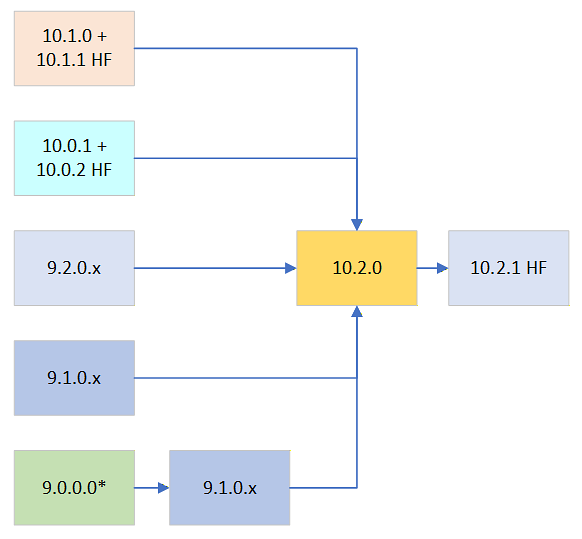
*indicates all the available hotfix and security patches on the platform version.
For example, to upgrade from the ESA v9.1.0.x to the ESA v10.2.1, install the patches as follows:
- ESA v9.1.0.x
- ESA v10.2.0
- ESA v10.2.1
For more information about upgrading the ESA to v10.2.1, refer Upgrading to v10.2.1.
Before installing any patch, refer to the Release Notes from the My.Protegrity portal.
The following table provides the recommended upgrade paths to the ESA v10.2.1.
| Current Version | Path to Upgrade the ESA to v10.2.1 |
|---|---|
| 10.2.0 | 1. Apply the ESA v10.2.1 HF patch. |
| 10.1.0 | 1. Install the ESA_PAP-ALL-64_x86-64_10.1.1+HF.2473.pty patch.2. Install the v10.2.0 patch. 3. Apply the ESA v10.2.1 HF patch. |
| 10.0.1 | 1. Install the ESA_PAP-ALL-64_x86-64_10.0.2+HF.2451.pty patch.2. Install the v10.2.0 patch. 3. Apply the ESA v10.2.1 HF patch. |
| 9.2.0.1 | 1. Install the v10.2.0 patch. 2. Apply the ESA v10.2.1 HF patch. |
| 9.2.0.0 | 1. Install the v10.2.0 patch. 2. Apply the ESA v10.2.1 HF patch. |
| 9.1.0.x | 1. Install the v10.2.0 patch. 2. Apply the ESA v10.2.1 HF patch. |
| 9.0.0.0 | 1. Install the v9.1.0.x patch. 2. Install the v10.2.0 patch. 3. Apply the ESA v10.2.1 HF patch. |
To check the current version of the ESA:
- From the ESA Web UI, navigate to System > Information.
The current patch installed on the ESA is displayed. - Navigate to the About page to view the current version of the ESA.
For more information about:
- Upgrading to previous ESA versions, refer the Upgrade Guide for the respective versions on My.Protegrity portal.
2.3 - Upgrade Paths to ESA 10.2.0
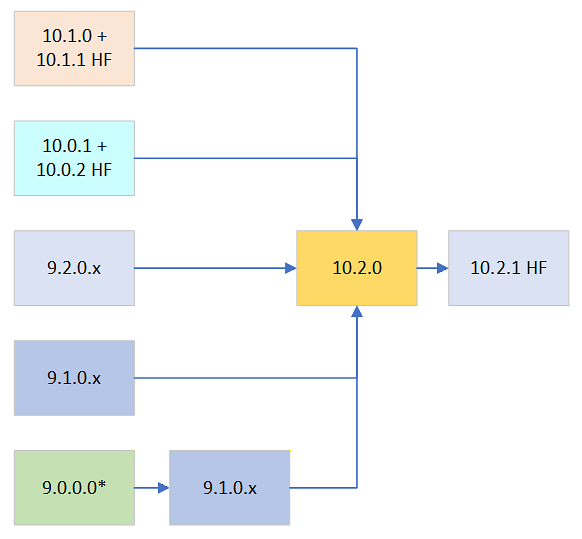
*indicates all the available hotfix and security patches on the platform version.
For example, to upgrade from the ESA v9.1.0.x to the ESA v10.2.0, install the patches as follows:
- ESA v9.1.0.x
- ESA v10.2.0
For more information about upgrading the ESA to v10.2.0, refer Upgrading to v10.2.0.
Before installing any patch, refer to the Release Notes from the My.Protegrity portal.
The following table provides the recommended upgrade paths to the ESA v10.2.0.
| Current Version | Path to Upgrade the ESA to v10.2.0 |
|---|---|
| 10.1.0 | 1. Install the ESA_PAP-ALL-64_x86-64_10.1.1+HF.2473.pty patch.2. Install the v10.2.0 patch. |
| 10.0.1 | 1. Install the ESA_PAP-ALL-64_x86-64_10.0.2+HF.2451.pty patch.2. Install the v10.2.0 patch. |
| 9.2.0.1 | 1. Install the v10.2.0 patch. |
| 9.2.0.0 | 1. Install the v10.2.0 patch. |
| 9.1.0.x | 1. Install the v10.2.0 patch. |
| 9.0.0.0 | 1. Install the v9.1.0.x patch. 2. Install the v10.2.0 patch. |
To check the current version of the ESA:
- From the ESA Web UI, navigate to System > Information.
The current patch installed on the ESA is displayed. - Navigate to the About page to view the current version of the ESA.
For more information about:
Upgrading to previous ESA versions, refer the Upgrade Guide for the respective versions on My.Protegrity portal.
Applying the DSG patch on the ESA, refer Extending ESA with DSG Web UI in the Protegrity Data Security Gateway User Guide for the respective version.
3 - Prerequisites
Before you begin
It is recommended to download and run the ESA Readiness patch from the My.Protegrity portal. This patch verifies if the ESA satisfies the upgrade requirements.After applying the ESA Readiness patch, if there are any errors, then ensure these errors must be resolved before applying the Upgrade patch.For more information about the error Messages and resolutions, refer ESA Upgrade Readiness Patch Error Messages and Resolutions.
After all the conditions from the readiness patch are satisfied, perform the following steps.
Verifying the GPG Public Key
The GPG Public Key used to sign Debian packages embedded in Protegrity appliances expired on April 9, 2024. The appliances installed before this date will continue to function, however issues will occur when upgrading or applying any maintenance patches to these appliances.
To avoid any potential issues, it is recommended to apply the PAP_PAP-ALL-64_x86-64_Generic.V-6.pty patch to extend the expiry date of the GPG Public Key used to sign Debian packages embedded in Protegrity appliances. This patch must be applied before applying maintenance releases or upgrading the ESA.
The following table lists the appliances and the affected versions.
| Appliance | Affected Version |
|---|---|
| Enterprise Security Administrator (ESA) | All versions from 7.2 to 9.1.0.2 |
| Data Security Gateway (DSG) | All versions from 2.4 to 3.1.0.2 |
For more information, refer the following GPG Public Key Expiration announcement on My.Protegrity.com portal.
https://my.protegrity.com/notifications/GPG-notification#_New_Installations
Rotating Expired Certificates
Before upgrading, review the Certificate Repository and rotate any expired certificates. Starting with ESA v10.2.0, expired certificates are removed on reboot after the upgrade, which makes services such as the Web UI and LDAP inaccessible from both the Web UI and CLI.
Verifying the Presence of DTP/DTP2 Data Elements
If the DTP/DTP2 is present in the algorithm property of a data element while upgrading the ESA to v10.2, then the upgrade script fails. The following error message appears:
ERROR: Found unsupported DTP data elements
Perform the following actions:
- Reprotect data with a new data element that does not have DTP/DTP2 formatting.
- Remove the data elements that contain DTP/DTP2 algorithm.
This prevents the data loss that occurs during the upgrade. The DTP/DTP2 data elements are now unsupported.
For more information about the data elements to be used, contact Protegrity Support.
Verifying the Presence of FPE Data Elements with Left and/or Right in Clear Settings
If the format-preserving encryption (FPE) data elements with Left and Right settings are present when you upgrade the ESA to v10.2, then the upgrade script fails. The following error message appears:
ERROR: FPE Data Element(s) with characters in clear ('From Left' / 'From Right') are no longer supported on the target version.
   Please consult the documentation or Protegrity staff for guidance.
   Data Element(s) affected: <List of affected data elements>
Perform the following actions:
- Reprotect data with a new data element that does not have Left and Right settings.
- Remove the data elements that contain Left and Right settings.
This prevents the data loss that occurs during the upgrade. The FPE data elements with Left and Right settings are now unsupported.
For more information about the data elements to be used, contact Protegrity Support.
Accounts
An account with administrative privileges must be active.
Backup and Restore
The OS backup procedure is performed to backup files, OS settings, policy information, and user information. Ensure that the latest backup is available before upgrading to the latest version.
If the patch installation fails, then you can revert the ESA to a previous version. Ensure to backup the complete OS or export the required files before initiating the patch installation process.
Backup operation must be performed on each ESA. While restoring the ESA using a backup, it must be done using the backup created for the same ESA. Do not use the same backup file to restore multiple ESAs.
Full OS backup
The entire OS must be backed up to prevent data loss. This allows the OS to be reverted to a previous stable configuration in case of a patch installation failure. This option is available only for the on-premise deployments.
The Full OS Backup/Restore features of the Protegrity appliances is available only for the on-premise deployments. It is not available for virtual machines created using an OVA template and cloud-based virtual machines.
Perform the following steps to backup the full OS configuration:
- Log in to the ESA Web UI.
- Navigate to System > Backup & Restore > OS Full, to backup the full OS.
- Click Backup.
The backup process is initiated. After the OS Backup process is completed, a notification message appears on the ESA Web UI Dashboard.
Creating a snapshot for cloud-based services
A snapshot represents a state of an instance or disk at a point in time. Use a snapshot of an instance or a disk to backup and restore information in case of failures. Ensure that the latest snapshot is available before upgrading the ESA.
A snapshot of an instance or a disk can be created on the following platforms:
Validating Custom Configuration Files
Complete the following steps if you modified any configuration files.
Review the contents of any configuration files. Verify that the code in the configuration file is formatted properly. Ensure that there are no additional spaces, tabs, line breaks, or control characters in the configuration file.
Back up any custom configuration files or modified configuration files. If required, use the backup files to restore settings after the upgrade is complete.
Validate that the backup files are created with the details appended to the extension, for example, .conf_backup, .conf_bkup123, or .conf_current_build_number.
While using protectors below version 10.x, if any changes are made to the ulimit, then the changes are retained after the ESA upgrade is completed successfully.
Enabling the local_admin Permissions
Ensure to configure the required permissions for the local_admin user.
To change local_admin account permissions:
Login to the CLI Manager.
Navigate to Administration > Accounts and Passwords > Manage Passwords and Local-Accounts > Change OS local_admin account permissions.
In the dialog box displayed, in the Password field, enter the local_admin password.
Select OK.
Specify the permissions for the local_admin. You can either select SSH Access, Web-Interface Access, or both.
Select OK.
External SIEM running
If an external SIEM is configured, ensure that the system is running and reachable during the upgrade.
4 - Upgrading the ESA
This section provides step-by-step procedures for upgrading the ESA to the current supported versions. It covers upgrade paths to v10.2.2, v10.2.1, and v10.2.0. Before starting any upgrade, ensure the ESA is upgraded prior to upgrading the protectors.
4.1 - Upgrading the ESA to v10.2.2
4.1.1 - Upgrading ESA from v10.2.0
Uploading the ESA patch
The ESA patch can be uploaded using the Web UI or the CLI Manager but the patch should only be installed using the CLI Manager.
Uploading the patch using the Web UI
Perform the following steps to upload the patch from the Web UI:
Log in to the ESA Web UI with administrator credentials.
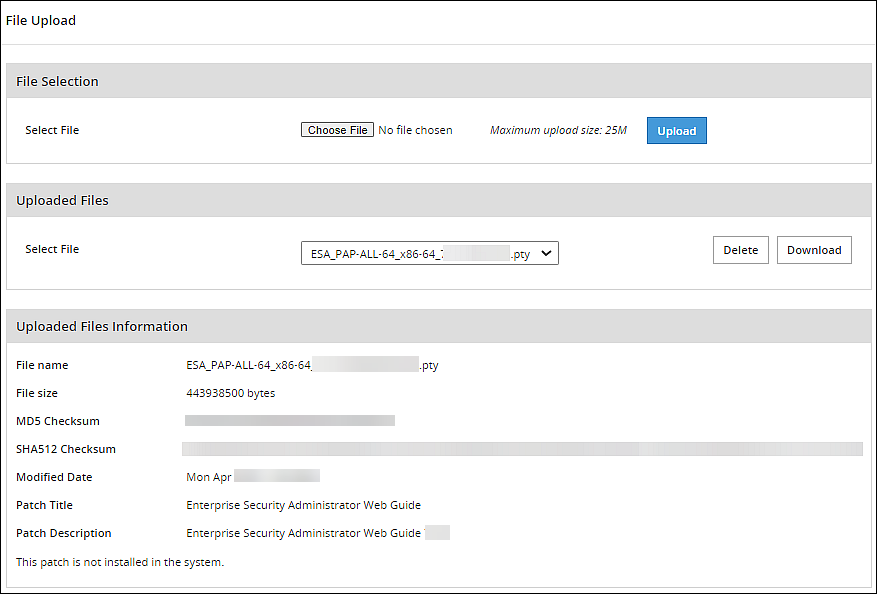
Navigate to Settings > System > File Upload.The File Upload page appears.
In the File Selection section, click Choose File.The file upload dialog box appears.
Select the patch file and click Open.
- Only the files with .pty and .tgz extensions can be uploaded.
- If the file uploaded exceeds the Max File Upload Size, then a password prompt appears. Enter the password and click Ok.
Only a user with the administrative role can perform this action.
- By default, the Max File Upload Size value is set to 25 MB. To increase this value, refer Increasing Maximum File Upload Size.
Click Upload.
After the file is uploaded successfully, then from the Uploaded Files area, choose the uploaded patch.The information for the selected patch appears.
Uploading the patch using the CLI Manager
Perform the following steps to upload the patch from the CLI Manager:
- Log in to the ESA CLI Manager with administrator credentials.
- Navigate to Administration > OS Console to upload the patch.
- Enter the root password and click OK.
- Upload the patch to the /products/uploads directory using the FTP or SCP command.
The patch file is uploaded.
Installing the ESA patch from CLI Manager
Before you begin
When upgrading nodes in an Audit Store cluster, if cluster-related checks pass on one node, you can safely ignore similar errors on the other nodes.
While upgrading multiple nodes in the Audit Store cluster, the post-upgrade steps are completed successfully only after all cluster nodes are upgraded. A success message is then logged and shown to the user as a notification message, both, in the ESA UI and the CLI. Investigate post-upgrade errors only after all nodes are upgraded.
Perform the following steps to install the patch from the CLI Manager:
Log in to the ESA CLI Manager with administrator credentials.
Navigate to Administration > Patch Management to install the patch.
Enter the root password and click OK.
Select Install a Patch.
Select the ESA_PAP-ALL-64_x86-64_10.2.2+MR.2667.pty patch file and select Install.
After the patch is installed, select Reboot Now.
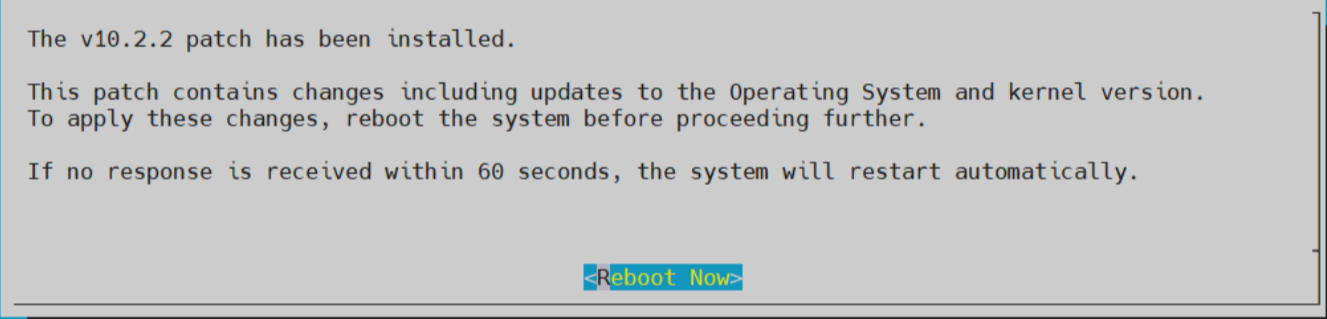
This screen has a timeout of 60 seconds. If Reboot Now is not selected manually, then the system automatically reboots after 60 seconds.
After the reboot is initiated, the message Patch has been installed successfully !! appears. Select Exit.
The patch is installed successfully and the ESA is upgraded to v10.2.2.
After upgrading the system successfully on v10.2.2, when using the SSH, it is recommended to wait for a few minutes before logging in to the ESA.
4.1.2 - Upgrading ESA from v10.2.1
Uploading the ESA patch
The ESA patch can be uploaded using the Web UI or the CLI Manager but the patch should only be installed using the CLI Manager.
Uploading the patch using the Web UI
Perform the following steps to upload the patch from the Web UI:
Log in to the ESA Web UI with administrator credentials.
Navigate to Settings > System > File Upload.The File Upload page appears.
In the File Selection section, click Choose File.The file upload dialog box appears.
Select the patch file and click Open.
- Only the files with .pty and .tgz extensions can be uploaded.
- If the file uploaded exceeds the Max File Upload Size, then a password prompt appears. Enter the password and click Ok.
Only a user with the administrative role can perform this action.
- By default, the Max File Upload Size value is set to 25 MB. To increase this value, refer Increasing Maximum File Upload Size.
Click Upload.
After the file is uploaded successfully, then from the Uploaded Files area, choose the uploaded patch.The information for the selected patch appears.
Uploading the patch using the CLI Manager
Perform the following steps to upload the patch from the CLI Manager:
- Log in to the ESA CLI Manager with administrator credentials.
- Navigate to Administration > OS Console to upload the patch.
- Enter the root password and click OK.
- Upload the patch to the /products/uploads directory using the FTP or SCP command.
The patch file is uploaded.
Installing the ESA patch from CLI Manager
Before you begin
When upgrading nodes in an Audit Store cluster, if cluster-related checks pass on one node, you can safely ignore similar errors on the other nodes.
While upgrading multiple nodes in the Audit Store cluster, the post-upgrade steps are completed successfully only after all cluster nodes are upgraded. A success message is then logged and shown to the user as a notification message, both, in the ESA UI and the CLI. Investigate post-upgrade errors only after all nodes are upgraded.
Perform the following steps to install the patch from the CLI Manager:
Log in to the ESA CLI Manager with administrator credentials.
Navigate to Administration > Patch Management to install the patch.
Enter the root password and click OK.
Select Install a Patch.
Select the ESA_PAP-ALL-64_x86-64_10.2.2+MR.2667.pty patch file and select Install.
After the patch is installed, the system reboots automatically.
“Patch has been installed successfully !!” appears.
The patch is installed successfully and the ESA is upgraded to v10.2.2.
After upgrading the system successfully on v10.2.2, when using the SSH, it is recommended to wait for a few minutes before logging in to the ESA.
4.1.3 - Verifying the ESA Patch Installation
Verifying the ESA version
Perform the following steps to verify the patch installation:
- From the ESA Web UI, navigate to System > Information.
The current patch installed on the ESA is displayed. - Navigate to the About page to view the current version of the ESA.
The ESA is upgraded to v10.2.2.
Verifying Upgrade Logs
During the upgrade process, logs describing upgrade process are generated. The logs describe the services that are initiated, restarted, or the errors generated.
To view the logs under the /var/log directory from the CLI Manager, navigate to CLI Manager > Administration > OS console.
| Log Type | Description |
|---|---|
| syslog | Provides collective information about the syslogs. |
| patches.log | Provides the summary of all patches applied during the upgrade process. |
| patch_ESA_10.2.2_MR.log | Provides the information of the ESA 10.2.2 Maintenance Release (MR) patch installation logs. |
4.1.4 - Verifying the health of Trusted Appliance Cluster
After upgrading all the ESAs in the Trusted Appliance Cluster to v10.2.0, ensure that all the nodes in the cluster are healthy.
Perform the following steps to verify health of ESAs in the TAC.
These steps must be performed individually on each ESA node in the Trusted Appliance Cluster.
- From the ESA Web UI, navigate to System > Trusted Appliance Cluster.
- Verify the details for each node in the TAC.
- In the Status field, the ESA node must be Online.
- In the Status Message field, no errors must be displayed.
- In the Labels field, each node must be labeled as Consul Server or Consul Client.If the label for any ESA node is not Consul Server or Consul Client, then refer Common ESA Errors.
4.1.5 - (Optional) Running the Analysis Script
Complete the steps provided in this section to run the analysis script. The script gathers information
from ESA and stores the data in a JSON file. This file is stored in a .zip format and can be downloaded
from the ESA Web UI.
Perform the following steps to run the analysis script.
Login to the ESA CLI Manager with administrator credentials.
Navigate to Administration > OS Console.
Navigate to
/opt/analysisdirectory.Run the analysis script using the following command.
./analysis.shThe Information required dialog box appears.
Enter the environment type for ESA and select OK.
The following message appears.
    Analysis file generated successfully.
    Navigate to Settings > System > File Upload using the ESA Web UI.
    The output file is available for download.
    File name: analysis_<timestamp>.zip
Select OK.
Login to the ESA Web UI with administrator credentials.
Navigate to Settings > System > File Upload to download the analysis report.
In the Uploaded Files section, click Select File.
Select the
analysis_<timestamp>.zipfile and click Download. The file is downloaded to the local system.
4.2 - Upgrading the ESA to v10.2.1
4.2.1 - Upgrading ESA from v10.2.0
Uploading the ESA patch
The ESA patch can be uploaded using the Web UI or the CLI Manager but the patch should only be installed using the CLI Manager.
Uploading the patch using the Web UI
Perform the following steps to upload the patch from the Web UI:
Log in to the ESA Web UI with administrator credentials.
Navigate to Settings > System > File Upload.The File Upload page appears.
In the File Selection section, click Choose File.The file upload dialog box appears.
Select the patch file and click Open.
- Only the files with .pty and .tgz extensions can be uploaded.
- If the file uploaded exceeds the Max File Upload Size, then a password prompt appears. Enter the password and click Ok.
Only a user with the administrative role can perform this action.
- By default, the Max File Upload Size value is set to 25 MB. To increase this value, refer Increasing Maximum File Upload Size.
Click Upload.
After the file is uploaded successfully, then from the Uploaded Files area, choose the uploaded patch.The information for the selected patch appears.
Uploading the patch using the CLI Manager
Perform the following steps to upload the patch from the CLI Manager:
- Log in to the ESA CLI Manager with administrator credentials.
- Navigate to Administration > OS Console to upload the patch.
- Enter the root password and click OK.
- Upload the patch to the /products/uploads directory using the FTP or SCP command.
The patch file is uploaded.
Installing the ESA patch from CLI Manager
Before you begin
When upgrading nodes in an Audit Store cluster, if cluster-related checks pass on one node, you can safely ignore similar errors on the other nodes.
While upgrading multiple nodes in the Audit Store cluster, the post-upgrade steps are completed successfully only after all cluster nodes are upgraded. A success message is then logged and shown to the user as a notification message, both, in the ESA UI and the CLI. Investigate post-upgrade errors only after all nodes are upgraded.
Perform the following steps to install the patch from the CLI Manager:
- Log in to the ESA CLI Manager with administrator credentials.
- Navigate to Administration > Patch Management to install the patch.
- Enter the root password and click OK.
- Select Install a Patch.
- Select the ESA_PAP-ALL-64_x86-64_10.2.1+HF.2649 patch file and select Install.
- The message Patch has been installed successfully !! appears. Select Exit.
- Reboot the ESA.
The patch is installed successfully and the ESA is upgraded to v10.2.1.
After upgrading the system successfully on v10.2.1, when using the SSH, it is recommended to wait for a few minutes before logging in to the ESA.
4.2.2 - Verifying the ESA Patch Installation
Verifying the ESA version
Perform the following steps to verify the patch installation:
- From the ESA Web UI, navigate to System > Information.
The current patch installed on the ESA is displayed. - Navigate to the About page to view the current version of the ESA.
The ESA is upgraded to v10.2.1.
Verifying Upgrade Logs
During the upgrade process, logs describing upgrade process are generated. The logs describe the services that are initiated, restarted, or the errors generated.
To view the logs under the /var/log directory from the CLI Manager, navigate to CLI Manager > Administration > OS console.
| Log Type | Description |
|---|---|
| syslog | Provides collective information about the syslogs. |
| patches.log | Provides the summary of all patches applied during the upgrade process. |
| patch_ESA_10.2.1_HF.log | Provides the information of the ESA 10.2.1 Hotfix (HF) patch installation logs. |
4.2.3 - Verifying the health of Trusted Appliance Cluster
After upgrading all the ESAs in the Trusted Appliance Cluster, ensure that all the nodes in the cluster are healthy.
Perform the following steps to verify health of ESAs in the TAC.
These steps must be performed individually on each ESA node in the Trusted Appliance Cluster.
- From the ESA Web UI, navigate to System > Trusted Appliance Cluster.
- Verify the details for each node in the TAC.
- In the Status field, the ESA node must be Online.
- In the Status Message field, no errors must be displayed.
- In the Labels field, each node must be labeled as Consul Server or Consul Client.If the label for any ESA node is not Consul Server or Consul Client, then refer Common ESA Errors.
4.2.4 - (Optional) Running the Analysis Script
Complete the steps provided in this section to run the analysis script. The script gathers information
from ESA and stores the data in a JSON file. This file is stored in a .zip format and can be downloaded
from the ESA Web UI.
Perform the following steps to run the analysis script.
Login to the ESA CLI Manager with administrator credentials.
Navigate to Administration > OS Console.
Navigate to
/opt/analysisdirectory.Run the analysis script using the following command.
./analysis.shThe Information required dialog box appears.
Enter the environment type for ESA and select OK.
The following message appears.
    Analysis file generated successfully.
    Navigate to Settings > System > File Upload using the ESA Web UI.
    The output file is available for download.
    File name: analysis_<timestamp>.zip
Select OK.
Login to the ESA Web UI with administrator credentials.
Navigate to Settings > System > File Upload to download the analysis report.
In the Uploaded Files section, click Select File.
Select the
analysis_<timestamp>.zipfile and click Download. The file is downloaded to the local system.
4.3 - Upgrading the ESA to v10.2.0
4.3.1 - Upgrading ESA from v9.1.0.x
When ESA is upgraded from v9.1.0.x, then the process is completed over two phases.During Phase 1, the Kernel, OS, and other components are upgraded. After the Phase 1 is completed, the system restarts automatically.
After the system restarts, Phase 2 begins automatically and the critical components of ESA are upgraded.
It is recommended to wait for a few minutes before logging in to the ESA using SSH, to view the upgrade progress.
If logging into the system using SSH is attempted immediately after the system restarts, then an error with
Invalid Credentialsappears. This may occur while LDAP upgrade is in process.
After the upgrade is successful, the system restarts automatically. After the system restarts, log in to the ESA using the CLI Manager or Web UI. When using the SSH, it is recommended to wait for a few minutes before logging in to the ESA.
While upgrading the ESA from v9.1.0.x, the entire process takes approximately 45 minutes. A temporary downtime is expected, resulting in limited access or intermittent interruptions.Additionally, the time taken for creating the backup depends on the actual size of the data which is being backed up. The time taken for the backup is excluded from the upgrade process.
Uploading the patch using the CLI Manager
Perform the following steps to upload the patch from the CLI Manager:
- Log in to the ESA CLI Manager with administrator credentials.
- Navigate to Administration > OS Console to upload the patch.
- Enter the root password and click OK.
- Upload the patch to the /products/uploads directory using the FTP or SCP command.
The patch file is uploaded.
Installing the ESA patch from CLI Manager
Before you begin
When upgrading nodes in an Audit Store cluster, if cluster-related checks pass on one node, you can safely ignore similar errors on the other nodes.
While upgrading multiple nodes in the Audit Store cluster, the post-upgrade steps are completed successfully only after all cluster nodes are upgraded. A success message is then logged and shown to the user as a notification message, both, in the ESA UI and the CLI. Investigate post-upgrade errors only after all nodes are upgraded.
Perform the following steps to install the patch from the CLI Manager:
Log in to the ESA CLI Manager with administrator credentials.
Navigate to Administration > Patch Management to install the patch.
Enter the root password and click OK.
Select Install a Patch.
Select the ESA_PAP-ALL-64_x86-64_10.2.0.UP.2632.pty patch file and select Install.
After Phase 1 is installed, following screen appears.
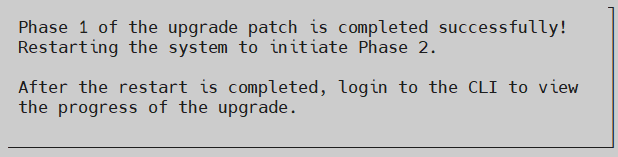
After the reboot is successful, Phase 2 begins automatically.
After Phase 2 is completed, a message for
System going down for reboot nowappears.After the reboot is successful, then the patch is installed successfully.
The patch is installed successfully and the ESA is upgraded to v10.2.0.
After upgrading the system successfully on v10.2.0, when using the SSH, it is recommended to wait for a few minutes before logging in to the ESA.
4.3.2 - Upgrading ESA from v9.2.0.x
When ESA is upgraded from v9.2.0.x, then the upgrade process happens in a single phase.
During the upgrade, the system displays the upgrade progress which appears on the ESA CLI Manager. After the upgrade is successful, the system restarts automatically.After the system restarts, log in to the ESA using the CLI Manager or Web UI.
While upgrading the ESA from v9.2.0.x, the entire process takes approximately 30 minutes. A temporary downtime is expected, resulting in limited access or intermittent interruptions.Additionally, the time taken for creating the backup depends on the actual size of the data which is being backed up. The time taken for the backup is excluded from the upgrade process.
Uploading the patch using the CLI Manager
Perform the following steps to upload the patch from the CLI Manager:
- Log in to the ESA CLI Manager with administrator credentials.
- Navigate to Administration > OS Console to upload the patch.
- Enter the root password and click OK.
- Upload the patch to the /products/uploads directory using the FTP or SCP command.
The patch file is uploaded.
Installing the ESA patch from CLI Manager
Before you begin
When upgrading nodes in an Audit Store cluster, if cluster-related checks pass on one node, you can safely ignore similar errors on the other nodes.
While upgrading multiple nodes in the Audit Store cluster, the post-upgrade steps are completed successfully only after all cluster nodes are upgraded. A success message is then logged and shown to the user as a notification message, both, in the ESA UI and the CLI. Investigate post-upgrade errors only after all nodes are upgraded.
Perform the following steps to install the patch from the CLI Manager:
Log in to the ESA CLI Manager with administrator credentials.
Navigate to Administration > Patch Management to install the patch.
Enter the root password and click OK.
Select Install a Patch.
Select the ESA_PAP-ALL-64_x86-64_10.2.0.UP.2632.pty patch file and select Install.
After the patch is installed, select Reboot Now.
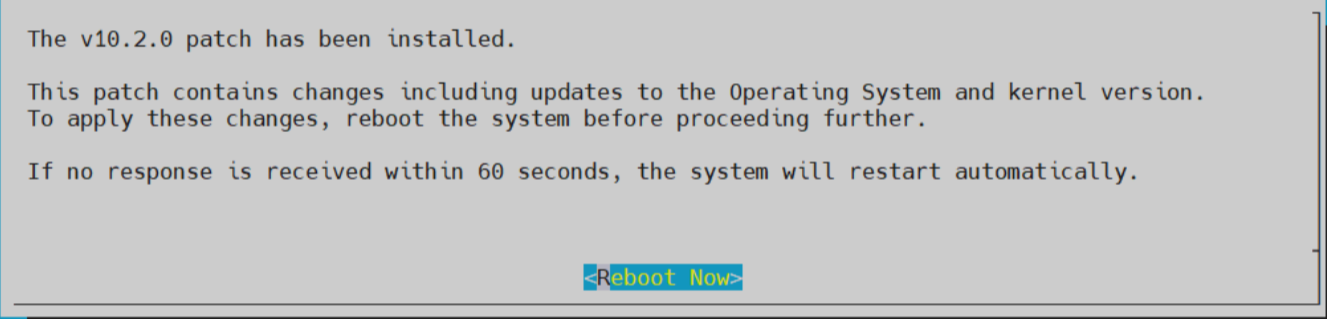
This screen has a timeout of 60 seconds. If Reboot Now is not selected manually, then the system automatically reboots after 60 seconds.
After the reboot is initiated, the message Patch has been installed successfully !! appears. Select Exit.
The patch is installed successfully and the ESA is upgraded to v10.2.0.
After upgrading the system successfully on v10.2.0, when using the SSH, it is recommended to wait for a few minutes before logging in to the ESA.
4.3.3 - Upgrading ESA from v10.0.x
When ESA is upgraded from v10.0.1 or v10.1.0, ensure to apply the hotfix patch before applying the v10.2.0 upgrade patch.
| ESA Version | Hotfix to be applied |
|---|---|
| 10.0.1 | ESA_PAP-ALL-64_x86-64_10.0.2+HF.2451.pty |
| 10.1.0 | ESA_PAP-ALL-64_x86-64_10.1.1+HF.2473.pty |
If upgrading ESA from v10.0.1 or v10.1.0, then the upgrade process happens in a single phase.
During the upgrade, the system displays the upgrade progress which appears on the ESA CLI Manager. After the upgrade is successful, the system restarts automatically.After the system restarts, log in to the ESA using the CLI Manager or Web UI.
While upgrading the ESA from v10.0.1 or v10.1.0, the entire process takes approximately 30 minutes. A temporary downtime is expected, resulting in limited access or intermittent interruptions.Additionally, the time taken for creating the backup depends on the actual size of the data which is being backed up. The time taken for the backup is excluded from the upgrade process.
Uploading the ESA patch
The ESA patch can be uploaded using the Web UI or the CLI Manager but the patch should only be installed using the CLI Manager.
Uploading the patch using the Web UI
Perform the following steps to upload the patch from the Web UI:
Log in to the ESA Web UI with administrator credentials.
Navigate to Settings > System > File Upload.The File Upload page appears.
In the File Selection section, click Choose File.The file upload dialog box appears.
Select the patch file and click Open.
- Only the files with .pty and .tgz extensions can be uploaded.
- If the file uploaded exceeds the Max File Upload Size, then a password prompt appears. Enter the password and click Ok.
Only a user with the administrative role can perform this action.
- By default, the Max File Upload Size value is set to 25 MB. To increase this value, refer Increasing Maximum File Upload Size.
Click Upload.
After the file is uploaded successfully, then from the Uploaded Files area, choose the uploaded patch.The information for the selected patch appears.
Uploading the patch using the CLI Manager
Perform the following steps to upload the patch from the CLI Manager:
- Log in to the ESA CLI Manager with administrator credentials.
- Navigate to Administration > OS Console to upload the patch.
- Enter the root password and click OK.
- Upload the patch to the /products/uploads directory using the FTP or SCP command.
The patch file is uploaded.
Installing the ESA patch from CLI Manager
Before you begin
When upgrading nodes in an Audit Store cluster, if cluster-related checks pass on one node, you can safely ignore similar errors on the other nodes.
While upgrading multiple nodes in the Audit Store cluster, the post-upgrade steps are completed successfully only after all cluster nodes are upgraded. A success message is then logged and shown to the user as a notification message, both, in the ESA UI and the CLI. Investigate post-upgrade errors only after all nodes are upgraded.
Perform the following steps to install the patch from the CLI Manager:
Log in to the ESA CLI Manager with administrator credentials.
Navigate to Administration > Patch Management to install the patch.
Enter the root password and click OK.
Select Install a Patch.
Select the ESA_PAP-ALL-64_x86-64_10.2.0.UP.2632.pty patch file and select Install.
After the patch is installed, select Reboot Now.
This screen has a timeout of 60 seconds. If Reboot Now is not selected manually, then the system automatically reboots after 60 seconds.
After the reboot is initiated, the message Patch has been installed successfully !! appears. Select Exit.
The patch is installed successfully and the ESA is upgraded to v10.2.0.
After upgrading the system successfully on v10.2.0, when using the SSH, it is recommended to wait for a few minutes before logging in to the ESA.
4.3.4 - Verifying the ESA Patch Installation
Verifying the ESA version
Perform the following steps to verify the patch installation:
- From the ESA Web UI, navigate to System > Information.
The current patch installed on the ESA is displayed. - Navigate to the About page to view the current version of the ESA.
The ESA is upgraded to v10.2.0.
Verifying Upgrade Logs
During the upgrade process, logs describing upgrade process are generated. The logs describe the services that are initiated, restarted, or the errors generated.
To view the logs under the /var/log directory from the CLI Manager, navigate to CLI Manager > Administration > OS console.
| Log Type | Description |
|---|---|
| syslog | Provides collective information about the syslogs. |
| upgrade_10.2.0.log | Provides the information of real time logs, when upgrading the ESA from v9.1.0.x. |
| patch_ESA_10.2.0_UPGRADE_INSTALLER.log |
|
| patch_ESA_10.2.0_UPGRADE_PHASE_2.log |
|
4.3.5 - Verifying the health of Trusted Appliance Cluster
After upgrading all the ESAs in the Trusted Appliance Cluster to v10.2.0, ensure that all the nodes in the cluster are healthy.
Perform the following steps to verify health of ESAs in the TAC.
These steps must be performed individually on each ESA node in the Trusted Appliance Cluster.
- From the ESA Web UI, navigate to System > Trusted Appliance Cluster.
- Verify the details for each node in the TAC.
- In the Status field, the ESA node must be Online.
- In the Status Message field, no errors must be displayed.
- In the Labels field, each node must be labeled as Consul Server or Consul Client.If the label for any ESA node is not Consul Server or Consul Client, then refer Common ESA Errors.
5 - Restoring to the Previous Version of ESA
5.1 - Restoring to the Previous Version of ESA On-premise
To roll back the system to the previous version, perform the steps to restore the system.This helps in cases such as when an upgrade fails.
Perform the steps to restore to the previous version of the ESA on-premise.
- From the CLI Manager, navigate to Administration > Reboot And Shutdown > Reboot to restart the system.A screen to enter the reason for restart appears.
- Enter the reason and select OK.
- Enter the root password and select OK.
The appliance restarts and the following screen appears.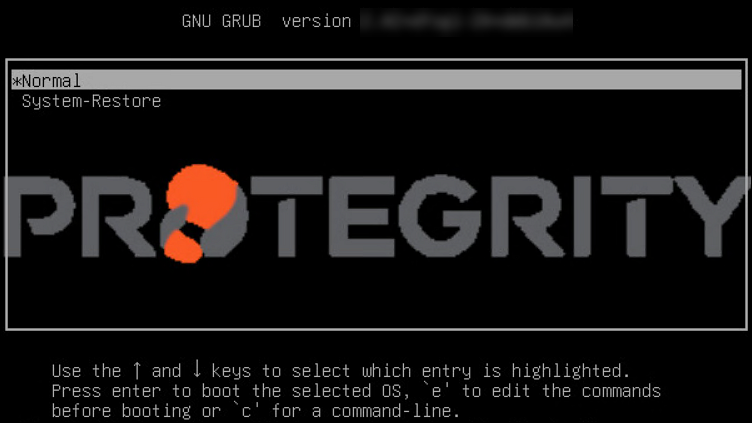
- Select System-Restore and press ENTER.
The Welcome to System Restore Mode screen appears.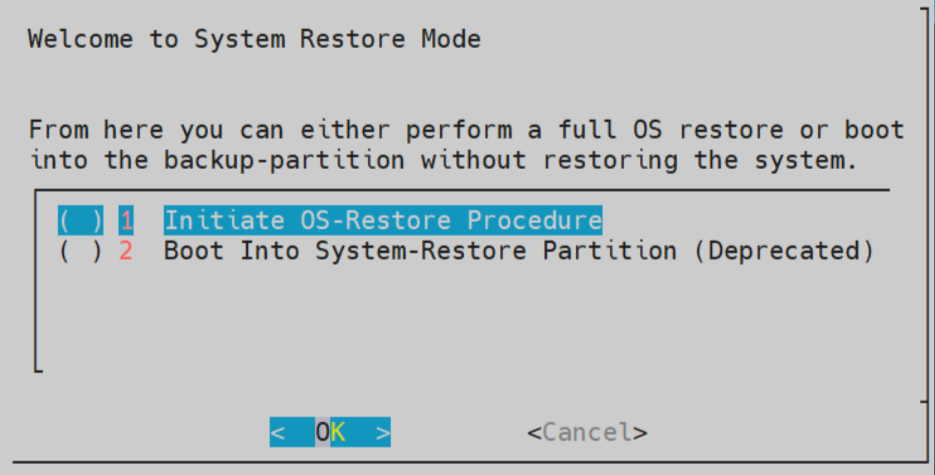
- Select Initiate OS-Restore Procedure and select OK.
The Boot Into System-Restore Partition option is deprecated from this release. Ensure to only use Initiate OS-Restore Procedure option to restore to the previous stable version.
The restore procedure is initiated.
After the OS-Restore procedure is completed, the login screen appears.
5.2 - Restoring to the Previous Version of ESA Cloud platforms
This section describes restoring the ESA on Cloud platforms, such as, Amazon Web Services (AWS), Azure, or Google Cloud Platform (GCP). For installing the ESA on cloud platforms, you must mount the image containing the ESA on a cloud instance or a virtual machine. After mounting the image, you must run the finalization procedure to install the ESA components.
| Cloud Platform | Backing up and Restoring ESA |
|---|---|
| AWS | Create and restore a snapshot on AWS |
| Azure | Create and restore a snapshot on Azure |
| GCP | Create and restore a snapshot on GCP |
5.3 - Restoring to the Previous Version of ESA VMWare
This section describes creating a snapshot and restoring the ESA on VMWare to the previous version.
Creating a Snapshot on VMWare
To create a snapshot on VMWare:
- Log in to the VMware Client console.
- Navigate to Inventories > VMs and Templates.
- From the left navigation pane, select the required project.
- Select the required OVA template.
- Right-click the VM and select Snapshot > Take Snapshot. The Take Snapshot screen appears.
- Enter a name and description for the snapshot.
- Click Take Snapshot.
- Check “Snapshot the virtual machine’s memory” for a full state capture.
- Click OK.
Restoring a Snapshot on VMWare
To restore a snapshot on VMWare:
- Log in to the VMware Client console.
- Navigate to Inventories > VMs and Templates.
- From the left navigation pane, select the required project.
- Select the required OVA template.
- Right-click the VM and select Snapshot > Snapshot Manager.
- Select the required snapshot.
- Click Go To.
The snapshot is added to the VMWare.