Upgrading ESA from v9.1.0.x
When ESA is upgraded from v9.1.0.x, then the process is completed over two phases.During Phase 1, the Kernel, OS, and other components are upgraded. After the Phase 1 is completed, the system restarts automatically.
After the system restarts, Phase 2 begins automatically and the critical components of ESA are upgraded.
It is recommended to wait for a few minutes before logging in to the ESA using SSH, to view the upgrade progress.
If logging into the system using SSH is attempted immediately after the system restarts, then an error with
Invalid Credentialsappears. This may occur while LDAP upgrade is in process.
After the upgrade is successful, the system restarts automatically. After the system restarts, log in to the ESA using the CLI Manager or Web UI. When using the SSH, it is recommended to wait for a few minutes before logging in to the ESA.
While upgrading the ESA from v9.1.0.x, the entire process takes approximately 45 minutes. A temporary downtime is expected, resulting in limited access or intermittent interruptions.Additionally, the time taken for creating the backup depends on the actual size of the data which is being backed up. The time taken for the backup is excluded from the upgrade process.
Uploading the patch using the CLI Manager
Perform the following steps to upload the patch from the CLI Manager:
- Log in to the ESA CLI Manager with administrator credentials.
- Navigate to Administration > OS Console to upload the patch.
- Enter the root password and click OK.
- Upload the patch to the /products/uploads directory using the FTP or SCP command.
The patch file is uploaded.
Installing the ESA patch from CLI Manager
Before you begin
When upgrading nodes in an Audit Store cluster, if cluster-related checks pass on one node, you can safely ignore similar errors on the other nodes.
While upgrading multiple nodes in the Audit Store cluster, the post-upgrade steps are completed successfully only after all cluster nodes are upgraded. A success message is then logged and shown to the user as a notification message, both, in the ESA UI and the CLI. Investigate post-upgrade errors only after all nodes are upgraded.
Perform the following steps to install the patch from the CLI Manager:
Log in to the ESA CLI Manager with administrator credentials.
Navigate to Administration > Patch Management to install the patch.
Enter the root password and click OK.
Select Install a Patch.
Select the ESA_PAP-ALL-64_x86-64_10.2.0.UP.2632.pty patch file and select Install.
After Phase 1 is installed, following screen appears.
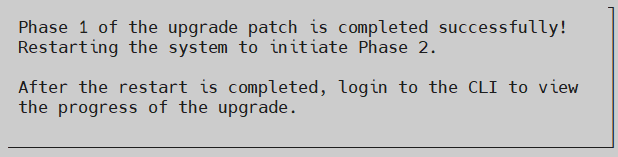
After the reboot is successful, Phase 2 begins automatically.
After Phase 2 is completed, a message for
System going down for reboot nowappears.After the reboot is successful, then the patch is installed successfully.
The patch is installed successfully and the ESA is upgraded to v10.2.0.
After upgrading the system successfully on v10.2.0, when using the SSH, it is recommended to wait for a few minutes before logging in to the ESA.
After successfully upgrading the ESA to v10.2.0, apply the ESA v10.2.1 HF patch. This patch contains various vulnerability fixes, package updates, and bug fixes.
Feedback
Was this page helpful?