The Protegrity AI Team Edition for Microsoft Azure (Tech Preview) enables organizations to deploy and manage Protegrity data protection capabilities on Microsoft Azure cloud infrastructure. This section covers two core areas: the Protegrity Provisioned Cluster (PPC), a Kubernetes-based management plane deployed on Azure Kubernetes Service (AKS) that serves as the foundation for running Protegrity services, and Protectors, which integrate data protection directly into Azure-native analytics platforms. Before installing any supported protector, PPC must be deployed and running successfully.
This is the multi-page printable view of this section. Click here to print.
AI Team Edition for Microsoft Azure
Tech Preview: AI Team Edition for Microsoft Azure
- 1: Protegrity Provisioned Cluster
- 1.1: Prerequisites
- 1.2: Preparing for PPC deployment
- 1.3: Deploying PPC
- 1.4: Login to PPC
- 1.5: Accessing the PPC CLI
- 1.6: Deleting PPC
- 1.7: Installing Features
- 1.8: Troubleshooting
- 2: Protectors
- 2.1: Azure Databricks
- 2.1.1: Understanding the architecture
- 2.1.2: System Requirements
- 2.1.3: Preparing the Environment
- 2.1.3.1: Extracting the Installation Package
- 2.1.3.2: Working with the Configurator Script
- 2.1.3.3: Retrieving the IP Address
- 2.1.3.4: Uploading the Secrets to the Azure Key Vault
- 2.1.4: Installing the Protector
- 2.1.4.1: Creating the User Defined Functions
- 2.1.5: Configuring the Protector
- 2.1.5.1: Editing the Cluster Configuration
- 2.1.6: Uninstalling the Protector
- 2.1.6.1: Dropping the User Defined Functions
- 2.1.7: User Defined Functions and APIs
- 2.1.7.1: Unity Catalog Batch Python UDFs
1 - Protegrity Provisioned Cluster
Tech Preview: AI Team Edition for Microsoft Azure
1.1 - Prerequisites
Ensure that the following prerequisites are met before deploying the Protegrity Provisioned Cluster (PPC).
Microsoft Azure Resource Providers
The following Microsoft Azure resource providers are registered.
Microsoft.ContainerServiceMicrosoft.NetworkMicrosoft.ComputeMicrosoft.StorageMicrosoft.KeyVaultMicrosoft.ManagedIdentity
AKS Permissions
Contact the Infrastructure Team to get the necessary permissions to create an AKS cluster, typically Managed Identity must be provided with Disk Snapshot Contributor, Managed Identity Operator and Virtual Machine Contributor roles on the target subscription or resource group.
Permissions to deploy AKS
Update the following custom role permissions.
Before you begin
- Identify the resource group where the AKS cluster will be created.
- Ensure that a custom role is already created in the subscription or resource group.
- Complete this configuration before starting the AKS installation process.
To update the permission for the custom role, perform the following steps:
Navigate to the required resource group in the Azure portal.
Open Access control (IAM) for the selected resource group.
Locate the existing custom role.
Select the custom role and click Edit.
Select JSON and click Edit.
Update the role by adding the following permissions:
  {
    "id": "/subscriptions/1e9ef7b6-cdc4-4a6b-98f7-a408ac1e19e0/providers/Microsoft.Authorization/roleDefinitions/66b9c89b-6df5-4c00-8c82-241326841bc2",
    "properties": {
        "roleName": "permissiontestaks",
        "description": "",
        "assignableScopes": [
            "/subscriptions/1e9ef7b6-cdc4-4a6b-98f7-a408ac1e19e0/resourceGroups/<RG-Name>"
        ],
        "permissions": [
            {
                "actions": [
                    "Microsoft.Authorization/roleAssignments/delete",
                    "Microsoft.Authorization/roleAssignments/read",
                    "Microsoft.Authorization/roleAssignments/write",
                    "Microsoft.Authorization/roleDefinitions/read",
                    "Microsoft.Authorization/roleDefinitions/write",
                    "Microsoft.ContainerService/managedClusters/read",
                    "Microsoft.ContainerService/managedClusters/write",
                    "Microsoft.KeyVault/vaults/delete",
                    "Microsoft.KeyVault/vaults/read",
                    "Microsoft.KeyVault/vaults/write",
                    "Microsoft.ManagedIdentity/userAssignedIdentities/assign/action",
                    "Microsoft.ManagedIdentity/userAssignedIdentities/read",
                    "Microsoft.Network/virtualNetworks/read",
                    "Microsoft.Network/virtualNetworks/subnets/join/action",
                    "Microsoft.Network/virtualNetworks/subnets/read",
                    "Microsoft.Resources/subscriptions/resourceGroups/read",
                    "Microsoft.Storage/locations/checknameavailability/read",
                    "Microsoft.Storage/storageAccounts/blobServices/containers/delete",
                    "Microsoft.Storage/storageAccounts/blobServices/containers/read",
                    "Microsoft.Storage/storageAccounts/blobServices/containers/write",
                    "Microsoft.Storage/storageAccounts/blobServices/read",
                    "Microsoft.Storage/storageAccounts/blobServices/write",
                    "Microsoft.Storage/storageAccounts/delete",
                    "Microsoft.Storage/storageAccounts/fileServices/read",
                    "Microsoft.Storage/storageAccounts/fileServices/write",
                    "Microsoft.Storage/storageAccounts/listKeys/action",
                    "Microsoft.Storage/storageAccounts/read",
                    "Microsoft.Storage/storageAccounts/write",
                    "Microsoft.Network/privateDnsZones/read",
                    "Microsoft.Network/privateDnsZones/write",
                    "Microsoft.Network/privateDnsZones/join/action",
                    "Microsoft.Network/privateDnsZones/virtualNetworkLinks/read",
                    "Microsoft.Network/privateDnsZones/virtualNetworkLinks/write",
                    "Microsoft.ContainerService/managedClusters/delete",
                    "Microsoft.ContainerService/managedClusters/listClusterUserCredential/action",
                    "Microsoft.ContainerService/managedClusters/agentPools/read",
                    "Microsoft.ContainerService/managedClusters/agentPools/write",
                    "Microsoft.ManagedIdentity/userAssignedIdentities/federatedIdentityCredentials/write",
                    "Microsoft.ContainerService/managedClusters/agentPools/delete"
                ],
                "notActions": [],
                "dataActions": [],
                "notDataActions": []
            }
        ]
    }
}
- Click Save after updating the permissions.
- Click Review + update to finalise the changes.
Jump Box or Local Machine
Use a dedicated Debian jump box created in Microsoft Azure. Do not use a jump box hosted on any other cloud.
Microsoft Azure Resource IDs from Infrastructure Team
Obtain the following resource IDs from the Infrastructure Team. These resource IDs are prompted during installation.
UAMI Resource ID: User-assigned managed identity for the AKS cluster.
For example:
/subscriptions/<subscription-id>/resourceGroups/<it-resource-group>/providers/Microsoft.ManagedIdentity/userAssignedIdentities/id-aks-applianceframeworkAKS Subnet Resource ID: Required subnet for deploying the AKS nodes.
For example:
/subscriptions/<subscription-id>/resourceGroups/<it-resource-group>/providers/Microsoft.Network/virtualNetworks/<vnet-name>/subnets/snet-aks-applianceframeworkPrivate DNS Zone Resource ID: Private DNS zone used by the AKS private cluster, must match the cluster region, for example,
privatelink.<region>.azmk8s.io.For example:
/subscriptions/<subscription-id>/resourceGroups/<dns-resource-group>/providers/Microsoft.Network/privateDnsZones/privatelink.eastus.azmk8s.ioVelero UAMI Resource ID: User-assigned managed identity used by Velero for backups to the storage account.
For example:
/subscriptions/<subscription-id>/resourceGroups/<velero-resource-group>/providers/Microsoft.ManagedIdentity/userAssignedIdentities/id-aks-velero
1.2 - Preparing for PPC deployment
Downloading and extracting the Protegrity Cluster Template (PCT) for deploying PPC
This section describes the steps to download and extract the PCT for deploying the PPC.
Note: If there is an existing cluster from a previous install, clean up your local repository on the jump box and any existing clusters by running
tofu destroy -var-file=terraform.tfvarsfromscripts/iac/before proceeding.
During installation, the system may prompt for the system password and require sign-in to Microsoft Azure. If the Azure CLI is not already logged in, the bootstrap script automatically runs az login. A device-code prompt similar to the following displays.
[YYYY-MM-DD HH:MM:SS] Azure CLI not logged in. Triggering az login...
To sign in, use a web browser to open the page https://login.microsoft.com/device and enter the code XXXXXXXX to authenticate.
To sign-in to Microsoft Azure, perform the following steps:
- Open the displayed URL in a browser, and enter the code shown in the terminal.
- Complete the SSO sign-in and follow the on-screen instructions.
- After successful authentication, the script continues automatically.
Download the release archive from the AWS S3 bucket and extract it on the jump box using the following commands:
# Install AWSCLI, Login using AWS credentials and Download the archive

aws configure set aws_access_key_id `YOUR_ACCESS_KEY_ID`

aws configure set aws_secret_access_key `YOUR_SECRET_ACCESS_KEY`

aws s3 cp s3://ai-team-edition-1.0-redwood-312310269473-us-west-1-an/PPC-K8S-64_x86-64_AZURE-AKS_1.1.0.4.tar .

# Extract the archive
tar -xvf PPC-K8S-64_x86-64_AZURE-AKS_1.1.0.4.tar
1.3 - Deploying PPC
Complete the steps provided in this section to deploy PPC in Azure.
Before you begin
The repository provides a bootstrap script that automatically installs or updates the following tools on the jump box:
- Azure CLI - Required to communicate with your Microsoft Azure account.
- OpenTofu - Required to manage infrastructure as code.
- kubectl - Required to communicate with the Kubernetes cluster.
- Helm - Required to manage Kubernetes packages.
- Make - Required to run the OpenTofu automation scripts.
- jq - Required to parse JSON.
- oras: Required to pull non‑container, generic OCI artifacts from the registry that are not handled by standard container tooling.
The bootstrap script asks for variables to be set to complete the deployment. Follow the instructions on the screen:
./bootstrap-azure.sh
The script prompts for the following variables.
Enter AKS Cluster Name
The following characters are allowed:
- Lowercase letters:
a-z - Numbers:
0-9 - Hyphens:
-
The following characters are not allowed:
- Uppercase letters:
A-Z - Underscores:
_ - Spaces
- Any special characters such as:
/ ? * + % ! @ # $ ^ & ( ) = [ ] { } : ; , . - Leading or trailing hyphens
- More than 31 characters
Note: Ensure that the cluster name does not exceed 31 characters. Cluster names longer than this limit can cause the bootstrap script to fail in subsequent installation steps.
If the installation fails because the cluster name exceeds the 31-character limit, correct the name and re-run the script.- Correction: Choose a cluster name with 31 characters or fewer.
- Retry: Execute the installation command again with the updated name. The script will automatically handle the update and proceed with the bootstrap process.
- Lowercase letters:
Querying for available Resource Groups
The script queries for the available Resource Groups. Enter a Resource Group name from the table. The script then automatically detects the location and subscription ID of the resource group.
Enter UAMI Resource ID
Provide the complete Azure resource ID for the UAMI used by AKS in the following format:
/subscriptions/<subscription-id>/resourceGroups/<resource-group>/providers/Microsoft.ManagedIdentity/userAssignedIdentities/<identity-name>The UAMI client ID is detected automatically.
Enter AKS Subnet Resource ID
Provide the complete resource ID of the pre-existing subnet used for AKS nodes in the forllowing format:
/subscriptions/<subscription-id>/resourceGroups/<resource-group>/providers/Microsoft.Network/virtualNetworks/<vnet-name>/subnets/<subnet-name>Enter Private DNS Zone Resource ID
Provide the Private DNS zone ID used by the AKS private cluster in the following format:
/subscriptions/<subscription-id>/resourceGroups/<resource-group>/providers/Microsoft.Network/privateDnsZones/privatelink.<region>.azmk8s.ioThe script attempts to automatically detect network settings:
- Virtual network address space
- Service CIDR
- DNS service IP
If the detection fails, then default values configured in the
variables.tffile are used.
Enter FQDN
This is the Fully Qualified Domain Name for the ingress.
Warning: Ensure that the FQDN does not exceed 50 characters and only the following characters are used:
- Lowercase letters:
a-z - Numbers:
0-9 - Special characters:
- .
- Lowercase letters:
Storage Account and Key Vault provisioning
Choose whether to use existing resources or create new resources:
1) Use existing
2) Provision new via Tofu
Enter 1 if an encrypted Storage Account and Key Vault are already provisioned for this cluster. The installer prompts for the Storage Account name, Key Vault name, backup container, Key Vault key name, and the Velero UAMI Resource ID.
Enter 2 to allow the installer to create a new Storage Account and Key Vault with the
velerocontainer, thepty-backup-keyencryption key, and a Velero UAMI automatically. Only the new resource names are required.
Enter Image Registry Endpoint
The image repository from where the container images are retrieved. Use
registry.protegrity.com:9443/azure-tech-previewfor using the Protegrity Container Registry (PCR), else use the local repository endpoint for the local repository.Expected format:
[:port]. Do not include ‘https://’
Enter Registry Username
Enter the username for the registry mentioned in the previous step. Leave this entry blank if the registry does not require authentication.
Enter Registry Password or Access Token
Enter Password or Access Token for the registry.
Input is masked with
*characters. Press Enter to keep the current value.Leave this entry blank if the registry does not require authentication.
After the bootstrap script is completed, verify the cluster and workloads using the following commands:
# Confirm nodes are Ready
kubectl get nodes

# Confirm NFA workloads are Running
kubectl get pods -A
1.4 - Login to PPC
Steps to access the PPC UI
To access the Web UI, map the gateway hostname to the Microsoft Azure Load Balancer IP address in the local hosts file.
Get gateway details: Find the hostname and the Microsoft Azure Load Balancer address.
kubectl get gateway -AThe output will look similar to:
NAMESPACE     NAME       CLASS   ADDRESS       PROGRAMMED   AGE
api-gateway   pty-main   envoy   10.221.8.33   True         5h7m
Update the hosts file: Sdd an entry mapping the ingress FQDN to the IP.
- Linux:
/etc/hosts - Windows:
C:\Windows\System32\drivers\etc\hosts
Example entry:
10.221.8.33 <FQDN given during cluster installation>Use the same FQDN provided during
bootstrap-azure.sh.- Linux:
Access the UI in the browser.
- URL:
https://<user-provided-fqdn> - Default credentials: user
admin, passwordAdmin123!
- URL:
1.5 - Accessing the PPC CLI
Steps to access the PPC CLI
The deployment includes a CLI container that provides command-line access to the Protegrity Management CLI via SSH, on both Linux and Windows.
Prerequisites
- SSH key: The private key generated during bootstrap at
~/.ssh/<cluster_name>_user_svc, matches the public key configured in thepty-clipod. - Network access: Ensure you have connectivity to the AKS cluster’s ingress Load Balancer.
- Hosts file: Same as Web UI access. Map the ingress FQDN to the Load Balancer IP.
The private key is placed under ~/.ssh/<cluster_name>_user_svc after bootstrap completes, where <cluster_name> is the AKS cluster name provided during installation.
Linux
From the project root directory, run the following command:
ssh -i ~/.ssh/<cluster_name>_user_svc -p 22 ptyitusr@<your-fqdn>
To skip host-key checking on first connect, run the following command:
ssh -i ~/.ssh/<cluster_name>_user_svc \
    -o StrictHostKeyChecking=no \
    -o UserKnownHostsFile=/dev/null \
    -p 22 ptyitusr@<your-fqdn>
Windows
OpenSSH (Windows 10/11): Copy the private key from the jump box (
~/.ssh/<cluster_name>_user_svc) to Windows machine, then run the following command:ssh -i C:\path\to\<cluster_name>_user_svc -p 22 ptyitusr@<your-fqdn>PuTTY:
- Host Name:
<user-provided-fqdn> - Port:
22 - Connection Type:
SSH - Connection > SSH > Auth: Browse to your private key (
.ppkformat) - Username:
ptyitusr
- Host Name:
CLI usage
Once connected, the Protegrity CLI welcome banner is displayed, and a prompt appears for the password (default: Admin123!).
The CLI supports three command categories:
pim: Policy Information Management commands for data protection policies.admin: User, role, permission, group, and email management commands.insight: Log forwarding to external SIEM and syslog servers.
1.6 - Deleting PPC
Steps to delete the cluster
Cleaning up the AKS Resources
To destroy all created resources, including the AKS cluster and related components, run the following command:
# Navigate setup directory
cd iac_setup_azure/scripts/iac

# Clean up all resources
tofu destroy -auto-approve
Executing this command destroys the PPC and all related components.
1.7 - Installing Features
Installing the features
After the PPC deployment is complete, optional components can be installed to extend the functionality.
Note: Feature installation is decoupled from PPC and must be performed separately. For detailed installation instructions, refer to the documentation provided by the respective feature teams.
Policy Workbench
This section describes how to install, verify, and uninstall Policy Workbench on a Kubernetes cluster without deploying Karpenter resources.
Prerequisites
Before running the Helm command, ensure the following prerequisites are in place:
Helm 3.xinstalled and configured on your workstation.kubectlinstalled and connected to the target Kubernetes cluster.- Access to the Protegrity OCI registry
registry.protegrity.com:9443with valid credentials. - Network connectivity to pull images from the registry.
- Cluster has sufficient resources like CPU, memory, and storage to run Policy Workbench.
Authentication to Registry
Log in to the OCI registry to allow Helm to pull the chart and images:
helm registry login registry.protegrity.com:9443 \
    --username '<your-username>' \
    --password '<your-password>'
Installing Policy Workbench without Karpenter
Policy Workbench is installed from the Protegrity OCI Helm registry. On the jump box run the following command:
helm upgrade --install policy-workbench \
    oci://registry.protegrity.com:9443/azure-tech-preview/policy-workbench/1.11/helm/policy-workbench \
    --version 1.11.0 \
    --namespace policy-workbench \
    --create-namespace \
    --set keystore.backend=hsm \
    --set keystore.hsm.imageRef=registry.protegrity.com:9443/azure-tech-preview/protegrity-provisioned-cluster/third-party/softhsm:2.6.1-openssl-3.3.2 \
    --set karpenterResources.enabled=false
Here,
keystore.backend=hsmtogether withkeystore.hsm.imageRef=…softhsm:2.6.1-openssl-3.3.2configures Policy Workbench to use a SoftHSM keystore.karpenterResources.enabled=falsedisables Karpenter-specific resource hints; AKS uses the Cluster Autoscaler, so Karpenter is not present.If the OCI registry requires authentication, run
helm registry login registry.protegrity.com:9443first using the same credentials you supplied during bootstrap.
Verifying Installation
To check if the pods are running in the policy-workbench namespace, run the following command:
    kubectl get pods -n policy-workbench
    helm status policy-workbench -n policy-workbench
Post-Installation
After successful installation,
The Keystore Backend is configured to use HSM with SoftHSM image
2.6.1-openssl-3.3.2.karpenterResources.enabled=falseensures no Karpenter resources are deployed.
Uninstalling Policy Workbench
To uninstall the Policy Workbench, run the following command:
    helm uninstall policy-workbench -n policy-workbench
    kubectl delete namespace policy-workbench
Protegrity Agent
This section describes how to install the Protegrity Agent using Helm, along with the required prerequisites and steps to verify a successful installation.
Prerequisites
Before installing the Protegrity Agent, ensure the following requirements are met:
- A running Kubernetes cluster with access to create namespaces and deploy workloads.
kubectlinstalled and configured to connect to the target cluster.Helm v3installed on the jump box or workstation used for installation.- Access to the Protegrity OCI Helm registry
registry.protegrity.com:9443. - A values file, for example, custom-values.yaml, containing the Protegrity Agent configuration.
- The
custom-values.yamlfile should include:
karpenterResources:
  enabled: false

proagentService:
  secrets:
   # Main Endpoint
   OPENAI_API_ENDPOINT: ""
   OPENAI_API_KEY: ""
   OPENAI_API_VERSION: ""
   OPENAI_LLM_MODEL: ""

   # Embeddings
   OPENAI_EMBEDDINGS_API_ENDPOINT: ""
   OPENAI_EMBEDDINGS_API_KEY: ""
   OPENAI_EMBEDDINGS_API_VERSION: ""
   OPENAI_EMBEDDING_MODEL: ""
Note: Store sensitive data such as API keys securely and ensure the values file is protected according to the organization’s security guidelines.
Authentication to Registry
To log in to the OCI registry to allow Helm to pull the chart and images, run the following command:
helm registry login registry.protegrity.com:9443 \
    --username '<your-username>' \
    --password '<your-password>'
Installing Protegrity Agent without Karpenter
Ensure the
custom-values.yamlfile is available in the working directory. The following entry must be present.karpenterResources: enabled: falseTo install or upgrade the Protegrity Agent, run the following Helm command:
helm upgrade --install protegrity-agent oci://registry.protegrity.com:9443/azure-tech-preview/protegrity-agent/1.0/helm/protegrity-agent --version 1.0.0 --namespace pty-protegrity-agent --create-namespace --set databaseService.nodepoolName="" -f custom-values.yamlTo label all nodes in the node pool, run the following command:
kubectl get nodes -o name | xargs -I{} kubectl label {} karpenter.sh/nodepool=protegrity-agent --overwrite
Verifying Installation
After the Helm command completes, verify that all Protegrity Agent components are running:
- To list the pods in the Protegrity Agent namespace, run the following command:
kubectl get pods -n pty-protegrity-agent
- Confirm that all pods are in the
Runningstate and showREADYas1/1. A successful installation should display pods similar to the following:
NAME                                              READY   STATUS    RESTARTS   AGE
database-statefulset-0                            1/1     Running   0          2m4s
protegrity-agent-db-backup-init-r1-7m9n4          1/1     Running   0          2m4s
protegrity-agent-deployment-847c869c47-65sgz      1/1     Running   0          2m4s
protegrity-agent-ui-deployment-569c68c88f-4474n   1/1     Running   0          2m4s
If all pods are running and ready, the Protegrity Agent installation is complete and ready for use.
Uninstalling Protegrity Agent
To uninstall Protegrity Agent, run the following command:
helm uninstall protegrity-agent -n pty-protegrity-agent
1.8 - Troubleshooting
Accessing the PPC CLI
- Permission denied (publickey): Ensure the correct private key (
~/.ssh/<cluster_name>_user_svc) is used and matches the authorized_keys in the pod. - Connection refused: Verify the load balancer IP and hosts file configuration.
- Key format issues: Ensure the private key is in the correct format (OpenSSH format for Linux/macOS, .ppk for PuTTY)
Component installation issues
- Helm chart not found: Run
helm repo updateto refresh the repository cache. - Namespace already exists: Drop the
--create-namespaceflag if the namespace is already created. - CRD conflicts: If cert-manager CRDs already exist, skip the CRD installation step.
- Pod not starting: Inspect logs with
kubectl logs <pod> -n <namespace>andkubectl describe pod <pod> -n <namespace>.
2 - Protectors
Tech Preview: Protectors supported with Azure for AI Team Edition
The following protectors can be installed on Microsoft Azure.
Note: Ensure that the Protegrity Provisional Cluster (PPC) is installed successfully before installing the protectors.
2.1 - Azure Databricks
Big Data Protector on Azure Databricks
The Protegrity Big Data Protector for Azure Databricks delivers end‑to‑end data protection. Organizations deploying the Big Data Protector rely on modern, supported storage options such as Workspace storage, Unity Catalog Volumes, and cloud object storage like ADLS Gen2 or Azure Blob Storage.
Designed to secure sensitive data across analytics pipelines, the Big Data Protector applies advanced tokenization and encryption during Spark execution and enforces centralized, policy‑driven controls. Whether installed via Unity Catalog Volumes for init script and .tgz delivery, the Protector ensures resilient execution across Azure Databricks clusters.
By embracing cloud‑native storage paths, this approach ensures long‑term compatibility with Databricks platform changes while maintaining Protegrity’s standard of seamless and transparent protection. Organizations can continue to process high‑value datasets on Azure Databricks with confidence knowing that sensitive information is secured across its lifecycle, even as the underlying platform evolves.
The Protegrity Big Data Protector for Azure Databricks empowers organizations to secure sensitive data across their analytics pipelines by combining high‑performance protection mechanisms with flexible deployment models tailored for modern cloud architectures. Central to this capability are two approaches; Application Protector REST (AP REST) and Cloud Protector approach. Each approach is designed to address different customer requirements around scalability, infrastructure usage, and cost optimization.
Application Protector REST Approach
The AP REST model enables data protection directly within the Databricks cluster itself, eliminating the need for a separate Cloud API infrastructure. This approach is particularly suitable for customers who want to avoid maintaining additional cloud-native services for protection operations.
With AP REST, protection workflows are executed through REST endpoints running on the cluster, allowing seamless scaling along with Databricks’ auto-scaling compute. This ensures that sensitive data remains protected throughout processing while also adapting automatically to dynamically assigned IPs in auto-scaling environments. This results in an operationally efficient fit for Spark-driven workloads on Azure.
For the Application Protector REST Approach, the following cluster types are supported:
- Databricks Dedicated Compute
- Databricks Standard Compute
For the Application Protector REST approach, the following sections are applicable:
- Understanding the Architecture
- System Requirements
- Extracting the Installation Package
- Working with the Configurator Script
- Retrieving the IP Address
- Uploading the Secrets
- Creating the User Defined Functions
- Editing the Cluster Configuration
- Dropping the User Defined Functions
Cloud Protector Approach
The Cloud Protector approach extends protection capabilities by offering centralized, cloud-hosted security services for environments that require externally managed protection layers. It enables highly scalable, policy-driven tokenization and encryption without requiring protection logic to reside inside the Databricks compute itself.
In contexts where Cloud Protector is integrated with the Big Data Protector, organizations benefit from lifecycle-wide protection that spans storage, compute, and inter-system data transfers. Cloud Protector provides the foundation for UDF-driven protections (including Spark and Unity Catalog–level enforcement), ensuring centralized governance across distributed analytics ecosystems.
For the Cloud Protector approach, the following cluster types are supported:
- Databricks Dedicated Compute
- Databricks Standard Compute
- Databricks SQL Warehouse
For the Cloud Protector approach, the following sections are applicable:
- Understanding the Architecture
- System Requirements
- Extracting the Installation Package
- Working with the Configurator Script
- Creating the User Defined Functions
- Dropping the User Defined Functions
Conclusion
Together, these two approaches provide enterprises the flexibility to choose a data protection strategy aligned with their architectural, cost, and compliance requirements whether fully cluster-local using AP REST, centrally managed via Cloud Protector, or in hybrid deployments. This dual-path model ensures that Azure Databricks customers can achieve seamless, transparent, policy-based data protection while continuing to extract high-value insights from their data securely and efficiently.
2.1.1 - Understanding the architecture
2.1.1.1 - For the Application Protector REST Approach
The architecture for installing the Azure Databricks protector using the Application Protector REST approach is depicted in the image below.
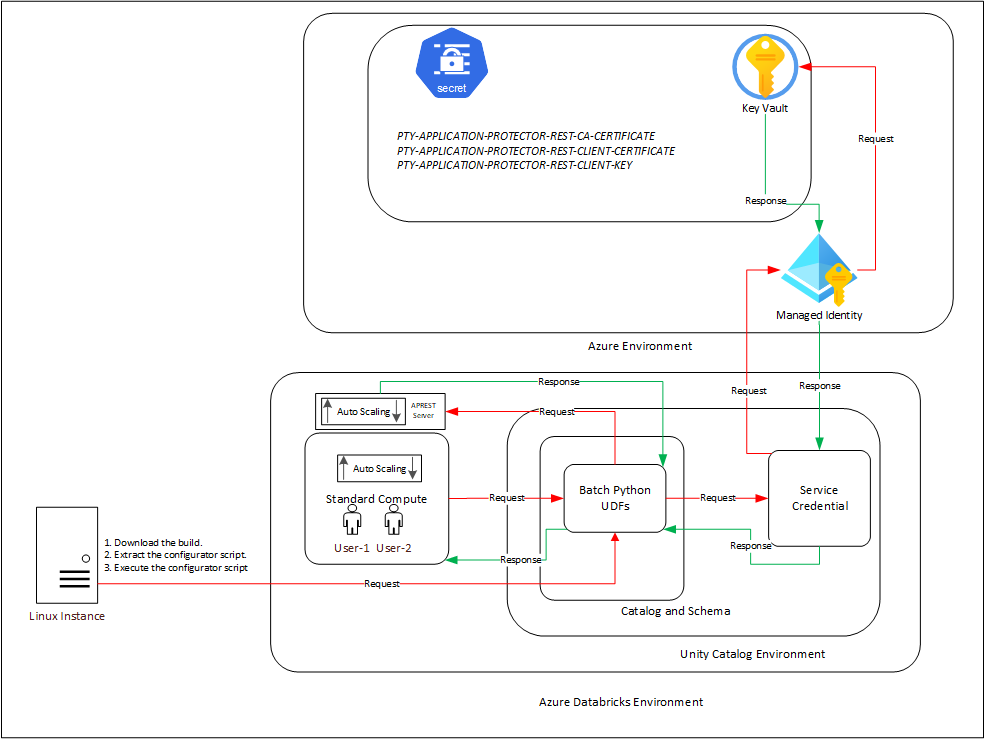
An outline of the steps in the workflow is explained below.
- Download the Azure Databricks build from the customer portal and extract the configurator script.
- Execute the configurator script to retrieve the IP address of the Application Protector REST server.
- Use the IP address to generate the CA, client, and server certificates.
- Store the content of the CA and the client certificates in the Azure Key Vault.
- Create a Databricks Unity Catalog Service Credentials to access the Secrets from the Azure Key Vault.
- Execute the configurator script to create the Unity Catalog Batch Python UDFs.
- Edit the cluster configuration to include the environment variables and attach the initialization script.
2.1.1.2 - For the Cloud Protector Approach
The architecture for installing the Azure Databricks protector using the Cloud Protector approach is depicted in the image below.
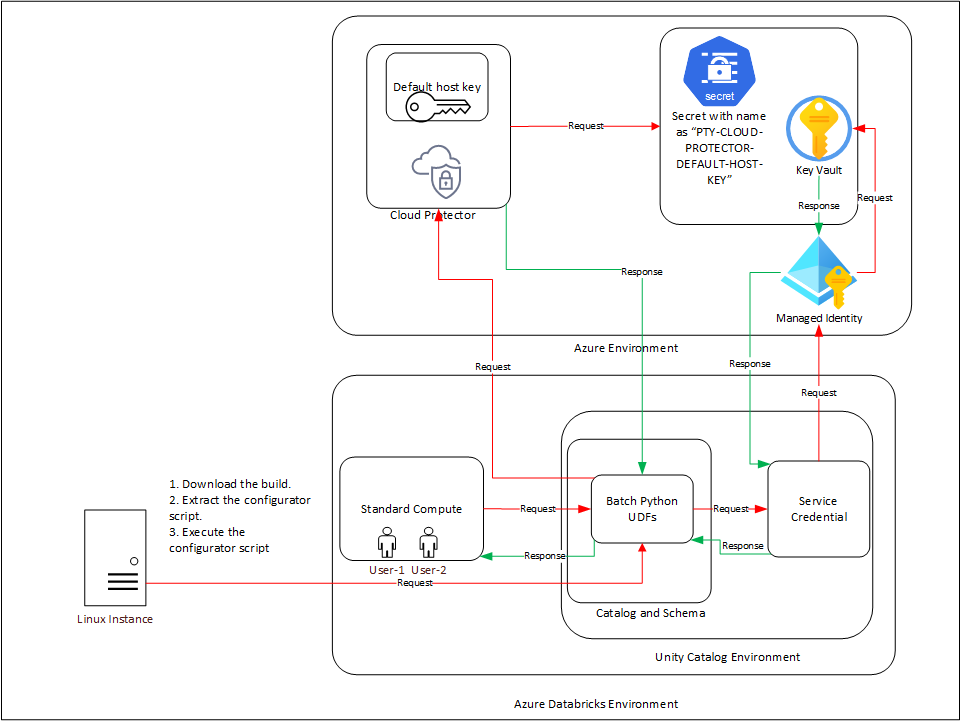
An outline of the steps in the workflow is explained below.
- Install and configure the Cloud Protector.
- Store the Cloud Protector’s default host key into an Azure Key Vault Secret with name as
PTY-CLOUD-PROTECTOR-DEFAULT-HOST-KEY. - Create an Azure Managed Identity and connect it with the Azure Key Vault Secret.
- Create an Azure Databricks Unity Catalog Service Credential and connect it with the Azure Managed Identity.
- Create either of a Dedicated Compute, Standard Compute, and SQL Warehouse.
- Download and extract the installation package on a Linux instance having connectivity to PPC.
- Execute the configurator script to create the Batch Python UDFs at the Unity Catalog level.
- Attach an Azure Databricks Notebook to the compute.
- Execute the Unity Catalog Batch Python UDFs to protect data.
2.1.2 - System Requirements
2.1.2.1 - For the Application Protector REST Approach
Ensure that the following prerequisites are available before installing the Big Data Protector:
Python3 along with the requests module is installed on the machine to execute the configurator script.
A compatible version of the ESA is installed, configured, and running.
Access to the Databricks workspace is available.
A Databricks cluster, of any one of the following type, is created and is in the running state:
- Dedicated Compute
- Standard Compute
Create the Databricks Service Principal.
The Databricks Service Principal must have the Can attach to permission on the cluster.
Create the following certificates for mutual TLS authorization:
- CA Certificate
- Server Certificate
- Non-encrypted Server Key
- Client Certificate
- Non-encrypted Client Key
Note: Generate these certificates ONLY after retrieving the IP address of the Application Protector REST server.
Create an Azure Managed Identity and connect it with the Azure Key Vault Secret.
Permission to create an Azure Key Vault and store secrets is available.
Create an Azure Databricks Unity Catalog Service Credential using the Azure Managed Identity.
Note: For more information about creating the credential, refer to https://learn.microsoft.com/en-us/azure/databricks/connect/unity-catalog/cloud-services/service-credentials#create-a-service-credential-using-a-managed-identity.
The Azure Managed Identity is granted the Key Vault Secrets User permission.
The Databricks Service Principal must have the access permissions on the Databricks Unity Catalog Service Credential.
A Databricks Unity Catalog Volume is available with a Catalog and a Schema and the following permissions:
- The Databricks Service Principal must have the Read volume and Write volume permission on the Databricks Unity Catalog Volume.
- The Databricks Service Principal must have the Use catalog permission at the Catalog level.
- The Databricks Service Principal must have the Use schema permission at the Schema level.
- The Databricks Service Principal must have the Create function permission at the Schema level.
- The Databricks Service Principal must have the manage permission at the Schema level.
2.1.2.2 - For the Cloud Protector Approach
The prerequisites required to install and run the Big Data Protector on a Databricks Compute are listed below.
Python3 along with the requests module is installed on the machine to execute the configurator script.
A compatible version of the ESA is installed, configured, and running.
Access to the Databricks workspace is available.
A Databricks cluster, of any one of the following type, is created and is in the running state:
- Dedicated Compute
- Standard Compute
- SQL Warehouse
Create the Databricks Service Principal.
The Databricks Service Principal must have the Can attach to permission on the cluster.
Install and configure the Cloud API on Azure.
Note: For more information about installing and configuring the Cloud API on Azure, refer Cloud API.
To modify the core parameters for RPSync, refer Policy Agent Installation.
Install and configure a compatible version of the ESA.
Note: For more information about compatible ESA versions, refer Cloud API.
Create an Azure Databricks Unity Catalog Service Credential.
Note: For more information about creating the credential, refer to https://learn.microsoft.com/en-us/azure/databricks/connect/unity-catalog/cloud-services/service-credentials.
Assigned the ACCESS privilege to the principals that will be using the Azure Databricks Unity Catalog Service Credential.
Create a service principal and OAuth secret to deploy the UDFs.
Note: For more information, refer to https://learn.microsoft.com/en-us/azure/databricks/dev-tools/auth/oauth-m2m.
(Optional) Configure private connectivity to the Protegrity Cloud API.
Note: For more information, refer to https://learn.microsoft.com/en-us/azure/databricks/security/network/serverless-network-security/pl-to-internal-network.
A Databricks Unity Catalog Volume is available with a Catalog and a Schema and the following permissions:
- The Databricks Service Principal must have the ATTACH or MANAGE permission on the compute.
- The Databricks Service Principal must have the Read volume and Write volume permission on the Databricks Unity Catalog Volume.
- The Databricks Service Principal must have the Use catalog permission at the Catalog level.
- The Databricks Service Principal must have the Use schema permission at the Schema level.
- The Databricks Service Principal must have the Create function permission at the Schema level.
- The Databricks Service Principal must have the manage permission at the Schema level.
To use a SQL Warehouse with the Cloud Protector approach, create a SQL Warehouse. For more information, refer https://learn.microsoft.com/en-us/azure/databricks/compute/sql-warehouse/create.
2.1.3 - Preparing the Environment
2.1.3.1 - Extracting the Installation Package
Extract the contents of the installation package to access the configurator script. This script generates the required files to install the Big Data Protector.
To extract the files from the installation package:
Log in to the Linux machine that has connectivity to PPC.
Download the Big Data Protector package
BigDataProtector_Linux-ALL-64_x86-64_Azure.Databricks-<DBR_version>-64_<BDP_version>.tgzto any local directory.To extract the files from the installation pacakage, run the following command:
tar -xvf BigDataProtector_Linux-ALL-64_x86-64_Azure.Databricks-<DBR_version>-64_<BDP_version>.tgzPress ENTER. The command extracts the installation package and the GPG signature files.
BigDataProtector_Linux-ALL-64_x86-64_Azure.Databricks-<DBR_version>-64_<BDP_version>.tgz
signatures/
signatures/BigDataProtector_Linux-ALL-64_x86-64_Azure.Databricks-<DBR_version>-64_<BDP_version>.tgz_10.0.sig
Verify the authenticity of the build using the signatures folder. For more information, refer Verification of Signed Protector Build.
To extract the configurator script, run the following command:
tar -xvf BigDataProtector_Linux-ALL-64_x86-64_Azure.Databricks-<DBR_version>-64_<BDP_version>.tgzPress ENTER. The command extracts the configurator script.
BigDataProtector-Configurator_Linux-ALL-64_x86-64_Azure.Databricks-<DBR_version>-64_<BDP_version>.sh
2.1.3.2 - Working with the Configurator Script
The configurator script performs the following tasks:
- Generate the IP address for the Application Protector REST server.
- Create the UDFs.
- Delete the UDFs.
The configurator script provides the --help option to understand the options and the arguments to be provided.
To understand the options and the arguments for the configurator script:
- Log in to the node where the installation files are extracted.
- To view the options and the arguments, run the following command:
./BigDataProtector-Configurator_Linux-ALL-64_x86-64_Azure.Databricks-<DBR_version>-64_<BDP_version>.sh --help - Press ENTER.
The command displays all the options and the arguments required to execute the configurator script.
This script needs the following inputs as a string:
 1. The ID of the operation.
    ----------------------------------------------------------
    | ID | Operation                                         |
    ----------------------------------------------------------
    |  1 | Get Application Protector REST's Server IP        |
    |  2 | Create Databricks Unity Catalog Batch Python UDFs |
    |  3 | Delete Databricks Unity Catalog Batch Python UDFs |
    ----------------------------------------------------------
 2. The URL of the Databricks Workspace.
 3. The Application ID of the Databricks Service Principal
 4. The OAuth Secret of the Databricks Service Principal
 5. The ID of the Databricks Compute.

If the ID of the operation is specified as "2" or "3", then the script will require the following additional inputs as a string:
 6. The name of the Databricks Unity Catalog Catalog-Schema.
 7. The ID of the approach.
    -----------------------------------
    | ID | Approach                   |
    -----------------------------------
    |  1 | Application Protector REST |
    |  2 | Cloud Protector            |
    -----------------------------------

If the ID of the operation is specified as "2" and the ID of the approach is specified as "1", then the script will require the following additional inputs as a string:
8. The path of the CA Certificate.
9. The path of the Server Certificate.
10. The path of the Server Key.
11. The name of the Azure Key Vault.
12. The name of the Databricks Unity Catalog Service Credential.
13. The path of the Databricks Unity Catalog Volume.

If the ID of the operation is specified as "2" and the ID of the approach is specified as "2", then the script will require the following additional inputs as a string:
14. The URL of the Azure Function App's Protect Function.
15. The URL of the Azure Function App's Unprotect Function.
16. The name of the Azure Key Vault.
17. The name of the Databricks Unity Catalog Service Credential.

If the ID of the operation is specified as "3" and the ID of the approach is specified as "1", then the script will require the following additional input as a string:
 18. The path of the Databricks Unity Catalog Volume.


This script accepts the above-mentioned inputs in any one of the following ways:
 1. Using .cfg file (pass the path of the .cfg file to this script as a command-line argument).
 2. Using command-line arguments.
 3. Using interactive prompts.

Structure of the .cfg file:
operation_id = "operation_id"
databricks_workspace_url = "databricks_workspace_url"
databricks_service_principal_application_id =
"databricks_service_principal_application_id"
databricks_service_principal_oauth_secret = "databricks_service_principal_oauth_secret"
databricks_compute_id = "databricks_compute_id"
databricks_unity_catalog_catalog_schema_name =
"databricks_unity_catalog_catalog_schema_name"
approach_id = "approach_id"
ca_certificate_path = "ca_certificate_path"
server_certificate_path = "server_certificate_path"
server_key_path = "server_key_path"
azure_key_vault_name = "azure_key_vault_name"
databricks_unity_catalog_service_credential_name =
"databricks_unity_catalog_service_credential_name"
databricks_unity_catalog_volume_path = "databricks_unity_catalog_volume_path"
azure_function_app_protect_function_url = "azure_function_app_protect_function_url"
azure_function_app_unprotect_function_url = "azure_function_app_unprotect_function_url"

Syntax of the command-line arguments:
--operation_id "operation_id"
--databricks_workspace_url "databricks_workspace_url"
--databricks_service_principal_application_id
"databricks_service_principal_application_id"
--databricks_service_principal_oauth_secret "databricks_service_principal_oauth_secret"
--databricks_compute_id "databricks_compute_id"
--databricks_unity_catalog_catalog_schema_name
"databricks_unity_catalog_catalog_schema_name"
--approach_id "approach_id"
--ca_certificate_path "ca_certificate_path"
--server_certificate_path "server_certificate_path"
--server_key_path "server_key_path"
--azure_key_vault_name "azure_key_vault_name"
--databricks_unity_catalog_service_credential_name
"databricks_unity_catalog_service_credential_name"
--databricks_unity_catalog_volume_path "databricks_unity_catalog_volume_path"
--azure_function_app_protect_function_url "azure_function_app_protect_function_url"
--azure_function_app_unprotect_function_url "azure_function_app_unprotect_function_url"
2.1.3.3 - Retrieving the IP Address
Note: The instructions mentioned in the section apply only to the Application Protector REST approach.
The IP address for the Application Protector REST approach is required to generate the certificates. The certificates must be created using the retrieved IP address. These certificates will be used to establish a mutual trust between the Unity Catalog Batch Python UDFs and the Application Protector REST Server.
Log in to the node where the installation files are extracted.
To execute the configurator script, run the following command:
./BigDataProtector-Configurator_Linux-ALL-64_x86-64_Azure.Databricks-<DBR_version>-64_<BDP_version>.shPress ENTER The prompt to enter the operation ID appears.
Creating installation files...
Created installation files.

Enter the ID of the operation:
To retrieve the IP address of the Application Protector REST server, type
1.Press ENTER. The prompt to enter the Databricks Workspace URL appears.
Enter the URL of the Databricks Workspace:Enter the Databricks Workspace URL.
Press ENTER. The prompt to enter the application ID of the Databricks Service Principal appears.
Enter the Application ID of the Databricks Service Principal:Enter the Application ID of the Databricks Service Principal.
Press ENTER. The prompt to enter the OAuth secret for the Service Principal appears.
Enter the OAuth Secret of the Databricks Service Principal:Enter the OAuth secret.
Press ENTER. The prompt to enter the cluster ID appears.
Enter the ID of the Databricks Compute:Enter the Cluster ID.
Press ENTER. The script retrieves the IP address of the Application Protector REST server.
Executing specified operation...

APREST Protector's Server IP: x.x.x.x

Executed specified operation.
2.1.3.4 - Uploading the Secrets to the Azure Key Vault
Note: The instructions mentioned in the section apply only to the Application Protector REST approach.
The CA and the Client certificates are important entities in the mutual trust process. These certificates determine the authentication and authorization to the Application Protector REST server. As a result, it is critical to store these certificates in a secured location. Therefore, the certificates must be uploaded to the Azure Key Vault in Azure where they will be stored as secrets.
Before you begin:
- Create a key vault to upload the secrets.
- Assign the required access permissions to the key vault.
To upload the secrets:
Log in to the machine where the certificates are created.
Launch the python console.
To view the contents of the
CA.pemfile and store it as PTY-APPLICATION-PROTECTOR-REST-CA-CERTIFICATE, run the following command:with open("ca/CA.pem") as file: file.read()Press ENTER. The command displays the contents of the
CA.pemfile.To view the contents of the
client.pemfile and store it as PTY-APPLICATION-PROTECTOR-REST-CLIENT-CERTIFICATE, run the following command:with open("client/client.pem") as file: file.read()Press ENTER. The command displays the contents of the
client.pemfile.To view the contents of the
client.keyfile and store it as PTY-APPLICATION-PROTECTOR-REST-CLIENT-KEY, run the following command:with open("client/client.key") as file: file.read()Press ENTER. The command displays the contents of the
client.keyfile.Log in to the Azure portal.
Navigate to the required key vault.
From the left-pane, expand Objects and click Secrets. The Secrets page appears.
Click Generate/Import. The Create a secret page appears.
Enter the details as listed in the table, in a new row.
Key
Value
PTY-APPLICATION-PROTECTOR-REST-CA-CERTIFICATE
- In the Name box, enter PTY-APPLICATION-PROTECTOR-REST-CA-CERTIFICATE.
- In the Secret Value box, enter the contents of the CA.pem file.
- Click Create.
PTY-APPLICATION-PROTECTOR-REST-CLIENT-CERTIFICATE
- In the Name box, enter PTY-APPLICATION-PROTECTOR-REST-CLIENT-CERTIFICATE.
- In the Secret Value box, enter the contents of the client.pem file.
- Click Create.
PTY-APPLICATION-PROTECTOR-REST-CLIENT-KEY
- In the Name box, enter PTY-APPLICATION-PROTECTOR-REST-CLIENT-KEY.
- In the Secret Value box, enter the contents of the client.key file.
- Click Create.
The parameters are displayed on the Secrets page of the key vault.
2.1.4 - Installing the Protector
2.1.4.1 - Creating the User Defined Functions
The following combinations will work for a successful execution of the configurator script:
- Databricks Dedicated Compute + Application Protector REST approach
- Databricks Dedicated Compute + Cloud Protector approach
- Databricks Standard Compute + Application Protector REST approach
- Databricks Standard Compute + Cloud Protector approach
- Databricks SQL Warehouse + Cloud Protector approach
The Databricks SQL Warehouse + Application Protector REST approach combination will not work. This is because Protegrity executes a few Python commands on the Databricks Compute to retrieve a listening IP for the Application Protector REST’s Server. When the Databricks Compute is a SQL Warehouse, the Python commands fail to execute. This occurs because the SQL Warehouse supports only SQL commands.
For the Application Protector REST Approach
The configurator script creates the UDFs. These Unity Catalog Batch Python UDFs are designed perform data protection and unprotection operations. Select the required approach and the operation ID to create the UDFs using the Application Protector REST server. This section explains the process to create the UDFs using the interactive method of installation.
To create the UDFs:
Log in to the staging machine.
Navigate to the directory where the installation files are extracted.
To execute the configurator script, run the following command:
./BigDataProtector-Configurator_Linux-ALL-64_x86-64_Azure.Databricks-<DBR_version>-64_<BDP_version>.shPress ENTER. The prompt to enter the operation ID appears.
Creating installation files...
Created installation files.

Enter the ID of the operation:
To create the UDFs, type
2.Press ENTER. The prompt to enter the Databricks Workspace URL appears.
Enter the URL of the Databricks Workspace:Enter the Databricks Workspace URL.
Press ENTER. The prompt to enter the application ID of the Databricks Service Principal appears.
Enter the Application ID of the Databricks Service Principal:Enter the Application ID of the Databricks Service Principal.
Press ENTER. The prompt to enter the OAuth secret for the Service Principal appears.
Enter the OAuth Secret of the Databricks Service Principal:Enter the OAuth secret.
Press ENTER. The prompt to enter the cluster ID appears.
Enter the ID of the Databricks Compute:Note: The Cluster ID can be either for Standard Compute or Dedicated Compute. For more information about identifying the Cluster ID, refer to https://learn.microsoft.com/en-us/azure/databricks/workspace/workspace-details.
Enter the Cluster ID.
Press ENTER. The prompt to enter the name of the schema appears.
Enter the name of the Databricks Unity Catalog Catalog-Schema:Enter the name of the catalog and the schema in the
<catalog_name.schema_name>format.Press ENTER. The prompt to select the approach appears.
Enter the ID of the approach:To create the UDFs using the Application Protector REST approach, type
1.Press ENTER. The prompt to enter the path of the CA Certificate appears.
Enter the path of the CA Certificate:Enter the path of the CA Certificate.
Press ENTER. The prompt to enter the path of the Server Certificate appears.
Enter the path of the Server Certificate:Enter the path of the Server Certificate.
Press ENTER. The prompt to enter the path of the Server key appears.
Enter the path of the Server Key:Enter the path of the Server Key.
Press ENTER. The prompt to enter the name of the key vault appears.
Enter the name of the Azure Key Vault:Enter the name of the Azure Key Vault.
Press ENTER. The prompt to enter the name of the Service Credential appears.
Enter the name of the Databricks Unity Catalog Service Credential:Enter the name of the Databricks Unity Catalog Service Credential.
Press ENTER. The prompt to enter the path of the Unity Catalog Volume appears.
Enter the path of the Databricks Unity Catalog Volume:Enter the path of the Databricks Unity Catalog Volume.
Press ENTER. The script creates the UDFs at the specified location.
Executing specified operation...

1. Create the following environment variables in the Spark section of the Advanced properties of the Databricks Compute:
PTY_ESA_IP=PTY_ESA_IP
PTY_ESA_PORT=PTY_ESA_PORT
Either PTY_ESA_TOKEN=PTY_ESA_TOKEN or PTY_ESA_ADMINISTRATOR_USERNAME=PTY_ESA_ADMINISTRATOR_USERNAME and PTY_ESA_ADMINISTRATOR_PASSWORD=PTY_ESA_ADMINISTRATOR_PASSWORD
PTY_AUDIT_STORE_IP_PORT=PTY_AUDIT_STORE_IP_PORT
PTY_PROTECTOR_CONFIGURATION=PTY_PROTECTOR_CONFIGURATION
2. Attach "DATABRICKS_UNITY_CATALOG_VOLUME_PATH/DATABRICKS_INIT_SCRIPT_NAME" as an Init Script to the Databricks Compute.
3. Restart the Databricks Compute.

Executed specified operation.
For the Cloud Protector Approach
The configurator script creates the UDFs. These Unity Catalog Batch Python UDFs can perform data protection and unprotection operations. Select the required approach and the operation ID to create the UDFs using the Cloud Protector. This section explains the process to create the UDFs using the interactive method of installation.
To create the UDFs:
Log in to the staging machine.
Navigate to the directory where the installation files are extracted.
To execute the configurator script, run the following command:
./BigDataProtector-Configurator_Linux-ALL-64_x86-64_Azure.Databricks-<DBR_version>-64_<BDP_version>.shPress ENTER. The prompt to enter the operation ID appears.
Creating installation files...
Created installation files.

Enter the ID of the operation:
To create the UDFs, type
2Press ENTER. The prompt to enter the Databricks Workspace URL appears.
Enter the URL of the Databricks Workspace:Enter the Databricks Workspace URL.
Press ENTER. The prompt to enter the application ID of the Databricks Service Principal appears.
Enter the Application ID of the Databricks Service Principal:Enter the Application ID of the Databricks Service Principal.
Press ENTER. The prompt to enter the OAuth secret for the Service Principal appears.
Enter the OAuth Secret of the Databricks Service Principal:Enter the OAuth secret.
Press ENTER. The prompt to enter the cluster ID appears.
Enter the ID of the Databricks Compute:Note: The Cluster ID can be either for SQL Warehouse, Standard Compute or Dedicated Compute. For more information about identifying the Cluster ID, refer to https://learn.microsoft.com/en-us/azure/databricks/workspace/workspace-details.
Enter the Cluster ID.
Press ENTER. The prompt to enter the name of the schema appears.
Enter the name of the Databricks Unity Catalog Catalog-Schema:Enter the name of the catalog and the schema in the
<catalog_name.schema_name>format.Press ENTER. The prompt to select the approach appears.
Enter the ID of the approach:To create the UDFs using the Cloud Protector approach, type
2.Press ENTER. The prompt to enter the protection endpoint appears.
Enter the URL of the Function App's Protect Function:Enter the protection endpoint.
Press ENTER. The prompt to enter the unprotection endpoint appears.
Enter the URL of the Function App's Unprotect Function:Enter the unprotection endpoint.
Press ENTER. The prompt to enter the name of the key vault appears.
Enter the name of the Azure Key Vault:Enter the name of the Azure Key Vault.
Press ENTER. The prompt to enter the name of the Service Credential appears.
Enter the name of the Databricks Unity Catalog Service Credential:Enter the name of the Databricks Unity Catalog Service Credential.
Press ENTER. The script creates the UDFs at the specified location.
Executing specified operation...
Executed specified operation.
2.1.5 - Configuring the Protector
2.1.5.1 - Editing the Cluster Configuration
Note: The instructions mentioned in the section apply only to the Application Protector REST approach.
After the configurator script is executed and the UDFs are created, the update the cluster to include the following configurations:
- Inclusion of the environment variables.
- Attach the
BigDataProtector-Init-Script_Linux-ALL-64_x86-64_Azure.Databricks-<DBR_version>-64_<BDP_version>.shscript to the Databricks compute.
Ensure that the ESA is started and in a running state before restarting the Databricks cluster after updating the configurations.
To edit the cluster:
Log in to the Databricks portal.
Edit the required cluster.
Expand the Advanced section.
Click the Spark tab.
Under Environment variables, add the variables, with their values, listed in the table:
Variable Value PTY_ESA_IPEnter ESA IP address. PTY_ESA_PORTEnter the port number to connect to ESA. PTY_ESA_TOKENEnter the JWT token to connect to ESA. PTY_ESA_ADMINISTRATOR_USERNAMEEnter the user name to connect to ESA. This is required only if a token is not used. PTY_ESA_ADMINISTRATOR_PASSWORD{{secrets/<scope_name>/<key_name>}}This is required only if a token is not used.PTY_AUDIT_STORE_IP_PORTEnter the port to connect to the Audit Store. The value is a comma-separated string of <audit_store_ip>:<audit_store_port>. For example, 11.22.33.44:9200, 55.66.77.88:9200PTY_PROTECTOR_CONFIGURATIONEnter the protector configuration values. The values will be a single string of comma-separated configurations.
For example:[Policy management] policyrefreshinterval = 60[Policy management] emptystring = nullNote: To store the ESA password, it is recommended to use Databricks Secrets. For more information about using Databricks Secrets, refer to https://learn.microsoft.com/en-us/azure/databricks/security/secrets/.
Click the Init scripts tab.
From the Source list, select Volumes.
In the File path box, enter the location of the initialization script.
To save the changes and restart the cluster, click Confirm and restart.
Note: If the initialization script fails with a non-zero exit code, enable cluster logging to view the error log files for troubleshooting purposes.
When the cluster is restarted, the initialization script starts the Application Protector REST service on every node in the cluster. After the Application Protector REST service is started, use the Unity Catalog Batch Python UDFs to protect and unprotect data.
Note: The process to execute the initialization script will take some time before the cluster is ready to use for performing protect and unprotect operations. For more information on using the UDFs for protect and unprotect operations, refer to the section Unity Catalog Batch Python UDFs.
2.1.6 - Uninstalling the Protector
2.1.6.1 - Dropping the User Defined Functions
For the Application Protector REST Approach
Deleting the UDFs is an optional step and must be performed ONLY to clean up the Databricks cluster. The configurator script is used to delete the UDFs. You must select the required approach and the operation ID to delete the UDFs using the Application Protector REST server. This section explains the process to delete the UDFs using the interactive method of installation.
To delete the UDFs:
Log in to the staging machine.
Navigate to the directory where the installation files are extracted.
To execute the configurator script, run the following command:
./BigDataProtector-Configurator_Linux-ALL-64_x86-64_Azure.Databricks-<DBR_version>-64_<BDP_version>.shPress ENTER. The prompt to enter the operation ID appears.
Creating installation files...
Created installation files.

Enter the ID of the operation:
To delete the UDFs, type
3.Press ENTER. The prompt to enter the Databricks Workspace URL appears.
Enter the URL of the Databricks Workspace:Enter the Databricks Workspace URL.
Press ENTER. The prompt to enter the application ID of the Databricks Service Principal appears.
Enter the Application ID of the Databricks Service Principal:Enter the Application ID of the Databricks Service Principal.
Press ENTER. The prompt to enter the OAuth secret for the Service Principal appears.
Enter the OAuth Secret of the Databricks Service Principal:Enter the OAuth secret.
Press ENTER. The prompt to enter the cluster ID appears.
Enter the ID of the Databricks Compute:Enter the Cluster ID.
Note: The Cluster ID can be either for Standard Compute or Dedicated Compute. For more information about identifying the Cluster ID, refer to https://learn.microsoft.com/en-us/azure/databricks/workspace/workspace-details.
Press ENTER. The prompt to enter the name of the schema appears.
Enter the name of the Databricks Unity Catalog Catalog-Schema:Enter the name of the catalog and the schema in the
<catalog_name.schema_name>format.Press ENTER. The prompt to enter the ID of the approach appears.
Enter the ID of the approach:To delete the UDFs using the APREST approach, type
1.Press ENTER. The prompt to enter the path of the Databricks Unity Catalog Volume appears.
Enter the path of the Databricks Unity Catalog Volume:Enter the complete location of the Databricks Unity Catalog Volume.
Press ENTER. The script deletes the UDFs from the specified location.
Executing specified operation...

Executed specified operation.
For the Cloud Protector Approach
Deleting the UDFs is an optional step and must be performed ONLY to clean up the Databricks cluster. The configurator script is used to delete the UDFs. Select the required approach and the operation ID to delete the UDFs using the Cloud Protector. This section explains the process to delete the UDFs using the interactive method of installation.
To delete the UDFs:
- Log in to the staging machine.
- Navigate to the directory where the installation files are extracted.
- To execute the configurator script, run the following command:
./BigDataProtector-Configurator_Linux-ALL-64_x86-64_Azure.Databricks-<DBR_version>-64_<BDP_version>.sh - Press ENTER.
The prompt to enter the operation ID appears.
Creating installation files... Created installation files. Enter the ID of the operation: - To delete the UDFs, type
3. - Press ENTER.
The prompt to enter the Databricks Workspace URL appears.
Enter the URL of the Databricks Workspace: - Enter the Databricks Workspace URL.
- Press ENTER.
The prompt to enter the application ID of the Databricks Service Principal appears.
Enter the Application ID of the Databricks Service Principal: - Enter the Application ID of the Databricks Service Principal.
- Press ENTER.
The prompt to enter the OAuth secret for the Service Principal appears.
Enter the OAuth Secret of the Databricks Service Principal - Enter the OAuth secret.
- Press ENTER.
The prompt to enter the cluster ID appears.
Enter the ID of the Databricks Compute: - Enter the Cluster ID.
Note: The Cluster ID can be either for SQL Warehouse, Standard Compute or Dedicated Compute. For more information about identifying the Cluster ID, refer to https://learn.microsoft.com/en-us/azure/databricks/workspace/workspace-details.
- Press ENTER.
The prompt to enter the name of the schema appears.
Enter the name of the Databricks Unity Catalog Catalog-Schema: - Enter the name of the catalog and the schema in the
<catalog_name.schema_name>format. - Press ENTER.
The prompt to select the approach appears.
Enter the ID of the approach: - To delete the UDFs using the Cloud Protector approach, type
2. - Press ENTER.
The script deletes the UDFs from the specified location.
Executing specified operation...

Executed specified operation.
2.1.7 - User Defined Functions and APIs
2.1.7.1 - Unity Catalog Batch Python UDFs
The UDFs in this section is applicable only to install and configure the Big Data Protector in the Databricks environment.
This version of the build only supports Unity Catalog Batch Python UDFs that use the Cloud Protect APIs. The Hive and Spark UDFs and APIs that provide native protection within the cluster nodes are not packaged in this build. To use those features, please use the 9.1.0.0 builds.
pty_who_am_i()
This UDF returns the current user.
Signature:
pty_who_am_i()
Parameters:
| Name | Data Type | Description |
|---|---|---|
input | STRING | Specifies any random string value to be passed to fetch the current user. |
Result:
- The UDF returns the current user.
pty_get_version()
This UDF returns the current version of the protector.
Signature:
pty_get_version()
Parameters:
| Name | Data Type | Description |
|---|---|---|
input | STRING | Specifies any random string value to be passed to fetch the current version. |
Result:
- The UDF returns the current version of the protector.
Example:
select pty_get_version();
pty_get_version_extended()
This UDF returns the extended version information of the protector.
Signature:
pty_get_version_extended();
Parameters:
| Name | Data Type | Description |
|---|---|---|
input | STRING | Specifies any random string value to be passed to fetch the extended version details. |
Result:
The UDF returns a String in the following format:
BDP: <1>; JcoreLite: <2>; CORE: <3>;
where:
- is the current version of the Protector
- is the Jcorelite library version
- is the Core library version
Example:
select pty_get_version_extended();
pty_protect_binary()
This UDF protects the BINARY format data, which is provided as input.
Signature:
pty_protect_binary (input BINARY, data_element STRING)
Parameters:
| Name | Description |
|---|---|
input | Specifies the column that contains data in BINARY format, which needs to be protected. |
data_element | Specifies the data element used to protect the BINARY format data. |
Returns:
This UDF returns the BINARY format data, which is protected.
Example:
SELECT pty_protect_binary(<column_with_binary_data>, "<binary_data_element>");
pty_unprotect_binary()
This UDF unprotects the protected BINARY data, which is provided as an input.
Signature:
pty_unprotect_binary (input BINARY, data_element STRING)
Parameters:
| Name | Description |
|---|---|
input | Specifies the column that contains data in BINARY format, which needs to be unprotected. |
data_element | Specifies the data element used to unprotect the BINARY format data. |
Returns:
This UDF returns the BINARY format data, which is unprotected.
Example:
SELECT pty_unprotect_binary(<column_with_protected_binary_data>, "<binary_data_element>");
pty_protect_date()
This UDF protects the DATE format data, which is provided as input.
Signature:
pty_protect_date (input DATE, data_element STRING)
The supported DATE format is YYYY-MM-DD.
Parameters:
| Name | Description |
|---|---|
input | Specifies the column that contains data in DATE format, which needs to be protected. |
data_element | Specifies the data element used to protect the DATE format data. |
Returns:
This UDF returns the DATE format data, which is protected.
Example:
SELECT pty_protect_date(<column_with_date_data>, "de_date");
pty_unprotect_date()
This UDF unprotects the protected DATE data, which is provided as an input.
Signature:
pty_unprotect_date (input DATE, data_element STRING)
The supported DATE format is YYYY-MM-DD.
Parameters:
| Name | Description |
|---|---|
input | Specifies the column that contains data in DATE format, which needs to be unprotected. |
data_element | Specifies the data element used to unprotect the DATE format data. |
Returns:
This UDF returns the DATE format data, which is unprotected.
Example:
SELECT pty_unprotect_date(<column_with_protected_date_data>, "de_date");
pty_protect_int()
This UDF protects the INT format data, which is provided as input.
Signature:
pty_protect_int (input INT, data_element STRING)
Parameters:
| Name | Description |
|---|---|
input | Specifies the column that contains data in INT format, which needs to be protected. |
data_element | Specifies the data element used to protect the INT format data. |
Returns:
This UDF returns the INT format data, which is protected.
Example:
SELECT pty_protect_int(<column_with_int_data>, "de_int4");
pty_unprotect_int()
This UDF unprotects the protected INT data, which is provided as an input.
Signature:
pty_unprotect_int (input INT, data_element STRING)
Parameters:
| Name | Description |
|---|---|
input | Specifies the column that contains data in INT format, which needs to be unprotected. |
data_element | Specifies the data element used to unprotect the INT format data. |
Returns:
This UDF returns the INT format data, which is unprotected.
Example:
SELECT pty_unprotect_int(<column_with_protected_int_data>, "de_int4");
pty_protect_smallint()
This UDF protects the SMALLINT format data, which is provided as input.
Signature:
pty_protect_smallint (input SMALLINT, data_element STRING)
Parameters:
| Name | Description |
|---|---|
input | Specifies the column that contains data in SMALLINT format, which needs to be protected. |
data_element | Specifies the data element used to protect the SMALLINT format data. |
Returns:
This UDF returns the SMALLINT format data, which is protected.
Example:
SELECT pty_protect_smallint(<column_with_smallint_data>, "de_int2");
pty_unprotect_smallint()
This UDF unprotects the protected SMALLINT data, which is provided as an input.
Signature:
pty_unprotect_smallint (input SMALLINT, data_element STRING)
Parameters:
| Name | Description |
|---|---|
input | Specifies the column that contains data in SMALLINT format, which needs to be unprotected. |
data_element | Specifies the data element used to unprotect the SMALLINT format data. |
Returns:
This UDF returns the SMALLINT format data, which is unprotected.
Example:
SELECT pty_unprotect_smallint(<column_with_protected_smallint_data>, "de_int2");
pty_protect_string()
This UDF protects the STRING format data, which is provided as input.
For BIGINT, DATETIME, DECIMAL, DOUBLE, and FLOAT data types, it is recommended to use the pty_protect_string() UDF.
For example:
SELECT pty_protect_string(CAST(<column_with_input_data> AS STRING), "<data_element>");
It is recommended to use the following data elements corresponding to their input data type:
- For
BIGINTinput, use an integer data element.SELECT pty_protect_string(CAST(<column_with_bigint_data> AS STRING), "de_int8"); - For DATETIME input, use a date or date time data element.
SELECT pty_protect_string(CAST(<column_with_datetime_data> AS STRING), "de_datetime");SELECT pty_protect_string(CAST(<column_with_datetime_data> AS STRING), "de_date"); - For
DECIMALinput, use a decimal data element.SELECT pty_protect_string(CAST(<column_with_decimal_data> AS STRING), "de_decimal"); - For
DOUBLEinput, either use a decimal, numeric, or a no encryption data element.SELECT pty_protect_string(CAST(<column_with_double_data> AS STRING), "de_decimal");SELECT pty_protect_string(CAST(<column_with_double_data> AS STRING), "de_numeric"); - For
FLOATinput, either use a decimal, numeric, or a no encryption data element.SELECT pty_protect_string(CAST(<column_with_float_data> AS STRING), "de_decimal");SELECT pty_protect_string(CAST(<column_with_float_data> AS STRING), "de_numeric");
Signature:
pty_protect_string (input STRING, data_element STRING)
Note: The UDF accepts a maximum input length of 4081 characters.
Parameters:
| Name | Description |
|---|---|
input | Specifies the column that contains data in STRING format, which needs to be protected. |
data_element | Specifies the data element used to protect the STRING format data. |
Returns:
This UDF returns the STRING format data, which is protected.
Example:
SELECT pty_protect_string(<column_with_string_data>, "de_alphanum");
pty_unprotect_string()
This UDF unprotects the STRING format data, which is provided as input.
For BIGINT, DATETIME, DECIMAL, DOUBLE, and FLOAT data types, it is recommended to use the pty_unprotect_string() UDF.
For example:
SELECT pty_unprotect_string(CAST(<column_with_protected_data> AS STRING), "<data_element>");
It is recommended to use the following data elements corresponding to their input data type:
- For
BIGINTinput, use an integer data element.SELECT pty_unprotect_string(CAST(<column_with_protected_bigint_data> AS STRING), "de_int8"); - For DATETIME input, use a date or date time data element.
SELECT pty_unprotect_string(CAST(<column_with_protected_datetime_data> AS STRING), "de_datetime");SELECT pty_unprotect_string(CAST(<column_with_protected_datetime_data> AS STRING), "de_date"); - For
DECIMALinput, use a decimal data element.SELECT pty_unprotect_string(CAST(<column_with_protected_decimal_data> AS STRING), "de_decimal"); - For
DOUBLEinput, either use a decimal, numeric, or a no encryption data element.SELECT pty_unprotect_string(CAST(<column_with_protected_double_data> AS STRING), "de_decimal");SELECT pty_unprotect_string(CAST(<column_with_protected_double_data> AS STRING), "de_numeric"); - For
FLOATinput, either use a decimal, numeric, or a no encryption data element.SELECT pty_unprotect_string(CAST(<column_with_protected_float_data> AS STRING), "de_decimal");SELECT pty_unprotect_string(CAST(<column_with_protected_float_data> AS STRING), "de_numeric");
Signature:
pty_unprotect_string (input STRING, data_element STRING)
Parameters:
| Name | Description |
|---|---|
input | Specifies the column that contains data in STRING format, which needs to be unprotected. |
data_element | Specifies the data element used to unprotect the STRING format data. |
Returns:
This UDF returns the STRING format data, which is unprotected.
Example:
SELECT pty_unprotect_string(<column_with_protected_string_data>, "de_alphanum");
pty_encrypt_string()
This UDF encrypts STRING format data, which is provided as input.
Signature:
pty_encrypt_string (input STRING, data_element STRING)
Parameters:
| Name | Description |
|---|---|
input | Specifies the column that contains data in STRING format, which needs to be encrypted. |
data_element | Specifies the data element used to encrypt the STRING format data. |
Returns:
This UDF returns the BINARY format data, which is encrypted.
Example:
SELECT pty_encrypt_string(<column_with_string_data>, "<encryption_data_element>");
pty_decrypt_string()
This UDF decrypts the encrypted BINARY data, which is provided as an input.
Signature:
pty_decrypt_string (input BINARY, data_element STRING)
Parameters:
| Name | Description |
|---|---|
input | Specifies the column that contains the data in the BINARY format, which needs to be decrypted. |
data_element | Specifies the data element used to decrypt the BINARY format data. |
Returns:
This UDF returns the STRING format data, which is decrypted.
Example:
SELECT pty_decrypt_string(<column_with_encrypted_string_data>, "<encryption_data_element>");
pty_protect_string_fpe()
This UDF protects the STRING format data, which is provided as input.
Note: This UDF is compatible only with the Application Protector REST approach.
Signature:
pty_protect_string_fpe (input STRING, data_element STRING, encoding STRING)
Note: The UDF accepts a maximum input length of 4081 characters.
Parameters:
| Name | Description |
|---|---|
input | Specifies the column that contains the data in the STRING format, which needs to be protected. |
data_element | Specifies the data element used to protect the STRING format data. |
encoding | Specifies the encoding to be used for data protection. |
Returns:
This UDF returns the STRING format data, which is protected.
Example:
SELECT pty_protect_string_fpe(<column_with_string_data>, "de_alphanum", "utf_8");
Note: For more information about the supported encoding formats, refer https://docs.python.org/3/library/codecs.html#standard-encodings
pty_unprotect_string_fpe()
This UDF unprotects the protected STRING format data, which is provided as input.
Note: This UDF is compatible only with the Application Protector REST approach.
Signature:
pty_unprotect_string_fpe (input STRING, data_element STRING, encoding STRING)
Parameters:
| Name | Description |
|---|---|
input | Specifies the column that contains the data in the STRING format, which needs to be unprotected. |
data_element | Specifies the data element used to unprotect the STRING format data. |
encoding | Specifies the encoding to be used for data protection. |
Returns:
This UDF returns the STRING format data, which is unprotected.
Example:
SELECT pty_unprotect_string_fpe(<column_with_protected_string_data>, "de_alphanum", "utf_8");
Note: For more information about the supported encoding formats, refer https://docs.python.org/3/library/codecs.html#standard-encodings