The following protectors can be installed on Microsoft Azure.
Note: Ensure that the Protegrity Provisional Cluster (PPC) is installed successfully before installing the protectors.
This is the multi-page printable view of this section. Click here to print.
The following protectors can be installed on Microsoft Azure.
Note: Ensure that the Protegrity Provisional Cluster (PPC) is installed successfully before installing the protectors.
The Protegrity Big Data Protector for Azure Databricks delivers end‑to‑end data protection. Organizations deploying the Big Data Protector rely on modern, supported storage options such as Workspace storage, Unity Catalog Volumes, and cloud object storage like ADLS Gen2 or Azure Blob Storage.
Designed to secure sensitive data across analytics pipelines, the Big Data Protector applies advanced tokenization and encryption during Spark execution and enforces centralized, policy‑driven controls. Whether installed via Unity Catalog Volumes for init script and .tgz delivery, the Protector ensures resilient execution across Azure Databricks clusters.
By embracing cloud‑native storage paths, this approach ensures long‑term compatibility with Databricks platform changes while maintaining Protegrity’s standard of seamless and transparent protection. Organizations can continue to process high‑value datasets on Azure Databricks with confidence knowing that sensitive information is secured across its lifecycle, even as the underlying platform evolves.
The Protegrity Big Data Protector for Azure Databricks empowers organizations to secure sensitive data across their analytics pipelines by combining high‑performance protection mechanisms with flexible deployment models tailored for modern cloud architectures. Central to this capability are two approaches; Application Protector REST (AP REST) and Cloud Protector approach. Each approach is designed to address different customer requirements around scalability, infrastructure usage, and cost optimization.
The AP REST model enables data protection directly within the Databricks cluster itself, eliminating the need for a separate Cloud API infrastructure. This approach is particularly suitable for customers who want to avoid maintaining additional cloud-native services for protection operations.
With AP REST, protection workflows are executed through REST endpoints running on the cluster, allowing seamless scaling along with Databricks’ auto-scaling compute. This ensures that sensitive data remains protected throughout processing while also adapting automatically to dynamically assigned IPs in auto-scaling environments. This results in an operationally efficient fit for Spark-driven workloads on Azure.
For the Application Protector REST Approach, the following cluster types are supported:
For the Application Protector REST approach, the following sections are applicable:
The Cloud Protector approach extends protection capabilities by offering centralized, cloud-hosted security services for environments that require externally managed protection layers. It enables highly scalable, policy-driven tokenization and encryption without requiring protection logic to reside inside the Databricks compute itself.
In contexts where Cloud Protector is integrated with the Big Data Protector, organizations benefit from lifecycle-wide protection that spans storage, compute, and inter-system data transfers. Cloud Protector provides the foundation for UDF-driven protections (including Spark and Unity Catalog–level enforcement), ensuring centralized governance across distributed analytics ecosystems.
For the Cloud Protector approach, the following cluster types are supported:
For the Cloud Protector approach, the following sections are applicable:
Together, these two approaches provide enterprises the flexibility to choose a data protection strategy aligned with their architectural, cost, and compliance requirements whether fully cluster-local using AP REST, centrally managed via Cloud Protector, or in hybrid deployments. This dual-path model ensures that Azure Databricks customers can achieve seamless, transparent, policy-based data protection while continuing to extract high-value insights from their data securely and efficiently.
The architecture for installing the Azure Databricks protector using the Application Protector REST approach is depicted in the image below.
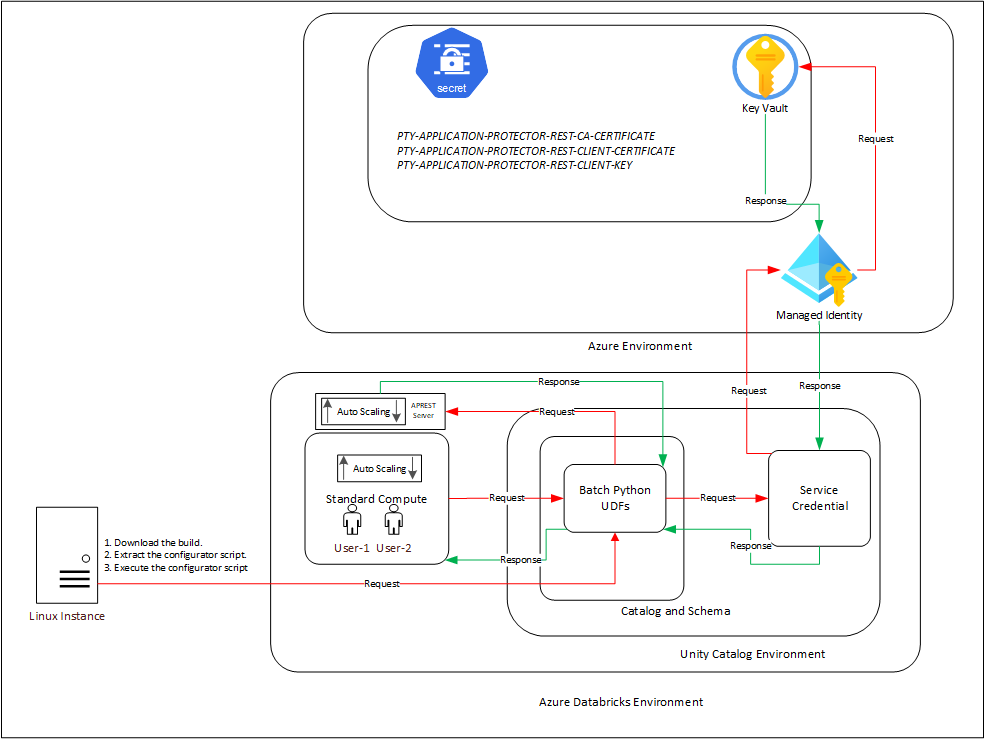
An outline of the steps in the workflow is explained below.
The architecture for installing the Azure Databricks protector using the Cloud Protector approach is depicted in the image below.
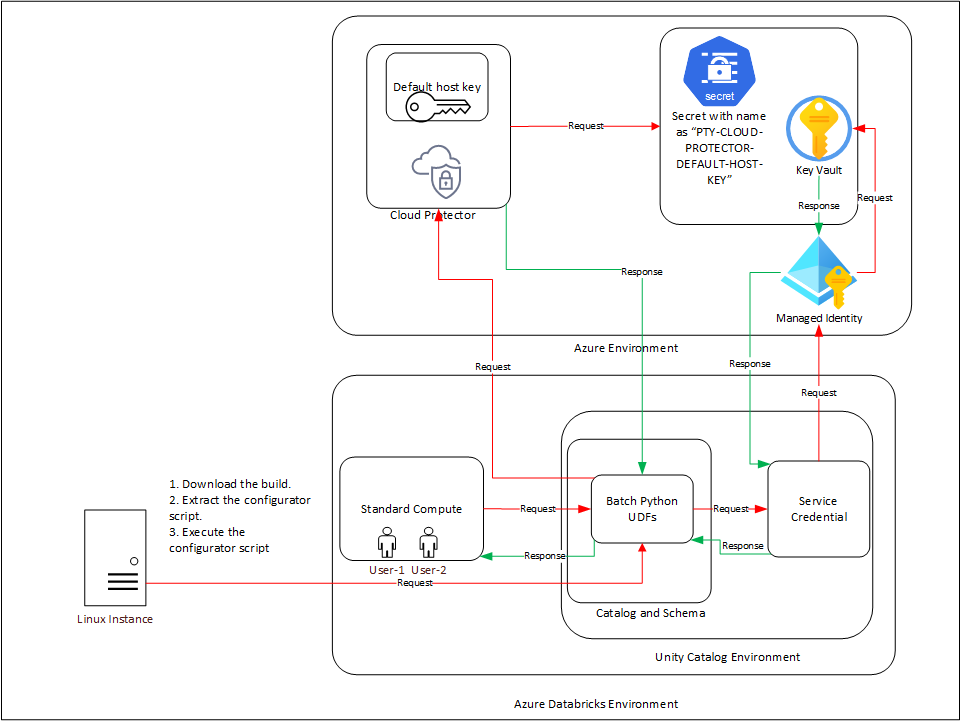
An outline of the steps in the workflow is explained below.
PTY-CLOUD-PROTECTOR-DEFAULT-HOST-KEY.Ensure that the following prerequisites are available before installing the Big Data Protector:
Python3 along with the requests module is installed on the machine to execute the configurator script.
A compatible version of the ESA is installed, configured, and running.
Access to the Databricks workspace is available.
A Databricks cluster, of any one of the following type, is created and is in the running state:
Create the Databricks Service Principal.
The Databricks Service Principal must have the Can attach to permission on the cluster.
Create the following certificates for mutual TLS authorization:
Note: Generate these certificates ONLY after retrieving the IP address of the Application Protector REST server.
Create an Azure Managed Identity and connect it with the Azure Key Vault Secret.
Permission to create an Azure Key Vault and store secrets is available.
Create an Azure Databricks Unity Catalog Service Credential using the Azure Managed Identity.
Note: For more information about creating the credential, refer to https://learn.microsoft.com/en-us/azure/databricks/connect/unity-catalog/cloud-services/service-credentials#create-a-service-credential-using-a-managed-identity.
The Azure Managed Identity is granted the Key Vault Secrets User permission.
The Databricks Service Principal must have the access permissions on the Databricks Unity Catalog Service Credential.
A Databricks Unity Catalog Volume is available with a Catalog and a Schema and the following permissions:
The prerequisites required to install and run the Big Data Protector on a Databricks Compute are listed below.
Python3 along with the requests module is installed on the machine to execute the configurator script.
A compatible version of the ESA is installed, configured, and running.
Access to the Databricks workspace is available.
A Databricks cluster, of any one of the following type, is created and is in the running state:
Create the Databricks Service Principal.
The Databricks Service Principal must have the Can attach to permission on the cluster.
Install and configure the Cloud API on Azure.
Note: For more information about installing and configuring the Cloud API on Azure, refer Cloud API.
To modify the core parameters for RPSync, refer Policy Agent Installation.
Install and configure a compatible version of the ESA.
Note: For more information about compatible ESA versions, refer Cloud API.
Create an Azure Databricks Unity Catalog Service Credential.
Note: For more information about creating the credential, refer to https://learn.microsoft.com/en-us/azure/databricks/connect/unity-catalog/cloud-services/service-credentials.
Assigned the ACCESS privilege to the principals that will be using the Azure Databricks Unity Catalog Service Credential.
Create a service principal and OAuth secret to deploy the UDFs.
Note: For more information, refer to https://learn.microsoft.com/en-us/azure/databricks/dev-tools/auth/oauth-m2m.
(Optional) Configure private connectivity to the Protegrity Cloud API.
Note: For more information, refer to https://learn.microsoft.com/en-us/azure/databricks/security/network/serverless-network-security/pl-to-internal-network.
A Databricks Unity Catalog Volume is available with a Catalog and a Schema and the following permissions:
To use a SQL Warehouse with the Cloud Protector approach, create a SQL Warehouse. For more information, refer https://learn.microsoft.com/en-us/azure/databricks/compute/sql-warehouse/create.
Extract the contents of the installation package to access the configurator script. This script generates the required files to install the Big Data Protector.
To extract the files from the installation package:
Log in to the Linux machine that has connectivity to PPC.
Download the Big Data Protector package BigDataProtector_Linux-ALL-64_x86-64_Azure.Databricks-<DBR_version>-64_<BDP_version>.tgz to any local directory.
To extract the files from the installation pacakage, run the following command:
tar -xvf BigDataProtector_Linux-ALL-64_x86-64_Azure.Databricks-<DBR_version>-64_<BDP_version>.tgz
Press ENTER. The command extracts the installation package and the GPG signature files.
BigDataProtector_Linux-ALL-64_x86-64_Azure.Databricks-<DBR_version>-64_<BDP_version>.tgz
signatures/
signatures/BigDataProtector_Linux-ALL-64_x86-64_Azure.Databricks-<DBR_version>-64_<BDP_version>.tgz_10.0.sig
Verify the authenticity of the build using the signatures folder. For more information, refer Verification of Signed Protector Build.
To extract the configurator script, run the following command:
tar -xvf BigDataProtector_Linux-ALL-64_x86-64_Azure.Databricks-<DBR_version>-64_<BDP_version>.tgz
Press ENTER. The command extracts the configurator script.
BigDataProtector-Configurator_Linux-ALL-64_x86-64_Azure.Databricks-<DBR_version>-64_<BDP_version>.sh
The configurator script performs the following tasks:
The configurator script provides the --help option to understand the options and the arguments to be provided.
To understand the options and the arguments for the configurator script:
./BigDataProtector-Configurator_Linux-ALL-64_x86-64_Azure.Databricks-<DBR_version>-64_<BDP_version>.sh --help
This script needs the following inputs as a string:
 1. The ID of the operation.
    ----------------------------------------------------------
    | ID | Operation                                         |
    ----------------------------------------------------------
    |  1 | Get Application Protector REST's Server IP        |
    |  2 | Create Databricks Unity Catalog Batch Python UDFs |
    |  3 | Delete Databricks Unity Catalog Batch Python UDFs |
    ----------------------------------------------------------
 2. The URL of the Databricks Workspace.
 3. The Application ID of the Databricks Service Principal
 4. The OAuth Secret of the Databricks Service Principal
 5. The ID of the Databricks Compute.

If the ID of the operation is specified as "2" or "3", then the script will require the following additional inputs as a string:
 6. The name of the Databricks Unity Catalog Catalog-Schema.
 7. The ID of the approach.
    -----------------------------------
    | ID | Approach                   |
    -----------------------------------
    |  1 | Application Protector REST |
    |  2 | Cloud Protector            |
    -----------------------------------

If the ID of the operation is specified as "2" and the ID of the approach is specified as "1", then the script will require the following additional inputs as a string:
8. The path of the CA Certificate.
9. The path of the Server Certificate.
10. The path of the Server Key.
11. The name of the Azure Key Vault.
12. The name of the Databricks Unity Catalog Service Credential.
13. The path of the Databricks Unity Catalog Volume.

If the ID of the operation is specified as "2" and the ID of the approach is specified as "2", then the script will require the following additional inputs as a string:
14. The URL of the Azure Function App's Protect Function.
15. The URL of the Azure Function App's Unprotect Function.
16. The name of the Azure Key Vault.
17. The name of the Databricks Unity Catalog Service Credential.

If the ID of the operation is specified as "3" and the ID of the approach is specified as "1", then the script will require the following additional input as a string:
 18. The path of the Databricks Unity Catalog Volume.


This script accepts the above-mentioned inputs in any one of the following ways:
 1. Using .cfg file (pass the path of the .cfg file to this script as a command-line argument).
 2. Using command-line arguments.
 3. Using interactive prompts.

Structure of the .cfg file:
operation_id = "operation_id"
databricks_workspace_url = "databricks_workspace_url"
databricks_service_principal_application_id =
"databricks_service_principal_application_id"
databricks_service_principal_oauth_secret = "databricks_service_principal_oauth_secret"
databricks_compute_id = "databricks_compute_id"
databricks_unity_catalog_catalog_schema_name =
"databricks_unity_catalog_catalog_schema_name"
approach_id = "approach_id"
ca_certificate_path = "ca_certificate_path"
server_certificate_path = "server_certificate_path"
server_key_path = "server_key_path"
azure_key_vault_name = "azure_key_vault_name"
databricks_unity_catalog_service_credential_name =
"databricks_unity_catalog_service_credential_name"
databricks_unity_catalog_volume_path = "databricks_unity_catalog_volume_path"
azure_function_app_protect_function_url = "azure_function_app_protect_function_url"
azure_function_app_unprotect_function_url = "azure_function_app_unprotect_function_url"

Syntax of the command-line arguments:
--operation_id "operation_id"
--databricks_workspace_url "databricks_workspace_url"
--databricks_service_principal_application_id
"databricks_service_principal_application_id"
--databricks_service_principal_oauth_secret "databricks_service_principal_oauth_secret"
--databricks_compute_id "databricks_compute_id"
--databricks_unity_catalog_catalog_schema_name
"databricks_unity_catalog_catalog_schema_name"
--approach_id "approach_id"
--ca_certificate_path "ca_certificate_path"
--server_certificate_path "server_certificate_path"
--server_key_path "server_key_path"
--azure_key_vault_name "azure_key_vault_name"
--databricks_unity_catalog_service_credential_name
"databricks_unity_catalog_service_credential_name"
--databricks_unity_catalog_volume_path "databricks_unity_catalog_volume_path"
--azure_function_app_protect_function_url "azure_function_app_protect_function_url"
--azure_function_app_unprotect_function_url "azure_function_app_unprotect_function_url"
Note: The instructions mentioned in the section apply only to the Application Protector REST approach.
The IP address for the Application Protector REST approach is required to generate the certificates. The certificates must be created using the retrieved IP address. These certificates will be used to establish a mutual trust between the Unity Catalog Batch Python UDFs and the Application Protector REST Server.
Log in to the node where the installation files are extracted.
To execute the configurator script, run the following command:
./BigDataProtector-Configurator_Linux-ALL-64_x86-64_Azure.Databricks-<DBR_version>-64_<BDP_version>.sh
Press ENTER The prompt to enter the operation ID appears.
Creating installation files...
Created installation files.

Enter the ID of the operation:
To retrieve the IP address of the Application Protector REST server, type 1.
Press ENTER. The prompt to enter the Databricks Workspace URL appears.
Enter the URL of the Databricks Workspace:
Enter the Databricks Workspace URL.
Press ENTER. The prompt to enter the application ID of the Databricks Service Principal appears.
Enter the Application ID of the Databricks Service Principal:
Enter the Application ID of the Databricks Service Principal.
Press ENTER. The prompt to enter the OAuth secret for the Service Principal appears.
Enter the OAuth Secret of the Databricks Service Principal:
Enter the OAuth secret.
Press ENTER. The prompt to enter the cluster ID appears.
Enter the ID of the Databricks Compute:
Enter the Cluster ID.
Press ENTER. The script retrieves the IP address of the Application Protector REST server.
Executing specified operation...

APREST Protector's Server IP: x.x.x.x

Executed specified operation.
Note: The instructions mentioned in the section apply only to the Application Protector REST approach.
The CA and the Client certificates are important entities in the mutual trust process. These certificates determine the authentication and authorization to the Application Protector REST server. As a result, it is critical to store these certificates in a secured location. Therefore, the certificates must be uploaded to the Azure Key Vault in Azure where they will be stored as secrets.
Before you begin:
To upload the secrets:
Log in to the machine where the certificates are created.
Launch the python console.
To view the contents of the CA.pem file and store it as PTY-APPLICATION-PROTECTOR-REST-CA-CERTIFICATE, run the following command:
with open("ca/CA.pem") as file:
    file.read()
Press ENTER.
The command displays the contents of the CA.pem file.
To view the contents of the client.pem file and store it as PTY-APPLICATION-PROTECTOR-REST-CLIENT-CERTIFICATE, run the following command:
with open("client/client.pem") as file:
    file.read()
Press ENTER.
The command displays the contents of the client.pem file.
To view the contents of the client.key file and store it as PTY-APPLICATION-PROTECTOR-REST-CLIENT-KEY, run the following command:
with open("client/client.key") as file:
    file.read()
Press ENTER.
The command displays the contents of the client.key file.
Log in to the Azure portal.
Navigate to the required key vault.
From the left-pane, expand Objects and click Secrets. The Secrets page appears.
Click Generate/Import. The Create a secret page appears.
Enter the details as listed in the table, in a new row.
Key | Value |
|---|---|
PTY-APPLICATION-PROTECTOR-REST-CA-CERTIFICATE |
|
PTY-APPLICATION-PROTECTOR-REST-CLIENT-CERTIFICATE |
|
PTY-APPLICATION-PROTECTOR-REST-CLIENT-KEY |
|
The parameters are displayed on the Secrets page of the key vault.
The following combinations will work for a successful execution of the configurator script:
The Databricks SQL Warehouse + Application Protector REST approach combination will not work. This is because Protegrity executes a few Python commands on the Databricks Compute to retrieve a listening IP for the Application Protector REST’s Server. When the Databricks Compute is a SQL Warehouse, the Python commands fail to execute. This occurs because the SQL Warehouse supports only SQL commands.
The configurator script creates the UDFs. These Unity Catalog Batch Python UDFs are designed perform data protection and unprotection operations. Select the required approach and the operation ID to create the UDFs using the Application Protector REST server. This section explains the process to create the UDFs using the interactive method of installation.
To create the UDFs:
Log in to the staging machine.
Navigate to the directory where the installation files are extracted.
To execute the configurator script, run the following command:
./BigDataProtector-Configurator_Linux-ALL-64_x86-64_Azure.Databricks-<DBR_version>-64_<BDP_version>.sh
Press ENTER. The prompt to enter the operation ID appears.
Creating installation files...
Created installation files.

Enter the ID of the operation:
To create the UDFs, type 2.
Press ENTER. The prompt to enter the Databricks Workspace URL appears.
Enter the URL of the Databricks Workspace:
Enter the Databricks Workspace URL.
Press ENTER. The prompt to enter the application ID of the Databricks Service Principal appears.
Enter the Application ID of the Databricks Service Principal:
Enter the Application ID of the Databricks Service Principal.
Press ENTER. The prompt to enter the OAuth secret for the Service Principal appears.
Enter the OAuth Secret of the Databricks Service Principal:
Enter the OAuth secret.
Press ENTER. The prompt to enter the cluster ID appears.
Enter the ID of the Databricks Compute:
Note: The Cluster ID can be either for Standard Compute or Dedicated Compute. For more information about identifying the Cluster ID, refer to https://learn.microsoft.com/en-us/azure/databricks/workspace/workspace-details.
Enter the Cluster ID.
Press ENTER. The prompt to enter the name of the schema appears.
Enter the name of the Databricks Unity Catalog Catalog-Schema:
Enter the name of the catalog and the schema in the <catalog_name.schema_name> format.
Press ENTER. The prompt to select the approach appears.
Enter the ID of the approach:
To create the UDFs using the Application Protector REST approach, type 1.
Press ENTER. The prompt to enter the path of the CA Certificate appears.
Enter the path of the CA Certificate:
Enter the path of the CA Certificate.
Press ENTER. The prompt to enter the path of the Server Certificate appears.
Enter the path of the Server Certificate:
Enter the path of the Server Certificate.
Press ENTER. The prompt to enter the path of the Server key appears.
Enter the path of the Server Key:
Enter the path of the Server Key.
Press ENTER. The prompt to enter the name of the key vault appears.
Enter the name of the Azure Key Vault:
Enter the name of the Azure Key Vault.
Press ENTER. The prompt to enter the name of the Service Credential appears.
Enter the name of the Databricks Unity Catalog Service Credential:
Enter the name of the Databricks Unity Catalog Service Credential.
Press ENTER. The prompt to enter the path of the Unity Catalog Volume appears.
Enter the path of the Databricks Unity Catalog Volume:
Enter the path of the Databricks Unity Catalog Volume.
Press ENTER. The script creates the UDFs at the specified location.
Executing specified operation...

1. Create the following environment variables in the Spark section of the Advanced properties of the Databricks Compute:
PTY_ESA_IP=PTY_ESA_IP
PTY_ESA_PORT=PTY_ESA_PORT
Either PTY_ESA_TOKEN=PTY_ESA_TOKEN or PTY_ESA_ADMINISTRATOR_USERNAME=PTY_ESA_ADMINISTRATOR_USERNAME and PTY_ESA_ADMINISTRATOR_PASSWORD=PTY_ESA_ADMINISTRATOR_PASSWORD
PTY_AUDIT_STORE_IP_PORT=PTY_AUDIT_STORE_IP_PORT
PTY_PROTECTOR_CONFIGURATION=PTY_PROTECTOR_CONFIGURATION
2. Attach "DATABRICKS_UNITY_CATALOG_VOLUME_PATH/DATABRICKS_INIT_SCRIPT_NAME" as an Init Script to the Databricks Compute.
3. Restart the Databricks Compute.

Executed specified operation.
The configurator script creates the UDFs. These Unity Catalog Batch Python UDFs can perform data protection and unprotection operations. Select the required approach and the operation ID to create the UDFs using the Cloud Protector. This section explains the process to create the UDFs using the interactive method of installation.
To create the UDFs:
Log in to the staging machine.
Navigate to the directory where the installation files are extracted.
To execute the configurator script, run the following command:
./BigDataProtector-Configurator_Linux-ALL-64_x86-64_Azure.Databricks-<DBR_version>-64_<BDP_version>.sh
Press ENTER. The prompt to enter the operation ID appears.
Creating installation files...
Created installation files.

Enter the ID of the operation:
To create the UDFs, type 2
Press ENTER. The prompt to enter the Databricks Workspace URL appears.
Enter the URL of the Databricks Workspace:
Enter the Databricks Workspace URL.
Press ENTER. The prompt to enter the application ID of the Databricks Service Principal appears.
Enter the Application ID of the Databricks Service Principal:
Enter the Application ID of the Databricks Service Principal.
Press ENTER. The prompt to enter the OAuth secret for the Service Principal appears.
Enter the OAuth Secret of the Databricks Service Principal:
Enter the OAuth secret.
Press ENTER. The prompt to enter the cluster ID appears.
Enter the ID of the Databricks Compute:
Note: The Cluster ID can be either for SQL Warehouse, Standard Compute or Dedicated Compute. For more information about identifying the Cluster ID, refer to https://learn.microsoft.com/en-us/azure/databricks/workspace/workspace-details.
Enter the Cluster ID.
Press ENTER. The prompt to enter the name of the schema appears.
Enter the name of the Databricks Unity Catalog Catalog-Schema:
Enter the name of the catalog and the schema in the <catalog_name.schema_name> format.
Press ENTER. The prompt to select the approach appears.
Enter the ID of the approach:
To create the UDFs using the Cloud Protector approach, type 2.
Press ENTER. The prompt to enter the protection endpoint appears.
Enter the URL of the Function App's Protect Function:
Enter the protection endpoint.
Press ENTER. The prompt to enter the unprotection endpoint appears.
Enter the URL of the Function App's Unprotect Function:
Enter the unprotection endpoint.
Press ENTER. The prompt to enter the name of the key vault appears.
Enter the name of the Azure Key Vault:
Enter the name of the Azure Key Vault.
Press ENTER. The prompt to enter the name of the Service Credential appears.
Enter the name of the Databricks Unity Catalog Service Credential:
Enter the name of the Databricks Unity Catalog Service Credential.
Press ENTER. The script creates the UDFs at the specified location.
Executing specified operation...
Executed specified operation.
Note: The instructions mentioned in the section apply only to the Application Protector REST approach.
After the configurator script is executed and the UDFs are created, the update the cluster to include the following configurations:
BigDataProtector-Init-Script_Linux-ALL-64_x86-64_Azure.Databricks-<DBR_version>-64_<BDP_version>.sh script to the Databricks compute.Ensure that the ESA is started and in a running state before restarting the Databricks cluster after updating the configurations.
To edit the cluster:
Log in to the Databricks portal.
Edit the required cluster.
Expand the Advanced section.
Click the Spark tab.
Under Environment variables, add the variables, with their values, listed in the table:
| Variable | Value |
|---|---|
PTY_ESA_IP | Enter ESA IP address. |
PTY_ESA_PORT | Enter the port number to connect to ESA. |
PTY_ESA_TOKEN | Enter the JWT token to connect to ESA. |
PTY_ESA_ADMINISTRATOR_USERNAME | Enter the user name to connect to ESA. This is required only if a token is not used. |
PTY_ESA_ADMINISTRATOR_PASSWORD | {{secrets/<scope_name>/<key_name>}}This is required only if a token is not used. |
PTY_AUDIT_STORE_IP_PORT | Enter the port to connect to the Audit Store. The value is a comma-separated string of <audit_store_ip>:<audit_store_port>. For example, 11.22.33.44:9200, 55.66.77.88:9200 |
PTY_PROTECTOR_CONFIGURATION | Enter the protector configuration values. The values will be a single string of comma-separated configurations. For example: [Policy management] policyrefreshinterval = 60[Policy management] emptystring = null |
Note: To store the ESA password, it is recommended to use Databricks Secrets. For more information about using Databricks Secrets, refer to https://learn.microsoft.com/en-us/azure/databricks/security/secrets/.
Click the Init scripts tab.
From the Source list, select Volumes.
In the File path box, enter the location of the initialization script.
To save the changes and restart the cluster, click Confirm and restart.
Note: If the initialization script fails with a non-zero exit code, enable cluster logging to view the error log files for troubleshooting purposes.
When the cluster is restarted, the initialization script starts the Application Protector REST service on every node in the cluster. After the Application Protector REST service is started, use the Unity Catalog Batch Python UDFs to protect and unprotect data.
Note: The process to execute the initialization script will take some time before the cluster is ready to use for performing protect and unprotect operations. For more information on using the UDFs for protect and unprotect operations, refer to the section Unity Catalog Batch Python UDFs.
Deleting the UDFs is an optional step and must be performed ONLY to clean up the Databricks cluster. The configurator script is used to delete the UDFs. You must select the required approach and the operation ID to delete the UDFs using the Application Protector REST server. This section explains the process to delete the UDFs using the interactive method of installation.
To delete the UDFs:
Log in to the staging machine.
Navigate to the directory where the installation files are extracted.
To execute the configurator script, run the following command:
./BigDataProtector-Configurator_Linux-ALL-64_x86-64_Azure.Databricks-<DBR_version>-64_<BDP_version>.sh
Press ENTER. The prompt to enter the operation ID appears.
Creating installation files...
Created installation files.

Enter the ID of the operation:
To delete the UDFs, type 3.
Press ENTER. The prompt to enter the Databricks Workspace URL appears.
Enter the URL of the Databricks Workspace:
Enter the Databricks Workspace URL.
Press ENTER. The prompt to enter the application ID of the Databricks Service Principal appears.
Enter the Application ID of the Databricks Service Principal:
Enter the Application ID of the Databricks Service Principal.
Press ENTER. The prompt to enter the OAuth secret for the Service Principal appears.
Enter the OAuth Secret of the Databricks Service Principal:
Enter the OAuth secret.
Press ENTER. The prompt to enter the cluster ID appears.
Enter the ID of the Databricks Compute:
Enter the Cluster ID.
Note: The Cluster ID can be either for Standard Compute or Dedicated Compute. For more information about identifying the Cluster ID, refer to https://learn.microsoft.com/en-us/azure/databricks/workspace/workspace-details.
Press ENTER. The prompt to enter the name of the schema appears.
Enter the name of the Databricks Unity Catalog Catalog-Schema:
Enter the name of the catalog and the schema in the <catalog_name.schema_name> format.
Press ENTER. The prompt to enter the ID of the approach appears.
Enter the ID of the approach:
To delete the UDFs using the APREST approach, type 1.
Press ENTER. The prompt to enter the path of the Databricks Unity Catalog Volume appears.
Enter the path of the Databricks Unity Catalog Volume:
Enter the complete location of the Databricks Unity Catalog Volume.
Press ENTER. The script deletes the UDFs from the specified location.
Executing specified operation...

Executed specified operation.
Deleting the UDFs is an optional step and must be performed ONLY to clean up the Databricks cluster. The configurator script is used to delete the UDFs. Select the required approach and the operation ID to delete the UDFs using the Cloud Protector. This section explains the process to delete the UDFs using the interactive method of installation.
To delete the UDFs:
./BigDataProtector-Configurator_Linux-ALL-64_x86-64_Azure.Databricks-<DBR_version>-64_<BDP_version>.sh
Creating installation files...
Created installation files.

Enter the ID of the operation:
3.Enter the URL of the Databricks Workspace:
Enter the Application ID of the Databricks Service Principal:
Enter the OAuth Secret of the Databricks Service Principal
Enter the ID of the Databricks Compute:
Note: The Cluster ID can be either for SQL Warehouse, Standard Compute or Dedicated Compute. For more information about identifying the Cluster ID, refer to https://learn.microsoft.com/en-us/azure/databricks/workspace/workspace-details.
Enter the name of the Databricks Unity Catalog Catalog-Schema:
<catalog_name.schema_name> format.Enter the ID of the approach:
2.Executing specified operation...
Executed specified operation.
The UDFs in this section is applicable only to install and configure the Big Data Protector in the Databricks environment.
This version of the build only supports Unity Catalog Batch Python UDFs that use the Cloud Protect APIs. The Hive and Spark UDFs and APIs that provide native protection within the cluster nodes are not packaged in this build. To use those features, please use the 9.1.0.0 builds.
This UDF returns the current user.
Signature:
pty_who_am_i()
Parameters:
| Name | Data Type | Description |
|---|---|---|
input | STRING | Specifies any random string value to be passed to fetch the current user. |
Result:
This UDF returns the current version of the protector.
Signature:
pty_get_version()
Parameters:
| Name | Data Type | Description |
|---|---|---|
input | STRING | Specifies any random string value to be passed to fetch the current version. |
Result:
Example:
select pty_get_version();
This UDF returns the extended version information of the protector.
Signature:
pty_get_version_extended();
Parameters:
| Name | Data Type | Description |
|---|---|---|
input | STRING | Specifies any random string value to be passed to fetch the extended version details. |
Result:
The UDF returns a String in the following format:
BDP: <1>; JcoreLite: <2>; CORE: <3>;
where:
Example:
select pty_get_version_extended();
This UDF protects the BINARY format data, which is provided as input.
Signature:
pty_protect_binary (input BINARY, data_element STRING)
Parameters:
| Name | Description |
|---|---|
input | Specifies the column that contains data in BINARY format, which needs to be protected. |
data_element | Specifies the data element used to protect the BINARY format data. |
Returns:
This UDF returns the BINARY format data, which is protected.
Example:
SELECT pty_protect_binary(<column_with_binary_data>, "<binary_data_element>");
This UDF unprotects the protected BINARY data, which is provided as an input.
Signature:
pty_unprotect_binary (input BINARY, data_element STRING)
Parameters:
| Name | Description |
|---|---|
input | Specifies the column that contains data in BINARY format, which needs to be unprotected. |
data_element | Specifies the data element used to unprotect the BINARY format data. |
Returns:
This UDF returns the BINARY format data, which is unprotected.
Example:
SELECT pty_unprotect_binary(<column_with_protected_binary_data>, "<binary_data_element>");
This UDF protects the DATE format data, which is provided as input.
Signature:
pty_protect_date (input DATE, data_element STRING)
The supported DATE format is YYYY-MM-DD.
Parameters:
| Name | Description |
|---|---|
input | Specifies the column that contains data in DATE format, which needs to be protected. |
data_element | Specifies the data element used to protect the DATE format data. |
Returns:
This UDF returns the DATE format data, which is protected.
Example:
SELECT pty_protect_date(<column_with_date_data>, "de_date");
This UDF unprotects the protected DATE data, which is provided as an input.
Signature:
pty_unprotect_date (input DATE, data_element STRING)
The supported DATE format is YYYY-MM-DD.
Parameters:
| Name | Description |
|---|---|
input | Specifies the column that contains data in DATE format, which needs to be unprotected. |
data_element | Specifies the data element used to unprotect the DATE format data. |
Returns:
This UDF returns the DATE format data, which is unprotected.
Example:
SELECT pty_unprotect_date(<column_with_protected_date_data>, "de_date");
This UDF protects the INT format data, which is provided as input.
Signature:
pty_protect_int (input INT, data_element STRING)
Parameters:
| Name | Description |
|---|---|
input | Specifies the column that contains data in INT format, which needs to be protected. |
data_element | Specifies the data element used to protect the INT format data. |
Returns:
This UDF returns the INT format data, which is protected.
Example:
SELECT pty_protect_int(<column_with_int_data>, "de_int4");
This UDF unprotects the protected INT data, which is provided as an input.
Signature:
pty_unprotect_int (input INT, data_element STRING)
Parameters:
| Name | Description |
|---|---|
input | Specifies the column that contains data in INT format, which needs to be unprotected. |
data_element | Specifies the data element used to unprotect the INT format data. |
Returns:
This UDF returns the INT format data, which is unprotected.
Example:
SELECT pty_unprotect_int(<column_with_protected_int_data>, "de_int4");
This UDF protects the SMALLINT format data, which is provided as input.
Signature:
pty_protect_smallint (input SMALLINT, data_element STRING)
Parameters:
| Name | Description |
|---|---|
input | Specifies the column that contains data in SMALLINT format, which needs to be protected. |
data_element | Specifies the data element used to protect the SMALLINT format data. |
Returns:
This UDF returns the SMALLINT format data, which is protected.
Example:
SELECT pty_protect_smallint(<column_with_smallint_data>, "de_int2");
This UDF unprotects the protected SMALLINT data, which is provided as an input.
Signature:
pty_unprotect_smallint (input SMALLINT, data_element STRING)
Parameters:
| Name | Description |
|---|---|
input | Specifies the column that contains data in SMALLINT format, which needs to be unprotected. |
data_element | Specifies the data element used to unprotect the SMALLINT format data. |
Returns:
This UDF returns the SMALLINT format data, which is unprotected.
Example:
SELECT pty_unprotect_smallint(<column_with_protected_smallint_data>, "de_int2");
This UDF protects the STRING format data, which is provided as input.
For BIGINT, DATETIME, DECIMAL, DOUBLE, and FLOAT data types, it is recommended to use the pty_protect_string() UDF.
For example:
SELECT pty_protect_string(CAST(<column_with_input_data> AS STRING), "<data_element>");
It is recommended to use the following data elements corresponding to their input data type:
BIGINT input, use an integer data element.SELECT pty_protect_string(CAST(<column_with_bigint_data> AS STRING), "de_int8");
SELECT pty_protect_string(CAST(<column_with_datetime_data> AS STRING), "de_datetime");
SELECT pty_protect_string(CAST(<column_with_datetime_data> AS STRING), "de_date");
DECIMAL input, use a decimal data element.SELECT pty_protect_string(CAST(<column_with_decimal_data> AS STRING), "de_decimal");
DOUBLE input, either use a decimal, numeric, or a no encryption data element.SELECT pty_protect_string(CAST(<column_with_double_data> AS STRING), "de_decimal");
SELECT pty_protect_string(CAST(<column_with_double_data> AS STRING), "de_numeric");
FLOAT input, either use a decimal, numeric, or a no encryption data element.SELECT pty_protect_string(CAST(<column_with_float_data> AS STRING), "de_decimal");
SELECT pty_protect_string(CAST(<column_with_float_data> AS STRING), "de_numeric");
Signature:
pty_protect_string (input STRING, data_element STRING)
Note: The UDF accepts a maximum input length of 4081 characters.
Parameters:
| Name | Description |
|---|---|
input | Specifies the column that contains data in STRING format, which needs to be protected. |
data_element | Specifies the data element used to protect the STRING format data. |
Returns:
This UDF returns the STRING format data, which is protected.
Example:
SELECT pty_protect_string(<column_with_string_data>, "de_alphanum");
This UDF unprotects the STRING format data, which is provided as input.
For BIGINT, DATETIME, DECIMAL, DOUBLE, and FLOAT data types, it is recommended to use the pty_unprotect_string() UDF.
For example:
SELECT pty_unprotect_string(CAST(<column_with_protected_data> AS STRING), "<data_element>");
It is recommended to use the following data elements corresponding to their input data type:
BIGINT input, use an integer data element.SELECT pty_unprotect_string(CAST(<column_with_protected_bigint_data> AS STRING), "de_int8");
SELECT pty_unprotect_string(CAST(<column_with_protected_datetime_data> AS STRING), "de_datetime");
SELECT pty_unprotect_string(CAST(<column_with_protected_datetime_data> AS STRING), "de_date");
DECIMAL input, use a decimal data element.SELECT pty_unprotect_string(CAST(<column_with_protected_decimal_data> AS STRING), "de_decimal");
DOUBLE input, either use a decimal, numeric, or a no encryption data element.SELECT pty_unprotect_string(CAST(<column_with_protected_double_data> AS STRING), "de_decimal");
SELECT pty_unprotect_string(CAST(<column_with_protected_double_data> AS STRING), "de_numeric");
FLOAT input, either use a decimal, numeric, or a no encryption data element.SELECT pty_unprotect_string(CAST(<column_with_protected_float_data> AS STRING), "de_decimal");
SELECT pty_unprotect_string(CAST(<column_with_protected_float_data> AS STRING), "de_numeric");
Signature:
pty_unprotect_string (input STRING, data_element STRING)
Parameters:
| Name | Description |
|---|---|
input | Specifies the column that contains data in STRING format, which needs to be unprotected. |
data_element | Specifies the data element used to unprotect the STRING format data. |
Returns:
This UDF returns the STRING format data, which is unprotected.
Example:
SELECT pty_unprotect_string(<column_with_protected_string_data>, "de_alphanum");
This UDF encrypts STRING format data, which is provided as input.
Signature:
pty_encrypt_string (input STRING, data_element STRING)
Parameters:
| Name | Description |
|---|---|
input | Specifies the column that contains data in STRING format, which needs to be encrypted. |
data_element | Specifies the data element used to encrypt the STRING format data. |
Returns:
This UDF returns the BINARY format data, which is encrypted.
Example:
SELECT pty_encrypt_string(<column_with_string_data>, "<encryption_data_element>");
This UDF decrypts the encrypted BINARY data, which is provided as an input.
Signature:
pty_decrypt_string (input BINARY, data_element STRING)
Parameters:
| Name | Description |
|---|---|
input | Specifies the column that contains the data in the BINARY format, which needs to be decrypted. |
data_element | Specifies the data element used to decrypt the BINARY format data. |
Returns:
This UDF returns the STRING format data, which is decrypted.
Example:
SELECT pty_decrypt_string(<column_with_encrypted_string_data>, "<encryption_data_element>");
This UDF protects the STRING format data, which is provided as input.
Note: This UDF is compatible only with the Application Protector REST approach.
Signature:
pty_protect_string_fpe (input STRING, data_element STRING, encoding STRING)
Note: The UDF accepts a maximum input length of 4081 characters.
Parameters:
| Name | Description |
|---|---|
input | Specifies the column that contains the data in the STRING format, which needs to be protected. |
data_element | Specifies the data element used to protect the STRING format data. |
encoding | Specifies the encoding to be used for data protection. |
Returns:
This UDF returns the STRING format data, which is protected.
Example:
SELECT pty_protect_string_fpe(<column_with_string_data>, "de_alphanum", "utf_8");
Note: For more information about the supported encoding formats, refer https://docs.python.org/3/library/codecs.html#standard-encodings
This UDF unprotects the protected STRING format data, which is provided as input.
Note: This UDF is compatible only with the Application Protector REST approach.
Signature:
pty_unprotect_string_fpe (input STRING, data_element STRING, encoding STRING)
Parameters:
| Name | Description |
|---|---|
input | Specifies the column that contains the data in the STRING format, which needs to be unprotected. |
data_element | Specifies the data element used to unprotect the STRING format data. |
encoding | Specifies the encoding to be used for data protection. |
Returns:
This UDF returns the STRING format data, which is unprotected.
Example:
SELECT pty_unprotect_string_fpe(<column_with_protected_string_data>, "de_alphanum", "utf_8");
Note: For more information about the supported encoding formats, refer https://docs.python.org/3/library/codecs.html#standard-encodings