This is the multi-page printable view of this section. Click here to print.
Infrastructure
- 1: Preparing for Protegrity AI Team Edition
- 2: Configuring Authentication for Protegrity AI Team Edition
- 3: Protegrity Provisioned Cluster
- 3.1: Installing PPC
- 3.1.1: Prerequisites
- 3.1.2: Preparing for PPC deployment
- 3.1.3: Deploying PPC
- 3.2: Accessing PPC using a Linux machine
- 3.3: Installing Features and Protectors
- 3.4: Login to PPC
- 3.4.1: Prerequisites
- 3.4.2: Log in to PPC
- 3.5: Accessing the PPC CLI
- 3.5.1: Prerequisites
- 3.5.2: Accessing the PPC CLI
- 3.6: Deleting PPC
- 3.7: Restoring the PPC
- 3.8: Restoring the SSH keys and PCT from backed up Terraform state file
- 4: Working with Insight
- 4.1: Overview of the dashboards
- 4.2: Working with Discover
- 4.2.1: Understanding the Insight indexes
- 4.2.2: Understanding the index field values
- 4.2.3: Index entries
- 4.2.4: Log return codes
- 4.2.5: Protectors security log codes
- 4.2.6: Additional log information
- 4.3: Viewing the dashboards
- 4.4: Viewing visualizations
- 4.5: Index State Management (ISM)
- 4.6: Backing up and restoring indexes
- 4.7: Working with alerts
- 5: Protegrity REST APIs
- 5.1: Accessing the Protegrity REST APIs
- 5.2: View the Protegrity REST API Specification Document
- 5.3: Using the Common REST API Endpoints
- 5.4: Using the Authentication and Token Management REST APIs
- 5.5: Using the Policy Management REST APIs
- 5.6: Using the Encrypted Resilient Package REST APIs
- 5.7: Roles and Permissions
- 6: Protegrity Command Line Interface (CLI) Reference
- 6.1: Administrator Command Line Interface (CLI) Reference
- 6.1.1: Configuring SAML SSO
- 6.2: Using the Insight Command Line Interface (CLI)
- 6.3: Policy Management Command Line Interface (CLI) Reference
- 7: Troubleshooting
- 8: Replacing the default Certificate Authority (CA) with a Custom CA in PPC
1 - Preparing for Protegrity AI Team Edition
Ensure that the following prerequisites are met. If a feature is not required, skip the requirements in that section.
Infrastructure
Prerequisites for Protegrity Provisioned Cluster (PPC)
For more information, refer to Prerequisites.
Governance and Policy
Prerequisites for Protegrity Policy Manager
For more information, refer to Prerequisites.
Prerequisites for Protegrity Agent
For more information, refer to Prerequisites.
Prerequisites for Data Discovery
For more information, refer to Prerequisites.
AI Security
Prerequisites for Semantic Guardrails
For more information, refer to Prerequisites.
Data Privacy
Prerequisites for Protegrity Anonymization
For more information, refer to Prerequisites.
Prerequisites for Protegrity Synthetic Data
For more information, refer to Prerequisites.
2 - Configuring Authentication for Protegrity AI Team Edition
Log into My.Protegrity and obtain the necessary credentials and certificates. This portal hosts all products and features included in your Protegrity contract.
Deploy Using PCR
Use the steps provided here for deploying PPC and the features directly from the PCR.
Log in to the My.Protegrity portal.
Navigate to Product Management > Explore Products > AI Team Edition.
Create an access token to obtain the Username and Secret. Store these credentials carefully, they are required for connecting to https://registry.protegrity.com:9443 and performing registry operations.
Click Access Tokens.
Click Create Access Token.
Click Export To File to save the credentials.
Click I Understand That I Cannot See This Again.
Deploy to Own Registry
Use the steps provided here for pulling the artifacts from PCR and deploying PPC and the features to the organization-hosted registry using standard authentication.
Prerequisites:
For ECR: Ensure that the required AWS credentials are available and set.
Ensure that the jumpbox has connectivity to the Protegrity Container Registry (PCR) and your container registry.
Ensure that the user logged in to the jumpbox is the
rootuser or hassudoeraccess.Ensure that the following tools are installed:
- docker or podman: Must be installed and running. If podman is used, identify the podman directory and create a symbolic link to docker using the following commands:
which podman ln -s /bin/podman /bin/dockerhelm: Kubernetes package manager used to pull and manage Helm charts required for deploying Protegrity AI Team Edition components from an OCI‑compliant registry. Helm v3+ must be installed.
curl: Command‑line HTTP client used by the pull scripts to interact with OCI Distribution APIs, including making authenticated requests to the Protegrity Container Registry.
jq: Lightweight JSON processor used to parse and extract information from the
artifacts.jsonfile that defines the set of artifacts to be pulled and pushed.oras: OCI Registry As Storage (ORAS) client used to pull non‑container, generic OCI artifacts from the registry that are not handled by standard container tooling.
Run the following command to confirm readiness before proceeding:
docker --version && helm version && oras version && jq --version && curl --version
Steps to configure the certificates:
Log in to the My.Protegrity portal.
Navigate to Product Management > Explore Products > AI Team Edition.
Create an access token to obtain the Username and Secret.
Note: Store these credentials carefully, they are required for performing registry operations.
Click Access Tokens.
Click Create Access Token.
Click Export To File to save the credentials.
Click I Understand That I Cannot See This Again.
Obtain the artifacts for setting up the AI Team Edition.
From the Product Management > Explore Products > AI Team Edition page of the My.Protegrity portal, click Download Pull Script. A compressed file is downloaded.
Copy the compressed file to an empty directory on the jumpbox.
Extract the compressed file.
The following files are available:
- artifacts.json: The list of artifacts that are obtained.
- pull_all_artifacts.sh: The script to pull the artifacts from the PCR.
- tag_push_artifacts.sh: The script to tag and push the artifacts to your container registry.
Navigate to the extracted directory. Do not update the contents of the
artifacts.jsonfile.Run the
pull scriptto pull the artifacts to your jumpbox using the following command:./pull_all_artifacts.sh --url https://registry.protegrity.com:9443 --user <username_from_portal> --password <access_key_from_portal> --json artifacts.jsonEnsure that single quotes are used to specify the username and password in the command.
Run the following command to tag and push the artifacts to your container registry.
Sample command for ECR:
./tag_push_artifacts.sh --ecr-uri 123456789012.dkr.ecr.us-east-1.amazonaws.com --region us-east-1 --json artifacts.jsonSample command for Harbor:
./tag_push_artifacts.sh --url https://harbor.example.com --user <your_harbor_username> --password <your_harbor_password> --json artifacts.jsonEnsure that single quotes are used to specify the username and password in the command.
Validate that all the artifacts are successfully pushed to your registry.
Deploy to Own Registry Using mTLS
This section explains how to set up mTLS authentication when using your own container registry. Perform these steps to establish secure, certificate‑based trust and prevent unauthorized access during image pulls and service communication.
Prerequisites:
For ECR: Ensure that the required AWS credentials are available and set.
Ensure that the jumpbox has connectivity to the Protegrity Container Registry (PCR) and your container registry.
Ensure that the user logged in to the jumpbox is the
rootuser or hassudoeraccess.Ensure that the following tools are installed:
- docker or podman: Must be installed and running. If podman is used, identify the podman directory and create a symbolic link to docker using the following commands:
which podman ln -s /bin/podman /bin/dockerhelm: Kubernetes package manager used to pull and manage Helm charts required for deploying Protegrity AI Team Edition components from an OCI‑compliant registry. Helm v3+ must be installed.
curl: Command‑line HTTP client used by the pull scripts to interact with OCI Distribution APIs, including making authenticated requests to the Protegrity Container Registry.
jq: Lightweight JSON processor used to parse and extract information from the
artifacts.jsonfile that defines the set of artifacts to be pulled and pushed.oras: OCI Registry As Storage (ORAS) client used to pull non‑container, generic OCI artifacts from the registry that are not handled by standard container tooling.
Run the following command to confirm readiness before proceeding:
docker --version && helm version && oras version && jq --version && curl --version
Steps to configure the certificates:
Log in to the My.Protegrity portal.
Navigate to Product Management > Explore Products > AI Team Edition.
Create an access token to obtain the Username and Secret.
Note: Store these credentials carefully, they are required for performing registry operations.
Click Access Tokens.
Click Create Access Token.
Click Export To File to save the credentials.
Click I Understand That I Cannot See This Again.
Generate a CSR file for registering the jumpbox with the Protegrity Container Registry.
Open a terminal or command prompt.
Generate a private key.
openssl genrsa -out private.key 2048Create the CSR using the private key.
openssl req -new -key private.key -out request.csrSpecify the following details for the certificate:
- Country (C): Two-letter code (for example, US)
- State/Province (ST)
- City/Locality (L)
- Organization (O): Legal company name
- Organizational Unit (OU): Department (optional)
- Common Name (CN): Domain (for example, www.example.com)
- Email Address: Email address
View the CSR file.
cat request.csr
Create the client certificate to connect to the registry. This step is required only when your security policies mandates mutual TLS (mTLS) for a two-way certificate verification between your environment and the Protegrity Container Registry.
Click Client Certificates.
Click Create Client Certificate.
Click Browse to upload your CSR. Refer to the previous step if you do not have a CSR.
Click Create Client Certificate to generate the client certificate.
From the Client Certificate tab, click Download Client Certificate from the Actions column to download a compressed file with the certificates.
Copy or upload the certificates to the jumpbox.
Warning: Ensure that the same filenames and extensions are used that are provided in the following steps.
Ensure to login to the jumpbox as the
rootuser.Navigate to the
/etc/docker/directory. For podman, navigate to/etc/containers/.Create the
certs.ddirectory.Open the
certs.ddirectory.Create the
registry.protegrity.comdirectory.Copy the compressed file with the certificate to the
/etc/docker/certs.d/registry.protegrity.comdirectory. For podman, navigate to/etc/containers/certs.d/registry.protegrity.com.Extract the compressed file.
The extracted file contains the following certificates:
- protegrityteameditioncontainerregistry_protegrity-usa-inc.crt
- TrustedRoot.crt
- DigiCertCA.crt
Navigate to the extracted directory.
Concatenate the contents of
TrustedRoot.crtandDigiCertCA.crtto a new file calledca.crt.cat TrustedRoot.crt DigiCertCA.crt > ca.crtRename the client certificate file.
```
mv protegrityteameditioncontainerregistry_protegrity-usa-inc.crt client.cert
```
Copy the client and CA certificates to
/etc/docker/certs.d/registry.protegrity.com. For podman, copy the certificates to/etc/containers/certs.d/registry.protegrity.com.Copy the
client.keythat was generated to the/etc/docker/certs.d/registry.protegrity.comdirectory. If the/certs.d/registry.protegrity.comdirectory does not exist, then create the directories. For podman, use the/etc/containers/certs.d/registry.protegrity.comdirectory.Copy the Docker registry’s CA certificate to the system’s trusted CA store to establish SSL/TLS trust for that registry. A sample command for RHEL 10.1 is provided here:
For docker: ``` sudo cp /etc/docker/certs.d/registry.protegrity.com/ca.crt /etc/pki/ca-trust/source/anchors/ ``` For podman: ``` sudo cp /etc/containers/certs.d/registry.protegrity.com/ca.crt /etc/pki/ca-trust/source/anchors/ ```- Rebuild the system’s trusted CA bundle. A sample command for RHEL 10.1 is provided here.
```
update-ca-trust
```
Restart the container service.
For docker:
service docker restartFor podman:
service podman restart
Obtain the artifacts for setting up the AI Team Edition.
From the Product Management > Explore Products > AI Team Edition page of the My.Protegrity portal, click Download Pull Script. A compressed file is downloaded.
Copy the compressed file to an empty directory on the jumpbox.
Extract the compressed file.
The following files are available:
- artifacts.json: The list of artifacts that are obtained.
- pull_all_artifacts.sh: The script to pull the artifacts from the PCR.
- tag_push_artifacts.sh: The script to tag and push the artifacts to your container registry.
Navigate to the extracted directory. Do not update the contents of the
artifacts.jsonfile.Run the
pull scriptto pull the artifacts to your jumpbox using the following command:For docker:
./pull_all_artifacts.sh --url https://registry.protegrity.com --user <username_from_portal> --password <access_key_from_portal> --json artifacts.json --cert-file /etc/docker/certs.d/registry.protegrity.com/client.cert --key-file /etc/docker/certs.d/registry.protegrity.com/client.keyFor podman:
./pull_all_artifacts.sh --url https://registry.protegrity.com --user <username_from_portal> --password <access_key_from_portal> --json artifacts.json --cert-file /etc/containers/certs.d/registry.protegrity.com/client.cert --key-file /etc/containers/certs.d/registry.protegrity.com/client.keymTLS uses a client certificate and the port 443 to connect to the Protegrity Container Registry. Also, ensure that the certificate files are named as ca.crt, client.cert, and client.key. Ensure that single quotes are used to specify the username and password in the command.
Run the following command to tag and push the artifacts to your container registry.
Sample command for ECR:
./tag_push_artifacts.sh --ecr-uri 123456789012.dkr.ecr.us-east-1.amazonaws.com --region us-east-1 --json artifacts.jsonSample command for Harbor:
./tag_push_artifacts.sh --url https://harbor.example.com --user <your_harbor_username> --password <your_harbor_password> --json artifacts.jsonEnsure that single quotes are used to specify the username and password in the command.
Validate that all the artifacts are successfully pushed to your registry.
3 - Protegrity Provisioned Cluster
Beyond infrastructure, Protegrity Provisioned Cluster (PPC) introduces a suite of common Protegrity Common Services (PCS), that act as the backbone for Protegrity AI Team Edition features. These include ingress control for secure traffic routing, certificate management for request validation, and robust authentication and authorization services. PPC also integrates Insight for audit logging and analytics, leveraging OpenSearch and OpenDashboards for visualization and compliance reporting. Along with this foundation, AI Team Edition delivers advanced capabilities such as policy management, anonymization, data discovery, semantic guardrails, and synthetic data generation. All these features are orchestrated within the PPC cluster. This modular approach ensures scalability, security, and flexibility, making PPC a strategic enabler for organizations adopting cloud-first and containerized environments.
3.1 - Installing PPC
The Protegrity Provisioned Cluster PPC is the core framework that forms the AI Team Edition. It is designed to deliver a modern, cloud-native experience for data security and governance. Built on Kubernetes, PPC uses a containerized architecture that simplifies deployment and scaling. Using OpenTofu scripts and Helm charts, administrators can stand up clusters with minimal manual intervention, ensuring consistency and reducing operational overhead.
Perform the following steps to set up and deploy the PPC:
3.1.1 - Prerequisites
Updating the Roles and Permissions using JSON
The roles and permissions are updated using the JSONs.
From the AWS Console, navigate to IAM > Policies > Create policy > JSON, and create the following JSONs.
Note: Before using the provided JSON, replace the
AWS_ACCOUNT_IDandREGIONvalues with those of the account and region where the resources are being deployed.
- Creating KMS key and S3 bucket
{
	"Version": "2012-10-17",
	"Statement": [
		{
			"Sid": "ReadOnlyAccess",
			"Effect": "Allow",
			"Action": [
				"eks:DescribeClusterVersions",
				"ec2:DescribeInstances",
				"ec2:DescribeVolumes",
				"s3:ListAllMyBuckets",
				"iam:ListUsers",
				"ec2:RunInstances",
				"ec2:DescribeInstances",
				"ec2:DescribeVolumes",
				"ec2:CreateKeyPair",
				"ec2:DescribeImages"
			],
			"Resource": "*"
		},
		{
			"Sid": "ScopedS3AndKMS",
			"Effect": "Allow",
			"Action": [
				"s3:ListBucket",
				"s3:PutEncryptionConfiguration",
				"s3:GetEncryptionConfiguration",
				"kms:CreateKey",
				"kms:PutKeyPolicy",
				"kms:GetKeyPolicy"
			],
			"Resource": [
				"arn:aws:s3:::*",
				"arn:aws:kms:*:<AWS_ACCOUNT_ID>:key/*"
			]
		},
		{
			"Sid": "SelfServiceIAM",
			"Effect": "Allow",
			"Action": [
				"iam:ListSSHPublicKeys",
				"iam:ListServiceSpecificCredentials",
				"iam:GetLoginProfile",
				"iam:ListAccessKeys",
				"iam:CreateAccessKey"
			],
			"Resource": "arn:aws:iam::<AWS_ACCOUNT_ID>:user/${aws:username}"
		},
        {
			"Sid": "EC2KeyPairPermission",
			"Effect": "Allow",
			"Action": [
				"ec2:CreateKeyPair",
				"ec2:DescribeKeyPairs"
			],
			"Resource": [
				"*"
			]
		}
	]
}
- EC2 Service Policy
{
	"Version": "2012-10-17",
	"Statement": [
		{
			"Sid": "DenyEC2Instances",
			"Effect": "Deny",
			"Action": "ec2:RunInstances",
			"Resource": "arn:aws:ec2:*:*:instance/*",
			"Condition": {
				"StringLike": {
					"ec2:InstanceType": [
						"p*",
						"g*",
						"inf*",
						"trn*",
						"x*",
						"u-*",
						"z*",
						"mac*"
					]
				}
			}
		},
		{
			"Sid": "ReadOnlyDescribeListEC2RegionRestricted",
			"Effect": "Allow",
			"Action": [
				"ec2:DescribeVpcs",
				"ec2:DescribeSubnets",
				"ec2:DescribeVpcAttribute",
				"ec2:DescribeTags",
				"ec2:DescribeSecurityGroups",
				"ec2:DescribeSecurityGroupRules",
				"ec2:DescribeLaunchTemplates",
				"ec2:DescribeLaunchTemplateVersions",
				"ec2:DescribeNetworkInterfaces",
				"ec2:DescribeAccountAttributes"
			],
			"Resource": "*",
			"Condition": {
				"StringEquals": {
					"aws:RequestedRegion": [
						"<REGION>"
					]
				}
			}
		},
		{
			"Sid": "EC2LifecycleAndSecurity",
			"Effect": "Allow",
			"Action": [
				"ec2:CreateSecurityGroup",
				"ec2:DeleteSecurityGroup",
				"ec2:AuthorizeSecurityGroupIngress",
				"ec2:AuthorizeSecurityGroupEgress",
				"ec2:RevokeSecurityGroupIngress",
				"ec2:RevokeSecurityGroupEgress",
				"ec2:CreateLaunchTemplate",
				"ec2:DeleteLaunchTemplate",
				"ec2:CreateTags",
				"ec2:DeleteTags"
			],
			"Resource": [
				"arn:aws:ec2:*:*:security-group/*",
				"arn:aws:ec2:*:*:launch-template/*",
				"arn:aws:ec2:*:*:instance/*",
				"arn:aws:ec2:*:*:network-interface/*",
				"arn:aws:ec2:*:*:subnet/*",
				"arn:aws:ec2:*:*:vpc/*",
				"arn:aws:ec2:*:*:image/*",
				"arn:aws:ec2:*:*:volume/*",
				"arn:aws:ec2:*:*:snapshot/*"
			]
		}
	]
}
- EKS Service Policy
{
    "Version": "2012-10-17",
    "Statement": [
        {
            "Sid": "ReadOnlyDescribeListEKSVersionsRegionRestricted",
            "Effect": "Allow",
            "Action": [
                "eks:DescribeAddonVersions"
            ],
            "Resource": "*",
            "Condition": {
                "StringEquals": {
                    "aws:RequestedRegion": [
                        "<REGION>"
                    ]
                }
            }
        },
        {
            "Sid": "ReadOnlyDescribeListEKS",
            "Effect": "Allow",
            "Action": [
                "eks:DescribeCluster",
                "eks:DescribeAddon",
                "eks:DescribePodIdentityAssociation",
                "eks:DescribeNodegroup",
                "eks:ListAddons",
                "eks:ListPodIdentityAssociations"
            ],
            "Resource": [
                "arn:aws:eks:*:<AWS_ACCOUNT_ID>:cluster/*",
                "arn:aws:eks:*:<AWS_ACCOUNT_ID>:nodegroup/*",
                "arn:aws:eks:*:<AWS_ACCOUNT_ID>:addon/*",
                "arn:aws:eks:*:<AWS_ACCOUNT_ID>:podidentityassociation/*"
            ]
        },
        {
            "Sid": "EKSLifecycleAndTag",
            "Effect": "Allow",
            "Action": [
                "eks:CreateCluster",
                "eks:UpdateClusterVersion",
                "eks:UpdateClusterConfig",
                "eks:CreateNodegroup",
                "eks:UpdateNodegroupConfig",
                "eks:UpdateNodegroupVersion",
                "eks:DeleteNodegroup",
                "eks:CreateAddon",
                "eks:UpdateAddon",
                "eks:DeleteAddon",
                "eks:CreatePodIdentityAssociation",
                "eks:DeletePodIdentityAssociation",
                "eks:TagResource",
                "eks:ListClusters"
            ],
            "Resource": [
                "arn:aws:eks:*:<AWS_ACCOUNT_ID>:cluster/*",
                "arn:aws:eks:*:<AWS_ACCOUNT_ID>:nodegroup/*",
                "arn:aws:eks:*:<AWS_ACCOUNT_ID>:addon/*",
                "arn:aws:eks:*:<AWS_ACCOUNT_ID>:podidentityassociation/*"
            ]
        },
        {
            "Sid": "AllowEKSNodegroupSLR",
            "Effect": "Allow",
            "Action": [
                "iam:GetRole",
                "iam:CreateServiceLinkedRole"
            ],
            "Resource": "arn:aws:iam::<AWS_ACCOUNT_ID>:role/aws-service-role/eks-nodegroup.amazonaws.com/AWSServiceRoleForAmazonEKSNodegroup"
        },
        {
            "Sid": "EKSDeleteClusterV6",
            "Effect": "Allow",
            "Action": "eks:DeleteCluster",
            "Resource": "arn:aws:eks:*:<AWS_ACCOUNT_ID>:cluster/*"
        }
    ]
}
- IAM Service Policy
{
    "Version": "2012-10-17",
    "Statement": [
        {
            "Sid": "DenyAdminPolicyAttachment",
            "Effect": "Deny",
            "Action": [
                "iam:AttachRolePolicy",
                "iam:PutRolePolicy"
            ],
            "Resource": "arn:aws:iam::<AWS_ACCOUNT_ID>:role/eks-*",
            "Condition": {
                "ArnLike": {
                    "iam:PolicyARN": [
                        "arn:aws:iam::aws:policy/AdministratorAccess",
                        "arn:aws:iam::aws:policy/PowerUserAccess",
                        "arn:aws:iam::aws:policy/*FullAccess"
                    ]
                }
            }
        },
        {
            "Sid": "DenyInlinePolicyEscalation",
            "Effect": "Deny",
            "Action": [
                "iam:PutRolePolicy",
                "iam:PutUserPolicy",
                "iam:PutGroupPolicy"
            ],
            "Resource": "*"
        },
        {
            "Sid": "ReadOnlyDescribeListIAMScoped",
            "Effect": "Allow",
            "Action": [
                "iam:GetRole",
                "iam:ListRolePolicies",
                "iam:ListAttachedRolePolicies",
                "iam:ListInstanceProfilesForRole",
                "iam:GetInstanceProfile",
                "iam:GetPolicy",
                "iam:GetPolicyVersion",
                "iam:ListPolicyVersions",
                "iam:ListAccessKeys"
            ],
            "Resource": [
                "arn:aws:iam::<AWS_ACCOUNT_ID>:role/eks-*",
                "arn:aws:iam::<AWS_ACCOUNT_ID>:instance-profile/eks-*",
                "arn:aws:iam::<AWS_ACCOUNT_ID>:policy/eks-*"
            ]
        },
        {
            "Sid": "ReadOnlyDescribeListUnavoidableStar",
            "Effect": "Allow",
            "Action": "iam:ListRoles",
            "Resource": "*"
        },
        {
            "Sid": "IAMLifecycleRolesPoliciesInstanceProfiles",
            "Effect": "Allow",
            "Action": [
                "iam:CreateRole",
                "iam:TagRole",
                "iam:CreatePolicy",
                "iam:DeletePolicy",
                "iam:DeletePolicyVersion",
                "iam:TagPolicy",
                "iam:AttachRolePolicy",
                "iam:DetachRolePolicy",
                "iam:CreateInstanceProfile",
                "iam:TagInstanceProfile",
                "iam:AddRoleToInstanceProfile",
                "iam:RemoveRoleFromInstanceProfile",
                "iam:DeleteInstanceProfile"
            ],
            "Resource": [
                "arn:aws:iam::<AWS_ACCOUNT_ID>:role/eks-*",
                "arn:aws:iam::<AWS_ACCOUNT_ID>:policy/eks-*",
                "arn:aws:iam::<AWS_ACCOUNT_ID>:instance-profile/eks-*"
            ]
        },
        {
            "Sid": "EKSDeleteRoles",
            "Effect": "Allow",
            "Action": "iam:DeleteRole",
            "Resource": "arn:aws:iam::<AWS_ACCOUNT_ID>:role/eks*"
        },
        {
            "Sid": "PassRoleOnlyToEKS",
            "Effect": "Allow",
            "Action": "iam:PassRole",
            "Resource": "arn:aws:iam::<AWS_ACCOUNT_ID>:role/eks-*",
            "Condition": {
                "StringEquals": {
                    "iam:PassedToService": [
                        "eks.amazonaws.com",
                        "ec2.amazonaws.com",
                        "eks-pods.amazonaws.com",
                        "pods.eks.amazonaws.com"
                    ]
                }
            }
        },
        {
            "Sid": "PassRoleForEKSPodIdentityRoles",
            "Effect": "Allow",
            "Action": "iam:PassRole",
            "Resource": [
                "arn:aws:iam::<AWS_ACCOUNT_ID>:role/eks-*-karpenter-role",
                "arn:aws:iam::<AWS_ACCOUNT_ID>:role/eks-*-backup-recovery-utility-role"
            ]
        }
    ]
}
- KMS Service Policy
{
    "Version": "2012-10-17",
    "Statement": [
        {
            "Sid": "KMSCreateAndList",
            "Effect": "Allow",
            "Action": [
                "kms:CreateKey",
                "kms:ListAliases"
            ],
            "Resource": "*"
        },
        {
            "Sid": "KMSKeyManagementScoped",
            "Effect": "Allow",
            "Action": [
                "kms:PutKeyPolicy",
                "kms:GetKeyPolicy",
                "kms:DescribeKey",
                "kms:GenerateDataKey",
                "kms:Decrypt",
                "kms:TagResource",
                "kms:UntagResource",
                "kms:EnableKeyRotation",
                "kms:GetKeyRotationStatus",
                "kms:ListResourceTags",
                "kms:ScheduleKeyDeletion",
                "kms:CreateAlias",
                "kms:DeleteAlias"
            ],
            "Resource": [
                "arn:aws:kms:*:<AWS_ACCOUNT_ID>:key/*",
                "arn:aws:kms:*:<AWS_ACCOUNT_ID>:alias/*"
            ]
        }
    ]
}
- S3 Service Policy
{
    "Version": "2012-10-17",
    "Statement": [
        {
            "Sid": "S3EncryptionConfigAndStateScoped",
            "Effect": "Allow",
            "Action": [
                "s3:ListBucket",
                "s3:GetEncryptionConfiguration",
                "s3:PutEncryptionConfiguration",
                "s3:GetObject",
                "s3:PutObject",
                "s3:DeleteObject",
                "s3:CreateBucket",
                "s3:GetBucketTagging",
                "s3:GetBucketPolicy",
                "s3:GetBucketAcl",
                "s3:GetBucketCORS",
                "s3:PutBucketTagging",
                "s3:GetBucketWebsite",
                "s3:GetBucketVersioning",
                "s3:GetAccelerateConfiguration",
                "s3:GetBucketRequestPayment",
                "s3:GetBucketLogging",
                "s3:GetLifecycleConfiguration",
                "s3:GetReplicationConfiguration",
                "s3:GetBucketObjectLockConfiguration",
                "s3:DeleteBucket"
            ],
            "Resource": "arn:aws:s3:::*",
            "Condition": {
                "StringEquals": {
                    "aws:RequestedRegion": [
                        "<REGION>"
                    ],
                    "aws:PrincipalAccount": "<AWS_ACCOUNT_ID>"
                }
            }
        }
    ]
}
Description for the JSON components
This section provides information for the permissions mentioned in the JSON file.
IAM Roles
Contact your IT team to create the necessary IAM roles with the following permissions to create and manage AWS EKS resources.
| IAM Role | Required Policies |
|---|---|
| Amazon EKS cluster IAM Role Manages the Kubernetes cluster. | - AmazonEKSBlockStoragePolicy - AmazonEKSClusterPolicy - AmazonEKSComputePolicy - AmazonEKSLoadBalancingPolicy - AmazonEKSNetworkingPolicy - AmazonEKSVPCResourceController - AmazonEKSServicePolicy - AmazonEBSCSIDriverPolicy |
| Amazon EKS node IAM Role Communicates with the node. | - AmazonEBSCSIDriverPolicy - AmazonEC2ContainerRegistryReadOnly - AmazonEKS_CNI_Policy - AmazonEKSWorkerNodePolicy - AmazonSSMManagedInstanceCore |
These policies are managed by AWS. For more information about AWS managed policies, refer to AWS managed policies for Amazon Elastic Kubernetes Service in the AWS documentation.
AWS IAM Permissions
The AWS IAM user or role to install PPC must have permissions to create and manage Amazon EKS clusters and the required supporting AWS resources.
EC2 Permissions
| Category | Required Permissions |
|---|---|
| Networking & VPC | ec2:DescribeVpcs ec2:DescribeSubnets ec2:DescribeVpcAttribute ec2:DescribeTags ec2:DescribeNetworkInterfaces |
| Security Groups | ec2:DescribeSecurityGroups ec2:DescribeSecurityGroupRules ec2:CreateSecurityGroup ec2:DeleteSecurityGroup ec2:AuthorizeSecurityGroupIngress ec2:AuthorizeSecurityGroupEgress ec2:RevokeSecurityGroupIngress ec2:RevokeSecurityGroupEgress |
| Launch Templates | ec2:DescribeLaunchTemplates ec2:DescribeLaunchTemplateVersions ec2:CreateLaunchTemplate ec2:DeleteLaunchTemplate |
| Instances | ec2:RunInstances |
| Tagging | ec2:CreateTags ec2:DeleteTags |
EKS Permissions
| Category | Required Permissions |
|---|---|
| Cluster Management | eks:CreateCluster eks:DescribeCluster |
| Node Groups | eks:CreateNodegroup eks:DescribeNodegroup |
| Add-ons | eks:CreateAddon eks:DescribeAddon eks:DescribeAddonVersions eks:DeleteAddon eks:ListAddons |
| Pod Identity Associations | eks:CreatePodIdentityAssociation eks:DescribePodIdentityAssociation eks:DeletePodIdentityAssociation eks:ListPodIdentityAssociations |
| Tagging | eks:TagResource |
IAM Permissions
| Category | Required Permissions |
|---|---|
| Roles & Policies | iam:CreateRole iam:DeleteRole iam:TagRole iam:GetRole iam:ListRoles iam:AttachRolePolicy iam:DetachRolePolicy iam:ListRolePolicies iam:ListAttachedRolePolicies |
| Policies | iam:CreatePolicy iam:DeletePolicy iam:TagPolicy iam:GetPolicy iam:GetPolicyVersion iam:ListPolicyVersions |
| Instance Profiles | iam:CreateInstanceProfile iam:DeleteInstanceProfile iam:TagInstanceProfile iam:GetInstanceProfile iam:AddRoleToInstanceProfile iam:RemoveRoleFromInstanceProfile iam:ListInstanceProfilesForRole |
| Service-linked Role | iam:CreateServiceLinkedRole |
S3 Permissions
| Required Permissions |
|---|
| s3:ListBucket |
| s3:PutEncryptionConfiguration |
| s3:GetEncryptionConfiguration |
KMS Permissions
| Required Permissions |
|---|
| kms:CreateKey |
| kms:PutKeyPolicy |
| kms:GetKeyPolicy |
Jump box or local machine
A newly provisioned EC2 instance must be used as the jump box for PPC deployment.
Supported operating systems: RHEL 10 or Debian 12/13.
Note: Ensure to retain the original jump box used for installation. The Terraform state files required for cleaning and upgrading the cluster are available on this jump box. A snapshot of the jump box must be maintained to prevent data loss.
AWS Account Details
A valid AWS account where Amazon EKS will be deployed. The AWS account ID and AWS region must be identified in advance, as all resources will be provisioned in the selected region.
Service Quotas
Verify that the AWS account has sufficient service quotas to support the deployment. At a minimum, ensure adequate limits for the following:
- EC2 instances based on node group size and instance types.
- VPC and networking limits, including subnets, route tables, and security groups.
- Elastic IP addresses and Load balancers.
If required, request quota increases through the AWS Service Quotas console before proceeding.
Service Control Policies (SCPs)
The AWS account must not have SCPs that restrict required permissions. In particular, SCPs must not block the following actions:
- eks:*
- ec2:*
- iam:PassRole
Restrictive SCPs may prevent successful cluster creation and resource provisioning.
Virtual Private Cloud (VPC)
- An existing VPC must be available in the target AWS region.
- The VPC should be configured to support Amazon EKS workloads.
Subnet Requirements
- At least two private subnets must be available.
- Subnets must be distributed across two or more Availability Zones (AZs).
Creating AWS KMS Key and S3 Bucket
Amazon S3 Bucket: An Amazon S3 bucket is required to store critical data such as backups, configuration artifacts, and restore metadata used during installation and recovery workflows. Using a dedicated S3 bucket helps ensure data durability, isolation, and controlled access during cluster operations.
AWS KMS Key: An AWS KMS customer‑managed key is required to encrypt data stored in the S3 bucket. This ensures that sensitive data is protected at rest and allows customers to manage encryption policies, key rotation, and access control in accordance with their security requirements.
Note: The KMS key must allow access to the IAM roles used by the EKS cluster and related services.
The following section explains how to create AWS KMS Key and S3 Bucket. This can be done from the AWS Web UI or using the script.
- Create a KMS key for backup bucket
The KMS key created is referenced during installation and restore using its KMS ARN, and is validated by the installer.
Before you begin, ensure to have:
Access to the AWS account where the KMS key is created.
The KMS key can be in the same AWS account as the S3 bucket, or in a different, cross‑account AWS account.
The user running the installer must have the permission
kms:DescribeKeyto describe the KMS key. Without this permission, installation and restore fails.
The steps to create a KMS key are available at https://docs.aws.amazon.com/. Follow the KMS key creation steps, but ensure to select the following configurations.
On the Key configuration page:
Select Key type as Symmetric.
Select Key usage as Encrypt and decrypt.These settings are required for encrypting and decrypting S3 objects used by backup and restore operations.
On the Key Administrative Permissions page, select the users or roles that can manage the key. The key administrators do not automatically get permission to encrypt or decrypt data, unless these permissions are explicitly granted.
On the Define key usage permissions page, grant permissions to the principals that will use the key.
The user or role running the installation and restore must have the permission
kms:DescribeKeyto describe the key. This permission is mandatory because the installer validates the KMS key before proceeding. Without this, the installation or restore procedure fails, especially in cross‑account KMS scenarios.On the Edit key policy - optional page, click Edit.
The KMS key policy controls the access to the encryption key and must be applied before creating the S3 bucket.
Note: If you are using AWS SSO IAM Identity Center, ensure that the IAM role ARN specified in the KMS key policy includes the full SSO path prefix:
aws-reserved/sso.amazonaws.com/.
For example:arn:aws:iam::<ACCOUNT_ID>:role/aws-reserved/sso.amazonaws.com/<SSO_ROLE_NAME>
Omitting this path results in KMS key policy creation failures with anInvalidArnException.The following example shows a key policy that:
- Allows the PPC bootstrap user to verify the KMS key.
- Allows the IAM role to encrypt and decrypt EKS backups.
cat > kms-key-policy.json << 'EOF'
{
  "Version": "2012-10-17",
  "Id": "key-resource-policy-0",
  "Statement": [
    {
      "Sid": "Allow KMS administrative actions only, no key usage permissions.",
      "Effect": "Allow",
      "Principal": {
        "AWS": "arn:aws:iam::<<ADMIN_AWS_ACCOUNT>>:root"
      },
      "Action": [
        "kms:Create*",
        "kms:Describe*",
        "kms:Enable*",
        "kms:List*",
        "kms:Put*",
        "kms:Update*",
        "kms:Revoke*",
        "kms:Disable*",
        "kms:Get*",
        "kms:Delete*",
        "kms:ScheduleKeyDeletion",
        "kms:CancelKeyDeletion"
      ],
      "Resource": "*"
    },
    {
      "Sid": "Allow user running bootstrap.sh script of the PPC to verify the KMS key.",
      "Effect": "Allow",
      "Principal": {
        "AWS": "<<SSO_OR_IAM_USER_ACCOUNT_ARN>>"
      },
      "Action": "kms:DescribeKey",
      "Resource": "*"
    },
    {
      "Sid": "Allow backup recovery utility and EKS Node roles KMS key usage permissions, Replace <<<<CLUSTER_NAME>>>> with the name of your EKS cluster.",
      "Effect": "Allow",
      "Principal": {
        "AWS": "arn:aws:iam::<<DEPLOYMENT_AWS_ACCOUNT>>:root"
      },
      "Action": [
        "kms:Decrypt",
        "kms:Encrypt",
        "kms:ReEncryptFrom",
        "kms:ReEncryptTo",
        "kms:GenerateDataKey",
        "kms:GenerateDataKeyWithoutPlaintext",
        "kms:GenerateDataKeyPair",
        "kms:GenerateDataKeyPairWithoutPlaintext",
        "kms:DescribeKey"
      ],
      "Resource": "*",
      "Condition": {
        "ArnLike": {
          "aws:PrincipalArn": [
            "arn:aws:iam::<<DEPLOYMENT_AWS_ACCOUNT>>:role/eks-<<CLUSTER_NAME>>-backup-recovery-utility-role",
            "arn:aws:iam::<<DEPLOYMENT_AWS_ACCOUNT>>:role/eks-<<CLUSTER_NAME>>-node-role"
          ]
        }
      }
    }
  ]
}
EOF
Update the values of the following based on the environment:
DEPLOYMENT_AWS_ACCOUNT- AWS account ID.CLUSTER_NAME- EKS cluster name.SSO_OR_IAM_USER_ACCOUNT_ARN- ARN of the IAM role used to run the bootstrap script. The ARN format depends on your authentication method:IAM role – Use the ARN returned by
aws sts get-caller-identity.AWS SSO (IAM Identity Center) – Convert the session ARN returned by
aws sts get-caller-identityto a full IAM role ARN before using it in the KMS key policy.
Note: If you are using AWS SSO (IAM Identity Center), the ARN returned by
aws sts get-caller-identityis a session ARN and cannot be used directly in an AWS KMS key policy. AWS KMS requires the full IAM role ARN, including theaws-reserved/sso.amazonaws.com/path. Without this, KMS key policy creation fails withInvalidArnException.
Retrieving the IAM role ARN for KMS key policy
To identify the role used to run the bootstrap script, run the following command:
aws sts get-caller-identity --query Arn --output text
IAM role: Use the returned ARN directly.
arn:aws:iam::<DEPLOYMENT_AWS_ACCOUNT>:role/your-role-nameAWS SSO (IAM Identity Center): The command returns a session ARN, which must be converted.
Do not use the session ARN:
arn:aws:sts::<<DEPLOYMENT_AWS_ACCOUNT>>:assumed-role/AWSReservedSSO_PermissionSetName_abc123/john.doe@company.comUse this converted IAM role ARN in KMS policy:
arn:aws:iam::<<DEPLOYMENT_AWS_ACCOUNT>>:role/aws-reserved/sso.amazonaws.com/AWSReservedSSO_PermissionSetName_abc123To convert:
- Replace
arn:aws:sts::witharn:aws:iam::. - Replace
assumed-role/withrole/aws-reserved/sso.amazonaws.com/. - Remove the session suffix (everything after the last /).
- Replace
Important: Before initiating restore, review and update the KMS key policy to reflect the restore
CLUSTER_NAME. Even if the policy was already configured for the source cluster, it must be updated for the new restore cluster. If the policy continues to reference the source cluster name, the IAM role created during restore cannot decrypt the backup data, causing the restore to fail.
After the KMS key is created, note the KMS key ARN. This KMS key ARN is required while creating the S3 backup bucket.
- Create an AWS S3 Bucket encrypted with SSE‑KMS
The S3 bucket encrypted with SSE‑KMS is used as a backup bucket during installation and restore.
Before you begin, ensure to have:
Access to the AWS account where the S3 bucket will be created.
Permission to create S3 bucket.
The user running the installer must have permission to describe the KMS key. Without this permission, installation and restore fails.
The steps to create an AWS S3 bucket are available at https://docs.aws.amazon.com/. Follow the S3 bucket creation steps, but ensure to set the following configurations as mentioned below.
In the Default Encryption section:
Select Encryption type as Server-side encryption with AWS Key Management Service keys (SSE-KMS).
Select the AWS KMS key ARN.
If the KMS key is in a different AWS account than the S3 bucket, then the key will not appear in the AWS console dropdown. In this case, enter the KMS key ARN manually.
Enable Bucket Key.
Automating AWS KMS Key and S3 Bucket Creation
This section describes how to use the optional resiliency initialization script to automatically create an AWS KMS key and an encrypted S3 bucket. This script can be used only after dowloading and extracting the PCT.
The S3 bucket and KMS key will be created in the same AWS account using this script. Cross-account KMS configurations are not supported with this script. For cross account KMS configurations, follow the steps mentioned in the tab Using AWS Web UI.
This automated approach is an alternative to the manual creation of the S3 bucket and KMS key using the AWS Web UI. Running this script is optional and not required for standard setup.
Before running the script, ensure the following:
- You have permissions to:
- Create S3 buckets.
- Create AWS KMS keys.
- Modify KMS key policies.
- AWS credentials can be configured during script execution.
If required permissions are missing, the script fails during readiness checks.
The resiliency initialization script automates the following tasks:
- Creates an AWS KMS key.
- Creates an S3 bucket.
- Associates the S3 bucket with the KMS key.
- Enables encryption on the S3 bucket.
- Outputs the S3 bucket ARN and KMS key ARN for future reference.
The script is available in the extracted build under the bootstrap-scripts directory. Run the script from the bootstrap-scripts directory to view a list of available parameters and options.
```bash
cd <extracted_folder>/bootstrap-scripts
./init-resiliency.sh --help
```
The following parameters are mandatory when running the resiliency script:
- AWS region
- EKS cluster name
The EKS cluster name is required because:
- It identifies and authorizes an IAM role.
- The IAM role is referenced in the KMS key policy.
- The same cluster name must also be provided in the bootstrap script. If the cluster name differs between this script and the bootstrap script, backup operations fail.
Note: Before running the bootstrap or resiliency scripts as the root user on RHEL, ensure that /usr/local/bin (and the AWS CLI binary path, if applicable) is included in the $PATH. Alternatively, run the script using a non-root user (such as ec2-user) where /usr/local/bin is already part of the default PATH.
Run the following command to initiate AWS KMS Key and S3 bucket creation:
./bootstrap-scripts/init-resiliency.sh --aws-region <AWS_region> --bucket-name <backup_bucket_name> --cluster-name <EKS_cluster_name>
The script prompts for AWS access key, secret key, and session token.
After running the script, the following confirmation message appears.
Do you want to proceed with creating the S3 bucket and KMS key? (yes/no) :
Type yes to proceed with S3 bucket creation and AWS KMS key.
After the setup is complete, the output displays details of the generated S3 bucket ARN and the KMS key ARN. Note these values for future reference.
3.1.2 - Preparing for PPC deployment
This section describes the steps to download and extract the PCT for deploying the PPC.
Note: If you have set up the jump box previously, then from
/deployment/iac_setup/directory, run themake cleancommand. This ensures that the local repository on the jump box and the clusters are cleaned up before proceeding with a new installation.
Warning: Do not install or manage multiple clusters from the same working directory. Each cluster deployment maintains its own Terraform/OpenTofu state, and reusing a directory can overwrite state files, causing loss of cluster tracking and unintended cleanup behavior.
Use a dedicated directory, and jump box, where possible, per cluster, and always verify the active kubectl context before running cleanup commands such asmake clean.
Log in to the My.Protegrity portal.
Navigate to Product Management > Explore Products > AI Team Edition.
From the Release list, select a release version.
From Platform and Feature Installation, click the Download Product icon.
Create a
deploymentdirectory on the jumpbox.mkdir deployment && cd deploymentCopy the PCT to the
deploymentdirectory on the jumpbox.Extract the PCT.
tar -xvf PPC-K8S-64_x86-64_AWS-EKS_1.0.1.66.tar
3.1.3 - Deploying PPC
Before you begin
- Before running the bootstrap or resiliency scripts as the root user on RHEL, ensure that /usr/local/bin (and the AWS CLI binary path, if applicable) is included in the $PATH. Alternatively, run the script using a non-root user (such as ec2-user) where /usr/local/bin is already part of the default PATH.
The repository provides a bootstrap script that automatically installs or updates the following software on the jump box:
- AWS CLI - Required to communicate with your AWS account.
- OpenTofu - Required to manage infrastructure as code.
- kubectl - Required to communicate with the Kubernetes cluster.
- Helm - Required to manage Kubernetes packages.
- Make - Required to run the OpenTofu automation scripts.
- jq - Required to parse JSON.
The bootstrap script also checks if you have the required permissions on AWS. It then sets up the EKS cluster and installs the microservices required for deploying the PPC.
The bootstrap script asks for variables to be set to complete your deployment. Follow the instructions on the screen:
./bootstrap.sh
The script prompts for the following variables.
Enter Cluster Name
The following characters are allowed:
- Lowercase letters:
a-z - Numbers:
0-9 - Hyphens:
-
The following characters are not allowed:
- Uppercase letters:
A-Z - Underscores:
_ - Spaces
- Any special characters such as:
/ ? * + % ! @ # $ ^ & ( ) = [ ] { } : ; , . - Leading or trailing hyphens
- More than 31 characters
Note: Ensure that the cluster name does not exceed 31 characters. Cluster names longer than this limit can cause the bootstrap script to fail in subsequent installation steps.
If the installation fails because the cluster name exceeds the 31-character limit, correct the name and re-run the script.- Correction: Choose a cluster name with 31 characters or fewer.
- Retry: Execute the installation command again with the updated name. The script will automatically handle the update and proceed with the bootstrap process.
- Lowercase letters:
Enter a VPC ID from the table
The script automatically retrieves the available VPCs. Enter the VPC ID where the cluster must be created.
Querying for subnets in VPC…
The script queries for the available VPC subnets and prompts to enter two private subnet IDs. Specify two private subnet IDs from different availability zones.
The script then automatically updates the VPC CIDR block based on the VPC details.Enter FQDN
This is the Fully Qualified Domain Name for the ingress.
Warning: Ensure that the FQDN does not exceed 50 characters and only the following characters are used:
- Lowercase letters:
a-z - Numbers:
0-9 - Special characters:
- .
- Lowercase letters:
Enter S3 Backup Bucket Name
An AWS S3 bucket encrypted with SSE‑KMS for storing backup data for disaster recovery.
Use a dedicated S3 bucket per cluster for backup and restore operations to ensure data and encryption isolation. Sharing a bucket across clusters increases the risk of cross-cluster data access or decryption due to IAM misconfiguration. Dedicated buckets with unique IAM policies eliminate this risk.
During disaster management, OpenSearch restores only those snapshots that are created using the daily-insight-snapshots policy. For more information, refer to Backing up and restoring indexes.
Enter Image Registry Endpoint
The image repository from where the container images are retrieved. Use
registry.protegrity.com:9443for using the Protegrity Container Registry (PCR), else use the local repository endpoint for the local repository.Expected format:
[:port]. Do not include ‘https://’ Note: The container registry endpoint must be a FQDN (Fully Qualified Domain Name). Sub-paths like, my-registry.com/v2/path, are not supported by the OCI distribution specification.
Enter Registry Username []
Enter the username for the registry mentioned in the previous step. Leave this entry blank if the registry does not require authentication.
Enter Registry Password or Access Token
Enter Password or Access Token for the registry. Input is masked with
*characters. Press Enter to keep the current value. Leave this entry blank if the registry does not require authentication.After providing all information, the following confirmation message appears.
Configuration updated successfully.

Would you like to proceed with the setup now?

Proceed? (yes/no):
Type yes to initiate the setup.
Note: The cluster creation process can take 10-15 minutes.
If the session is terminated during installation due to network issues, power outage, and so on, then the installation stops. To restart the installation, run the following commands:
# Navigate to setup directory
cd iac_setup

# Clean up all resources
make clean

# Navigate to setup directory
./boostrap.sh
Warning: Do not install or manage multiple clusters from the same working directory. Each cluster deployment maintains its own Terraform/OpenTofu state, and reusing a directory can overwrite state files, causing loss of cluster tracking and unintended cleanup behavior.
Use a dedicated directory, and jump box, where possible, per cluster, and always verify the active kubectl context before running cleanup commands such asmake clean.
To check the active kubectl context, run the following command:kubectl config current-context
Do not delete the original cluster deployment directory, as it contains the Terraform state files required for managing the deployment.
3.2 - Accessing PPC using a Linux machine
Before you begin
Ensure that the following prerequisites are met.
- A Linux machine is available and running.
- AWS CLI is installed and configured.
- Kubernetes command-line tool is installed.
Perform the following steps to access PPC using a separate Linux machine.
Log in to Linux machine with root credentials.
Configure AWS credentials, using the following command.
aws configureVerify that AWS credentials are working, using the following command.
aws sts get-caller-identityIf the Kubernetes command-line tool is not available, then install the Kubernetes command-line tool, using the following command.
kubectl version --client 2>/dev/null || {
 echo "Installing kubectl..."
 curl -LO "https://dl.k8s.io/release/$(curl -L -s https://dl.k8s.io/release/stable.txt)/bin/linux/amd64/kubectl"
 chmod +x kubectl
 sudo mv kubectl /usr/local/bin/
 kubectl version --client
}
Set up the Kubernetes command-line tool and access the cluster, using the following command.
aws eks update-kubeconfig --region <region_name> --name <cluster_name>Verify the access to the cluster, using the following command.
kubectl get nodes
3.3 - Installing Features and Protectors
Before you begin
Ensure that PPC is successfully installed before installing the features or protectors.
Installing Features
The following table lists the available features.
| Feature | Description |
|---|---|
| Data Discovery | Installing Data Discovery |
| Semantic Guardrails | Installing Semantic Guardrails |
| Protegrity Agent | Installing Protegrity Agent |
| Anonymization | Installing Anonymization |
| Synthetic Data | Installing Synthetic Data |
Installing Protectors
The following table lists the available protectors.
| Protector | Description |
|---|---|
| Application Protector | Installing Application Protector |
| Repository Protector | Installing Repository Protector |
| Application Protector Java Container | Installing Application Protector Java Container |
| Rest Container | Installing Rest Container |
| Cloud Protector | Installing Cloud Protector |
3.4 - Login to PPC
3.4.1 - Prerequisites
Use Route 53 configuration on AWS to resolve the PPC FQDN specified during the installation to the internal load balancer.
- Ensure that the instance is using the AWS-provided DNS server, such as, VPC CIDR + 2.
- Verify that
enableDnsHostnamesandenableDnsSupportare set to true in the VPC settings. - Verify the Security Group of the load balancer. Ensure that Inbound traffic is allowed on the required ports, such as, 80 and 443, from the client instance’s IP or Security Group.
- Keep the following information ready:
- VPC ID: The ID of the VPC for the client instances and the Load Balancer. For example, vpc-0123456789.
- Internal ELB DNS Name: The DNS name of the load balancer. For example, internal-abcdefghi123456-123456789.us-east-1.amazonaws.com.
- Target FQDN: The FQDN for PPC. For example, mysite.aws.com.
Find the AWS Load Balancer address.
kubectl get gateway -AThe output appears similar to the following:
NAMESPACE     NAME       CLASS   ADDRESS                                                                           PROGRAMMED   AGE
api-gateway   pty-main   envoy   internal-abcdefghi123456-123456789.us-east-1.elb.amazonaws.com   True
Map the PPC FQDN to the load balancer using Route 53.
For more information about configuring Route 53, refer to the AWS documentation.
3.4.2 - Log in to PPC
Access the PPC using the FQDN provided during the installation process.
Enter the username and password for the admin user to log in and view the Insight Dashboard.
If Protegrity Agent is installed, then the Protegrity Agent dashboard appears. Click Insight to open the Insight Dashboard. For more information about Protegrity Agent, refer to Using Protegrity Agent.
3.5 - Accessing the PPC CLI
3.5.1 - Prerequisites
To access the PPC CLI, ensure that the following prerequisites are met.
SSH Keys: The SSH private key that corresponds to the public key configured in the
pty-clipod is required.Network Access: Ensure to have network connectivity to the cluster.
Resolve FQDN: Use Route 53 configuration on AWS to resolve the PPC FQDN specified during the installation to the internal load balancer. For more information, refer to Prerequisites.
For Linux/macOS Users
The private key to access the CLI pod will be in the /deployment/keys directory. The key file is authorized_keys.
From the /deployment/keys directory:
ssh -i authorized_keys -p 22 ptyitusr@<user-provided-fqdn>
With options to skip host key checking:
ssh -i authorized_keys -o StrictHostKeyChecking=no -o UserKnownHostsFile=/dev/null -p 22 ptyitusr@<user-provided-fqdn>
For Windows Users
The private key to access the CLI pod will be in the /deployment/keys directory. The key file is authorized_keys. Copy the key file to a directory on the local Windows machine.
Using Windows SSH Client (Windows 10/11 with OpenSSH):
ssh -i C:\path\to\copied\file\authorized_keys -p 22 ptyitusr@<user-provided-fqdn>Using PuTTY:
- Host Name:
<user-provided-fqdn> - Port:
22 - Connection Type:
SSH - Under Connection > SSH > Auth, browse and select your private key file (.ppk format)
- Username:
ptyitusr
- Host Name:
3.5.2 - Accessing the PPC CLI
Once connected, the Protegrity CLI welcome banner displays. Enter the following parameters when prompted:
- Username: Application username
- Password: Application password
For more information about the default credentials, refer to the Release Notes.
The CLI supports two main command categories:
pim: Policy Information Management commands for data protection policiesadmin: User, Role, Permission, and Group management commands
Note: Ensure that at least one additional backup administrator user is configured with the same administrative privileges as the primary admin user.
If the primary admin account is locked or its credentials are lost, restoring the system from a backup may be the only recovery option.
3.6 - Deleting PPC
Uninstalling Features and Protectors
To uninstall features and protectors, refer the relevant documentation.
Cleaning up the EKS Resources
To destroy all created resources, including the EKS cluster and related components, run the following commands.
# Navigate setup directory
cd iac_setup

# Clean up all resources
make clean
Executing this command destroys the PPC and all related components.
3.7 - Restoring the PPC
Before you begin
Before starting a restore, ensure the following conditions are met:
An existing backup is available. Backups are taken automatically as part of the default installation using scheduled backup mechanisms. These backups are stored in an AWS S3 bucket configured during the original installation.
Access to the original backup AWS S3 bucket. During restore, the same S3 bucket that was used during the original installation must be specified.
Before initiating the restore, review and update the KMS key policy to reflect the restore cluster name. Even if the policy was already configured for the source cluster, it must be updated for the new restore cluster. If the policy continues to reference the source cluster name, the IAM role created during restore cannot decrypt the backup data, causing the restore to fail.
Permissions to read from the S3 bucket. The user performing the restore must have sufficient permissions to access the backup data stored in the bucket.
A new Kubernetes cluster is created. Restore is performed as part of creating a new cluster, not on an existing one. Restore is only supported during a fresh installation flow.
While the backup is taken from the source cluster, do not perform Create, Read, Update, or Delete (CRUD) operations on the source cluster. This ensures backup consistency and prevents data corruption during restore.
Before restoring to a new cluster, if the source cluster is accessible, disable the backup operations on the source cluster by setting the backup storage location to read‑only. This ensures that no additional backup data is written during the restore process.
To disable the backup operation on the source cluster, run the following command:
kubectl patch backupstoragelocation default -n pty-backup-recovery --type merge -p '{"spec":{"accessMode":"ReadOnly"}}'If the source cluster is not accessible, this step can be skipped.
During Disaster management, the backup data is used to restore the cluster and the OpenSearch indexes using snapshots. However, Insight restores OpenSearch data only from the most recent snapshot created by the daily-insight-snapshots policy.
For more information, refer to Backing up and restoring indexes.
Warning: Do not install or manage multiple clusters from the same working directory. Each cluster deployment maintains its own Terraform/OpenTofu state, and reusing a directory can overwrite state files, causing loss of cluster tracking and unintended cleanup behavior.
Use a dedicated directory, and jump box, where possible, per cluster, and always verify the active kubectl context before running cleanup commands such asmake clean.
The repository provides a bootstrap script that automatically installs or updates the following software on the jump box:
- AWS CLI - Required to communicate with your AWS account.
- OpenTofu - Required to manage infrastructure as code.
- kubectl - Required to communicate with the Kubernetes cluster.
- Helm - Required to manage Kubernetes packages.
- Make - Required to run the OpenTofu automation scripts.
- jq - Required to parse JSON.
The bootstrap script also checks if you have the required permissions on AWS. It then sets up the EKS cluster and installs the microservices required for deploying the PCS on a PPC.
Note: Before running the bootstrap or resiliency scripts as the root user on RHEL, ensure that /usr/local/bin (and the AWS CLI binary path, if applicable) is included in the $PATH. Alternatively, run the script using a non-root user (such as ec2-user) where /usr/local/bin is already part of the default PATH.
Run the following command to initiate restore using an existing backup:
./bootstrap.sh --restore
The bootstrap script asks for variables to be set to complete the deployment. Follow the instructions on the screen.
The --restore command enables the restore mode for the installation. It initiates restoration of data from the configured backup bucket. This process must be followed on a fresh installation.
The script prompts for the following variables.
Enter Cluster Name
- Ensure that the cluster name does not match the name of the source cluster. Reusing an existing cluster name during restore can lead to discrepancies during cluster installation.
- This same cluster name must already be updated in the KMS key policy. If this update is not performed, the restore process fails because the new cluster cannot decrypt the backup data.
- Ensure that the cluster name does not exceed 31 characters. Cluster names longer than this limit can cause the bootstrap script to fail in subsequent installation steps.
If the installation fails because the cluster name exceeds the 31-character limit, correct the name and re-run the script.- Correction: Choose a cluster name with 31 characters or fewer.
- Retry: Execute the installation command again with the updated name. The script will automatically handle the update and proceed with the bootstrap process.
- Correction: Choose a cluster name with 31 characters or fewer.
The following characters are allowed:
- Lowercase letters:
a-z - Numbers:
0-9 - Hyphens:
-
The following characters are not allowed:
- Uppercase letters:
A-Z - Underscores:
_ - Spaces
- Any special characters such as:
/ ? * + % ! @ # $ ^ & ( ) = [ ] { } : ; , . - Leading or trailing hyphens
- More than 31 characters
- Ensure that the cluster name does not match the name of the source cluster. Reusing an existing cluster name during restore can lead to discrepancies during cluster installation.
Enter a VPC ID from the table
The script automatically retrieves the available VPCs. Enter the VPC ID where the cluster must be created.
Querying for subnets in VPC
The script automatically queries for the available VPC subnets and prompts to enter two private subnet IDs. Specify two private subnet IDs from different availability zones.
The script then automatically updates the VPC CIDR block based on the VPC details.Enter FQDN
This is the Fully Qualified Domain Name for the ingress.
Ensure only the following characters are used:
- Lowercase letters:
a-z - Numbers:
0-9 - Special characters:
- .
- Lowercase letters:
Enter S3 Backup Bucket Name
An AWS S3 bucket encrypted with SSE‑KMS containing backup artifacts used during the restore process.
Use a dedicated S3 bucket per cluster for backup and restore operations to ensure data and encryption isolation. Sharing a bucket across clusters increases the risk of cross-cluster data access or decryption due to IAM misconfiguration. Dedicated buckets with unique IAM policies eliminate this risk.
Enter Image Registry Endpoint
The image repository from where the container images are retrieved.
Expected format:
[:port]. Do not include ‘https://’ Note: The container registry endpoint must be a FQDN (Fully Qualified Domain Name). Sub-paths like, my-registry.com/v2/path, are not supported by the OCI distribution specification.
Enter Registry Username
Enter the username for the registry mentioned in the previous step. Leave this entry blank if the registry does not require authentication.
Enter Registry Password or Access Token
Enter Password or Access Token for the registry. Input is masked with
*characters. Press Enter to keep the current value.Leave this entry blank if the registry does not require authentication.
After providing all information, the following confirmation message appears.
Configuration updated successfully.

Would you like to proceed with the setup now?

Proceed? (yes/no):
Type yes to initiate the setup.
During restore, the script prompts to manually select a backup from the available backups stored in the S3 bucket. User input is required to either restore from the latest backup or choose a specific backup from the list.
Restore from latest backup? [Y/n]
- Enter Y to restore from the most recent backup.
- Enter n to manually select a backup.
If you choose to manually select a backup, then the script displays a list of available backups (latest first) and prompts to select one by number:
Available backups (latest first):
  [1] authnz-postgresql-schedule-backup-<timestamp>
  [2] authnz-postgresql-schedule-backup-<timestamp>

Select a backup number:
After entering the backup number, the chosen backup is used for the restore, and the installation continues.
Note: The cluster creation process can take 10-15 minutes.
If the session is terminated during restore due to network issues, power outage, and so on, then the restore stops. To restart the process, run the following commands:
# Navigate to setup directory
cd iac_setup

# Clean up all resources
make clean

./boostrap.sh --restore
Warning: Do not install or manage multiple clusters from the same working directory. Each cluster deployment maintains its own Terraform/OpenTofu state, and reusing a directory can overwrite state files, causing loss of cluster tracking and unintended cleanup behavior.
Use a dedicated directory, and jump box, where possible, per cluster, and always verify the active kubectl context before running cleanup commands such asmake clean.
To check the active kubectl context, run the following command:kubectl config current-context
After the restore to the new cluster is completed successfully and all required validation and migration activities are finished, the source cluster can be deleted.
3.8 - Restoring the SSH keys and PCT from backed up Terraform state file
This section describes the procedure to rebuild a usable PPC v1.0.0 deployment workspace on a jump box from an existing cluster and a backed up Terraform state file.
Before you Begin
Ensure the following requirements are met.
A backup copy of terraform.tfstate from the original PPC v1.0.0 workspace.
Access to the same AWS account and target EKS cluster.
AWS CLI credentials with required permissions.
Perform the following steps to recover PPC v1.0.0
- Create a recovery workspace
Create a working directory for the recovered PPC v1.0.0 bundle, using the following command.
mkdir -p deployment
cd deployment
- Download and extract the PCT v1.0.0
Download the PCT v1.0.0 package into the deployment directory and extract it.After successfully extracting the template, this directory behaves as recovered installation workspace.
For example:
wget https://artifactory.protegrity.com/artifactory/eclipse/eclipse-init/1.0/latest/PPC-K8S-64_x86-64_AWS-EKS_1.0.0.59.tar
tar -xvf PPC-K8S-64_x86-64_AWS-EKS_1.0.0.59.tar
- Create the logs directory
Create the logs directory in the extracted workspace, using the following command.
mkdir -p iac_setup/logs
- Install required dev tools
Run the following script.
For Debian/Ubuntu:
To install the required dev tools, then use the following command.
./setup-devtools-linux_debian.sh
For RHEL/Red Hat/Amazon Linux:
To install the required dev tools, then use the following command.
./setup-devtools-linux_redhat.sh
- Set
kubectlto the target EKS cluster
Update the local kubeconfig to ensure that all recovery commands are running against the correct cluster.
Set kubectl to the target EKS cluster, using the following command.
aws eks update-kubeconfig --region <aws-region> --name <cluster-name>
Example:
aws eks update-kubeconfig --region us-east-1 --name <cluster-name>
Verify the current cluster
Before proceeding, verify the context and cluster connectivity, using the following command.
kubectl config current-context
- Restore the Terraform state file
This step is required to ensure that the recovered workspace matches the resources already present in AWS.
Copy the backed-up terraform.tfstate file into the extracted PCT at the following location:
iac_setup/scripts/iac/terraform.tfstate
- Initialize Tofu script
Initalize the Tofu script to deploy the container, using the following command.
cd iac_setup/scripts/iac/
tofu init
- Re-create the SSH key secret
From the extracted template, navigate to the install scripts directory. Execute the SSH key script, using the following command.
cd iac_setup/scripts/install
./sshkeys.sh
This script regenerates local SSH key files and recreates the user-svc-keys secret in the cli namespace. Ensure the kube context still points to the recovered cluster before running it.
After execution, verify using the following command.
kubectl -n cli get secret user-svc-keys
ls -l ../../../keys
- Continue from the recovered deployment directory
At this point, the deployment directory can be treated as the restored PPC v1.0.0 installation directory.From this point on, all subsequent operations or upgrade activities can be performed from this location.
4 - Working with Insight
Insight is a comprehensive system designed to store and manage logs in the Audit Store, which is a repository for all audit data and logs. The Audit Store cluster is scalable and supports multiple nodes. Insight provides various functionalities, including accessing dashboards, viewing logs, and creating visualizations. It also offers tools for analyzing data, monitoring system health, and ensuring secure communication between components.
4.1 - Overview of the dashboards
Viewing the graphs provides an easier and faster method for reading the log information. This helps understand the working of the system and also take decisions faster, such as, understanding the processing load on the cluster and accordingly expanding the cluster by adding nodes, if required.
For more information about the dashboards, refer to OpenSearch Dashboards.
Accessing the Insight Dashboard
The Insight Dashboard appears after logging in. Complete the steps provided here to view the Insight Dashboard.
Complete the steps from Login to PPC.
Navigate to the PPC FQDN using a web browser.
Log in with the username and password.
The Insight Dashboard is displayed.
Note: If the Protegrity Agent is installed, then the Protegrity Agent dashboard is displayed. Click Insight to open the Insight Dashboard. For more information about the Protegrity Agent, refer to Using Protegrity Agent.
The data and time are displayed using the UTC format. To update the format, from the Menu, click Dashboards Management > Advanced settings, locate dateFormat:tz (Timezone for date formatting), click Edit, select the required format, and click Save. The appropriate format helps to set the time for scheduled tasks.
Accessing the help
The Insight Dashboard helps visualize log data and information. Use the help documentation provided by Insight to configure and create visualizations.
To access the help:
Open the Insight Dashboard.
Click the Help icon from the upper-right corner of the screen.
Click Documentation.
Alternatively, refer to OpenSearch Dashboards.
4.2 - Working with Discover
For more information about Discover, refer to OpenSearch Dashboards.
Viewing logs
The logs aggregated and collected are sent to Insight. Insight stores the logs in the Audit Store. The logs from the Audit Store are displayed on the Insight Dashboard. Here, the different fields and the data logged is visible. In addition to viewing the data, these logs serve as input for Analytics to analyze the health of the system and to monitor the system for providing security.
View the logs by logging into the system and from the menu, select Discover, and select a time period such as Last 30 days.
Use the default index pty_insight_analytics*audits_* to view the log data. This default index pattern uses wildcard charaters for referencing all indexes. Alternatively, select an index pattern or alias for the entries to view the data from a different index.
After an index is deleted, the data associated with it is permanently removed, and without a backup, there is no way to recover it. For more information about indexes, refer to Managing indexes and OpenSearch Dashboards. For more information about managing Audit Store indexes, refer to Index state management (ISM).
Saved queries
Run a query and customize the log details displayed. Save the query and the settings for running a query, such as, the columns, row count, tail, and indexes for the query. The saved queries created are user-specific.
From Discover, click Open to use the following saved queries to view information:
- Policy search: This query is available to view policy logs. A policy log is a created during the the policy creation, policy deployment, policy enforcement, and during the collection, storage, forwarding, and analysis of logs.
- Security search: This query is available to view security operation logs. A security log is created during various security operations performed by protectors, such as, performing protect, unprotect, and reprotect operations.
- Signature Verification Search: This query is available to view signature verification information.
- Unsuccessful Security Operations: This query is available to view unsuccessful security operation-related logs. Unsuccessful Security Operations logs are created when security operations fail due to errors, warnings, or exceptions.
Log in to the Insight Dashboard using a web browser.
Select Discover from the menu, and optionally select a time period such as Last 30 days..
Select the index for running the query.
Enter the query in the Search field.
Optionally, select the required fields.
Click the See saved queries icon to save the query.
The Saved Queries list appears.
Click Save current query.
The Save query dialog box appears.
Specify a name for the query.
Click Save to save the query information, including the configurations specified, such as, the columns, row count, tail, indexes, and query.
The query is saved.
Click the See saved queries icon to view the saved queries.
4.2.1 - Understanding the Insight indexes
All the features and Protectors send logs to Insight. The logs from the Audit Store are displayed on the Discover screen of the Insight Dashboard. Here, you can view the different fields logged. In addition to viewing the data, these logs serve as input for Insight to analyze the health of the system and to monitor the system for providing security. These logs are stored in the Audit index with the name, such as, pty_insight_analytics_audits_1.0*.
You can view the Discover screen by logging into the Insight Dashboard, selecting Discover from the menu, and selecting a time period such as Last 30 days.
The following table lists the various indexes and information about the data contained in the index. You can view the index list for PPC, by logging into the Insight Dashboard, and navigating to Index Management > State management policies. To view all the indexes, select Indexes. Indexes can be created or deleted. However, deleting an index will lead to a permanent loss of data in the index. If the index was not backed up earlier, then the logs from the index deleted cannot be recreated or retrieved.
| Index Name | Description |
|---|---|
| .kibana_1 | This is a system index created by the Audit Store. This hold information about the dashboards. |
| .opendistro-job-scheduler-lock | This is a system index created by the Audit Store. This hold information about the security, roles, mapping, and so on. |
| .opendistro_security | This is a system index created by the Audit Store. It contains information about the security configurations, users, roles, and permissions. |
| .plugins-ml-config | This is a system index created by the Audit Store |
| .ql-datasources | This is a system index created by the Audit Store. |
| pty_insight_analytics_anonymization_dashboard_1.0- | This index logs Data Anonymization dashboard and process tracking information. |
| pty_insight_analytics_audits_1.0- | This index logs the audit data for all the URP operations and the cluster logs. It also captures all logs with the log type protection, metering, audit, and security. |
| pty_insight_analytics_crons_1.0 | This index logs information about the cron scheduler jobs. |
| pty_insight_analytics_crons_logs_1.0 | This index logs for the cron scheduler when the jobs are executed. |
| pty_insight_analytics_discovery_dashboard_1.0- | This index logs Data Discovery dashboard and metadata information. |
| pty_insight_analytics_encryption_store_1.0 | This index encrypts and stores the password specified for the jobs. |
| pty_insight_analytics_kvs_1.0 | This is an internal index for storing the key-value type information. |
| pty_insight_analytics_miscellaneous_1.0- | This index logs entries that are not categorized in the other index files. |
| pty_insight_analytics_policy_1.0 | This index logs information about the PPC policy. It is a system index created by the PPC. |
| pty_insight_analytics_policy_log_1.0- | This index logs for the PPC policy when the jobs are executed. |
| pty_insight_analytics_policy_status_dashboard_1.0-index | The index holds information about the policy of the protectors for the dashboard. |
| pty_insight_analytics_protector_status_dashboard_1.0-index | This index holds information about protectors for the dashboard. |
| pty_insight_analytics_protectors_status_1.0- | This index holds the status logs of protectors. |
| pty_insight_analytics_report_1.0 | This index holds information for the reports created. |
| pty_insight_analytics_signature_verification_jobs_1.0 | This index logs information about the signature verification jobs. |
| pty_insight_analytics_signature_verification_running_jobs_1.0 | This index logs information about the signature verification jobs that are currently running. |
| pty_insight_analytics_troubleshooting_1.0- | This index logs the log type application, kernel, system, and verification. |
| top_queries- | This index logs the top and most frequent search queries and query analytics data. |
4.2.2 - Understanding the index field values
Common Logging Information
These logging fields are common with the different log types generated by Protegrity products.
Note: These common fields are used across all log types.
| Field | Data Type | Description | Source | Example |
|---|---|---|---|---|
| cnt | Integer | The aggregated count for a specific log. | Protector | 5 |
| logtype | String | The type of log. For example, Protection, Policy, Application, Audit, Kernel, System, or Verification. For more examples about the log types, refer here. | Protector | Protection |
| level | String | The level of severity. For example, SUCCESS, WARNING, ERROR, or INFO. These are the results of the logging operation. For more information about the log levels, refer here. | Protector | SUCCESS |
| starttime | Date | This is an unused field. | Protector | |
| endtime | Date | This is an unused field. | Protector | |
| index_time_utc | Date | The time the log was inserted into the Audit Store. | Audit Store | Mar 8, 2025 @ 12:55:24.733 |
| ingest_time_utc | Date | The time the Log Forwarder processed the logs. | Log Forwarder | Mar 8, 2025 @ 12:56:22.027 |
| uri | String | The URI for the log. This is an unused field. | ||
| correlationid | String | A unique ID that is generated when the policy is deployed. | Hubcontroller | clo5nyx470bi59p22fdrsr7k3 |
| filetype | String | This is the file type, such as, regular file, directory, or device, when operations are performed on the file. This displays the value ISREG for files and ISDIR for directories. This is only used in File Protector. | File Protector | ISDIR |
| index_node | String | The index node that ingested the log. | Audit Store | protegrity-ppc746/192.168.2.20 |
| operation | String | This is an unused field. | ||
| path | String | This field is provided for Protector-related data. | File Protector | /hmount/source_dir/postmark_dir/postmark/1 |
| system_nano_time | Long | This displays the time in nano seconds for the Signature Verification job. | Signature Verification | 255073580723571 |
| tiebreaker | Long | This is an internal field that is used with the index time to make a record unique across nodes for sorting. | Protector, Signature Verification | 2590230 |
| _id | String | This is the entry id for the record stored in the Audit Store. | Log Forwarder, td-agent | NDgyNzAwMDItZDI5Yi00NjU1LWJhN2UtNzJhNWRkOWYwOGY3 |
| _index | String | This is the index name of the Audit Store where the log is stored. | Log Forwarder, td-agent | pty_insight_analytics_audits_10.0-2026.08.30-000001 |
Additional_Info
These descriptions are used for all types of logs.
| Field | Data Type | Description | Source | Example |
|---|---|---|---|---|
| description | String | Description about the log generated. | All modules | Data protect operation was successful, Executing attempt_rollover for |
| module | String | The module that generated the log. | All modules | .signature.job_runner |
| procedure | String | The method in the module that generated the log. | All modules | create_job |
| title | String | The title for the audit log. | Feature |
Process
This section describes the properties of the process that created the log. For example, the protector or the rputils.
| Field | Data Type | Description | Source | Example |
|---|---|---|---|---|
| thread_id | String | The thread_id of the process that generated the log. | PEP Server | 3382487360 |
| id | String | The id of the process that generated the log. | PEP Server | 41710 |
| user | String | The user that runs the program that generated the log. | All modules | service_admin |
| version | String | The version of the program or Protector that generated the log. | All modules | 1.2.2+49.g126b2.1.2 |
| platform | String | The platform that the program that generated the log is running on. | PEP Server | Linux_x64 |
| module | String | The module that generated the log. | PPC, Protector | rpstatus |
| name | String | The name of the process that generated the log. | All modules | Protegrity PEP Server |
| pcc_version | String | The core pcc version. | PEP Server | 3.4.0.20 |
Origin
This section describes the origin of the log, that is, from where the log came from and when it was generated.
| Field | Data Type | Description | Source | Example |
|---|---|---|---|---|
| time_utc | Date | The time in the Coordinated Universal Time (UTC) format when the log was generated. | All modules | Mar 8, 2026 @ 12:56:29.000 |
| hostname | String | The hostname of the machine where the log was generated. | All modules | ip-192-16-1-20.protegrity.com |
| ip | IP | The IP of the machine where the log was generated. | All modules | 192.168.1.20 |
Protector
This section describes the Protector that generated the log. For example, the vendor and the version of the Protector.
Note: For more information about the Protector vendor, family, and version, refer here.
| Field | Data Type | Description | Source | Example |
|---|---|---|---|---|
| vendor | String | The vendor of the Protector that generated the log. This is specified by the Protector. | Protector | |
| family | String | The Protector family of the Protector that generated the logs. This is specified by the Protector. For more information about the family, refer here. | Protector | gwp |
| version | String | The version of the Protector that generated the logs. This is specified by the Protector. | Protector | 1.2.2+49.g126b2.1.2 |
| core_version | String | This is the Core component version of the product. | Protector | 1.2.2+49.g126b2.1.2 |
| pcc_version | String | This is the PCC version. | Protector | 3.4.0.20 |
Protection
This section describes the protection that was done, what was done, the result of the operation, where it was done, and so on.
| Field | Data Type | Description | Source | Example |
|---|---|---|---|---|
| policy | String | The name of the policy. This is only used in File Protector. | Protector | aes1-rcwd |
| role | String | This field is not used and will be deprecated. | Protector | |
| datastore | String | The name of the datastore used for the security operation. | Protector | Testdatastore |
| audit_code | Integer | The return code for the operation. For more information about the return codes, refer to Log return codes. | Protector | 6 |
| session_id | String | The identifier for the session. | Protector | |
| request_id | String | The ID of the request that generated the log. | Protector | |
| old_dataelement | String | The old dataelement value before the reprotect to a new dataelement. | Protector | AES128 |
| mask_setting | String | The mask setting used to protect data. | Protector | Mask Left:4 Mask Right:4 Mark Character: |
| dataelement | String | The dataelement used when protecting or unprotecting data. This is passed by the Protector performing the operation. | Protector | PTY_DE_CCN |
| operation | String | The operation, for example Protect, Unprotect, or Reprotect. This is passed in by the Protector performing the operation. | Protector | Protect |
| policy_user | String | The policy user for which the operation is being performed. This is passed in by the Protector performing the operation. | Protector | exampleuser1 |
| devicepath | String | The path to the device. This is only used in File Protector. | Protector | /hmount/fuse_mount |
| filetype | String | The type of file that was protected or unprotected. This displays the value ISREG for files and ISDIR for directories. This is only used in File Protector. | Protector | ISREG |
| path | String | The path to the file protected or unprotected by the File Protector. This is only used in File Protector. | Protector | /testdata/src/ez/audit_log(13).csv |
Client
This section describes from where the log came from.
| Field | Data Type | Description | Source | Example |
|---|---|---|---|---|
| ip | String | The IP of the client that generated the log. | Protector | 192.168.2.10 |
| username | String | The username that ran the Protector or Server on the client that created the log. | Hubcontroller | johndoe |
Policy
This section describes the information about the policy.
| Field | Data Type | Description | Source | Example |
|---|---|---|---|---|
| audit_code | Integer | This is the policy audit code for the policy log. | PEP Server | 198 |
| policy_name | String | This is the policy name for the policy log. | PEP Server | AutomationPolicy |
| severity | String | This is the severity level for the policy log entry. | PEP Server | Low |
| username | String | This is the user who modified the policy. | PEP Server | johndoe |
Signature
This section handles the signing of the log. The key that was used to sign the log and the actual checksum that was generated.
| Field | Data Type | Description | Source | Example |
|---|---|---|---|---|
| key_id | String | The key ID of the signingkey that signed the log record. | Protector | cc93c930-2ba5-47e1-9341-56a8d67d55d4 |
| checksum | String | The checksum that was the result of signing the log. | Protector | 438FE13078719ACD4B8853AE215488ACF701ECDA2882A043791CDF99576DC0A0 |
| counter | Double | This is the chain of custody value. It helps maintain the integrity of the log data. | Protector | 50321 |
Verification
This section describes the log information generated for a failed signature verification job.
| Field | Data Type | Description | Source | Example |
|---|---|---|---|---|
| doc_id | String | This is the document ID for the audit log where the signature verification failed. | Signature Verification | N2U2N2JkM2QtMDhmYy00OGJmLTkyOGYtNmRhYzhhMGExMTFh |
| index_name | String | This is the index name where the log signature verification failed. | Signature Verification | pty_insight_analytics_audits_10.0-2026.08.30-000001 |
| job_id | String | This is the job ID of the signature verification job. | Signature Verification | 1T2RaosBEEC_iPz-zPjl |
| job_name | String | This is the job name of the signature verification job. | Signature Verification | System Job |
| reason | String | This is the audit log specifying the reason of the signature verification failure. | Signature Verification | INVALID_CHECKSUM | INVALID_KEY_ID | NO_KEY_AND_DOC_UPDATED |
4.2.3 - Index entries
Audit index
The log types of protection, metering, audit, and security are stored in the audit index. These log are generated during security operations. The logs generated by protectors are stored in the pty_insight_analytics_*audits* audit index.
Protection logs
These logs are generated by protectors during protecting, unprotecting, and reprotecting data operations. These logs are generated by protectors.
Use the following query in Discover to view these logs.
logtype:protection
A sample log is shown here:
 {
    "process": {
      "thread_id": "1227749696",
      "module": "coreprovider",
      "name": "java",
      "pcc_version": "3.6.0.1",
      "id": "4190",
      "user": "user4",
      "version": "10.0.0-alpha+13.gef09.10.0",
      "core_version": "2.1.0+17.gca723.2.1",
      "platform": "Linux_x64"
    },
    "level": "SUCCESS",
    "signature": {
      "key_id": "11a8b7d9-1621-4711-ace7-7d71e8adaf7c",
      "checksum": "43B6A4684810383C9EC1C01FF2C5CED570863A7DE609AE5A78C729A2EF7AB93A"
    },
    "origin": {
      "time_utc": "2024-09-02T13:55:17.000Z",
      "hostname": "hostname1234",
      "ip": "10.39.3.156"
    },
    "cnt": 1,
    "protector": {
      "vendor": "Java",
      "pcc_version": "3.6.0.1",
      "family": "sdk",
      "version": "10.0.0-alpha+13.gef09.10.0",
      "core_version": "2.1.0+17.gca723.2.1"
    },
    "protection": {
      "dataelement": "TE_A_S13_L1R2_Y",
      "datastore": "DataStore",
      "audit_code": 6,
      "operation": "Protect",
      "policy_user": "user1"
    },
    "index_node": "protegrity-ppc399/10.39.1.23",
    "tiebreaker": 210,
    "logtype": "Protection",
    "additional_info": {
      "description": "Data protect operation was successful"
    },
    "index_time_utc": "2024-09-02T13:55:24.766355224Z",
    "ingest_time_utc": "2024-09-02T13:55:17.678Z",
    "client": {},
    "correlationid": "cm0f1jlq700gbzb19cq65miqt"
  },
  "fields": {
    "origin.time_utc": [
      "2024-09-02T13:55:17.000Z"
    ],
    "index_time_utc": [
      "2024-09-02T13:55:24.766Z"
    ],
    "ingest_time_utc": [
      "2024-09-02T13:55:17.678Z"
    ]
  },
  "sort": [
    1725285317000
  ]
The above example contains the following information:
- additional_info
- origin
- protector
- protection
- process
- client
- protector
- signature
For more information about the various fields, refer here.
Metering logs
These logs are generated by protectors of prior to 8.0.0.0. These logs are not generated by latest protectors.
Use the following query in Discover to view these logs.
logtype:metering
For more information about the various fields, refer here.
Audit logs
These logs are generated when the rule set of the protector gets updated.
Use the following query in Discover to view these logs.
logtype:audit
A sample log is shown here:
 {
   "additional_info.description": "User admin modified default_80 tunnel successfully ",
   "additional_info.title": "Gateway : Tunnels : Tunnel 'default_80' Modified",
   "client.ip": "192.168.2.20",
   "cnt": 1,
   "index_node": "protegrity-ppc746/192.168.1.10",
   "index_time_utc": "2024-01-24T13:30:17.171646Z",
   "ingest_time_utc": "2024-01-24T13:29:35.000000000Z",
   "level": "Normal",
   "logtype": "Audit",
   "origin.hostname": "protegrity-cg406",
   "origin.ip": "192.168.2.20",
   "origin.time_utc": "2024-01-24T13:29:35.000Z",
   "process.name": "CGP",
   "process.user": "admin",
   "tiebreaker": 2260067,
   "_id": "ZTdhNzFmMTUtMWZlOC00MmY4LWJmYTItMjcwZjMwMmY4OGZh",
   "_index": "pty_insight_audit_v9.1-2024.01.23-000006"
 }
This example includes data from each of the following groups defined in the index:
- additional_info
- client
- origin
- process
For more information about the various fields, refer here.
Security logs
These logs are generated by security events of the system.
Use the following query in Discover to view these logs.
logtype:security
For more information about the various fields, refer here.
Troubleshooting index
The log types of application, kernel, system, and verification logs are stored in the troubleshooting index. These logs helps you understand the working of the system. The logs stored in this index are essential when the system is down or has issues. This is the pty_insight_analytics_troubleshooting index. The index pattern for viewing these logs in Discover is pty_insight_analytics_*troubleshooting_*.
Application Logs
These logs are generated by Protegrity servers and Protegrity applications.
Use the following query in Discover to view these logs.
logtype:application
A sample log is shown here:
{
    "process": {
      "name": "hubcontroller"
    },
    "level": "INFO",
    "origin": {
      "time_utc": "2024-09-03T10:02:34.597000000Z",
      "hostname": "protegrity-ppc503",
      "ip": "10.37.4.12"
    },
    "cnt": 1,
    "index_node": "protegrity-ppc503/10.37.4.12",
    "tiebreaker": 16916,
    "logtype": "Application",
    "additional_info": {
      "description": "GET /dps/v1/deployment/datastores | 304 | 127.0.0.1 | Protegrity Client | 8ms | "
    },
    "index_time_utc": "2024-09-03T10:02:37.314521452Z",
    "ingest_time_utc": "2024-09-03T10:02:36.262628342Z",
    "correlationid": "cm0m9gjq500ig1h03zwdv6kok"
  },
  "fields": {
    "origin.time_utc": [
      "2024-09-03T10:02:34.597Z"
    ],
    "index_time_utc": [
      "2024-09-03T10:02:37.314Z"
    ],
    "ingest_time_utc": [
      "2024-09-03T10:02:36.262Z"
    ]
  },
  "highlight": {
    "logtype": [
      "@opensearch-dashboards-highlighted-field@Application@/opensearch-dashboards-highlighted-field@"
    ]
  },
  "sort": [
    1725357754597
  ]
The above example contains the following information:
- additional_info
- origin
- process
For more information about the various fields, refer here.
Kernel logs
These logs are generated by the kernel and help you analyze the working of the internal system. Some of the modules that generate these logs are CRED_DISP, KERNEL, USER_CMD, and so on.
Use the following query in Discover to view these logs.
logtype:Kernel
For more information and description about the components that can generate kernel logs, refer here.
For a list of components and modules and the type of logs they generate, refer here.
A sample log is shown here:
{
    "process": {
      "name": "CRED_DISP"
    },
    "origin": {
      "time_utc": "2024-09-03T10:02:55.059999942Z",
      "hostname": "protegrity-ppc503",
      "ip": "10.37.4.12"
    },
    "cnt": "1",
    "index_node": "protegrity-ppc503/10.37.4.12",
    "tiebreaker": 16964,
    "logtype": "Kernel",
    "additional_info": {
      "module": "pid=38236",
      "description": "auid=4294967295 ses=4294967295 subj=unconfined msg='op=PAM:setcred grantors=pam_rootok acct=\"rabbitmq\" exe=\"/usr/sbin/runuser\" hostname=? addr=? terminal=? res=success'\u001dUID=\"root\" AUID=\"unset\"",
      "procedure": "uid=0"
    },
    "index_time_utc": "2024-09-03T10:02:59.315734771Z",
    "ingest_time_utc": "2024-09-03T10:02:55.062254541Z"
  },
  "fields": {
    "origin.time_utc": [
      "2024-09-03T10:02:55.059Z"
    ],
    "index_time_utc": [
      "2024-09-03T10:02:59.315Z"
    ],
    "ingest_time_utc": [
      "2024-09-03T10:02:55.062Z"
    ]
  },
  "highlight": {
    "logtype": [
      "@opensearch-dashboards-highlighted-field@Kernel@/opensearch-dashboards-highlighted-field@"
    ]
  },
  "sort": [
    1725357775059
  ]
This example includes data from each of the following groups defined in the index:
- additional_info
- origin
- process
For more information about the various fields, refer here.
System logs
These logs are generated by the operating system and help you analyze and troubleshoot the system when errors are found.
Use the following query in Discover to view these logs.
logtype:System
For a list of components and modules and the type of logs they generate, refer here.
A sample log is shown here:
 {
    "process": {
      "name": "PPCPAP",
      "version": "10.0.0+2412",
      "user": "admin"
    },
    "level": "Low",
    "origin": {
      "time_utc": "2024-09-03T10:00:34.000Z",
      "hostname": "protegrity-ppc503",
      "ip": "10.37.4.12"
    },
    "cnt": "1",
    "index_node": "protegrity-ppc503/10.37.4.12",
    "tiebreaker": 16860,
    "logtype": "System",
    "additional_info": {
      "description": "License is due to expire in 30 days. The validity of license has been acknowledged by the user. (web-user 'admin' , IP: '10.87.2.32')",
      "title": "Appliance Info : License is due to expire in 30 days. The validity of license has been acknowledged by the user. (web-user 'admin' , IP: '10.87.2.32')"
    },
    "index_time_utc": "2024-09-03T10:01:10.113708469Z",
    "client": {
      "ip": "10.37.4.12"
    },
    "ingest_time_utc": "2024-09-03T10:00:34.000000000Z"
  },
  "fields": {
    "origin.time_utc": [
      "2024-09-03T10:00:34.000Z"
    ],
    "index_time_utc": [
      "2024-09-03T10:01:10.113Z"
    ],
    "ingest_time_utc": [
      "2024-09-03T10:00:34.000Z"
    ]
  },
  "highlight": {
    "logtype": [
      "@opensearch-dashboards-highlighted-field@System@/opensearch-dashboards-highlighted-field@"
    ]
  },
  "sort": [
    1725357634000
  ]
This example includes data from each of the following groups defined in the index:
- additional_info
- origin
- process
For more information about the various fields, refer here.
Verification logs
These log are generated by Insight on when a signature verification fails.
Use the following query in Discover to view these logs.
logtype:Verification
For a list of components and modules and the type of logs they generate, refer here.
A sample log is shown here:
{
    "process": {
      "name": "insight.pyc",
      "id": 45277
    },
    "level": "Info",
    "origin": {
      "time_utc": "2024-09-03T10:14:03.120342Z",
      "hostname": "protegrity-ppc503",
      "ip": "10.37.4.12"
    },
    "cnt": 1,
    "index_node": "protegrity-ppc503/10.37.4.12",
    "tiebreaker": 17774,
    "logtype": "Verification",
    "additional_info": {
      "module": ".signature.job_executor",
      "description": "",
      "procedure": "__log_failure"
    },
    "index_time_utc": "2024-09-03T10:14:03.128435514Z",
    "ingest_time_utc": "2024-09-03T10:14:03.120376Z",
    "verification": {
      "reason": "SV_VERIFY_RESPONSES.INVALID_CHECKSUM",
      "job_name": "System Job",
      "job_id": "9Vq1opEBYpV14mHXU9hW",
      "index_name": "pty_insight_analytics_audits_10.0-2024.08.30-000001",
      "doc_id": "JI5bt5EBMqY4Eog-YY7C"
    }
  },
  "fields": {
    "origin.time_utc": [
      "2024-09-03T10:14:03.120Z"
    ],
    "index_time_utc": [
      "2024-09-03T10:14:03.128Z"
    ],
    "ingest_time_utc": [
      "2024-09-03T10:14:03.120Z"
    ]
  },
  "highlight": {
    "logtype": [
      "@opensearch-dashboards-highlighted-field@Verification@/opensearch-dashboards-highlighted-field@"
    ]
  },
  "sort": [
    1725358443120
  ]
This example includes data from each of the following groups defined in the index:
- additional_info
- process
- origin
- verification
For more information about the various fields, refer here.
Policy log index
The log type of policy is stored in the policy log index. They include logs for the policy-related operations, such as, when the policy is updated. The index pattern for viewing these logs in Discover is pty_insight_analytics_*policy_log_*.
Use the following query in Discover to view these logs.
logtype:policyLog
For a list of components and modules and the type of logs they generate, refer here.
A sample log is shown here:
{
    "process": {
      "name": "hubcontroller",
      "user": "service_admin",
      "version": "1.8.0+6.g5e62d8.1.8"
    },
    "level": "Low",
    "origin": {
      "time_utc": "2024-09-03T08:29:14.000000000Z",
      "hostname": "protegrity-ppc503",
      "ip": "10.37.4.12"
    },
    "cnt": 1,
    "index_node": "protegrity-ppc503/10.37.4.12",
    "tiebreaker": 10703,
    "logtype": "Policy",
    "additional_info": {
      "description": "Data element created. (Data Element 'TE_LASCII_L2R1_Y' created)"
    },
    "index_time_utc": "2024-09-03T08:30:31.358367506Z",
    "client": {
      "ip": "10.87.2.32",
      "username": "admin"
    },
    "ingest_time_utc": "2024-09-03T08:29:30.017906235Z",
    "correlationid": "cm0m64iap009r1h0399ey6rl8",
    "policy": {
      "severity": "Low",
      "audit_code": 150
    }
  },
  "fields": {
    "origin.time_utc": [
      "2024-09-03T08:29:14.000Z"
    ],
    "index_time_utc": [
      "2024-09-03T08:30:31.358Z"
    ],
    "ingest_time_utc": [
      "2024-09-03T08:29:30.017Z"
    ]
  },
  "highlight": {
    "additional_info.description": [
      "(Data Element '@opensearch-dashboards-highlighted-field@DE@/opensearch-dashboards-highlighted-field@' created)"
    ]
  },
  "sort": [
    1725352154000
  ]
The example contains the following information:
- additional_info
- origin
- policy
- process
For more information about the various fields, refer here.
Policy Status Dashboard index
The policy status dashboard index contains information for the Policy Status Dashboard. It holds the policy and trusted application deployment status information. The index pattern for viewing these logs in Discover is pty_insight_analytics*policy_status_dashboard_*.
{
    "logtype": "Status",
    "process": {
      "thread_id": "2458884416",
      "module": "rpstatus",
      "name": "java",
      "pcc_version": "3.6.0.1",
      "id": "2852",
      "user": "root",
      "version": "10.0.0-alpha+13.gef09.10.0",
      "core_version": "2.1.0+17.gca723.2.1",
      "platform": "Linux_x64"
    },
    "origin": {
      "time_utc": "2024-09-03T10:24:19.000Z",
      "hostname": "ip-10-49-2-49.ec2.internal",
      "ip": "10.49.2.49"
    },
    "cnt": 1,
    "protector": {
      "vendor": "Java",
      "datastore": "DataStore",
      "family": "sdk",
      "version": "10.0.0-alpha+13.gef09.10.0"
    },
    "ingest_time_utc": "2024-09-03T10:24:19.510Z",
    "status": {
      "core_correlationid": "cm0f1jlq700gbzb19cq65miqt",
      "package_correlationid": "cm0m1tv5k0019te89e48tgdug"
    },
    "policystatus": {
      "type": "TRUSTED_APP",
      "application_name": "APJava_sample",
      "deployment_or_auth_time": "2024-09-03T10:24:19.000Z",
      "status": "WARNING"
    }
  },
  "fields": {
    "policystatus.deployment_or_auth_time": [
      "2024-09-03T10:24:19.000Z"
    ],
    "origin.time_utc": [
      "2024-09-03T10:24:19.000Z"
    ],
    "ingest_time_utc": [
      "2024-09-03T10:24:19.510Z"
    ]
  },
  "sort": [
    1725359059000
  ]
The example contains the following information:
- additional_info
- origin
- protector
- policystatus
- policy
- process
Protectors status index
The protector status logs generated by protectors are stored in this index. The index pattern for viewing these logs in Discover is pty_insight_analytics_protectors_status_*.
Use the following query in Discover to view these logs.
logtype:status
A sample log is shown here:
{
   "logtype":"Status",
   "process":{
      "thread_id":"2559813952",
      "module":"rpstatus",
      "name":"java",
      "pcc_version":"3.6.0.1",
      "id":"1991",
      "user":"root",
      "version":"10.0.0.2.91.5ec4b8b",
      "core_version":"2.1.0-alpha+24.g7fc71.2.1",
      "platform":"Linux_x64"
   },
   "origin":{
      "time_utc":"2024-07-30T07:22:41.000Z",
      "hostname":"ip-10-39-3-218.ec2.internal",
      "ip":"10.39.3.218"
   },
   "cnt":1,
   "protector":{
      "vendor":"Java",
      "datastore":"PPC-10.39.2.7",
      "family":"sdk",
      "version":"10.0.0.2.91.5ec4b8b"
   },
   "ingest_time_utc":"2024-07-30T07:22:41.745Z",
   "status":{
      "core_correlationid":"clz79lc2o004jmb29neneto8k",
      "package_correlationid":"clz82ijw00037k790oxlnjalu"
   }
}
The example contains the following information:
- additional_info
- origin
- policy
- protector
Protector Status Dashboard index
The protector status dashboard index contains information for the Protector Status Dashboard. It holds the protector status information. The index pattern for viewing these logs in Discover is pty_insight_analytics*protector_status_dashboard_.
A sample log is shown here:
{
    "logtype": "Status",
    "process": {
      "thread_id": "2458884416",
      "module": "rpstatus",
      "name": "java",
      "pcc_version": "3.6.0.1",
      "id": "2852",
      "user": "root",
      "version": "10.0.0-alpha+13.gef09.10.0",
      "core_version": "2.1.0+17.gca723.2.1",
      "platform": "Linux_x64"
    },
    "origin": {
      "time_utc": "2024-09-03T10:24:19.000Z",
      "hostname": "ip-10-49-2-49.ec2.internal",
      "ip": "10.49.2.49"
    },
    "cnt": 1,
    "protector": {
      "vendor": "Java",
      "datastore": "DataStore",
      "family": "sdk",
      "version": "10.0.0-alpha+13.gef09.10.0"
    },
    "ingest_time_utc": "2024-09-03T10:24:19.510Z",
    "status": {
      "core_correlationid": "cm0f1jlq700gbzb19cq65miqt",
      "package_correlationid": "cm0m1tv5k0019te89e48tgdug"
    },
    "protector_status": "Warning"
  },
  "fields": {
    "origin.time_utc": [
      "2024-09-03T10:24:19.000Z"
    ],
    "ingest_time_utc": [
      "2024-09-03T10:24:19.510Z"
    ]
  },
  "sort": [
    1725359059000
  ]
The example contains the following information:
- additional_info
- origin
- protector
- process
Miscellaneous index
The logs that are not added to the other indexes are captured and stored in the miscellaneous index. The index pattern for viewing these logs in Discover is pty_insight_analytics_miscellaneous_*.
This index should not contain any logs. If any logs are visible in this index, then kindly contact Protegrity support.
Use the following query in Discover to view these logs.
logtype:miscellaneous;
4.2.4 - Log return codes
| Return Code | Description |
|---|---|
| 0 | Error code for no logging |
| 1 | The username could not be found in the policy |
| 2 | The data element could not be found in the policy |
| 3 | The user does not have the appropriate permissions to perform the requested operation |
| 4 | Tweak is null |
| 5 | Integrity check failed |
| 6 | Data protect operation was successful |
| 7 | Data protect operation failed |
| 8 | Data unprotect operation was successful |
| 9 | Data unprotect operation failed |
| 10 | The user has appropriate permissions to perform the requested operation but no data has been protected/unprotected |
| 11 | Data unprotect operation was successful with use of an inactive keyid |
| 12 | Input is null or not within allowed limits |
| 13 | Internal error occurring in a function call after the provider has been opened |
| 14 | Failed to load data encryption key |
| 15 | Tweak input is too long |
| 16 | The user does not have the appropriate permissions to perform the unprotect operation |
| 17 | Failed to initialize the PEP: this is a fatal error |
| 19 | Unsupported tweak action for the specified fpe data element |
| 20 | Failed to allocate memory |
| 21 | Input or output buffer is too small |
| 22 | Data is too short to be protected/unprotected |
| 23 | Data is too long to be protected/unprotected |
| 24 | The user does not have the appropriate permissions to perform the protect operation |
| 25 | Username too long |
| 26 | Unsupported algorithm or unsupported action for the specific data element |
| 27 | Application has been authorized |
| 28 | Application has not been authorized |
| 29 | The user does not have the appropriate permissions to perform the reprotect operation |
| 30 | Not used |
| 31 | Policy not available |
| 32 | Delete operation was successful |
| 33 | Delete operation failed |
| 34 | Create operation was successful |
| 35 | Create operation failed |
| 36 | Manage protection operation was successful |
| 37 | Manage protection operation failed |
| 38 | Not used |
| 39 | Not used |
| 40 | No valid license or current date is beyond the license expiration date |
| 41 | The use of the protection method is restricted by license |
| 42 | Invalid license or time is before license start |
| 43 | Not used |
| 44 | The content of the input data is not valid |
| 45 | Not used |
| 46 | Used for z/OS query default data element when policy name is not found |
| 47 | Access key security groups not found |
| 48 | Not used |
| 49 | Unsupported input encoding for the specific data element |
| 50 | Data reprotect operation was successful |
| 51 | Failed to send logs, connection refused |
| 52 | Return code used by bulkhandling in pepproviderauditor |
4.2.5 - Protectors security log codes
The security logging level can be configured when a data security policy is created in the Policy management in PPC. If logging level is set to audit successful and audit failed, then both successful and failed Unprotect/Protect/Reprotect/Delete operations will be logged.
You can define the server where these security audit logs will be sent to. You can do that by modifying the Log Server configuration section in pepserver.cfg file.
If you configure to send protector security logs to the PPC, you will be able view them in Discover, by logging into the Insight Dashboard, selecting Discover from the menu, and selecting a time period such as Last 30 days. The following table displays the logs sent by protectors.
| Log Code | Severity | Description | Error Message | DB / AP Operations | MSSQL | Teradata | Oracle | DB2 | XC API Definitions | Recovery Actions |
|---|---|---|---|---|---|---|---|---|---|---|
| 0 | S | Internal ID when audit record should not be generated. | - | - | - | - | - | - | XC_LOG_NONE | No action is required. |
| 1 | W | The username could not be found in the policy in shared memory. | No such user | URPD | 1 | 01H01 or U0001 | 20101 | 38821 | XC_LOG_USER_NOT_FOUND | Verify that the user that calls a PTY function is in the policy. Ensure that your policy is synchronized across all Teradata nodes. Make sure that the PPC connectivity information is correct in the pepserver.cfg file. |
| 2 | W | The data element could not be found in the policy in shared memory. | No such data element | URPD | 2 | U0002 | 20102 | 38822 | XC_LOG_DATA_ELEMENT_NOT_FOUND | Verify that you are calling a PTY function with data element that exists in the policy. |
| 3 | W | The data element was found, but the user does not have the appropriate permissions to perform the requested operation. | Permission denied | URPD | 3 | 01H03 or U0003 | 20103 | 38823 | XC_LOG_PERMISSION_DENIED | Verify that you are calling a PTY function with a user having access permissions to perform this operation according to the policy. |
| 4 | E | Tweak is null. | Tweak null | URPD | 4 | 01H04 or U0004 | 20104 | 38824 | XC_LOG_TWEAK_NULL | Ensure that the tweak is not a null value. |
| 5 | W | The data integrity check failed when decrypting using a Data Element with CRC enabled. | Integrity check failed | U— | 5 | U0005 | 20105 | 38825 | XC_LOG_INTEGRITY_CHECK_FAILED | Check that you use the correct data element to decrypt. Check that your data was not corrupted, restore data from the backup. |
| 6 | S | The data element was found, and the user has the appropriate permissions for the operation. Data protection was successful. | -RP- | 6 | U0006 | 20106 | 38826 | XC_LOG_PROTECT_SUCCESS | No action is required. | |
| 7 | W | The data element was found, and the user has the appropriate permissions for the operation. Data protection was NOT successful. | -RP- | 7 | U0007 | 20107 | 38827 | XC_LOG_PROTECT_FAILED | Failed to create Key ID crypto context. Verify that your data is not corrupted and you use valid combination of input data and data element to encrypt. | |
| 8 | S | The data element was found, and the user has the appropriate permissions for the operation. Data unprotect operation was successful. If mask was applied to the DE, then the appropriate record is added to the audit log description. | U— | 8 | U0008 | 20108 | 38828 | XC_LOG_UNPROTECT_SUCCESS | No action is required. | |
| 9 | W | The data element was found, and the user has the appropriate permissions for the operation. Data unprotect operation was NOT successful. | U— | 9 | U0009 | 20109 | 38829 | XC_LOG_UNPROTECT_FAILED | Failure to decrypt data with Key ID by data element without Key ID. Verify that your data is not corrupted and you use valid combination of input data and data element to decrypt. | |
| 10 | S | Policy check OK. The data element was found, and the user has the appropriate permissions for the operation. NO protection operation is done. | —D | 10 | U0010 | 20110 | 38830 | XC_LOG_OK_ACCESS | No action is required. Successful DELETE operation was performed. | |
| 11 | W | The data element was found, and the user has the appropriate permissions for the operation. Data unprotect operation was successful with use of an inactive key ID. | U— | 11 | U0011 | 20111 | 38831 | XC_LOG_INACTIVE_KEYID_USED | No action is required. Successful UNPROTECT operation was performed. | |
| 12 | E | Input parameters are either NULL or not within allowed limits. | URPD | 12 | U0012 | 20112 | 38832 | XC_LOG_INVALID_PARAM | Verify the input parameters are correct. | |
| 13 | E | Internal error occurring in a function call after the PEP Provider has been opened. For instance: - failed to get mutex/semaphore, - unexpected null parameter in internal (private) functions, - uninitialized provider, etc. | URPD | 13 | U0013 | 20113 | 38833 | XC_LOG_INTERNAL_ERROR | Restart PEP Server and re-deploy the policy. | |
| 14 | W | A key for a data element could not be loaded from shared memory into the crypto engine. | Failed to load data encryption key - Cache is full, or Failed to load data encryption key - No such key, or Failed to load data encryption key - Internal error. | URP- | 14 | U0014 | 20114 | 38834 | XC_LOG_LOAD_KEY_FAILED | If return message is ‘Cache is full’, then logoff and logon again, clear the session and cache. For all other return messages restart PEP Server and re-deploy the policy. |
| 15 | Tweak input is too long. | |||||||||
| 16 | The user does not have the appropriate permissions to perform the unprotect operation. | |||||||||
| 17 | E | A fatal error was encountered when initializing the PEP. | URPD | 17 | U0017 | 20117 | 38837 | XC_LOG_INIT_FAILED | Re-install the protector, re-deploy policy. | |
| 19 | Unsupported tweak action for the specified fpe data element. | |||||||||
| 20 | E | Failed to allocate memory. | URPD | 20 | U0020 | 20120 | 38840 | XC_LOG_OUT_OF_MEMORY | Check what uses the memory on the server. | |
| 21 | W | Supplied input or output buffer is too small. | Buffer too small | URPD | 21 | U0021 | 20121 | 38841 | XC_LOG_BUFFER_TOO_SMALL | Token specific error about supplied buffers. Data expands too much, using non-length preserving Token element. Check return message for specific error, and verify you use correct combination of data type (encoding), and token element. Verify supported data types according to Protegrity Protection Methods Reference 7.2.1. |
| 22 | W | Data is too short to be protected or unprotected. E.g. Too few characters were provided when tokenizing with a length-preserving token element. | Input too short | URPD | 22 | U0022 | 20122 | 38842 | XC_LOG_INPUT_TOO_SHORT | Provide the longer input data. |
| 23 | W | Data is too long to be protected or unprotected. E.g. Too many characters were provided. | Input too long | URPD | 23 | U0023 | 20123 | 38843 | XC_LOG_INPUT_TOO_LONG | Provide the shorter input data. |
| 24 | The user does not have the appropriate permissions to perform the protect operation. | |||||||||
| 25 | W | Unauthorized Username too long. | Username too long. | UPRD | - | U0025 | - | - | Run query by user with Username up to 255 characters long. | |
| 26 | E | Unsupported algorithm or unsupported action for the specific data element or unsupported policy version. For example, unprotect using HMAC data element. | URPD | 26 | U0026 | 20126 | 38846 | XC_LOG_UNSUPPORTED | Check the data elements used for the crypto operation. Note that HMAC data elements cannot be used for decrypt and re-encrypt operations. | |
| 27 | Application has been authorized. | |||||||||
| 28 | Application has not been authorized. | |||||||||
| 29 | The JSON type is not serializable. | |||||||||
| 30 | W | Failed to save audit record in shared memory. | Failed to save audit record | URPD | 30 | U0030 | 20130 | 38850 | XC_LOG_AUDITING_FAILED | Check if PEP Server is started. |
| 31 | E | The policy shared memory is empty. | Policy not available | URPD | 31 | U0031 | 20131 | 38851 | XC_LOG_EMPTY_POLICY | No policy is deployed on PEP Server. |
| 32 | Delete operation was successful. | |||||||||
| 33 | Delete operation failed. | |||||||||
| 34 | Create operation was successful. | |||||||||
| 35 | Create operation failed. | |||||||||
| 36 | Manage protection operation was successful. | |||||||||
| 37 | Manage protection operation failed. | |||||||||
| 39 | E | The policy in shared memory is locked. This is the result of a disk full alert. | Policy locked | URPD | 39 | U0039 | 20139 | 38859 | XC_LOG_POLICY_LOCKED | Fix the disk space and restart the PEP Server. |
| 40 | E | No valid license or current date is beyond the license expiration date. | License expired | -RP- | 40 | U0040 | 20140 | 38860 | XC_LOG_LICENSE_EXPIRED | PPC System Administrator should request and obtain a new license. Re-deploy policy with renewed license. |
| 41 | E | The use of the protection method is restricted by the license. | Protection method restricted by license. | URPD | 41 | U0041 | 20141 | 38861 | XC_LOG_METHOD_RESTRICTED | Perform the protection operation with the protection method that is not restricted by the license. Request license with desired protection method enabled. |
| 42 | E | Invalid license or time is before license start time. | License is invalid. | URPD | 42 | U0042 | 20142 | 38862 | XC_LOG_LICENSE_INVALID | PPC System Administrator should request and obtain a new license. Re-deploy policy with renewed license. |
| 44 | W | Content of the input data to protect is not valid (e.g. for Tokenization). E.g. Input is alphabetic when it is supposed to be numeric. | Invalid format | -RP- | 44 | U0044 | 20144 | 38864 | XC_LOG_INVALID_FORMAT | Verify the input data is of the supported alphabet for specified type of token element. |
| 46 | E | Used for z/OS Query Default Data element when policy name is not found. | No policy. Cannot Continue. | 46 | n/a | n/a | n/a | XC_LOG_INVALID_POLICY | Specify the valid policy. Policy name is case sensitive. | |
| 47 | Access Key security groups not found. | |||||||||
| 48 | Rule Set not found. | |||||||||
| 49 | Unsupported input encoding for the specific data element. | |||||||||
| 50 | S | The data element was found, and the user has the appropriate permissions for the operation. The data Reprotect operation is successful. | -R- | n/a | n/a | n/a | n/a | No action is required. Successful REPROTECT operation was performed. | ||
| 51 | Failed to send logs, connection refused! |
4.2.6 - Additional log information
These are values for understanding the values that are displayed in the log records.
Log levels
Most events on the system generate logs. The level of the log helps you understand whether the log is just an information message or denotes some issue with the system. The log message and the log level allows you to understand more about the working of the system and also helps you identify and troubleshoot any system issues.
Protection logs: These logs are generated for Unprotect, Reprotect, and Protect (URP) operations.
- SUCCESS: This log is generated for a successful URP operation.
- WARNING: This log is generated if a user does not have access and the operation is unprotect.
- EXCEPTION: This log is generated if a user does not have access, the operation is unprotect, and the return exception property is set.
- ERROR: This log is generated for all other issues.
Application logs: These logs are generated by the application. The log level denotes the severity level of the log, however, levels 1 and 6 are used for the log configuration.
- 1: OFF. This level is used to turn logging off.
- 2: SEVERE. This level indicates a serious failure that prevents normal program execution.
- 3: WARNING. This level indicates a potential problem or an issue with the system.
- 4: INFO. This level is used to display information messages about the application.
- 5: CONFIG. This level is used to display static configuration information that is useful during debugging.
- 6: ALL. This level is used to log all messages.
Policy logs: These logs are used for the policy logs.
- LOWEST
- LOW
- NORMAL
- HIGH
- CRITICAL
- N/A
Protector information
The information displayed in the Protector-related fields of the audit log are listed in the table.
| protector.family | protector.vendor | protector.version |
|---|---|---|
| APPLICATION PROTECTORS | ||
| sdk | C | 9.1.0.0.x |
| sdk | Java | 10.0.0+x, 9.1.0.0.x |
| sdk | Python | 9.1.0.0.x |
| sdk | Go | 9.1.0.0.x |
| sdk | NodeJS | 9.1.0.0.x |
| sdk | DotNet | 9.1.0.0.x |
| TRUSTED APPLICATION LOGS IN APPLICATION PROTECTORS | ||
| <process.name> | C | 9.1.0.0.x |
| <process.name> | Java | 9.1.0.0.x |
| <process.name> | Python | 9.1.0.0.x |
| <process.name> | Go | 9.1.0.0.x |
| <process.name> | NodeJS | 9.1.0.0.x |
| <process.name> | DotNet | 9.1.0.0.x |
| DATABASE PROTECTOR | ||
| dbp | SqlServer | 9.1.0.0.x |
| dbp | Oracle | 9.1.0.0.x |
| dbp | Db2 | 9.1.0.0.x |
| dwp | Teradata | 10.0.0+x, 9.1.0.0.x |
| dwp | Exadata | 9.1.0.0.x |
| BIG DATA PROTECTOR | ||
| bdp | Impala | 9.2.0.0.x, 9.1.0.0.x |
| bdp | Mapreduce | 9.2.0.0.x, 9.1.0.0.x |
| bdp | Pig | 9.2.0.0.x, 9.1.0.0.x |
| bdp | HBase | 9.2.0.0.x, 9.1.0.0.x |
| bdp | Hive | 9.2.0.0.x, 9.1.0.0.x |
| bdp | Spark | 9.2.0.0.x, 9.1.0.0.x |
| bdp | SparkSQL | 9.2.0.0.x, 9.1.0.0.x |
All Protectors displayed here may not be compatible with this release. Refer to your contract for compatible products.
Modules and components and the log type
Some of the components and modules and the logtype that they generate are provided in the following table.
| Module / Component | Protection | Policy | Application | Audit | Kernel | System | Verification |
|---|---|---|---|---|---|---|---|
| as_image_management.pyc | ✓ | ||||||
| as_memory_management.pyc | ✓ | ||||||
| asmanagement.pyc | ✓ | ||||||
| buffer_watch.pyc | ✓ | ||||||
| devops | ✓ | ||||||
| PPCPAP | ✓ | ||||||
| fluentbit | ✓ | ||||||
| hubcontroller | ✓ | ||||||
| imps | ✓ | ||||||
| insight.pyc | ✓ | ||||||
| insight_cron_executor.pyc | ✓ | ||||||
| insight_cron_job_method_executor.pyc | ✓ | ||||||
| kmgw_external | ✓ | ||||||
| kmgw_internal | ✓ | ||||||
| logfacade | ✓ | ||||||
| membersource | ✓ | ||||||
| meteringfacade | ✓ | ||||||
| PIM_Cluster | ✓ | ||||||
| Protegrity PEP Server | ✓ | ||||||
| TRIGGERING_AGENT_policy_deploy.pyc | ✓ |
For more information and description about the components that can generate kernel logs, refer here.
Kernel logs
This section lists the various kernel logs that are generated.
Note: This list is compiled using information from https://pmhahn.github.io/audit/.
User and group account management:
- ADD_USER: A user-space user account is added.
- USER_MGMT: The user-space management data.
- USER_CHAUTHTOK: A user account attribute is modified.
- DEL_USER: A user-space user is deleted.
- ADD_GROUP: A user-space group is added.
- GRP_MGMT: The user-space group management data.
- GRP_CHAUTHTOK: A group account attribute is modified.
- DEL_GROUP: A user-space group is deleted.
User login live cycle events:
- CRYPTO_KEY_USER: The cryptographic key identifier used for cryptographic purposes.
- CRYPTO_SESSION: The parameters set during a TLS session establishment.
- USER_AUTH: A user-space authentication attempt is detected.
- LOGIN: The user log in to access the system.
- USER_CMD: A user-space shell command is executed.
- GRP_AUTH: The group password is used to authenticate against a user-space group.
- CHUSER_ID: A user-space user ID is changed.
- CHGRP_ID: A user-space group ID is changed.
- Pluggable Authentication Modules (PAM) Authentication:
- USER_LOGIN: A user logs in.
- USER_LOGOUT: A user logs out.
- PAM account:
- USER_ERR: A user account state error is detected.
- USER_ACCT: A user-space user account is modified.
- ACCT_LOCK: A user-space user account is locked by the administrator.
- ACCT_UNLOCK: A user-space user account is unlocked by the administrator.
- PAM session:
- USER_START: A user-space session is started.
- USER_END: A user-space session is terminated.
- Credentials:
- CRED_ACQ: A user acquires user-space credentials.
- CRED_REFR: A user refreshes their user-space credentials.
- CRED_DISP: A user disposes of user-space credentials.
Linux Security Model events:
- DAC_CHECK: The record discretionary access control (DAC) check results.
- MAC_CHECK: The user space Mandatory Access Control (MAC) decision is made.
- USER_AVC: A user-space AVC message is generated.
- USER_MAC_CONFIG_CHANGE:
- SELinux Mandatory Access Control:
- AVC_PATH: dentry and vfsmount pair when an SELinux permission check.
- AVC: SELinux permission check.
- FS_RELABEL: file system relabel operation is detected.
- LABEL_LEVEL_CHANGE: object’s level label is modified.
- LABEL_OVERRIDE: administrator overrides an object’s level label.
- MAC_CONFIG_CHANGE: SELinux Boolean value is changed.
- MAC_STATUS: SELinux mode (enforcing, permissive, off) is changed.
- MAC_POLICY_LOAD: SELinux policy file is loaded.
- ROLE_ASSIGN: administrator assigns a user to an SELinux role.
- ROLE_MODIFY: administrator modifies an SELinux role.
- ROLE_REMOVE: administrator removes a user from an SELinux role.
- SELINUX_ERR: internal SELinux error is detected.
- USER_LABELED_EXPORT: object is exported with an SELinux label.
- USER_MAC_POLICY_LOAD: user-space daemon loads an SELinux policy.
- USER_ROLE_CHANGE: user’s SELinux role is changed.
- USER_SELINUX_ERR: user-space SELinux error is detected.
- USER_UNLABELED_EXPORT: object is exported without SELinux label.
- AppArmor Mandatory Access Control:
- APPARMOR_ALLOWED
- APPARMOR_AUDIT
- APPARMOR_DENIED
- APPARMOR_ERROR
- APPARMOR_HINT
- APPARMOR_STATUS APPARMOR
Audit framework events:
- KERNEL: Record the initialization of the Audit system.
- CONFIG_CHANGE: The Audit system configuration is modified.
- DAEMON_ABORT: An Audit daemon is stopped due to an error.
- DAEMON_ACCEPT: The auditd daemon accepts a remote connection.
- DAEMON_CLOSE: The auditd daemon closes a remote connection.
- DAEMON_CONFIG: An Audit daemon configuration change is detected.
- DAEMON_END: The Audit daemon is successfully stopped.
- DAEMON_ERR: An auditd daemon internal error is detected.
- DAEMON_RESUME: The auditd daemon resumes logging.
- DAEMON_ROTATE: The auditd daemon rotates the Audit log files.
- DAEMON_START: The auditd daemon is started.
- FEATURE_CHANGE: An Audit feature changed value.
Networking related:
- IPSec:
- MAC_IPSEC_ADDSA
- MAC_IPSEC_ADDSPD
- MAC_IPSEC_DELSA
- MAC_IPSEC_DELSPD
- MAC_IPSEC_EVENT: The IPSec event, when one is detected, or when the IPSec configuration changes.
- NetLabel:
- MAC_CALIPSO_ADD: The NetLabel CALIPSO DoI entry is added.
- MAC_CALIPSO_DEL: The NetLabel CALIPSO DoI entry is deleted.
- MAC_MAP_ADD: A new Linux Security Module (LSM) domain mapping is added.
- MAC_MAP_DEL: An existing LSM domain mapping is added.
- MAC_UNLBL_ALLOW: An unlabeled traffic is allowed.
- MAC_UNLBL_STCADD: A static label is added.
- MAC_UNLBL_STCDEL: A static label is deleted.
- Message Queue:
- MQ_GETSETATTR: The mq_getattr and mq_setattr message queue attributes.
- MQ_NOTIFY: The arguments of the mq_notify system call.
- MQ_OPEN: The arguments of the mq_open system call.
- MQ_SENDRECV: The arguments of the mq_send and mq_receive system calls.
- Netfilter firewall:
- NETFILTER_CFG: The Netfilter chain modifications are detected.
- NETFILTER_PKT: The packets traversing Netfilter chains.
- Commercial Internet Protocol Security Option:
- MAC_CIPSOV4_ADD: A user adds a new Domain of Interpretation (DoI).
- MAC_CIPSOV4_DEL: A user deletes an existing DoI.
Linux Cryptography:
- CRYPTO_FAILURE_USER: A decrypt, encrypt, or randomize cryptographic operation fails.
- CRYPTO_IKE_SA: The Internet Key Exchange Security Association is established.
- CRYPTO_IPSEC_SA: The Internet Protocol Security Association is established.
- CRYPTO_LOGIN: A cryptographic officer login attempt is detected.
- CRYPTO_LOGOUT: A cryptographic officer logout attempt is detected.
- CRYPTO_PARAM_CHANGE_USER: A change in a cryptographic parameter is detected.
- CRYPTO_REPLAY_USER: A replay attack is detected.
- CRYPTO_TEST_USER: The cryptographic test results as required by the FIPS-140 standard.
Process:
- BPRM_FCAPS: A user executes a program with a file system capability.
- CAPSET: Any changes in process-based capabilities.
- CWD: The current working directory.
- EXECVE; The arguments of the execve system call.
- OBJ_PID: The information about a process to which a signal is sent.
- PATH: The file name path information.
- PROCTITLE: The full command-line of the command that was used to invoke the analyzed process.
- SECCOMP: A Secure Computing event is detected.
- SYSCALL: A system call to the kernel.
Special system calls:
- FD_PAIR: The use of the pipe and socketpair system calls.
- IPC_SET_PERM: The information about new values set by an IPC_SET control operation on an Inter-Process Communication (IPC) object.
- IPC: The information about a IPC object referenced by a system call.
- MMAP: The file descriptor and flags of the mmap system call.
- SOCKADDR: Record a socket address.
- SOCKETCALL: Record arguments of the sys_socketcall system call (used to multiplex many socket-related system calls).
Systemd:
- SERVICE_START: A service is started.
- SERVICE_STOP: A service is stopped.
- SYSTEM_BOOT: The system is booted up.
- SYSTEM_RUNLEVEL: The system’s run level is changed.
- SYSTEM_SHUTDOWN: The system is shut down.
Virtual Machines and Container:
- VIRT_CONTROL: The virtual machine is started, paused, or stopped.
- VIRT_MACHINE_ID: The binding of a label to a virtual machine.
- VIRT_RESOURCE: The resource assignment of a virtual machine.
Device management:
- DEV_ALLOC: A device is allocated.
- DEV_DEALLOC: A device is deallocated.
Trusted Computing Integrity Measurement Architecture:
- INTEGRITY_DATA: The data integrity verification event run by the kernel.
- INTEGRITY_EVM_XATTR: The EVM-covered extended attribute is modified.
- INTEGRITY_HASH: The hash type integrity verification event run by the kernel.
- INTEGRITY_METADATA: The metadata integrity verification event run by the kernel.
- INTEGRITY_PCR: The Platform Configuration Register (PCR) invalidation messages.
- INTEGRITY_RULE: A policy rule.
- INTEGRITY_STATUS: The status of integrity verification.
Intrusion Prevention System:
- Anomaly detected:
- ANOM_ABEND
- ANOM_ACCESS_FS
- ANOM_ADD_ACCT
- ANOM_AMTU_FAIL
- ANOM_CRYPTO_FAIL
- ANOM_DEL_ACCT
- ANOM_EXEC
- ANOM_LINK
- ANOM_LOGIN_ACCT
- ANOM_LOGIN_FAILURES
- ANOM_LOGIN_LOCATION
- ANOM_LOGIN_SESSIONS
- ANOM_LOGIN_TIME
- ANOM_MAX_DAC
- ANOM_MAX_MAC
- ANOM_MK_EXEC
- ANOM_MOD_ACCT
- ANOM_PROMISCUOUS
- ANOM_RBAC_FAIL
- ANOM_RBAC_INTEGRITY_FAIL
- ANOM_ROOT_TRANS
- Responses:
- RESP_ACCT_LOCK_TIMED
- RESP_ACCT_LOCK
- RESP_ACCT_REMOTE
- RESP_ACCT_UNLOCK_TIMED
- RESP_ALERT
- RESP_ANOMALY
- RESP_EXEC
- RESP_HALT
- RESP_KILL_PROC
- RESP_SEBOOL
- RESP_SINGLE
- RESP_TERM_ACCESS
- RESP_TERM_LOCK
Miscellaneous:
- ALL: Matches all types.
- KERNEL_OTHER: The record information from third-party kernel modules.
- EOE: An end of a multi-record event.
- TEST: The success value of a test message.
- TRUSTED_APP: The record of this type can be used by third-party application that require auditing.
- TTY: The TTY input that was sent to an administrative process.
- USER_TTY: An explanatory message about TTY input to an administrative process that is sent from the user-space.
- USER: The user details.
- USYS_CONFIG: A user-space system configuration change is detected.
- TIME_ADJNTPVAL: The system clock is modified.
- TIME_INJOFFSET: A Timekeeping offset is injected to the system clock.
4.3 - Viewing the dashboards
The dashboards are build using visualization. Use the information from Viewing visualizations to customize and build dashboards.
Note: Do not clone, delete, or modify the configuration or details of the dashboards that are provided by Protegrity. To create a customized dashboard, first clone and customize the required visualizations, then create a dashboard, and place the customized visualizations on the dashboard.
To view a dashboard:
Log in to the Insight Dashboard.
From the navigation panel, click Dashboards.
Click the dashboard.
Viewing the Security Operation Dashboard
The security operation dashboard displays the counts of individual and total number of security operations for successful and unsuccessful operations. The Security Operation Dashboard has a table and pie charts that summarizes the security operations performed by a specific data store, protector family, and protector vendor. This dashboard shows different visualizations for the Successful Security Operations, Security Operations, Reprotect Counts, Successful Security Operation Counts, Security Operation Counts, Security Operation Table, and Unsuccessful Security Operations.
Note: This dashboard must not be deleted.
The dashboard has the following panels:
- Total Security Operations: Displays pie charts for for the successful and unsuccessful security operations:
- Successful: Total number of security operations that succeeded.
- Unsuccessful: Total number of security operations that was unsuccessful.
- Successful Security Operations: Displays pie chart for the following security operation:
- Protect: Total number of protect operations.
- Unprotect: Total number of unprotect operations.
- Reprotect: Total number of reprotect operations.
- Unsuccessful Security Operations: Displays pie chart for the following security operation:
- Error: Total number of operations that were unsuccessful due to an error.
- Warning: Total number of operations that were unsuccessful due to a warning.
- Exception: Total number of operations that were unsuccessful due to an exception.
- Total Security Operation Values: Displays the following information
- Successful - Count: Total number of security operations that succeeded.
- Unsuccessful - Count: Total number of security operations that were unsuccessful.
- Successful Security Operation Values: Displays the following information:
- Protect - Count: Total number of protect operations.
- Unprotect - Count: Total number of unprotect operations.
- Reprotect - Count: Total number of reprotect operations.
- Unsuccessful Security Operation Values: Displays the following information:
- ERROR - Count: Total number of error logs.
- WARNING - Count: Total number of warning logs.
- EXCEPTION - Count: Total number of exception logs.
- Security Operation Table: Displays the number of security operations done for a data store, protector family, protector vendor, and protector version.
- Unsuccessful Security Operations: Displays a list of unsuccessful security operations with details, such as, time, data store, protector family, protector vendor, protector version, IP, hostname, level, count, description, and source.
Viewing the Feature Usage Dashboard
The dashboard displays information about the Anonymization and Data Discovery features.
Note: This dashboard must not be deleted.
The dashboard has the following panels:
- Anonymization Information: Displays the job id, job status, total data processed in MB, and the data anonymized in MB.
- Data Discovery Information: Displays the status code, number of operations performed, and the sensitive data identified in MB.
Viewing the Protector Inventory Dashboard
The protector inventory dashboard displays protector details connected to the cluster through pie charts and tables. This dashboard has the Protector Details, Protector Families, Protector Vendor, Protector Version, Protector Core Version, and Protector Pcc Version visualizations. It is useful for understanding information about the installed Protectors.
Only protectors that perform security operations show up on the dashboard.
Note: This dashboard must not be deleted.
The dashboard has the following panels:
- Protector Details: Displays the list of protectors installed with information, such as, Protector Family, Protector Vendor, Protector Version, PCC Version, Protector Core Version, and Deployment count. The Deployment count is based on the number of unique IPs. Updating the IP address of the Protector will consider both the old and new entries for the protector.
- Protector Families: Displays pie chart with protector family information.
- Protector Vendor: Displays pie chart with protector vendor information.
- Protector Version: Displays pie chart with protector version information.
- Protector Core Version: Displays pie chart with protector core version information.
- Protector Pcc Version: Displays pie chart with protector Pcc version information.
Viewing the Protector Operation Dashboard
The protector operation dashboard displays protector details connected to the cluster through tables. This dashboard has the Protector Count and Protector List tables. It is useful for understanding information about the operations performed by the Protectors.
Only protectors that perform security operations show up on the dashboard. Updating the IP address or the hostname of the Protector shows the old and new entry for the protector.
Note: This dashboard must not be deleted.
The dashboard has the following panels:
- Protector Count: Displays the deployment count and operations performed for each Protector Family and Protector Vendor combination.
- Protector List: Displays the list of protection operations with information, such as, Protector Vendor, Protector Family, Protector Version, Protector IP, Hostname, Core Version, Pcc Version, and URP operations performed.
Viewing the Protector Status Dashboard
The protector status dashboard displays the protector connectivity status through a pie chart and a table visualization. This information is available only for v10.0.0 and later protectors. Logs from earlier protector versions are not available for the dashboards due to differences between the log formats. It is useful for understanding information about the installed v10.0.0 protectors. This dashboard uses status logs sent by the protector, so the protector which performed at least one security operation shows up on this dashboard. A protector is shown in one of the following states on the dashboard:
- OK: The latest logs are sent from the protector to the Audit Store within the last 15 minutes.
- Warning: The latest logs sent from the protector to the Audit Store in the last 15 and 60 minutes.
- Error: The latest logs sent from the protector to the Audit Store are more than 60 minutes.
Updating the IP address or the hostname of the protector shows the old and new entry for the protector.
Note: This dashboard shows the v10.0.0 protectors that are connected to the cluster. This dashboard must not be deleted.
The dashboard has the following panels:
- Connectivity Status: Displays a pie chart of the different states with the number of protectors that are in each state.
- Protector Status: Displays the list of protectors connectivity status with information, such as, Datastore, Node IP, Hostname, Protector Platform, Core Version, Protector Vendor, Protector Family, Protector Version, Status, and Last Seen.
Viewing the Policy Status Dashboard
The policy status dashboard displays the Policy and Trusted Application connectivity status with respective to a DataStore. The status information, on this dashboard, is updated every 10 minutes. It is useful to understand deployment of the DataStore on all protector nodes. This dashboard displays the Policy deploy Status, Trusted Application deploy status, Policy Deploy details, and Trusted Application details visualizations. This information is available only for v10.0.0 and later protectors.
The policy status logs are sent to Insight. These logs are stored in the policy status index that is pty_insight_analytics_policy. The policy status index is analyzed using the correlation ID to identify the unique policies received by the Audit Store. The time duration and the correlation ID are then analyzed for determining the policy status.
The dashboard uses status logs sent by the protectors about the deployed policy, so the Policy or Trusted Application used for at least one security operation shows up on this dashboard. A Policy and Trusted Application can be shown in one of the following states on the dashboard:
- OK: The latest correlation value of the logs sent for the Policy or Trusted Application to the Audit Store are within the last 15 minutes.
- Warning: The latest correlation value of the logs sent for the Policy or Trusted Application to the Audit Store are more than 15 minutes.
Note: This dashboard must not be deleted.
The dashboard has the following panels:
- Policy Deploy Status: Displays a pie chart of the different states with the number of policies that are in each state.
- Trusted Application Status: Displays a pie chart of the different states with the number of trusted applications that are in each state.
- Policy Deploy Details: Displays the list of policies and details, such as, Datastore Name, Node IP, Hostname, Last Seen, Policy Status, Process Name, Process Id, Platform, Core Version, PCC Version, Vendor, Family, Version, Deployment Time, and Policy Count.
- Trusted Application Details: Displays the list of policies for Trusted Applications and details, such as, Datastore Name, Node IP, Hostname, Last Seen, Policy Status, Process Name, Process Id, Platform, Core Version, PCC Version, Vendor, Family, Version, Authorize Time, and Policy Count.
Data Element Usage Dashboard
The dashboard shows the security operation performed by users according to data elements. It displays the top 10 data elements used for the top five users.
The following visualizations are displayed on the dashboard:
- Data Element Usage Intensity Of Users Per Protect operation
- Data Element Usage Intensity Of Users Per Unprotect operation
- Data Element Usage Intensity Of Users Per Reprotect operation
Sensitive Activity Dashboard
The dashboard shows the daily count of security events by data elements for specific time period.
The following visualization is displayed on the dashboard:
- Sensitive Activity By Date
Server Activity Dashboard
The dashboard shows the daily count of all events by servers for specific time period. The older Audit index entries are not displayed on a new installation.
The following visualizations are displayed on the dashboard:
- Server Activity of Troubleshooting Index By Date
- Server Activity of Policy Logs Index By Date
- Server Activity of Audit Index By Date
High & Critical Events Dashboard
The dashboard shows the daily count of system events of high and critical severity for selected time period. The older Audit index entries are not displayed on a new installation.
The following visualizations are displayed on the dashboard:
- System Report - High & Critical Events of Troubleshooting Index
- System Report - High & Critical Events of Policy Logs Index
- System Report - High & Critical Events of Older Audit Indices
The System Report - High & Critical Events of Older Audit Indices graph is for legacy protectors.
Signature Verification Dashboard
Logs are generated on the protectors. The log is then processed using the signature key and a hash value, and a checksum is generated for the log entry. The hash and the checksum is sent to Insight for storage and further processing. When the log entry is received by Insight, a check can be performed when the signature verification job is executed to verify the integrity of the logs.
The log entries having checksums are identified. These entries are then processed using the signature key and the checksum received in the log entry from the protector is checked. If both the checksum values match, then the log entry has not been tampered with. If a mismatch is found, then it might be possible that the log entry was tampered or there is an issue receiving logs from a protector. These can be viewed on the Discover screen by using the logtype:verification search criteria.
When the signature verification for an audit log fails, the failure logs are logged in Insight.
The following information is displayed on the dashboard:
- Time: Displays the date and time.
- Name: Displays the unique name for the signature verification job.
- Indexes: Displays the list of indexes on which the signature verification job runs.
- Query: Displays the signature verification query.
- Pending: Displays the number of logs pending for signature verification.
- Processed: Displays the current number of logs processed.
- Not-Verified: Displays the number of logs that could not be verified. Only protection logs are verified.
- Success: Displays the number of verifiable logs where signature verification succeeded.
- Failed: Displays the number of verifiable logs where signature verification failed.
- State: Displays the job status.
Support Logs Dashboard
The dashboard shows support logs required by support for troubleshooting. Filter the logs displayed using the Level, Pod, Container, and Namespace list.
Unauthorized Access Dashboard
The dashboard shows the cumulative counts of unauthorized access and activity by users into Protegrity appliances and protectors.
The following visualization is displayed on the dashboard:
- Unauthorized Access By Username
User Activity Dashboard
The dashboard shows the cumulative transactions performed by users over a date range.
The following visualization is displayed on the dashboard:
- User Activity Across Date Range
4.4 - Viewing visualizations
Note: Do not delete or modify the configuration or details of the visualizations provided by Protegrity. To customize the visualization, create a copy of the visualization and perform the customization on the copy of the visualization.
To view visualizations:
Log in to the Insight Dashboard.
From the navigation panel, click Visualize.
Create and view visualizations from here.
Click a visualization to view it.
Anonymization Information
Description: The usage information for the Anonymization feature.
- Type: Date Table
- Configuration:
- Index: pty_insight_analytics*anonymization_dashboard_*
- Metrics:
- Aggregation: Sum
- Field: metrics.anon_bytes
- Custom label: Data Anonymized
- Buckets:
- Split rows
- Aggregation: Terms
- Field: request.id.keyword
- Order by: Metric: Data Anonymized
- Order: Descending
- Size: 9999
- Custom label: Job Id
- Split rows
- Aggregation: Terms
- Field: metrics.source_bytes
- Order by: Metric: Data Anonymized
- Order: Descending
- Size: 9999
- Custom label: Total Data
- Split rows
Data Discovery Information
Description: The usage information for the Data Discovery feature.
- Type: Date Table
- Configuration:
- Index: pty_insight_analytics*discovery_dashboard_*
- Metrics:
- Aggregation: Count
- Custom label: Operations Performed
- Metrics:
- Aggregation: Sum
- Field: metrics.classified_bytes
- Custom label: Sensitive Data Identified
User Activity Across Date Range
Description: The user activity during the date range specified.
- Type: Heat Map
- Filter: Audit Index Logtypes
- Configuration:
- Index: pty_insight_analytics*audits_*
- Metrics:
- Value: Sum
- Field: cnt
- Buckets:
- X-axis
- Aggregation: Date Histogram
- Field: origin.time_utc
- Minimum interval: Day
- Y-axis
- Sub aggregation: Terms
- Field: protection.policy_user.keyword
- Order by: Metric:Sum of cnt
- Order: Descending
- Size: 10
- Custom label: Policy Users
- X-axis
Sensitive Activity by Date
Description: The data element usage on a daily basis.
- Type: Line
- Filter: Audit Index Logtypes
- Configuration:
- Index: pty_insight_analytics*audits_*
- Metrics: Y-axis
- Aggregation: Sum
- Field: cnt
- Buckets:
- X-axis
- Aggregation: Date Histogram
- Field: origin.time_utc
- Minimum interval: Day
- Custom label: Date
- Split series
- Sub aggregation: Terms
- Field: protection.dataelement.keyword
- Order by: Metric:Sum of cnt
- Order: Descending
- Size: 10
- Custom label: Operation Count
- X-axis
Unauthorized Access By Username
Description: Top 10 Unauthorized Protect and Unprotect operation counts per user.
- Type: Line
- Filter 1: Audit Index Logtypes
- Filter 2: protection.audit_code: is one of 1,3
- Configuration:
- Index: pty_insight_analytics*audits_*
- Metrics: Y-axis:
- Aggregation: Sum
- Field: cnt
- Buckets:
- X-axis
- Aggregation: Terms
- Field: protection.policy_user.keyword
- Order by: Metric:Sum of cnt
- Order: Descending
- Size: 10
- Custom label: Top 10 Policy Users
- Split series
- Sub aggregation: Filters
- Filter 1-Protect: level=‘Error’
- Filter 2-Unprotect: level=‘WARNING’
- X-axis
System Report - High & Critical Events of Audit Indices
Description: The chart reporting high and critical events from the Audit index.
- Type: Vertical Bar
- Filter: Severity Level : (High & Critical)
- Configuration:
- Index: pty_insight_analytics*audits_*
- Metrics: Y-axis:
- Aggregation: Sum
- Field: cnt
- Buckets:
- X-axis
- Aggregation: Date Histogram
- Field: origin.time_utc
- Minimum Interval: Auto
- Custom label: Date
- Split series
- Sub aggregation: Terms
- Field: level.keyword
- Order by: Metric:Sum of cnt
- Order: Descending
- Size: 10
- Split series
- Sub aggregation: Terms
- Field: origin.hostname.keyword
- Order by: Metric:Sum of cnt
- Order: Descending
- Size: 50
- Custom label: Server
- X-axis
System Report - High & Critical Events of Policy Logs Index
Description: The chart reporting high and critical events from the Policy index.
- Type: Vertical Bar
- Filter: Severity Level : (High & Critical)
- Configuration:
- Index: pty_insight_analytics*policy_log_*
- Metrics: Y-axis:
- Aggregation: Sum
- Field: cnt
- Buckets:
- X-axis
- Aggregation: Date Histogram
- Field: origin.time_utc
- Minimum Interval: Auto
- Custom label: Date
- Split series
- Sub aggregation: Terms
- Field: level.keyword
- Order by: Metric:Sum of cnt
- Order: Descending
- Size: 20
- Split series
- Sub aggregation: Terms
- Field: origin.hostname.keyword
- Order by: Metric:Sum of cnt
- Order: Descending
- Size: 50
- Custom label: Server
- X-axis
System Report - High & Critical Events of Troubleshooting Index
Description: The chart reporting high and critical events from the Troubleshooting index.
- Type: Vertical Bar
- Filter: Severity Level : (High & Critical)
- Configuration:
- Index: pty_insight_analytics*troubleshooting_*
- Metrics: Y-axis:
- Aggregation: Sum
- Field: cnt
- Buckets:
- X-axis
- Aggregation: Date Histogram
- Field: origin.time_utc
- Minimum Interval: Auto
- Custom label: Date
- Split series
- Sub aggregation: Terms
- Field: level.keyword
- Order by: Metric:Sum of cnt
- Order: Descending
- Size: 10
- Split series
- Sub aggregation: Terms
- Field: origin.hostname.keyword
- Order by: Metric:Sum of cnt
- Order: Descending
- Size: 50
- Custom label: Server
- X-axis
Data Element Usage Intensity Of Users per Protect operation
Description: The chart shows the data element usage intensity of users per protect operation. It displays the top 10 data elements used by the top five users.
- Type: Heat Map
- Filter 1: protection.operation.keyword: Protect
- Filter 2: Audit Index Logtypes
- Configuration:
- Index: pty_insight_analytics*audits_*
- Metrics: Y-axis:
- Aggregation: Sum
- Field: cnt
- Buckets:
- X-axis
- Aggregation: Terms
- Field: protection.policy_user.keyword
- Order by: Metric: Sum of cnt
- Order: Descending
- Size: 5
- Y-axis
- Sub aggregation: Terms
- Field: protection.dataelement.keyword
- Order by: Metric:Sum of cnt
- Order: Descending
- Size: 10
- X-axis
Data Element Usage Intensity Of Users per Reprotect operation
Description: The chart shows the data element usage intensity of users per reprotect operation. It displays the top 10 data elements used by the top five users.
- Type: Heat Map
- Filter 1: protection.operation.keyword: Reprotect
- Filter 2: Audit Index Logtypes
- Configuration:
- Index: pty_insight_analytics*audits_*
- Metrics: Y-axis:
- Aggregation: Sum
- Field: cnt
- Buckets:
- X-axis
- Aggregation: Terms
- Field: protection.policy_user.keyword
- Order by: Metric: Sum of cnt
- Order: Descending
- Size: 5
- Y-axis
- Sub aggregation: Terms
- Field: protection.dataelement.keyword
- Order by: Metric:Sum of cnt
- Order: Descending
- Size: 10
- X-axis
Data Element Usage Intensity Of Users per Unprotect operation
Description: The chart shows the data element usage intensity of users per unprotect operation. It displays the top 10 data elements used by the top five users.
- Type: Heat Map
- Filter 1: protection.operation.keyword: Unprotect
- Filter 2: Audit Index Logtypes
- Configuration:
- Index: pty_insight_analytics*audits_*
- Metrics: Y-axis:
- Aggregation: Sum
- Field: cnt
- Buckets:
- X-axis
- Aggregation: Terms
- Field: protection.policy_user.keyword
- Order by: Metric: Sum of cnt
- Order: Descending
- Size: 5
- Y-axis
- Sub aggregation: Terms
- Field: protection.dataelement.keyword
- Order by: Metric:Sum of cnt
- Order: Descending
- Size: 10
- X-axis
Server Activity of Audit Index By Date
Description: The chart shows the daily count of all events by servers for specific time period from the audit index.
- Type: Line
- Configuration:
- Index: pty_insight_analytics*audits_*
- Metrics: Y-axis:
- Aggregation: Sum
- Field: cnt
- Buckets:
- X-axis
- Aggregation: Date Histogram
- Field: origin.time_utc
- Minimum interval: Day
- Split series
- Sub aggregation: Terms
- Field: origin.hostname.keyword
- Order by: Metric:Sum of cnt
- Order: Descending
- Size: 10
- X-axis
Server Activity of Policy Log Index By Date
Description: The chart shows the daily count of all events by servers for specific time period from the policy index.
- Type: Line
- Configuration:
- Index: pty_insight_analytics*policy_log_*
- Metrics: Y-axis:
- Aggregation: Sum
- Field: cnt
- Buckets:
- X-axis
- Aggregation: Date Histogram
- Field: origin.time_utc
- Minimum interval: Day
- Split series
- Sub aggregation: Terms
- Field: origin.hostname.keyword
- Order by: Metric:Sum of cnt
- Order: Descending
- Size: 10
- X-axis
Server Activity of Troubleshooting Index By Date
Description: The chart shows the daily count of all events by servers for specific time period from the troubleshooting index.
- Type: Line
- Configuration:
- Index: pty_insight_analytics*troubleshooting_*
- Metrics: Y-axis:
- Aggregation: Sum
- Field: cnt
- Buckets:
- X-axis
- Aggregation: Date Histogram
- Field: origin.time_utc
- Minimum interval: Day
- Split series
- Sub aggregation: Terms
- Field: origin.hostname.keyword
- Order by: Metric:Sum of cnt
- Order: Descending
- Size: 10
- X-axis
Connectivity status
Description: This pie chart display connectivity status for the protectors.
- Type: Pie
- Configuration:
- Index: pty_insight_analytics*protector_status_dashboard_*
- Metrics:
- Slice size
- Aggregation: Unique Count
- Field: origin.ip
- Custom label: Number
- Slice size
- Buckets:
- Split slices
- Aggregation: Terms
- Field: protector_status.keyword
- Order by: Metric:Number
- Order: Descending
- Size: 10000
- Split slices
Policy_Deploy_Status_Chart
Description: This pie chart displays the deployment status of the policy.
- Type: Pie
- Filter: policystatus.type.keyword: POLICY
- Configuration:
- Index: pty_insight_analytics*policy_status_dashboard_*
- Metrics:
- Slice size
- Aggregation: Unique Count
- Field: _id
- Slice size
- Buckets:
- Split slices
- Aggregation: Terms
- Field: policystatus.status.keyword
- Order by: Metric:Unique Count of _id
- Order: Descending
- Size: 50
- Custom label: Policy Status
- Split slices
Policy_Deploy_Status_Table
Description: This table displays the policy deployment status and uniquely identified information for the data store, protector, process, platform, node, and so on.
- Type: Data Table
- Filter: policystatus.type.keyword: POLICY
- Configuration:
- Index: pty_insight_analytics*policy_status_dashboard_*
- Metrics:
- Aggregation: Count
- Custom label: Metrics Count
- Buckets:
- Split rows
- Aggregation: Terms
- Field: protector.datastore.keyword
- Order by: Metric: Metrics Count
- Order: Descending
- Size: 50
- Custom label: Data Store Name
- Split rows
- Aggregation: Terms
- Field: origin.ip
- Order by: Metric: Metrics Count
- Order: Descending
- Size: 50
- Custom label: Node IP
- Split rows
- Aggregation: Terms
- Field: origin.hostname.keyword
- Order by: Metric: Metrics Count
- Order: Descending
- Size: 50
- Custom label: Host Name
- Split rows
- Aggregation: Terms
- Field: policystatus.status.keyword
- Order by: Metric: Metrics Count
- Order: Descending
- Size: 50
- Custom label: Status
- Split rows
- Aggregation: Terms
- Field: origin.time_utc
- Order by: Metric: Metrics Count
- Order: Descending
- Size: 50
- Custom label: Last Seen
- Split rows
- Aggregation: Terms
- Field: process.name.keyword
- Order by: Metric: Metrics Count
- Order: Descending
- Size: 50
- Custom label: Process Name
- Split rows
- Aggregation: Terms
- Field: process.id.keyword
- Order by: Metric: Metrics Count
- Order: Descending
- Size: 50
- Custom label: Process Id
- Split rows
- Aggregation: Terms
- Field: process.platform.keyword
- Order by: Metric: Metrics Count
- Order: Descending
- Size: 50
- Custom label: Platform
- Split rows
- Aggregation: Terms
- Field: process.core_version.keyword
- Order by: Metric: Metrics Count
- Order: Descending
- Size: 50
- Custom label: Core Version
- Split rows
- Aggregation: Terms
- Field: process.pcc_version.keyword
- Order by: Metric: Metrics Count
- Order: Descending
- Size: 50
- Custom label: PCC Version
- Split rows
- Aggregation: Terms
- Field: protector.version.keyword
- Order by: Metric: Metrics Count
- Order: Descending
- Size: 50
- Custom label: Protector Version
- Split rows
- Aggregation: Terms
- Field: protector.vendor.keyword
- Order by: Metric: Metrics Count
- Order: Descending
- Size: 50
- Custom label: Vendor
- Split rows
- Aggregation: Terms
- Field: protector.family.keyword
- Order by: Metric: Metrics Count
- Order: Descending
- Size: 50
- Custom label: Family
- Split rows
- Aggregation: Terms
- Field: policystatus.deployment_or_auth_time
- Order by: Metric: Metrics Count
- Order: Descending
- Size: 50
- Custom label: Deployment Time
- Split rows
Protector Core Version
Description: This pie chart displays the counts of protectors installed for each protector core version.
- Type: Pie
- Configuration:
- Index: pty_insight_analytics*audits_*
- Metrics: Slice size
- Aggregation: Unique Count
- Field: origin.ip
- Buckets:
- Split slices
- Aggregation: Terms
- Field: protector.core_version.keyword
- Order by: Metric:Unique count of origin.ip
- Order: Descending
- Size: 1000
- Custom label:CoreVersion
- Split slices
Protector Count
Description: This table displays the number of protector for each family, vendor, and version.
- Type: Data Table
- Filter: NOT protection.audit_code: is one of 27,28
- Configuration:
- Index: pty_insight_analytics*audits_*
- Metrics:
- Metric:
- Aggregation: Unique Count
- Field: origin.ip
- Custom label: Deployment Count
- Metric:
- Aggregation: Sum
- Field: cnt
- Custom label: URP
- Metric:
- Buckets:
- Split rows
- Aggregation: Terms
- Field: protector.family.keyword
- Order by: Metric: Deployment Count
- Order: Descending
- Size: 10000
- Custom label: Protector Family
- Split rows
- Aggregation: Terms
- Field: protector.vendor.keyword
- Order by: Metric: Metrics Count
- Order: Descending
- Size: 10000
- Custom label: Protector Vendor
- Split rows
- Aggregation: Terms
- Field: protector.version.keyword
- Order by: Metric: Deployment Count
- Order: Descending
- Size: 10000
- Custom label: Protector Version
- Split rows
Protector Details
Description: This table displays the number of protector for each family, vendor, version, pcc version, and core version.
- Type: Data Table
- Configuration:
- Index: pty_insight_analytics*audits_*
- Metrics:
- Metric:
- Aggregation: Unique Count
- Field: origin.ip
- Custom label: Deployment Count
- Metric:
- Aggregation: Sum
- Field: cnt
- Custom label: URP
- Metric:
- Buckets:
- Split rows
- Aggregation: Terms
- Field: protector.family.keyword
- Order by: Metric: Deployment Count
- Order: Descending
- Size: 10000
- Custom label: Protector Family
- Split rows
- Aggregation: Terms
- Field: protector.vendor.keyword
- Order by: Metric: Metrics Count
- Order: Descending
- Size: 10000
- Custom label: Protector Vendor
- Split rows
- Aggregation: Terms
- Field: protector.version.keyword
- Order by: Metric: Deployment Count
- Order: Descending
- Size: 10000
- Custom label: Protector Version
- Split rows
- Aggregation: Terms
- Field: protector.pcc_version.keyword
- Order by: Metric: Deployment Count
- Order: Descending
- Size: 10000
- Custom label: Protector Pcc Version
- Split rows
- Aggregation: Terms
- Field: protector.core_version.keyword
- Order by: Metric: Deployment Count
- Order: Descending
- Size: 10000
- Custom label: Protector Core Version
- Split rows
Protector Families
Description: This pie chart displays the counts of protectors installed for each protector family.
- Type: Pie
- Configuration:
- Index: pty_insight_analytics*audits_*
- Metrics: Slice size
- Aggregation: Unique Count
- Field: origin.ip
- Buckets:
- Split slices
- Aggregation: Terms
- Field: protector.family.keyword
- Order by: Metric:Unique count of origin.ip
- Order: Descending
- Size: 1000
- Custom label:Protector Family
- Split slices
Protector List
Description: This table displays details of the protector.
- Type: Data Table
- Filter: NOT protection.audit_code: is one of 27, 28
- Configuration:
- Index: pty_insight_analytics*audits_*
- Metrics:
- Aggregation: Sum
- Field: cnt
- Custom label: URP
- Buckets:
- Split rows
- Aggregation: Terms
- Field: protector.vendor.keyword
- Order by: Metric:URP
- Order: Descending
- Size: 10000
- Custom label: Protector Vendor
- Split rows
- Aggregation: Terms
- Field: protector.family.keyword
- Order by: Metric:URP
- Order: Descending
- Size: 10000
- Custom label: Protector Family
- Split rows
- Aggregation: Terms
- Field: protector.version.keyword
- Order by: Metric:URP
- Order: Descending
- Size: 10000
- Custom label: Protector Version
- Split rows
- Aggregation: Terms
- Field: origin.ip
- Order by: Metric:URP
- Order: Descending
- Size: 10000
- Custom label: Protector IP
- Split rows
- Aggregation: Terms
- Field: origin.hostname.keyword
- Order by: Metric:URP
- Order: Descending
- Size: 10000
- Custom label: Hostname
- Split rows
- Aggregation: Terms
- Field: protector.core_version.keyword
- Order by: Metric:URP
- Order: Descending
- Size: 10000
- Custom label: Core Version
- Split rows
- Aggregation: Terms
- Field: protector.pcc_version.keyword
- Order by: Metric:URP
- Order: Descending
- Size: 10000
- Custom label: Pcc Version
- Split rows
Protector Pcc Version
Description: This pie chart displays the counts of protectors installed for each protector pcc version.
- Type: Pie
- Configuration:
- Index: pty_insight_analytics*audits_*
- Metrics: Slice size
- Aggregation: Unique Count
- Field: origin.ip
- Buckets:
- Split slices
- Aggregation: Terms
- Field: protector.pcc_version.keyword
- Order by: Metric:Unique count of origin.ip
- Order: Descending
- Size: 999
- Custom label:PccVersion
- Split slices
Protector Status
Description: This table display protector status information.
- Type: Data Table
- Configuration:
- Index: pty_insight_analytics*protector_status_dashboard_*
- Metrics:
- Aggregation: Top Hit
- Field: origin.time_utc
- Aggregate with: Concatenate
- Size: 100
- Sort on: origin.time_utc
- Order: Descending
- Custom label: last seen
- Buckets:
- Split rows
- Aggregation: Terms
- Field: protector.datastore.keyword
- Order by: Alphabetically
- Order: Descending
- Size: 10000
- Custom label: Datastore
- Split rows
- Aggregation: Terms
- Field: origin.ip
- Order by: Alphabetically
- Order: Descending
- Size: 10000
- Custom label: Node IP
- Split rows
- Aggregation: Terms
- Field: origin.hostname.keyword
- Order by: Alphabetically
- Order: Descending
- Size: 10000
- Custom label: Hostname
- Split rows
- Aggregation: Terms
- Field: process.platform.keyword
- Order by: Alphabetically
- Order: Descending
- Size: 10000
- Custom label: Protector Platform
- Split rows
- Aggregation: Terms
- Field: process.core_version.keyword
- Order by: Alphabetically
- Order: Descending
- Size: 10000
- Custom label: Core Version
- Split rows
- Aggregation: Terms
- Field: protector.vendor.keyword
- Order by: Alphabetically
- Order: Descending
- Size: 10000
- Custom label: Protector Vendor
- Split rows
- Aggregation: Terms
- Field: protector.family.keyword
- Order by: Alphabetically
- Order: Descending
- Size: 10000
- Custom label: Protector Family
- Split rows
- Aggregation: Terms
- Field: protector.version.keyword
- Order by: Alphabetically
- Order: Descending
- Size: 10000
- Custom label: Protector Version
- Split rows
- Aggregation: Terms
- Field: protector_status.keyword
- Order by: Alphabetically
- Order: Descending
- Size: 10000
- Custom label: Protector Status
- Split rows
Protector Vendor
Description: This pie chart displays the counts of protectors installed for each protector vendor.
- Type: Pie
- Configuration:
- Index: pty_insight_analytics*audits_*
- Metrics: Slice size
- Aggregation: Unique Count
- Field: origin.ip
- Buckets:
- Split slices
- Aggregation: Terms
- Field: protector.vendor.keyword
- Order by: Metric:Unique count of origin.ip
- Order: Descending
- Size: 1000
- Custom label:Vendor
- Split slices
Protector Version
Description: This pie chart displays the protector count for each protector version.
- Type: Pie
- Configuration:
- Index: pty_insight_analytics*audits_*
- Metrics: Slice size
- Aggregation: Unique Count
- Field: origin.ip
- Buckets:
- Split slices
- Aggregation: Terms
- Field: protector.version.keyword
- Order by: Metric:Unique count of origin.ip
- Order: Descending
- Size: 1000
- Custom label: Version
- Split slices
Security Operation Table
Description: The table displays the number of security operations grouped by data stores, protector vendors, and protector families.
- Type: Data Table
- Filter: NOT protection.audit_code: is one of 27 , 28
- Configuration:
- Index: pty_insight_analytics*audits_*
- Metrics:
- Aggregation: Sum
- Field: cnt
- Custom label: Security Operations Count
- Buckets:
- Split rows
- Aggregation: Terms
- Field: protection.datastore.keyword
- Order by: Metric:Security Operation Count
- Order: Descending
- Size: 10000
- Custom label: Data Store Name
- Split rows
- Aggregation: Terms
- Field: protector.family.keyword
- Order by: Metric:Security Operation Count
- Order: Descending
- Size: 10000
- Custom label: Protector Family
- Split rows
- Aggregation: Terms
- Field: protector.vendor.keyword
- Order by: Metric:Security Operation Count
- Order: Descending
- Size: 10000
- Custom label: Protector Vendor
- Split rows
- Aggregation: Terms
- Field: protector.version.keyword
- Order by: Metric:Security Operation Count
- Order: Descending
- Size: 10000
- Custom label: Protector Version
- Split rows
Successful Security Operation Values
Description: The visualization displays only successful protect, unprotect, and reprotect operation counts.
- Type: Metric
- Configuration:
- Index: pty_insight_analytics*audits_*
- Metrics:
- Aggregation: Sum
- Field: cnt
- Custom label: Count
- Buckets:
- Split group
- Aggregation: Filters
- Filter 1-Protect: protection.operation: protect and level: success
- Filter 2-Unprotect: protection.operation: unprotect and level: success
- Filter 3-Reprotect: protection.operation: reprotect and level: success
- Split group
Successful Security Operations
Description: The pie chart displays only successful protect, unprotect, and reprotect operations.
- Type: Pie
- Configuration:
- Index: pty_insight_analytics*audits_*
- Metrics:
- Aggregation: Sum
- Field: cnt
- Custom label: URP
- Buckets:
- Split slices
- Aggregation: Filters
- Filter 1-Protect: protection.operation: protect and level: Success
- Filter 2-Unprotect: protection.operation: unprotect and level: Success
- Filter 3-Reprotect: protection.operation: reprotect and level: Success
- Split slices
Support Logs - Controls
Description: The visualization specifies the filters for the Support Logs data table.
- Type: Controls
- Configuration:
- Level:
- Control Label: Level
- Index Pattern: pty_insight_analytics*troubleshooting_*
- Field: level.keyword
- Multiselect: True
- Dynamic Options: True
- Pod:
- Control Label: Pod
- Index Pattern: pty_insight_analytics*troubleshooting_*
- Field: origin.pod_name.keyword
- Multiselect: True
- Dynamic Options: True
- Container:
- Control Label: Container
- Index Pattern: pty_insight_analytics*troubleshooting_*
- Field: origin.container_name.keyword
- Multiselect: True
- Dynamic Options: True
- Namespace:
- Control Label: Namespace
- Index Pattern: pty_insight_analytics*troubleshooting_*
- Field: origin.namespace_name.keyword
- Multiselect: True
- Dynamic Options: True
- Level:
Support Logs Data Table
Description: The table displays the filtered data for support logs.
- Type: Data Table
- Configuration:
- Index: pty_insight_analytics*troubleshooting_*
- Metrics:
- Aggregation: Unique Count
- Field: _id
- Custom label: COUNT
- Buckets:
- Split rows
- Aggregation: Terms
- Field: origin.time_utc
- Order by: Alphabetically
- Order: Descending
- Size: 200
- Custom label: ORIGIN TIME
- Split rows
- Buckets:
- Split rows
- Aggregation: Terms
- Field: level.keyword
- Order by: Alphabetically
- Order: Descending
- Size: 200
- Custom label: LEVEL
- Split rows
- Aggregation: Terms
- Field: additional_info.description.keyword
- Order by: Alphabetically
- Order: Descending
- Size: 200
- Custom label: DESCRIPTION
- Split rows
- Aggregation: Terms
- Field: origin.pod_name.keyword
- Order by: Alphabetically
- Order: Descending
- Size: 998
- Custom label: POD NAME
- Split rows
- Aggregation: Terms
- Field: origin.container_name.keyword
- Order by: Alphabetically
- Order: Descending
- Size: 200
- Custom label: CONTAINER NAME
- Split rows
- Aggregation: Terms
- Field: origin.namespace_name.keyword
- Order by: Alphabetically
- Order: Descending
- Size: 200
- Custom label: NAMESPACE
- Split rows
- Aggregation: Terms
- Field: logtype.keyword
- Order by: Metric:COUNT
- Order: Descending
- Size: 200
- Custom label: LOGTYPE
- Split rows
- Aggregation: Terms
- Field: index_time_utc
- Order by: Metric:COUNT
- Order: Descending
- Size: 98
- Custom label: INDEX TIME
- Split rows
- Aggregation: Terms
- Field: origin.ip
- Order by: Metric:COUNT
- Order: Descending
- Size: 200
- Custom label: ORIGIN IP
- Split rows
- Aggregation: Terms
- Field: origin.pod_id.keyword
- Order by: Metric:COUNT
- Order: Descending
- Size: 200
- Custom label: POD ID
- Split rows
- Sub Aggregation: Terms
- Field: _id
- Order by: Metric:COUNT
- Order: Descending
- Size: 200
- Custom label: DOC ID
- Split rows
Total Security Operation Values
Description: The visualization displays successful and unsuccessful security operation counts.
- Type: Metric
- Configuration:
- Index: pty_insight_analytics*audits_*
- Metrics:
- Aggregation: Sum
- Field: cnt
- Custom label: Count
- Buckets:
- Split group
- Aggregation: Filters
- Filter 1-Successful: logtype:protection and level: Success and not protection.audit_code: 27
- Filter 2-Unsuccessful: logtype:protection and not level: Success and not protection.audit_code: 28
- Split group
Total Security Operations
Description: The pie chart displays successful and unsuccessful security operations.
- Type: Pie
- Configuration:
- Index: pty_insight_analytics*audits_*
- Metrics: Slice size
- Aggregation: Sum
- Field: cnt
- Custom label: URP
- Buckets:
- Split slices
- Aggregation: Filters
- Filter 1-Successful: logtype:protection and level: Success and not protection.audit_code: 27
- Filter 2-Unsuccessful: logtype:protection and not level: Success and not protection.audit_code: 28
- Split slices
Trusted_App_Status_Chart
Description: The pie chart displays the trusted application deployment status.
- Type: Pie
- Filter: policystatus.type.keyword: TRUSTED_APP
- Configuration:
- Index: pty_insight_analytics*policy_status_dashboard_*
- Metrics:
- Slice size:
- Aggregation: Unique Count
- Field: _id
- Custom label: Trusted App
- Slice size:
- Buckets:
- Split slices
- Aggregation: Terms
- Field: policystatus.status.keyword
- Order by: Metric: Trusted App
- Order: Descending
- Size: 100
- Custom label: Trusted App Status
- Split slices
Trusted_App_Status_Table
Description: The trusted application deployment status that is displayed on the dashboard. This table uniquely identifies the data store, protector, process, platform, node, and so on.
- Type: Data Table
- Filter: policystatus.type.keyword: TRUSTED_APP
- Configuration:
- Index: pty_insight_analytics*policy_status_dashboard_*
- Metrics:
- Aggregation: Count
- Custom label: Metrics Count
- Buckets:
- Split rows
- Aggregation: Terms
- Field: policystatus.application_name.keyword
- Order by: Metric: Metric:Count
- Order: Descending
- Size: 50
- Custom label: Application Name
- Split rows
- Aggregation: Terms
- Field: protector.datastore.keyword
- Order by: Metric: Metric:Count
- Order: Descending
- Size: 50
- Custom label: Data Store Name
- Split rows
- Aggregation: Terms
- Field: origin.ip
- Order by: Metric: Metric:Count
- Order: Descending
- Size: 50
- Custom label: Node IP
- Split rows
- Aggregation: Terms
- Field: origin.hostname.keyword
- Order by: Metric: Metric:Count
- Order: Descending
- Size: 50
- Custom label: Host Name
- Split rows
- Aggregation: Terms
- Field: policystatus.status.keyword
- Order by: Metric: Metric:Count
- Order: Descending
- Size: 50
- Custom label: Status
- Split rows
- Aggregation: Terms
- Field: origin.time_utc
- Order by: Metric: Metric:Count
- Order: Descending
- Size: 50
- Custom label: Last Seen
- Split rows
- Aggregation: Terms
- Field: process.name.keyword
- Order by: Metric: Metric:Count
- Order: Descending
- Size: 50
- Custom label: Process Name
- Split rows
- Aggregation: Terms
- Field: process.id.keyword
- Order by: Metric: Metric:Count
- Order: Descending
- Size: 50
- Custom label: Process Id
- Split rows
- Aggregation: Terms
- Field: process.platform.keyword
- Order by: Metric: Metric:Count
- Order: Descending
- Size: 50
- Custom label: Platform
- Split rows
- Aggregation: Terms
- Field: process.core_version.keyword
- Order by: Metric: Metric:Count
- Order: Descending
- Size: 50
- Custom label: Core Version
- Split rows
- Aggregation: Terms
- Field: process.pcc_version.keyword
- Order by: Metric: Metric:Count
- Order: Descending
- Size: 50
- Custom label: PCC Version
- Split rows
- Aggregation: Terms
- Field: protector.version.keyword
- Order by: Metric: Metric:Count
- Order: Descending
- Size: 50
- Custom label: Protector Version
- Split rows
- Aggregation: Terms
- Field: protector.vendor.keyword
- Order by: Metric: Metric:Count
- Order: Descending
- Size: 50
- Custom label: Vendor
- Split rows
- Aggregation: Terms
- Field: protector.family.keyword
- Order by: Metric: Metric:Count
- Order: Descending
- Size: 50
- Custom label: Family
- Split rows
- Aggregation: Terms
- Field: policystatus.deployment_or_auth_time
- Order by: Metric: Metric:Count
- Order: Descending
- Size: 50
- Custom label: Authorize Time
- Split rows
- Split rows
- Aggregation: Terms
- Field: protector.datastore.keyword
- Order by: Metric: Metric:Count
- Order: Descending
- Size: 50
- Custom label: Data Store Name
Unsuccessful Security Operation Values
Description: The metric displays unsuccessful security operation counts.
- Type: Metric
- Filter 1: logtype: Protection
- Filter 2: NOT level: success
- Filter 3: NOT protection.audit_code: 28
- Configuration:
- Index: pty_insight_analytics*audits_*
- Metrics:
- Aggregation: Sum
- Field: cnt
- Custom label: Count
- Buckets: - Split group - Aggregation: Terms - Field: level.keyword - Order by: Metric:Count - Order: Descending - Size: 10000
Unsuccessful Security Operations
Description: The pie chart displays unsuccessful security operations.
- Type: Pie
- Filter 1: logtype: protection
- Filter 2: NOT level: success
- Filter 3: NOT protection.audit_code: 28
- Configuration:
- Index: pty_insight_analytics*audits_*
- Metrics:
- Slice size:
- Aggregation: Sum
- Field: cnt
- Custom label: Counts
- Slice size:
- Buckets:
- Split slices
- Aggregation: Terms
- Field: level.keyword
- Order by: Metric: Counts
- Order: Descending
- Size: 10000
- Split slices
4.5 - Index State Management (ISM)
The Protegrity Data Security Platform enforces security policies at many protection points throughout an enterprise and sends logs to the PPC. The logs are stored in a log repository, in this case the Audit Store. Manage the log repository using ISM in Insight Dashboard.
The following figure shows the components and the workflow of the ISM system.
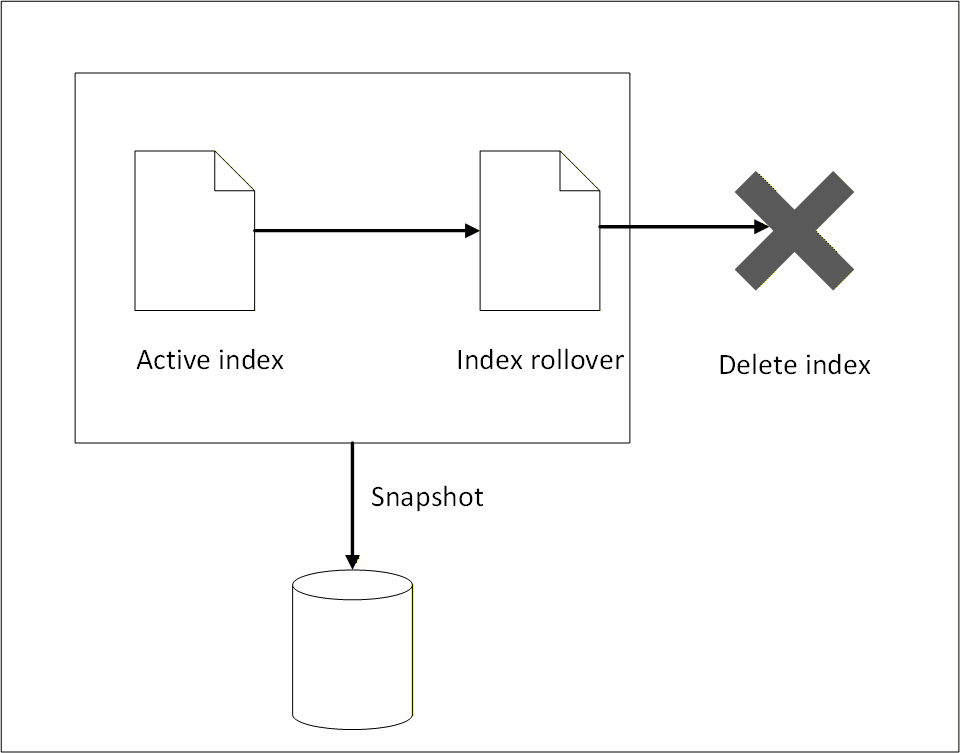
The ISM log repository consists of the following parts:
- Active logs that may be required for immediate reporting and are accessed regularly for high‑frequency analysis.
- Logs that are rolled over to a backup index using index rollover.
- Logs that are moved to external storage using snapshot backup.
- Logs that are deleted when they are no longer required.
To manage growing log data efficiently and ensure optimal performance of the Audit Store cluster, index rollover and index delete policy configurations are implemented. Index rollover allows the automatic creation of new indexes based on the size, age, or document count thresholds. The index delete policies must be defined by lifecycle actions such as rollover, delete, or transition to warm or cold storage. This setup is essential for maintaining healthy cluster performance and managing storage costs.
ISM does not take a snapshot automatically, logs must be manually backed up before the logs are deleted. ISM only performs index rollover and index delete operations.
Index rollover
This task performs an index rollover of the indexes when any of the specified conditions are fulfilled. The next index holds recent logs, making it faster to query and obtain current log information for monitoring and reporting. The earlier logs are available in the older indexes. Ensure that the older indexes are archived to an external storage before the delete policy permanently removes the older indexes. Alternatively, create a snapshot for backing up the logs. For more information about snapshots, refer to Backing up and restoring indexes.
The index rollover is applicable for the following indexes:
- pty_insight_analytics_troubleshooting_0.9*
- pty_insight_analytics_protectors_status_0.9*
- pty_insight_analytics_policy_log_0.9*
- pty_insight_analytics_miscellaneous_0.9*
- pty_insight_analytics_audits_0.9*
The index rollover is initiated when any one of the following criteria is fulfilled:
- rollover_min_index_age=“30d”
- rollover_min_doc_count=200000000
- rollover_min_size=“5gb”
Index delete
The index rollover creates a new index for entries. However, these indexes still reside on the same system and take up disk space. To reduce the disk space consumed, a rule is in place to delete rolled over indexes. Ensure that the older indexes are backed up to an external storage before the delete policy permanently removes the older indexes.
The following policy is defined for deleting indexes after rollover:
- delete_min_index_age=“90d”
Modifying index configurations
The index policies are set using industry standards and must not be changed. However, they can be modified based on company policies and requirements.
- Log in to the Insight Dashboard.
- From the menu, select Index Management.
- Click State management policies.
- Select the check box for the policy.
- Click Edit.
- Select JSON editor.
- Click Continue.
- Update the values in Define policy.
- Click Update.
Note: After policy modification, the new configuration will effect future indexes only. These new modifications are not applied to existing indexes.
4.6 - Backing up and restoring indexes
Backing up and restoring Audit Store indexes is essential for maintaining the reliability of Protegrity AI Team Edition. The Audit Store holds critical operational and audit data used for monitoring, troubleshooting, and compliance. Regular backups protect this data from loss due to failures, upgrades, or misconfiguration, while restore capabilities enable quick recovery and minimal downtime. A well-defined backup and restore strategy helps ensure data durability and platform stability.
Note: Use a dedicated backup bucket per cluster to prevent data corruption. Only snapshots backed up using the daily-insight-snapshots policy are restored during disaster management. Do not delete this policy.
Understanding the snapshot policy
Policies are defined for backing up Audit Store indexes regularly. This ensures that data is available for restoring the indexes and logs in case of data corruption or data deletion. This policy is different from the Index Statement Management (ISM) for rolling over indexes and deleting indexes for maintenance and ensuring the system works fast and smooth. For more information about ISM, refer to Index State Management (ISM). Indexes deleted by ISM can be recreated using the backup created. The state of the indexes are tracked and backed up when the policy is run. Any updated made to the index during the snapshot creation are not backed up during the current run. They will be backed up when the policy is run again as per the schedule set.
The following criteria is specified for creating backups:
- Policy settings
- Policy name:
daily-insight-snapshots - Indices:
*, -*-restored, -*_restored, -restored_* - Repository:
insight-snapshots - Include cluster state:
true - Ignore unavailable indices:
true - Allow partial snapshots:
false
- Policy name:
- Snapshot schedule
- Frequency:
Daily - Cron schedule:
3:00 am UTC (UTC)
- Frequency:
- Snapshot retention period
- Maximum age of snapshots:
60d - Minimum of snapshots retained:
1 - Maximum of snapshots retained:
undefined - Frequency:
Daily - Cron schedule:
4:00 am UTC (UTC)
- Maximum age of snapshots:
- Notification
- Notify on snapshot activities:
creation, deletion, failure
- Notify on snapshot activities:
Managing the backup policy
The default policy provides a Recovery Point Objective (RPO) of 24 hours. Update the snapshot schedule to modify the backup policy based on the required RPO and Recovery Time Objective (RTO).
View and update the policy using the following steps.
- Log in to the Insight Dashboard.
- Select the main menu.
- Navigatie to Management > Snapshot Management > Snapshot policies.
- Click the daily-insight-snapshots policy.
- Click Edit.
- Update the required parameters, such as, the snapshot schedule.
- Select the retention period and number of snapshots to be retained.
- Select the deletion frequency for the snapshot. This is the scheduled task run for deleting snapshots that no longer need to be retained.
- Select the required Notifications check boxes for receiving notifications.
- Click Update.
The new backup policy settings are used for creating the restore points.
For disaster management, to restore the system and the indexes, refer to restoring. A snapshot needs to be available before it can be restored.
4.7 - Working with alerts
Viewing alerts
Generated alerts are displayed on the Insight Dashboard. View and acknowledge the alerts from the alerting dashboard by navigating to OpenSearch Plugins > Alerting > Alerts.
For more information about working with Monitors, Alerts, and Notifications, refer to Monitors in OpenSearch Dashboards.
Creating notifications
Create notification channels to receive alerts as per individual requirements. The alerts are sent to the destination specified in the channel.
Creating a custom webhook notification
A webhook notification sends the alerts generated by a monitor to a destination, such as, a web page.
Perform the following steps to configure the notification channel for generating webhook alerts:
Log in to the Web UI.
From the menu, navigate to Management > Notifications > Channels.
Click Create channel.
Specify the following information under Name and Description:
- Name: Http_webhook
- Description: For generating http webhook alerts.
Specify the following information under Configurations:
- Channel type: Custom webhook
- Method: POST
- Define endpoints by: Webhook URL
- Webhook URL: Specify the URL that receives the alert. For example
https://webhook.site/9385a259-3b82-4e99-ad1e-1eb875f00734. - Webhook headers: Specify the key value pairs for the webhook.
Click Send test message to send a message to the email recipients.
Click Create to create the channel.
The webhook is set up successfully.
Create a monitor and attach the channel created using the steps from the section Creating the monitor.
Creating email alerts using custom webhook
An email notification sends alerts generated by a monitor to an email address. It is also possible to configure the SMTP channel for sending an email alert. The email alerts can be encrypted or non-encrypted. Accordingly, the required SMTP settings for email notifications must be configured.
Ensure that the following is configured as per the requirement:
Ensure that the following prerequisites are met.
- Outbound SMTP access is enabled.
- Required SMTP port is open, for example, 587 for STARTTLS.
- Firewall and routing configurations allow SMTP traffic.
Log in to the CLI to configure the email service. For more information about using the CLI commands, refer to Administrator Command Line Interface (CLI) Reference.
Verify if any email service is already configured.
admin get email
- Configure the email service.
admin set email -h "email_provider" -p <port> --use-tls -u "<username>" -w "<password>"
- Send a test email message.
admin test email -f "<senders_email>" -t "<receivers_email>" -s "Test" -b "This is a test."
Log in to the Web UI.
From the menu, navigate to OpenSearch Plugins > Notifications > Channels.
Click Create channel.
Specify the following information under Name and Description:
- Name: send_email_with_certs_alerts
- Description: For secure SMTP alerts.
Specify the following information under Configurations:
-   **Channel type**: **Custom webhook**
-   **Webhook URL**: `http://pty-smtp-service.email-service.svc.cluster.local:8000/api/v1/email/send`
- Under Webhook headers, click Add header and specify the following information:
-   **Key**: **Pty-Username**
-   **Value**: `%internal_scheduler;`
- Under Webhook headers, click Add header and specify the following information:
-   **Key**: **Pty-Roles**
-   **Value**: **auditstore_admin**
Click Create to save the channel configuration.
Caution: Do not click Send test message because the configuration for the channel is not complete.
The success message appears and the channel is created. The webhook for the email alerts is set up successfully.
Create a monitor and attach the channel created using the steps from the section Creating the monitor.
Forwarding alerts to a local file
Complete the configuration provided in this section to send the logs to the alerting module. The logs are saved in the \fluentd\log directory.
- Log in to the jumpbox.
- Navigate to a directory for working with configuration files.
- Run the following command to update the
fluent.conffile.
kubectl get configmap standalone-fluentd-config -n pty-insight -o jsonpath='{.data.fluent\.conf}' > fluent.conf
- Update the following code at the start of the file.
<source>
    @type http
    bind "0.0.0.0"
    port 24284
    <parse>
        @type "json"
    </parse>
</source>
- Locate the following code.
<match *.*.* logdata flulog>
- Replace the text identified in the earlier step with the following code to process all the data.
<match **>
- Add the following code before the closing
</match>tag to output the content to a file.
<store>
@type "file"
path "/fluentd/log/buffer"
append true
<buffer time>
    path "/fluentd/log/buffer"
</buffer>
</store>
- Run the following command to load the new configuration.
kubectl create configmap standalone-fluentd-config -n pty-insight --from-file=fluent.conf --dry-run=client -o yaml > standalone-fluentd-config-new.yaml
- Run the following command to load the configuration.
kubectl replace -f standalone-fluentd-config-new.yaml -n pty-insight
- Run the following command to generate the
standalone-fluentd-deployment.yamlfile.
kubectl get deployment standalone-fluentd -n pty-insight -o yaml > standalone-fluentd-deployment.yaml
- Open the
standalone-fluentd-deployment.yamlfile. - Locate the following code.
spec:
  containers:
  - args:
    - |
    export GEM_HOME="$HOME/.local/gems" && \
    export PATH="$GEM_HOME/bin:$PATH" && \
    gem install fluent-plugin-opensearch --no-document --user-install && \
    fluentd -c /fluentd/etc/fluent.conf -v
- Add the following
fluent-plugin-httpfile in the code to install the required.gemfile.
spec:
  containers:
  - args:
    - |
    export GEM_HOME="$HOME/.local/gems" && \
    export PATH="$GEM_HOME/bin:$PATH" && \
    gem install fluent-plugin-opensearch fluent-plugin-http --no-document --user-install && \
    fluentd -c /fluentd/etc/fluent.conf -v
- Add the following code to the
volumeMounts:parameter. Append the mount path at the end retaining the current volume mounts.
        volumeMounts:
        - mountPath: /fluentd/etc/
          name: standalone-fluentd-config
- Locate the following code.
     volumes:
      - configMap:
          defaultMode: 420
          name: standalone-fluentd-config
        name: standalone-fluentd-config
      - name: tls-for-insight-key-pair
        secret:
          defaultMode: 420
          secretName: tls-for-insight-key-pair
- Update the code to add the directory details to the configuration file.
     volumes:
      - configMap:
          defaultMode: 420
          name: standalone-fluentd-config
        name: standalone-fluentd-config
      - name: tls-for-insight-key-pair
        secret:
          defaultMode: 420
          secretName: tls-for-insight-key-pair
      - emptyDir: {}
        name: fluentd-log
- Apply the configurations using the following command.
kubectl apply -f standalone-fluentd-deployment.yaml
- Process the configurations using the following command.
kubectl rollout restart deployment standalone-fluentd -n pty-insight
- Verify that the pods are running.
kubectl get pods -n pty-insight
- Proceed to create a monitor using the steps from Creating the monitor.
Creating the monitor
A monitor tracks the system and sends an alert when a trigger is activated. Triggers cause actions to occur when certain criteria are met. Those criteria are set when a trigger is created. For more information about monitors, actions, and triggers, refer to Alerting.
Perform the following steps to create a monitor. The configuration specified here is just an example. For real use, create whatever configuration is needed per individual requirements:
Ensure that a notification is created using the steps from Creating notifications.
From the menu, navigate to OpenSearch Plugins > Alerting > Monitors.
Click Create Monitor.
Specify a name for the monitor.
For the Monitor defining method, select Extraction query editor.
For the Schedule, select 30 Minutes.
For the Index, select the required index.
Specify the following query for the monitor. Modify the query as per the requirement.
{
    "size": 0,
    "query": {
        "match_all": {
            "boost": 1
        }
    }
}
Click Add trigger and specify the information provided here.
Specify a trigger name.
Specify a severity level.
Specify the following code for the trigger condition:
ctx.results[0].hits.total.value > 0
Click Add action.
From the Channels list, select the required channel.
Add the following code in the Message field. The default message displayed might not be formatted properly. Update the message by replacing the Line spaces with the n escape code. The message value is a JSON value. Use escape characters to structure the email properly using valid JSON syntax.
```
{
"message": "Please investigate the issue.\n  - Trigger: {{ctx.trigger.name}}\n  - Severity: {{ctx.trigger.severity}}\n  - Period start: {{ctx.periodStart}}\n  - Period end: {{ctx.periodEnd}}",
"subject": "Monitor {{ctx.monitor.name}} just entered alert status"
}
```
>	**Note:** The **message** value is a JSON value. Be sure to use escape characters to structure the email properly using valid JSON syntax. The default message displayed might not be formatted properly. Update the message by replacing the Line spaces with the **\\n** escape code.
- Select the Preview message check box to view the formatted email message.
- Click Send test message and verify the recipient’s inbox for the message.
- Click Save to update the configuration.
5 - Protegrity REST APIs
The Protegrity REST APIs include the following APIs:
- Policy Management REST APIs The Policy Management REST APIs are used to create or manage policies.
- Encrypted Resilient Package APIs
The Encrypted Resilient Package REST APIs include the REST API that is used to encrypt and export a resilient package, which is used by the resilient protectors.
For more information on how the REST API is used to export the encrypted resilient package in an immutable policy deployment, refer to the section DevOps Approach for Application Protector.
5.1 - Accessing the Protegrity REST APIs
The following section lists the requirements for accessing the Protegrity REST APIs.
Available endpoints - Protegrity has enabled the following endpoints to access the REST APIs.
- Base URL
- https://<FQDN>/pty/<Version>/<API>
Where:
- FQDN: Fully Qualified Domain Name provided by the user during PPC installation.
- Version: Specifies the version of the API.
- API: Endpoint of the REST API.
Authentication - You can access the REST APIs using client certificates or tokens. The authentication depends on the type of REST API that you are using. For more information about accessing the REST APIs using these authentication mechanisms, refer to the section Accessing REST API Resources.
Authorization - You must assign the permissions to roles for accessing the REST APIs. For more information about the roles and permissions required, refer to the section Managing Roles.
5.2 - View the Protegrity REST API Specification Document
The steps mentioned in this section contains the usage of Docker containers and services to download and launch the images for Swagger Editor within a Docker container.
For more information about Docker, refer to the Docker documentation.
The following example uses Swagger Editor to view the REST API specification document.
Install and start the Swagger Editor.
Download the Swagger Editor image within a Docker container using the following command.
docker pull swaggerapi/swagger-editorLaunch the Docker container using the following command.
docker run -d -p 8888:8080 swaggerapi/swagger-editorPaste the following address on a browser window to access the Swagger Editor using the specified host port.
http://localhost:8888/Download the REST API specification document using the following command.
curl "https://<FQDN>/pty/<Version>/<API>/doc" -H "accept: application/x-yaml" --output api-doc.yamlIn this command:
- <Version> is the version number of the API. For example,
v1orv2. - <API> is the API for which you want to download the OpenAPI specifications document. For example, specify the value as
pimto download the OpenAPI specifications for the Policy Management REST API. Similarly, specify the value asauthto download the OpenAPI specifications for the Authentication and Token Management API.
For more information about the Policy Management REST APIs, refer to the section Using the Policy Management REST APIs.
For more information about the Authentication and Token Management REST APIs, refer to the section Using the Authentication and Token Management REST APIs
- <Version> is the version number of the API. For example,
Drag and drop the downloaded api-doc.yaml* file into a browser window of the Swagger Editor.
Generating the REST API Samples Using the Swagger Editor
Perform the following steps to generate samples using the Swagger Editor.
Open the api-doc.yaml* file in the Swagger Editor.
On the Swagger Editor UI, click on the required API request.
Click Try it out.
Enter the parameters for the API request.
Click Execute.
The generated Curl command and the URL for the request appears in the Responses section.
5.3 - Using the Common REST API Endpoints
The following section specifies the common operations that are applicable to all the Protegrity REST APIs.
The Base URL for each API will change depending on the version of the API being used. The following table specifies the version that you must use when executing the common operations for each API.
| REST API | Description | Version in the Base URL <Version> |
|---|---|---|
| pim | Policy Management | v2 |
| rps | Encrypted Resilient Package | v1 |
| auth | Authentication and Token Management | v1 |
Common REST API Endpoints
The following table lists the common operations for the Protegrity REST APIs.
| REST API | Description |
|---|---|
| /version | Retrieves the application version. |
| /health | This API request retrieves the health information for the Protegrity REST APIs and identifies whether the corresponding service is running. |
| /doc | This API request retrieves the API specification document. |
| /log | This API request retrieves the current log level of the REST API service logs. |
| /log | This API request changes the log level for the REST API service during run-time. The level set through this resource is persisted until the corresponding service is restarted. This log level overrides the log level defined in the configuration. |
| /ready | This API request retrieves the information for the Protegrity REST APIs to identify whether the corresponding service can handle requests. |
| /live | This API request retrieves the information for the Protegrity REST APIs to determine whether the corresponding service should be restarted. |
Retrieving the Supported Application Versions
This API retrieves the application version information.
- Base URL
- https://{FQDN}/pty/<Version>/<API>
- Path
- /version
- Method
- GET
CURL request syntax
curl -X 'GET' \
  'https://<FQDN>/pty/v1/auth/version' \
  -H 'accept: application/json'
Authentication credentials
Not required.
Sample CURL request
curl -X 'GET' \
  'https://<FQDN>/pty/v1/auth/version' \
  -H 'accept: application/json'
Sample CURL response
{
  "version": "1.2.3",
  "buildVersion": "1.11.0-alpha+65.g9f0ae.master"
}
Retrieving the API Specification Document
This API request retrieves the API specification document.
- Base URL
- https://{FQDN}/pty/<Version>/<API>
- Path
- /doc
- Method
- GET
CURL request syntax
curl -X GET "https://<FQDN>/pty/<Version>/<API>/doc"
Authentication credentials
Not required.
Sample CURL requests
curl -X GET "https://<FQDN>/pty/v1/rps/doc"
curl -X GET "https://<FQDN>/pty/v1/rps/doc" -o "rps.yaml"
Sample CURL responses
The Encrypted Resilient Package API specification document is displayed as a response. If you have specified the “-o” parameter in the CURL request, then the API specification is copied to a file specified in the command. You can use the Swagger UI to view the API specification document.
Retrieving the Log Level
This API request retrieves the current log level of the REST API service logs.
- Base URL
- https://{FQDN}/pty/<Version>/<API>
- Path
- /log
- Method
- GET
CURL request syntax
curl -X 'GET' \
  "https://<FQDN>/pty/v1/auth/log" \
  -H "accept: application/json" \
  -H "Authorization: Bearer Token"
In this command, Token indicates the JWT token used for authenticating the API.
Alternatively, you can also store the JWT token in an environment variable named TOKEN, as shown in the following command.
curl -X 'GET' \
  "https://<FQDN>/pty/v1/auth/log" \
  -H "accept: application/json" \
  -H "Authorization: ${TOKEN}"
Authentication credentials
TOKEN - Environment variable containing the JWT token.
For more information about creating a JWT token, refer to the section Generate token.
Sample CURL request
curl -X 'GET' \
  "https://<FQDN>/pty/v1/auth/log" \
  -H "accept: application/json" \
  -H "Authorization: Bearer eyJhbGciOiJIUzUxMiIsInR5"
This sample request uses the JWT token authentication.
Sample CURL response
{
  "level": "info"
}
Setting Log Level for the REST API Service Log
This API request changes the REST API service log level during run-time. The level set through this resource persists until the corresponding service is restarted. This log level overrides the log level defined in the configuration.
- Base URL
- https://{FQDN}/pty/<Version>/<API>
- Path
- /log
- Method
- POST
CURL request syntax
curl -X POST "https://<FQDN>/pty/<Version>/<API>/log" -H "Authorization: Bearer <TOKEN>" -H "accept: application/json" -H "Content-Type: application/json" -d "{\"level\":\"log level\"}"
In this command, Token indicates the JWT token used for authenticating the API.
Alternatively, you can also store the JWT token in an environment variable named TOKEN, as shown in the following command.
curl -X POST "https://<FQDN>/pty/<Version>/<API>/log" -H "Authorization: Bearer ${TOKEN}" -H "accept: application/json" -H "Content-Type: application/json" -d "{\"level\":\"log level\"}"
Authentication credentials
TOKEN - Environment variable containing the JWT token.
For more information about creating a JWT token, refer to the section Generate token.
Request body elements
log level
Set the log level. The log level can be set to SEVERE, WARNING, INFO, CONFIG, FINE, FINER, or FINEST.
Sample CURL request
curl -X POST "https://<FQDN>/pty/v1/rps/log" -H "Authorization: Bearer ${TOKEN}" -H "accept: application/json" -H "Content-Type: application/json" -d "{\"level\":\"SEVERE\"}"
This sample request uses the JWT token authentication.
Sample response
The log level is set successfully.
Retrieving the Service Health Information
This API request retrieves the health information of the REST API service and identifies whether the service is running.
- Base URL
- https://{FQDN}/pty/<Version>/<API>
- Path
- /health
- Method
- GET
CURL request syntax
curl -H "Authorization: Bearer <TOKEN>" -X GET "https://<FQDN>/pty/<Version>/<API>/health"
In this command, Token indicates the JWT token used for authenticating the API.
Alternatively, you can also store the JWT token in an environment variable named TOKEN, as shown in the following command.
curl -H "Authorization: Bearer ${TOKEN}" -X GET "https://<FQDN>/pty/<Version>/<API>/health"
Authentication credentials
TOKEN - Enviroment variable containing the JWT token.
For more information about creating a JWT token, refer to the section Generate token.
Sample CURL request
curl -H "Authorization: Bearer ${TOKEN}" -X GET "https://<FQDN>/pty/v2/pim/health"
This sample request uses the JWT token authentication.
Sample CURL response
{
  "isHealthy" : true
}
Where,
- isHealthy: true - Indicates that the service is up and running.
- isHealthy: false - Indicates that the service is down.
Retrieving the Service Readiness Status
Base URLhttps://{FQDN}/pty/<Version>/<API>
Path
/ready
MethodGET
CURL request syntax
curl -H "Authorization: Bearer <TOKEN>" -X GET "https://<FQDN>/pty/<Version>/<API>/ready
In this command, Token indicates the JWT token used for authenticating the API.
Alternatively, you can also store the JWT token in an environment variable named TOKEN, as shown in the following command.
curl -H "Authorization: Bearer ${TOKEN}" -X GET "https://<FQDN>/pty/<Version>/<API>/ready
Authentication credentials
TOKEN - Environment variable containing the JWT token. For more information about creating a JWT token, refer to the section Generate token.
Sample CURL request
curl -X 'GET' \
  "https://amit.aws.protegrity.com/pty/v1/auth/ready" \
  -H "accept: */*" \
  -H "Authorization: Bearer <access_token>"
This sample request uses the JWT token authentication.
Sample Server response
Code : 204
Response Header:
date: Wed,01 Apr 2026
12:49:59 GMT
server: uvicorn  x-correlation-id: a7c3d2b8-9cfb-4dd9-b31e-57f6225d3d33
Retrieving the Service Liveness Status
Base URLhttps://{FQDN}/pty/<Version>/<API>
Path
/live
MethodGET
CURL request syntax
curl -H "Authorization: Bearer <TOKEN>" -X GET "https://<FQDN>/pty/<Version>/<API>/live
In this command, Token indicates the JWT token used for authenticating the API.
Alternatively, you can also store the JWT token in an environment variable named TOKEN, as shown in the following command.
curl -H "Authorization: Bearer ${TOKEN}" -X GET "https://<FQDN>/pty/<Version>/<API>/live
Authentication credentials
TOKEN - Environment variable containing the JWT token. For more information about creating a JWT token, refer to the section Generate token.
Sample CURL request
curl -X 'GET' \
  "https://<FQDN>/pty/v1/auth/live" \
  -H "accept: */*"
  -H "Authorization: Bearer <access_token>"
This sample request uses the JWT token authentication.
Sample Server response
Code : 204
Response Header:
date: Wed,01 Apr 2026
12:49:59 GMT
server: uvicorn  x-correlation-id: a7c3d2b8-9cfb-4dd9-b31e-57f6225d3d33
5.4 - Using the Authentication and Token Management REST APIs
The Authentication and Token Management API uses the v1 version.
If you want to perform common operations using the Authentication and Token REST API, then refer the section Using the Common REST API Endpoints.
The following table provides section references that explain usage of some of the Authentication and Token REST APIs. It includes sample examples to work with the Authentication and Token functions. If you want to view all the Authentication and Token APIs, then use the /doc API to retrieve the API specification.
Token Management
The following section lists the commonly used APIs to manage tokens.
Generate token
This API explains how you can generate an access token for authenticating the APIs.
- Base URL
- https://<FQDN>/pty/<version>/<API>
- Path
- /login/token
- Method
- POST
Request Body
- loginname: User name for authentication.
- password: Password for authentication.
Result
This API returns JWT access token in the response header and the refresh token in the response body. You can use the refresh token in the Refresh token API to obtain new access tokens without logging again.
Sample Request
curl -X 'POST' \
  "https://<FQDN>/pty/v1/auth/login/token" \
  -H "accept: application/json" \
  -H "Content-Type: application/x-www-form-urlencoded" \
  -d 'loginname=<User name>&password=<Password>!'
Sample Response
The following response appears for the status code 200, if the API is invoked successfully.
Response body
{
  "status": 0,
  "data": {
    "accessToken": "eyJhbGciOiJIUzI1NiIsIn",
    "refreshToken": "eyJhbGciOiJIUzI1NiIsInR5cCI6IkpXVCJ9.e",
    "expiresIn": 300,
    "refreshExpiresIn": 900
  },
  "messages": []
}
Response header
content-length: 832
 content-type: application/json
 date: Thu,16 Oct 2025 10:30:53 GMT
 pty_access_jwt_token: eyJhbGciOiJSUzI1NiIsInR4YRUw
 strict-transport-security: max-age=31536000; includeSubDomains
Refresh token
This API explains how to refresh an access token using the refresh token.
- Base URL
- https://<FQDN>/pty/<version>/<API>
- Path
- /login/refresh
- Method
- POST
Request Body
- refreshToken: Refresh token for getting a new access token.
Result
This API returns a new JWT access token in the response header and a new refresh token in the response body. You can use this refresh token to obtain new access tokens without logging again.
Sample Request
curl -X 'POST' \
  "https://<FQDN>/pty/v1/auth/login/token/refresh" \
  -H "accept: application/json" \
  -H "Content-Type: application/json" \
  -d '{
  "refreshToken": "eyJhbGciOiJIUzUxMiIsInR5cCINGFeZEf8hw"
}
'
Sample Response
The following response appears for the status code 200, if the API is invoked successfully.
Response body
{
  "status": 0,
  "data": {
    "accessToken": "eyJhbGciOiJIUzI1NiI",
    "refreshToken": "eyJhbGciOiJIUzI1NiIs",
    "expiresIn": 300,
    "refreshExpiresIn": 900
  },
  "messages": []
}
Response header
content-length: 832
 content-type: application/json
 date: Thu,16 Oct 2025 10:36:28 GMT
 pty_access_jwt_token: eyJhbGciOiJSUzI1Nim95VHqh00vHfr8ip9RhyO-4FcxQ
 strict-transport-security: max-age=31536000; includeSubDomains
Invalidate a user session
This API explains how you can invalidate a user session using the provided refresh token.
- Base URL
- https://<FQDN>/pty/<version>/<API>
- Path
- /logout
- Method
- POST
Request Body
- refreshToken: Refresh token for invalidating the user session.
Result
This API invalidates the user session using the refresh token in the Refresh token API.
Sample Request
curl -X 'POST' \
  "https://<FQDN>/pty/v1/auth/logout" \
  -H "accept: application/json" \
  -H "Content-Type: application/json" \
  -d '{
  "refreshToken": "eyJhbGciOiJIUzUxMiIsInR5cCIgOiAiSldUOTEifQ."
}'
Sample Response
The following response appears for the status code 200, if the API is invoked successfully.
Response body
{
  "status": 0,
  "data": {
    "message": "Token invalidated successfully."
  },
  "messages": []
}
Update access token lifespan and SSO idle timeout
This API explains how you can update the access token lifespan and SSO idle timeout.
- Base URL
- https://<FQDN>/pty/<version>/<API>
- Path
- /token/lifespan/update
- Method
- POST
Request Body
- accessTokenLifespan: Updated lifespan of the access token in seconds.
Result
This API updates the lifespan of the access token. It also automatically updates the lifespan of the refresh token or the SSO idle timeout by adding 10 minutes to the lifespan of the access token.
Sample Request
curl -X 'POST' \
  "https://<FQDN>/pty/v1/auth/token/lifespan/update" \
  -H "accept: application/json" \
  -H "Content-Type: application/json" \
  -d '{
  "accessTokenLifespan": 600
}'
Sample Response
The following response appears for the status code 200, if the API is invoked successfully.
Response body
"Token lifespan updated successfully."
Roles and Permissions Management
The following section lists the commonly used APIs for managing user roles and permissions.
List all permissions
This API returns a list of all the permissions available/defined in PPC.
- Base URL
- https://<FQDN>/pty/<version>/<API>
- Path
- /permissions
- Method
- GET
Request Body
No parameters.
Result
This API returns a list of all the permissions/roles available/defined in PPC.
Sample Request
curl -X 'GET' \
  "https://<FQDN>/pty/v1/auth/permissions" \
  -H "accept: application/json" \
  -H "Authorization: Bearer <access_token>"
This sample request uses the access token of the logged-in user for authentication.
For more information about generating the access token, refer to the section Generate token.
Sample Response
The following response appears for the status code 200, if the API is invoked successfully.
Response body
[
  {
    "name": "user_manager_admin",
    "description": "Permission to manage users with read-write access"
  },
  {
    "name": "saml_viewer",
    "description": "Permission to view SAML configurations with read-only access"
  },
  {
    "name": "user_manager_viewer",
    "description": "Permission to view users with read-only access"
  },
  {
    "name": "cli_access",
    "description": "Grants or restricts a user’s ability to access the CLI"
  },
  {
    "name": "saml_admin",
    "description": "Permission to update SAML configurations with read-write access"
  },
  {
    "name": "group_viewer",
    "description": "Permission to view groups with read-only access"
  },
  {
    "name": "group_admin",
    "description": "Permission to manage groups with read-write access"
  },
  {
    "name": "password_policy_admin",
    "description": "Permission to update password policy with read-write access"
  },
  {
    "name": "insight_viewer",
    "description": "Permission to view Insight Dashboard with read-only access."
  },
  {
    "name": "password_policy_viewer",
    "description": "Permission to view password policy with read-only access"
  },
  {
    "name": "role_viewer",
    "description": "Permission to view roles with read-only access"
  },
  {
    "name": "can_create_token",
    "description": "Permission to create/refresh tokens"
  },
  {
    "name": "insight_admin",
    "description": "Permission to view and edit Insight Dashboard with admin access."
  },
  {
    "name": "role_admin",
    "description": "Permission to manage roles with read-write access"
  },
  {
    "name": "web_admin",
    "description": "Permission to perform all operations available as part of the Web UI."
  }
]
List all roles
This API returns a list of all the roles available/defined in PPC.
- Base URL
- https://<FQDN>/pty/<version>/<API>
- Path
- /roles
- Method
- GET
Request Body
No parameters.
Result
This API returns a list of all the roles available for the logged-in user.
Sample Request
curl -X 'GET' \
  "https://<FQDN>/pty/v1/auth/roles" \
  -H "accept: application/json" \
  -H "Authorization: Bearer <access_token>"
This sample request uses the access token of the logged-in user for authentication.
For more information about generating the access token, refer to the section Generate token.
Sample Response
The following response appears for the status code 200, if the API is invoked successfully.
Response body
[
  {
    "name": "directory_administrator",
    "description": "Directory Administrator",
    "composite": true,
    "permissions": [
      "saml_admin", "role_admin", "user_manager_admin", "can_create_token", "password_policy_admin", "group_admin"
    ]
  },
  {
    "name": "directory_viewer",
    "description": "Directory Viewer",
    "composite": true,
    "permissions": [
      "saml_viewer", "password_policy_viewer", "user_manager_viewer", "role_viewer", "group_viewer"
    ]
  },
  {
    "name": "security_administrator",
    "description": "Security Administrator",
    "composite": true,
    "permissions": [
      "can_fetch_package", "role_admin", "web_admin", "cli_access", "saml_admin", "can_export_certificates", "user_manager_admin", "can_create_token", "password_policy_admin", "group_admin", "insight_admin"
    ]
  },
  {
    "name": "security_viewer",
    "description": "Security Administrator Viewer",
    "composite": true,
    "permissions": [
      "saml_viewer", "password_policy_viewer", "insight_viewer", "user_manager_viewer", "role_viewer", "group_viewer"
    ]
  }
]
Update role
This API enables you to update an existing role and its permissions.
- Base URL
- https://<FQDN>/pty/<version>/<API>
- Path
- /roles
- Method
- PUT
Request Body
- name: Role name.
- description: Description of the role.
- permissions: List of permissions that need to be updated for the existing role.
Result
This API updates the existing role and its permissions.
Sample Request
curl -X 'PUT' \
  "https://<FQDN>/pty/v1/auth/roles" \
  -H "accept: application/json" \
  -H "Authorization: Bearer <access_token>" \
  -H "Content-Type: application/json" \
  -d '{
  "name": "admin",
  "description": "Administrator role",
  "permissions": [
    "perm1",
    "perm2"
  ]
}'
This sample request uses the access token of the logged-in user for authentication.
For more information about generating the access token, refer to the section Generate token.
Sample Response
The following response appears for the status code 200, if the API is invoked successfully.
Response body
{
  "role_name": "admin",
  "status": "updated"
}
Create role
This API enables you to create a role.
- Base URL
- https://<FQDN>/pty/<version>/<API>
- Path
- /roles
- Method
- POST
Request Body
- name: Role name.
- description: Description of the role.
- permissions: List of permissions that need to created for the existing role.
Result
This API creates a roles with the requested permissions.
Sample Request
curl -X 'POST' \
  "https://<FQDN>/pty/v1/auth/roles" \
  -H "accept: application/json" \
  -H "Authorization: Bearer <access_token>" \
  -H "Content-Type: application/json" \
  -d '{
  "name": "admin",
  "description": "Administrator role",
  "permissions": [
    "perm1",
    "perm2"
  ]
}'
This sample request uses the access token of the logged-in user for authentication.
For more information about generating the access token, refer to the section Generate token.
Sample Response
The following response appears for the status code 200, if the API is invoked successfully.
Response body
{
  "role_name": "admin",
  "status": "created"
}
Delete role
This API enables you to delete a role.
- Base URL
- https://<FQDN>/pty/<version>/<API>
- Path
- /roles
- Method
- DELETE
Request Body
- name: Role name.
Result
This API deletes the specific role.
Sample Request
curl -X 'POST' \
  "https://<FQDN>/pty/v1/auth/roles" \
  -H "accept: application/json" \
  -H "Authorization: Bearer <access_token>" \
  -H "Content-Type: application/json" \
  -d '{
  "name": "admin"
}'
This sample request uses the access token of the logged-in user for authentication.
For more information about generating the access token, refer to the section Generate token.
Sample Response
The following response appears for the status code 200, if the API is invoked successfully.
Response body
{
  "role_name": "admin",
  "status": "deleted"
}
User Management
The following section lists the commonly used APIs for managing users.
Create user endpoint
This API enables you to create a user.
- Base URL
- https://<FQDN>/pty/<version>/<API>
- Path
- /users
- Method
- POST
Request Body
- username: Name of the user. This is a mandatory field
- email: Email of the user.
- firstName: First name of the user.
- lastName: Last name of the user.
- enabled: Enable the user.
- password: Password for the user.
- roles: Roles to be assigned to the user.
- groups: Groups in which the user is included.
- identityProviders: An optional array that lists the SAML provider aliases to link the user, for example, AWS-IDP or AZURE-IDP, configured as part of the SAML SSO configuration.
Result
This API creates a user with a unique user ID.
Sample Request
{
  "username": "alpha",
  "email": "alpha@example.com",
  "firstName": "Alpha",
  "lastName": "User",
  "password": "StrongPassword123!",
  "roles": [
    "directory_admin"
  ],
  "groups": [
    "framework"
  ],
  "identityProviders": {
    "AWS-IDP": {
      "userId": "alpha@example.com",
      "userName": "alpha@example.com"
    }
  }
}
This sample request uses the access token of the logged-in user for authentication.
For more information about generating the access token, refer to the section Generate token.
Sample Response
The following response appears for the status code 200, if the API is invoked successfully.
Response body
{
  "user_id": "7636708c-c714-4e8e-a3e6-f5fc6c49f9c0",
  "username": "alpha"
}
Fetch users
This API enables you to retrieve the user details.
- Base URL
- https://<FQDN>/pty/<version>/<API>
- Path
- /users
- Method
- GET
Request Body
No parameters.
Query Parameters
- max: Maximum number of entries that can retrieved.
- first: Number of entries that can be skipped from the start of the data. For example, if you specify the value as
4, then the first four entries will be skipped from the result.
Result
This API retrieves a list of users.
Sample Request
curl -X 'GET' \
  "https://<FQDN>/pty/v1/auth/users?max=100&first=0" \
  -H "accept: application/json" \
  -H "Authorization: Bearer <access_token>"
This sample request uses the access token of the logged-in user for authentication.
For more information about generating the access token, refer to the section Generate token.
Sample Response
The following response appears for the status code 200, if the API is invoked successfully.
Response body
[
  {
    "username": "admin",
    "email": "admin@example.com",
    "firstName": "Admin",
    "lastName": "User",
    "enabled": true,
    "id": "71c573a0-7412-475d-be67-4bf6fdf71404",
    "createdTimestamp": null,
    "attributes": null,
    "emailVerified": true
  },
  {
    "username": "alpha",
    "email": "alpha@example.com",
    "firstName": "Alpha",
    "lastName": "User",
    "enabled": true,
    "id": "7636708c-c714-4e8e-a3e6-f5fc6c49f9c0",
    "createdTimestamp": 1760643896108,
    "attributes": null,
    "emailVerified": false
  },
  {
    "username": "dfuser",
    "email": null,
    "firstName": "se",
    "lastName": "se",
    "enabled": false,
    "id": "12770ab4-d3a0-4243-8018-5bb1fb0d06d7",
    "createdTimestamp": 1760425034931,
    "attributes": null,
    "emailVerified": false
  },
  {
    "username": "fds",
    "email": null,
    "firstName": "dsf",
    "lastName": "fs",
    "enabled": false,
    "id": "a1251ca4-664d-469a-b1c1-539fe8c73a9d",
    "createdTimestamp": 1760425052196,
    "attributes": null,
    "emailVerified": false
  },
  {
    "username": "shiva",
    "email": "shiva.v@protegrity.com",
    "firstName": "shiva",
    "lastName": "v",
    "enabled": true,
    "id": "0743b449-c050-4e49-ba95-974cd2069a84",
    "createdTimestamp": 1760433609089,
    "attributes": null,
    "emailVerified": false
  },
  {
    "username": "testuser1",
    "email": null,
    "firstName": "t",
    "lastName": "tes",
    "enabled": true,
    "id": "948c1484-45d7-4df9-aea4-9534ca2d1923",
    "createdTimestamp": 1760424968139,
    "attributes": null,
    "emailVerified": false
  },
  {
    "username": "testuser2",
    "email": null,
    "firstName": "sdf",
    "lastName": "df",
    "enabled": true,
    "id": "d4961126-d324-4166-97e6-2fac1f40566a",
    "createdTimestamp": 1760425012482,
    "attributes": null,
    "emailVerified": false
  }
]
Update user endpoint
This API enables you to update the details of an user.
- Base URL
- https://<FQDN>/pty/<version>/<API>
- Path
- /users
- Method
- PUT
Request Body
- id: ID of the user. This is a mandatory field
- email: Email of the user.
- firstName: First name of the user.
- lastName: Last name of the user.
- enabled: Enable the user.
- password: Password for the user.
- roles: Roles to be assigned to the user.
- groups: Groups in which the user is included.
- identityProviders: An optional array that lists the SAML provider aliases to link the user, for example, AWS-IDP or AZURE-IDP, configured as part of the SAML SSO configuration.
Result
This API updates the user details.
Sample Request
{
  "username": "alpha",
  "email": "alpha@example.com",
  "firstName": "Alpha",
  "lastName": "User",
  "password": "StrongPassword123!",
  "roles": [
    "directory_admin"
  ],
  "groups": [
    "framework"
  ],
  "identityProviders": {
    "AWS-IDP": {
      "userId": "alpha@example.com",
      "userName": "alpha@example.com"
    }
  }
}
This sample request uses the access token of the logged-in user for authentication.
For more information about generating the access token, refer to the section Generate token.
Sample Response
The following response appears for the status code 200, if the API is invoked successfully.
Response body
{
  "status": "updated",
  "userId": "7636708c-c714-4e8e-a3e6-f5fc6c49f9c0"
}
Fetch User by Id
This API enables you to fetch the details of a specific user by specifying the user ID.
- Base URL
- https://<FQDN>/pty/<version>/<API>
- Path
- /users/{user_id}
- Method
- GET
Request Body
No parameters.
Path Parameters
- user_id: Unique ID of the user. This is a mandatory field.
Result
This API retrieves the details of the specific user.
Sample Request
curl -X 'GET' \
  "https://<FQDN>/pty/v1/auth/users/7636708c-c714-4e8e-a3e6-f5fc6c49f9c0" \
  -H "accept: application/json" \
  -H "Authorization: Bearer <access_token>"
This sample request uses the access token of the logged-in user for authentication.
For more information about generating the access token, refer to the section Generate token.
Sample Response
The following response appears for the status code 200, if the API is invoked successfully.
Response body
{
  "id": "7636708c-c714-4e8e-a3e6-f5fc6c49f9c0",
  "username": "alpha",
  "firstName": "lpha",
  "lastName": "User",
  "email": "alpha@example.com",
  "emailVerified": false,
  "enabled": true,
  "createdTimestamp": 1760643896108,
  "groups": [],
  "roles": [
    "directory_admin"
  ]
}
Delete user endpoint
This API enables you to delete a user.
- Base URL
- https://<FQDN>/pty/<version>/<API>
- Path
- /users/{user_id}
- Method
- DELETE
Request Body
No parameters.
Path Parameters
- user_id: Unique ID of the user. This is a mandatory field.
Result
This API deletes the specified user.
Sample Request
curl -X 'DELETE' \
  "https://<FQDN>/pty/v1/auth/users/7636708c-c714-4e8e-a3e6-f5fc6c49f9c0" \
  -H "accept: application/json" \
  -H "Authorization: Bearer <access_token>"
}'
This sample request uses the access token of the logged-in user for authentication.
For more information about generating the access token, refer to the section Generate token.
Sample Response
The following response appears for the status code 200, if the API is invoked successfully.
Response body
{
  "status": "deleted",
  "user_id": "7636708c-c714-4e8e-a3e6-f5fc6c49f9c0"
}
Update user password endpoint
This API enables you to update the password of an existing user.
- Base URL
- https://<FQDN>/pty/<version>/<API>
- Path
- /users/{user_id}/password
- Method
- PUT
Request Body
{
  "newPassword": "NewStrongPassword123!",
  "oldPassword": "OldPassword123!"
}
Path Parameters
- user_id: Unique ID of the user. This is a mandatory field.
Result
This API creates a roles with the requested permissions.
Sample Request
curl -X 'PUT' \
  "https://<FQDN>/pty/v1/auth/users/password" \
  -H "accept: application/json" \
  -H "Authorization: Bearer <access_token>" \
  -H "Content-Type: application/json" \
  -d '{
  "userId": "7636708c-c714-4e8e-a3e6-f5fc6c49f9c0",
  "newPassword": "NewStrongPassword123!",
  "temporary": false
}'
This sample request uses the access token of the logged-in user for authentication.
For more information about generating the access token, refer to the section Generate token.
Sample Response
The following response appears for the status code 200, if the API is invoked successfully.
Response body
{
  "status": "password_updated",
  "userId": "7636708c-c714-4e8e-a3e6-f5fc6c49f9c0",
  "temporary": false
}
Lock user account
This API enables you to lock the user account.
- Base URL
- https://<FQDN>/pty/<version>/<API>
- Path
- /users/{user_id}/lock
- Method
- PUT
Request Body
No parameters.
Path Parameters
- user_id: Unique ID of the user. This is a mandatory field.
Result
This API locks the user.
Sample Request
curl -X 'PUT' \
  "https://<FQDN>/pty/v1/auth/users/94070ecb-8639-41f4-b3e1-fda5cc7f8888/lock" \
  -H "accept: application/json" \
  -H "Authorization: Bearer <access_token>"
}'
This sample request uses the access token of the logged-in user for authentication.
For more information about generating the access token, refer to the section Generate token.
Sample Response
The following response appears for the status code 200, if the API is invoked successfully.
Response body
{
  "status": "locked",
  "user_id": "260e89e5-f77a-4aad-b733-22ca5c7c34a8"
}
unlock user account
This API enables you to unlock an existing user.
- Base URL
- https://<FQDN>/pty/<version>/<API>
- Path
- /users/password
- Method
- PUT
Request Body
- password: Password for the user.
Path Parameters
- user_id: Unique ID of the user. This is a mandatory field.
Result
This API unlocks the user.
Sample Request
curl -X 'PUT' \
  "https://<FQDN>/pty/v1/auth/users/94070ecb-8639-41f4-b3e1-fda5cc7f8888/unlock" \
  -H "accept: application/json" \
  -H "Authorization: Bearer <access_token>" \
  -H "Content-Type: application/json" \
  -d '{
  "password": "StrongPasword123!"
}'
This sample request uses the access token of the logged-in user for authentication.
For more information about generating the access token, refer to the section Generate token.
Sample Response
The following response appears for the status code 200, if the API is invoked successfully.
Response body
{
  "status": "unlocked",
  "user_id": "260e89e5-f77a-4aad-b733-22ca5c7c34a8",
  "password_temporary": true
}
Group Management
The following section lists the commonly used APIs for managing groups.
Fetch groups
This API enables you retrieve a list of all the groups.
- Base URL
- https://<FQDN>/pty/<version>/<API>
- Path
- /groups
- Method
- GET
Request Body
No parameters.
Query Parameters
- max: Maximum number of entries that can be retrieved.
- first: Number of entries that can be skipped from the start of the data. For example, if you specify the value as
4, then the first four entries will be skipped from the result.
Result
This API a list of the available groups.
Sample Request
curl -X 'GET' \
  "https://<FQDN>/pty/v1/auth/groups?max=100&first=0" \
  -H "accept: application/json" \
  -H "Authorization: Bearer <access_token>"
This sample request uses the access token of the logged-in user for authentication.
For more information about generating the access token, refer to the section Generate token.
Sample Response
The following response appears for the status code 200, if the API is invoked successfully.
Response body
[
  {
    "id": "d93f9953-b016-4db3-b786-4d4402997ac1",
    "name": "<group_name>",
    "description": "<group_description>",
    "attributes": {
      "groupType": [
        "local"
      ]
    },
    "members": [
      "member1",
      "member2"
    ],
    "roles": [
      "security_administrator"
    ]
  }
]
Create group endpoint
This API enables you create a group.
- Base URL
- https://<FQDN>/pty/<version>/<API>
- Path
- /groups
- Method
- POST
Request Body
- name: Name of the group. This is a mandatory field.
- description: Description of the group.
- members: List of user names that need to be added as members.
- roles: List of role names that need to be assigned to the group.
Result
This API creates a group with the specified members and roles.
Sample Request
curl -X 'POST' \
  "https://<FQDN>/pty/v1/auth/groups" \
  -H "accept: application/json" \
  -H "Authorization: Bearer <access_token>" \
  -H "Content-Type: application/json" \
  -d '{
  "name": "developers",
  "description": "",
  "members": [
    "testuser1",
    "testuser2"
  ],
  "roles": [
    "service_admin",
    "user_manager"
  ]
}'
This sample request uses the access token of the logged-in user for authentication.
For more information about generating the access token, refer to the section Generate token.
Sample Response
The following response appears for the status code 200, if the API is invoked successfully.
Response body
{ “group_id”: “aee4c370-4e97-4b55-a072-0840fe83a2aa”, “name”: “developers”, “status”: “created”, “members_added”: 2, “roles_assigned”: 2 }
Update group endpoint
This API enables you update an existing group.
- Base URL
- https://<FQDN>/pty/<version>/<API>
- Path
- /groups
- Method
- PUT
Request Body
- group_id: Unique ID of the group. This is a mandatory field.
- members: Members added to the group.
- roles: Roles assigned to the group.
Result
This API updates the existing role and its permissions.
Sample Request
curl -X 'PUT' \
  "https://<FQDN>/pty/v1/auth/groups" \
  -H "accept: application/json" \
  -H "Authorization: Bearer <access_token>" \
  -H "Content-Type: application/json" \
  -d '{
  "group_id": "group-uuid",
  "members": [
    "testuser2"
  ],
  "roles": [
    "service_admin"
  ]
}'
This sample request uses the access token of the logged-in user for authentication.
For more information about generating the access token, refer to the section Generate token.
Sample Response
The following response appears for the status code 200, if the API is invoked successfully.
Response body
{
  "status": "updated",
  "group_id": "d93f9953-b016-4db3-b786-4d4402997ac1",
  "members_updated": 1,
  "roles_updated": 1,
  "identity_providers_updated": null
}
Get group endpoint
This API enables you to get specific information by group ID.
- Base URL
- https://<FQDN>/pty/<version>/<API>
- Path
- /groups/{group_id}
- Method
- GET
Request Body
No parameters.
Path Parameters
- group_id: ID of the group that needs to be retrieved. This is a mandatory field.
Result
This API retrieves the details of the specified group.
Sample Request
curl -X 'GET' \
  "https://<FQDN>/pty/v1/auth/groups/aee4c370-4e97-4b55-a072-0840fe83a2aa" \
  -H "accept: application/json" \
  -H "Authorization: Bearer <access_token>"
This sample request uses the access token of the logged-in user for authentication.
For more information about generating the access token, refer to the section Generate token.
Sample Response
The following response appears for the status code 200, if the API is invoked successfully.
Response body
{
  "id": "aee4c370-4e97-4b55-a072-0840fe83a2aa",
  "name": "developers",
  "description": "",
  "attributes": {
    "groupType": [
      "local"
    ]
  },
  "members": [
    "john.doe",
    "jane.smith"
  ],
  "roles": [
    "service_admin",
    "directory_admin"
  ]
}
Delete groupend point
This API enables you to delete an existing group.
- Base URL
- https://<FQDN>/pty/<version>/<API>
- Path
- /groups/{group_id}
- Method
- DELETE
Request Body
No parameters.
Path Parameters
- group_id: ID of the group that needs to be deleted. This is a mandatory field.
Result
This API deletes the specified group.
Sample Request
curl -X 'DELETE' \
  "https://<FQDN>/pty/v1/auth/groups/aee4c370-4e97-4b55-a072-0840fe83a2aa" \
  -H "accept: application/json" \
  -H "Authorization: Bearer <access_token>"
  -d '{
  "deleteMembers":false
  }'
This sample request uses the access token of the logged-in user for authentication.
For more information about generating the access token, refer to the section Generate token.
Sample Response
The following response appears for the status code 200, if the API is invoked successfully.
Response body
{
  "status": "deleted",
  "group_id": "aee4c370-4e97-4b55-a072-0840fe83a2aa"
}
SAML SSO Configuration
The following section lists the commonly used APIs for managing SAML providers.
List SAML providers
This API enables you to list the existing SAML providers.
- Base URL
- https://<FQDN>/pty/<version>/<API>
- Path
- /saml/providers
- Method
- GET
Request Body
No parameters
Result
This API retrieves a list of the existing SAML providers.
Sample Request
curl -X 'GET' \
  "https://<FQDN>/pty/v1/auth/saml/providers" \
  -H "accept: application/json" \
  -H "Authorization: Bearer <access_token>"
This sample request uses the access token of the logged-in user for authentication.
For more information about generating the access token, refer to the section Generate token.
Sample Response
The following response appears for the status code 200, if the API is invoked successfully.
Response body
[
{
  "alias": "azuread",
  "displayName": "Protegrity SAML SSO  (Azure AD IDP)",
  "providerId": "saml",
  "enabled": false,
  "config": {
    "postBindingLogout": "false",
    "singleLogoutServiceUrl": "https://login.microsoftonline.com/c3ebfd9e-ec7b-4ab3-a13f-915e941a2785/saml2",
    "postBindingResponse": "true",
    "backchannelSupported": "false",
    "caseSensitiveOriginalUsername": "false",
    "encryptionAlgorithm": "RSA-OAEP",
    "xmlSigKeyInfoKeyNameTransformer": "KEY_ID",
    "idpEntityId": "https://sts.windows.net/c3ebfd9e-ec7b-4ab3-a13f-915e941a2785/",
    "useMetadataDescriptorUrl": "false",
    "loginHint": "false",
    "allowCreate": "true",
    "enabledFromMetadata": "true",
    "syncMode": "LEGACY",
    "authnContextComparisonType": "exact",
    "singleSignOnServiceUrl": "https://login.microsoftonline.com/c3ebfd9e-ec7b-4ab3-a13f-915e941a2785/saml2",
    "wantAuthnRequestsSigned": "true",
    "allowedClockSkew": "0",
    "artifactBindingResponse": "false",
    "validateSignature": "true",
    "nameIDPolicyFormat": "urn:oasis:names:tc:SAML:2.0:nameid-format:persistent",
    "entityId": "https://<FQDN>/mysamlapp/saml/metadata",
    "signSpMetadata": "true",
    "wantAssertionsEncrypted": "false",
    "signatureAlgorithm": "RSA_SHA256",
    "sendClientIdOnLogout": "false",
    "wantAssertionsSigned": "false",
    "metadataDescriptorUrl": "https://login.microsoftonline.com/c3ebfd9e-ec7b-4ab3-a13f-915e941a2785/federationmetadata/2007-06/federationmetadata.xml?appid=967110c7-a06b-432e-ad40-47859837a76c",
    "sendIdTokenOnLogout": "true",
    "postBindingAuthnRequest": "true",
    "forceAuthn": "false",
    "attributeConsumingServiceIndex": "0",
    "addExtensionsElementWithKeyInfo": "false",
    "principalType": "SUBJECT"
  }
},
{
  "alias": "azured",
  "displayName": "Protegrity 2 SAML SSO  (Azure AD IDP)",
  "providerId": "saml",
  "enabled": true,
  "config": {
    "postBindingLogout": "false",
    "singleLogoutServiceUrl": "https://login.microsoftonline.com/c3ebfd9e-ec7b-4ab3-a13f-915e941a2785/saml2",
    "postBindingResponse": "true",
    "backchannelSupported": "false",
    "caseSensitiveOriginalUsername": "false",
    "xmlSigKeyInfoKeyNameTransformer": "KEY_ID",
    "idpEntityId": "https://sts.windows.net/c3ebfd9e-ec7b-4ab3-a13f-915e941a2785/",
    "useMetadataDescriptorUrl": "false",
    "loginHint": "false",
    "allowCreate": "true",
    "enabledFromMetadata": "true",
    "syncMode": "LEGACY",
    "authnContextComparisonType": "exact",
    "singleSignOnServiceUrl": "https://login.microsoftonline.com/c3ebfd9e-ec7b-4ab3-a13f-915e941a2785/saml2",
    "wantAuthnRequestsSigned": "true",
    "allowedClockSkew": "0",
    "guiOrder": "0",
    "artifactBindingResponse": "false",
    "validateSignature": "true",
    "signingCertificate": "MIIC8DCCAdigAwIBAgIQf++2tyNO+YtIpa4MDh1hiQcoVX",
    "nameIDPolicyFormat": "urn:oasis:names:tc:SAML:2.0:nameid-format:persistent",
    "entityId": "https://<FQDN>/mysamlapp/saml/metadata",
    "signSpMetadata": "true",
    "wantAssertionsEncrypted": "false",
    "signatureAlgorithm": "RSA_SHA256",
    "sendClientIdOnLogout": "false",
    "wantAssertionsSigned": "false",
    "metadataDescriptorUrl": "https://login.microsoftonline.com/c3ebfd9e-ec7b-4ab3-a13f-915e941a2785/federationmetadata/2007-06/federationmetadata.xml?appid=967110c7-a06b-432e-ad40-47859837a76c",
    "sendIdTokenOnLogout": "true",
    "postBindingAuthnRequest": "true",
    "forceAuthn": "false",
    "attributeConsumingServiceIndex": "0",
    "addExtensionsElementWithKeyInfo": "false",
    "principalType": "SUBJECT"
  }
}
]
Create SAML provider endpoint
This API enables you to create a SAML provider configuration.
- Base URL
- https://<FQDN>/pty/<version>/<API>
- Path
- /saml/providers
- Method
- POST
Request Body
- alias: Unique alias for the SAML provider. This is a mandatory field.
- displayName: Display name for the SAML provider that will appear on the login page. This is a mandatory field.
- configType: Configuration type, either metadata URL or metadata file content. This is a mandatory field.
- metadataUrl: URL to fetch the SAML metadata from the identity provider. For example,
https://login.microsoftonline.com/tenant-id/federationmetadata/2007-06/federationmetadata.xml. - metadataFileContent: SAML metadata XML content as a string. For example,
<?xml version=\"1.0\"?>...</EntityDescriptor>. - signingCertificate: X.509 certificate for signing SAML requests. Use the PEM format without the headers.
- nameIdPolicyFormat: NameID policy format for SAML authentication. For example,
urn:oasis:names:tc:SAML:2.0:nameid-format:persistent. - forceAuthn: Force re-authentication of the user even if the user is already authenticated.
- validateSignature: Validate the SAML response and assertion signatures.
- wantAssertionsSigned: Require the SAML assertions to be signed.
- wantAssertionsEncrypted: Require the SAML assertions to be encrypted.
- signatureAlgorithm: Signature algorithm for SAML requests. For example,
RSA_SHA256. - attributeMapping: Mapping of SAML attributes to user attributes.
- enabled: Enable or disable the SAML provider.
For details of the each parameter, refer the documentation for the corresponding SAML provider.
Result
This API enables you to add a SAML provider.
Sample Request
{
  "alias": "azure-ad-saml",
  "configType": "metadataUrl",
  "displayName": "Azure AD SAML",
  "enabled": true,
  "forceAuthn": false,
  "metadataUrl": "https://login.microsoftonline.com/tenant-id/federationmetadata/2007-06/federationmetadata.xml",
  "serviceProviderEntityId": "my-service-provider"
}
This sample request uses the access token of the logged-in user for authentication.
For more information about generating the access token, refer to the section Generate token.
Sample Response
The following response appears for the status code 200, if the API is invoked successfully.
Response body
{ “status”: “created”, “alias”: “test-azure-ad-saml”, “configType”: “metadataUrl”, “message”: “SAML provider created successfully from metadata” }
Note: The
metadataFileContentparameter is not supported. You cannot upload or copy the metadata file. Instead, use themetadataUrloption to configure SAML.
Get SAML provider
This API enables you retrieve the details of a specific SAML provider.
- Base URL
- https://<FQDN>/pty/<version>/<API>
- Path
- /providers/{alias}
- Method
- GET
Request Body
No parameters.
Path Parameters
- alias: Alias of the SAML provider. This is a mandatory field.
Result
This API retrieves the details about the specific SAML provider.
Sample Request
curl -X 'GET' \
  "https://<FQDN>/pty/v1/auth/saml/providers/azure-ad-saml" \
  -H "accept: application/json" \
  -H "Authorization: Bearer <access_token>"
This sample request uses the access token of the logged-in user for authentication.
For more information about generating the access token, refer to the section Generate token.
Sample Response
The following response appears for the status code 200, if the API is invoked successfully.
Response body
{
  "alias": "azure-ad-saml",
  "displayName": "Azure AD SAML",
  "providerId": "saml",
  "enabled": true,
  "config": {
    "additionalProp1": {}
  }
}
Update SAML provider endpoint
This API enables you update the configurations of an existing SAML provider.
- Base URL
- https://<FQDN>/pty/<version>/<API>
- Path
- /providers/{alias}
- Method
- PUT
Request Body
No parameters.
Path Parameters
- alias: Alias of the SAML provider that you want to update. This is a mandatory field.
Result
This API updates the existing SAML provider.
Sample Request
{
  "alias": "azure-ad-saml",
  "configType": "metadataUrl",
  "displayName": "Azure AD SAML",
  "enabled": true,
  "forceAuthn": false,
  "metadataUrl": "https://login.microsoftonline.com/tenant-id/federationmetadata/2007-06/federationmetadata.xml",
  "serviceProviderEntityId": "my-service-provider"
}
Note: The
metadataFileContentparameter is not supported. You cannot upload or copy the metadata file. Instead, use themetadataUrloption to configure SAML.
This sample request uses the access token of the logged-in user for authentication.
For more information about generating the access token, refer to the section Generate token.
Sample Response
The following response appears for the status code 200, if the API is invoked successfully.
Response body
{ “status”: “updated”, “alias”: “azure-ad-saml” }
Delete SAML provider endpoint
This API enables you to delete the configuration of an existing SAML provider.
- Base URL
- https://<FQDN>/pty/<version>/<API>
- Path
- /saml/providers/{alias}
- Method
- DELETE
Request Body
No parameters.
Path Parameters
- alias: Alias of the SAML provider that you want to delete. This is a mandatory field.
Result
This API deletes the SAML provider.
Sample Request
curl -X 'DELETE' \
  "https://<FQDN>/pty/v1/auth/saml/providers/azure-ad-saml" \
  -H "accept: application/json" \
  -H "Authorization: Bearer <access_token>"
This sample request uses the access token of the logged-in user for authentication.
For more information about generating the access token, refer to the section Generate token.
Sample Response
The following response appears for the status code 200, if the API is invoked successfully.
Response body
{
  "status": "deleted",
  "alias": "azure-ad-saml"
}
List SAML attribute mappers
This API enables you to list all attribute mappers for a SAML provider.
- Base URL
- https://<FQDN>/pty/<version>/<API>
- Path
- /saml/providers/{alias}
- Method
- GET
Request Body
No parameters.
Path Parameters
- alias: Alias of the SAML provider that you want to list. This is a mandatory field.
Result
This API lists all attribute mappers for a SAML provider.
Sample Request
curl -X 'GET' \
  "https://<FQDN>/pty/v1/auth/saml/providers/azure-ad-saml/mappers" \
  -H "accept: application/json" \
  -H "Authorization: Bearer <access_token>"
This sample request uses the access token of the logged-in user for authentication.
For more information about generating the access token, refer to the section Generate token.
Sample Response
The following response appears for the status code 200, if the API is invoked successfully.
Response body
[
  {
    "id": "mapper-uuid",
    "name": "email-mapper",
    "identityProviderMapper": "saml-user-attribute-idp-mapper",
    "identityProviderAlias": "azure-ad-saml",
    "config": {
      "additionalProp1": "string",
      "additionalProp2": "string",
      "additionalProp3": "string"
    }
  }
]
Create SAML Attribute Mappers Endpoint
This API enables you to create attribute mappers for a SAML provider.
- Base URL
- https://<FQDN>/pty/<version>/<API>
- Path
- /saml/providers/{alias}
- Method
- POST
Request Body
No parameters.
Path Parameters
- alias: Alias of the SAML provider that you want to list. This is a mandatory field.
Result
This API lists all attribute mappers for a SAML provider.
Sample Request
{
  "attributeName": "http://schemas.xmlsoap.org/ws/2005/05/identity/claims/emailaddress",
  "mapperType": "saml-user-attribute-idp-mapper",
  "name": "email-mapper",
  "syncMode": "INHERIT",
  "userAttribute": "email"
}
This sample request uses the access token of the logged-in user for authentication.
For more information about generating the access token, refer to the section Generate token.
Sample Response
The following response appears for the status code 200, if the API is invoked successfully.
Response body
{
  "message": "Attribute mapper created successfully",
  "mapperId": "a1b2c3d4-e5f6-7890-abcd-ef1234567890"
}
Delete SAML Attribute Mappers Endpoint
This API delete an attribute mappers for a SAML provider.
- Base URL
- https://<FQDN>/pty/<version>/<API>
- Path
- /saml/providers/{alias}
- Method
- DELETE
Request Body
No parameters.
Path Parameters
- alias: Alias of the SAML provider that you want to list. This is a mandatory field.
- mapper_id:
Result
This API deletes all attribute mappers for a SAML provider.
Sample Request
curl -X 'DELETE' \
  "https://<FQDN>/pty/v1/auth/saml/providers/azure-ad-saml/mappers/a1b2c3d4-e5f6-7890-abcd-ef1234567890" \
  -H "accept: application/json" \
  -H "Authorization: Bearer <access_token>"
This sample request uses the access token of the logged-in user for authentication.
For more information about generating the access token, refer to the section Generate token.
Sample Response
The following response appears for the status code 200, if the API is invoked successfully.
Response body
{
  "status": "deleted",
  "mapperId": "mapper-uuid",
  "alias": "azure-ad-saml"
}
Password Policy
The following section lists the commonly used APIs for managing Password Policy.
Get Password Policy
This API allows you to get current password policy configuration.
Returns a JSON object with configured policy keys and their values.
Available policy keys include:
- length: Minimum password length
- maxLength: Maximum password length
- digits: Minimum number of digits
- lowerCase: Minimum lowercase characters
- upperCase: Minimum uppercase characters
- specialChars: Minimum special characters
- notUsername: Password must not contain username (boolean)
- notEmail: Password must not contain email (boolean)
- notContainsUsername: Password must not contain username (boolean)
- passwordHistory: Number of previous passwords to disallow
- passwordAge: Number of days for password history
- forceExpiredPasswordChange: Days until password expires
- hashIterations: Number of hashing iterations
- hashAlgorithm: Hashing algorithm (e.g., pbkdf2-sha256)
- regexPattern: Custom regex pattern for password validation
- maxAuthAge: Maximum authentication age in seconds
- recoveryCodesWarningThreshold: Recovery codes warning threshold
- Base URL
- https://<FQDN>/pty/<version>/<API>
- Path
- /passwordpolicy
- Method
- GET
Request Body
No parameters.
Path Parameters
No parameters.
Result
This API gets current password policy configuration.
Sample Request
curl -X 'GET' \
  "https://<FQDN>/pty/v1/auth/passwordpolicy" \
  -H "accept: application/json" \
  -H "Authorization: Bearer <access token>"
This sample request uses the access token of the logged-in user for authentication.
For more information about generating the access token, refer to the section Generate token.
Sample Response
The following response appears for the status code 200, if the API is invoked successfully.
Response body
{
  "policy": {
    "digits": 1,
    "forceExpiredPasswordChange": 365,
    "hashAlgorithm": "pbkdf2-sha256",
    "hashIterations": 27500,
    "length": 8,
    "lowerCase": 1,
    "maxAuthAge": 3600,
    "maxLength": 64,
    "notContainsUsername": true,
    "notEmail": true,
    "notUsername": true,
    "passwordAge": 365,
    "passwordHistory": 3,
    "recoveryCodesWarningThreshold": 3,
    "regexPattern": "^(?=.*[a-z])(?=.*[A-Z])(?=.*\\d).*$",
    "specialChars": 1,
    "upperCase": 1
  }
}
Note: The ’length’ of the password must not be greater than ‘maxLength’.
Update Password Policy
This API allows you to update password policy configuration.
Accepts a JSON object with policy keys and values to update. Only provided keys will be updated; omitted keys remain unchanged.
Example policy configurations:
- Basic: {“length”: 8, “digits”: 1, “upperCase”: 1, “lowerCase”: 1}
- Advanced: {“length”: 12, “specialChars”: 2, “passwordHistory”: 5, “forceExpiredPasswordChange”: 90}
- Boolean flags: {“notUsername”: true, “notEmail”: true}
Numeric values are specified as integers, boolean policies as true/false.
- Base URL
- https://<FQDN>/pty/<version>/<API>
- Path
- /passwordpolicy
- Method
- PUT
Request Body
No parameters.
Path Parameters
No parameters.
Result
This API updates the password policy configuration.
Sample Request
{
  "policy": {
    "digits": 2,
    "forceExpiredPasswordChange": 90,
    "length": 10,
    "lowerCase": 1,
    "notUsername": true,
    "passwordHistory": 5,
    "specialChars": 1,
    "upperCase": 1
  }
}
This sample request uses the access token of the logged-in user for authentication.
For more information about generating the access token, refer to the section Generate token.
Sample Response
The following response appears for the status code 200, if the API is invoked successfully.
Response body
{
  "policy": {
    "digits": 1,
    "forceExpiredPasswordChange": 365,
    "hashAlgorithm": "pbkdf2-sha256",
    "hashIterations": 27500,
    "length": 8,
    "lowerCase": 1,
    "maxAuthAge": 3600,
    "maxLength": 64,
    "notContainsUsername": true,
    "notEmail": true,
    "notUsername": true,
    "passwordAge": 365,
    "passwordHistory": 3,
    "recoveryCodesWarningThreshold": 3,
    "regexPattern": "^(?=.*[a-z])(?=.*[A-Z])(?=.*\\d).*$",
    "specialChars": 1,
    "upperCase": 1
  }
}
Note: The ’length’ of the password must not be greater than ‘maxLength’.
Microsoft Entra ID Federation Configuration
Microsoft Entra ID is a cloud-based identity and access management service. It manages your cloud and on-premise applications and protects user identities and credentials. The following section lists the commonly used APIs for managing Microsoft Entra ID federation.
Get Entra ID configuration endpoint
This API enables you to list the current Entra ID configuration.
- Base URL
- https://<FQDN>/pty/<version>/<API>
- Path
- /federation/entra/config
- Method
- GET
Request Body
No parameters
Result
This API retrieves the current Entra ID configuration.
Sample Request
curl -X 'GET' \
  "https://<FQDN>/pty/v1/auth/federation/entra/config" \
  -H "accept: application/json" \
  -H "Authorization: Bearer <access_token>"
This sample request uses the access token of the logged-in user for authentication.
For more information about generating the access token, refer to the section Generate token.
Sample Response
The following response appears for the status code 200, if the API is invoked successfully.
Response body
{
"tenantId": "<Tenant_ID>",
"clientId": "<Client_ID>",
"enabled": true,
"createdAt": "2026-01-16T11:02:43.259928",
"updatedAt": "2026-01-20T13:26:41.303308"
}
Create Entra ID configuration endpoint
This API enables you to create an Entra ID configuration.
- Base URL
- https://<FQDN>/pty/<version>/<API>
- Path
- /federation/entra/config
- Method
- POST
Request Body
- tenantID: Entra ID tenant ID.
- clientID: Entra ID application ID.
- clientSecret: Entra ID application client secret.
- enabled: Whether Entra ID configuration is enabled.
Result
This API creates an Entra ID configuration.
Sample Request
curl -X 'POST' \
  "https://<FQDN>/pty/v1/auth/federation/entra/config" \
  -H "accept: application/json" \
  -H "Authorization: Bearer <access_token>"\
  -H "Content-Type: application/json" \
  -d '{
  "tenantId": "<Tenant_ID>",
  "clientId": "<Client_ID>",
  "clientSecret": "<Kubernetes_client_secret>",
  "enabled": true
}'
This sample request uses the access token of the logged-in user for authentication.
For more information about generating the access token, refer to the section Generate token.
Sample Response
The following response appears for the status code 201, if the API is invoked successfully.
Response body
{
"status": "created",
"message": "string",
"config": {
  "tenantId": "<Tenant_ID>",
  "clientId": "CLient_ID",
  "enabled": true,
  "createdAt": "2026-01-16T11:02:43.259928",
  "updatedAt": "2026-01-20T13:26:41.303308"
}
}
Update Entra ID configuration endpoint
This API enables you to update the Entra ID configuration.
- Base URL
- https://<FQDN>/pty/<version>/<API>
- Path
- /federation/entra/config
- Method
- PUT
Request Body
- tenantID: Entra ID tenant ID.
- clientID: Entra ID application ID.
- clientSecret: Entra ID application client secret.
- enabled: Whether Entra ID configuration is enabled. It can have one of the following values:
- true: Entra ID configuration is enabled.
- false: Entra ID configuration is not enabled.
Result
This API updates the current Entra ID configuration.
Sample Request
curl -X 'PUT' \
  "https://<FQDN>/pty/v1/auth/federation/entra/config" \
  -H "accept: application/json" \
  -H "Authorization: Bearer <access_token>"\
  -H "Content-Type: application/json" \
  -d '{
  "clientId": "r1290385-00eb-43d4-b452-e4dc25b55c54",
  "clientSecret": "ADC7Q~-PXz3kthHgldpNXLcBoYy_L0rTWRn2facz",
  "enabled": true,
  "tenantId": "2e56943b-6c92-446a-81b4-ead9ab5c5e0c"
}
'
This sample request uses the access token of the logged-in user for authentication.
For more information about generating the access token, refer to the section Generate token.
Sample Response
The following response appears for the status code 201, if the API is invoked successfully.
Response body
{
"status": "created",
"message": "Entra ID configuration created successfully",
"config": {
  "tenantId": "2e56943b-6c92-446a-81b4-ead9ab5c5e0c",
  "clientId": "r1290385-00eb-43d4-b452-e4dc25b55c54",
  "enabled": true,
  "createdAt": "2026-02-03T09:56:20.244693",
  "updatedAt": "2026-02-03T09:56:20.244865"
}
}
Delete Entra ID configuration endpoint
This API enables you to delete an Entra ID configuration.
- Base URL
- https://<FQDN>/pty/<version>/<API>
- Path
- /federation/entra/config
- Method
- DELETE
Request Body
No parameters
Result
This API deletes a Microsoft Entra ID configuration.
Sample Request
curl -X 'DELETE' \
  "https://<FQDN>/pty/v1/auth/federation/entra/config" \
  -H "accept: application/json" \
  -H "Authorization: Bearer <access_token>"
This sample request uses the access token of the logged-in user for authentication.
For more information about generating the access token, refer to the section Generate token.
Sample Response
The following response appears for the status code 200, if the API is invoked successfully.
Response body
{
"status": "deleted",
"message": "Entra ID configuration deleted successfully"
}
Test Entra ID connection endpoint
This API enables you to test an Entra ID connection endpoint.
- Base URL
- https://<FQDN>/pty/<version>/<API>
- Path
- /federation/entra/config/test
- Method
- POST
Request Body
- tenantID: Entra ID tenant ID.
- clientID: Entra ID application ID.
- clientSecret: Entra ID application client secret.
- useStoredConfig: Specify
trueto test the currently stored configuration. Speicifyfalseto provide credentials for testing without storing.
Result
This API tests an Entra ID endpoint connection.
Sample Request
curl -X 'POST' \
  "https://<FQDN>/pty/v1/auth/federation/entra/config/test" \
  -H "accept: application/json" \
  -H "Authorization: Bearer <access_token>" \
  -H "Content-Type: application/json" \
  -d '{
  "tenantId": "<Tenant_ID>",
  "clientId": "<Client_ID>",
  "clientSecret": "<Client_secret>",
  "useStoredConfig": false
}'
This sample request uses the access token of the logged-in user for authentication.
For more information about generating the access token, refer to the section Generate token.
Sample Response
The following response appears for the status code 200, if the API is invoked successfully.
Response body
{
"status": "success",
"message": "string",
"tenantId": "<Tenant_ID>",
"userCount": 0,
"testTimestamp": "2026-01-20T13:26:41.303308"
}
Search Entra ID users endpoint
This API enables you to search Entra ID users using the stored configuration.
- Base URL
- https://<FQDN>/pty/<version>/<API>
- Path
- /federation/entra/users/search
- Method
- POST
Request Body
- searchQuery: Specify the name of the Entra ID user to search for specific users. Specify
nullto retrieve a list of all the Entra ID users.
Query Parameters
- max: Maximum number of entries that can retrieved.
- first: Number of entries that can be skipped from the start of the data. For example, if you specify the value as 4, then the first four entries will be skipped from the result.
Result
This API searches Entra ID users.
Sample Request
curl -X 'POST' \
  "https://<FQDN>/pty/v1/auth/federation/entra/users/search?max=100&first=0" \
  -H "accept: application/json" \
  -H "Authorization: Bearer <access_token>" \
  -H "Content-Type: application/json" \
  -d '{
  "searchQuery": "john"
}'
This sample request uses the access token of the logged-in user for authentication.
For more information about generating the access token, refer to the section Generate token.
Sample Response
The following response appears for the status code 200, if the API is invoked successfully.
Response body
{
"status": "success",
"message": "Found 1 users matching 'john'",
"users": [
  {
    "userPrincipalName": "John",
   "email": "john.doe@protegrity.com",
    "firstName": "John",
    "lastName": "Doe"
  }
],
"totalCount": 1,
"searchTimestamp": "2026-02-03T10:03:48.722709"
}
Import Entra ID users with roles endpoint
This API enables you to import Entra ID users with assigned roles.
- Base URL
- https://<FQDN>/pty/<version>/<API>
- Path
- /federation/entra/users
- Method
- POST
Request Body
- users: Array of user objects to import. Each user must have either the
userPrincipalNameoremailparameter specified.- userPrincipalName: User principal name from Entra ID.
- email: Primary email address of the user.
- firstName: First name of the user. This is an optional parameter.
- lastName: Last name of the user. This is an optional parameter.
- roles: An array that specifies the roles assigned to the user.
- identityProviders: An array that specifies the identity providers to be associated with the user. This is an optional field. For example, you can specify the value as
AWS-IDPorAZURE-IDP.
- dryRun: If true, validates the import without actually creating users. The default value is
false.
Result
This API imports Entra ID users with assigned roles.
Sample Request
curl -X 'POST' \
  "https://<FQDN>/pty/v1/auth/federation/entra/users" \
  -H "accept: application/json" \
  -H "Authorization: Bearer <access_token>" \
  -H "Content-Type: application/json" \
  -d '{
    "users": [
        {
            "userPrincipalName": "admin@company.com",
            "email": "admin@company.com",
            "firstName": "Admin",
            "lastName": "User",
            "roles": ["administrator", "user"],
            "identityProviders": ["AWS-IDP"]
        },
        {
            "userPrincipalName": "user@company.com",
            "email": "user@company.com",
            "firstName": "Regular",
            "lastName": "User",
            "roles": ["user"]
        }
    ],
    "dryRun": true
}'
This sample request uses the access token of the logged-in user for authentication.
For more information about generating the access token, refer to the section Generate token.
Sample Response
The following response appears for the status code 201, if the API is invoked successfully.
Response body
{
"status": "success",
"message": "Users imported successfully",
"totalUsers": 10,
"successCount": 9,
"failedCount": 1
}
Search Entra ID groups endpoint
This API enables you to search for Entra ID groups using stored configuration.
- Base URL
- https://<FQDN>/pty/<version>/<API>
- Path
- /federation/entra/groups/search
- Method
- POST
Request Body
- searchQuery: Specify the name of the Entra ID group to search for specific groups. Specify
nullto retrieve a list of all the Entra ID groups.
Query Parameters
- max: Maximum number of entries that can retrieved.
- first: Number of entries that can be skipped from the start of the data. For example, if you specify the value as 4, then the first four entries will be skipped from the result.
Result
This API searches for Entra ID groups.
Sample Request
curl -X 'POST' \
  "https://<FQDN>/pty/v1/auth/federation/entra/groups/search" \
  -H "accept: application/json" \
  -H "Authorization: Bearer <access_token>" \
  -H "Content-Type: application/json" \
  -d '{
  "searchQuery": "admin"
}'
This sample request uses the access token of the logged-in user for authentication.
For more information about generating the access token, refer to the section Generate token.
Sample Response
The following response appears for the status code 200, if the API is invoked successfully.
Response body
{
"status": "success",
"message": "string",
"groups": [
  {
    "id": "1",
    "displayName": "admin"
  }
],
"totalCount": 0,
"searchTimestamp": "2026-01-20T13:26:41.303308"
}
Search Entra ID group members endpoint
This API enables you to search for Entra ID group members using stored configuration.
- Base URL
- https://<FQDN>/pty/<version>/<API>
- Path
- /federation/entra/groups/members/search
- Method
- POST
Request Body
- groupID: ID of the searched group. This value is case-sensitive and must be an exact match.
- searchQuery: Specify the name of the Entra ID group member to search for a specific member. If this parameter is not specified, then the API retrieve a list of all the members of the Entra ID group.
Result
This API searches for Entra ID group members.
Sample Request
curl -X 'POST' \
  "https://<FQDN>/pty/v1/auth/federation/entra/groups/members/search" \
  -H "accept: application/json" \
  -H "Authorization: Bearer <access_token>" \
  -H "Content-Type: application/json" \
  -d '{
  "groupId": "12345678-1234-1234-1234-123456789012",
  "searchQuery": "john"
}'
This sample request uses the access token of the logged-in user for authentication.
For more information about generating the access token, refer to the section Generate token.
Sample Response
The following response appears for the status code 200, if the API is invoked successfully.
Response body
{
"status": "success",
"message": "string",
"groupId": "12345678-1234-1234-1234-123456789012",
"groupName": "admin",
"members": [
  {
    "userPrincipalName": "John",
    "email": "john.doe@protegrity.com",
    "firstName": "John",
    "lastName": "Doe"
  }
],
"totalCount": 0,
"searchTimestamp": "2026-01-20T13:26:41.303308"
}
Import Entra ID groups endpoint
This API enables you to import Entra ID groups into the application.
- Base URL
- https://<FQDN>/pty/<version>/<API>
- Path
- /federation/entra/groups
- Method
- POST
Request Body
- groups: Array of group objects to import. Each user must have the
idordisplayNameparameters specified.- id: Unique group identifier from Entra ID. This is a required field.
- displayName: Group display name. This is a required field.
- description: Group description.
- importMembers: Specify
trueto import group members. The default value isfalse. - memberRoles: An array that specifies the roles assigned to group members.
- identityProviders: An array that specifies the identity providers to be associated with the group. This is an optional field. For example, you can specify the value as
AWS-IDPorAZURE-IDP.
- dryRun: If true, validates the import without actually creating users. The default value is
false.
Result
This API imports Entra ID groups.
Sample Request
curl -X 'POST' \
  "https://<FQDN>/pty/v1/auth/federation/entra/groups" \
  -H "accept: application/json" \
  -H "Authorization: Bearer <access_token>" \
  -H "Content-Type: application/json" \
  -d '{
  "groups": [
    {
      "id": "12345678-1234-1234-1234-123456789012",
      "displayName": "Administrators",
      "description": "Administrative users group",
      "importMembers": true,
      "memberRoles": [
        "user",
        "member"
      ],
      "identityProviders": ["AWS-IDP"]
    }
  ],
  "dryRun": true
}'
This sample request uses the access token of the logged-in user for authentication.
For more information about generating the access token, refer to the section Generate token.
Sample Response
The following response appears for the status code 201, if the API is invoked successfully.
Response body
{
"status": "success",
"message": "Groups imported successfully",
"totalGroups": 5,
"successCount": 5,
"totalMembersImported": 25
}
5.5 - Using the Policy Management REST APIs
Important: The Policy Management REST APIs will work only after you have installed the
workbench.
The user accessing these APIs must have the workbench_management_policy_write permission for write access and the workbench_management_policy_read permission for read-only access.
For more information about the roles and permissions required, refer to the section Workbench Roles and Permissions.
The Policy Management API uses the v2 version.
If you want to perform common operations using the Policy Management REST API, then refer the section Using the Common REST API Endpoints.
The following table provides section references that explain usage of some of the Policy Management REST APIs. It includes an example workflow to work with the Policy Management functions. If you want to view all the Policy Management APIs, then use the /doc API to retrieve the API specification.
| REST API | Section Reference |
|---|---|
| Policy Management initialization | Initializing the Policy Management |
| Creating an empty manual role that will accept all users | Creating a Manual Role |
| Create data elements | Create Data Elements |
| Create policy | Create Policy |
| Add roles and data elements to the policy | Adding roles and data elements to the policy |
| Create a default data store | Creating a default datastore |
| Deploy the data store | Deploying the Data Store |
| Get the deployment information | Getting the Deployment Information |
Initializing the Policy Management
This section explains how you can initialize Policy Management to create the keys-related data and the policy repository.
- Base URL
- https://{FQDN}/pty/v2
- Authentication credentials
- TOKEN - Environment variable containing the JWT token.
For more information about creating a JWT token, refer to the section Generate token.
For more information about refreshing the JWT token, refer to the section Refresh token. - Path
- /pim/init
- Method
- POST
Sample Request
curl -H "Authorization: Bearer ${TOKEN}" -X POST "https://<FQDN>:443/pty/v2/pim/init" -H "accept: application/json"
This sample request uses the JWT token authentication.
Creating a Manual Role
This section explains how you can create a manual role that accepts all the users.
For more information about working with roles, refer to the section Roles.
- Base URL
- https://{FQDN}/pty/v2
- Authentication credentials
- TOKEN - Environment variable containing the JWT token.
For more information about creating a JWT token, refer to the section Generate token.
For more information about refreshing the JWT token, refer to the section Refresh token. - Path
- /pim/roles
- Method
- POST
Sample Request
curl -H "Authorization: Bearer ${TOKEN}" -X POST "https://<FQDN>:443/pty/v2/pim/roles" -H "accept: application/json" -H "Content-Type: application/json" -d "{\"name\":\"ROLE\",\"mode\":\"MANUAL\",\"allowAll\": true}
This sample request uses the JWT token authentication.
Creating Data Elements
This section explains how you can create data elements.
For more information about working with data elements, refer to the section Data Elements.
- Base URL
- https://{FQDN}/pty/v2
- Authentication credentials
- TOKEN - Environment variable containing the JWT token.
For more information about creating a JWT token, refer to the section Generate token.
For more information about refreshing the JWT token, refer to the section Refresh token. - Path
- /pim/roles
- Method
- POST
Sample Request
curl -H "Authorization: Bearer ${TOKEN}" -X POST "https://<FQDN>:443/pty/v2/pim/dataelements" -H "accept: application/json" -H "Content-Type: application/json" -d "{\"name\": \"DE_ALPHANUM\",\"description\": \"DE_ALPHANUM\",\"alphaNumericToken\":{\"tokenizer\":\"SLT_1_3\",\"fromLeft\": 0,\"fromRight\": 0,\"lengthPreserving\": true, \"allowShort\": \"YES\"}}"
This sample request uses the JWT token authentication.
Creating Policy
This section explains how you can create a policy.
For more information about creating a policy, refer to the section Creating Policies.
- Base URL
- https://{FQDN}/pty/v2
- Authentication credentials
- TOKEN - Environment variable containing the JWT token.
For more information about creating a JWT token, refer to the section Generate token.
For more information about refreshing the JWT token, refer to the section Refresh token. - Path
- /pim/policies
- Method
- POST
Sample Request
curl -H "Authorization: Bearer ${TOKEN}" -X POST "https://<FQDN>:443/pty/v2/pim/policies" -H "accept: application/json" -H "Content-Type: application/json" -d "{\"name\":\"POLICY\",\"description\": \"POLICY\", \"template\":{\"access\":{\"protect\":true,\"reProtect\":true,\"unProtect\":true},\"audit\":{\"success\":{\"protect\":false,\"reProtect\":false,\"unProtect\":false},\"failed\":{\"protect\":false,\"reProtect\":false,\"unProtect\":false}}}}"
This sample request uses the JWT token authentication.
Adding Roles and Data Elements to a Policy
This section explains how you can add roles and data elements to a policy.
For more information about adding roles and data elements to a policy, refer to the sections Adding Data Elements to Policy and Adding Roles to Policy respectively.
- Base URL
- https://{FQDN}/pty/v2
- Authentication credentials
- TOKEN - Environment variable containing the JWT token.
For more information about creating a JWT token, refer to the section Generate token.
For more information about refreshing the JWT token, refer to the section Refresh token. - Path
- /pim/policies/1/rules
- Method
- POST
Sample Request
curl -H "Authorization: Bearer ${TOKEN}" -X POST "https://<FQDN>:443/pty/v2/pim/policies/1/rules" -H "accept: application/json" -H "Content-Type: application/json" -d "{\"role\":\"1\",\"dataElement\":\"1\",\"noAccessOperation\":\"EXCEPTION\",\"permission\":{\"access\":{\"protect\":true,\"reProtect\":true,\"unProtect\":true},\"audit\":{\"success\":{\"protect\":false,\"reProtect\":false,\"unProtect\":false},\"failed\":{\"protect\":false,\"reProtect\":false,\"unProtect\":false}}}}"
This sample request uses the JWT token authentication.
Creating a Default Data Store
This section explains how you can create a default data store.
For more information about working with data stores, refer to the section Data Stores.
- Base URL
- https://{FQDN}/pty/v2
- Authentication credentials
- TOKEN - Environment variable containing the JWT token.
For more information about creating a JWT token, refer to the section Generate token.
For more information about refreshing the JWT token, refer to the section Refresh token. - Path
- /pim/datastores
- Method
- POST
Sample Request
curl -H "Authorization: Bearer ${TOKEN}" -X POST "https://<FQDN>:443/pty/v2/pim/datastores" -H "accept: application/json" -H "Content-Type: application/json" -d "{\"name\":\"DS\",\"description\": \"DS\", \"default\":true}"
This sample request uses the JWT token authentication.
Deploying the Data Store
This section explains how you can deploy policies or trusted applications linked to a specific data store or multiple data stores.
For more information about deploying the Data Store, refer to the section Deploying Data Stores.
Deploying a Specific Data Store
This section explains how you can deploy policies and trusted applications linked to a specific data store. The specifications provided for the specific data store are applied and becomes the end-result.
Note: If you deploy an array with empty policies or trusted applications, or both, then the connected protectors contain empty definitions for these respective items.
- Base URL
- https://{FQDN}/pty/v2
- Authentication credentials
- TOKEN - Environment variable containing the JWT token.
For more information about creating a JWT token, refer to the section Generate token.
For more information about refreshing the JWT token, refer to the section Refresh token. - Path
- /pim/datastores/{dataStoreUid}/deploy
- Method
- POST
Sample Request
curl -H "Authorization: Bearer ${TOKEN}" -X POST "https://<FQDN>:443/pty/v2/pim/datastores/{dataStoreUid}/deploy" -H "accept: application/json" -H "Content-Type: application/json" -d "{\"policies\":[\"1\"],\"applications\":[\"1\"]}"
This sample request uses the JWT token authentication.
Deploying Data Stores
This section explains how you can deploy data stores, which can contain the linking of either the policies or trusted applications, or both for the deployment.
Note: If you deploy a data store containing an array with empty policies or trusted applications, or both, then the connected protectors contain empty definitions for these respective items.
- Base URL
- https://{FQDN}/pty/v2
- Authentication credentials
- TOKEN - Environment variable containing the JWT token.
For more information about creating a JWT token, refer to the section Generate token.
For more information about refreshing the JWT token, refer to the section Refresh token. - Path
- /pim/deploy
- Method
- POST
Sample Request
curl -H "Authorization: Bearer ${TOKEN}" -X POST "https://{ESA IP address}:443/pty/v2/pim/deploy" -H "accept: application/json" -H "Content-Type: application/json" -d "{\"dataStores\":[{\"uid\":\"1\",\"policies\":[\"1\"],\"applications\":[\"1\"]},{\"uid\":\"2\",\"policies\":[\"2\"],\"applications\":[\"2\"]}]}"
This sample request uses the JWT token authentication.
Getting the Deployment Information
This section explains how you can check the complete deployment information. This service returns the list of the data stores with the connected policies and trusted applications.
Note: The result might contain data store information that is pending deployment after combining the Policy Management operations performed through the ESA Web UI and PIM API.
- Base URL
- https://{FQDN}/pty/v2
- Authentication credentials
- TOKEN - Environment variable containing the JWT token.
For more information about creating a JWT token, refer to the section Generate token.
For more information about refreshing the JWT token, refer to the section Refresh token. - Path
- /pim/deploy
- Method
- GET
Sample Request
curl -H "Authorization: Bearer ${TOKEN}" -X GET "https://<FQDN>:443/pty/v2/pim/deploy" -H "accept: application/json"
This sample request uses the JWT token authentication.
5.6 - Using the Encrypted Resilient Package REST APIs
Important: The Encrypted Resilient Package REST API will work only after you have installed the Policy Workbench. For more information about installing Policy Workbench, refer to the section Installing Policy Workbench.
The Encrypted Resilient Package API is only used by the Immutable Resilient protectors.
Before you begin:
Ensure that the concept of resilient protectors and necessity of a resilient package is understood.
For more information on how the REST API is used to export the encrypted resilient package in an immutable policy deployment, refer to the section DevOps Approach for Application Protector.Ensure that the RPS service is running on the AI Team Edition.
The user accessing this API must have the workbench_deployment_immutablepackage_export permission.
For more information about the roles and permissions required, refer to the section Workbench Roles and Permissions.
The Encrypted Resilient Package API uses the v1 version.
If you want to perform common operations using the Encrypted Resilient Package API, then refer the section Using the Common REST API Endpoints.
The following table provides a section reference to the Encrypted Resilient Package API.
| REST API | Section Reference |
|---|---|
| Exporting the resilient package | Exporting Resilient Package |
Exporting Resilient Package Using GET Method
This API request exports the resilient package that can be used with resilient protectors. You can use Certificate authentication and JWT authentication for encrypting and exporting the resilient package.
Warning: Do not modify the package that has been exported using the RPS Service API. If you modify the exported package, then the package will get corrupted.
The resilient package that has been exported using the Encrypted Resilient Package API is not FIPS-compliant.
- Base URL
- https://<FQDN>/pty/v1/rps
- Path
- /export
- Method
- GET
- CURL request syntax
- Export API
curl -H "Authorization: Bearer <TOKEN>" -X GET https://<FQDN>/pty/v1/rps/export/<fingerprint>?version=1&coreVersion=1 -H "Content-Type: application/json" -o rps.json - In this command, TOKEN indicates the JWT token used for authenticating the API.
For more information about creating a JWT token, refer to the section Generate token.
- Query Parameters
- fingerprint
- Specify the fingerprint of the Data Store Export Key. The fingerprint is used to identify which Data Store to export and which export key to use for protecting the resilient package. The user with the Security Officer permissions must share the fingerprint of the Export Key with the user who is executing this API. For more information about obtaining the fingerprint of the Data Store Export Key, refer to step 7 of the section Adding Export Key.
version
- Set the schema version of the exported resilient package that is supported by the specific protector.
coreVersion
- Set the Core policy schema version that is supported by the specific protector.
- Sample CURL request
- Export API
curl -H "Authorization: Bearer $<TOKEN>" -X GET https://<FQDN>/pty/v1/rps/export/a7fdbc0cccc954e00920a4520787f0a08488db8e0f77f95aa534c5f80477c03a?version=1&coreVersion=1 -H "Content-Type: application/json" -o rps.jsonThis sample request uses the JWT token authentication.
- Sample response
- The
rps.jsonfile is exported using the public key associated with the specified fingerprint.
Protect the encrypted resilient package with standard file permissions to ensure that only the dedicated protectors can access the package.
5.7 - Roles and Permissions
Roles are templates that include permissions and users can be assigned to one or more roles. All users in the appliance must be associated with a role.
The roles packaged with PPC are as follows:
| Roles | Description | Permissions |
|---|---|---|
| directory_administrator | Role to manage users, groups, and their attributes | saml_admin, role_admin, user_manager_admin, can_create_token, password_policy_admin, group_admin |
| directory_viewer | Role to query and view users and groups and their attributes | saml_viewer, password_policy_viewer, user_manager_viewer, role_viewer, group_viewer |
| security_administrator | Role to manage users, roles, groups, and security‑related configurations, including SAML, certificates, packages, and insights | can_fetch_package, role_admin, web_admin, cli_access, saml_admin, can_export_certificates, user_manager_admin, can_create_token, password_policy_admin, group_admin, insight_admin |
| security_viewer | Role with Read access | saml_viewer, password_policy_viewer, insight_viewer, user_manager_viewer, role_viewer, group_viewer |
The capabilities of a role are defined by the permissions attached to the role. Though roles can be created, modified, or deleted from the appliance, permissions cannot be edited. The permissions that are available to map with a user and packaged with PPC as default permissions are as follows:
| Permissions | Description |
|---|---|
| role_admin | Permission to manage roles with read-write access |
| role_viewer | Permission to view roles with read-only access |
| user_manager_admin | Permission to manage users with read-write access |
| user_manager_viewer | Permission to view users with read-only access |
| group_admin | Permission to manage groups with read-write access |
| group_viewer | Permission to view groups with read-only access |
| password_policy_admin | Permission to update password policies with read-write access |
| password_policy_viewer | Permission to view password policies with read-only access |
| saml_admin | Permission to update SAML configurations with read-write access |
| saml_viewer | Permission to view SAML configurations with read-only access |
| can_fetch_package | Permission to download resilient packages |
| can_create_token | Permission to create/refresh tokens |
| can_export_certificates | Permission to download protector certificates |
| web_admin | Permission to perform all operations available as part of the Web UI |
| cli_access | Permission to access CLI |
| insight_admin | Permission to view and edit Insight Dashboard with admin access |
| insight_viewer | Permission to view Insight Dashboard with read-only access |
6 - Protegrity Command Line Interface (CLI) Reference
The Protegrity CLI include the following CLI:
- Administrator CLI: The Administrator CLI is used to perform administrative tasks for the PPC.
- Policy Management CLI: The Policy Management CLI is used to create or manage policies. The CLI performs the same function that can be performed using the Policy Management APIs. For more information about using the Policy Management APIs, refer to the section Using the Policy Management REST APIs.
Important: The Policy Management CLI will work only after you have installed the
workbench.
- Insight CLI: The Insight CLI is used to work with logs, such as, forwarding logs to an external SIEM.
6.1 - Administrator Command Line Interface (CLI) Reference
admin
This section shows how to access help and provides examples for admin.
admin --help
Usage: admin [OPTIONS] COMMAND [ARGS]...

  Users, Roles, Permissions, Groups, SAML and Azure AD management commands.

Options:
  --help  Show this message and exit.

Commands:
  create  Create a resource.
  delete  Delete a resource.
  get     Display one resource.
  list    List resources.
  set     Update fields of a resource.
  test    Test various configurations and connections.
create
This section lists the create commands.
The following command shows how to access help and provides examples for create.
admin create --help
Usage: admin create [OPTIONS] COMMAND [ARGS]...

  Create a resource.

Options:
  --help  Show this message and exit.

Commands:
  entra-id                Create Entra ID configuration.
  entra-id-import-groups  Import Entra ID groups with optional member...
  entra-id-import-users   Import Entra ID users with role assignments.
  groups                  Create a new group.
  roles                   Create a new role.
  saml-mappers            Create an attribute mapper for a SAML provider.
  saml-providers          Create a new SAML SSO provider.
  users                   Create a new user.
create entra-id
The following command shows how to access help and provides examples for create entra-id.
admin create entra-id --help
Usage: admin create entra-id [OPTIONS]

  Create Entra ID configuration.

  Required Entra ID Setup:
  1. Register an application in Entra ID
  2. Grant Microsoft Graph API permissions:
     - User.Read.All (Application)
     - Group.Read.All (Application) - if importing groups
  3. Create a client secret for the application
  4. Note the Tenant ID, Application (Client) ID, and Client Secret

  Examples:
      admin create entra-id --tenant-id "12345678-1234-1234-1234-123456789012" --client-id "87654321-4321-4321-4321-210987654321" --client-secret "your-secret-here"

Options:
  -t, --tenant-id TEXT      Entra ID Tenant ID  [required]
  -c, --client-id TEXT      Entra ID Application (Client) ID  [required]
  -s, --client-secret TEXT  Entra ID Application Client Secret  [required]
  --enabled / --disabled    Enable/disable configuration
  --help                    Show this message and exit.
create entra-id-import-users
The following command shows how to access help and provides examples for create entra-id-import-users.
admin create entra-id-import-users --help
Usage: admin create entra-id-import-users [OPTIONS]

  Import Entra ID users with role assignments.

  Import users from Entra ID into the application with role assignments.
  Users must be provided via JSON data.

  JSON Format:
  {
      "users": [
          {
              "userPrincipalName": "john.doe@company.com",
              "email": "john.doe@company.com",
              "firstName": "John",
              "lastName": "Doe",
              "roles": ["admin", "user"],
              "identityProviders": ["AWS-IDP", "AZURE-IDP"]
          }
      ],
      "dryRun": false
  }

  Examples:
      # Direct JSON input with identity providers
      admin create entra-id-import-users --json-data '{"users":[{"userPrincipalName":"john@company.com","email":"john@company.com","firstName":"John","lastName":"Doe","roles":["user"],"identityProviders":["AWS-IDP","AZURE-IDP"]}]}'

      # Dry run with JSON
      admin create entra-id-import-users --json-data '{"users":[...]}' --dry-run

Options:
  --dry-run             Validate import without creating users
  -j, --json-data TEXT  JSON string with users data to import directly
                        [required]
  --help                Show this message and exit.
create entra-id-import-groups
The following command shows how to access help and provides examples for create entra-id-import-groups.
admin create entra-id-import-groups --help
Usage: admin create entra-id-import-groups [OPTIONS]

  Import Entra ID groups with optional member import.

  Import groups from Entra ID into the system with role assignments for members.
  Groups must be provided via JSON data.

  JSON Format:
  {
      "groups": [
          {
              "id": "12345678-1234-1234-1234-123456789012",
              "displayName": "Administrators",
              "description": "Administrative users group",
              "importMembers": true,
              "memberRoles": ["admin", "user"],
              "identityProviders": ["AWS-IDP", "AZURE-IDP"]
          }
      ],
      "dryRun": false
  }

  Examples:
      # Direct JSON input with identity providers
      admin create entra-id-import-groups --json-data '{"groups":[{"id":"12345678-1234-1234-1234-123456789012","displayName":"IT Admins","description":"IT department administrators","importMembers":true,"memberRoles":["admin"],"identityProviders":["AWS-IDP","AZURE-IDP"]}]}'

      # Dry run with JSON
      admin create entra-id-import-groups --json-data '{"groups":[...]}' --dry-run

Options:
  --dry-run             Validate import without creating groups
  -j, --json-data TEXT  JSON string with groups data to import directly
                        [required]
  --help                Show this message and exit.
create groups
The following command shows how to access help and provides examples for create groups.
admin create groups --help
Usage: admin create groups [OPTIONS]

  Create a new group.

  Examples:
      admin create groups --name developers --description "Development team"
      admin create groups --name admins --members "john,jane" --roles "admin,user_manager"
      admin create groups --name operators --description "System operators" --members "user1,user2" --roles "operator"

Options:
  -n, --name TEXT         Group name  [required]
  -d, --description TEXT  Group description
  -m, --members TEXT      Comma-separated list of usernames to add as members
  -r, --roles TEXT        Comma-separated list of role names to assign to
                          group
  --help                  Show this message and exit.
create roles
The following command shows how to access help and provides examples for create roles.
admin create roles --help
Usage: admin create roles [OPTIONS]

  Create a new role.

  Examples:
      admin create roles --name manager --description "Manager role"
      admin create roles --name admin --permissions "role_admin"
      admin create roles --name operator --description "System operator" --permissions "role_admin"

Options:
  -n, --name TEXT         Role name  [required]
  -d, --description TEXT  Role description
  -p, --permissions TEXT  Comma-separated list of permission names
  --help                  Show this message and exit.
create saml-mappers
The following command shows how to access help and provides examples for create saml-mappers.
admin create saml-mappers --help
Usage: admin create saml-mappers [OPTIONS] PROVIDER_ALIAS

  Create an attribute mapper for a SAML provider.

  Examples:
      admin create saml-mappers azure-ad --name email-mapper --mapper-type saml-user-attribute-idp-mapper --attribute-name "http://schemas.xmlsoap.org/ws/2005/05/identity/claims/emailaddress" --user-attribute email
      admin create saml-mappers azure-ad --name role-mapper --mapper-type saml-role-idp-mapper --attribute-value admin --role admin

Options:
  -n, --name TEXT                 Name of the attribute mapper  [required]
  --mapper-type [saml-user-attribute-idp-mapper|saml-role-idp-mapper|saml-advanced-group-idp-mapper|saml-username-idp-mapper]
                                  Type of mapper  [required]
  --sync-mode TEXT                Sync mode for the mapper
  --attribute-name TEXT           SAML attribute name to map from
  --user-attribute TEXT           User attribute to map to
  --attribute-value TEXT          SAML attribute value for role mapping
  --role TEXT                     Role to assign
  --group TEXT                    Group to assign users to
  --template TEXT                 Username template
  --attributes TEXT               Key-value pairs for attribute mapping (JSON
                                  format)
  --help                          Show this message and exit.
create saml-providers
The following command shows how to access help and provides examples for create saml-providers.
admin create saml-providers --help
Usage: admin create saml-providers [OPTIONS]

  Create a new SAML SSO provider.

  Examples:
      admin create saml-providers --alias azure-ad --display-name "Azure AD" --config-type metadataUrl --service-provider-entity-id "https://your-saml.com/realms/your-realm" --metadata-url "https://..."
      admin create saml-providers --alias okta --display-name "Okta" --config-type metadataFile --service-provider-entity-id "https://your-saml.com/realms/your-realm" --metadata-file /path/to/metadata.xml

Options:
  -a, --alias TEXT                Unique alias for the SAML provider
                                  [required]
  -d, --display-name TEXT         Display name shown in login pages
                                  [required]
  --config-type [metadataUrl|metadataFile]
                                  Configuration type  [required]
  --service-provider-entity-id TEXT
                                  Service Provider Entity ID  [required]
  --metadata-url TEXT             URL to fetch SAML metadata (for metadataUrl
                                  type)
  --metadata-file FILENAME        Path to SAML metadata XML file (for
                                  metadataFile type)
  --signing-certificate TEXT      X.509 certificate for signing (PEM format
                                  without headers)
  --name-id-format TEXT           NameID Policy Format
  --force-authn / --no-force-authn
                                  Force re-authentication
  --validate-signature / --no-validate-signature
                                  Validate SAML response signatures
  --want-assertions-signed / --no-want-assertions-signed
                                  Require signed assertions
  --want-assertions-encrypted / --no-want-assertions-encrypted
                                  Require encrypted assertions
  --signature-algorithm TEXT      Signature algorithm for SAML requests
  --post-binding-response / --no-post-binding-response
                                  Use POST binding for SAML responses
  --post-binding-authn-request / --no-post-binding-authn-request
                                  Use POST binding for SAML authentication
                                  requests
  --post-binding-logout / --no-post-binding-logout
                                  Use POST binding for SAML logout requests
  --want-authn-requests-signed / --no-want-authn-requests-signed
                                  Sign SAML authentication requests
  --attribute-mapping TEXT        Attribute mapping as JSON string or
                                  key=value pairs
  --enabled / --disabled          Enable/disable the provider
  --store-token / --no-store-token
                                  Store tokens returned by the identity
                                  provider
  --help                          Show this message and exit.
Note: The
--metadata-fileoption is not supported. You cannot upload or copy the metadata file. Instead, use the--metadata-urloption to configure SAML.
create users
The following command shows how to access help and provides examples for create users.
admin create users --help
Usage: admin create users [OPTIONS]

  Create a new user.

  Examples:
      admin create users --username john.doe --email john@example.com --password "StrongPass123!"
      admin create users --username jane --email jane@example.com --password "SecurePass123!" --first-name Jane --last-name Smith --roles "admin,user"
      admin create users --username alpha --email alpha@example.com --password "AlphaPass123!" --identity-provider "AWS-IDP:alpha@example.com:alpha@example.com"
      admin create users --username beta --password "BetaPass123!" --identity-provider "AWS-IDP:beta@example.com:beta@example.com" --identity-provider "AZURE-IDP:beta@azure.com:beta"

Options:
  -u, --username TEXT       Username  [required]
  -e, --email TEXT          Email address
  --first-name TEXT         First name
  --last-name TEXT          Last name
  -p, --password TEXT       Password
  --roles TEXT              Comma-separated list of role names
  --groups TEXT             Comma-separated list of group names
  --identity-provider TEXT  Identity provider in format:
                            PROVIDER_NAME:userId:userName (can be specified
                            multiple times)
  --help                    Show this message and exit.
delete
This section lists the delete commands.
The following command shows how to access help and provides examples for delete.
admin delete --help
Usage: admin delete [OPTIONS] COMMAND [ARGS]...

  Delete a resource.

Options:
  --help  Show this message and exit.

Commands:
  entra-id        Delete Entra ID configuration.
  groups          Delete a group.
  roles           Delete a role.
  saml-mappers    Delete an attribute mapper for a SAML provider.
  saml-providers  Delete a SAML SSO provider.
  users           Delete a user by ID.
delete entra-id
The following command shows how to access help and provides examples for delete entra-id.
admin delete entra-id --help
Usage: admin delete entra-id [OPTIONS]

  Delete Entra ID configuration.

  Warning: This action cannot be undone and will permanently remove
  all stored Entra ID settings.

  Examples:
      admin delete entra-id

Options:
  --help  Show this message and exit.
delete groups
The following command shows how to access help and provides examples for delete groups.
admin delete groups --help
Usage: admin delete groups [OPTIONS] GROUP_ID

  Delete a group.

  Examples:
      admin delete groups group-uuid-here
      admin delete groups group-uuid-here --delete-members

Options:
  -d, --delete-members  Delete all members of the group along with the group
  --help                Show this message and exit.
delete roles
The following command shows how to access help and provides examples for delete roles.
admin delete roles --help
Usage: admin delete roles [OPTIONS] ROLE_NAME

  Delete a role.

  Examples:
      admin delete roles admin

Options:
  --help  Show this message and exit.
delete saml-mappers
The following command shows how to access help and provides examples for delete saml-mappers.
admin delete saml-mappers --help
Usage: admin delete saml-mappers [OPTIONS] PROVIDER_ALIAS MAPPER_ID

  Delete an attribute mapper for a SAML provider.

  Examples:
      admin delete saml-mappers azure-ad mapper-uuid

Options:
  --help  Show this message and exit.
delete saml-providers
The following command shows how to access help and provides examples for delete saml-providers.
admin delete saml-providers --help
Usage: admin delete saml-providers [OPTIONS] ALIAS

  Delete a SAML SSO provider.

  Examples:
      admin delete saml-providers azure-ad

Options:
  --help  Show this message and exit.
delete users
The following command shows how to access help and provides examples for delete users.
admin delete users --help
Usage: admin delete users [OPTIONS] USER_ID

  Delete a user by ID.

  Examples:
      admin delete users USER_ID

Options:
  --help  Show this message and exit.
get
This section lists the get commands.
The following command shows how to access help and provides examples for get.
admin get --help
Usage: admin get [OPTIONS] COMMAND [ARGS]...

  Display one resource.

Options:
  --help  Show this message and exit.

Commands:
  email            Get current SMTP configuration.
  email-health     Get detailed health status of the email service.
  email-log        Get current log level.
  email-version    Get email version information.
  entra-id         Get current Entra ID configuration.
  groups           Get detailed information about a specific group.
  log-level        Get current log level from the backend.
  password_policy  Get current password policy configuration.
  roles            Get detailed information about a specific role.
  saml-mappers     Get detailed information about a SAML provider...
  saml-providers   Get detailed information about a specific SAML provider.
  users            Get detailed information about a specific user.
  version          Get application version information.
get email
The following command shows how to access help and provides examples for get email.
admin get email --help
Usage: admin get email [OPTIONS]

  Get current SMTP configuration.

  Examples:
      admin get email

Options:
  --help  Show this message and exit.
get email-health
The following command shows how to access help and provides examples for get email-health.
admin get email-health --help
Usage: admin get email-health [OPTIONS]

  Get detailed health status of the email service.

  Examples:
      admin get email-health

Options:
  --help  Show this message and exit.
get email-log
The following command shows how to access help and provides examples for get email-log.
admin get email-log --help
Usage: admin get email-log [OPTIONS]

  Get current log level.

  Examples:
      admin get email-log

Options:
  --help  Show this message and exit.
get email-version
The following command shows how to access help and provides examples for get email-version.
admin get email-version --help
Usage: admin get email-version [OPTIONS]

  Get email version information.

  Examples:
      admin get email-version

Options:
  --help  Show this message and exit.
get entra-id
The following command shows how to access help and provides examples for get entra-id.
admin get entra-id --help
Usage: admin get entra-id [OPTIONS]

  Get current Entra ID configuration.

  Examples:
      admin get entra-id

Options:
  --help  Show this message and exit.
get groups
The following command shows how to access help and provides examples for get groups.
admin get groups --help
Usage: admin get groups [OPTIONS] GROUP_ID

  Get detailed information about a specific group.

  Examples:
      admin get groups group-uuid-here
      admin get groups developers

Options:
  --help  Show this message and exit.
get password_policy
The following command shows how to access help and provides examples for get password_policy.
admin get password_policy --help
Usage: admin get password_policy [OPTIONS]

  Get current password policy configuration.

Options:
  --help  Show this message and exit.
get roles
The following command shows how to access help and provides examples for get roles.
admin get roles --help
Usage: admin get roles [OPTIONS] ROLE_NAME

  Get detailed information about a specific role.

  Examples:
      admin get roles admin

Options:
  --help  Show this message and exit.
get saml-mappers
The following command shows how to access help and provides examples for get saml-mappers.
admin get saml-mappers --help
Usage: admin get saml-mappers [OPTIONS] ALIAS

  Get detailed information about a SAML provider including its mappers.

  Examples:
      admin get saml-mappers azure-ad

Options:
  --help  Show this message and exit.
get saml-providers
The following command shows how to access help and provides examples for get saml-providers.
admin get saml-providers --help
Usage: admin get saml-providers [OPTIONS] ALIAS

  Get detailed information about a specific SAML provider.

  Examples:
      admin get saml-providers tttt
      admin get saml-providers azure-ad-saml

Options:
  --help  Show this message and exit.
get users
The following command shows how to access help and provides examples for get users.
admin get users --help
Usage: admin get users [OPTIONS] USER_ID

  Get detailed information about a specific user.

  Examples:
      admin get users USER_ID
      admin get users 12345-uuid

Options:
  --help  Show this message and exit.
get version
The following command shows how to access help and provides examples for get version.
admin get version --help
Usage: admin get version [OPTIONS]

  Get application version information.

  Examples:
      admin get version

Options:
  --help  Show this message and exit.
get log-level
The following command shows how to access help and provides examples for get log-level.
admin get log-level --help
Usage: admin get log-level [OPTIONS]

  Get current log level from the backend.

  Examples:
      admin get log-level

Options:
  --help  Show this message and exit.
list
This section lists the list commands.
The following command shows how to access help and provides examples for list.
admin list --help
Usage: admin list [OPTIONS] COMMAND [ARGS]...

  List resources.

Options:
  --help  Show this message and exit.

Commands:
  entra-id-group-members  Search Entra ID group members.
  entra-id-groups         Search Entra ID groups.
  entra-id-users          Search Entra ID users.
  groups                  List all groups with their members and roles.
  permissions             List all available permissions.
  roles                   List all roles.
  saml-mappers            List all attribute mappers for a SAML provider.
  saml-providers          List all SAML SSO providers.
  users                   List all users.
list entra-id-group-members
The following command shows how to access help and provides examples for list entra-id-group-members.
admin list entra-id-group-members --help
Usage: admin list entra-id-group-members [OPTIONS]

  Search Entra ID group members.

  Search for members of a specific Entra ID group.

  Search Parameters:
  - Group ID: Required group unique identifier (GUID) - case-sensitive
  - Search Query: Optional filter for members (searches name and email fields)

  Examples:
      admin list entra-id-group-members --group-id "12345678-1234-1234-1234-123456789012"
      admin list entra-id-group-members --group-id "87654321-4321-4321-4321-210987654321" --search "john"
      admin list entra-id-group-members -g "group-guid-here" -s "admin"

Options:
  -g, --group-id TEXT  Group unique identifier (GUID)  [required]
  -s, --search TEXT    Search query to filter group members
  --help               Show this message and exit.
list entra-id-groups
The following command shows how to access help and provides examples for list entra-id-groups.
admin list entra-id-groups --help
Usage: admin list entra-id-groups [OPTIONS]

  Search Entra ID groups.

  Search across displayName field.
  If no search query provided, returns all groups.

  Pagination:
  - Use --max to control number of results per page (max: 999)
  - Use --first to skip results (offset)
  - Response shows if more results are available

  Examples:
      # Get first 100 groups (default)
      admin list entra-id-groups

      # Search with default pagination
      admin list entra-id-groups --search "admin"

      # Get first 500 groups
      admin list entra-id-groups --max 500

      # Get maximum groups per page (999)
      admin list entra-id-groups --max 999

      # Get next page of results
      admin list entra-id-groups --max 999 --first 999

      # Search with custom pagination
      admin list entra-id-groups --search "IT" --max 500 --first 0


  To fetch all groups:
      # Loop through pages until no more results
      admin list entra-id-groups --max 999 --first 0
      admin list entra-id-groups --max 999 --first 999
      admin list entra-id-groups --max 999 --first 1998
      # ... continue until "More results available" is not shown

Options:
  -s, --search TEXT    Search query to find groups
  -m, --max INTEGER    Maximum number of groups to return (default: 100, max:
                       999)
  -f, --first INTEGER  Offset for pagination (default: 0)
  --help               Show this message and exit.
list entra-id-users
The following command shows how to access help and provides examples for list entra-id-users.
admin list entra-id-users --help
Usage: admin list entra-id-users [OPTIONS]

  Search Entra ID users.

  Search across userPrincipalName, givenName, surname, and mail fields.
  If no search query provided, returns all enabled users.

  Pagination:
  - Use --max to control number of results per page (max: 999)
  - Use --first to skip results (offset)
  - Response shows if more results are available

  Examples:
      # Get first 100 users (default)
      admin list entra-id-users

      # Search with default pagination
      admin list entra-id-users --search "john"

      # Get first 500 users
      admin list entra-id-users --max 500

      # Get maximum users per page (999)
      admin list entra-id-users --max 999

      # Get next page of results
      admin list entra-id-users --max 999 --first 999

      # Search with custom pagination
      admin list entra-id-users --search "smith" --max 500 --first 0


  To fetch all users:
      # Loop through pages until no more results
      admin list entra-id-users --max 999 --first 0
      admin list entra-id-users --max 999 --first 999
      admin list entra-id-users --max 999 --first 1998
      # ... continue until "More results available" is not shown

Options:
  -s, --search TEXT    Search query to find users
  -m, --max INTEGER    Maximum number of users to return (default: 100, max:
                       999)
  -f, --first INTEGER  Offset for pagination (default: 0)
  --help               Show this message and exit.
list groups
The following command shows how to access help and provides examples for list groups.
admin list groups --help
Usage: admin list groups [OPTIONS]

  List all groups with their members and roles.

  Examples:
      admin list groups
      admin list groups --max 10
      admin list groups --max 5 --first 10

Options:
  -m, --max INTEGER    Maximum number of groups to return
  -f, --first INTEGER  Offset for pagination
  --help               Show this message and exit.
list permissions
The following command shows how to access help and provides examples for list permissions.
admin list permissions --help
Usage: admin list permissions [OPTIONS]

  List all available permissions.

  Examples:
      admin list permissions
      admin list permissions --filter "read*"

Options:
  -f, --filter TEXT  Filter permissions by name pattern
  --help             Show this message and exit.
list roles
The following command shows how to access help and provides examples for list roles.
admin list roles --help
Usage: admin list roles [OPTIONS]

  List all roles.

  Examples:
      admin list roles

Options:
  --help  Show this message and exit.
list saml-mappers
The following command shows how to access help and provides examples for list saml-mappers.
admin list saml-mappers --help
Usage: admin list saml-mappers [OPTIONS] PROVIDER_ALIAS

  List all attribute mappers for a SAML provider.

  Examples:
      admin list saml-mappers azure-ad

Options:
  --help  Show this message and exit.
list saml-providers
The following command shows how to access help and provides examples for list saml-providers.
admin list saml-providers --help
Usage: admin list saml-providers [OPTIONS]

  List all SAML SSO providers.

  Examples:
      admin list saml-providers

Options:
  --help  Show this message and exit.
list users
The following command shows how to access help and provides examples for list users.
admin list users --help
Usage: admin list users [OPTIONS]

  List all users.

  Examples:
      admin list users
      admin list users --max 10
      admin list users --max 5 --first 10

Options:
  -m, --max INTEGER    Maximum number of users to return
  -f, --first INTEGER  Offset for pagination
  --help               Show this message and exit.
set
This section lists the set commands.
The following command shows how to access help and provides examples for set.
admin set --help
Usage: admin set [OPTIONS] COMMAND [ARGS]...

  Update fields of a resource.

Options:
  --help  Show this message and exit.

Commands:
  email            Update SMTP configuration.
  email-log        Set application log level.
  entra-id         Update existing Entra ID configuration.
  groups           Update an existing group.
  lock_user        Lock a user account.
  log-level        Update the log level (critical, error, warning, info,...
  password_policy  Update password policy configuration.
  roles            Update an existing role.
  saml-providers   Update an existing SAML SSO provider.
  token            Update access token lifespan and SSO idle timeout.
  unlock_user      Unlock a user account and set a new password.
  update_password  Update user password.
  users            Update an existing user.
set email
The following command shows how to access help and provides examples for set email.
admin set email --help
Usage: admin set email [OPTIONS]

  Update SMTP configuration.

  Examples:
      admin set email -h "smtp.example.com" -p 587 --use-tls -u "app-user" -w "app-password"

Options:
  -h, --smtp-host TEXT     SMTP server hostname  [required]
  -p, --smtp-port INTEGER  SMTP server port  [required]
  --use-tls / --no-tls     Enable/disable TLS
  -u, --username TEXT      SMTP username
  -w, --password TEXT      SMTP password
  --help                   Show this message and exit.
set email-log
The following command shows how to access help and provides examples for set email-log.
admin set email-log --help
Usage: admin set email-log [OPTIONS]

  Set email application log level.

  Examples:
      admin set email-log -l debug
      admin set email-log -l info

Options:
  -l, --level [debug|info|warning|error|critical]
                                  Log level to set  [required]
  --help                          Show this message and exit.
set entra-id
The following command shows how to access help and provides examples for set entra-id.
admin set entra-id --help
Usage: admin set entra-id [OPTIONS]

  Update existing Entra ID configuration.

  Only provided fields are updated. Configuration is tested if credentials are changed.

  Examples:
      admin set entra-id --enabled
      admin set entra-id --client-secret "new-secret-here"
      admin set entra-id --tenant-id "new-tenant-id" --client-id "new-client-id"

Options:
  -t, --tenant-id TEXT      Update Entra ID Tenant ID
  -c, --client-id TEXT      Update Entra ID Application (Client) ID
  -s, --client-secret TEXT  Update Entra ID Application Client Secret
  --enabled / --disabled    Enable/disable configuration
  --help                    Show this message and exit.
set groups
The following command shows how to access help and provides examples for set groups.
admin set groups --help
Usage: admin set groups [OPTIONS] GROUP_ID

  Update an existing group.

  Examples:
      admin set groups group-uuid --members "john,jane,bob"
      admin set groups group-uuid --roles "admin,user_manager"
      admin set groups group-uuid --members "user1,user2" --roles "operator,viewer"
      admin set groups group-uuid --identity-providers "AWS-IDP,AZURE-IDP"
      admin set groups group-uuid --members "john.doe,senior.dev" --roles "senior_admin,lead_developer" --identity-providers "AWS-IDP,AZURE-IDP"

Options:
  -m, --members TEXT             Comma-separated list of usernames (replaces
                                 existing members)
  -r, --roles TEXT               Comma-separated list of role names (replaces
                                 existing roles)
  -i, --identity-providers TEXT  Comma-separated list of identity provider
                                 names (replaces existing providers)
  --help                         Show this message and exit.
set lock_user
The following command shows how to access help and provides examples for set lock_user.
admin set lock_user --help
Usage: admin set lock_user [OPTIONS] USER_ID

  Lock a user account.

  Examples:
      admin set lock_user USER_ID

Options:
  --help  Show this message and exit.
set log-level
The following command shows how to access help and provides examples for set log-level.
admin set log-level --help
Usage: admin set log-level [OPTIONS] {critical|error|warning|info|debug}

  Update the log level (critical, error, warning, info, debug).

  Examples:
      admin set log-level info
      admin set log-level debug

Options:
  --help  Show this message and exit.
set password_policy
The following command shows how to access help and provides examples for set password_policy.
admin set password_policy --help
Usage: admin set password_policy [OPTIONS]

  Update password policy configuration.

Options:
  --policy TEXT  Password policy configuration as JSON string.

                 Common Keys:
                 - length: Minimum password length
                 - digits: Number of digits required
                 - lowerCase: Number of lowercase characters required
                 - upperCase: Number of uppercase characters required
                 - specialChars: Number of special characters required
                 - notUsername: Password cannot be same as username (true or false)
                 - passwordHistory: Number of previous passwords to remember
                 - maxLength: Maximum password length
                 - forceExpiredPasswordChange: Number of days until password expires

                 Examples:
                     admin set password_policy --policy '{"length": 8, "digits": 1, "upperCase": 1, "specialChars": 1}'
                     admin set password_policy --policy '{"length": 12, "digits": 2, "lowerCase": 1, "upperCase": 1, "specialChars": 2, "notUsername": true}'
                     admin set password_policy --policy '{"length": 10, "passwordHistory": 5, "maxLength": 128}'   [required]
                     admin set password_policy --policy '{"length": 8, "digits": 1, "upperCase": 1, "specialChars": 1, "forceExpiredPasswordChange":90}'
  --help         Show this message and exit.
set roles
The following command shows how to access help and provides examples for set roles.
admin set roles --help
Usage: admin set roles [OPTIONS] ROLE_NAME

Update an existing role.

Examples:
    admin set roles admin --description "Updated admin role"
    admin set roles manager --permissions "role_admin"
    admin set roles operator --description "System operator" --permissions "role_admin"

Options:
  -d, --description TEXT  New role description
  -p, --permissions TEXT  Comma-separated list of permission names (replaces existing)
  --help                  Show this message and exit.
             Show this message and exit.
set saml-providers
The following command shows how to access help and provides examples for set saml-providers.
admin set saml-providers --help
Usage: admin set saml-providers [OPTIONS] ALIAS

  Update an existing SAML SSO provider.

  Only the parameters you explicitly provide will be updated.

  Examples:
      admin set saml-providers azure-ad --display-name "New Azure AD"
      admin set saml-providers Test --enabled
      admin set saml-providers Test --disabled
      admin set saml-providers Test --force-authn
      admin set saml-providers Test --no-validate-signature
      admin set saml-providers Test --metadata-url "https://new-metadata-url.com"
      admin set saml-providers Test --signature-algorithm "RSA_SHA512"

Options:
  -d, --display-name TEXT         Update display name for the provider
  --config-type [metadataUrl|metadataFile]
                                  Update configuration type
  --service-provider-entity-id TEXT
                                  Update Service Provider Entity ID
  --metadata-url TEXT             Update metadata URL
  --metadata-file FILENAME        Update metadata file content
  --signing-certificate TEXT      Update signing certificate
  --name-id-policy-format TEXT    Update NameID Policy Format
  --force-authn                   Enable force authentication
  --no-force-authn                Disable force authentication
  --validate-signature            Enable signature validation
  --no-validate-signature         Disable signature validation
  --want-assertions-signed        Require signed assertions
  --no-want-assertions-signed     Don't require signed assertions
  --want-assertions-encrypted     Require encrypted assertions
  --no-want-assertions-encrypted  Don't require encrypted assertions
  --signature-algorithm TEXT      Update signature algorithm
  --post-binding-response         Enable POST binding for responses
  --no-post-binding-response      Disable POST binding for responses
  --post-binding-authn-request    Enable POST binding for auth requests
  --no-post-binding-authn-request
                                  Disable POST binding for auth requests
  --post-binding-logout           Enable POST binding for logout
  --no-post-binding-logout        Disable POST binding for logout
  --want-authn-requests-signed    Enable authentication request signing
  --no-want-authn-requests-signed
                                  Disable authentication request signing
  --attribute-mapping TEXT        Update attribute mapping (JSON format)
  --enabled                       Enable the provider
  --disabled                      Disable the provider
  --store-token                   Enable token storage
  --no-store-token                Disable token storage
  --help                          Show this message and exit.
Note: The
--metadata-fileoption is not supported. You cannot upload or copy the metadata file. Instead, use the--metadata-urloption to configure SAML.
set unlock_user
The following command shows how to access help and provides examples for set unlock_user.
admin set unlock_user --help
Usage: admin set unlock_user [OPTIONS] USER_ID

  Unlock a user account and set a new password.

  Examples:
      admin set unlock_user USER_ID --password "NewPassword123!"
      admin set unlock_user USER_ID -p "StrongPass123!"

Options:
  -p, --password TEXT  New password to set after unlocking  [required]
  --help               Show this message and exit.
set update_password
The following command shows how to access help and provides examples for set update_password.
admin set update_password --help
Usage: admin set update_password [OPTIONS] USER_ID

  Update user password.

  Examples:
      admin set update_password USER_ID --new-password "NewPassword123!" --old-password "OldPass123!"
      admin set update_password USER_ID -n "NewPass123!" -o "OldPass123!"

Options:
  -n, --new-password TEXT  New password  [required]
  -o, --old-password TEXT  Current password for validation  [required]
  --help                   Show this message and exit.
set users
The following command shows how to access help and provides examples for set users.
admin set users --help
Usage: admin set users [OPTIONS] USER_ID

  Update an existing user.

  Examples:
      admin set users USER_ID --email newemail@example.com
      admin set users USER_ID --roles "admin,manager"
      admin set users USER_ID --identity-provider "AWS-IDP:alpha@example.com:alpha@example.com"
      admin set users USER_ID --identity-provider "AWS-IDP:alpha@example.com:alpha@example.com" --identity-provider "AZURE-IDP:beta@azure.com:beta"

Options:
  -e, --email TEXT          New email address
  --first-name TEXT         New first name
  --last-name TEXT          New last name
  --roles TEXT              Comma-separated list of role names (replaces
                            existing)
  --groups TEXT             Comma-separated list of group names (replaces
                            existing)
  --identity-provider TEXT  Identity provider in format:
                            PROVIDER_NAME:userId:userName (can be specified
                            multiple times, replaces existing)
  --help                    Show this message and exit.
set token
The following command shows how to access help and provides examples for set token.
admin set token --help
Usage: admin set token [OPTIONS]

  Update access token lifespan and SSO idle timeout.

  Examples:
      admin set token --lifespan 600
      admin set token --lifespan 1200

Options:
  --lifespan INTEGER RANGE  Access token lifespan in seconds (minimum: 60,
                            maximum: 3600)  [60<=x<=3600; required]
  --help                    Show this message and exit.
test
This section lists the test commands.
The following command shows how to access help and provides examples for test.
admin test --help
Usage: admin test [OPTIONS] COMMAND [ARGS]...

  Test various configurations and connections.

Options:
  --help  Show this message and exit.

Commands:
  email     Send an email.
  entra-id  Test Entra ID connection.
test email
The following command shows how to access help and provides examples for test email.
admin test email --help
Usage: admin test email [OPTIONS]

  Send an email.

  Examples:
      admin test email -f "sender@example.com" -t "recipient@example.com" -s "Test" -b "This is a test"
      admin test email -f "sender@example.com" -t "recipient@example.com" -c "cc@example.com" --bcc-emails "bcc@example.com" -s "Test" -b "Message"

Options:
  -f, --from-email TEXT  Sender email address  [required]
  -t, --to-emails TEXT   Recipient email address. For multiple recipients,
                         provide a comma-separated list  [required]
  -s, --subject TEXT     Email subject  [required]
  -b, --body TEXT        Email body content  [required]
  -c, --cc-emails TEXT   CC email address. For multiple recipients, provide a
                         comma-separated list
  --bcc-emails TEXT      BCC email address. For multiple recipients, provide a
                         comma-separated list
  --help                 Show this message and exit.
test entra-id
The following command shows how to access help and provides examples for test entra-id.
admin test entra-id --help
Usage: admin test entra-id [OPTIONS]
Test Entra ID connection.
Test Options:
1. Test stored configuration: --use-stored
2. Test provided credentials: --tenant-id, --client-id, --client-secret
Examples:
admin test entra-id --use-stored
admin test entra-id --tenant-id "tenant-id" --client-id "client-id" --client-secret "secret"
Options:
--use-stored Test stored configuration
-t, --tenant-id TEXT Entra ID Tenant ID (for direct test)
-c, --client-id TEXT Entra ID Application (Client) ID (for direct test)
-s, --client-secret TEXT Entra ID Application Client Secret (for direct
test)
--help Show this message and exit.
6.1.1 - Configuring SAML SSO
SAML SSO enables users to authenticate using enterprise‑managed credentials instead of maintaining separate application passwords.
This section describes how to configure SAML Single Sign‑On (SSO) using an external Identity Provider (IdP) in cloud environments such as Entra ID, AWS, and Google Cloud Platform (GCP).
Setting up SAML SSO using the CLI
This section describes how to configure SAML SSO using the PPC CLI.
Prerequisites
Before you begin, ensure the following prerequisites are met:
- Access to an IdP.
- Administrative privileges to configure SAML settings in the IdP.
- Copy the Metadata URL.
- Users and groups already created in the IdP.
- Administrative access to the PPC CLI.
The same setup flow applies across Entra ID, AWS, and GCP, with differences limited to the IdP administration interface.
Setting up SAML SSO on Entra ID IdP - An Example
To configure SAML SSO on PPC using Entra ID IdP, perform the following steps:
Log in to the PPC CLI.
Create a SAML provider using the metadata URL from the IdP using the following command.
admin create saml-providers \ --alias <saml-provider-alias> \ --display-name "<saml-provider-display-name>" \ --config-type metadataUrl \ --service-provider-entity-id "https://<service-provider-entity-id>" \ --metadata-url "https://<idp-metadata-url>" \Uploading a metadata file is not supported.
--metadata-urlmust be used.The key parameters are listed below.
--alias: Unique identifier for the SAML provider.--display-name: Name shown on the login page.--config-type: Must bemetadataUrl.--service-provider-entity-id: Entity ID expected by the IdP.--metadata-url: URL from which SAML metadata is fetched.After successful execution, the following message displays.
SAML provider '<saml-provider-alias>' created successfully!
Verify if the SAML provider is created successfully using the following command.
admin list saml-providersA list of configured SAML providers appears.
After creating the SAML provider, retrieve the SAML provider details to obtain the Redirect URI using the following command.
admin get saml-providers <saml-provider-alias>Note the Redirect URI from the displayed information.
Update the SAML configuration in Entra ID Idp.
To update the SAML configuration in the Idp, perform the following steps:
- Log in to Entra ID IdP.
- Navigate to Enterprise applications, and select the application.
- In the Basic SAML Configuration, update the Redirect URI noted in the previous step.
In the PPC CLI, create the Entra ID configuration using the following command.
admin create entra-id --tenant-id "<tenant-id>" --client-id "<client-id>" --client-secret "your-secret-here"After successful execution, the following message displays.
Entra ID configuration '<tenant-id>' created successfully!This confirms trust is established between the IdP and the appliance.
Import the user from Entra ID IdP using the following command.
admin create entra-id-import-users --json data { "users": [ { "userPrincipalName": "john.doe@company.com", "email": "john.doe@company.com", "firstName": "John", "lastName": "Doe", "roles": ["security_administrator"], "identityProviders": ["Entra ID-IDP"], "password": "Password@123" } ], }'After successful execution, the following message displays.
Successfully imported 1 user(s)Verify if the user is imported using the following command.
admin list usersA list of all available users display. The imported user appears in the list. Note the USER_ID.
To get detailed information about a user, run the following command.
admin get users USER_IDThe user details display. The attributes display user type as external, stating that the user is imported from an external IdP.
Open the Web browser and enter the FQDN of the PPC. The Login page displays.
Click Sign in with SAML SSO.
The screen is redirected to the IdP portal for authentication. If the user is not logged in, the login dialog appears. Provide the user credentials for login.
After logging in successfully, the screen automatically redirects to the PPC Dashboard.
SAML SSO is now configured. Users can authenticate using enterprise‑managed credentials and are granted access based on the roles assigned in the PPC.
Creating users for AWS and GCP
This section describes environments where users are created locally using the Admin CLI, rather than being imported from an external IdP. This procedure is applicable to AWS and GCP deployments where SAML SSO is enabled but users are created using the CLI.
Creating local users for AWS and GCP using the CLI
In AWS and GCP environments, administrators can create users directly using the Admin CLI. These users authenticate through the configured SAML provider, while credentials, roles, and access control are managed locally.
To create the users for AWS and GCP using the CLI, perform the following steps:
Configure the SAML provider using the CLI.
Create a local user, set a password, assign one or more roles to define access permissions, using the following command.
admin create users \ --username john.doe \ --email john.doe@example.com \ --first-name John \ --last-name Doe \ --password StrongPassword123! \ --roles adminHere,
- The
--passwordparameter sets the initial login password. - The
--rolesparameter assigns one or more roles that control user permissions.
- The
The user authenticates via the SAML IdP and is authorized based on locally assigned roles.
To update the roles, run the following command:
admin set users USER_ID --roles admin,operatorTo update an existing user password, run the following command:
admin set update_password USER_ID \ --old-password OldPassword123! \ --new-password NewPassword123!To unlock an account, run the following command:
admin set unlock_user USER_ID --password NewPassword123!
Note: In this process, users are not imported from AWS IAM or GCP IAM. Identity authentication is handled through the SAML provider, while user records, passwords, and role assignments are managed locally through the CLI.
Understanding SAML Mappers
SAML mappers define how attributes received from the SAML Identity Provider (IdP) are mapped to local user attributes, roles, or groups during authentication.
SAML mappers are configured per SAML provider and allow administrators to control how identity data is interpreted and applied within the system.
Why SAML Mappers Are Required
SAML assertions typically contain user attributes such as email, username, group membership, or role indicators. SAML mappers translate these attributes into:
- Local usernames
- User attributes
- Role assignments
- Group memberships
Without SAML mappers, users may authenticate successfully but will not be assigned the correct access permissions.
Note: SAML mappers are evaluated during user authentication. Ensure that the IdP sends the required attributes and that mapper definitions align with the IdP’s SAML assertion format.
6.2 - Using the Insight Command Line Interface (CLI)
Main Insight Command
The following command shows to access the help for the insight commands.
insight --help
Usage: insight [OPTIONS] COMMAND [ARGS]...
Log Management and Log Forwarding commands.
EXAMPLES:
# Verify if configuration exists
insight list fluentd
or
insight list syslog
# Test connection to SIEM
insight test fluentd --host <fluentd_address> --port <fluentd_port>
or
insight test syslog --host <syslog_address> --port <syslog_port>
# Configure external SIEM
insight configure fluentd --host <fluentd_address> --port <fluentd_port> --ca_content "<ca.crt_content>" --cert_content "<client.crt_content>" --key_content "<client.key_content>"
or
insight configure syslog --host <syslog_address> --port <syslog_port> --ca_content "<ca.crt_content>" --cert_content "<client.crt_content>" --key_content "<client.key_content>"
# Update configurations
insight update fluentd --host <fluentd_address> --port <fluentd_port> --ca_content "<ca.crt_content>" --cert_content "<client.crt_content>" --key_content "<client.key_content>"
or
insight update syslog --host <syslog_address> --port <syslog_port> --ca_content "<ca.crt_content>" --cert_content "<client.crt_content>" --key_content "<client.key_content>"
# Delete if configuration exists
insight delete fluentd
or
insight delete syslog
Options:
--help Show this message and exit.
Commands:
configure Configure log forwarding to external system.
delete Remove log forwarding configurations to external system.
list Show the current log forwarding configurations.
test Test connectivity to external system.
update Update log forwarding configurations.
Configure Command
The following section lists the insight configure commands. The pods take some time to initialize and stabilize, about 15 minutes, after running this command. Avoid updating any more configurations till the pds are ready. Verify the status of the pods using the kubectl get pods -n pty-insightcommand.
Main Configure Command
The following command shows how to access help for the insight configure command.
insight configure --help
Usage: insight configure [OPTIONS] COMMAND [ARGS]...
Configure log forwarding to external system.
EXAMPLES:
# Configure external SIEM
insight configure fluentd --host <fluentd_address> --port <fluentd_port> --ca_content "<ca.crt_content>" --cert_content "<client.crt_content>" --key_content "<client.key_content>"
or
insight configure syslog --host <syslog_address> --port <syslog_port> --ca_content "<ca.crt_content>" --cert_content "<client.crt_content>" --key_content "<client.key_content>"
Options:
--help Show this message and exit.
Commands:
fluentd Set up log forwarding to an external Fluentd server.
syslog Set up log forwarding to an external Syslog server.
Configure Fluentd Command
The following command shows how to access help for the insight configure fluentd command.
insight configure fluentd --help
Usage: insight configure fluentd [OPTIONS]
Set up log forwarding to an external Fluentd server.
EXAMPLES:
# Configure external Fluentd server
insight configure fluentd --host <fluentd_address> --port <fluentd_port>
--ca_content "<ca.crt_content>" --cert_content "<client.crt_content>"
--key_content "<client.key_content>"
# Configure external Fluentd server (with troubleshooting logs)
insight configure fluentd --host <fluentd_address> --port <fluentd_port>
--ca_content "<ca.crt_content>" --cert_content "<client.crt_content>"
--key_content "<client.key_content>" --troubleshooting_log True
Options:
--host TEXT External Fluentd server address [required]
--port INTEGER External Fluentd server port [required]
--ca_content TEXT Content of the CA certificate [required]
--cert_content TEXT Content of the client certificate [required]
--key_content TEXT Content of the client private key [required]
--troubleshooting_log BOOLEAN Enable troubleshooting log forward
--help Show this message and exit.
Configure Syslog Command
The following command shows how to access help for the insight configure syslog command.
insight configure syslog --help
Usage: insight configure syslog [OPTIONS]
Set up log forwarding to an external Syslog server.
EXAMPLES:
# Configure external Syslog server
insight configure syslog --host <syslog_address> --port <syslog_port>
--ca_content "<ca.crt_content>" --cert_content "<client.crt_content>"
--key_content "<client.key_content>"
# Configure external Syslog server (with troubleshooting logs)
insight configure syslog --host <syslog_address> --port <syslog_port>
--ca_content "<ca.crt_content>" --cert_content "<client.crt_content>"
--key_content "<client.key_content>" --troubleshooting_log True
Options:
--host TEXT Syslog server address [required]
--port INTEGER Syslog server port [required]
--ca_content TEXT Content of the CA certificate [required]
--cert_content TEXT Content of the client certificate [required]
--key_content TEXT Content of the client private key [required]
--troubleshooting_log BOOLEAN Enable troubleshooting log forward
--help Show this message and exit.
Delete Command
The following section lists the insight delete commands. The pods take some time to initialize and stabilize, about 15 minutes, after running this command. Avoid updating any more configurations till the pds are ready. Verify the status of the pods using the kubectl get pods -n pty-insightcommand.
Main Delete Command
The following command shows how to access help for the insight delete command.
insight delete --help
Usage: insight delete [OPTIONS] COMMAND [ARGS]...
Remove log forwarding configurations to external system.
EXAMPLES:
# Delete if configuration exists
insight delete fluentd
or
insight delete syslog
Options:
--help Show this message and exit.
Commands:
fluentd Remove log forwarding configurations and certificates to external system.
syslog Remove log forwarding configurations and certificates to external system.
Delete Fluentd Command
The following command shows how to access help for the insight delete fluentd command.
insight delete fluentd --help
Usage: insight delete fluentd [OPTIONS]
Remove log forwarding configurations and certificates to external system.
EXAMPLES:
# Delete if configuration exists
insight delete fluentd
Options:
--help Show this message and exit.
Delete Syslog Command
The following command shows how to access help for the insight delete syslog command.
insight delete syslog --help
Usage: insight delete syslog [OPTIONS]
Remove log forwarding configurations and certificates to external system.
EXAMPLES:
# Delete if configuration exists
insight delete syslog
Options:
--help Show this message and exit.
List Command
The following section lists the insight list commands.
Main List Command
The following command shows how to access help for the insight list command.
insight list --help
Usage: insight list [OPTIONS] COMMAND [ARGS]...
Show the current log forwarding configurations.
EXAMPLES:
# Verify if configuration exists
insight list fluentd
or
insight list syslog
Options:
--help Show this message and exit.
Commands:
fluentd Show the current log forwarding configurations.
syslog Show the current log forwarding configurations.
List Fluentd Command
The following command shows how to access help for the insight list fluentd command.
insight list fluentd --help
Usage: insight list fluentd [OPTIONS]
Show the current log forwarding configurations.
EXAMPLES:
# Verify if configuration exists
insight list fluentd
Options:
--help Show this message and exit.
List Syslog Command
The following command shows how to access help for the insight list syslog command.
insight list syslog --help
Usage: insight list syslog [OPTIONS]
Show the current log forwarding configurations.
EXAMPLES:
# Verify if configuration exists
insight list syslog
Options:
--help Show this message and exit.
Test Command
The following section lists the insight test commands.
Main Test Command
The following command shows how to access help for the insight test command.
insight test --help
Usage: insight test [OPTIONS] COMMAND [ARGS]...
Test connectivity to external system.
EXAMPLES:
# Test connection to SIEM
insight test fluentd --host <fluentd_address> --port <fluentd_port>
or
insight test syslog --host <syslog_address> --port <syslog_port>
Options:
--help Show this message and exit.
Commands:
fluentd Test connectivity to external Fluentd server.
syslog Test connectivity to external Syslog server.
Test Fluentd Command
The following command shows how to access help for the insight test fluentd command.
insight test fluentd --help
Usage: insight test fluentd [OPTIONS]
Test connectivity to external Fluentd server.
EXAMPLES:
# Test connection
insight test fluentd --host <fluentd_address> --port <fluentd_port>
Options:
--host TEXT External Fluentd server address [required]
--port INTEGER External Fluentd server port [required]
--timeout INTEGER Time allowed for the test [default: 5]
--help Show this message and exit.
Test Syslog Command
The following command shows how to access help for the insight test syslog command.
insight test syslog --help
Usage: insight test syslog [OPTIONS]
Test connectivity to external Syslog server.
EXAMPLES:
# Test connection
insight test syslog --host <syslog_address> --port <syslog_port>
Options:
--host TEXT Syslog server address [required]
--port INTEGER Syslog server port [required]
--timeout INTEGER Time allowed for the test [default: 5]
--help Show this message and exit.
Update Command
The following section lists the insight update commands. The pods take some time to initialize and stabilize, about 15 minutes, after running this command. Avoid updating any more configurations till the pds are ready. Verify the status of the pods using the kubectl get pods -n pty-insightcommand.
Main Update Command
The following command shows how to access help for the insight update command.
insight update --help
Usage: insight update [OPTIONS] COMMAND [ARGS]...
Update log forwarding configurations.
EXAMPLES:
# Update log forwarding configurations to external SIEM
insight update fluentd --host <fluentd_address> --port <fluentd_port> --ca_content "<ca.crt_content>" --cert_content "<client.crt_content>" --key_content "<client.key_content>"
or
insight update syslog --host <syslog_address> --port <syslog_port> --ca_content "<ca.crt_content>" --cert_content "<client.crt_content>" --key_content "<client.key_content>"
Options:
--help Show this message and exit.
Commands:
fluentd Update log forwarding for external Fluentd server.
syslog Update log forwarding for external Syslog server.
Update Fluentd Command
The following command shows how to access help for the insight update fluentd command.
insight update fluentd --help
Usage: insight update fluentd [OPTIONS]
Update log forwarding for external Fluentd server.
EXAMPLES:
# Update configurations for external Fluentd server
insight update fluentd --host <fluentd_address> --port <fluentd_port>
--ca_content "<ca.crt_content>" --cert_content "<client.crt_content>"
--key_content "<client.key_content>"
# Update configurations for external Fluentd server (with troubleshooting
logs)
insight update fluentd --host <fluentd_address> --port <fluentd_port>
--ca_content "<ca.crt_content>" --cert_content "<client.crt_content>"
--key_content "<client.key_content>" --troubleshooting_log True
Options:
--host TEXT External Fluentd server address [required]
--port INTEGER External Fluentd server port [required]
--ca_content TEXT Content of the CA certificate [required]
--cert_content TEXT Content of the client certificate [required]
--key_content TEXT Content of the client private key [required]
--troubleshooting_log BOOLEAN Enable troubleshooting log forward
--help Show this message and exit.
Update Syslog Command
The following command shows how to access help for the insight update syslog command.
insight update syslog --help
Usage: insight update syslog [OPTIONS]
Update log forwarding for external Syslog server.
EXAMPLES:
# Update configurations for external Syslog server
insight update syslog --host <syslog_address> --port <syslog_port>
--ca_content "<ca.crt_content>" --cert_content "<client.crt_content>"
--key_content "<client.key_content>"
# Update configurations for external Syslog server (with troubleshooting
logs)
insight update syslog --host <syslog_address> --port <syslog_port>
--ca_content "<ca.crt_content>" --cert_content "<client.crt_content>"
--key_content "<client.key_content>" --troubleshooting_log True
Options:
--host TEXT Syslog server address [required]
--port INTEGER Syslog server port [required]
--ca_content TEXT Content of the CA certificate [required]
--cert_content TEXT Content of the client certificate [required]
--key_content TEXT Content of the client private key [required]
--troubleshooting_log BOOLEAN Enable troubleshooting log forward
--help Show this message and exit.
6.2.1 - Sending logs to an external security information and event management (SIEM)
This is an optional step.
The Protegrity infrastructure provides a robust setup for logging and analyzing the logs generated. It might be possible that an existing infrastructure is available for collating and analyzing logs.
In the default setup, the logs are sent from the protectors directly to the Audit Store using the Log Forwarder on the protector. Use the configuration provided in this section to send the logs to the Audit Store and the external SIEM.
Prerequisites
Ensure that the following prerequisites are met:
- The external SIEM is accessible.
- The required ports are open on the external SIEM.
- The certificates for accessing the external SIEM are available.
- Prepare the CA.pem, client.pem, and client.key certificate content using the following steps:
Navigate to the directory where the certificates from the SIEM are stored.
Run the following command to obtain the CA certificate file content.
awk '{printf "%s\\n", $0}' <CA_certificate_file>Example:
awk '{printf "%s\\n", $0}' CA.pemRun the following command to obtain the client certificate content.
awk '{printf "%s\\n", $0}' <client_certificate_file>Example:
awk '{printf "%s\\n", $0}' client.pemRun the following command to obtain the client key content.
awk '{printf "%s\\n", $0}' <client_key_file>Example:
awk '{printf "%s\\n", $0}' client.key
- Update the configuration on the protectors.
Updating the protector configuration
Configure the protector to send the logs to the fluentd. The fluentd in turn forwards the logs received to the Audit Store and the external location.
Log in and open a CLI on the protector machine.
Back up the existing files.
Navigate to the config.d directory using the following command.
cd /opt/protegrity/logforwarder/data/config.dBack up the existing out.conf file using the following command.
cp out.conf out.conf_backupBack up the existing upstream.cfg file using the following command.
cp upstream.cfg upstream.cfg_backup
Update the out.conf file for specifying the logs that must be forwarded to the Audit Store.
Navigate to the /opt/protegrity/logforwarder/data/config.d directory.
Open the out.conf file using a text editor.
Update the file contents with the following code.
Update the code blocks for all the options with the following information:
Update the Name parameter from opensearch to forward.
Delete the following Index, Type, and Time_Key parameters:
Index pty_insight_audit Type _doc Time_Key ingest_time_utcDelete the Supress_Type_Name and Buffer_Size parameters:
Suppress_Type_Name on Buffer_Size false
The updated extract of the code is shown here.
[OUTPUT] Name forward Match logdata Retry_Limit False Upstream /opt/protegrity/logforwarder/data/config.d/upstream.cfg storage.total_limit_size 256M net.max_worker_connections 1 net.keepalive off Workers 1 [OUTPUT] Name forward Match flulog Retry_Limit no_retries Upstream /opt/protegrity/logforwarder/data/config.d/upstream.cfg storage.total_limit_size 256M net.max_worker_connections 1 net.keepalive off Workers 1Ensure that the file does not have any trailing spaces or line breaks at the end of the file.
Save and close the file.
Update the upstream.cfg file for forwarding the logs to the Audit Store.
Navigate to the /opt/protegrity/logforwarder/data/config.d directory.
Open the upstream.cfg file using a text editor.
Update the file contents with the following code.
Update the code blocks for all the nodes with the following information:
Update the Port to 24284.
Delete the Pipeline, tls, and tls.verify parameters:
Pipeline logs_pipeline tls on tls.verify off
The updated extract of the code is shown here.
[UPSTREAM] Name pty-insight-balancing [NODE] Name node-1 Host <PPC FQDN> Port 24284The
was configured in Step 4 of Deploying PPC. Ensure the FQDN does not exceed 50 characters. The code shows information updated for one node. For multiple nodes, update the information for all the nodes. Ensure that there are no trailing spaces or line breaks at the end of the file.
Save and close the file.
Restart logforwarder on the protector using the following commands.
/opt/protegrity/logforwarder/bin/logforwarderctrl stop /opt/protegrity/logforwarder/bin/logforwarderctrl startIf required, complete the configurations on the remaining protector machines.
Update the fluentd configuration to send logs to the external location using the information from syslog commands or fluentd commands.
syslog commands
The commands provided here are used for sending logs to the Audit Store, retaining the default storage location, and an external syslog SIEM.
Viewing the current configuration
The command to view the log forwarding configurations.
insight list syslog
Verifying connectivity
The command to verify that the external syslog SIEM is accessible.
insight test syslog --host <syslog_address> --port <syslog_port>
Example:
insight test syslog --host 192.168.1.100 --port 6514
Forwarding logs to the syslog server
The command to forward logs to the syslog server.
insight configure syslog --host <syslog_address> --port <syslog_port> --ca_content "<ca.crt_content>" --cert_content "<client.crt_content>" --key_content "<client.key_content>"
Example:
insight configure syslog --host 192.168.1.110 --port 6514 --ca_content "-----BEGIN CERTIFICATE-----\nMIIFmDCCA4CgAwIBAgIIWF8OX+P4jAAwDQYJKoZIhvcNAQELBQAwVzEYMBYGA1UE\nCgwPUHJvdGVncml0eSBJbmMuMQswCQYDVQQGEwJVUzEuMCwGA1UEAwwlUHJvdGVn\ncml0eSBSb290IENBIC0gWklTbkdKRE5tekdPdGEyQzAgGA8yMDI1MTIyMTAwMDAw\nMFoXDTM1MTIyMDA3NDE1MFowVzEYMBYGA1UECgwPUHJvdGVncml0eSBJbmMuMQsw\nCQYDVQQGEwJVUzEuMCwGA1UEAwwlUHJvdGVncml0eSBSb290IENBIC0gWklTbkdK\nRE5tekdPdGEyQzCCAiIwDQYJKoZIhvcNAQEBBQADggIPADCCAgoCggIBAL6nK47Y\n/hs1nBnHxg2/S6ieL/JH9H6M9321qHaSIbqAS2KBy2iNDoy3EhKvHXOgd4TgWc7+\nMGiREDK9QsOZ1UKFn5p5cXt0lkGsRSVB5sh2GurGxCtKEwtXlK8OGAWhz46dmjEr\nT02SH7H6WQA+Zh8+OTdzjpo/aujdI6pGVslSY/ulFcqQF16U7aRTmobPpdSZuFWN\nuBcoAXLhDBLutCWQaYSodksRha6I6olrlSditoHHGOnMWC6S4/+NT1XtSvBEIhVn\nMDRym6UKLNlhR+bb3lyGK5HgA2frXduNIL244z931Ii+JAnvpIsZrQ9k1UghG0L7\n3zLTMSCf1y3yWKhXWnPcN41zWeqiF+gk0zFoIQiaDPjhqNyjzTheXX8YqiTf226E\nxTg1Xrac3LF5Ju+3gCioUzpOo3WbphDmZfDTMBj0cWn7GszLkiNd/AX5bLf/+OdJ\n9KaZSOQcit4A9bxERWFS0vT8aGfN43mUFXrpKLmpltZkmtt4XloEeGndZbHF60hy\n+nRzJVNs9B63xP9+NdpWgvoiRVOBKB04XVcNC6nMCMwYjJRLmBzQQ9PT3dQ2dnpj\nj0TuU/44bj5S5t6aVvEOeKanHHeVqRQm8Kzt4WfDvjp1ASOkApvA5+Xs+DpcKbWH\nMCAZDQpi2vWu8d+c569FvN4e0SbP0qM26NgvAgMBAAGjZjBkMBIGA1UdEwEB/wQI\nMAYBAf8CAQAwDgYDVR0PAQH/BAQDAgEGMB0GA1UdDgQWBBSnfq6PGf8AwEL9XGyQ\nM1I6087OzjAfBgNVHSMEGDAWgBSnfq6PGf8AwEL9XGyQM1I6087OzjANBgkqhkiG\n9w0BAQsFAAOCAgEALXZZNaa60cpYNFEXgr780IqKUdZa995OvRUs1dCYd4WqzzJD\nVad8Z48GJX3/u/XAk2UM+mUSGaFowqhek58YX0b24O0PG+y3O0XT0EX/+80Fu+Kt\nkPSbiaPyeYxGqEjwed/Y9X5AJig68NA/FRcT5dq2sWA8hcej8Ghm6D3gu9PdBWpk\nRstITsdaSfx6N+avJ0keGMHqLDLSr948XbehRHH9FnvkPfDtkwKzNwhYmeB6/c+v\nal/JLfPy6VWi3fK37XmuhSh2aZ/vsjT7sxvfFTndUVBeumvCS4wW+bByxpC5XBHW\nB1TrPCczqaDqDD/ib1YCLfY6Qgi8IINEsDDkDgpevW2JxSjTywGGYea4J3M5oOdg\nNhjNWt00H/rugEzkB9hP4po9QHSFX5qWgzT/ws01mOcaOr4UQ8msSyVZmfpJkdHy\nx4n4jhvdlsQKhKM7OmpuXGIA7r/lqU5WDQl1Erj/6cNeWp4vx+606mvbjpzk2Lcp\ni0wBnz27jvN4Xvw+zBMzMBMm5iPwKDMKUyo3q87DFC6lBvBwF0kbPom+yLhHH/rF\n0hr21PATUrHHutFebZ3ZqZwusiKKOoD6fpQrF2mwnVGHQPwTUamSFKQZsf9jw3ic\n4zY2nruXc0OSWS2gf1FKRDxpgpMUjthA3nO1YJuiP4I7fB5mqSoYY8bsyhc=\n-----END CERTIFICATE-----\n" --cert_content "-----BEGIN CERTIFICATE-----\nMIIFHDCCAwSgAwIBAgIIcePfAqBgEAAwDQYJKoZIhvcNAQELBQAwVzEYMBYGA1UE\nCgwPUHJvdGVncml0eSBJbmMuMQswCQYDVQQGEwJVUzEuMCwGA1UEAwwlUHJvdGVn\ncml0eSBSb290IENBIC0gWkldeedKRE5tekdPdGEyQzAgGA8yMDI1MTIyMTAwMDAw\nMFoXDTM1MTIyMDA3NDE1MlowQzEYMBYGA1UECgwPUHJvdGVncml0eSBJbmMuMQsw\nCQYDVQQGEwJVUzEaMBgGA1UEAwwRUHJvdGVncml0eSBDbGllbnQwggIiMA0GCSqG\nSIb3DQEBAQUAA4ICDwAwggIKAoICAQCn7/6ZMkJkt1/9iOj+0S8aE64w69iSpEUH\ns/wlCJG5mx7QhMKwTeJSjXO+oVSDH7Kr+eoIpTh4Zt6aC9oUaynJ4tLpE1/xb5V9\n2Brafthx6b49/kgeCEvDQtFbmwJPOZ9f2W71oK8s6zgM/dASpH4LgAu3Y7vfJ9eH\nZB63MuDFc429WyDuXQ4xnQ07RUKd40Q7JSKt4WNIdl7IVlAdAwTg+/4+xhYohSgi\ndi82XJRD0MCs0EQg6K5G0Do8DcAmdBsE3LTjJr55G1Juscv6qfh0BCTuyhJpS3dI\nQa5YiSuTIDiO45h8V4BS/+AB42tYSejvQKVmCbaCb9aqwn9LjrM0G4GYU0llvVi0\nvi8d76s9wb1V0Au0lkr/xFMCXebYWGr1I48kKlFKf0l11fP0rjAQO+qWwNJI1ax8\n7g1dh49NwBJbnZJvlv1Hb5KlrOvwHfr8UkFBZ1GVBZum0wbwFirZXxuU43AZp2S\nnwVDl+i3fP4FEu8SMIijhU3NQeA8PbVcyx3xgsOiNO3wXp2Rt380D4Ynw5A7pF6Y\nUD4TefMzUCgDFEykuUzZlnT9mBR34F4bYUQSLPPqWDXedAHfuUh9na2ws3BltpAV\nvpNM9xWl2NQN6Xsp+gAuMwIHcj0FTiJ38UFyzvPCJ/e+FsW3qWQkgDNhUYlOAplf\np8o/+1Fm7wIDAQABMA0GCSqGSIb3DQEBCwUAA4ICAQB+s91FIrthptvdBygBsen4\nLaQpfAGIEyeiG1VdTeXtlev2HjPk0p3FnbjZVQhyT00SCWPHa7Vd6ypIqlIFYvnq\nUvUc0fkUqnpAeRWK9p1bif32Qs3rS6Q8mDDVbe2BP/gxOdrPkKPZLZ/rA4cYQAh0\nx/RsdxXtiBkOQpNjZO+UUbyPqohRKek/yLEiltsdBcXeFzcUbZMxks8CAmKVB3Pn\n69NmqZOcJtcj0ydBKL1MdUxPSHXks0z8afVa5IlbJaeaa+Ef0dMDzL/JdH7FslaZ\ntHvgJpq2RinHx1emIlmAk1ji0L/4MCqRrCdNU1rVIob7amyd6gkAkEIYUlsHFEp1\nBdVU8hh4F9UQ6dQvZ6etO4/Pus8t4DjdY8Xllsgot4NXL94r/asG+z3QjIIokUfu\nEDRorE82P809hWhRVbZ1A66/3XERD4BGmn3PML94YdC+vOxricqkrZ4oJDD3gbow\nfJWQIZ96hMndAG0H055qvgoWNqjifw9KXLHqelHWOiyJftJrchCOwZ3gRlA8WaOy\nHvCNN1VzCOfaNw9YJlJ4c3DLzwwRxo/KinycCvDaYGhBLTkWjZFqqkdwm4cqK9cf\n3joxQKh51a5ENZ2hoJUEvlcfjerQGPMRMUR4n3GwPf7Vca3fd+S1+qA7tcldEKx9\nHte3R2N5rYd/obrdkh5J0A==\n-----END CERTIFICATE-----\n" --key_content "-----BEGIN PRIVATE KEY-----\nMIIJQgIBADANBgkqhkiG9w0BAQEFAASCCSwwggkoAgEAAoICAQCn7/6ZMkJkt1/9\niOj+0S8aE64w69iSpEUHs/wlCJG5mx7QhMKwTeJSjXO+oVSDH7Kr+eoIpTh4Zt6a\nC9oUaynJ4tLpE1/xb5V92Brafthx6b49/kgeCEvDQtFbmwJPOZ9f2W71oK8s6zgM\n/dASpH4LgAu3Y7vfJ9eHZB63MuDFc429WyDuXQ4xnQ07RUKd40Q7JSKt4WNIdl7I\nVlAdAwTg+/4+xhYohSgidi82XJRD0MCs0EQg6K5G0Do8DcAmdBsE3LTjJr55G1Ju\nscv6qfh0BCTuyhJpS3dIQa5YiSuTIDiO45h8V4BS/+AB42tYSejvQKVmCbaCb9aq\nwn9LjrM0G4GYU0llvVi0vi8d76s9wb1V0Au0lkr/xFMCXebYWGr1I48kKlFKf0l1\n1fP0rjAQO+qWwNJI1ax87g1dh49NwBJbnZJvlv1Hb5Kls2rvwHVcp4UkFBZ1GVBZu\nm0wbwFirZXxuU43AZp2SnwVDl+i3fP4FEu8SMIijhU3NQeA8PbVcyx3xgsOiNO3w\nXp2Rt380D4Ynw5A7pF6YUD4TefMzUCgDFEykuUzZlnT9mBR34F4bYUQSLPPqWDXe\ndAHfuUh9na2ws3BltpAVvpNM9xWl2NQN6Xsp+gAuMwIHcj0FTiJ38UFyzvPCJ/e+\nFsW3qWQkgDNhUYlOAplfp8o/+1Fm7wIDAQABAoICAQCbaiSpzbNX1cRFs7A8MYZv\nkYsAxyJ0AwXHLS/Jbfa+V+naeyJZWpp6X2GgJ1k4x9roAK4vNgfelQSodxNpFgtk\nRD9/Z2jA3Mzx205uqjjQospmQK6o7HCA0ZNCPV+TxfXSFDz1n7C91yjWDQXEWuoy\n5lrxaqDw0cRKDcPHMpSE5n1jobQGI6QBEiCum1gdGbeJLMK9O/pPkwwARrB5SNP5\nCfuuSE81TJVp3wmuO1sSr1vAEjUaZ3rxGb7q2Kbcb1KZ206jcLWRClHtEyl8XlQJ\nudQcEHGddDN9cRtR4A+tZoIw6juxxqCBLz81QCuVV0D0OVVX6uE2MR3uhXSawwgEU\nVWIcWvgXkTgEbg/KgrZ3R9VN7XjawMLVv+3dLQp4idD7keoKWCOHXZtdEXalCmLV\nQQxNtwHkjF0yG+mu6nFEiy89onvTLJtzwriu16BYf8kVnUyd3F94LYQZDWRxCuuG\nNppl0VfikZGM+0P0PpKGy3Yn+qR6d4NhaYFxbrgezRg0KlshWpM/N6ZISBj9QjsZ\nPID4oVDNiTk0nEiHlz4SYqsGrTmPdEIwLTO0QL2SFrcNwqh+qT50s7QFqu+Mwl8E\nieRXdEc5mV0qTQvUWPjNh0l6oEwsKi0dxUL5j4utr3WQgk1Fq/1LNgVFL/rBbAIX\ncI3hmU3UQBiTUtzJ3iDytQKCAQEA3LpDbn7TAwr7DMwA1nBTrv5bwGKN7SGan6fN\nL9BI0uyW3H9EZtlhE2kxapF20//gMlvIYO1kW+vySvXTK6IrBzb9s8dzycqbhpyP\n1Z7HQHJeRjNuExTHlX8hU2kW/evmWeRswJwSo37zf6XWMBN4D/i78OEbNDpTLFDA\n2iYWGx2+Cex7nzsSI1omOhek4UyejKsk4Iv2621ezH2mTsHfyxajP/GsCUIHDB6r\nB2nL8YzY/u4nzOVXu5N+sSthQTn3L4KiFavlOd00cCL22J7Dk15CyXn11MHxdo1p\npXZD/sEJfgmiWvroFlHBDRQRzHhPO7j0SzrssOkysNq/aW1eGQKCAQEAwsYkdUWt\nx0fRSaKyC4IJhsKiFcceZdbmHXPd1iaK+oAGhTzz3xDBDlQYbwy6ej8uk8/3PqBW\nfZPOWD9DszTE7k/Rsd4jwVFMD2daE09JVGyPZ7bq4X3qQ7oL120b6Oi1ZuYIXMPs\nlJzgQbOyPzUZess1OUSNwfB8pZhMkjvgmkkSUlZgyQx5+PRW9cZsf4POO9vCAFRL\nOyNlPMAqT1vvGbtatnHc6iY0v1Gl5J0NJfrzpd6b/Cr619NflpSUw6nEd0PLaGl7\naTqCPdMb5Fh7iISmysfSgVavZo5nIvRNY8vVQX8MBaQdmTKXXfYFbiYgZ+uL4hWg\nlTYXdQGQlIx+RwKCAQAjCKVfSl3vo7SJKXAQmS+PHOwvMvVX5/eE07trlWGZqNeh\nE8olkOcpj466XXBA4eIR3COHzuYY+PAyGaZ0zH6L3JyUBlpIcxIQYZUq0NLLVdvE\nxLD58lhjUBRYCtwNXX3oUqs4Pw1uSd4YKpg+dTifQFmEOBZ7Sa6d4AtcFKN5llTt\nek18zoFofwyGN+6BnAmmRhvKUCzW3TsoteDJq1f8AhHTOmaV6Zb4w31d5drq8fIX\nNHG4wcYVDaoUMNB06+Bh+BgF3Iy7jHKgQcxwQXLFVza+h88O/+F1caiNDKJqMvVw\nvdK5Ig3oTP2ZN9BDZe0di5OqxSWARuM20uGCuEsxAoIBABMLXLU6wushUo1ooxAM\n/vF2RnLqrUY35PgsRByUWDJ2Ii0U8KN29+l2v4zcKb+aPeumAf7Vnp9YvGxUg0Ia\nfsbudwp1NfnJAS7gZCZPMlRW6Q6zC/RQY3+LyWye9oOnfVU6WMb5QUCmtia2c09K\n2drv05xt345+/TET2yjRQfzT+D6kw4Hk/mghO/98D0/Ii3m+2xE9LL3zkAqIn5py\n2sYhU5VTPM6IPdAXI6le0dJM31Xwlj/p0+0Wddo7XPBkwRkIP/NNnQuE9QcmhSum\nmy2WCtj5ANQ0raHRerQoPwjq/UcSLRLAIUTBdZtyWsWSZMjEd0D77F+qklCWfpSH\nyDECggEAEaCankeqpmPcSBDdvHZ9TP42aYqvvgrb36bK8A4HdGujx2dWafPcLojm\nizEtUPv2nVU2sGjGmPct5gSCS0oSwjVoIj7UKjT1dLN2QA115mFuZXNsz7UEifdU\n6XuIHztTcDTmhsDGx/XtsnZFyfEl9z3zZIkO4aJ9lbBiyw5LamGD1ykQ2DavxCFE\neFalDX9PGS/VERX9foHLLXDyEXYuoo8pf3ltupYmqbxMSX5Hf1NvtqYBSTvYiaCv\nmQJ3EuuxjzxXcCuI0YWPcAxlAViz9NAzgk+gxbOB6kEHvq/GWWRebQdvGdSHE9zV\ng5HfdOn7snl93cZxCP+JcOFG55h0Dg==\n-----END PRIVATE KEY-----\n"
insight configure syslog --host <syslog_address> --port <syslog_port> --ca_content "<ca.crt_content>" --cert_content "<client.crt_content>" --key_content "<client.key_content>" --troubleshooting_log True
Example:
insight configure syslog --host 192.168.1.110 --port 6514 --ca_content "-----BEGIN CERTIFICATE-----\nMIIFmDCCA4CgAwIBAgIIWF8OX+P4jAAwDQYJKoZIhvcNAQELBQAwVzEYMBYGA1UE\nCgwPUHJvdGVncml0eSBJbmMuMQswCQYDVQQGEwJVUzEuMCwGA1UEAwwlUHJvdGVn\ncml0eSBSb290IENBIC0gWklTbkdKRE5tekdPdGEyQzAgGA8yMDI1MTIyMTAwMDAw\nMFoXDTM1MTIyMDA3NDE1MFowVzEYMBYGA1UECgwPUHJvdGVncml0eSBJbmMuMQsw\nCQYDVQQGEwJVUzEuMCwGA1UEAwwlUHJvdGVncml0eSBSb290IENBIC0gWklTbkdK\nRE5tekdPdGEyQzCCAiIwDQYJKoZIhvcNAQEBBQADggIPADCCAgoCggIBAL6nK47Y\n/hs1nBnHxg2/S6ieL/JH9H6M9321qHaSIbqAS2KBy2iNDoy3EhKvHXOgd4TgWc7+\nMGiREDK9QsOZ1UKFn5p5cXt0lkGsRSVB5sh2GurGxCtKEwtXlK8OGAWhz46dmjEr\nT02SH7H6WQA+Zh8+OTdzjpo/aujdI6pGVslSY/ulFcqQF16U7aRTmobPpdSZuFWN\nuBcoAXLhDBLutCWQaYSodksRha6I6olrlSditoHHGOnMWC6S4/+NT1XtSvBEIhVn\nMDRym6UKLNlhR+bb3lyGK5HgA2frXduNIL244z931Ii+JAnvpIsZrQ9k1UghG0L7\n3zLTMSCf1y3yWKhXWnPcN41zWeqiF+gk0zFoIQiaDPjhqNyjzTheXX8YqiTf226E\nxTg1Xrac3LF5Ju+3gCioUzpOo3WbphDmZfDTMBj0cWn7GszLkiNd/AX5bLf/+OdJ\n9KaZSOQcit4A9bxERWFS0vT8aGfN43mUFXrpKLmpltZkmtt4XloEeGndZbHF60hy\n+nRzJVNs9B63xP9+NdpWgvoiRVOBKB04XVcNC6nMCMwYjJRLmBzQQ9PT3dQ2dnpj\nj0TuU/44bj5S5t6aVvEOeKanHHeVqRQm8Kzt4WfDvjp1ASOkApvA5+Xs+DpcKbWH\nMCAZDQpi2vWu8d+c569FvN4e0SbP0qM26NgvAgMBAAGjZjBkMBIGA1UdEwEB/wQI\nMAYBAf8CAQAwDgYDVR0PAQH/BAQDAgEGMB0GA1UdDgQWBBSnfq6PGf8AwEL9XGyQ\nM1I6087OzjAfBgNVHSMEGDAWgBSnfq6PGf8AwEL9XGyQM1I6087OzjANBgkqhkiG\n9w0BAQsFAAOCAgEALXZZNaa60cpYNFEXgr780IqKUdZa995OvRUs1dCYd4WqzzJD\nVad8Z48GJX3/u/XAk2UM+mUSGaFowqhek58YX0b24O0PG+y3O0XT0EX/+80Fu+Kt\nkPSbiaPyeYxGqEjwed/Y9X5AJig68NA/FRcT5dq2sWA8hcej8Ghm6D3gu9PdBWpk\nRstITsdaSfx6N+avJ0keGMHqLDLSr948XbehRHH9FnvkPfDtkwKzNwhYmeB6/c+v\nal/JLfPy6VWi3fK37XmuhSh2aZ/vsjT7sxvfFTndUVBeumvCS4wW+bByxpC5XBHW\nB1TrPCczqaDqDD/ib1YCLfY6Qgi8IINEsDDkDgpevW2JxSjTywGGYea4J3M5oOdg\nNhjNWt00H/rugEzkB9hP4po9QHSFX5qWgzT/ws01mOcaOr4UQ8msSyVZmfpJkdHy\nx4n4jhvdlsQKhKM7OmpuXGIA7r/lqU5WDQl1Erj/6cNeWp4vx+606mvbjpzk2Lcp\ni0wBnz27jvN4Xvw+zBMzMBMm5iPwKDMKUyo3q87DFC6lBvBwF0kbPom+yLhHH/rF\n0hr21PATUrHHutFebZ3ZqZwusiKKOoD6fpQrF2mwnVGHQPwTUamSFKQZsf9jw3ic\n4zY2nruXc0OSWS2gf1FKRDxpgpMUjthA3nO1YJuiP4I7fB5mqSoYY8bsyhc=\n-----END CERTIFICATE-----\n" --cert_content "-----BEGIN CERTIFICATE-----\nMIIFHDCCAwSgAwIBAgIIcePfAqBgEAAwDQYJKoZIhvcNAQELBQAwVzEYMBYGA1UE\nCgwPUHJvdGVncml0eSBJbmMuMQswCQYDVQQGEwJVUzEuMCwGA1UEAwwlUHJvdGVn\ncml0eSBSb290IENBIC0gWkldeedKRE5tekdPdGEyQzAgGA8yMDI1MTIyMTAwMDAw\nMFoXDTM1MTIyMDA3NDE1MlowQzEYMBYGA1UECgwPUHJvdGVncml0eSBJbmMuMQsw\nCQYDVQQGEwJVUzEaMBgGA1UEAwwRUHJvdGVncml0eSBDbGllbnQwggIiMA0GCSqG\nSIb3DQEBAQUAA4ICDwAwggIKAoICAQCn7/6ZMkJkt1/9iOj+0S8aE64w69iSpEUH\ns/wlCJG5mx7QhMKwTeJSjXO+oVSDH7Kr+eoIpTh4Zt6aC9oUaynJ4tLpE1/xb5V9\n2Brafthx6b49/kgeCEvDQtFbmwJPOZ9f2W71oK8s6zgM/dASpH4LgAu3Y7vfJ9eH\nZB63MuDFc429WyDuXQ4xnQ07RUKd40Q7JSKt4WNIdl7IVlAdAwTg+/4+xhYohSgi\ndi82XJRD0MCs0EQg6K5G0Do8DcAmdBsE3LTjJr55G1Juscv6qfh0BCTuyhJpS3dI\nQa5YiSuTIDiO45h8V4BS/+AB42tYSejvQKVmCbaCb9aqwn9LjrM0G4GYU0llvVi0\nvi8d76s9wb1V0Au0lkr/xFMCXebYWGr1I48kKlFKf0l11fP0rjAQO+qWwNJI1ax8\n7g1dh49NwBJbnZJvlv1Hb5KlrOvwHfr8UkFBZ1GVBZum0wbwFirZXxuU43AZp2S\nnwVDl+i3fP4FEu8SMIijhU3NQeA8PbVcyx3xgsOiNO3wXp2Rt380D4Ynw5A7pF6Y\nUD4TefMzUCgDFEykuUzZlnT9mBR34F4bYUQSLPPqWDXedAHfuUh9na2ws3BltpAV\nvpNM9xWl2NQN6Xsp+gAuMwIHcj0FTiJ38UFyzvPCJ/e+FsW3qWQkgDNhUYlOAplf\np8o/+1Fm7wIDAQABMA0GCSqGSIb3DQEBCwUAA4ICAQB+s91FIrthptvdBygBsen4\nLaQpfAGIEyeiG1VdTeXtlev2HjPk0p3FnbjZVQhyT00SCWPHa7Vd6ypIqlIFYvnq\nUvUc0fkUqnpAeRWK9p1bif32Qs3rS6Q8mDDVbe2BP/gxOdrPkKPZLZ/rA4cYQAh0\nx/RsdxXtiBkOQpNjZO+UUbyPqohRKek/yLEiltsdBcXeFzcUbZMxks8CAmKVB3Pn\n69NmqZOcJtcj0ydBKL1MdUxPSHXks0z8afVa5IlbJaeaa+Ef0dMDzL/JdH7FslaZ\ntHvgJpq2RinHx1emIlmAk1ji0L/4MCqRrCdNU1rVIob7amyd6gkAkEIYUlsHFEp1\nBdVU8hh4F9UQ6dQvZ6etO4/Pus8t4DjdY8Xllsgot4NXL94r/asG+z3QjIIokUfu\nEDRorE82P809hWhRVbZ1A66/3XERD4BGmn3PML94YdC+vOxricqkrZ4oJDD3gbow\nfJWQIZ96hMndAG0H055qvgoWNqjifw9KXLHqelHWOiyJftJrchCOwZ3gRlA8WaOy\nHvCNN1VzCOfaNw9YJlJ4c3DLzwwRxo/KinycCvDaYGhBLTkWjZFqqkdwm4cqK9cf\n3joxQKh51a5ENZ2hoJUEvlcfjerQGPMRMUR4n3GwPf7Vca3fd+S1+qA7tcldEKx9\nHte3R2N5rYd/obrdkh5J0A==\n-----END CERTIFICATE-----\n" --key_content "-----BEGIN PRIVATE KEY-----\nMIIJQgIBADANBgkqhkiG9w0BAQEFAASCCSwwggkoAgEAAoICAQCn7/6ZMkJkt1/9\niOj+0S8aE64w69iSpEUHs/wlCJG5mx7QhMKwTeJSjXO+oVSDH7Kr+eoIpTh4Zt6a\nC9oUaynJ4tLpE1/xb5V92Brafthx6b49/kgeCEvDQtFbmwJPOZ9f2W71oK8s6zgM\n/dASpH4LgAu3Y7vfJ9eHZB63MuDFc429WyDuXQ4xnQ07RUKd40Q7JSKt4WNIdl7I\nVlAdAwTg+/4+xhYohSgidi82XJRD0MCs0EQg6K5G0Do8DcAmdBsE3LTjJr55G1Ju\nscv6qfh0BCTuyhJpS3dIQa5YiSuTIDiO45h8V4BS/+AB42tYSejvQKVmCbaCb9aq\nwn9LjrM0G4GYU0llvVi0vi8d76s9wb1V0Au0lkr/xFMCXebYWGr1I48kKlFKf0l1\n1fP0rjAQO+qWwNJI1ax87g1dh49NwBJbnZJvlv1Hb5Kls2rvwHVcp4UkFBZ1GVBZu\nm0wbwFirZXxuU43AZp2SnwVDl+i3fP4FEu8SMIijhU3NQeA8PbVcyx3xgsOiNO3w\nXp2Rt380D4Ynw5A7pF6YUD4TefMzUCgDFEykuUzZlnT9mBR34F4bYUQSLPPqWDXe\ndAHfuUh9na2ws3BltpAVvpNM9xWl2NQN6Xsp+gAuMwIHcj0FTiJ38UFyzvPCJ/e+\nFsW3qWQkgDNhUYlOAplfp8o/+1Fm7wIDAQABAoICAQCbaiSpzbNX1cRFs7A8MYZv\nkYsAxyJ0AwXHLS/Jbfa+V+naeyJZWpp6X2GgJ1k4x9roAK4vNgfelQSodxNpFgtk\nRD9/Z2jA3Mzx205uqjjQospmQK6o7HCA0ZNCPV+TxfXSFDz1n7C91yjWDQXEWuoy\n5lrxaqDw0cRKDcPHMpSE5n1jobQGI6QBEiCum1gdGbeJLMK9O/pPkwwARrB5SNP5\nCfuuSE81TJVp3wmuO1sSr1vAEjUaZ3rxGb7q2Kbcb1KZ206jcLWRClHtEyl8XlQJ\nudQcEHGddDN9cRtR4A+tZoIw6juxxqCBLz81QCuVV0D0OVVX6uE2MR3uhXSawwgEU\nVWIcWvgXkTgEbg/KgrZ3R9VN7XjawMLVv+3dLQp4idD7keoKWCOHXZtdEXalCmLV\nQQxNtwHkjF0yG+mu6nFEiy89onvTLJtzwriu16BYf8kVnUyd3F94LYQZDWRxCuuG\nNppl0VfikZGM+0P0PpKGy3Yn+qR6d4NhaYFxbrgezRg0KlshWpM/N6ZISBj9QjsZ\nPID4oVDNiTk0nEiHlz4SYqsGrTmPdEIwLTO0QL2SFrcNwqh+qT50s7QFqu+Mwl8E\nieRXdEc5mV0qTQvUWPjNh0l6oEwsKi0dxUL5j4utr3WQgk1Fq/1LNgVFL/rBbAIX\ncI3hmU3UQBiTUtzJ3iDytQKCAQEA3LpDbn7TAwr7DMwA1nBTrv5bwGKN7SGan6fN\nL9BI0uyW3H9EZtlhE2kxapF20//gMlvIYO1kW+vySvXTK6IrBzb9s8dzycqbhpyP\n1Z7HQHJeRjNuExTHlX8hU2kW/evmWeRswJwSo37zf6XWMBN4D/i78OEbNDpTLFDA\n2iYWGx2+Cex7nzsSI1omOhek4UyejKsk4Iv2621ezH2mTsHfyxajP/GsCUIHDB6r\nB2nL8YzY/u4nzOVXu5N+sSthQTn3L4KiFavlOd00cCL22J7Dk15CyXn11MHxdo1p\npXZD/sEJfgmiWvroFlHBDRQRzHhPO7j0SzrssOkysNq/aW1eGQKCAQEAwsYkdUWt\nx0fRSaKyC4IJhsKiFcceZdbmHXPd1iaK+oAGhTzz3xDBDlQYbwy6ej8uk8/3PqBW\nfZPOWD9DszTE7k/Rsd4jwVFMD2daE09JVGyPZ7bq4X3qQ7oL120b6Oi1ZuYIXMPs\nlJzgQbOyPzUZess1OUSNwfB8pZhMkjvgmkkSUlZgyQx5+PRW9cZsf4POO9vCAFRL\nOyNlPMAqT1vvGbtatnHc6iY0v1Gl5J0NJfrzpd6b/Cr619NflpSUw6nEd0PLaGl7\naTqCPdMb5Fh7iISmysfSgVavZo5nIvRNY8vVQX8MBaQdmTKXXfYFbiYgZ+uL4hWg\nlTYXdQGQlIx+RwKCAQAjCKVfSl3vo7SJKXAQmS+PHOwvMvVX5/eE07trlWGZqNeh\nE8olkOcpj466XXBA4eIR3COHzuYY+PAyGaZ0zH6L3JyUBlpIcxIQYZUq0NLLVdvE\nxLD58lhjUBRYCtwNXX3oUqs4Pw1uSd4YKpg+dTifQFmEOBZ7Sa6d4AtcFKN5llTt\nek18zoFofwyGN+6BnAmmRhvKUCzW3TsoteDJq1f8AhHTOmaV6Zb4w31d5drq8fIX\nNHG4wcYVDaoUMNB06+Bh+BgF3Iy7jHKgQcxwQXLFVza+h88O/+F1caiNDKJqMvVw\nvdK5Ig3oTP2ZN9BDZe0di5OqxSWARuM20uGCuEsxAoIBABMLXLU6wushUo1ooxAM\n/vF2RnLqrUY35PgsRByUWDJ2Ii0U8KN29+l2v4zcKb+aPeumAf7Vnp9YvGxUg0Ia\nfsbudwp1NfnJAS7gZCZPMlRW6Q6zC/RQY3+LyWye9oOnfVU6WMb5QUCmtia2c09K\n2drv05xt345+/TET2yjRQfzT+D6kw4Hk/mghO/98D0/Ii3m+2xE9LL3zkAqIn5py\n2sYhU5VTPM6IPdAXI6le0dJM31Xwlj/p0+0Wddo7XPBkwRkIP/NNnQuE9QcmhSum\nmy2WCtj5ANQ0raHRerQoPwjq/UcSLRLAIUTBdZtyWsWSZMjEd0D77F+qklCWfpSH\nyDECggEAEaCankeqpmPcSBDdvHZ9TP42aYqvvgrb36bK8A4HdGujx2dWafPcLojm\nizEtUPv2nVU2sGjGmPct5gSCS0oSwjVoIj7UKjT1dLN2QA115mFuZXNsz7UEifdU\n6XuIHztTcDTmhsDGx/XtsnZFyfEl9z3zZIkO4aJ9lbBiyw5LamGD1ykQ2DavxCFE\neFalDX9PGS/VERX9foHLLXDyEXYuoo8pf3ltupYmqbxMSX5Hf1NvtqYBSTvYiaCv\nmQJ3EuuxjzxXcCuI0YWPcAxlAViz9NAzgk+gxbOB6kEHvq/GWWRebQdvGdSHE9zV\ng5HfdOn7snl93cZxCP+JcOFG55h0Dg==\n-----END PRIVATE KEY-----\n" --troubleshooting_log True
The pods take some time to initialize and stabilize after running this command. Verify the status of the pods using the kubectl get pods -n pty-insightcommand. Avoid updating any more configurations till the pods are ready.
Configuring the syslog that receives the logs
The logs forwarded to the SIEM are captured by syslog on the SIEM. Ensure that the syslog on the SIEM is configured to send the logs to the required location, such as, a file or another system. For more information about the forwarding logs to various systems, refer to the rsyslog documentation.
Updating the log forwarding configuration
The command to update the logs forwarding settings to the syslog server.
insight update syslog --host <syslog_address> --port <syslog_port> --ca_content "<ca.crt_content>" --cert_content "<client.crt_content>" --key_content "<client.key_content>"
Example:
insight update syslog --host 192.168.1.110 --port 6514 --ca_content "-----BEGIN CERTIFICATE-----\nMIIFmDCCA4CgAwIBAgIIWF8OX+P4jAAwDQYJKoZIhvcNAQELBQAwVzEYMBYGA1UE\nCgwPUHJvdGVncml0eSBJbmMuMQswCQYDVQQGEwJVUzEuMCwGA1UEAwwlUHJvdGVn\ncml0eSBSb290IENBIC0gWklTbkdKRE5tekdPdGEyQzAgGA8yMDI1MTIyMTAwMDAw\nMFoXDTM1MTIyMDA3NDE1MFowVzEYMBYGA1UECgwPUHJvdGVncml0eSBJbmMuMQsw\nCQYDVQQGEwJVUzEuMCwGA1UEAwwlUHJvdGVncml0eSBSb290IENBIC0gWklTbkdK\nRE5tekdPdGEyQzCCAiIwDQYJKoZIhvcNAQEBBQADggIPADCCAgoCggIBAL6nK47Y\n/hs1nBnHxg2/S6ieL/JH9H6M9321qHaSIbqAS2KBy2iNDoy3EhKvHXOgd4TgWc7+\nMGiREDK9QsOZ1UKFn5p5cXt0lkGsRSVB5sh2GurGxCtKEwtXlK8OGAWhz46dmjEr\nT02SH7H6WQA+Zh8+OTdzjpo/aujdI6pGVslSY/ulFcqQF16U7aRTmobPpdSZuFWN\nuBcoAXLhDBLutCWQaYSodksRha6I6olrlSditoHHGOnMWC6S4/+NT1XtSvBEIhVn\nMDRym6UKLNlhR+bb3lyGK5HgA2frXduNIL244z931Ii+JAnvpIsZrQ9k1UghG0L7\n3zLTMSCf1y3yWKhXWnPcN41zWeqiF+gk0zFoIQiaDPjhqNyjzTheXX8YqiTf226E\nxTg1Xrac3LF5Ju+3gCioUzpOo3WbphDmZfDTMBj0cWn7GszLkiNd/AX5bLf/+OdJ\n9KaZSOQcit4A9bxERWFS0vT8aGfN43mUFXrpKLmpltZkmtt4XloEeGndZbHF60hy\n+nRzJVNs9B63xP9+NdpWgvoiRVOBKB04XVcNC6nMCMwYjJRLmBzQQ9PT3dQ2dnpj\nj0TuU/44bj5S5t6aVvEOeKanHHeVqRQm8Kzt4WfDvjp1ASOkApvA5+Xs+DpcKbWH\nMCAZDQpi2vWu8d+c569FvN4e0SbP0qM26NgvAgMBAAGjZjBkMBIGA1UdEwEB/wQI\nMAYBAf8CAQAwDgYDVR0PAQH/BAQDAgEGMB0GA1UdDgQWBBSnfq6PGf8AwEL9XGyQ\nM1I6087OzjAfBgNVHSMEGDAWgBSnfq6PGf8AwEL9XGyQM1I6087OzjANBgkqhkiG\n9w0BAQsFAAOCAgEALXZZNaa60cpYNFEXgr780IqKUdZa995OvRUs1dCYd4WqzzJD\nVad8Z48GJX3/u/XAk2UM+mUSGaFowqhek58YX0b24O0PG+y3O0XT0EX/+80Fu+Kt\nkPSbiaPyeYxGqEjwed/Y9X5AJig68NA/FRcT5dq2sWA8hcej8Ghm6D3gu9PdBWpk\nRstITsdaSfx6N+avJ0keGMHqLDLSr948XbehRHH9FnvkPfDtkwKzNwhYmeB6/c+v\nal/JLfPy6VWi3fK37XmuhSh2aZ/vsjT7sxvfFTndUVBeumvCS4wW+bByxpC5XBHW\nB1TrPCczqaDqDD/ib1YCLfY6Qgi8IINEsDDkDgpevW2JxSjTywGGYea4J3M5oOdg\nNhjNWt00H/rugEzkB9hP4po9QHSFX5qWgzT/ws01mOcaOr4UQ8msSyVZmfpJkdHy\nx4n4jhvdlsQKhKM7OmpuXGIA7r/lqU5WDQl1Erj/6cNeWp4vx+606mvbjpzk2Lcp\ni0wBnz27jvN4Xvw+zBMzMBMm5iPwKDMKUyo3q87DFC6lBvBwF0kbPom+yLhHH/rF\n0hr21PATUrHHutFebZ3ZqZwusiKKOoD6fpQrF2mwnVGHQPwTUamSFKQZsf9jw3ic\n4zY2nruXc0OSWS2gf1FKRDxpgpMUjthA3nO1YJuiP4I7fB5mqSoYY8bsyhc=\n-----END CERTIFICATE-----\n" --cert_content "-----BEGIN CERTIFICATE-----\nMIIFHDCCAwSgAwIBAgIIcePfAqBgEAAwDQYJKoZIhvcNAQELBQAwVzEYMBYGA1UE\nCgwPUHJvdGVncml0eSBJbmMuMQswCQYDVQQGEwJVUzEuMCwGA1UEAwwlUHJvdGVn\ncml0eSBSb290IENBIC0gWkldeedKRE5tekdPdGEyQzAgGA8yMDI1MTIyMTAwMDAw\nMFoXDTM1MTIyMDA3NDE1MlowQzEYMBYGA1UECgwPUHJvdGVncml0eSBJbmMuMQsw\nCQYDVQQGEwJVUzEaMBgGA1UEAwwRUHJvdGVncml0eSBDbGllbnQwggIiMA0GCSqG\nSIb3DQEBAQUAA4ICDwAwggIKAoICAQCn7/6ZMkJkt1/9iOj+0S8aE64w69iSpEUH\ns/wlCJG5mx7QhMKwTeJSjXO+oVSDH7Kr+eoIpTh4Zt6aC9oUaynJ4tLpE1/xb5V9\n2Brafthx6b49/kgeCEvDQtFbmwJPOZ9f2W71oK8s6zgM/dASpH4LgAu3Y7vfJ9eH\nZB63MuDFc429WyDuXQ4xnQ07RUKd40Q7JSKt4WNIdl7IVlAdAwTg+/4+xhYohSgi\ndi82XJRD0MCs0EQg6K5G0Do8DcAmdBsE3LTjJr55G1Juscv6qfh0BCTuyhJpS3dI\nQa5YiSuTIDiO45h8V4BS/+AB42tYSejvQKVmCbaCb9aqwn9LjrM0G4GYU0llvVi0\nvi8d76s9wb1V0Au0lkr/xFMCXebYWGr1I48kKlFKf0l11fP0rjAQO+qWwNJI1ax8\n7g1dh49NwBJbnZJvlv1Hb5KlrOvwHfr8UkFBZ1GVBZum0wbwFirZXxuU43AZp2S\nnwVDl+i3fP4FEu8SMIijhU3NQeA8PbVcyx3xgsOiNO3wXp2Rt380D4Ynw5A7pF6Y\nUD4TefMzUCgDFEykuUzZlnT9mBR34F4bYUQSLPPqWDXedAHfuUh9na2ws3BltpAV\nvpNM9xWl2NQN6Xsp+gAuMwIHcj0FTiJ38UFyzvPCJ/e+FsW3qWQkgDNhUYlOAplf\np8o/+1Fm7wIDAQABMA0GCSqGSIb3DQEBCwUAA4ICAQB+s91FIrthptvdBygBsen4\nLaQpfAGIEyeiG1VdTeXtlev2HjPk0p3FnbjZVQhyT00SCWPHa7Vd6ypIqlIFYvnq\nUvUc0fkUqnpAeRWK9p1bif32Qs3rS6Q8mDDVbe2BP/gxOdrPkKPZLZ/rA4cYQAh0\nx/RsdxXtiBkOQpNjZO+UUbyPqohRKek/yLEiltsdBcXeFzcUbZMxks8CAmKVB3Pn\n69NmqZOcJtcj0ydBKL1MdUxPSHXks0z8afVa5IlbJaeaa+Ef0dMDzL/JdH7FslaZ\ntHvgJpq2RinHx1emIlmAk1ji0L/4MCqRrCdNU1rVIob7amyd6gkAkEIYUlsHFEp1\nBdVU8hh4F9UQ6dQvZ6etO4/Pus8t4DjdY8Xllsgot4NXL94r/asG+z3QjIIokUfu\nEDRorE82P809hWhRVbZ1A66/3XERD4BGmn3PML94YdC+vOxricqkrZ4oJDD3gbow\nfJWQIZ96hMndAG0H055qvgoWNqjifw9KXLHqelHWOiyJftJrchCOwZ3gRlA8WaOy\nHvCNN1VzCOfaNw9YJlJ4c3DLzwwRxo/KinycCvDaYGhBLTkWjZFqqkdwm4cqK9cf\n3joxQKh51a5ENZ2hoJUEvlcfjerQGPMRMUR4n3GwPf7Vca3fd+S1+qA7tcldEKx9\nHte3R2N5rYd/obrdkh5J0A==\n-----END CERTIFICATE-----\n" --key_content "-----BEGIN PRIVATE KEY-----\nMIIJQgIBADANBgkqhkiG9w0BAQEFAASCCSwwggkoAgEAAoICAQCn7/6ZMkJkt1/9\niOj+0S8aE64w69iSpEUHs/wlCJG5mx7QhMKwTeJSjXO+oVSDH7Kr+eoIpTh4Zt6a\nC9oUaynJ4tLpE1/xb5V92Brafthx6b49/kgeCEvDQtFbmwJPOZ9f2W71oK8s6zgM\n/dASpH4LgAu3Y7vfJ9eHZB63MuDFc429WyDuXQ4xnQ07RUKd40Q7JSKt4WNIdl7I\nVlAdAwTg+/4+xhYohSgidi82XJRD0MCs0EQg6K5G0Do8DcAmdBsE3LTjJr55G1Ju\nscv6qfh0BCTuyhJpS3dIQa5YiSuTIDiO45h8V4BS/+AB42tYSejvQKVmCbaCb9aq\nwn9LjrM0G4GYU0llvVi0vi8d76s9wb1V0Au0lkr/xFMCXebYWGr1I48kKlFKf0l1\n1fP0rjAQO+qWwNJI1ax87g1dh49NwBJbnZJvlv1Hb5Kls2rvwHVcp4UkFBZ1GVBZu\nm0wbwFirZXxuU43AZp2SnwVDl+i3fP4FEu8SMIijhU3NQeA8PbVcyx3xgsOiNO3w\nXp2Rt380D4Ynw5A7pF6YUD4TefMzUCgDFEykuUzZlnT9mBR34F4bYUQSLPPqWDXe\ndAHfuUh9na2ws3BltpAVvpNM9xWl2NQN6Xsp+gAuMwIHcj0FTiJ38UFyzvPCJ/e+\nFsW3qWQkgDNhUYlOAplfp8o/+1Fm7wIDAQABAoICAQCbaiSpzbNX1cRFs7A8MYZv\nkYsAxyJ0AwXHLS/Jbfa+V+naeyJZWpp6X2GgJ1k4x9roAK4vNgfelQSodxNpFgtk\nRD9/Z2jA3Mzx205uqjjQospmQK6o7HCA0ZNCPV+TxfXSFDz1n7C91yjWDQXEWuoy\n5lrxaqDw0cRKDcPHMpSE5n1jobQGI6QBEiCum1gdGbeJLMK9O/pPkwwARrB5SNP5\nCfuuSE81TJVp3wmuO1sSr1vAEjUaZ3rxGb7q2Kbcb1KZ206jcLWRClHtEyl8XlQJ\nudQcEHGddDN9cRtR4A+tZoIw6juxxqCBLz81QCuVV0D0OVVX6uE2MR3uhXSawwgEU\nVWIcWvgXkTgEbg/KgrZ3R9VN7XjawMLVv+3dLQp4idD7keoKWCOHXZtdEXalCmLV\nQQxNtwHkjF0yG+mu6nFEiy89onvTLJtzwriu16BYf8kVnUyd3F94LYQZDWRxCuuG\nNppl0VfikZGM+0P0PpKGy3Yn+qR6d4NhaYFxbrgezRg0KlshWpM/N6ZISBj9QjsZ\nPID4oVDNiTk0nEiHlz4SYqsGrTmPdEIwLTO0QL2SFrcNwqh+qT50s7QFqu+Mwl8E\nieRXdEc5mV0qTQvUWPjNh0l6oEwsKi0dxUL5j4utr3WQgk1Fq/1LNgVFL/rBbAIX\ncI3hmU3UQBiTUtzJ3iDytQKCAQEA3LpDbn7TAwr7DMwA1nBTrv5bwGKN7SGan6fN\nL9BI0uyW3H9EZtlhE2kxapF20//gMlvIYO1kW+vySvXTK6IrBzb9s8dzycqbhpyP\n1Z7HQHJeRjNuExTHlX8hU2kW/evmWeRswJwSo37zf6XWMBN4D/i78OEbNDpTLFDA\n2iYWGx2+Cex7nzsSI1omOhek4UyejKsk4Iv2621ezH2mTsHfyxajP/GsCUIHDB6r\nB2nL8YzY/u4nzOVXu5N+sSthQTn3L4KiFavlOd00cCL22J7Dk15CyXn11MHxdo1p\npXZD/sEJfgmiWvroFlHBDRQRzHhPO7j0SzrssOkysNq/aW1eGQKCAQEAwsYkdUWt\nx0fRSaKyC4IJhsKiFcceZdbmHXPd1iaK+oAGhTzz3xDBDlQYbwy6ej8uk8/3PqBW\nfZPOWD9DszTE7k/Rsd4jwVFMD2daE09JVGyPZ7bq4X3qQ7oL120b6Oi1ZuYIXMPs\nlJzgQbOyPzUZess1OUSNwfB8pZhMkjvgmkkSUlZgyQx5+PRW9cZsf4POO9vCAFRL\nOyNlPMAqT1vvGbtatnHc6iY0v1Gl5J0NJfrzpd6b/Cr619NflpSUw6nEd0PLaGl7\naTqCPdMb5Fh7iISmysfSgVavZo5nIvRNY8vVQX8MBaQdmTKXXfYFbiYgZ+uL4hWg\nlTYXdQGQlIx+RwKCAQAjCKVfSl3vo7SJKXAQmS+PHOwvMvVX5/eE07trlWGZqNeh\nE8olkOcpj466XXBA4eIR3COHzuYY+PAyGaZ0zH6L3JyUBlpIcxIQYZUq0NLLVdvE\nxLD58lhjUBRYCtwNXX3oUqs4Pw1uSd4YKpg+dTifQFmEOBZ7Sa6d4AtcFKN5llTt\nek18zoFofwyGN+6BnAmmRhvKUCzW3TsoteDJq1f8AhHTOmaV6Zb4w31d5drq8fIX\nNHG4wcYVDaoUMNB06+Bh+BgF3Iy7jHKgQcxwQXLFVza+h88O/+F1caiNDKJqMvVw\nvdK5Ig3oTP2ZN9BDZe0di5OqxSWARuM20uGCuEsxAoIBABMLXLU6wushUo1ooxAM\n/vF2RnLqrUY35PgsRByUWDJ2Ii0U8KN29+l2v4zcKb+aPeumAf7Vnp9YvGxUg0Ia\nfsbudwp1NfnJAS7gZCZPMlRW6Q6zC/RQY3+LyWye9oOnfVU6WMb5QUCmtia2c09K\n2drv05xt345+/TET2yjRQfzT+D6kw4Hk/mghO/98D0/Ii3m+2xE9LL3zkAqIn5py\n2sYhU5VTPM6IPdAXI6le0dJM31Xwlj/p0+0Wddo7XPBkwRkIP/NNnQuE9QcmhSum\nmy2WCtj5ANQ0raHRerQoPwjq/UcSLRLAIUTBdZtyWsWSZMjEd0D77F+qklCWfpSH\nyDECggEAEaCankeqpmPcSBDdvHZ9TP42aYqvvgrb36bK8A4HdGujx2dWafPcLojm\nizEtUPv2nVU2sGjGmPct5gSCS0oSwjVoIj7UKjT1dLN2QA115mFuZXNsz7UEifdU\n6XuIHztTcDTmhsDGx/XtsnZFyfEl9z3zZIkO4aJ9lbBiyw5LamGD1ykQ2DavxCFE\neFalDX9PGS/VERX9foHLLXDyEXYuoo8pf3ltupYmqbxMSX5Hf1NvtqYBSTvYiaCv\nmQJ3EuuxjzxXcCuI0YWPcAxlAViz9NAzgk+gxbOB6kEHvq/GWWRebQdvGdSHE9zV\ng5HfdOn7snl93cZxCP+JcOFG55h0Dg==\n-----END PRIVATE KEY-----\n"
insight update syslog --host <syslog_address> --port <syslog_port> --ca_content "<ca.crt_content>" --cert_content "<client.crt_content>" --key_content "<client.key_content>" --troubleshooting_log True
Example:
insight update syslog --host 192.168.1.110 --port 6514 --ca_content "-----BEGIN CERTIFICATE-----\nMIIFmDCCA4CgAwIBAgIIWF8OX+P4jAAwDQYJKoZIhvcNAQELBQAwVzEYMBYGA1UE\nCgwPUHJvdGVncml0eSBJbmMuMQswCQYDVQQGEwJVUzEuMCwGA1UEAwwlUHJvdGVn\ncml0eSBSb290IENBIC0gWklTbkdKRE5tekdPdGEyQzAgGA8yMDI1MTIyMTAwMDAw\nMFoXDTM1MTIyMDA3NDE1MFowVzEYMBYGA1UECgwPUHJvdGVncml0eSBJbmMuMQsw\nCQYDVQQGEwJVUzEuMCwGA1UEAwwlUHJvdGVncml0eSBSb290IENBIC0gWklTbkdK\nRE5tekdPdGEyQzCCAiIwDQYJKoZIhvcNAQEBBQADggIPADCCAgoCggIBAL6nK47Y\n/hs1nBnHxg2/S6ieL/JH9H6M9321qHaSIbqAS2KBy2iNDoy3EhKvHXOgd4TgWc7+\nMGiREDK9QsOZ1UKFn5p5cXt0lkGsRSVB5sh2GurGxCtKEwtXlK8OGAWhz46dmjEr\nT02SH7H6WQA+Zh8+OTdzjpo/aujdI6pGVslSY/ulFcqQF16U7aRTmobPpdSZuFWN\nuBcoAXLhDBLutCWQaYSodksRha6I6olrlSditoHHGOnMWC6S4/+NT1XtSvBEIhVn\nMDRym6UKLNlhR+bb3lyGK5HgA2frXduNIL244z931Ii+JAnvpIsZrQ9k1UghG0L7\n3zLTMSCf1y3yWKhXWnPcN41zWeqiF+gk0zFoIQiaDPjhqNyjzTheXX8YqiTf226E\nxTg1Xrac3LF5Ju+3gCioUzpOo3WbphDmZfDTMBj0cWn7GszLkiNd/AX5bLf/+OdJ\n9KaZSOQcit4A9bxERWFS0vT8aGfN43mUFXrpKLmpltZkmtt4XloEeGndZbHF60hy\n+nRzJVNs9B63xP9+NdpWgvoiRVOBKB04XVcNC6nMCMwYjJRLmBzQQ9PT3dQ2dnpj\nj0TuU/44bj5S5t6aVvEOeKanHHeVqRQm8Kzt4WfDvjp1ASOkApvA5+Xs+DpcKbWH\nMCAZDQpi2vWu8d+c569FvN4e0SbP0qM26NgvAgMBAAGjZjBkMBIGA1UdEwEB/wQI\nMAYBAf8CAQAwDgYDVR0PAQH/BAQDAgEGMB0GA1UdDgQWBBSnfq6PGf8AwEL9XGyQ\nM1I6087OzjAfBgNVHSMEGDAWgBSnfq6PGf8AwEL9XGyQM1I6087OzjANBgkqhkiG\n9w0BAQsFAAOCAgEALXZZNaa60cpYNFEXgr780IqKUdZa995OvRUs1dCYd4WqzzJD\nVad8Z48GJX3/u/XAk2UM+mUSGaFowqhek58YX0b24O0PG+y3O0XT0EX/+80Fu+Kt\nkPSbiaPyeYxGqEjwed/Y9X5AJig68NA/FRcT5dq2sWA8hcej8Ghm6D3gu9PdBWpk\nRstITsdaSfx6N+avJ0keGMHqLDLSr948XbehRHH9FnvkPfDtkwKzNwhYmeB6/c+v\nal/JLfPy6VWi3fK37XmuhSh2aZ/vsjT7sxvfFTndUVBeumvCS4wW+bByxpC5XBHW\nB1TrPCczqaDqDD/ib1YCLfY6Qgi8IINEsDDkDgpevW2JxSjTywGGYea4J3M5oOdg\nNhjNWt00H/rugEzkB9hP4po9QHSFX5qWgzT/ws01mOcaOr4UQ8msSyVZmfpJkdHy\nx4n4jhvdlsQKhKM7OmpuXGIA7r/lqU5WDQl1Erj/6cNeWp4vx+606mvbjpzk2Lcp\ni0wBnz27jvN4Xvw+zBMzMBMm5iPwKDMKUyo3q87DFC6lBvBwF0kbPom+yLhHH/rF\n0hr21PATUrHHutFebZ3ZqZwusiKKOoD6fpQrF2mwnVGHQPwTUamSFKQZsf9jw3ic\n4zY2nruXc0OSWS2gf1FKRDxpgpMUjthA3nO1YJuiP4I7fB5mqSoYY8bsyhc=\n-----END CERTIFICATE-----\n" --cert_content "-----BEGIN CERTIFICATE-----\nMIIFHDCCAwSgAwIBAgIIcePfAqBgEAAwDQYJKoZIhvcNAQELBQAwVzEYMBYGA1UE\nCgwPUHJvdGVncml0eSBJbmMuMQswCQYDVQQGEwJVUzEuMCwGA1UEAwwlUHJvdGVn\ncml0eSBSb290IENBIC0gWkldeedKRE5tekdPdGEyQzAgGA8yMDI1MTIyMTAwMDAw\nMFoXDTM1MTIyMDA3NDE1MlowQzEYMBYGA1UECgwPUHJvdGVncml0eSBJbmMuMQsw\nCQYDVQQGEwJVUzEaMBgGA1UEAwwRUHJvdGVncml0eSBDbGllbnQwggIiMA0GCSqG\nSIb3DQEBAQUAA4ICDwAwggIKAoICAQCn7/6ZMkJkt1/9iOj+0S8aE64w69iSpEUH\ns/wlCJG5mx7QhMKwTeJSjXO+oVSDH7Kr+eoIpTh4Zt6aC9oUaynJ4tLpE1/xb5V9\n2Brafthx6b49/kgeCEvDQtFbmwJPOZ9f2W71oK8s6zgM/dASpH4LgAu3Y7vfJ9eH\nZB63MuDFc429WyDuXQ4xnQ07RUKd40Q7JSKt4WNIdl7IVlAdAwTg+/4+xhYohSgi\ndi82XJRD0MCs0EQg6K5G0Do8DcAmdBsE3LTjJr55G1Juscv6qfh0BCTuyhJpS3dI\nQa5YiSuTIDiO45h8V4BS/+AB42tYSejvQKVmCbaCb9aqwn9LjrM0G4GYU0llvVi0\nvi8d76s9wb1V0Au0lkr/xFMCXebYWGr1I48kKlFKf0l11fP0rjAQO+qWwNJI1ax8\n7g1dh49NwBJbnZJvlv1Hb5KlrOvwHfr8UkFBZ1GVBZum0wbwFirZXxuU43AZp2S\nnwVDl+i3fP4FEu8SMIijhU3NQeA8PbVcyx3xgsOiNO3wXp2Rt380D4Ynw5A7pF6Y\nUD4TefMzUCgDFEykuUzZlnT9mBR34F4bYUQSLPPqWDXedAHfuUh9na2ws3BltpAV\nvpNM9xWl2NQN6Xsp+gAuMwIHcj0FTiJ38UFyzvPCJ/e+FsW3qWQkgDNhUYlOAplf\np8o/+1Fm7wIDAQABMA0GCSqGSIb3DQEBCwUAA4ICAQB+s91FIrthptvdBygBsen4\nLaQpfAGIEyeiG1VdTeXtlev2HjPk0p3FnbjZVQhyT00SCWPHa7Vd6ypIqlIFYvnq\nUvUc0fkUqnpAeRWK9p1bif32Qs3rS6Q8mDDVbe2BP/gxOdrPkKPZLZ/rA4cYQAh0\nx/RsdxXtiBkOQpNjZO+UUbyPqohRKek/yLEiltsdBcXeFzcUbZMxks8CAmKVB3Pn\n69NmqZOcJtcj0ydBKL1MdUxPSHXks0z8afVa5IlbJaeaa+Ef0dMDzL/JdH7FslaZ\ntHvgJpq2RinHx1emIlmAk1ji0L/4MCqRrCdNU1rVIob7amyd6gkAkEIYUlsHFEp1\nBdVU8hh4F9UQ6dQvZ6etO4/Pus8t4DjdY8Xllsgot4NXL94r/asG+z3QjIIokUfu\nEDRorE82P809hWhRVbZ1A66/3XERD4BGmn3PML94YdC+vOxricqkrZ4oJDD3gbow\nfJWQIZ96hMndAG0H055qvgoWNqjifw9KXLHqelHWOiyJftJrchCOwZ3gRlA8WaOy\nHvCNN1VzCOfaNw9YJlJ4c3DLzwwRxo/KinycCvDaYGhBLTkWjZFqqkdwm4cqK9cf\n3joxQKh51a5ENZ2hoJUEvlcfjerQGPMRMUR4n3GwPf7Vca3fd+S1+qA7tcldEKx9\nHte3R2N5rYd/obrdkh5J0A==\n-----END CERTIFICATE-----\n" --key_content "-----BEGIN PRIVATE KEY-----\nMIIJQgIBADANBgkqhkiG9w0BAQEFAASCCSwwggkoAgEAAoICAQCn7/6ZMkJkt1/9\niOj+0S8aE64w69iSpEUHs/wlCJG5mx7QhMKwTeJSjXO+oVSDH7Kr+eoIpTh4Zt6a\nC9oUaynJ4tLpE1/xb5V92Brafthx6b49/kgeCEvDQtFbmwJPOZ9f2W71oK8s6zgM\n/dASpH4LgAu3Y7vfJ9eHZB63MuDFc429WyDuXQ4xnQ07RUKd40Q7JSKt4WNIdl7I\nVlAdAwTg+/4+xhYohSgidi82XJRD0MCs0EQg6K5G0Do8DcAmdBsE3LTjJr55G1Ju\nscv6qfh0BCTuyhJpS3dIQa5YiSuTIDiO45h8V4BS/+AB42tYSejvQKVmCbaCb9aq\nwn9LjrM0G4GYU0llvVi0vi8d76s9wb1V0Au0lkr/xFMCXebYWGr1I48kKlFKf0l1\n1fP0rjAQO+qWwNJI1ax87g1dh49NwBJbnZJvlv1Hb5Kls2rvwHVcp4UkFBZ1GVBZu\nm0wbwFirZXxuU43AZp2SnwVDl+i3fP4FEu8SMIijhU3NQeA8PbVcyx3xgsOiNO3w\nXp2Rt380D4Ynw5A7pF6YUD4TefMzUCgDFEykuUzZlnT9mBR34F4bYUQSLPPqWDXe\ndAHfuUh9na2ws3BltpAVvpNM9xWl2NQN6Xsp+gAuMwIHcj0FTiJ38UFyzvPCJ/e+\nFsW3qWQkgDNhUYlOAplfp8o/+1Fm7wIDAQABAoICAQCbaiSpzbNX1cRFs7A8MYZv\nkYsAxyJ0AwXHLS/Jbfa+V+naeyJZWpp6X2GgJ1k4x9roAK4vNgfelQSodxNpFgtk\nRD9/Z2jA3Mzx205uqjjQospmQK6o7HCA0ZNCPV+TxfXSFDz1n7C91yjWDQXEWuoy\n5lrxaqDw0cRKDcPHMpSE5n1jobQGI6QBEiCum1gdGbeJLMK9O/pPkwwARrB5SNP5\nCfuuSE81TJVp3wmuO1sSr1vAEjUaZ3rxGb7q2Kbcb1KZ206jcLWRClHtEyl8XlQJ\nudQcEHGddDN9cRtR4A+tZoIw6juxxqCBLz81QCuVV0D0OVVX6uE2MR3uhXSawwgEU\nVWIcWvgXkTgEbg/KgrZ3R9VN7XjawMLVv+3dLQp4idD7keoKWCOHXZtdEXalCmLV\nQQxNtwHkjF0yG+mu6nFEiy89onvTLJtzwriu16BYf8kVnUyd3F94LYQZDWRxCuuG\nNppl0VfikZGM+0P0PpKGy3Yn+qR6d4NhaYFxbrgezRg0KlshWpM/N6ZISBj9QjsZ\nPID4oVDNiTk0nEiHlz4SYqsGrTmPdEIwLTO0QL2SFrcNwqh+qT50s7QFqu+Mwl8E\nieRXdEc5mV0qTQvUWPjNh0l6oEwsKi0dxUL5j4utr3WQgk1Fq/1LNgVFL/rBbAIX\ncI3hmU3UQBiTUtzJ3iDytQKCAQEA3LpDbn7TAwr7DMwA1nBTrv5bwGKN7SGan6fN\nL9BI0uyW3H9EZtlhE2kxapF20//gMlvIYO1kW+vySvXTK6IrBzb9s8dzycqbhpyP\n1Z7HQHJeRjNuExTHlX8hU2kW/evmWeRswJwSo37zf6XWMBN4D/i78OEbNDpTLFDA\n2iYWGx2+Cex7nzsSI1omOhek4UyejKsk4Iv2621ezH2mTsHfyxajP/GsCUIHDB6r\nB2nL8YzY/u4nzOVXu5N+sSthQTn3L4KiFavlOd00cCL22J7Dk15CyXn11MHxdo1p\npXZD/sEJfgmiWvroFlHBDRQRzHhPO7j0SzrssOkysNq/aW1eGQKCAQEAwsYkdUWt\nx0fRSaKyC4IJhsKiFcceZdbmHXPd1iaK+oAGhTzz3xDBDlQYbwy6ej8uk8/3PqBW\nfZPOWD9DszTE7k/Rsd4jwVFMD2daE09JVGyPZ7bq4X3qQ7oL120b6Oi1ZuYIXMPs\nlJzgQbOyPzUZess1OUSNwfB8pZhMkjvgmkkSUlZgyQx5+PRW9cZsf4POO9vCAFRL\nOyNlPMAqT1vvGbtatnHc6iY0v1Gl5J0NJfrzpd6b/Cr619NflpSUw6nEd0PLaGl7\naTqCPdMb5Fh7iISmysfSgVavZo5nIvRNY8vVQX8MBaQdmTKXXfYFbiYgZ+uL4hWg\nlTYXdQGQlIx+RwKCAQAjCKVfSl3vo7SJKXAQmS+PHOwvMvVX5/eE07trlWGZqNeh\nE8olkOcpj466XXBA4eIR3COHzuYY+PAyGaZ0zH6L3JyUBlpIcxIQYZUq0NLLVdvE\nxLD58lhjUBRYCtwNXX3oUqs4Pw1uSd4YKpg+dTifQFmEOBZ7Sa6d4AtcFKN5llTt\nek18zoFofwyGN+6BnAmmRhvKUCzW3TsoteDJq1f8AhHTOmaV6Zb4w31d5drq8fIX\nNHG4wcYVDaoUMNB06+Bh+BgF3Iy7jHKgQcxwQXLFVza+h88O/+F1caiNDKJqMvVw\nvdK5Ig3oTP2ZN9BDZe0di5OqxSWARuM20uGCuEsxAoIBABMLXLU6wushUo1ooxAM\n/vF2RnLqrUY35PgsRByUWDJ2Ii0U8KN29+l2v4zcKb+aPeumAf7Vnp9YvGxUg0Ia\nfsbudwp1NfnJAS7gZCZPMlRW6Q6zC/RQY3+LyWye9oOnfVU6WMb5QUCmtia2c09K\n2drv05xt345+/TET2yjRQfzT+D6kw4Hk/mghO/98D0/Ii3m+2xE9LL3zkAqIn5py\n2sYhU5VTPM6IPdAXI6le0dJM31Xwlj/p0+0Wddo7XPBkwRkIP/NNnQuE9QcmhSum\nmy2WCtj5ANQ0raHRerQoPwjq/UcSLRLAIUTBdZtyWsWSZMjEd0D77F+qklCWfpSH\nyDECggEAEaCankeqpmPcSBDdvHZ9TP42aYqvvgrb36bK8A4HdGujx2dWafPcLojm\nizEtUPv2nVU2sGjGmPct5gSCS0oSwjVoIj7UKjT1dLN2QA115mFuZXNsz7UEifdU\n6XuIHztTcDTmhsDGx/XtsnZFyfEl9z3zZIkO4aJ9lbBiyw5LamGD1ykQ2DavxCFE\neFalDX9PGS/VERX9foHLLXDyEXYuoo8pf3ltupYmqbxMSX5Hf1NvtqYBSTvYiaCv\nmQJ3EuuxjzxXcCuI0YWPcAxlAViz9NAzgk+gxbOB6kEHvq/GWWRebQdvGdSHE9zV\ng5HfdOn7snl93cZxCP+JcOFG55h0Dg==\n-----END PRIVATE KEY-----\n" --troubleshooting_log True
The pods take some time to initialize and stabilize after running this command. Verify the status of the pods using the kubectl get pods -n pty-insightcommand. Avoid updating any more configurations till the pods are ready.
Removing the log forwarding settings
The command stops external SIEM log forwarding, removes the associated configuration, and deletes the certificate-related secrets.
insight delete syslog
The pods take some time to initialize and stabilize after running this command. Verify the status of the pods using the kubectl get pods -n pty-insightcommand. Avoid updating any more configurations till the pods are ready.
fluentd commands
The commands provided here are used for sending logs to the Audit Store, retaining the default storage location, and an external fluentd SIEM.
Viewing the current configuration
The command to view the log forwarding configurations.
insight list fluentd
Verifying connectivity
The command to verify that the external fluentd SIEM is accessible.
insight test fluentd --host <fluentd_address> --port <fluentd_port>
Example:
insight test fluentd --host 192.168.1.100 --port 24284
Forwarding logs to the fluentd server
The command to forward logs to the fluentd server.
insight configure fluentd --host <fluentd_address> --port <fluentd_port> --ca_content "<ca.crt_content>" --cert_content "<client.crt_content>" --key_content "<client.key_content>"
Example:
insight configure fluentd --host 192.168.1.110 --port 24284 --ca_content "-----BEGIN CERTIFICATE-----\nMIIFmDCCA4CgAwIBAgIIWF8OX+P4jAAwDQYJKoZIhvcNAQELBQAwVzEYMBYGA1UE\nCgwPUHJvdGVncml0eSBJbmMuMQswCQYDVQQGEwJVUzEuMCwGA1UEAwwlUHJvdGVn\ncml0eSBSb290IENBIC0gWklTbkdKRE5tekdPdGEyQzAgGA8yMDI1MTIyMTAwMDAw\nMFoXDTM1MTIyMDA3NDE1MFowVzEYMBYGA1UECgwPUHJvdGVncml0eSBJbmMuMQsw\nCQYDVQQGEwJVUzEuMCwGA1UEAwwlUHJvdGVncml0eSBSb290IENBIC0gWklTbkdK\nRE5tekdPdGEyQzCCAiIwDQYJKoZIhvcNAQEBBQADggIPADCCAgoCggIBAL6nK47Y\n/hs1nBnHxg2/S6ieL/JH9H6M9321qHaSIbqAS2KBy2iNDoy3EhKvHXOgd4TgWc7+\nMGiREDK9QsOZ1UKFn5p5cXt0lkGsRSVB5sh2GurGxCtKEwtXlK8OGAWhz46dmjEr\nT02SH7H6WQA+Zh8+OTdzjpo/aujdI6pGVslSY/ulFcqQF16U7aRTmobPpdSZuFWN\nuBcoAXLhDBLutCWQaYSodksRha6I6olrlSditoHHGOnMWC6S4/+NT1XtSvBEIhVn\nMDRym6UKLNlhR+bb3lyGK5HgA2frXduNIL244z931Ii+JAnvpIsZrQ9k1UghG0L7\n3zLTMSCf1y3yWKhXWnPcN41zWeqiF+gk0zFoIQiaDPjhqNyjzTheXX8YqiTf226E\nxTg1Xrac3LF5Ju+3gCioUzpOo3WbphDmZfDTMBj0cWn7GszLkiNd/AX5bLf/+OdJ\n9KaZSOQcit4A9bxERWFS0vT8aGfN43mUFXrpKLmpltZkmtt4XloEeGndZbHF60hy\n+nRzJVNs9B63xP9+NdpWgvoiRVOBKB04XVcNC6nMCMwYjJRLmBzQQ9PT3dQ2dnpj\nj0TuU/44bj5S5t6aVvEOeKanHHeVqRQm8Kzt4WfDvjp1ASOkApvA5+Xs+DpcKbWH\nMCAZDQpi2vWu8d+c569FvN4e0SbP0qM26NgvAgMBAAGjZjBkMBIGA1UdEwEB/wQI\nMAYBAf8CAQAwDgYDVR0PAQH/BAQDAgEGMB0GA1UdDgQWBBSnfq6PGf8AwEL9XGyQ\nM1I6087OzjAfBgNVHSMEGDAWgBSnfq6PGf8AwEL9XGyQM1I6087OzjANBgkqhkiG\n9w0BAQsFAAOCAgEALXZZNaa60cpYNFEXgr780IqKUdZa995OvRUs1dCYd4WqzzJD\nVad8Z48GJX3/u/XAk2UM+mUSGaFowqhek58YX0b24O0PG+y3O0XT0EX/+80Fu+Kt\nkPSbiaPyeYxGqEjwed/Y9X5AJig68NA/FRcT5dq2sWA8hcej8Ghm6D3gu9PdBWpk\nRstITsdaSfx6N+avJ0keGMHqLDLSr948XbehRHH9FnvkPfDtkwKzNwhYmeB6/c+v\nal/JLfPy6VWi3fK37XmuhSh2aZ/vsjT7sxvfFTndUVBeumvCS4wW+bByxpC5XBHW\nB1TrPCczqaDqDD/ib1YCLfY6Qgi8IINEsDDkDgpevW2JxSjTywGGYea4J3M5oOdg\nNhjNWt00H/rugEzkB9hP4po9QHSFX5qWgzT/ws01mOcaOr4UQ8msSyVZmfpJkdHy\nx4n4jhvdlsQKhKM7OmpuXGIA7r/lqU5WDQl1Erj/6cNeWp4vx+606mvbjpzk2Lcp\ni0wBnz27jvN4Xvw+zBMzMBMm5iPwKDMKUyo3q87DFC6lBvBwF0kbPom+yLhHH/rF\n0hr21PATUrHHutFebZ3ZqZwusiKKOoD6fpQrF2mwnVGHQPwTUamSFKQZsf9jw3ic\n4zY2nruXc0OSWS2gf1FKRDxpgpMUjthA3nO1YJuiP4I7fB5mqSoYY8bsyhc=\n-----END CERTIFICATE-----\n" --cert_content "-----BEGIN CERTIFICATE-----\nMIIFHDCCAwSgAwIBAgIIcePfAqBgEAAwDQYJKoZIhvcNAQELBQAwVzEYMBYGA1UE\nCgwPUHJvdGVncml0eSBJbmMuMQswCQYDVQQGEwJVUzEuMCwGA1UEAwwlUHJvdGVn\ncml0eSBSb290IENBIC0gWkldeedKRE5tekdPdGEyQzAgGA8yMDI1MTIyMTAwMDAw\nMFoXDTM1MTIyMDA3NDE1MlowQzEYMBYGA1UECgwPUHJvdGVncml0eSBJbmMuMQsw\nCQYDVQQGEwJVUzEaMBgGA1UEAwwRUHJvdGVncml0eSBDbGllbnQwggIiMA0GCSqG\nSIb3DQEBAQUAA4ICDwAwggIKAoICAQCn7/6ZMkJkt1/9iOj+0S8aE64w69iSpEUH\ns/wlCJG5mx7QhMKwTeJSjXO+oVSDH7Kr+eoIpTh4Zt6aC9oUaynJ4tLpE1/xb5V9\n2Brafthx6b49/kgeCEvDQtFbmwJPOZ9f2W71oK8s6zgM/dASpH4LgAu3Y7vfJ9eH\nZB63MuDFc429WyDuXQ4xnQ07RUKd40Q7JSKt4WNIdl7IVlAdAwTg+/4+xhYohSgi\ndi82XJRD0MCs0EQg6K5G0Do8DcAmdBsE3LTjJr55G1Juscv6qfh0BCTuyhJpS3dI\nQa5YiSuTIDiO45h8V4BS/+AB42tYSejvQKVmCbaCb9aqwn9LjrM0G4GYU0llvVi0\nvi8d76s9wb1V0Au0lkr/xFMCXebYWGr1I48kKlFKf0l11fP0rjAQO+qWwNJI1ax8\n7g1dh49NwBJbnZJvlv1Hb5KlrOvwHfr8UkFBZ1GVBZum0wbwFirZXxuU43AZp2S\nnwVDl+i3fP4FEu8SMIijhU3NQeA8PbVcyx3xgsOiNO3wXp2Rt380D4Ynw5A7pF6Y\nUD4TefMzUCgDFEykuUzZlnT9mBR34F4bYUQSLPPqWDXedAHfuUh9na2ws3BltpAV\nvpNM9xWl2NQN6Xsp+gAuMwIHcj0FTiJ38UFyzvPCJ/e+FsW3qWQkgDNhUYlOAplf\np8o/+1Fm7wIDAQABMA0GCSqGSIb3DQEBCwUAA4ICAQB+s91FIrthptvdBygBsen4\nLaQpfAGIEyeiG1VdTeXtlev2HjPk0p3FnbjZVQhyT00SCWPHa7Vd6ypIqlIFYvnq\nUvUc0fkUqnpAeRWK9p1bif32Qs3rS6Q8mDDVbe2BP/gxOdrPkKPZLZ/rA4cYQAh0\nx/RsdxXtiBkOQpNjZO+UUbyPqohRKek/yLEiltsdBcXeFzcUbZMxks8CAmKVB3Pn\n69NmqZOcJtcj0ydBKL1MdUxPSHXks0z8afVa5IlbJaeaa+Ef0dMDzL/JdH7FslaZ\ntHvgJpq2RinHx1emIlmAk1ji0L/4MCqRrCdNU1rVIob7amyd6gkAkEIYUlsHFEp1\nBdVU8hh4F9UQ6dQvZ6etO4/Pus8t4DjdY8Xllsgot4NXL94r/asG+z3QjIIokUfu\nEDRorE82P809hWhRVbZ1A66/3XERD4BGmn3PML94YdC+vOxricqkrZ4oJDD3gbow\nfJWQIZ96hMndAG0H055qvgoWNqjifw9KXLHqelHWOiyJftJrchCOwZ3gRlA8WaOy\nHvCNN1VzCOfaNw9YJlJ4c3DLzwwRxo/KinycCvDaYGhBLTkWjZFqqkdwm4cqK9cf\n3joxQKh51a5ENZ2hoJUEvlcfjerQGPMRMUR4n3GwPf7Vca3fd+S1+qA7tcldEKx9\nHte3R2N5rYd/obrdkh5J0A==\n-----END CERTIFICATE-----\n" --key_content "-----BEGIN PRIVATE KEY-----\nMIIJQgIBADANBgkqhkiG9w0BAQEFAASCCSwwggkoAgEAAoICAQCn7/6ZMkJkt1/9\niOj+0S8aE64w69iSpEUHs/wlCJG5mx7QhMKwTeJSjXO+oVSDH7Kr+eoIpTh4Zt6a\nC9oUaynJ4tLpE1/xb5V92Brafthx6b49/kgeCEvDQtFbmwJPOZ9f2W71oK8s6zgM\n/dASpH4LgAu3Y7vfJ9eHZB63MuDFc429WyDuXQ4xnQ07RUKd40Q7JSKt4WNIdl7I\nVlAdAwTg+/4+xhYohSgidi82XJRD0MCs0EQg6K5G0Do8DcAmdBsE3LTjJr55G1Ju\nscv6qfh0BCTuyhJpS3dIQa5YiSuTIDiO45h8V4BS/+AB42tYSejvQKVmCbaCb9aq\nwn9LjrM0G4GYU0llvVi0vi8d76s9wb1V0Au0lkr/xFMCXebYWGr1I48kKlFKf0l1\n1fP0rjAQO+qWwNJI1ax87g1dh49NwBJbnZJvlv1Hb5Kls2rvwHVcp4UkFBZ1GVBZu\nm0wbwFirZXxuU43AZp2SnwVDl+i3fP4FEu8SMIijhU3NQeA8PbVcyx3xgsOiNO3w\nXp2Rt380D4Ynw5A7pF6YUD4TefMzUCgDFEykuUzZlnT9mBR34F4bYUQSLPPqWDXe\ndAHfuUh9na2ws3BltpAVvpNM9xWl2NQN6Xsp+gAuMwIHcj0FTiJ38UFyzvPCJ/e+\nFsW3qWQkgDNhUYlOAplfp8o/+1Fm7wIDAQABAoICAQCbaiSpzbNX1cRFs7A8MYZv\nkYsAxyJ0AwXHLS/Jbfa+V+naeyJZWpp6X2GgJ1k4x9roAK4vNgfelQSodxNpFgtk\nRD9/Z2jA3Mzx205uqjjQospmQK6o7HCA0ZNCPV+TxfXSFDz1n7C91yjWDQXEWuoy\n5lrxaqDw0cRKDcPHMpSE5n1jobQGI6QBEiCum1gdGbeJLMK9O/pPkwwARrB5SNP5\nCfuuSE81TJVp3wmuO1sSr1vAEjUaZ3rxGb7q2Kbcb1KZ206jcLWRClHtEyl8XlQJ\nudQcEHGddDN9cRtR4A+tZoIw6juxxqCBLz81QCuVV0D0OVVX6uE2MR3uhXSawwgEU\nVWIcWvgXkTgEbg/KgrZ3R9VN7XjawMLVv+3dLQp4idD7keoKWCOHXZtdEXalCmLV\nQQxNtwHkjF0yG+mu6nFEiy89onvTLJtzwriu16BYf8kVnUyd3F94LYQZDWRxCuuG\nNppl0VfikZGM+0P0PpKGy3Yn+qR6d4NhaYFxbrgezRg0KlshWpM/N6ZISBj9QjsZ\nPID4oVDNiTk0nEiHlz4SYqsGrTmPdEIwLTO0QL2SFrcNwqh+qT50s7QFqu+Mwl8E\nieRXdEc5mV0qTQvUWPjNh0l6oEwsKi0dxUL5j4utr3WQgk1Fq/1LNgVFL/rBbAIX\ncI3hmU3UQBiTUtzJ3iDytQKCAQEA3LpDbn7TAwr7DMwA1nBTrv5bwGKN7SGan6fN\nL9BI0uyW3H9EZtlhE2kxapF20//gMlvIYO1kW+vySvXTK6IrBzb9s8dzycqbhpyP\n1Z7HQHJeRjNuExTHlX8hU2kW/evmWeRswJwSo37zf6XWMBN4D/i78OEbNDpTLFDA\n2iYWGx2+Cex7nzsSI1omOhek4UyejKsk4Iv2621ezH2mTsHfyxajP/GsCUIHDB6r\nB2nL8YzY/u4nzOVXu5N+sSthQTn3L4KiFavlOd00cCL22J7Dk15CyXn11MHxdo1p\npXZD/sEJfgmiWvroFlHBDRQRzHhPO7j0SzrssOkysNq/aW1eGQKCAQEAwsYkdUWt\nx0fRSaKyC4IJhsKiFcceZdbmHXPd1iaK+oAGhTzz3xDBDlQYbwy6ej8uk8/3PqBW\nfZPOWD9DszTE7k/Rsd4jwVFMD2daE09JVGyPZ7bq4X3qQ7oL120b6Oi1ZuYIXMPs\nlJzgQbOyPzUZess1OUSNwfB8pZhMkjvgmkkSUlZgyQx5+PRW9cZsf4POO9vCAFRL\nOyNlPMAqT1vvGbtatnHc6iY0v1Gl5J0NJfrzpd6b/Cr619NflpSUw6nEd0PLaGl7\naTqCPdMb5Fh7iISmysfSgVavZo5nIvRNY8vVQX8MBaQdmTKXXfYFbiYgZ+uL4hWg\nlTYXdQGQlIx+RwKCAQAjCKVfSl3vo7SJKXAQmS+PHOwvMvVX5/eE07trlWGZqNeh\nE8olkOcpj466XXBA4eIR3COHzuYY+PAyGaZ0zH6L3JyUBlpIcxIQYZUq0NLLVdvE\nxLD58lhjUBRYCtwNXX3oUqs4Pw1uSd4YKpg+dTifQFmEOBZ7Sa6d4AtcFKN5llTt\nek18zoFofwyGN+6BnAmmRhvKUCzW3TsoteDJq1f8AhHTOmaV6Zb4w31d5drq8fIX\nNHG4wcYVDaoUMNB06+Bh+BgF3Iy7jHKgQcxwQXLFVza+h88O/+F1caiNDKJqMvVw\nvdK5Ig3oTP2ZN9BDZe0di5OqxSWARuM20uGCuEsxAoIBABMLXLU6wushUo1ooxAM\n/vF2RnLqrUY35PgsRByUWDJ2Ii0U8KN29+l2v4zcKb+aPeumAf7Vnp9YvGxUg0Ia\nfsbudwp1NfnJAS7gZCZPMlRW6Q6zC/RQY3+LyWye9oOnfVU6WMb5QUCmtia2c09K\n2drv05xt345+/TET2yjRQfzT+D6kw4Hk/mghO/98D0/Ii3m+2xE9LL3zkAqIn5py\n2sYhU5VTPM6IPdAXI6le0dJM31Xwlj/p0+0Wddo7XPBkwRkIP/NNnQuE9QcmhSum\nmy2WCtj5ANQ0raHRerQoPwjq/UcSLRLAIUTBdZtyWsWSZMjEd0D77F+qklCWfpSH\nyDECggEAEaCankeqpmPcSBDdvHZ9TP42aYqvvgrb36bK8A4HdGujx2dWafPcLojm\nizEtUPv2nVU2sGjGmPct5gSCS0oSwjVoIj7UKjT1dLN2QA115mFuZXNsz7UEifdU\n6XuIHztTcDTmhsDGx/XtsnZFyfEl9z3zZIkO4aJ9lbBiyw5LamGD1ykQ2DavxCFE\neFalDX9PGS/VERX9foHLLXDyEXYuoo8pf3ltupYmqbxMSX5Hf1NvtqYBSTvYiaCv\nmQJ3EuuxjzxXcCuI0YWPcAxlAViz9NAzgk+gxbOB6kEHvq/GWWRebQdvGdSHE9zV\ng5HfdOn7snl93cZxCP+JcOFG55h0Dg==\n-----END PRIVATE KEY-----\n"
insight configure fluentd --host <fluentd_IP_address> --port <fluentd_port> --ca_content "<ca.crt_content>" --cert_content "<client.crt_content>" --key_content "<client.key_content>" --troubleshooting_log True
Example:
insight configure fluentd --host 192.168.1.110 --port 24284 --ca_content "-----BEGIN CERTIFICATE-----\nMIIFmDCCA4CgAwIBAgIIWF8OX+P4jAAwDQYJKoZIhvcNAQELBQAwVzEYMBYGA1UE\nCgwPUHJvdGVncml0eSBJbmMuMQswCQYDVQQGEwJVUzEuMCwGA1UEAwwlUHJvdGVn\ncml0eSBSb290IENBIC0gWklTbkdKRE5tekdPdGEyQzAgGA8yMDI1MTIyMTAwMDAw\nMFoXDTM1MTIyMDA3NDE1MFowVzEYMBYGA1UECgwPUHJvdGVncml0eSBJbmMuMQsw\nCQYDVQQGEwJVUzEuMCwGA1UEAwwlUHJvdGVncml0eSBSb290IENBIC0gWklTbkdK\nRE5tekdPdGEyQzCCAiIwDQYJKoZIhvcNAQEBBQADggIPADCCAgoCggIBAL6nK47Y\n/hs1nBnHxg2/S6ieL/JH9H6M9321qHaSIbqAS2KBy2iNDoy3EhKvHXOgd4TgWc7+\nMGiREDK9QsOZ1UKFn5p5cXt0lkGsRSVB5sh2GurGxCtKEwtXlK8OGAWhz46dmjEr\nT02SH7H6WQA+Zh8+OTdzjpo/aujdI6pGVslSY/ulFcqQF16U7aRTmobPpdSZuFWN\nuBcoAXLhDBLutCWQaYSodksRha6I6olrlSditoHHGOnMWC6S4/+NT1XtSvBEIhVn\nMDRym6UKLNlhR+bb3lyGK5HgA2frXduNIL244z931Ii+JAnvpIsZrQ9k1UghG0L7\n3zLTMSCf1y3yWKhXWnPcN41zWeqiF+gk0zFoIQiaDPjhqNyjzTheXX8YqiTf226E\nxTg1Xrac3LF5Ju+3gCioUzpOo3WbphDmZfDTMBj0cWn7GszLkiNd/AX5bLf/+OdJ\n9KaZSOQcit4A9bxERWFS0vT8aGfN43mUFXrpKLmpltZkmtt4XloEeGndZbHF60hy\n+nRzJVNs9B63xP9+NdpWgvoiRVOBKB04XVcNC6nMCMwYjJRLmBzQQ9PT3dQ2dnpj\nj0TuU/44bj5S5t6aVvEOeKanHHeVqRQm8Kzt4WfDvjp1ASOkApvA5+Xs+DpcKbWH\nMCAZDQpi2vWu8d+c569FvN4e0SbP0qM26NgvAgMBAAGjZjBkMBIGA1UdEwEB/wQI\nMAYBAf8CAQAwDgYDVR0PAQH/BAQDAgEGMB0GA1UdDgQWBBSnfq6PGf8AwEL9XGyQ\nM1I6087OzjAfBgNVHSMEGDAWgBSnfq6PGf8AwEL9XGyQM1I6087OzjANBgkqhkiG\n9w0BAQsFAAOCAgEALXZZNaa60cpYNFEXgr780IqKUdZa995OvRUs1dCYd4WqzzJD\nVad8Z48GJX3/u/XAk2UM+mUSGaFowqhek58YX0b24O0PG+y3O0XT0EX/+80Fu+Kt\nkPSbiaPyeYxGqEjwed/Y9X5AJig68NA/FRcT5dq2sWA8hcej8Ghm6D3gu9PdBWpk\nRstITsdaSfx6N+avJ0keGMHqLDLSr948XbehRHH9FnvkPfDtkwKzNwhYmeB6/c+v\nal/JLfPy6VWi3fK37XmuhSh2aZ/vsjT7sxvfFTndUVBeumvCS4wW+bByxpC5XBHW\nB1TrPCczqaDqDD/ib1YCLfY6Qgi8IINEsDDkDgpevW2JxSjTywGGYea4J3M5oOdg\nNhjNWt00H/rugEzkB9hP4po9QHSFX5qWgzT/ws01mOcaOr4UQ8msSyVZmfpJkdHy\nx4n4jhvdlsQKhKM7OmpuXGIA7r/lqU5WDQl1Erj/6cNeWp4vx+606mvbjpzk2Lcp\ni0wBnz27jvN4Xvw+zBMzMBMm5iPwKDMKUyo3q87DFC6lBvBwF0kbPom+yLhHH/rF\n0hr21PATUrHHutFebZ3ZqZwusiKKOoD6fpQrF2mwnVGHQPwTUamSFKQZsf9jw3ic\n4zY2nruXc0OSWS2gf1FKRDxpgpMUjthA3nO1YJuiP4I7fB5mqSoYY8bsyhc=\n-----END CERTIFICATE-----\n" --cert_content "-----BEGIN CERTIFICATE-----\nMIIFHDCCAwSgAwIBAgIIcePfAqBgEAAwDQYJKoZIhvcNAQELBQAwVzEYMBYGA1UE\nCgwPUHJvdGVncml0eSBJbmMuMQswCQYDVQQGEwJVUzEuMCwGA1UEAwwlUHJvdGVn\ncml0eSBSb290IENBIC0gWkldeedKRE5tekdPdGEyQzAgGA8yMDI1MTIyMTAwMDAw\nMFoXDTM1MTIyMDA3NDE1MlowQzEYMBYGA1UECgwPUHJvdGVncml0eSBJbmMuMQsw\nCQYDVQQGEwJVUzEaMBgGA1UEAwwRUHJvdGVncml0eSBDbGllbnQwggIiMA0GCSqG\nSIb3DQEBAQUAA4ICDwAwggIKAoICAQCn7/6ZMkJkt1/9iOj+0S8aE64w69iSpEUH\ns/wlCJG5mx7QhMKwTeJSjXO+oVSDH7Kr+eoIpTh4Zt6aC9oUaynJ4tLpE1/xb5V9\n2Brafthx6b49/kgeCEvDQtFbmwJPOZ9f2W71oK8s6zgM/dASpH4LgAu3Y7vfJ9eH\nZB63MuDFc429WyDuXQ4xnQ07RUKd40Q7JSKt4WNIdl7IVlAdAwTg+/4+xhYohSgi\ndi82XJRD0MCs0EQg6K5G0Do8DcAmdBsE3LTjJr55G1Juscv6qfh0BCTuyhJpS3dI\nQa5YiSuTIDiO45h8V4BS/+AB42tYSejvQKVmCbaCb9aqwn9LjrM0G4GYU0llvVi0\nvi8d76s9wb1V0Au0lkr/xFMCXebYWGr1I48kKlFKf0l11fP0rjAQO+qWwNJI1ax8\n7g1dh49NwBJbnZJvlv1Hb5KlrOvwHfr8UkFBZ1GVBZum0wbwFirZXxuU43AZp2S\nnwVDl+i3fP4FEu8SMIijhU3NQeA8PbVcyx3xgsOiNO3wXp2Rt380D4Ynw5A7pF6Y\nUD4TefMzUCgDFEykuUzZlnT9mBR34F4bYUQSLPPqWDXedAHfuUh9na2ws3BltpAV\nvpNM9xWl2NQN6Xsp+gAuMwIHcj0FTiJ38UFyzvPCJ/e+FsW3qWQkgDNhUYlOAplf\np8o/+1Fm7wIDAQABMA0GCSqGSIb3DQEBCwUAA4ICAQB+s91FIrthptvdBygBsen4\nLaQpfAGIEyeiG1VdTeXtlev2HjPk0p3FnbjZVQhyT00SCWPHa7Vd6ypIqlIFYvnq\nUvUc0fkUqnpAeRWK9p1bif32Qs3rS6Q8mDDVbe2BP/gxOdrPkKPZLZ/rA4cYQAh0\nx/RsdxXtiBkOQpNjZO+UUbyPqohRKek/yLEiltsdBcXeFzcUbZMxks8CAmKVB3Pn\n69NmqZOcJtcj0ydBKL1MdUxPSHXks0z8afVa5IlbJaeaa+Ef0dMDzL/JdH7FslaZ\ntHvgJpq2RinHx1emIlmAk1ji0L/4MCqRrCdNU1rVIob7amyd6gkAkEIYUlsHFEp1\nBdVU8hh4F9UQ6dQvZ6etO4/Pus8t4DjdY8Xllsgot4NXL94r/asG+z3QjIIokUfu\nEDRorE82P809hWhRVbZ1A66/3XERD4BGmn3PML94YdC+vOxricqkrZ4oJDD3gbow\nfJWQIZ96hMndAG0H055qvgoWNqjifw9KXLHqelHWOiyJftJrchCOwZ3gRlA8WaOy\nHvCNN1VzCOfaNw9YJlJ4c3DLzwwRxo/KinycCvDaYGhBLTkWjZFqqkdwm4cqK9cf\n3joxQKh51a5ENZ2hoJUEvlcfjerQGPMRMUR4n3GwPf7Vca3fd+S1+qA7tcldEKx9\nHte3R2N5rYd/obrdkh5J0A==\n-----END CERTIFICATE-----\n" --key_content "-----BEGIN PRIVATE KEY-----\nMIIJQgIBADANBgkqhkiG9w0BAQEFAASCCSwwggkoAgEAAoICAQCn7/6ZMkJkt1/9\niOj+0S8aE64w69iSpEUHs/wlCJG5mx7QhMKwTeJSjXO+oVSDH7Kr+eoIpTh4Zt6a\nC9oUaynJ4tLpE1/xb5V92Brafthx6b49/kgeCEvDQtFbmwJPOZ9f2W71oK8s6zgM\n/dASpH4LgAu3Y7vfJ9eHZB63MuDFc429WyDuXQ4xnQ07RUKd40Q7JSKt4WNIdl7I\nVlAdAwTg+/4+xhYohSgidi82XJRD0MCs0EQg6K5G0Do8DcAmdBsE3LTjJr55G1Ju\nscv6qfh0BCTuyhJpS3dIQa5YiSuTIDiO45h8V4BS/+AB42tYSejvQKVmCbaCb9aq\nwn9LjrM0G4GYU0llvVi0vi8d76s9wb1V0Au0lkr/xFMCXebYWGr1I48kKlFKf0l1\n1fP0rjAQO+qWwNJI1ax87g1dh49NwBJbnZJvlv1Hb5Kls2rvwHVcp4UkFBZ1GVBZu\nm0wbwFirZXxuU43AZp2SnwVDl+i3fP4FEu8SMIijhU3NQeA8PbVcyx3xgsOiNO3w\nXp2Rt380D4Ynw5A7pF6YUD4TefMzUCgDFEykuUzZlnT9mBR34F4bYUQSLPPqWDXe\ndAHfuUh9na2ws3BltpAVvpNM9xWl2NQN6Xsp+gAuMwIHcj0FTiJ38UFyzvPCJ/e+\nFsW3qWQkgDNhUYlOAplfp8o/+1Fm7wIDAQABAoICAQCbaiSpzbNX1cRFs7A8MYZv\nkYsAxyJ0AwXHLS/Jbfa+V+naeyJZWpp6X2GgJ1k4x9roAK4vNgfelQSodxNpFgtk\nRD9/Z2jA3Mzx205uqjjQospmQK6o7HCA0ZNCPV+TxfXSFDz1n7C91yjWDQXEWuoy\n5lrxaqDw0cRKDcPHMpSE5n1jobQGI6QBEiCum1gdGbeJLMK9O/pPkwwARrB5SNP5\nCfuuSE81TJVp3wmuO1sSr1vAEjUaZ3rxGb7q2Kbcb1KZ206jcLWRClHtEyl8XlQJ\nudQcEHGddDN9cRtR4A+tZoIw6juxxqCBLz81QCuVV0D0OVVX6uE2MR3uhXSawwgEU\nVWIcWvgXkTgEbg/KgrZ3R9VN7XjawMLVv+3dLQp4idD7keoKWCOHXZtdEXalCmLV\nQQxNtwHkjF0yG+mu6nFEiy89onvTLJtzwriu16BYf8kVnUyd3F94LYQZDWRxCuuG\nNppl0VfikZGM+0P0PpKGy3Yn+qR6d4NhaYFxbrgezRg0KlshWpM/N6ZISBj9QjsZ\nPID4oVDNiTk0nEiHlz4SYqsGrTmPdEIwLTO0QL2SFrcNwqh+qT50s7QFqu+Mwl8E\nieRXdEc5mV0qTQvUWPjNh0l6oEwsKi0dxUL5j4utr3WQgk1Fq/1LNgVFL/rBbAIX\ncI3hmU3UQBiTUtzJ3iDytQKCAQEA3LpDbn7TAwr7DMwA1nBTrv5bwGKN7SGan6fN\nL9BI0uyW3H9EZtlhE2kxapF20//gMlvIYO1kW+vySvXTK6IrBzb9s8dzycqbhpyP\n1Z7HQHJeRjNuExTHlX8hU2kW/evmWeRswJwSo37zf6XWMBN4D/i78OEbNDpTLFDA\n2iYWGx2+Cex7nzsSI1omOhek4UyejKsk4Iv2621ezH2mTsHfyxajP/GsCUIHDB6r\nB2nL8YzY/u4nzOVXu5N+sSthQTn3L4KiFavlOd00cCL22J7Dk15CyXn11MHxdo1p\npXZD/sEJfgmiWvroFlHBDRQRzHhPO7j0SzrssOkysNq/aW1eGQKCAQEAwsYkdUWt\nx0fRSaKyC4IJhsKiFcceZdbmHXPd1iaK+oAGhTzz3xDBDlQYbwy6ej8uk8/3PqBW\nfZPOWD9DszTE7k/Rsd4jwVFMD2daE09JVGyPZ7bq4X3qQ7oL120b6Oi1ZuYIXMPs\nlJzgQbOyPzUZess1OUSNwfB8pZhMkjvgmkkSUlZgyQx5+PRW9cZsf4POO9vCAFRL\nOyNlPMAqT1vvGbtatnHc6iY0v1Gl5J0NJfrzpd6b/Cr619NflpSUw6nEd0PLaGl7\naTqCPdMb5Fh7iISmysfSgVavZo5nIvRNY8vVQX8MBaQdmTKXXfYFbiYgZ+uL4hWg\nlTYXdQGQlIx+RwKCAQAjCKVfSl3vo7SJKXAQmS+PHOwvMvVX5/eE07trlWGZqNeh\nE8olkOcpj466XXBA4eIR3COHzuYY+PAyGaZ0zH6L3JyUBlpIcxIQYZUq0NLLVdvE\nxLD58lhjUBRYCtwNXX3oUqs4Pw1uSd4YKpg+dTifQFmEOBZ7Sa6d4AtcFKN5llTt\nek18zoFofwyGN+6BnAmmRhvKUCzW3TsoteDJq1f8AhHTOmaV6Zb4w31d5drq8fIX\nNHG4wcYVDaoUMNB06+Bh+BgF3Iy7jHKgQcxwQXLFVza+h88O/+F1caiNDKJqMvVw\nvdK5Ig3oTP2ZN9BDZe0di5OqxSWARuM20uGCuEsxAoIBABMLXLU6wushUo1ooxAM\n/vF2RnLqrUY35PgsRByUWDJ2Ii0U8KN29+l2v4zcKb+aPeumAf7Vnp9YvGxUg0Ia\nfsbudwp1NfnJAS7gZCZPMlRW6Q6zC/RQY3+LyWye9oOnfVU6WMb5QUCmtia2c09K\n2drv05xt345+/TET2yjRQfzT+D6kw4Hk/mghO/98D0/Ii3m+2xE9LL3zkAqIn5py\n2sYhU5VTPM6IPdAXI6le0dJM31Xwlj/p0+0Wddo7XPBkwRkIP/NNnQuE9QcmhSum\nmy2WCtj5ANQ0raHRerQoPwjq/UcSLRLAIUTBdZtyWsWSZMjEd0D77F+qklCWfpSH\nyDECggEAEaCankeqpmPcSBDdvHZ9TP42aYqvvgrb36bK8A4HdGujx2dWafPcLojm\nizEtUPv2nVU2sGjGmPct5gSCS0oSwjVoIj7UKjT1dLN2QA115mFuZXNsz7UEifdU\n6XuIHztTcDTmhsDGx/XtsnZFyfEl9z3zZIkO4aJ9lbBiyw5LamGD1ykQ2DavxCFE\neFalDX9PGS/VERX9foHLLXDyEXYuoo8pf3ltupYmqbxMSX5Hf1NvtqYBSTvYiaCv\nmQJ3EuuxjzxXcCuI0YWPcAxlAViz9NAzgk+gxbOB6kEHvq/GWWRebQdvGdSHE9zV\ng5HfdOn7snl93cZxCP+JcOFG55h0Dg==\n-----END PRIVATE KEY-----\n" --troubleshooting_log True
The pods take some time to initialize and stabilize after running this command. Verify the status of the pods using the kubectl get pods -n pty-insightcommand. Avoid updating any more configurations till the pods are ready.
Configuring the fluentd that receives the logs
The logs forwarded to the SIEM are captured by fluentd on the SIEM. Ensure that the fluentd on the SIEM is configured to send the logs to the required location, such as, a file or another system. The steps provided here store the logs to a file. For more information about the forwarding logs to various systems, refer to the Fluentd documentation.
To configure the external fluentd:
- Log in to the external fluentd.
- Create a directory for storing the logs.
mkdir fluentd
- Update the required permissions for the directory.
For example:
chown -R td-agent:td-agent fluentd
chmod -R 755 fluentd
- Open the output configuration using a text edition. The file might be in one of the following locations.
/etc/fluent//etc/td-agent/conf.d//fluentd/etc/
Optional: Update the code to forward the protector logs to the existing location.
- Locate the
matchtag in the file. - Add the
logdata flulogcode to the tag to forward the protector logs.
<match logdata flulog>- Locate the
Add a
matchtag with the configuration to the required location. This example sends the logs to a file on the external SIEM. A sample code is provided here. Customize and use the code for your system.
<match kubernetes.**>
@type copy
<store>
@type file
@log_level info
# MUST include ${tag}
path /fluentd/log/out/audit.${tag}
append true
<format>
@type json
</format>
# MUST include tag because we used ${tag} above
<buffer tag,time>
@type file
path /fluentd/log/buffer/file_out
timekey 1m
timekey_wait 10s
flush_mode interval
flush_interval 10s
flush_thread_count 2
retry_forever true
retry_type periodic
retry_wait 5s
</buffer>
</store>
# keep your existing label routing behavior (optional but usually intended)
</match>
- Save and close the file.
- Restart the
fluentdservice.
Updating the log forwarding configuration
The command to update the logs forwarding settings to the syslog server.
insight update fluentd --host <fluentd_IP_address> --port <fluentd_port> --ca_content "<ca.crt_content>" --cert_content "<client.crt_content>" --key_content "<client.key_content>"
Example:
insight update fluentd --host 192.168.1.110 --port 24284 --ca_content "-----BEGIN CERTIFICATE-----\nMIIFmDCCA4CgAwIBAgIIWF8OX+P4jAAwDQYJKoZIhvcNAQELBQAwVzEYMBYGA1UE\nCgwPUHJvdGVncml0eSBJbmMuMQswCQYDVQQGEwJVUzEuMCwGA1UEAwwlUHJvdGVn\ncml0eSBSb290IENBIC0gWklTbkdKRE5tekdPdGEyQzAgGA8yMDI1MTIyMTAwMDAw\nMFoXDTM1MTIyMDA3NDE1MFowVzEYMBYGA1UECgwPUHJvdGVncml0eSBJbmMuMQsw\nCQYDVQQGEwJVUzEuMCwGA1UEAwwlUHJvdGVncml0eSBSb290IENBIC0gWklTbkdK\nRE5tekdPdGEyQzCCAiIwDQYJKoZIhvcNAQEBBQADggIPADCCAgoCggIBAL6nK47Y\n/hs1nBnHxg2/S6ieL/JH9H6M9321qHaSIbqAS2KBy2iNDoy3EhKvHXOgd4TgWc7+\nMGiREDK9QsOZ1UKFn5p5cXt0lkGsRSVB5sh2GurGxCtKEwtXlK8OGAWhz46dmjEr\nT02SH7H6WQA+Zh8+OTdzjpo/aujdI6pGVslSY/ulFcqQF16U7aRTmobPpdSZuFWN\nuBcoAXLhDBLutCWQaYSodksRha6I6olrlSditoHHGOnMWC6S4/+NT1XtSvBEIhVn\nMDRym6UKLNlhR+bb3lyGK5HgA2frXduNIL244z931Ii+JAnvpIsZrQ9k1UghG0L7\n3zLTMSCf1y3yWKhXWnPcN41zWeqiF+gk0zFoIQiaDPjhqNyjzTheXX8YqiTf226E\nxTg1Xrac3LF5Ju+3gCioUzpOo3WbphDmZfDTMBj0cWn7GszLkiNd/AX5bLf/+OdJ\n9KaZSOQcit4A9bxERWFS0vT8aGfN43mUFXrpKLmpltZkmtt4XloEeGndZbHF60hy\n+nRzJVNs9B63xP9+NdpWgvoiRVOBKB04XVcNC6nMCMwYjJRLmBzQQ9PT3dQ2dnpj\nj0TuU/44bj5S5t6aVvEOeKanHHeVqRQm8Kzt4WfDvjp1ASOkApvA5+Xs+DpcKbWH\nMCAZDQpi2vWu8d+c569FvN4e0SbP0qM26NgvAgMBAAGjZjBkMBIGA1UdEwEB/wQI\nMAYBAf8CAQAwDgYDVR0PAQH/BAQDAgEGMB0GA1UdDgQWBBSnfq6PGf8AwEL9XGyQ\nM1I6087OzjAfBgNVHSMEGDAWgBSnfq6PGf8AwEL9XGyQM1I6087OzjANBgkqhkiG\n9w0BAQsFAAOCAgEALXZZNaa60cpYNFEXgr780IqKUdZa995OvRUs1dCYd4WqzzJD\nVad8Z48GJX3/u/XAk2UM+mUSGaFowqhek58YX0b24O0PG+y3O0XT0EX/+80Fu+Kt\nkPSbiaPyeYxGqEjwed/Y9X5AJig68NA/FRcT5dq2sWA8hcej8Ghm6D3gu9PdBWpk\nRstITsdaSfx6N+avJ0keGMHqLDLSr948XbehRHH9FnvkPfDtkwKzNwhYmeB6/c+v\nal/JLfPy6VWi3fK37XmuhSh2aZ/vsjT7sxvfFTndUVBeumvCS4wW+bByxpC5XBHW\nB1TrPCczqaDqDD/ib1YCLfY6Qgi8IINEsDDkDgpevW2JxSjTywGGYea4J3M5oOdg\nNhjNWt00H/rugEzkB9hP4po9QHSFX5qWgzT/ws01mOcaOr4UQ8msSyVZmfpJkdHy\nx4n4jhvdlsQKhKM7OmpuXGIA7r/lqU5WDQl1Erj/6cNeWp4vx+606mvbjpzk2Lcp\ni0wBnz27jvN4Xvw+zBMzMBMm5iPwKDMKUyo3q87DFC6lBvBwF0kbPom+yLhHH/rF\n0hr21PATUrHHutFebZ3ZqZwusiKKOoD6fpQrF2mwnVGHQPwTUamSFKQZsf9jw3ic\n4zY2nruXc0OSWS2gf1FKRDxpgpMUjthA3nO1YJuiP4I7fB5mqSoYY8bsyhc=\n-----END CERTIFICATE-----\n" --cert_content "-----BEGIN CERTIFICATE-----\nMIIFHDCCAwSgAwIBAgIIcePfAqBgEAAwDQYJKoZIhvcNAQELBQAwVzEYMBYGA1UE\nCgwPUHJvdGVncml0eSBJbmMuMQswCQYDVQQGEwJVUzEuMCwGA1UEAwwlUHJvdGVn\ncml0eSBSb290IENBIC0gWkldeedKRE5tekdPdGEyQzAgGA8yMDI1MTIyMTAwMDAw\nMFoXDTM1MTIyMDA3NDE1MlowQzEYMBYGA1UECgwPUHJvdGVncml0eSBJbmMuMQsw\nCQYDVQQGEwJVUzEaMBgGA1UEAwwRUHJvdGVncml0eSBDbGllbnQwggIiMA0GCSqG\nSIb3DQEBAQUAA4ICDwAwggIKAoICAQCn7/6ZMkJkt1/9iOj+0S8aE64w69iSpEUH\ns/wlCJG5mx7QhMKwTeJSjXO+oVSDH7Kr+eoIpTh4Zt6aC9oUaynJ4tLpE1/xb5V9\n2Brafthx6b49/kgeCEvDQtFbmwJPOZ9f2W71oK8s6zgM/dASpH4LgAu3Y7vfJ9eH\nZB63MuDFc429WyDuXQ4xnQ07RUKd40Q7JSKt4WNIdl7IVlAdAwTg+/4+xhYohSgi\ndi82XJRD0MCs0EQg6K5G0Do8DcAmdBsE3LTjJr55G1Juscv6qfh0BCTuyhJpS3dI\nQa5YiSuTIDiO45h8V4BS/+AB42tYSejvQKVmCbaCb9aqwn9LjrM0G4GYU0llvVi0\nvi8d76s9wb1V0Au0lkr/xFMCXebYWGr1I48kKlFKf0l11fP0rjAQO+qWwNJI1ax8\n7g1dh49NwBJbnZJvlv1Hb5KlrOvwHfr8UkFBZ1GVBZum0wbwFirZXxuU43AZp2S\nnwVDl+i3fP4FEu8SMIijhU3NQeA8PbVcyx3xgsOiNO3wXp2Rt380D4Ynw5A7pF6Y\nUD4TefMzUCgDFEykuUzZlnT9mBR34F4bYUQSLPPqWDXedAHfuUh9na2ws3BltpAV\nvpNM9xWl2NQN6Xsp+gAuMwIHcj0FTiJ38UFyzvPCJ/e+FsW3qWQkgDNhUYlOAplf\np8o/+1Fm7wIDAQABMA0GCSqGSIb3DQEBCwUAA4ICAQB+s91FIrthptvdBygBsen4\nLaQpfAGIEyeiG1VdTeXtlev2HjPk0p3FnbjZVQhyT00SCWPHa7Vd6ypIqlIFYvnq\nUvUc0fkUqnpAeRWK9p1bif32Qs3rS6Q8mDDVbe2BP/gxOdrPkKPZLZ/rA4cYQAh0\nx/RsdxXtiBkOQpNjZO+UUbyPqohRKek/yLEiltsdBcXeFzcUbZMxks8CAmKVB3Pn\n69NmqZOcJtcj0ydBKL1MdUxPSHXks0z8afVa5IlbJaeaa+Ef0dMDzL/JdH7FslaZ\ntHvgJpq2RinHx1emIlmAk1ji0L/4MCqRrCdNU1rVIob7amyd6gkAkEIYUlsHFEp1\nBdVU8hh4F9UQ6dQvZ6etO4/Pus8t4DjdY8Xllsgot4NXL94r/asG+z3QjIIokUfu\nEDRorE82P809hWhRVbZ1A66/3XERD4BGmn3PML94YdC+vOxricqkrZ4oJDD3gbow\nfJWQIZ96hMndAG0H055qvgoWNqjifw9KXLHqelHWOiyJftJrchCOwZ3gRlA8WaOy\nHvCNN1VzCOfaNw9YJlJ4c3DLzwwRxo/KinycCvDaYGhBLTkWjZFqqkdwm4cqK9cf\n3joxQKh51a5ENZ2hoJUEvlcfjerQGPMRMUR4n3GwPf7Vca3fd+S1+qA7tcldEKx9\nHte3R2N5rYd/obrdkh5J0A==\n-----END CERTIFICATE-----\n" --key_content "-----BEGIN PRIVATE KEY-----\nMIIJQgIBADANBgkqhkiG9w0BAQEFAASCCSwwggkoAgEAAoICAQCn7/6ZMkJkt1/9\niOj+0S8aE64w69iSpEUHs/wlCJG5mx7QhMKwTeJSjXO+oVSDH7Kr+eoIpTh4Zt6a\nC9oUaynJ4tLpE1/xb5V92Brafthx6b49/kgeCEvDQtFbmwJPOZ9f2W71oK8s6zgM\n/dASpH4LgAu3Y7vfJ9eHZB63MuDFc429WyDuXQ4xnQ07RUKd40Q7JSKt4WNIdl7I\nVlAdAwTg+/4+xhYohSgidi82XJRD0MCs0EQg6K5G0Do8DcAmdBsE3LTjJr55G1Ju\nscv6qfh0BCTuyhJpS3dIQa5YiSuTIDiO45h8V4BS/+AB42tYSejvQKVmCbaCb9aq\nwn9LjrM0G4GYU0llvVi0vi8d76s9wb1V0Au0lkr/xFMCXebYWGr1I48kKlFKf0l1\n1fP0rjAQO+qWwNJI1ax87g1dh49NwBJbnZJvlv1Hb5Kls2rvwHVcp4UkFBZ1GVBZu\nm0wbwFirZXxuU43AZp2SnwVDl+i3fP4FEu8SMIijhU3NQeA8PbVcyx3xgsOiNO3w\nXp2Rt380D4Ynw5A7pF6YUD4TefMzUCgDFEykuUzZlnT9mBR34F4bYUQSLPPqWDXe\ndAHfuUh9na2ws3BltpAVvpNM9xWl2NQN6Xsp+gAuMwIHcj0FTiJ38UFyzvPCJ/e+\nFsW3qWQkgDNhUYlOAplfp8o/+1Fm7wIDAQABAoICAQCbaiSpzbNX1cRFs7A8MYZv\nkYsAxyJ0AwXHLS/Jbfa+V+naeyJZWpp6X2GgJ1k4x9roAK4vNgfelQSodxNpFgtk\nRD9/Z2jA3Mzx205uqjjQospmQK6o7HCA0ZNCPV+TxfXSFDz1n7C91yjWDQXEWuoy\n5lrxaqDw0cRKDcPHMpSE5n1jobQGI6QBEiCum1gdGbeJLMK9O/pPkwwARrB5SNP5\nCfuuSE81TJVp3wmuO1sSr1vAEjUaZ3rxGb7q2Kbcb1KZ206jcLWRClHtEyl8XlQJ\nudQcEHGddDN9cRtR4A+tZoIw6juxxqCBLz81QCuVV0D0OVVX6uE2MR3uhXSawwgEU\nVWIcWvgXkTgEbg/KgrZ3R9VN7XjawMLVv+3dLQp4idD7keoKWCOHXZtdEXalCmLV\nQQxNtwHkjF0yG+mu6nFEiy89onvTLJtzwriu16BYf8kVnUyd3F94LYQZDWRxCuuG\nNppl0VfikZGM+0P0PpKGy3Yn+qR6d4NhaYFxbrgezRg0KlshWpM/N6ZISBj9QjsZ\nPID4oVDNiTk0nEiHlz4SYqsGrTmPdEIwLTO0QL2SFrcNwqh+qT50s7QFqu+Mwl8E\nieRXdEc5mV0qTQvUWPjNh0l6oEwsKi0dxUL5j4utr3WQgk1Fq/1LNgVFL/rBbAIX\ncI3hmU3UQBiTUtzJ3iDytQKCAQEA3LpDbn7TAwr7DMwA1nBTrv5bwGKN7SGan6fN\nL9BI0uyW3H9EZtlhE2kxapF20//gMlvIYO1kW+vySvXTK6IrBzb9s8dzycqbhpyP\n1Z7HQHJeRjNuExTHlX8hU2kW/evmWeRswJwSo37zf6XWMBN4D/i78OEbNDpTLFDA\n2iYWGx2+Cex7nzsSI1omOhek4UyejKsk4Iv2621ezH2mTsHfyxajP/GsCUIHDB6r\nB2nL8YzY/u4nzOVXu5N+sSthQTn3L4KiFavlOd00cCL22J7Dk15CyXn11MHxdo1p\npXZD/sEJfgmiWvroFlHBDRQRzHhPO7j0SzrssOkysNq/aW1eGQKCAQEAwsYkdUWt\nx0fRSaKyC4IJhsKiFcceZdbmHXPd1iaK+oAGhTzz3xDBDlQYbwy6ej8uk8/3PqBW\nfZPOWD9DszTE7k/Rsd4jwVFMD2daE09JVGyPZ7bq4X3qQ7oL120b6Oi1ZuYIXMPs\nlJzgQbOyPzUZess1OUSNwfB8pZhMkjvgmkkSUlZgyQx5+PRW9cZsf4POO9vCAFRL\nOyNlPMAqT1vvGbtatnHc6iY0v1Gl5J0NJfrzpd6b/Cr619NflpSUw6nEd0PLaGl7\naTqCPdMb5Fh7iISmysfSgVavZo5nIvRNY8vVQX8MBaQdmTKXXfYFbiYgZ+uL4hWg\nlTYXdQGQlIx+RwKCAQAjCKVfSl3vo7SJKXAQmS+PHOwvMvVX5/eE07trlWGZqNeh\nE8olkOcpj466XXBA4eIR3COHzuYY+PAyGaZ0zH6L3JyUBlpIcxIQYZUq0NLLVdvE\nxLD58lhjUBRYCtwNXX3oUqs4Pw1uSd4YKpg+dTifQFmEOBZ7Sa6d4AtcFKN5llTt\nek18zoFofwyGN+6BnAmmRhvKUCzW3TsoteDJq1f8AhHTOmaV6Zb4w31d5drq8fIX\nNHG4wcYVDaoUMNB06+Bh+BgF3Iy7jHKgQcxwQXLFVza+h88O/+F1caiNDKJqMvVw\nvdK5Ig3oTP2ZN9BDZe0di5OqxSWARuM20uGCuEsxAoIBABMLXLU6wushUo1ooxAM\n/vF2RnLqrUY35PgsRByUWDJ2Ii0U8KN29+l2v4zcKb+aPeumAf7Vnp9YvGxUg0Ia\nfsbudwp1NfnJAS7gZCZPMlRW6Q6zC/RQY3+LyWye9oOnfVU6WMb5QUCmtia2c09K\n2drv05xt345+/TET2yjRQfzT+D6kw4Hk/mghO/98D0/Ii3m+2xE9LL3zkAqIn5py\n2sYhU5VTPM6IPdAXI6le0dJM31Xwlj/p0+0Wddo7XPBkwRkIP/NNnQuE9QcmhSum\nmy2WCtj5ANQ0raHRerQoPwjq/UcSLRLAIUTBdZtyWsWSZMjEd0D77F+qklCWfpSH\nyDECggEAEaCankeqpmPcSBDdvHZ9TP42aYqvvgrb36bK8A4HdGujx2dWafPcLojm\nizEtUPv2nVU2sGjGmPct5gSCS0oSwjVoIj7UKjT1dLN2QA115mFuZXNsz7UEifdU\n6XuIHztTcDTmhsDGx/XtsnZFyfEl9z3zZIkO4aJ9lbBiyw5LamGD1ykQ2DavxCFE\neFalDX9PGS/VERX9foHLLXDyEXYuoo8pf3ltupYmqbxMSX5Hf1NvtqYBSTvYiaCv\nmQJ3EuuxjzxXcCuI0YWPcAxlAViz9NAzgk+gxbOB6kEHvq/GWWRebQdvGdSHE9zV\ng5HfdOn7snl93cZxCP+JcOFG55h0Dg==\n-----END PRIVATE KEY-----\n"
insight update fluentd --host <fluentd_IP_address> --port <fluentd_port> --ca_content "<ca.crt_content>" --cert_content "<client.crt_content>" --key_content "<client.key_content>" --troubleshooting_log True
Example:
insight update fluentd --host 192.168.1.110 --port 24284 --ca_content "-----BEGIN CERTIFICATE-----\nMIIFmDCCA4CgAwIBAgIIWF8OX+P4jAAwDQYJKoZIhvcNAQELBQAwVzEYMBYGA1UE\nCgwPUHJvdGVncml0eSBJbmMuMQswCQYDVQQGEwJVUzEuMCwGA1UEAwwlUHJvdGVn\ncml0eSBSb290IENBIC0gWklTbkdKRE5tekdPdGEyQzAgGA8yMDI1MTIyMTAwMDAw\nMFoXDTM1MTIyMDA3NDE1MFowVzEYMBYGA1UECgwPUHJvdGVncml0eSBJbmMuMQsw\nCQYDVQQGEwJVUzEuMCwGA1UEAwwlUHJvdGVncml0eSBSb290IENBIC0gWklTbkdK\nRE5tekdPdGEyQzCCAiIwDQYJKoZIhvcNAQEBBQADggIPADCCAgoCggIBAL6nK47Y\n/hs1nBnHxg2/S6ieL/JH9H6M9321qHaSIbqAS2KBy2iNDoy3EhKvHXOgd4TgWc7+\nMGiREDK9QsOZ1UKFn5p5cXt0lkGsRSVB5sh2GurGxCtKEwtXlK8OGAWhz46dmjEr\nT02SH7H6WQA+Zh8+OTdzjpo/aujdI6pGVslSY/ulFcqQF16U7aRTmobPpdSZuFWN\nuBcoAXLhDBLutCWQaYSodksRha6I6olrlSditoHHGOnMWC6S4/+NT1XtSvBEIhVn\nMDRym6UKLNlhR+bb3lyGK5HgA2frXduNIL244z931Ii+JAnvpIsZrQ9k1UghG0L7\n3zLTMSCf1y3yWKhXWnPcN41zWeqiF+gk0zFoIQiaDPjhqNyjzTheXX8YqiTf226E\nxTg1Xrac3LF5Ju+3gCioUzpOo3WbphDmZfDTMBj0cWn7GszLkiNd/AX5bLf/+OdJ\n9KaZSOQcit4A9bxERWFS0vT8aGfN43mUFXrpKLmpltZkmtt4XloEeGndZbHF60hy\n+nRzJVNs9B63xP9+NdpWgvoiRVOBKB04XVcNC6nMCMwYjJRLmBzQQ9PT3dQ2dnpj\nj0TuU/44bj5S5t6aVvEOeKanHHeVqRQm8Kzt4WfDvjp1ASOkApvA5+Xs+DpcKbWH\nMCAZDQpi2vWu8d+c569FvN4e0SbP0qM26NgvAgMBAAGjZjBkMBIGA1UdEwEB/wQI\nMAYBAf8CAQAwDgYDVR0PAQH/BAQDAgEGMB0GA1UdDgQWBBSnfq6PGf8AwEL9XGyQ\nM1I6087OzjAfBgNVHSMEGDAWgBSnfq6PGf8AwEL9XGyQM1I6087OzjANBgkqhkiG\n9w0BAQsFAAOCAgEALXZZNaa60cpYNFEXgr780IqKUdZa995OvRUs1dCYd4WqzzJD\nVad8Z48GJX3/u/XAk2UM+mUSGaFowqhek58YX0b24O0PG+y3O0XT0EX/+80Fu+Kt\nkPSbiaPyeYxGqEjwed/Y9X5AJig68NA/FRcT5dq2sWA8hcej8Ghm6D3gu9PdBWpk\nRstITsdaSfx6N+avJ0keGMHqLDLSr948XbehRHH9FnvkPfDtkwKzNwhYmeB6/c+v\nal/JLfPy6VWi3fK37XmuhSh2aZ/vsjT7sxvfFTndUVBeumvCS4wW+bByxpC5XBHW\nB1TrPCczqaDqDD/ib1YCLfY6Qgi8IINEsDDkDgpevW2JxSjTywGGYea4J3M5oOdg\nNhjNWt00H/rugEzkB9hP4po9QHSFX5qWgzT/ws01mOcaOr4UQ8msSyVZmfpJkdHy\nx4n4jhvdlsQKhKM7OmpuXGIA7r/lqU5WDQl1Erj/6cNeWp4vx+606mvbjpzk2Lcp\ni0wBnz27jvN4Xvw+zBMzMBMm5iPwKDMKUyo3q87DFC6lBvBwF0kbPom+yLhHH/rF\n0hr21PATUrHHutFebZ3ZqZwusiKKOoD6fpQrF2mwnVGHQPwTUamSFKQZsf9jw3ic\n4zY2nruXc0OSWS2gf1FKRDxpgpMUjthA3nO1YJuiP4I7fB5mqSoYY8bsyhc=\n-----END CERTIFICATE-----\n" --cert_content "-----BEGIN CERTIFICATE-----\nMIIFHDCCAwSgAwIBAgIIcePfAqBgEAAwDQYJKoZIhvcNAQELBQAwVzEYMBYGA1UE\nCgwPUHJvdGVncml0eSBJbmMuMQswCQYDVQQGEwJVUzEuMCwGA1UEAwwlUHJvdGVn\ncml0eSBSb290IENBIC0gWkldeedKRE5tekdPdGEyQzAgGA8yMDI1MTIyMTAwMDAw\nMFoXDTM1MTIyMDA3NDE1MlowQzEYMBYGA1UECgwPUHJvdGVncml0eSBJbmMuMQsw\nCQYDVQQGEwJVUzEaMBgGA1UEAwwRUHJvdGVncml0eSBDbGllbnQwggIiMA0GCSqG\nSIb3DQEBAQUAA4ICDwAwggIKAoICAQCn7/6ZMkJkt1/9iOj+0S8aE64w69iSpEUH\ns/wlCJG5mx7QhMKwTeJSjXO+oVSDH7Kr+eoIpTh4Zt6aC9oUaynJ4tLpE1/xb5V9\n2Brafthx6b49/kgeCEvDQtFbmwJPOZ9f2W71oK8s6zgM/dASpH4LgAu3Y7vfJ9eH\nZB63MuDFc429WyDuXQ4xnQ07RUKd40Q7JSKt4WNIdl7IVlAdAwTg+/4+xhYohSgi\ndi82XJRD0MCs0EQg6K5G0Do8DcAmdBsE3LTjJr55G1Juscv6qfh0BCTuyhJpS3dI\nQa5YiSuTIDiO45h8V4BS/+AB42tYSejvQKVmCbaCb9aqwn9LjrM0G4GYU0llvVi0\nvi8d76s9wb1V0Au0lkr/xFMCXebYWGr1I48kKlFKf0l11fP0rjAQO+qWwNJI1ax8\n7g1dh49NwBJbnZJvlv1Hb5KlrOvwHfr8UkFBZ1GVBZum0wbwFirZXxuU43AZp2S\nnwVDl+i3fP4FEu8SMIijhU3NQeA8PbVcyx3xgsOiNO3wXp2Rt380D4Ynw5A7pF6Y\nUD4TefMzUCgDFEykuUzZlnT9mBR34F4bYUQSLPPqWDXedAHfuUh9na2ws3BltpAV\nvpNM9xWl2NQN6Xsp+gAuMwIHcj0FTiJ38UFyzvPCJ/e+FsW3qWQkgDNhUYlOAplf\np8o/+1Fm7wIDAQABMA0GCSqGSIb3DQEBCwUAA4ICAQB+s91FIrthptvdBygBsen4\nLaQpfAGIEyeiG1VdTeXtlev2HjPk0p3FnbjZVQhyT00SCWPHa7Vd6ypIqlIFYvnq\nUvUc0fkUqnpAeRWK9p1bif32Qs3rS6Q8mDDVbe2BP/gxOdrPkKPZLZ/rA4cYQAh0\nx/RsdxXtiBkOQpNjZO+UUbyPqohRKek/yLEiltsdBcXeFzcUbZMxks8CAmKVB3Pn\n69NmqZOcJtcj0ydBKL1MdUxPSHXks0z8afVa5IlbJaeaa+Ef0dMDzL/JdH7FslaZ\ntHvgJpq2RinHx1emIlmAk1ji0L/4MCqRrCdNU1rVIob7amyd6gkAkEIYUlsHFEp1\nBdVU8hh4F9UQ6dQvZ6etO4/Pus8t4DjdY8Xllsgot4NXL94r/asG+z3QjIIokUfu\nEDRorE82P809hWhRVbZ1A66/3XERD4BGmn3PML94YdC+vOxricqkrZ4oJDD3gbow\nfJWQIZ96hMndAG0H055qvgoWNqjifw9KXLHqelHWOiyJftJrchCOwZ3gRlA8WaOy\nHvCNN1VzCOfaNw9YJlJ4c3DLzwwRxo/KinycCvDaYGhBLTkWjZFqqkdwm4cqK9cf\n3joxQKh51a5ENZ2hoJUEvlcfjerQGPMRMUR4n3GwPf7Vca3fd+S1+qA7tcldEKx9\nHte3R2N5rYd/obrdkh5J0A==\n-----END CERTIFICATE-----\n" --key_content "-----BEGIN PRIVATE KEY-----\nMIIJQgIBADANBgkqhkiG9w0BAQEFAASCCSwwggkoAgEAAoICAQCn7/6ZMkJkt1/9\niOj+0S8aE64w69iSpEUHs/wlCJG5mx7QhMKwTeJSjXO+oVSDH7Kr+eoIpTh4Zt6a\nC9oUaynJ4tLpE1/xb5V92Brafthx6b49/kgeCEvDQtFbmwJPOZ9f2W71oK8s6zgM\n/dASpH4LgAu3Y7vfJ9eHZB63MuDFc429WyDuXQ4xnQ07RUKd40Q7JSKt4WNIdl7I\nVlAdAwTg+/4+xhYohSgidi82XJRD0MCs0EQg6K5G0Do8DcAmdBsE3LTjJr55G1Ju\nscv6qfh0BCTuyhJpS3dIQa5YiSuTIDiO45h8V4BS/+AB42tYSejvQKVmCbaCb9aq\nwn9LjrM0G4GYU0llvVi0vi8d76s9wb1V0Au0lkr/xFMCXebYWGr1I48kKlFKf0l1\n1fP0rjAQO+qWwNJI1ax87g1dh49NwBJbnZJvlv1Hb5Kls2rvwHVcp4UkFBZ1GVBZu\nm0wbwFirZXxuU43AZp2SnwVDl+i3fP4FEu8SMIijhU3NQeA8PbVcyx3xgsOiNO3w\nXp2Rt380D4Ynw5A7pF6YUD4TefMzUCgDFEykuUzZlnT9mBR34F4bYUQSLPPqWDXe\ndAHfuUh9na2ws3BltpAVvpNM9xWl2NQN6Xsp+gAuMwIHcj0FTiJ38UFyzvPCJ/e+\nFsW3qWQkgDNhUYlOAplfp8o/+1Fm7wIDAQABAoICAQCbaiSpzbNX1cRFs7A8MYZv\nkYsAxyJ0AwXHLS/Jbfa+V+naeyJZWpp6X2GgJ1k4x9roAK4vNgfelQSodxNpFgtk\nRD9/Z2jA3Mzx205uqjjQospmQK6o7HCA0ZNCPV+TxfXSFDz1n7C91yjWDQXEWuoy\n5lrxaqDw0cRKDcPHMpSE5n1jobQGI6QBEiCum1gdGbeJLMK9O/pPkwwARrB5SNP5\nCfuuSE81TJVp3wmuO1sSr1vAEjUaZ3rxGb7q2Kbcb1KZ206jcLWRClHtEyl8XlQJ\nudQcEHGddDN9cRtR4A+tZoIw6juxxqCBLz81QCuVV0D0OVVX6uE2MR3uhXSawwgEU\nVWIcWvgXkTgEbg/KgrZ3R9VN7XjawMLVv+3dLQp4idD7keoKWCOHXZtdEXalCmLV\nQQxNtwHkjF0yG+mu6nFEiy89onvTLJtzwriu16BYf8kVnUyd3F94LYQZDWRxCuuG\nNppl0VfikZGM+0P0PpKGy3Yn+qR6d4NhaYFxbrgezRg0KlshWpM/N6ZISBj9QjsZ\nPID4oVDNiTk0nEiHlz4SYqsGrTmPdEIwLTO0QL2SFrcNwqh+qT50s7QFqu+Mwl8E\nieRXdEc5mV0qTQvUWPjNh0l6oEwsKi0dxUL5j4utr3WQgk1Fq/1LNgVFL/rBbAIX\ncI3hmU3UQBiTUtzJ3iDytQKCAQEA3LpDbn7TAwr7DMwA1nBTrv5bwGKN7SGan6fN\nL9BI0uyW3H9EZtlhE2kxapF20//gMlvIYO1kW+vySvXTK6IrBzb9s8dzycqbhpyP\n1Z7HQHJeRjNuExTHlX8hU2kW/evmWeRswJwSo37zf6XWMBN4D/i78OEbNDpTLFDA\n2iYWGx2+Cex7nzsSI1omOhek4UyejKsk4Iv2621ezH2mTsHfyxajP/GsCUIHDB6r\nB2nL8YzY/u4nzOVXu5N+sSthQTn3L4KiFavlOd00cCL22J7Dk15CyXn11MHxdo1p\npXZD/sEJfgmiWvroFlHBDRQRzHhPO7j0SzrssOkysNq/aW1eGQKCAQEAwsYkdUWt\nx0fRSaKyC4IJhsKiFcceZdbmHXPd1iaK+oAGhTzz3xDBDlQYbwy6ej8uk8/3PqBW\nfZPOWD9DszTE7k/Rsd4jwVFMD2daE09JVGyPZ7bq4X3qQ7oL120b6Oi1ZuYIXMPs\nlJzgQbOyPzUZess1OUSNwfB8pZhMkjvgmkkSUlZgyQx5+PRW9cZsf4POO9vCAFRL\nOyNlPMAqT1vvGbtatnHc6iY0v1Gl5J0NJfrzpd6b/Cr619NflpSUw6nEd0PLaGl7\naTqCPdMb5Fh7iISmysfSgVavZo5nIvRNY8vVQX8MBaQdmTKXXfYFbiYgZ+uL4hWg\nlTYXdQGQlIx+RwKCAQAjCKVfSl3vo7SJKXAQmS+PHOwvMvVX5/eE07trlWGZqNeh\nE8olkOcpj466XXBA4eIR3COHzuYY+PAyGaZ0zH6L3JyUBlpIcxIQYZUq0NLLVdvE\nxLD58lhjUBRYCtwNXX3oUqs4Pw1uSd4YKpg+dTifQFmEOBZ7Sa6d4AtcFKN5llTt\nek18zoFofwyGN+6BnAmmRhvKUCzW3TsoteDJq1f8AhHTOmaV6Zb4w31d5drq8fIX\nNHG4wcYVDaoUMNB06+Bh+BgF3Iy7jHKgQcxwQXLFVza+h88O/+F1caiNDKJqMvVw\nvdK5Ig3oTP2ZN9BDZe0di5OqxSWARuM20uGCuEsxAoIBABMLXLU6wushUo1ooxAM\n/vF2RnLqrUY35PgsRByUWDJ2Ii0U8KN29+l2v4zcKb+aPeumAf7Vnp9YvGxUg0Ia\nfsbudwp1NfnJAS7gZCZPMlRW6Q6zC/RQY3+LyWye9oOnfVU6WMb5QUCmtia2c09K\n2drv05xt345+/TET2yjRQfzT+D6kw4Hk/mghO/98D0/Ii3m+2xE9LL3zkAqIn5py\n2sYhU5VTPM6IPdAXI6le0dJM31Xwlj/p0+0Wddo7XPBkwRkIP/NNnQuE9QcmhSum\nmy2WCtj5ANQ0raHRerQoPwjq/UcSLRLAIUTBdZtyWsWSZMjEd0D77F+qklCWfpSH\nyDECggEAEaCankeqpmPcSBDdvHZ9TP42aYqvvgrb36bK8A4HdGujx2dWafPcLojm\nizEtUPv2nVU2sGjGmPct5gSCS0oSwjVoIj7UKjT1dLN2QA115mFuZXNsz7UEifdU\n6XuIHztTcDTmhsDGx/XtsnZFyfEl9z3zZIkO4aJ9lbBiyw5LamGD1ykQ2DavxCFE\neFalDX9PGS/VERX9foHLLXDyEXYuoo8pf3ltupYmqbxMSX5Hf1NvtqYBSTvYiaCv\nmQJ3EuuxjzxXcCuI0YWPcAxlAViz9NAzgk+gxbOB6kEHvq/GWWRebQdvGdSHE9zV\ng5HfdOn7snl93cZxCP+JcOFG55h0Dg==\n-----END PRIVATE KEY-----\n" --troubleshooting_log True
The pods take some time to initialize and stabilize after running this command. Verify the status of the pods using the kubectl get pods -n pty-insightcommand. Avoid updating any more configurations till the pods are ready.
Removing the log forwarding settings
The command stops external SIEM log forwarding, removes the associated configuration, and deletes the certificate-related secrets.
insight delete fluentd
The pods take some time to initialize and stabilize after running this command. Verify the status of the pods using the kubectl get pods -n pty-insightcommand. Avoid updating any more configurations till the pods are ready.
6.3 - Policy Management Command Line Interface (CLI) Reference
Important: The Policy Management CLI will work only after you have installed the
workbench.
Main Pim Command
The following command shows to access the help for the pim commands.
pim --help
Usage: pim [OPTIONS] COMMAND [ARGS]...
Policy Information Management commands.
Options:
--help Show this message and exit.
Commands:
create Create a resource.
delete Delete a resource.
get Display one or many resources.
invoke Invoke resource by operation defined by the API.
set Update fields of a resource.
Invoke Commands
The following section lists the invoke commands.
Main Invoke Command
The following command shows how to access help for the invoke command.
pim invoke --help
Usage: pim invoke [OPTIONS] COMMAND [ARGS]...
Invoke resource by operation defined by the API.
Options:
--help Show this message and exit.
Commands:
datastores Commands for deploying datastore resources.
init Bootstrap PIM - Initialize the Policy Information system.
roles Commands for synchronizing role resources.
sources Commands for testing source resources.
Invoke Datastores
The following command shows how to access help for the invoke datastores command. It also provides examples on how to deploy datastore resources.
pim invoke datastores --help
Usage: pim invoke datastores [OPTIONS] COMMAND [ARGS]...
Commands for deploying datastore resources.
Options:
--help Show this message and exit.
Commands:
deploy Deploy policies and/or trusted applications to a specific datastore.
Invoke Datastores Types
The following commands show how to access help for the invoke datastores <type> command.
Invoke Datastores Deploy
The following command shows how to access help for the invoke datastores deploy command. It also provides examples on how to deploy policies or trusted applications or both to a specific datastore.
pim invoke datastores deploy --help
Usage: pim invoke datastores deploy [OPTIONS] DATASTORE_UID
Deploy policies and/or trusted applications to a specific datastore.
EXAMPLES:
# Deploy single policy to datastore
pim invoke datastores deploy 15 --policies 1
# Deploy multiple policies to datastore
pim invoke datastores deploy 15 --policies 1 --policies 2 --policies 3
# Deploy trusted applications to datastore
pim invoke datastores deploy 15 --applications 1 --applications 2
# Deploy both policies and applications together
pim invoke datastores deploy "<datastore-uid>" --policies 1 --policies 2 --applications 1 --applications 2
# Clear all deployments (deploy empty configuration)
pim invoke datastores deploy 42
WORKFLOW:
# Step 1: Verify datastore exists and is accessible
pim get datastores datastore <datastore-uid>
# Step 2: List available policies and applications
pim get policies policy
pim get applications application
# Step 3: Deploy to datastore
pim invoke datastores deploy <datastore-uid> --policies <policy-uid> --applications <app-uid>
Options:
--policies TEXT UIDs of policies to deploy (can be specified multiple
times).
--applications TEXT UIDs of trusted applications to deploy (can be
specified multiple times).
--help Show this message and exit.
Invoke Init
The following command shows how to access help for the invoke init command. It also provides examples on how to initialize the Policy Information Management system.
pim invoke init --help
Usage: pim invoke init [OPTIONS]
Bootstrap PIM - Initialize the Policy Information Management system.
EXAMPLES:
# Initialize PIM system for first-time setup
pim invoke init
Options:
--help Show this message and exit.
Invoke Roles
The following command shows how to access help for the invoke roles command. It also provides examples on how to synchronize role resources.
pim invoke roles --help
Usage: pim invoke roles [OPTIONS] COMMAND [ARGS]...
Commands for synchronizing role resources.
Options:
--help Show this message and exit.
Commands:
sync Synchronize all group members for a role with external identity sources.
Roles Types
The following commands show how to access help for the invoke roles <type> command.
Invoke Roles Sync
The following command shows how to access help for the invoke roles sync command. It also provides examples on how to synchronize all group members for a role.
pim invoke roles sync --help
Usage: pim invoke roles sync [OPTIONS] ROLE_UID
Synchronize all group members for a role with external identity sources.
EXAMPLES:
# Synchronize role members with LDAP/AD source
pim invoke roles sync 15
Options:
--help Show this message and exit.
Invoke Sources
The following command shows how to access help for the invoke sources command. It also provides examples on how to test source resources.
pim invoke sources --help
Usage: pim invoke sources [OPTIONS] COMMAND [ARGS]...
Commands for testing source resources.
Options:
--help Show this message and exit.
Commands:
test Tests the connection and functionality of a source.
Invoke Sources Types
The following commands show how to access help for the invoke sources <type> command.
Invoke Sources Test
The following command shows how to access help for the invoke sources test command. It also provides examples on how to test the connection to a member source.
pim invoke sources test --help
Usage: pim invoke sources test [OPTIONS] UID
Tests the connection and functionality of a source.
EXAMPLES:
# Basic connectivity test
pim invoke sources test 15
Options:
--help Show this message and exit.
Create Commands
The following section lists the create commands.
Main Create Command
The following command shows how to access help for the create command.
pim create --help
Usage: pim create [OPTIONS] COMMAND [ARGS]...
Create a resource.
Options:
--help Show this message and exit.
Commands:
alphabets Creates a new alphabet.
applications Creates a new application.
dataelements Creates a new data element of a specific type.
datastores Commands for creating datastore resources.
deploy Deploys policies and/or trusted applications to a datastore.
masks Creates a new mask with specified masking pattern and configuration.
policies Creates a new policy or rule.
roles Creates a new role or adds members to a role.
sources Creates a new source.
Create Alphabets
The following command shows how to access help for the create alphabets command. It also provides examples on how to create an alphabet.
pim create alphabets --help
Usage: pim create alphabets [OPTIONS]
Creates a new alphabet.
EXAMPLES:
# Create alphabet combining existing alphabets (use numeric UIDs from 'pim get alphabets')
pim create alphabets --label "LatinExtended" --alphabets "1,2"
# Create alphabet with Unicode ranges (Basic Latin + punctuation)
pim create alphabets --label "ASCIIPrintable" --ranges '[{"from": "0020", "to": "007E"}]'
# Create alphabet with specific code points (more than 10 examples)
pim create alphabets --label "SpecialChars" --code-points "00A9,00AE,2122,2603,2615,20AC,00A3,00A5,00B5,00B6,2020,2021,2030,2665,2660"
# Create complex alphabet with multiple options (use numeric UIDs)
pim create alphabets --label "CompleteSet" --alphabets "1,3,5" --ranges '[{"from": "0100", "to": "017F"}, {"from": "1E00", "to": "1EFF"}]' --code-points "20AC,00A3,00A5"
# Create mathematical symbols alphabet
pim create alphabets --label "MathSymbols" --ranges '[{"from": "2200", "to": "22FF"}, {"from": "2190", "to": "21FF"}]'
Options:
--label TEXT The label for the custom alphabet. [required]
--alphabets TEXT Comma-separated list of alphabet UIDs.
--ranges TEXT JSON string of code point ranges. For example, '[{"from":
"0020", "to": "007E"}]'.
--code-points TEXT Comma-separated list of code points.
--help Show this message and exit.
Create Applications
The following command shows how to access help for the create applications command. It also provides examples on how to create a trusted application.
pim create applications --help
Usage: pim create applications [OPTIONS]
Creates a new application.
EXAMPLES:
# Create a basic application with required fields
pim create applications --name "WebApp" --application-name "mywebapp" --application-user "webuser"
# Create application with description
pim create applications --name "DatabaseApp" --description "Main database application" --application-name "dbapp" --application-user "dbuser"
Options:
--name TEXT Name of the application. [required]
--description TEXT Description of the application.
--application-name TEXT The application name or the application loading the
API jar file. [required]
--application-user TEXT The application user or the OS user. [required]
--help Show this message and exit.
Create Dataelements
The following command shows how to access help for the create dataelements command. It also provides examples on how to create a data element.
pim create dataelements --help
Usage: pim create dataelements [OPTIONS] COMMAND [ARGS]...
Creates a new data element of a specific type.
AVAILABLE PROTECTION TYPES:
# Encryption Methods:
- aes128-cbc-enc # AES-128 CBC encryption
- aes128-cusp-enc # AES-128 CUSP encryption
- aes256-cbc-enc # AES-256 CBC encryption
- aes256-cusp-enc # AES-256 CUSP encryption
- triple-des-cbc-enc # 3DES CBC encryption
- triple-des-cusp-enc # 3DES CUSP encryption
- sha1-hmac-enc # SHA1 HMAC encryption (deprecated)
- sha256-hmac-enc # SHA256 HMAC encryption
- no-enc # No encryption (clear text)
# Tokenization Methods:
- token numeric # Numeric tokens
- token alphabetic # Alphabetic tokens
- token alpha-numeric # Alphanumeric tokens
- token printable # Printable character tokens
- token unicode # Unicode tokens
- token credit-card # Credit card specific tokens
- token email # Email specific tokens
# Format Preserving Encryption (FPE):
- fpe numeric # Numeric FPE
- fpe alphabetic # Alphabetic FPE
- fpe alpha-numeric # Alphanumeric FPE
# Special Protection Types:
- masking # Data masking using NoEnc
- monitor # Data monitoring using NoEnc
Options:
--help Show this message and exit.
Commands:
aes128-cbc-enc Creates a new AES-128-CBC-ENC data element.
aes128-cusp-enc Creates a new AES-128-CUSP-ENC data element.
aes256-cbc-enc Creates a new AES-256-CBC-ENC data element.
aes256-cusp-enc Creates a new AES-256-CUSP-ENC data element.
fpe Creates a new FPE (Format Preserving Encryption)...
masking Creates a new masking data element using NoEnc...
monitor Creates a new monitoring data element using NoEnc...
no-enc Creates a new No-Enc data element.
sha1-hmac-enc Creates a new SHA1-HMAC-ENC data element...
sha256-hmac-enc Creates a new SHA256-HMAC-ENC data element.
token Creates a new token data element of a specific type.
triple-des-cbc-enc Creates a new 3DES-CBC-ENC data element.
triple-des-cusp-enc Creates a new 3DES-CUSP-ENC data element.
Create Dataelements Types
The following commands show how to access help for the create dataelements <type> command. It also provides examples on how to create a data element of a specific type.
Create Dataelements aes128 cbc enc
The following command shows how to access help for the create dataelements aes128-cbc-enc command. It also provides examples on how to create a AES-128-CBC-ENC data element.
pim create dataelements aes128-cbc-enc --help
Usage: pim create dataelements aes128-cbc-enc [OPTIONS]
Creates a new AES-128-CBC-ENC data element.
EXAMPLES:
# Create basic AES-128 encryption data element
pim create dataelements aes128-cbc-enc --name "BasicEncryption" --description "Basic data encryption"
# Create with all security features enabled
pim create dataelements aes128-cbc-enc --name "FullSecurityEnc" --description "Full security encryption" --iv-type "SYSTEM_APPEND" --checksum-type "CRC32" --cipher-format "INSERT_KEYID_V1"
Options:
--name TEXT The name for the data element. [required]
--description TEXT An optional description for the data element.
--iv-type [NONE|SYSTEM_APPEND] Initialization Vector type.
--checksum-type [NONE|CRC32] Checksum type.
--cipher-format [NONE|INSERT_KEYID_V1] Cipher format.
--help Show this message and exit.
Create Dataelements aes128 cusp enc
The following command shows how to access help for the create dataelements aes128-cusp-enc command. It also provides examples on how to create a AES-128-CUSP-ENC data element.
pim create dataelements aes128-cusp-enc --help
Usage: pim create dataelements aes128-cusp-enc [OPTIONS]
Creates a new AES-128-CUSP-ENC data element. EXAMPLES:
# Create with key rotation support
pim create dataelements aes128-cusp-enc --name "RotatingCUSP" --description "CUSP with key rotation" --cipher-format "INSERT_KEYID_V1"
Options:
--name TEXT The name for the data element. [required]
--description TEXT An optional description for the data element.
--iv-type [NONE|SYSTEM_APPEND] Initialization Vector type.
--checksum-type [NONE|CRC32] Checksum type.
--cipher-format [NONE|INSERT_KEYID_V1] Cipher format.
--help Show this message and exit.
Create Dataelements aes256 cbc enc
The following command shows how to access help for the create dataelements aes256-cbc-enc command. It also provides examples on how to create a AES-256-CBC-ENC data element.
pim create dataelements aes256-cbc-enc --help
Usage: pim create dataelements aes256-cbc-enc [OPTIONS]
Creates a new AES-256-CBC-ENC data element.
EXAMPLES:
# Create with system-generated IV and CRC32 checksum
pim create dataelements aes256-cbc-enc --name "CreditCardEnc" --description "Credit card encryption" --iv-type "SYSTEM_APPEND" --checksum-type "CRC32"
Options:
--name TEXT The name for the data element. [required]
--description TEXT An optional description for the data element.
--iv-type [NONE|SYSTEM_APPEND] Initialization Vector type.
--checksum-type [NONE|CRC32] Checksum type.
--cipher-format [NONE|INSERT_KEYID_V1] Cipher format.
--help Show this message and exit.
Create Dataelements aes256 cusp enc
The following command shows how to access help for the create dataelements aes256-cusp-enc command. It also provides examples on how to create a AES-256-CUSP-ENC data element.
pim create dataelements aes256-cusp-enc --help
Usage: pim create dataelements aes256-cusp-enc [OPTIONS]
Creates a new AES-256-CUSP-ENC data element.
EXAMPLES:
# Create basic AES-256 CUSP encryption
pim create dataelements aes256-cusp-enc --name "HighSecurityEnc" --description "High security data encryption"
# Create with key ID insertion for key management
pim create dataelements aes256-cusp-enc --name "EnterpriseEnc" --description "Enterprise encryption with key tracking" --cipher-format "INSERT_KEYID_V1"
Options:
--name TEXT The name for the data element. [required]
--description TEXT An optional description for the data element.
--iv-type [NONE|SYSTEM_APPEND] Initialization Vector type.
--checksum-type [NONE|CRC32] Checksum type.
--cipher-format [NONE|INSERT_KEYID_V1] Cipher format.
--help Show this message and exit.
Create Dataelements triple des cbc enc
The following command shows how to access help for the create dataelements triple-des-cbc-enc command. It also provides examples on how to create a 3DES-CBC-ENC data element.
pim create dataelements triple-des-cbc-enc --help
Usage: pim create dataelements triple-des-cbc-enc [OPTIONS]
Creates a new 3DES-CBC-ENC data element.
EXAMPLES:
# Create basic 3DES-CBC encryption
pim create dataelements triple-des-cbc-enc --name "Legacy3DESEnc" --description "Legacy 3DES encryption for compatibility"
# Create with key ID insertion for key management
pim create dataelements triple-des-cbc-enc --name "Managed3DES" --description "3DES with key tracking" --cipher-format "INSERT_KEYID_V1"
Options:
--name TEXT The name for the data element. [required]
--description TEXT An optional description for the data
element.
--iv-type [NONE|SYSTEM_APPEND] Initialization Vector type.
--checksum-type [NONE|CRC32] Checksum type.
--cipher-format [NONE|INSERT_KEYID_V1]
Cipher format.
--help Show this message and exit.
Create Dataelements triple des cusp enc
The following command shows how to access help for the create dataelements triple-des-cusp-enc command. It also provides examples on how to create a 3DES-CUSP-ENC data element.
pim create dataelements triple-des-cusp-enc --help
Usage: pim create dataelements triple-des-cusp-enc [OPTIONS]
Creates a new 3DES-CUSP-ENC data element.
EXAMPLES:
# Create with system-generated IV and integrity checking
pim create dataelements triple-des-cusp-enc --name "Secure3DESCusp" --description "3DES CUSP with enhanced security" --iv-type "SYSTEM_APPEND" --checksum-type "CRC32"
Options:
--name TEXT The name for the data element. [required]
--description TEXT An optional description for the data
element.
--iv-type [NONE|SYSTEM_APPEND] Initialization Vector type.
--checksum-type [NONE|CRC32] Checksum type.
--cipher-format [NONE|INSERT_KEYID_V1]
Cipher format.
--help Show this message and exit.
Create Dataelements fpe
The following command shows how to access help for the create dataelements fpe command. It also provides examples on how to create a Format Preserving Encryption (FPE) data element.
pim create dataelements fpe --help
Usage: pim create dataelements fpe [OPTIONS] COMMAND [ARGS]...
Creates a new FPE (Format Preserving Encryption) data element of a specific
type.
AVAILABLE FPE TYPES:
- numeric # Numeric data (0-9)
- alphabetic # Alphabetic data (a-z, A-Z)
- alpha-numeric # Alphanumeric data (0-9, a-z, A-Z)
- unicode-basic-latin-alphabetic # Unicode Basic Latin alphabetic
- unicode-basic-latin-alpha-numeric # Unicode Basic Latin alphanumeric
Options:
--help Show this message and exit.
Commands:
alpha-numeric Creates a new Alpha Numeric FPE data element.
alphabetic Creates a new Alphabetic FPE data element.
numeric Creates a new Numeric FPE data element.
unicode-basic-latin-alpha-numeric Creates a new Unicode Basic Latin Alpha Numeric (Format Preserving Encryption) FPE data element.
unicode-basic-latin-alphabetic Creates a new Unicode Basic Latin Alphabetic FPE data element.
Create Dataelements fpe alpha numeric
The following command shows how to access help for the create dataelements fpe alpha numeric command. It also provides examples on how to create an alpha numeric (FPE) data element.
pim create dataelements fpe alpha-numeric --help
Usage: pim create dataelements fpe alpha-numeric [OPTIONS]
Creates a new Alpha Numeric FPE data element.
EXAMPLES:
# Create basic alphanumeric FPE for user IDs
pim create dataelements fpe alpha-numeric --name "UserIDFPE" --description "User ID alphanumeric format-preserving encryption"
# Create for product codes with flexible length handling
pim create dataelements fpe alpha-numeric --name "ProductCodeFPE" --description "Product code alphanumeric FPE" --from-left 2 --min-length 5 --allow-short "NOINPUTVALUE"
# Create for mixed case identifiers
pim create dataelements fpe alpha-numeric --name "MixedCaseIDFPE" --description "Mixed case identifier encryption" --from-left 1 --from-right 2 --min-length 7
Options:
--name TEXT The name for the data element. [required]
--description TEXT An optional description for the data
element.
--plain-text-encoding TEXT Kept for backwards compatibility, will be
ignored if sent in. Removed in later
releases.
--from-left INTEGER Number of characters to retain in clear from
the left.
--from-right INTEGER Number of characters to retain in clear from
the right.
--min-length INTEGER The minimum supported input length is 2
bytes and is configurable up to 10 bytes.
--tweak-mode [EXT_API|EXT_INPUT]
The tweak input is derived from either the
API (EXT_API) or the input message
(EXT_INPUT).
--allow-short [NOWITHERROR|NOINPUTVALUE]
Specifies whether the short data must be
supported or not.
--help Show this message and exit.
Create Dataelements fpe alphabetic
The following command shows how to access help for the create dataelements fpe alphabetic command. It also provides examples on how to create an alphabetic (FPE) data element.
pim create dataelements fpe alphabetic --help
Usage: pim create dataelements fpe alphabetic [OPTIONS]
Creates a new Alphabetic FPE data element.
EXAMPLES:
# Create with partial clear text (preserve first 2 and last 2 chars)
pim create dataelements fpe alphabetic --name "PartialAlphaFPE" --description "Partial alphabetic FPE with clear boundaries" --from-left 2 --from-right 2
Options:
--name TEXT The name for the data element. [required]
--description TEXT An optional description for the data
element.
--plain-text-encoding TEXT Kept for backwards compatibility, will be
ignored if sent in. Removed in later
releases.
--from-left INTEGER Number of characters to retain in clear from
the left.
--from-right INTEGER Number of characters to retain in clear from
the right.
--min-length INTEGER The minimum supported input length is 2
bytes and is configurable up to 10 bytes.
--allow-short [NOWITHERROR|NOINPUTVALUE]
Specifies whether the short data must be
supported or not.
--tweak-mode [EXT_API|EXT_INPUT]
The tweak input is derived from either the
API (EXT_API) or the input message
(EXT_INPUT).
--help Show this message and exit.
Create Dataelements fpe numeric
The following command shows how to access help for the create dataelements fpe numeric command. It also provides examples on how to create a numeric (FPE) data element.
pim create dataelements fpe numeric --help
Usage: pim create dataelements fpe numeric [OPTIONS]
Creates a new Numeric FPE data element.
EXAMPLES:
# Create basic numeric FPE for account numbers
pim create dataelements fpe numeric --name "AccountFPE" --description "Account number format-preserving encryption" --min-length 6
# Create FPE with partial masking (show first 4 digits)
pim create dataelements fpe numeric --name "PartialFPE" --description "Partial numeric FPE" --min-length 8 --from-left 4
# Create credit card FPE with BIN preservation
pim create dataelements fpe numeric --name "CreditCardFPE" --description "Credit card FPE with BIN visible" --min-length 8 --from-left 6 --from-right 4 --special-numeric-handling "CCN"
Options:
--name TEXT The name for the data element. [required]
--description TEXT An optional description for the data
element.
--plain-text-encoding TEXT Kept for backwards compatibility, will be
ignored if sent in. Removed in later
releases.
--from-left INTEGER Number of characters to retain in clear from
the left.
--from-right INTEGER Number of characters to retain in clear from
the right.
--min-length INTEGER The minimum supported input length is 2
bytes and is configurable up to 10 bytes.
The default minimum supported input length
for Credit Card Number (CCN) is 8 bytes and
is configurable up to 10 bytes.
--tweak-mode [EXT_API|EXT_INPUT]
The tweak input is derived from either the
API (EXT_API) or the input message
(EXT_INPUT).
--allow-short [NOWITHERROR|NOINPUTVALUE]
Specifies whether the short data must be
supported or not.
--special-numeric-handling [NONE|CCN]
The Format Preserving Encryption (FPE) for
Credit Card Number (CCN) is handled by
configuring numeric data type as the
plaintext alphabet.
--help Show this message and exit.
Create Dataelements fpe unicode basic latin alpha numeric
The following command shows how to access help for the create dataelements fpe unicode-basic-latin-alpha-numeric command. It also provides examples on how to create a unicode basic latin alpha numeric (FPE) data element.
pim create dataelements fpe unicode-basic-latin-alpha-numeric --help
Usage: pim create dataelements fpe unicode-basic-latin-alpha-numeric
[OPTIONS]
Creates a new Unicode Basic Latin Alpha Numeric (Format Preserving
Encryption) FPE data element.
EXAMPLES:
# Create basic Unicode Latin alphanumeric FPE
pim create dataelements fpe unicode-basic-latin-alpha-numeric --name "UnicodeLatinFPE" --description "Unicode Latin alphanumeric format-preserving encryption"
# Create with partial clear text for international IDs
pim create dataelements fpe unicode-basic-latin-alpha-numeric --name "IntlIDFPE" --description "International ID with clear prefix,suffix" --from-left 2 --from-right 2 --min-length 6
# Create for international user IDs with flexible length
pim create dataelements fpe unicode-basic-latin-alpha-numeric --name "GlobalUserIDFPE" --description "Global user ID format-preserving encryption" --min-length 4 --allow-short "NOINPUTVALUE"
Options:
--name TEXT The name for the data element. [required]
--description TEXT An optional description for the data
element.
--plain-text-encoding TEXT Kept for backwards compatibility, will be
ignored if sent in. Removed in later
releases.
--from-left INTEGER Number of characters to retain in clear from
the left.
--from-right INTEGER Number of characters to retain in clear from
the right.
--min-length INTEGER The minimum supported input length is 2
bytes and is configurable up to 10 bytes.
--tweak-mode [EXT_API|EXT_INPUT]
The tweak input is derived from either the
API (EXT_API) or the input message
(EXT_INPUT).
--allow-short [NOWITHERROR|NOINPUTVALUE]
Specifies whether the short data must be
supported or not.
--help Show this message and exit.
Create Dataelements fpe unicode basic latin alpha alphabetic
The following command shows how to access help for the create dataelements fpe unicode-basic-latin-alphabetic command. It also provides examples on how to create a unicode basic latin alphabetic (FPE) data element.
pim create dataelements fpe unicode-basic-latin-alphabetic --help
Usage: pim create dataelements fpe unicode-basic-latin-alphabetic
[OPTIONS]
Creates a new Unicode Basic Latin Alphabetic FPE data element.
EXAMPLES:
# Create basic Unicode Basic Latin alphabetic FPE
pim create dataelements fpe unicode-basic-latin-alphabetic --name "UnicodeAlphaFPE" --description "Unicode Basic Latin alphabetic FPE"
# Create for European customer names
pim create dataelements fpe unicode-basic-latin-alphabetic --name "EuropeanNameFPE" --description "European customer name FPE" --from-left 1 --min-length 3 --allow-short "NOWITHERROR"
Options:
--name TEXT The name for the data element. [required]
--description TEXT An optional description for the data
element.
--plain-text-encoding TEXT Kept for backwards compatibility, will be
ignored if sent in. Removed in later
releases.
--from-left INTEGER Number of characters to retain in clear from
the left.
--from-right INTEGER Number of characters to retain in clear from
the right.
--min-length INTEGER The minimum supported input length is 2
bytes and is configurable up to 10 bytes.
--tweak-mode [EXT_API|EXT_INPUT]
The tweak input is derived from either the
API (EXT_API) or the input message
(EXT_INPUT).
--allow-short [NOWITHERROR|NOINPUTVALUE]
Specifies whether the short data must be
supported or not.
--help Show this message and exit.
Create Dataelements masking
The following command shows how to access help for the create dataelements masking command. It also provides examples on how to create a masking data element using no encryption with masking enabled.
pim create dataelements masking --help
Usage: pim create dataelements masking [OPTIONS]
Creates a new masking data element using NoEnc with masking enabled.
EXAMPLES:
# Create basic data masking with a specific mask
pim create dataelements masking --name "SSNMasking" --description "Social Security Number masking" --mask-uid "1"
# Create email masking for development environment
pim create dataelements masking --name "EmailMasking" --description "Email masking for dev environment" --mask-uid "2"
Options:
--name TEXT The name for the data element. [required]
--description TEXT An optional description for the data element.
--mask-uid TEXT The UID of the mask to apply for masking data.
[required]
--help Show this message and exit.
Create Dataelements monitor
The following command shows how to access help for the create dataelements monitor command. It also provides examples on how to create a monitoring data element using NoEnc with monitoring enabled.
pim create dataelements monitor --help
Usage: pim create dataelements monitor [OPTIONS]
Creates a new monitoring data element using no encryption with monitoring enabled.
EXAMPLES:
# Create basic monitoring for sensitive database fields
pim create dataelements monitor --name "CustomerDataMonitor" --description "Monitor customer data access"
Options:
--name TEXT The name for the data element. [required]
--description TEXT An optional description for the data element.
--help Show this message and exit.
Create Dataelements no enc
The following command shows how to access help for the create dataelements no-enc command. It also provides examples on how to create a no encryption data element.
pim create dataelements no-enc --help
Usage: pim create dataelements no-enc [OPTIONS]
Creates a new No-Enc data element.
EXAMPLES:
# Create basic no-encryption element for testing
pim create dataelements no-enc --name "TestNoEnc" --description "Test data element with no encryption"
Options:
--name TEXT The name for the data element. [required]
--description TEXT An optional description for the data element.
--help Show this message and exit.
Create Dataelements sha1 hmac enc
The following command shows how to access help for the create dataelements sha1-hmac-enc command. It also provides examples on how to create a SHA1-HMAC-ENC data element.
Note: The SHA1-HMAC-ENC data element is deprecated.
pim create dataelements sha1-hmac-enc --help
Usage: pim create dataelements sha1-hmac-enc [OPTIONS]
Creates a new SHA1-HMAC-ENC data element (deprecated).
EXAMPLES:
# Create basic SHA1-HMAC encryption (legacy support)
pim create dataelements sha1-hmac-enc --name "LegacyHashEnc" --description "SHA1 HMAC for legacy system compatibility"
Options:
--name TEXT The name for the data element. [required]
--description TEXT An optional description for the data element.
--help Show this message and exit.
Create Dataelements sha256 hmac enc
The following command shows how to access help for the create dataelements sha256-hmac-enc command. It also provides examples on how to create a SHA256-HMAC-ENC data element.
pim create dataelements sha256-hmac-enc --help
Usage: pim create dataelements sha256-hmac-enc [OPTIONS]
Creates a new SHA256-HMAC-ENC data element.
EXAMPLES:
# Create basic SHA256-HMAC encryption
pim create dataelements sha256-hmac-enc --name "SecureHashEnc" --description "Strong SHA256 HMAC encryption"
Options:
--name TEXT The name for the data element. [required]
--description TEXT An optional description for the data element.
--help Show this message and exit.
Create Dataelements token
The following command shows how to access help for the create dataelements token command. It also provides examples on how to create a token data element.
pim create dataelements token --help
Usage: pim create dataelements token [OPTIONS] COMMAND [ARGS]...
Creates a new token data element of a specific type.
AVAILABLE TOKEN TYPES:
- numeric # Numeric data tokenization (0-9)
- alphabetic # Alphabetic data tokenization (a-z, A-Z)
- alpha-numeric # Alphanumeric tokenization (0-9, a-z, A-Z)
- printable # Printable ASCII characters
- unicode # Unicode character tokenization
- unicode-base64 # Base64 encoded Unicode tokens
- unicode-gen2 # Generation 2 Unicode tokens with custom alphabets
- binary # Binary data tokenization
- lower-ascii # Lowercase ASCII tokenization
- upper-alphabetic # Uppercase alphabetic tokens
- upper-alpha-numeric # Uppercase alphanumeric tokens
# Specialized Token Types:
- credit-card # Credit card number tokenization
- email # Email address tokenization
- integer # Integer value tokenization
- decimal # Decimal number tokenization
- date-yyyymmdd # Date in YYYY-MM-DD format
- date-ddmmyyyy # Date in DD-MM-YYYY format
- date-mmddyyyy # Date in MM-DD-YYYY format
- date-time # Date and time tokenization
COMMON OPTIONS:
--tokenizer # Lookup table type (SLT_1_3, SLT_2_3, SLT_1_6, SLT_2_6)
--from-left # Characters to keep in clear from left
--from-right # Characters to keep in clear from right
--length-preserving # Maintain original data length
--allow-short # Handle short input data (YES, NO, ERROR)
Options:
--help Show this message and exit.
Commands:
alpha-numeric Creates a new Alpha Numeric Token data element.
alphabetic Creates a new Alphabetic Token data element.
binary Creates a new Binary Token data element.
credit-card Creates a new Credit Card Token data element.
date-ddmmyyyy Creates a new Date DDMMYYYY Token data element.
date-mmddyyyy Creates a new Date MMDDYYYY Token data element.
date-time Creates a new Date Time Token data element.
date-yyyymmdd Creates a new Date YYYYMMDD Token data element.
decimal Creates a new Decimal Token data element.
email Creates a new Email Token data element.
integer Creates a new Integer Token data element.
lower-ascii Creates a new Lower ASCII Token data element.
numeric Creates a new Numeric Token data element.
printable Creates a new Printable Token data element.
unicode Creates a new Unicode Token data element.
unicode-base64 Creates a new Unicode Base64 Token data element.
unicode-gen2 Creates a new Unicode Gen2 Token data element.
upper-alpha-numeric Creates a new Upper Alpha Numeric Token data element.
upper-alphabetic Creates a new Upper Alphabetic Token data element.
Create Dataelements token alpha numeric
The following command shows how to access help for the create dataelements token alpa-numeric command. It also provides examples on how to create an alpha-numeric token data element.
pim create dataelements token alpha-numeric --help
Usage: pim create dataelements token alpha-numeric [OPTIONS]
Creates a new Alpha Numeric Token data element.
EXAMPLES: # Create for reference codes pim create dataelements token
alpha-numeric --name "RefCodeToken" --description "Reference code
alphanumeric tokenization" --tokenizer "SLT_1_3" --from-left 2 --allow-short
NOWITHERROR
Options:
--name TEXT The name for the data element. [required]
--description TEXT An optional description for the data
element.
--tokenizer [SLT_1_3|SLT_2_3|SLT_1_6|SLT_2_6]
The lookup tables to be generated.
[required]
--from-left INTEGER Number of characters to keep in clear from
the left.
--from-right INTEGER Number of characters to keep in clear from
the right.
--length-preserving Specifies whether the output must be of the
same length as the input.
--allow-short [YES|NOINPUTVALUE|NOWITHERROR]
Allow short tokens.
--help Show this message and exit.
Create Dataelements token alphabetic
The following command shows how to access help for the create dataelements token alpabetic command. It also provides examples on how to create an alphabetic token data element.
pim create dataelements token alphabetic --help
Usage: pim create dataelements token alphabetic [OPTIONS]
Creates a new Alphabetic Token data element.
EXAMPLES:
# Create length-preserving alphabetic token
pim create dataelements token alphabetic --name "ExactLengthAlpha" --description "Length-preserving alphabetic token" --tokenizer "SLT_2_3" --length-preserving
# Create for name tokenization with short value support
pim create dataelements token alphabetic --name "NameToken" --description "Name tokenization with short support" --tokenizer "SLT_2_3" --allow-short YES --length-preserving
Options:
--name TEXT The name for the data element. [required]
--description TEXT An optional description for the data
element.
--tokenizer [SLT_1_3|SLT_2_3] The lookup tables to be generated.
[required]
--from-left INTEGER Number of characters to keep in clear from
the left.
--from-right INTEGER Number of characters to keep in clear from
the right.
--length-preserving Specifies whether the output must be of the
same length as the input.
--allow-short [YES|NOINPUTVALUE|NOWITHERROR]
Allow short tokens.
--help Show this message and exit.
Create Dataelements token binary
The following command shows how to access help for the create dataelements token binary command. It also provides examples on how to create a binary token data element.
pim create dataelements token binary --help
Usage: pim create dataelements token binary [OPTIONS]
Creates a new Binary Token data element.
EXAMPLES:
# Create basic binary tokenization
pim create dataelements token binary --name "BinaryToken" --description "Binary data tokenization" --tokenizer "SLT_1_3"
Options:
--name TEXT The name for the data element. [required]
--description TEXT An optional description for the data element.
--tokenizer [SLT_1_3|SLT_2_3] The lookup tables to be generated.
[required]
--from-left INTEGER Number of characters to keep in clear from
the left.
--from-right INTEGER Number of characters to keep in clear from
the right.
--help Show this message and exit.
Create Dataelements token credit card
The following command shows how to access help for the create dataelements token credit-card command. It also provides examples on how to create a credit card token data element.
pim create dataelements token credit-card --help
Usage: pim create dataelements token credit-card [OPTIONS]
Creates a new Credit Card Token data element.
EXAMPLES:
# Create basic credit card tokenization
pim create dataelements token credit-card --name "CCTokenBasic" --description "Basic credit card tokenization" --tokenizer "SLT_1_6"
Options:
--name TEXT The name for the data element. [required]
--description TEXT An optional description for the data
element.
--tokenizer [SLT_1_3|SLT_2_3|SLT_1_6|SLT_2_6]
The lookup tables to be generated.
[required]
--from-left INTEGER Number of characters to keep in clear from
the left.
--from-right INTEGER Number of characters to keep in clear from
the right.
--invalid-card-type Token values will not begin with digits that
real credit card numbers begin with.
--invalid-luhn-digit Validate Luhn checksum (requires valid
credit cards as input).
--alphabetic-indicator Include one alphabetic character in the
token.
--alphabetic-indicator-position INTEGER
Position for the alphabetic indicator
(required when alphabetic-indicator is
enabled).
--help Show this message and exit.
Create Dataelements token date ddmmyyyy
The following command shows how to access help for the create dataelements token date-ddmmyyyy command. It also provides examples on how to create a DDMMYYYY date token data element.
pim create dataelements token date-ddmmyyyy --help
Usage: pim create dataelements token date-ddmmyyyy [OPTIONS]
Creates a new Date DDMMYYYY Token data element.
EXAMPLES:
# Create basic DDMMYYYY date tokenization
pim create dataelements token date-ddmmyyyy --name "DateDDMMYYYY" --description "European date format DD-MM-YYYY tokenization" --tokenizer "SLT_1_3"
# Create for compliance reporting dates
pim create dataelements token date-ddmmyyyy --name "ComplianceDate" --description "Compliance reporting DD-MM-YYYY dates" --tokenizer "SLT_2_3"
Options:
--name TEXT The name for the data element. [required]
--description TEXT An optional description for the data
element.
--tokenizer [SLT_1_3|SLT_2_3|SLT_1_6|SLT_2_6]
The lookup tables to be generated.
[required]
--help Show this message and exit.
Create Dataelements token date mmddyyyy
The following command shows how to access help for the create dataelements token date-mmddyyyy command. It also provides examples on how to create a MMDDYYYY date token data element.
pim create dataelements token date-mmddyyyy --help
Usage: pim create dataelements token date-mmddyyyy [OPTIONS]
Creates a new Date MMDDYYYY Token data element.
EXAMPLES:
# Create for financial reporting dates
pim create dataelements token date-mmddyyyy --name "FinancialReportDate" --description "Financial reporting MM-DD-YYYY format" --tokenizer "SLT_2_3"
Options:
--name TEXT The name for the data element. [required]
--description TEXT An optional description for the data
element.
--tokenizer [SLT_1_3|SLT_2_3|SLT_1_6|SLT_2_6]
The lookup tables to be generated.
[required]
--help Show this message and exit.
Create Dataelements token date time
The following command shows how to access help for the create dataelements token date-time command. It also provides examples on how to create a date-time token data element.
pim create dataelements token date-time --help
Usage: pim create dataelements token date-time [OPTIONS]
Creates a new Date Time Token data element.
EXAMPLES:
# Create basic date-time tokenization
pim create dataelements token date-time --name "DateTimeToken" --description "Basic date-time tokenization" --tokenizer "SLT_8_DATETIME"
Options:
--name TEXT The name for the data element. [required]
--description TEXT An optional description for the data
element.
--tokenizer [SLT_8_DATETIME] The lookup tables to be generated.
[required]
--tokenize-time Whether to tokenize time (HH:MM:SS).
--distinguishable-date Whether date tokens should be
distinguishable from real dates.
--date-in-clear [NONE|YEAR|MONTH]
Which date parts to keep in clear.
--help Show this message and exit.
Create Dataelements token date yyyymmdd
The following command shows how to access help for the create dataelements token date-yyyymmdd command. It also provides examples on how to create a YYYYMMDD date token data element.
pim create dataelements token date-yyyymmdd --help
Usage: pim create dataelements token date-yyyymmdd [OPTIONS]
Creates a new Date YYYYMMDD Token data element.
EXAMPLES:
# Create basic YYYYMMDD date tokenization
pim create dataelements token date-yyyymmdd --name "DateYYYYMMDD" --description "Date tokenization in YYYY-MM-DD format" --tokenizer "SLT_1_3"
# Create for event date tracking
pim create dataelements token date-yyyymmdd --name "EventDateToken" --description "Event date in YYYY-MM-DD format" --tokenizer "SLT_2_3"
Options:
--name TEXT The name for the data element. [required]
--description TEXT An optional description for the data
element.
--tokenizer [SLT_1_3|SLT_2_3|SLT_1_6|SLT_2_6]
The lookup tables to be generated.
[required]
--help Show this message and exit.
Create Dataelements token decimal
The following command shows how to access help for the create dataelements token decimal command. It also provides examples on how to create a decimal token data element.
pim create dataelements token decimal --help
Usage: pim create dataelements token decimal [OPTIONS]
Creates a new Decimal Token data element.
EXAMPLES:
# Create basic decimal tokenization for amounts
pim create dataelements token decimal --name "DecimalToken" --description "Financial decimal amount tokenization" --tokenizer "SLT_6_DECIMAL" --max-length 15
Options:
--name TEXT The name for the data element. [required]
--description TEXT An optional description for the data element.
--tokenizer [SLT_6_DECIMAL] The lookup tables to be generated. [required]
--min-length INTEGER Minimum length of the token element that can be
protected.
--max-length INTEGER Maximum length of the token element that can be
protected (max 38). [required]
--help Show this message and exit.
Create Dataelements token email
The following command shows how to access help for the create dataelements token email command. It also provides examples on how to create a email token data element.
pim create dataelements token email --help
Usage: pim create dataelements token email [OPTIONS]
Creates a new Email Token data element.
EXAMPLES:
# Create basic email tokenization
pim create dataelements token email --name "EmailTokenBasic" --description "Basic email tokenization" --tokenizer "SLT_1_3" --allow-short NOWITHERROR
# Create email tokenization with error on short input
pim create dataelements token email --name "EmailTokenError" --description "Email tokenization with short input errors" --tokenizer "SLT_1_3" --length-preserving --allow-short NOWITHERROR
Options:
--name TEXT The name for the data element. [required]
--description TEXT An optional description for the data
element.
--tokenizer [SLT_1_3|SLT_2_3] The lookup tables to be generated.
[required]
--length-preserving Specifies whether the output must be of the
same length as the input.
--allow-short [YES|NOINPUTVALUE|NOWITHERROR]
Allow short tokens.
--help Show this message and exit.
Create Dataelements token integer
The following command shows how to access help for the create dataelements token integer command. It also provides examples on how to create a integer token data element.
pim create dataelements token integer --help
Usage: pim create dataelements token integer [OPTIONS]
Creates a new Integer Token data element.
EXAMPLES:
# Create basic integer tokenization (default 4-byte)
pim create dataelements token integer --name "IntegerToken" --description "Basic integer tokenization" --tokenizer "SLT_1_3"
# Create short integer tokenization for small numbers
pim create dataelements token integer --name "ShortIntegerToken" --description "Short integer (2-byte) tokenization" --tokenizer "SLT_1_3" --integer-size "SHORT"
Options:
--name TEXT The name for the data element. [required]
--description TEXT An optional description for the data
element.
--tokenizer [SLT_1_3] The lookup tables to be generated.
[required]
--integer-size [SHORT|INT|LONG]
Integer size: 2 bytes (SHORT), 4 bytes
(INT), or 8 bytes (LONG).
--help Show this message and exit.
Create Dataelements token lower ascii
The following command shows how to access help for the create dataelements token lower-ascii command. It also provides examples on how to create a lower-ascii token data element.
pim create dataelements token lower-ascii --help
Usage: pim create dataelements token lower-ascii [OPTIONS]
Creates a new Lower ASCII Token data element.
EXAMPLES:
# Create strict ASCII tokenization (error on short input)
pim create dataelements token lower-ascii --name "StrictAsciiToken" --description "Strict ASCII tokenization" --tokenizer "SLT_1_3" --allow-short "NOWITHERROR"
Options:
--name TEXT The name for the data element. [required]
--description TEXT An optional description for the data
element.
--tokenizer [SLT_1_3] The lookup tables to be generated.
[required]
--from-left INTEGER Number of characters to keep in clear from
the left.
--from-right INTEGER Number of characters to keep in clear from
the right.
--length-preserving Specifies whether the output must be of the
same length as the input.
--allow-short [YES|NOINPUTVALUE|NOWITHERROR]
Allow short tokens.
--help Show this message and exit.
Create Dataelements token numeric
The following command shows how to access help for the create dataelements token numeric command. It also provides examples on how to create a numeric token data element.
pim create dataelements token numeric --help
Usage: pim create dataelements token numeric [OPTIONS]
Creates a new Numeric Token data element.
EXAMPLES:
# Create basic numeric token for SSN
pim create dataelements token numeric --name "SSNToken" --description "Social Security Number tokenization" --tokenizer "SLT_1_6" --length-preserving
# Create high-security token for financial data
pim create dataelements token numeric --name "FinancialToken" --description "Financial account tokenization" --tokenizer "SLT_2_6" --length-preserving --allow-short "NOWITHERROR"
Options:
--name TEXT The name for the data element. [required]
--description TEXT An optional description for the data
element.
--tokenizer [SLT_1_3|SLT_2_3|SLT_1_6|SLT_2_6]
The lookup tables to be generated.
[required]
--from-left INTEGER Number of characters to keep in clear from
the left.
--from-right INTEGER Number of characters to keep in clear from
the right.
--length-preserving Specifies whether the output must be of the
same length as the input.
--allow-short [YES|NOINPUTVALUE|NOWITHERROR]
Allow short tokens.
--help Show this message and exit.
Create Dataelements token printable
The following command shows how to access help for the create dataelements token printable command. It also provides examples on how to create a printable token data element.
pim create dataelements token printable --help
Usage: pim create dataelements token printable [OPTIONS]
Creates a new Printable Token data element.
EXAMPLES:
# Create length-preserving printable token
pim create dataelements token printable --name "ExactLengthPrintable" --description "Length-preserving printable tokenization" --tokenizer "SLT_1_3" --length-preserving
Options:
--name TEXT The name for the data element. [required]
--description TEXT An optional description for the data
element.
--tokenizer [SLT_1_3] The lookup tables to be generated.
[required]
--from-left INTEGER Number of characters to keep in clear from
the left.
--from-right INTEGER Number of characters to keep in clear from
the right.
--length-preserving Specifies whether the output must be of the
same length as the input.
--allow-short [YES|NOINPUTVALUE|NOWITHERROR]
Allow short tokens.
--help Show this message and exit.
Create Dataelements token unicode
The following command shows how to access help for the create dataelements token unicode command. It also provides examples on how to create a Unicode token data element.
pim create dataelements token unicode --help
Usage: pim create dataelements token unicode [OPTIONS]
Creates a new Unicode Token data element.
EXAMPLES:
# Create with short value support for names
pim create dataelements token unicode --name "IntlNameToken" --description "International name tokenization" --tokenizer "SLT_2_3" --allow-short "YES"
Options:
--name TEXT The name for the data element. [required]
--description TEXT An optional description for the data
element.
--tokenizer [SLT_1_3|SLT_2_3] The lookup tables to be generated.
[required]
--allow-short [NOWITHERROR|YES|NOINPUTVALUE]
Allow short tokens.
--help Show this message and exit.
Create Dataelements token unicode base64
The following command shows how to access help for the create dataelements token unicode-base64 command. It also provides examples on how to create a Unicode Base64 token data element.
pim create dataelements token unicode-base64 --help
Usage: pim create dataelements token unicode-base64 [OPTIONS]
Creates a new Unicode Base64 Token data element.
EXAMPLES:
# Create basic Unicode Base64 tokenization
pim create dataelements token unicode-base64 --name "UnicodeBase64Token" --description "Base64 encoded Unicode tokenization" --tokenizer "SLT_1_3"
Options:
--name TEXT The name for the data element. [required]
--description TEXT An optional description for the data
element.
--tokenizer [SLT_1_3|SLT_2_3|SLT_1_6|SLT_2_6]
The lookup tables to be generated.
[required]
--help Show this message and exit.
Create Dataelements token unicode gen2
The following command shows how to access help for the create dataelements token unicode-gen2 command. It also provides examples on how to create a Unicode Gen2 token data element.
pim create dataelements token unicode-gen2 --help
Usage: pim create dataelements token unicode-gen2 [OPTIONS]
Creates a new Unicode Gen2 Token data element.
EXAMPLES:
# Create basic Unicode Gen2 token with custom alphabet
pim create dataelements token unicode-gen2 --name "UnicodeGen2Token" --description "Unicode Gen2 with custom alphabet" --tokenizer "SLT_1_3" --alphabet-uid "1"
Options:
--name TEXT The name for the data element. [required]
--description TEXT An optional description for the data
element.
--tokenizer [SLT_1_3|SLT_X_1] The lookup tables to be generated.
[required]
--alphabet-uid TEXT The UID of the alphabet to use for
tokenization. [required]
--from-left INTEGER Number of characters to keep in clear from
the left.
--from-right INTEGER Number of characters to keep in clear from
the right.
--length-preserving Specifies whether the output must be of the
same length as the input.
--allow-short [YES|NOINPUTVALUE|NOWITHERROR]
Allow short tokens.
--default-encoding TEXT Default encoding (kept for backwards
compatibility).
--help Show this message and exit.
Create Dataelements token upper alpha numeric
The following command shows how to access help for the create dataelements token upper-alpha-numeric command. It also provides examples on how to create an upper alpha-numeic token data element.
pim create dataelements token upper-alpha-numeric --help
Usage: pim create dataelements token upper-alpha-numeric
[OPTIONS]
Creates a new Upper Alpha Numeric Token data element.
EXAMPLES:
# Create for product codes
pim create dataelements token upper-alpha-numeric --name "ProductCodeToken" --description "Product code uppercase tokenization" --tokenizer "SLT_1_3" --from-left 2 --length-preserving
Options:
--name TEXT The name for the data element. [required]
--description TEXT An optional description for the data
element.
--tokenizer [SLT_1_3|SLT_2_3] The lookup tables to be generated.
[required]
--from-left INTEGER Number of characters to keep in clear from
the left.
--from-right INTEGER Number of characters to keep in clear from
the right.
--length-preserving Specifies whether the output must be of the
same length as the input.
--allow-short [YES|NOINPUTVALUE|NOWITHERROR]
Allow short tokens.
--help Show this message and exit.
Create Dataelements token upper alphabetic
he following command shows how to access help for the create dataelements token upper-alphabetic command. It also provides examples on how to create an upper alphabetic token data element.
pim create dataelements token upper-alphabetic --help
Usage: pim create dataelements token upper-alphabetic [OPTIONS]
Creates a new Upper Alphabetic Token data element.
EXAMPLES:
# Create for organization names with short support
pim create dataelements token upper-alphabetic --name "OrgNameToken" --description "Organization name tokenization" --tokenizer "SLT_2_3" --allow-short "NOINPUTVALUE" --length-preserving
Options:
--name TEXT The name for the data element. [required]
--description TEXT An optional description for the data
element.
--tokenizer [SLT_1_3|SLT_2_3] The lookup tables to be generated.
[required]
--from-left INTEGER Number of characters to keep in clear from
the left.
--from-right INTEGER Number of characters to keep in clear from
the right.
--length-preserving Specifies whether the output must be of the
same length as the input.
--allow-short [YES|NOINPUTVALUE|NOWITHERROR]
Allow short tokens.
--help Show this message and exit.
Create Datastores
The following command shows how to access help for the create datastores command. It also provides examples on how to create a datastore resource.
pim create datastores --help
Usage: pim create datastores [OPTIONS] COMMAND [ARGS]...
Commands for creating datastore resources.
Options:
--help Show this message and exit.
Commands:
datastore Creates a new datastore with the specified name and configuration.
key Creates and exports a datastore key for secure data operations.
range Adds an IP address range to a datastore for network access control.
Create Datastores Types
The following commands show how to access help for the create datastores <type> command. It also provides examples on how to manage datastore resources.
Create Datastores Datastore
The following command shows how to access help for the create datastores datastore command. It also provides examples on how to create a datastore.
pim create datastores datastore --help
Usage: pim create datastores datastore [OPTIONS]
Creates a new datastore with the specified name and configuration.
Datastores represent physical or logical storage systems that host protected
data. They define where data protection policies are applied and provide the
foundation for implementing encryption, tokenization, and access controls.
EXAMPLES:
# Create a simple datastore for development
pim create datastores datastore --name "dev-database" --description "Development PostgreSQL database"
# Create production datastore with detailed description
pim create datastores datastore --name "prod-customer-db" --description "Production customer data warehouse with PII protection"
# Create datastore and set as default
pim create datastores datastore --name "primary-db" --description "Primary application database" --default
WORKFLOW:
# Step 1: Plan your datastore configuration
# - Choose descriptive name for identification
# - Decide if this should be the default datastore
# Step 2: Create the datastore
pim create datastores datastore --name <name> --description <description> [--default]
# Step 3: Configure IP ranges and access controls
pim create datastores range <datastore-uid> --from-ip <start> --to <end>
# Step 4: Set up encryption keys if needed
pim create datastores key <datastore-uid> --name <key-name>
Options:
--name TEXT Name of the datastore. [required]
--description TEXT Description for the datastore.
--default Set this datastore as the default.
--help Show this message and exit.
Create Datastores Key
The following command shows how to access help for the create datastores key command. It also provides examples on how to export a datastore key.
pim create datastores key --help
Usage: pim create datastores key [OPTIONS] DATASTORE_UID
Creates and exports a datastore key for secure data operations.
EXAMPLES:
# Create RSA export key for datastore
pim create datastores key 15 --algorithm "RSA-OAEP-512" --description "export key" --pem "-----BEGIN PUBLIC KEY-----\nMIIBIjANBgkqhkiG9w0BAQEFAAOCAQ8AMIIBCgKCAQ...\n-----END PUBLIC KEY-----"
WORKFLOW:
# Step 1: Generate a key pair (outside of PIM)
openssl genrsa -out private_key.pem 2048
openssl rsa -in private_key.pem -pubout -out public_key.pem
# Step 2: Prepare the PEM content (escape newlines for command line)
awk 'NF {sub(/
/, ""); printf "%s\n",$0;}' public_key.pem
# Step 3: Create the export key in PIM
pim create datastores key <datastore-uid> --algorithm <algorithm> --description <description> --pem <pem-content>
# Step 4: Verify the key was created
pim get datastores keys <datastore-uid>
Options:
--algorithm [RSA-OAEP-256|RSA-OAEP-512]
Algorithm for the key. [required]
--description TEXT Description of the key.
--pem TEXT PEM formatted public key. [required]
--help Show this message and exit.
Create Datastores Range
The following command shows how to access help for the create datastores range command. It also provides examples on how to add a range of IP addresses to a datastore.
pim create datastores range --help
Usage: pim create datastores range [OPTIONS] DATASTORE_UID
Adds an IP address range to a datastore for network access control.
IP ranges define which network addresses are allowed to access the
datastore. This provides network-level security by restricting datastore
access to specific IP addresses or CIDR blocks.
EXAMPLES:
# Add single IP address access
pim create datastores range 15 --from "192.168.1.100" --to "192.168.1.100"
# Add corporate network access range
pim create datastores range <datastore-uid> --from "10.0.0.1" --to "10.0.255.255"
WORKFLOW:
# Step 1: Get datastore UID
pim get datastores datastore
# Step 2: Plan your IP range requirements
# - Identify source networks that need access
# - Define start and end IP addresses
# Step 3: Create the IP range
pim create datastores range <datastore-uid> --from <start-ip> --to <end-ip>
# Step 4: Verify the range was created
pim get datastores ranges <datastore-uid>
Options:
--from TEXT Start IP address of the range. [required]
--to TEXT End IP address of the range. [required]
--help Show this message and exit.
Create Deploy
The following command shows how to access help for the create deploy command. It also provides examples on how to deploy policies or trusted applications or both to a datastore.
pim create deploy --help
Usage: pim create deploy [OPTIONS]
Deploys policies and/or trusted applications to a data store.
Creates a deployment that pushes data protection policies and trusted
application configurations to the specified datastore.
EXAMPLES:
# Deploy single policy to a datastore
pim create deploy --data-store-uid 15 --policy-uids 1
# Deploy multiple policies to a datastore
pim create deploy --data-store-uid 15 --policy-uids 1 --policy-uids 2 --policy-uids 3
# Deploy trusted applications to grant access
pim create deploy --data-store-uid 15 --trusted-application-uids 1 --trusted-application-uids 2
# Deploy both policies and applications together
pim create deploy --data-store-uid 15 --policy-uids 1 --policy-uids 2 --trusted-application-uids 1 --trusted-application-uids 2
WORKFLOW:
# Step 1: Verify datastore exists and is accessible
pim get datastores datastore <data-store-uid>
# Step 2: List available policies and applications
pim get policies policy
pim get applications application
# Step 3: Deploy to a datastore
pim create deploy --data-store-uid <datastore-uid> --policy-uids <policy-uid> --trusted-application-uids <app-uid>
# Step 4: Verify deployment was successful
pim get deploy
Options:
--data-store-uid TEXT UID of the data store to deploy. [required]
--policy-uids TEXT UIDs of the policies to deploy.
--trusted-application-uids TEXT UIDs of the trusted applications to deploy.
--help Show this message and exit.
Create Masks
The following command shows how to access help for the create masks command. It also provides examples on how to create a mask.
pim create masks --help
Usage: pim create masks [OPTIONS]
Creates a new mask with specified masking pattern and configuration.
EXAMPLES:
# Create mask for credit card numbers (show last 4 digits)
pim create masks --name "credit-card-mask" --description "Mask credit card showing last 4 digits" --from-left 0 --from-right 4 --character "*"
MASKING PATTERNS:
Credit Card Masking (****-****-****-1234):
--from-left 0 --from-right 4 --character "*"
Email Masking (j***@example.com):
--from-left 1 --from-right 0 --character "*"
Full Masking (***********):
--from-left 0 --from-right 0 --character "*" --masked
Options:
--name TEXT The name for the mask. [required]
--description TEXT An optional description for the mask.
--from-left INTEGER Number of characters to be masked or kept in clear
from the left. [required]
--from-right INTEGER Number of characters to be masked or kept in clear
from the right. [required]
--masked Specifies whether the left and right characters should
be masked or kept in clear.
--character TEXT Specifies the mask character (*,#,-,0,1,2,3,4,5,6,7,8,
or 9). [required]
--help Show this message and exit.
Create Policies
The following command shows how to access help for the create policies command. It also provides examples on how to create a policy.
pim create policies --help
Usage: pim create policies [OPTIONS] COMMAND [ARGS]...
Creates a new policy or rule.
Options:
--help Show this message and exit.
Commands:
policy Creates a new data protection policy with specified access permissions.
rules Creates multiple rules and adds them to a policy in bulk.
Create Policies Types
The following commands show how to access help for the create policies <type> command. It also provides examples on how to manage policy resources.
Create Policies Policy
The following command shows how to access help for the create policies policy command. It also provides examples on how to create a policy.
Important: Ensure that you mandatorily add a description while creating a policy. If you do not add the description, then the
pim get policiescommand fails.
pim create policies policy --help
Usage: pim create policies policy [OPTIONS]
Creates a new data protection policy with specified access permissions.
EXAMPLES:
# Create basic policy with all protection operations enabled
pim create policies policy --name "full-protection-policy" --description "Complete data protection with all operations" --protect --re-protect --un-protect
# Create read-only policy (no protection operations)
pim create policies policy --name "read-only-policy" --description "Read-only access without protection operations"
Options:
--name TEXT Name of the policy. [required]
--description TEXT Description of the policy. [required]
--protect Allow protect operation.
--re-protect Allow re-protect operation.
--un-protect Allow un-protect operation.
--help Show this message and exit.
Create Policies Rules
The following command shows how to access help for the create policies rules command. It also provides examples on how to create multiple rules and them to a policy.
pim create policies rules --help
Usage: pim create policies rules [OPTIONS] POLICY_UID
Creates multiple rules and adds them to a policy in bulk.
Rules define the mapping between roles and data elements with specific
protection methods and access permissions. Each rule specifies how a role
can access a data element, what masking to apply, and which protection
operations are allowed.
RULE FORMAT: role_uid,data_element_uid[,mask][,no_access_operation][,protect
][,re_protect][,un_protect]
EXAMPLES:
# Create rules for different roles accessing PII data elements
pim create policies rules 15 --rule "1,3,1,NULL_VALUE,true,true,true" --rule "3,3,1,PROTECTED_VALUE,false,false,false" --rule "4,2,,NULL_VALUE,true,false,false"
WORKFLOW:
# Step 1: Verify policy exists and review its configuration
pim get policies <policy-uid>
# Step 2: Identify required roles and data elements
pim get applications application # for roles
pim get data_elements data_element # for data elements
pim get masks # for available masks
# Step 3: Create rules in bulk
pim create policies rules <policy-uid> --rule "..." --rule "..." --rule "..."
# Step 4: Verify rules were created successfully
pim get policies <policy-uid> --rules
PARAMETER DESCRIPTIONS:
role_uid (Required): UID of the role/application that will access data
- References trusted applications or user roles
- Must exist in the system before creating rules
- Determines who can perform operations on data elements
data_element_uid (Required): UID of the data element
- References specific data fields or columns
- Must exist before creating rules
- Defines what data is being protected
mask (Optional): UID of mask to apply for data obfuscation
- Empty/omitted: No masking applied
- Must reference existing mask configuration
- Controls how data appears when accessed
no_access_operation (Optional, Default: NULL_VALUE):
- NULL_VALUE: Return null when access denied
- PROTECTED_VALUE: Return masked/protected format
- EXCEPTION: Throw exception when access denied
protect (Optional, Default: false): Allow data protection operations
- true: Role can encrypt/tokenize/mask data
- false: Role cannot perform protection operations
re_protect (Optional, Default: false): Allow data re-protection
- true: Role can change protection methods/keys
- false: Role cannot re-protect data
un_protect (Optional, Default: false): Allow data un-protection
- true: Role can decrypt/detokenize/unmask data
- false: Role cannot remove protection
Examples: --rule "role1,de1,mask1,NULL_VALUE,true,false,false" --rule
"role2,de2,,EXCEPTION,false,true,true" --rule "role3,de3"
Options:
--rule TEXT Rule specification in format: "role_uid,data_element_uid[,mask]
[,no_access_operation][,protect][,re_protect][,un_protect]".
Can be specified multiple times. [required]
--help Show this message and exit.
Create Roles
The following command shows how to access help for the create roles command. It also provides examples on how to create a role.
pim create roles --help
Usage: pim create roles [OPTIONS] COMMAND [ARGS]...
Creates a new role or adds members to a role.
Options:
--help Show this message and exit.
Commands:
members Adds members to a role in bulk.
role Creates a new role with specified configuration and access mode.
Create Roles Types
The following commands show how to access help for the create roles <type> command. It also provides examples on how to manage roles.
Create Roles Members
The following command shows how to access help for the create roles members command. It also provides examples on how to add members to a role.
pim create roles members --help
Usage: pim create roles members [OPTIONS] ROLE_UID
Adds members to a role in bulk.
Members can be individual users or groups from various identity sources.
This command allows adding multiple members at once with proper validation
and error handling for each member specification.
MEMBER FORMAT: name,source,sync_id,type OR name,source,type (sync_id
optional)
EXAMPLES:
# Add individual users from LDAP
pim create roles members 15 --member "john.doe,1,12345,USER" --member "jane.smith,1,67890,USER"
Examples: --member "john.doe,ldap,12345,USER" --member
"admin_group,ldap,67890,GROUP" --member "jane.smith,ad,USER" (sync_id
omitted)
Options:
--member TEXT Member specification in format: "name,source,sync_id,type" or
"name,source,type". Can be specified multiple times. Where
name is the member name (required, min_length=1), source is
the source of the member (required), sync_id is the
synchronization ID (optional), and type is the member type
(required: USER or GROUP).
--help Show this message and exit.
Create Roles Role
The following command shows how to access help for the create roles role command. It also provides examples on how to create a role.
pim create roles role --help
Usage: pim create roles role [OPTIONS]
Creates a new role with specified configuration and access mode.
EXAMPLES:
# Create semiautomatic role for project team
pim create roles role --name "project-alpha-team" --description "Project Alpha mixed access" --mode "SEMIAUTOMATIC"
Options:
--name TEXT Name of the role. [required]
--description TEXT Description of the role.
--mode [MANUAL|SEMIAUTOMATIC|AUTOMATIC] Role mode. [required]
--allow-all Allow access to all users for this role.
--help Show this message and exit.
Create Sources
The following command shows how to access help for the create sources command. It also provides examples on how to create a member source.
pim create sources --help
Usage: pim create sources [OPTIONS] COMMAND [ARGS]...
Creates a new source.
Options:
--help Show this message and exit.
Commands:
ad Creates a new Active Directory source for Windows domain integration.
azure Creates a new AZURE AD source for Microsoft cloud identity integration.
database Creates a new DATABASE source for relational database user repositories.
file Creates a new FILE source for static user and group management.
ldap Creates a new LDAP source for directory-based authentication and user management.
posix Creates a new POSIX source for Unix/Linux system account integration.
Create Sources Types
The following commands show how to access help for the create source <type> command. It also provides examples on how to create a member source of a specific type.
Create Source Ad
The following command shows how to access help for the create source ad command. It also provides examples on how to create an active directory member source.
pim create sources ad --help
Usage: pim create sources ad [OPTIONS]
Creates a new Active Directory source for Windows domain integration.
EXAMPLES:
Note: The following commands use line continuation (\) for readability.
In practice, run each command as a single line or use your shell's
line continuation syntax
# Create basic AD source with domain controller
pim create sources ad --name "corporate-ad" --description "Corporate Active Directory" \
--host "dc1.company.com" --port 389 \
--user-name "service@company.com" --pass-word "password123" \
--base-dn "dc=company,dc=com"
Options:
--name TEXT Name of the source. [required]
--description TEXT Description of the source.
--user-name TEXT Authentication user.
--pass-word TEXT Authentication password.
--host TEXT The Fully Qualified Domain Name (FQDN) or IP address of
the directory server.
--port INTEGER The network port on the directory server where the
service is listening.
--tls The TLS protocol is enabled to create a secure
communication to the directory server.
--base-dn TEXT The Base DN for the server to search for users.
--recursive Enables recursive search for active directory or Azure
AD.
--ldaps Use LDAPS instead of startTLS.
--help Show this message and exit.
Create Source Azure
The following command shows how to access help for the create source azure command. It also provides examples on how to create an Azure member source.
pim create sources azure --help
Usage: pim create sources azure [OPTIONS]
Creates a new AZURE AD source for Microsoft cloud identity integration.
EXAMPLES:
Note: The following commands use line continuation (\) for readability.
In practice, run each command as a single line or use your shell's
line continuation syntax.
# Create basic Azure AD source for corporate tenant
pim create sources azure --name "corporate-azure" --description "Corporate Azure AD" \
--client-id "12345678-1234-1234-1234-123456789012" \
--tenant-id "87654321-4321-4321-4321-210987654321" \
--environment "PUBLIC"
# Create Azure AD source with service principal authentication
pim create sources azure --name "sp-azure" --description "Service Principal Azure AD" \
--user-name "service-principal@company.onmicrosoft.com" \
--pass-word "sp-secret-key" \
--client-id "app-registration-id" \
--tenant-id "company-tenant-id" \
--environment "PUBLIC" --recursive
# Create Azure Government cloud source
pim create sources azure --name "gov-azure" --description "Azure Government Cloud" \
--client-id "gov-app-id" \
--tenant-id "gov-tenant-id" \
--environment "USGOVERNMENT" \
--user-attribute "userPrincipalName" \
--group-attribute "displayName"
# Create Azure China cloud source
pim create sources azure --name "china-azure" --description "Azure China Cloud" \
--client-id "china-app-id" \
--tenant-id "china-tenant-id" \
--environment "CHINA" \
--recursive
# Create Azure AD with custom attributes
pim create sources azure --name "custom-azure" --description "Custom Azure AD Configuration" \
--client-id "custom-app-id" \
--tenant-id "custom-tenant-id" \
--environment "PUBLIC" \
--user-attribute "mail" \
--group-attribute "displayName" \
--group-members-attribute "members" \
--recursive
# Create multi-tenant Azure AD source
pim create sources azure --name "partner-azure" --description "Partner Tenant Azure AD" \
--client-id "partner-app-id" \
--tenant-id "partner-tenant-id" \
--environment "PUBLIC" \
--user-name "guest@partner.onmicrosoft.com" \
--pass-word "guest-credentials"
Options:
--name TEXT Name of the source. [required]
--description TEXT Description of the source.
--user-name TEXT Authentication user.
--pass-word TEXT Authentication password.
--recursive Enables recursive search for active
directory or Azure AD.
--user-attribute TEXT The Relative Distinguished Name (RDN)
attribute of the user distinguished name.
--group-attribute TEXT The Relative Distinguished Name (RDN)
attribute of the group distinguished name.
--group-members-attribute TEXT The attribute that enumerates members of the
group.
--client-id TEXT The client id for AZURE AD.
--tenant-id TEXT The tenant id for the AZURE AD.
--environment [CHINA|CANARY|PUBLIC|USGOVERNMENT|USGOVERNMENTL5]
The AZURE AD environment that should be used.
--help Show this message and exit.
Create Source Database
The following command shows how to access help for the create source database command. It also provides examples on how to create a database member source.
pim create sources database --help
Usage: pim create sources database [OPTIONS]
Creates a new DATABASE source for relational database user repositories.
EXAMPLES:
Note: The following commands use line continuation (\) for readability.
In practice, run each command as a single line or use your shell's
line continuation syntax
# Create Oracle database source with DSN
pim create sources database --name "oracle-hr" --description "Oracle HR Database" \
--user-name "pim_service" --pass-word "oracle123" \
--host "oracle.company.com" --port 1521 \
--dsn "XE" --vendor "ORACLE"
Options:
--name TEXT Name of the source. [required]
--description TEXT Description of the source.
--user-name TEXT Authentication user.
--pass-word TEXT Authentication password.
--host TEXT The Fully Qualified Domain Name (FQDN) or IP
address of the database server.
--port INTEGER The network port on the directory server
where the service is listening.
--dsn TEXT The Data Source Name (DSN) for ODBC
connection.
--vendor [TERADATA|ORACLE|DATABASE|SQLSERVER|DB2|POSTGRESQLX]
The vendor of the ODBC driver.
--help Show this message and exit.
Create Source File
The following command shows how to access help for the create source file command. It also provides examples on how to create a file member source.
pim create sources file --help
Usage: pim create sources file [OPTIONS]
Creates a new FILE source for static user and group management.
EXAMPLES:
# Create basic file source with user list
pim create sources file --name "dev-users" --description "environment users" --user-file exampleusers.txt --group-file examplegroups.txt
Options:
--name TEXT Name of the source. [required]
--description TEXT Description of the source.
--user-file TEXT A sample file that contains a list of individual
members.
--group-file TEXT A sample file that contains groups of members.
--help Show this message and exit.
Create Source Ldap
The following command shows how to access help for the create source ldap command. It also provides examples on how to create an LDAP member source.
pim create sources ldap --help
Usage: pim create sources ldap [OPTIONS]
Creates a new LDAP source for directory-based authentication and user
management.
EXAMPLES:
Note: The following commands use line continuation (\) for readability.
In practice, run each command as a single line or use your shell's
line continuation syntax
# Create basic LDAP source with minimal configuration
pim create sources ldap --name "company-ldap" --description "Company LDAP directory" \
--host "ldap.company.com" --port 389 \
--user-name "cn=admin,dc=company,dc=com" --pass-word "password123" \
--user-base-dn "ou=users,dc=company,dc=com" \
--group-base-dn "ou=groups,dc=company,dc=com"
# Create OpenLDAP source with detailed configuration
pim create sources ldap --name "openldap-prod" --description "Production OpenLDAP" \
--host "openldap.company.com" --port 389 \
--user-name "cn=readonly,dc=company,dc=com" --pass-word "readonly123" \
--user-base-dn "ou=employees,dc=company,dc=com" \
--user-attribute "uid" --user-object-class "posixAccount" \
--user-login-attribute "uid" \
--group-base-dn "ou=departments,dc=company,dc=com" \
--group-attribute "cn" --group-object-class "posixGroup" \
--group-members-attribute "memberUid" --timeout 60
Options:
--name TEXT Name of the source. [required]
--description TEXT Description of the source.
--user-name TEXT Authentication user.
--pass-word TEXT Authentication password.
--host TEXT The Fully Qualified Domain Name (FQDN) or IP
address of the directory server.
--port INTEGER The network port on the directory server
where the service is listening.
--tls The TLS protocol is enabled to create a
secure communication to the directory
server.
--user-base-dn TEXT The base distinguished name where users can
be found in the directory.
--user-attribute TEXT The Relative Distinguished Name (RDN)
attribute of the user distinguished name.
--user-object-class TEXT The object class of entries where user
objects are stored.
--user-login-attribute TEXT The attribute intended for authentication or
login.
--group-base-dn TEXT The base distinguished name where groups can
be found in the directory.
--group-attribute TEXT The Relative Distinguished Name (RDN)
attribute of the group distinguished name.
--group-object-class TEXT The object class of entries where group
objects are stored.
--group-members-attribute TEXT The attribute that enumerates members of the
group.
--group-member-is-dn The members may be listed using their fully
qualified name.
--timeout INTEGER The timeout value when waiting for a
response from the directory server.
--help Show this message and exit.
Delete Commands
The following section lists the delete commands.
Main Delete Command
The following command shows how to access help for the delete command.
pim delete --help
Usage: pim delete [OPTIONS] COMMAND [ARGS]...
Delete a resource.
Options:
--help Show this message and exit.
Commands:
alphabets Deletes a specific alphabet by UID.
applications Deletes a specific application by UID.
dataelements Deletes a specific data element by UID.
datastores Commands for deleting datastore resources.
masks Deletes a specific mask by its UID.
policies Deletes a policy, a rule from a policy, or a data element from a policy.
roles Commands for deleting role resources.
sources Permanently deletes a source from the system.
Delete Alphabets
The following command shows how to access help for the delete alphabets command. It also provides examples on how to delete an alphabet.
pim delete alphabets --help
Usage: pim delete alphabets [OPTIONS] UID
Deletes a specific alphabet by UID.
WORKFLOW:
# Step 1: First, list all alphabets to find the UID you want to delete
pim get alphabets
# Step 2: Copy the UID from the list and use it to delete the alphabet
pim delete alphabets <uid-from-list>
EXAMPLES:
# Complete workflow example:
# 1. List all alphabets to see available UIDs
pim get alphabets
# 2. Delete a specific alphabet using UID from the list above
pim delete alphabets 14
Options:
--help Show this message and exit.
Delete Applications
The following command shows how to access help for the delete applications command. It also provides examples on how to delete a trusted application.
pim delete applications --help
Usage: pim delete applications [OPTIONS] UID
Deletes a specific application by UID.
WORKFLOW:
# Step 1: First, list all applications to find the UID you want to delete
pim get applications
# Step 2: Copy the UID from the list and use it to delete the application
pim delete applications <uid-from-list>
EXAMPLES:
# 1. List all applications to see available UIDs
pim get applications
# 2. Delete a specific application using numeric UID from the list above
pim delete applications 42
Options:
--help Show this message and exit.
Delete Dataelements
The following command shows how to access help for the delete dataelements command. It also provides examples on how to delete a dataelement.
pim delete dataelements --help
Usage: pim delete dataelements [OPTIONS] UID
Deletes a specific data element by UID.
WORKFLOW:
# Step 1: First, list all data elements to find the UID you want to delete
pim get dataelements
# Step 2: Copy the UID from the list and use it to delete the data element
pim delete dataelements <uid-from-list>
EXAMPLES:
# Complete workflow example: # 1. List all data elements to see available
UIDs pim get dataelements
# 2. Delete a specific data element using numeric UID from the list above
pim delete dataelements 42
Options:
--help Show this message and exit.
Delete Datastores
The following command shows how to access help for the delete datastores command. It also provides examples on how to delete a datastore.
pim delete datastores --help
Usage: pim delete datastores [OPTIONS] COMMAND [ARGS]...
Commands for deleting datastore resources.
Options:
--help Show this message and exit.
Commands:
datastore Deletes a datastore by UID.
key Deletes an export key from a datastore.
range Deletes an IP address range from a datastore.
Delete Datastores Types
The following commands show how to access help for the delete datastores <type> command. It also provides examples on how to delete a datastore of a specific type.
Delete Datastores Datastore
The following command shows how to access help for the delete datastores datastore command. It also provides examples on how to delete a datastore by the UID.
pim delete datastores datastore --help
Usage: pim delete datastores datastore [OPTIONS] UID
Deletes a datastore by UID.
EXAMPLES:
# Delete datastore by numeric UID
pim delete datastores datastore 15
Options:
--help Show this message and exit.
Delete Datastores Key
The following command shows how to access help for the delete datastores key command. It also provides examples on how to delete a key from a datastore.
pim delete datastores key --help
Usage: pim delete datastores key [OPTIONS] DATASTORE_UID KEY_UID
Deletes an export key from a datastore.
EXAMPLES:
# Remove specific export key from datastore
pim delete datastores key 1 2
WORKFLOW:
# Step 1: List current keys to identify the key UID
pim get datastores keys <datastore-uid>
# Step 2: Verify which processes use this key
# - Check backup and migration schedules
# - Verify no active export operations
# Step 3: Delete the key
pim delete datastores key <datastore-uid> <key-uid>
# Step 4: Verify deletion
pim get datastores keys <datastore-uid>
Options:
--help Show this message and exit.
Delete Datastores Range
The following command shows how to access help for the delete datastores range command. It also provides examples on how to delete a range of IP addresses from a datastore.
pim delete datastores range --help
Usage: pim delete datastores range [OPTIONS] DATASTORE_UID RANGE_UID
Deletes an IP address range from a datastore.
EXAMPLES:
# Remove specific IP range from datastore
pim delete datastores range 15 1
WORKFLOW:
# Step 1: List current ranges to identify the range UID
pim get datastores ranges <datastore-uid>
# Step 2: Verify which systems use this range
# - Check with network administrators
# - Verify no active connections from this range
# Step 3: Delete the range
pim delete datastores range <datastore-uid> <range-uid>
# Step 4: Verify deletion
pim get datastores ranges <datastore-uid>
Options:
--help Show this message and exit.
Delete Masks
The following command shows how to access help for the delete masks command. It also provides examples on how to delete a mask.
pim delete masks --help
Usage: pim delete masks [OPTIONS] UID
Deletes a specific mask by its UID.
EXAMPLES:
# Delete mask by UID
pim delete masks 15
Options:
--help Show this message and exit.
Delete Policies
The following command shows how to access help for the delete policies command. It also provides examples on how to delete a policy, a rule from a policy, or a data element from a policy.
pim delete policies --help
Usage: pim delete policies [OPTIONS] UID
Deletes a policy, a rule from a policy, or a data element from a policy.
EXAMPLES:
# Delete entire policy (removes all rules and deployments)
pim delete policies 15
# Remove specific rule from policy
pim delete policies 15 --rule-uid 23
# Remove all rules for specific data element from policy
pim delete policies 42 --data-element-uid 67
Options:
--rule-uid TEXT UID of the rule to remove.
--data-element-uid TEXT UID of the data element to remove from a policy.
--help Show this message and exit.
Delete Roles
The following command shows how to access help for the delete roles command. It also provides examples on how to delete a role.
pim delete roles --help
Usage: pim delete roles [OPTIONS] COMMAND [ARGS]...
Commands for deleting role resources.
Options:
--help Show this message and exit.
Commands:
members Removes a specific member from a role.
role Permanently deletes a role from the system.
Delete Roles Types
The following commands show how to access help for the delete roles <type> command.
Delete Roles Members
The following command shows how to access help for the delete roles members command. It also provides examples on how to remove a member from a role.
pim delete roles members --help
Usage: pim delete roles members [OPTIONS] ROLE_UID MEMBER_UID
Removes a specific member from a role.
EXAMPLES:
# Remove specific user from role
pim delete roles members 15 42
pim delete roles members <role_uuid> <member_uuid>
Options:
--help Show this message and exit.
Delete Roles Role
The following command shows how to access help for the delete roles role command. It also provides examples on how to remove a role by the UID.
pim delete roles role --help
Usage: pim delete roles role [OPTIONS] UID
Permanently deletes a role from the system.
EXAMPLES:
# Remove specific role
pim delete roles role 15
Options:
--help Show this message and exit.
Delete Sources
The following command shows how to access help for the delete source command. It also provides examples on how to delete a member source by the UID.
pim delete sources --help
Usage: pim delete sources [OPTIONS] UID
Permanently deletes a source from the system.
EXAMPLES:
# Interactive source deletion with confirmation
pim delete sources 15
Options:
--help Show this message and exit.
Get Commands
The following section lists the get commands.
Main Get Command
The following command shows how to access help for the get command.
pim get --help
Usage: pim get [OPTIONS] COMMAND [ARGS]...
Display one or many resources.
Options:
--help Show this message and exit.
Commands:
alphabets Gets a specific alphabet by UID, or lists all alphabets if no UID is provided.
applications Gets a specific application by UID, or lists all applications if no UID is provided.
dataelements Gets a specific data element by UID, or lists all data elements if no UID is provided.
datastores Commands for getting datastore resources.
deploy List deployment history across all datastores.
health Displays the server health information and status.
log Gets the current log level configuration.
masks Gets a specific mask by UID, or lists all masks if no UID is provided.
policies Gets a specific policy by UID, lists all policies, or lists rules of a policy.
ready Displays the server readiness information and operational status.
roles Commands for getting role resources.
sources Gets source information by UID, lists all sources, or lists source members.
version Displays the server version information.
Get Alphabets
The following command shows how to access help for the get alphabets command. It also provides examples on how to retrieve all the alphabets or a specific alphabet.
pim get alphabets --help
Usage: pim get alphabets [OPTIONS] [UID]
Gets a specific alphabet by UID, or lists all alphabets if no UID is
provided.
EXAMPLES:
# List all available alphabets
pim get alphabets
# Get details for a specific alphabet by UID
pim get alphabets 29
Options:
--help Show this message and exit.
Get Applications
The following command shows how to access help for the get applications command. It also provides examples on how to retrieve all trusted applications or a specific trusted application.
pim get applications --help
Usage: pim get applications [OPTIONS] [UID]
Gets a specific application by UID, or lists all applications if no UID is
provided.
EXAMPLES:
# List all available applications
pim get applications
# Get details for a specific application by UID
pim get applications 1
Options:
--help Show this message and exit.
Get Dataelements
The following command shows how to access help for the get dataelements command. It also provides examples on how to retrieve all the data elements or a specific data element.
pim get dataelements --help
Usage: pim get dataelements [OPTIONS] [UID]
Gets a specific data element by UID, or lists all data elements if no UID is
provided.
EXAMPLES:
# List all available data elements pim get dataelements
# Get details for a specific data element by UID pim get dataelements 15
Options:
--help Show this message and exit.
Get Datastores
The following command shows how to access help for the get datastores command. It also provides examples on how to retreive the datastore resources.
pim get datastores --help
Usage: pim get datastores [OPTIONS] COMMAND [ARGS]...
Commands for getting datastore resources.
Options:
--help Show this message and exit.
Commands:
datastore Gets a specific datastore by UID, or lists all datastores if no UID is provided.
keys Gets a specific key by UID, or lists all keys for a datastore.
ranges Gets a specific range by UID, or lists all ranges for a datastore.
Get Datastores Types
The following commands show how to access help for the get datastores <type> command. It also provides examples on how to retrieve specific datastores.
Get Datastores Datastore
The following command shows how to access help for the get datastores datastore command. It also provides examples on how to retrieve all datastores or a specific datastore.
pim get datastores datastore --help
Usage: pim get datastores datastore [OPTIONS] [UID]
Gets a specific datastore by UID, or lists all datastores if no UID is
provided.
Datastores represent the physical or logical storage systems where protected
data is stored. They contain policies, applications, and IP ranges that
define access control.
EXAMPLES:
# List all available datastores
pim get datastores datastore
# Get details for a specific datastore by UID
pim get datastores datastore 15
Options:
--help Show this message and exit.
Get Datastores Keys
The following command shows how to access help for the get datastores key command. It also provides examples on how to retrieve all keys for a datastore or a specific key.
pim get datastores keys --help
Usage: pim get datastores keys [OPTIONS] DATASTORE_UID
Gets a specific key by UID, or lists all keys for a datastore.
Datastore keys manage encryption and access credentials for secure data
operations. Keys can be export keys for data migration or operational keys
for ongoing protection services. Key management is critical for data
security.
EXAMPLES:
# List all keys for a specific datastore
pim get datastores keys <datastore-uid>
# Get details for a specific key within a datastore
pim get datastores keys 15 --key-uid <key-uid>
WORKFLOW:
# Step 1: List all datastores to find the datastore UID
pim get datastores datastore
# Step 2: List keys for the specific datastore
pim get datastores keys <datastore-uid>
# Step 3: Get specific key details if needed
pim get datastores keys <datastore-uid> --key-uid <key-uid>
Options:
--key-uid TEXT UID of the specific key to get.
--help Show this message and exit.
Get Datastores Ranges
The following command shows how to access help for the get datastores ranges command. It also provides examples on how to retrieve all the IP address range for a datastore or a specific range.
pim get datastores ranges --help
Usage: pim get datastores ranges [OPTIONS] DATASTORE_UID
Gets a specific range by UID, or lists all ranges for a datastore.
IP ranges define which network addresses are allowed to access the
datastore. Ranges provide network-level security by restricting datastore
access to specific IP addresses or CIDR blocks.
EXAMPLES:
# List all IP ranges for a specific datastore
pim get datastores ranges 15
# Get details for a specific range within a datastore
pim get datastores ranges 15 --range-uid 1
WORKFLOW:
# Step 1: List all datastores to find the datastore UID
pim get datastores datastore
# Step 2: List ranges for the specific datastore
pim get datastores ranges <datastore-uid>
# Step 3: Get specific range details if needed
pim get datastores ranges <datastore-uid> --range-uid <range-uid>
Options:
--range-uid TEXT UID of the range to get.
--help Show this message and exit.
Get Deploy
The following command shows how to access help for the get deploy command. It also provides examples on how to list the deployment history.
pim get deploy --help
Usage: pim get deploy [OPTIONS]
List deployment history across all datastores.
EXAMPLES:
# List all deployment history
pim get deploy
Options:
--help Show this message and exit.
Get Health
The following command shows how to access help for the get health command. It also provides examples on how to display the server health information.
pim get health --help
Usage: pim get health [OPTIONS]
Displays the server health information and status.
EXAMPLES:
# Check current server health status
pim get health
Options:
--help Show this message and exit.
Get Log
The following command shows how to access help for the get log command. It also provides examples on how to retrieve the current log level.
pim get log --help
Usage: pim get log [OPTIONS]
Gets the current log level configuration.
EXAMPLES:
# Check current log level setting
pim get log
Options:
--help Show this message and exit.
Get Masks
The following command shows how to access help for the get masks command. It also provides examples on how to retrieve all masks or a specific mask.
pim get masks --help
Usage: pim get masks [OPTIONS] [UID]
Gets a specific mask by UID, or lists all masks if no UID is provided.
EXAMPLES:
# List all available masks
pim get masks
# Get details for a specific mask by UID
pim get masks 15
Options:
--help Show this message and exit.
Get Policies
The following command shows how to access help for the get policies command. It also provides examples on how to retrieve all policies, a specific policy, or all rules of a policy.
pim get policies --help
Usage: pim get policies [OPTIONS] [UID]
Gets a specific policy by UID, lists all policies, or lists rules of a
policy.
EXAMPLES:
# List all available policies
pim get policies
# Get details for a specific policy by UID
pim get policies 15
# List all rules within a specific policy
pim get policies 15 --rules
Options:
--rules List rules of the policy.
--help Show this message and exit.
Get Ready
The following command shows how to access help for the get ready command. It also provides examples on how to display the server readiness information.
pim get ready --help
Usage: pim get ready [OPTIONS]
Displays the server readiness information and operational status.
EXAMPLES:
# Check if server is ready for requests
pim get ready
Options:
--help Show this message and exit.
Get Roles
The following command shows how to access help for the get roles command. It also provides examples on how to retrieve the resources for a role.
pim get roles --help
Usage: pim get roles [OPTIONS] COMMAND [ARGS]...
Commands for getting role resources.
Options:
--help Show this message and exit.
Commands:
members Lists all members of a specific role.
role Gets a specific role by UID, or lists all roles if no UID is provided.
users Lists users of a specific member in a role.
Get Roles Types
The following commands show how to access help for the get roles <type> command.
Get Roles Members
The following command shows how to access help for the get roles members command. It also provides examples on how to list all members of a role.
pim get roles members --help
Usage: pim get roles members [OPTIONS] ROLE_UID
Lists all members of a specific role.
EXAMPLES:
# List all members of a specific role
pim get roles members 15
Options:
--help Show this message and exit.
Get Roles Role
The following command shows how to access help for the get roles role command. It also provides examples on how to retrieve all roles or a specific role.
pim get roles role --help
Usage: pim get roles role [OPTIONS] [UID]
Gets a specific role by UID, or lists all roles if no UID is provided.
EXAMPLES:
# List all available roles
pim get roles role
# Get details for a specific role by UID
pim get roles role 15
Options:
--help Show this message and exit.
Get Roles Users
The following command shows how to access help for the get roles users command. It also provides examples on how to retrieve users of a specific member in a role.
pim get roles users --help
Usage: pim get roles users [OPTIONS] ROLE_UID MEMBER_UID
Lists users of a specific member in a role.
EXAMPLES:
# List users in a specific group member of a role
pim get roles users 15 23
pim get roles users "<role-uuid>" "<member-uuid>"
Options:
--help Show this message and exit.
Get Sources
The following command shows how to access help for the get sources command. It also provides examples on how to retrieve all source, a specific source, or members of a source.
pim get sources --help
Usage: pim get sources [OPTIONS] [UID]
Gets source information by UID, lists all sources, or lists source members.
EXAMPLES:
# List all configured sources
pim get sources
# Get detailed information about a specific source
pim get sources 15
# List all members of a specific source
pim get sources 23 --members
Options:
--members List members of the source.
--help Show this message and exit.
Get Version
The following command shows how to access help for the get version command. It also provides examples on how to display the version information of the server.
pim get version --help
Usage: pim get version [OPTIONS]
Displays the server version information.
EXAMPLES:
# Display server version information
pim get version
Options:
--help Show this message and exit.
Set Commands
The following section lists the set commands.
Main Set Command
The following command shows how to access help for the set command.
pim set --help
Usage: pim set [OPTIONS] COMMAND [ARGS]...
Update fields of a resource.
Options:
--help Show this message and exit.
Commands:
log Sets the log level for the PIM server.
Set Log
The following command shows how to access help for the set log command. It also provides examples on how to set the log level.
pim set log --help
Usage: pim set log [OPTIONS] {ERROR|WARN|INFO|DEBUG|TRACE}
Sets the log level for the PIM server.
Higher levels include all lower levels (TRACE includes DEBUG, INFO, WARN,
ERROR).
EXAMPLES:
# Enable debug logging for troubleshooting
pim set log DEBUG
Options:
--help Show this message and exit.
6.3.1 - Using the Policy Management Command Line Interface (CLI)
The following table provides section references that explain usage of some of the Policy Management CLI. It includes an example workflow to work with the Policy Management functions. If you want to view all the Policy Management CLI, then refer to the section Policy Management Command Line Interface (CLI) Reference.
| Policy Management CLI | Section Reference |
|---|---|
| Policy Management initialization | Initializing the Policy Management |
| Creating an empty manual role that will accept all users | Creating a Manual Role |
| Create data elements | Create Data Elements |
| Create policy | Create Policy |
| Add roles and data elements to the policy | Adding roles and data elements to the policy |
| Create a default data store | Creating a default datastore |
| Deploy the data store | Deploying the Data Store |
| Get the deployment information | Getting the Deployment Information |
Initializing the Policy Management
This section explains how you can initialize Policy Management to create the keys-related data and the policy repository.
pim invoke init
The following output appears:
✅ PIM successfully initialized (bootstrapped).
Creating a Manual Role
This section explains how you can create a manual role that accepts all the users.
pim create roles role --name "project-alpha-team" --description "Project Alpha all access" --mode "MANUAL" --allow-all
The following output appears:
NAME DESCRIPTION MODE ALLOWALL UID
project-alpha-team Project Alpha all access RoleMode.MANUAL True 1
The command creates a role named project-alpha-team that has the UID as 1.
Creating Data Elements
This section explains how you can create a data element.
pim create dataelements aes128-cbc-enc --name "BasicEncryption" --description "Basic data encryption"
The following output appears:
UID NAME DESCRIPTION IVTYPE CHECKSUMTYPE CIPHERFORMAT
1 BasicEncryption Basic data encryption IvType.NONE ChecksumType.NONE CipherFormat.NONE
The command creates an AES-128-CBC-ENC encryption data element named BasicEncryption that has the UID as 1.
Creating Policy
This section explains how you can create a policy.
pim create policies policy --name "full-protection-policy" --description "Complete data protection with all operations" --protect --re-protect --un-protect
The following output appears:
NAME DESCRIPTION ACCESS UID
full-protection-policy Complete data protection with all operations {'protect': True, 'reProtect': True, 'unProtect': True} 1
The command creates a policy named full-protection-policy that has the UID as 1.
Adding Roles and Data Elements to a Policy
This section explains how you can add roles and data elements to a policy.
pim create policies rules <policy-uid> --rule "1,1,,NULL_VALUE,true,false,false"
The following output appears:
ROLE DATAELEMENT MASK NOACCESSOPERATION ACCESS
1 1 0 NULL_VALUE {'protect': True, 'reProtect': False, 'unProtect': False}
The command adds the role with the UID 1 and the data element with the UID 1 to the policy with the UID 1.
Creating a Default Data Store
This section explains how you can create a default data store.
pim create datastores datastore --name "primary-db" --description "Primary application database" --default
The following output appears:
NAME DESCRIPTION DEFAULT UID
primary-db Primary application database True 1
The command creates a default data store named primary-db that has the UID as 1.
Deploying a Specific Data Store
This section explains how you can deploy policies and trusted applications linked to a specific data store. The specifications provided for the specific data store are applied and becomes the end-result.
pim invoke datastores deploy 1 --policies 1
The following output appears:
Successfully deployed to datastore '1':
Policies: 1
The command deploys the policy with the UID 1 to the data store with the UID 1.
Getting the Deployment Information
This section explains how you can check the complete deployment information. This service returns the list of the data stores with the connected policies and trusted applications.
pim get deploy
The following output appears:
UID POLICIES APPLICATIONS
1 ['1'] []
The command retrieves the deployment information. It displays the UID of the data store and the policy that has been deployed.
7 - Troubleshooting
Accessing the PPC CLI
- Permission denied (publickey): Ensure you’re using the correct private key that matches the authorized_keys in the pod
- Connection refused: Verify the load balancer IP and hosts file configuration
- Key format issues: Ensure your private key is in the correct format (OpenSSH format for Linux/macOS, .ppk for PuTTY)
Failure of init-resiliency script
Issue: When running the init_resiliency.sh script on a fresh RHEL 10.1 system as the root user, some required tools, such as, AWS CLI, kubectl, or Helm are not detected during setup. The following error apears:
[2026-03-26 06:57:15] No credentials file found at ~/.aws/credentials. Triggering aws configure...
configuring credentials...
/home/ec2-user/bootstrap-scripts/setup-devtools-linux_redhat.sh: line 297: aws: command not found
[2026-03-26 06:57:15] Step failed: Tool installation (redhat) — command exited with non-zero status
[2026-03-26 06:57:15] ERROR: Step failed: Tool installation (redhat)
Cause: On RHEL systems, the default environment configuration for the root user do not include certain standard installation directories such as /usr/local/bin in the system path. As a result, tools that are installed successfully might not be immediately available to the script during execution.
Resolution: Before running the bootstrap or resiliency scripts as the root user on RHEL, ensure that /usr/local/bin (and the AWS CLI binary path, if applicable) is included in the $PATH. Alternatively, run the script using a non-root user (such as ec2-user) where /usr/local/bin is already part of the default PATH.
Certificate Authority (CA) is not backed up leading to protector disruption
Issue: CA certificates are not backed up during cluster migration, causing SSL certificate errors for protectors trying to communicate with the new cluster.
Description: When the CA that Envoy uses is not migrated to the new cluster, protectors cannot establish secure connections. The connection fails with SSL certificate errors like “unable to get local issuer certificate”. This disrupts protector functionality and requires manual intervention to restore communication.
Workaround:
Workaround 1: Custom CA is preserved before restore. This preserved CA is replaced with the default CA in the new restored cluster.
For more information, refer to Replacing the default Certificate Authority (CA) with a Custom CA in PPC.
This ensures protectors continue to trust the cluster without any changes.
Workaround 2: Run the GetCertificates command on each protector after restore.
cd /opt/protegrity/rpagent/bin/
./GetCertificates -u <username> -p <password>
This command downloads new CA‑signed certificates which results in restoring secure communication with the cluster.
Important: This approach is functional but not user‑friendly and should be avoided in production by preserving the custom CA across restores.
make clean command destroys the wrong cluster
Issue: make clean command affects an unintended cluster if the active context is incorrect
Description: Cleanup operations such as make clean act on the currently active Kubernetes context. Verifying that the environment is aligned with the intended cluster helps ensure cleanup activities affect only the expected resources.
Resolution: Before running the make clean command, take the following precautions:
- Verify that the active kubectl context is set to the cluster intended to decommission.
To check the active kubectl context, run the following command:kubectl config current-context - When restoring or managing multiple clusters, use a separate jump box for each cluster to keep the environments isolated.
- When using the same jump box, run restore and cleanup operations from a separate working directory for each cluster.
- Always double‑check the active context and working directory before initiating any cleanup actions.
8 - Replacing the default Certificate Authority (CA) with a Custom CA in PPC
In a PPC deployment, Envoy and other internal components rely on a CA to establish trusted TLS communication.
By default, PPC uses an internally generated CA. PPC supports replacing the default CA with a custom CA that can be preserved and reused across cluster restore or migration.
Prerequisites
Before you begin, ensure that:
- You have access to the PPC Kubernetes cluster (kubectl configured).
- Openssl is installed.
- Cert-manager is installed.
- The
eclipse-issuerClusterIssuer exists. - You have permission to create secrets in the cert-manager namespace.
Perform the following steps:
Custom CA certificates are available.
a. Users already have existing CA certificates.
To retrieve custom CA certificate and key from
custom-ca-secretsecret, run the following commands:```bash kubectl -n cert-manager get secret custom-ca-secret -o jsonpath='{.data.tls\.crt}' | base64 -d > <your-ca>.crt kubectl -n cert-manager get secret custom-ca-secret -o jsonpath='{.data.tls\.key}' | base64 -d > <your-ca>.key ```b. Users generate custom CA certificates.
For more information about generating New Certificate and Key with OpenSSL, refer to Openssl documentation.
Copy the CA certificate to the jumpbox.
To create a TLS secret containing the CA certificate and key, navigate to the folder where certificates are available and run the following command:
kubectl create secret tls custom-ca-secret \
--cert=<your-ca>.crt \
--key=<your-ca>.key \
-n cert-manager
- To verify the secret was created, run the following command:
kubectl get secret custom-ca-secret -n cert-manager
NAME TYPE DATA AGE
custom-ca-secret kubernetes.io/tls 2 5s
- To patch the
eclipse-issuerClusterIssuer to point to the new CA secret, run the following command:
kubectl patch clusterissuer eclipse-issuer \
--type='json' \
-p='[{"op":"replace","path":"/spec/ca/secretName","value":"custom-ca-secret"}]'
Note: This changes cert-manager to issue all new certificates using the custom CA.
- After patching the ClusterIssuer, existing certificates must be re-issued using the new CA. Use one of the following approaches:
Approach 1: Trigger renewal via cmctl (Recommended)
cmctl is the official cert-manager CLI and provides the most reliable way to trigger certificate renewal. The script below checks if cmctl is installed and downloads it automatically if not.
#!/bin/bash
# Install cmctl if not present
if ! command -v cmctl &>/dev/null; then
echo "cmctl not found, downloading..."
curl -L https://github.com/cert-manager/cmctl/releases/latest/download/cmctl_linux_amd64 \
-o /usr/local/bin/cmctl
chmod +x /usr/local/bin/cmctl
echo "cmctl installed successfully"
fi
# Renew all certificates using eclipse-issuer
kubectl get certificates --all-namespaces -o json | \
jq -r '.items[] | select(.spec.issuerRef.name=="eclipse-issuer") | "\(.metadata.namespace) \(.metadata.name)"' | \
while read -r ns cert_name; do
echo "Renewing certificate: $cert_name in namespace: $ns"
cmctl renew "$cert_name" -n "$ns"
done
Approach 2: Trigger renewal via kubectl (status patch)
Use this approach if cmctl cannot be installed. Requires kubectl 1.24+.
#!/bin/bash
kubectl get certificates --all-namespaces -o json | \
jq -r '.items[] | select(.spec.issuerRef.name=="eclipse-issuer") | "\(.metadata.namespace) \(.metadata.name)"' | \
while read -r ns cert_name; do
echo "Triggering renewal for certificate: $cert_name in namespace: $ns"
kubectl patch certificate "$cert_name" -n "$ns" \
--subresource=status \
--type=merge \
-p '{
"status": {
"conditions": [{
"type": "Issuing",
"status": "True",
"reason": "ManuallyTriggered",
"message": "Certificate renewal manually triggered",
"lastTransitionTime": "'"$(date -u +%Y-%m-%dT%H:%M:%SZ)"'"
}]
}
}'
done
Note: Due to cert-manager’s reconcile loop, some certificates may not renew on the first attempt. Re-run the script if any certificates remain unrenewed.