Using the Protegrity Browser Protector Extension
Understanding the Protegrity Browser Protector UI Components
The following figure illustrates the components of the browser extension pop-up window.
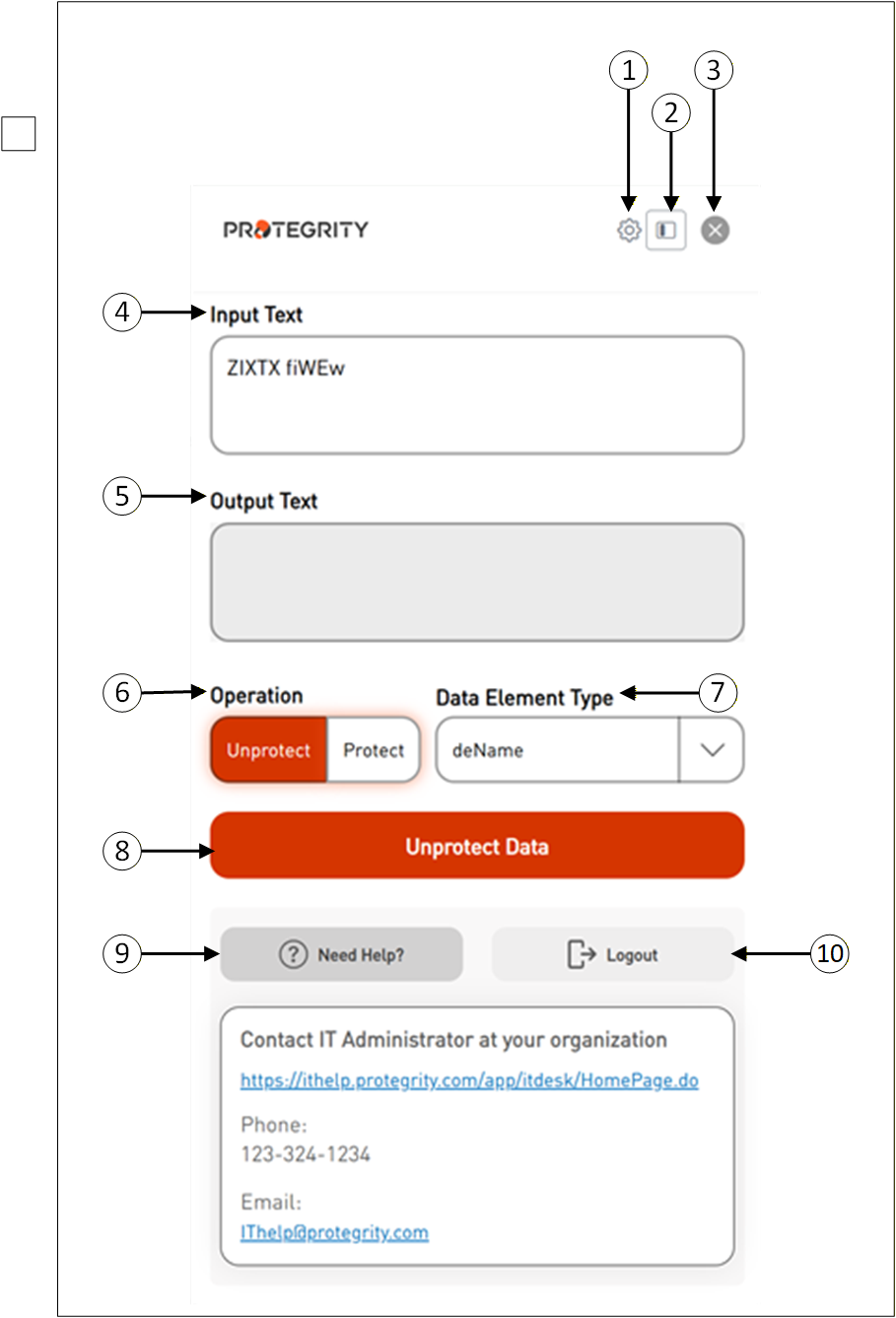
| Callout | Icon Name | Description |
|---|---|---|
| 1 | Settings | Click Settings to configure different options. |
| 2 | Sidebar View | This is used to toggle between different display modes, such as sidebar view, or page layout options. |
| 3 | Close | This represents closing a window. |
| 4 | Input Text | Displays the selected tokenized data. |
| 5 | Output Text | Displays the original data. |
| 6 | Operation | Select the appropriate operation “Unprotect or Protect”. |
| 7 | Data Element Type | Select the appropriate data element name to detokenize the data. |
| 8 | Unprotect Data or Protect Data | Click the Unprotect Data button to retrieve the original data. |
| 9 | Need Help | Click the Need Help button to provide you with additional IT contact details. |
| 10 | Logout | Click the Logout button to end your SSO login session. |
How to use Protegrity Browser Protector Extension
Once installed, the Browser Extension should appear in the list of available extensions next to the browser’s address bar.
Follow these steps to use the Browser Protector extension in Chrome.
Open the Chrome browser displaying the tokenized data.
Highlight the tokenized data that you want to convert back to its original form.
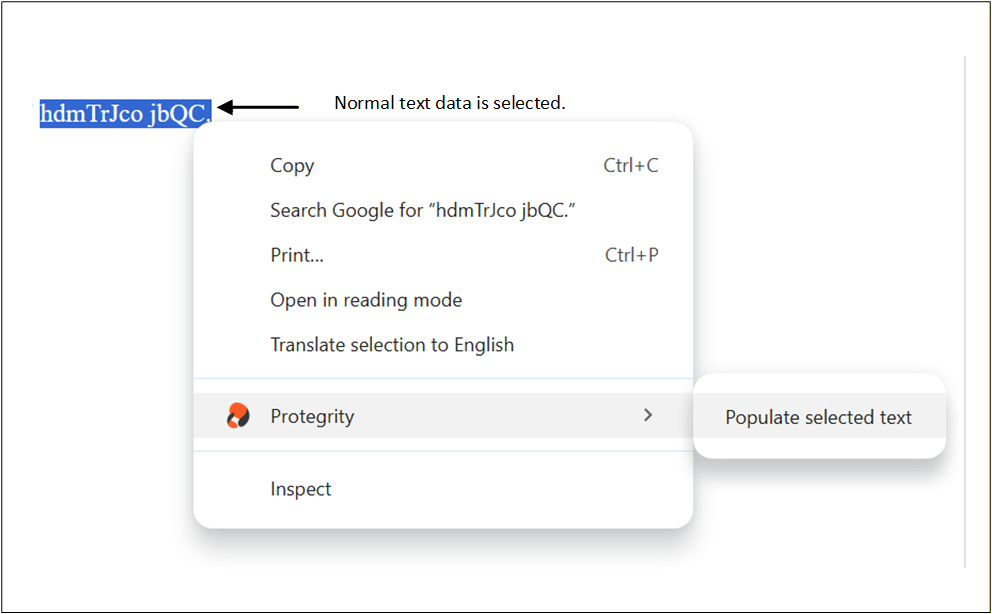
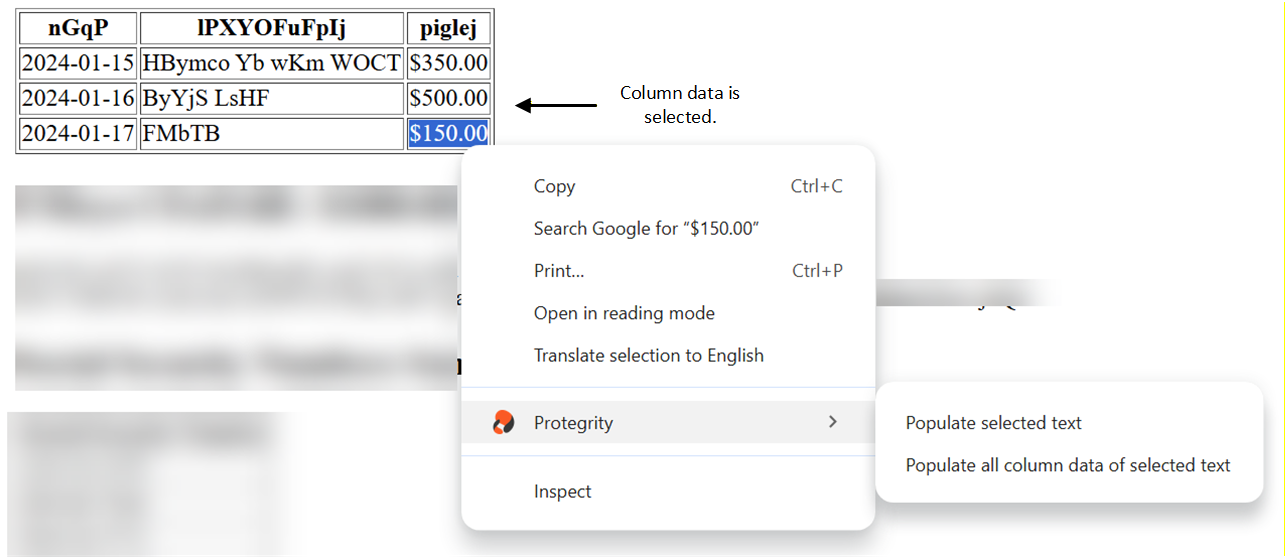
Right-click the selected data and choose the Browser Protector context menu. This menu shows two different options:
Populate selected text- This option appears when normal text data or column data is selected.
Populate all column data of selected text- This option appears when column data is selected.
A pop-up window will appear from the extension showing the selected data along with the SSO sign-in option.
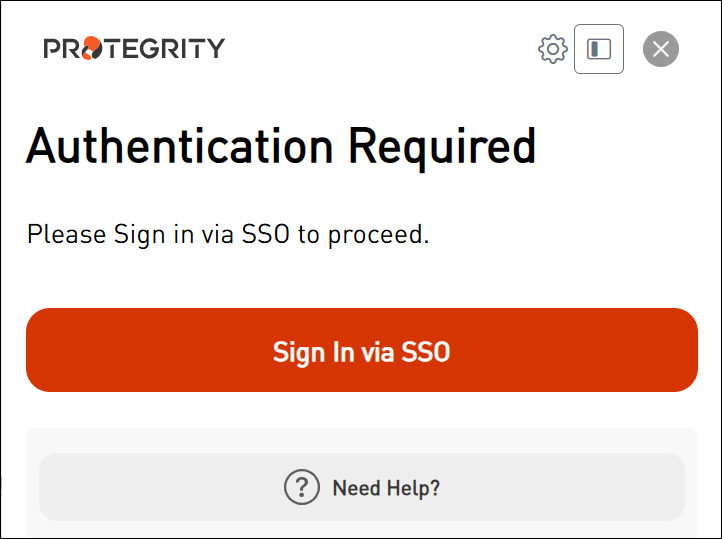
Enter the correct sign-in information and proceed.
After completing the sign-in process, the following screen appears.
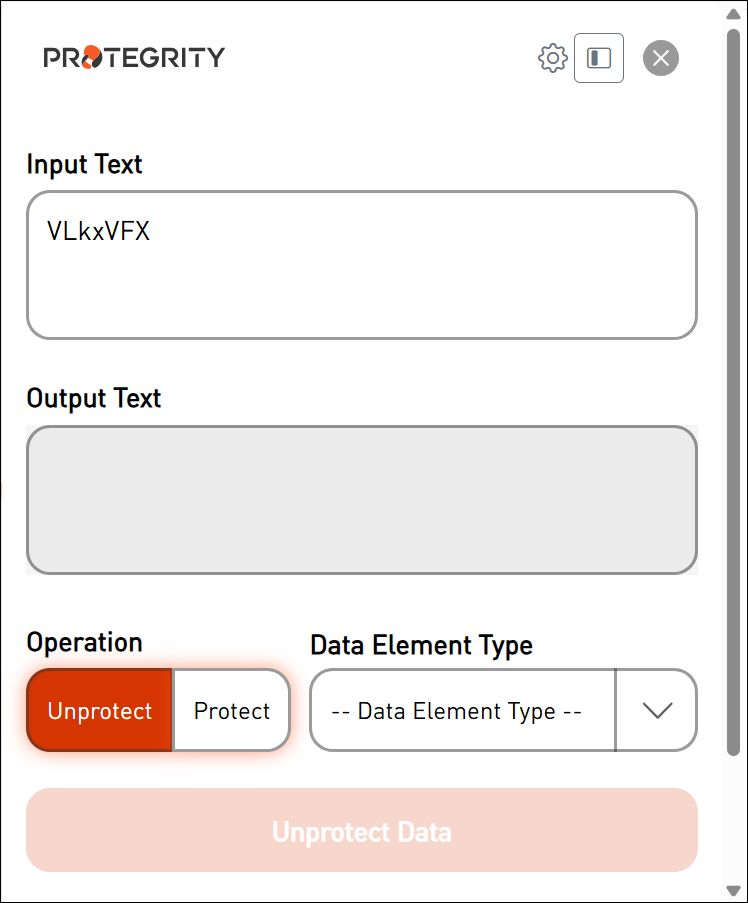
The selected data is loaded onto the screen.
Select the Data Element Type that was used to protect the sensitive data.
Extension Screen with Value as deName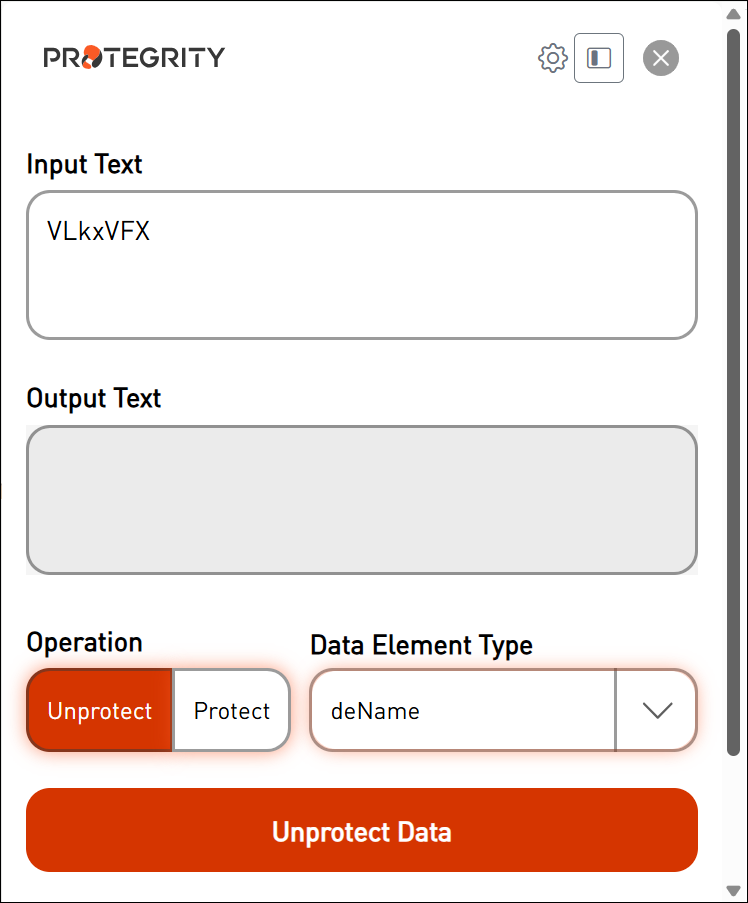
Select the operation “Unprotect or Protect”.
Click Unprotect Data.
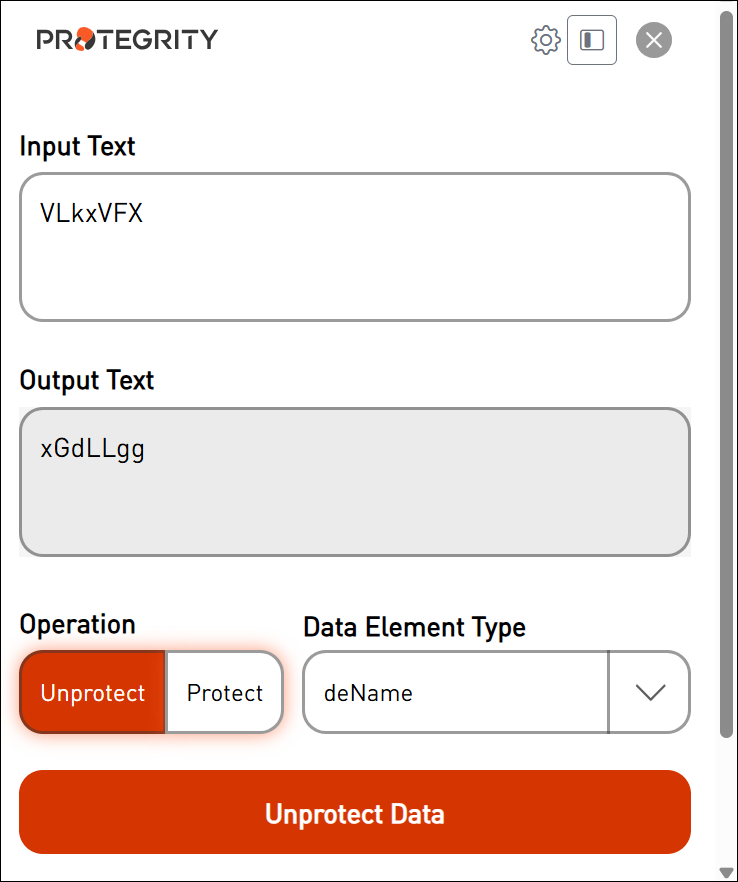
The original data is displayed on the screen.
Feedback
Was this page helpful?