Protect Service Installation
Protect Service Installation
The following sections install the Cloud Protect serverless Lambda function.
Preparation
Ensure that all the steps in Pre-Configuration are performed.
Login to the AWS sub-account console where Protegrity will be installed.
Ensure that the required CloudFormation templates provided by Protegrity are available on your local computer.
Create Protect Lambda IAM Execution Policy
This task defines a policy used by the Protegrity Lambda function to write CloudWatch logs and access the KMS encryption key to decrypt the policy.
Perform the following steps to create the Lambda execution role and required policies:
From the AWS IAM console, select Policies > Create Policy.
Select the JSON tab and copy the following sample policy.
{
  "Version": "2012-10-17",
  "Statement": [
    {
      "Sid": "CloudWatchWriteLogs",
      "Effect": "Allow",
      "Action": [
        "logs:CreateLogGroup",
        "logs:CreateLogStream",
        "logs:PutLogEvents"
      ],
      "Resource": "*"
    },
    {
      "Sid": "KmsDecrypt",
      "Effect": "Allow",
      "Action": [
        "kms:Decrypt"
      ],
      "Resource": [
        "arn:aws:kms:*:*:key/*"
      ]
    }
  ]
}
For the KMS policy, replace the Resource with the ARN for the KMS key created in a previous step.
Select Next, type in a policy name, for example, ProtegrityProtectLambdaPolicy and Create Policy. Record the policy name:
ProtectLambdaPolicyName:__________________
Create Protect Lambda IAM Role
The following steps create the role to utilize the policy defined in Create Protect Lambda IAM Execution Policy.
To create protect lambda IAM execution role:
From the AWS IAM console, select Roles > Create Role.
Select AWS Service > Lambda > Next.
In the list, search and select the policy created in Create Protect Lambda IAM Execution Policy.
Click Next
Type the role name, for example, ProtegrityProtectRole
Click Create role
Record the role ARN.
Role ARN (LambdaExecutionRoleArn): ___________________
Install through CloudFormation
The following steps describe the deployment of the Lambda function.
Access CloudFormation and select the target AWS Region in the console.
Click Create Stack and choose With new resources.
Specify the template.
Select Upload a template file.
Upload the Protegrity-provided CloudFormation template called pty_protect_api_cf.json and click Next.
Specify the stack details. Enter a stack name.
Note
The stack name will be appended to all the services created by the template.Enter the required parameters. All the values were generated in the pre-configuration steps.
Parameter
Description
Default Value
ArtifactS3Bucket
The name of S3 bucket created during the pre-configuration steps
LambdaExecutionRoleArn
The ARN of Lambda role created in the prior step
MinLogLevel
The minimum log level for the protect function.
Supported values: [off, severe, warning, info, config, all]
severe
AllowAssumeUser (Optional)
If 0 is set, the user in the request body will be ignored and the REST API authenticated user will be the acting user.
Supported values: [0, 1]
0
LambdaAuthorization (Optional)
If “jwt” is set, then Authorization header for JWT will be required in the AWS Protect Lambda request. Any other value is ignored and effective policy user is taken from request payload.
Supported values: [“jwt”, “”]
""
jwtUsernameClaim (Optional)
The JWT claim with username.
Common claims: name, preferred_username, cognito:username
Also accepts ordered list of claim names in JSON array format, e.g. [“username”, “email”]
cognito:username
jwtVerify (Optional)
If 1 is set, then jwtSecretBase64 is required. Only applicable when LambdaAuthorization is set to “jwt”. Supported JWT algorithms are: RS256, RS384, RS512. While algorithms HS256, HS384, HS512 are supported, they are not recommended for use.
0
jwtSecretBase64 (Optional)
Required when jwtVerify is set to 1 and Authorization is set to “jwt”. The secret must be provided in base64 encoding. It is recommended to only use public key (asymmetric algorithm).
""
The log forwarder parameters can be provided later after log forwarder is deployed. If you are not planning to deploy log forwarder you can skip this step.
Parameter Description KinesisLogStreamArn The ARN of the AWS Kinesis stream where audit logs will be sent for aggregation AuditLogFlushInterval Time interval in seconds used to accumulate audit logs before sending to Kinesis. Default value: 30. See Log Forwarder Performance section for more details. Click Next with defaults to complete CloudFormation.
After CloudFormation is completed, select the Outputstab in the stack.
Record the following values:
ApiGatewayId: ________________________________
ProtectFunctionName: __________________________
ProtectFunctionProductionAlias: __________________________
ProtectLayerName: _____________________________
Test Connectivity
Perform the following steps to verify if the API Gateway is working correctly with the Protegrity product.
- In the AWS console Access API Gateway.
Search for API (CloudFormation output ApiGatewayId value).
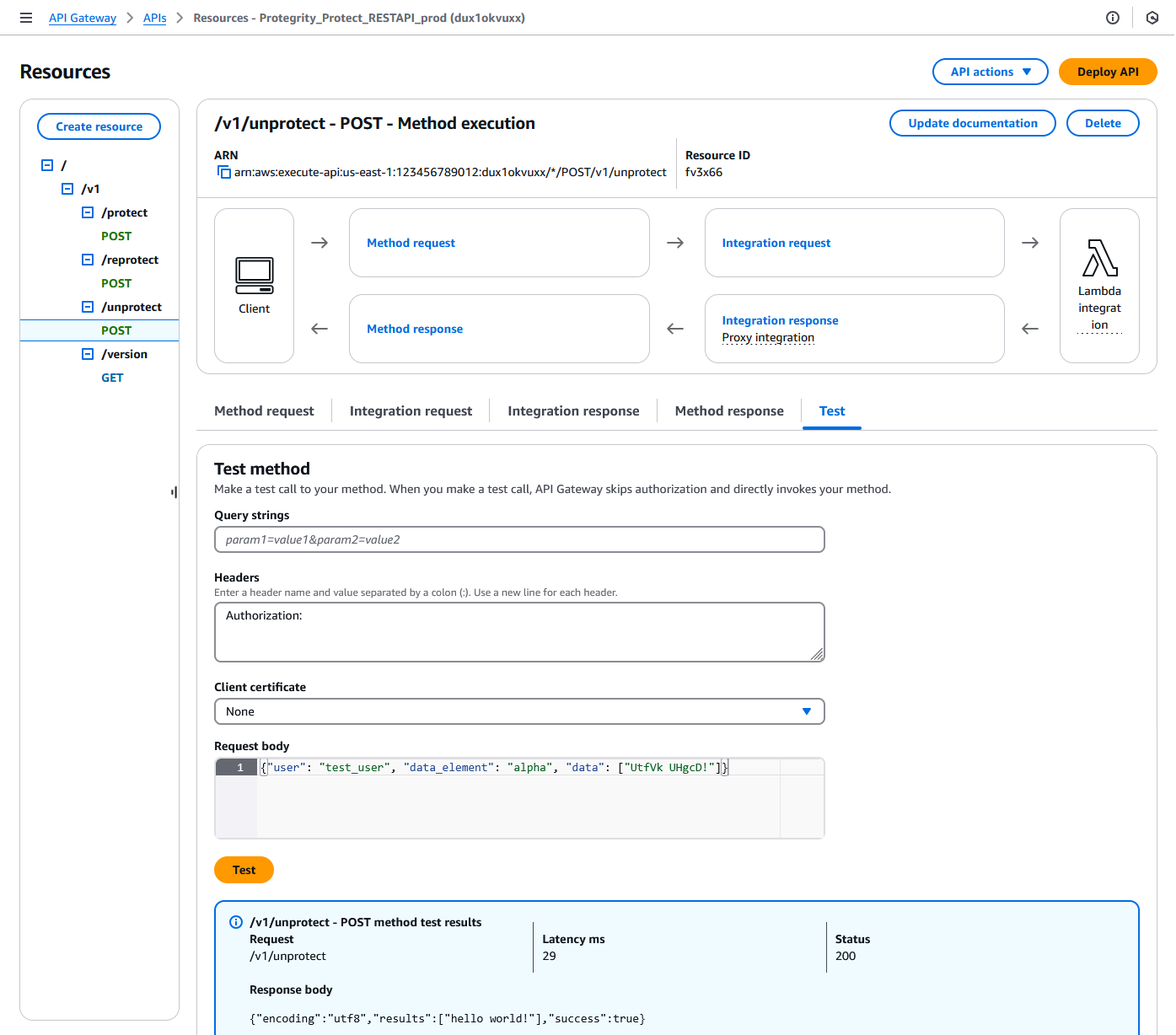
Select Resources > /v1/unprotect POST.
Click on Test tab.
Provide the following input in Headers.
Authorization:Provide the following input in Request body.
{"user": "test_user", "data_element": "alpha", "data": ["UtfVk UHgcD!"]}Click Test.
Verify the response Status is 200 and the Response Body is as follows:
{"encoding": "utf8", "results": ["hello world!"], "success": true}For example:
Troubleshooting
Error | Action |
|---|---|
5xx error |
If this step fails, then check the console for the meaningful error. |
Setting up Authentication
This step describes how to setup an AWS API Gateway Authorization.
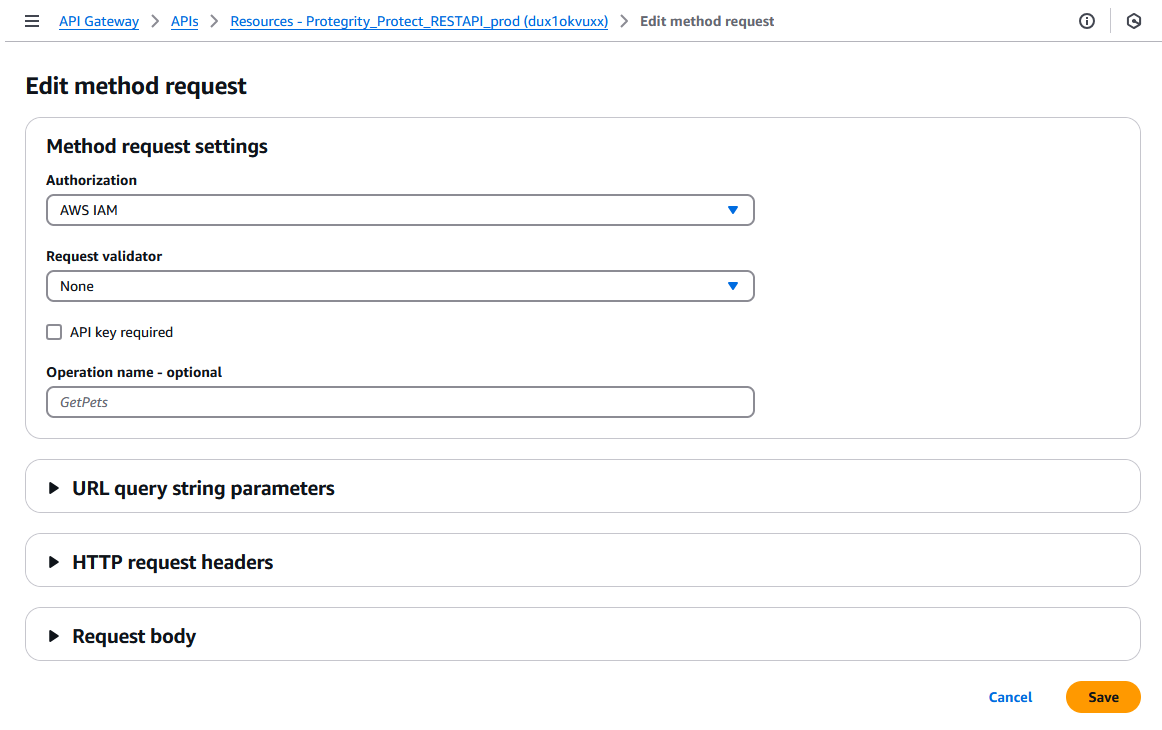
By default, the API Gateway is configured to use AWS_IAM Authorization.
- From AWS console access API Gateway.
- If you are using AWS API Gateway Authorizer, ensure that the Authorizer is configured in Authorizers.
- Go to Resources > /v1/protect POST > Method Request tab > Click Edit button
- Select from Authorization. dropdown.
- Click Save button.
- Click Deploy API button to deploy to pty stage.
Protect Lambda Configuration
After Cloud Formation stack is deployed, Protector Lambda can be reconfigured based on the authentication selected in previous stage. From your AWS console navigate to lambda and select following lambda: Protegrity_Protect_RESTAPI_<STACK_NAME>. Scroll down to Environment variables section, select Edit and replace the entries based on the following information.
Environment Variable | Description | Notes |
|---|---|---|
authorization | If “jwt” is set, Authorization header with JWT will be required in the AWS Protect Lambda request. Any other value is ignored and effective policy user is taken from request payload. Supported Values: [“jwt”, “”] | If “jwt” is set, any request without valid JWT in the Authorization header, will result in error from API Gateway: 502 Bad Gateway. Default Value: "" |
allow_assume_user | If 0 is set, API Gateway user will not be used, and the effective user is the JWT user. Supported Values: [0, 1] | Applicable when authorization is set to “jwt”. Default Value: 0 |
jwt_user_claim | The JWT claim with username. Common claims: name, preferred_username, cognito:username | Applicable when authorization is set to “jwt” Default Value: cognito:username |
jwt_verify | If 1 is set, jwt_secret_base64 is required. Only applicable when authorization is set to “jwt”. Supported JWT algorithm RS256, RS384, RS512. While algorithms HS256, HS384, HS512 are supported, they are not recommended for use. | Applicable when authorization is set to “jwt” |
jwt_secret_base64 | Required when jwt_verify is set to 1 and Authorization is set to “jwt”. The secret must be provided in base64 encoding. It is recommended to only use public key (asymmetric algorithm). | Applicable when authorization is set to “jwt” and jwt_verify is set to 1 |
service_user | If set, it will be used as effective policy user. | service_user should be used when the Cloud API should always run as single service user or account no matter what user is in the request. service_user will always take priority over users in the payload and in the JWT header. |
USERNAME_REGEX | If set, the effective policy user will be extracted from the user in the request using supplied regular expression. | See Configuring Regular Expression to Extract Policy Username to learn how to extract username from the request |
What’s Next
Feedback
Was this page helpful?