This is the multi-page printable view of this section. Click here to print.
Installation
- 1: Prerequisites
- 2: Pre-Configuration
- 3: Protect Service Installation
- 4: Policy Agent Installation
- 5: Audit Log Forwarder Installation
- 6:
- 7:
- 8:
- 9:
- 10:
- 11:
- 12:
1 - Prerequisites
AWS Service Dependencies
The following table describes the AWS services that may be a part of your Protegrity installation.
Service | Description |
|---|---|
Lambda | Provides serverless compute for Protegrity protection operations and the ESA integration to fetch policy updates or deliver audit logs. |
KMS | Provides secrets for envelope policy encryption/decryption for Protegrity. |
Secrets Manager | Provides secrets management for the ESA credentials. |
S3 | Intermediate storage location for the encrypted ESA policy layer. |
Kinesis | Required if Log Forwarder is to be deployed. Amazon Kinesis is used to batch audit logs sent from protector function to ESA. |
VPC & NAT Gateway | Optional. Provides a private subnet to communicate with an on-prem ESA. |
CloudWatch | Application and audit logs, performance monitoring, and alerts. Scheduling for the policy agent. |
ESA Version Requirements
The Protector and Log Forwarder functions require a security policy from a compatible ESA version.
The table below shows compatibility between different Protector and ESA versions.
Note
For the latest up-to-date information refer to: Protegrity Compatibility Matrix| Protector Version | ESA Version | |||
|---|---|---|---|---|
| 8.x | 9.0 | 9.1 & 9.2 | 10.0 | |
| 2.x | No | Yes | * | No |
| 3.0.x & 3.1.x | No | No | Yes | No |
| 3.2.x | No | No | Yes | * |
| 4.0.x | No | No | No | Yes |
Legend | |
|---|---|
Yes | Protector was designed to work with this ESA version |
No | Protector will not work with this ESA version |
* | Backward compatible policy download supported:
|
Prerequisites
| Requirement | Detail |
|---|---|
| Protegrity distribution and installation scripts | These artifacts are provided by Protegrity |
| Protegrity ESA 10.0+ | The Cloud VPC must be able to obtain network access to the ESA |
| AWS Account | Recommend creating a new sub-account for Protegrity Serverless |
| Athena Engine Version 3 | Only Athena engine version 3 is supported. The product may work in Athena engine version 2, but it is deprecated and all users are encouraged to upgrade. |
Required Skills and Abilities
Role / Skillset | Description |
|---|---|
AWS Account Administrator | To run CloudFormation (or perform steps manually), create/configure a VPC and IAM permissions. |
Protegrity Administrator | The ESA credentials required to extract the policy for the Policy Agent |
Network Administrator | To open firewall to access ESA and evaluate AWS network setup |
What’s Next
2 - Pre-Configuration
Provide AWS sub-account
Identify or create an AWS account where the Protegrity solution will be installed. It is recommended that a new AWS sub-account be created. This can provide greater security controls and help avoid conflicts with other applications that might impact regional account limits. An individual with the Cloud Administrator role will be required for some subsequent installation steps.
AWS Account ID: ___________________
AWS Region (AwsRegion): ___________________
Create S3 bucket for Installing Artifacts
This S3 bucket will be used for the artifacts required by the CloudFormation installation steps. This S3 bucket must be created in the region that is defined in Determine AWS Region.
To create S3 bucket for installing artifacts:
Access the AWS S3 Management Console.
Change region to the one determined in Determine AWS Region
Click Create Bucket.
Enter a unique bucket name:
For example, protegrity-install.us-west-2.example.com.
Click Create Bucket.
Upload the installation artifacts to this bucket. Protegrity will provide the following three artifacts.
- protegrity-athena-protect-udfs-<version>.jar
- protegrity-agent-<version>.zip
- protegrity-sample-policy-<version>.zip
- protegrity-external-extension-<version>.zip
Important
The deployment package you receive from Protegrity must be extracted to reveal the Protegrity artifacts. CloudFormation requires them in the provided .zip format. Do not extract the individual Protegrity artifacts. Upload these artifacts to the S3 bucket created.
S3 Bucket name (ArtifactS3Bucket): ___________________
Create KMS Key
The Amazon Key Management Service (KMS) provides the ability for the Protegrity Serverless solution to encrypt and decrypt the Protegrity Security Policy.
Note
It is recommended to host the KMS key in a separate AWS sub-account. This allows dual control, separating the responsibility between the key administrator and the Protegrity Serverless account administrator.To create KMS key:
In the AWS sub-account where the KMS key will reside, select the region.
Navigate to Key Management Service > Create Key.
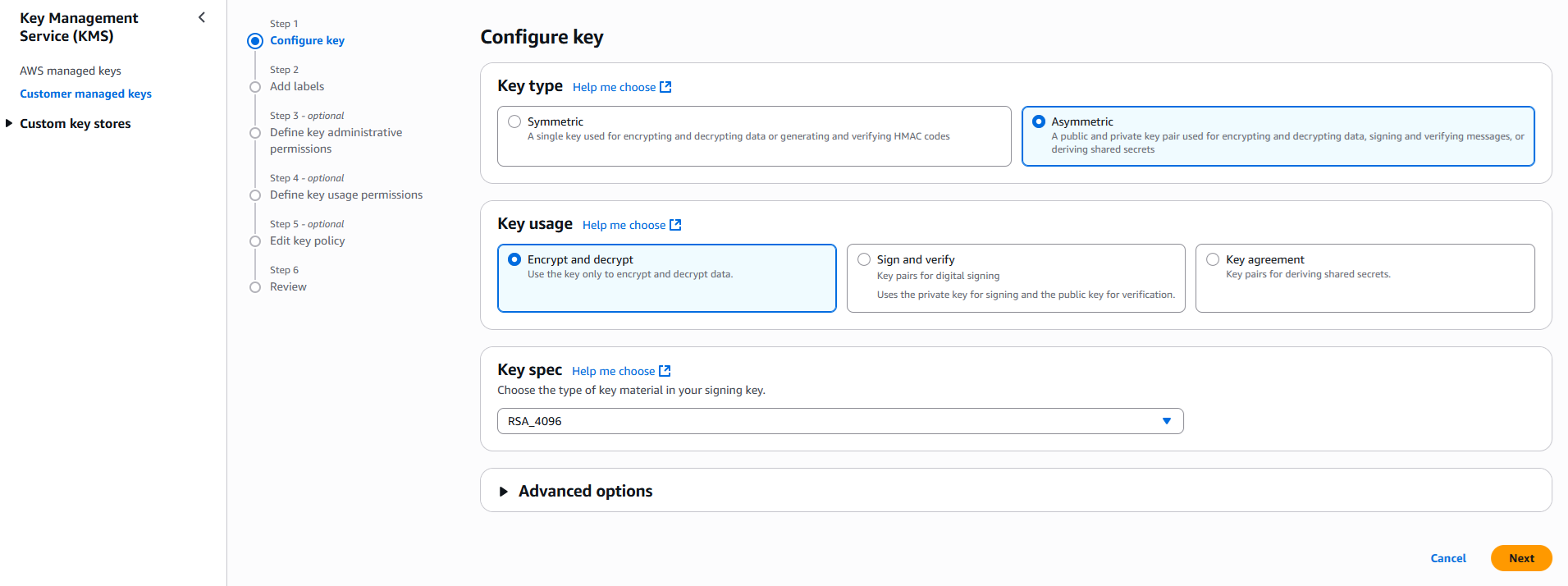
Configure the key settings:
- Key type: Asymmetric
- Key usage: Encrypt and decrypt
- Key spec: RSA_4096
- Click Next
Create alias and optional description, such as, Protegrity-Serverless and click Next.
Define key administrative permissions, the IAM user who will administrate the key.
Note
It is recommended the administrator be different than the administrator of the Protegrity Serverless accountClick Next.
Define the key usage permissions.
In Other AWS accounts, enter the AWS account id used for the Protegrity Serverless installation.
Continue on to create the key. If there is a concern this permission is overly broad, then you can return later to restrict access to the role of two Protegrity Serverless Lambda as principals. Click to open the key in the list and record the ARN.
KMS Key ARN (AWS_KMS_KEY_ID): ___________________
Download the public key from the KMS key. Navigate to the key in KMS console, select the Public key tab, and click Download. Save the PEM file. This public key will be added to the ESA data store as an export key. Refer to Exporting Keys to Datastore for instructions on adding the public key to the data store.
Note
This step is not applicable for ESA versions lower than 10.2.KMS Public Key PEM file: ___________________
What’s Next
2.1 -
Determine AWS Region
Determine the AWS region where the Amazon Athena Workgroup is running. This is the region in where the Protegrity solution must be installed.
AWS Region (AccountRegion): ___________________
3 - Protect Service Installation
Protect Service Installation
The following sections install the Cloud Protect serverless Lambda function.
Preparation
Ensure that all the steps in Pre-Configuration are performed.
Login to the AWS account console where Protegrity Serverless will be installed.
Ensure that the required CloudFormation templates provided by Protegrity are available on your local computer.
Create Protect Lambda IAM Execution Policy
This task defines a policy used by the Protegrity Lambda function to write CloudWatch logs and access the KMS encryption key to decrypt the policy.
Perform the following steps to create the Lambda execution role and required policies:
From the AWS IAM console, select Policies > Create Policy.
Select the JSON tab and copy the following sample policy.
{
  "Version": "2012-10-17",
  "Statement": [
    {
      "Sid": "CloudWatchWriteLogs",
      "Effect": "Allow",
      "Action": [
        "logs:CreateLogGroup",
        "logs:CreateLogStream",
        "logs:PutLogEvents"
      ],
      "Resource": "*"
    },
    {
      "Sid": "KmsDecrypt",
      "Effect": "Allow",
      "Action": [
        "kms:Decrypt"
      ],
      "Resource": [
        "arn:aws:kms:*:*:key/*"
      ]
    }
  ]
}
For the KMS policy, replace the Resource with the ARN for the KMS key created in a previous step.
Select Next, type in a policy name, for example, ProtegrityProtectLambdaPolicy and Create Policy. Record the policy name:
ProtectLambdaPolicyName:__________________
Create Protect Lambda IAM Role
The following steps create the role to utilize the policy defined in Create Protect Lambda IAM Execution Policy.
To create protect lambda IAM execution role:
From the AWS IAM console, select Roles > Create Role.
Select AWS Service > Lambda > Next.
In the list, search and select the policy created in Create Protect Lambda IAM Execution Policy.
Click Next
Type the role name, for example, ProtegrityProtectRole
Click Create role
Record the role ARN.
Role ARN (LambdaExecutionRoleArn): ___________________
Install using CloudFormation
The following steps describe the deployment of the Lambda function.
Access CloudFormation and select the target AWS Region in the console.
Click Create Stack and choose With new resources.
In Specify template section select Upload a template file.
Click Choose file to upload the Protegrity-provided CloudFormation template called pty_athena_protect_cf.json and click Next.
Specify stack details. Enter stack name.
Note
The stack name will be appended to all the services created by the template.Enter the required parameters. All the values were generated in the pre-configuration steps.
Parameter
Description
ArtifactS3Bucket
Name of S3 bucket created in the pre-configuration step
LambdaExecutionRoleArn
The ARN of Lambda role created in the prior step
PolicyUser
Name of the Policy User that will be passed as an environment variable to the lambda function. With protegrity-sample-policy-<version>.zip, you can set this value to policyuser.
PolicyUserConfig
The settings for POLICY_USER_CONFIG. Default Value: 0, Values: [0,1,2].
Note
See Policy User for information on POLICY_USER_CONFIG.UsernameRegex
The settings for USERNAME_REGEX. Default Value: Not Set, Values: “1” or regex expression.
Note
See Policy User and Configuring Regular Expression to Extract Policy Username for information on USERNAME_REGEX.MinLogLevel
Minimum log level for protect function. Allowed Values: off, severe, warning, info, config, all
The log forwarder parameters can be provided later after log forwarder is deployed. If you are not planning to deploy log forwarder you can skip this step.
Log Forwarder Parameters Description KinesisLogStreamArn The ARN of the AWS Kinesis stream where audit logs will be sent for aggregation AuditLogFlushInterval Time interval used to accumulate audit logs before sending to Kinesis Proceed to the last step of the Create Stack wizard with defaults and click Submit to create CloudFormation stack.
After CloudFormation is completed, select the Outputs tab in the stack. Record the following values:
ProtectFunctionName: __________________________
ProtectFunctionProductionAlias: __________________________
ProtectLayerName: _____________________________
Test Connectivity
Perform the following steps to verify Athena is working correctly with Protegrity.
Access the Athena console.
Copy and paste the following snippet into a worksheet.
USING EXTERNAL FUNCTION unprotect(val varchar, el varchar) RETURNS varchar
     LAMBDA '<replace_with_athena_protect_function_name>:Production'
SELECT unprotect('UtfVk UHgcD!', 'alpha')
Replace the placeholder value with the lambda function name
Run the above Query
Verify that the string hello world! is returned.
Note
See Granting access to use the Cloud Protect UDF for information on Athena query permissions.Troubleshooting Tips
Error | Action |
|---|---|
User: <USER_ARN> is not authorized to perform: glue:GetDatabases on resource: arn:aws:glue:<AWS_REGION>:<AWS_ACCOUNT>:catalog (Service: AmazonDataCatalog; Status Code: 400; Error Code: AccessDeniedException; Request ID: <REQUEST_ID>; Proxy: null) | Verify user has Glue permission GetDatabases |
User: <USER_ARN> is not authorized to perform: glue:GetTables on resource: arn:aws:glue: <AWS_REGION>:<AWS_ACCOUNT>:catalog (Service: AmazonDataCatalog; Status Code: 400; Error Code: AccessDeniedException; Request ID: <REQUEST_ID>; Proxy: null) | Verify user has Glue permission GetTables |
Insufficient permissions to execute the query | Verify user has InvokeFunction permission for the protect lambda function |
Access denied when writing output to url: s3://<BUCKET_NAME>/Unsaved/<YEAR>/<MONTH>/<DAY>/<QUERY_ID>.csv Please ensure you are allowed to access the S3 bucket. If you are encrypting query results with KMS key, please ensure you are allowed to access your KMS key | Verify user has S3 permission PutObject for the query result location bucket. If using KMS encryption, verify the required KMS permissions. |
You do not seem to have access to the S3 location of your query results. Please confirm your account has access to the S3 location where your query results are saved and try again. If you are using KMS to encrypt query results, please ensure you have permission to access your KMS key. | Verify user has S3 permission GetObject for the query result location bucket. If using KMS encryption, verify the required KMS decrypt permissions. |
User: <USER_ARN>is not authorized to perform: athena:<ACTION> on resource: arn:aws:athena:<AWS_REGION>:<ACCOUNT>:workgroup/<WORKGROUP> (Service: AmazonAthena; Status Code: 400; Error Code: AccessDeniedException; Request ID: <REQUEST_ID>; Proxy: null) | Verify user has the permissions: StartQueryExecution GetQueryResults GetWorkGroup StopQueryExecution GetQueryExecution |
java.lang.RuntimeException: Failed to initialize MemoryUtil. Was Java started with `–add-opens=java.base/java.nio=ALL-UNNAMED`? (See https://arrow.apache.org/docs/java/install.html) | Verify that the environment variable |
What’s Next
4 - Policy Agent Installation
The following sections will install the Policy Agent. The Policy Agent polls the ESA and deploys the policy to Protegrity Serverless as a static resource. Some of the installation steps are not required for the operation of the software but recommended for establishing a secure environment. Contact Protegrity Professional Services for further guidance on configuration alternatives in the Cloud.
Important
If you are deploying Policy Agent with Protegrity Provisioned Cluster (PPC), refer to the PPC Appendix: Policy Agent Certificate and Key Guidance for specific instructions on obtaining and using the CA certificate and datastore key fingerprint. The steps in this section are specific to ESA and may differ for PPC. Be sure to follow the PPC documentation for the most accurate and up-to-date setup guidance.ESA Server
Policy Agent Lambda requires ESA server running and accessible on TCP port 443.
Note down ESA IP address:
ESA IP Address (EsaIpAddress): ___________________
Certificates on ESA
Note
If you are deploying Policy Agent with Protegrity Provisioned Cluster (PPC), see PPC Appendix: Policy Agent Certificate Guidance for specific instructions on obtaining and using the CA certificate. The steps in this section are specific to ESA and may differ for PPC.Whether your ESA is configured with default self-signed certificate or your corporate CA certificate, Policy Agent can validate authenticity of ESA connection using CA certificate. The process for both scenarios is the same:
- Obtain CA certificate
- Convert CA certificate to a value accepted by Policy Agent
- Provide converted CA certificate value to Policy Agent
To obtain self-signed CA certificate from ESA:
Log in to ESA Web UI.
Select Settings > Network > Manage Certificates.
Hover over Server Certificate and click on download icon to download the CA certificate.
To convert downloaded CA certificate to a value accepted by Policy Agent, open the downloaded PEM file in text editor and replace all new lines with escaped new line: \n.
To escape new lines from command line, use one of the following commands depending on your operating system:
Linux Bash:
awk 'NF {printf "%s\\n",$0;}' ProtegrityCA.pem > output.txtWindows PowerShell:
(Get-Content '.\ProtegrityCA.pem') -join '\n' | Set-Content 'output.txt'Record the certificate content with new lines escaped.
ESA CA Server Certificate (EsaCaCert): ___________________
This value will be used to set PTY_ESA_CA_SERVER_CERT or PTY_ESA_CA_SERVER_CERT_SECRET Lambda variable in section Policy Agent Lambda Configuration
For more information about ESA certificate management refer to Certificate Management Guide in ESA documentation.
Identify or Create a new VPC
Establish a VPC where the Policy Agent will be hosted. This VPC will need connectivity to the ESA. The VPC should be in the same account and region established in Pre-Configuration.
VPC name: ___________________
VPC Subnet Configuration
Identify or create a new subnet in the VPC where tha Lambda function will be connected to. It is recommended to use a private subnet.
Subnet name: ___________________
NAT Gateway For ESA Hosted Outside AWS Network
If ESA server is hosted outside of the AWS Cloud network, the VPC configured for Lambda function must ensure additional network configuration is available to allow connectivity with ESA. For instance if ESA has a public IP, the Lambda function VPC must have public subnet with a NAT server to allow routing traffic outside of the AWS network. A Routing Table and Network ACL may need to be configured for outbound access to the ESA as well.
VPC Endpoints Configuration
If an internal VPC was created, then add VPC Endpoints, which will be used by the Policy Agent to access AWS services. Policy Agent needs access to the following AWS services:
Type | Service name |
|---|---|
Interface | com.amazonaws.{REGION}.secretsmanager |
Interface | com.amazonaws.{REGION}.kms |
Gateway | com.amazonaws.{REGION}.s3 |
Interface | com.amazonaws.{REGION}.lambda |
Identify or Create Security Groups
Policy Agent and cloud-based ESA appliance use AWS security groups to control traffic that is allowed to leave and reach them. Policy Agent runs on schedule and is mostly concerned with allowing traffic out of itself to ESA and AWS services it depends on. ESA runs most of the time and it must allow Policy Agent to connect to it.
Policy Agent security group must allow outbound traffic using rules described in the table below. To edit security group navigate:
From VPC > Security Groups > Policy Agent Security Group configuration.
| Type | Protocol | Port Range | Destination | Reason |
|---|---|---|---|---|
| Custom TCP | TCP | 443 | Policy Agent Lambda SG | ESA Communication |
| HTTPS | TCP | 443 | Any | AWS Services |
Record Policy Agent security group ID:
Policy Agent Security Group Id: ___________________
Policy Agent will reach out to ESA on port 443. Create following inbound security group rule for cloud-based ESA appliance to allow connections from Policy Agent:
| Type | Protocol | Port Range | Source |
|---|---|---|---|
| Custom TCP | TCP | 443 | Policy Agent Lambda SG |
Creating ESA Credentials
Policy Agent Lambda requires ESA credentials to be provided as one of the three options.
Note
The username and password of the ESA user requires role with Export Resilient Package and Can Create JWT Token permissions. Security Administrator is one of the predefined roles which contains the above permissions, however for separation of duties it is recommended to create custom role.Option 1: Secrets Manager
Creating secrets manager secret with ESA username and password.
From the AWS Secrets Manager Console, select Store New Secret.
Select Other Type of Secrets.
Specify the username and password key value pair.
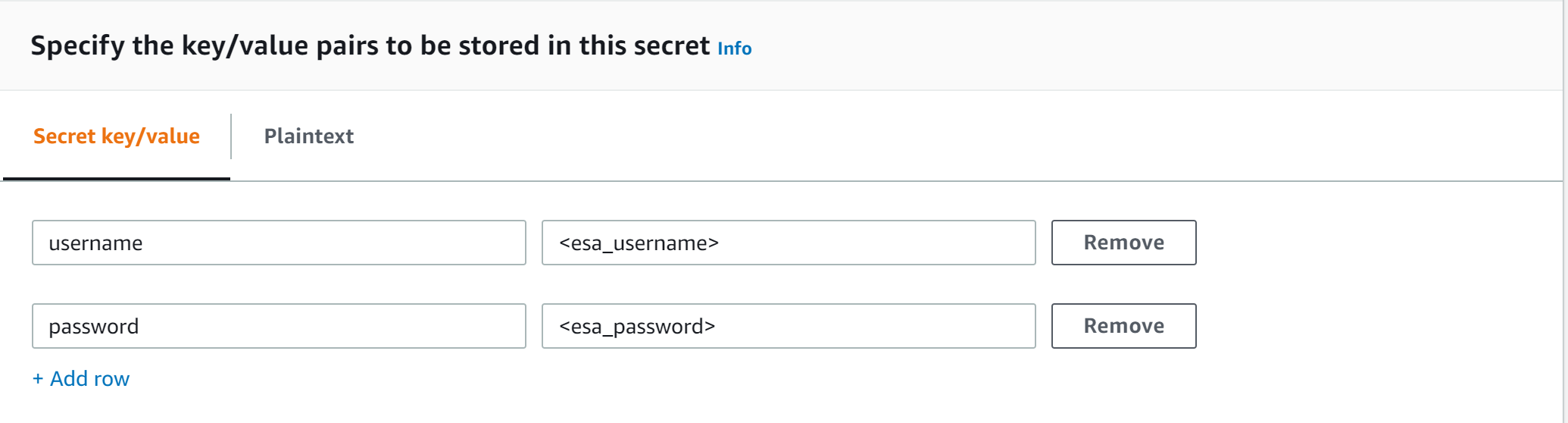
Select the encryption key or leave default AWS managed key.
Specify the Secret Name and record it.
ESA Credentials Secret Name: __________________
Option 2: KMS Encrypted Password
ESA password is encrypted with AWS KMS symmetric key.
Create AWS KMS symmetric key which will be used to encrypt ESA password. See Create KMS Key for instructions on how to create KMS symmetric key using AWS console.
Record KMS Key ARN.
ESA PASSWORD KMS KEY ARN: __________________
Run AWS CLI command to encrypt ESA password. Below you can find sample Linux aws cli command. Replace <key_arn> with KMS symmetric key ARN.
aws kms encrypt --key-id <key_arn> --plaintext $(echo '<esa_password>' | base64 )Sample output.
{
  "CiphertextBlob": "esa_encrypted_password",
  "KeyId": "arn:aws:kms:region:aws_account:key/key_id ",
  "EncryptionAlgorithm": "SYMMETRIC_DEFAULT"
}
Record ESA username and encrypted password.
ESA USERNAME: __________________
ESA ENCRYPTED PASSWORD: __________________
Option 3: Custom AWS Lambda function
With this option ESA username and password are returned by a custom AWS Lambda function. This method may be used to get the username and password from external vaults.
Create AWS Lambda in any AWS supported runtime.
There is no input needed.
The Lambda function must return the following response schema.
response:
type: object
  properties:
    username: string
    password: string
For example,
example output: {"username": "admin", "password": "Password1234"}Sample AWS Lambda function in Python:
import json

def lambda_handler(event, context):

    return {"username": "admin", "password": "password1234"}
Warning
Protegrity does not recommend hardcoding ESA username and password in the clear.
Record the Lambda name:
Custom AWS lambda for ESA credentials: _______________
Create Agent Lambda IAM Policy
Follow the steps below to create Lambda execution policies.
Create Agent Lambda IAM policy
From AWS IAM console, select Policies > Create Policy.
Select JSON tab and copy the following snippet.
{
  "Version": "2012-10-17",
  "Statement": [
    {
      "Sid": "EC2ModifyNetworkInterfaces",
      "Effect": "Allow",
      "Action": [
        "ec2:CreateNetworkInterface",
        "ec2:DescribeNetworkInterfaces",
        "ec2:DeleteNetworkInterface"
      ],
      "Resource": "*"
    },
    {
      "Sid": "CloudWatchWriteLogs",
      "Effect": "Allow",
      "Action": [
        "logs:CreateLogGroup",
        "logs:CreateLogStream",
        "logs:PutLogEvents"
      ],
      "Resource": "*"
    },
    {
      "Sid": "LambdaUpdateFunction",
      "Effect": "Allow",
      "Action": [
        "lambda:UpdateFunctionConfiguration"
      ],
      "Resource": [
        "arn:aws:lambda:*:*:function:*"
      ]
    },
    {
      "Sid": "LambdaReadLayerVersion",
      "Effect": "Allow",
      "Action": [
        "lambda:GetLayerVersion",
        "lambda:ListLayerVersions"
      ],
      "Resource": "*"
    },
    {
      "Sid": "LambdaDeleteLayerVersion",
      "Effect": "Allow",
      "Action": "lambda:DeleteLayerVersion",
      "Resource": "arn:aws:lambda:*:*:layer:*:*"
    },
    {
      "Sid": "LambdaPublishLayerVersion",
      "Effect": "Allow",
      "Action": "lambda:PublishLayerVersion",
      "Resource": "arn:aws:lambda:*:*:layer:*"
    },
    {
      "Sid": "S3GetObject",
      "Effect": "Allow",
      "Action": [
        "s3:GetObject"
      ],
      "Resource": "arn:aws:s3:::*/*"
    },
    {
      "Sid": "S3PutObject",
      "Effect": "Allow",
      "Action": [
        "s3:PutObject"
      ],
      "Resource": "arn:aws:s3:::*/*"
    },
    {
      "Sid": "KmsEncrypt",
      "Effect": "Allow",
      "Action": [
        "kms:GetPublicKey"
      ],
      "Resource": [
        "arn:aws:kms:*:*:key/*"
      ]
    },
    {
      "Sid": "SecretsManagerGetSecret",
      "Effect": "Allow",
      "Action": [
        "secretsmanager:GetSecretValue"
      ],
      "Resource": [
        "arn:aws:secretsmanager:*:*:secret:*"
      ]
    },
    {
      "Sid": "LambdaGetConfiguration",
      "Effect": "Allow",
      "Action": [
          "lambda:GetFunctionConfiguration"
      ],
      "Resource": [
          "arn:aws:lambda:*:*:function:*"
      ]
    }
  ]
}
Replace wildcard * with the region, account, and resource name information where required.
This step is required if KMS is used to encrypt ESA password.
Add policy entry below. Replace ESA PASSWORD KMS KEY ARN with the value recorded in Option 2: KMS Encrypted Password.
  {
    "Sid": "KmsDecryptEsaPassword",
    "Effect": "Allow",
    "Action": [
      "kms:Decrypt"
    ],
    "Resource": [
      "**ESA PASSWORD KMS KEY ARN**"
    ]
  }
Select Next type in the policy name and Create Policy. Record policy name:
Policy Name: ___________________
Create Agent Lambda IAM Role
Perform the following steps to create Agent Lambda execution IAM role.
To create agent Lambda IAM role:
From AWS IAM console, select Roles > Create Role.
Select AWS Service > Lambda > Next.
Select the policy created in Create Agent Lambda IAM policy.
Proceed to Name, Review and Create.
Type the role name, for example, ProtegrityAgentRole and click Confirm.
Select Create role.
Record the role ARN.
Agent Lambda IAM Execution Role Name: ___________________
Corporate Firewall Configuration
If an on-premise firewall is used, then the firewall must allow access from the NAT Gateway to an ESA. The firewall must allow access from the NAT Gateway IP to ESA via port 443 and 443.
CloudFormation Installation
Create the Policy Agent in the VPC using the CloudFormation script provided by Protegrity.
Access the CloudFormation service.
Select the target installation region.
Create a stack with new resources.
Upload the Policy Agent CloudFormation template (file name: pty_agent_cf.json).
Specify the following parameters for Cloud Formation:
Parameter Description Note VPC VPC where the Policy Agent will be hosted Identify or Create a new VPC Subnet Subnet where the Policy Agent will be hosted VPC Subnet Configuration PolicyAgentSecurityGroupId Security Group Id, which allows communication between the Policy Agent and the ESA Identify or Create Security Groups LambdaExecutionRoleArn Agent Lambda IAM execution role ARN allowing access to the S3 bucket, KMS encryption Key, Lambda and Lambda Layer Create Agent Lambda IAM Role ArtifactS3Bucket S3 bucket name with deployment package for the Policy Agent Use S3 Bucket name recorded in Create S3 bucket for Installing Artifacts CreateCRONJob Set to True to create a CloudWatch schedule for the agent to run. Default: False
Policy Agent Lambda Configuration
After the CloudFormation stack is deployed, the Policy Agent Lambda must be configured with parameters recorded in earlier steps. From your AWS Console, navigate to lambda and select the following Lambda.
Protegrity_Agent<STACK_NAME>_
Select Configuration tab and scroll down to the Environment variables section. Select Editand replace all entries with the actual values.
Parameter | Description | Notes |
|---|---|---|
PTY_ESA_IP | ESA IP address or hostname | |
PTY_ESA_CA_SERVER_CERT | ESA self-signed CA certificate or your corporate CA certificate used by policy Agent Lambda to ensure ESA is the trusted server. | Recorded in step Certificates on ESA NoteFor PPC deployments, see PPC Appendix: Policy Agent Certificate Guidance for details on obtaining and using the CA certificate.In case ESA is configured with publicly signed certificates, the PTY_ESA_CA_SERVER_CERT configuration will be ignored. |
PTY_ESA_CA_SERVER_CERT_SECRET | This configuration option fulfills the same function as PTY_ESA_CA_SERVER_CERT but supports larger configuration values, making it the recommended choice. The value should specify the name of the AWS Secrets Manager secret containing the ESA self-signed CA certificate. The secret value should be set to the json with “PTY_ESA_CA_SERVER_CERT” key and PEM formated CA certificate content value as shown below. | Recorded in step Certificates on ESA NoteFor PPC deployments, see PPC Appendix: Policy Agent Certificate Guidance for details on obtaining and using the CA certificate.In case ESA is configured with publicly signed certificates, the PTY_ESA_CA_SERVER_CERT_SECRET configuration will be ignored. When both PTY_ESA_CA_SERVER_CERT and PTY_ESA_CA_SERVER_CERT_SECRET are configured the PTY_ESA_CA_SERVER_CERT_SECRET takes precedence. |
PTY_ESA_CREDENTIALS_SECRET | ESA username and password (encrypted value by AWS Secrets Manager) | |
PTY_DATASTORE_KEY | ESA policy datastore public key fingerprint (64 char long) e.g. 123bff642f621123d845f006c6bfff27737b21299e8a2ef6380aa642e76e89e5. | NoteThis configuration is not applicable for ESA versions lower than 10.2.The export key is the public part of an asymmetric key pair created in a Create KMS Key. A user with Security Officer permissions adds the public key to the data store in ESA via Policy Management > Data Stores > Export Keys. The fingerprint can then be copied using the Copy Fingerprint icon next to the key. Refer to Exporting Keys to Datastore for details. NoteFor PPC deployments, see PPC Appendix: Policy Agent Certificate and Key Guidance for details on obtaining and using the datastore key fingerprint. |
AWS_KMS_KEY_ID | KMS key id or full ARN e.g. arn:aws:kms:us-west-2:112233445566:key/bfb6c4fb-509a-43ac-b0aa-82f1ca0b52d3 | |
AWS_POLICY_S3_BUCKET | S3 bucket where the encrypted policy will be written | S3 bucket of your choice |
AWS_POLICY_S3_FILENAME | Filename of the encrypted policy stored in S3 bucket | Default: protegrity-policy.zip |
AWS_PROTECT_FN_NAME | Comma separated list of Protect function names or ARNs | ProtectFunctionName(s), recorded in CloudFormation Installation |
DISABLE_DEPLOY | This flag can be either 1 or 0. If set to 1, then the agent will not update PTY_PROTECT lambda with the newest policy. Else, the policy will be saved in the S3 bucket and deployed to the Lambda Layer | Default: 0 |
AWS_POLICY_LAYER_NAME | Lambda layer used to store the Protegrity policy used by the PTY_PROTECT function |
|
POLICY_LAYER_RETAIN | Number of policy versions to retain as backup. (e.g. 2 will retain the latest 2 policies and remove older ones). -1 retains all. | Default: 2 |
POLICY_PULL_TIMEOUT | Time in seconds to wait for the ESA to send the full policy | Default: 20s |
ESA_CONNECTION_TIMEOUT | Time in seconds to wait for the ESA response | Default: 5s |
LOG_LEVEL | Application and audit logs verbiage level | Default: INFO Allowed values: DEBUG – the most verbose, INFO, WARNING, ERROR – the least verbose |
PTY_CORE_EMPTYSTRING | Override default behavior. Empty string response values are returned as null values. For instance: (un)protect(’’) -> null (un)protect(’’) -> '' | Default: empty Allowed values: null empty |
PTY_CORE_CASESENSITIVE | Specifies whether policy usernames should be case sensitive | Default: no Allowed values: yes no |
PTY_ADDIPADDRESSHEADER | When enabled, agent will send its source IP address in the request header. This configuration works in conjunction with ESA hubcontroller configuration ASSIGN_DATASTORE_USING_NODE_IP (default=false). See Associating ESA Data Store With Cloud Protect Agent for more information. | Default: yes Allowed values: yes no |
PTY_ESA_USERNAME | Plaintext ESA username which is used together with PTY_ESA_ENCRYPTED_PASSWORD as an optional ESA credentials | Option 2: KMS Encrypted Password Presence of this parameter will cause PTY_ESA_CREDENTIALS_SECRET to be ignored |
PTY_ESA_ENCRYPTED_PASSWORD | ESA password encrypted with KMS symmetric key. Example AWS cli command to generate the value:
| Option 2: KMS Encrypted Password Presence of this parameter will cause PTY_ESA_CREDENTIALS_SECRET to be ignored Value must be base64 encoded |
EMPTY_POLICY_S3 | This flag can be either 1 or 0. If set to 1, then the agent will remove the content of the policy file in S3 bucket, but will keep the checksum in the metadata. Else, the policy will be saved in the S3 bucket and not removed. | Default: 0 |
PTY_ESA_CREDENTIALS_LAMBDA | Lambda function to return ESA credentials | Recorded in step Option 3: Custom AWS Lambda function LAMBDA FOR ESA CREDENTIALS. Presence of PTY_ESA_USERNAME, or PTY_ESA_CREDENTIALS_SECRET will cause this value to be ignored. The Policy Agent Lambda must have network access and IAM permissions to invoke the custom ESA Credentials Lambda you have created in Option 3: Custom AWS Lambda function. |
Test Installation
Open the Lambda and configure Test to execute the lambda and specify the default test event. Wait for around 20 seconds for the Lambda to complete. If policy is downloaded successfully, then a success message appears.
Navigate to the AWS_POLICY_S3_BUCKET bucket and verify that the AWS_POLICY_S3_FILENAME file was created.
Troubleshooting
Lambda Error | Example Error | Action |
|---|---|---|
Task timed out after x seconds | |
|
ESA connection error. Failed to download certificates | ||
Policy Pull takes a long time | |
|
ESA connection error. Failed to download certificates. HTTP response code: 401 | | Ensure that the PTY_ESA_CREDENTIALS_SECRET has correct ESA username and password |
An error occurred (AccessDeniedException) when calling xyz operation | | Ensure that the Lambda execution role has permission to call the xyz operation |
Access Denied to Secret Manager. | |
|
Master Key xyz unable to generate data key | Ensure that the Lambda can access xyz CMK key | |
The S3 bucket server-side encryption is enabled, the encryption key type is SSE-KMS but the Policy Agent execution IAM role doesn’t have permissions to encrypt using the KMS key . | | Add the following permissions to the Policy Agent excution role. NoteWhen the KMS key and the Policy Agent Lambda are in separate accounts, update both the AWS KMS key and the Policy Agent execution role. |
The S3 bucket has bucket policy to only allow access from within the VPC. | | The Policy Agent publishes a new Lambda Layer version, and the Lambda Layer service uploads the policy file from the s3 bucket and the upload request is originated from the AWS service outside the Policy Agent Lambda VPC. Update the S3 bucket resource policy to allow access from AWS Service. Sample security policy to lock down access to the vpc: |
Additional Configuration
Strengthen the KMS IAM policy by granting access only to the required Lambda function(s).
Finalize the IAM policy for the Lambda Execution Role. Ensure to replace wildcard * with the region, account, and resource name information where required.
For example,
"arn:aws:lambda:*:*:function:*" -> "arn:aws:lambda:us-east-1:account:function:function_name"
Policy Agent Schedule
If specified in CloudFormation Installation, the agent installation created a CloudWatch event rule, which checks for policy update on an hourly schedule. This schedule can be altered to the required frequency.
Under CloudWatch > Events > Rules, find Protegrity_Agent_{stack_name}. Click Action > Edit Set the cron expression. A cron expression can easily be defined using CronMaker, a free online tool. Refer to http://www.cronmaker.com.
What’s Next
5 - Audit Log Forwarder Installation
The following sections show steps how to install Audit Log Forwarder component in the AWS Cloud. The Log Forwarder deployment allows for the audit logs generated by Protector to be delivered to ESA for auditing and governance purposes. Log Forwarder component is optional and is not required for the Protector Service to work properly. See Log Forwarding Architecture section in this document for more information. Some of the installation steps are not required for the operation of the software but recommended for establishing a secure environment. C ontact Protegrity for further guidance on configuration alternatives in the Cloud.
Note
The installation steps below assume that the Log Forwarder is going to be installed in the same AWS account as the corresponding Protect Lambda service. For instructions on how to install Log Forwarder in the AWS account separate than the Protect Lambda, please contact Protegrity.ESA Audit Store Configuration
ESA server is required as the recipient of audit logs. Verify the information below to ensure ESA is accessible and configured properly.
ESA server running and accessible on TCP port 9200 (Audit Store) or 24284 (td-agent).
Audit Store service is configured and running on ESA. Applies when audit logs are output to Audit Store directly or through td-agent. For information related to ESA Audit Store configuration, refer to Audit Store Guide.
(Optional) td-agent is configured for external input. For more information related to td-agent configuration, refer to ESA guide Sending logs to an external security information and event management (SIEM).
Certificates on ESA
Note
This section is optional. If CA certificate is not provided, the Log Forwarder will skip server certificate validation and will connect to ESA without verifying that it is a trusted server.
If you are deploying Log Forwarder with Protegrity Provisioned Cluster (PPC), certificate authorization and CA validation are not supported. Configuration steps related to certificates in this section do not apply to PPC. See Integrating Cloud Protect with PPC (Protegrity Provisioned Cluster): Log Forwarder Setup with PPC for details.
By default, ESA is configured with self-signed certificates, which can optionally be validated using a self-signed CA certificate supplied in the Log Forwarder configuration. If no CA certificate is provided, the Log Forwarder will skip server certificate validation.
Note
Certificate Validation can be bypassed for testing purposes, see section: Install through CloudFormationIf ESA is configured with publicly signed certificates, this section can be skipped since the forwarder Lambda will use the public CA to validate ESA certificates.
To obtain the self-signed CA certificate from ESA:
Download ESA CA certificate from the /etc/ksa/certificates/plug directory of the ESA
After certificate is downloaded, open the PEM file in text editor and replace all new lines with escaped new line: \n.
To escape new lines from command line, use one of the following commands depending on your operating system:
Linux Bash:
awk 'NF {printf "%s\\n",$0;}' CA.pem > output.txtWindows PowerShell:
(Get-Content '.\CA.pem') -join '\n' | Set-Content 'output.txt'Record the certificate content with new lines escaped.
ESA CA Server Certificate (EsaCaCert): ___________________
This value will be used to set PtyEsaCaServerCert cloudformation parameter in section Install through CloudFormation
For more information about ESA certificate management refer to Certificate Management Guide in ESA documentation.
AWS VPC Configuration
Log forwarder Lambda function requires network connectivity to ESA, similar to Policy Agent Lambda function. Therefore, it can be hosted in the same VPC as Policy Agent.
Separate VPC can be used, as long as it provides network connectivity to ESA.
Note
AWS Lambda service uses permissions in log forwarder function execution role to create and manage network interfaces. Lambda creates a Hyperplane ENI and reuses it for other VPC-enabled functions in your account that use the same subnet and security group combination. Each Hyperplane ENI can handle thousands of connections/ports as the Lambda function scales up. If more connections are needed AWS Lambda service creates additional Hyperplane ENIs. There’s no additional charge for using a VPC or a Hyperplane ENI. Refer to AWS official Lambda Hyperplane ENIs docs for more information.VPC Name: ___________________
VPC Subnet Configuration
Log Forwarder can be connected to the same subnet as Policy Agent or separate one as long as it provides connectivity to ESA.
Subnet Name: ___________________
NAT Gateway For ESA Hosted Outside AWS Network
If ESA server is hosted outside of the AWS Cloud network, the VPC configured for Lambda function must ensure additional network configuration is available to allow connectivity with ESA. For instance if ESA has a public IP, the Lambda function VPC must have public subnet with a NAT server to allow routing traffic outside of the AWS network. A Routing Table and Network ACL may need to be configured for outbound access to the ESA as well.
VPC Endpoint Configuration
Log Forwarder Lambda function requires connectivity to Secrets Manager AWS service. If the VPC identified in the steps before has no connectivity to public internet through the NAT Gateway, then the following service endpoint must be configured:
- com.amazonaws.{REGION}.cloudwatch
- com.amazonaws.{REGION}.secretsmanager
- com.amazonaws.{REGION}.kms
Security Group Configuration
Security groups restrict communication between Log Forwarder Lambda function and the ESA appliance. The following rules must be in place for ESA and Log Forwarder Lambda function.
From VPC > Security Groups > Log Forwarder Security Group configuration.
| Type | Protocol | Port Range | Destination | Reason |
|---|---|---|---|---|
| Custom TCP | TCP | 9200 | Log Forwarder Lambda SG | ESA Communication |
Record the name of Log Forwarder security group name.
Log Forwarder Security Group Id: ___________________
The following port must be open for the ESA. If the ESA is running in the Cloud, then create the following security.
Note
If an on-premise firewall is used, then the firewall must allow access from the NAT Gateway to an ESA. The firewall must allow access the NAT Gateway IP access to ESA via port 9200.ESA Security Group configuration
| Type | Protocol | Port Range | Source |
|---|---|---|---|
| Custom TCP | TCP | 9200 | Log Forwarder Lambda SG |
Configure ESA Audit Store Credentials
Note
This section is optional. If client certificate authentication is not set up, the Log Forwarder will connect to ESA without authentication credentials.Audit Log Forwarder can optionally authenticate with ESA using certificate-based authentication with a client certificate and certificate key. If used, both the certificate and certificate key will be stored in AWS Secrets Manager.
Download the following certificates from the /etc/ksa/certificates/plug directory of the ESA:
- client.key
- client.pem
After certificates are downloaded, open each PEM file in text editor and replace all new lines with escaped new line: \n. To escape new lines from command line, use one of the commands below depending on your operating system.
Linux Bash:
awk 'NF {printf "%s\\n",$0;}' client.key > private_key.txt
awk 'NF {printf "%s\\n",$0;}' client.pem > public_key.txt
Windows PowerShell:
(Get-Content '.\client.key') -join '\n' | Set-Content 'private_key.pem'
(Get-Content '.\client.pem') -join '\n' | Set-Content 'public_key.pem'
For more information on how to configure client certificate authentication for Audit Store on ESA refer to Audit Store Guide.
To create secret with ESA client certificate/key pair in AWS Secrets Manager.
From the AWS Secrets Manager Console, select Store New Secret.
Select Other Type of Secrets.
Specify the private_key and public_key value pair.
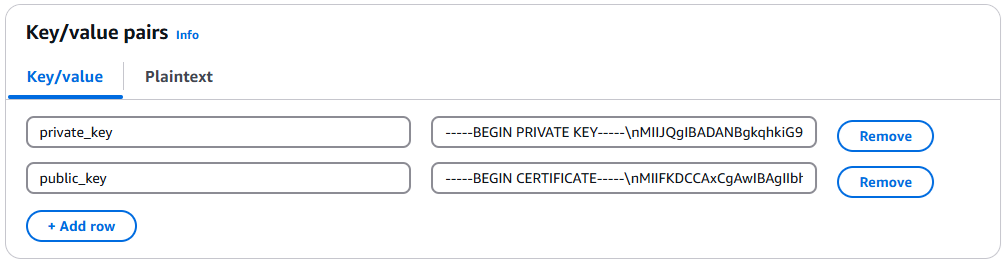
Select the encryption key or leave default AWS managed key.
Specify the Secret Name and record it below.
ESA Client Certificate/Key Pair Secret Name: ___________________
This value will be used to set PtyEsaClientCertificatesSecretId cloudformation parameter in section Install through CloudFormation
Note
If you are deploying Log Forwarder with PPC, do not configure client certificate authentication. See PPC Appendix: Log Forwarder Certificate Guidance for details.Create Audit Log Forwarder IAM Execution Policy
This task defines a policy used by the Protegrity Log Forwarder Lambda function to write CloudWatch logs, access the KMS encryption key to decrypt the policy and access Secrets Manager for log forwarder user credentials.
Perform the following steps to create the Lambda execution role and required policies:
From the AWS IAM console, select Policies > Create Policy.
Select the JSON tab and copy the following sample policy.
{
  "Version": "2012-10-17",
  "Statement": [
    {
      "Sid": "EC2ModifyNetworkInterfaces",
      "Effect": "Allow",
      "Action": [
        "ec2:CreateNetworkInterface",
        "ec2:DescribeNetworkInterfaces",
        "ec2:DeleteNetworkInterface"
      ],
      "Resource": "*"
    },
    {
      "Sid": "CloudWatchWriteLogs",
      "Effect": "Allow",
      "Action": [
        "logs:CreateLogGroup",
        "logs:CreateLogStream",
        "logs:PutLogEvents"
      ],
      "Resource": "*"
    },
    {
      "Sid": "KmsDecrypt",
      "Effect": "Allow",
      "Action": [
        "kms:Decrypt"
      ],
      "Resource": [
        "arn:aws:kms:*:*:key/*"
      ]
    },
    {
        "Sid": "KinesisStreamRead",
        "Effect": "Allow",
        "Action": [
            "kinesis:GetRecords",
            "kinesis:GetShardIterator",
            "kinesis:DescribeStream",
            "kinesis:DescribeStreamSummary",
            "kinesis:ListShards",
            "kinesis:ListStreams"
        ],
        "Resource": "*"
    },
    {
      "Sid": "SecretsManagerGetSecret",
      "Effect": "Allow",
      "Action": [
        "secretsmanager:GetSecretValue"
      ],
      "Resource": [
        "arn:aws:secretsmanager:*:*:secret:*"
      ]
    }
  ]
}
For the KMS policy, replace the Resource with the ARN for the KMS key created in a previous step.
Select Review policy, type in a policy name, for example, ProtegrityLogForwarderLambdaPolicy and Confirm. Record the policy name:
LogForwarderLambdaPolicyName:__________________
Create Log Forwarder IAM Role
Perform the following steps to create Log Forwarder execution IAM role.
To create Log Forwarder IAM role:
From AWS IAM console, select Roles > Create Role.
Select AWS Service > Lambda > Next.
Select the policy created in Create Audit Log Forwarder IAM Execution Policy.
Proceed to Name, Review and Create.
Type the role name, for example, ProtegrityForwarderRole and click Confirm.
Record the role ARN.
Log Forwarder IAM Execution Role Name: ___________________
Installation Artifacts
Audit Log Forwarder installation artifacts are part of the same deployment package as the one used for protect and policy agent services. Follow the steps below to ensure the right artifacts are available for log forwarder installation.
Verify that the Protegrity deployment package is available on your local system, if not, you can download it from the Protegrity portal.
Note
If you maintain multiple Protegrity Cloud Protectors, make sure that the deployment package downloaded for Audit Log Forwarder is the same as the one used for Protect service installation.Extract the pty_log_forwarder_cf.json cloud formation file from the deployment package.
Check the S3 deployment bucket identified in section Create S3 bucket for Installing Artifacts. Make sure that all Protegrity deployment zip files are uploaded to the S3 bucket.
Install through CloudFormation
The following steps describe the deployment of the Audit Log Forwarder AWS cloud components.
Access CloudFormation and select the target AWS Region in the console.
Click Create Stack and choose With new resources.
Specify the template.
Select Upload a template file.
Upload the Protegrity-provided CloudFormation template called pty_log_forwarder_cf.json and click Next.
Specify the stack details. Enter a stack name.
Note
The stack name will be appended to all the services created by the template.Enter the required parameters. All the values were generated in the pre-configuration steps.
Parameter | Description | Default Value | Required |
|---|---|---|---|
LogForwarderSubnets | Subnets where the Log Forwarder will be hosted. |
|
|
LogForwarderSecurityGroups | Security Groups, which allow communication between the Log Forwarder and ESA. |
| X |
LambdaExecutionRoleArn | The ARN of Lambda role created in the prior step. |
| X |
ArtifactS3Bucket | Name of S3 bucket created in the pre-configuration step. |
| X |
LogDestinationEsaIp | IP or FQDN of the ESA instance or cluster. |
| X |
AuditLogOutput | Audit log processor to target on ESA. Allowed values: audit-store, td-agent | audit-store | X |
PtyEsaClientCertificatesSecretId | AWS Secrets Manager secret id containing client certificates used for authentication with ESA Audit Store. It is expected that the public key will be stored in a field public_key and the private key in a field named private_key. This parameter is optional. If not provided, Log Forwarder will connect to ESA without client certificate authentication. | ||
EsaTlsDisableCertVerify | Disable certificate verification when connecting to ESA if set to 1. This is only for dev purposes, do not disable in production environment. | 0 | X |
PtyEsaCaServerCert | ESA self-signed CA certificate used by log forwarder Lambda to ensure ESA is the trusted server. Recorded in step Certificates on ESA In case ESA is configured with publicly signed certificates, the PtyEsaCaServerCert configuration will be ignored. |
| |
EsaConnectTimeout | Time in seconds to wait for the ESA response. Minimum value: 1. | 5 | X |
EsaVirtualHost | ESA virtual hostname. This configuration is optional and it can be used when proxy server is present and supports TLS SNI extension. |
|
|
KinesisLogStreamRetentionPeriodHours | The number of hours for the log records to be stored in Kinesis Stream in case log destination server is not available. Minimum value: 24. See Log Forwarder Performance section for more details. | 24 | X |
KinesisLogStreamShardCount | The number of shards that the Kinesis log stream uses. For greater provisioned throughput, increase the number of shards. Minimum value: 1. See Log Forwarder Performance section for more details. | 10 | X |
MinLogLevel | Minimum log level for protect function. Allowed Values: off, severe, warning, info, config, all | severe | X |
Click Next with defaults to complete CloudFormation.
After CloudFormation is completed, select the Outputstab in the stack.
Record the following values
KinesisLogStreamArn: ________________________________
Add Kinesis Put Record permission to the Protect Function IAM Role
Login to the AWS account that hosts the Protect Lambda Function.
Search for Protect Lambda Function IAM Execution Role Name created in Create Protect Lambda IAM role.
Under Permissions policies, select Add Permissions > Create inline policy.
In Specify permissions view, switch to JSON.
Copy the policy json from below replacing the placeholder value indicated in the following snippet as <Audit Log Kinesis Stream ARN> with the value recorded in the previous step.
{
	"Version": "2012-10-17",
	"Statement": [
		{
			"Sid": "KinesisPutRecords",
			"Effect": "Allow",
			"Action": "kinesis:PutRecords",
			"Resource": "<Audit Log Kinesis Stream ARN>"
		}
	]
}
When you are finished, choose Next.
On the Review and create page, type a Name, then choose Create policy.
Test Log Forwarder Installation
Testing in this section validates the connectivity between Log Forwarder and ESA. The sample policy included with the initial installation and test event below are not based on your ESA policy. Any logs forwarded to ESA which are not signed with a policy generated by your ESA will not be added to the audit store.
Install Log Forwarder and configure according to previous sections. Log Forwarder configuration MinLogLevel must be at least info level.
Navigate to the log forwarder lambda function.
Select the Test tab.
Copy the json test event into the Event JSON pane.
{
    "Records": [
        {
            "kinesis": {
                "kinesisSchemaVersion": "1.0",
                "partitionKey": "041e96d78c778677ce43f50076a8ae3e",
                "sequenceNumber": "49620336010289430959432297775520367512250709822916263938",
                "data": "eyJpbmdlc3RfdGltZV91dGMiOiIyMDI2LTAzLTI3VDEzOjIzOjEyLjkwNFoiLCJhZGRpdGlvbmFsX2luZm8iOnsiZGVzY3JpcHRpb24iOiJEYXRhIHVucHJvdGVjdCBvcGVyYXRpb24gd2FzIHN1Y2Nlc3NmdWwuIn0sImNsaWVudCI6e30sImNudCI6NCwiY29ycmVsYXRpb25pZCI6InJzLXF1ZXJ5LWlkOjEyMzQiLCJsZXZlbCI6IlNVQ0NFU1MiLCJsb2d0eXBlIjoiUHJvdGVjdGlvbiIsIm9yaWdpbiI6eyJob3N0bmFtZSI6IlBSTy1VUy1QRjNSSEdGOSIsImlwIjoiMTAuMTAuMTAuMTAiLCJ0aW1lX3V0YyI6MTcxMTU1OTEwMH0sInByb2Nlc3MiOnsiaWQiOjJ9LCJwcm90ZWN0aW9uIjp7ImF1ZGl0X2NvZGUiOjgsImRhdGFlbGVtZW50IjoiYWxwaGEiLCJkYXRhc3RvcmUiOiJTQU1QTEVfUE9MSUNZIiwibWFza19zZXR0aW5nIjoiIiwib2xkX2RhdGFlbGVtZW50IjpudWxsLCJvcGVyYXRpb24iOiJVbnByb3RlY3QiLCJwb2xpY3lfdXNlciI6IlBUWURFViJ9LCJwcm90ZWN0b3IiOnsiY29yZV92ZXJzaW9uIjoiMS4yLjErNTUuZzU5MGZlLkhFQUQiLCJmYW1pbHkiOiJjcCIsInBjY192ZXJzaW9uIjoiMy40LjAuMTQiLCJ2ZW5kb3IiOiJyZWRzaGlmdCIsInZlcnNpb24iOiIwLjAuMS1kZXYifSwic2lnbmF0dXJlIjp7ImNoZWNrc3VtIjoiN0VCMkEzN0FDNzQ5MDM1NjQwMzBBNUUxNENCMTA5QzE0OEJGODYwRjE3NEVCMjMxMTAyMEI3RkE1QTY4MjdGQyIsImtleV9pZCI6ImM0MjQ0MzZhLTExMmYtNGMzZi1iMmRiLTEwYmFhOGI1NjJhNyJ9fQ==",
                "approximateArrivalTimestamp": 1626878559.213
            },
            "eventSource": "aws:kinesis",
            "eventVersion": "1.0",
            "eventID": "shardId-000000000000:49620336010289430959432297775520367512250709822916261234",
            "eventName": "aws:kinesis:record",
            "invokeIdentityArn": "arn:aws:iam::555555555555:role/service-role/TestRole",
            "awsRegion": "us-east-1",
            "eventSourceARN": "arn:aws:kinesis:us-east-1:555555555555:stream/CloudProtectEventStream"
        }
    ]
}
Note
The data payload is the base64 encoded audit log. See Audit Logging for detail on audit log contents.Select Test to execute the test event.
Test is successful if the Log Output of test results contains the following log:
[INFO] [kinesis-log-aggregation-format.cpp:77] Aggregated 1 records into 0 aggregated, 1 forwarded and 0 failed recordsIf the log is not present, please consult the Troubleshooting section for common errors and solutions.
Update Protector With Kinesis Log Stream
In this section, Kinesis log stream ARN will be provided to the Protect Function installation.
Note
If the Protector has not been installed, you may provide the KinesisLogStreamArn during protector installation and skip the remainder of this section.Navigate to the Protector CloudFormation stack created in the protector installation section.
Select Update.
Choose Use existing template > Next.
Set parameter KinesisLogStreamArn to the output value recorded in Install through CloudFormation.
Proceed with Next and Submit the changes.
Continue to the next section once stack status indicates UPDATE_COMPLETE.
Update Policy Agent With Log Forwarder Function Target
Log Forwarder Lambda function requires a policy layer which is in sync with the Protegrity Protector. This section will describe the steps to update the policy agent to include updating Log Forwarder Lambda function.
Note
If the policy agent has not been installed, follow the steps in Policy Agent Installation. Set AWS_PROTECT_FN_NAME to include both protector and log forwarder lambda functions.Navigate to the Policy Agent Function created in Policy Agent Installation
Select Configuration > Environment variables > Edit
Edit the value for environment variable AWS_PROTECT_FN_NAME to include the log forwarder function name/arn in the comma separated list of Lambda functions.
Save the changes and continue when update completes
Navigate to Test tab
Add an event {} and select Test to run the Policy Agent function
Verify Log forwarder function was updated to use the policy layer by inspecting the log output. Logs should include the following:
[INFO] 2024-07-09 18:58:04,793.793Z 622d374b-1f73-4123-9a38-abc61973adef iap_agent.policy_deployer:Updating lambda [Protegrity_LogForwarder_<stack ID>] to use layer version [arn:aws:lambda:<aws region>:<aws account number>:layer:Protegrity_Layer_<layer name>:<layer version>]
Test Full Log Forwarder Installation
Install and configure Protegrity Agent, Protector, and Log Forwarder components.
Send a protect operation to the protector using a data element or user which will result in audit log generation
Navigate to the CloudWatch log group for the Protect function
Select the log stream for the test operation and scroll to the latest logs
Expect to see a log similar to the below:
[2024-07-09T19:28:23.158] [INFO] [kinesis-external-sink.cpp:51] Sending 2 logs to Kinesis ...
[2024-07-09T19:28:23.218] [INFO] [aws-utils.cpp:206] Kinesis send time: 0.060s
Navigate to the CloudWatch log group for the Log Forwarder function
Expect to see a new log stream - it may take several minutes for the stream to start
Select the new stream and scroll to the most recent logs in the stream
Expect to see a log similar to the below:
[2024-07-09T19:32:31.648] [INFO] [kinesis-log-aggregation-format.cpp:77] Aggregated 1 records into 0 aggregated, 1 forwarded and 0 failed records
Troubleshooting
Error | Action |
|---|---|
Log forwarder log contains severe level secrets permissions error: |
|
When testing log forwarder as described in Test Log Forwarder Installation, response contains policy decryption error: |
|
Cloudformation stack creation fails with error: |
|
Severe level kinesis permissions log message in protector function: |
|
TLS errors reported in log forwarder function logs: |
|
6 -
Configuring Regular Expression to Extract Policy Username
Cloud Protect Lambda Function exposes USERNAME_REGEX configuration to allow extraction of policy username from user in the request.
USERNAME_REGEX Lambda Environment configuration
The USERNAME_REGEX configuration can be used to extract policy username from user in the request. The following are allowed values for USERNAME_REGEX:
1 - Default build-in regular expression is used:
^arn:aws:(?:iam|sts)::[0-9]{12}:(?:role|user|group|assumed\-role|federated\-user)\/([\w\/+=,.\-]{1,1024}|[\w\/+=,.\-@]{1,1024})(?:@[a-zA-Z0-9\-]{1,320}(?:\.\w+)+)?$^User regex$ - Custom regex with one capturing group. This group is used to extract the username. Examples below show different regular expression values and the resulting policy user.
USERNAME_REGEX | User in the request | Effective Policy User |
|---|---|---|
Not Set | arn:aws:iam::123456789012:user/juliet.snow | arn:aws:iam::123456789012:user/juliet.snow |
arn:aws:sts::123456789012:assumed-role/TestSaml | arn:aws:sts::123456789012:assumed-role/TestSaml | |
1 | arn:aws:iam::123456789012:user/juliet.snow | juliet.snow |
arn:aws:sts::123456789012:assumed-role/TestSaml | TestSaml | |
| arn:aws:iam::123456789012:user/juliet.snow | user/juliet.snow |
arn:aws:sts::123456789012:assumed-role/TestSaml | assumed-role/TestSaml |
7 -
Create Protect Lambda IAM Execution Policy
This task defines a policy used by the Protegrity Lambda function to write CloudWatch logs and access the KMS encryption key to decrypt the policy.
Perform the following steps to create the Lambda execution role and required policies.
To create protect lambda IAM execution policy:
From the AWS IAM console, select Policies > Create Policy.
Select the JSON tab and copy the following sample policy.
{
  "Version": "2012-10-17",
  "Statement": [
    {
      "Sid": "CloudWatchWriteLogs",
      "Effect": "Allow",
      "Action": [
        "logs:CreateLogGroup",
        "logs:CreateLogStream",
        "logs:PutLogEvents"
      ],
      "Resource": "*"
    },
    {
      "Sid": "KmsDecrypt",
      "Effect": "Allow",
      "Action": [
        "kms:Decrypt"
      ],
      "Resource": [
        "arn:aws:kms:*:*:key/*"
      ]
    }
  ]
}
For the KMS policy, replace the Resource with the ARN for the KMS key created in a previous step.
Select Next, type in a policy name, for example, ProtegrityProtectLambdaPolicy and Create Policy. Record the policy name:
ProtectLambdaPolicyName:__________________
8 -
Granting access to use the Cloud Protect UDF
The ability to use the Cloud Protect UDF from Athena is controlled through IAM permissions. The Athena user/role must have the InvokeFunction permission to the Cloud Protect Lambda function as shown in the following example:
{
    "Version": "2012-10-17",
    "Statement": [
      {
            "Sid": "ProtectLambdaFunction",
            "Effect": "Allow",
            "Action": "lambda:InvokeFunction",
            "Resource": "<PROTECT_FUNCTION_ARN>"
       }
    ]
}
The policy above would be used in addition to any other IAM policies required to use Amazon Athena. Refer to the AWS Athena example policy for a typical IAM policy.
9 -
Policy User
Policy user for protect and unprotect operations can be provided from either Lambda environment variable or federated identity.
POLICY_USER Environment Variable in the Athena Protect Lambda
The Lambda environment variable POLICY_USER, may be set with a default user in the security policy or as a service user.
Federated Identity
When the request contains the federated identity, the policy user maybe the IAM ARN of the user running the SQL query. For example:
User | arn:aws:iam::123456789012:user/juliet.snow |
Role | arn:aws:sts::123456789012:assumed-role/TestSaml |
Note
The Federated Identity is not always provided to the Protect Lambda. AWS is working on adding the Federated Identity to more cases. As a result, the expect user may change after Athena workgroup updates.Note
See Configuring Regular Expression to Extract Policy Username to learn how to extract username from IAM ARNTo control which Policy User is used, Athena Protect Lambda has the Environment Variable: POLICY_USER_CONFIG.
Value | description |
|---|---|
0 | (Default) The Federated Identity is used when provided by Amazon Athena, if the Federated Identity is not provided, the user defaults to the POLICY_USER. |
1 | The Federated Identity will only be used. If The Federated Identity is not provided the Athena Protect Lambda will fail the query. |
2 | The POLICY_USER will always be used, regardless if the Federated Identity is provided or not. POLICY_USER is required. If it is empty or missing the Protect Lambda will fail the query. NoteThe USERNAME_REGEX Lambda configuration described in Configuring Regular Expression to Extract Policy Username will not have effect when the POLICY_USER=2. |
10 -
Prerequisites
| Requirement | Detail |
|---|---|
| Protegrity distribution and installation scripts | These artifacts are provided by Protegrity |
| Protegrity ESA 10.0+ | The Cloud VPC must be able to obtain network access to the ESA |
| AWS Account | Recommend creating a new sub-account for Protegrity Serverless |
| Athena Engine Version 3 | Only Athena engine version 3 is supported. The product may work in Athena engine version 2, but it is deprecated and all users are encouraged to upgrade. |
11 -
AWS Service Dependencies
The following table describes the AWS services that may be a part of your Protegrity installation.
Service | Description |
|---|---|
Lambda | Provides serverless compute for Protegrity protection operations and the ESA integration to fetch policy updates or deliver audit logs. |
KMS | Provides secrets for envelope policy encryption/decryption for Protegrity. |
Secrets Manager | Provides secrets management for the ESA credentials. |
S3 | Intermediate storage location for the encrypted ESA policy layer. |
Kinesis | Required if Log Forwarder is to be deployed. Amazon Kinesis is used to batch audit logs sent from protector function to ESA. |
VPC & NAT Gateway | Optional. Provides a private subnet to communicate with an on-prem ESA. |
CloudWatch | Application and audit logs, performance monitoring, and alerts. Scheduling for the policy agent. |
12 -
Required Skills and Abilities
Role / Skillset | Description |
|---|---|
AWS Account Administrator | To run CloudFormation (or perform steps manually), create/configure a VPC and IAM permissions. |
Protegrity Administrator | The ESA credentials required to extract the policy for the Policy Agent |
Network Administrator | To open firewall to access ESA and evaluate AWS network setup |