Upgrading To The Latest Version
Download the Latest Version
You can download the latest version of the deployment package from https://my.protegrity.com. Navigate to Data Protection > Cloud Protect to download the latest version.
After downloading the deployment package from the Protegrity Portal, unzip the package to extract the artifact files. In the AWS Console, navigate to the S3 bucket that was previously created to upload deployment artifacts (see: Create S3 bucket for Installing Artifacts).
Note
Only extract the deployment package and not the files in it.Upload the following artifacts to the S3 bucket:
- -- protegrity-protect-<version>.zip
- protegrity-agent-<version>.zip
- protegrity-external-extension-<version>.zip
- protegrity-sample-policy-<version>.zip
- protegrity-protect-<version>.zip
- protegrity-agent-<version>.zip
- protegrity-external-extension-<version>.zip
- protegrity-sample-policy-<version>.zip
- protegrity-protect-<version>.zip
- protegrity-agent-<version>.zip
- protegrity-external-extension-<version>.zip
- protegrity-sample-policy-<version>.zip
- protegrity-athena-protect-udfs-<version>.jar
- protegrity-external-extension-<version>.zip
- protegrity-agent-<version>.zip
- protegrity-sample-policy-<version>.zip
If the release version matches your existing deployment, you don’t need to upload it again. Save the following artifacts on your local system so that you have them available during the next steps:
- -- pty_protect_cf.json
- pty_agent_cf.json
- pty_protect_cf.json
- pty_agent_cf.json
- pty_protect_api_cf.json
- pty_agent_cf.json
- pty_log_forwarder_cf.json
- pty_athena_protect_cf.json
- pty_agent_cf.json
Perform the following steps to upgrade the Agent Lambda and Protect Lambda separately.
Important
If new versions are available for both Agent and Protect Lambdas, Agent Lambda must be upgraded first.Disable Protegrity Agent Function CloudWatch Event Rule
Cloud Watch Event Rule is used to periodically run Protegrity Agent Function to synchronize policy from ESA. This functionality is optional when deploying Protegrity Serverless Solution. If the Event Rule is enabled, it must be disabled temporarily for the time of the upgrade process.
Follow the steps below to determine if your deployment uses Event Rule and disable it.
Go to AWS Cloud Formation and select existing Protegrity deployment stack.
Select Resources tab from the top portion of the screen.
Check if there is a resource with ScheduledRule LogicalID. If there is no such resource you can skip to Upgrading Policy Agent Lambda section. If the scheduled rule is there, continue with the next steps in this section.
Click on the Physical ID link in the ScheduledRule row. The link opens Policy Agent Event Rule configuration.
Select Disable from the top-right portion of the screen. This will disable the rule. You will re-enable it after the upgrade process is complete.
Upgrading Policy Agent Lambda
Note
If the release version of the artifact zip file has not changed since the previous installation, you can skip the Agent Lambda upgrade.Go to AWS Lambda console and select existing Protegrity Agent Lambda.
Click Actions in top right portion of the screen. Select Publish new version. Click Publish. The version of Agent Lambda you just created will serve as restore point in the case you needed to rollback the upgrade.
Go to Lambda Configuration > Environment variables.
Record environment variables values. You will use them later to configure upgraded Lambda Function. You can use the aws cli command below to save the function variables into the local json file:
aws lambda get-function-configuration --function-name \
arn:aws:lambda:<aws_region>:<aws_account>:function:<function_name> \
--query Environment > <function_name>_env_config.json
Go to AWS Cloud Formation and select existing Protegrity Agent deployment stack.
Select Update. Check Replace current template > Upload a template file.
Upload pty_agent_cf.json file and select Next.
Click Next until Review window and then select Update stack.
Wait for the Cloud Formation to complete.
Navigate back to Agent Lambda Function.
Note
Make sure you are viewing the latest Lambda Function, not the published version.Go to Configuration > Environment variables. Replace placeholder values with values recorded in previous step. Alternatively, you can run the following aws cli command to update function configuration using json file saved in the previous steps:
aws lambda update-function-configuration --function-name \
arn:aws:lambda:<aws_region>:<aws_account>:function:<function_name> \
--environment file://./<function_name>_env_config.json
Note
If your current agent installation version is lower than 3.0.12, make sure you set the following function configuration variables:
- PTY_ADDIPADDRESSHEADER
- PTY_ESA_CA_SERVER_CERT You can read more about these variables in section Policy Agent Lambda Configuration.
If you are upgrading from versions prior to v3.0, backup and remove existing policy from the bucket defined by AWS_POLICY_S3_BUCKET property, so that the policy can be re-downloaded and re-encrypted with new ‘key commitment’ feature.
If you are upgrading from version prior to 1.6.1 please follow the steps below, otherwise the upgrade process is completed.
From AWS Console, navigate to IAM > Policies
Search for the Agent Lambda IAM Policy created in Create Agent Lambda IAM policy
Click on the policy, then select Edit Policy. Select JSON tab.
Add the following statement to the list of policy statements.
{
  "Sid": "LambdaGetConfiguration",
  "Effect": "Allow",
  "Action": [
      "lambda:GetFunctionConfiguration"
  ],
  "Resource": [
      "arn:aws:lambda:*:*:function:*"
  ]
}
Click Review Policy, then Save Changes. Wait for the changes to save.
Upgrading Log Forwarder Lambda
Note
If you are upgrading protector to one of these versions: [3.2.2, 3.2.3], skip this section and follow instruction to install new Log Forwarder Audit Log Forwarder Installation.Publish Log Forwarder Lambda Version
Publishing a version of the Log Forwarder Lambda allows to roll-back to pre-existing version if upgrade fails
Go to AWS Lambda console and select existing Protegrity Log Forwarder Lambda.
Click Actions in top right portion of the screen. Select Publish new version. Click Publish.
Record the Lambda version number. It will be displayed at the top of the screen. You can also retrieve it from the Lambda function view, under Versions tab.
Log Forwarder Lambda version number for roll-backs: ___________________
Disable Kinesis Trigger
Disabling Kinesis trigger ensures there are no unprocessed or re-processed events while function is upgraded.
- Go to AWS Lambda console and select existing Protegrity Log Forwarder Lambda.
- Select Configuration tab > Triggers
- Check Kinesis trigger and click Edit button
- Uncheck Activate trigger and click Save
- Wait for function to stop processing events by monitoring function in Monitor tab
Upgrade Forwarder Lambda Version
Upgrade Log Forwarder function with new code
- Go to AWS Cloud Formation and select existing Protegrity Log Forwarder deployment stack.
- Select Update Stack > Make a direct update.
- Select Replace existing template > Upload a template file.
- Upload pty_log_forwarder_cf file and select Next.
- Click Next until Review window and then select Update stack.
- Wait for the Cloud Formation to complete.
Enable Kinesis Trigger
- Go to AWS Lambda console and select existing Protegrity Log Forwarder Lambda.
- Select Configuration tab > Triggers
- Check Kinesis trigger and click Edit button
- Check Activate trigger and click Save Log Forwarder function will now start processing events from where it left off when Kinesis trigger was disabled.
Monitor and roll-back
Monitor Log Forwarder function for errors in its CloudWatch logs and in Montior tab. To roll back function to the previous version if any errors occur follow these steps:
Go to AWS Lambda console and select existing Protegrity Log Forwarder Lambda.
Select Configuration tab > Triggers
Expand Details section of Kinesis trigger and record UUID value
Execute the following AWS CLI command to move Kinesis trigger to previous version of Log Forwarder Lambda that was created earlier and recorded as Log Forwarder Lambda version number for roll-backs. Substitute kinesis-mapping-uuid, log-forwarder-function-name, version-for-roll-backs with your values:
aws lambda update-event-source-mapping --uuid <kinesis-mapping-uuid> --function-name <log-forwarder-function-name>:<version-for-roll-backs>Find Kinesis trigger attached to previous version of Log Forwarder Lambda by navigating Versions tab > Version number link in the Versions column Kinesis trigger is now moved to previous version of Log Forwarder Lambda function.
Upgrading Protect Lambda
Note
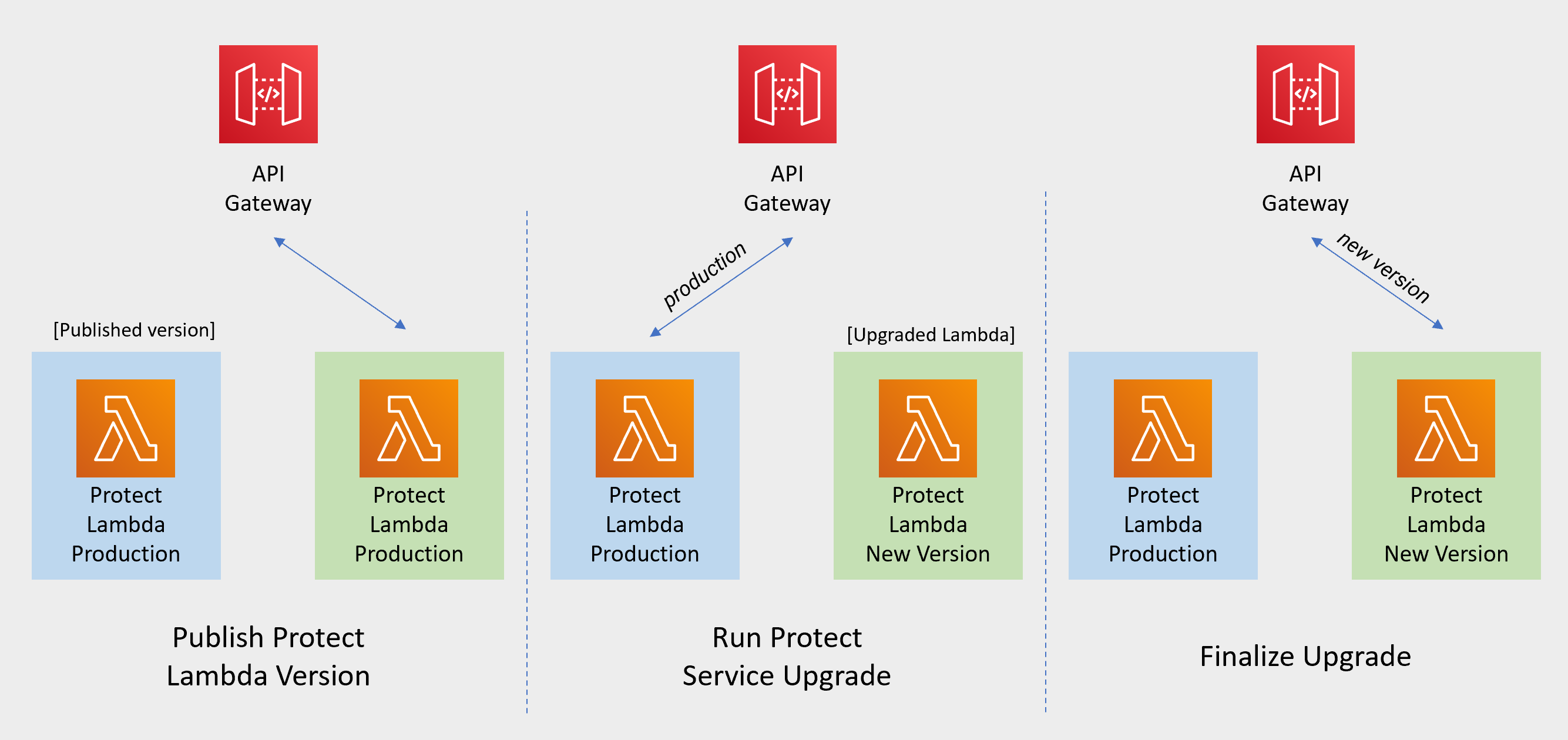
If the release version of the artifact zip file has not changed since the previous installation, you can skip the Protect Lambda upgrade.Diagram below illustrates upgrade steps.

Publish Protect Lambda Version
Publishing a version of the Protect Lambda allows updating it without interruptions to the existing traffic.
Go to AWS Lambda console and select existing Protegrity Protect Lambda.
Go to Lambda Configuration > Environment variables.
Record environment variables values. You will use them later to configure upgraded Lambda Function. You can use the aws cli command below to save the function variables into the local json file:
aws lambda get-function-configuration --function-name \
arn:aws:lambda:<aws_region>:<aws_account>:function:<function_name> \
--query Environment > <function_name>_env_config.json
Click Actions in top right portion of the screen. Select Publish new version. Click Publish.
Record the Lambda version number. It will be displayed at the top of the screen. You can also retrieve it from the Lambda function view, under Versions tab.
Protect Lambda version number: ___________________
If you are upgrading a Cloud Protect Redshift version 1.x to 2.x/3x, you must recreate your Redshift external function definitions with Protect Lambda Function version appended to the Lambda Function name. See example below.
CREATE OR REPLACE EXTERNAL FUNCTION PTY_PROTECT_TEST ( val varchar )
    RETURNS varchar
    VOLATILE lambda
    'Protegrity_Protect_test:<protect_lambda_version_number>' iam_role
    'arn:aws:iam::123456789212:role/example_role';
Run protect service upgrade
In this step, the Protect service including Lambda $LATEST version will be updated using Cloud Formation template. The Lambda version created in previous step will be used to serve existing traffic during the upgrade process.
Go to AWS Cloud Formation and select existing Protegrity deployment stack.
Select Update. Check Replace current template > Upload a template file.
Upload pty_protect_cf.json file and select Next.
Update ProtectFunctionProductionVersion parameter with Protect Lambda version number recorded in step 3.
Note
If you are upgrading protector to one of these versions: [3.2.2, 3.2.3], set parameter KinesisLogStreamArn to the output value recorded in Install through CloudFormation for the newly deployed log forwarder.Click Next until Review window and then select Update stack.
Wait for the Cloud Formation to complete.
Go back to Lambda console and select Protect Lambda.
Go to Configuration > Environment variables. Replace placeholder values with values recorded in previous step. Alternatively, you can run the following aws cli command to update function configuration using json file saved in the previous steps:
aws lambda update-function-configuration --function-name \
arn:aws:lambda:<aws_region>:<aws_account>:function:<function_name> \
--environment file://./<function_name>_env_config.json
Note
If your current protect installation version is lower than 3.0.14, you can optionally set the following variable:
- LOG_REDSHIFT_CLUSTER_ARN You can read more about this configuration in section Protect Lambda Configuration.
Navigate to Aliases tab. Verify that Production alias points to the lambda version you specified in the cloud formation template.
The upgraded Protect Lambda is configured with a sample policy. Run Agent Lambda Function before continuing with next steps.
Finalize upgrade
In this step, the Protect Lambda will be configured to serve traffic using $LATEST version upgraded in the previous step.
Go back to Protegrity AWS Cloud Formation deployment stack.
Select Update. Check Use Current template.
Update ProtectFunctionProductionVersion parameter with the following value: $LATEST.
Click Next until Review window and then select Update stack.
Go back to Lambda console and select Protect Lambda.
From the Lambda console, verify that Latest alias points to $LATEST version.
Test your function to make sure it works as expected.
If you are upgrading a Cloud Protect Redshift version 1.x to 2.x/3x, you must recreate your Redshift external function definitions with Protect Lambda Function version appended to the Lambda Function name. See example below.
CREATE OR REPLACE EXTERNAL FUNCTION PTY_PROTECT_TEST ( val varchar )
    RETURNS varchar
    VOLATILE lambda
    'Protegrity_Protect_test:Production' iam_role
    'arn:aws:iam::123456789212:role/example_role';
If you need to rollback to older version of Protect Lambda, you can re-run the cloud formation with ProtectFunctionProductionVersion parameter set to the previous version of Protect Lambda.
Re-enable Protegrity Agent Function CloudWatch Event Rule
If the Event Rule was disabled at the beginning of the upgrade process, you must re-enabled it. Follow the steps below to re-enable Policy Agent Event rule.
Go to the Protegrity Agent Cloud Formation Stack.
Select Resources tab from the top portion of the screen.
Click on the Physical ID link in the ScheduledRule row. The link opens Policy Agent Event Rule configuration.
Select Enable from the top-right portion of the screen. This will enable the rule. You will re-enable it after the upgrade process is complete.
Feedback
Was this page helpful?