Redshift Cross-Account Configuration
Cross-Account Configuration
Important
These steps are only required IF the Protegrity solution is installed in a separate AWS account from the Amazon Redshift cluster.The following figure illustrates the Protegrity Redshift Integration architecture when Protegrity Solution is installed on separate from Amazon Redshift Cluster Account.
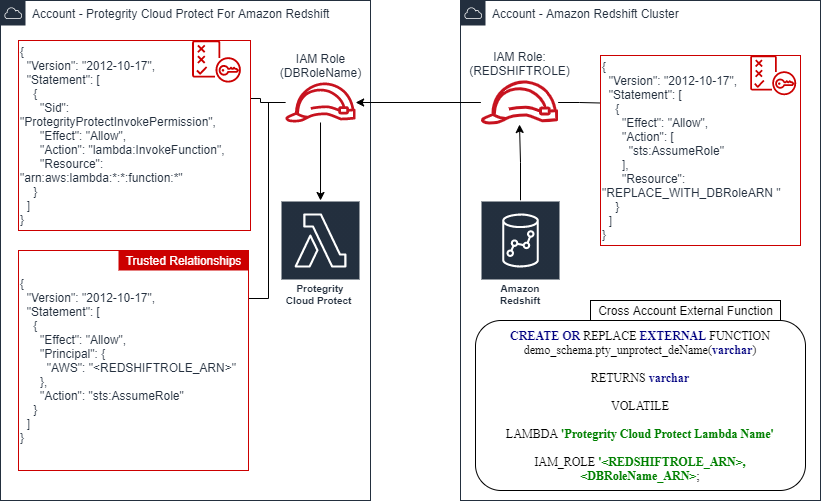
Redshift Account IAM Configuration
This step creates Redshift IAM role with permissions to assume role in separate account.
Create Redshift IAM policy:
Login to the AWS account that hosts the Amazon Redshift cluster.
In the AWS console, access Services > IAM and click Policies.
Click Create Policy.
Select the JSON tab and paste the following JSON snippet:
{ "Version": "2012-10-17", "Statement": [ { "Effect": "Allow", "Action": [ "sts:AssumeRole" ], "Resource": "<DBRoleARN>" } ] }Replace the resource value with DBRoleARN recorded in Create IAM Account Role
Click Review policy to continue.
Enter a name for the policy.
Click Create Policy.
Record the policy name.
Redshift IAM Policy Name: ___________________
Create Redshift IAM Role
This step creates Redshift IAM role with permissions to assume role in separate account.
Create Redshift IAM Role:
Login to the AWS account that hosts the Amazon Redshift cluster.
In the AWS console, access Services > IAM and click Roles.
Click Create Role.
Select AWS Service as the trusted entity type, then select Redshift use case from the list of services.
Select Redshift – Customizable from the use case section.
Continue by clicking Next:Permissions.
Filter the list and search for the policy recorded in the step above (Redshift IAM Policy Name).
Click the Next:Tags button to continue to the next step.
Click the Next:Review button to continue.
Enter a role name, such as Redshift2ProtegrityRole.
Click Create Role.
Record role ARN:
RedshiftIAMRoleARN: ____________________
Attach IAM Role to Redshift Cluster
This step creates Redshift IAM role with permissions to assume role in separate account.
Attach IAM role to the Redshift cluster:
Login to AWS Console.
Access Amazon Redshift and select your cluster.
Select Properties > Cluster Permissions > Manage IAM Roles.
Select RedshiftIAMRoleARN configured in the step above and click Associate IAM role.
Save the changes.
After saving the changes it may take couple of minutes until the cluster IAM role is fully configured.
You can check configuration status by navigating back to the cluster IAM role settings.
The status field next to the IAM role will show in-sync once the role is configured.
Defining Redshift External Functions
The external function for cross-account differs slightly from the reference material in this document. The function requires two roles to be specified. The following is an example of the modified function definition.
CREATE OR REPLACE EXTERNAL FUNCTION demo_schema.pty_unprotect_deName(varchar)
RETURNS varchar
VOLATILE
LAMBDA 'ProtectFunctionProductionAlias'
IAM_ROLE '<RedshiftIAMRoleARN>,<DBRoleARN>;
Replace <ProtectFunctionProductionAlias> with the value recorded in Install through CloudFormation Replace <RedshiftIAMRoleARN> with the value recorded in Create Redshift IAM Role Replace <DBRoleARN> with the value recorded in Create IAM Account Role
Feedback
Was this page helpful?