Policy Agent Installation
The following sections will install the Policy Agent. The Policy Agent polls the ESA and deploys the policy to Protegrity Serverless as a static resource. Some of the installation steps are not required for the operation of the software but recommended for establishing a secure environment. Contact Protegrity Professional Services for further guidance on configuration alternatives in the Cloud.
Important
If you are deploying Policy Agent with Protegrity Provisioned Cluster (PPC), refer to the PPC Appendix: Policy Agent Certificate and Key Guidance for specific instructions on obtaining and using the CA certificate and datastore key fingerprint. The steps in this section are specific to ESA and may differ for PPC. Be sure to follow the PPC documentation for the most accurate and up-to-date setup guidance.ESA Server
Policy Agent Lambda requires ESA server running and accessible on TCP port 443.
Note down ESA IP address:
ESA IP Address (EsaIpAddress): ___________________
Certificates on ESA
Note
If you are deploying Policy Agent with Protegrity Provisioned Cluster (PPC), see PPC Appendix: Policy Agent Certificate Guidance for specific instructions on obtaining and using the CA certificate. The steps in this section are specific to ESA and may differ for PPC.Whether your ESA is configured with default self-signed certificate or your corporate CA certificate, Policy Agent can validate authenticity of ESA connection using CA certificate. The process for both scenarios is the same:
- Obtain CA certificate
- Convert CA certificate to a value accepted by Policy Agent
- Provide converted CA certificate value to Policy Agent
To obtain self-signed CA certificate from ESA:
Log in to ESA Web UI.
Select Settings > Network > Manage Certificates.
Hover over Server Certificate and click on download icon to download the CA certificate.
To convert downloaded CA certificate to a value accepted by Policy Agent, open the downloaded PEM file in text editor and replace all new lines with escaped new line: \n.
To escape new lines from command line, use one of the following commands depending on your operating system:
Linux Bash:
awk 'NF {printf "%s\\n",$0;}' ProtegrityCA.pem > output.txtWindows PowerShell:
(Get-Content '.\ProtegrityCA.pem') -join '\n' | Set-Content 'output.txt'Record the certificate content with new lines escaped.
ESA CA Server Certificate (EsaCaCert): ___________________
This value will be used to set PTY_ESA_CA_SERVER_CERT or PTY_ESA_CA_SERVER_CERT_SECRET Lambda variable in section Policy Agent Lambda Configuration
For more information about ESA certificate management refer to Certificate Management Guide in ESA documentation.
Identify or Create a new VPC
Establish a VPC where the Policy Agent will be hosted. This VPC will need connectivity to the ESA. The VPC should be in the same account and region established in Pre-Configuration.
VPC name: ___________________
VPC Subnet Configuration
Identify or create a new subnet in the VPC where tha Lambda function will be connected to. It is recommended to use a private subnet.
Subnet name: ___________________
NAT Gateway For ESA Hosted Outside AWS Network
If ESA server is hosted outside of the AWS Cloud network, the VPC configured for Lambda function must ensure additional network configuration is available to allow connectivity with ESA. For instance if ESA has a public IP, the Lambda function VPC must have public subnet with a NAT server to allow routing traffic outside of the AWS network. A Routing Table and Network ACL may need to be configured for outbound access to the ESA as well.
VPC Endpoints Configuration
If an internal VPC was created, then add VPC Endpoints, which will be used by the Policy Agent to access AWS services. Policy Agent needs access to the following AWS services:
Type | Service name |
|---|---|
Interface | com.amazonaws.{REGION}.secretsmanager |
Interface | com.amazonaws.{REGION}.kms |
Gateway | com.amazonaws.{REGION}.s3 |
Interface | com.amazonaws.{REGION}.lambda |
Identify or Create Security Groups
Policy Agent and cloud-based ESA appliance use AWS security groups to control traffic that is allowed to leave and reach them. Policy Agent runs on schedule and is mostly concerned with allowing traffic out of itself to ESA and AWS services it depends on. ESA runs most of the time and it must allow Policy Agent to connect to it.
Policy Agent security group must allow outbound traffic using rules described in the table below. To edit security group navigate:
From VPC > Security Groups > Policy Agent Security Group configuration.
| Type | Protocol | Port Range | Destination | Reason |
|---|---|---|---|---|
| Custom TCP | TCP | 443 | Policy Agent Lambda SG | ESA Communication |
| HTTPS | TCP | 443 | Any | AWS Services |
Record Policy Agent security group ID:
Policy Agent Security Group Id: ___________________
Policy Agent will reach out to ESA on port 443. Create following inbound security group rule for cloud-based ESA appliance to allow connections from Policy Agent:
| Type | Protocol | Port Range | Source |
|---|---|---|---|
| Custom TCP | TCP | 443 | Policy Agent Lambda SG |
Creating ESA Credentials
Policy Agent Lambda requires ESA credentials to be provided as one of the three options.
Note
The username and password of the ESA user requires role with Export Resilient Package and Can Create JWT Token permissions. Security Administrator is one of the predefined roles which contains the above permissions, however for separation of duties it is recommended to create custom role.Option 1: Secrets Manager
Creating secrets manager secret with ESA username and password.
From the AWS Secrets Manager Console, select Store New Secret.
Select Other Type of Secrets.
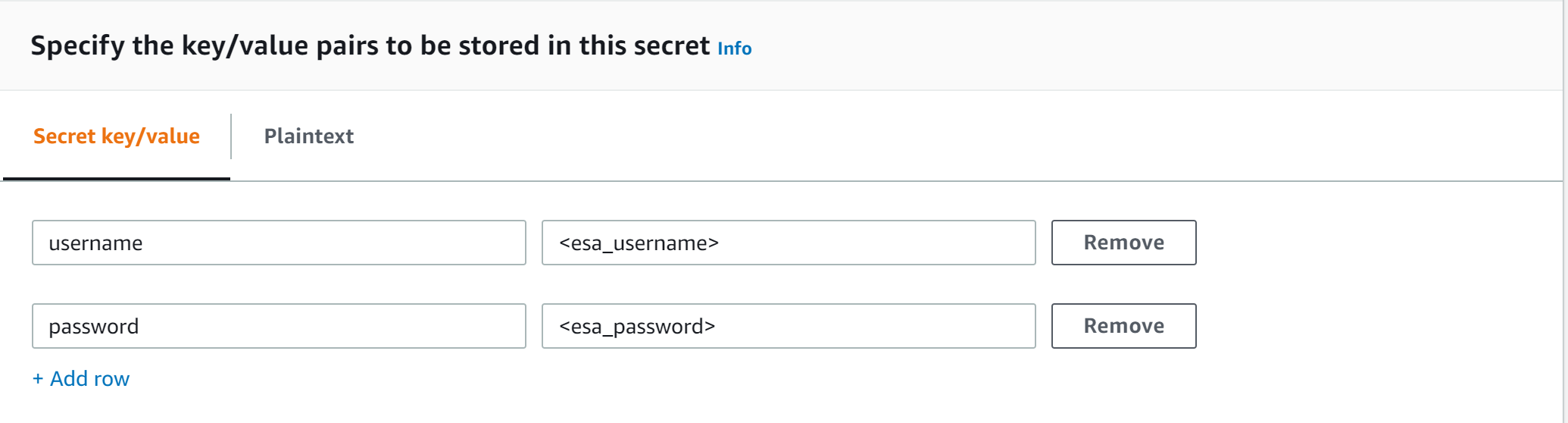
Specify the username and password key value pair.
Select the encryption key or leave default AWS managed key.
Specify the Secret Name and record it.
ESA Credentials Secret Name: __________________
Option 2: KMS Encrypted Password
ESA password is encrypted with AWS KMS symmetric key.
Create AWS KMS symmetric key which will be used to encrypt ESA password. See Create KMS Key for instructions on how to create KMS symmetric key using AWS console.
Record KMS Key ARN.
ESA PASSWORD KMS KEY ARN: __________________
Run AWS CLI command to encrypt ESA password. Below you can find sample Linux aws cli command. Replace <key_arn> with KMS symmetric key ARN.
aws kms encrypt --key-id <key_arn> --plaintext $(echo '<esa_password>' | base64 )Sample output.
{
  "CiphertextBlob": "esa_encrypted_password",
  "KeyId": "arn:aws:kms:region:aws_account:key/key_id ",
  "EncryptionAlgorithm": "SYMMETRIC_DEFAULT"
}
Record ESA username and encrypted password.
ESA USERNAME: __________________
ESA ENCRYPTED PASSWORD: __________________
Option 3: Custom AWS Lambda function
With this option ESA username and password are returned by a custom AWS Lambda function. This method may be used to get the username and password from external vaults.
Create AWS Lambda in any AWS supported runtime.
There is no input needed.
The Lambda function must return the following response schema.
response:
type: object
  properties:
    username: string
    password: string
For example,
example output: {"username": "admin", "password": "Password1234"}Sample AWS Lambda function in Python:
import json

def lambda_handler(event, context):

    return {"username": "admin", "password": "password1234"}
Warning
Protegrity does not recommend hardcoding ESA username and password in the clear.
Record the Lambda name:
Custom AWS lambda for ESA credentials: _______________
Create Agent Lambda IAM Policy
Follow the steps below to create Lambda execution policies.
Create Agent Lambda IAM policy
From AWS IAM console, select Policies > Create Policy.
Select JSON tab and copy the following snippet.
{
  "Version": "2012-10-17",
  "Statement": [
    {
      "Sid": "EC2ModifyNetworkInterfaces",
      "Effect": "Allow",
      "Action": [
        "ec2:CreateNetworkInterface",
        "ec2:DescribeNetworkInterfaces",
        "ec2:DeleteNetworkInterface"
      ],
      "Resource": "*"
    },
    {
      "Sid": "CloudWatchWriteLogs",
      "Effect": "Allow",
      "Action": [
        "logs:CreateLogGroup",
        "logs:CreateLogStream",
        "logs:PutLogEvents"
      ],
      "Resource": "*"
    },
    {
      "Sid": "LambdaUpdateFunction",
      "Effect": "Allow",
      "Action": [
        "lambda:UpdateFunctionConfiguration"
      ],
      "Resource": [
        "arn:aws:lambda:*:*:function:*"
      ]
    },
    {
      "Sid": "LambdaReadLayerVersion",
      "Effect": "Allow",
      "Action": [
        "lambda:GetLayerVersion",
        "lambda:ListLayerVersions"
      ],
      "Resource": "*"
    },
    {
      "Sid": "LambdaDeleteLayerVersion",
      "Effect": "Allow",
      "Action": "lambda:DeleteLayerVersion",
      "Resource": "arn:aws:lambda:*:*:layer:*:*"
    },
    {
      "Sid": "LambdaPublishLayerVersion",
      "Effect": "Allow",
      "Action": "lambda:PublishLayerVersion",
      "Resource": "arn:aws:lambda:*:*:layer:*"
    },
    {
      "Sid": "S3GetObject",
      "Effect": "Allow",
      "Action": [
        "s3:GetObject"
      ],
      "Resource": "arn:aws:s3:::*/*"
    },
    {
      "Sid": "S3PutObject",
      "Effect": "Allow",
      "Action": [
        "s3:PutObject"
      ],
      "Resource": "arn:aws:s3:::*/*"
    },
    {
      "Sid": "KmsEncrypt",
      "Effect": "Allow",
      "Action": [
        "kms:GetPublicKey"
      ],
      "Resource": [
        "arn:aws:kms:*:*:key/*"
      ]
    },
    {
      "Sid": "SecretsManagerGetSecret",
      "Effect": "Allow",
      "Action": [
        "secretsmanager:GetSecretValue"
      ],
      "Resource": [
        "arn:aws:secretsmanager:*:*:secret:*"
      ]
    },
    {
      "Sid": "LambdaGetConfiguration",
      "Effect": "Allow",
      "Action": [
          "lambda:GetFunctionConfiguration"
      ],
      "Resource": [
          "arn:aws:lambda:*:*:function:*"
      ]
    }
  ]
}
Replace wildcard * with the region, account, and resource name information where required.
This step is required if KMS is used to encrypt ESA password.
Add policy entry below. Replace ESA PASSWORD KMS KEY ARN with the value recorded in Option 2: KMS Encrypted Password.
  {
    "Sid": "KmsDecryptEsaPassword",
    "Effect": "Allow",
    "Action": [
      "kms:Decrypt"
    ],
    "Resource": [
      "**ESA PASSWORD KMS KEY ARN**"
    ]
  }
Select Next type in the policy name and Create Policy. Record policy name:
Policy Name: ___________________
Create Agent Lambda IAM Role
Perform the following steps to create Agent Lambda execution IAM role.
To create agent Lambda IAM role:
From AWS IAM console, select Roles > Create Role.
Select AWS Service > Lambda > Next.
Select the policy created in Create Agent Lambda IAM policy.
Proceed to Name, Review and Create.
Type the role name, for example, ProtegrityAgentRole and click Confirm.
Select Create role.
Record the role ARN.
Agent Lambda IAM Execution Role Name: ___________________
Corporate Firewall Configuration
If an on-premise firewall is used, then the firewall must allow access from the NAT Gateway to an ESA. The firewall must allow access from the NAT Gateway IP to ESA via port 443 and 443.
CloudFormation Installation
Create the Policy Agent in the VPC using the CloudFormation script provided by Protegrity.
Access the CloudFormation service.
Select the target installation region.
Create a stack with new resources.
Upload the Policy Agent CloudFormation template (file name: pty_agent_cf.json).
Specify the following parameters for Cloud Formation:
Parameter Description Note VPC VPC where the Policy Agent will be hosted Identify or Create a new VPC Subnet Subnet where the Policy Agent will be hosted VPC Subnet Configuration PolicyAgentSecurityGroupId Security Group Id, which allows communication between the Policy Agent and the ESA Identify or Create Security Groups LambdaExecutionRoleArn Agent Lambda IAM execution role ARN allowing access to the S3 bucket, KMS encryption Key, Lambda and Lambda Layer Create Agent Lambda IAM Role ArtifactS3Bucket S3 bucket name with deployment package for the Policy Agent Use S3 Bucket name recorded in Create S3 bucket for Installing Artifacts CreateCRONJob Set to True to create a CloudWatch schedule for the agent to run. Default: False
Policy Agent Lambda Configuration
After the CloudFormation stack is deployed, the Policy Agent Lambda must be configured with parameters recorded in earlier steps. From your AWS Console, navigate to lambda and select the following Lambda.
Protegrity_Agent<STACK_NAME>_
Select Configuration tab and scroll down to the Environment variables section. Select Editand replace all entries with the actual values.
Parameter | Description | Notes |
|---|---|---|
PTY_ESA_IP | ESA IP address or hostname | |
PTY_ESA_CA_SERVER_CERT | ESA self-signed CA certificate or your corporate CA certificate used by policy Agent Lambda to ensure ESA is the trusted server. | Recorded in step Certificates on ESA NoteFor PPC deployments, see PPC Appendix: Policy Agent Certificate Guidance for details on obtaining and using the CA certificate.In case ESA is configured with publicly signed certificates, the PTY_ESA_CA_SERVER_CERT configuration will be ignored. |
PTY_ESA_CA_SERVER_CERT_SECRET | This configuration option fulfills the same function as PTY_ESA_CA_SERVER_CERT but supports larger configuration values, making it the recommended choice. The value should specify the name of the AWS Secrets Manager secret containing the ESA self-signed CA certificate. The secret value should be set to the json with “PTY_ESA_CA_SERVER_CERT” key and PEM formated CA certificate content value as shown below. | Recorded in step Certificates on ESA NoteFor PPC deployments, see PPC Appendix: Policy Agent Certificate Guidance for details on obtaining and using the CA certificate.In case ESA is configured with publicly signed certificates, the PTY_ESA_CA_SERVER_CERT_SECRET configuration will be ignored. When both PTY_ESA_CA_SERVER_CERT and PTY_ESA_CA_SERVER_CERT_SECRET are configured the PTY_ESA_CA_SERVER_CERT_SECRET takes precedence. |
PTY_ESA_CREDENTIALS_SECRET | ESA username and password (encrypted value by AWS Secrets Manager) | |
PTY_DATASTORE_KEY | ESA policy datastore public key fingerprint (64 char long) e.g. 123bff642f621123d845f006c6bfff27737b21299e8a2ef6380aa642e76e89e5. | NoteThis configuration is not applicable for ESA versions lower than 10.2.The export key is the public part of an asymmetric key pair created in a Create KMS Key. A user with Security Officer permissions adds the public key to the data store in ESA via Policy Management > Data Stores > Export Keys. The fingerprint can then be copied using the Copy Fingerprint icon next to the key. Refer to Exporting Keys to Datastore for details. NoteFor PPC deployments, see PPC Appendix: Policy Agent Certificate and Key Guidance for details on obtaining and using the datastore key fingerprint. |
AWS_KMS_KEY_ID | KMS key id or full ARN e.g. arn:aws:kms:us-west-2:112233445566:key/bfb6c4fb-509a-43ac-b0aa-82f1ca0b52d3 | |
AWS_POLICY_S3_BUCKET | S3 bucket where the encrypted policy will be written | S3 bucket of your choice |
AWS_POLICY_S3_FILENAME | Filename of the encrypted policy stored in S3 bucket | Default: protegrity-policy.zip |
AWS_PROTECT_FN_NAME | Comma separated list of Protect function names or ARNs | ProtectFunctionName(s), recorded in CloudFormation Installation |
DISABLE_DEPLOY | This flag can be either 1 or 0. If set to 1, then the agent will not update PTY_PROTECT lambda with the newest policy. Else, the policy will be saved in the S3 bucket and deployed to the Lambda Layer | Default: 0 |
AWS_POLICY_LAYER_NAME | Lambda layer used to store the Protegrity policy used by the PTY_PROTECT function |
|
POLICY_LAYER_RETAIN | Number of policy versions to retain as backup. (e.g. 2 will retain the latest 2 policies and remove older ones). -1 retains all. | Default: 2 |
POLICY_PULL_TIMEOUT | Time in seconds to wait for the ESA to send the full policy | Default: 20s |
ESA_CONNECTION_TIMEOUT | Time in seconds to wait for the ESA response | Default: 5s |
LOG_LEVEL | Application and audit logs verbiage level | Default: INFO Allowed values: DEBUG – the most verbose, INFO, WARNING, ERROR – the least verbose |
PTY_CORE_EMPTYSTRING | Override default behavior. Empty string response values are returned as null values. For instance: (un)protect(’’) -> null (un)protect(’’) -> '' | Default: empty Allowed values: null empty |
PTY_CORE_CASESENSITIVE | Specifies whether policy usernames should be case sensitive | Default: no Allowed values: yes no |
PTY_ADDIPADDRESSHEADER | When enabled, agent will send its source IP address in the request header. This configuration works in conjunction with ESA hubcontroller configuration ASSIGN_DATASTORE_USING_NODE_IP (default=false). See Associating ESA Data Store With Cloud Protect Agent for more information. | Default: yes Allowed values: yes no |
PTY_ESA_USERNAME | Plaintext ESA username which is used together with PTY_ESA_ENCRYPTED_PASSWORD as an optional ESA credentials | Option 2: KMS Encrypted Password Presence of this parameter will cause PTY_ESA_CREDENTIALS_SECRET to be ignored |
PTY_ESA_ENCRYPTED_PASSWORD | ESA password encrypted with KMS symmetric key. Example AWS cli command to generate the value:
| Option 2: KMS Encrypted Password Presence of this parameter will cause PTY_ESA_CREDENTIALS_SECRET to be ignored Value must be base64 encoded |
EMPTY_POLICY_S3 | This flag can be either 1 or 0. If set to 1, then the agent will remove the content of the policy file in S3 bucket, but will keep the checksum in the metadata. Else, the policy will be saved in the S3 bucket and not removed. | Default: 0 |
PTY_ESA_CREDENTIALS_LAMBDA | Lambda function to return ESA credentials | Recorded in step Option 3: Custom AWS Lambda function LAMBDA FOR ESA CREDENTIALS. Presence of PTY_ESA_USERNAME, or PTY_ESA_CREDENTIALS_SECRET will cause this value to be ignored. The Policy Agent Lambda must have network access and IAM permissions to invoke the custom ESA Credentials Lambda you have created in Option 3: Custom AWS Lambda function. |
Test Installation
Open the Lambda and configure Test to execute the lambda and specify the default test event. Wait for around 20 seconds for the Lambda to complete. If policy is downloaded successfully, then a success message appears.
Navigate to the AWS_POLICY_S3_BUCKET bucket and verify that the AWS_POLICY_S3_FILENAME file was created.
Troubleshooting
Lambda Error | Example Error | Action |
|---|---|---|
Task timed out after x seconds | |
|
ESA connection error. Failed to download certificates | ||
Policy Pull takes a long time | |
|
ESA connection error. Failed to download certificates. HTTP response code: 401 | | Ensure that the PTY_ESA_CREDENTIALS_SECRET has correct ESA username and password |
An error occurred (AccessDeniedException) when calling xyz operation | | Ensure that the Lambda execution role has permission to call the xyz operation |
Access Denied to Secret Manager. | |
|
Master Key xyz unable to generate data key | Ensure that the Lambda can access xyz CMK key | |
The S3 bucket server-side encryption is enabled, the encryption key type is SSE-KMS but the Policy Agent execution IAM role doesn’t have permissions to encrypt using the KMS key . | | Add the following permissions to the Policy Agent excution role. NoteWhen the KMS key and the Policy Agent Lambda are in separate accounts, update both the AWS KMS key and the Policy Agent execution role. |
The S3 bucket has bucket policy to only allow access from within the VPC. | | The Policy Agent publishes a new Lambda Layer version, and the Lambda Layer service uploads the policy file from the s3 bucket and the upload request is originated from the AWS service outside the Policy Agent Lambda VPC. Update the S3 bucket resource policy to allow access from AWS Service. Sample security policy to lock down access to the vpc: |
Additional Configuration
Strengthen the KMS IAM policy by granting access only to the required Lambda function(s).
Finalize the IAM policy for the Lambda Execution Role. Ensure to replace wildcard * with the region, account, and resource name information where required.
For example,
"arn:aws:lambda:*:*:function:*" -> "arn:aws:lambda:us-east-1:account:function:function_name"
Policy Agent Schedule
If specified in CloudFormation Installation, the agent installation created a CloudWatch event rule, which checks for policy update on an hourly schedule. This schedule can be altered to the required frequency.
Under CloudWatch > Events > Rules, find Protegrity_Agent_{stack_name}. Click Action > Edit Set the cron expression. A cron expression can easily be defined using CronMaker, a free online tool. Refer to http://www.cronmaker.com.
What’s Next
Feedback
Was this page helpful?