Pre-Configuration
Provide AWS sub-account
Identify or create an AWS account where the Protegrity solution will be installed. It is recommended that a new AWS sub-account be created. This can provide greater security controls and help avoid conflicts with other applications that might impact regional account limits. An individual with the Cloud Administrator role will be required for some subsequent installation steps.
AWS Account ID: ___________________
AWS Region (AwsRegion): ___________________
Determine AWS Region
Determine the AWS region where the Amazon Redshift cluster is running. This is the region in where the Protegrity solution must be installed.
AWS Region (AccountRegion): ___________________
Create S3 bucket for Installing Artifacts
This S3 bucket will be used for the artifacts required by the CloudFormation installation steps. This S3 bucket must be created in the region that is defined in Provide AWS sub-account
Sign in to the AWS Management Console and open the Amazon S3 console.
Change region to the one determined in Provide AWS sub-account
Click Create Bucket.
Enter a unique bucket name:
For example, protegrity-install.us-west-2.example.com
Upload the installation artifacts to this bucket. Protegrity will provide the following three artifacts:
- protegrity-protect-<version>.zip
- protegrity-agent-<version>.zip
- protegrity-external-extension-<version>.zip
- protegrity-sample-policy-<version>.zip
Important
The deployment package you receive from Protegrity must be extracted to reveal the Protegrity artifacts. CloudFormation requires them in the provided .zip format. Do not extract the individual Protegrity artifacts. Upload these artifacts to the S3 bucket created.
S3 Bucket name (ArtifactS3Bucket): ___________________
Create KMS Key
The Amazon Key Management Service (KMS) provides the ability for the Protegrity Serverless solution to encrypt and decrypt the Protegrity Security Policy.
Note
It is recommended to host the KMS key in a separate AWS sub-account. This allows dual control, separating the responsibility between the key administrator and the Protegrity Serverless account administrator.To create KMS key:
In the AWS sub-account where the KMS key will reside, select the region.
Navigate to Key Management Service > Create Key.
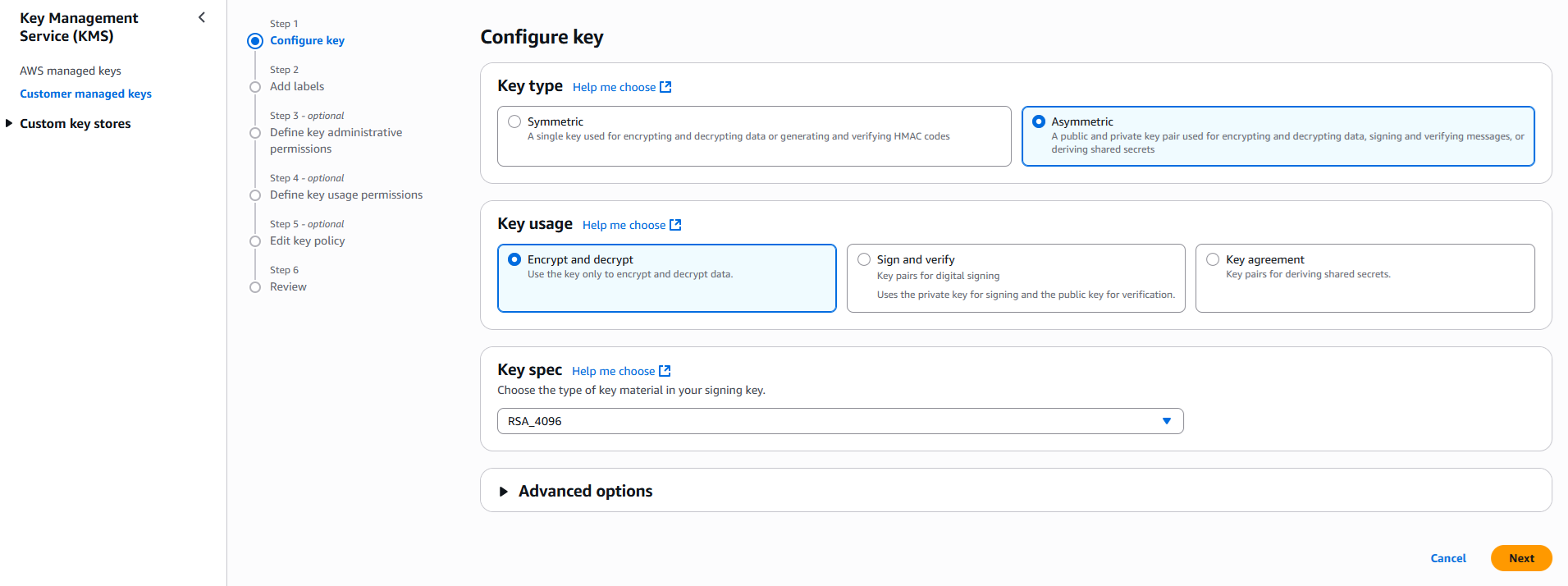
Configure the key settings:
- Key type: Asymmetric
- Key usage: Encrypt and decrypt
- Key spec: RSA_4096
- Click Next
Create alias and optional description, such as, Protegrity-Serverless and click Next.
Define key administrative permissions, the IAM user who will administrate the key.
Note
It is recommended the administrator be different than the administrator of the Protegrity Serverless accountClick Next.
Define the key usage permissions.
In Other AWS accounts, enter the AWS account id used for the Protegrity Serverless installation.
Continue on to create the key. If there is a concern this permission is overly broad, then you can return later to restrict access to the role of two Protegrity Serverless Lambda as principals. Click to open the key in the list and record the ARN.
KMS Key ARN (AWS_KMS_KEY_ID): ___________________
Download the public key from the KMS key. Navigate to the key in KMS console, select the Public key tab, and click Download. Save the PEM file. This public key will be added to the ESA data store as an export key. Refer to Exporting Keys to Datastore for instructions on adding the public key to the data store.
Note
This step is not applicable for ESA versions lower than 10.2.KMS Public Key PEM file: ___________________
Create IAM Account Role
An IAM role is used to authorize Redshift to access the future Protect Lambda resource.
To create IAM account role:
From the AWS console, access IAM, select Roles and then Create Role.
In Trusted entity type section, select AWS service
In Use case section, for Service or use case, select Redshift.
For Use case, select Redshift – Customizable.
Click Next to advance to Add Permissions step.
Click Next to skip Add Permissions step.
Enter a Role name, for example, RedshiftProtegrity.
Click Create role.
After the role is created, click on the role. Record the following information:
- Role Name (DBRoleName): ____________________
- Role ARN (DBRoleARN): ____________________
What’s Next
Feedback
Was this page helpful?