Amazon S3
Cloud Storage Protector - Amazon.
This document describes high-level architecture of the Cloud Storage Protector
on AWS, the installation procedures and provides guidance on performance.
This document should be used in conjunction with the Cloud API on AWS
Protegrity documentation.
This guide may also be used with the Protegrity Enterprise Security Administrator Guide,
which explains the mechanism for managing the data security policy.
1 - Overview
Solution overview and features.
Solution Overview
S3 Protector automatically protects files that are uploaded to an Amazon S3 source bucket and writes the processed result to an output bucket. Amazon S3 event notifications trigger the protector, and Cloud Protect API applies the configured Protegrity protection rules to the selected columns in each file.
For most deployments, users only need to decide where files arrive, where protected files should be written, and which mapping.json rules apply to each dataset. The service then processes the file automatically.
The solution requires Protegrity Cloud Protect API on AWS. Cloud Protect API provides the endpoint used by S3 Protector to perform Protegrity operations as part of cloud-based data pipelines.
Protected files can be used as source for a data lake or downstream database ingestion. For example:
- Snowflake Snowpipe can be used to automatically ingest protected files as they are written by the S3 Protector.
- Amazon Redshift provides a mechanism for bulk loading data from Amazon S3 using the COPY INTO command.
Like other Protegrity products, S3 Protector uses the data security policy maintained on Enterprise Security Appliance (ESA). The ESA policy user supplied during setup acts as the service account for the deployment. For more information about policy user configuration, refer to the Enterprise Security Administrator Guide.
Analytics on Protected Data
Protegrity’s format and length preserving tokenization scheme make it possible to perform analytics directly on
protected data. Tokens are join-preserving so protected data can be joined across datasets. Often statistical analytics
and machine learning training can be performed without the need to re-identify protected data. However, a user or service
account with authorized security policy privileges may re-identify subsets of data using the Cloud Storage Protector - Amazon S3
service.
Features
Protegrity S3 Protector provides the following features:
Fine-grained field-level protection for structured data with the following formats supported:
| File Format | Suffix |
|---|
| CSV | .csv |
| JSON | .json |
| Parquet | .parquet |
| Excel | .xlsx |
Role-based access control (RBAC) to protect and unprotect (re-identify) data depending on user privileges.
Policy enforcement features of other Protegrity application protectors.
For more information about the available protection options, such as data types,
Tokenization or Encryption types, or length-preserving and non-preserving tokens,
refer to Protection Methods Reference.
2 - Architecture
Deployment architecture and connectivity
Deployment Architecture
The Protegrity S3 solution should be deployed in the customer’s Cloud account within the same AWS region as the Protegrity Cloud Protect API. The Cloud Protect API is required.
Two S3 Buckets are required for processing data with S3 Protector:
- Source bucket for collecting data and triggering protection job.
- Target bucket for processed files.
The following diagram shows the high-level architecture of the S3 Protector.
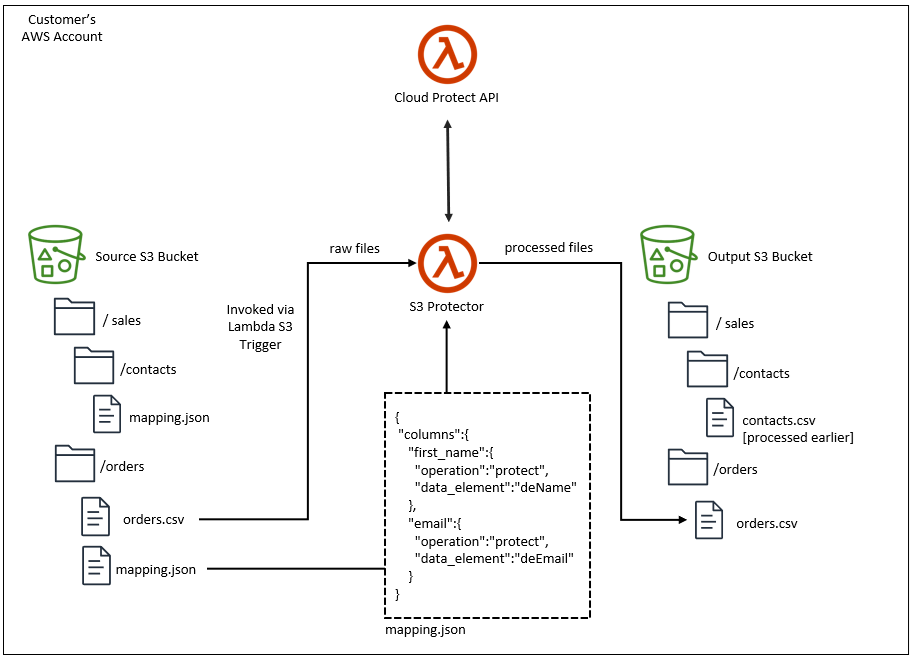
The ruleset for processing a type of input dataset is defined by a metadata file called mapping.json. The mapping.json provides:
- processing instructions for each column of the input data file
- specification for reading the input data file
- specification for writing the processed data file
Input and output data file specifications provide flexibility for common file structures. Column instructions define the protect
operation and data element to apply for each column. The mapping.json can be loaded from multiple locations. Review Mapping File section for details.
The Protegrity S3 protector invokes the Cloud Protect API to execute the policy on the data. The processed data is saved to the specified target S3 bucket.
The target bucket can be the basis of a data lake or a staging area to load databases. For example, Snowflake Snowpipe can be used to automatically ingest the processed (ie. Protected) data into Snowflake. Amazon Redshift provides a similar mechanism for bulk loading data from Amazon S3.
For more information about installing and managing the Cloud API component, refer to the Cloud API on AWS Protegrity documentation.
AWS Lambda Timeout
S3 Protector runs in AWS Lambda. Each Lambda invocation has a maximum execution time called a timeout.
When you install this product with the supplied CloudFormation template, the timeout is set to 15 minutes, the maximum timeout allowed by AWS.
If S3 Protector runs out of time while processing a file, it will fail with Status: timeout, which will appear in the logs similar to the following:
REPORT RequestId: aaaaaaaa-aaaa-aaaa-aaaa-aaaaaaaaaaaa Duration: 300000.00 ms Billed Duration: 300000 ms Memory Size: 1728 MB Max Memory Used: 654 MB Init Duration: 3868.74 ms Status: timeout
When S3 Protector runs out of time, an output upload may remain incomplete. Incomplete uploads do not appear in the S3 console, however you are still charged for them. Review AWS documentation on how to manage incomplete multipart uploads, for example:
- AWS CLI Documentation
- AWS Knowledge Center blog post
There is no way to automatically re-start this product from where it has timed out while processing a file.
To reduce the likelihood of a timeout error, consider the following:
- Increase function timeout to its maximum of 15 minutes
- Ensure
LARGE_FILE_DISPATCH_THRESHOLD_BYTES is smaller than the file size to enable file processing in chunks. Files larger than this size will be processed in parallel by multiple S3 Protector instances. - Reduce
LARGE_FILE_CHUNK_SIZE_BYTES to make separate file chunks smaller. - Increase
FILE_CHUNK_SIZE to reduce the number of read/write operations for large files. - Review
MAX_BATCH_SIZE and MAX_PARALLEL_PROTECT_CALLS to balance throughput with Cloud API capacity. - Ensure sufficient concurrency of Cloud Protect API functions.
- Increase memory allocated to the Lambda function, which also increases CPU and network throughput.
Parquet Timestamp
Parquet files define file schema with a data type for each column. S3 Protector uses Pandas library to process data in the source file.
Pandas library represents timestamps as 64-bit integers representing microseconds since the UNIX epoch.
The supported date range for this representation is between ‘1677-09-21 00:12:43.145224’ and ‘2262-04-11 23:47:16.854775’.
To correctly handle timestamps outside of this range, S3 Protector will treat every timestamp column in a source file as a string column.
The schema of protected file will differ from the source file, where every protected timestamp column will be converted to a string column.
3 - Installation
Instructions for installing Cloud Storage Protector Service.
3.1 - Prerequisites
Requirements before installing the protector.
AWS Services
The following table describes the AWS services that may be a part of your Protegrity installation.
| Service | Description |
|---|
| Lambda | Provides serverless compute for S3 Protector. |
| S3 | Input and Output data to be processed with S3 Protector. |
| CloudWatch | Application and audit logs, performance monitoring, and alerts. |
Prerequisites
| Requirement | Detail |
|---|
| S3 Protector distribution and installation scripts | These artifacts are provided by Protegrity |
| Protegrity Cloud Protect API distribution and installation scripts | These artifacts are provided by Protegrity |
| AWS Account | Recommend using the same AWS account as the Protegrity Cloud API deployment. |
Required Skills and Abilities
| Role / Skillset | Description |
|---|
| AWS Account Administrator | To run CloudFormation (or perform steps manually), create/configure S3, VPC and IAM permissions. |
| Protegrity Administrator | The ESA credentials required to read the policy configuration. |
What’s Next
3.2 - Pre-Configuration
Configuration steps before installing the protector.
Provide AWS sub-account
Identify or create an AWS account where the Protegrity solution will be installed. The installation instructions assume the same AWS account and region are used for Cloud Protect API deployment.
AWS Account ID: ___________________
AWS Region: ___________________
Create S3 bucket for Installing Artifacts
This S3 bucket will be used for the artifacts required by the CloudFormation installation steps.
This S3 bucket must be created in the region that is defined in Provide AWS sub-account.
To create S3 bucket for installing artifacts:
Sign in to the AWS Management Console and open the Amazon S3 console.
Change region to the one determined in Provide AWS sub-account
Click Create Bucket.
Enter a unique bucket name:
For example, protegrity-install.us-west-2.example.com.
Upload the installation artifacts to this bucket. Protegrity will provide the following artifacts.
protegrity-s3-protector-<version>.zip
Note
The S3 Protector installation deployment package contains artifacts for installing Cloud Protect Cloud API. If installing the Cloud API version included with S3 Protector, you may unzip the Cloud API bundle as well. The same S3 bucket may be used to upload those artifacts. For more information on Cloud API installation, check the
Cloud API on AWS installation guide.
Important
The deployment package you receive from Protegrity must be extracted to reveal the Protegrity artifacts. CloudFormation requires them in the provided .zip format. Do not extract the individual Protegrity artifacts. Upload these artifacts to the S3 bucket created.Artifact S3 Bucket Name: ___________________
Cloud Protect API function
Protegrity Cloud Protect API on AWS is required for the S3 Protector installation.
The binaries of the Cloud Protect API on AWS are distributed with the S3 Protector installation package.
See the Cloud Protect API on AWS documentation on how
to create a new installation if one is not already available in your account/region.
With Cloud Protect API on AWS installed, follow the below instructions to obtain the ARN of the protector lambda function.
Follow these steps to obtain Cloud API Lambda ARN.
Access the AWS Management Console.
Navigate to the Cloud Protect API function in the AWS Lambda service.
Open the Cloud Protect API function.
From the Lambda view, choose Aliases, then click on Production alias.
At the top right, copy the Lambda function ARN and record it. The Cloud API Production Alias ARN will be used later in this installation guide when creating IAM policy and deploying S3 Protector with Cloud Formation template.
Cloud Protect API function ARN: ____________________
Two S3 buckets are required. One bucket is used for incoming files.
The second bucket is used for files processed by the S3 Protector.
The buckets must be different. The S3 buckets should be created in the region that is defined in Provide AWS sub-account.
Note
Before continuing it is critical to understand
Amazon S3 security concepts and best practices.
You can refer to
AWS S3 Best Practices for the list of recommend
S3 security configuration, however it is strongly recommended to check
the AWS official documentation for more details.
Identify existing bucket names or follow the steps below to create new buckets.
Sign in to the AWS Management Console and open the Amazon S3 console.
Change region to the one determined in Provide AWS sub-account
Select Create Bucket.
Enter a globally unique bucket name. For example: in.us-west-2.example.com or out.us-west-2.example.com.
Scroll down and configure S3 bucket security features. It is strongly recommend to keep Block all public access on. It is also recommend to enable server-side encryption.
Note
Additional S3 security features can be configured after the bucket is created. Refer to AWS documentation for more details.Record bucket names. They will be required later in this installation guide.
Input S3 Bucket Name: ____________________
Output S3 Bucket Name: ____________________
What’s Next
3.3 - S3 Protector Service Installation
Install the S3 protector service.
Preparation
Ensure that all the steps in Pre-Configuration are performed.
Login to the AWS sub-account console where Protegrity will be installed.
Ensure that the required CloudFormation templates provided by Protegrity are available on your local computer.
Create S3 Protector Lambda IAM Execution Policy
The below steps create an IAM policy for use by the Protegrity Lambda function. The policy grants permissions to:
- Write logs to CloudWatch
- Read from the input S3 bucket
- Read S3 object tags for optional file-specific mapping selection
- Create temporary objects in the source bucket when optional large-file processing is enabled
- Write to output S3 bucket
- Invoke Cloud Protect API function
Steps
From the AWS IAM console, select Policies → Create Policy.
Select the JSON tab and copy the following sample policy:
{
  "Version": "2012-10-17",
  "Statement": [
    {
      "Sid": "CloudWatchWriteLogs",
      "Effect": "Allow",
      "Action": [
        "logs:CreateLogGroup",
        "logs:CreateLogStream",
        "logs:PutLogEvents"
      ],
      "Resource": "*"
    },
    {
      "Sid": "SourceS3Access",
      "Effect": "Allow",
      "Action": [
        "s3:GetObject",
        "s3:GetObjectVersion",
        "s3:GetObjectAcl",
        "s3:ListBucket",
        "s3:DeleteObject",
        "s3:PutObject",
        "s3:GetObjectTagging"
      ],
      "Resource": [
        "arn:aws:s3:::PLACEHOLDER_S3_IN_BUCKET_NAME",
        "arn:aws:s3:::PLACEHOLDER_S3_IN_BUCKET_NAME/*"
      ]
    },
    {
      "Sid": "WriteS3Out",
      "Effect": "Allow",
      "Action": [
        "s3:PutObject",
        "s3:ListBucket",
        "s3:PutObjectAcl",
        "s3:DeleteObject"
      ],
      "Resource": [
        "arn:aws:s3:::PLACEHOLDER_S3_OUT_BUCKET_NAME",
        "arn:aws:s3:::PLACEHOLDER_S3_OUT_BUCKET_NAME/*"
      ]
    },
    {
      "Sid": "InvokeCloudProtectApi",
      "Effect": "Allow",
      "Action": [
        "lambda:InvokeFunction"
      ],
      "Resource": [
        "PLACEHOLDER_CLOUD_PROTECT_API_ARN"
      ]
    }
  ]
}
Note
The sample policy above includes permissions for processing large files in chunks and reading mapping file location from S3 object tags.
If you do not process large files or do not provide mapping file location using S3 object tags, you can tighten the SourceS3Access
statement by removing s3:PutObject and s3:GetObjectTagging permissions.Replace the PLACEHOLDER values with the values recorded in earlier steps:
- Cloud Protect API prerequisites
- S3 Data Buckets prerequisites
Select Review policy, type in a policy name (e.g., ProtegrityS3ProtectorLambdaPolicy) and Confirm.
Record the policy name.
S3 Protector Function Policy Name: __________________
Create S3 Protector Lambda IAM Role
The following steps create the role to utilize the policy defined in the previous section.
Steps
From the AWS IAM console, select Role → Create Role.
Select AWS Service → Lambda → Permissions.
In the list, search and select the policy created in the previous step.
Proceed to Tags.
Proceed to final step of the wizard.
Type the role name (e.g., ProtegrityS3ProtectorLambdaRole) and click Confirm.
Record the role ARN.
Protegrity S3 Protector Lambda Role ARN: ___________________
The following steps describe deployment of the S3 Protector Lambda Function using CloudFormation.
Access CloudFormation and select the target AWS Region in the console.
Click Create Stack and choose With new resources.
Specify the template.
Select Upload a template file.
Upload the Protegrity-provided CloudFormation template called pty_s3_protector_cf.json and click Next.
Specify the stack details. Enter a stack name.
Note
The stack name will be appended to all the services created by the template.Enter the required parameters. All the values were generated in the pre-configuration steps.
| Parameter | Description | Default Value |
|---|
| ArtifactS3Bucket | The name of the S3 bucket containing deployment package for S3 Protector. Use Artifact S3 Bucket Name recorded in prerequisites.
Allowed pattern: [a-zA-Z0-9.\-_]+ | |
| CloudApiProtectorLambdaArn | The ARN of the Cloud Protect API Lambda which will be invoked by S3 Protector Lambda. Use Cloud Protect API function ARN recorded in prerequisites.
Allowed pattern: arn:(aws[a-zA-Z-]*)?:lambda:[a-z]{2}(-gov)?-[a-z]+-\d{1}:\d{12}:function:[a-zA-Z0-9-_\.]+(:(\$LATEST|[a-zA-Z0-9-_]+))? | |
| DeleteInputFiles | Delete the input files after they have been successfully processed.
Allowed values: [true, false] | true |
| FileChunkSize | The number of rows read from the source file per iteration. Bounded by application memory. Independent of MaxBatchSize.
Allowed pattern: [0-9]+ | 100000 |
| IncludeHeader | Add header to output data.
Allowed values: [true, false] | true |
| LambdaExecutionRoleArn | S3 Protector Lambda IAM execution role ARN allowing access to CloudWatch logs and S3 bucket. Use Protegrity S3 Protector Lambda Role ARN recorded previously.
Allowed pattern: arn:(aws[a-zA-Z-]*)?:iam::\d{12}:role/?[a-zA-Z_0-9+=,.@\-_/]+ | |
| LargeFileChunkSizeBytes | Target byte size of each dispatch chunk when large-file dispatch is active. Must be between 104857600 (100 MB) and 10737418240 (10 GB). Only used when LargeFileDispatchThresholdBytes is set. Recommended minimum: 104857600 (100 MB). | 104857600 |
| LargeFileDispatchThresholdBytes | Files at or above this byte size are split into parallel dispatch chunks. Leave empty to disable large-file dispatch - all files are processed in a single Lambda invocation. When set, must be >= 104857600 (100 MB). Recommended minimum: 262144000 (250 MB). | 262144000 |
| MappingConfigBucket | The name of the S3 bucket containing mapping.json configuration files. When set, mapping files are read from this dedicated bucket instead of the source data bucket, keeping the source bucket free of non-data objects. Leave empty to use the source bucket. | |
| MaxBatchSize | The maximum number of rows to process in single Cloud API invocation. Bounded by the 6 MB Lambda payload limit.
Allowed pattern: [0-9]+ | 25000 |
| MaxParallelProtectCalls | Maximum number of concurrent Cloud API protect Lambda invocations per file chunk. 0 = unlimited (all batches across all columns run fully concurrently) .
Allowed pattern: [0-9]+ | 1000 |
| MinLogLevel | Minimum log level for S3 protector function.
Allowed values: [off, severe, warning, info, config, all] | severe |
| OutputFileCompressionType | Compression type to apply to processed files in the output s3 bucket.
Allowed values: [gzip, none] | gzip |
| OutputFileFormat | Format of the processed file saved in the output s3 bucket.
Allowed values: [csv, json, parquet, preserve_input_format, use_mapping_spec, xlsx]NoteWhen use_mapping_spec is set, the output format will be read from mapping.json file. | preserve_input_format |
| OutputFileNamePostfix | Postfix to append to processed file names in the output s3 bucket.
Allowed values: [none, timestamp]NoteThe timestamp appended when value is ’timestamp’ is a unix timestamp. | timestamp |
| OutputS3BucketName | The name of the output S3 bucket where protected files will be saved. Use Output S3 Bucket Name recorded in prerequisites.
Allowed pattern: [a-zA-Z0-9.\-_]+ | |
| PolicyUser | The name of the authorized user in the Protegrity security policy. This is the user which will be applied to every protect operation. | |
| PreserveParquetFooterMetadata | When true, key-value metadata stored in the Parquet file footer of the source file is copied verbatim into the footer of the output file. Has no effect when the output format is not Parquet. | false |
| LambdaFunctionProductionVersion | S3 Protector Lambda version handling service requests.
Allowed pattern: ([0-9]+|\$LATEST)
NoteUsed in upgrade steps | $LATEST |
Click Next with defaults to complete CloudFormation.
After CloudFormation is completed, select the Outputs tab in the stack.
Record the S3 Protector Lambda Name and Arn.
S3 Protector Lambda Name: __________________________
S3 Protector Lambda Arn: ________________________________
Test S3 Protector Function Configuration
Perform the following steps to verify that S3 Protector Function can read files from input S3 bucket, call Cloud API protector and write data to output S3 bucket.
Note
Steps described in this section require read/write permissions for S3 data buckets. Data bucket names were recorded in prerequisites section.Before you begin:
- Update S3 Protector Cloud Formation stack with temporary settings used for testing:
- In AWS Cloud Formation console, go to Stacks
- Select Cloud Formation stack deployed in the installation step
- In the stack details pane, choose Update
- Select Use existing template and then choose Next
- Change the following parameters:
| Parameter | Value | Note |
|---|
| DeleteInputFiles | false | For testing purposes input file will not be deleted after it’s processed. |
| MinLogLevel | config | Config level prints verbose log messages. |
| OutputFileCompressionType | none | For testing purposes compression is disabled for quicker visual verification of the output file. |
- Select Next and then Submit. Wait until the changes are deployed.
- Upload sample data file to S3 input bucket.
data.csv:
first name,last name,email
tusqB,FrjKe,ebMgF.VoiDd@bqclblD.wOt
JXVVW,acg,BikPa.ufb@UmPxcTD.bLh
mDNJ,IZWCYkbnrAs,NWXD.GdrzMJwmwJG@fMZsuSE.Qlp
jIqColWOss,XKfz,NVabzoUSgx.XRHM@BQleCST.Mnb
muUxYvz,FLZxCHlca,eiNjzCm.UMRNYANwn@isvxpAV.PJk
- Upload mapping.json to the input S3 bucket next to the input data file. Replace placeholders with data element names configured in your security policy. If your Cloud Protect API Function uses sample policy you can replace “protect” with “unprotect” for operation and use “alpha” as data element.
{
 "columns":{
    "first name":{
      "operation":"protect",
      "data_element":"<data_element_1_name>"
    },
    "last name":{
      "operation":"protect",
      "data_element":"<data_element_2_name>"
    },
    "email":{
      "operation":"protect",
      "data_element":"<data_element_3_name>"
    }
 }
}
Execute S3 Protector Function in AWS console:
With the input data file and mapping file uploaded, follow the steps below to trigger the S3 Protect Function.
Sign in to the AWS Management Console and go to Lambda console.
Select Lambda Function recorded in S3 Protector Lambda Name in Install through CloudFormation section.
On the S3 Protector Function page, choose Test tab.
Copy the json test event into the Event JSON pane - replace bucket name placeholder with your input bucket name.
{
  "Records": [
    {
      "s3": {
        "bucket": {
          "name": "<PLACEHOLDER_S3_IN_BUCKET_NAME>"
        },
        "object": {
          "key": "data.csv"
        }
      }
    }
  ]
}
Select Test to execute the test event.
Verify execution results:
- Execution is successful if the output of test contains the following:
{
  "statusCode": 200,
  "body": {
    "target": "s3://<PLACEHOLDER_S3_OUT_BUCKET_NAME>/data.<timestamp>.csv"
  }
}
If the expected output is not present, please consult the Troubleshooting section for common errors and solutions.
- Download the output file mentioned in the response body in the “target” field. Verify that it was processed according to your mapping.json. If sample policy was used with “unprotect” and “alpha” data element, the output file should contain values below:
first name,last name,email
Lorem,Ipsum,lorem.ipsum@example.com
Dolor,Sit,dolor.sit@example.com
Amet,Consectetur,amet.consectetur@example.com
Adipiscing,Elit,adipiscing.elit@example.com
Vivamus,Elementum,vivamus.elementum@example.com
Restore production configuration:
After S3 Protector Function configuration has been verified, make sure that the following configuration was restored for production environment:
- Cloud Formation configuration - restore values changed in pre-configuration steps at the beginning of this section.
- IAM permissions - remove any additional S3 read/write IAM permissions used to manually upload test datasets to S3.
Follow the steps below to configure Amazon S3 event notification on the input bucket. This will allow Amazon S3 to send an event to S3 Protector Lambda function when an object is created or updated.
Note
The steps below require an AWS Administrator permissions to modify the resource-based Lambda policy.
When new S3 trigger is added from the Lambda console, the console modifies the resource-based policy
to allow Amazon S3 to invoke the function if the bucket name and account ID match.Note
When uploading multiple files or folders to S3, AWS S3 Lambda Trigger will generate one event per file. As expected, this will result in multiple S3 Protector instances running concurrently, one S3 Protector instance per file.Steps to Add S3 Lambda trigger:
Sign in to the AWS Management Console and open the Amazon Lambda console.
Select Lambda Function recorded in S3 Protector Lambda Name in the installation section.
On the S3 Protector Function page, choose Aliases, then click on Production alias.
In the Function overview pane, choose Add trigger.
Select S3.
Under Bucket, select the bucket recorded in Input S3 Bucket Name in prerequisites section.
Under Event types, select All object create events.
Optionally enter a file prefix.
Enter a file suffix that matches your incoming data, for example .csv, .parquet, or .json. You can find the full list of supported file formats in the Features section.
Under Recursive invocation, select the check box to acknowledge that using the same Amazon S3 bucket for input and output is not recommended.
Choose Add.
Repeat these steps for additional file suffixes supported by S3 Protector.
Important
Do add a trigger for .json files. Do not add a trigger for .part files.
S3 Protector uses .json and .part files internally to enable parallel processing of large files in chunks.
Example Usage
This section describes typical usage of S3 Protector.
Prepare data for testing:
Sample datasets and mapping.json files are provided in appendix sections:
- CSV with no header
- CSV with pipe delimiter
A new folder must be created in the S3 input bucket for each distinct file schema. Each folder can have a mapping.json file corresponding to the dataset type expected. It is recommended that input folders use S3 encryption:
- From the AWS S3 console, search and select the S3 input bucket created earlier for input files
- Click the Create folder button
- Provide a descriptive name for the type of dataset, e.g. sales orders
- In Server-side encryption, select Enable
- Use the default key type, Amazon S3 key (SSE-S3)
- Click Create folder
Upload the mapping.json and dataset to the folder:
The appropriate mapping.json file must be uploaded to the folder prior to uploading the dataset.
- Choose one of the sample dataset and mapping.json pairs from the appendix. Replace the data elements in mapping.json with similar data elements from your security policy
- From the AWS console, navigate to Amazon S3, search and select the S3 input bucket created earlier for incoming files
- Navigate to the desired folder
- Click the Upload button
- Click Add files
- Upload the mapping.json file
- Click the Upload button
- Now repeat the above step for the sample dataset
Verify output:
Verify the output file was created:
- From the AWS console, navigate to Amazon S3, search and select the S3 output or target bucket created earlier for writing processed files
- Navigate to the corresponding folder
- There should be a non-zero byte file with protected values
- Select the file
- From the menu select Actions | Query with S3 Select
- Click the Run SQL query
- Click the Formatted tab of the resultset
- Verify the data is protected
Troubleshooting / Logs:
Logs are written to CloudWatch. This could provide helpful information if the results are not as expected:
- From the AWS console, navigate to the Lambda service | Functions
- Select and open the Lambda we created for protecting S3 files
- At the top of function’s workspace, click the Monitoring tab
- Click the button View logs in CloudWatch
- Click the latest log stream
- Scroll to the bottom of the stream for the latest log entries
Troubleshooting
By default, S3 Protector is set to log minimal information. It is beneficial to increase S3 Protector log level to
either ‘config’ or ‘all’ while troubleshooting any error conditions. Use the CloudFormation installation steps to
increase ‘MinLogLevel’ function configuration.
S3 Protector Error States
| Error State | Description | Action |
|---|
| 400 Error | A configuration error has occurred. The standard log should provide a descriptive error message. File processing has not started. Nothing was written to target bucket. | Review the log for descriptive error message. Most likely some configuration parameters will need to be updated before S3 Protector can be re-started for failed file. Use the CloudFormation installation steps to update function configuration. |
| 500 PermissionError | S3 Protector does not have enough permissions to access AWS resources. | Review S3 Protector IAM Policy |
| 500 Exception | An error has occurred. The log may provide additional details. File processing may have started and a partial file may have been written to the target S3 bucket. While S3 Protector does not write unprotected data to partially processed files, S3 Protector automatically removes these files on error. | Review error log for additional information. |
| Status: timeout | S3 Protector ran out of time while processing large files. | Review S3 Protector Timeout Section |
| AWS Lambda crash | Any AWS Lambda function may crash due to intermittent failures. If this occurs a partial file may have been written to the target S3 bucket. Due to the crash, S3 will assume this file to be an incomplete multi-part upload. Incomplete uploads do not appear as a standard S3 files, they are not shown in AWS S3 console. You are still charged for incomplete uploads. | 1. Discover and abort incomplete multi-part uploads for target bucket (e.g. using AWS CLI)
2. Restart S3 Protector for failed file |
Restarting S3 Protector
If S3 Protector fails, it is possible to start S3 Protector for
existing source file without re-uploading the file again by using AWS Lambda console.
With the input data file and mapping file uploaded,
follow the steps below to trigger the S3 Protect Function.
Steps
Sign in to the AWS Management Console and go to Lambda console.
Select Lambda Function recorded in S3 Protector Lambda Name in the CloudFormation installation section.
On the S3 Protector Function page, choose Test tab.
Copy the json test event into the Event JSON pane - replace bucket name placeholder with your input bucket name:
{
  "Records": [
    {
      "s3": {
        "bucket": {
          "name": "<PLACEHOLDER_S3_IN_BUCKET_NAME>"
        },
        "object": {
          "key": "data.csv"
        }
      }
    }
  ]
}
- Select Test to execute the test event.
3.4 -
Prerequisites
| Requirement | Detail |
|---|
| S3 Protector distribution and installation scripts | These artifacts are provided by Protegrity |
| Protegrity Cloud Protect API distribution and installation scripts | These artifacts are provided by Protegrity |
| AWS Account | Recommend using the same AWS account as the Protegrity Cloud API deployment. |
3.5 -
AWS Services
The following table describes the AWS services that may be a part of your Protegrity installation.
| Service | Description |
|---|
| Lambda | Provides serverless compute for S3 Protector. |
| S3 | Input and Output data to be processed with S3 Protector. |
| CloudWatch | Application and audit logs, performance monitoring, and alerts. |
3.6 -
Required Skills and Abilities
| Role / Skillset | Description |
|---|
| AWS Account Administrator | To run CloudFormation (or perform steps manually), create/configure S3, VPC and IAM permissions. |
| Protegrity Administrator | The ESA credentials required to read the policy configuration. |
4 - Mapping File Configuration
Key concepts for defining the mapping.json file
4.1 - Mapping File
The mapping.json is used for configuring how S3 Protector transforms the input data.
Overview
S3 Protector uses a mapping.json file to determine how columns in the source file are
mapped to Protegrity data elements for protection. The Lambda resolves the mapping file
location using the following precedence order (highest to lowest):
| Priority | Source | Description |
|---|
| 1 — S3 Object Tag | AWS S3 object tag MAPPING_LOCATION on the source file | If the source S3 object has a tag with the key MAPPING_LOCATION, its value is used to locate the mapping file. The value can be a full S3 URI (s3://bucket/path/to/mapping.json) pointing to an exact file, or a bucket name for a hierarchical folder walk. This takes precedence over all other methods. Requires s3:GetObjectTagging permission on the source bucket. |
2 — MAPPING_CONFIG_BUCKET (mirror bucket) | MAPPING_CONFIG_BUCKET environment variable | When set, S3 Protector looks for the mapping file in this dedicated bucket, using the same folder path as the source file (mirroring the source bucket’s folder structure). Use this to centralise mapping files without tagging every individual object or using source bucket. |
| 3 — Source bucket | Source S3 bucket (used by default) | If neither a tag nor MAPPING_CONFIG_BUCKET resolves a mapping file, S3 Protector falls back to loading mapping.json from the same bucket and folder as the source file. |
Add a tag to the source S3 object to point to a specific mapping file. The tag key is always
MAPPING_LOCATION. The tag value supports two formats:
| Tag key | Tag value format | Example | Behaviour |
|---|
MAPPING_LOCATION | Full S3 URI — s3://bucket/path/to/mapping.json | s3://my-config-bucket/configs/customer_a/mapping.json | Loads exactly that file. Raises an error if the file is not found. No hierarchical folder walk is performed. |
MAPPING_LOCATION | Bucket name only | my-config-bucket | Performs the same hierarchical mapping.json folder walk as MAPPING_CONFIG_BUCKET, starting from the source file’s folder within the named bucket. |
IAM note: The Lambda execution role must have s3:GetObjectTagging on the source
bucket when using tag-based resolution.
Configuration Structure
The mapping.json file must be formatted in valid JSON with the key-values configuration pairs described below:
{
  "ignored-columns": ["<ignored-col-name-1>", "<ignored-col-name-n>"],
  "columns": {
    "<col-name-1>": {
      "operation": "[protect|unprotect]",
      "data_element": "<data-element-name>"
    },
    "<col-name-2>": {
      "operation": "[protect|unprotect]",
      "data_element": "<data-element-name>"
    }
  },
  "input": {
    "format": "<file-format>",
    "spec": { "<reader-arg>": "<value>" }
  },
  "output": {
    "format": "<file-format>",
    "spec": { "<writer-arg>": "<value>" }
  }
}
Every source file column must appear in either ‘columns’ or ‘ignored-columns’.
“columns” (required) - Maps input data columns to Protegrity security operation such as ‘protect’ or ‘unprotect’. Each operation is applied using provided data element.
“ignored-columns” (optional) - Lists the names of input data columns which do not require any Protegrity security operations applied. Data for these columns will be left unprocessed and will be written to target file as is.
The “input” optional configuration contains the following key-values pairs:
Specifies the format of the input data files. If format is not provided in the mapping json, the format will be inferred from the file extension.
spec
Provides additional configuration for input file processing. This allows processing of non-default file formats. For example, pipe delimited files, header-less files, and various JSON record structures.
Important
Supplying custom arguments might result in an unexpected S3 Protector behavior. Protegrity is not responsible for any damages caused due to the use of custom Pandas configuration. Use this option at your own risk.The properties within the input spec block correspond with the Python Pandas reader functions arguments. For more information about supported format arguments refer to the Pandas documentation. Below you can find a list of links to Pandas official online documentation for each format supported by S3 Protector:
CSV - read_csv
Note
The default configuration expects header record, comma-delimited fields, and double quotes for text-qualified fields.Excel - read_excel
Parquet - read_parquet
Note
The default configuration reads Parquet files in batches to reduce memory usage.
This ignores storage_options argument, which affects non-AWS S3 implementations such as MinIO and LocalStack.
To load full file and enable storage_options, set "chunked": false in input.spec.JSON - read_json
Note
The default configuration expects the JSON input file to represent tabular data. Common supported layouts are a flat JSON array of records or JSON Lines. Each record becomes one row, and the keys become the column names. See the JSON appendix example and the Known Limitations section.
Output Data Configuration
The “output” optional configuration contains the following key-values pairs:
Specifies the format of the output data files. The format in the mapping json is only used when S3 Protector Function deployment parameter OutputFileFormat is set to use_mapping_spec. See the CloudFormation installation section for the full list of the output format configuration.
spec
Provides additional configuration for the output file processing.
Important
Supplying custom arguments might result in an unexpected S3 Protector behavior. Protegrity is not responsible for any damages caused due to the use of custom Pandas configuration. Use this option at your own risk.The properties within the output spec block correspond with the Python Pandas DataFrame output function arguments. For more information about supported format arguments refer to the Pandas documentation. Below you can find a list of links to Pandas official online documentation for each format supported by S3 Protector:
CSV - DataFrame.to_csv
Note
The default configuration writes header record based on the IncludeHeader deployment parameter.Excel - DataFrame.to_excel
Parquet - DataFrame.to_parquet
Note
If a large Parquet file is being processed in chunks, only index and compression arguments are applied from the output spec. Other arguments are ignored.JSON - DataFrame.to_json
4.2 - Column Mapping Rules
In order to ensure highest level of security, the S3 Protector requires users to define processing rules for all data columns. Every column that appears in a source file must be mentioned in the ‘mapping.json’ file. A column may appear in either ‘columns’ section or ‘ignored-columns’ section, but not both.
Common Error Conditions
The table below summaries common error conditions that may occur when creating a ‘mapping.json’ file:
| Mapping | Error Message |
|---|
| A column name appears in ‘mapping.json’ but does not exist in the source file. | Columns [‘column name’] in the mapping file have no matches in the input data columns |
| Source file column name appears neither in ‘columns’ nor ‘ignored-columns’ sections. | Input file contains data columns which are not defined in the mapping file. |
| Source file column name appears in both ‘columns’ and ‘ignored-columns’ sections. | Ignored column [‘column-name’] is present in ‘columns’ list. Column must be defined in either ‘columns’ or ‘ignored-columns’, but not both. |
| Source file column name appears more than once in either ‘columns’ or ‘ignored-columns’ section. | Duplicate column [“column-name”] found in ‘ignored-columns’. |
Note
The column names in the mapping file are case sensitive.5 - Large File Processing
Known product limitations.
Overview
S3 Protector processes files uploaded to Amazon S3 by invoking an AWS Lambda function for
each ObjectCreated event. A single Lambda invocation is bounded by a hard 15-minute
timeout and a maximum of 10 240 MB RAM. Large-file processing removes those ceilings
by automatically splitting supported files into chunks, protecting each chunk in a separate
parallel Processor Lambda, and reassembling the results into a single output file.
Two complementary mechanisms handle large files:
| Mechanism | What it does |
|---|
| Row-level streaming | Reads the source file in row chunks instead of loading it entirely into RAM. Controlled by FILE_CHUNK_SIZE. Supported for CSV, Parquet, and JSON Lines (NDJSON). Not supported by JSON array files. |
| Byte-range dispatch | Splits files that meet or exceed a configurable byte threshold across N parallel Processor Lambdas, each handling one byte-range chunk. A Dispatcher coordinates the split; a Merger reassembles the parts. Controlled by LARGE_FILE_DISPATCH_THRESHOLD_BYTES and LARGE_FILE_CHUNK_SIZE_BYTES. Supported for CSV, Parquet, and both JSON Lines and JSON array. |
Dispatch and row-level streaming are complementary: a dispatched chunk is still streamed
row-by-row inside each Processor Lambda, keeping per-invocation memory bounded.
How Dispatch Works: Step by Step
1 — Dispatcher
When a regular data file (.csv, .parquet, .json) arrives in the source bucket and its
size meets or exceeds LARGE_FILE_DISPATCH_THRESHOLD_BYTES, the Lambda acts as a
Dispatcher:
- Reads the file’s byte size.
- Splits the file into byte-range chunks of approximately
LARGE_FILE_CHUNK_SIZE_BYTES
each, aligned on natural record boundaries (newline for CSV and JSON Lines, row-group
boundary for Parquet, }, { separator for JSON arrays). - Writes one manifest file per chunk into the source bucket. Each manifest is a small
JSON object that describes the chunk’s byte range (or row-group indices for Parquet),
the total chunk count, and a snapshot of the mapping configuration.
- Returns immediately. The Dispatcher never reads or transforms any record data.
2 — Processor (one per chunk)
Each manifest landing in S3 fires a separate ObjectCreated event that triggers a new
Processor Lambda invocation:
- Reads the manifest from S3.
- Fetches only the byte range (or row groups) assigned to this chunk.
- Protects (tokenises) the data by calling the Cloud API Lambda.
- Writes the protected output as a
.part file into the staging parts directory in the
source bucket. - Deletes the manifest file. Manifest deletion is the chunk-completion signal.
3 — Merger (inline, triggered by the last Processor)
After all chunks complete, the Merger:
- Acquires a merge lock by creating a
merge.lock file in the staging parts directory. - Assembles all
.part files into the single final output object in the target bucket. - Deletes the
.part files from the staging directory on confirmed merge success. - Releases the merge lock.
- Optionally deletes the original source file when
DELETE_INPUT_FILES=true.
Staging Directory Layout
All transient dispatch artifacts are stored under a per-job staging directory in the
source bucket. The directory is named by appending .dispatch/ to the source file key:
{source_key}.dispatch/
    manifests/
        chunk_0000.manifest.json
        chunk_0001.manifest.json
        …
        chunk_NNNN.manifest.json
    parts/
        chunk_0000.part
        chunk_0001.part
        …
        chunk_NNNN.part
        merge.lock              ← transient lock, present only during final merge
Example — for a source file data/large.csv in bucket my-source-bucket:
s3://my-source-bucket/data/large.csv.dispatch/
    manifests/chunk_0000.manifest.json
    manifests/chunk_0001.manifest.json
    parts/chunk_0000.part
    parts/chunk_0001.part
    parts/merge.lock
Manifest files (manifests/chunk_NNNN.manifest.json)
- Created by: the Dispatcher at job start.
- Contents: byte range (or row-group indices for Parquet), total chunk count, source and
output bucket/key, a snapshot of
mapping.json captured at dispatch time (so all
Processors use identical column configuration even if mapping.json is replaced
mid-job), and the raw OUTPUT_FILE_FORMAT value. - Removed by: the Processor Lambda responsible for that chunk, immediately after
writing its
.part file. Manifest deletion signals chunk completion. - When NOT removed: if bucket doesn’t have a trigger for
.json files; if a Processor Lambda fails before completing its write, its
manifest is left in place. The manifest count in CloudWatch Logs will not reach zero
and the merge will not proceed.
Part files (parts/chunk_NNNN.part)
- Created by: each Processor Lambda, written to the source bucket’s staging directory.
- Contents: the protected output for the assigned byte range (or row groups). Format
matches the resolved output format (CSV, Parquet, JSON Lines, or JSON array wrapper).
- Removed by: the Merger after all chunks have completed and the final output object
has been successfully assembled via
UploadPartCopy. - When NOT removed: if the merge step fails, the
.part files are
left in place and the merge lock is released. Check CloudWatch Logs, fix the root cause,
delete the entire .dispatch/ directory, and restart file processing.
Merge lock (parts/merge.lock)
- Created by: the first Processor to reach the merge step.
- Removed by: the merging Processor, whether the merge succeeded or
failed.
- Lifetime: seconds to a few minutes, the duration of the final merge operation.
When the staging directory is NOT cleaned up
The entire .dispatch/ staging directory remains if:
- Source bucket does not have a trigger for
.json files. - One or more Processor Lambdas failed before writing their
.part file. - The merge step raised an error.
Recovery: Check CloudWatch Logs for the error, delete
s3://{source-bucket}/{source_key}.dispatch/ manually, then restart file processing.
Note: The Dispatcher will not proceed if the .dispatch/ directory already exists. Delete
the staging directory before retrying.
Environment Variable Reference
Dispatch Variables
| Variable | Default | Range | Description |
|---|
LARGE_FILE_DISPATCH_THRESHOLD_BYTES | 262144000 (250 MB) | 100 MB – 100 GB | Size (in bytes), files of this size or larger are split across multiple Processor Lambdas. Omit or leave empty to disable dispatch entirely. Performance: lower values trigger dispatch sooner, increasing parallelism for medium-sized files at the cost of dispatch overhead. |
LARGE_FILE_CHUNK_SIZE_BYTES | 104857600 (100 MB) | 10 MB – 10 GB | Size (in bytes) of each byte-range chunk assigned to one Processor Lambda. Performance: smaller chunks → more parallel Lambdas → faster wall-clock time, but higher Lambda concurrency consumption. Larger chunks → fewer Lambdas → less concurrency pressure, but each invocation takes longer. The maximum supported number of chunks per job is 9999. |
Supported formats for dispatch: CSV, Parquet, JSON (both JSON Lines and JSON array).
XLSX dispatch is not supported.
Row-Level Streaming Variables
| Variable | Default | Range | Description |
|---|
FILE_CHUNK_SIZE | 100000 | 100 – 100 000 000 | Number of rows read from the source file at a time during streaming I/O. Performance: larger values reduce S3 read round-trips at the cost of higher peak RAM usage per invocation. Reduce if the Lambda runs out of memory on wide rows; increase to reduce latency on narrow rows. Applies to CSV, Parquet, and JSON Lines. Does not apply to JSON array files — those load the entire assigned byte range into RAM as one DataFrame. |
MAX_BATCH_SIZE | 25000 | 100 – 100 000 000 | Maximum number of values sent to the Cloud API Lambda in a single invocation payload. Performance: the AWS Lambda synchronous invocation payload limit is 6 MB. Increasing this reduces the number of Cloud API calls (lower latency), but risks hitting the 6 MB limit for wide columns. Keep MAX_BATCH_SIZE ≤ FILE_CHUNK_SIZE. |
Parallelism Variable
| Variable | Default | Range | Description |
|---|
MAX_PARALLEL_PROTECT_CALLS | 1000 | 0 – 10 000 | Maximum number of concurrent asyncio tasks that call the Cloud API Lambda in parallel within a single Processor Lambda invocation. Performance: higher values increase throughput by overlapping network I/O to the Cloud API, at the cost of more open connections and memory per task. |
Recommended Configuration for Large Files
Scenario A — Large CSV / JSON Lines files, row-level streaming only (no dispatch)
Suitable when files are up to ~1 GB and stay within the 15-minute Lambda timeout.
FILE_CHUNK_SIZE              = 150000
MAX_BATCH_SIZE               = 25000
MAX_PARALLEL_PROTECT_CALLS   = 1000
OUTPUT_FILE_FORMAT           = preserve_input_format
OUTPUT_FILE_COMPRESSION_TYPE = gzip
MIN_LOG_LEVEL                = info
Memory footprint per invocation: approximately FILE_CHUNK_SIZE × avg_row_bytes × 2
(current chunk + output buffer).
Scenario B — Very large CSV / Parquet / JSON files, parallel dispatch enabled
Suitable for files from 256 MB to several GB.
LARGE_FILE_DISPATCH_THRESHOLD_BYTES = 1048576000   # 1 GB — enable dispatch above this
LARGE_FILE_CHUNK_SIZE_BYTES         = 157286400    # 150 MB per Processor Lambda
FILE_CHUNK_SIZE                     = 150000
MAX_BATCH_SIZE                      = 25000
MAX_PARALLEL_PROTECT_CALLS          = 1000
OUTPUT_FILE_FORMAT                  = preserve_input_format
OUTPUT_FILE_COMPRESSION_TYPE        = gzip
MIN_LOG_LEVEL                       = info
Each Processor Lambda handles one ~150 MB byte range. A 1.5 GB file produces ~10 parallel
invocations that each finish in a fraction of the total serial time.
Troubleshooting
| Symptom | Likely cause | Fix |
|---|
| Lambda times out on large files | File too large for serial processing | Enable dispatch for this file (LARGE_FILE_DISPATCH_THRESHOLD_BYTES) |
| Lambda runs out of memory | FILE_CHUNK_SIZE too large, or cross-format conversion | Reduce FILE_CHUNK_SIZE; use the same input and output format |
| Output file not produced after all chunks succeed | Processor Lambda(s) failed before writing .part files | Check CloudWatch Logs, delete the .dispatch/ staging directory and restart file processing |
.part files accumulate and are never deleted | Merge failed | Check CloudWatch Logs, delete the .dispatch/ staging directory and restart file processing |
RuntimeError: Dispatch directory already exists | Previous dispatch run did not complete | Check CloudWatch Logs, delete the .dispatch/ staging directory and restart file processing |
| Cloud API payload errors | MAX_BATCH_SIZE too large | Reduce MAX_BATCH_SIZE until request fits under 6 MB |
Check CloudWatch Logs
Use the following CloudWatch Logs Insights query to surface errors across all Lambda invocations for a job:
fields @timestamp, @message
| filter @message like /(?i)error/ or @message like /Status: timeout/
| sort @timestamp desc
| limit 1000
Restart File Processing
Before retrying, delete the entire .dispatch/ staging directory so the Dispatcher does not abort on startup.
Then trigger S3 Protector by either re-uploading the source file or invoking the Lambda directly with a synthetic S3 test event.
Replace my-source-bucket and data/large.csv with the values for your job:
{
  "Records": [
    {
      "s3": {
        "bucket": {
          "name": "my-source-bucket",
          "arn": "arn:aws:s3:::my-source-bucket"
        },
        "object": {
          "key": "data/large.csv"
        }
      }
    }
  ]
}
6 - Performance
Benchmarks and performance tuning
The following factors may affect S3 Protector performance:
Number of protected columns in a file: Affects the number of requests to Cloud API. The more protected columns, the longer it will take to process the file. Review Performance section in Cloud API on AWS documentation on how to monitor and configure Cloud API for best performance.
Maximum batch size: MAX_BATCH_SIZE determines the maximum number of rows to process in a single Cloud API invocation. This value is applied to all columns. The higher the batch size, the higher the Cloud API throughput. This value controls the size of a single request to Cloud API. The request size is limited by AWS Lambda infrastructure to 6 MB. Review AWS Lambda quotas and limitations for latest information.
Maximum parallel protect calls: MAX_PARALLEL_PROTECT_CALLS controls how many protect requests can be sent at the same time across the file being processed. The default is 1000. Lower values can reduce pressure on Cloud API; higher values can improve throughput if Cloud API has enough capacity.
File streaming read size: FILE_CHUNK_SIZE controls how many rows S3 Protector reads into memory at a time from source file. Lower values reduce peak memory usage. Higher values may improve throughput. This does not apply to JSON arrays. Applies to all other file types including JSON lines.
Large-file threshold: LARGE_FILE_DISPATCH_THRESHOLD_BYTES Files larger than this threshold are processed in parallel by multiple S3 Protector instances. Does not apply to XLS files.
Large-file chunk size: LARGE_FILE_CHUNK_SIZE_BYTES controls the target size of each chunk when large files are processed in parallel. For JSON array files, each chunk must fit into a single Lambda’s memory; this constraint does not apply to JSON lines files.
Function timeout: Default S3 Protector execution time is set to 15 minutes, the maximum value imposed by AWS Lambda infrastructure. If S3 Protector runs out of time when processing a file, ensure LARGE_FILE_DISPATCH_THRESHOLD_BYTES is smaller than the files size and LARGE_FILE_CHUNK_SIZE_BYTES is small enough to fit file processing into 15 minute timeout.
Cloud API performance: S3 Protector uses Cloud API to apply protect operations to data in the file. Performance of Cloud API directly affects the performance of S3 Protector. Review Performance section in Cloud API on AWS documentation.
Benchmarks
Single S3 Protector Instance Per File
The following table shows throughput and latency for three different files when large file processing is not enabled.
Each file has 21 columns, 6 of which were protected by S3 Protector with tokenization data elements.
The remaining 15 columns were configured to pass through without applying protection.
Two of the default S3 Protector settings were updated for this benchmark:
- Default function timeout was increased to its maximum of 15 minutes
- ‘MaxBatchSize’ was increased from default ‘25000’ to ‘50000’ (via CloudFormation template)
| Rows x Columns | Protected Columns | Number of Protect Operations | File Size (MB) | Total Duration (s) | Throughput (MB/s) | Throughput (Operations/s) |
|---|
| 100k x 21 | 6 | 600,000 | 22 | 5 | 4.34 | 118k/s |
| 1m x 21 | 6 | 6,000,000 | 220 | 50 | 4.36 | 119k/s |
| 10m x 21 | 6 | 60,000,000 | 2,200 | 510 | 4.31 | 118k/s |
Multiple S3 Protector Instances Per File
The following results show wall-clock duration and throughput when large-file dispatch is enabled and each file is split across multiple parallel S3 Protector instances.
Test configuration:
- Lambda memory: 1700 MB
LARGE_FILE_CHUNK_SIZE_BYTES: 109 MB per chunkFILE_CHUNK_SIZE: 150,000 rowsMAX_BATCH_SIZE: 75,000- Each file has 31 columns; 9 protected with tokenization data elements
| Format | File Size | Parallel Chunks | Total Duration | Throughput (MB/s) |
|---|
| CSV | 5 GB | 46 | 1m 7s | ~77 |
| Parquet | 5 GB | 28 | 1m 43s | ~50 |
| JSON array | 5 GB | 46 | 59s | ~86 |
| JSON lines | 5 GB | 46 | 52s | ~99 |
| CSV | 20 GB | 186 | 1m 52s | ~183 |
| Parquet | 20 GB | 294 | 1m 51s | ~185 |
| JSON array | 20 GB | 189 | 2m 9s | ~159 |
| JSON lines | 20 GB | 183 | 1m 32s | ~223 |
| CSV | 100 GB | 930 | 6m 36s | ~259 |
| Parquet | 100 GB | 600 | 5m 5s | ~336 |
| JSON array | 100 GB | 916 | 8m 52s | ~227 |
Throughput scales with file size because larger files produce more parallel Processor Lambda invocations, increasing overall concurrency.
Note on JSON array files
Unlike other formats, each JSON array chunk must fit entirely in the Processor Lambda’s RAM. With 1700 MB Lambda memory,
the effective chunk size is limited to approximately 109 MB, yielding up to 916 parallel chunks for a 100 GB file.
Increasing Lambda memory to 7000 MB permits larger chunks (~356 MB, 282 parallel chunks) and delivers comparable
throughput (~250 MB/s for 100 GB). Choosing excessively large chunk sizes reduces parallelism and lowers overall throughput.7 - Known Limitations
Known product limitations.
Known Limitations
Known product limitations:
- For
.json files, supported tabular layouts are flat JSON arrays and JSON Lines. Deeply nested JSON structures are not supported. - Legacy Excel format (.xls) is not supported.
- Excel files support is limited to single worksheet tab.
- Parallel file processing in chunks is available for CSV, Parquet, and JSON files. Excel files do not support parallel processing.
- Parquet timestamps are supported for protect/unprotect operations, but the output type of protected/unprotected timestamp will be converted to string.
- FPE is supported only for ASCII values.
- Only the protect and unprotect operations are supported. The reprotect operation is not currently supported.
- For processing large files in parallel chunks source and target buckets must be in the same region.
- Entire file is loaded into RAM for processing if file output format is different from input format.
- Single-row-group Parquet files cannot be processed in parallel chunks.
- AWS Lambda timeout of 15 minutes applies to each invocation.
8 - Upgrading To The Latest Version
Upgrading S3 Protector Lambda
Upgrade Process Overview
The diagram below illustrates upgrade steps:
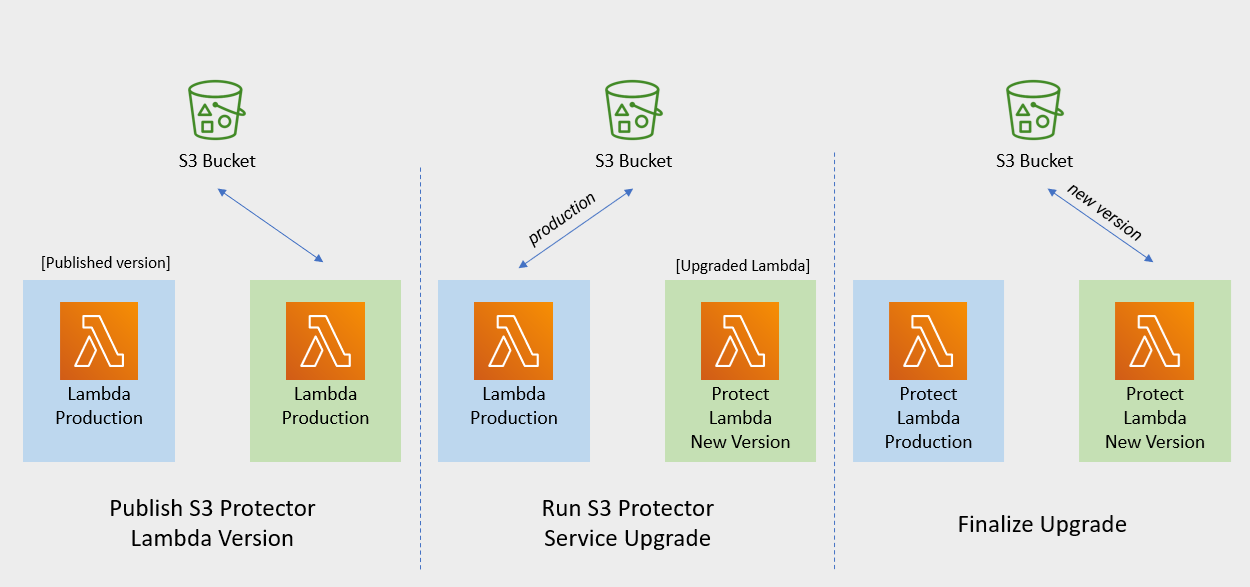
Note
If the release version of the artifact zip file has not changed since the previous installation, you can skip the Protect Lambda upgrade.
Publish S3 Protector Lambda Version
Publishing a version of the S3 Protector Lambda allows updating it without interruptions to the existing traffic.
Procedure
Go to AWS Lambda console and select existing Protegrity S3 Protector Lambda.
Go to Lambda Configuration → Environment variables.
Record environment variables values. You will use them later to configure upgraded Lambda Function. You can use the aws cli command below to save the function variables into the local json file:
aws lambda get-function-configuration --function-name \
arn:aws:lambda:<aws_region>:<aws_account>:function:<function_name> \
--query Environment > <function_name>_env_config.json
Click Actions in top right portion of the screen. Select Publish new version. Click Publish.
Record the Lambda version number. It will be displayed at the top of the screen. You can also retrieve it from the Lambda function view, under Versions tab.
S3 Protector Lambda version number: ___________________
Run Protect Service Upgrade
In this step, the Protect service including Lambda $LATEST version will be updated using Cloud Formation template. The Lambda version created in previous step will be used to serve existing traffic during the upgrade process.
Procedure
Go to AWS Cloud Formation and select existing Protegrity deployment stack.
Select Update Stack > Make a direct update.
Select Replace existing template > Upload a template file.
Upload pty_s3_protector_cf.json file and select Next.
Update LambdaFunctionProductionVersion parameter with S3 Protector Lambda version number recorded in step 3.
Click Next until Review window and then select Update stack.
Wait for the Cloud Formation to complete.
Go back to Lambda console and select S3 Protector Lambda.
Go to Configuration → Environment variables. Replace placeholder values with values recorded in previous step.
Alternatively, you can run the following aws cli command to update function configuration using json file saved in the previous steps:
aws lambda update-function-configuration --function-name \
arn:aws:lambda:<aws_region>:<aws_account>:function:<function_name> \
--environment file://./<function_name>_env_config.json
Navigate to Aliases tab. Verify that Production alias points to the lambda version you specified in the cloud formation template.
The upgraded S3 Protector Lambda is configured with a sample policy. Run Agent Lambda Function before continuing with next steps.
Finalize Upgrade
In this step, the S3 Protector Lambda will be configured to serve traffic using $LATEST version upgraded in the previous step.
Procedure
Go back to Protegrity AWS Cloud Formation deployment stack.
Select Update Stack > Make a direct update.
Select Use existing template and then choose Next
Update LambdaFunctionProductionVersion parameter with the following value: $LATEST.
Click Next until Review window and then select Update stack.
Go back to Lambda console and select S3 Protector Lambda.
From the Lambda console, verify that Latest alias points to $LATEST version.
Test your function to make sure it works as expected.
If you need to rollback to older version of S3 Protector Lambda, you can re-run the cloud formation with LambdaFunctionProductionVersion parameter set to the previous version of S3 Protector Lambda.
9 - Appendices
Additional references for the protector.
9.1 - Sample Configuration
A dataset snippet and corresponding mapping.json file are provided.
Dataset
Patricia,Young,Patricia.Young@liu.info,8/25/1975,343494236548351
Ronald,Hess,Ronald.Hess@cobb.org,3/22/1977,5289549212515680
Anna,Rose,Anna.Rose@robinson.net,8/3/1983,4387393325002340
Maureen,Morgan,Maureen.Morgan@whitehead.com,10/23/1975,6011769162504860
Ryan,Lee,Ryan.Lee@summers-richards.com,4/6/1975,373509629162404
{
"input": {
   "format": "csv",
   "spec": {
      "names": ["first_name","last_name","email","credit_card","birthdate"]
   }
},
   "columns":{
      "first_name":{
         "operation":"protect",
         "data_element":"deName"
      },
      "last_name":{
         "operation":"protect",
         "data_element":"deName"
      },
      "email":{
         "operation":"protect",
         "data_element":"deEmail"
      },
      "credit_card": {
      "operation":"protect",
      "data_element":"deCCN"
      },
      "birthdate": {
      "operation":"protect",
      "data_element":"deDOB"
      }
   }
}
Dataset
POLICY_NUM|ACTION_TAKEN_DATE|ACTION_TAKEN_TIME|PERSON_DOB|ADDR_LINE_1|ADDR_LINE_2|ADDR_CITY|ADDR_STATE|ADDR_ZIP|PERSON_NAME|PERSON_SSN
sbBksoknql8O|7/8/2011|08.00.07|9/23/1952|123 Maple Street|Apt 2B|Springfield|IL|62704|Abraham Duppstadt|755-30-1679
SdiWx5Egtxrd|7/22/2011|14.53.29|3/5/1957|456 Elm Avenue|Suite 300|Boulder|CO|80302|Christena Macklem|366-99-6352
QGOlnMvcJ50a|7/25/2011|07.14.10|7/20/1962|789 Pine Road|Unit 5|Madison|WI|53703|Ulrike Rehling|011-87-2771
MW5wPE5paWgN|7/29/2011|14.00.29|9/23/1961|321 Oak Lane|Building A|Austin|TX|78701|Summer Mauceri|806-32-5716
QGOlnMvcJ50a|7/29/2011|14.00.29|5/29/1986|654 Cedar Boulevard|Floor 4|Portland|OR|97209|Ora Scharpman|273-48-6482
Mapping.json
{
   "input": {
      "format": "csv",
      "spec": {
        "sep": "|",
        "encoding": "utf-8"
      }
   },
   "output": {
      "format": "csv",
      "spec": {
        "encoding": "utf-8",
        "compression": "gzip"
      }
   },
   "columns":{
      "PERSON_NAME":{
         "operation":"protect",
         "data_element":"deName"
      },
      "PERSON_SSN":{
         "operation":"protect",
         "data_element":"deSSN"
      },
      "ADDR_LINE_1":{
         "operation":"protect",
         "data_element":"deAddress"
      },
      "ADDR_LINE_2":{
         "operation":"protect",
         "data_element":"deAddress"
      },
      "ADDR_CITY":{
         "operation":"protect",
         "data_element":"deCity"
      },
      "POLICY_NUM":{
         "operation":"protect",
         "data_element":"deIBAN"
      }
   }
}
Dataset
[
   {
      "Region": "Region 1",
      "Order Date": "01/12/2012",
      "Registration": "2016-01-01 01:01:01.001",
      "Order ID": 10,
      "Unit Price": 1.01
   },
   {
      "Region": "Region 2",
      "Order Date": "27/07/2012",
      "Registration": "2016-02-03 17:04:03.002",
      "Order ID": 20,
      "Unit Price": 456.01
   },
   {
      "Region": "Region 3",
      "Order Date": "27/07/2012",
      "Registration": "2016-02-03 01:09:31.003",
      "Order ID": 30,
      "Unit Price": 7.99
   },
   {
      "Region": "Region 4",
      "Order Date": "27/07/2012",
      "Registration": "2016-02-03 00:36:21.004",
      "Order ID": 40,
      "Unit Price": 89.99
   }
]
Mapping.json
{
   "columns": {
      "Region": {
         "operation": "protect",
         "data_element": "deAddress"
      },
      "Order Date": {
         "operation": "protect",
         "data_element": "deDate2"
      },
      "Registration": {
         "operation": "protect",
         "data_element": "deDOB"
      },
      "Order ID": {
         "operation": "protect",
         "data_element": "deNumeric"
      },
      "Unit Price": {
         "operation": "protect",
         "data_element": "deDecimal"
      }
   }
}
9.2 - Amazon S3 Security Best Practices Examples
Amazon S3 Security Best Practices Examples
Note
The list below is not a comprehensive list of S3 configuration best practices. Refer to AWS documentation for more details.
Block Public Access to Your Amazon S3 Storage
Enabling Block Public Access helps protect your resources by preventing public access from being granted through the resource policies or access control lists (ACLs) that are directly attached to S3 resources.
In addition to enabling Block Public Access, carefully inspect the following policies to confirm that they don’t grant public access:
- Identity-based policies attached to associated AWS principals (for example, IAM roles)
- Resource-based policies attached to S3 bucket (referred to as bucket policies)
Review Bucket Access Using IAM Access Analyzer for S3
IAM Access Analyzer helps you identify the resources in your organization and accounts, such as Amazon S3 buckets or IAM roles, shared with an external entity. This lets you identify unintended access to your resources and data, which is a security risk.
IAM Access Analyzer for S3 is available at no extra cost on the Amazon S3 console. IAM Access Analyzer for S3 is powered by AWS Identity and Access Management (IAM) IAM Access Analyzer. To use IAM Access Analyzer for S3 in the Amazon S3 console, you must visit the IAM console and enable IAM Access Analyzer on a per-Region basis.
Enable Server-Side Encryption
All Amazon S3 buckets have encryption configured by default, and all new objects that are uploaded to an S3 bucket are automatically encrypted at rest. Server-side encryption with Amazon S3 managed keys (SSE-S3) is the default encryption configuration for every bucket in Amazon S3.
Amazon S3 also provides these server-side encryption options:
- Server-side encryption with AWS Key Management Service (AWS KMS) keys (SSE-KMS)
- Dual-layer server-side encryption with AWS Key Management Service (AWS KMS) keys (DSSE-KMS)
- Server-side encryption with customer-provided keys (SSE-C)