Upgrading To The Latest Version
Upgrade Process Overview
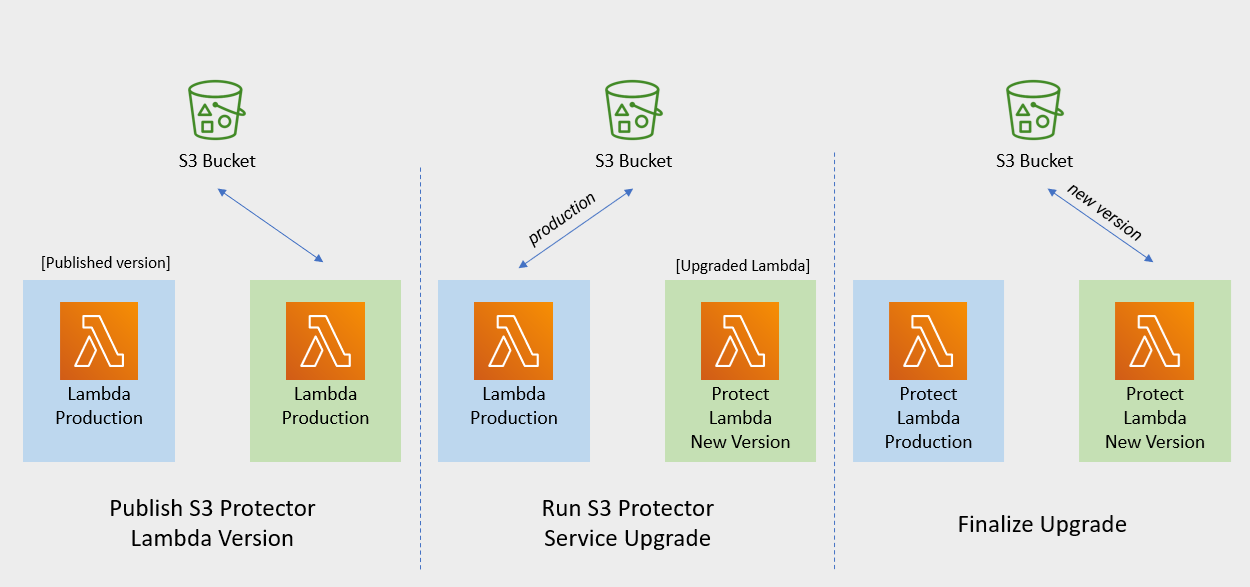
The diagram below illustrates upgrade steps:
Note
If the release version of the artifact zip file has not changed since the previous installation, you can skip the Protect Lambda upgrade.Publish S3 Protector Lambda Version
Publishing a version of the S3 Protector Lambda allows updating it without interruptions to the existing traffic.
Procedure
Go to AWS Lambda console and select existing Protegrity S3 Protector Lambda.
Go to Lambda Configuration → Environment variables.
Record environment variables values. You will use them later to configure upgraded Lambda Function. You can use the aws cli command below to save the function variables into the local json file:
aws lambda get-function-configuration --function-name \
arn:aws:lambda:<aws_region>:<aws_account>:function:<function_name> \
--query Environment > <function_name>_env_config.json
Click Actions in top right portion of the screen. Select Publish new version. Click Publish.
Record the Lambda version number. It will be displayed at the top of the screen. You can also retrieve it from the Lambda function view, under Versions tab.
S3 Protector Lambda version number: ___________________
Run Protect Service Upgrade
In this step, the Protect service including Lambda $LATEST version will be updated using Cloud Formation template. The Lambda version created in previous step will be used to serve existing traffic during the upgrade process.
Procedure
Go to AWS Cloud Formation and select existing Protegrity deployment stack.
Select Update Stack > Make a direct update.
Select Replace existing template > Upload a template file.
Upload
pty_s3_protector_cf.jsonfile and select Next.Update LambdaFunctionProductionVersion parameter with S3 Protector Lambda version number recorded in step 3.
Click Next until Review window and then select Update stack.
Wait for the Cloud Formation to complete.
Go back to Lambda console and select S3 Protector Lambda.
Go to Configuration → Environment variables. Replace placeholder values with values recorded in previous step.
Alternatively, you can run the following aws cli command to update function configuration using json file saved in the previous steps:
aws lambda update-function-configuration --function-name \
arn:aws:lambda:<aws_region>:<aws_account>:function:<function_name> \
--environment file://./<function_name>_env_config.json
Navigate to Aliases tab. Verify that Production alias points to the lambda version you specified in the cloud formation template.
The upgraded S3 Protector Lambda is configured with a sample policy. Run Agent Lambda Function before continuing with next steps.
Finalize Upgrade
In this step, the S3 Protector Lambda will be configured to serve traffic using $LATEST version upgraded in the previous step.
Procedure
Go back to Protegrity AWS Cloud Formation deployment stack.
Select Update Stack > Make a direct update.
Select Use existing template and then choose Next
Update LambdaFunctionProductionVersion parameter with the following value: $LATEST.
Click Next until Review window and then select Update stack.
Go back to Lambda console and select S3 Protector Lambda.
From the Lambda console, verify that Latest alias points to $LATEST version.
Test your function to make sure it works as expected.
If you need to rollback to older version of S3 Protector Lambda, you can re-run the cloud formation with LambdaFunctionProductionVersion parameter set to the previous version of S3 Protector Lambda.
Feedback
Was this page helpful?