Audit Log Forwarder Installation
The following sections show steps how to install Audit Log Forwarder component in the AWS Cloud. The Log Forwarder deployment allows for the audit logs generated by Protector to be delivered to ESA for auditing and governance purposes. Log Forwarder component is optional and is not required for the Protector Service to work properly. See Log Forwarding Architecture section in this document for more information. Some of the installation steps are not required for the operation of the software but recommended for establishing a secure environment. C ontact Protegrity for further guidance on configuration alternatives in the Cloud.
Note
The installation steps below assume that the Log Forwarder is going to be installed in the same AWS account as the corresponding Protect Lambda service. For instructions on how to install Log Forwarder in the AWS account separate than the Protect Lambda, please contact Protegrity.ESA Audit Store Configuration
ESA server is required as the recipient of audit logs. Verify the information below to ensure ESA is accessible and configured properly.
ESA server running and accessible on TCP port 9200 (Audit Store) or 24284 (td-agent).
Audit Store service is configured and running on ESA. Applies when audit logs are output to Audit Store directly or through td-agent. For information related to ESA Audit Store configuration, refer to Audit Store Guide.
(Optional) td-agent is configured for external input. For more information related to td-agent configuration, refer to ESA guide Sending logs to an external security information and event management (SIEM).
Certificates on ESA
Note
This section is optional. If CA certificate is not provided, the Log Forwarder will skip server certificate validation and will connect to ESA without verifying that it is a trusted server.
If you are deploying Log Forwarder with Protegrity Provisioned Cluster (PPC), certificate authorization and CA validation are not supported. Configuration steps related to certificates in this section do not apply to PPC. See Integrating Cloud Protect with PPC (Protegrity Provisioned Cluster): Log Forwarder Setup with PPC for details.
By default, ESA is configured with self-signed certificates, which can optionally be validated using a self-signed CA certificate supplied in the Log Forwarder configuration. If no CA certificate is provided, the Log Forwarder will skip server certificate validation.
Note
Certificate Validation can be bypassed for testing purposes, see section: Install through CloudFormationIf ESA is configured with publicly signed certificates, this section can be skipped since the forwarder Lambda will use the public CA to validate ESA certificates.
To obtain the self-signed CA certificate from ESA:
Download ESA CA certificate from the /etc/ksa/certificates/plug directory of the ESA
After certificate is downloaded, open the PEM file in text editor and replace all new lines with escaped new line: \n.
To escape new lines from command line, use one of the following commands depending on your operating system:
Linux Bash:
awk 'NF {printf "%s\\n",$0;}' CA.pem > output.txtWindows PowerShell:
(Get-Content '.\CA.pem') -join '\n' | Set-Content 'output.txt'Record the certificate content with new lines escaped.
ESA CA Server Certificate (EsaCaCert): ___________________
This value will be used to set PtyEsaCaServerCert cloudformation parameter in section Install through CloudFormation
For more information about ESA certificate management refer to Certificate Management Guide in ESA documentation.
AWS VPC Configuration
Log forwarder Lambda function requires network connectivity to ESA, similar to Policy Agent Lambda function. Therefore, it can be hosted in the same VPC as Policy Agent.
Separate VPC can be used, as long as it provides network connectivity to ESA.
Note
AWS Lambda service uses permissions in log forwarder function execution role to create and manage network interfaces. Lambda creates a Hyperplane ENI and reuses it for other VPC-enabled functions in your account that use the same subnet and security group combination. Each Hyperplane ENI can handle thousands of connections/ports as the Lambda function scales up. If more connections are needed AWS Lambda service creates additional Hyperplane ENIs. There’s no additional charge for using a VPC or a Hyperplane ENI. Refer to AWS official Lambda Hyperplane ENIs docs for more information.VPC Name: ___________________
VPC Subnet Configuration
Log Forwarder can be connected to the same subnet as Policy Agent or separate one as long as it provides connectivity to ESA.
Subnet Name: ___________________
NAT Gateway For ESA Hosted Outside AWS Network
If ESA server is hosted outside of the AWS Cloud network, the VPC configured for Lambda function must ensure additional network configuration is available to allow connectivity with ESA. For instance if ESA has a public IP, the Lambda function VPC must have public subnet with a NAT server to allow routing traffic outside of the AWS network. A Routing Table and Network ACL may need to be configured for outbound access to the ESA as well.
VPC Endpoint Configuration
Log Forwarder Lambda function requires connectivity to Secrets Manager AWS service. If the VPC identified in the steps before has no connectivity to public internet through the NAT Gateway, then the following service endpoint must be configured:
- com.amazonaws.{REGION}.cloudwatch
- com.amazonaws.{REGION}.secretsmanager
- com.amazonaws.{REGION}.kms
Security Group Configuration
Security groups restrict communication between Log Forwarder Lambda function and the ESA appliance. The following rules must be in place for ESA and Log Forwarder Lambda function.
From VPC > Security Groups > Log Forwarder Security Group configuration.
| Type | Protocol | Port Range | Destination | Reason |
|---|---|---|---|---|
| Custom TCP | TCP | 9200 | Log Forwarder Lambda SG | ESA Communication |
Record the name of Log Forwarder security group name.
Log Forwarder Security Group Id: ___________________
The following port must be open for the ESA. If the ESA is running in the Cloud, then create the following security.
Note
If an on-premise firewall is used, then the firewall must allow access from the NAT Gateway to an ESA. The firewall must allow access the NAT Gateway IP access to ESA via port 9200.ESA Security Group configuration
| Type | Protocol | Port Range | Source |
|---|---|---|---|
| Custom TCP | TCP | 9200 | Log Forwarder Lambda SG |
Configure ESA Audit Store Credentials
Note
This section is optional. If client certificate authentication is not set up, the Log Forwarder will connect to ESA without authentication credentials.Audit Log Forwarder can optionally authenticate with ESA using certificate-based authentication with a client certificate and certificate key. If used, both the certificate and certificate key will be stored in AWS Secrets Manager.
Download the following certificates from the /etc/ksa/certificates/plug directory of the ESA:
- client.key
- client.pem
After certificates are downloaded, open each PEM file in text editor and replace all new lines with escaped new line: \n. To escape new lines from command line, use one of the commands below depending on your operating system.
Linux Bash:
awk 'NF {printf "%s\\n",$0;}' client.key > private_key.txt
awk 'NF {printf "%s\\n",$0;}' client.pem > public_key.txt
Windows PowerShell:
(Get-Content '.\client.key') -join '\n' | Set-Content 'private_key.pem'
(Get-Content '.\client.pem') -join '\n' | Set-Content 'public_key.pem'
For more information on how to configure client certificate authentication for Audit Store on ESA refer to Audit Store Guide.
To create secret with ESA client certificate/key pair in AWS Secrets Manager.
From the AWS Secrets Manager Console, select Store New Secret.
Select Other Type of Secrets.
Specify the private_key and public_key value pair.
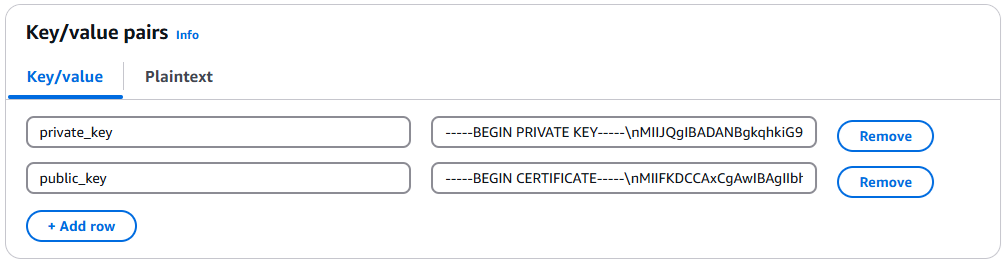
Select the encryption key or leave default AWS managed key.
Specify the Secret Name and record it below.
ESA Client Certificate/Key Pair Secret Name: ___________________
This value will be used to set PtyEsaClientCertificatesSecretId cloudformation parameter in section Install through CloudFormation
Note
If you are deploying Log Forwarder with PPC, do not configure client certificate authentication. See PPC Appendix: Log Forwarder Certificate Guidance for details.Create Audit Log Forwarder IAM Execution Policy
This task defines a policy used by the Protegrity Log Forwarder Lambda function to write CloudWatch logs, access the KMS encryption key to decrypt the policy and access Secrets Manager for log forwarder user credentials.
Perform the following steps to create the Lambda execution role and required policies:
From the AWS IAM console, select Policies > Create Policy.
Select the JSON tab and copy the following sample policy.
{
  "Version": "2012-10-17",
  "Statement": [
    {
      "Sid": "EC2ModifyNetworkInterfaces",
      "Effect": "Allow",
      "Action": [
        "ec2:CreateNetworkInterface",
        "ec2:DescribeNetworkInterfaces",
        "ec2:DeleteNetworkInterface"
      ],
      "Resource": "*"
    },
    {
      "Sid": "CloudWatchWriteLogs",
      "Effect": "Allow",
      "Action": [
        "logs:CreateLogGroup",
        "logs:CreateLogStream",
        "logs:PutLogEvents"
      ],
      "Resource": "*"
    },
    {
      "Sid": "KmsDecrypt",
      "Effect": "Allow",
      "Action": [
        "kms:Decrypt"
      ],
      "Resource": [
        "arn:aws:kms:*:*:key/*"
      ]
    },
    {
        "Sid": "KinesisStreamRead",
        "Effect": "Allow",
        "Action": [
            "kinesis:GetRecords",
            "kinesis:GetShardIterator",
            "kinesis:DescribeStream",
            "kinesis:DescribeStreamSummary",
            "kinesis:ListShards",
            "kinesis:ListStreams"
        ],
        "Resource": "*"
    },
    {
      "Sid": "SecretsManagerGetSecret",
      "Effect": "Allow",
      "Action": [
        "secretsmanager:GetSecretValue"
      ],
      "Resource": [
        "arn:aws:secretsmanager:*:*:secret:*"
      ]
    }
  ]
}
For the KMS policy, replace the Resource with the ARN for the KMS key created in a previous step.
Select Review policy, type in a policy name, for example, ProtegrityLogForwarderLambdaPolicy and Confirm. Record the policy name:
LogForwarderLambdaPolicyName:__________________
Create Log Forwarder IAM Role
Perform the following steps to create Log Forwarder execution IAM role.
To create Log Forwarder IAM role:
From AWS IAM console, select Roles > Create Role.
Select AWS Service > Lambda > Next.
Select the policy created in Create Audit Log Forwarder IAM Execution Policy.
Proceed to Name, Review and Create.
Type the role name, for example, ProtegrityForwarderRole and click Confirm.
Record the role ARN.
Log Forwarder IAM Execution Role Name: ___________________
Installation Artifacts
Audit Log Forwarder installation artifacts are part of the same deployment package as the one used for protect and policy agent services. Follow the steps below to ensure the right artifacts are available for log forwarder installation.
Verify that the Protegrity deployment package is available on your local system, if not, you can download it from the Protegrity portal.
Note
If you maintain multiple Protegrity Cloud Protectors, make sure that the deployment package downloaded for Audit Log Forwarder is the same as the one used for Protect service installation.Extract the pty_log_forwarder_cf.json cloud formation file from the deployment package.
Check the S3 deployment bucket identified in section Create S3 bucket for Installing Artifacts. Make sure that all Protegrity deployment zip files are uploaded to the S3 bucket.
Install through CloudFormation
The following steps describe the deployment of the Audit Log Forwarder AWS cloud components.
Access CloudFormation and select the target AWS Region in the console.
Click Create Stack and choose With new resources.
Specify the template.
Select Upload a template file.
Upload the Protegrity-provided CloudFormation template called pty_log_forwarder_cf.json and click Next.
Specify the stack details. Enter a stack name.
Note
The stack name will be appended to all the services created by the template.Enter the required parameters. All the values were generated in the pre-configuration steps.
Parameter | Description | Default Value | Required |
|---|---|---|---|
LogForwarderSubnets | Subnets where the Log Forwarder will be hosted. |
|
|
LogForwarderSecurityGroups | Security Groups, which allow communication between the Log Forwarder and ESA. |
| X |
LambdaExecutionRoleArn | The ARN of Lambda role created in the prior step. |
| X |
ArtifactS3Bucket | Name of S3 bucket created in the pre-configuration step. |
| X |
LogDestinationEsaIp | IP or FQDN of the ESA instance or cluster. |
| X |
AuditLogOutput | Audit log processor to target on ESA. Allowed values: audit-store, td-agent | audit-store | X |
PtyEsaClientCertificatesSecretId | AWS Secrets Manager secret id containing client certificates used for authentication with ESA Audit Store. It is expected that the public key will be stored in a field public_key and the private key in a field named private_key. This parameter is optional. If not provided, Log Forwarder will connect to ESA without client certificate authentication. | ||
EsaTlsDisableCertVerify | Disable certificate verification when connecting to ESA if set to 1. This is only for dev purposes, do not disable in production environment. | 0 | X |
PtyEsaCaServerCert | ESA self-signed CA certificate used by log forwarder Lambda to ensure ESA is the trusted server. Recorded in step Certificates on ESA In case ESA is configured with publicly signed certificates, the PtyEsaCaServerCert configuration will be ignored. |
| |
EsaConnectTimeout | Time in seconds to wait for the ESA response. Minimum value: 1. | 5 | X |
EsaVirtualHost | ESA virtual hostname. This configuration is optional and it can be used when proxy server is present and supports TLS SNI extension. |
|
|
KinesisLogStreamRetentionPeriodHours | The number of hours for the log records to be stored in Kinesis Stream in case log destination server is not available. Minimum value: 24. See Log Forwarder Performance section for more details. | 24 | X |
KinesisLogStreamShardCount | The number of shards that the Kinesis log stream uses. For greater provisioned throughput, increase the number of shards. Minimum value: 1. See Log Forwarder Performance section for more details. | 10 | X |
MinLogLevel | Minimum log level for protect function. Allowed Values: off, severe, warning, info, config, all | severe | X |
Click Next with defaults to complete CloudFormation.
After CloudFormation is completed, select the Outputstab in the stack.
Record the following values
KinesisLogStreamArn: ________________________________
Add Kinesis Put Record permission to the Protect Function IAM Role
Login to the AWS account that hosts the Protect Lambda Function.
Search for Protect Lambda Function IAM Execution Role Name created in Create Protect Lambda IAM role.
Under Permissions policies, select Add Permissions > Create inline policy.
In Specify permissions view, switch to JSON.
Copy the policy json from below replacing the placeholder value indicated in the following snippet as <Audit Log Kinesis Stream ARN> with the value recorded in the previous step.
{
	"Version": "2012-10-17",
	"Statement": [
		{
			"Sid": "KinesisPutRecords",
			"Effect": "Allow",
			"Action": "kinesis:PutRecords",
			"Resource": "<Audit Log Kinesis Stream ARN>"
		}
	]
}
When you are finished, choose Next.
On the Review and create page, type a Name, then choose Create policy.
Test Log Forwarder Installation
Testing in this section validates the connectivity between Log Forwarder and ESA. The sample policy included with the initial installation and test event below are not based on your ESA policy. Any logs forwarded to ESA which are not signed with a policy generated by your ESA will not be added to the audit store.
Install Log Forwarder and configure according to previous sections. Log Forwarder configuration MinLogLevel must be at least info level.
Navigate to the log forwarder lambda function.
Select the Test tab.
Copy the json test event into the Event JSON pane.
{
    "Records": [
        {
            "kinesis": {
                "kinesisSchemaVersion": "1.0",
                "partitionKey": "041e96d78c778677ce43f50076a8ae3e",
                "sequenceNumber": "49620336010289430959432297775520367512250709822916263938",
                "data": "eyJpbmdlc3RfdGltZV91dGMiOiIyMDI2LTAzLTI3VDEzOjIzOjEyLjkwNFoiLCJhZGRpdGlvbmFsX2luZm8iOnsiZGVzY3JpcHRpb24iOiJEYXRhIHVucHJvdGVjdCBvcGVyYXRpb24gd2FzIHN1Y2Nlc3NmdWwuIn0sImNsaWVudCI6e30sImNudCI6NCwiY29ycmVsYXRpb25pZCI6InJzLXF1ZXJ5LWlkOjEyMzQiLCJsZXZlbCI6IlNVQ0NFU1MiLCJsb2d0eXBlIjoiUHJvdGVjdGlvbiIsIm9yaWdpbiI6eyJob3N0bmFtZSI6IlBSTy1VUy1QRjNSSEdGOSIsImlwIjoiMTAuMTAuMTAuMTAiLCJ0aW1lX3V0YyI6MTcxMTU1OTEwMH0sInByb2Nlc3MiOnsiaWQiOjJ9LCJwcm90ZWN0aW9uIjp7ImF1ZGl0X2NvZGUiOjgsImRhdGFlbGVtZW50IjoiYWxwaGEiLCJkYXRhc3RvcmUiOiJTQU1QTEVfUE9MSUNZIiwibWFza19zZXR0aW5nIjoiIiwib2xkX2RhdGFlbGVtZW50IjpudWxsLCJvcGVyYXRpb24iOiJVbnByb3RlY3QiLCJwb2xpY3lfdXNlciI6IlBUWURFViJ9LCJwcm90ZWN0b3IiOnsiY29yZV92ZXJzaW9uIjoiMS4yLjErNTUuZzU5MGZlLkhFQUQiLCJmYW1pbHkiOiJjcCIsInBjY192ZXJzaW9uIjoiMy40LjAuMTQiLCJ2ZW5kb3IiOiJyZWRzaGlmdCIsInZlcnNpb24iOiIwLjAuMS1kZXYifSwic2lnbmF0dXJlIjp7ImNoZWNrc3VtIjoiN0VCMkEzN0FDNzQ5MDM1NjQwMzBBNUUxNENCMTA5QzE0OEJGODYwRjE3NEVCMjMxMTAyMEI3RkE1QTY4MjdGQyIsImtleV9pZCI6ImM0MjQ0MzZhLTExMmYtNGMzZi1iMmRiLTEwYmFhOGI1NjJhNyJ9fQ==",
                "approximateArrivalTimestamp": 1626878559.213
            },
            "eventSource": "aws:kinesis",
            "eventVersion": "1.0",
            "eventID": "shardId-000000000000:49620336010289430959432297775520367512250709822916261234",
            "eventName": "aws:kinesis:record",
            "invokeIdentityArn": "arn:aws:iam::555555555555:role/service-role/TestRole",
            "awsRegion": "us-east-1",
            "eventSourceARN": "arn:aws:kinesis:us-east-1:555555555555:stream/CloudProtectEventStream"
        }
    ]
}
Note
The data payload is the base64 encoded audit log. See Audit Logging for detail on audit log contents.Select Test to execute the test event.
Test is successful if the Log Output of test results contains the following log:
[INFO] [kinesis-log-aggregation-format.cpp:77] Aggregated 1 records into 0 aggregated, 1 forwarded and 0 failed recordsIf the log is not present, please consult the Troubleshooting section for common errors and solutions.
Update Protector With Kinesis Log Stream
In this section, Kinesis log stream ARN will be provided to the Protect Function installation.
Note
If the Protector has not been installed, you may provide the KinesisLogStreamArn during protector installation and skip the remainder of this section.Navigate to the Protector CloudFormation stack created in the protector installation section.
Select Update.
Choose Use existing template > Next.
Set parameter KinesisLogStreamArn to the output value recorded in Install through CloudFormation.
Proceed with Next and Submit the changes.
Continue to the next section once stack status indicates UPDATE_COMPLETE.
Update Policy Agent With Log Forwarder Function Target
Log Forwarder Lambda function requires a policy layer which is in sync with the Protegrity Protector. This section will describe the steps to update the policy agent to include updating Log Forwarder Lambda function.
Note
If the policy agent has not been installed, follow the steps in Policy Agent Installation. Set AWS_PROTECT_FN_NAME to include both protector and log forwarder lambda functions.Navigate to the Policy Agent Function created in Policy Agent Installation
Select Configuration > Environment variables > Edit
Edit the value for environment variable AWS_PROTECT_FN_NAME to include the log forwarder function name/arn in the comma separated list of Lambda functions.
Save the changes and continue when update completes
Navigate to Test tab
Add an event {} and select Test to run the Policy Agent function
Verify Log forwarder function was updated to use the policy layer by inspecting the log output. Logs should include the following:
[INFO] 2024-07-09 18:58:04,793.793Z 622d374b-1f73-4123-9a38-abc61973adef iap_agent.policy_deployer:Updating lambda [Protegrity_LogForwarder_<stack ID>] to use layer version [arn:aws:lambda:<aws region>:<aws account number>:layer:Protegrity_Layer_<layer name>:<layer version>]
Test Full Log Forwarder Installation
Install and configure Protegrity Agent, Protector, and Log Forwarder components.
Send a protect operation to the protector using a data element or user which will result in audit log generation
Navigate to the CloudWatch log group for the Protect function
Select the log stream for the test operation and scroll to the latest logs
Expect to see a log similar to the below:
[2024-07-09T19:28:23.158] [INFO] [kinesis-external-sink.cpp:51] Sending 2 logs to Kinesis ...
[2024-07-09T19:28:23.218] [INFO] [aws-utils.cpp:206] Kinesis send time: 0.060s
Navigate to the CloudWatch log group for the Log Forwarder function
Expect to see a new log stream - it may take several minutes for the stream to start
Select the new stream and scroll to the most recent logs in the stream
Expect to see a log similar to the below:
[2024-07-09T19:32:31.648] [INFO] [kinesis-log-aggregation-format.cpp:77] Aggregated 1 records into 0 aggregated, 1 forwarded and 0 failed records
Troubleshooting
Error | Action |
|---|---|
Log forwarder log contains severe level secrets permissions error: |
|
When testing log forwarder as described in Test Log Forwarder Installation, response contains policy decryption error: |
|
Cloudformation stack creation fails with error: |
|
Severe level kinesis permissions log message in protector function: |
|
TLS errors reported in log forwarder function logs: |
|
Feedback
Was this page helpful?