Upgrading To The Latest Version
Important
- Upgrading the Policy Agent component to version 4 from any previous major version requires a new installation
- Upgrading the Protector and Log Forwarder component to version 4 from versions <3.2, or versions of 3.2 which use shared access key for loading the source, requires a new installation
Upload Deployment Artifacts
You can download the latest version of the deployment package from https://my.protegrity.com. Navigate to Data Protection > Cloud Protect to download the latest version.
After downloading the deployment package from the Protegrity Portal, go to Azure console. Navigate to the storage account that was previously created to upload deployment artifacts (see: Agent Policy Blob Container).
Upload the following artifacts to the Azure storage container:
- protegrity-protect-<version>.zip
- protegrity-agent-<version>.zip
After upload is complete, note the blob url for each file. Blob URL may be found in the blob properties.
Record Blob URL values below
New Protect Function Blob URL: ___________________
New Log Forwarder Function Blob URL: ___________________
Note
Log Forwarder shares the same source as Protect Function, use the value of protegrity-protect-<version>.zip blob url here.New Agent Function Blob URL: ___________________
Perform the following steps to upgrade the Policy Agent, Protect, and Log Forwarder Functions separately.
Important
If new versions are available for both Policy Agent and Protect/Log Forwarder functions, Policy Agent function must be installed or upgraded first.Disable Protegrity Agent Function Timer Trigger
App Function Timer Trigger is used to periodically run Protegrity Agent Function to synchronize policy from ESA. The trigger must be disabled temporarily for the time of the upgrade process.
Follow the steps below to disable the Agent Function Timer Trigger.
From Azure Console, go to Function App service and select Protegrity Agent Function.
Navigate to Overview.
The functions list should contain agent function with Trigger type Timer and status Enabled.
Click on the three dots in the same row as the agent function. Then select Disable.
Upgrading Policy Agent Function
Note
If the release version of the artifact zip file has not changed since the previous installation, you can skip the Agent Function upgrade.Important
If Policy Agent version is less than version 4, a new installation must be created. Carefully observe the below points:
- Create a new Container in the Storage Account for policy storage for the installation, as the version 4 policy package differs from version 3.
- To prevent overwriting production environment policies with incompatible policy package, follow Disable Protegrity Agent Function Timer Trigger after deploying the new function with arm template. Do not add the production Protect or Forwarder functions to the PROTEGRITY_PROTECT_FUNCTION environment variable of new Policy Agent until the trigger is disabled
- Skip to Disable Agent Policy Deployment and Test Policy Agent Function once installation is complete.
Upgrade Policy Agent Runtime Package
From Azure console, navigate to Function App service and select agent function app. Navigate to Settings > Environment variables.
Click on WEBSITE_RUN_FROM_PACKAGE configuration entry.
Save existing URL. You may need it to rollback upgrade.
WEBSITE_RUN_FROM_PACKAGE: _______________
Replace URL with New Agent Function Blob URL.
Click Apply then select Apply and Confirm to finalize.
Using menu on the left, navigate to Overview. Stop the function using Stop button at the top. Then start it again.
In the next section the Agent function will be tested to make sure it works as expected.
(Optional) If you need to rollback to older version of Agent Function, replace WEBSITE_RUN_FROM_PACKAGE with URL recorded in previous steps.
Disable Agent Policy Deployment and Test Policy Agent Function
Policy agent generates a backup of pulled policy when triggered. The policy will then be deployed to Protect and Log Forwarder functions. Deployment of policies to functions should be disabled during the upgrade process.
Follow the steps below to disable policy deployment:
From Azure Console, navigate to Policy Agent Function App
Navigate to Settings > Environment variables.
set DISABLE_DEPLOY to 1 if it is not already set.
Note
This will prevent Agent from overwriting production policy files or their references in deployed functions.Stop/Start the Agent function. It may take a few minutes for the function to start.
Test/Run Policy Agent Function to Generate Latest Policy
Follow the steps below to run the upgraded policy agent to refresh latest backup policy. Record the latest backup policy URL for later upgrade steps.
Note
Policy will not be deployed to Protectors when agent DISABLE_DEPLOY is set to 1 as described in Disable Agent Policy Deployment and Test Policy Agent Function.From Azure Console, navigate to the Policy Agent Function App
Navigate to the agent Test/Run feature as described in Test Agent Function Installation.
Run the policy agent. Verify the agent executed successfully by carefully inspecting the logs.
Use the following Azure Blob url from your Policy Agent Function Settings > Environment variables
AZURE_POLICY_BLOB_URLNote
If resources are deployed in gov cloud, use blob.core.usgovcloudapi.net domainupgraded_agent_policy_blob_url: _______________________
Upgrading Protect Function
Note
If the release version of the artifact zip file has not changed since the previous installation, you can skip the Protect Function upgrade.Important
Upgrading the Protector component to version 4 from versions <3.2, or versions of 3.2 which use shared access key for loading the source, requires a new installationDiagram below illustrates upgrade steps.
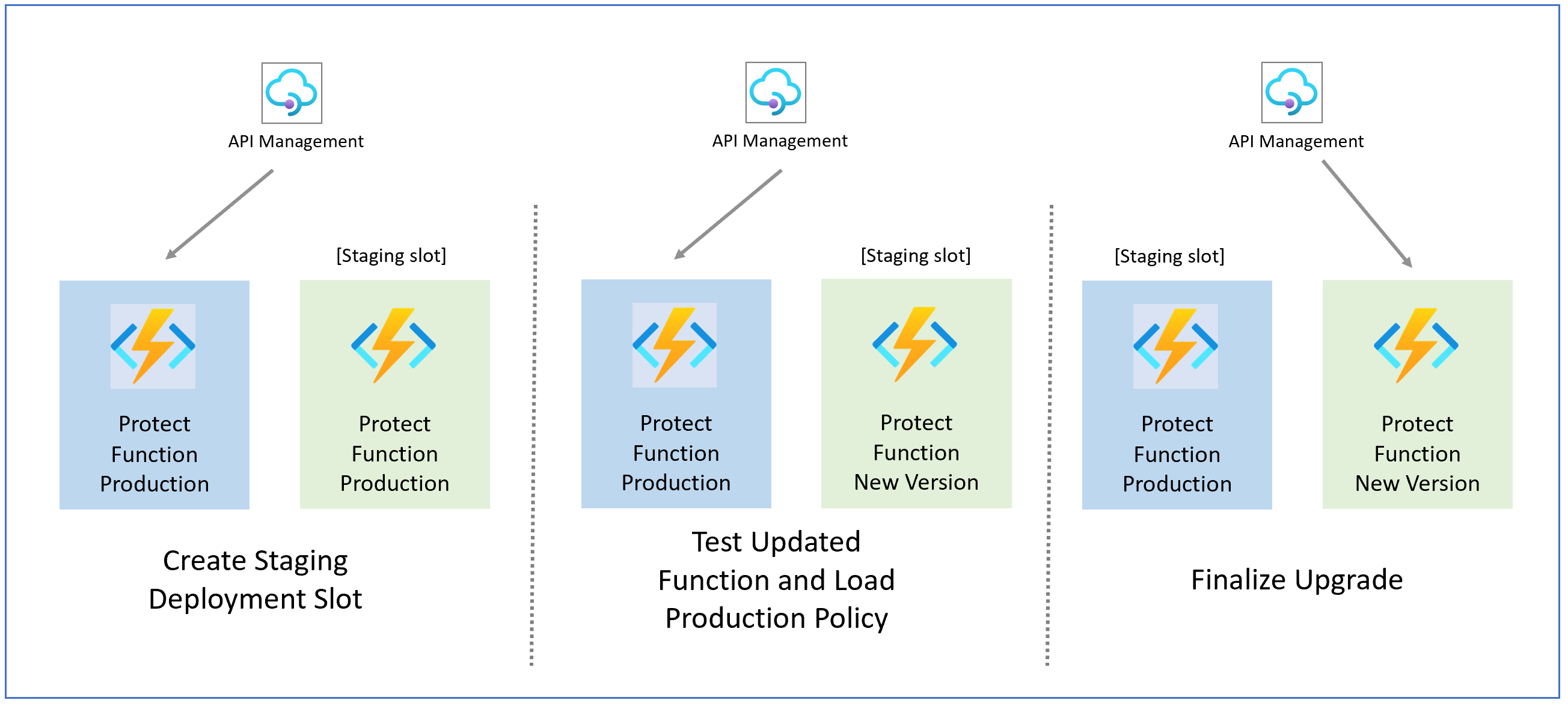
Create Staging Deployment Slot Creating new deployment slot allows updating the function without interruptions to the existing traffic.
Load Production Policy and Test New Protect Function In Staging
Finalize Protector upgrade Upgraded Protect Function can now be swapped in to production deployment slot to serve production traffic.
Create Staging Deployment Slot (Protector)
Creating new deployment slot allows updating the function without interruptions to the existing traffic.
From Azure console, navigate to Function App service and select the Protect Function App to upgrade. Navigate to Deployments > Deployment Slots.
Click Add slot. Specify slot name.
Click Add. Wait for the slot to be created.
After the slot is added, select Close to close the dialog box.
There should be a new slot available in the list of deployment slots. You will use this deployment slot as staging for the upgraded function. After upgrade is done and tested, you will swap staging slot with production slot.
Click on the new deployment slot. This will open the newly created replica of Cloud Protect Function.
Copy the function URL from the overview window.
Staging Protect Function URL: ________________
Navigate to Identity section under Settings.
If your installation utilizes System Assigned Identity:
Select System Assigned tab and switch Status On. Click Save.
This will generate the Object ID for the newly deployed function in the deployment slot.
Add Role Assignments to the identity as described in section Function System-Assigned Managed Identity
Tip
Reference production function slot for current permissions.Use the Object ID to update Key Vault policy to allow function in the deployment slot to use policy encryption key. See Protect Function Key Vault Access Policies for instructions how to update Key Vault policy.
If your installation utilizes User Assigned Identity:
Select User Assigned tab
Select Add. Choose the identity in use on the production function, then complete by selecting Add again.
Navigate to App Keys section from the menu on the left. Record default key value under Host Keys section.
Staging Protect Function Default Host Key: ________________
Navigate to the staging Function App Settings > Environment variables
Click on WEBSITE_RUN_FROM_PACKAGE configuration entry.
Replace value with New Protect Function Blob URL.
Set EVENTHUB_NAME to the output value recorded in Install Log Forwarder via ARM template for the newly deployed log forwarder.
Set EventHub__fullyQualifiedNamespace to the output value recorded in Install Log Forwarder via ARM template.
Click Apply, then Apply to finalize.
Load Production Policy and Test New Protect Function In Staging
Navigate to the new staging Protect function Settings > Environment variables
Set AZURE_POLICY_BLOB_URL environment variable to the upgraded_agent_policy_blob_url value recorded in previous steps.
Start/Stop the protect function.
Test New Protect Function in staging. You can use curl command below, replacing Staging Protect Function URL and Staging Protect Function Default Host Key with values recorded in previous section.
curl -X POST "<Staging Protect Function URL>/api/Protect" -k \
-H 'sf-custom-X-Protegrity-HCoP-Rules: {"jsonpaths":[{"op_type":"unprotect","data_element":"alpha"}]}' \
-H 'sf-context-current-user: test' \
-H 'sf-external-function-current-query-id: test-id' \
-H 'x-functions-key: <Staging Protect Function Default Host Key>' \
-H 'Content-Type: application/json' \
-d '{
  "data": [
    ["0", "UtfVk UHgcD!"]
  ]
}'
curl -X POST "<Protect Function URL>/api/v1/protect" -k \
-H 'x-functions-key: <Protect Function app key>' \
-H 'Content-Type: application/json' \
-d '{
  "data": ["test"],
  "user": "test",
  "data_element": "test"
}'
Finalize Protector upgrade
Upgraded Protect Function can now be swapped in to production deployment slot to serve production traffic.
Go to your main Protect Function.
Select deployment slots.
Select Swap.
Select staging Protect Function slot as source and production Function as target.
Click swap and wait until the functions are swapped.
If you need to rollback swap the application slots again.
Upgrading Log Forwarder Function
Note
If the release version of the artifact zip file has not changed since the previous installation, you can skip the Log Forwarder upgrade.Important
Upgrading the Log Forwarder component to version 4 from versions <3.2, or versions of 3.2 which use shared access key for loading the source, requires a new installationDisable Log Forwarder Event Hub Trigger
Disabling the Event Hub trigger will prevent audit log delivery during the upgrade process. This reduces the chance for any duplicate or lost audit logs. Later steps will indicate when this trigger may be re-enabled.
Follow the steps below to disable the Event Hub trigger:
From Azure Console, go to Function App service and select Protegrity Log Forwarder Function.
Navigate to Overview.
The functions list should contain AuditLogForwarder function with Trigger type Event Hub and Status Enabled.
Click on the three dots in the same row as the AuditLogForwarder function. Then select Disable.
Create Staging Deployment Slot (Log Forwarder)
Creating new deployment slot allows updating the function such that it may easily be rolled back. Log Forwarder Function will be disabled during the upgrade process. Logs generated during this time will be processed once Log Forwarder is re-enabled
From Azure console, navigate to Function App service and select the Log Forwarder Function App to upgrade. Navigate to Deployments > Deployment Slots.
Click Add slot. Specify slot name.
Click Add. Wait for the slot to be created.
After the slot is added, select Close to close the dialog box.
There should be a new slot available in the list of deployment slots. You will use this deployment slot as staging for the upgraded function. After upgrade is done, you will swap staging slot with production slot.
Click on the new deployment slot. This will open the newly created replica of Log Forwarder Function.
Navigate to the staging Function App environment variable settings Settings > Environment variables
Click on WEBSITE_RUN_FROM_PACKAGE configuration entry.
Replace value with New Log Forwarder Function Blob URL. Click Apply.
Click on AZURE_POLICY_BLOB_URL configuration entry.
Replace value with upgraded_agent_policy_blob_url. Click Apply.
Click Apply and Confirm to push the configuration changes.
Finalize Log Forwarder Upgrade
Upgraded Log Forwarder Function will be swapped into production deployment slot to serve production traffic and re-enabled,
Swap Upgraded Function Slot to Production
Go to your main Log Forwarder Function.
Select deployment slots.
Select Swap.
Select staging Log Forwarder Function slot as source and current Function as target.
Click Start Swap and wait until the functions are swapped.
If you need to rollback, swap the application slots again.
Re-Enable Log Forwarder Function Trigger
Go to your main Log Forwarder Function.
Navigate to environment variable settings Settings > Environment variables
Click on AzureWebJobs.AuditLogForwarder.Disabled configuration entry.
Replace value with false. Click Apply then Apply and Confirm to finalize.
Re-enable Policy Agent Deployment Setting
Skip this step if changes were not made to the DISABLE_DEPLOY setting in previous upgrade steps
Navigate to Agent function Settings > Environment variables
Set DISABLE_DEPLOY to 0.
apply changes and restart the Agent Function App
Enable Protegrity Agent Function Timer Trigger
If the Agent Function Timer Trigger was disabled at the beginning of the upgrade process, you must re-enabled it. Follow the steps below to enable Policy Agent Timer Trigger.
Navigate back to Protegrity Agent Function.
Select Overview.
Click on the three dots in the same row as the agent function in the list of functions. Then select Enable.
Feedback
Was this page helpful?