This is the multi-page printable view of this section. Click here to print.
Appendices
1 - Integrating Cloud Protect with PPC (Protegrity Provisioned Cluster)
Key Differences: PPC vs ESA
| Feature | ESA 10.2 | PPC (this guide) |
|---|---|---|
| Datastore Key Fingerprint | Optional/Recommended | Required |
| CA Certificate on Agent | Optional/Recommended | Optional/Recommended |
| CA Certificate on Log Forwarder | Optional/Recommended | Not supported |
| Client Certificate Authentication from Log Forwarder | Optional/Recommended | Not supported |
| IP Address | ESA IP address | PPC address |
Prerequisites
- Access to PPC and required credentials.
- Tools:
curl,kubectlinstalled.
Policy Agent Setup with PPC
Important
When connecting to PPC, the Policy Agent requires use of a datastore key fingerprint. For connecting to ESA 10.2 with Cloud Protect Policy Agent, the fingerprint is optional but recommended. See Policy Agent Installation for general setup steps.Follow these instructions as a guide for understanding specific inputs for Policy Agent integrating with PPC:
Obtain the Datastore Key Fingerprint
To retrieve the fingerprint for your Policy Agent:
Retrieve public key from the Cloud Provider Key Management service for the policy encryption key created in pre-configuration:
- Navigate to the Key Management Service in AWS console and open Customer Managed Keys
- Select the desired key
- Select the Public Key tab
- Select Download
- Navigate to the Key Vault in Azure console and open Objects>Keys
- Select the desired key
- Select the key indicated as CURRENT VERSION
- Select Download public key
- Navigate to Key Management in GCP console
- Select the desired key and open the Versions tab
- Select Get public key from the Actions column menu
- Select Download
Escape the new line characters in the downloaded public key for use in the next step - for example:
awk 'NF {printf "%s\\n",$0}' "<public_key_file>" > "new-line-escaped-public-key.pem"
cat new-line-escaped-public-key.pem
Export key fingerprint using the PPC API as indicated in the curl example below:
curl -k -H "Authorization: Bearer ${TOKEN}" -X POST https://${HOST}/pty/v2/pim/datastores/1/export/keys  -H "Content-Type: application/json" --data '{
  "algorithm": "RSA-OAEP-256",
  "description": "example-key-from-key-management",
  "pem": "<value of new-line-escaped-public-key>"
}'
Sample Output:
{"uid":"1","algorithm":"RSA-OAEP-256","fingerprint":"4c:46:d8:05:35:2e:eb:39:4d:39:8e:6f:28:c3:ab:d3:bc:9e:7a:cb:95:cb:b1:8e:b5:90:21:0f:d3:2c:0b:27","description":"example-key-from-kms"}Note
Alternatively, set using the PPC CLI utility. See the export key example in Create Datastores KeyRecord the value for
fingerprintand configure the Policy Agent:Set the environment variable
PTY_DATASTORE_KEYin the Policy Agent Lambda function to thefingerprintvalue.Set the environment variable
PTY_DATASTORE_KEYin the Policy Agent Function App to thefingerprintvalue.Set the variable in Policy Agent main.tf
pty_datastore_keyto thefingerprintvalue and apply the changes.
Retrieve the PPC CA Certificate
To obtain the CA certificate from PPC:
kubectl -n api-gateway get secret ingress-certificate-secret -o jsonpath='{.data.ca\.crt}' | base64 -d > CA.pemUse the
ProtegrityCA.pemthat was returned as described in Policy Agent Installation.Configure the PPC Address
Use the PPC address in place of the ESA IP address wherever required in your configuration.
Note
Use FQDN as described in the PPC Rest API documentation
Log Forwarder Setup with PPC
Note
When using PPC, certificate authentication and CA validation are not supported for the Log Forwarder. Configuration steps related to certificates in Log Forwarder Installation do not apply to PPC. If you attempt to use certificates provided by PPC, the Log Forwarder will not function correctly.- The Log Forwarder will proceed without certificates and will print a warning if
PTY_ESA_CA_SERVER_CERTis not provided. - No additional certificate or CA configuration is needed for PPC.
2 - Protection Methods
Protection Methods
For more information about the protection methods supported by Protegrity, refer to the Protection Methods Reference.
Tokenization Type | Supported Input Data Types | Notes |
|---|---|---|
Numeric Credit Card Alpha Upper-case Alpha Alpha-Numeric Upper Alpha-Numeric Lower ASCII Printable Decimal Unicode Unicode Base64 Unicode Gen2 | STRING NULL | |
Integer | NUMBER NULL | |
Date Datetime | STRING NULL | For information about supported formats, refer to the Protection Methods Reference. |
Binary | STRING NULL | Must be |
Protection Method | Supported Input Data Types | Notes |
|---|---|---|
No Encryption | STRING NUMBER NULL |
Encryption Algorithm | Supported Input Data Types | Notes |
|---|---|---|
3DES AES-128 AES-256 CUSP 3DES CUSP AES-128 CUSP AES-256 | STRING | Must be |
3 - Configuring Regular Expression to Extract Policy Username
Configuring Regular Expression to Extract Policy Username
Cloud Protect Cloud Function exposes USERNAME_REGEX configuration to allow extraction of policy username from user in the request.
USERNAME_REGEX Cloud Function Environment configuration
The USERNAME_REGEX environment variable can be set to contain regular expression with one capturing group. This group is used to extract the username. Examples below show different regular expression values and the resulting policy user.
USERNAME_REGEX | User in the request | Effective Policy User |
|---|---|---|
Not Set | ||
| service-account-user | |
user |
4 - Associating ESA Data Store With Cloud Protect Agent
Associating ESA Data Store With Cloud Protect Agent
ESA controls which policy is deployed to protector using concept of data store. A data store may contain a list of IP addresses identifying servers allowed to pull the policy associated with that specific data store. Data store may also be defined as default data store, which allows any server to pull the policy, provided it does not belong to any other data stores. Node registration occurs when the policy server (in this case the policy agent) makes a policy request to ESA, where the agent’s IP address is identified by ESA.
Note
For more information about ESA data store refer to Policy Management Guide which is part of Protegrity ESA documentation.Policy agent function source IP address used for node registration on ESA depends on ESA hubcontroller configuration ASSIGN_DATASTORE_USING_NODE_IP and the PTY_ADDIPADDRESSHEADER configuration exposed by the agent function.
The function service uses multiple network interfaces, internal network interface with ephemeral IP range of 169.254.x.x and external network interface with IP range described in Function app outbound IP addresses section under function configuration. By default, when agent function is contacting ESA to register node for policy download, ESA uses agent function outbound IP address. This default behavior is caused by the default ESA hubcontroller configuration ASSIGN_DATASTORE_USING_NODE_IP=false and agent default configuration PTY_ADDIPADDRESSHEADER=yes.
In some cases, when there is a proxy server between the ESA and agent function, the desirable ESA configuration is ASSIGN_DATASTORE_USING_NODE_IP=true. and PTY_ADDIPADDRESSHEADER=no which will cause the ESA to use proxy server IP address.
The table below shows how the hubcontroller and agent settings will affect node IP registration on ESA.
| Agent source IP | Agent Function Outbound IP | Proxy IP | ESA config - ASSIGN_DATASTORE_USING_NODE_IP | Agent function config - PTY_ADDIPADDRESSHEADER | Agent node registration IP |
|---|---|---|---|---|---|
| 169.254.144.81 | 20.75.43.207 | No Proxy | true | yes | 169.254.144.81 |
| true | no | 20.75.43.207 | |||
| false | yes | ||||
| false | no | ||||
| 169.254.144.81 | 20.75.43.207 | 34.230.42.110 | true | yes | 169.254.144.81 |
| true | no | 34.230.42.110 | |||
| false | yes | ||||
| false | no |
5 - Undeliverable Audit Log Recovery
Protegrity Cloud Protect Log Forwarder installation provides a solution to recover undelivered audit logs. Reasons for undeliverable logs may include:
- Changes to network configuration in ESA or cloud provider (VPC, firewall, certificate rotation, service user credentials)
- Log Forwarder IAM Service Account permissions
- Log Forwarder Cloud Run Function configuration
- Disruption in cloud provider service
Log Forwarder Dead Letter Pub/Sub Architecture
Log Forwarder is triggered by pub/sub events generated by Protect Functions. If Log Forwarder is unable to reach ESA to deliver the logs, they are pushed to a dead letter pub/sub topic. Dead letter pub/sub topic is created when installing the Log Forwarder with the service installation script. See Install Log Forwarder Function via Terraform Scripts for dead letter topic configuration options and naming conventions.
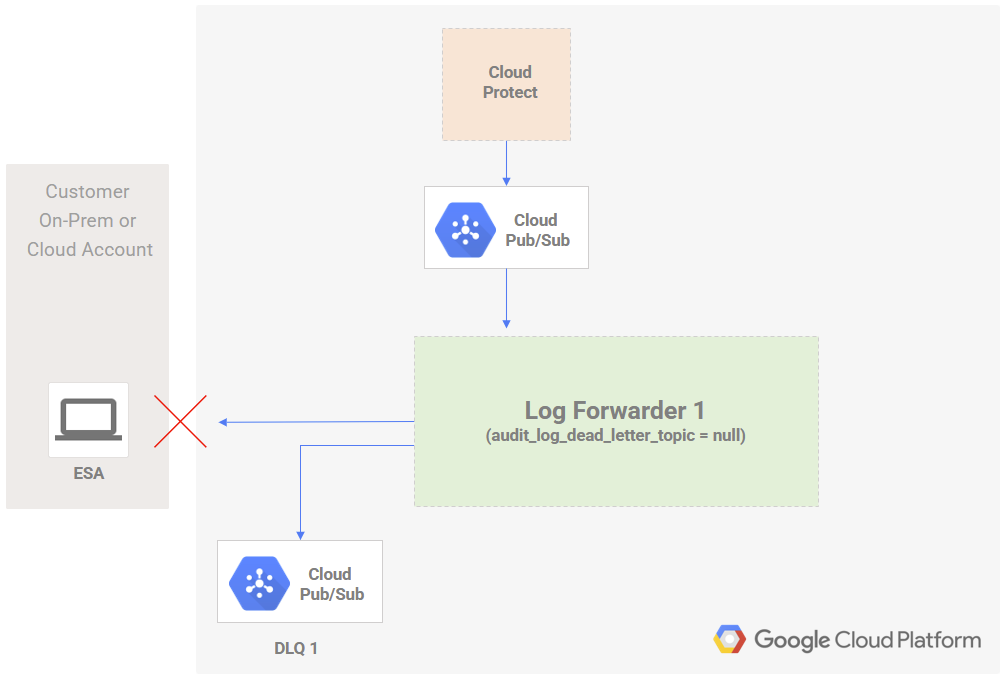
Monitoring Undelivered Logs
Logs pushed to the dead letter pub/sub topic will be purged and no longer recoverable when specified dlq_topic_message_retention_duration has been reached. Monitoring the dead letter topic is recommended to ensure timely recovery of audit messages before they are permanently lost. Consult the GCP monitoring alerts documentation for setting up alerts based on pub/sub topic metrics.
Recovering Logs in Dead Letter Topic (Recommended)
Protegrity recommends creation of an additional Log Forwarder installation in the case where logs are not delivered to ESA, as described in Log Forwarder Dead Letter Pub/Sub Architecture.
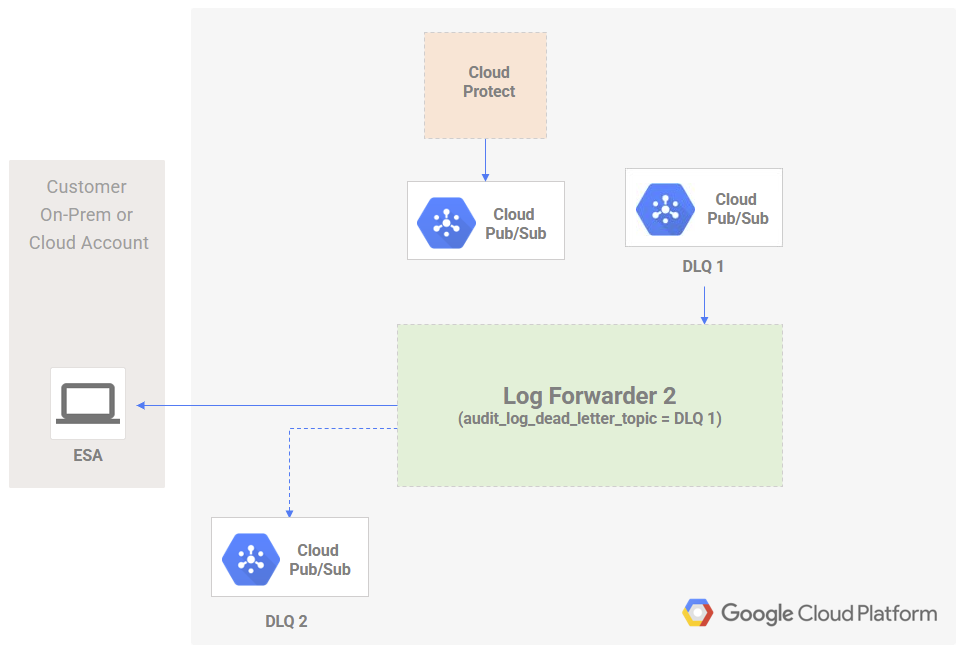
Steps to recover audit logs using new Log Forwarder installation:
Create a second Log Forwarder installation (Log Forwarder 2 in the above diagram) for processing undelivered logs. Value for audit_log_dead_letter_topic in the terraform script should be set to null during installation.
Configure and test newly installed Log Forwarder to verify ESA connectivity. See Install Log Forwarder Function via Terraform Scripts for installation instructions.
Identify the dead letter pub/sub topic (DLQ 1 in the above diagram) resource name by running command
terraform outputfor the Log Forwarder which failed to deliver logs (Log Forwarder as described in Log Forwarder Dead Letter Pub/Sub Architecture). Note the value for audit_log_dlq_topic.
Set audit_log_dead_letter_topic in the new Log Forwarder (Log Forwarder 2 in the above diagram) terraform installation script to the value of audit_log_dlq_topic identified in previous step. Apply the changes with terraform apply.
Monitor the new Log Forwarder function logs for any failures.
Note
Any additional failed logs will be pushed to the dead letter pub/sub topic (DLQ 2 in the above diagram) of the new Log Forwarder.Recovering Logs in Dead Letter Topic (Alternative)
When the recommended method of for recovery described in Recovering Logs in Dead Letter Topic (Recommended) is not an option, you may use the existing Log Forwarder to reprocess undelivered logs.
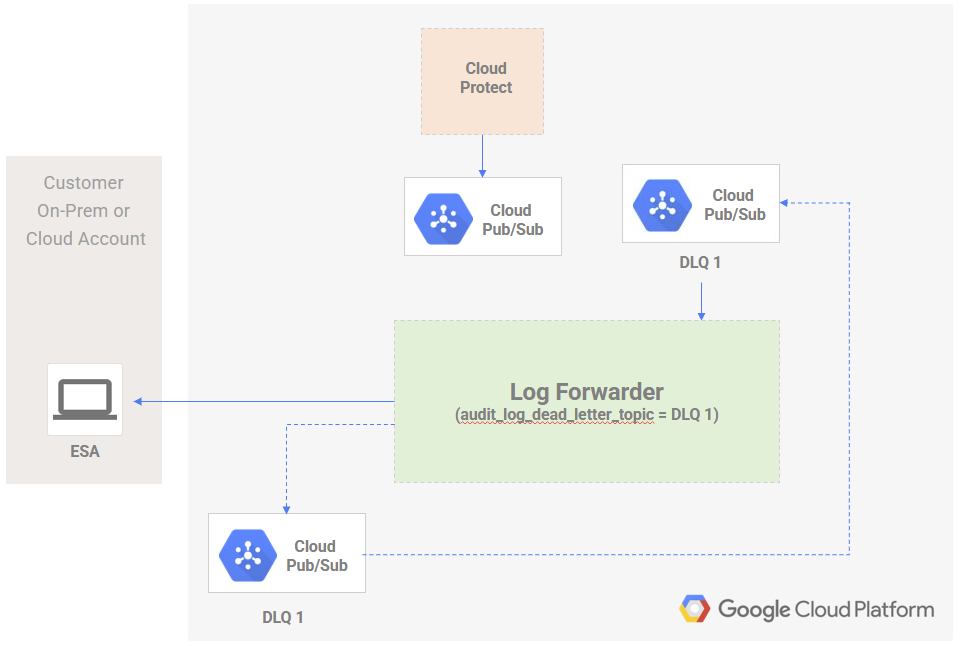
Warning
This approach is only recommended for implementors with advanced knowledge of the involved GCP services and can result in permanent loss/duplication of audit logs and additional cost. If unsure, install an additional log forwarder to reprocess logs or reach out to Protegrity for guidance.Steps to recover audit logs using existing Log Forwarder installation:
Fix any configuration errors causing the Log Forwarder to fail. Verify audit logs are being transmitted successfully to ESA.
Identify the dead letter pub/sub topic (DLQ 1 in the above diagram) resource name by running command
terraform outputfor the Log Forwarder. Note the value for audit_log_dlq_topic.
Set audit_log_dead_letter_topic in the terraform installation script to the value of audit_log_dlq_topic identified in previous step. Apply the changes with
terraform applyWhen audit logs have been transmitted to ESA, revert setting audit_log_dead_letter_topic to null Apply the changes with
terraform apply