Undeliverable Audit Log Recovery
Protegrity Cloud Protect Log Forwarder installation provides a solution to recover undelivered audit logs. Reasons for undeliverable logs may include:
- Changes to network configuration in ESA or cloud provider (VPC, firewall, certificate rotation, service user credentials)
- Log Forwarder IAM Service Account permissions
- Log Forwarder Cloud Run Function configuration
- Disruption in cloud provider service
Log Forwarder Dead Letter Pub/Sub Architecture
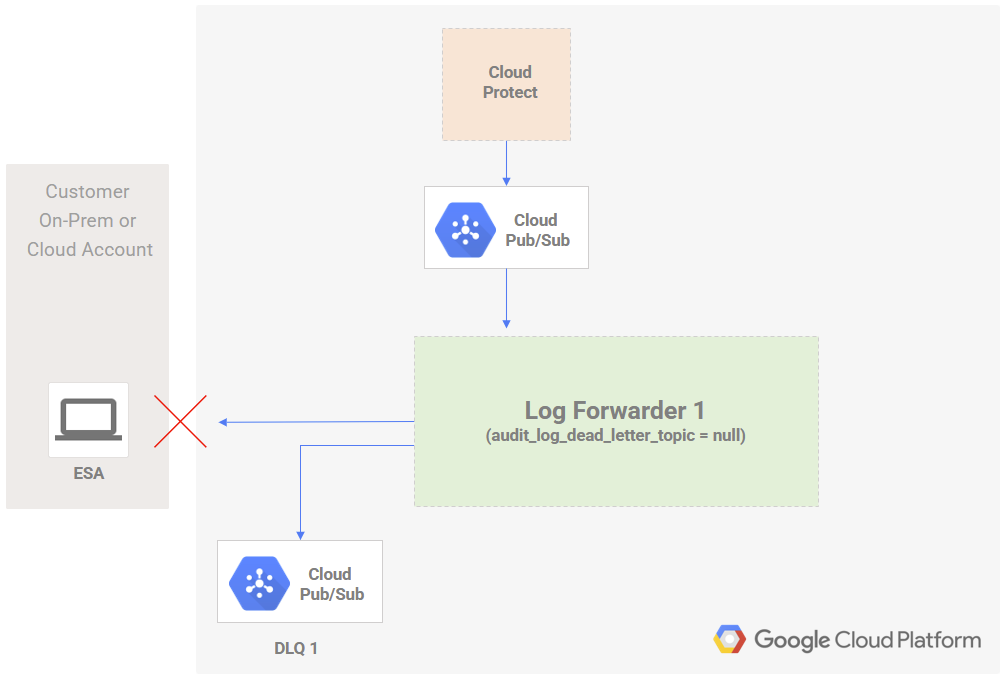
Log Forwarder is triggered by pub/sub events generated by Protect Functions. If Log Forwarder is unable to reach ESA to deliver the logs, they are pushed to a dead letter pub/sub topic. Dead letter pub/sub topic is created when installing the Log Forwarder with the service installation script. See Install Log Forwarder Function via Terraform Scripts for dead letter topic configuration options and naming conventions.
Monitoring Undelivered Logs
Logs pushed to the dead letter pub/sub topic will be purged and no longer recoverable when specified dlq_topic_message_retention_duration has been reached. Monitoring the dead letter topic is recommended to ensure timely recovery of audit messages before they are permanently lost. Consult the GCP monitoring alerts documentation for setting up alerts based on pub/sub topic metrics.
Recovering Logs in Dead Letter Topic (Recommended)
Protegrity recommends creation of an additional Log Forwarder installation in the case where logs are not delivered to ESA, as described in Log Forwarder Dead Letter Pub/Sub Architecture.
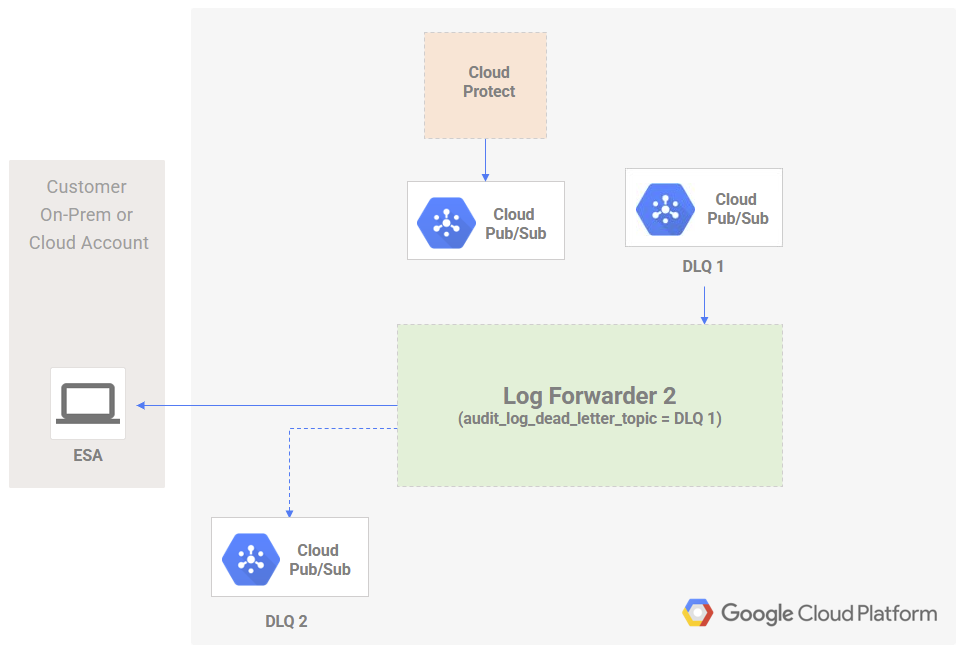
Steps to recover audit logs using new Log Forwarder installation:
Create a second Log Forwarder installation (Log Forwarder 2 in the above diagram) for processing undelivered logs. Value for audit_log_dead_letter_topic in the terraform script should be set to null during installation.
Configure and test newly installed Log Forwarder to verify ESA connectivity. See Install Log Forwarder Function via Terraform Scripts for installation instructions.
Identify the dead letter pub/sub topic (DLQ 1 in the above diagram) resource name by running command
terraform outputfor the Log Forwarder which failed to deliver logs (Log Forwarder as described in Log Forwarder Dead Letter Pub/Sub Architecture). Note the value for audit_log_dlq_topic.
Set audit_log_dead_letter_topic in the new Log Forwarder (Log Forwarder 2 in the above diagram) terraform installation script to the value of audit_log_dlq_topic identified in previous step. Apply the changes with terraform apply.
Monitor the new Log Forwarder function logs for any failures.
Note
Any additional failed logs will be pushed to the dead letter pub/sub topic (DLQ 2 in the above diagram) of the new Log Forwarder.Recovering Logs in Dead Letter Topic (Alternative)
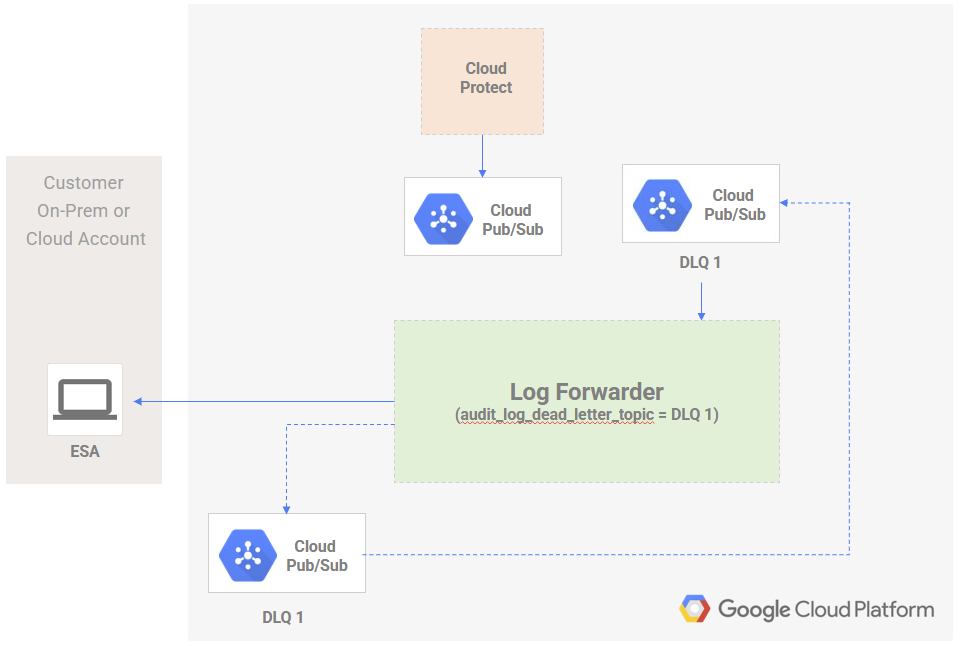
When the recommended method of for recovery described in Recovering Logs in Dead Letter Topic (Recommended) is not an option, you may use the existing Log Forwarder to reprocess undelivered logs.
Warning
This approach is only recommended for implementors with advanced knowledge of the involved GCP services and can result in permanent loss/duplication of audit logs and additional cost. If unsure, install an additional log forwarder to reprocess logs or reach out to Protegrity for guidance.Steps to recover audit logs using existing Log Forwarder installation:
Fix any configuration errors causing the Log Forwarder to fail. Verify audit logs are being transmitted successfully to ESA.
Identify the dead letter pub/sub topic (DLQ 1 in the above diagram) resource name by running command
terraform outputfor the Log Forwarder. Note the value for audit_log_dlq_topic.
Set audit_log_dead_letter_topic in the terraform installation script to the value of audit_log_dlq_topic identified in previous step. Apply the changes with
terraform applyWhen audit logs have been transmitted to ESA, revert setting audit_log_dead_letter_topic to null Apply the changes with
terraform apply
Feedback
Was this page helpful?