Cluster
Monitor the health of the DSG cluster and view the DSG logs from this menu.
The Cluster menu includes the following tabs: Monitoring and the Log Viewer tabs.
1 - Monitoring
The Monitoring tab displays the health of all the nodes in the cluster.
The individual nodes in the cluster can be monitored and managed. The following actions are available on the monitoring screen:
Add nodes to the cluster
Deploy configurations to the nodes in the cluster
Deploy configurations to specific node groups
Change groups in the cluster
Change groups on selected nodes
Refresh nodes in the cluster
Start, stop, or restart individual nodes
The following figure illustrates the Monitoring screen:
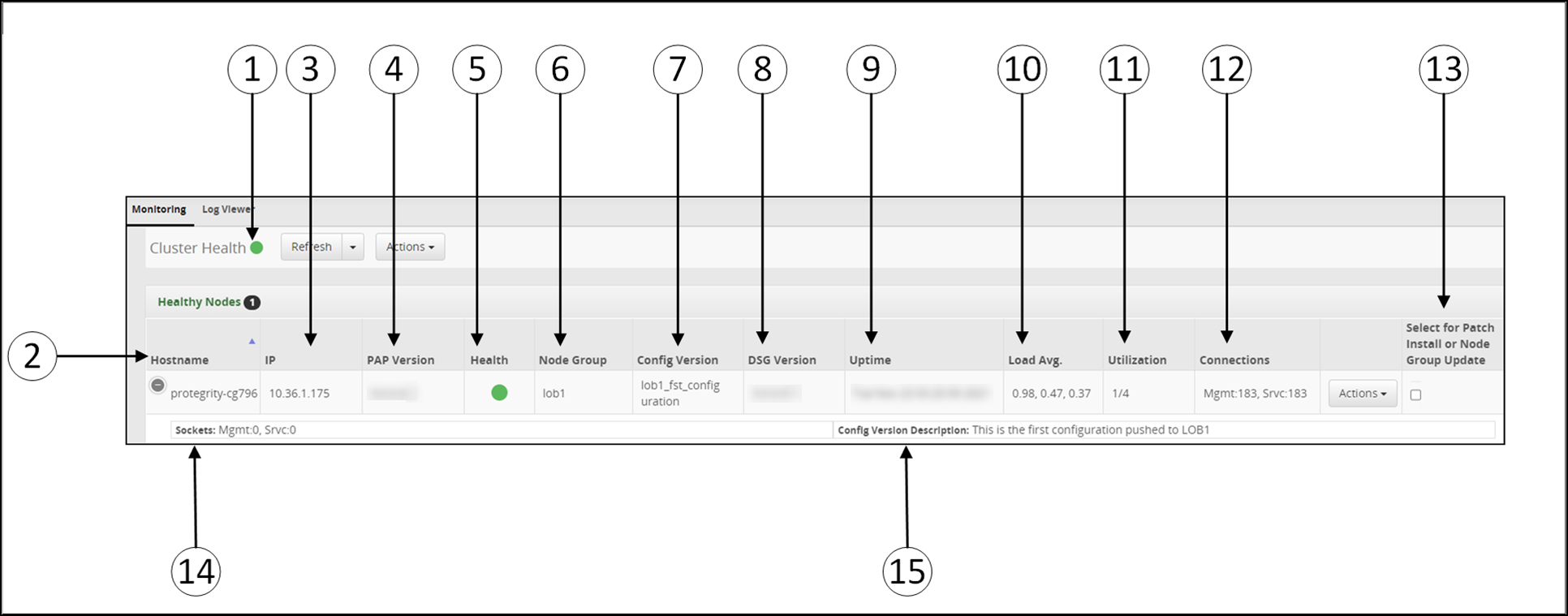
1 Cluster Health - Cluster health indicator in Green, Orange, or Red.
2 Hostname - Hostname of the DSG.
3 IP - IP address of the DSG.
4 PAP version - Build version of the DSG.
5 Health - Status of DSG.
6 Node Group - Node group assigned to the DSG node. If no node group is specified, the node group is assigned as default.
7 Config Version - The tag name provided while deploying the configuration to a particular node group.
8 DSG Version - Build version of DSG.
9 Uptime - Time that the DSG has been running.
10 Load Avg - Average load on a process in the last five, ten, and fifteen minutes.
11 Utilization - Number of DSG processes and CPU cores utilized.
12 Connections - Total number of active connections for the node.
13 Select for Patch Installation or Node Group Update - Select the option to updating the node group
14 Socket - Total number of open sockets for the node.
15 Config Version Description - The additional information about the configuration version. If the description is not provided while deploying the configurations to a particular node group, then this field will be empty.
Cluster and node health status color indication reference:
| Color | Description |
|---|
 | Node is healthy and services are running. |
 | Warning. Some services related to a node need attention. |
 | Not running or unreachable. |
The following figure illustrates the actions for the Cluster Monitoring screen.
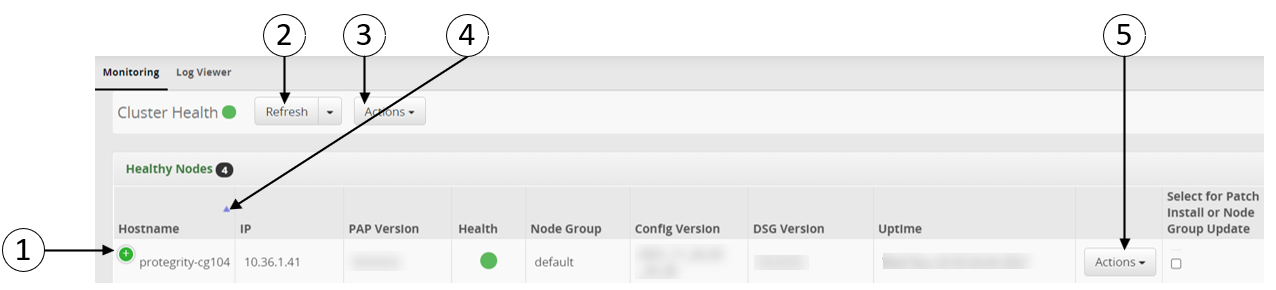
The callouts in the figure are explained as follows.
1 Expand - Expand to view the other columns.
2 Refresh - Refresh all the nodes in the cluster. The Refresh drop down list provides the following options:
- Start: Starts all nodes.
- Stop: Stops all nodes.
- Refresh: Refreshes details related to all nodes.
- Restart: Restarts all nodes. The restart operation will not export the configurations, it will only restart all the nodes.
- Deploy: Deploys the configuration changes on all the DSG nodes in the cluster. The configurations are pushed and the node is restarted. For more information, refer to the section Deploying Configurations to the Cluster.
- Deploy to Node Groups: Deploy the configurations to the selected node groups in the cluster. The configurations are pushed and the node is restarted. For more information, refer to the section Deploy Configurations to Node Groups.
3 Actions -
The Actions drop down list at the cluster level provides the following options:
- Apply Patch on Cluster: Applies a patch to all nodes in a cluster including the ESA.
- Apply Patch on Selected Nodes: Apply the same patch simultaneously on all selected nodes.
- Change Groups on Entire Cluster: Change the node group of all the DSG nodes in the cluster
- Change Groups on Selected nodes: Select the node and change the node group on that particular DSG node in the cluster
- Add Node: Adding a Node to the Cluster.
4 Order - Sort the nodes in ascending or descending order
5 Actions -
The Actions drop down list at the individual node level provides the following options:
- Start: Start a node
- Stop: Stop a node
- Restart: Restart a node.
- Apply Patch: Applies a patch to a single node. Before applying a patch on a single DSG node, ensure that the same patch is applied on the ESA.
- Change Groups: Changes the node group on an individual DSG node
- Delete: Delete a node.
Deploying the Configurations to Entire Cluster
The configurations can be pushed to all the DSG nodes in the cluster. This action can be performed by clicking the Deploy option on the Cluster page or from the Ruleset page.
To deploy the configurations to entire cluster:
In the ESA Web UI, navigate to **Cloud Gateway > 3.3.0.0 {build number}**Cloud Gateway > 3.3.0.0 {build number}> Cluster.
Select the Refresh drop down menu and click Deploy.
The following pop-up message occur on the Cluster screen.
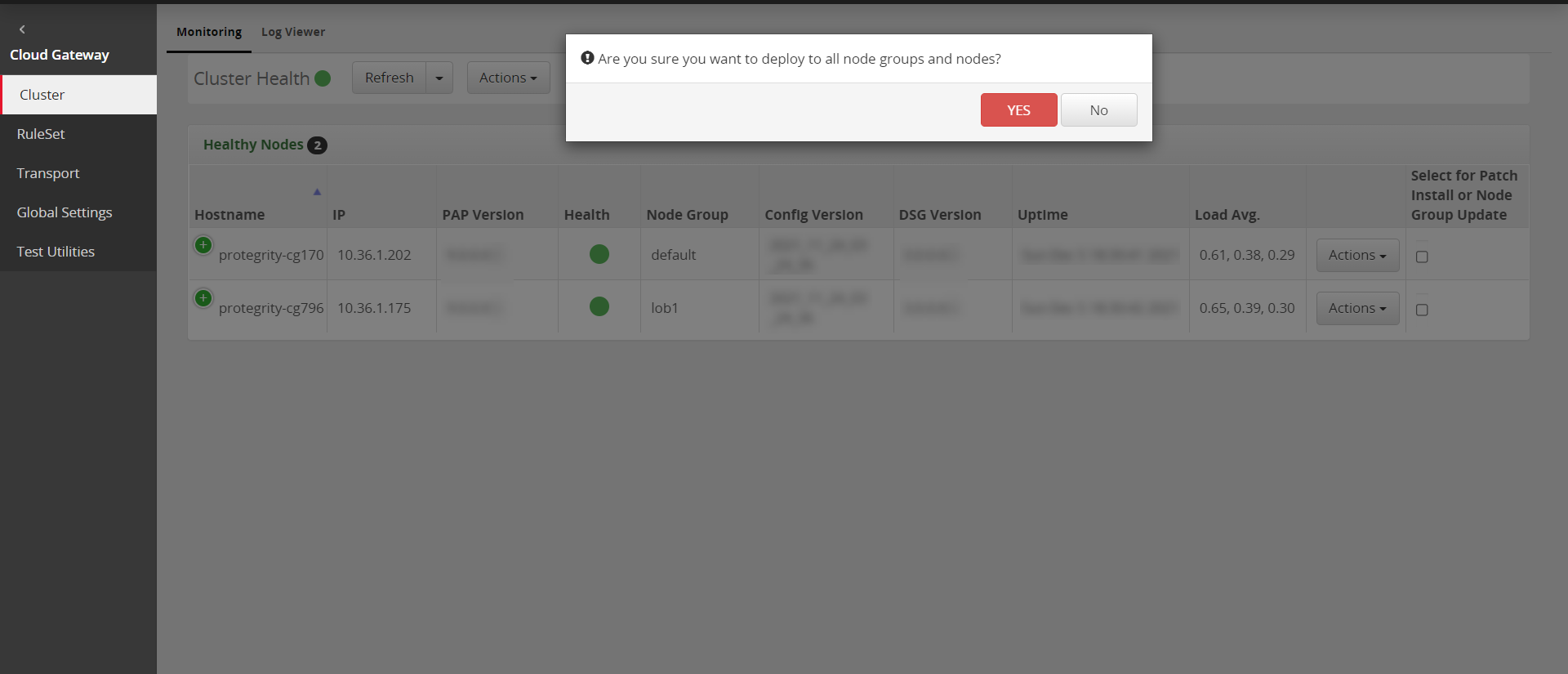
Click YES to push the configurations to all the node groups and nodes.
The configurations will be deployed to all the nodes in the entire cluster.
Deploying the Configurations to Node Groups
The configurations can be pushed to the selected node groups. The configuration will only be pushed to the DSG nodes associated with the node groups. This action can be performed by clicking the Deploy to Node Groups option on the cluster page or from the Ruleset page.
To deploy the configurations to the selected node groups:
In the ESA Web UI, navigate to **Cloud Gateway > 3.3.0.0 {build number}**Cloud Gateway > 3.3.0.0 {build number}> Cluster.
Select the Refresh drop down menu and click Deploy to Node Groups.
Perform the following steps to deploy the configurations to the node groups.
Click Deploy to Node Groups.
The Select node groups for deploy screen appears.
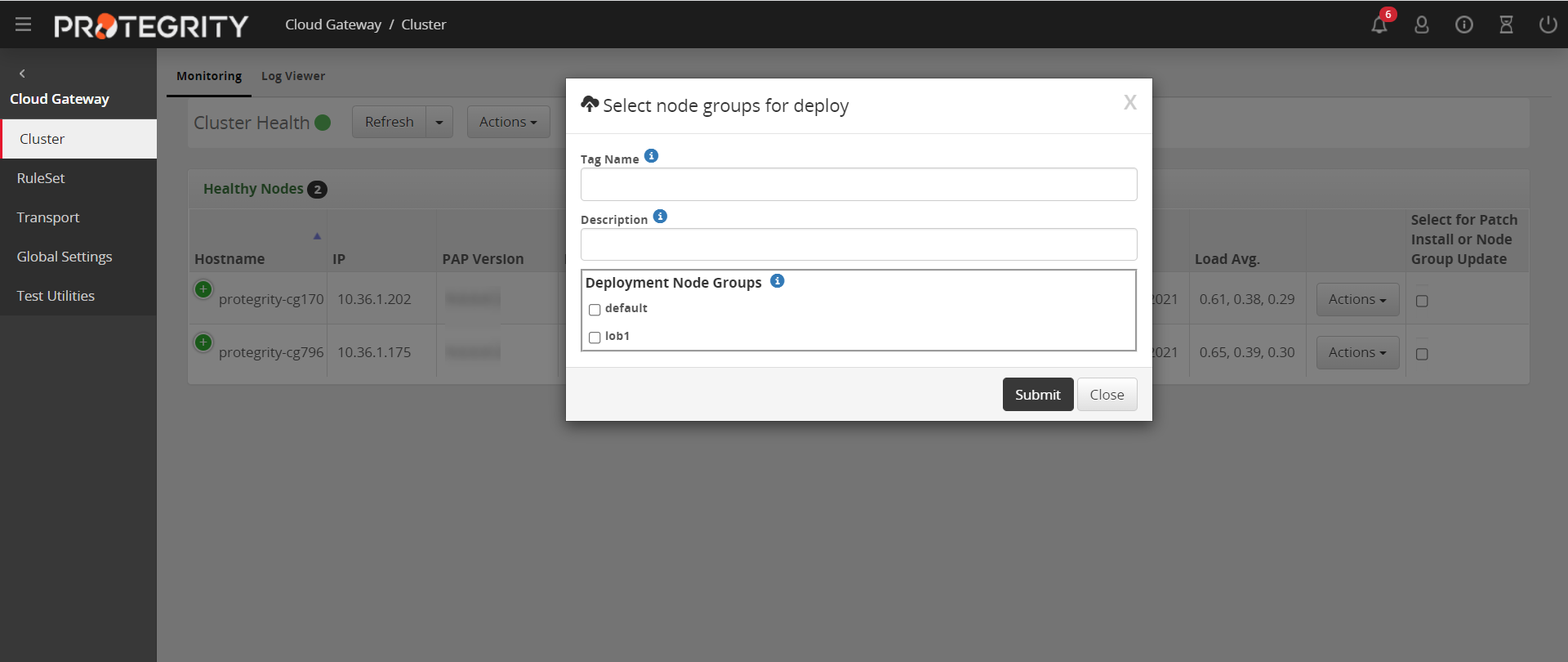
The default and lob1 are the node groups associated with the DSG nodes. When you add a node to cluster, a node group is assigned to that node. For more information about adding a node and node group to the cluster, refer to the section Adding a Node to the Cluster.
Enter the name for the configuration version in the Tag Name field.
The tag name is the version name of a configuration that is deployed to a particular node group. The tag name must be alphanumeric separated by spaces or underscores. If the tag name is not provided, then it will automatically generate the name in the YYYY_mm_dd_HH_MM_SS format.
Enter the description for the configuration in the Description field. The user can provide additional information about the configuration that is to be deployed.
On the Deployment Node Groups option select the node group to which the configurations must be deployed.
Click Submit.
2 - Log Viewer
View logs across DSG nodes.
The Log Viewer screen provides a unified view of all the logs. The logs are classified in the following levels:
Debug: Debugging trace.
Verbose: Additional information that can help a user with detailed troubleshooting
Information: Log entry for information purposes
Warning: Non-critical problem. Appears in orange.
Error: Issue that requires user’s attention. Appears in red.
The following figure illustrates the column for the Log Viewer screen.
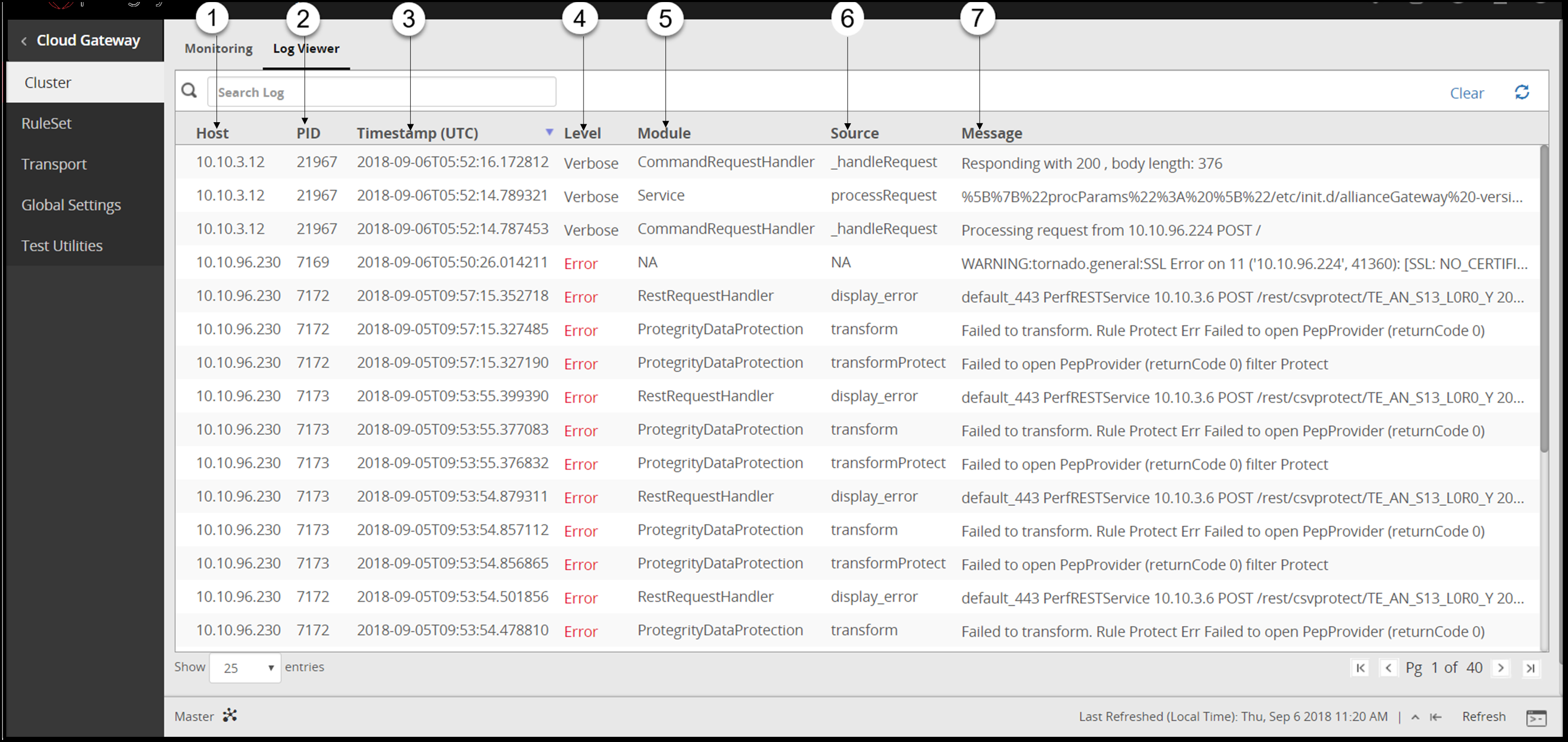
1 Host - Host name or IP address of the DSG node where the log message was generated.
2 PID - Captures the process identifier of the DSG daemons that generated the log message.
3 Timestamp (UTC) - Time recorded when an event for the log was generated. The time recorded is displayed in the Coordinated Universal Time (UTC) format.
4 Level - Severity level of the log message.
5 Module - Part of the program that generated the log.
6 Source - Procedure in the module that generated the log.
7 Message - A textual description of the event logged.
The following figure illustrates the actions for the Log Viewer screen.
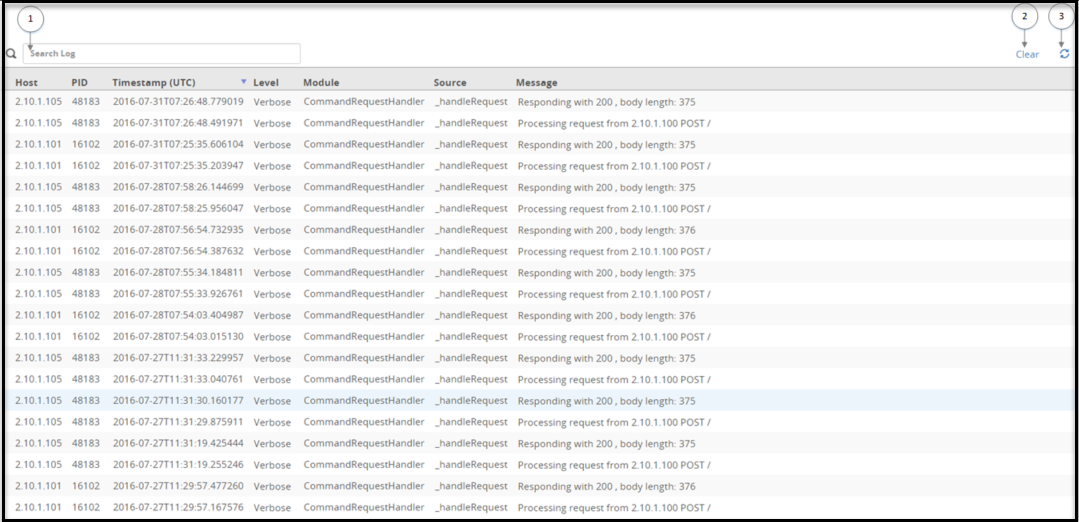
Search logs
Click the search box to scan through the log archive that is collectively maintained across all the DSG nodes within the cluster. The search for logs is not limited to the records that appear on the screen. When a user clicks search, all the log records that are present on the screen as well as on the server are retrieved.
Clear records
You can use the clear functionality to clean up the logs and view the newly generated logs on the Log Viewer screen. Clearing the Log Viewer screen removes the entries that are currently displayed. You can view all the archived logs even after the records are cleared.
The logs are cleared only from the Log Viewer screen. The logs are not cleared or deleted from the appliance and are available for future reference. To access these logs, on the DSG node, click Logs > Appliance. Under Cloud Gateway - Event Logs, select gateway.
Retrieve archived logs
When the logs are cleared from the screen, the records are archived and can be viewed later. After clearing the records, click the Refresh icon. A link displaying the timestamp of the last updated record appears. Click Showing logs after > Show all. The latest 1000 logs are displayed.
Fetching records
Click the Refresh icon to view new logs generated.