Log Viewer
The Log Viewer screen provides a unified view of all the logs. The logs are classified in the following levels:
Debug: Debugging trace.
Verbose: Additional information that can help a user with detailed troubleshooting
Information: Log entry for information purposes
Warning: Non-critical problem. Appears in orange.
Error: Issue that requires user’s attention. Appears in red.
The following figure illustrates the column for the Log Viewer screen.
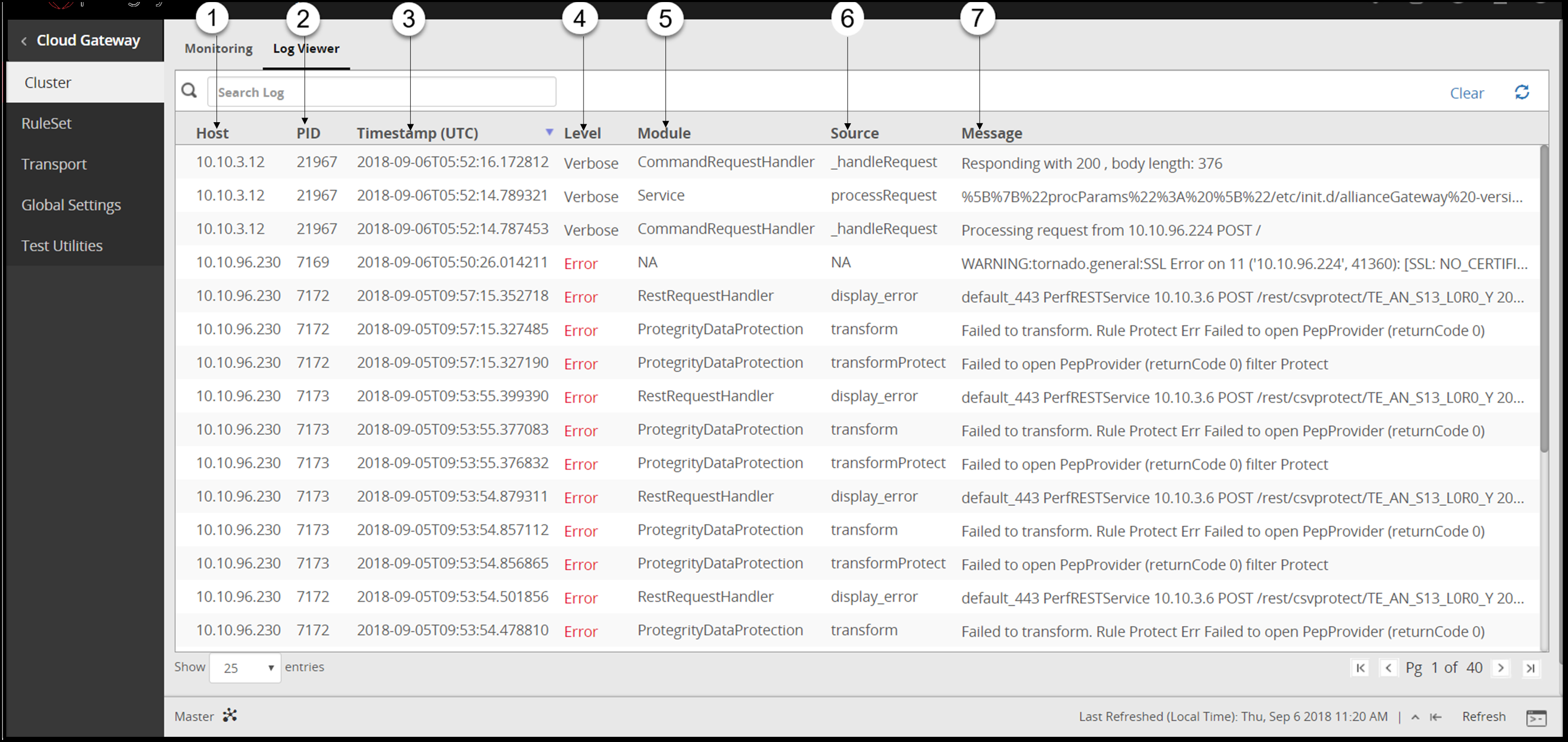
1 Host - Host name or IP address of the DSG node where the log message was generated.
2 PID - Captures the process identifier of the DSG daemons that generated the log message.
3 Timestamp (UTC) - Time recorded when an event for the log was generated. The time recorded is displayed in the Coordinated Universal Time (UTC) format.
4 Level - Severity level of the log message.
5 Module - Part of the program that generated the log.
6 Source - Procedure in the module that generated the log.
7 Message - A textual description of the event logged.
The following figure illustrates the actions for the Log Viewer screen.
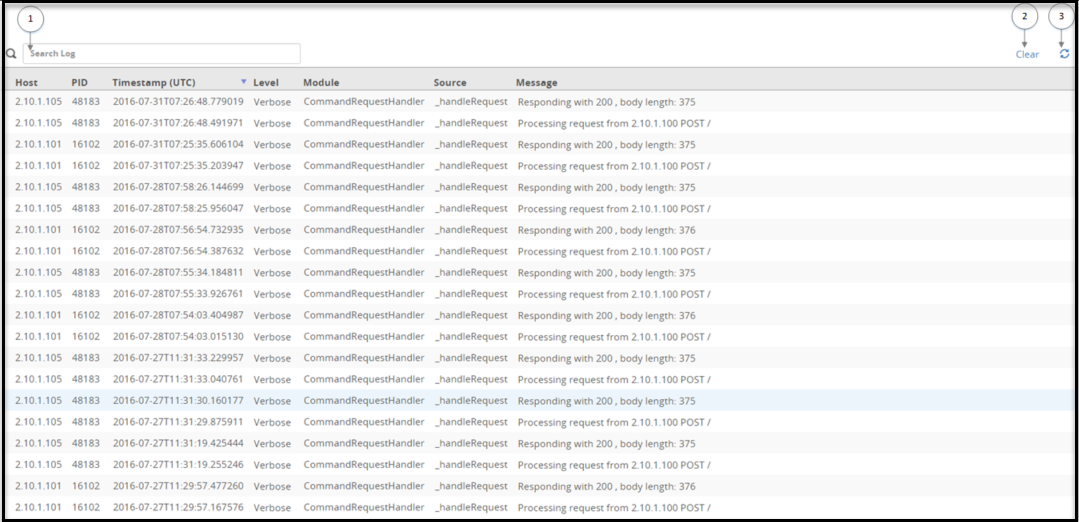
Search logs
Click the search box to scan through the log archive that is collectively maintained across all the DSG nodes within the cluster. The search for logs is not limited to the records that appear on the screen. When a user clicks search, all the log records that are present on the screen as well as on the server are retrieved.
Clear records
You can use the clear functionality to clean up the logs and view the newly generated logs on the Log Viewer screen. Clearing the Log Viewer screen removes the entries that are currently displayed. You can view all the archived logs even after the records are cleared.
The logs are cleared only from the Log Viewer screen. The logs are not cleared or deleted from the appliance and are available for future reference. To access these logs, on the DSG node, click Logs > Appliance. Under Cloud Gateway - Event Logs, select gateway.
Retrieve archived logs
When the logs are cleared from the screen, the records are archived and can be viewed later. After clearing the records, click the Refresh icon. A link displaying the timestamp of the last updated record appears. Click Showing logs after
Fetching records
Click the Refresh icon to view new logs generated.
Feedback
Was this page helpful?