The changes made to the Ruleset tree require deployment of configuration to take effect.
The RuleSet tab is shown in the following figure:
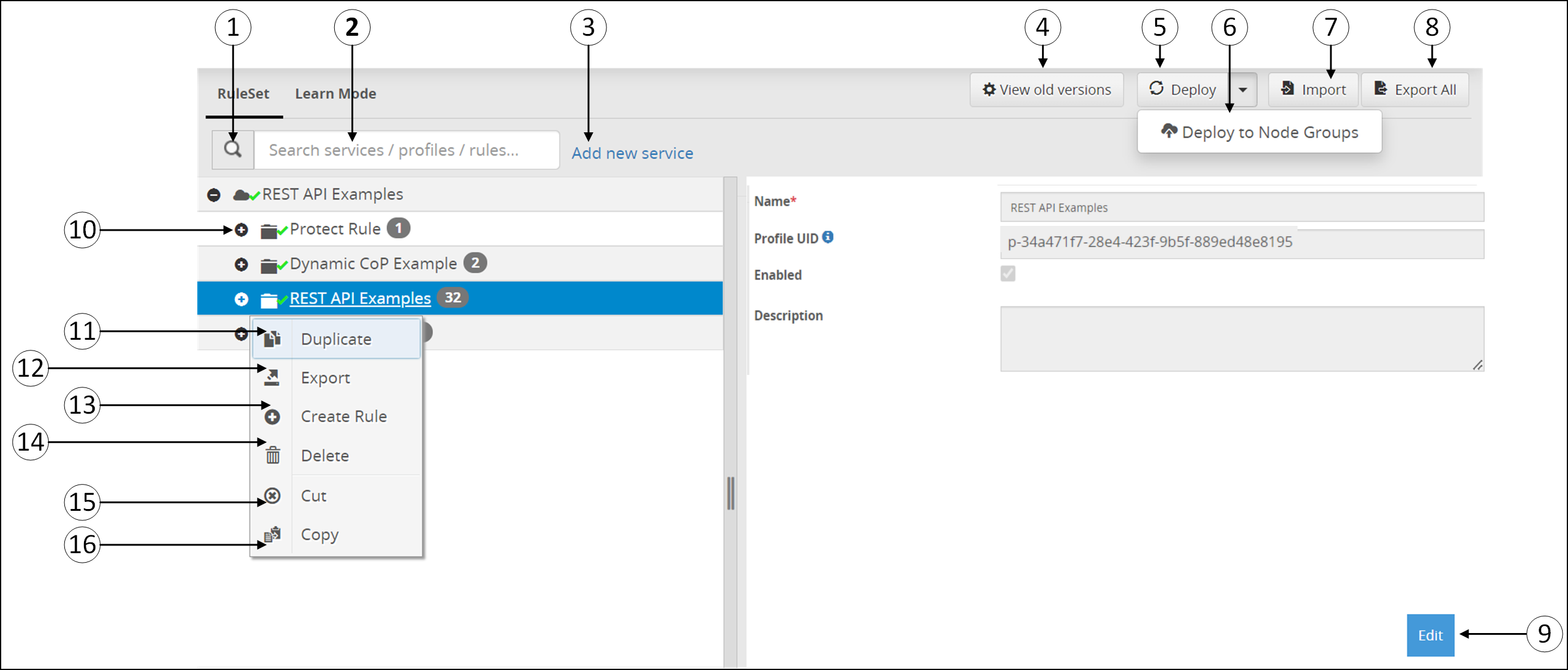
The following table provides the description for each of the available RuleSet options:
1 Search -  Click to search for service, profile, or rules.
2 Search textbox - Provide service, profile, or rule name.
3 Add new service - Add a new service-level based on the service type used. Only one service can be created for every service type.
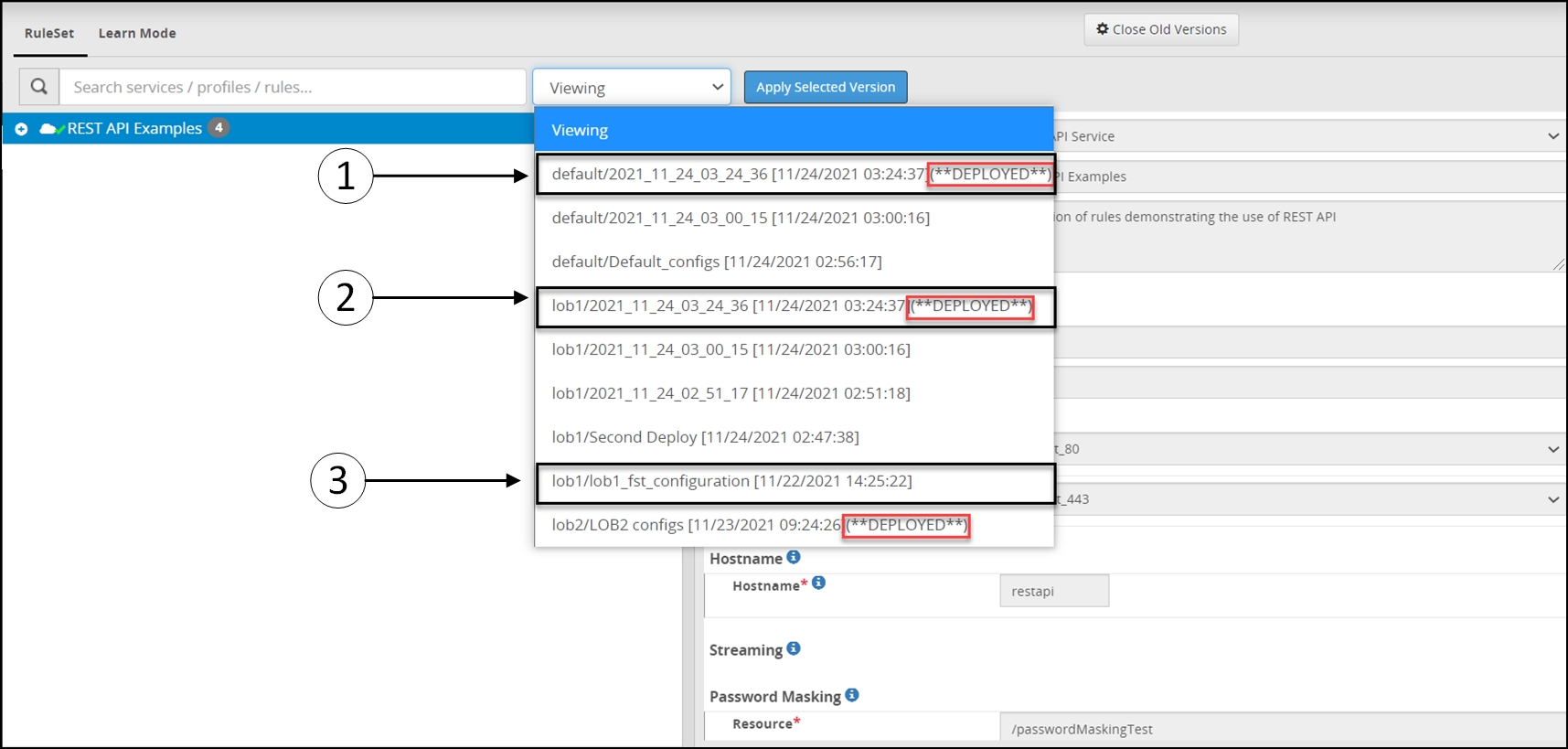
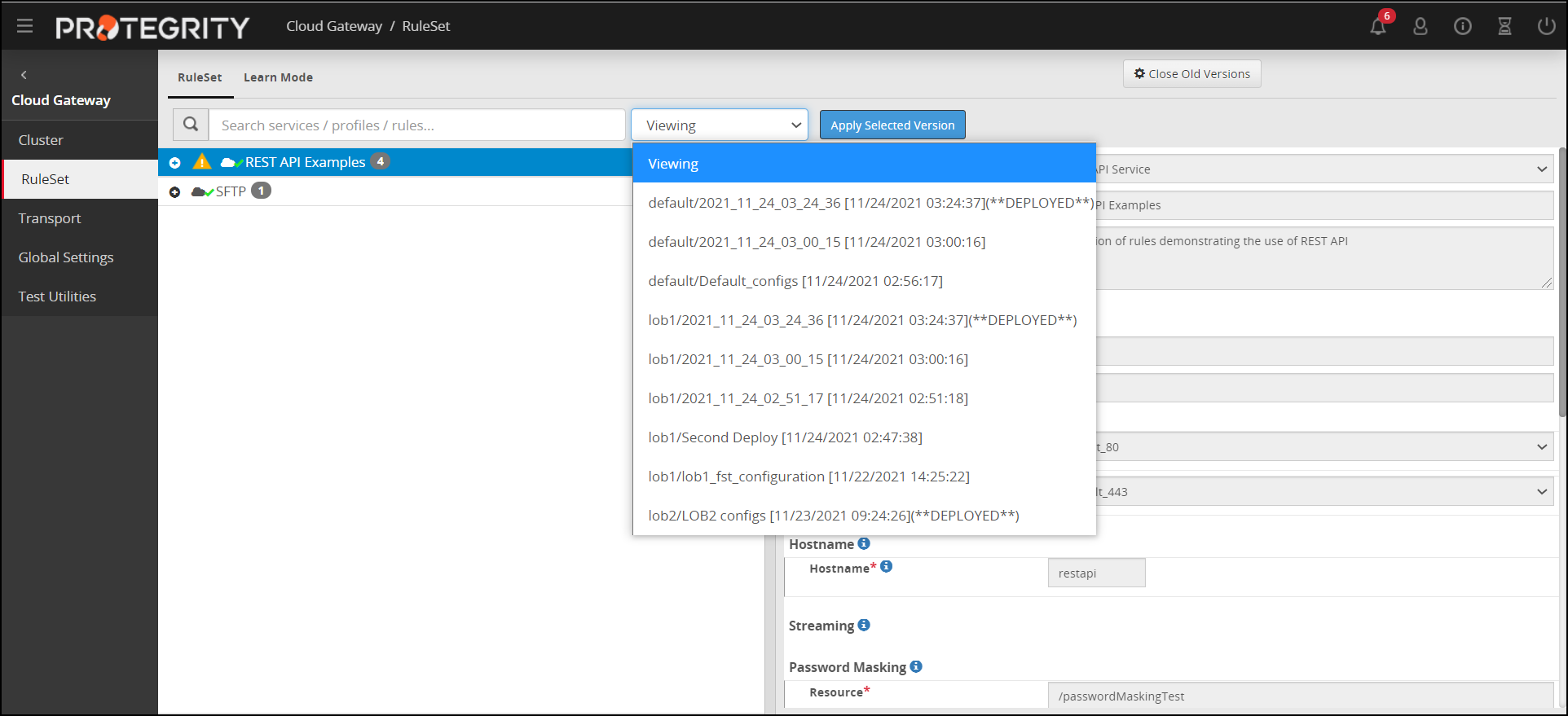
4 View Old Versions - Click to view archived Ruleset configuration backups.
5 Deploy - Deploy the configurations to all the DSG nodes in the cluster. The Deploy operation will export the configurations and restart all the nodes.
6 Deploy to Node groups - Deploy the configurations to the selected node groups in the cluster. This will export the configurations and restart the nodes associated with the node groups.
7 Import - Import the Ruleset tree to the Web UI. Files should be uploaded in .zip extension structure.
- Ensure that the service exists as part of the Ruleset before you import a configuration exported at Profile level.
- Ensure that the directory structure that the exported .zip maintains is replicated when you repackage the files for import. Also, the JSON files must be valid.
- If an older ruleset configuration .zip created using any older DSG version, that includes a GPG ruleset with key passphrase defined, is imported, then the DSG does not encrypt the key passphrase.
8 Export All - Export the Ruleset tree configuration. The rules are downloaded in a .zip format.
9 Edit - Edit the service, profile, or rule details as per requirement.
10 Expand Rule - Expand the rule tree and view child rules.
If you want to further work with rules, right-click any rule to view a set of sub menus. The sub menu options are seen in above figure. The options are described in the following table.
11 Duplicate - Duplicate a service, profile, or rule to create a copy of these Ruleset elements.
12 Export  - Export the Ruleset tree configuration at Service or Profile level. All the child rules under the parent Service or Profile are exported. The rules are downloaded in the .zip format.
13 Create Rule - Add child rule under the parent rule.
14 Delete  - Delete the selected rule.
15 Cut  - Cut the selected rule from the parent rule.
16 Copy  - Copy the selected rule under a parent.
17 View Configuration  - View the configuration of the rule in the JSON format. You can copy the JSON format of the rule and pass it as parameter value in the header of the Dynamic CoP ruleset. This option is available only for the individual rules.
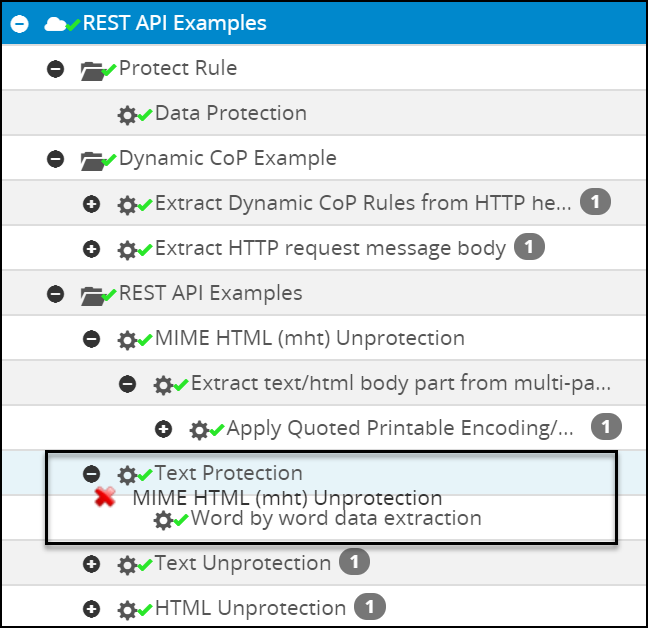
Instead of cut and copy a rule to change its hierarchy among siblings, you can also drag a sibling rule and change its positioning. When the drop is successful, a green tick icon ( ) is displayed as shown in the following figure.
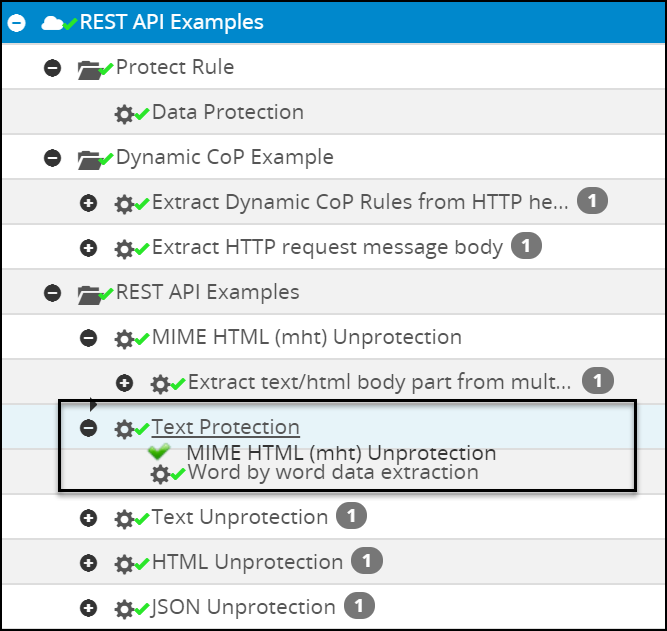
When the drop is unsuccessful, a red cross icon (  ) is displayed as shown in the following figure.
A log is generated in the Forensics screen every time you cut, copy, delete, or reorder a rule from the Ruleset screen in the ESA.
The following figure shows a service with Warning indication.
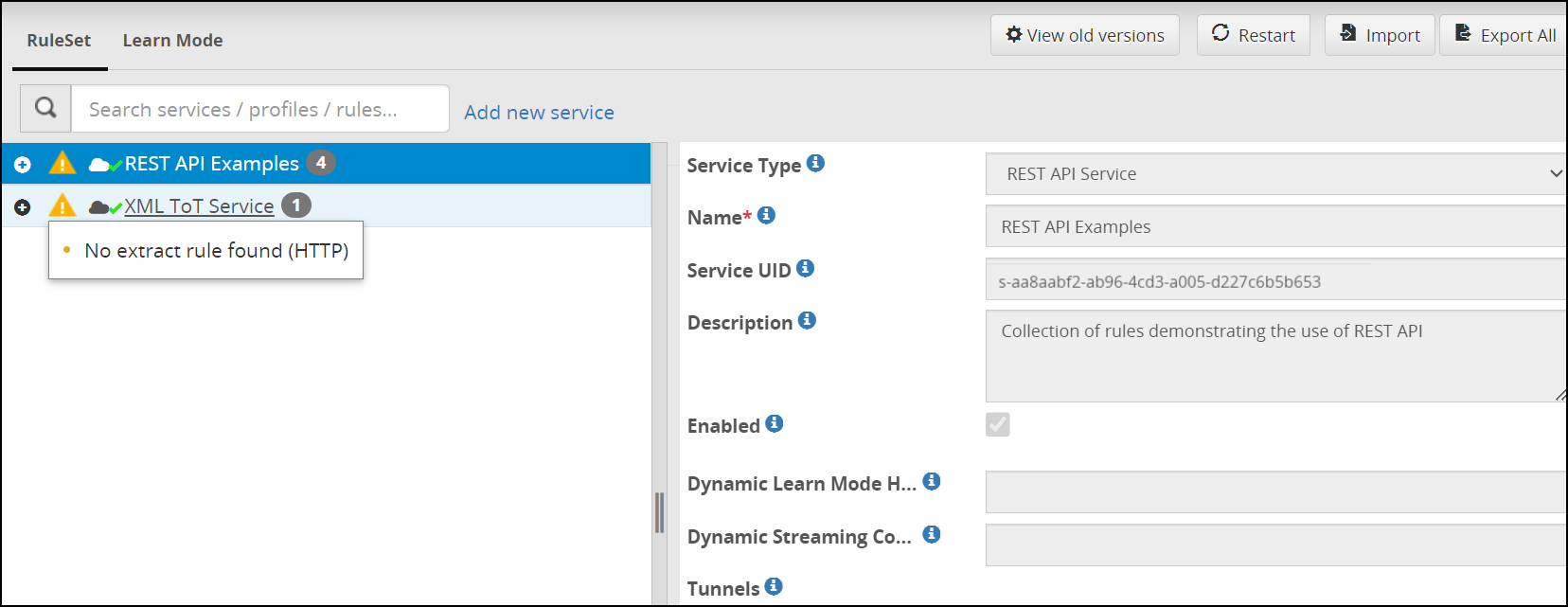
The  symbol is seen on the service when the child rule is not created or when Learn Mode is enabled.
Deploy configurations to the Cluster
In the ESA Web UI, navigate to Cloud Gateway > 3.3.0.0 {build number} > Ruleset.
Click Deploy. A confirmation message occurs.
Click Continue to push the configurations to all the node groups and nodes. The configurations will be deployed to the entire cluster.
Deploy configurations to node groups
In the ESA Web UI, navigate to Cloud Gateway > 3.3.0.0 {build number} > Ruleset.
Click Deploy > Deploy to Node Groups.
The Select node groups for deploy screen appears.
Enter the name for the configuration version in the Tag Name field. The tag name is the version name of a configuration that is deployed to a particular node group. The tag name must be alphanumeric, separated by spaces or underscores. If the tag name is not provided, then it will automatically generate the name in the YYYY_mm_dd_HH_MM_SS format.
Enter the description for the configuration in the Description field.
On the Deployment Node Groups option, select the node group to which the configurations must be deployed.
Click Submit.
The configurations are deployed to the node groups.