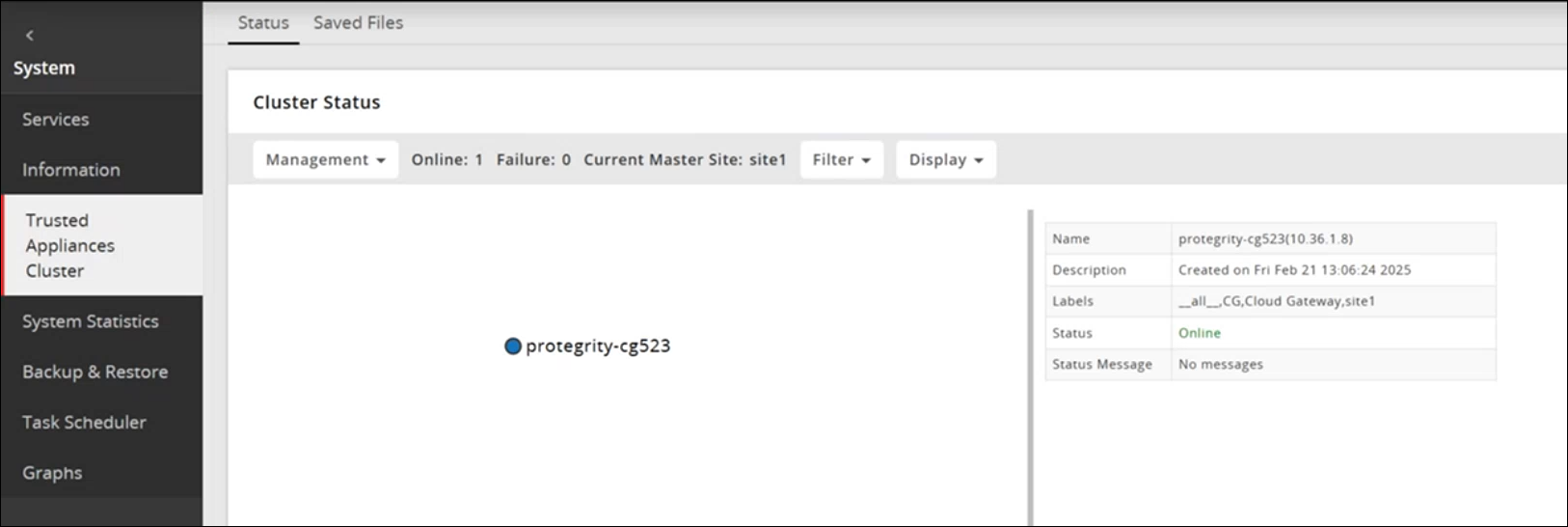
Creating a DSG cluster
On the DSG Web UI, navigate to System > Trusted Appliances Cluster.
The Join Cluster screen appears.
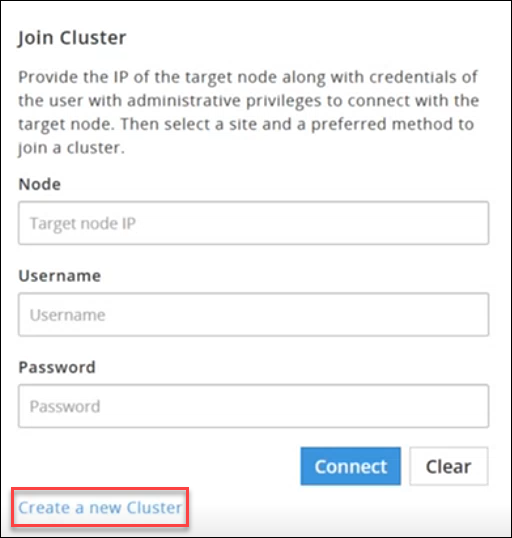
Click Create a new Cluster to create a DSG cluster.
The Create Cluster screen appears.
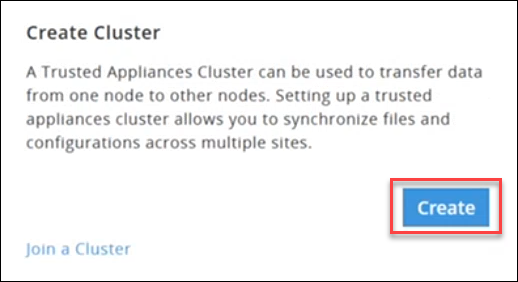
Click Create and select a preferred communication method.
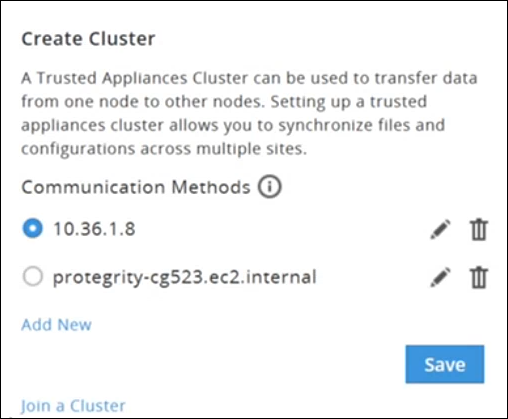
Click Save to create a cluster.
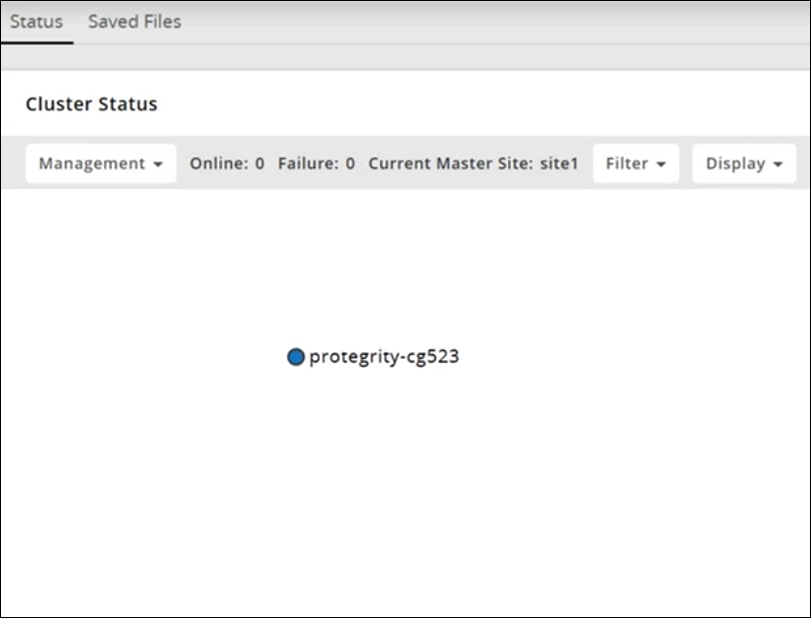
Adding DSG Nodes to an existing Cluster
This section outlines the steps to add additional DSG nodes to an existing cluster in which a DSG node is already part of the Trusted Appliance Cluster (TAC).
Before you begin
Ensure that the communication process between the DSG and the ESA is properly established.
For more information about communcication process, refer to the Set ESA Communication
Ensure that the DSG patch is applied on the ESA.
For more information about applying the DSG patch on the ESA, refer to the Extending ESA with DSG Web UI
On the ESA Web UI, navigate to Cloud Gateway > 3.3.0.0 {build number} > Cluster > Monitoring.
The Cluster screen appears.

Select the Actions drop down list in the Cluster Health pane.
The following options appear:
- Apply Patch on Cluster
- Apply Patch on selected Nodes
- Change Groups on Entire Cluster
- Change Groups on Selected Nodes
- Add Node
Perform the following steps to add a node.
Click Add Node.
The Add new node to cluster screen appears.
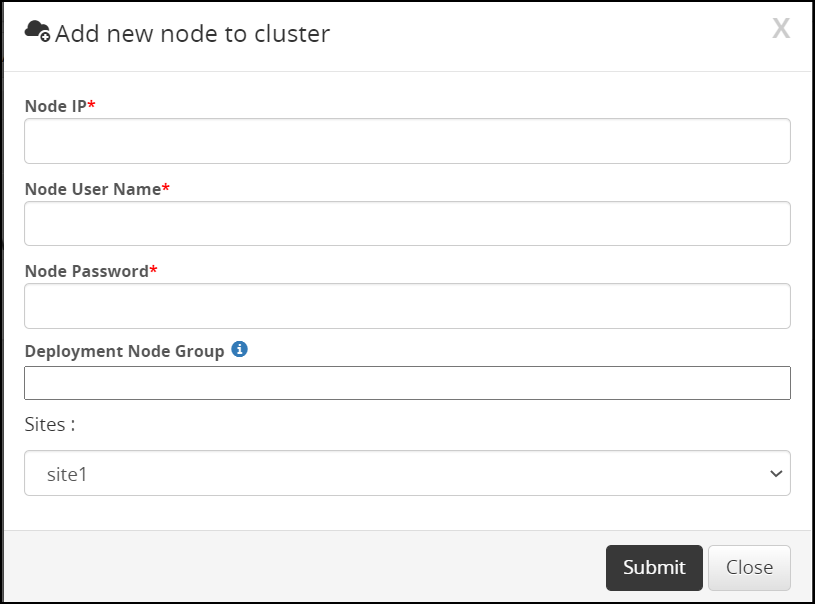
Enter the FQDN or IP address of the DSG node to be added in the cluster in the Node IP field.
Caution: Make sure that the DSG host address matches the Subject Alternative Name(SAN) field or Common Name(CN) in the DSG server certificate.
For more information about checking the DSG host address, refer to the section Ascertaining the host address in the DSG server certificateEnter the administrator user name for the ESA node user in the Node User Name field.
Enter the administrator password for the ESA node user in the Node Password field.
Enter the node group name in the Deployment Node Group field.
Note: If the deployment node group is not specified, by default it will get assigned to the default node group.
Click Submit.
Click Refresh > Deploy or Deploy to Node Groups.
For more information about deploying the configurations to entire cluster or the node groups, refer to the section Deploying the Configurations to Entire Cluster and Deploying the Configurations to Node Groups.
The node is added to the cluster.
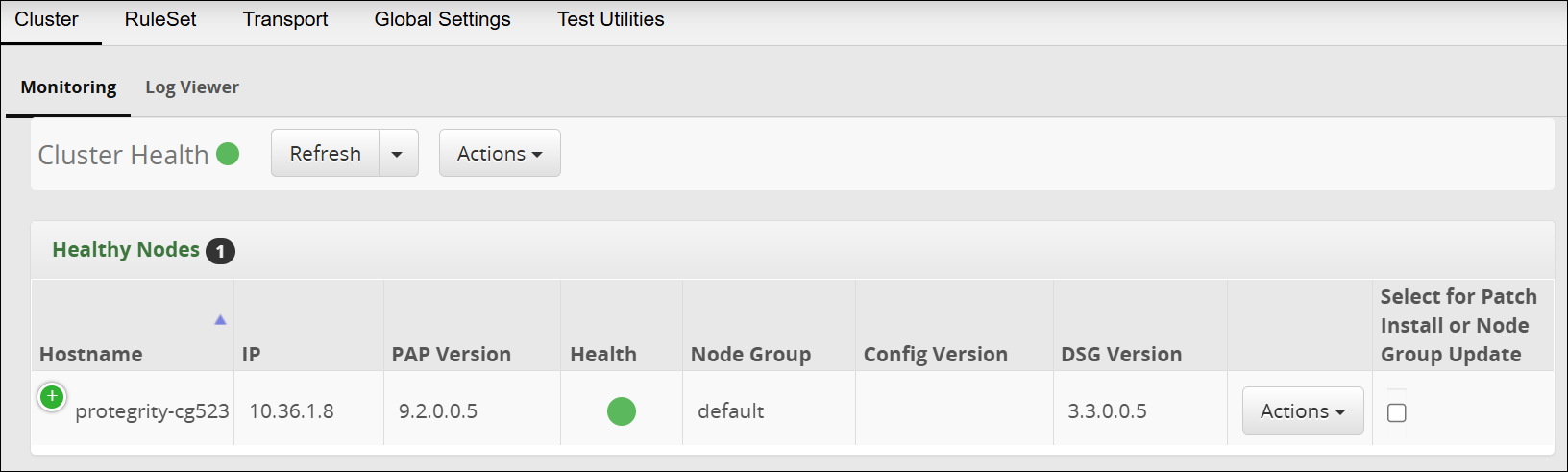
The following figure is the Trusted Appliances Cluster (TAC) page after adding the nodes to the cluster.