Adding and Configuring the Second Network Interface
Adding the Second Network Interface
For ensuring network security, the DSG isolates the management interface from the service interface by allocating each with a separate network address. Ensure that two NICs are added to the DSG. This section explains the steps to add a second network interface to the DSG appliance after a DSG VM is created.
To add a second network interface to the DSG:
On the Azure Portal Dashboard, click Virtual Machines.
Select the DSG VM that you created.
The DSG VM details appear in the Virtual Machine screen.
On the Virtual Machine screen, click Overview.
Click Stop to power off the VM.
Create the second network interface for the DSG VM.
Navigate to the Virtual Machine screen, select the DSG VM that you created, and click Networking under the Settings area.
Click Attach network interface.
Select the network interface that you created in step 5, and click OK.
The second network interface is added to the VM. You can view two tabs that represent NICs for the management and service interfaces.
Click Start to power on the VM.
The second network interface is added to the DSG node.
Configuring the Second Network Interface
This section explains the steps to configure a second network interface on the DSG after finalizing the DSG installation. For more information about finalizing the DSG installation, refer to the section Finalizing the DSG Installation.
To configure the second network interface on the DSG:
On the Azure Portal Dashboard, click Virtual Machines.
Navigate to the Virtual Machine screen, and select the DSG VM instance that you created earlier.
Click Overview.
Click Serial Console to access the DSG instance.
Login to the DSG instance using the administrator credentials.
Navigate to Networking > Network Settings.
The Network Configuration Information screen appears.
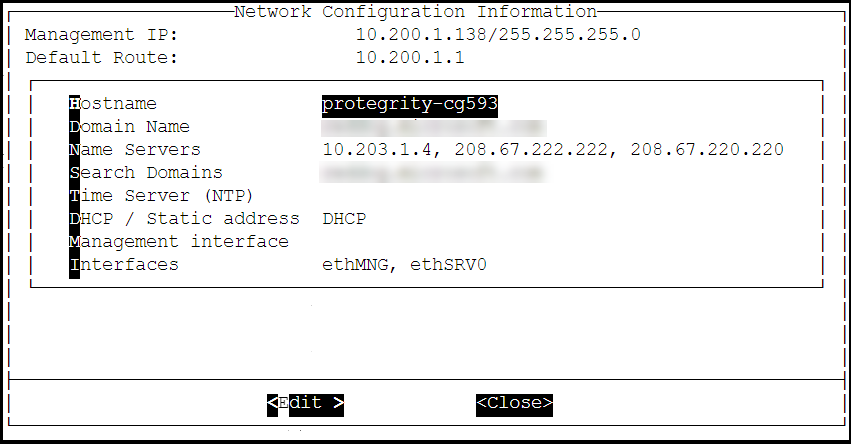
Select Interfaces and press Edit.
Select the ethSRV0 interface and proceed by pressing Tab to select Edit.
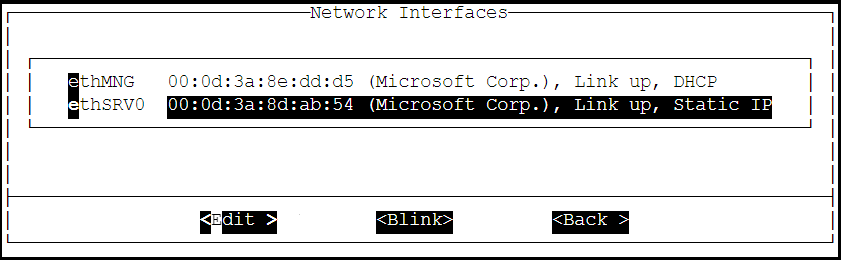
Select either DHCP or Static for the ethSRV0 interface.
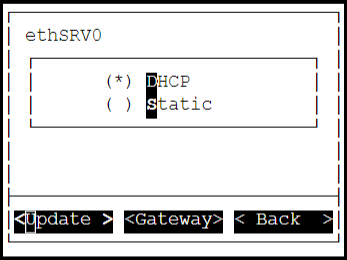
If the DHCP server is not configured, then select Static, and proceed by pressing Tab to select Update for updating the network information manually.
The Interface Settings screen appears.
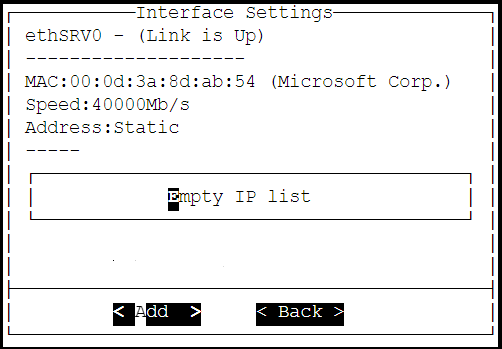
On the Interface Settings screen, press Tab and select Add to enter the IP Address and Netmask for the ethSRV0 interface.
The Network Settings screen appears.
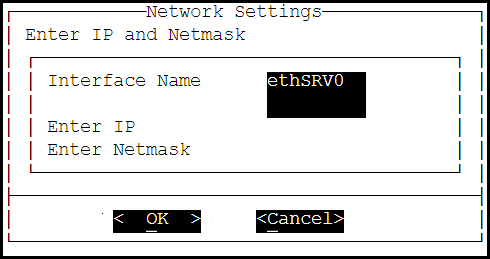
On the Network Settings screen, enter the IP Address and the Netmask of the ethSRV0 interface and proceed by pressing Tab and select OK.
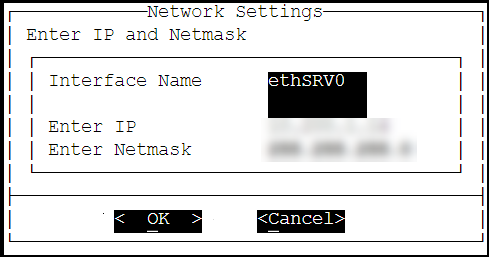
The second network interface, ethSRV0, is configured on the DSG node.
Feedback
Was this page helpful?