Finalizing the DSG Installation
After the DSG instance is launched, you must complete the finalization of the DSG installation. The finalization process will rotate the Protegrity provided keys and certificates so that these are regenerated as a security best practice.
It is recommended to finalize the installation of the DSG instance using the Serial Console provided by GCP. Do not finalize the installation of the DSG instance using the SSH connection.
To finalize the DSG installation:
Login to the GCP console.
Under the Compute section, click Compute Engine > VM instances.
On the VM instances screen, search or enter the name of the VM instance.
Click Connect to serial console to access the DSG instance.
Login using the administrator credentials for the DSG.
The credentials for logging in to the DSG are provided in the DSG 3.3.0.0 readme.
Press Tab to select Yes and press Enter to finalize the installation.
The finalize installation confirmation screen appears.
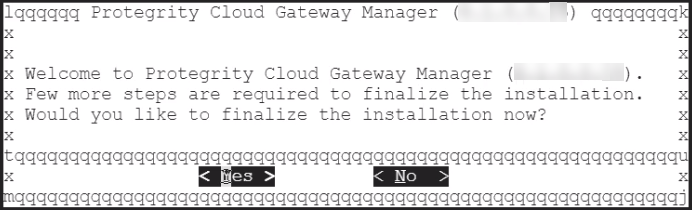
If you select No during finalization, then the DSG installation does not complete.
Perform the following steps to complete the finalization of the DSG installation on the DSG CLI manager.
- Navigate to Tools > Finalize Installation.
- Follow the step 7 to step 10 to complete installing the DSG.
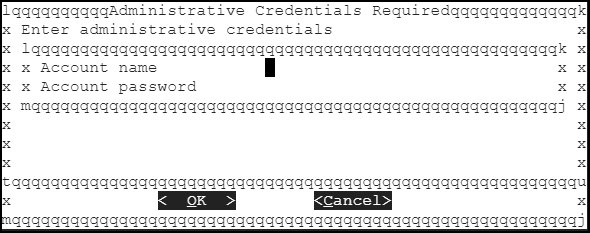
Enter the administrator credentials for the DSG instance, press Tab to select OK and press Enter.
The credentials for logging in to the DSG are provided in the DSG 3.3.0.0 readme.
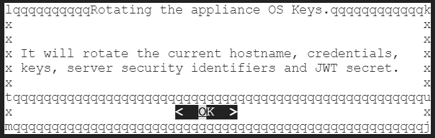
Press Tab to select Yes and press Enter to rotate the required keys, certificates, and credentials for the appliance.
Configure the default user’s passwords, press Tab to select Apply and press Enter to continue.
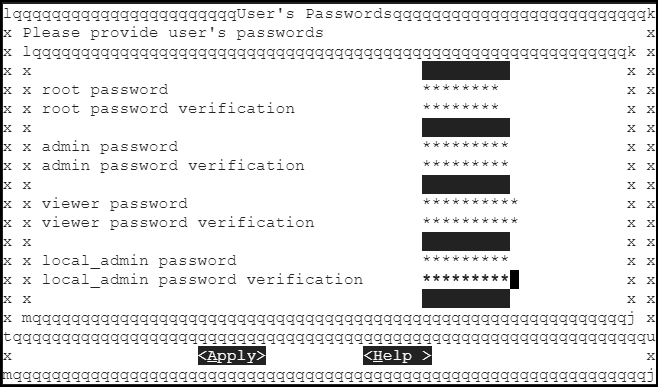
It is recommended that strong passwords are set for all the users.
For more information about password policies, refer to the section Strengthening Password Policy.
Ensure that the default passwords are not reused.
Press Tab to select Continue and press Enter to complete the finalization of the DSG installation.
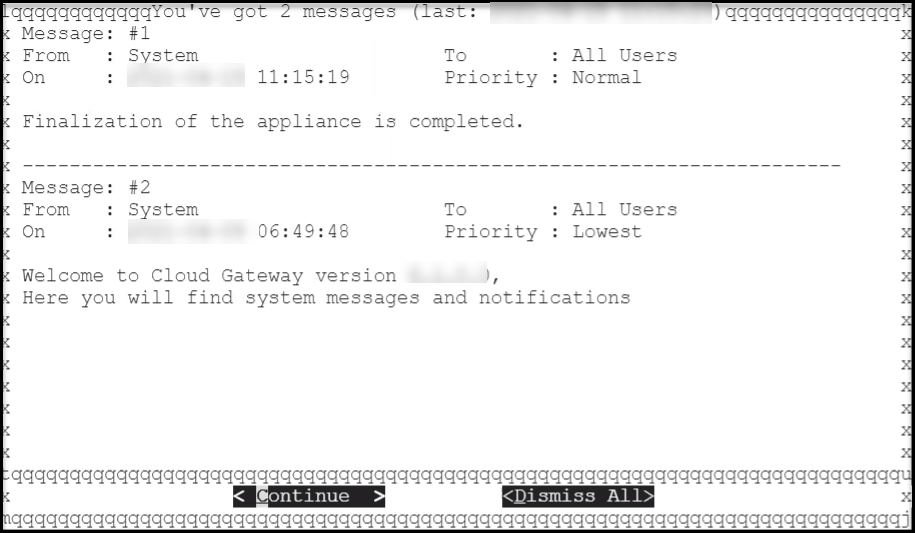
Login to the DSG CLI Manager.
Navigate to Administration > Reboot and Shutdown.
Select Reboot and press Enter.
Provide a reason for rebooting the DSG, select OK and press Enter.
Enter the
rootpassword, select OK and press Enter.The DSG node is rebooted.
The finalization of the DSG installation completes successfully.
Feedback
Was this page helpful?