Ruleset
Use the RuleSet menu to create services and monitor the rulesets using Learn Mode.
The RuleSet menu includes the RuleSet and the Learn Mode tabs.
- RuleSet tab
The Ruleset tab provides you the capability to create a hierarchical rule pattern based on the service type. The changes made to the Ruleset tree require deployment of configuration to take effect. - Learn Mode
Learn Mode tab provides a consolidated view of all message recorded by the DSG cluster. It allows you to consider messages exchanged through the DSG nodes and study the payloads as they are seen by the DSG. Understanding how messages are structured enables you to set the appropriate rules which will transform the relevant parts in it before it is forwarded on.
1 - Learn Mode
Learn Mode provides a consolidated view of all message recorded by the DSG cluster.
The Learn Mode tab provides a consolidated view of all message recorded by the DSG cluster. It allows you to review messages exchanged through DSG nodes and examine payloads as they appear to DSG. Understanding how messages are structured enables you to define appropriate rules that transform relevant parts before the message is forwarded.
The Learn Mode tab is shown in the following figure.
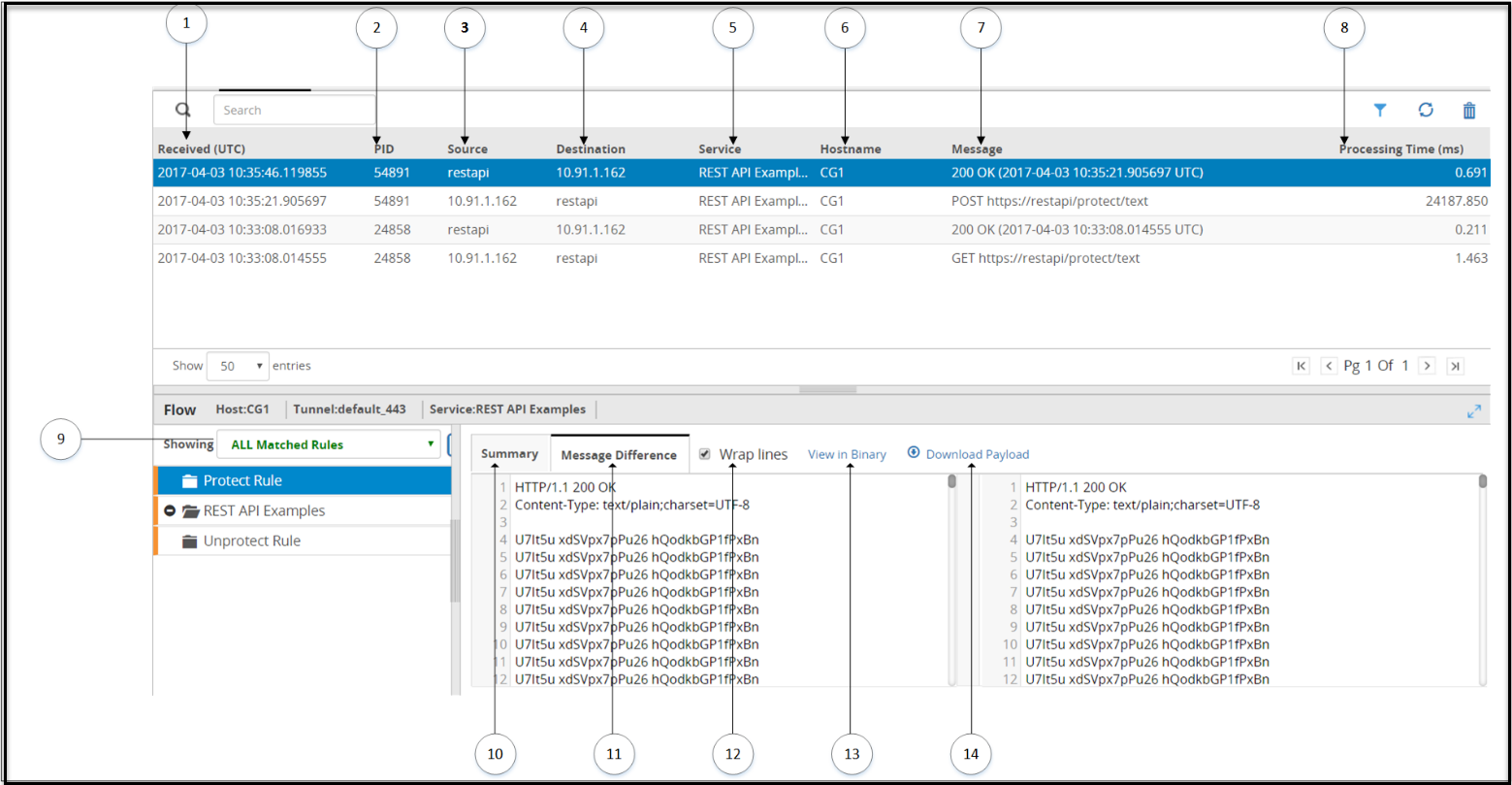
The following table provides the description for each column available on the Web UI.
1 Received (UTC) - Time when the transaction is triggered. The time recorded is displayed in the Coordinated Universal Time (UTC) format.
2 PID - Process Identifier that has carried the request or response transaction on the gateway machine.
3 Source - Source IP address or hostname in the request.
4 Destination - Destination IP address or hostname in the request.
5 Service - Service name to which the transaction belongs.
6 Hostname - DSG node hostname where the request was received and processed.
7 Message - Provides information about the type of message.
8 Processing Time (ms) - Time required to complete the transaction.
9 Rules Filters - Filter the rules based on the selected option for a transaction.
10 Filter Summary - Summary of rule details, such as, Elapsed time, result, and Action Count.
11 Message Difference - Difference between the message received by the rule and the message processed by the rule.
12 Wrap lines - Select to break the text to fit in the readable view.
13 View in Binary - View message in hexadecimal format.Note: If you want to view a payload such as .zip, .pdf, or more, you can use the View in Binary option.
14 Download Payload - Click to download large payloads that cannot be completely displayed on the screen.
** Failed Transaction (in red color) - Any failed transaction is highlighted in the color red.
The following figure illustrates the actions on the Learn Mode screen.
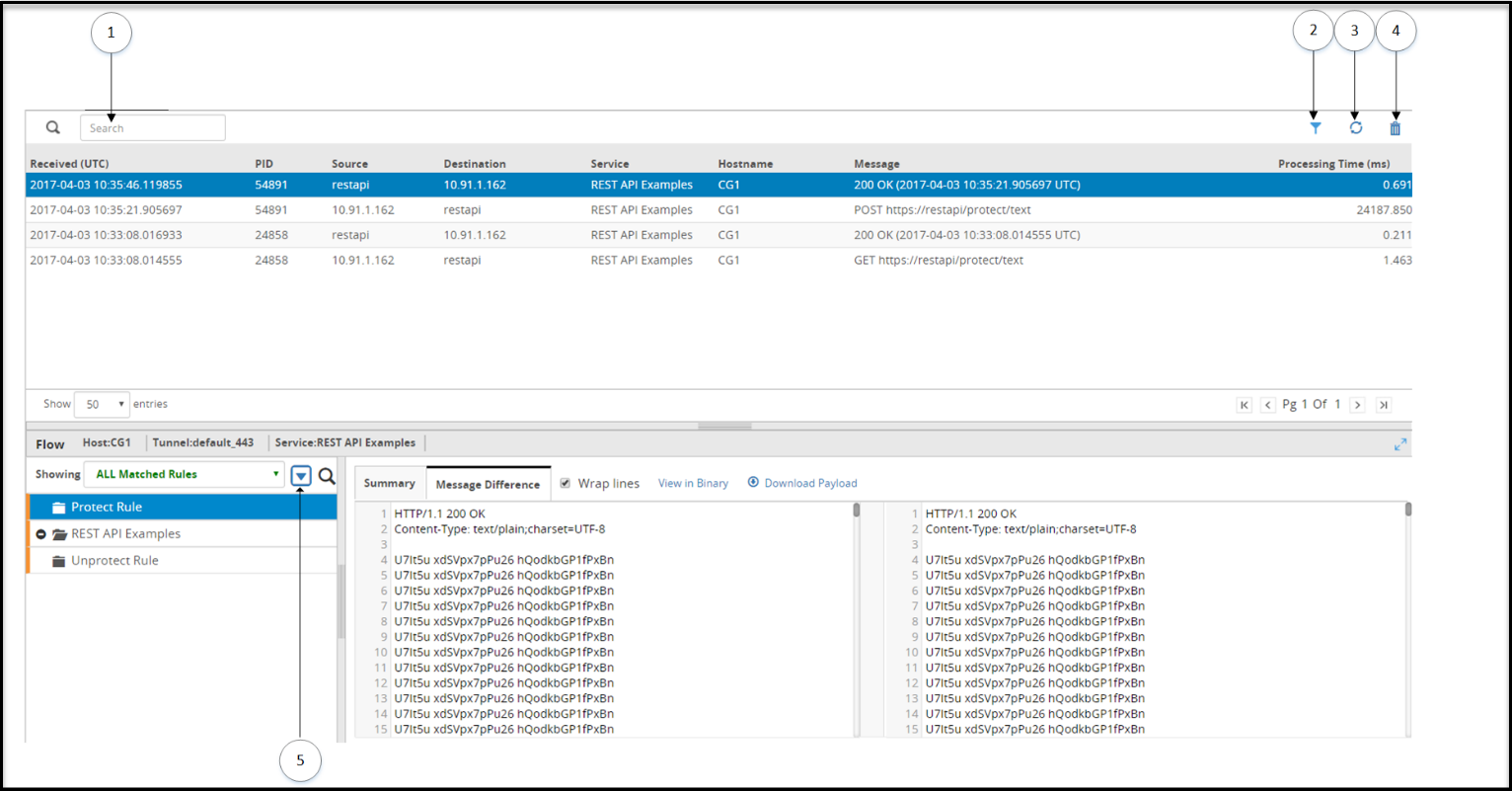
The following table provides the description for each action available on the Web UI.
1 Search log - Search the learn mode content.
2 Column Filters - Apply column filters for each column to filter or search records based on the string and regex pattern match.
3 Refresh - Refresh the list.
4 Reset - Logs from the server are purged.
5 Collapse/Expand tree - Collapse or expand the rule tree.
You can select a record in the Learn Mode screen to view details regarding the matched and unmatched rules for that entry. If the size of the message exceeds the limit, then a message Contents of the selected record are too large to be displayed appears.
1.1 - Learn Mode Scheduled Task
The Learn Mode logs that are generated over time can be scheduled for cleanup regularly.
Click System > Task Scheduler, select the Learn Mode Log Cleanup scheduled task, and then click Edit to modify the scheduled task that initiates the learnmodecleanup.sh file at regular intervals. The scheduled task can be set to n hours or days based on your preference. The default recommended frequency is Daily-Every Midnight.
In addition to setting the task, you can define the duration for which you want to archive the Learn Mode logs. The following image displays the Learn Mode Log Cleanup scheduled task.
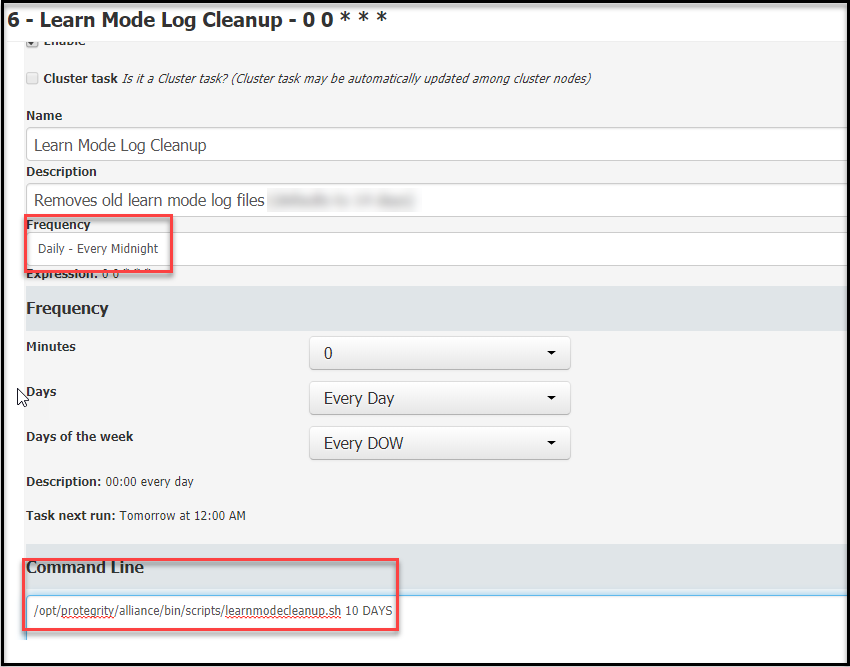
The following table provides sample configurations:
| Frequency | Command line value | Retain the logs for | Default values |
|---|
| Daily-Every Midnight | /opt/protegrity/alliance/bin/scripts/learnmodecleanup.sh 10 DAYS | Last 10 DAYS | Days can be set between 1 to 66 |
| Every hour | /opt/protegrity/alliance/bin/scripts/learnmodecleanup.sh 10 HOURS | Last 10 HOURS | Hours can be set between 1 to 23 |
Note: If a numeric value is set without the HOURS or DAYS qualifier, then DAYS is considered as the default.
2 - Ruleset Tab
The Ruleset tab provides you the capability to create a hierarchical rule pattern based on the service type.
The changes made to the Ruleset tree require deployment of configuration to take effect.
The RuleSet tab is shown in the following figure:
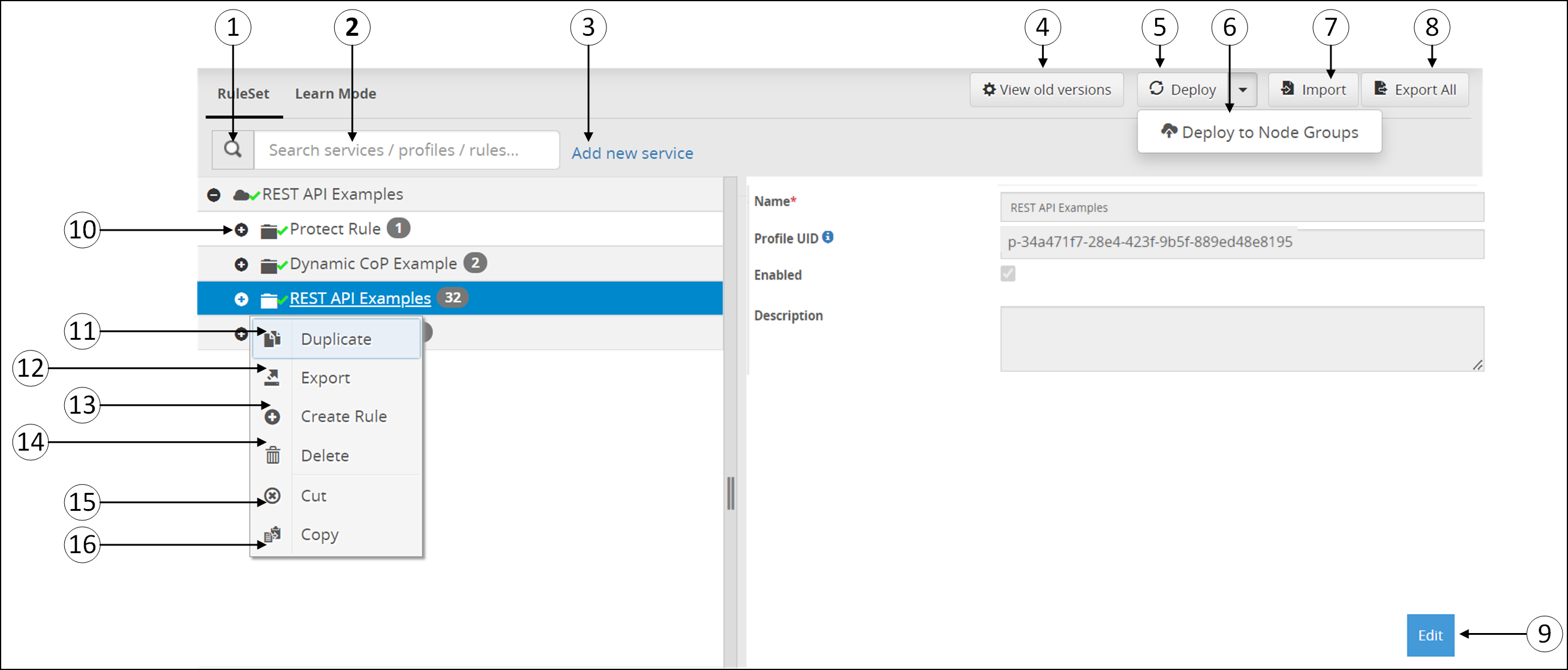
The following table provides the description for each of the available RuleSet options:
1 Search -  Click to search for service, profile, or rules.
2 Search textbox - Provide service, profile, or rule name.
3 Add new service - Add a new service-level based on the service type used. Only one service can be created for every service type.
4 View Old Versions - Click to view archived Ruleset configuration backups.
5 Deploy - Deploy the configurations to all the DSG nodes in the cluster. The Deploy operation will export the configurations and restart all the nodes.
6 Deploy to Node groups - Deploy the configurations to the selected node groups in the cluster. This will export the configurations and restart the nodes associated with the node groups.
7 Import - Import the Ruleset tree to the Web UI. Files should be uploaded in .zip extension structure.
- Ensure that the service exists as part of the Ruleset before you import a configuration exported at Profile level.
- Ensure that the directory structure that the exported .zip maintains is replicated when you repackage the files for import. Also, the JSON files must be valid.
- If an older ruleset configuration .zip created using any older DSG version, that includes a GPG ruleset with key passphrase defined, is imported, then the DSG does not encrypt the key passphrase.
8 Export All - Export the Ruleset tree configuration. The rules are downloaded in a .zip format.
9 Edit - Edit the service, profile, or rule details as per requirement.
10 Expand Rule - Expand the rule tree and view child rules.
If you want to further work with rules, right-click any rule to view a set of sub menus. The sub menu options are seen in above figure. The options are described in the following table.
11 Duplicate - Duplicate a service, profile, or rule to create a copy of these Ruleset elements.
12 Export  - Export the Ruleset tree configuration at Service or Profile level. All the child rules under the parent Service or Profile are exported. The rules are downloaded in the .zip format.
13 Create Rule - Add child rule under the parent rule.
14 Delete  - Delete the selected rule.
15 Cut  - Cut the selected rule from the parent rule.
16 Copy  - Copy the selected rule under a parent.
17 View Configuration  - View the configuration of the rule in the JSON format. You can copy the JSON format of the rule and pass it as parameter value in the header of the Dynamic CoP ruleset. This option is available only for the individual rules.
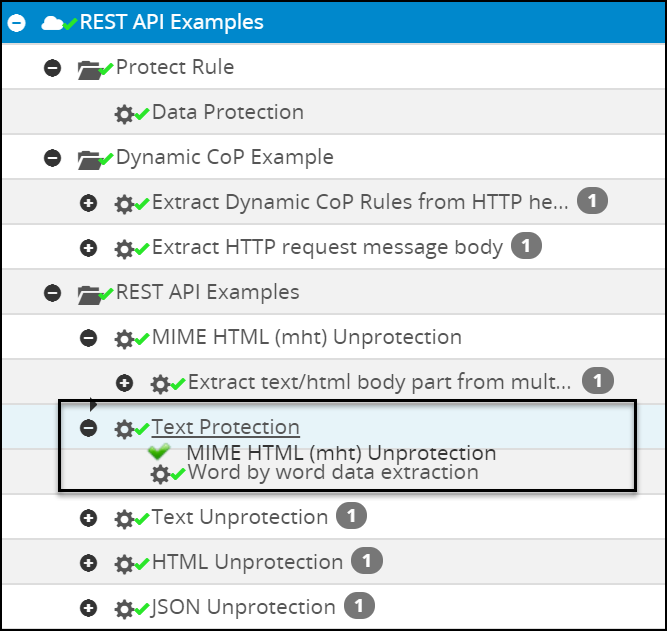
Instead of cut and copy a rule to change its hierarchy among siblings, you can also drag a sibling rule and change its positioning. When the drop is successful, a green tick icon ( ) is displayed as shown in the following figure.
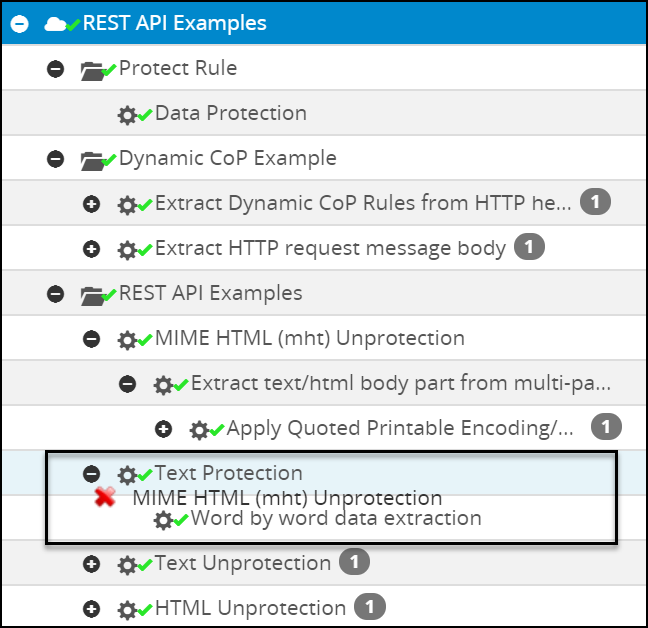
When the drop is unsuccessful, a red cross icon (  ) is displayed as shown in the following figure.
A log is generated in the Forensics screen every time you cut, copy, delete, or reorder a rule from the Ruleset screen in the ESA.
The following figure shows a service with Warning indication.
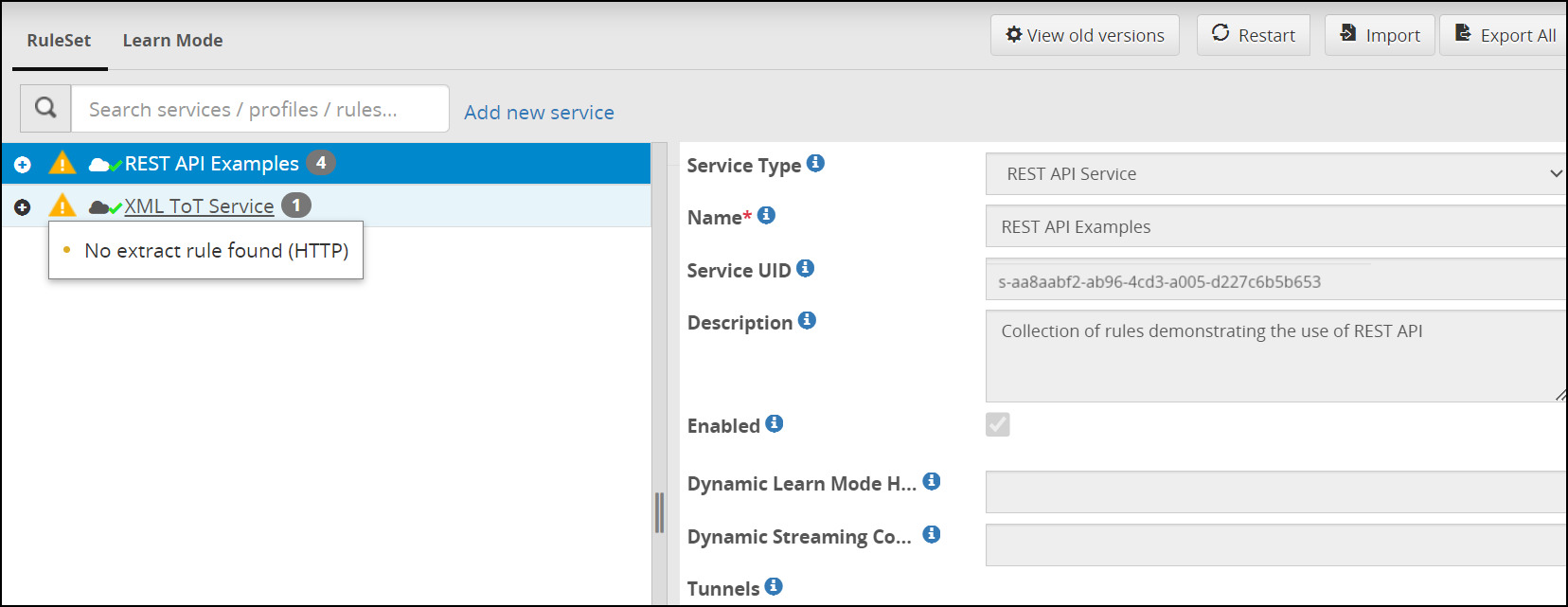
The  symbol is seen on the service when the child rule is not created or when Learn Mode is enabled.
Deploy configurations to the Cluster
In the ESA Web UI, navigate to Cloud Gateway > 3.3.0.1 {build number} > Ruleset.
Click Deploy.
A confirmation message occurs.
Click Continue to push the configurations to all the node groups and nodes.
The configurations will be deployed to the entire cluster.
Deploy configurations to node groups
In the ESA Web UI, navigate to Cloud Gateway > 3.3.0.1 {build number} > Ruleset.
Click Deploy > Deploy to Node Groups.
The Select node groups for deploy screen appears.
Enter the name for the configuration version in the Tag Name field. The tag name is the version name of a configuration that is deployed to a particular node group. The tag name must be alphanumeric, separated by spaces or underscores. If the tag name is not provided, then it will automatically generate the name in the YYYY_mm_dd_HH_MM_SS format.
Enter the description for the configuration in the Description field.
On the Deployment Node Groups option, select the node group to which the configurations must be deployed.
Click Submit.
The configurations are deployed to the node groups.
2.1 - Ruleset Versioning
The rulesets deployed are stored as versions.
What is it
After deploying a configuration to a particular node group or to an entire cluster, a backup of these configurations are saved in View Older Versions on the Ruleset page. The most recent deployed configuration for a particular node group is shown with a Deployed status when viewing the older versions There are tagged and untagged versions seen when viewing the older versions. You can create a tagged or untagged version.
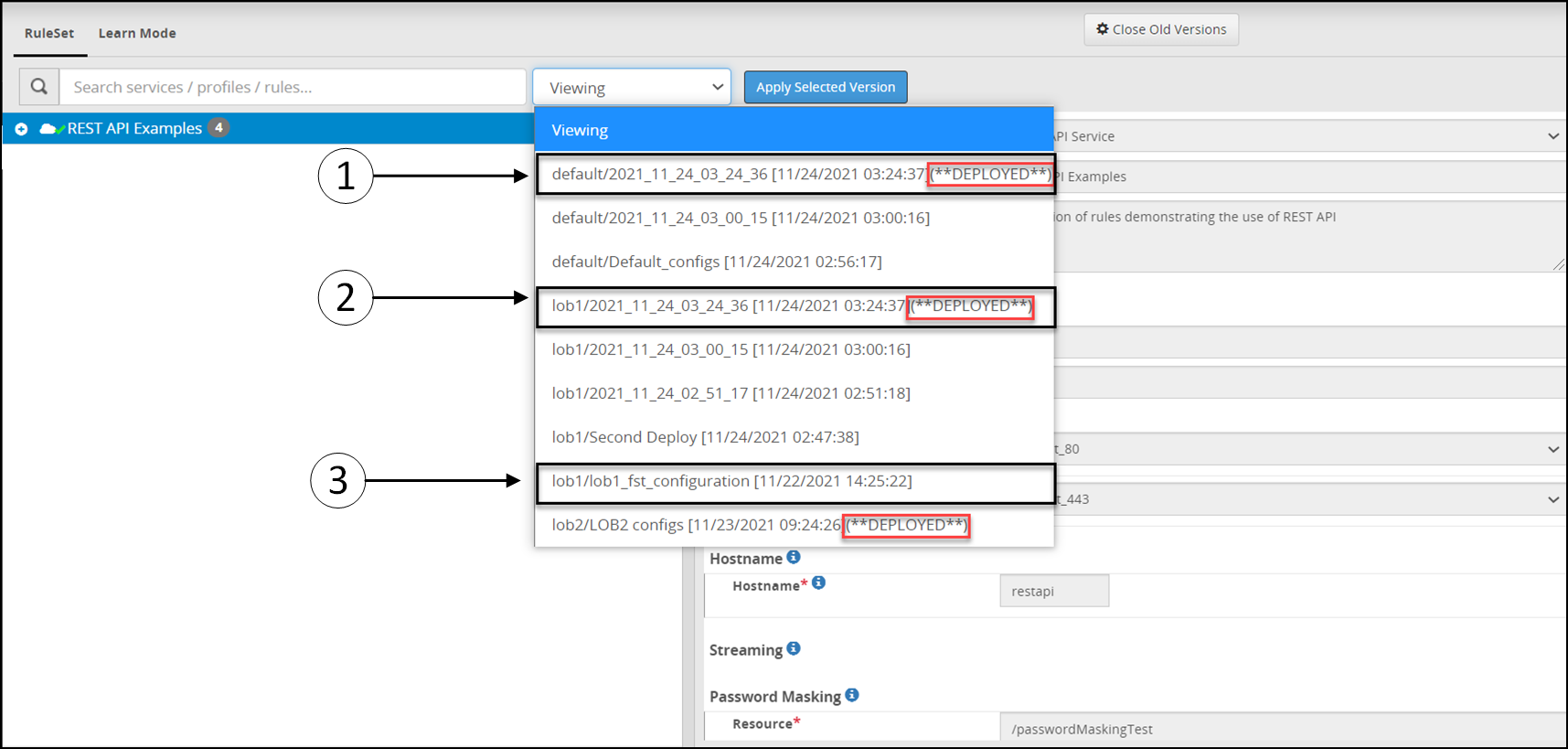
The following figure shows the Ruleset versioning screen.
The following table provides the description for the deployed configurations.
1 The configuration is deployed to the default node group and you can see the Deployed status for this configuration version. This is the most recent deployed configuration version for the default node group with Deployed status. Each node group will have a Deployed status for the most recent configuration version.
2 The configuration is deployed to lob1 node group and the configuration version is untagged. As the version is untagged, it will automatically generate the name with timestamp in the YYYY_mm_dd_HH_MM_SS format. Each node group will archive the three most recent untagged version. Refer to configuring the default value.
3 The configuration is deployed to the lob1 node group and the configuration version is tagged. While deploying the configuration to default node group the lob1_fst_configuration tag name was provided to configuration versions. Each node group will archive the ten most recent tagged version. Refer to configuring the default value
Working with ruleset versioning
Each time a configuration is changed and deployed, the DSG creates a backup configuration version. You can apply an earlier configuration version and make it active, in case you want to revert to the older configuration version.
On the DSG Web UI, navigate to **Cloud Gateway > 3.3.0.1 {build number}**Cloud Gateway > 3.3.0.1 {build number}> Ruleset.
The following figure shows the Ruleset versioning screen.
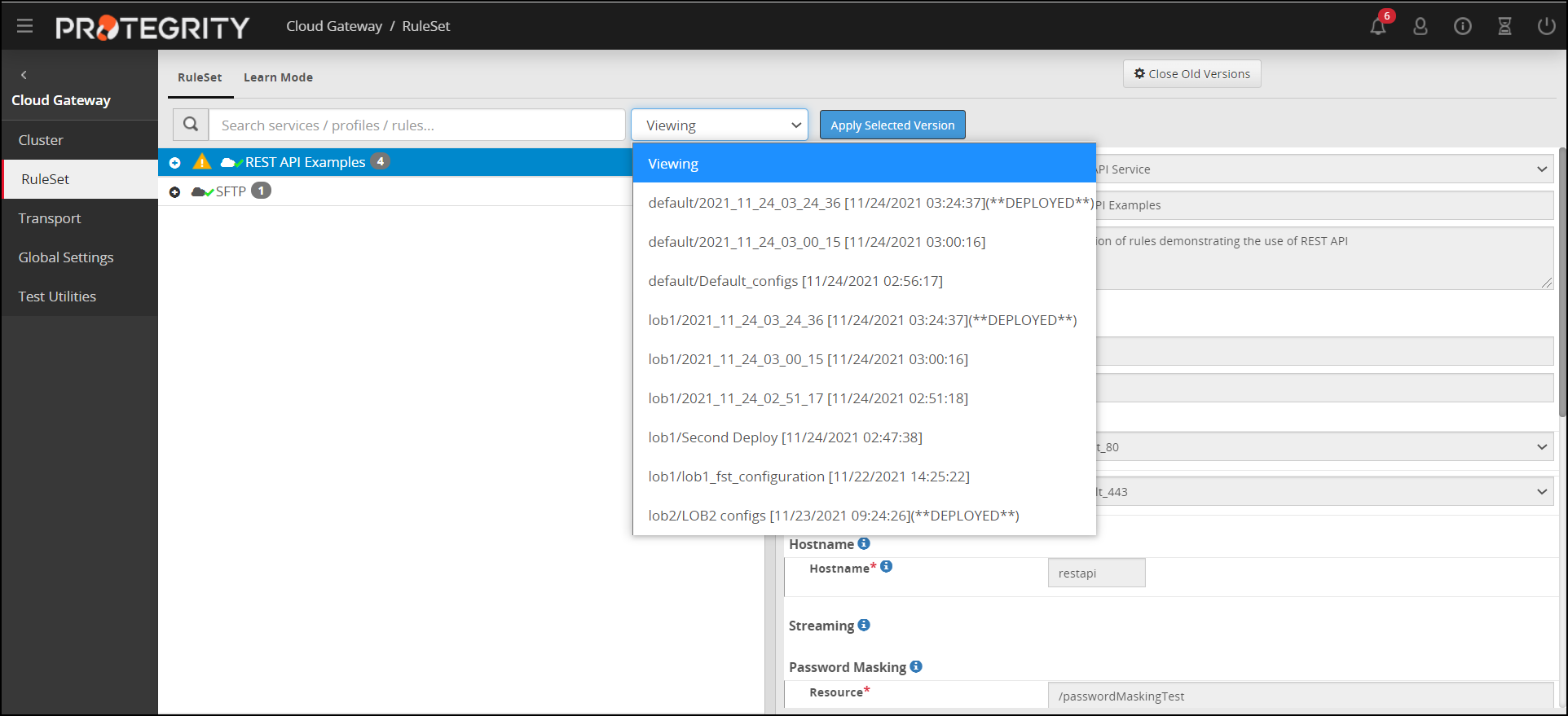
Click View Old Versions.
Click the Viewing drop-down to view the available versions.
Select a version.
The left pane displays the Services, Profiles, and Rules that are part of the selected version.
Click Apply Selected Version to make the version active or click Close Old Versions to exit the screen.
Click Deploy or Deploy to Node Groups to save changes.
For more information about deploying the configurations to entire cluster or the node groups, refer Deploying the Configurations to Entire Cluster and Deploying the Configurations to Node Groups.
It is recommended that any changes to the Ruleset configuration is made through the Cloud Gateway menu available on the ESA Web UI. Any changes made to the Ruleset configuration from the DSG Web UI of an individual node are overridden by the changes made to the ruleset configuration from the ESA Web UI. After overriding, the older Ruleset configuration on individual nodes is displayed as active and no backup for this configuration is maintained.
Updating versions
If you want to change the number of tagged or untagged versions that a node can store, then on the DSG node, login to the OS console. Navigate to the /opt/protegrity/alliance/version-1/config/webinterface directory. Edit the following parameter in the nodeGroupsConfig.json file.
no_of_node_group_deployed_archives = <number_of_untagged_versions_to_be_stored>
The default value for the untagged version is set at 3.
no_of_node_group_deployed_tag_archives = <number_of_tagged_versions_to_be_stored>
The default value for the tagged version is set at 10.