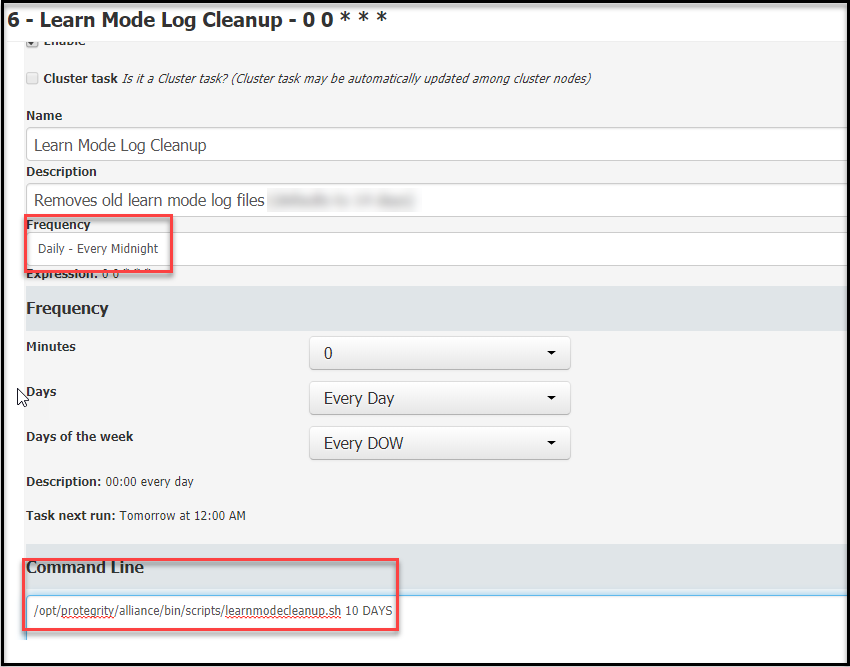
The Learn Mode tab provides a consolidated view of all message recorded by the DSG cluster. It allows you to review messages exchanged through DSG nodes and examine payloads as they appear to DSG. Understanding how messages are structured enables you to define appropriate rules that transform relevant parts before the message is forwarded.
The Learn Mode tab is shown in the following figure.
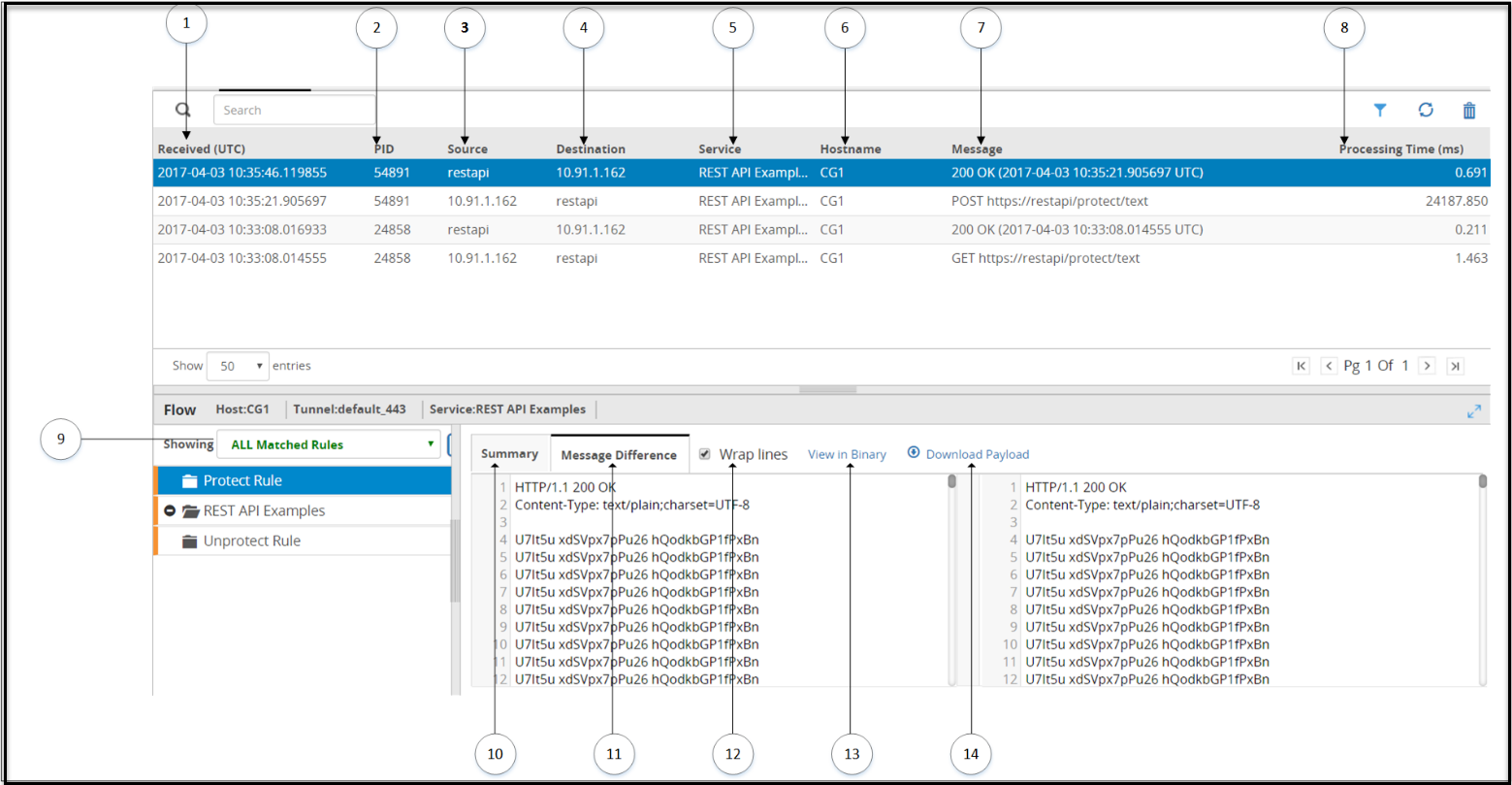
The following table provides the description for each column available on the Web UI.
1 Received (UTC) - Time when the transaction is triggered. The time recorded is displayed in the Coordinated Universal Time (UTC) format.
2 PID - Process Identifier that has carried the request or response transaction on the gateway machine.
3 Source - Source IP address or hostname in the request.
4 Destination - Destination IP address or hostname in the request.
5 Service - Service name to which the transaction belongs.
6 Hostname - DSG node hostname where the request was received and processed.
7 Message - Provides information about the type of message.
8 Processing Time (ms) - Time required to complete the transaction.
9 Rules Filters - Filter the rules based on the selected option for a transaction.
10 Filter Summary - Summary of rule details, such as, Elapsed time, result, and Action Count.
11 Message Difference - Difference between the message received by the rule and the message processed by the rule.
12 Wrap lines - Select to break the text to fit in the readable view.
13 View in Binary - View message in hexadecimal format.Note: If you want to view a payload such as .zip, .pdf, or more, you can use the View in Binary option.
14 Download Payload - Click to download large payloads that cannot be completely displayed on the screen.
** Failed Transaction (in red color) - Any failed transaction is highlighted in the color red.
The following figure illustrates the actions on the Learn Mode screen.
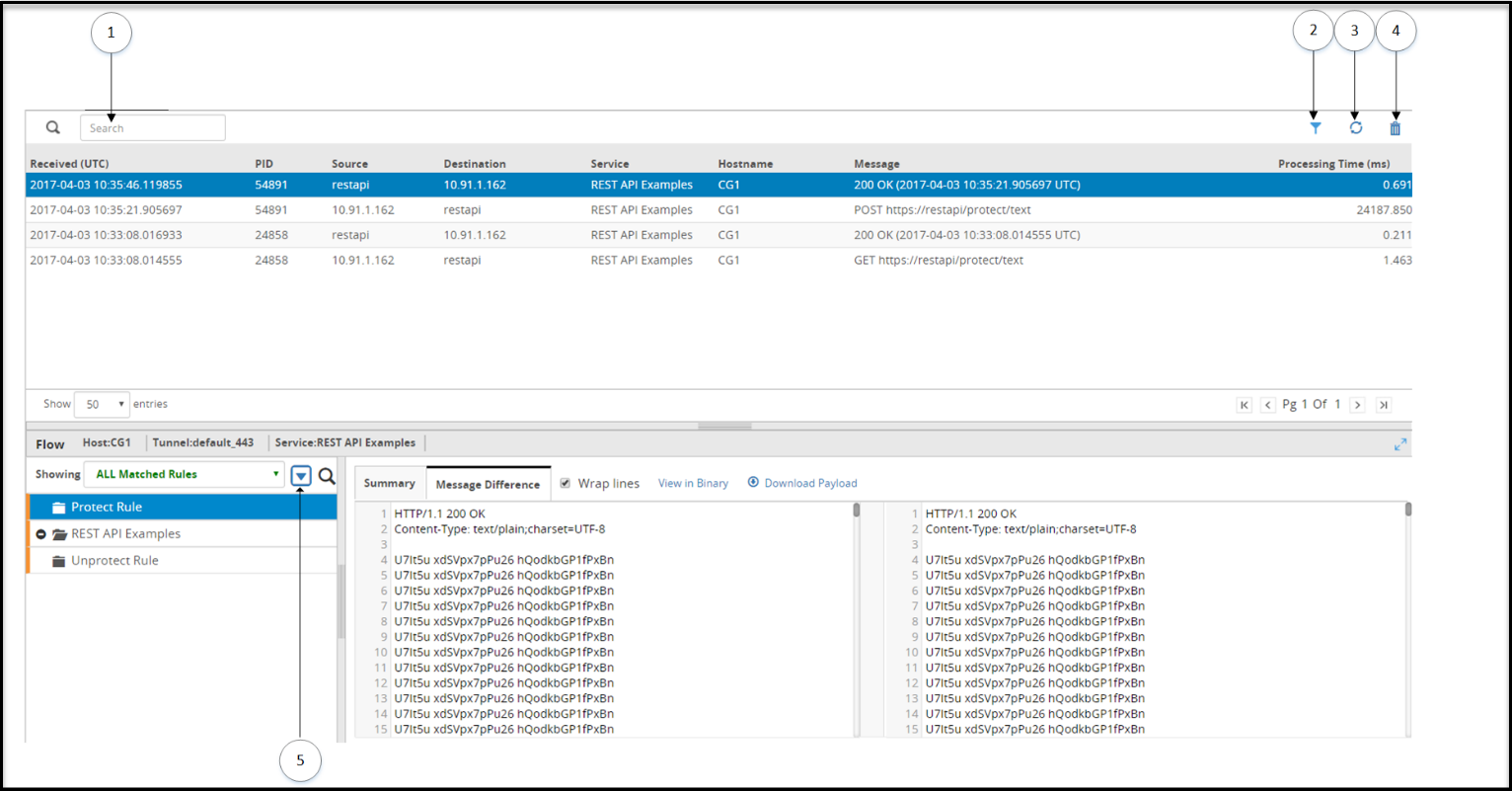
The following table provides the description for each action available on the Web UI.
1 Search log - Search the learn mode content.
2 Column Filters - Apply column filters for each column to filter or search records based on the string and regex pattern match.
3 Refresh - Refresh the list.
4 Reset - Logs from the server are purged.
5 Collapse/Expand tree - Collapse or expand the rule tree.
You can select a record in the Learn Mode screen to view details regarding the matched and unmatched rules for that entry. If the size of the message exceeds the limit, then a message Contents of the selected record are too large to be displayed appears.