Setting up ESA Communication
Set ESA communication in cases, such as, change of the ESA IP address, change of the ESA certificates, adding the ESA IP address for cloud platforms, and joining the DSG in an existing cluster.
Note: Ensure that SSL synchronization is performed only once. If you are performing the ESA communication step multiple times, it is recommended to skip SSL synchronization.
Before you begin
Ensure that the TAC is created on the ESA.
Ensure that Analytics component is initialized on the ESA. The initialization of Analytics component is required for displaying the Audit Store information on Audit Store Dashboards.
For more information about initializing Analytics, refer Initializing Analytics on the ESA.
On the DSG CLI Manager, navigate to Tools > ESA Communication.
Enter the root password, press Tab to select OK and press Enter.
Select all the options, press Tab to select Set Location Now and press ENTER.
The ESA Location screen appears.
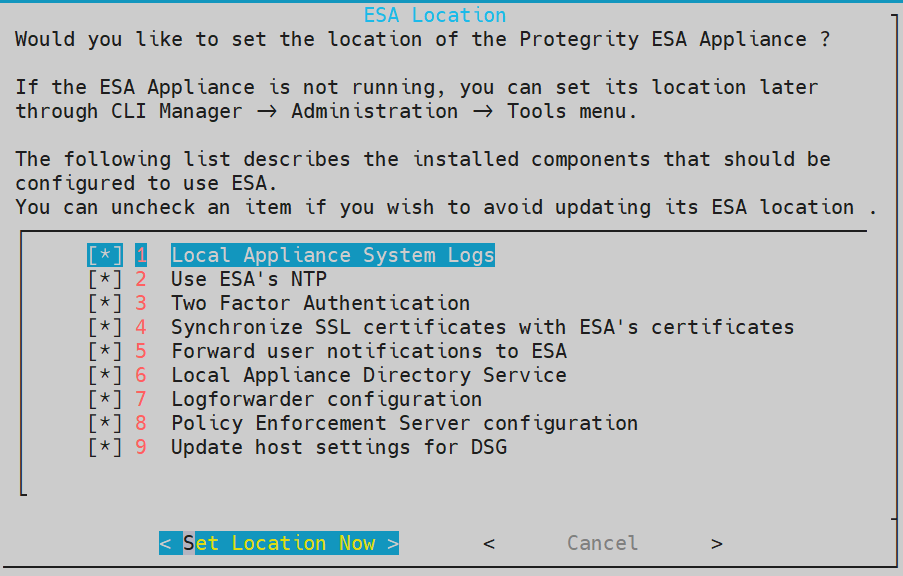
Enter the FQDN of the primary ESA or Proxy. Press Tab to select OK and press Enter.
Note: For more information about checking the ESA host address, refer to the section Ascertaining the host address in the ESA server certificate
The ESA selection screen appears.
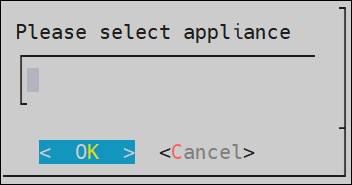
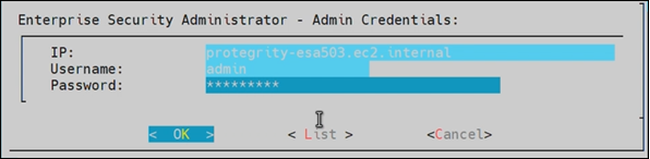
Enter the FQDN of the primary ESA or Proxy and provide the ESA administrator credentials in the Username and Password text boxes. Press Tab to select OK and press Enter.
The Enterprise Security Administrator - Admin Credentials screen appears.
Enter the FQDN of the primary ESA for the Target Audit Store, as specified in step 4. Press Tab to select OK and press ENTER.
The Forward Logs to Audit Store screen appears.

Note: You must specify the IP addresses for all the ESAs already configured and then enter the IP for the additional ESA.
Select the type of the Host. If ESA is configured behind a proxy, select Proxy and click OK. Otherwise, choose ESA to communicate directly with the ESA machine.
The Host Address Confirmation screen appears.
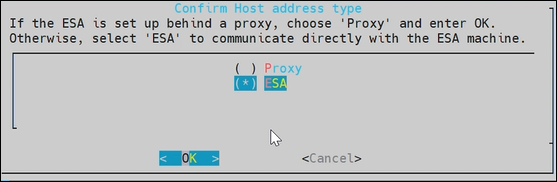
Enter the FQDN of the ESA or Proxy. Press Tab to select OK and press Enter.
The Update Host Settings for DSG screen appears.
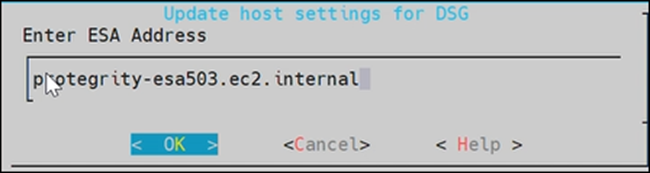
After successfully establishing the connection with the ESA, the following summary dialog box appears. Press Tab to select OK and press Enter.
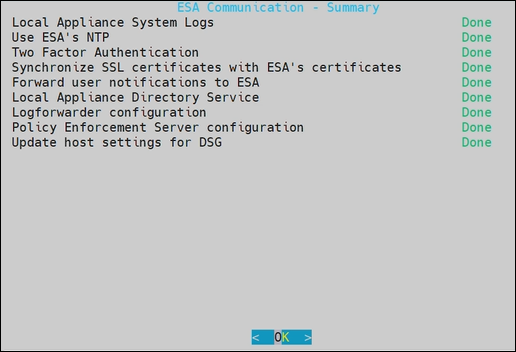
The ESA communication is established successfully between the DSG and the ESA.
Note: Ensure that the Log Forwarder services are running on the DSG after completing ESA communication. To verify the service status, navigate to System > Services on the DSG Web UI.
Feedback
Was this page helpful?