Installing DSG on Azure
This section provides information on launching a Data Security Gateway (DSG) virtual machine (VM) on the Microsoft Azure platform.
The Microsoft Azure platform is a set of cloud-based computing services, which include computing services, virtual machines, data storage, analytics, networking services, and so on.
Prerequisites
This section describes the prerequisites for launching the DSG on Azure. It also includes the details for the network prerequisites and hardware requirements for the DSG.
Ensure that the following prerequisites are met before launching the DSG on Azure:
Ensure that an ESA v10.1.x is installed.
For more information about installing the ESA v10.1.x, refer to the sections Installing Appliance On-Premise and Installing Appliances on Cloud Platforms.
Ensure that Policy Management (PIM) has been initialized on the ESA. The initialization of PIM ensures that cryptographic keys for protecting data and the policy repository have been created.
For more information about initializing the PIM, refer to section Initializing the Policy Management.
Ensure that the FIPS mode is disabled on the ESA.
For more information about diabling the FIPS mode, refer to the section Disabling the FIPS Mode
Ensure that Analytics component is initialized on the ESA. The initialization of Analytics component is required for displaying the Audit Store information on Audit Store Dashboards.
For more information about initializing Analytics, refer Initializing Analytics on the ESA.
An Azure account is available with the following information:
- Sign in URL for the Azure account
- Authentication credentials for the Azure account
Ensure that the DSG BLOB is available in the storage account that will be selected to create the disk and the VM.
Audience
This section contains information for stakeholders who are interested in understanding how to create, launch, and install a DSG instance on Azure.
It is recommended that you possess working knowledge of the Azure Platform and knowledge of related concepts.
For more information about Azure concepts, refer to the Azure documentation at: https://docs.microsoft.com/en-us/azure/
Hardware Requirements
This section describes the hardware and software requirements for the DSG.
As the DSG is hosted and run on Azure, the hardware requirements are dependent on the configurations provided by Azure.
For reference, the following list describes the minimum hardware requirements for the DSG:
- CPU: 4 Cores
- RAM: 16 GB
- Disk Size: 64 GB
- Network Interfaces: 2
The hardware configuration required might vary based on the actual usage or amount of data and logs expected.
Network Requirements
This section explains the network requirements for the DSG in Azure.
It is recommended that the DSG on Azure is provided with the Azure Virtual Network environment.
For more information about the Azure Virtual Network, refer to the Azure documentation at https://docs.microsoft.com/en-us/azure.
Ensure that two Network Interface Cards (NICs) are added during the DSG instance creation on Azure.
For more information about the network interface requirements, refer to the section Network Planning.
The Data Security Gateway must be configured with the following two network interfaces:
- Management Interface - This interface is used for communication between the ESA and the DSG, and accessing the DSG Web UI.
- Service Interface - This interface is used for handling the network traffic traversing through the DSG.
Installing the DSG on Azure
This section provides information for the steps required to launch and install the Data Security Gateway (DSG) instance from a BLOB provided by Protegrity.
Ensure that the installation order provided in the table is followed.
1 - Creating Image and VM on Azure
Creating an Image from the DSG BLOB
This section explains how to create an image from the DSG BLOB.
Ensure that the DSG BLOB is downloaded from the My.Protegrity portal to your Azure storage account that will be selected to create the image.
To create an image from the BLOB:
Log in to the Azure portal.
Select Images and click Create.
Enter the details in the Resource Group, Name, and Region text boxes.
In the OS disk option, select Linux.
In the VM generation option, select Gen 1.
In the Storage blob drop-down list, select the Protegrity Azure BLOB.
Enter the appropriate information in the required fields and click Review + create.
The image is created from the BLOB.
Creating a VM from the Image
This section describes the steps to create a VM from an image.
After obtaining the image, you can create a VM from it. For more information about creating a VM from the image, refer to the following link.
https://docs.microsoft.com/en-us/azure/virtual-machines/linux/quick-create-portal#create-virtual-machine
To create a VM:
Login in to the Azure homepage.
Click Images.
The list of all the images appear.
Select the required image.
Click Create VM.
Enter details in the required fields.
Select SSH public key in the Authentication type option.
As a security measure for the appliances, it is recommended to not use the Password based mechanism as an authentication type.
In the Username text box, enter the name of a user.
This user is added as an OS level user in the appliance. Ensure that the following usernames are not provided in the Username text box:
- Appliance OS users
- Appliance LDAP users
Select the required SSH public key source.
Enter the required information in the Disks, Networking, Management, and Tags sections.
Click Review + Create.
The VM is created from the image.
After the VM is created, you can access the appliance from the CLI Manager or Web UI.
The OS user that is created in step 7 does not have SSH access to the appliance. If you want to provide SSH access to this user, login to the appliance as another administrative user and toggle SSH access. In addition, update the user to permit Linux shell access (/bin/sh).
2 - Adding and Configuring the Second Network Interface
Adding the Second Network Interface
For ensuring network security, the DSG isolates the management interface from the service interface by allocating each with a separate network address. Ensure that two NICs are added to the DSG. This section explains the steps to add a second network interface to the DSG appliance after a DSG VM is created.
To add a second network interface to the DSG:
On the Azure Portal Dashboard, click Virtual Machines.
Select the DSG VM that you created.
The DSG VM details appear in the Virtual Machine screen.
On the Virtual Machine screen, click Overview.
Click Stop to power off the VM.
Create the second network interface for the DSG VM.
Navigate to the Virtual Machine screen, select the DSG VM that you created, and click Networking under the Settings area.
Click Attach network interface.
Select the network interface that you created in step 5, and click OK.
The second network interface is added to the VM. You can view two tabs that represent NICs for the management and service interfaces.
Click Start to power on the VM.
The second network interface is added to the DSG node.
Configuring the Second Network Interface
This section explains the steps to configure a second network interface on the DSG after finalizing the DSG installation. For more information about finalizing the DSG installation, refer to the section Finalizing the DSG Installation.
To configure the second network interface on the DSG:
On the Azure Portal Dashboard, click Virtual Machines.
Navigate to the Virtual Machine screen, and select the DSG VM instance that you created earlier.
Click Overview.
Click Serial Console to access the DSG instance.
Login to the DSG instance using the administrator credentials.
Navigate to Networking > Network Settings.
The Network Configuration Information screen appears.
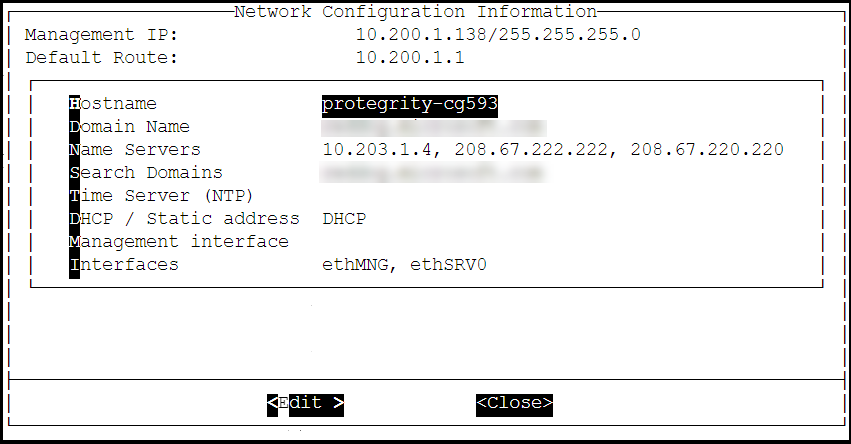
Select Interfaces and press Edit.
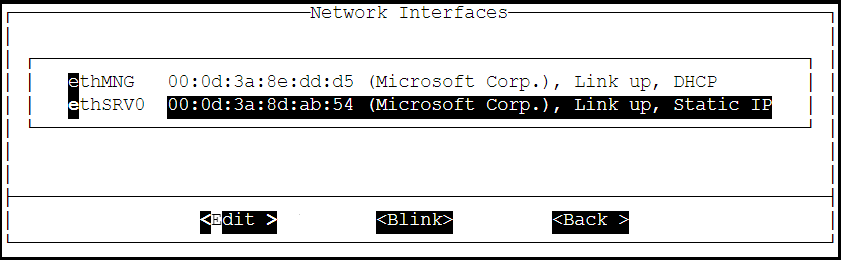
Select the ethSRV0 interface and proceed by pressing Tab to select Edit.
Select either DHCP or Static for the ethSRV0 interface.
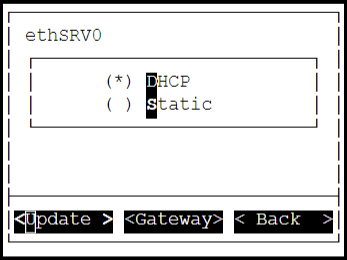
If the DHCP server is not configured, then select Static, and proceed by pressing Tab to select Update for updating the network information manually.
The Interface Settings screen appears.
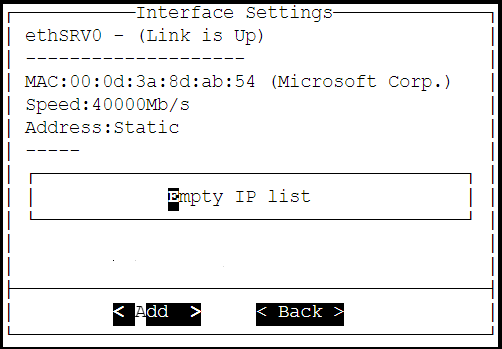
On the Interface Settings screen, press Tab and select Add to enter the IP Address and Netmask for the ethSRV0 interface.
The Network Settings screen appears.
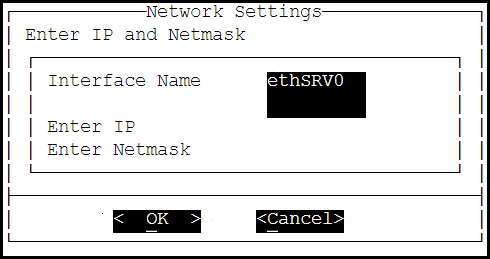
On the Network Settings screen, enter the IP Address and the Netmask of the ethSRV0 interface and proceed by pressing Tab and select OK.
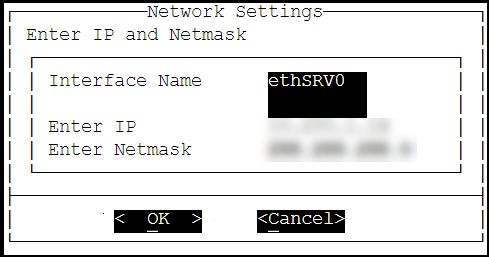
The second network interface, ethSRV0, is configured on the DSG node.
3 - Finalizing the DSG Installation
After the DSG instance is launched, you must complete the finalization of the DSG installation. The finalization process will rotate the Protegrity provided keys and certificates so that these are regenerated as a security best practice.
It is recommended to finalize the installation of the DSG instance using the Serial Console provided by Azure. Do not finalize the installation of the DSG instance using the SSH connection.
To finalize the DSG installation:
Sign in to the Azure homepage.
On the left pane, click Virtual machines.
The Virtual machine screen appears.
Select the required virtual machine and click Serial console.
The DSG CLI manager screen appears.
Login to the DSG CLI Manager using the administrator credentials and press ENTER.
The credentials for logging in to the DSG are provided in the DSG 3.3.0.1 readme.
Press Tab to select Yes and press Enter to finalize the installation.
The finalize installation confirmation screen appears.
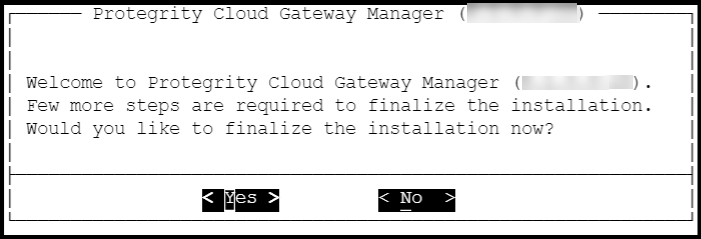
If you select No during finalization, then the DSG installation does not complete.
Perform the following steps to complete the finalization of the DSG installation on the DSG CLI manager.
- Navigate to Tools > Finalize Installation.
- Follow the step 6 to step 9 to complete installing the DSG.
Enter the administrator credentials for the DSG instance, press Tab to select OK and press Enter.
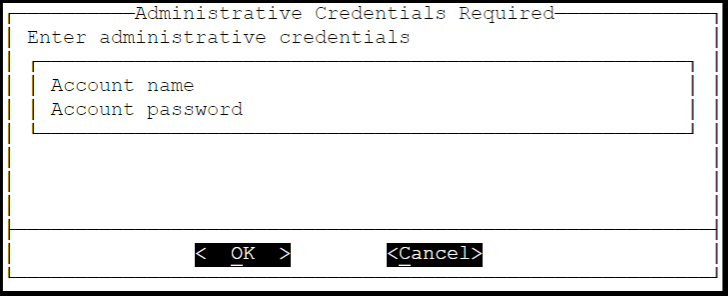
The administrator credentials for logging in to the DSG are provided in the DSG 3.3.0.1 readme.
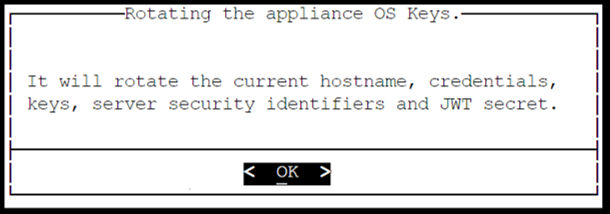
Press Tab to select Yes and press Enter to rotate the required keys, certificates, and credentials for the appliance.
Configure the default user’s passwords, press Tab to select Apply and press Enter to continue.
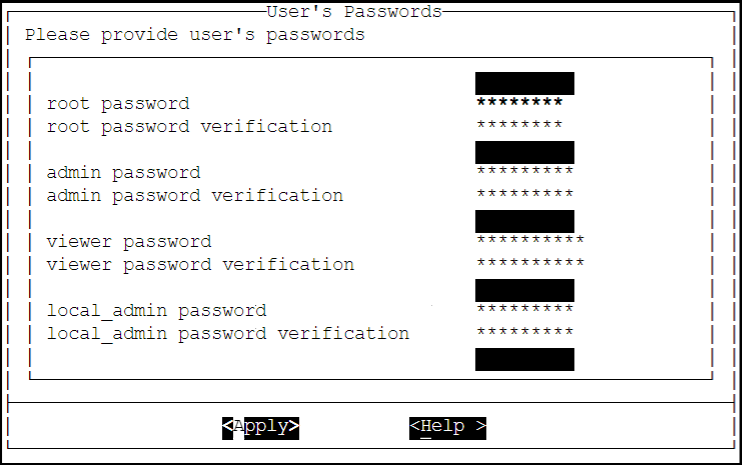
It is recommended that strong passwords are set for all the users.
For more information about password policies, refer to the section Strengthening Password Policy.
Ensure that the default passwords are not reused.
Press Tab to select Continue and press Enter to complete the finalization of the DSG installation.
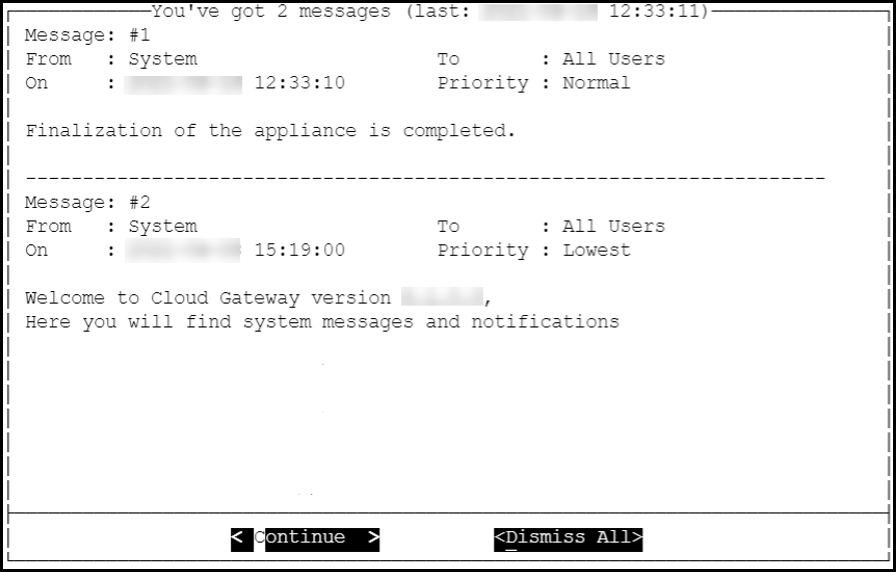
A part of finalization of the DSG installation is completed successfully. For the next part of the installation, the Second Network Interface must be configured before you can use the DSG instance.
4 - Azure Cloud Utility
The Azure Cloud Utility is a DSG appliance component that is used for supporting features specific to Azure Cloud Platform, which are, Azure Accelerated Networking and Azure Linux VM agent. When you install the DSG from an Azure v3.3.0.1 BLOB, the Azure Cloud Utility is installed automatically on the DSG.
CAUTION: While you are using the Azure Accelerated Networking or Azure Linux VM agent, ensure that the Azure Cloud Utility is not uninstalled.
Working with Accelerated Networking
The Accelerated Networking is a feature provided by Microsoft Azure, which allows the DSG appliance to handle increasing loads. The advantages offered with Accelerated Networking include reduced latency, reduced jitter, and improved CPU utilization. The following observations are applicable to the Accelerated Networking feature when it is enabled or not enabled in the VM:
- When this feature is enabled in the VM, the network traffic is routed to the VM Network Interface (NIC), and it is then forwarded to the VM. This helps to improve the networking performance as the traffic bypasses the virtual switch.
- When this feature is not enabled in the VM, the networking traffic coming in and out of the VM traverses through the host and the virtual switch.
The DSG is configured with two network interfaces, Management Interface and Service Interface, where the the Management Interface is used for communication between the ESA and the DSG, and accessing the DSG Web UI. The Service Interface is used for handling the network traffic traversing through the DSG.
For more information about an overview and how to configure Azure Accelerated Networking, refer to the Azure documentation at https://docs.microsoft.com/en-us/azure.
It is recommended to configure the Accelerated Networking feature after the DSG is installed on Azure VM instance as it improves the networking performance. As the network traffic traverses through the Service Interface on the DSG, it is recommended to enable the Accelerated Networking feature on the Service Interface.
Working with Linux VM Agent
The Microsoft Azure Linux Agent (waagent) is a VM extension provided by Microsoft Azure that manages image provisioning, networking, kernel, integrating third-party softwares on VMs, and so on.
For more information about the Linux VM agent, refer to the Azure documentation at https://docs.microsoft.com/en-us/azure.
For the DSG, the Linux VM agent is used for enabling backup and restore using either of the following two methods:
- Recovery Services Vaults
- Creating Images of an Instance
The waagent extension is registered in the .vhd file that is provided by Protegrity. To use the Linux VM agent feature, you must create an image from the .vhd file provided by Protegrity.