This is the multi-page printable view of this section. Click here to print.
Installing the DSG
- 1: Installing the DSG 4.0.0
- 1.1: Installing the DSG On-Premise
- 1.2: Installing DSG on Cloud Installation
- 1.2.1: Installing DSG on AWS
- 1.2.2: Installing DSG on Azure
- 1.2.2.1: Creating Image and VM on Azure
- 1.2.2.2: Adding and Configuring the Second Network Interface
- 1.2.2.3: Finalizing the DSG Installation
- 1.2.2.4: Azure Cloud Utility
- 1.2.3: Installing DSG on GCP
- 1.2.3.1: Creating a VM Instance from an Image
- 1.2.3.2: Finalizing the DSG Installation
- 1.3: Installing DSG on VMware
- 2: Installing the DSG patch on ESA
- 3: Configuring the DSG Cluster
- 4: Forward Logs to the Audit Store
- 5: Registering the DSG node with ESA
- 6: Updating the host name or domain name of the DSG or ESA
1 - Installing the DSG 4.0.0
Installing the DSG On-Premise
The Data Security Gateway (DSG) installation requires an existing ESA. It serves as a single point of management for the data security policy, rules configuration, and on-going monitoring of the system. This section provides information about the recommended order of the steps to install a DSG appliance.
Before you begin
Ensure that an ESA v10.2.0 is installed.
For more information about installing the ESA v10.2.0, refer to the sections Installing Appliance On-Premise and Installing Appliances on Cloud Platforms.
Ensure that HubController service is running on the ESA.
Ensure that Policy Management (PIM) has been initialized on the ESA. The initialization of PIM ensures that cryptographic keys for protecting data and the policy repository have been created.
For more information about initializing the PIM, refer to section Initializing the Policy Management.Ensure that the FIPS mode is disabled on the ESA.
For more information about diabling the FIPS mode, refer to the section Disabling the FIPS ModeEnsure that Analytics component is initialized on the ESA. The initialization of Analytics component is required for displaying the Audit Store information on Audit Store Dashboards.
For more information about initializing Analytics, refer Initializing Analytics on the ESA.Ensure that the list of patches are available for DSG 4.0.0 release. The following table describes the patch details.
Patch Description ESA_PAP-ALL-64_x86-64_10.2.0.xxxx.DSGUP.4.0.0.x.pty This patch is applied on the ESA to extend the ESA with the DSG Web UI. DSG_PAP-ALL-64_x86-64_4.0.0.x.iso The .iso image is used to install the DSG appliance.
Installation Order
To setup the DSG, it is recommended to use the following installation order.
| Order of installation | Description | Affected Appliance | Reference |
|---|---|---|---|
| 1 | Apply the DSG v4.0.0 patch (ESA_PAP-ALL-64_x86-64_10.2.0.xxxx.DSGUP.4.0.0.x.pty) on the ESA v10.2.x. Before applying a patch on the ESA, it is recommended to take a full OS backup from the ESA Web UI. For more information about taking a full OS backup from the ESA Web UI, refer Backing up the Appliance OS. | ESA | Installing the DSG patch on ESA |
| 2 | Create a Trusted Appliance Cluster (TAC) on the ESA | ESA | Create a TAC on ESA |
| 3 | Optional: Add the other ESA nodes to the existing Trusted Appliance Cluster from the TAC screen. | ESA | Adding a ESA node |
| 4 | Install the DSG v4.0.0 ISO. | DSG | Installing DSG |
| 5 | Configure the Default Gateway for the Service NIC using the DSG CLI Manager. | DSG | Configuring Default Gateway for Service NIC (ethSRV0) using the DSG CLI Manager |
| 6 | Set ESA communication between the DSGs and ESA. | DSG | Set ESA communication |
| 7 | Configure the DSG to forward the logs to Insight on the ESA. Ensure that this step is performed on all DSG nodes. | DSG | Forwarding Logs to Insight |
| 8 | Registering the DSG Ensure that the primary DSG node is registered with all ESA nodes. | ESA | Registering the DSG |
| 9 | Optional: Add the other DSG nodes to the existing Trusted Appliance Cluster from the Cluster tab. | ESA | Adding a DSG node |
| 10 | Perform the post-installation steps. | ESA | Post Installation Steps |
Note: By default, the default_80 HTTP tunnel is disabled for the security reasons. If you want to use default_80 HTTP tunnel in any service, then you must enable the default_80 HTTP tunnel from the Web UI.
To enable the default_80 HTTP tunnel, on the ESA Web UI, navigate to Cloud Gateway > {DSG build number} > Transport. Then, click the Tunnels tab. Select the default_80 HTTP tunnel and click Edit.
After the default_80 tunnel is enabled, you must restart the gateway. On the Tunnels tab, click Deploy to All Nodes to restart the gateway.
1.1 - Installing the DSG On-Premise
Installing DSG
This section provides information about installing the DSG ISO.
To install the DSG:
Insert and mount the DSG installation media ISO.
Restart the machine and ensure that it boots up from the installation media.
The following DSG splash screen appears.
Press ENTER to start the install procedure.
The disk partition screen appears only when you reimage to the DSG v4.0.0 from any older DSG version. You must enter YES to proceed with the installation, press Tab to select OK, and then press ENTER.
The installation options screen appears. Select INSTALL Destroy content and install a new copy, press Tab to select OK, and then press ENTER.
Note: If an existing file system is detected on the host hard drive, then a warning may appear prior to this step. Users who choose to proceed with the install will be prompted with additional confirmation before the data on the file system is lost.
The system restarts and the Network interfaces screen with the network interfaces detected appears.
Press Tab to select the management network interface, which will be the management NIC for the DSG node. Then, proceed by pressing Tab to select Select and press Enter.
Note: The selected network interface will be used for communication between the ESA and the DSG.
The DSG appliance attempts to detect a DHCP server to setup the network configuration. If the DHCP server is detected, then the Network Configuration Information screen appears with the settings provided by the DHCP server. If you want to modify the auto-detected settings, then press Tab to select Edit and press Enter to update the information.
Press Tab to select Apply and press ENTER.
Note: If a DHCP server is detected, then the Select a node screen appears. Select the ESA IP address that you want to use for the ESA communication from the list.
A dialog box appears when the DHCP server is not detected. Press Tab to select Manual, and press Enter to provide the IP address manually or Retry to attempt locating the DHCP server again.
The Network Configuration Information dialog appears. You must enter the network configuration and select Apply to continue.
Note: On the DSG, the Management Interface is used for communication between the ESA and the DSG, and accessing the DSG Web UI. The Service Interface is used for handling the network traffic traversing through the DSG.
For more information about the management interface and the service interface, refer to the section Network Planning.
Press Tab to select the time zone of the host, press Tab to select Next, and then press ENTER.
Press Tab to select the nearest location, press Tab to select Next, and then press ENTER.
Press Tab to select the required option, press Tab to select OK, and then press ENTER.
Press Tab to select the required option and then press ENTER.
Press Tab to select the required timezone option and then press ENTER.
Select Enable, press Tab to select OK, and then press ENTER to provide the credentials for securing the GRand Unified Bootloader (GRUB).
Note: GRUB is used to provide enhanced security for the DSG appliance using a username and password combination.
For more information about using GRUB, refer to Securing the GRand Unified Bootloader (GRUB).CAUTION: The GRUB option is available only for on-premise installations.
Enter a username, password, and password confirmation on the screen, select OK and press ENTER.
Note: The requirements for the Username are as follows:
- It should contain a minimum of three and maximum of 16 characters.
- It should not contain numbers and special characters.
Note: The requirements for the Password are as follows:
- It must contain at least eight characters.
- It must contain a combination of alphabets, numbers, and printable characters.
Press Tab to set the user passwords, and then press Tab to select Apply and press Enter.
Note: It is recommended that strong passwords are set for all the users.
For more information about password policies, refer to Password Policy.Enter the IP address or hostname for the ESA. Press Tab to select OK and press ENTER. You can specify multiple IP addresses separated by comma.
Note: If the IP address or hostname of ESA is not provided while installing the DSG, then the user can add the ESA through ESA Communication.
Select the ESA that you want to connect with, and then press Tab to select OK and press ENTER.
Note: If you want to enter the ESA details manually, then select the Enter manually option. You must enter the ESA IP address when this option is selected.
Provide the username and password for the ESA that you want to communicate with, press Tab to select OK, and then press ENTER.
Enter the IP Address and Network Mask to configure the service interface and press Tab to select OK and press ENTER.
CAUTION: For ensuring network security, the DSG isolates the management interface from the service interface by allocating each with a separate network address. Ensure that two NICs are added to the DSG.
Select the Cloud Utility AWS, press Tab to select OK, and then press ENTER to install the utility. The Cloud Utility AWS utility must be selected if you plan to forward the DSG logs to AWS CloudWatch. If you choose to install the Cloud Utility AWS utility later, you can install this utility from the DSG CLI using the Add or Remove Services option after installing the DSG.
Note: For more information about forwarding the DSG logs to AWS CloudWatch, refer to the section Forwarding logs to AWS CloudWatch.
Select all the options, press Tab to select Set Location Now and press ENTER.
Select the ESA that you want to connect with, and then press Tab to select OK and press ENTER.
Note: If you want to enter the ESA details manually, then select the Enter manually option. You will be asked to enter the ESA IP address or hostname when this option is selected.
Enter the ESA administrator username and password to establish communication between the ESA and the DSG. Press Tab to select OK and press Enter.
Enter the IP address or hostname for the ESA. Press Tab to select OK and press ENTER. You can specify multiple IP addresses separated by comma.
After successfully establishing the connection with the ESA, the ESA- Communication Summary dialog box appears.
Press Tab to select Continue and press Enter to continue to the DSG CLI manager.
A Welcome to Protegrity Appliance dialog box appears.
Login to the DSG CLI Manager.
Navigate to Administration > Reboot and Shutdown.
Select Reboot and press Enter.
Provide a reason for restarting the DSG node, select OK and press Enter.
Enter the
rootpassword, select OK and press Enter.The DSG node is restarted.
Login to the DSG Web UI.
Click the
 (Help) icon, and then click About.
Verify that the DSG version is reflected as DSG 4.0.0.
1.2 - Installing DSG on Cloud Installation
This section provides information about installing the Data Security Gateway (DSG) on cloud platforms.
1.2.1 - Installing DSG on AWS
This section describes the process for launching a DSG instance on Amazon Web Services (AWS).
AWS is a cloud-based computing service. It provides several services, such as, computing power through Amazon Elastic Compute Cloud (EC2), storage through Amazon Simple Storage Service (S3), and so on. The AWS stores Amazon Machine images (AMIs), which are templates or virtual images containing an operating system, applications, and configuration settings.
Prerequisites
This section describes the prerequisites for launching and installing the DSG on AWS. It also includes the information for the audience, network prerequisites, and hardware and software requirements for the DSG.
Ensure that the following prerequisites are met before launching the DSG on AWS:
Ensure that an ESA v10.2.0 is installed.
For more information about installing the ESA v10.2.0, refer to the sections Installing Appliance On-Premise and Installing Appliances on Cloud Platforms.
Ensure that Policy Management (PIM) has been initialized on the ESA. The initialization of PIM ensures that cryptographic keys for protecting data and the policy repository have been created.
For more information about initializing the PIM, refer to section Initializing the Policy Information Management.Ensure that the FIPS mode is disabled on the ESA.
For more information about diabling the FIPS mode, refer to the section Disabling the FIPS ModeEnsure that Analytics component is initialized on the ESA. The initialization of Analytics component is required for displaying the Audit Store information on Audit Store Dashboards.
For more information about initializing Analytics, refer Initializing Analytics on the ESA.An Amazon account for using AWS is available with the following information:
- Login URL for the AWS account
- Authentication credentials for the AWS account
Audience
This section contains information for stakeholders who are interested in understanding how to create, launch, and install a DSG instance on AWS.
It is recommended that you understand and use Amazon Web Services and its related concepts.
For more information about the Amazon Web Services concepts, refer to the AWS documentation at https://docs.aws.amazon.com.
Hardware Requirements
This section describes the hardware requirements for the DSG.
As the Protegrity appliances are hosted and run on AWS, the hardware requirements are dependent on the configurations provided by Amazon.
For reference, the following list describes the minimum hardware requirements for the DSG:
- CPU: 4 Cores
- RAM: 16 GB
- Disk Size: 64 GB
- Network Interfaces: 2
The hardware configuration required might vary based on the actual usage or amount of data and logs expected.
Network Requirements
This section describes the network requirements for a DSG instance on AWS.
It is recommended that the DSG on AWS must be installed in the Amazon Virtual Private Cloud (VPC) networking environment.
For more information about the Amazon Virtual Private Cloud, refer to the documentation at: http://docs.aws.amazon.com.
Ensure that two Network Interface Cards (NICs) are added during the DSG instance creation on AWS.
For more information about the network interface requirements, refer to the section Network Planning.
The Data Security Gateway must be configured with the following two network interfaces:
- Management Interface - This interface is used for communication between the ESA and the DSG, and accessing the DSG Web UI.
- Service Interface - This interface is used for handling the network traffic traversing through the DSG.
Installing the DSG on AWS
This section provides information for the steps required to launch and install the Data Security Gateway (DSG) instance from an AMI provided by Protegrity.
Ensure that the installation order provided in the table is followed.
| Order of installation | Description | Affected Appliance | Reference |
|---|---|---|---|
| 1 | Apply the DSG v4.0.0 patch (ESA_PAP-ALL-64_x86-64_10.2.0.xxxx.DSGUP.4.0.0.x.pty) on the ESA v10.2.x. Before applying a patch on the ESA, it is recommended to take a full OS backup from the ESA Web UI. For more information about taking a full OS backup from the ESA Web UI, refer Backing up the Appliance OS. | ESA | Installing the DSG patch on ESA |
| 2 | Create a Trusted Appliance Cluster (TAC) on the ESA | ESA | Create a TAC on ESA |
| 3 | Optional: Add the other ESA nodes to the existing Trusted Appliance Cluster from the TAC screen. | ESA | Adding a ESA node |
| 4 | Create and launch the DSG instance. | DSG | Creating and Launching a DSG Instance from the AMI |
| 5 | Finalize the DSG Installation. | DSG | Finalizing the DSG Installation |
| 6 | Configure the Default Gateway for the Management NIC using the DSG CLI Manager. | DSG | Configuring Default Gateway for Management NIC (ethMNG) using the DSG CLI Manager |
| 7 | Configure the Default Gateway for the Service NIC using the DSG CLI Manager. | DSG | Configuring Default Gateway for Service NIC (ethSRV0) using the DSG CLI Manager |
| 8 | Set ESA communication between the DSGs and ESA. | DSG | Set ESA communication |
| 9 | Configure the DSG to forward the logs to Insight on the ESA. Ensure that this step is performed on all DSG nodes. | DSG | Forwarding Logs to Insight |
| 10 | Registering the DSG Ensure that the primary DSG node is registered with all ESA nodes. | ESA | Registering the DSG |
| 11 | Optional: Add the other DSG nodes to the existing Trusted Appliance Cluster from the Cluster tab. | ESA | Adding a DSG node |
| 12 | Perform the post-installation steps. | ESA | Post Installation Steps |
1.2.1.1 - Creating and Launching a DSG Instance from the AMI
This section includes the steps to create a DSG instance from the AMI.
Ensure that the DSG AMI is downloaded from the My.Protegrity portal to your AWS account.
To create an instance of DSG:
Launch the instance using the DSG AMI, DSG_PAP-ALL-64_x86-64_AWS_4.0.0.x.ami.
While setting up the instance, ensure that the minimum hardware requirements are properly specified. For more information about minimum hardware requirements, refer to the Minimum Hardware Requirements.
After the instance is launched, click the launched instance link on the Launch Status screen.
The Instances screen appears. It lists the DSG instance-related details.
After the instance is created, you must finalize the DSG installation by accessing the instance using the instance IP.
1.2.1.2 - Finalizing the DSG Installation
After the DSG instance is launched, you must complete the finalization of the DSG installation. The finalization process will rotate the Protegrity provided keys and certificates so that these are regenerated as a security best practice.
CAUTION:
Ensure that the SSH connection is not interrupted during the finalization of the DSG installation. If the SSH connection is interrupted, then the finalization of the DSG installation fails. The process of instance creation and installation of the DSG must be started afresh.
To finalize the DSG installation:
Access the DSG management IP and provide the downloaded key pair details to connect using an SSH client.
Login using the local_admin user for the DSG.
Press Tab to select Yes and press Enter to finalize the installation.
The finalize installation confirmation screen appears.
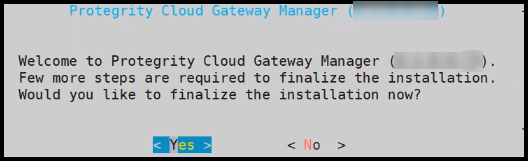
If you select No during finalization, then the DSG installation does not complete.
Perform the following steps to complete the finalization of the DSG installation on the DSG CLI manager.
- Navigate to Tools > Finalize Installation.
- Follow the step 4 to step 6 to complete installing the DSG.
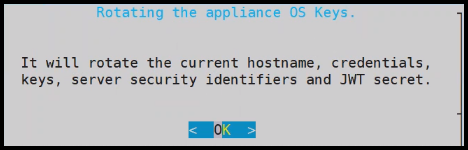
Press Tab to select Yes and press Enter to rotate the required keys, certificates, and credentials for the appliance.
Configure the default user passwords, press Tab to select Apply and press Enter.
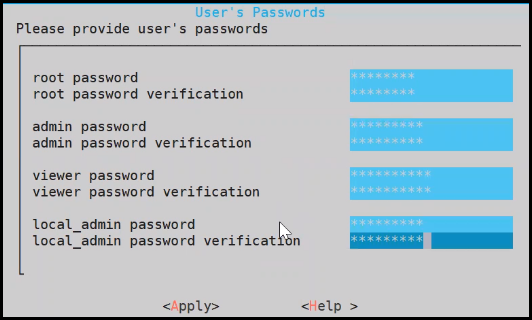
It is recommended that strong passwords are set for all the users.
For more information about password policies, refer to the section [Strengthening Password Policy](/docs/aog/web_user_interface_management aog_passwordpolicy_app_services).
Ensure that the default passwords are not reused.
Press Tab to select Continue and press Enter to complete the finalization of the DSG installation.
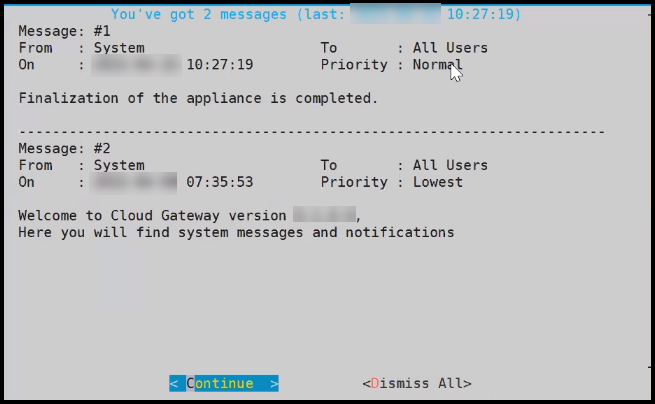
To access the DSG CLI Manager with administrator user credentials, you must login to the DSG Web UI. On the DSG Web UI, navigate to Settings > Network and select the SSH tab. In the SSH Authentication Configuration section, select Password + Publickey as the Authentication type and click Apply.
The finalization of the DSG installation completes successfully.
1.2.2 - Installing DSG on Azure
This section provides information on launching a Data Security Gateway (DSG) virtual machine (VM) on the Microsoft Azure platform.
The Microsoft Azure platform is a set of cloud-based computing services, which include computing services, virtual machines, data storage, analytics, networking services, and so on.
Prerequisites
This section describes the prerequisites for launching the DSG on Azure. It also includes the details for the network prerequisites and hardware requirements for the DSG.
Ensure that the following prerequisites are met before launching the DSG on Azure:
Ensure that an ESA v10.2.0 is installed.
For more information about installing the ESA v10.2.0, refer to the sections Installing Appliance On-Premise and Installing Appliances on Cloud Platforms.
Ensure that Policy Management (PIM) has been initialized on the ESA. The initialization of PIM ensures that cryptographic keys for protecting data and the policy repository have been created.
For more information about initializing the PIM, refer to section Initializing the Policy Information Management.Ensure that the FIPS mode is disabled on the ESA.
For more information about diabling the FIPS mode, refer to the section Disabling the FIPS ModeEnsure that Analytics component is initialized on the ESA. The initialization of Analytics component is required for displaying the Audit Store information on Audit Store Dashboards.
For more information about initializing Analytics, refer Initializing Analytics on the ESA.An Azure account is available with the following information:
- Sign in URL for the Azure account
- Authentication credentials for the Azure account
Ensure that the DSG BLOB is available in the storage account that will be selected to create the disk and the VM.
Audience
This section contains information for stakeholders who are interested in understanding how to create, launch, and install a DSG instance on Azure.
It is recommended that you possess working knowledge of the Azure Platform and knowledge of related concepts.
For more information about Azure concepts, refer to the Azure documentation at: https://docs.microsoft.com/en-us/azure/
Hardware Requirements
This section describes the hardware and software requirements for the DSG.
As the DSG is hosted and run on Azure, the hardware requirements are dependent on the configurations provided by Azure.
For reference, the following list describes the minimum hardware requirements for the DSG:
- CPU: 4 Cores
- RAM: 16 GB
- Disk Size: 64 GB
- Network Interfaces: 2
The hardware configuration required might vary based on the actual usage or amount of data and logs expected.
Network Requirements
This section explains the network requirements for the DSG in Azure.
It is recommended that the DSG on Azure is provided with the Azure Virtual Network environment.
For more information about the Azure Virtual Network, refer to the Azure documentation at https://docs.microsoft.com/en-us/azure.
Ensure that two Network Interface Cards (NICs) are added during the DSG instance creation on Azure.
For more information about the network interface requirements, refer to the section Network Planning.
The Data Security Gateway must be configured with the following two network interfaces:
- Management Interface - This interface is used for communication between the ESA and the DSG, and accessing the DSG Web UI.
- Service Interface - This interface is used for handling the network traffic traversing through the DSG.
Installing the DSG on Azure
This section provides information for the steps required to launch and install the Data Security Gateway (DSG) instance from a BLOB provided by Protegrity.
Ensure that the installation order provided in the table is followed.
| Order of installation | Description | Affected Appliance | Reference |
|---|---|---|---|
| 1 | Apply the DSG v4.0.0 patch (ESA_PAP-ALL-64_x86-64_10.2.0.xxxx.DSGUP.4.0.0.x.pty) on the ESA v10.2.x. Before applying a patch on the ESA, it is recommended to take a full OS backup from the ESA Web UI. For more information about taking a full OS backup from the ESA Web UI, refer Backing up the Appliance OS. | ESA | Installing the DSG patch on ESA |
| 2 | Create a Trusted Appliance Cluster (TAC) on the ESA | ESA | Create a TAC on ESA |
| 3 | Optional: Add the other ESA nodes to the existing Trusted Appliance Cluster from the TAC screen. | ESA | Adding a ESA node |
| 4 | Create an image from a BLOB. | DSG | Creating an Image from the DSG BLOB |
| 5 | Create a VM from an image. | DSG | Create a VM from the Image |
| 6 | Adding the Second Network Interface. | DSG | Adding the Second Network Interface |
| 7 | Finalize the DSG Installation. | DSG | Finalize the DSG Installation |
| 8 | Configuring the Second Network Interface. | DSG | Configuring the Second Network Interface |
| 9 | Configure the Default Gateway for the Management NIC using the DSG CLI Manager. | DSG | Configuring Default Gateway for Management NIC (ethMNG) using the DSG CLI Manager |
| 10 | Configure the Default Gateway for the Service NIC using the DSG CLI Manager. | DSG | Configuring Default Gateway for Service NIC (ethSRV0) using the DSG CLI Manager |
| 11 | Set ESA communication between the DSGs and ESA. | DSG | Set ESA communication |
| 12 | Configure the DSG to forward the logs to Insight on the ESA. Ensure that this step is performed on all DSG nodes. | DSG | Forwarding Logs to Insight |
| 13 | Registering the DSG Ensure that the primary DSG node is registered with all ESA nodes. | ESA | Registering the DSG |
| 14 | Optional: Add the other DSG nodes to the existing Trusted Appliance Cluster from the Cluster tab. | ESA | Adding a DSG node |
| 15 | Perform the post-installation steps. | ESA | Post Installation Steps |
1.2.2.1 - Creating Image and VM on Azure
Creating an Image from the DSG BLOB
This section explains how to create an image from the DSG BLOB.
Ensure that the DSG BLOB is downloaded from the My.Protegrity portal to your Azure storage account that will be selected to create the image.
To create an image from the BLOB:
Log in to the Azure portal.
Select Images and click Create.
Enter the details in the Resource Group, Name, and Region text boxes.
In the OS disk option, select Linux.
In the VM generation option, select Gen 1.
In the Storage blob drop-down list, select the Protegrity Azure BLOB.
Enter the appropriate information in the required fields and click Review + create.
The image is created from the BLOB.
Creating a VM from the Image
This section describes the steps to create a VM from an image.
After obtaining the image, you can create a VM from it. For more information about creating a VM from the image, refer to the following link.
To create a VM:
Login in to the Azure homepage.
Click Images.
The list of all the images appear.
Select the required image.
Click Create VM.
Enter details in the required fields.
Select SSH public key in the Authentication type option.
As a security measure for the appliances, it is recommended to not use the Password based mechanism as an authentication type.
In the Username text box, enter the name of a user.
This user is added as an OS level user in the appliance. Ensure that the following usernames are not provided in the Username text box:
- Appliance OS users
- Appliance LDAP users
Select the required SSH public key source.
Enter the required information in the Disks, Networking, Management, and Tags sections.
Click Review + Create.
The VM is created from the image.
After the VM is created, you can access the appliance from the CLI Manager or Web UI.
The OS user that is created in step 7 does not have SSH access to the appliance. If you want to provide SSH access to this user, login to the appliance as another administrative user and toggle SSH access. In addition, update the user to permit Linux shell access (/bin/sh).
1.2.2.2 - Adding and Configuring the Second Network Interface
Adding the Second Network Interface
For ensuring network security, the DSG isolates the management interface from the service interface by allocating each with a separate network address. Ensure that two NICs are added to the DSG. This section explains the steps to add a second network interface to the DSG appliance after a DSG VM is created.
To add a second network interface to the DSG:
On the Azure Portal Dashboard, click Virtual Machines.
Select the DSG VM that you created.
The DSG VM details appear in the Virtual Machine screen.
On the Virtual Machine screen, click Overview.
Click Stop to power off the VM.
Create the second network interface for the DSG VM.
Navigate to the Virtual Machine screen, select the DSG VM that you created, and click Networking under the Settings area.
Click Attach network interface.
Select the network interface that you created in step 5, and click OK.
The second network interface is added to the VM. You can view two tabs that represent NICs for the management and service interfaces.
Click Start to power on the VM.
The second network interface is added to the DSG node.
Configuring the Second Network Interface
This section explains the steps to configure a second network interface on the DSG after finalizing the DSG installation. For more information about finalizing the DSG installation, refer to the section Finalizing the DSG Installation.
To configure the second network interface on the DSG:
On the Azure Portal Dashboard, click Virtual Machines.
Navigate to the Virtual Machine screen, and select the DSG VM instance that you created earlier.
Click Overview.
Click Serial Console to access the DSG instance.
Login to the DSG instance using the administrator credentials.
Navigate to Networking > Network Settings.
The Network Configuration Information screen appears.
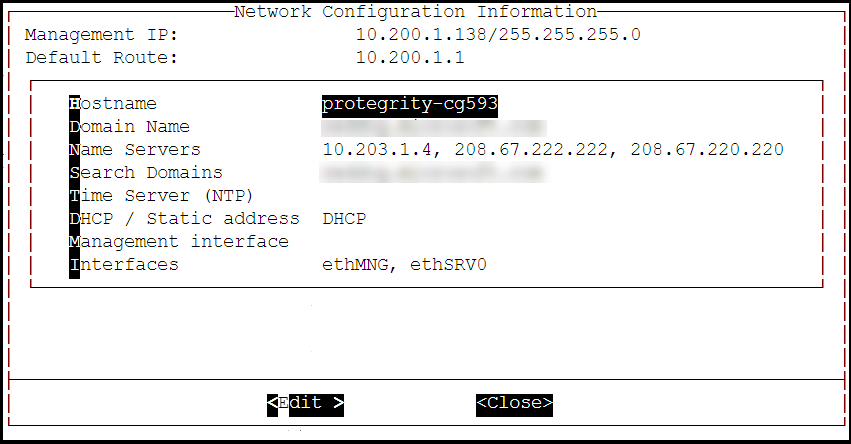
Select Interfaces and press Edit.
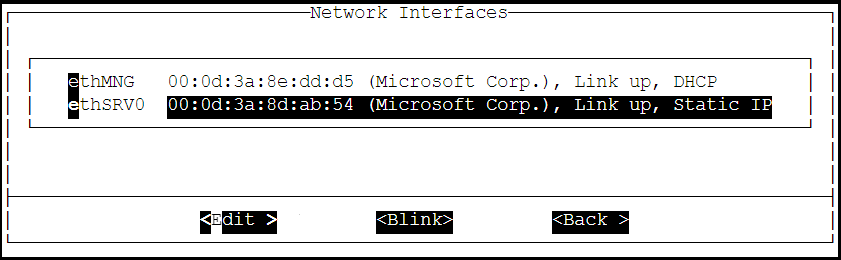
Select the ethSRV0 interface and proceed by pressing Tab to select Edit.
Select either DHCP or Static for the ethSRV0 interface.
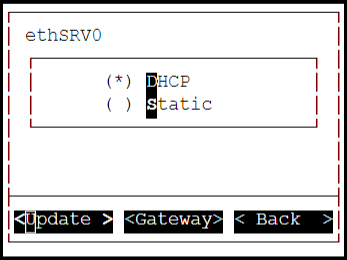
If the DHCP server is not configured, then select Static, and proceed by pressing Tab to select Update for updating the network information manually.
The Interface Settings screen appears.
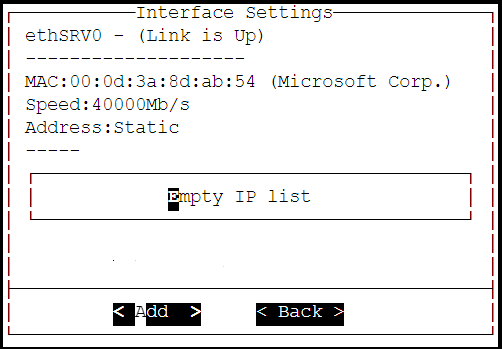
On the Interface Settings screen, press Tab and select Add to enter the IP Address and Netmask for the ethSRV0 interface.
The Network Settings screen appears.
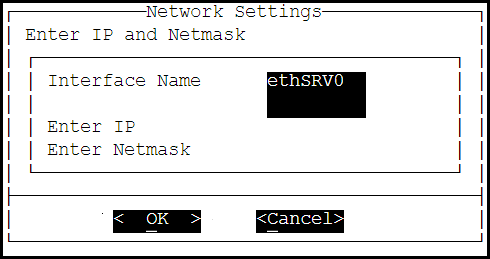
On the Network Settings screen, enter the IP Address and the Netmask of the ethSRV0 interface and proceed by pressing Tab and select OK.
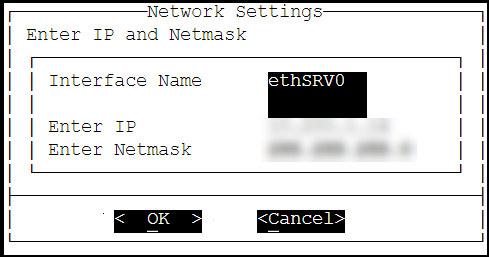
The second network interface, ethSRV0, is configured on the DSG node.
1.2.2.3 - Finalizing the DSG Installation
After the DSG instance is launched, you must complete the finalization of the DSG installation. The finalization process will rotate the Protegrity provided keys and certificates so that these are regenerated as a security best practice.
It is recommended to finalize the installation of the DSG instance using the Serial Console provided by Azure. Do not finalize the installation of the DSG instance using the SSH connection.
To finalize the DSG installation:
Sign in to the Azure homepage.
On the left pane, click Virtual machines.
The Virtual machine screen appears.
Select the required virtual machine and click Serial console.
The DSG CLI manager screen appears.
Login to the DSG CLI Manager using the administrator credentials and press ENTER.
The credentials for logging in to the DSG are provided in the DSG 4.0.0 readme.
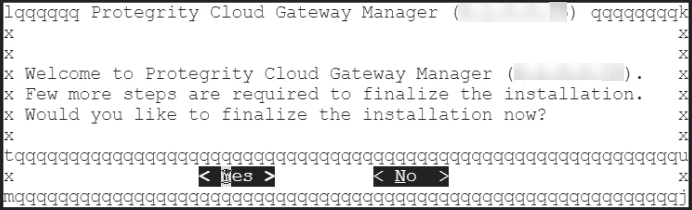
Press Tab to select Yes and press Enter to finalize the installation.
The finalize installation confirmation screen appears.
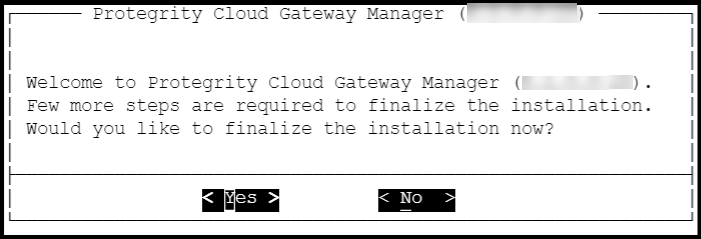
If you select No during finalization, then the DSG installation does not complete.
Perform the following steps to complete the finalization of the DSG installation on the DSG CLI manager.
- Navigate to Tools > Finalize Installation.
- Follow the step 6 to step 9 to complete installing the DSG.
Enter the administrator credentials for the DSG instance, press Tab to select OK and press Enter.
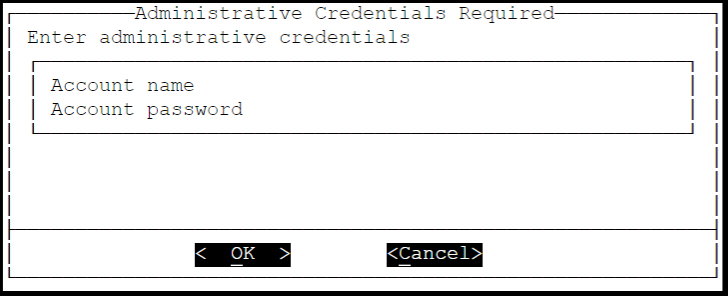
The administrator credentials for logging in to the DSG are provided in the DSG 4.0.0 readme.
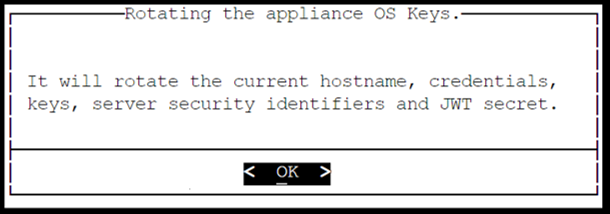
Press Tab to select Yes and press Enter to rotate the required keys, certificates, and credentials for the appliance.
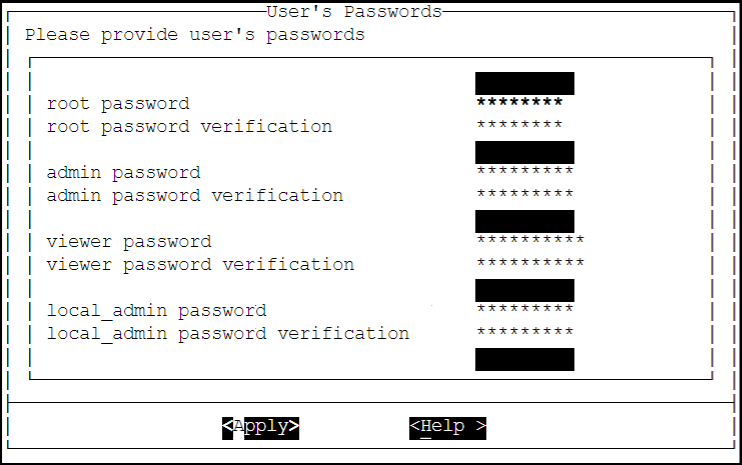
Configure the default user’s passwords, press Tab to select Apply and press Enter to continue.
It is recommended that strong passwords are set for all the users.
For more information about password policies, refer to the section Strengthening Password Policy.
Ensure that the default passwords are not reused.
Press Tab to select Continue and press Enter to complete the finalization of the DSG installation.
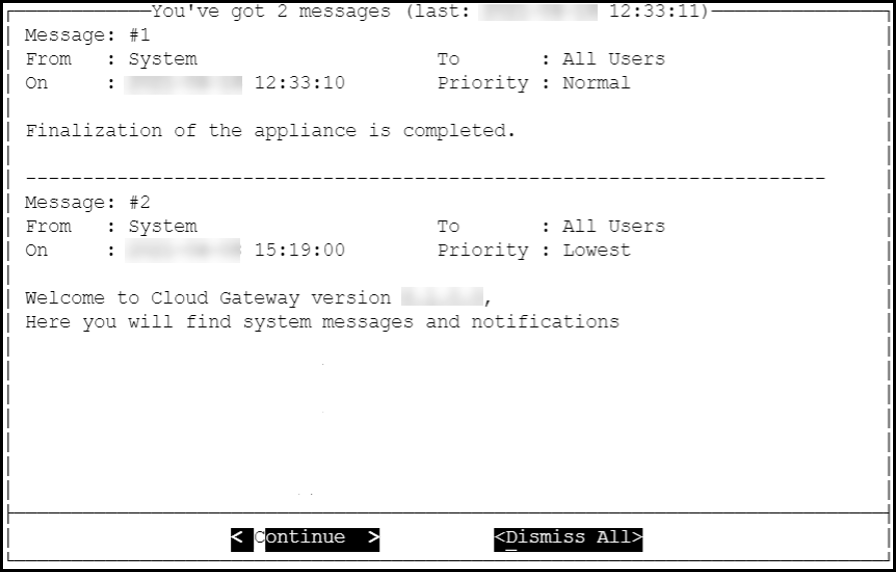
A part of finalization of the DSG installation is completed successfully. For the next part of the installation, the Second Network Interface must be configured before you can use the DSG instance.
1.2.2.4 - Azure Cloud Utility
The Azure Cloud Utility is a DSG appliance component that is used for supporting features specific to Azure Cloud Platform, which are, Azure Accelerated Networking and Azure Linux VM agent. When you install the DSG from an Azure v4.0.0 BLOB, the Azure Cloud Utility is installed automatically on the DSG.
CAUTION: While you are using the Azure Accelerated Networking or Azure Linux VM agent, ensure that the Azure Cloud Utility is not uninstalled.
Working with Accelerated Networking
The Accelerated Networking is a feature provided by Microsoft Azure, which allows the DSG appliance to handle increasing loads. The advantages offered with Accelerated Networking include reduced latency, reduced jitter, and improved CPU utilization. The following observations are applicable to the Accelerated Networking feature when it is enabled or not enabled in the VM:
- When this feature is enabled in the VM, the network traffic is routed to the VM Network Interface (NIC), and it is then forwarded to the VM. This helps to improve the networking performance as the traffic bypasses the virtual switch.
- When this feature is not enabled in the VM, the networking traffic coming in and out of the VM traverses through the host and the virtual switch.
The DSG is configured with two network interfaces, Management Interface and Service Interface, where the the Management Interface is used for communication between the ESA and the DSG, and accessing the DSG Web UI. The Service Interface is used for handling the network traffic traversing through the DSG.
For more information about an overview and how to configure Azure Accelerated Networking, refer to the Azure documentation at https://docs.microsoft.com/en-us/azure.
It is recommended to configure the Accelerated Networking feature after the DSG is installed on Azure VM instance as it improves the networking performance. As the network traffic traverses through the Service Interface on the DSG, it is recommended to enable the Accelerated Networking feature on the Service Interface.
Working with Linux VM Agent
The Microsoft Azure Linux Agent (waagent) is a VM extension provided by Microsoft Azure that manages image provisioning, networking, kernel, integrating third-party softwares on VMs, and so on.
For more information about the Linux VM agent, refer to the Azure documentation at https://docs.microsoft.com/en-us/azure.
For the DSG, the Linux VM agent is used for enabling backup and restore using either of the following two methods:
- Recovery Services Vaults
- Creating Images of an Instance
The waagent extension is registered in the .vhd file that is provided by Protegrity. To use the Linux VM agent feature, you must create an image from the .vhd file provided by Protegrity.
1.2.3 - Installing DSG on GCP
This section describes the process for launching a Data Security Gateway (DSG) instance on Google Cloud Platform (GCP).
GCP is a set of cloud computing services provided by Google, and offers services, such as compute, storage, and networking.
Prerequisites
This section describes the prerequisites for launching the DSG on GCP. It also includes the information for the audience and the network prerequisites for the DSG.
Ensure that the following prerequisites are met before launching the DSG on GCP:
Ensure that an ESA v10.2.0 is installed.
For more information about installing the ESA v10.2.0, refer to the sections Installing Appliance On-Premise and Installing Appliances on Cloud Platforms.
Ensure that Policy Management (PIM) has been initialized on the ESA. The initialization of PIM ensures that cryptographic keys for protecting data and the policy repository have been created.
For more information about initializing the PIM, refer to section Initializing the Policy Information Management.Ensure that the FIPS mode is disabled on the ESA.
For more information about diabling the FIPS mode, refer to the section Disabling the FIPS ModeEnsure that Analytics component is initialized on the ESA. The initialization of Analytics component is required for displaying the Audit Store information on Audit Store Dashboards.
For more information about initializing Analytics, refer Initializing Analytics on the ESA.A GCP account is available with the following information:
- Login URL for the GCP account
- Authentication credentials for the GCP account
Audience
This section contains information for stakeholders who are interested in deploying a DSG instance on GCP.
It is recommended that you understand and use the Google Cloud Platform before proceeding further.
For more information about the Google Cloud Platform, refer to the https://cloud.google.com/docs.
Hardware Requirements
This section describes the hardware and software requirements for the DSG.
As the DSG is hosted and run on GCP, the hardware requirements are dependent on the configurations provided by Google.
The following list describes the minimum required configuration for launching the DSG image on the GCP:
- CPU: 4 Cores
- RAM: 16 GB
- Disk Size: 64 GB
- Network Interfaces: 2
The hardware configuration required might vary based on the actual usage or amount of data and logs expected.
Network Requirements
his section explains the network requirements for the DSG on GCP.
It is recommended that the DSG on GCP must be installed in the GCP Virtual Private Cloud (VPC) networking environment.
For more information about the GCP Virtual Private Cloud, refer to the documentation at: https://cloud.google.com/vpc/docs
Ensure that two Network Interface Cards (NICs) are added during the DSG instance creation on GCP.
For more information about the network interface requirements, refer to the section Network Planning.
The Data Security Gateway must be configured with the following two network interfaces:
- Management Interface - This interface is used for communication between the ESA and the DSG, and accessing the DSG Web UI.
- Service Interface - This interface is used for handling the network traffic traversing through the DSG.
Installing the DSG on GCP
This section provides information for the steps required to launch and install the Data Security Gateway (DSG) instance from an image provided by Protegrity.
Ensure that the installation order provided in the table is followed.
| Order of installation | Description | Affected Appliance | Reference |
|---|---|---|---|
| 1 | Apply the DSG v4.0.0 patch (ESA_PAP-ALL-64_x86-64_10.2.0.xxxx.DSGUP.4.0.0.x.pty) on the ESA v10.2.x. Before applying a patch on the ESA, it is recommended to take a full OS backup from the ESA Web UI. For more information about taking a full OS backup from the ESA Web UI, refer Backing up the Appliance OS. | ESA | Installing the DSG patch on ESA |
| 2 | Create a Trusted Appliance Cluster (TAC) on the ESA | ESA | Create a TAC on ESA |
| 3 | Optional: Add the other ESA nodes to the existing Trusted Appliance Cluster from the TAC screen. | ESA | Adding a ESA node |
| 4 | Create and launch the DSG instance. | DSG | Creating a VM Instance from an Image |
| 5 | Finalize the DSG Installation. | DSG | Finalize the DSG Installation |
| 6 | Configure the Default Gateway for the Management NIC using the DSG CLI Manager. | DSG | Configuring Default Gateway for Management NIC (ethMNG) using the DSG CLI Manager |
| 7 | Configure the Default Gateway for the Service NIC using the DSG CLI Manager. | DSG | Configuring Default Gateway for Service NIC (ethSRV0) using the DSG CLI Manager |
| 8 | Set ESA communication between the DSGs and ESA. | DSG | Set ESA communication |
| 9 | Configure the DSG to forward the logs to Insight on the ESA. Ensure that this step is performed on all DSG nodes. | DSG | Forwarding Logs to Insight |
| 10 | Registering the DSG Ensure that the primary DSG node is registered with all ESA nodes. | ESA | Registering the DSG |
| 11 | Optional: Add the other DSG nodes to the existing Trusted Appliance Cluster from the Cluster tab. | ESA | Adding a DSG node |
| 12 | Perform the post-installation steps. | ESA | Post Installation Steps |
1.2.3.1 - Creating a VM Instance from an Image
This section describes how to create a VM instance from a DSG image.
Ensure that the DSG image is downloaded from the My.Protegrity portal to your GCP account.
To create a VM instance from an image:
Login to the GCP console.
Under the Compute section, click Compute Engine > VM instances.
On the VM instances screen, click CREATE INSTANCE.
The Create an instance screen appears.
On the Create an instance screen, select the configurations as per your requirements. Some of the configurations on this screen must be set as provided in the sub steps so that the DSG can be installed successfully.
Under Machine Configuration, click the Serial and the Machine type drop down list and select the required configuration.
It is recommended that an instance with minimum 4 Core CPU and 16 GB RAM configuration is selected. The instance type listed is the minimum hardware configuration.
The hardware configuration required might vary based on the actual usage or amount of data and logs expected.
Under Boot disk, click Change.
- Click the Custom images tab, and click the DSG image, dsg-pap-all-64-x86-64-gcp-4-0-0-x, in the image drop down list.
- Select the required boot disk type and set the value for the Size(GB) option as 64 and then click Select.
Under Firewall, ensure that the Allow HTTP traffic and Allow HTTPS traffic check boxes are selected.
Click the Networking tab and add two NICs.
For ensuring network security, the DSG isolates the management interface from the service interface by allocating each with a separate network address. Ensure that two NICs are added to the DSG.
Click Create to create the VM instance.
After the instance is created, a notification stating that the VM instance has been created appears in the Notifications tab.
On the VM instances screen, search or enter the name of the VM instance.
Click the VM that you created.
The VM instance details screen appears.
Ensure that you validate the details, such as, Machine Type, Boot disk, Firewall, and the Network Interfaces on the VM instance details screen.
1.2.3.2 - Finalizing the DSG Installation
After the DSG instance is launched, you must complete the finalization of the DSG installation. The finalization process will rotate the Protegrity provided keys and certificates so that these are regenerated as a security best practice.
It is recommended to finalize the installation of the DSG instance using the Serial Console provided by GCP. Do not finalize the installation of the DSG instance using the SSH connection.
To finalize the DSG installation:
Login to the GCP console.
Under the Compute section, click Compute Engine > VM instances.
On the VM instances screen, search or enter the name of the VM instance.
Click Connect to serial console to access the DSG instance.
Login using the administrator credentials for the DSG.
The credentials for logging in to the DSG are provided in the DSG 4.0.0 readme.
Press Tab to select Yes and press Enter to finalize the installation.
The finalize installation confirmation screen appears.
If you select No during finalization, then the DSG installation does not complete.
Perform the following steps to complete the finalization of the DSG installation on the DSG CLI manager.
- Navigate to Tools > Finalize Installation.
- Follow the step 7 to step 10 to complete installing the DSG.
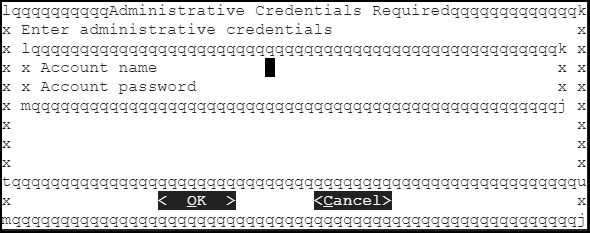
Enter the administrator credentials for the DSG instance, press Tab to select OK and press Enter.
The credentials for logging in to the DSG are provided in the DSG 4.0.0 readme.
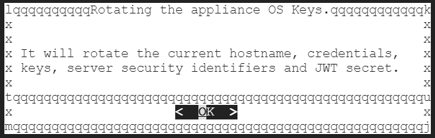
Press Tab to select Yes and press Enter to rotate the required keys, certificates, and credentials for the appliance.
Configure the default user’s passwords, press Tab to select Apply and press Enter to continue.
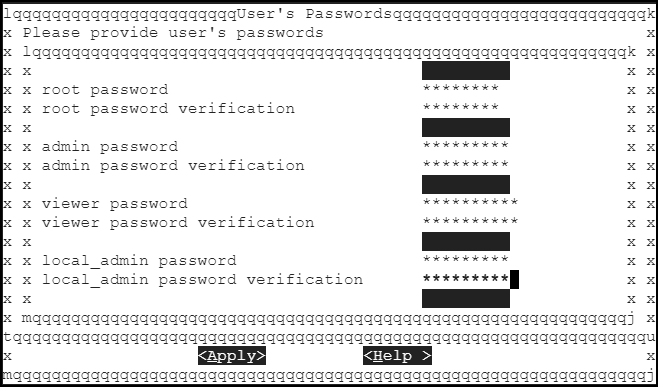
It is recommended that strong passwords are set for all the users.
For more information about password policies, refer to the section Strengthening Password Policy.
Ensure that the default passwords are not reused.
Press Tab to select Continue and press Enter to complete the finalization of the DSG installation.
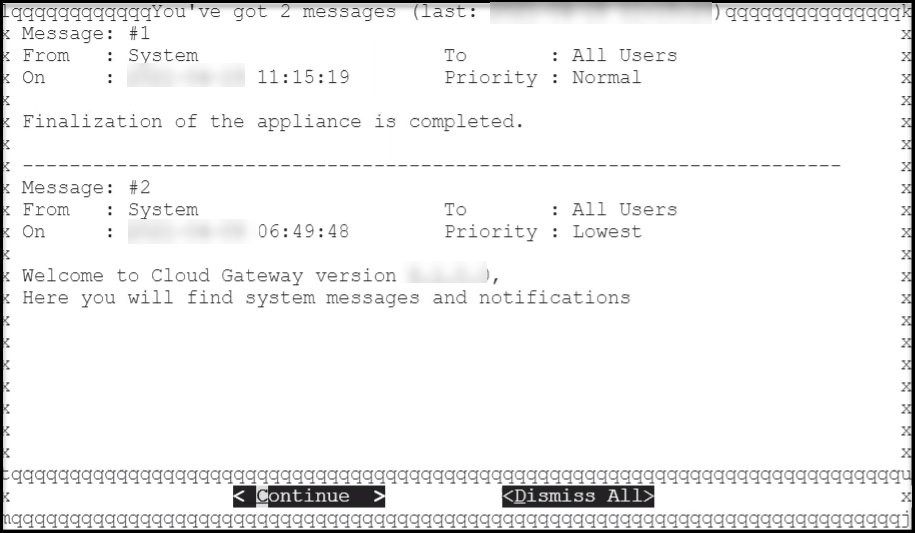
The finalization of the DSG installation completes successfully.
1.3 - Installing DSG on VMware
This section describes the process to install the DSG using an OVA template.
1.3.1 - Creating an OVA Template
Before proceeding with the installation, ensure that the OVA file provided by Protegrity is available.
Perform the steps to create an Open Virtual Appliance (OVA) template:
Log in to the VMware Client console.
Navigate to Inventories > VMs and Templates.
From the left navigation pane, select the required project.
Right-click the project name and select Deploy OVF Template….The Deploy OVF Template screen appears.
From Select an OVF template, select the preferred method to the .ova file.The .ova file can be accessed using the URL or by uploading a local file. Click Next.
From Select a name and folder, enter the name of the virtual machine in the Virtual machine name field and select the location for virtual machine. Click Next.
From Select a destination compute resource, select the required compute resource. Click Next.
From Review details, verify the publisher, download size, and size on disk. Click Next.
From Select storage, select the required disk formats, VM Storage Policy, Show datastores from Storage DRS clusters, and datastore to store the deployed OVF or OVA template. Click Next.
From Select networks, select the destination for the management and service networks. Click Next.
From Ready to complete, verify the details and click Finish.
Wait till the virtual machine is created.
After the machine is successfully created, from the left navigation pane, select the virtual machine name.
Right-click the virtual machine name and select Convert to Template.A Confirm Convert dialog box appears. Click Yes.The OVA template is successfully created.
1.3.2 - Creating a Virtual Machine using OVA template
Perform the steps to create a virtual machine using the OVA template:
Navigate to Inventories > VMs and Templates.
From the left navigation pane, select the required project.
Select the required OVA template.
Right-click the template name, and select New VM from This Template.
From Select a name and folder, enter the name of the virtual machine in the Virtual machine name field and select the location for virtual machine. Click Next.
From Select a destination compute resource, select the required compute resource. Click Next.
From Select storage, select the required storage.Select the required disk formats, VM Storage Policy, Show datastores from Storage DRS clusters, and datastore to store the deployed OVF or OVA template.
Click Next.
From Select clone options, select the required clone options.
If the Customize the operating option is selected, then the Customize guest OS screen appears.Configure the required OS for the virtual machine. Click Next.
If the Customize this virtual machine’s hardware option is selected, then the Customize hardware screen appears.Configure the required hardware for the virtual machine. Click Next.
From Ready to complete, verify the details and click Finish.
The virtual machine is created successfully.
1.3.3 - Installing the DSG on the Virtual Machine
Starting the Installation
Ensure that the virtual machine is powered on before starting the installation process.
To install the DSG:
Select the virtual machine.
Click LAUNCH WEB CONSOLE.
Installing DSG
This section provides information about installing the DSG.
To install the DSG:
Press Tab to select the management network interface, which will be the management NIC for the DSG node. Then, proceed by pressing Tab to select Select and press Enter.
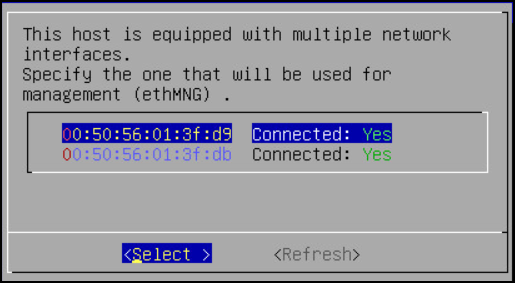
Note: The selected network interface will be used for communication between the ESA and the DSG.
The DSG appliance attempts to detect a DHCP server to setup the network configuration. If the DHCP server is detected, then the Network Configuration Information screen appears with the settings provided by the DHCP server. If you want to modify the auto-detected settings, then press Tab to select Edit and press Enter to update the information.
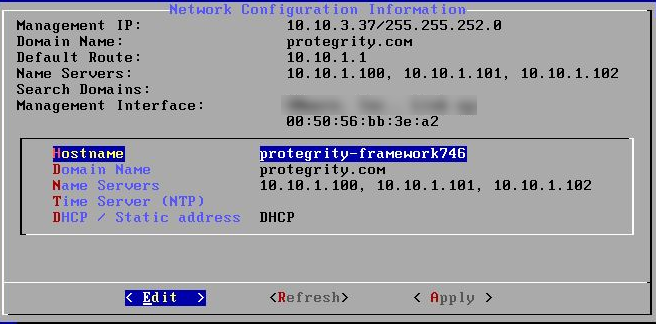
Press Tab to select Apply and press ENTER.
Note: If a DHCP server is detected, then the Select a node screen appears. Select the ESA IP address that you want to use for the ESA communication from the list.
The following dialog appears when the DHCP server is not detected. Press Tab to select Manual, and press Enter to provide the IP address manually or Retry to attempt locating the DHCP server again.
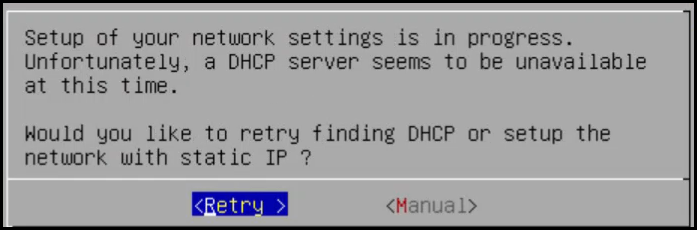
The Network Configuration Information dialog appears. You must enter the network configuration and select Apply to continue.
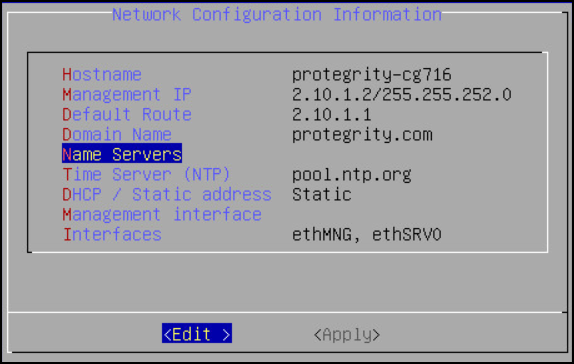
Note: On the DSG, the Management Interface is used for communication between the ESA and the DSG, and accessing the DSG Web UI. The Service Interface is used for handling the network traffic traversing through the DSG.
For more information about the management interface and the service interface, refer to the section Network Planning.
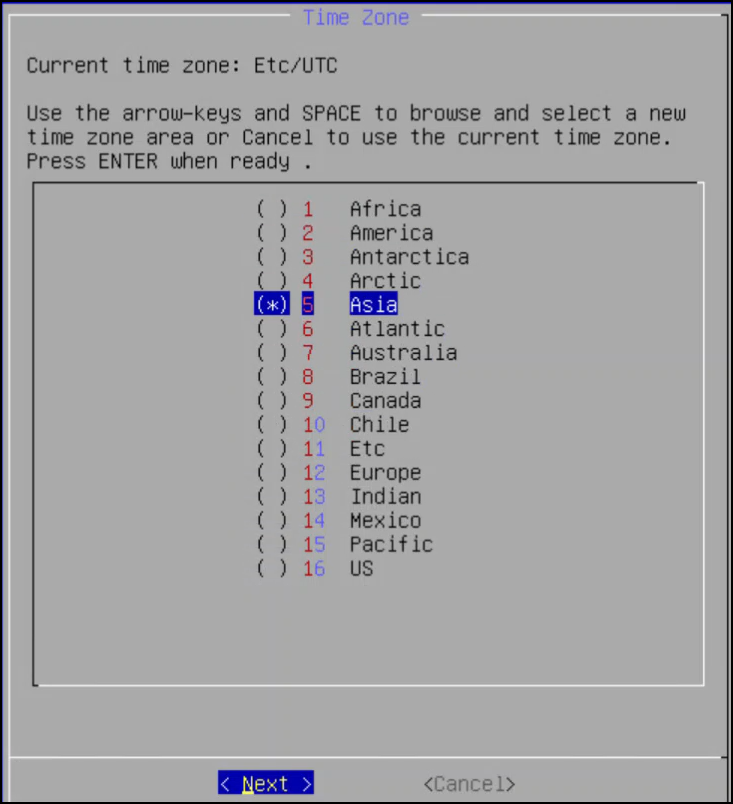
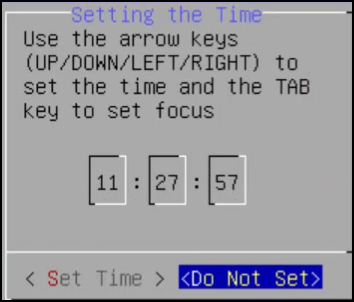
Press Tab to select the time zone of the host, press Tab to select Next, and then press ENTER.
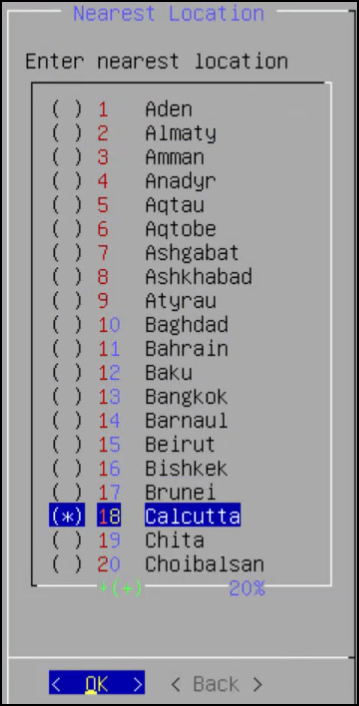
Press Tab to select the nearest location, press Tab to select Next, and then press ENTER.
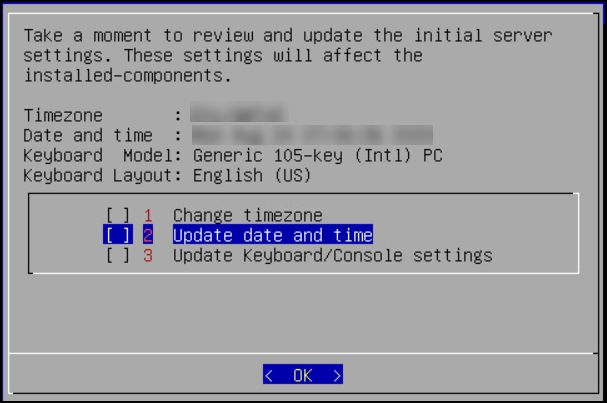
Press Tab to select the required option, press Tab to select OK, and then press ENTER.
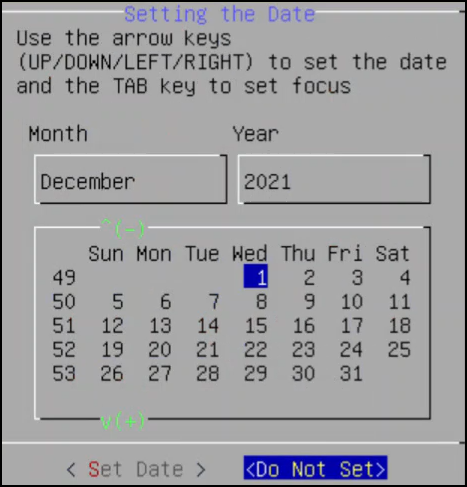
Press Tab to select the required option and then press ENTER.
Press Tab to select the required option and then press ENTER.
Select Enable, press Tab to select OK, and then press ENTER to provide the credentials for securing the GRand Unified Bootloader (GRUB).
Note: GRUB is used to provide enhanced security for the DSG appliance using a username and password combination.
For more information about using GRUB, refer to Securing the GRand Unified Bootloader (GRUB).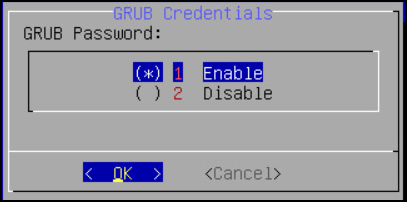
CAUTION: The GRUB option is available only for on-premise installations.
Enter a username, password, and password confirmation on the screen, select OK and press ENTER.
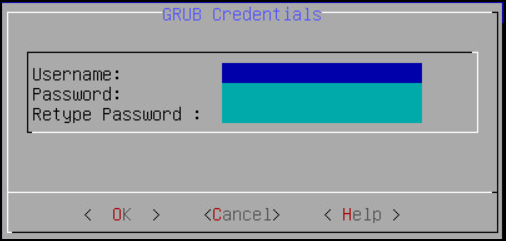
Note: The requirements for the Username are as follows:
- It should contain a minimum of three and maximum of 16 characters.
- It should not contain numbers and special characters.
Note: The requirements for the Password are as follows:
- It must contain at least eight characters.
- It must contain a combination of alphabets, numbers, and printable characters.
Press Tab to set the user passwords, and then press Tab to select Apply and press Enter.
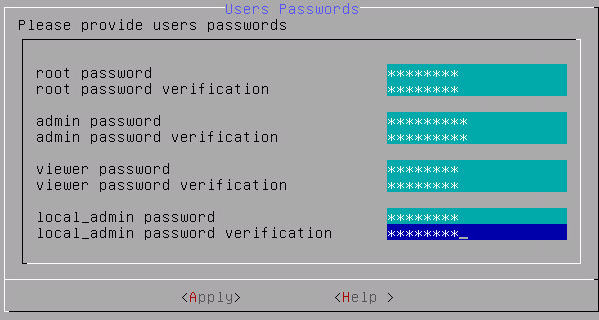
Note: It is recommended that strong passwords are set for all the users.
For more information about password policies, refer to the section Strengthening Password Policy.Enter the IP address or hostname for the ESA. Press Tab to select OK and press ENTER. You can specify multiple IP addresses separated by comma.
The Forward Logs to Audit Store screen appears.

Note: If the IP address or hostname of ESA is not provided while installing the DSG, then the user can add the ESA through ESA Communication.
Select the ESA that you want to connect with, and then press Tab to select OK and press ENTER.
The ESA Selection screen appears.
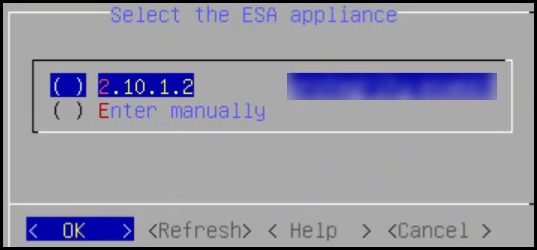
Note: If you want to enter the ESA details manually, then select the Enter manually option. You must enter the ESA IP address when this option is selected.
Provide the username and password for the ESA that you want to communicate with, press Tab to select OK, and then press ENTER.
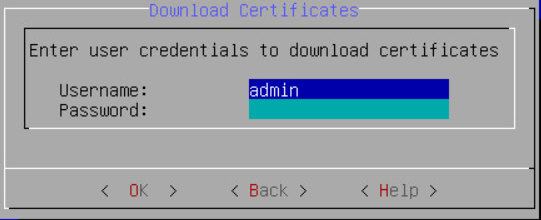
Enter the IP Address and Network Mask to configure the service interface and press Tab to select OK and press ENTER.
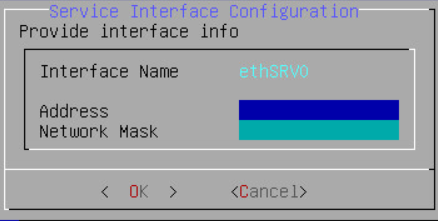
CAUTION: For ensuring network security, the DSG isolates the management interface from the service interface by allocating each with a separate network address. Ensure that two NICs are added to the DSG.
Select the Cloud Utility AWS, press Tab to select OK, and then press ENTER to install the utility. The Cloud Utility AWS utility must be selected if you plan to forward the DSG logs to AWS CloudWatch. If you choose to install the Cloud Utility AWS utility later, you can install this utility from the DSG CLI using the Add or Remove Services option after installing the DSG.
Note: For more information about forwarding the DSG logs to AWS CloudWatch, refer to the section Forwarding logs to AWS CloudWatch.
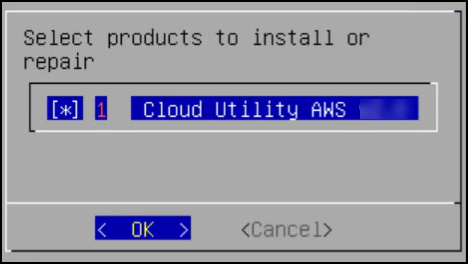
Select the ESA that you want to connect with, and then press Tab to select OK and press ENTER.
The ESA selection screen appears.
Note: If you want to enter the ESA details manually, then select the Enter manually option. You will be asked to enter the ESA IP address or hostname when this option is selected.
Enter the ESA administrator username and password to establish communication between the ESA and the DSG. Press Tab to select OK and press Enter.
The Enterprise Security Administrator - Admin Credentials screen appears.
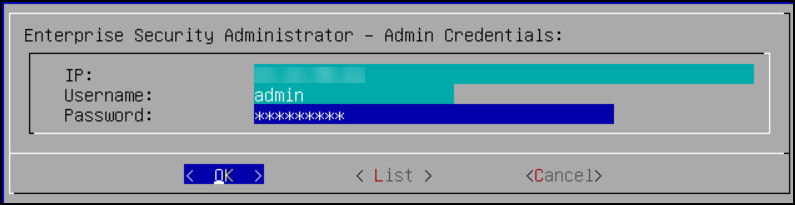
Enter the IP address or hostname for the ESA. Press Tab to select OK and press ENTER. You can specify multiple IP addresses separated by comma.
The Forward Logs to Audit Store screen appears.
After successfully establishing the connection with the ESA, the following Summary dialog box appears.
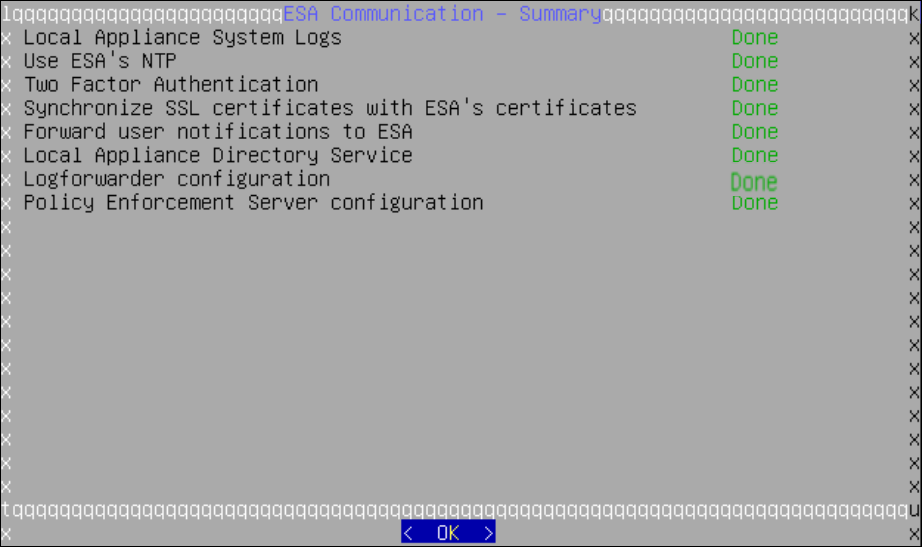
Press Tab to select Continue and press Enter to continue to the DSG CLI manager.
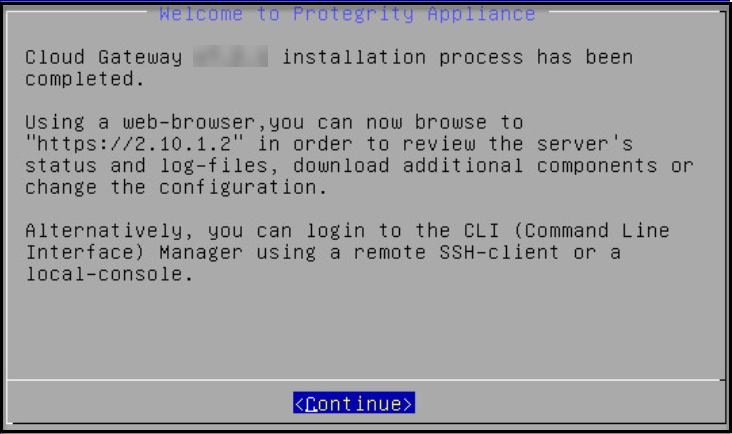
A Welcome to Protegrity Appliance dialog box appears.
Login to the DSG CLI Manager.
Navigate to Administration > Reboot and Shutdown.
Select Reboot and press Enter.
Provide a reason for restarting the DSG node, select OK and press Enter.
Enter the
rootpassword, select OK and press Enter.The DSG node is restarted.
Login to the DSG Web UI.
Click the
(Help) icon, and then click About.Verify that the DSG version is reflected as DSG 4.0.0.
2 - Installing the DSG patch on ESA
Steps to install the DSG patch on the ESA to extend its Web UI with the DSG menu.
Login to the ESA Web UI.
Navigate to Settings > System > File Upload.
Click Choose File to upload the DSG patch ESA_PAP-ALL-64_x86-64_10.2.0.xxxx.DSGUP.4.0.0.x.pty file.
Select the file and click Upload.
The uploaded patch appears on the Web UI.
On the ESA CLI Manager, navigate to Administration > Installation and Patches > Patch Management.
Enter the root password.
Select Install a Patch and press OK.
Select the uploaded patch.
Select Install.
The patch is successfully installed.
After the DSG patch is installed, the DSG component is visible on the ESA Web UI. The details of the DSG component can be verified from the About screen on the ESA. To verify the DSG installation, run the following steps.
- Login to the ESA Web UI.
- Click the (Information) icon, and then click About.
- Verify that the DSG version is reflected as DSG 4.0.0.
. Login to the ESA Web UI.
Navigate to Settings > System > File Upload.
Click Choose File to upload the DSG patch ESA_PAP-ALL-64_x86-64_10.2.0.2632.DSGUP.4.0.0.x.pty file.
Select the file and click Upload.
The uploaded patch appears on the Web UI.
On the ESA CLI Manager, navigate to Administration > Installation and Patches > Patch Management.
Enter the root password.
Select Install a Patch and press OK.
Select the uploaded patch.
Select Install.
The patch is successfully installed.
After the DSG patch is installed, the DSG component is visible on the ESA Web UI. The details of the DSG component can be verified from the About screen on the ESA. To verify the DSG installation, run the following steps.
- Login to the ESA Web UI.
- Click the (Information) icon, and then click About.
- Verify that the DSG version is reflected as DSG 4.0.0.
3 - Configuring the DSG Cluster
Creating a DSG cluster
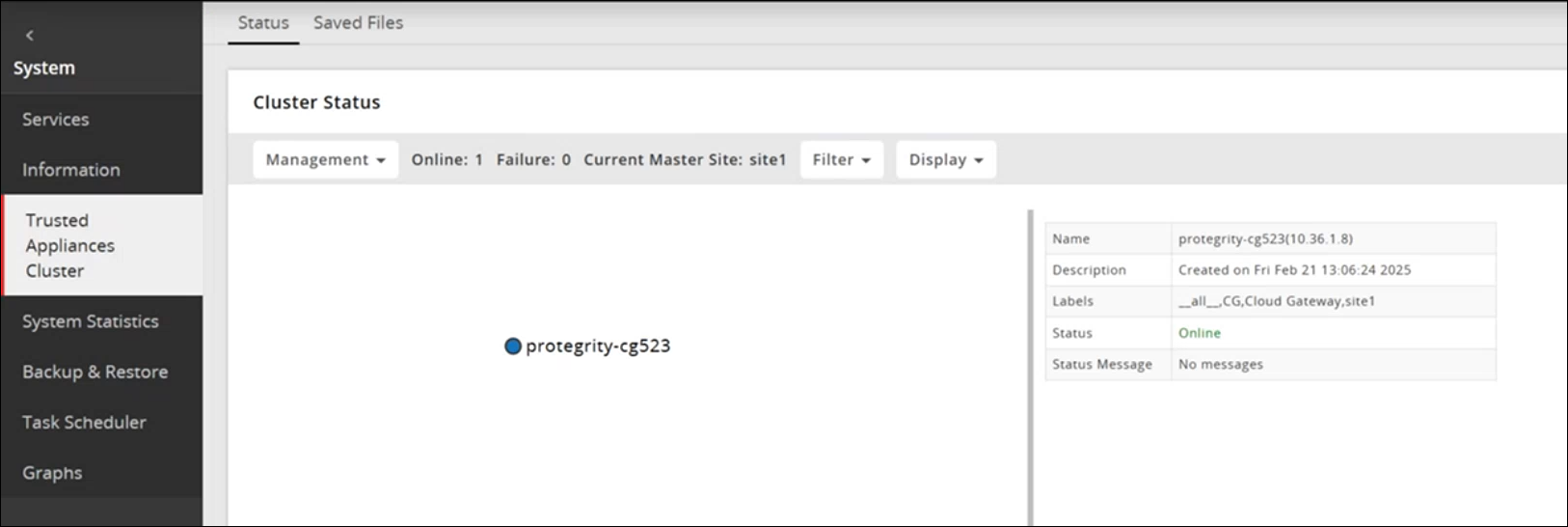
On the DSG Web UI, navigate to System > Trusted Appliances Cluster.
The Join Cluster screen appears.
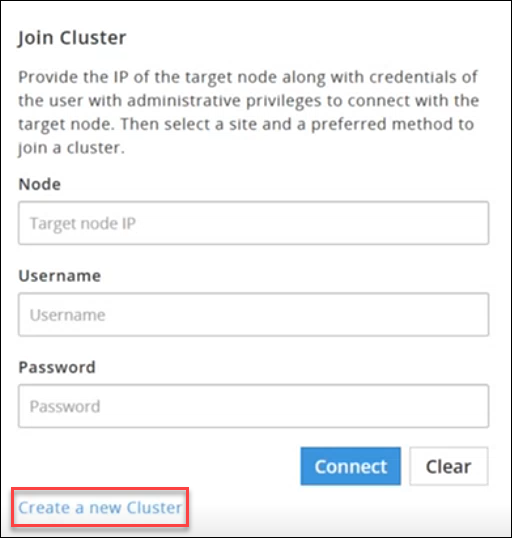
Click Create a new Cluster to create a DSG cluster.
The Create Cluster screen appears.
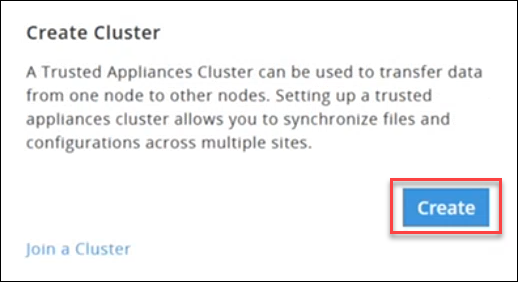
Click Create and select a preferred communication method.
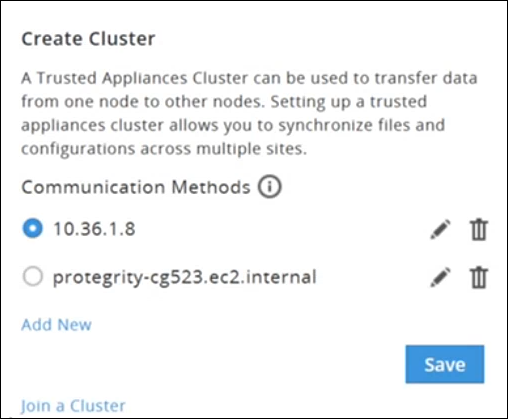
Click Save to create a cluster.
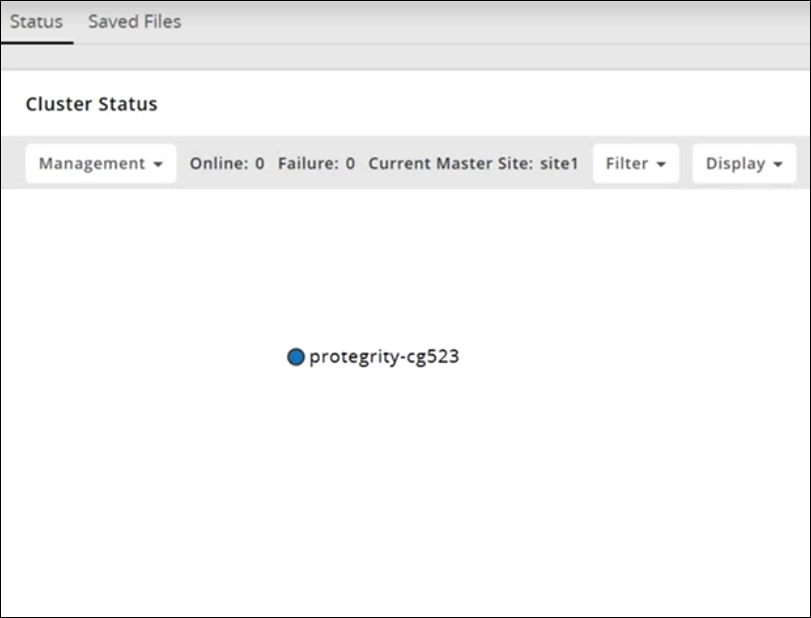
Adding DSG Nodes to an existing Cluster
This section outlines the steps to add additional DSG nodes to an existing cluster in which a DSG node is already part of the Trusted Appliance Cluster (TAC).
Before you begin
Ensure that the communication process between the DSG and the ESA is properly established.
For more information about communcication process, refer to the Set ESA Communication
Ensure that the DSG patch is applied on the ESA.
For more information about applying the DSG patch on the ESA, refer to the Installing the DSG patch on ESA
On the ESA Web UI, navigate to Cloud Gateway > {DSG build number} > Cluster > Monitoring.
The Cluster screen appears.

Select the Actions drop down list in the Cluster Health pane.
The following options appear:
- Apply Patch on Cluster
- Apply Patch on selected Nodes
- Change Groups on Entire Cluster
- Change Groups on Selected Nodes
- Add Node
Perform the following steps to add a node.
Click Add Node.
The Add new node to cluster screen appears.
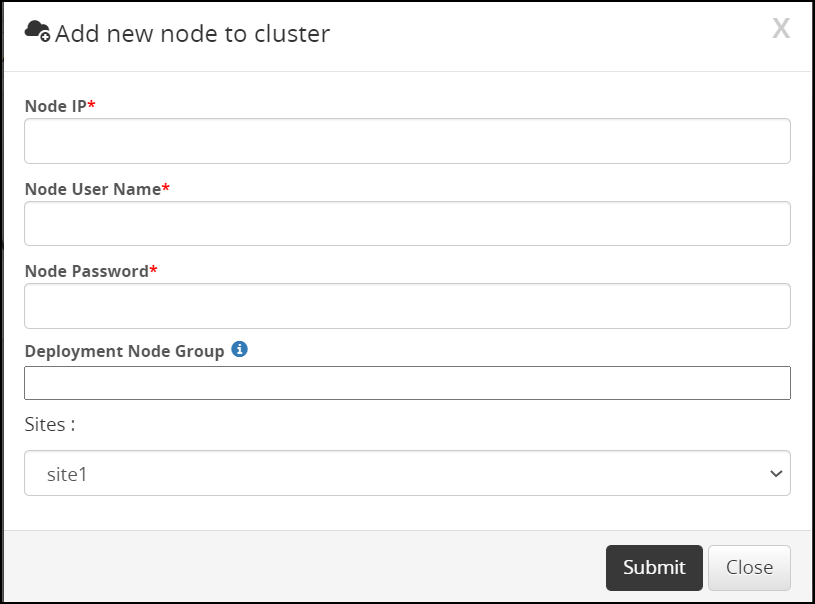
Enter the FQDN or IP address of the DSG node to be added in the cluster in the Node IP field.
Caution: Make sure that the DSG host address matches the Subject Alternative Name(SAN) field or Common Name(CN) in the DSG server certificate.
For more information about checking the DSG host address, refer to the section Ascertaining the host address in the DSG server certificateEnter the administrator user name for the ESA node user in the Node User Name field.
Enter the administrator password for the ESA node user in the Node Password field.
Enter the node group name in the Deployment Node Group field.
Note: If the deployment node group is not specified, by default it will get assigned to the default node group.
Click Submit.
Click Refresh Dropdown > Deploy or Deploy to Node Groups.
For more information about deploying the configurations to entire cluster or the node groups, refer to the section Deploying the Configurations to Entire Cluster and Deploying the Configurations to Node Groups.
The node is added to the cluster.
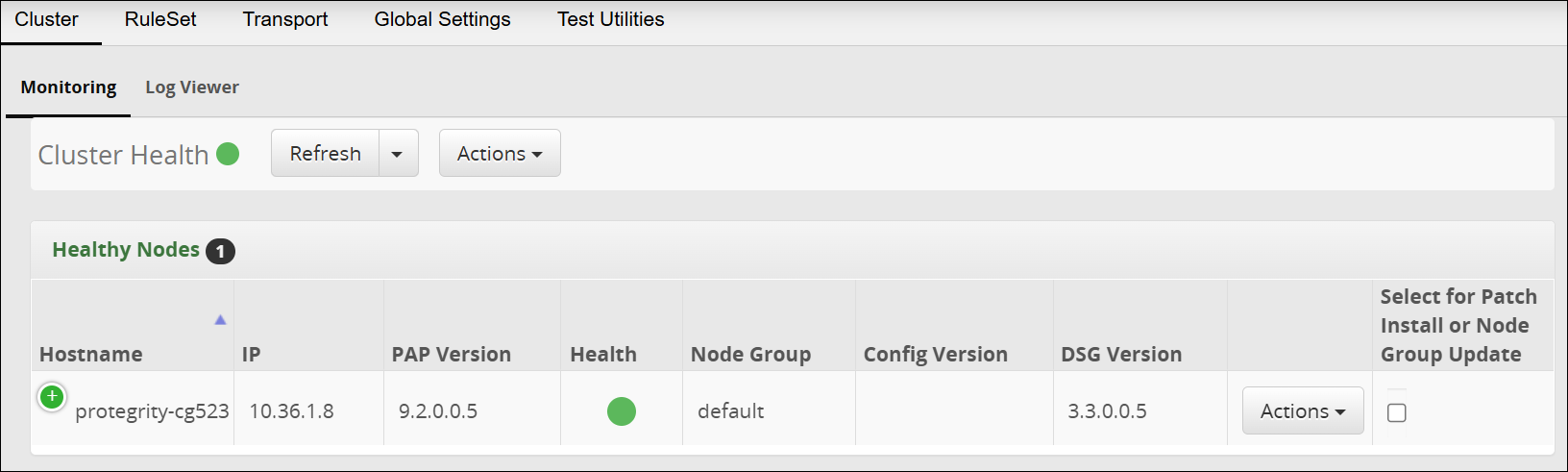
The following figure is the Trusted Appliances Cluster (TAC) page after adding the nodes to the cluster.
4 - Forward Logs to the Audit Store
After installing or upgrading to the DSG 4.0.0, you must configure the DSG to forward the DSG logs to the Audit Store on the ESA using the steps provided in this section.
Ensure that you have configured the Audit Store component on the ESA. Configuring this component allows the Audit Store to store and report the DSG appliance and audit logs.
For more information about Audit Store, refer to the section Logging Architecture.
Forwarding appliance logs to the Audit Store
The appliance logs (syslog), transaction metrics, error metrics, and usage metrics are forwarded through the td-agent service to the Audit Store on the ESA.
To forward appliance logs to the Audit Store:
Login to the DSG CLI Manager.
Navigate to Tools > PLUG - Forward logs to Audit Store.
Enter the password of the DSG root user and select OK.
Enter the username and password of the DSG administrator user and select OK.
Select OK .
Enter the IP address for the ESA and select OK. You can specify multiple IP addresses separated by comma.
Enter y to fetch certificates and select OK.
These certificates are used to validate and connect to the target node. It is required to authenticate with the Audit Store while forwarding logs to the target node.
If the certificates already exists on the system, then specify n in this screen.
Enter the username and password of the ESA administrator user and select OK.
The td-agent service is configured to send logs to the Audit Store and the CLI menu appears.
Repeat step 1 to step 8 on all the DSG nodes in the cluster.
Forwarding audit logs to the Audit Store
The audit logs include protect, reprotect, unprotect, RPP, and Pycore logs. The audit logs are forwarded through the Log Forwarder service to the Audit Store on the ESA, where they are stored.
To forward audit logs to the Audit Store:
Login to the DSG CLI Manager.
Navigate to Tools > ESA Communication.
Enter the password of the DSG root user and select OK.
Select the Logforwarder configuration option. Press Tab to select Set Location Now and press Enter.
Select the ESA that you want to connect with, and then press Tab to select OK and press ENTER.
Note: If you want to enter the ESA details manually, then select the Enter manually option. You will be asked to enter the ESA IP address or hostname when this option is selected.
Enter the ESA administrator username and password to establish communication between the ESA and the DSG. Press Tab to select OK and press Enter.
Enter the IP address or hostname for the ESA. Press Tab to select OK and press ENTER. You can specify multiple IP addresses separated by comma.
After successfully establishing the connection with the ESA, the following Summary dialog box appears. Press Tab to select OK and press Enter.
Repeat step 1 to step 8 on all the DSG nodes in the cluster.
5 - Registering the DSG node with ESA
Before you begin
Ensure that the TAC is created on the ESA.
Ensure that the ESA communication is completed.
Note: Ensure that only one DSG node is registered with the ESA.
On the ESA CLI Manager, navigate to Tools > Register DSG Details.
Enter the root password, press Tab to select OK and press Enter.
Enter the FQDN of the DSG and enter the DSG administrator credentials in the Username and Password text boxes. Press Tab to select OK and press Enter.
The DSG TAC Registration screen appears.
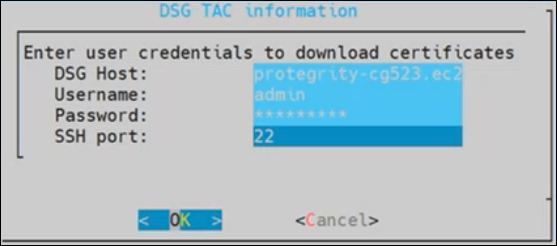
After successfully registering the DSG with the ESA, the following dialog box appears.
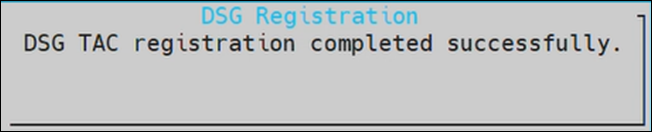
The ESA communication is established successfully between the DSG and the ESA.
6 - Updating the host name or domain name of the DSG or ESA
Perform the following steps if the hostname or FQDN of a DSG node is changed.
Remove this DSG node from the DSG TAC.
On the DSG Web UI, navigate to System > Trusted Appliances CLuster.
Under the Management drop down, select Leave Cluster.
If the custom certificates are used, regenerate these certificates with the updated hostname.
If the custom certificates are not used, regenerate the certificate using the following command.
python3 -m ksa.cert.manager --installation-applyCaution: Run this command only on the DSG node where the hostname or FQDN has changed.
Ensure that the TAC is created on ESA.
For more information about creating a TAC, refer to Create a TAC on ESA.
Run the ESA communication process.
For more information, refer to Setting up ESA communication.If the current DSG node was registered with ESA, then re‑register the DSG node because the hostname has been updated.
For more information, refer to Registering the DSG.If single DSG node was present in the DSG-DSG TAC, then re‑register the DSG node because the hostname has been updated.
For more information, refer to Registering the DSG.If DSG node is not registered with the ESA and there are multiple DSG nodes present in DSG-DSG TAC, then add the DSG node to the cluster.
Adding a DSG node
Perform the following steps if the hostname or FQDN of a ESA node is changed.
If the custom certificates are used, regenerate these certificates with the updated hostname.
If the custom certificates are used, then to choose the latest certificates, run the following steps.
On the DSG Web UI, navigate to Settings > Network > Manage Certificates.
Under the Management area, select Change Certificates.
Under CA Certificate(s), unselect the CA certificate from ESA. Click Next.
Under Server Certificates, retain the default settings. Click Next.
Under Client Certificates, ensure that only the latest DSG System client certificate and key is selected.
Click Apply.
If the custom certificates are not used, regenerate the certificate using the following command.
python3 -m ksa.cert.manager --installation-apply
Caution: Run this command only on the ESA node where the hostname or FQDN has changed.
Update the ESA configuration after updating the host name or domain name of the ESA machine.
For more information, refer to Update the ESA configuration.After updating the certificates, ensure that the set ESA communication steps are performed on each DSG node.
For more information about set ESA communication, refer to Set communication process.
Configure the DSG to forward the logs to Insight on the ESA.
For more information, refer to Forwarding Logs to Insight|