This section describes the process to install the DSG using an OVA template.
This is the multi-page printable view of this section. Click here to print.
Installing DSG on VMware
Installing the DSG using a OVA template
- 1: Creating an OVA Template
- 2: Creating a Virtual Machine using OVA template
- 3: Installing the DSG on the Virtual Machine
1 - Creating an OVA Template
Steps to create an OVA template.
Before proceeding with the installation, ensure that the OVA file provided by Protegrity is available.
Perform the steps to create an Open Virtual Appliance (OVA) template:
Log in to the VMware Client console.
Navigate to Inventories > VMs and Templates.
From the left navigation pane, select the required project.
Right-click the project name and select Deploy OVF Template….The Deploy OVF Template screen appears.
From Select an OVF template, select the preferred method to the .ova file.The .ova file can be accessed using the URL or by uploading a local file. Click Next.
From Select a name and folder, enter the name of the virtual machine in the Virtual machine name field and select the location for virtual machine. Click Next.
From Select a destination compute resource, select the required compute resource. Click Next.
From Review details, verify the publisher, download size, and size on disk. Click Next.
From Select storage, select the required disk formats, VM Storage Policy, Show datastores from Storage DRS clusters, and datastore to store the deployed OVF or OVA template. Click Next.
From Select networks, select the destination for the management and service networks. Click Next.
From Ready to complete, verify the details and click Finish.
Wait till the virtual machine is created.
After the machine is successfully created, from the left navigation pane, select the virtual machine name.
Right-click the virtual machine name and select Convert to Template.A Confirm Convert dialog box appears. Click Yes.The OVA template is successfully created.
2 - Creating a Virtual Machine using OVA template
Steps to create a virtual machine using the OVA template.
Perform the steps to create a virtual machine using the OVA template:
Navigate to Inventories > VMs and Templates.
From the left navigation pane, select the required project.
Select the required OVA template.
Right-click the template name, and select New VM from This Template.
From Select a name and folder, enter the name of the virtual machine in the Virtual machine name field and select the location for virtual machine. Click Next.
From Select a destination compute resource, select the required compute resource. Click Next.
From Select storage, select the required storage.Select the required disk formats, VM Storage Policy, Show datastores from Storage DRS clusters, and datastore to store the deployed OVF or OVA template.
Click Next.
From Select clone options, select the required clone options.
If the Customize the operating option is selected, then the Customize guest OS screen appears.Configure the required OS for the virtual machine. Click Next.
If the Customize this virtual machine’s hardware option is selected, then the Customize hardware screen appears.Configure the required hardware for the virtual machine. Click Next.
From Ready to complete, verify the details and click Finish.
The virtual machine is created successfully.
3 - Installing the DSG on the Virtual Machine
Steps to install the DSG on the virtual machine.
Starting the Installation
Ensure that the virtual machine is powered on before starting the installation process.
To install the DSG:
Select the virtual machine.
Click LAUNCH WEB CONSOLE.
Installing DSG
This section provides information about installing the DSG.
To install the DSG:
Press Tab to select the management network interface, which will be the management NIC for the DSG node. Then, proceed by pressing Tab to select Select and press Enter.
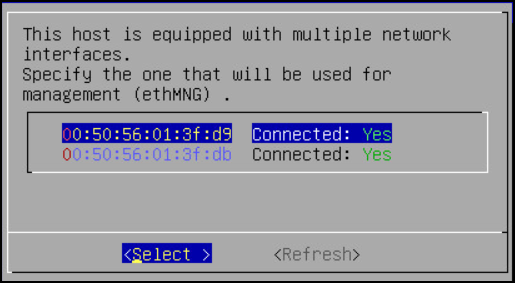
Note: The selected network interface will be used for communication between the ESA and the DSG.
The DSG appliance attempts to detect a DHCP server to setup the network configuration. If the DHCP server is detected, then the Network Configuration Information screen appears with the settings provided by the DHCP server. If you want to modify the auto-detected settings, then press Tab to select Edit and press Enter to update the information.
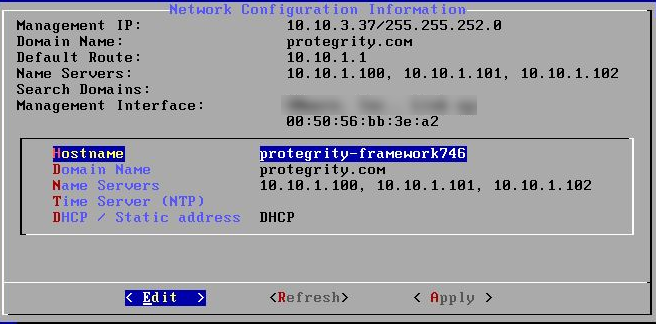
Press Tab to select Apply and press ENTER.
Note: If a DHCP server is detected, then the Select a node screen appears. Select the ESA IP address that you want to use for the ESA communication from the list.
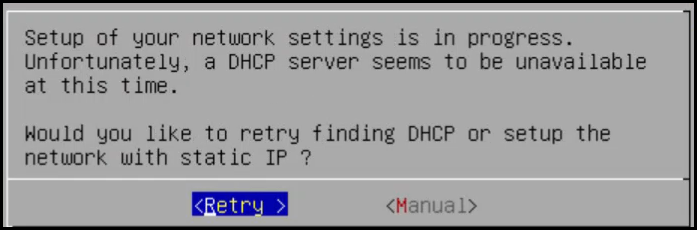
The following dialog appears when the DHCP server is not detected. Press Tab to select Manual, and press Enter to provide the IP address manually or Retry to attempt locating the DHCP server again.
The Network Configuration Information dialog appears. You must enter the network configuration and select Apply to continue.
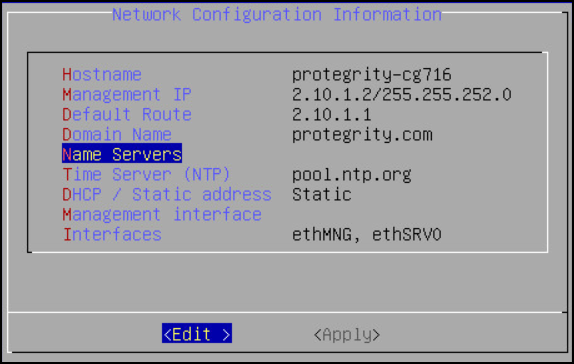
Note: On the DSG, the Management Interface is used for communication between the ESA and the DSG, and accessing the DSG Web UI. The Service Interface is used for handling the network traffic traversing through the DSG.
For more information about the management interface and the service interface, refer to the section Network Planning.
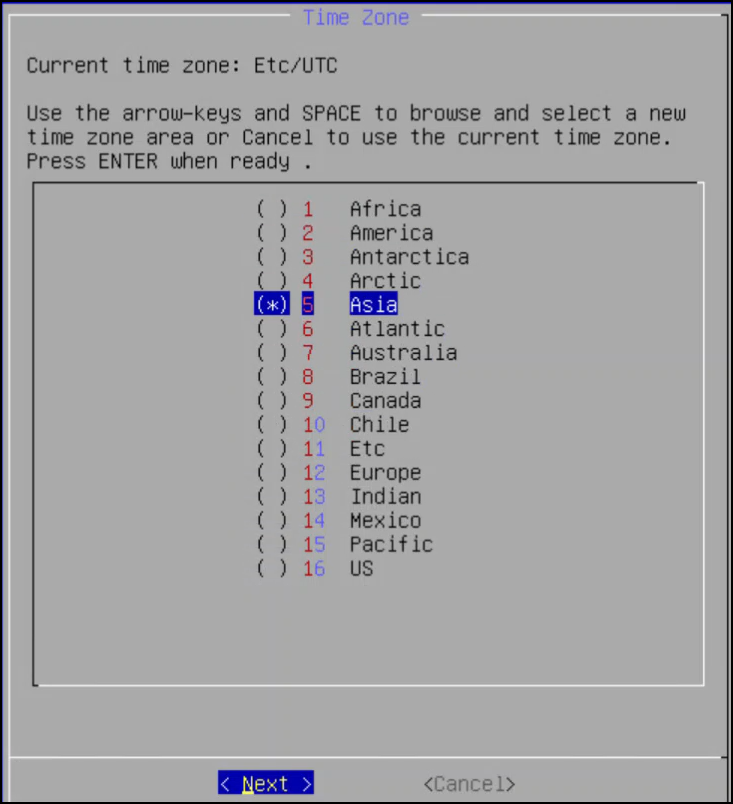
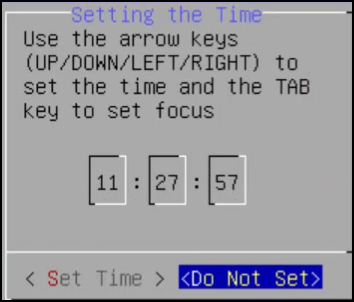
Press Tab to select the time zone of the host, press Tab to select Next, and then press ENTER.
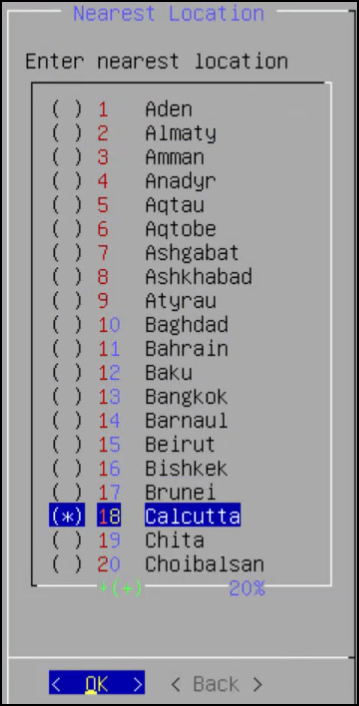
Press Tab to select the nearest location, press Tab to select Next, and then press ENTER.
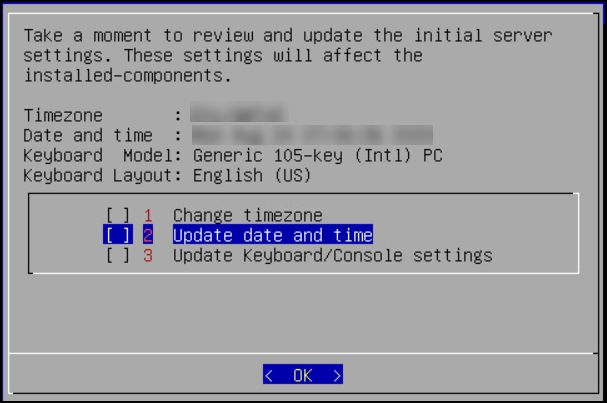
Press Tab to select the required option, press Tab to select OK, and then press ENTER.
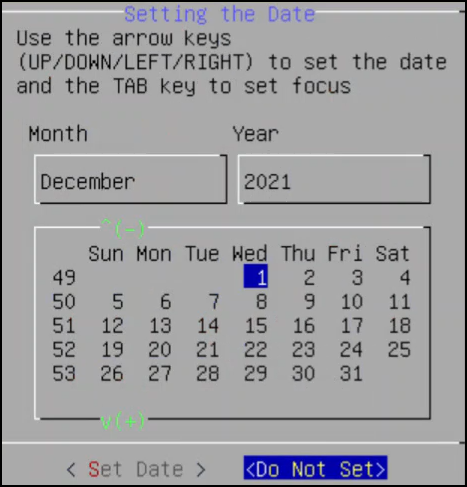
Press Tab to select the required option and then press ENTER.
Press Tab to select the required option and then press ENTER.
Select Enable, press Tab to select OK, and then press ENTER to provide the credentials for securing the GRand Unified Bootloader (GRUB).
Note: GRUB is used to provide enhanced security for the DSG appliance using a username and password combination.
For more information about using GRUB, refer to Securing the GRand Unified Bootloader (GRUB).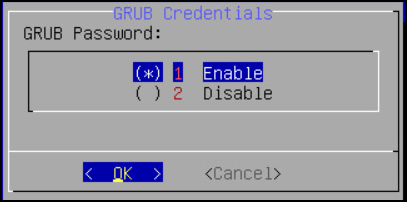
CAUTION: The GRUB option is available only for on-premise installations.
Enter a username, password, and password confirmation on the screen, select OK and press ENTER.
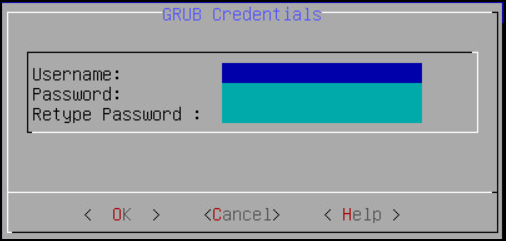
Note: The requirements for the Username are as follows:
- It should contain a minimum of three and maximum of 16 characters.
- It should not contain numbers and special characters.
Note: The requirements for the Password are as follows:
- It must contain at least eight characters.
- It must contain a combination of alphabets, numbers, and printable characters.
Press Tab to set the user passwords, and then press Tab to select Apply and press Enter.
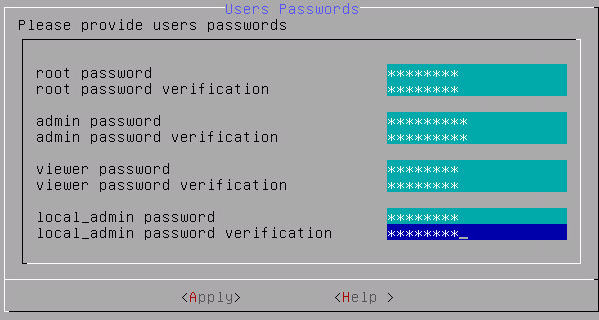
Note: It is recommended that strong passwords are set for all the users.
For more information about password policies, refer to the section Strengthening Password Policy.Enter the IP address or hostname for the ESA. Press Tab to select OK and press ENTER. You can specify multiple IP addresses separated by comma.
The Forward Logs to Audit Store screen appears.

Note: If the IP address or hostname of ESA is not provided while installing the DSG, then the user can add the ESA through ESA Communication.
Select the ESA that you want to connect with, and then press Tab to select OK and press ENTER.
The ESA Selection screen appears.
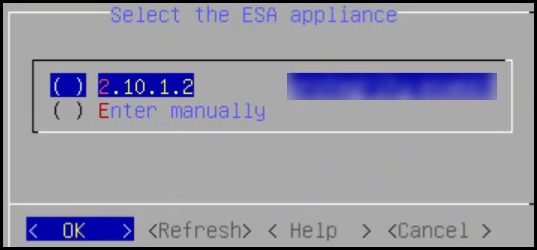
Note: If you want to enter the ESA details manually, then select the Enter manually option. You must enter the ESA IP address when this option is selected.
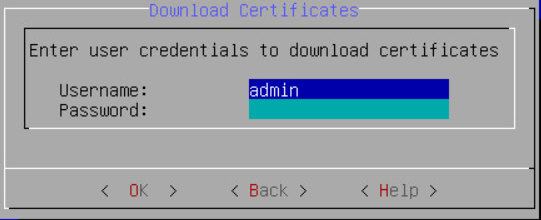
Provide the username and password for the ESA that you want to communicate with, press Tab to select OK, and then press ENTER.
Enter the IP Address and Network Mask to configure the service interface and press Tab to select OK and press ENTER.
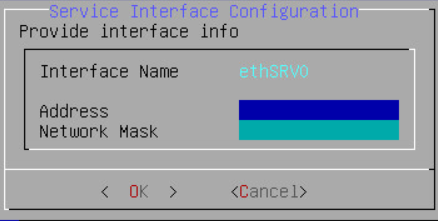
CAUTION: For ensuring network security, the DSG isolates the management interface from the service interface by allocating each with a separate network address. Ensure that two NICs are added to the DSG.
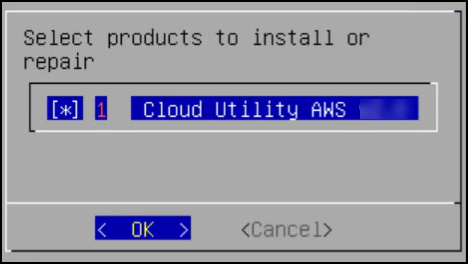
Select the Cloud Utility AWS, press Tab to select OK, and then press ENTER to install the utility. The Cloud Utility AWS utility must be selected if you plan to forward the DSG logs to AWS CloudWatch. If you choose to install the Cloud Utility AWS utility later, you can install this utility from the DSG CLI using the Add or Remove Services option after installing the DSG.
Note: For more information about forwarding the DSG logs to AWS CloudWatch, refer to the section Forwarding logs to AWS CloudWatch.
Select the ESA that you want to connect with, and then press Tab to select OK and press ENTER.
The ESA selection screen appears.
Note: If you want to enter the ESA details manually, then select the Enter manually option. You will be asked to enter the ESA IP address or hostname when this option is selected.
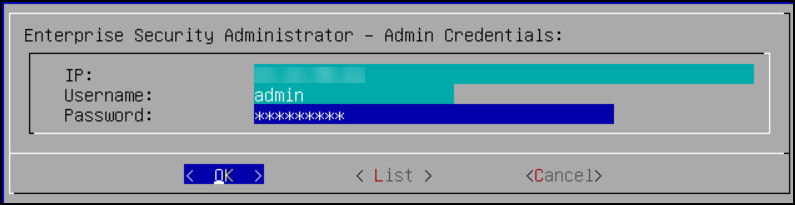
Enter the ESA administrator username and password to establish communication between the ESA and the DSG. Press Tab to select OK and press Enter.
The Enterprise Security Administrator - Admin Credentials screen appears.
Enter the IP address or hostname for the ESA. Press Tab to select OK and press ENTER. You can specify multiple IP addresses separated by comma.
The Forward Logs to Audit Store screen appears.
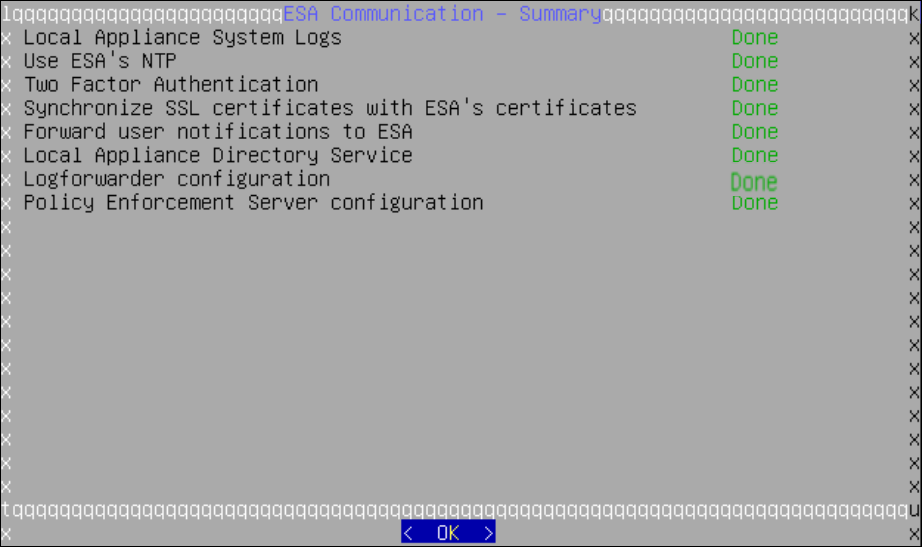
After successfully establishing the connection with the ESA, the following Summary dialog box appears.
Press Tab to select Continue and press Enter to continue to the DSG CLI manager.
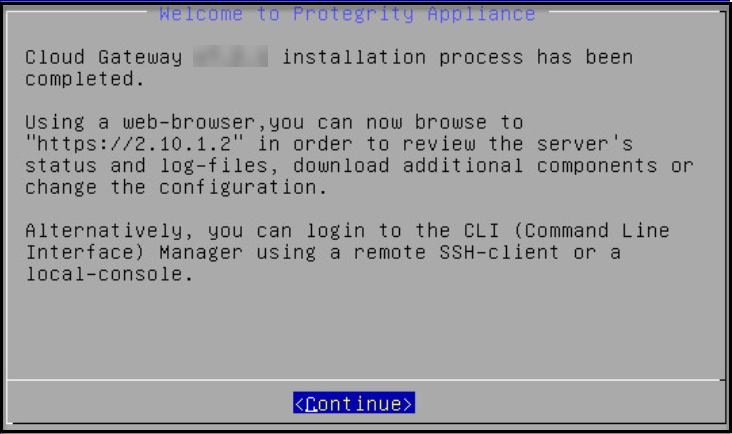
A Welcome to Protegrity Appliance dialog box appears.
Login to the DSG CLI Manager.
Navigate to Administration > Reboot and Shutdown.
Select Reboot and press Enter.
Provide a reason for restarting the DSG node, select OK and press Enter.
Enter the
rootpassword, select OK and press Enter.The DSG node is restarted.
Login to the DSG Web UI.
Click the
 (Help) icon, and then click About.
Verify that the DSG version is reflected as DSG 4.0.0.