DSG 4.0.1 is a Tech Preview build intended only for POC/testing environments and must not be used in production environments.
Important:
- Upgrade from DSG 4.0.1 to any future releases is not supported.
- Back up your system before upgrading to DSG 4.0.1.
Upgrading to DSG 4.0.1
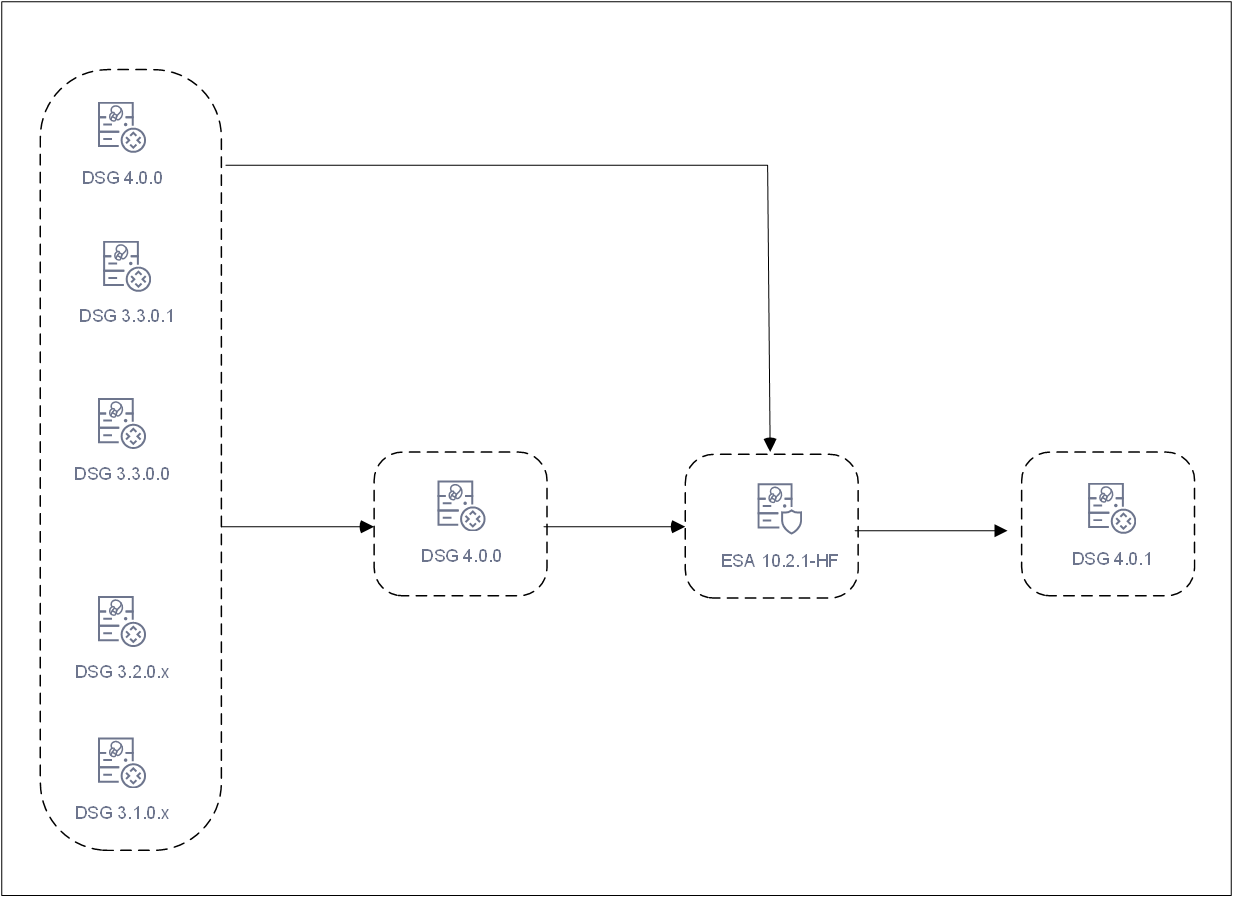
The DSG v4.0.1 can be upgraded on on-premise or cloud platforms. It can be upgraded to 4.0.1 from the following versions:
- 4.0.0
- 3.3.0.x (3.3.0.1 and 3.3.0.0)
- 3.2.0.x (3.2.0.1 and 3.2.0.0)
- 3.1.0.x (3.1.0.0 through 3.1.0.8)
Upgrading DSG and ESA
Upgrading the DSG version involves a series of steps that must be performed on ESA and DSG. The DSG patch in ESA is added to extend the DSG functionality on ESA. It allows ESA to deploy configurations to other DSG nodes.
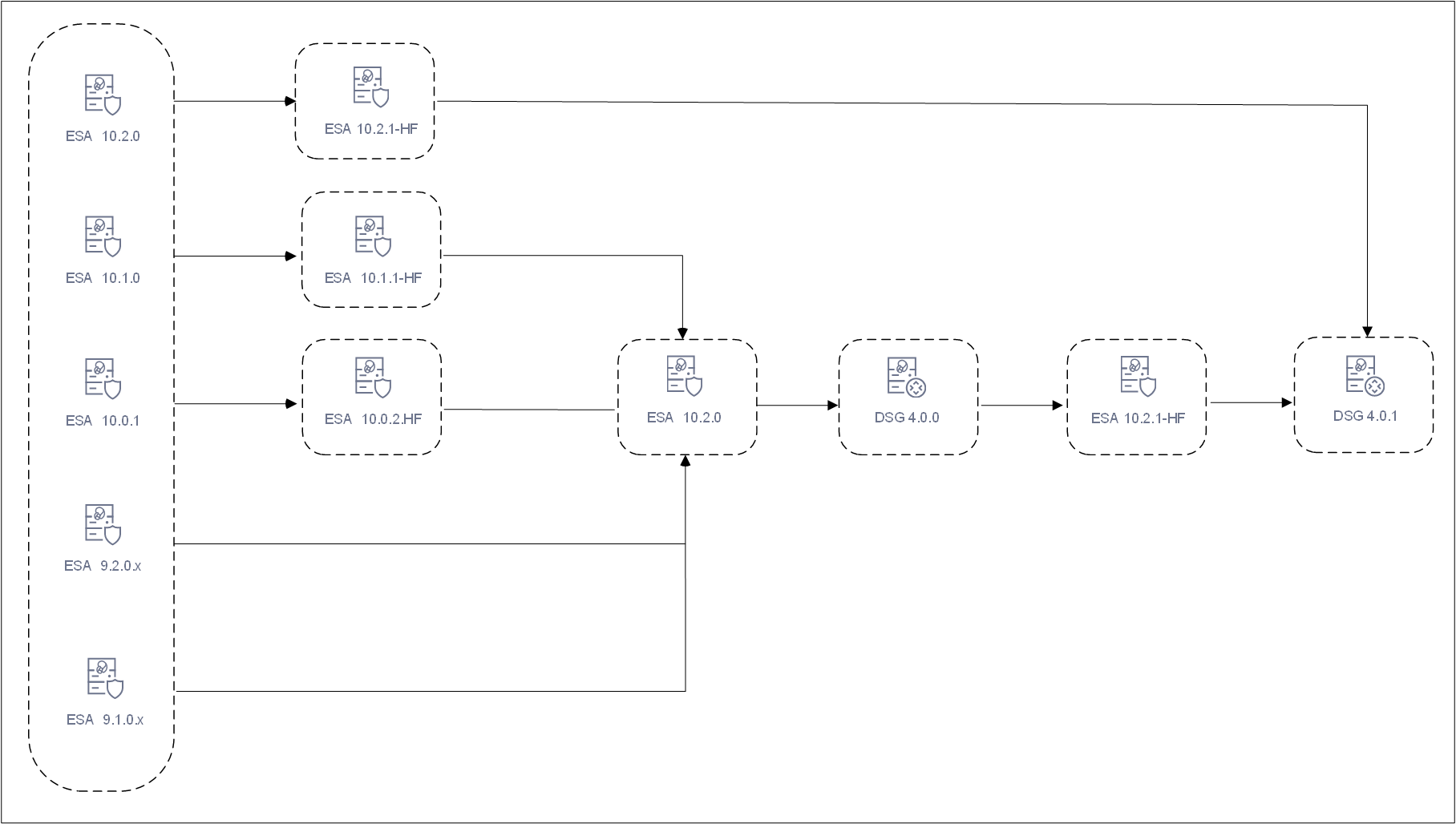
The following figure illustrates DSG component upgrade on ESA.
The following figure illustrates the DSG upgrade.
Before you begin
The following points must be addressed before proceeding with the upgrade.
Ensure that all Protegrity default certificates are removed from both ESA and DSG, and replaced with a common set of custom certificates that include valid SAN (Subject Alternative Name) entries for all required hostnames and IP addresses.
Ensure that DSG and ESA are backed up. For more information about backing up, refer to Backing up from the Web UI. In case of cloud instances, ensure that the snapshot of the instance is taken.
Ensure that communication is established between the ESA and DSG.
Ensure that DSGs and ESA are in a cluster and that the DSGs in the cluster are healthy.
Ensure that the buffer folders in
/opt/protegrity/logforwarder/data/buffer/tcp.<n>and/opt/protegrity/td-agent/es_bufferare empty. If these folders are not empty, check for errors in/var/log/td-agent/td-agent.logor/opt/protegrity/logforwarder/data/logforwarder.log.Record any configurations added to the
/opt/protegrity/alliance/config/features.jsonfile. These configurations will not be retained after the upgrade.Ensure that the configurations in the
alliance_audit.confare noted. These configurations must be added after the upgrade is completed.Ensure that the
DSG_PAP-ALL-64_x86-64_4.0.1.x.UP.tgzfile is available. Extract this file to obtain the Framework and the DSG 4.0.1 patches.Export/import of DSG configurations and Ruleset configurations to DSG v4.0.1 is supported only from DSG v3.1.0.x and higher. Do not import DSG Ruleset backups (
.zip) from older DSG versions into DSG v4.0.1. Navigate to Settings > Backup & Restore to export/import the DSG configurations. For more information about importing configurations, refer to Importing Cloud Gateway ConfigurationsIf Codebook reshuffling is used, back up the following files on each DSG node:
random.dat(BLOB)userpin.bin(User PIN)
For backing up the files, create a
.tgzfile using the following command.tar --same-owner -zcpvf /products/uploads/<filename>.tgz \ /opt/protegrity/defiance_dps/data/random.dat \ /opt/protegrity/defiance_dps/data/userpin.bin \Run the following command to set the required permissions for downloading the
.tgzpackage from the DSG Web UI.chmod 644 /products/uploads/<filename>.tgzPerform the following steps to download the .tgz package from the DSG Web UI.
- Login to the DSG Web UI.
- On the DSG Web UI, navigate to Settings > System > File Upload.
- Select the .tgz file from the Uploaded Files drop-down and click Download.
Uploading and Installing the Patch
The patch can be uploaded from the CLI Manager or the Web UI.
Uploading patch from Web UI.
- Log in to the Web UI with administrator credentials.
- Navigate to Settings > System > File Upload.
- In the File Selection section, click Choose File.
- Select the patch file and click Open. Only the files with .pty and .tgz extensions can be uploaded.
- Click Upload.
Uploading patch from CLI Manager
- Log in to the CLI Manager with administrator credentials.
- Navigate to Administration > OS Console to upload the patch.
- Enter the root password and click OK.
- Upload the patch to the
/opt/products_uploadsdirectory using the SFTP or SCP command.
Perform the following steps to install the patch from the CLI Manager.
- Log in to the CLI Manager with administrator credentials.
- Navigate to Administration > Patch Management to install the patch.
- Enter the root password and click OK.
- Select Install a Patch.
- Select the required patch and select Install.
Upgrading to DSG v4.0.1 from DSG v4.0.0
Steps to upgrade to DSG v4.0.1 from v4.0.0:
Prerequisites
Ensure that ESA 10.2.0 is available with the DSG v4.0.0 patch applied on it.
Ensure that DSG v4.0.0 is available.
Ensure that the
DSG_PAP-ALL-64_x86-64_4.0.1.x.UP.tgzfile is extracted.
Upgrade Procedure
Install the
ESA_PAP-ALL-64_x86-64_10.2.1+HF.xxxxpatch.Install the
ESA_PAP-ALL-64_x86-64_10.2.1+HF.xxxx.DSGUP.4.0.1.xpatch.
Install the
ESA_PAP-ALL-64_x86-64_10.2.1+HF.xxxxpatch.Install the
DSG_PAP-ALL-64_x86-64_4.0.1.UP.xxpatch.
Upgrading to DSG v4.0.1 from DSG v3.3.0.x
Steps to upgrade to DSG v4.0.1 from the following version of DSG:
- 3.3.0.1
- 3.3.0.0
It is pertinent to note that the mentioned version of DSGs are certified for both ESA 10.0.1 and ESA 10.1.0. The following sections describe the process of upgrading DSG to v4.0.1 from both the versions of ESA.
Upgrading to DSG v4.0.1 from DSG v3.3.0.x with ESA 10.1.0
Prerequisites
Ensure that ESA 10.1.0 is available with the DSG v3.3.0.x patch applied on it.
Ensure that DSG v3.3.0.x is available.
Ensure that the
DSG_PAP-ALL-64_x86-64_4.0.1.x.UP.tgzfile is extracted.Ensure that the following patches are downloaded:
ESA_PAP-ALL-64_x86-64_10.1.1+HF.xxxxESA_PAP-ALL-64_x86-64_10.2.0+UP.xxxxESA_PAP-ALL-64_x86-64_10.2.0.xxxx.DSGUP.4.0.0.xxDSG_PAP-ALL-64_x86-64_4.0.0.xx
Ensure the DSG upgrade is carried out node by node across the cluster.
Upgrade Procedure
Install the
ESA_PAP-ALL-64_x86-64_10.1.1+HF.xxxxpatch.Install the
ESA_PAP-ALL-64_x86-64_10.2.0+UP.xxxxpatch.Install the
ESA_PAP-ALL-64_x86-64_10.2.0.xxxx.DSGUP.4.0.0.xxpatch.Install the
ESA_PAP-ALL-64_x86-64_10.2.1+HF.xxxxpatch.Install the
ESA_PAP-ALL-64_x86-64_10.2.1+HF.xxxx.DSGUP.4.0.1.xpatch.
Install the
DSG_PAP-ALL-64_x86-64_4.0.0.xxpatch.Install the
ESA_PAP-ALL-64_x86-64_10.2.1+HF.xxxxpatch.Install the
DSG_PAP-ALL-64_x86-64_4.0.1.xxpatch.
Upgrading to DSG v4.0.1 from DSG v3.3.0.x with ESA 10.0.1
Ensure that ESA 10.1.0 is available with the DSG v3.3.0.x patch applied on it.
Ensure that DSG v3.3.0.x is available.
Ensure that the
DSG_PAP-ALL-64_x86-64_4.0.1.x.UP.tgzfile is extracted.Ensure that the following patches are downloaded:
ESA_PAP-ALL-64_x86-64_10.0.2+HF.xxxxESA_PAP-ALL-64_x86-64_10.2.0+UP.xxxxESA_PAP-ALL-64_x86-64_10.2.0.xxxx.DSGUP.4.0.0.xxDSG_PAP-ALL-64_x86-64_4.0.0.xx
Ensure the DSG upgrade is carried out node by node across the cluster.
Upgrade Procedure
Install the
ESA_PAP-ALL-64_x86-64_10.0.2+HF.xxxxpatch.Install the
ESA_PAP-ALL-64_x86-64_10.2.0+UP.xxxxpatch.Install the
ESA_PAP-ALL-64_x86-64_10.2.0.xxxx.DSGUP.4.0.0.xxpatch.Install the
ESA_PAP-ALL-64_x86-64_10.2.1-HF.xxxxpatch.Install the
ESA_PAP-ALL-64_x86-64_10.2.1+HF.2649.DSGUP.4.0.1.xpatch.
Install the
DSG_PAP-ALL-64_x86-64_4.0.0.xxpatch.Install the
ESA_PAP-ALL-64_x86-64_10.2.1+HF.xxxxpatch.Install the
DSG_PAP-ALL-64_x86-64_4.0.1.xxpatch.
Ensure that all the required nodes are upgraded to v4.0.1. After installing the patches perform the post upgrade steps.
Upgrading to DSG v4.0.1 from DSG v3.2.0.x
Steps to upgrade to DSG v4.0.1 from the following versions of DSG.
- 3.2.0.0
- 3.2.0.1
Prerequisites
Ensure that ESA v9.2.0.x with the corresponding DSG v3.2.0.x patch applied on it.
Ensure that DSG v3.2.0.x is available.
Ensure that the
DSG_PAP-ALL-64_x86-64_4.0.1.x.UP.tgzfile is extracted.Ensure that the following patches are downloaded:
ESA_PAP-ALL-64_x86-64_10.2.0+UP.xxxxESA_PAP-ALL-64_x86-64_10.2.0.xxxx.DSGUP.4.0.0.xxDSG_PAP-ALL-64_x86-64_4.0.0.xx
Ensure the DSG upgrade is carried out node by node across the cluster.
Upgrade Procedure
Install the
ESA_PAP-ALL-64_x86-64_10.2.0+UP.xxxxpatch.Install the
ESA_PAP-ALL-64_x86-64_10.2.0.xxxx.DSGUP.4.0.0.xxpatch.Install the
ESA_PAP-ALL-64_x86-64_10.2.1-HFpatch.Install the
ESA_PAP-ALL-64_x86-64_10.2.1+HF.2649.DSGUP.4.0.1.xpatch.
Install the
DSG_PAP-ALL-64_x86-64_4.0.0.xxpatch.Install the
ESA_PAP-ALL-64_x86-64_10.2.1+HF.xxxxpatch.Install the
DSG_PAP-ALL-64_x86-64_4.0.1.xxpatch.
Ensure that all the required nodes are upgraded to v4.0.1. After installing the patches perform the post upgrade steps.
Upgrading to DSG v4.0.1 from DSG v3.1.0.x
Steps to upgrade to DSG v4.0.1 from any of the following DSG versions:
- 3.1.0.8
- 3.1.0.7
- 3.1.0.6
- 3.1.0.5
- 3.1.0.4
- 3.1.0.3
- 3.1.0.2
- 3.1.0.1
- 3.1.0.0
Prerequisites
Ensure that ESA v9.1.0.x is available with the corresponding DSG v3.1.0.x patch applied on it.
Ensure that corresponding DSG v3.1.0.x is available.
Ensure that the
DSG_PAP-ALL-64_x86-64_4.0.1.x.UP.tgzfile is extracted.Ensure that the following patches are downloaded:
ESA_PAP-ALL-64_x86-64_10.2.0+UP.xxxxESA_PAP-ALL-64_x86-64_10.2.0.xxxx.DSGUP.4.0.0.xxDSG_PAP-ALL-64_x86-64_4.0.0.xx
Ensure the DSG upgrade is carried out node by node across the cluster.
Upgrade Procedure
Install the
ESA_PAP-ALL-64_x86-64_10.2.0+UP.xxxxpatch.Install the
ESA_PAP-ALL-64_x86-64_10.2.0.xxxx.DSGUP.4.0.0.xxpatch.Install the
ESA_PAP-ALL-64_x86-64_10.2.1-HFpatch.Install the
ESA_PAP-ALL-64_x86-64_10.2.1+HF.xxxx.DSGUP.4.0.1.xpatch.
Install the
DSG_PAP-ALL-64_x86-64_4.0.0.xxpatch.Install the
ESA_PAP-ALL-64_x86-64_10.2.1+HF.xxxxpatch.Install the
DSG_PAP-ALL-64_x86-64_4.0.1.xxpatch.
Ensure that all the required nodes are upgraded to v4.0.1. After installing the patches perform the post upgrade steps.
Post Upgrade Steps
The post upgrade steps must be performed only after each DSG node is upgraded to v4.0.1. Run the following steps after the upgrade is completed.
The Log forwarder custom files backed up during upgrade must be restored.
If codebook reshuffling was set up and working before the upgrade, all configurations will migrate automatically. To verify, check if the blob management service is running post‑upgrade. If codebook shuffling is still not working, manually restore the following files.
random.dat(BLOB)userpin.bin(User PIN)
For more information about restoring the files, refer to Restore Backed up Files for Codebook Reshuffling.
Scheduled tasks related to DSG on the Audit Store are enabled. The DSG metrics logs that are generated over time can be scheduled for cleanup regularly. Click Audit Store > Analytics > Scheduler, select the Delete DSG Error Indices, Delete DSG Usage Indices, or Delete DSG Transaction Indices. Click Edit to modify the scheduled task that initiates the Indices file cleanup at regular intervals. The scheduled task can be set to n days based on your preference.
If DSG is upgraded from versions prior to 3.3.0.1, the following steps must be performed. Ensure that this operation is only performed on the registered DSG node.
Restore DSG TACs from the primary DSGs that were earlier a part of TAC from a primary DSG.
Choose an upgraded DSG as a primary DSG.
On the CLI Manager, navigate to Tools > Restore DSG-DSG TAC.
Enter the appropriate user credentials and select OK.
All the DSGs that were a part of a TAC and upgraded are now restored.
Perform the [Setting up ESA Communication] process on the all DSG(/docs/dsg_inst_setesa/).
Register DSG node on by ESA by performing the Registering the DSG node with ESA process.
The blocked_modules and blocked_methods parameters that were added in the
gateway.jsonfile before upgrade, are retained after the DSG is upgraded. However, it is recommended to use the allowed modules and methods for enhanced security. For more information about blocked and allowed modules, refer to Verifying UDF Rules for Blocked Modules and Methods.If any changes are made on a DSG node in the cluster, create a scheduler task to replicate policies, configuration, DSG rulesets, and so on. This operation must be carried out on the DSG that contains the changes to ensure they are propagated to the other DSGs in the cluster.
Restore the configurations in the
alliance_audit.conffile.If the DSG configurations were deployed to specific node groups before upgrade, ensure that the configurations are deployed to the respective node groups again after the upgrade is completed. If no specific node groups are available, deploy the configurations to all the nodes.
Feedback
Was this page helpful?