Installing the AP Java Protector
Note: ARM64 support is available only from version 10.0.1 and requires the separate build
ApplicationProtector_Linux-ALL-64_arm64_JRE-1.8-64_<version>.tgz.
Extracting the Setup Scripts and Package
To extract the setup scripts and package:
- Download the
ApplicationProtector_Linux-ALL-64_x86-64_JRE-1.8-64_<version>.tgzfile to any location on the machine where you want to install the protector. - Extract the AP Java installation package using the following command.The following setup files are extracted:
tar –xvf ApplicationProtector_Linux-ALL-64_x86-64_JRE-1.8-64_<version>.tgzApplicationProtector_Linux-ALL-64_x86-64_JRE-1.8-64_<version>.tgzsignatures/ApplicationProtector_Linux-ALL-64_x86-64_JRE-1.8-64_<version>.sig
- Verify the digital signature of the signed AP Java build.
For more information about verifying the signed AP Java build, refer to Verification of Signed Protector Build. - Extract the AP Java installation package again using the following command.The following setup files are extracted:
tar –xvf ApplicationProtector_Linux-ALL-64_x86-64_JRE-1.8-64_<version>.tgzLogforwarderSetup_Linux_x64_<version>.shRPAgentSetup_Linux_x64_<version>.shAPJavaSetup_Linux_x64_<version>.sh
Installing Log Forwarder on Linux
The steps to install the Log Forwarder on a Linux platform using the Interactive mode or through the Silent mode are described in this section.
Note: To preserve all the configurations while upgrading the Log Forwarder, ensure that you backup all the files present under the
/opt/protegrity/logforwarder/data/config.ddirectory.
For more information about installing Log Forwarder on Linux, refer to Installing Log Forwarder on Linux.
Using Interactive Mode
For more information about installing the Log Forwarder using Interactive Mode, refer to Installing Log Forwarder on Linux using Interactive Mode.
Using Silent Mode
For more information about installing Log Forwarder using the silent mode, refer to Installing Log Forwarder on Linux using Silent Mode.
Installing RP Agent on Linux
The steps to install the RP Agent on a Linux platform using the Interactive mode or through the Silent mode of installation are described in this section.
For more information about installing RP Agent, refer to Installing RP Agent on Linux or Unix.
Using Interactive Mode
For more information about installing RP Agent on Linux using Interactive Mode, refer to Installing RP Agent on Linux or Unix using Interactive Mode.
Using Silent Mode
For more information about installing RP Agent using Silent Mode, refer to Installing RP Agent on Linux or Unix using Silent Mode.
AP Java v10.0.1 only supports Linux ARM64.
The steps to install the RP Agent on a Linux platform using the Interactive mode or through the Silent mode of installation are described in this section.
RPA Secure Mode with ESA on Linux
Before proceeding with the RPA installation in secure mode, ensure that the required CA certificate is available and trusted on the system.
For ESA
Download the certificate from ESA.
For more information about downloading certificates from ESA, refer to Manage Certificates.
After obtaining the certificate, configure the environment variable:
| Variable | Value |
|---|---|
| SSL_CERT_FILE | Full path to the certificate file (for example, /opt/ca.crt) |
When prompted for the ESA hostname or IP during RPA installation, ensure it is included in the ESA TLS certificate (CN or SAN) and is resolvable from the RPAgent host.
After the CA certificate is available, proceed with the RPA installation.
For more information about installing RP Agent, refer to Installing RP Agent on Linux or Unix.
Using Interactive Mode
For more information about installing RP Agent on Linux using Interactive Mode, refer to Installing RP Agent on Linux or Unix using Interactive Mode.
Using Silent Mode
For more information about installing RP Agent using Silent Mode, refer to Installing RP Agent on Linux or Unix using Silent Mode.
Installing Application Protector Java on Linux
The steps to install the AP Java on a Linux platform using the Linux installer or through the Silent mode of installation, are described in this section.
Using Linux Installer
To install the AP Java on the Linux platform using the Linux installer:
Run the AP Java installer using the following command.
./APJavaSetup_Linux_x64_<version>.shThe prompt to continue the installation appears.
*****************************************************
Welcome to the AP Java SDK Setup Wizard
*****************************************************

This will install AP Java SDK on your computer.

Do you want to continue? [yes or no]
If you want to continue with the installation of the AP Java SDK, then type yes else type no.
If you type yes, then the prompt to enter the installation directory appears.
Please enter installation directory
[/opt/protegrity]:
If you type no, then the installation of the AP Java aborts.
The AP Java is installed successfully.
The default installation directory for the AP Java on a Linux platform is /opt/protegrity/sdk/java.
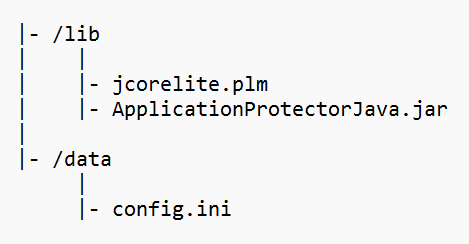
The following folder structure is applicable only for v10.0.0.
Ensure that the following folder structure is maintained:
/liband/datadirectories are located at the same directory levelApplicationProtectorJava.jarandjcorelite.plmare located inside the/libdirectoryconfig.inifile is located in the /data directory
Using Silent Mode
You can also execute the AP Java installer without any manual intervention, which is also known as the Silent mode of installation. The following parameter must be provided to execute the installer in the Silent mode.
| Parameter | Description |
|---|---|
| -dir | Optional install directory Default: /opt/protegrity |
./APJavaSetup_Linux_x64_<version>.sh [-dir <directory>]
Feedback
Was this page helpful?