The Protegrity Big Data Protector for AWS Databricks delivers end‑to‑end data protection. Organizations deploying the Big Data Protector rely on modern, supported storage options such as Workspace storage, Unity Catalog Volumes, and cloud object storage like Amazon S3.
Designed to secure sensitive data across analytics pipelines, the Big Data Protector applies advanced tokenization and encryption during Spark execution and enforces centralized, policy‑driven controls. Whether installed via Workspace-backed paths or deployed using S3 buckets for configuration and script delivery, the Protector ensures resilient execution across AWS Databricks clusters.
By embracing cloud‑native storage paths, this approach ensures long‑term compatibility with Databricks platform changes while maintaining Protegrity’s standard of seamless and transparent protection. Organizations can continue to process high‑value datasets on AWS Databricks with confidence knowing that sensitive information is secured across its lifecycle, even as the underlying platform evolves.
The Protegrity Big Data Protector for AWS Databricks empowers organizations to secure sensitive data across their analytics pipelines by combining high‑performance protection mechanisms with flexible deployment models tailored for modern cloud architectures. Central to this capability are two approaches:
Each approach is designed to address different customer requirements around scalability, infrastructure usage, and cost optimization. Together, these two approaches provide enterprises the flexibility to choose a data protection strategy aligned with their architectural, cost, and compliance requirements. For example, a fully cluster-local data protection strategy can be leveraged using AP REST. On the other hand, a data protection strategy can also be centrally managed via Cloud Protector, or in hybrid deployments. This dual-path model ensures that AWS Databricks customers can achieve seamless, transparent, policy-based data protection while continuing to extract high-value insights from their data securely and efficiently.
Note: The documentation covers instructions to install the Big Data Protector on AWS Databricks using the x86-64 and ARM64 architectures. For ease of access, the commands and or terminal logs will appear in a tabbed format for each of the architectures.
Application Protector REST Approach
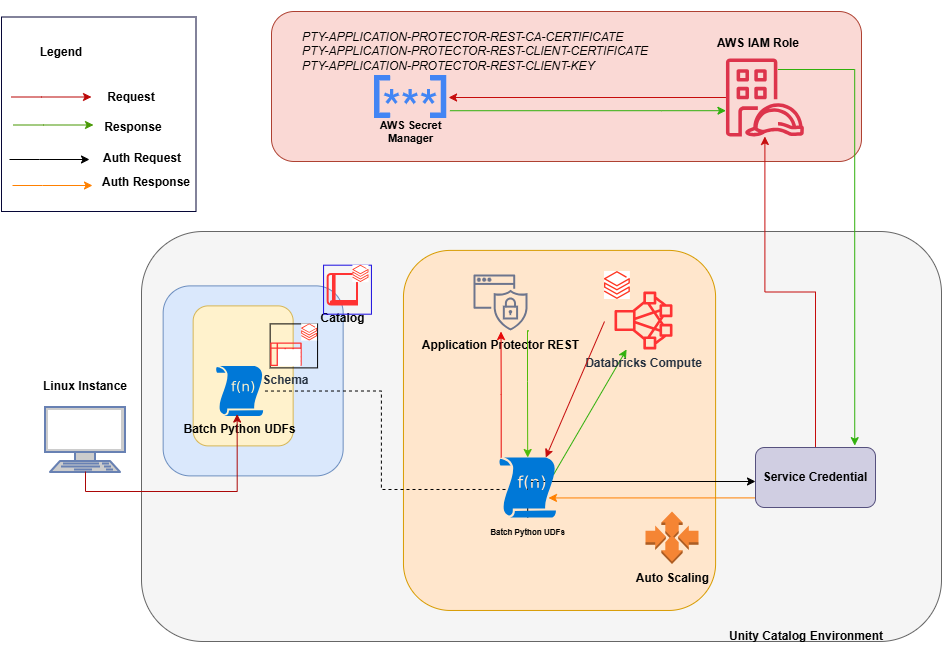
The AP REST model enables data protection directly within the Databricks cluster itself, eliminating the need for a separate Cloud API infrastructure. This approach is particularly suitable for customers who want to avoid maintaining additional cloud-native services for protection operations.
With AP REST, protection workflows are executed through REST endpoints running on the cluster, allowing seamless scaling along with Databricks’ auto-scaling compute. This ensures that sensitive data remains protected throughout processing while also adapting automatically to dynamically assigned IPs in auto-scaling environments. This results in an operationally efficient fit for Spark-driven workloads on AWS.
For the Application Protector REST Approach, the following cluster types are supported:
- Databricks Dedicated Compute
- Databricks Standard Compute
For the Application Protector REST approach, the following sections are applicable:
- Understanding the Architecture
- System Requirements
- Extracting the Installation Package
- Working with the Configurator Script
- Retrieving the IP Address
- Uploading the Secrets
- Creating the User Defined Functions
- Editing the Cluster Configuration
- Dropping the User Defined Functions
Cloud Protector Approach
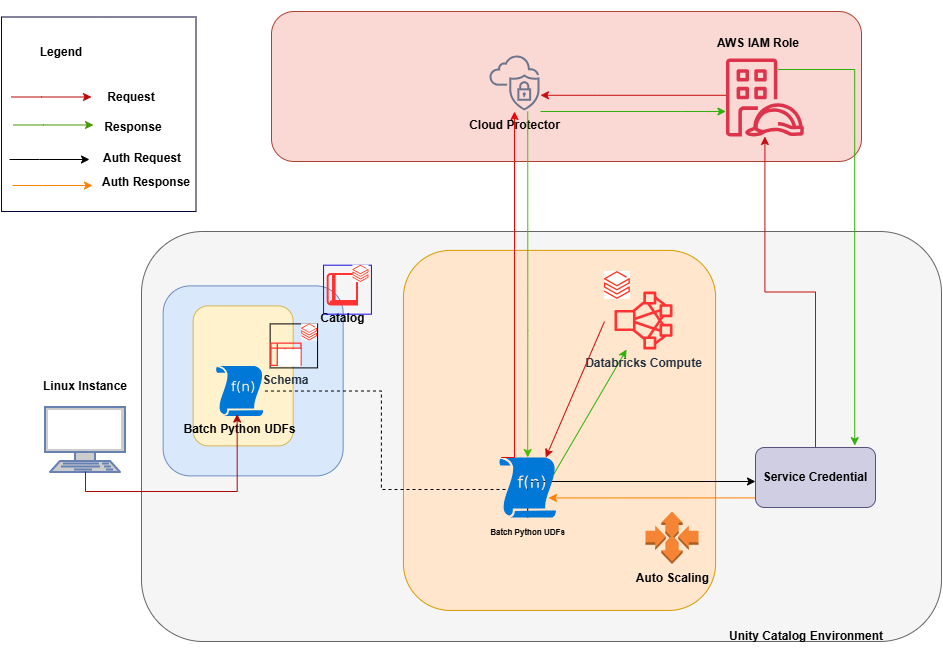
The Cloud Protector approach extends protection capabilities by offering centralized, cloud-hosted security services for environments that require externally managed protection layers. It enables highly scalable, policy-driven tokenization and encryption without requiring protection logic to reside inside the Databricks compute itself.
In contexts where Cloud Protector is integrated with the Big Data Protector, organizations benefit from lifecycle-wide protection that spans storage, compute, and inter-system data transfers. Cloud Protector provides the foundation for UDF-driven protections, including Spark and Unity Catalog–level enforcement, ensuring centralized governance across distributed analytics ecosystems.
For the Cloud Protector approach, the following cluster types are supported:
- Databricks Dedicated Compute
- Databricks Standard Compute
- Databricks SQL Warehouse
For the Cloud Protector approach, the following sections are applicable: